Set Trade Type Efficiently Using ReadyTeam
This demo showcases how to set the trade type within Readyteam to streamline your workflow.
Go to app.readyteam.ai
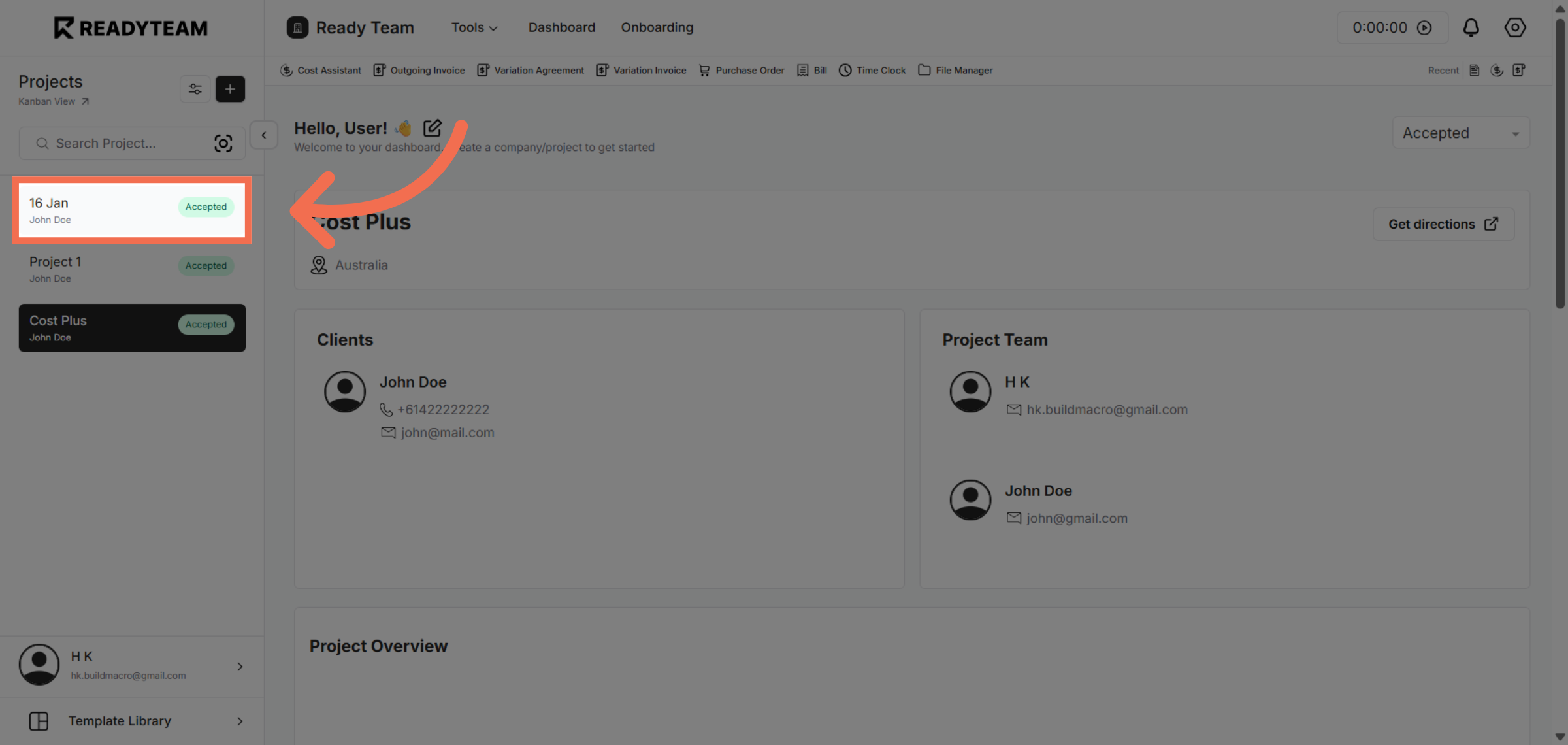
1. Select Specific Project
Click the Specific Project to begin setting the trade type.
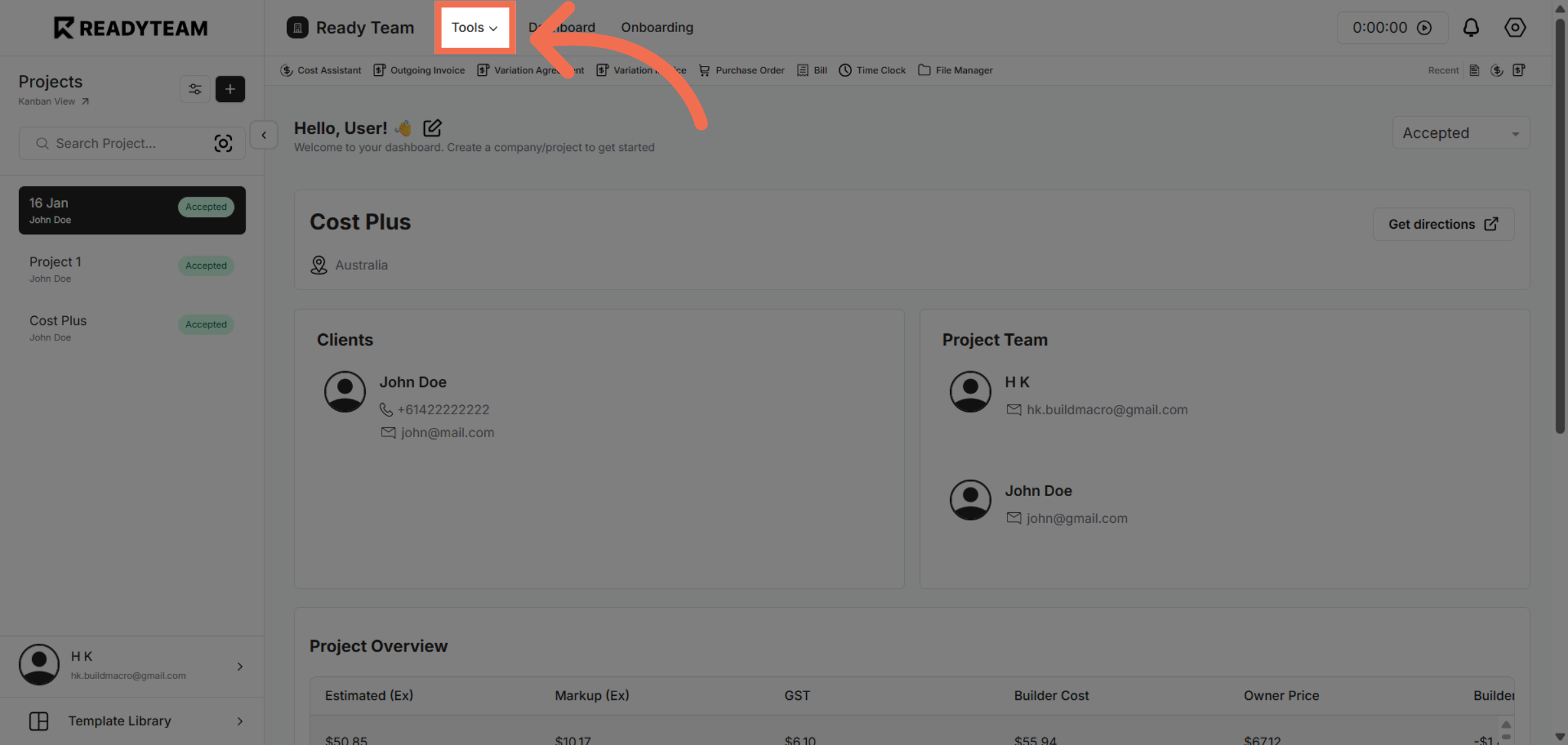
2. Open Tools Menu
Click the Tools menu to access additional functionalities for trade management.
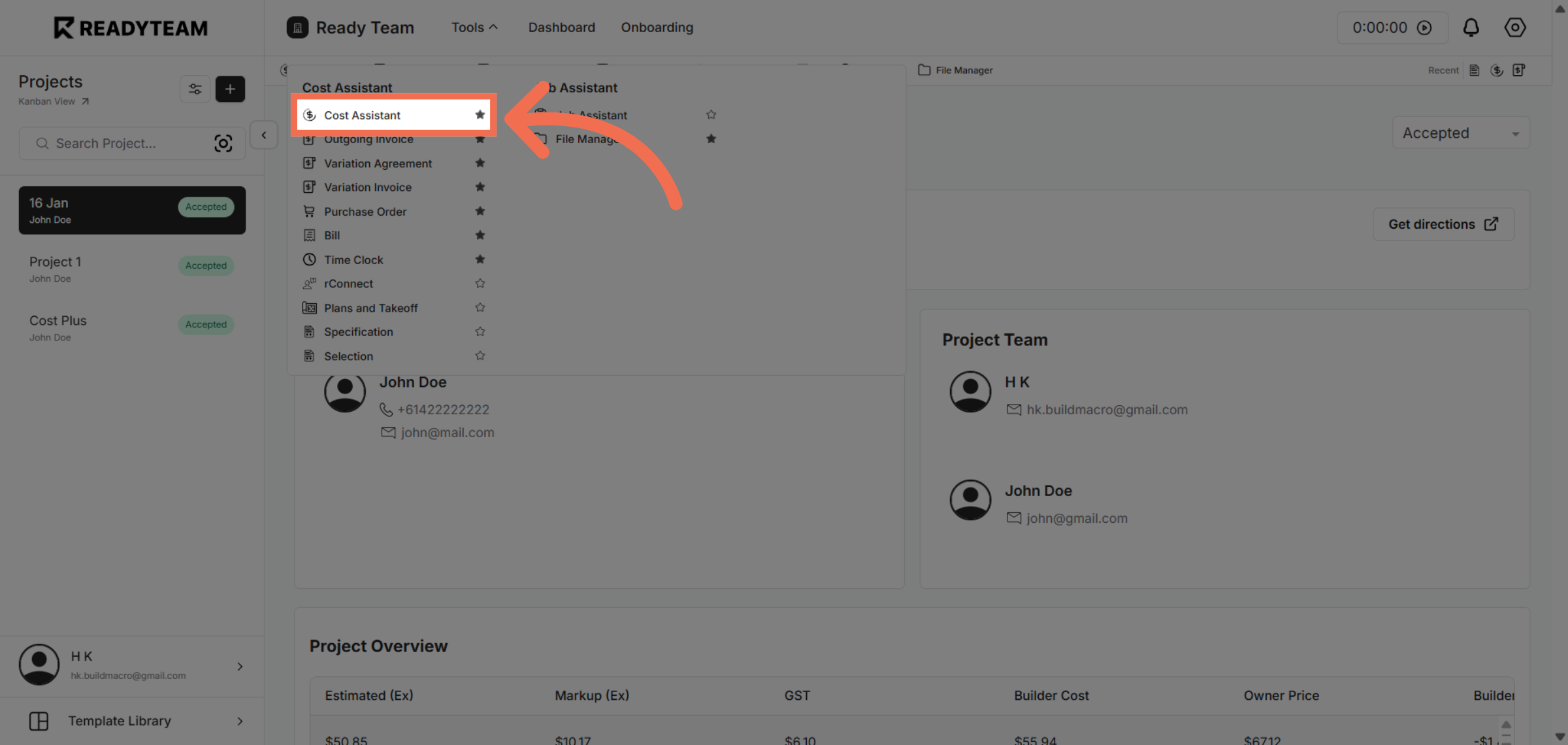
3. Access Cost Assistant Feature
Click Cost Assistant to utilize cost-related tools that assist in trade evaluation.
4. Initiate Trade Type Selection
Click the designated area to start selecting the trade type for the current entry.
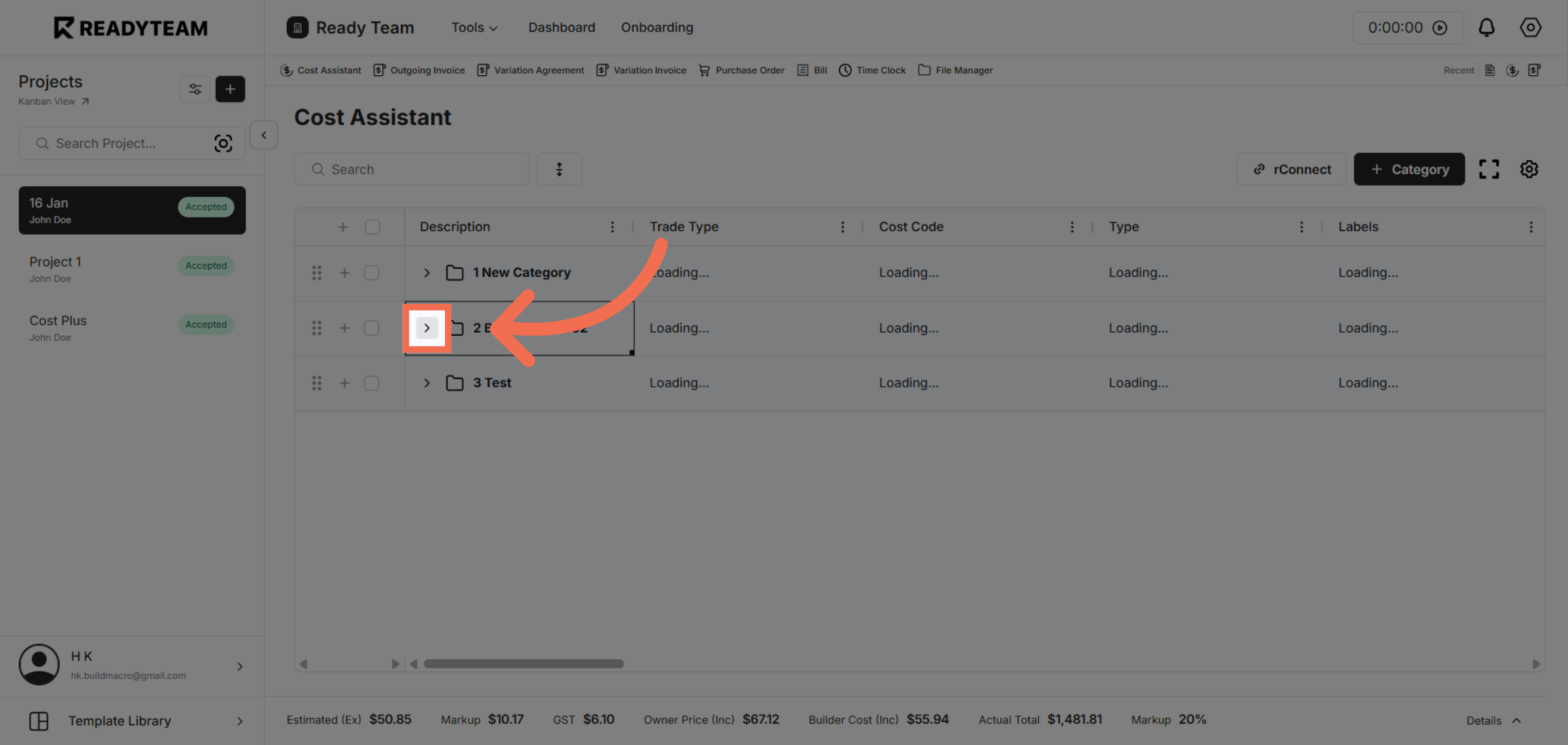
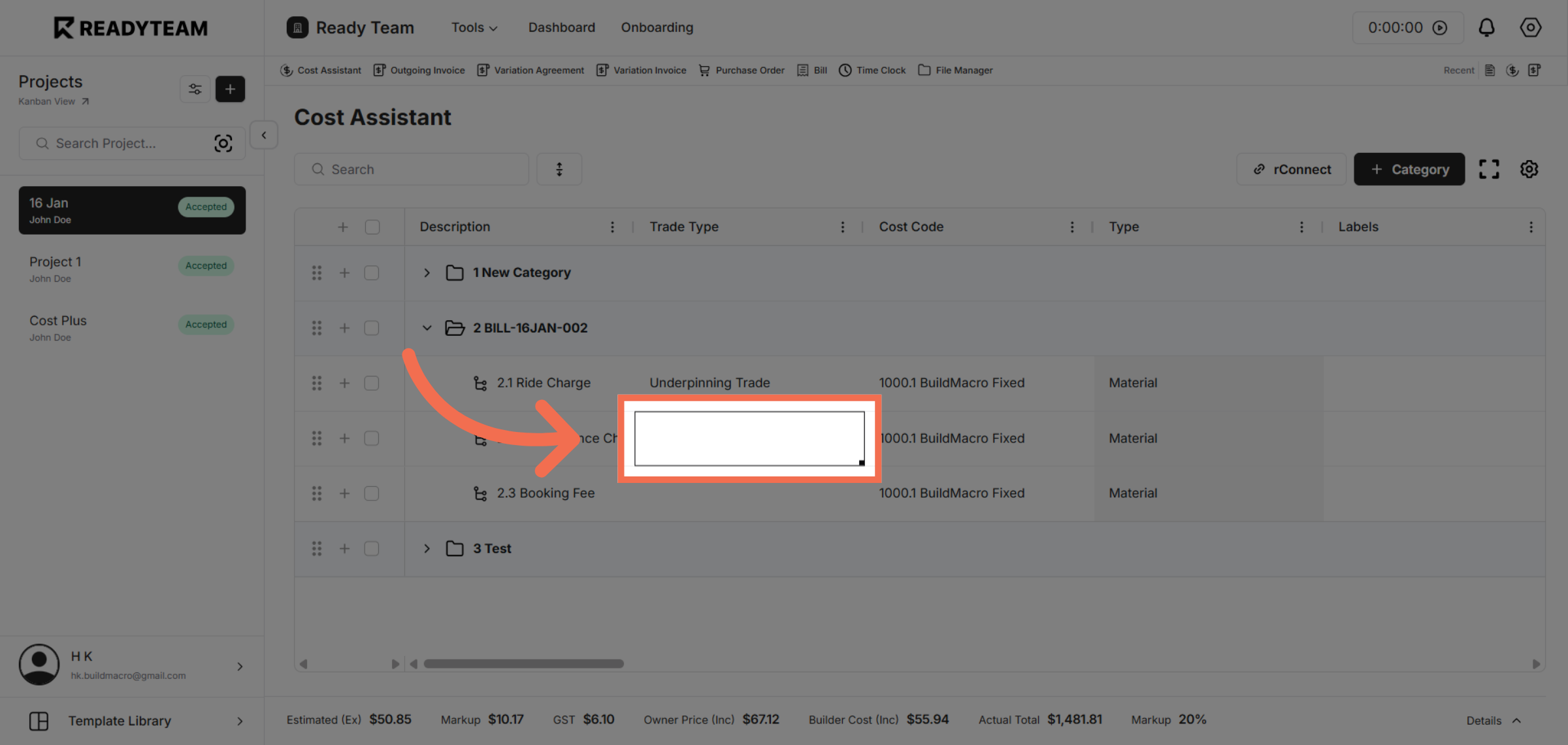
5. Open Trade Type Options
Click the confirmation area to finalize your trade type choices.
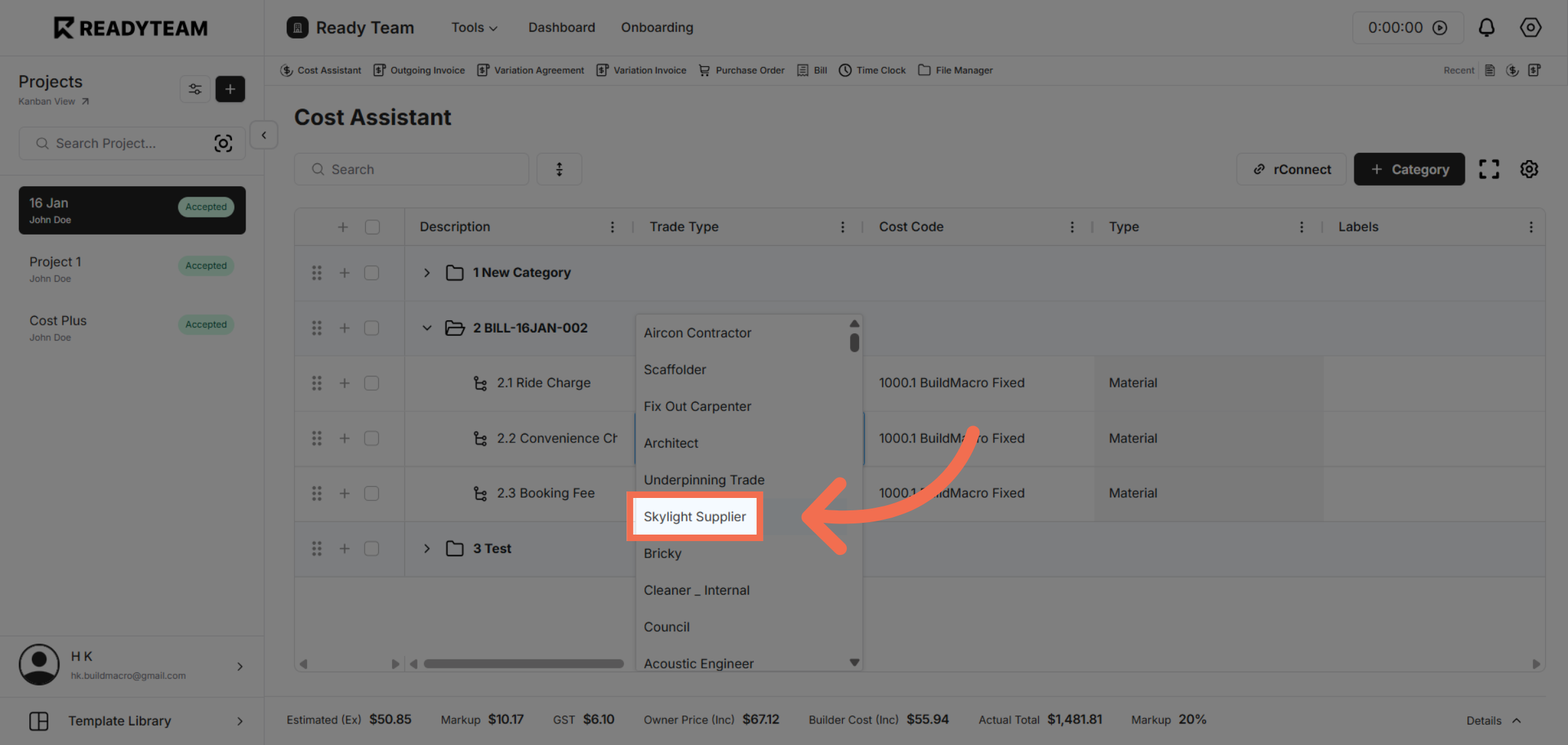
6. Choose Trade Type Option
Click Skylight Supplier to assign this supplier as part of the trade type configuration.
This demo demonstrated how to efficiently set the trade type in Readyteam by navigating through tools and selecting supplier options. You can now streamline trade management with these simple steps.