Set Recipes Efficiently Using Readyteam Cost Assistant
This demo showcases how to set up recipes within Readyteam to streamline cost management.
Go to app.readyteam.ai
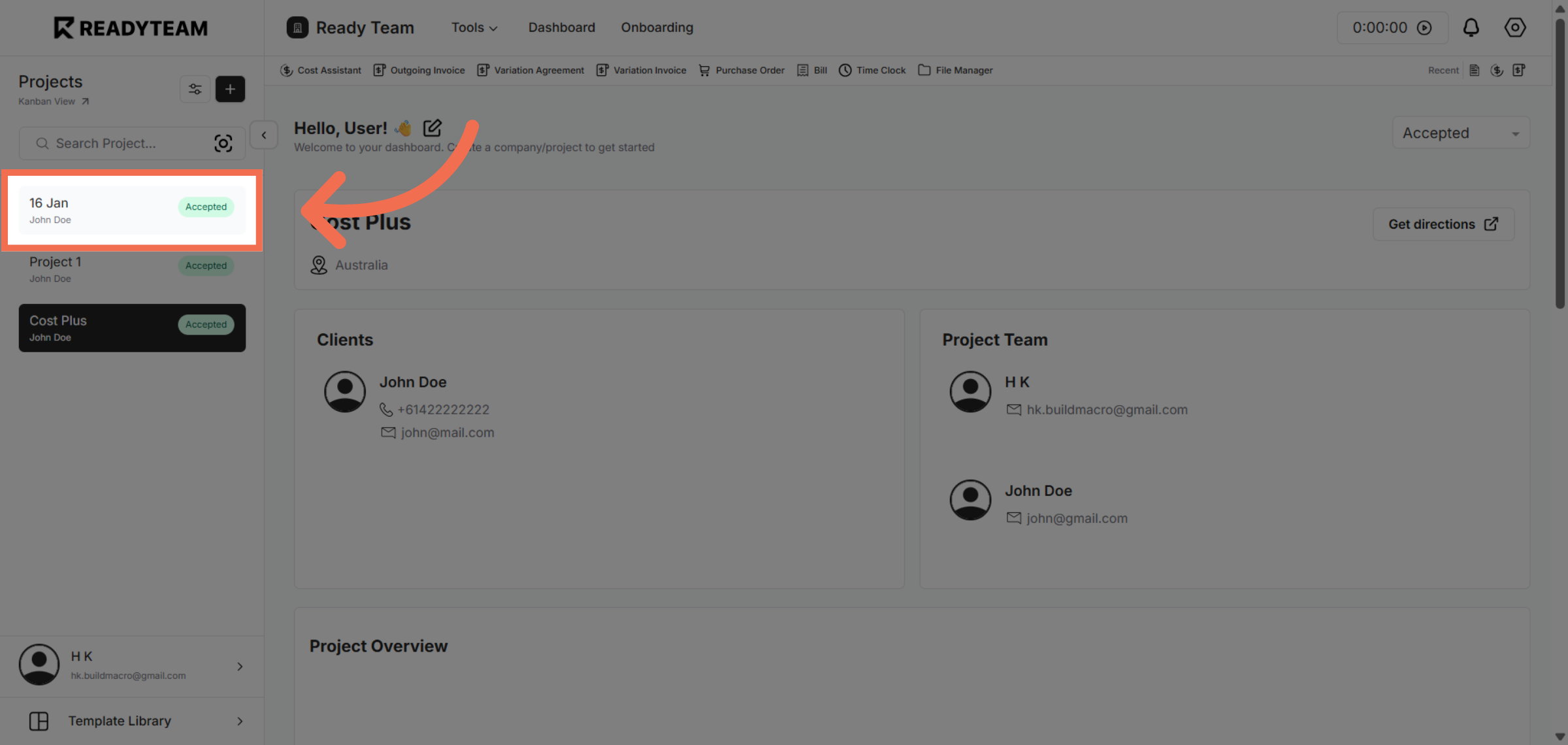
1. Select Project
Click the Specific Project to begin managing your recipe settings.
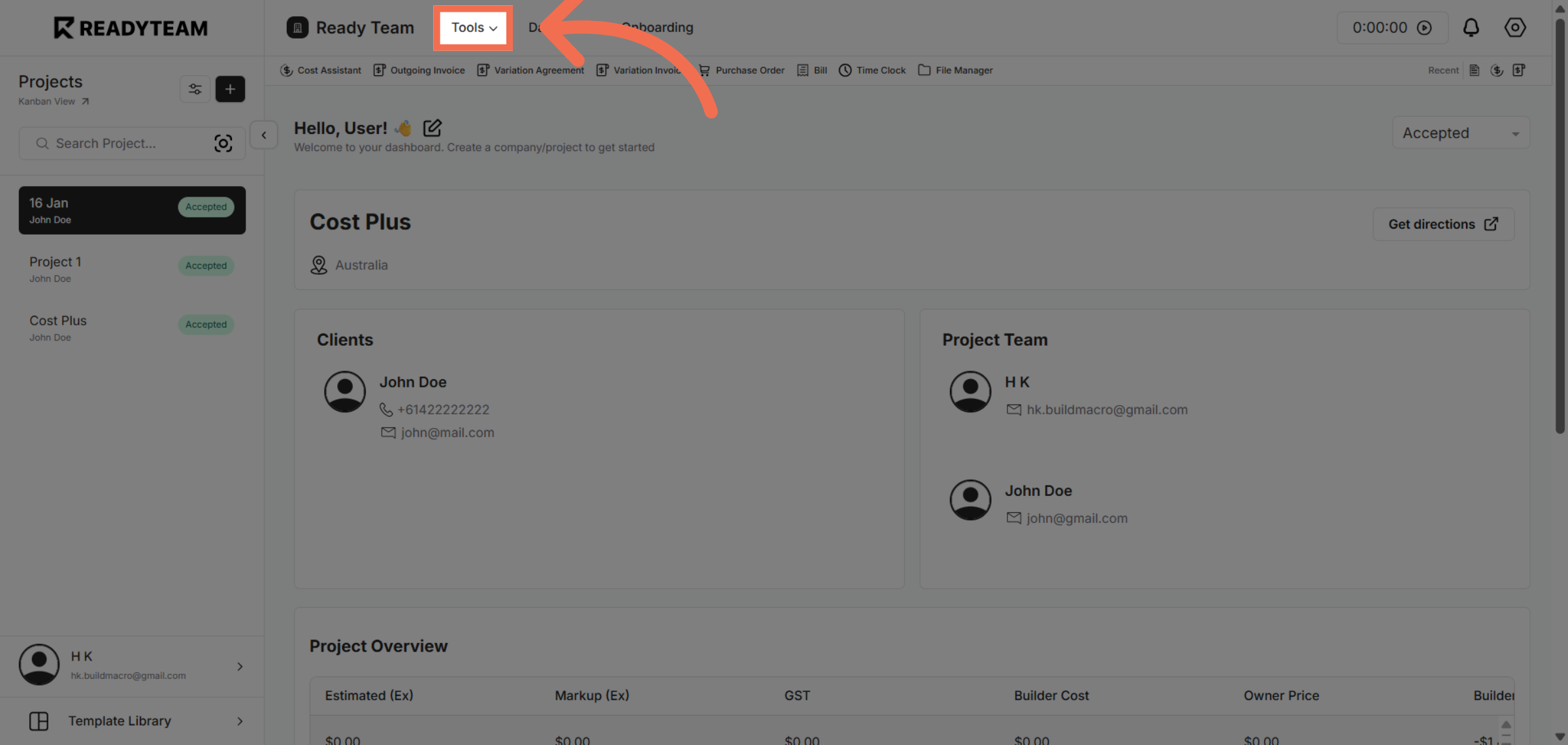
2. Access Tools Section
Click the Tools menu to explore available utilities for cost and resource management.
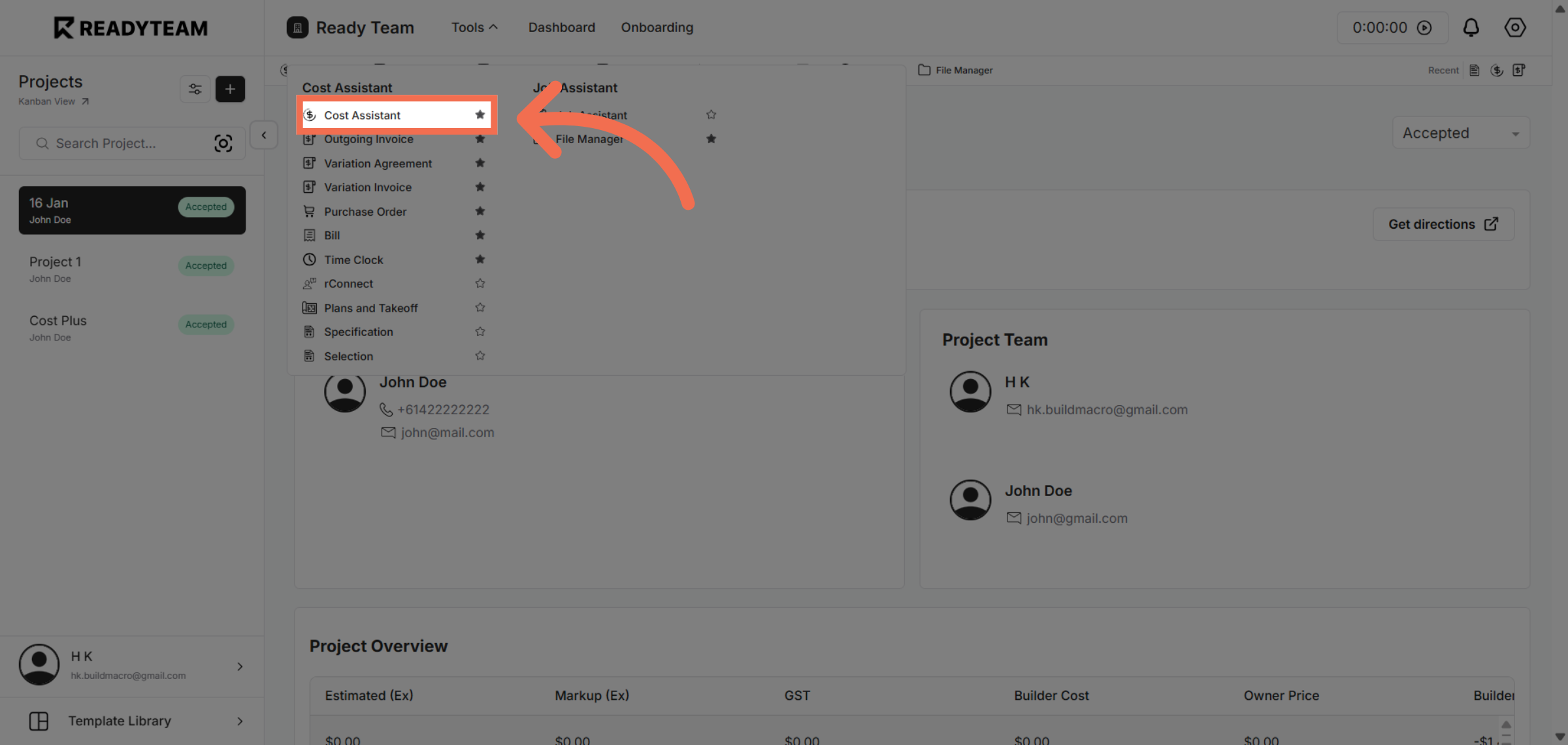
3. Launch Cost Assistant
Click the Cost Assistant to open the feature that helps you analyze and manage expenses effectively.
4. Initiate Recipe Setup
Click the designated area to start configuring your recipe parameters within the Cost Assistant.
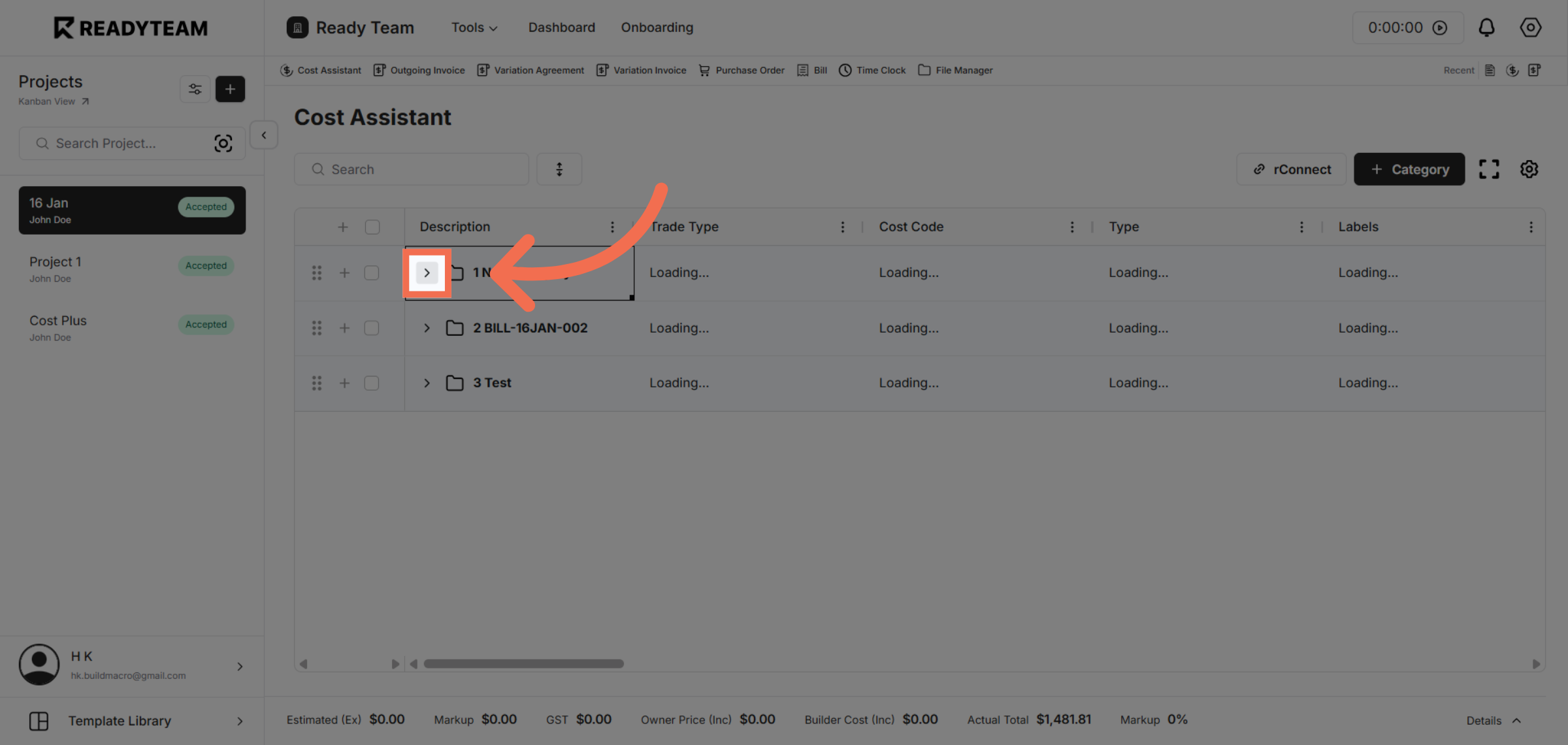
5. Proceed to Recipe Configuration
Click the next interface element to continue setting up your recipe details.
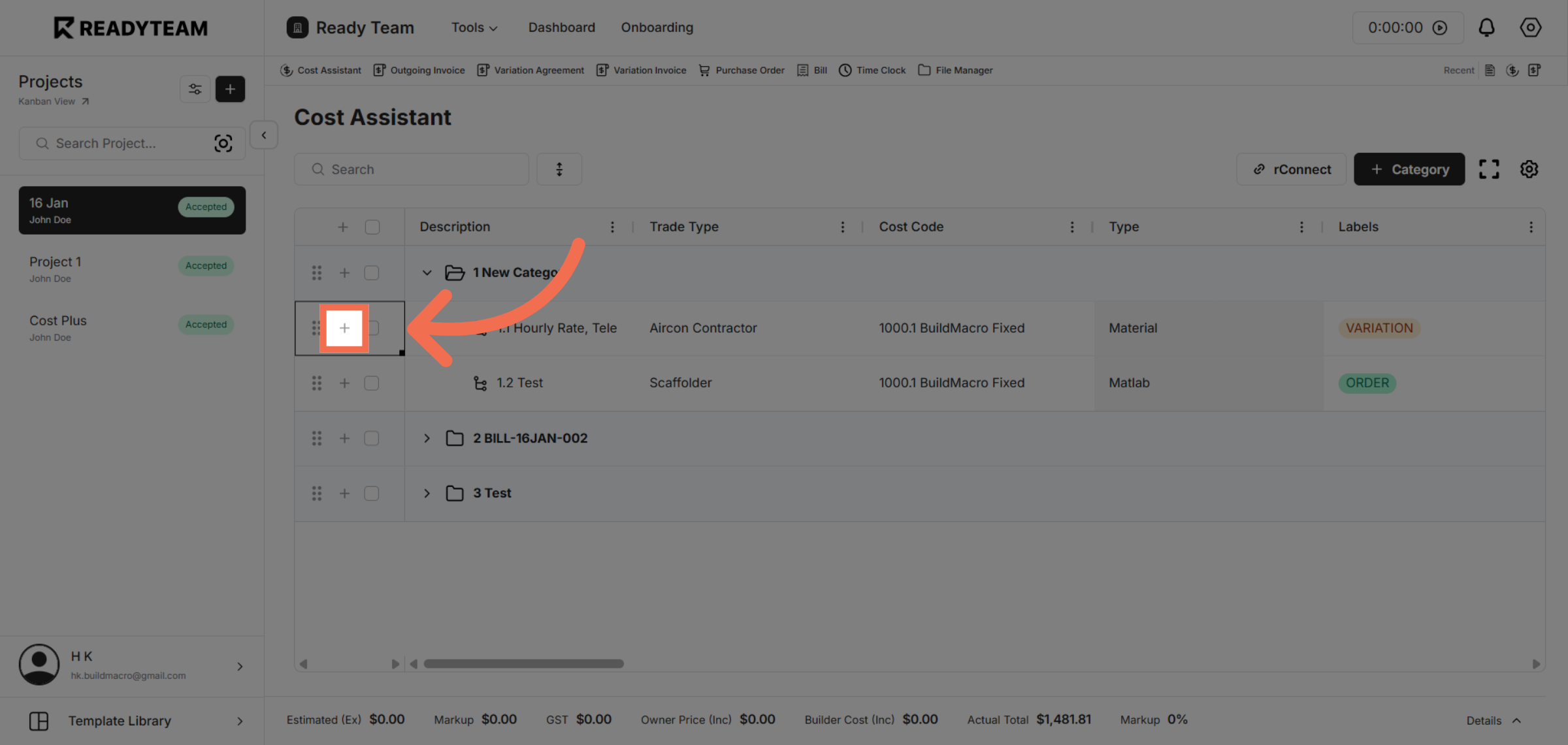
6. Select Recipe Option
Click the Recipe option to focus on creating and editing cost recipes.
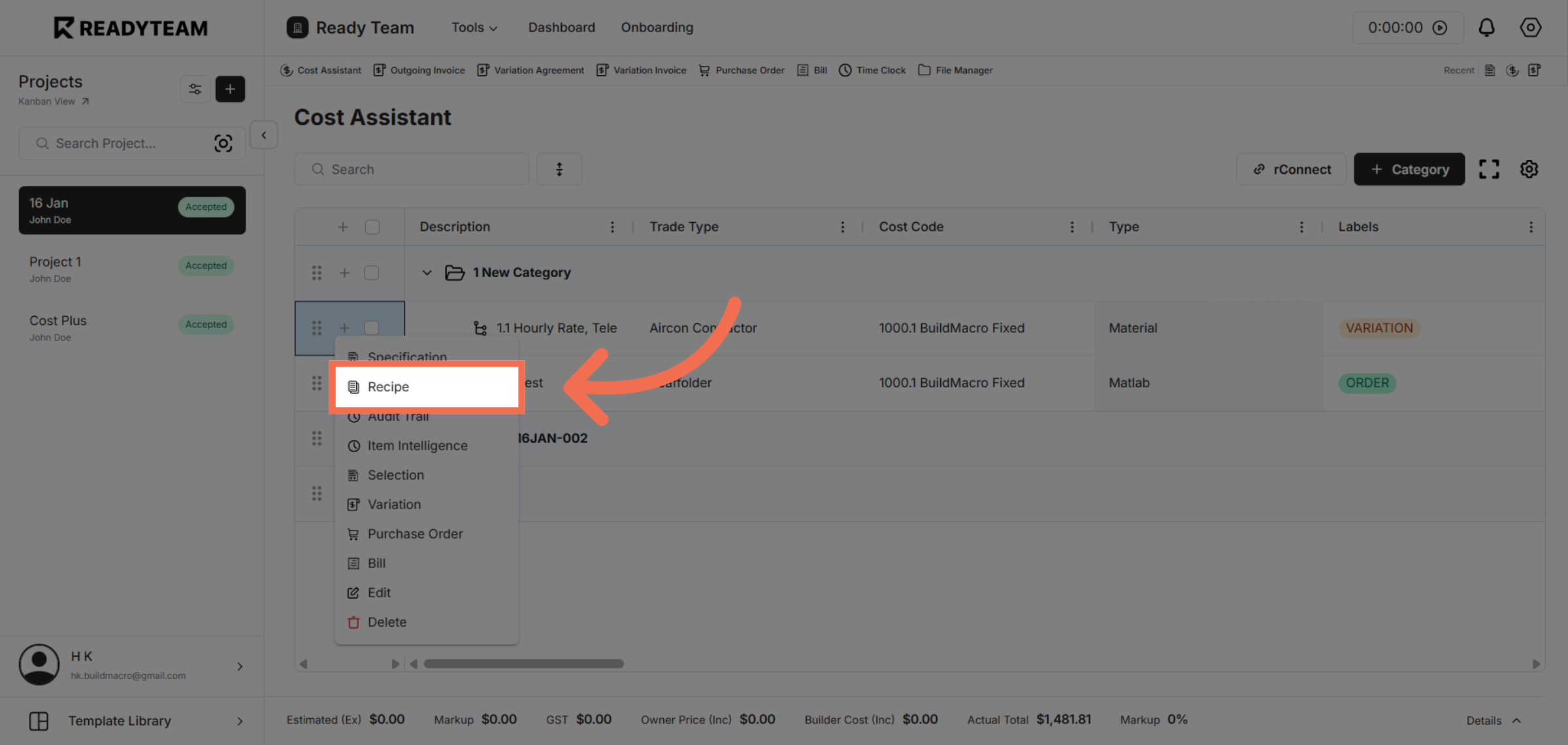
7. Open Recipe Details
Click the indicated area to view and modify specific recipe components.
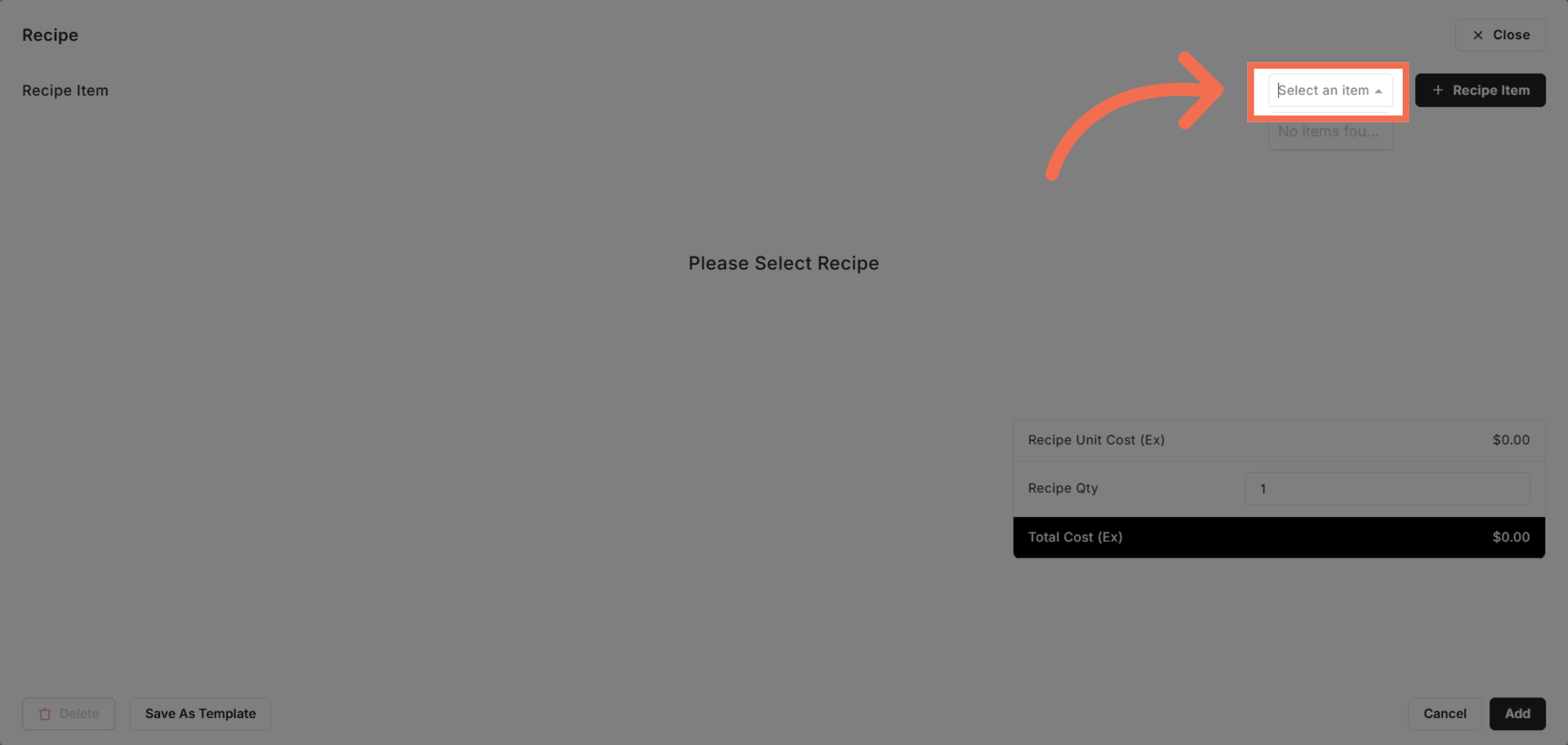
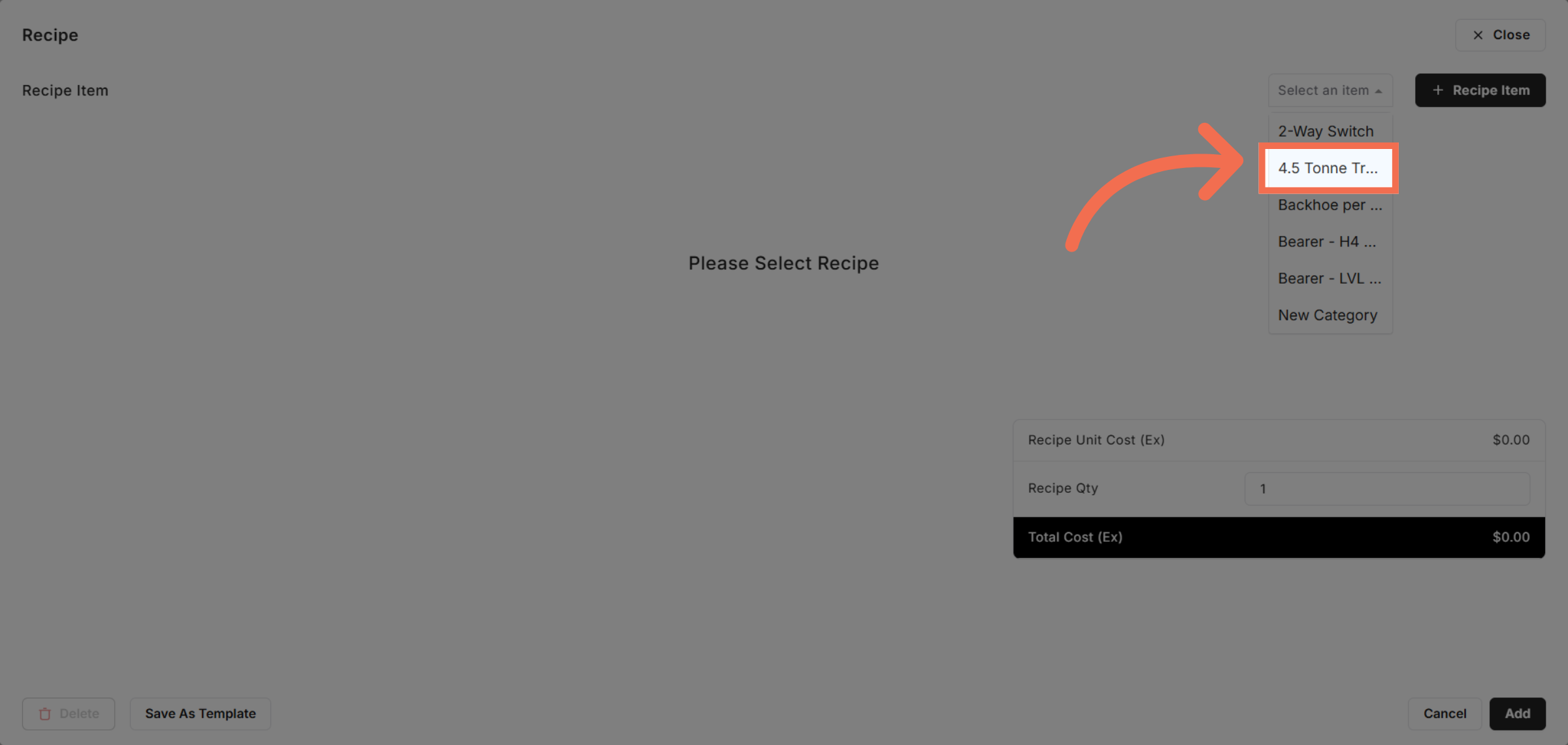
8. Select an Recipe Item
Select the 4.5 tonne truck hire per hour to include this cost element in your recipe.
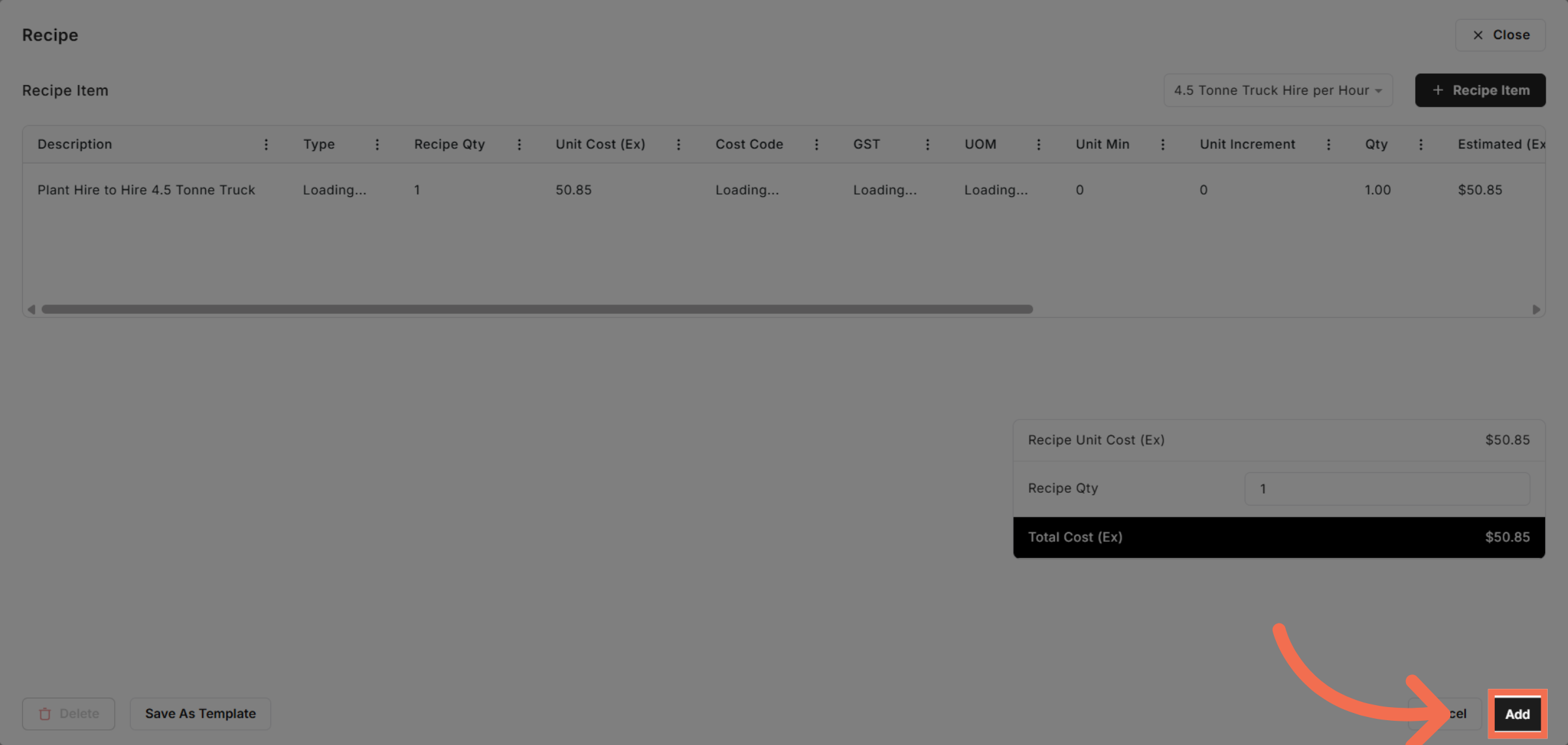
9. Add Recipe Item
Click Add to finalize including the selected item in your recipe configuration.
This demo demonstrated how to efficiently set recipes in Readyteam using the Cost Assistant. You learned to navigate tools, select cost items, and add them to your recipe for precise expense tracking.