Add Line Items Efficiently Using ReadyTeam
This demo showcases how to add a line item within Readyteam to streamline your project cost management.
Go to app.readyteam.ai
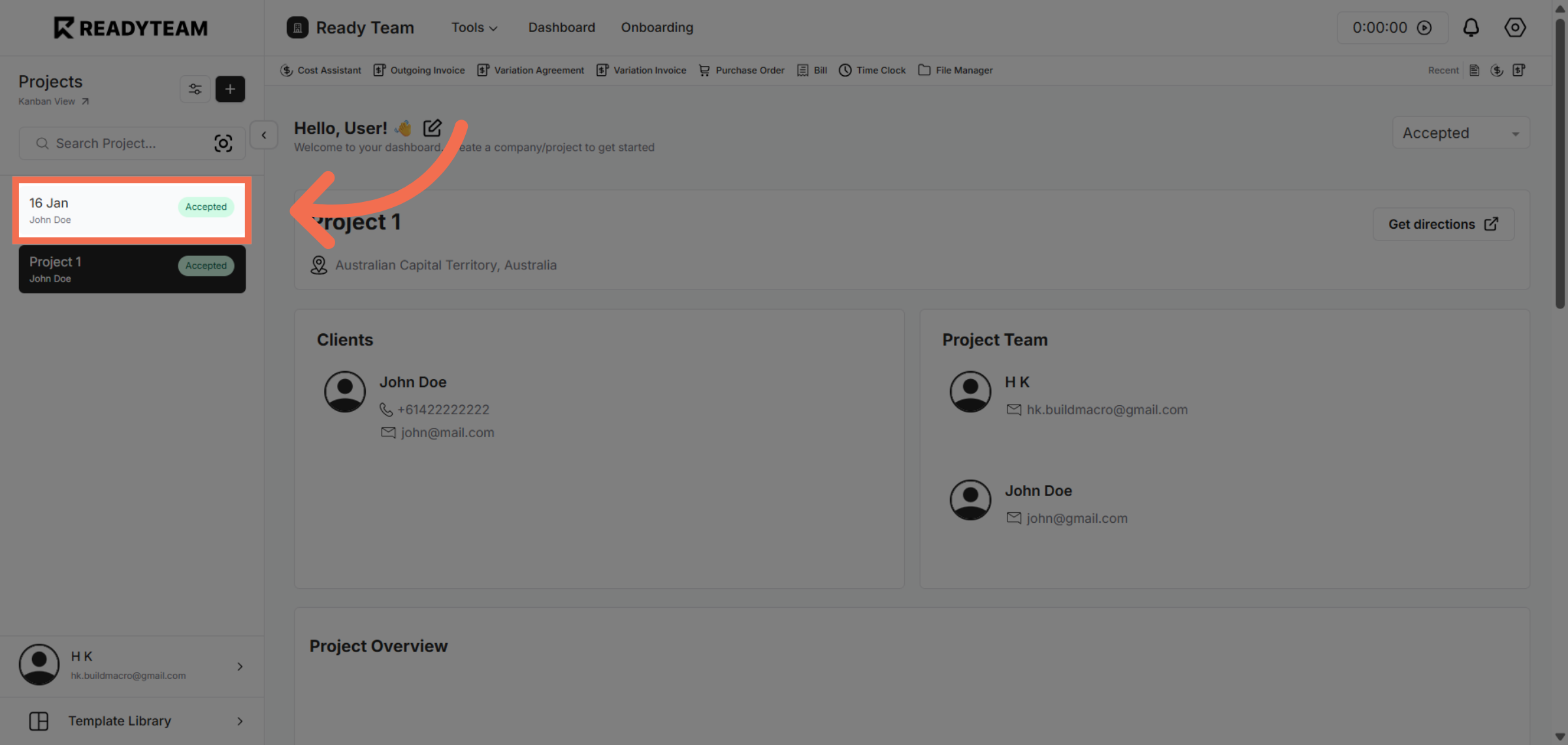
1. Select Project
Select specific project to begin adding a line item into cost assistant.
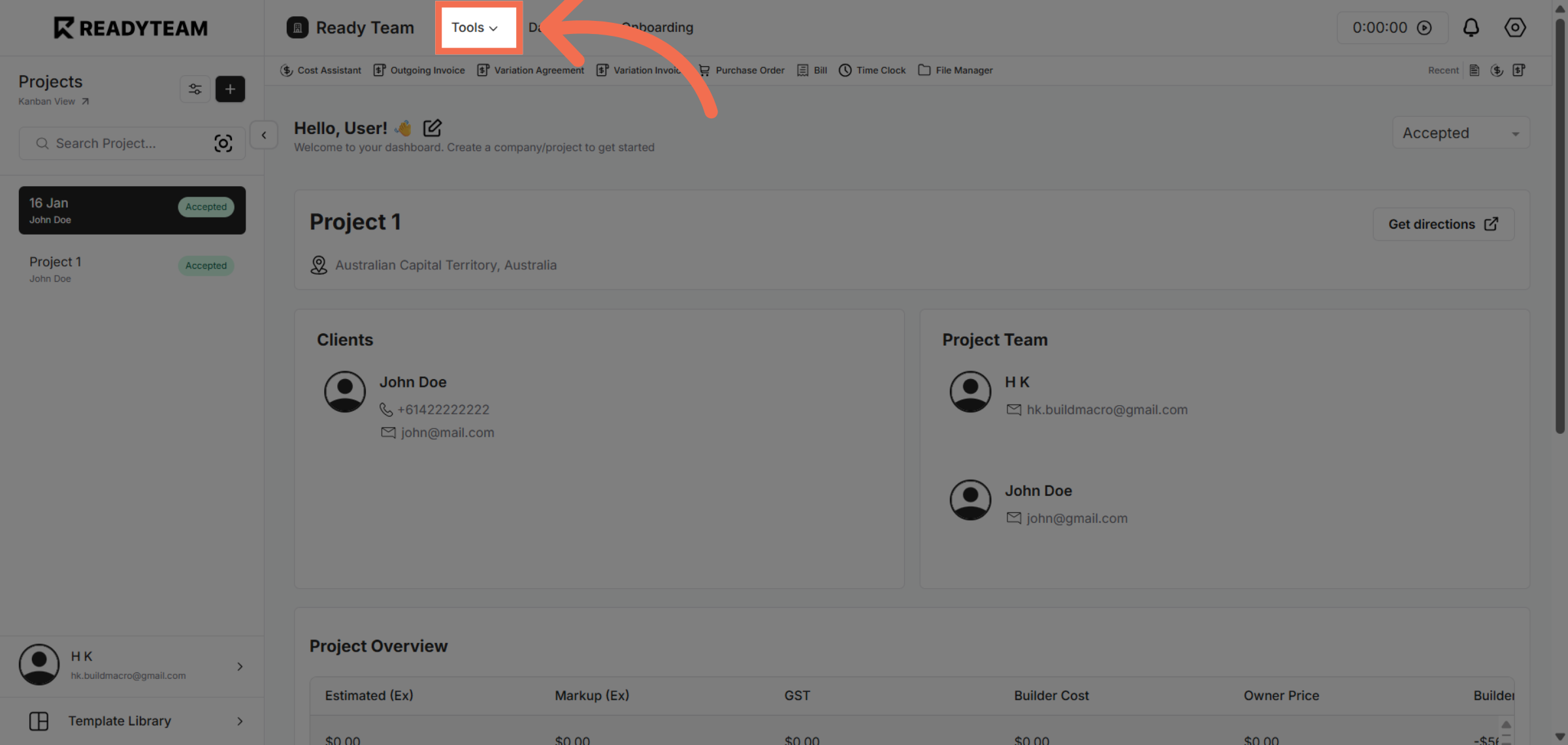
2. Open Tools Menu
Click the Tools menu to access additional features for cost management.
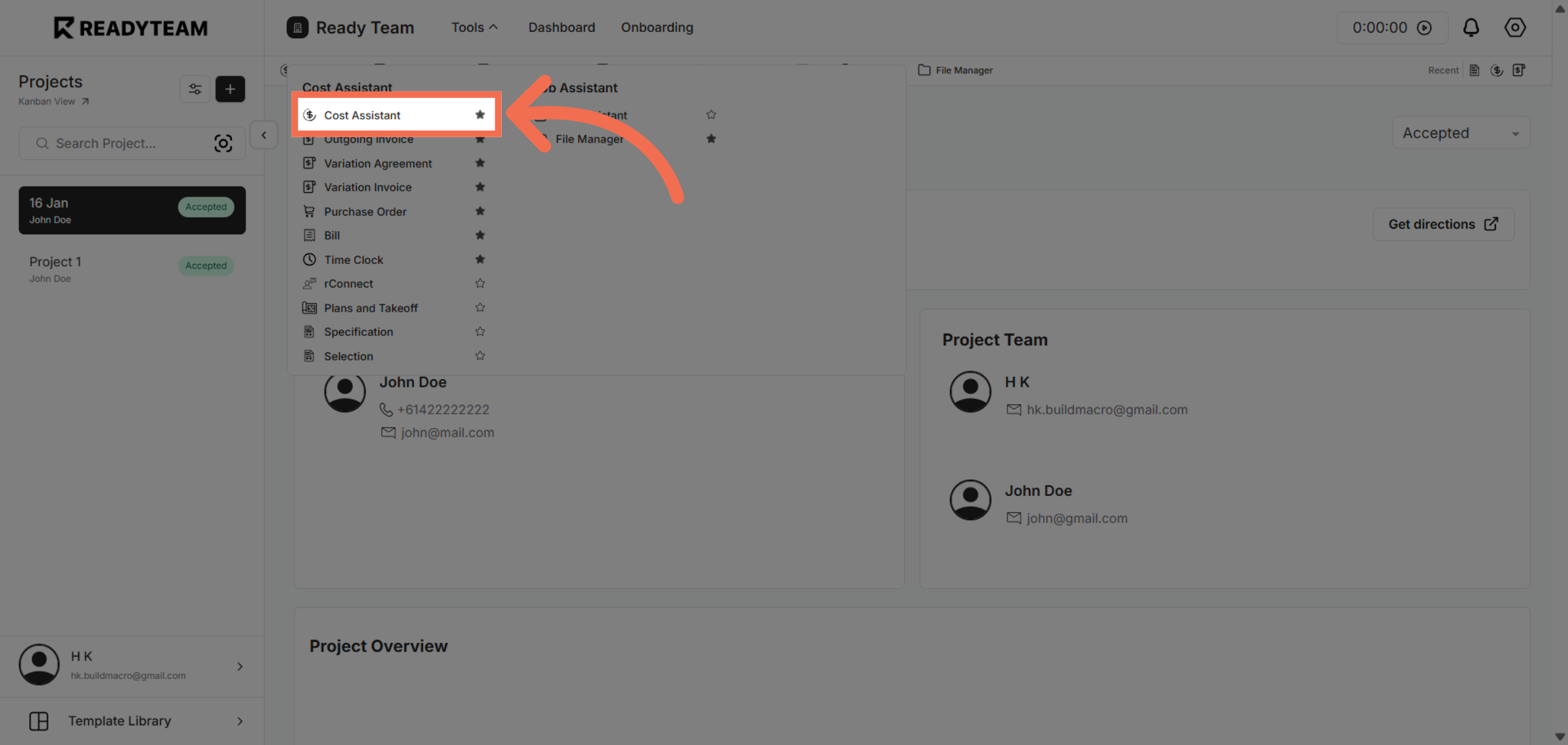
3. Access Cost Assistant
Select Cost Assistant to open the tool that helps manage project costs effectively.
4. Initiate Line Item Addition
Click the designated area to start adding a new line item to your project.
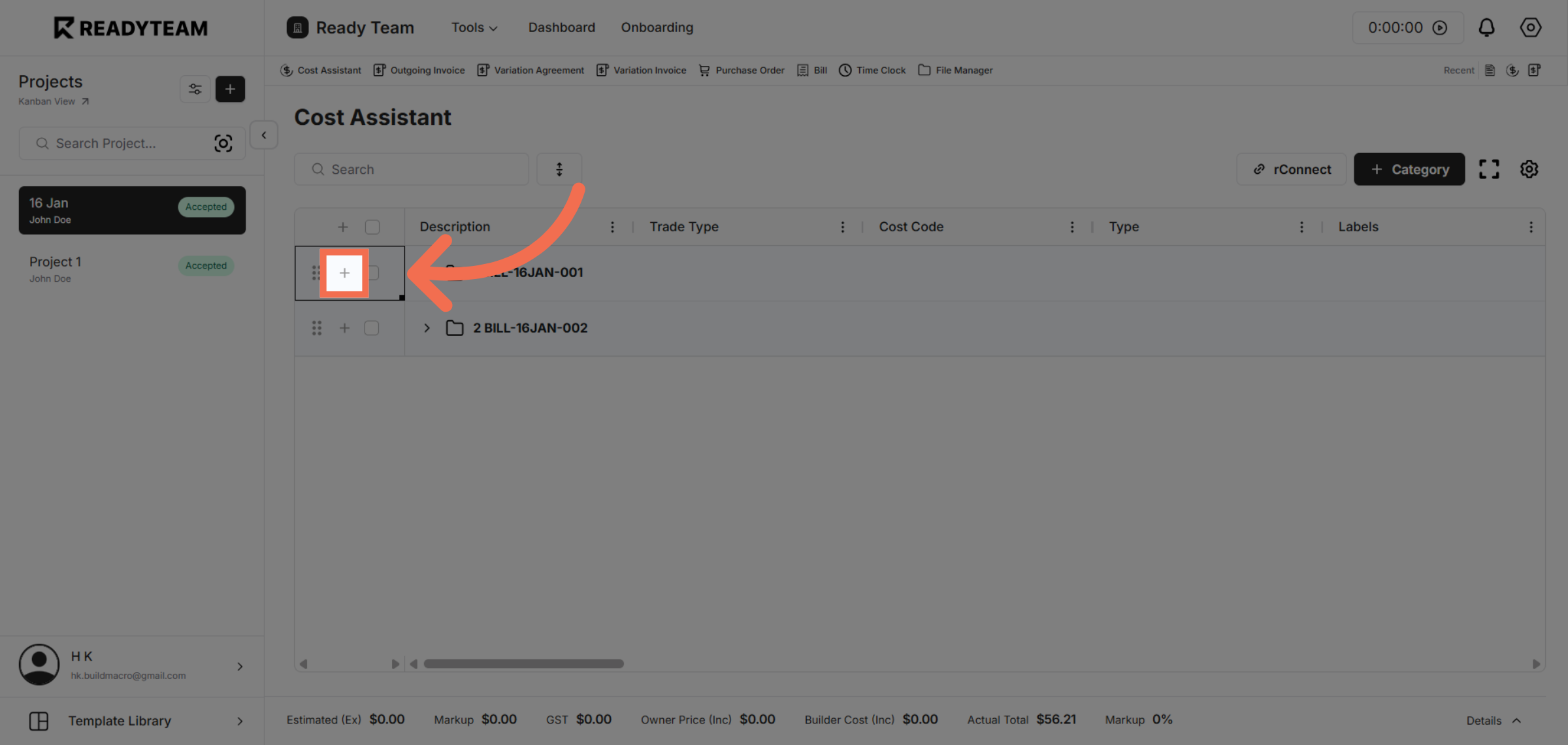
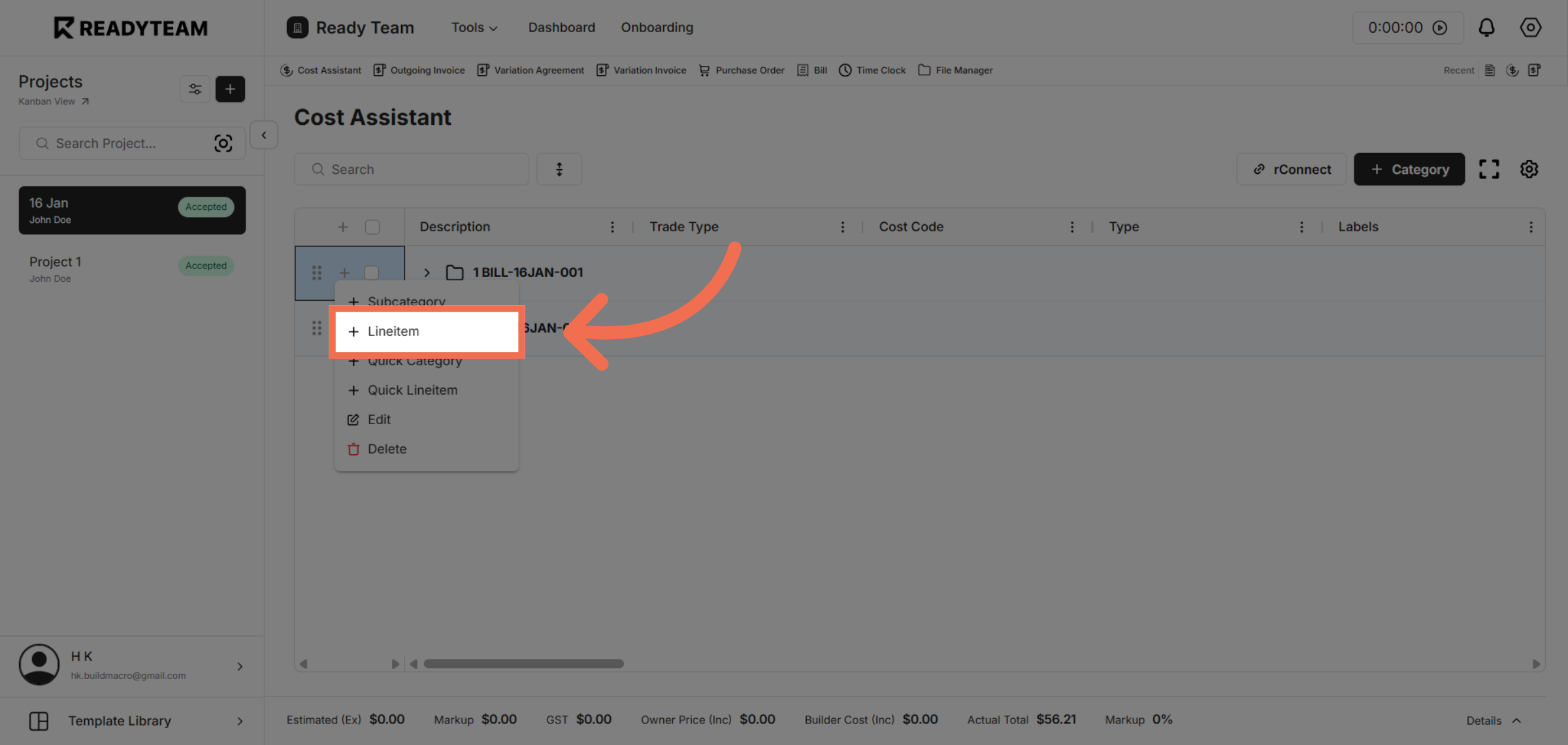
5. Choose Lineitem Option
Click the Lineitem option to specify the details of the new cost entry.
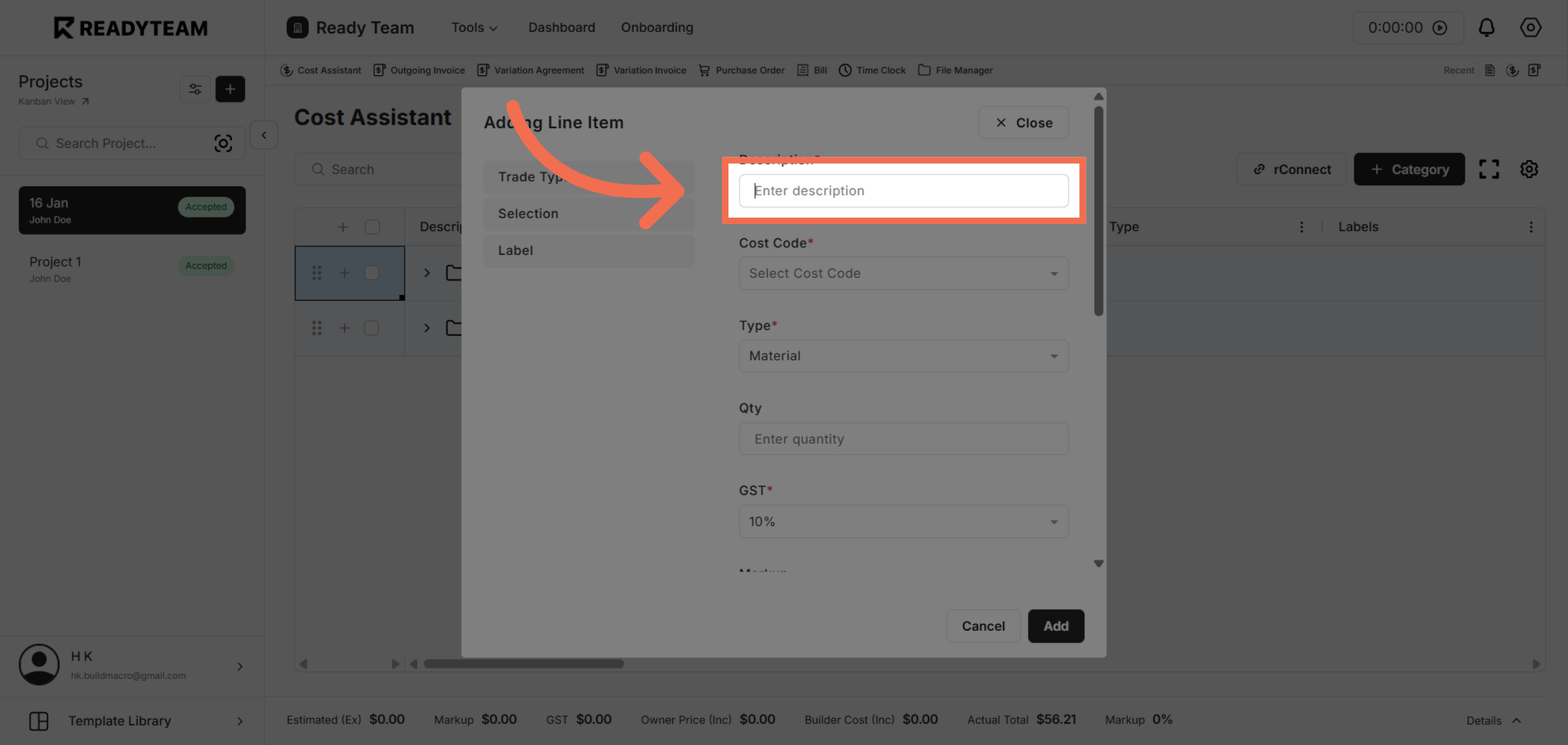
6. Enter Description Field
Click the description field to provide details about the line item.
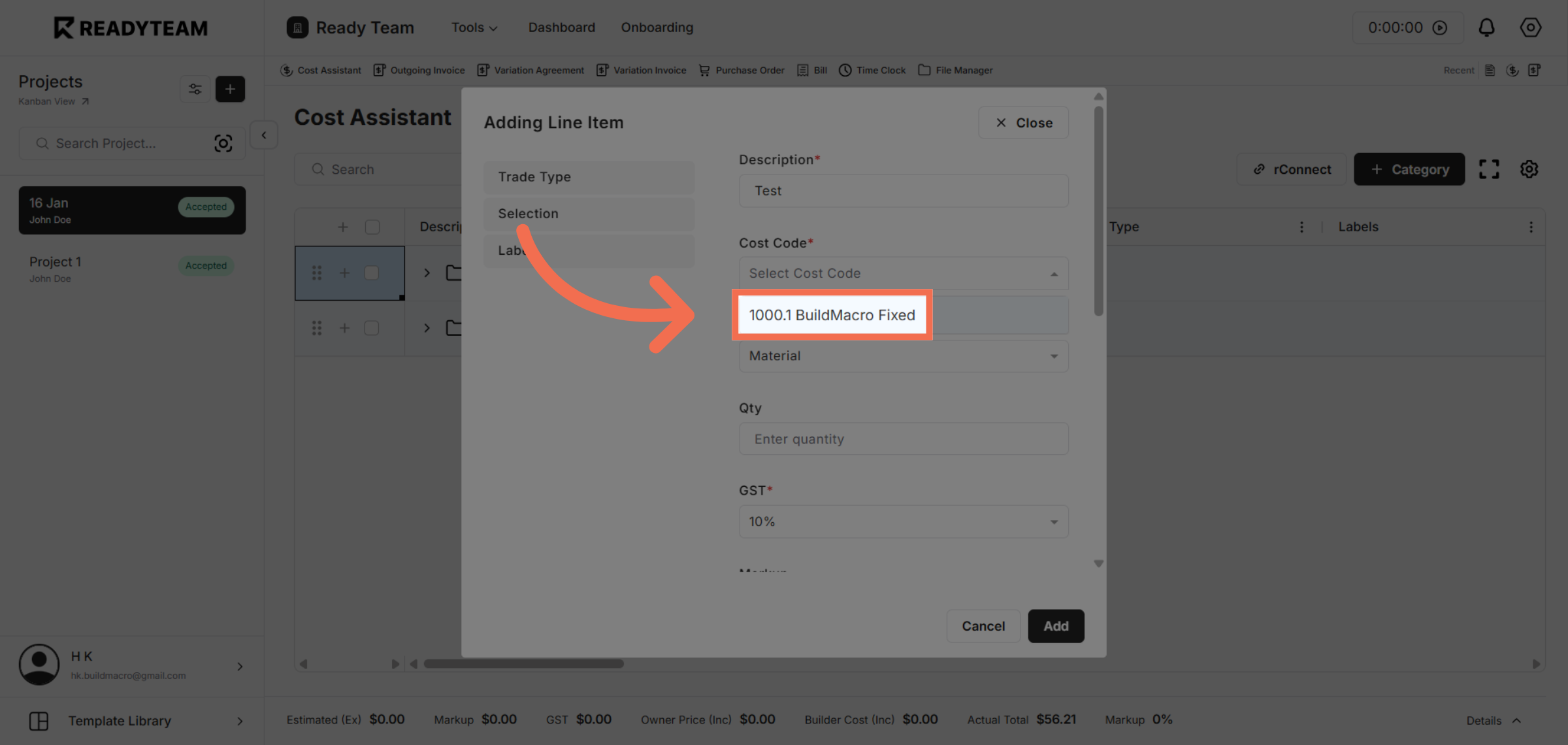
7. Select Cost Code
Select the appropriate cost category to classify the line item correctly.
8. Choose Type
Select the type relevant to the line item for accurate costing.
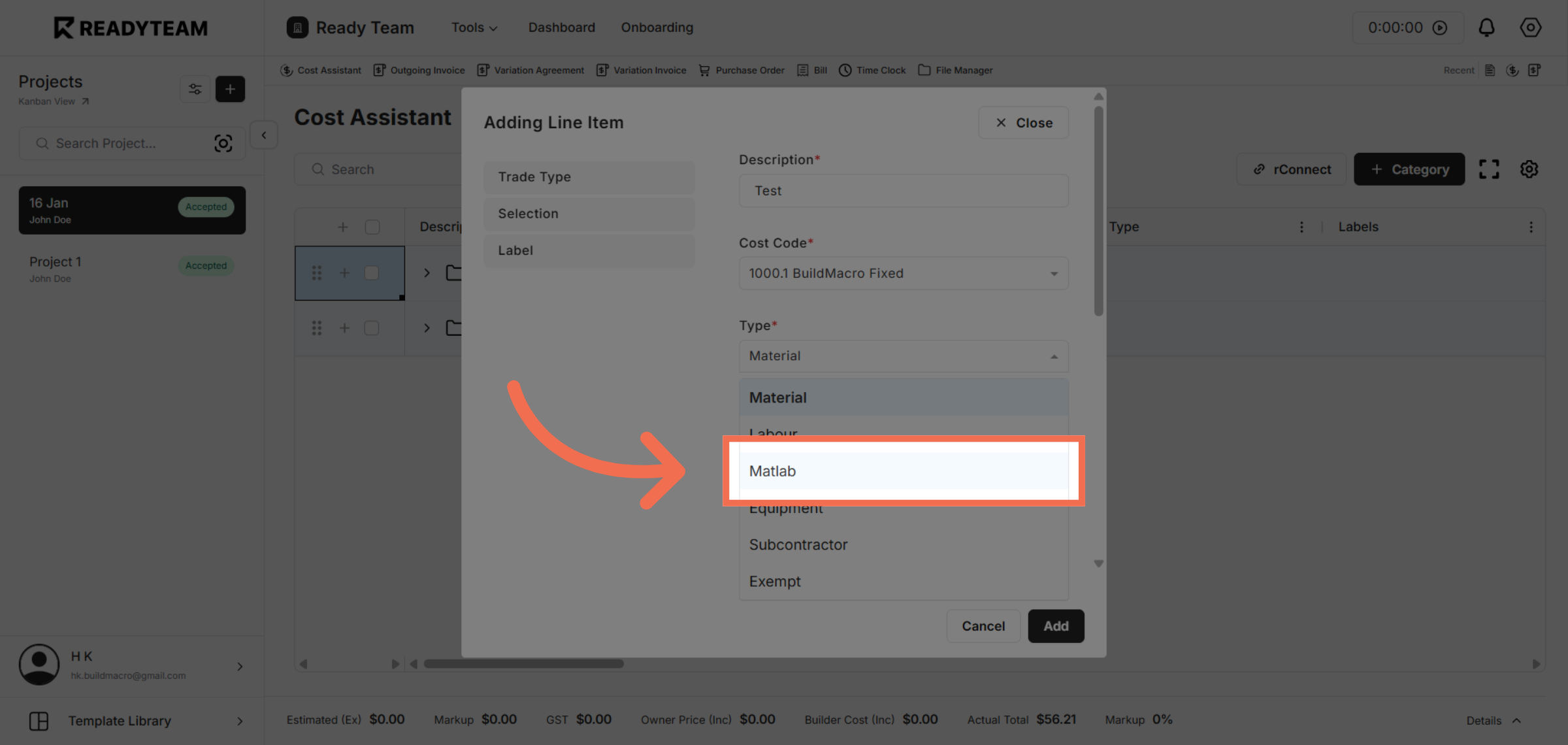
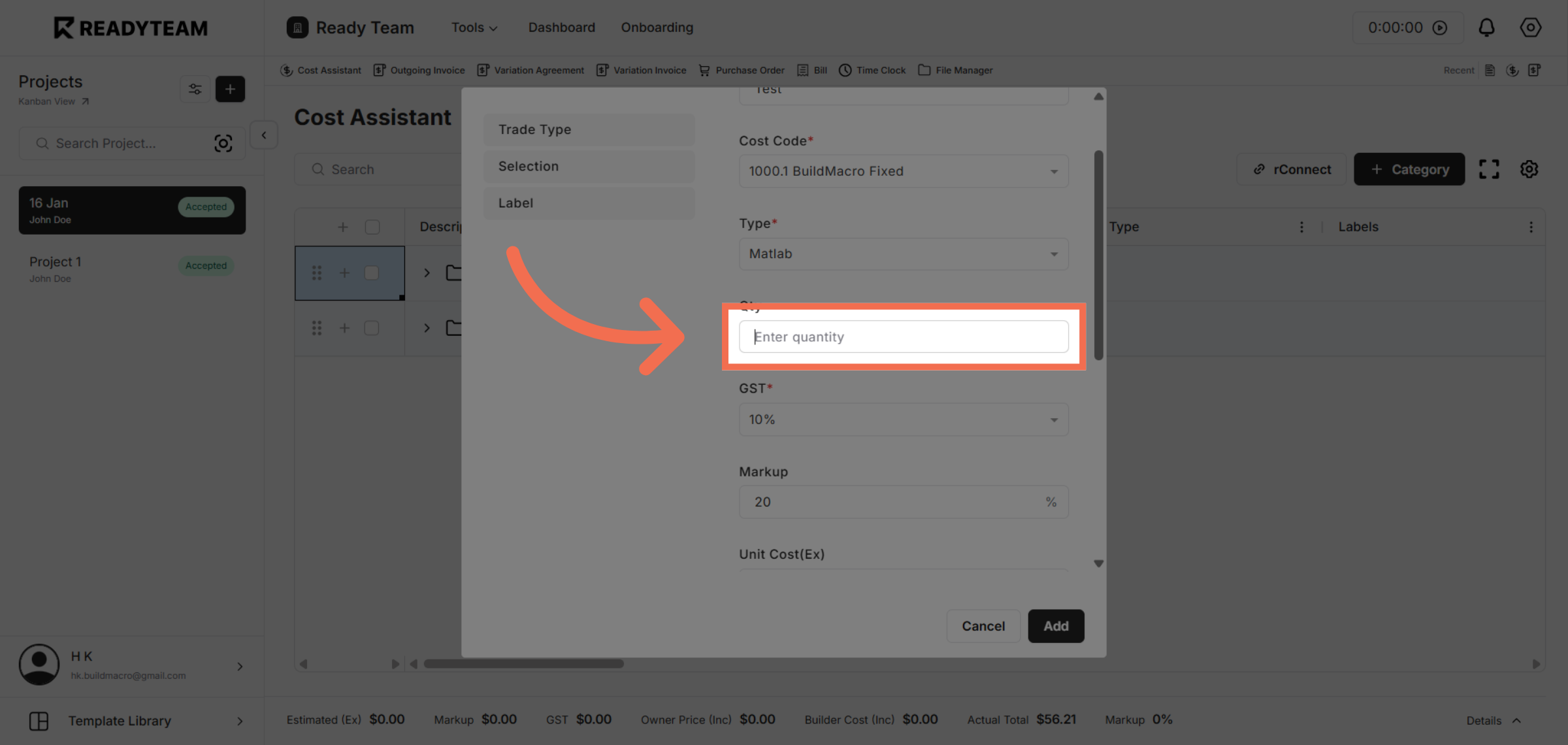
9. Enter Quantity Value
Enter the quantity to reflect the number of units needed.
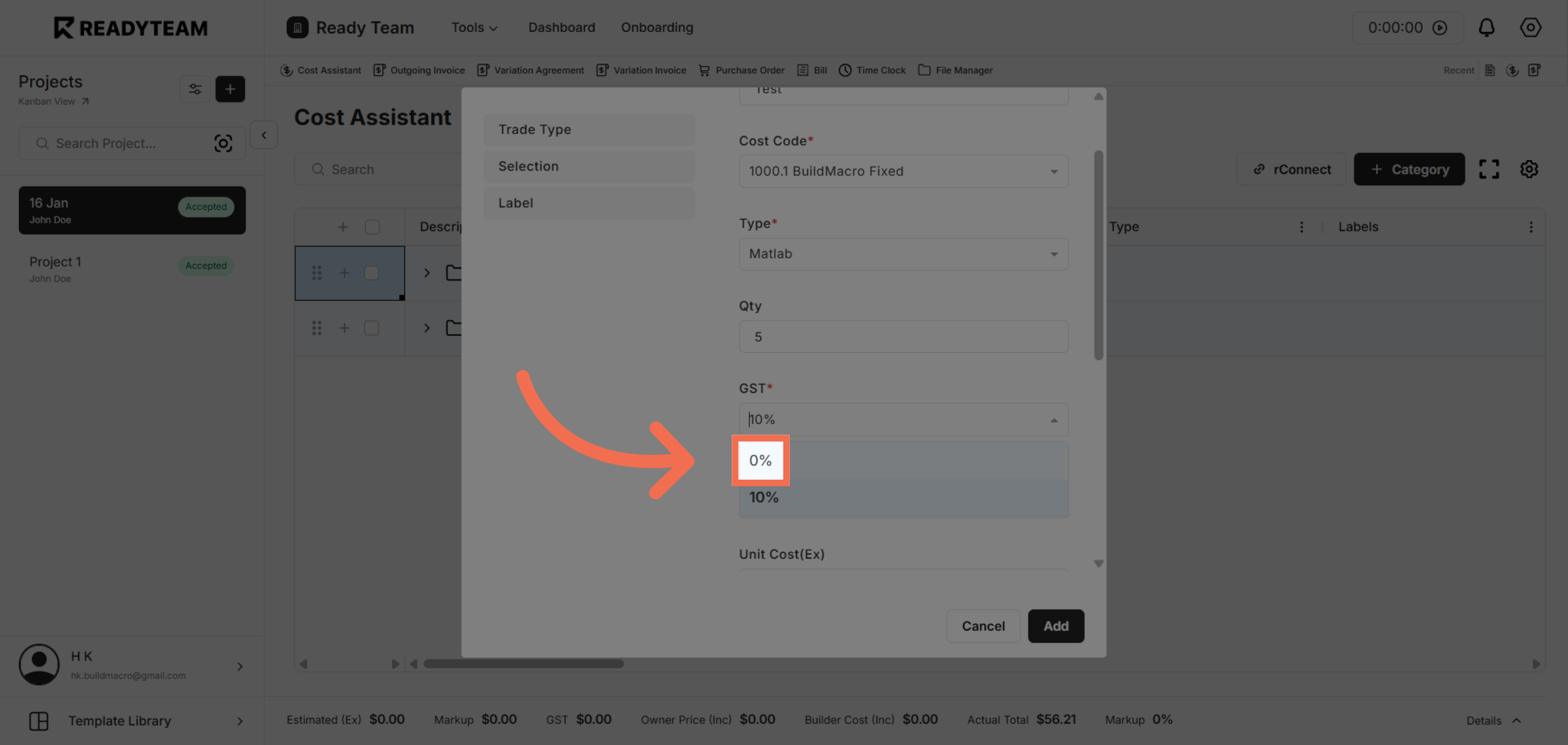
10. Select GST
Choose the GST rate applicable to this line item to adjust pricing.
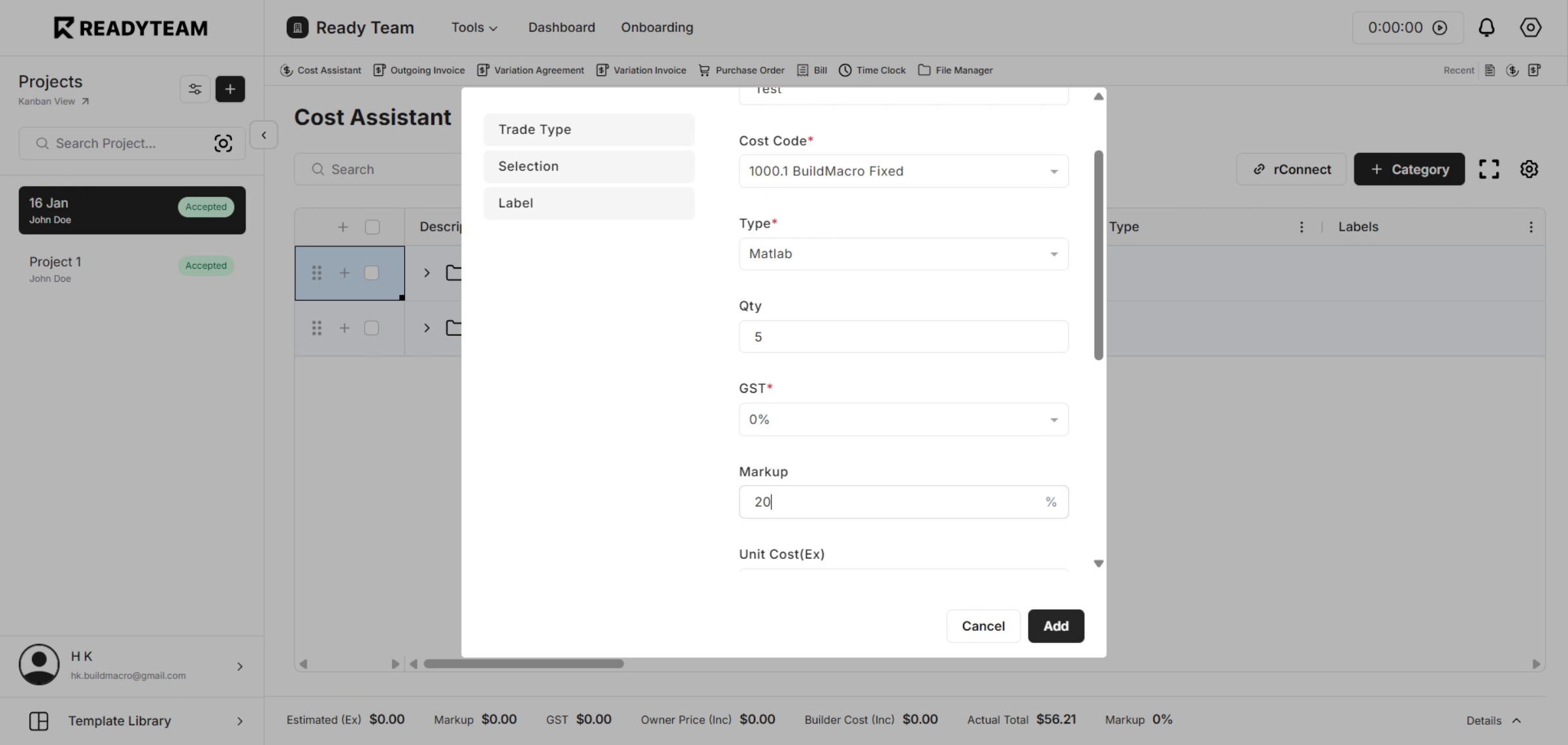
11. Enter Markup
Enter the Markup associated with the item.
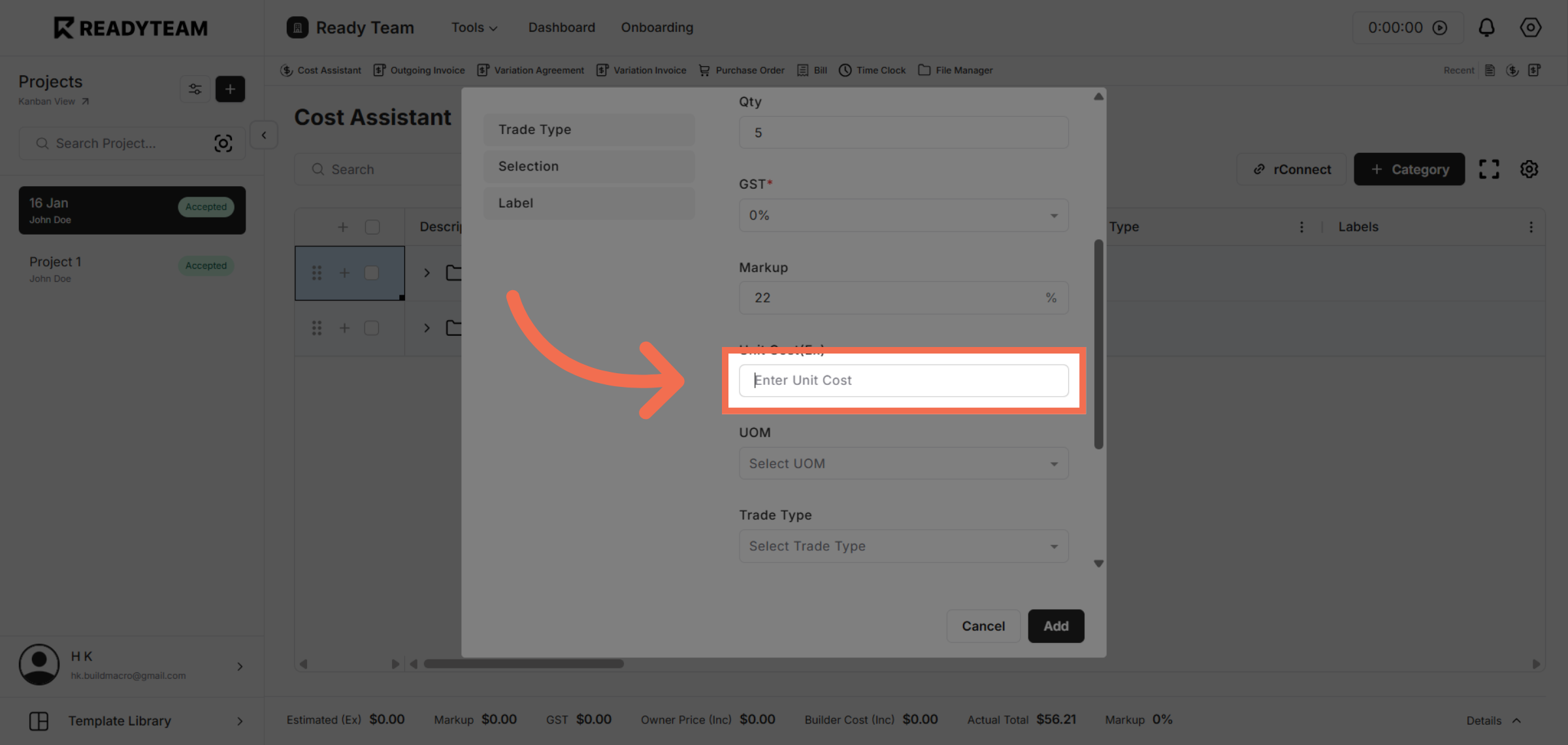
12. Enter Unit Cost
Enter the unit cost to define the price for each unit of the item.
13. Open Unit of Measure
Click to select the unit of measure that applies to the quantity entered.
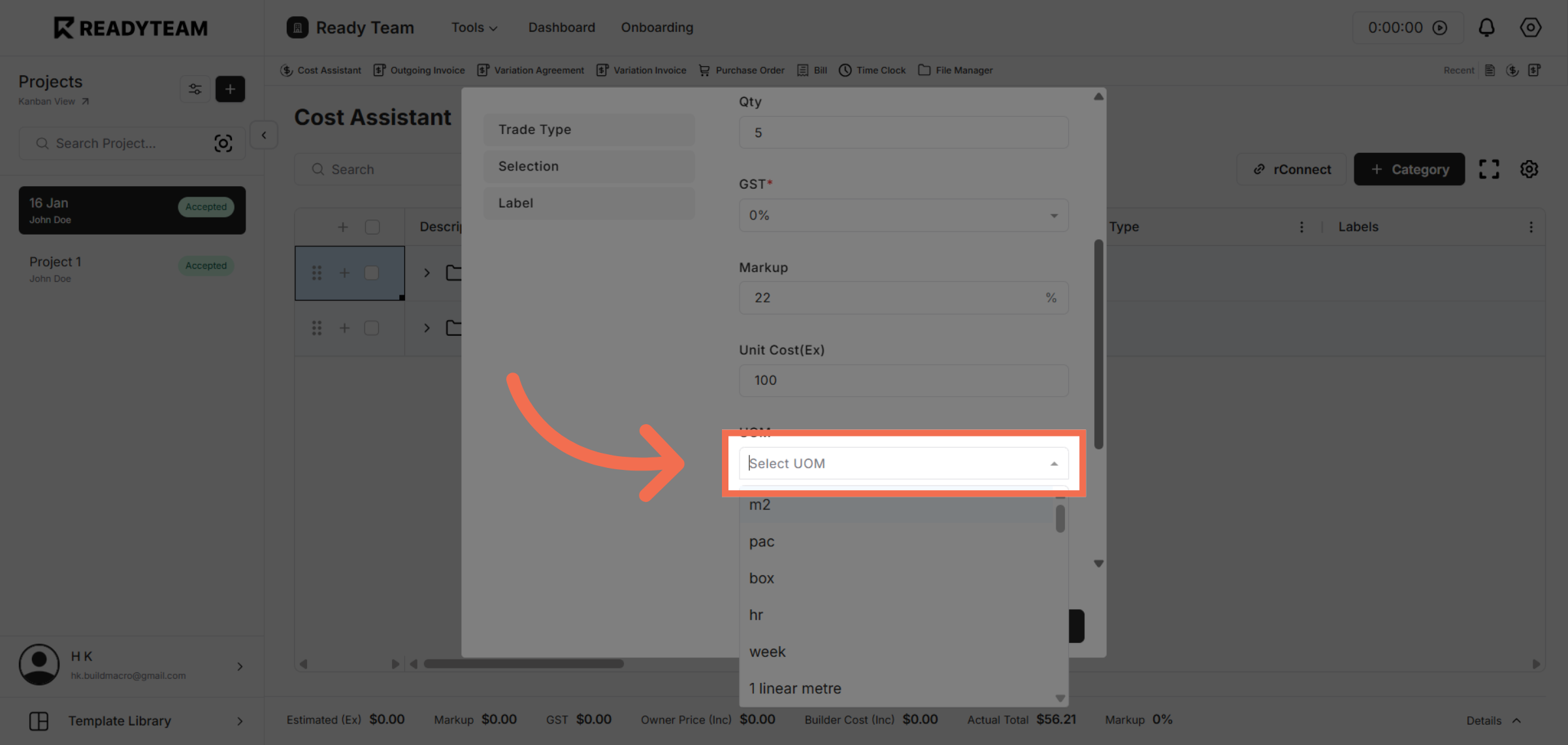
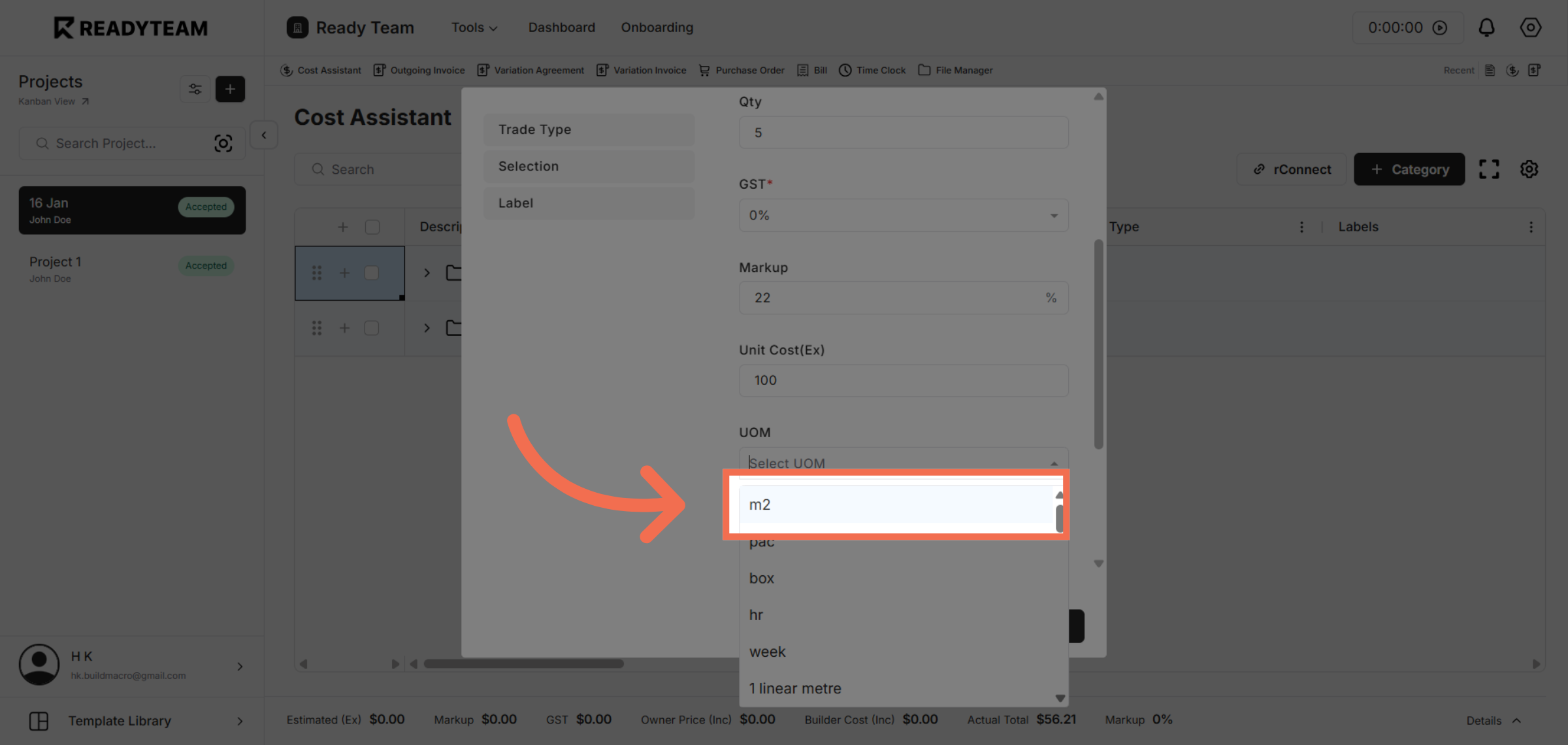
14. Select Measurement Unit
Choose the measurement unit to ensure accurate quantity tracking.
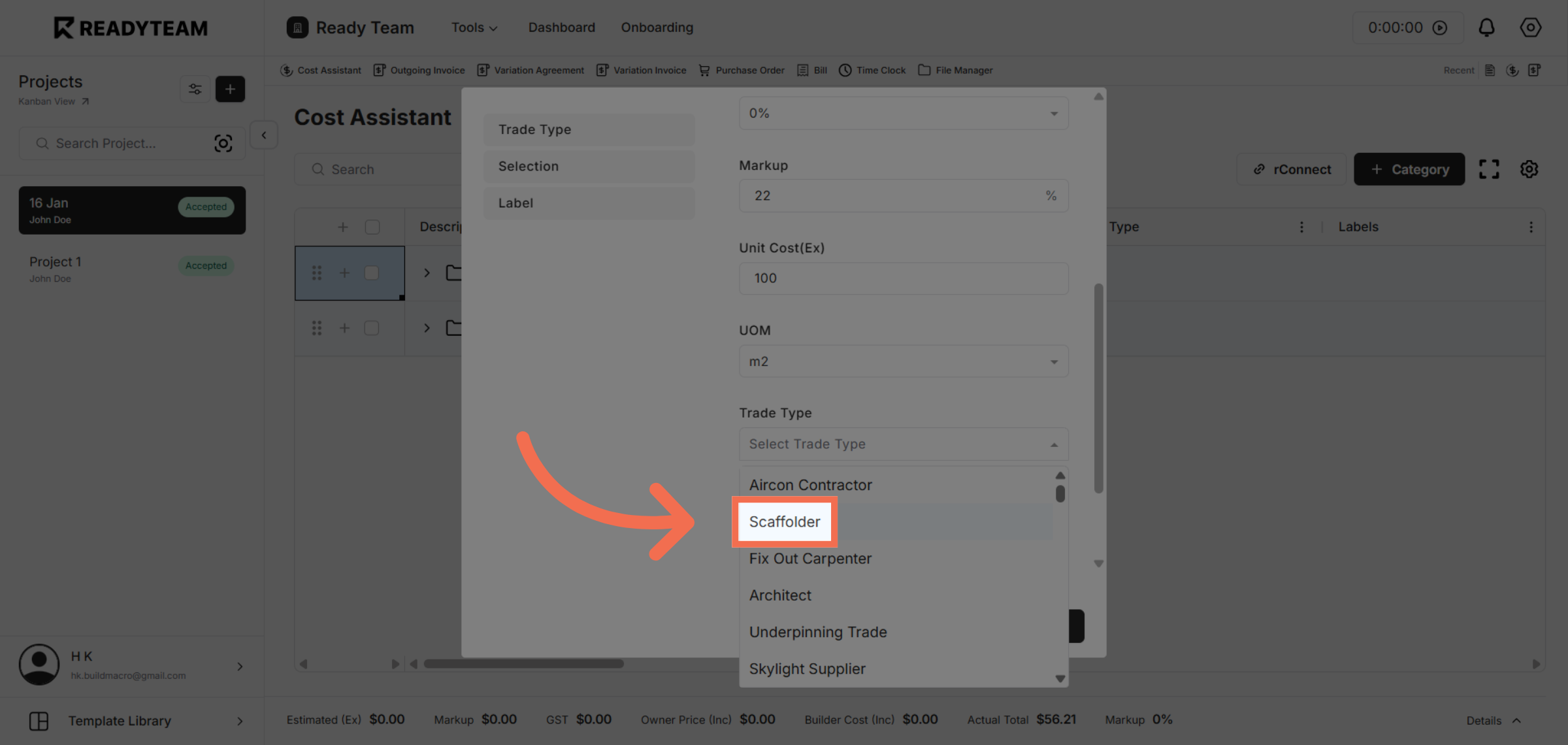
15. Select Trade Type
Choose the labor role associated with this line item for cost allocation.
16. Choose Selection
Select the profile type relevant to the line item for precise categorization.
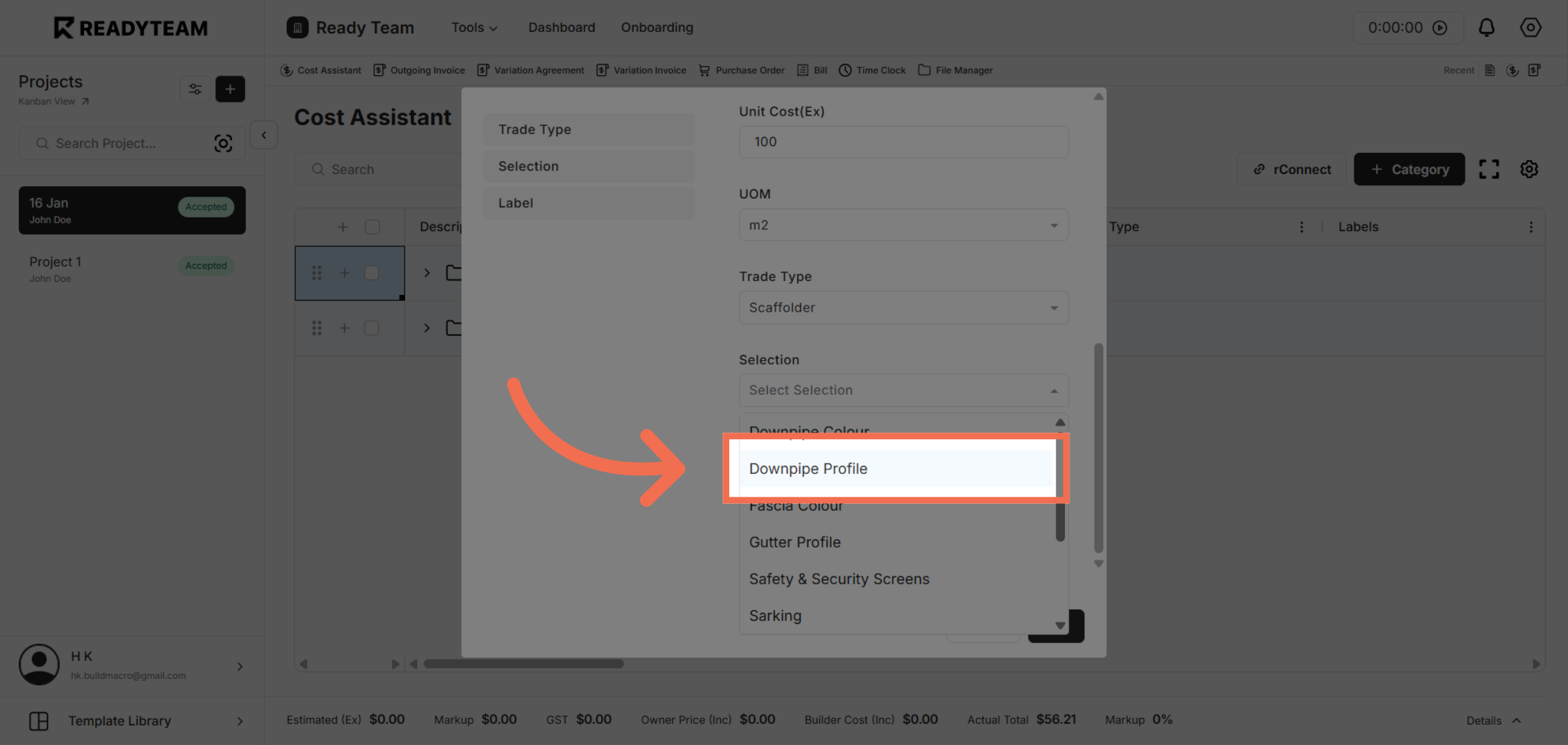
17. Select Allowance Type
Click to choose the allowance type that applies to this line item.
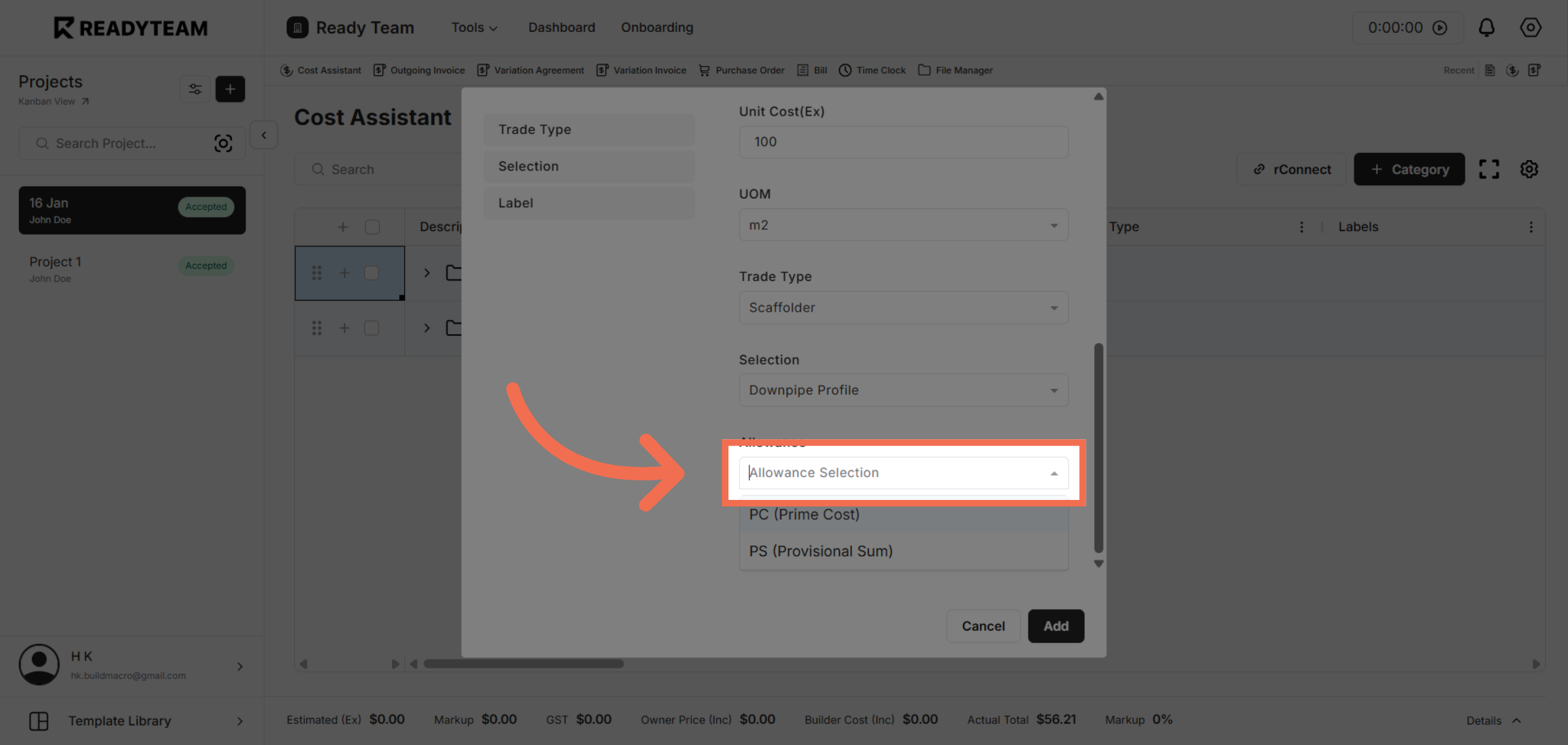
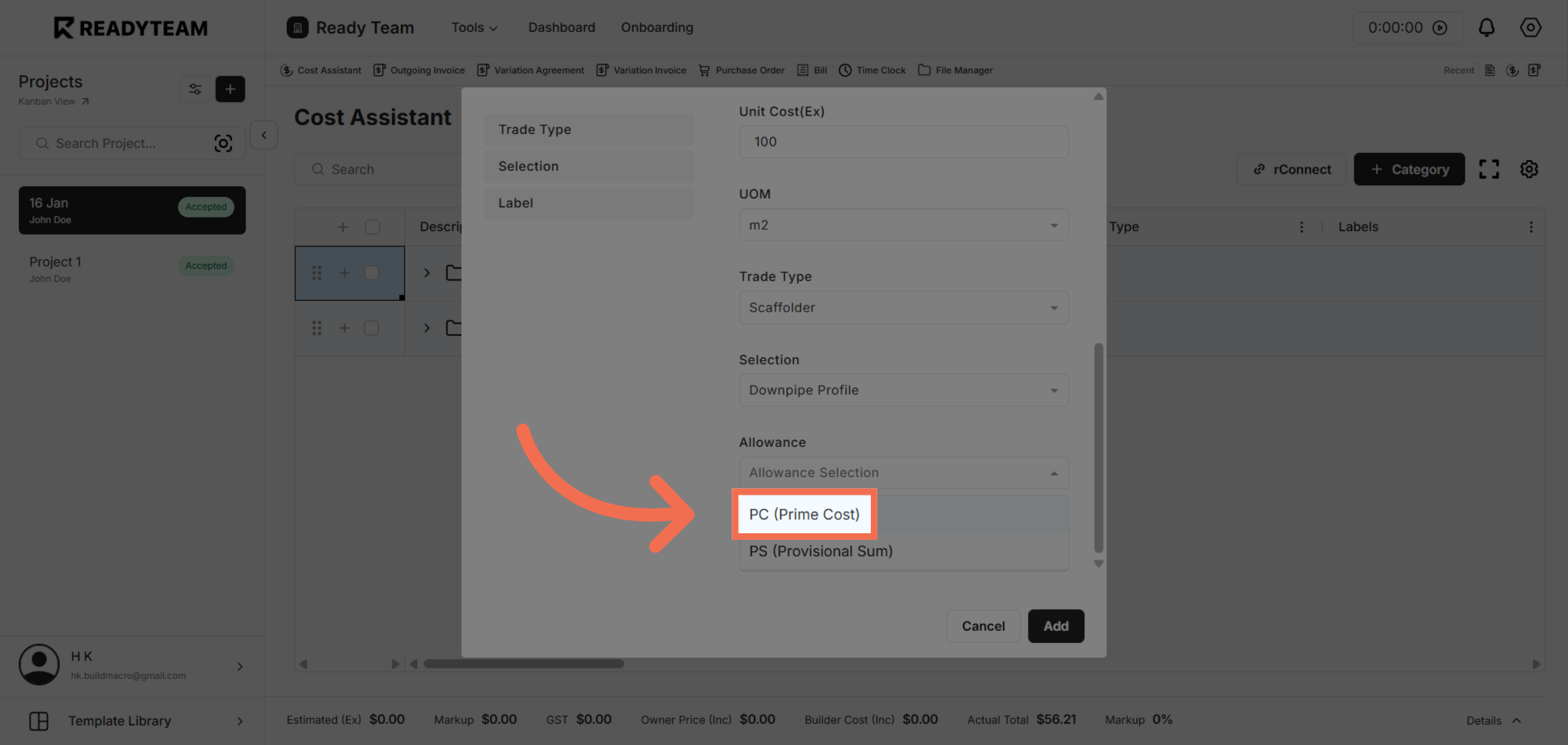
18. Choose Allowance
Select the prime cost category to classify the line item appropriately.
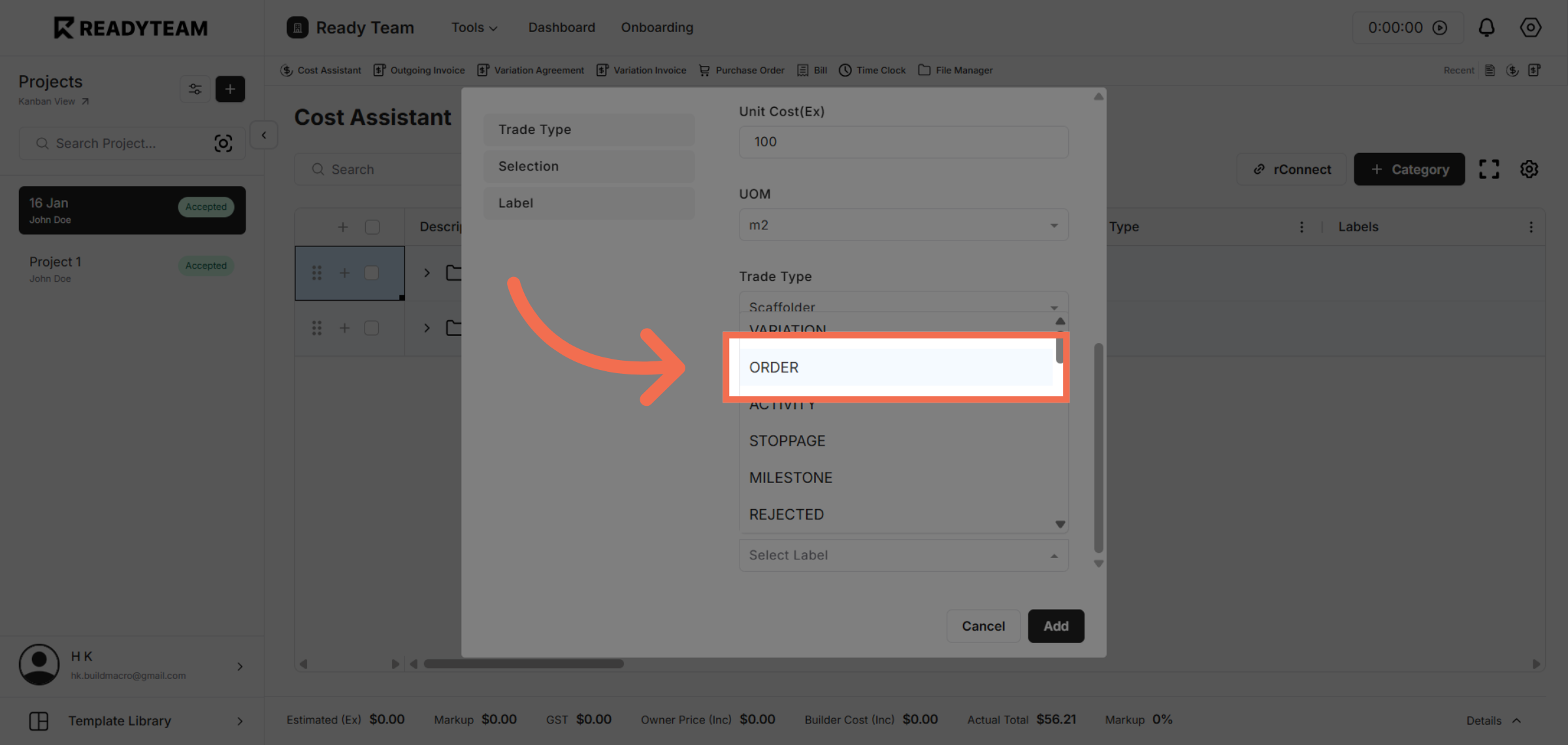
19. Select Label
Click the Order section to review and finalize the line item details.
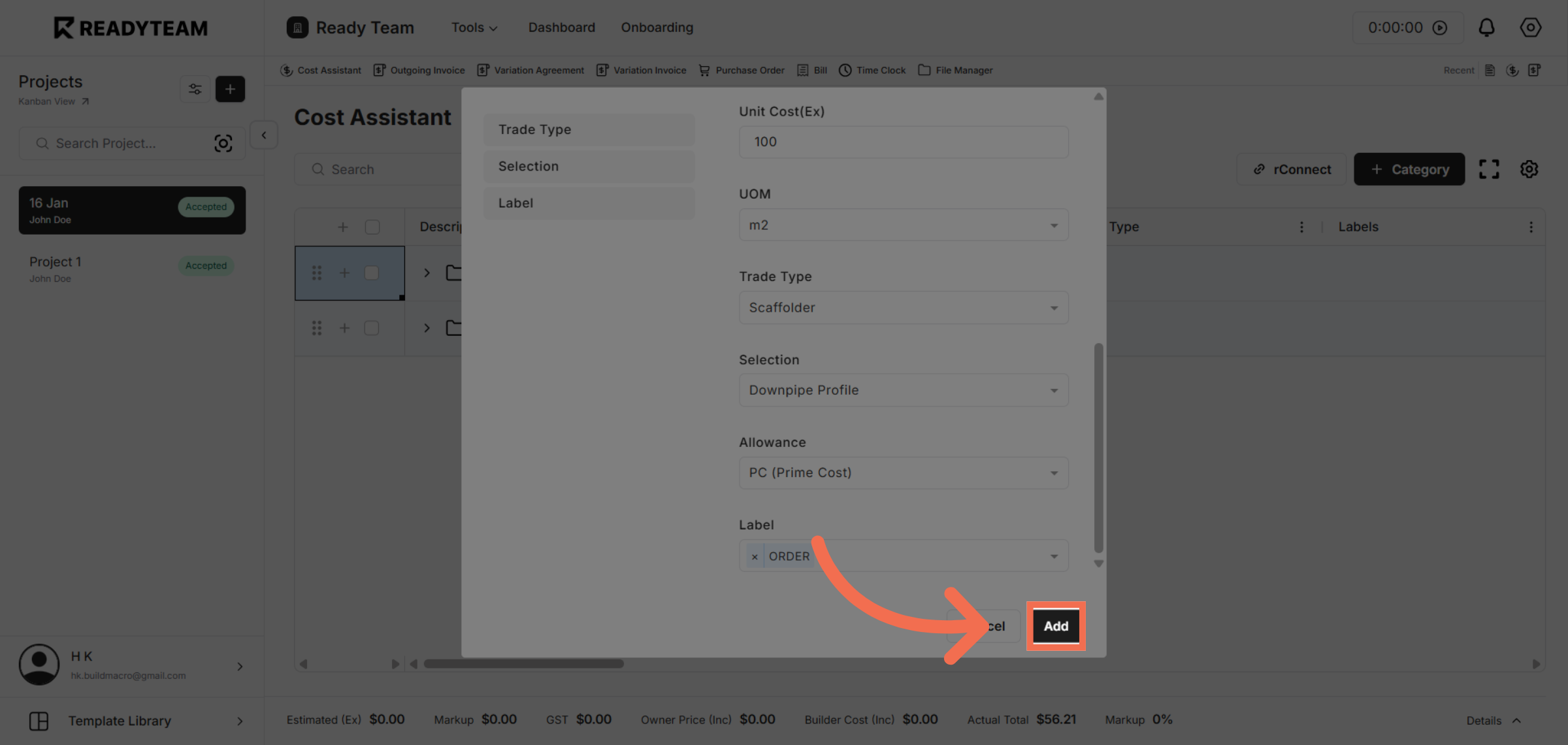
20. Add Line Item
Click Add to complete the process and include the new line item in your project.
This demo demonstrated how to efficiently add a line item in Readyteam, enabling you to manage project costs with detailed descriptions, quantities, and pricing. Start using these features today to streamline your cost tracking and improve project accuracy.