Create Cost Plus Invoice Using ReadyTeam
This demo showcases how to create a cost plus invoice using Readyteam.
Go to app.readyteam.ai
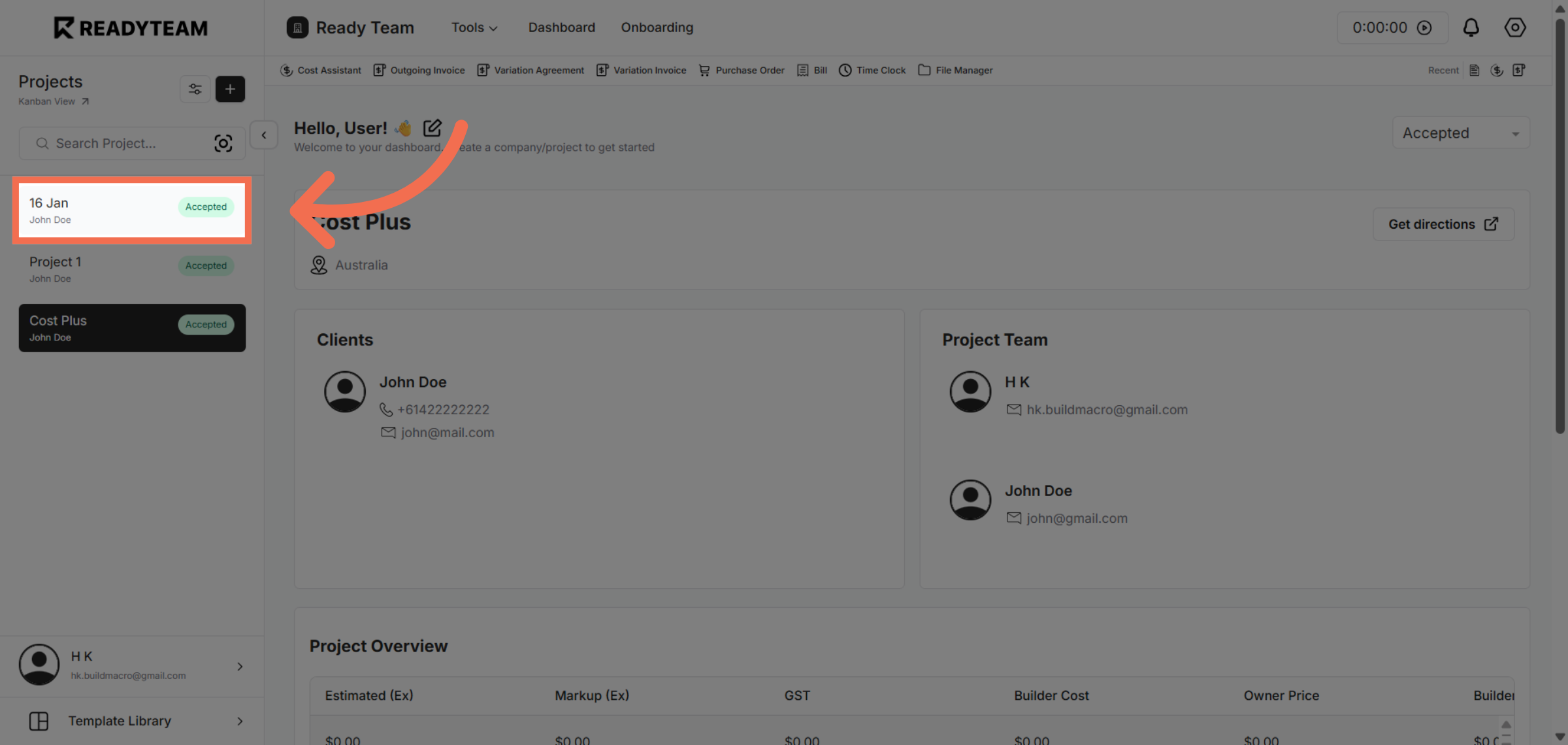
1. Select Specific Project
Select specific project associated with the user to begin the invoice process.
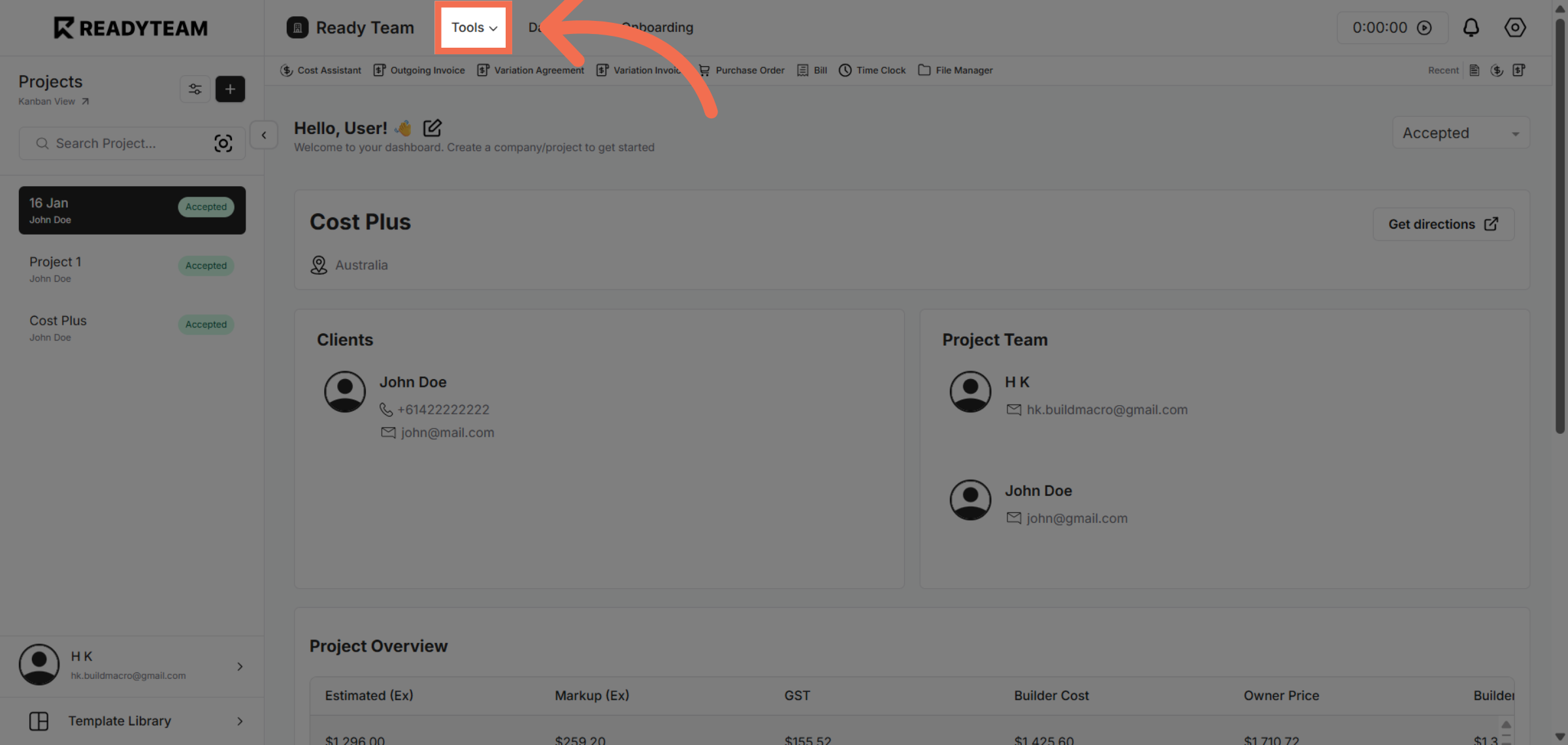
2. Open Tools Menu
Access the Tools menu to find the features needed for invoice creation.
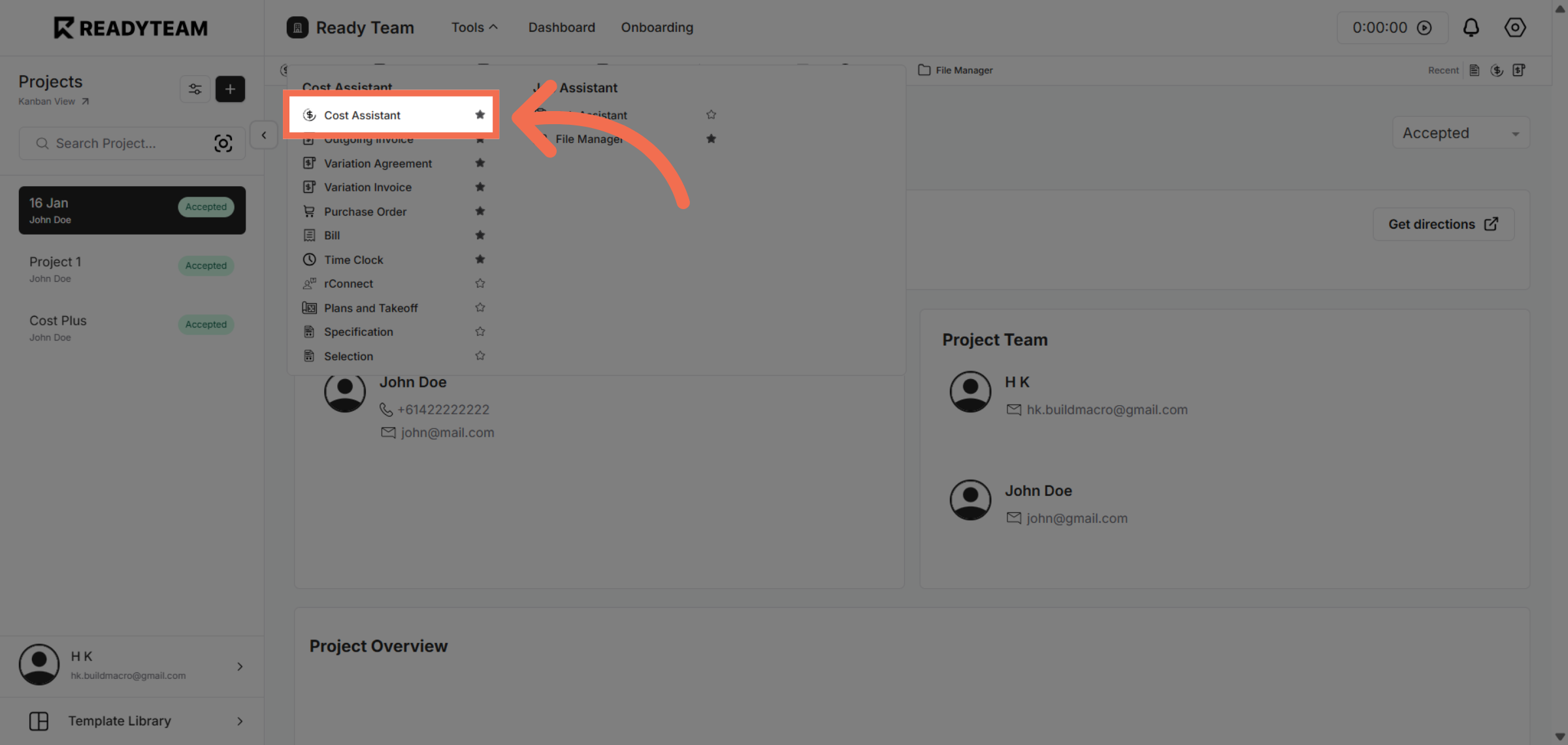
3. Access Cost Assistant
Select the Cost Assistant tool to manage cost-related tasks efficiently.
4. Initiate New Action
Click the designated area to start a new cost plus invoice action.
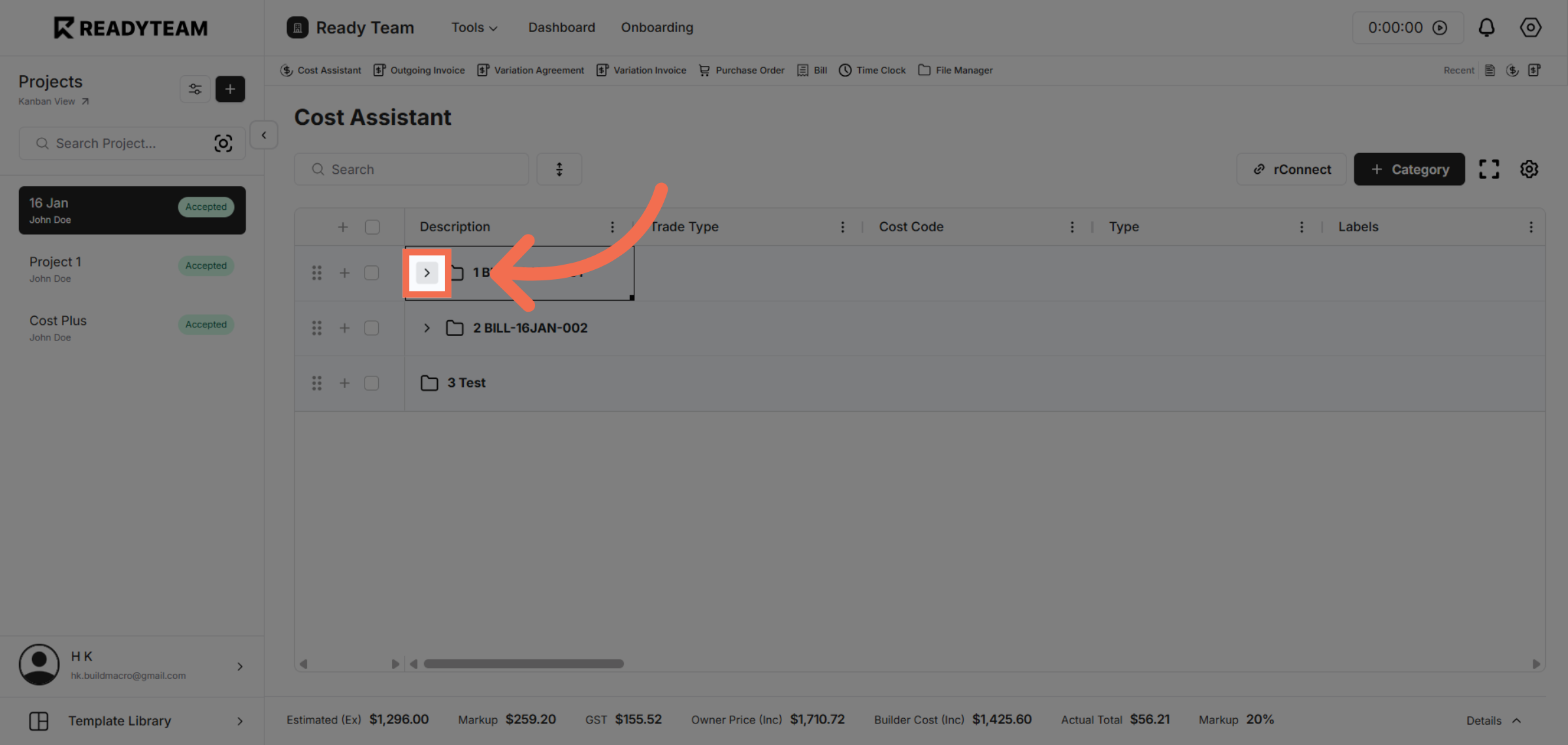
5. Choose Option B
Select option B that represent Bills to specify the type of cost calculation for the invoice.
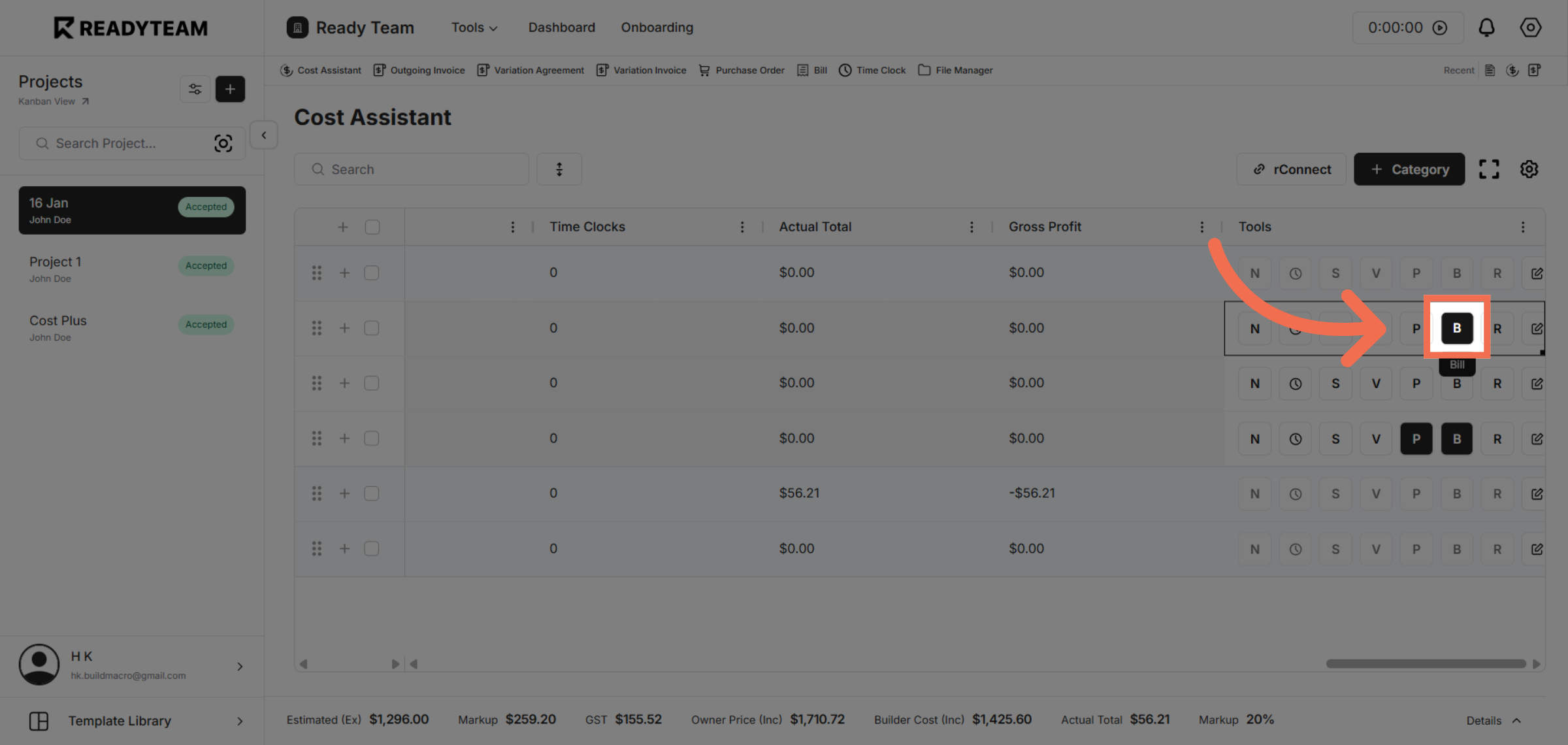
6. Select Bill Option
Click the Bill option to proceed with billing details.
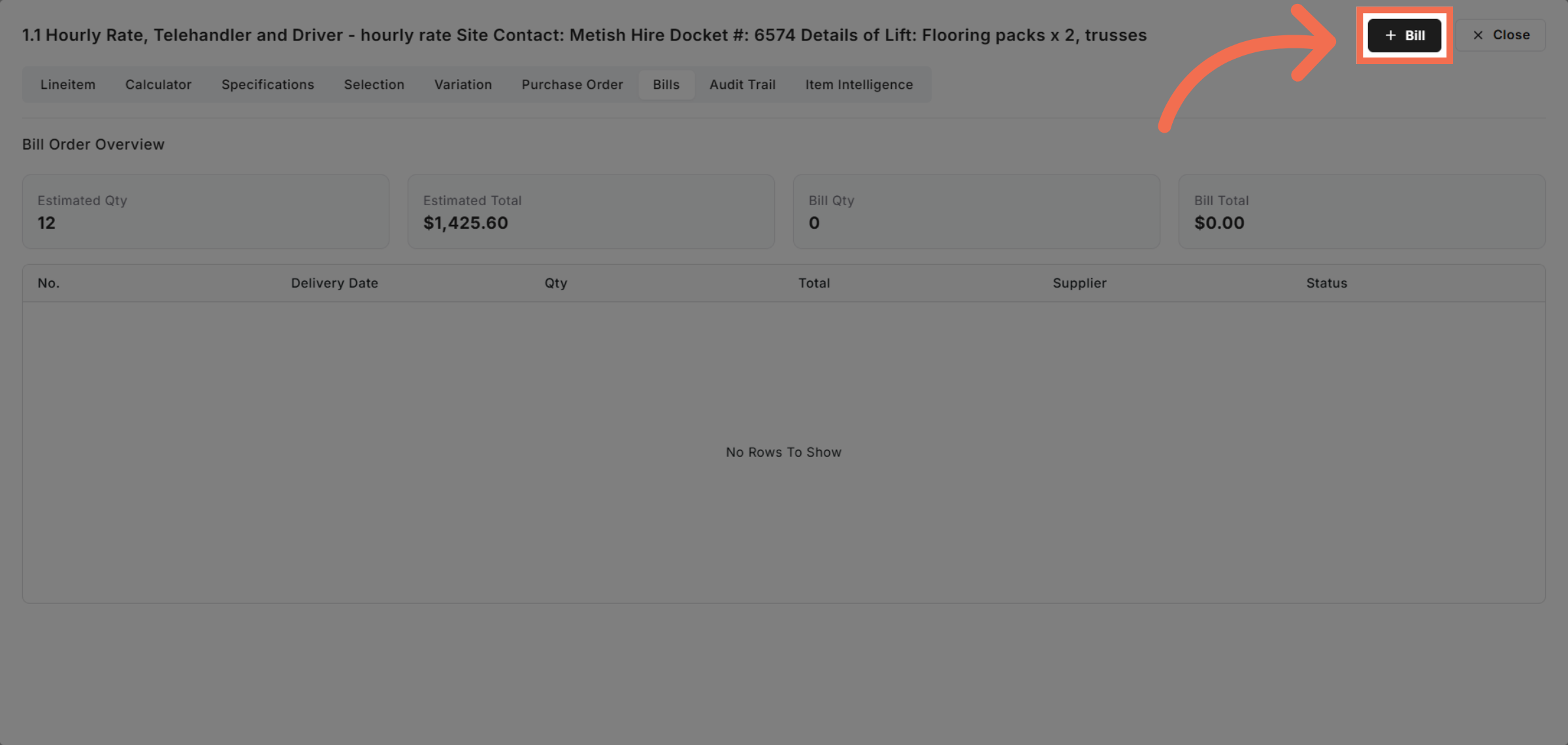
7. Select Date
Choose the Date.
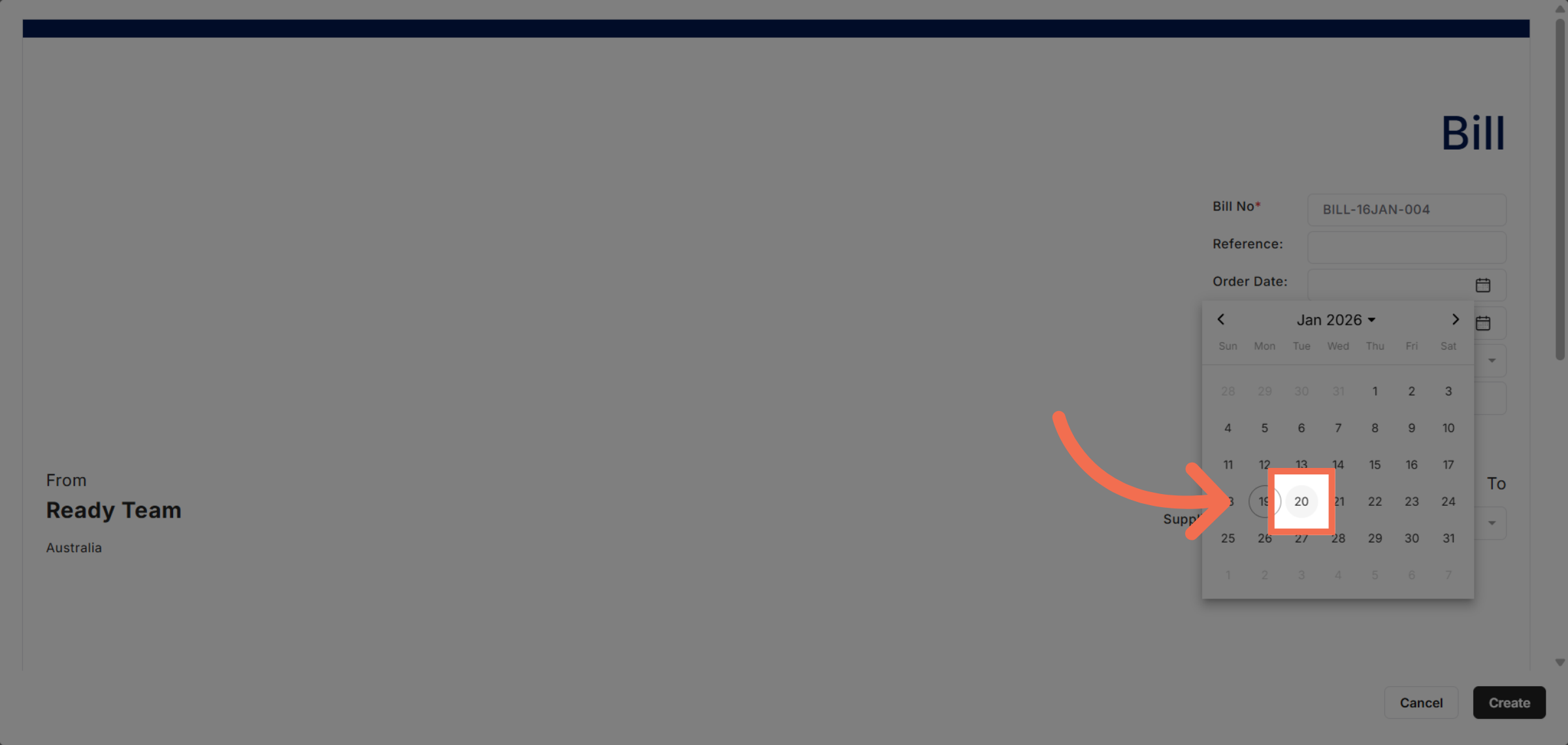
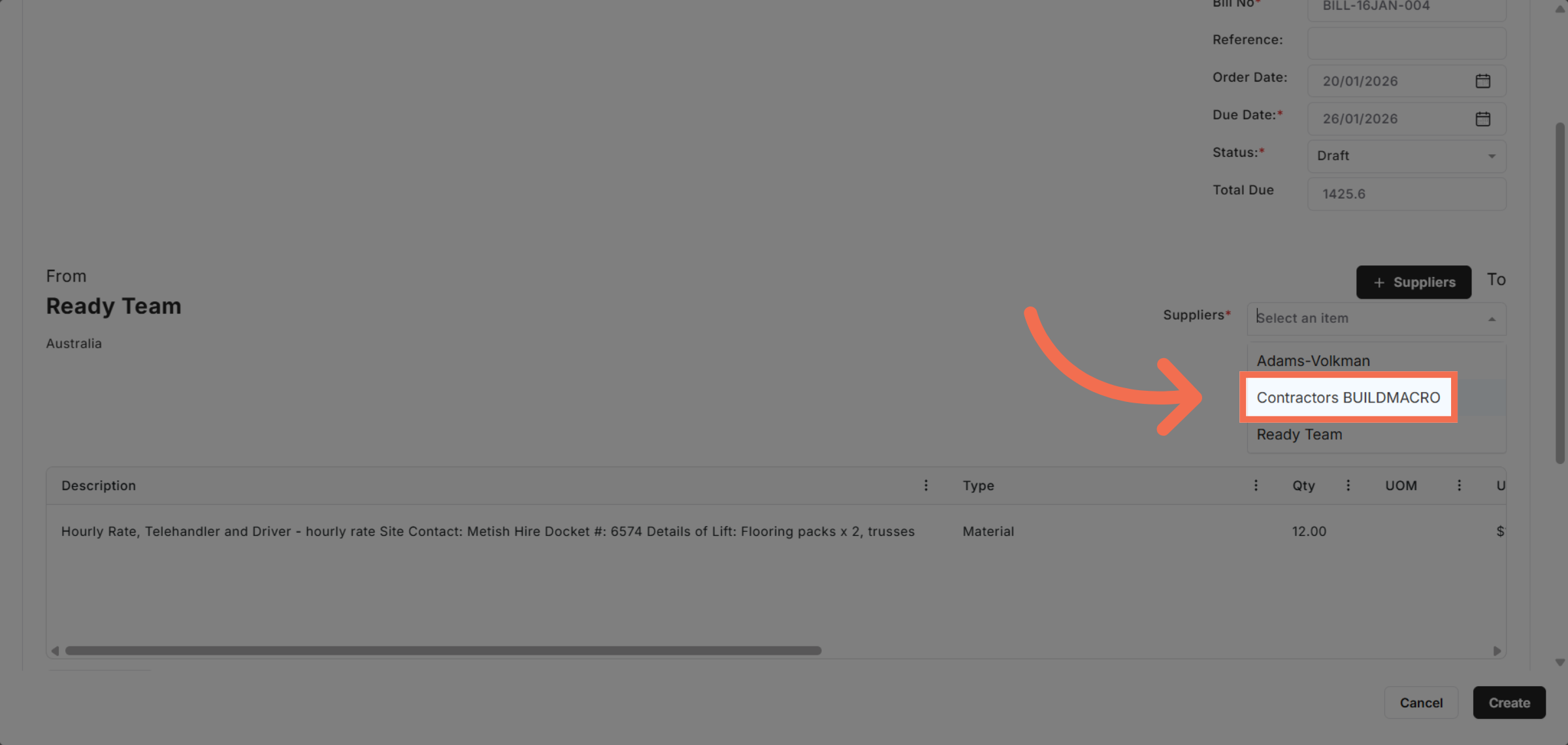
8. Select Suppliers
Choose the Contractors BUILDMACRO option to associate the invoice with the correct suppliers group.
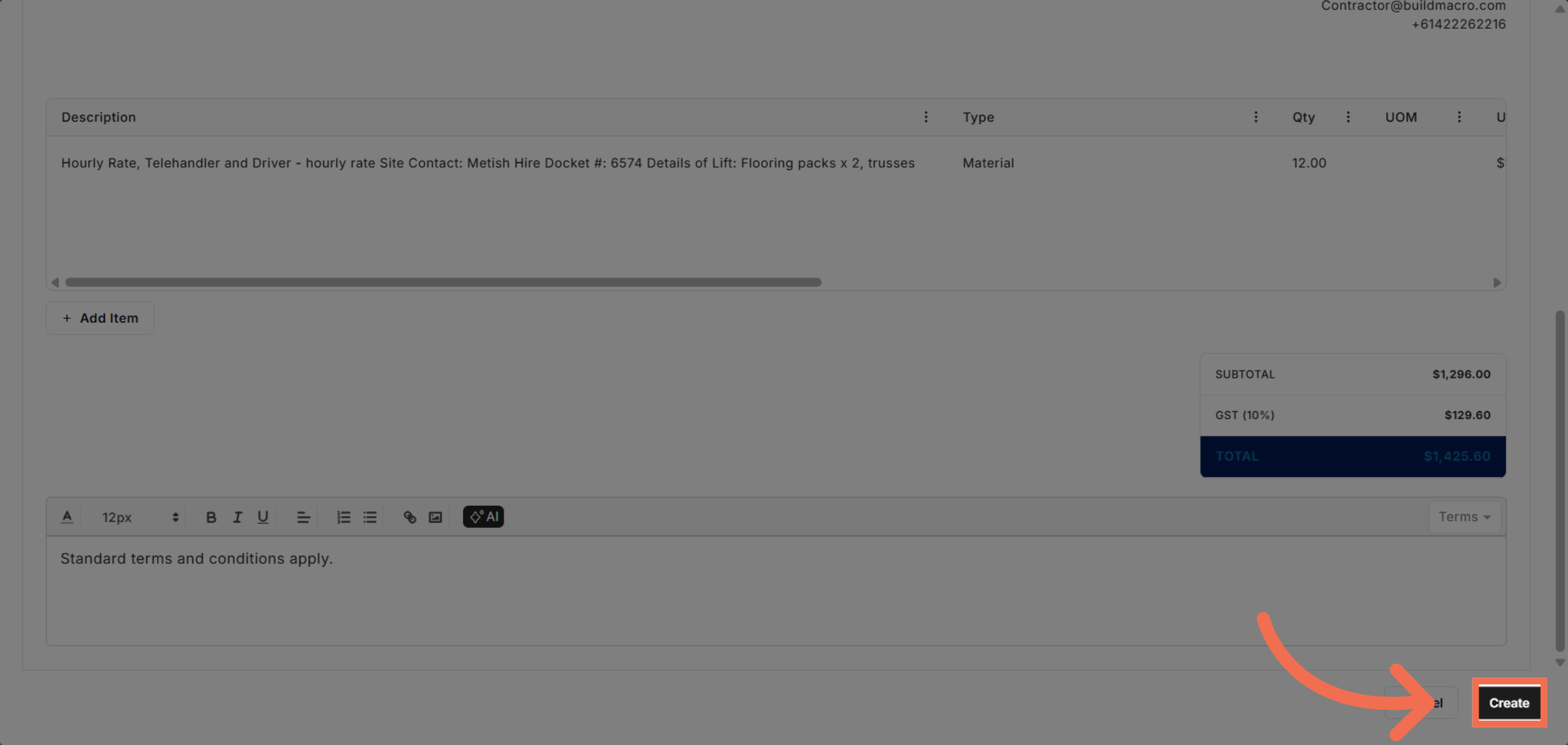
9. Create Invoice Record
Click Create to generate the invoice record within the system.
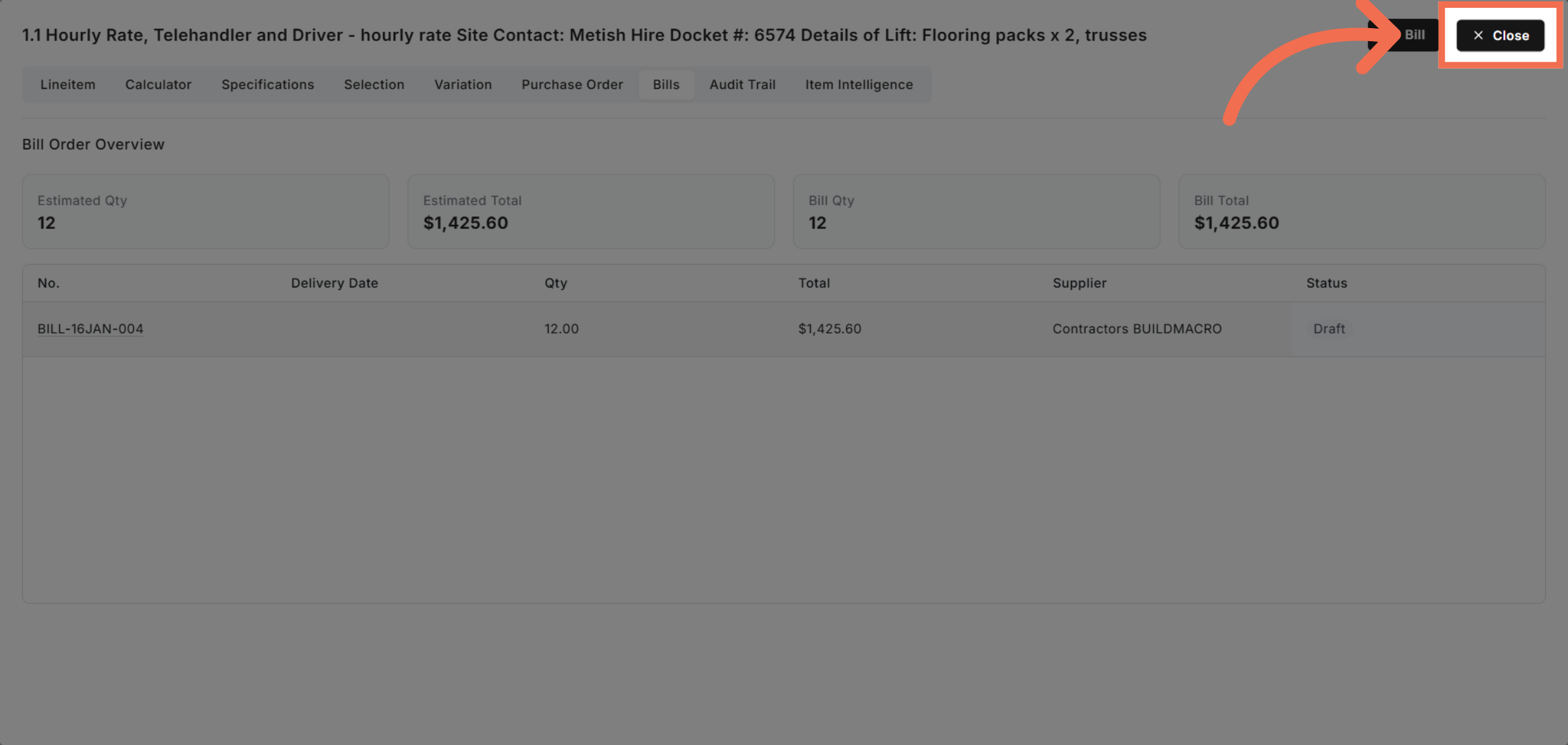
10. Close Creation Window
Click Close to exit the invoice creation window after saving.
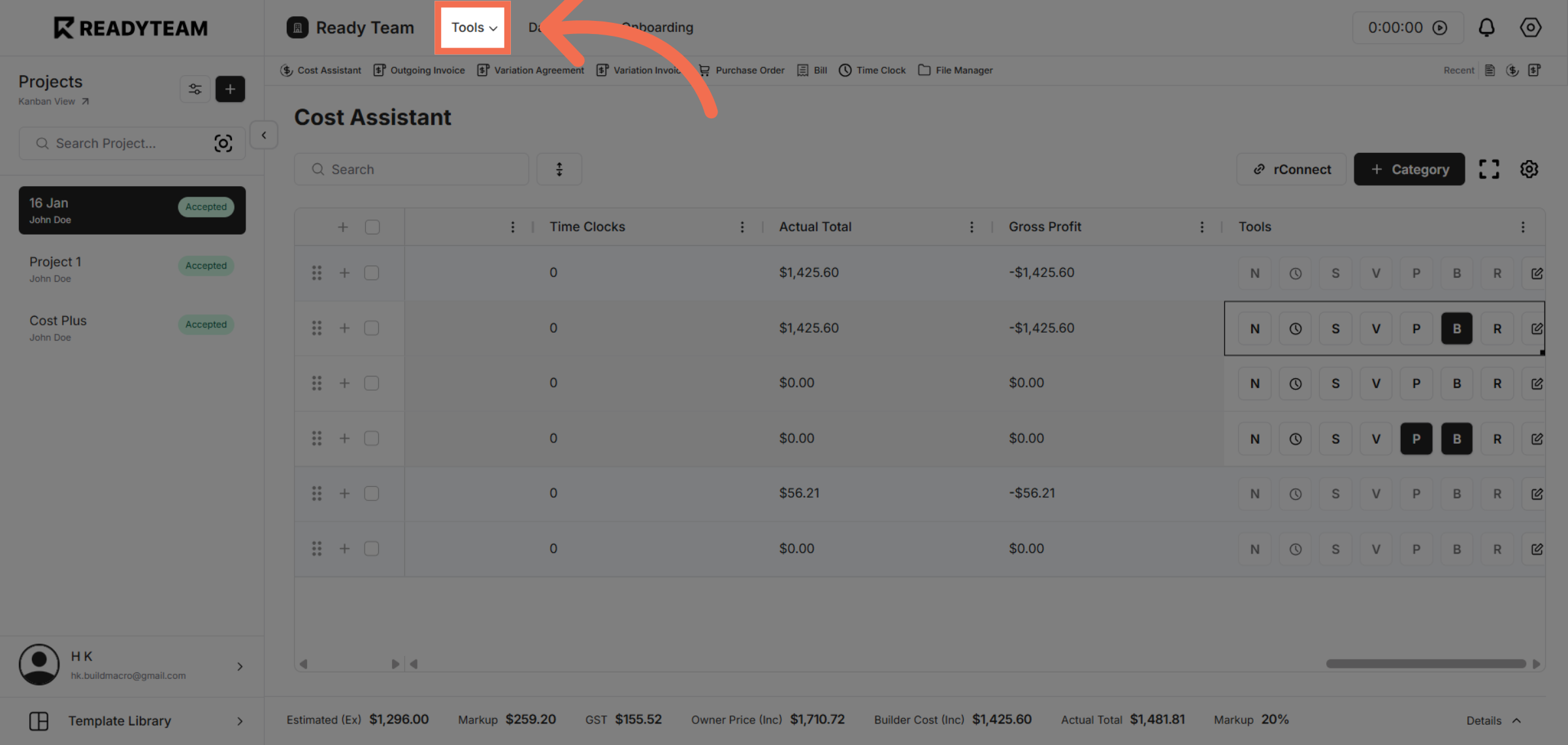
11. Reopen Tools Menu
Access the Tools menu again to continue with billing tasks.
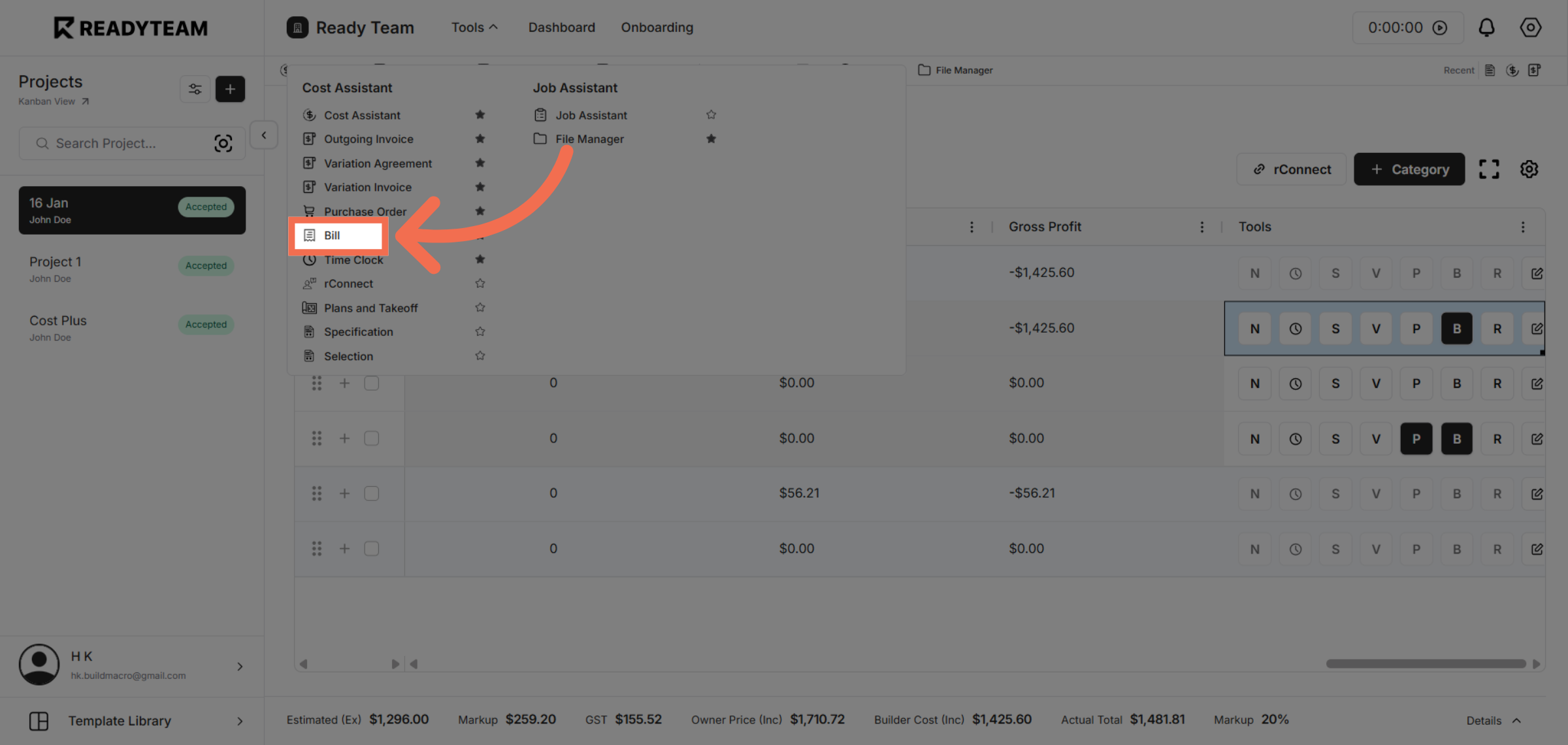
12. Select Bill
Click the Bill option to revisit billing features for invoice finalization.
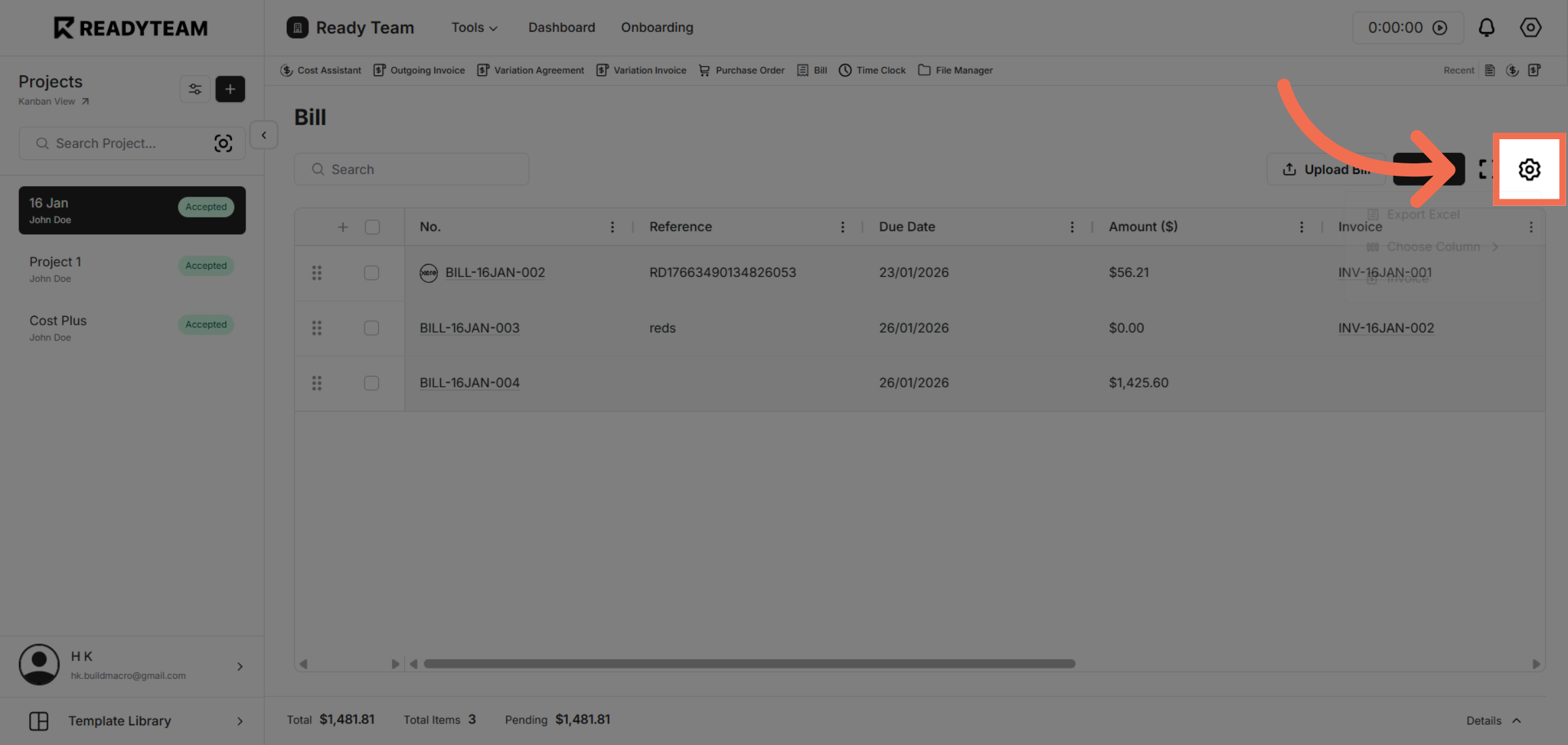
13. Select Setting
Click the setting area to continue with the billing process.
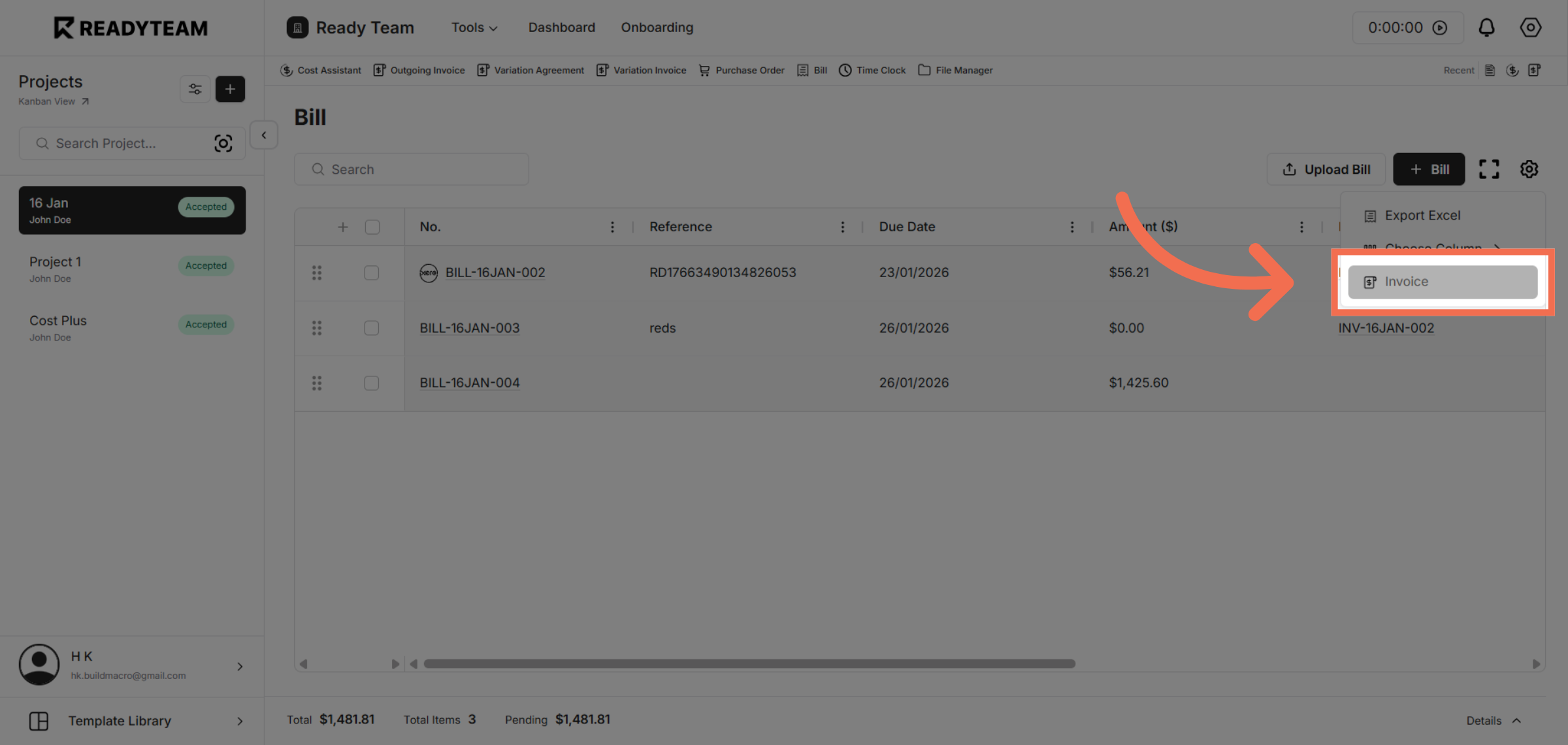
14. Open Invoice Section
Select the Invoice section to manage invoice details.
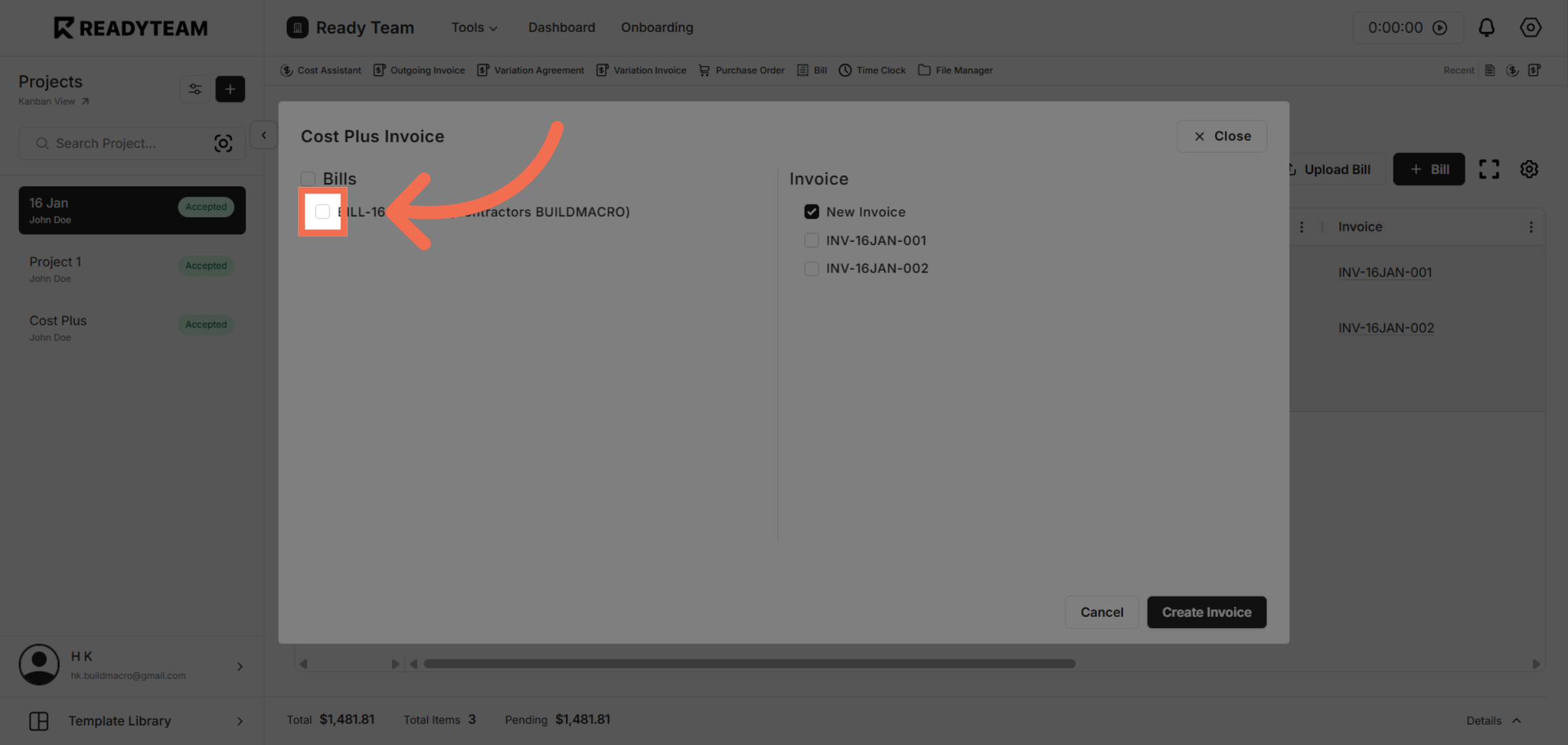
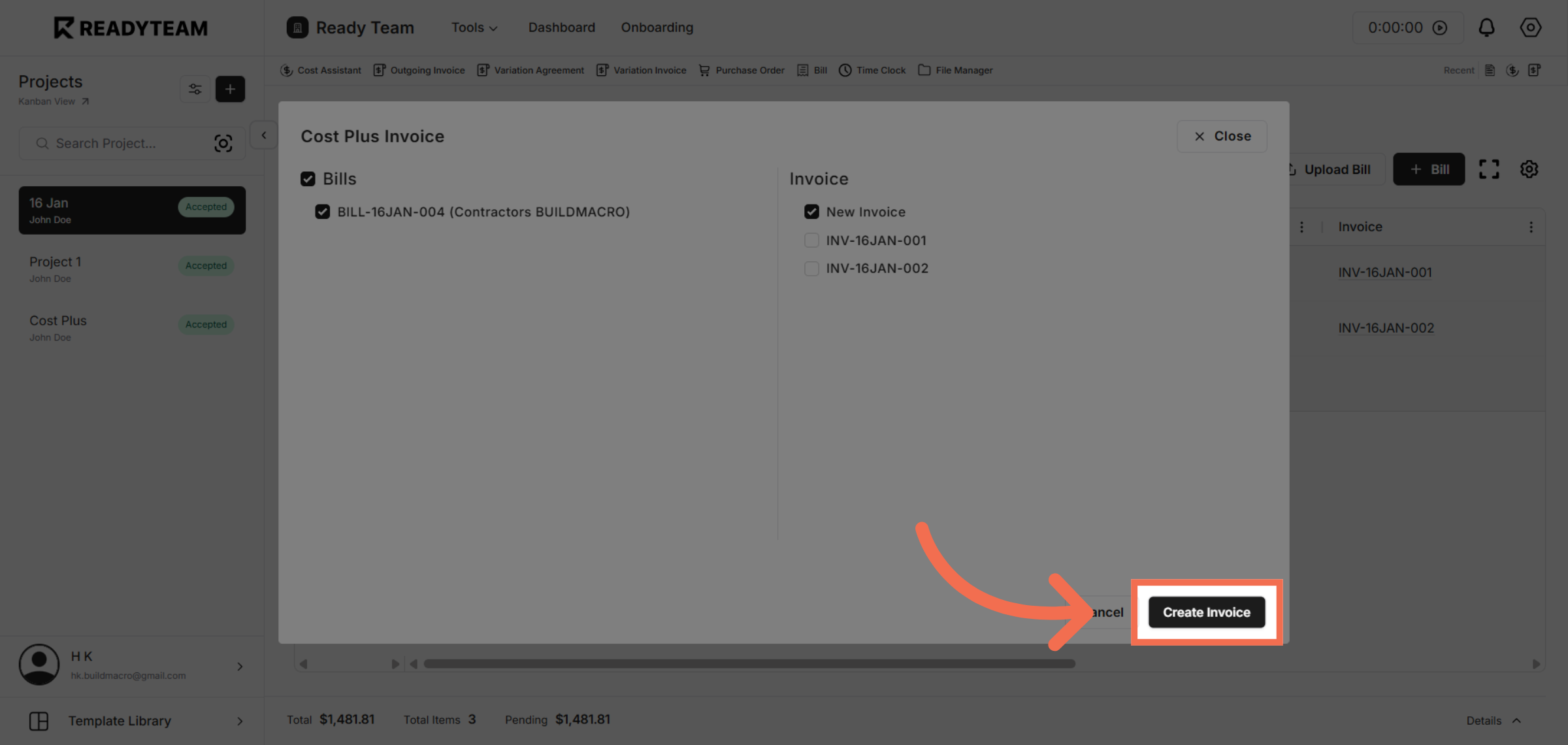
15. Choose Specific Bill
Click the bill labeled BILL-16JAN-004 associated with Contractors BUILDMACRO to review details.
16. Create Invoice
Click Create Invoice to finalize and generate the invoice document.
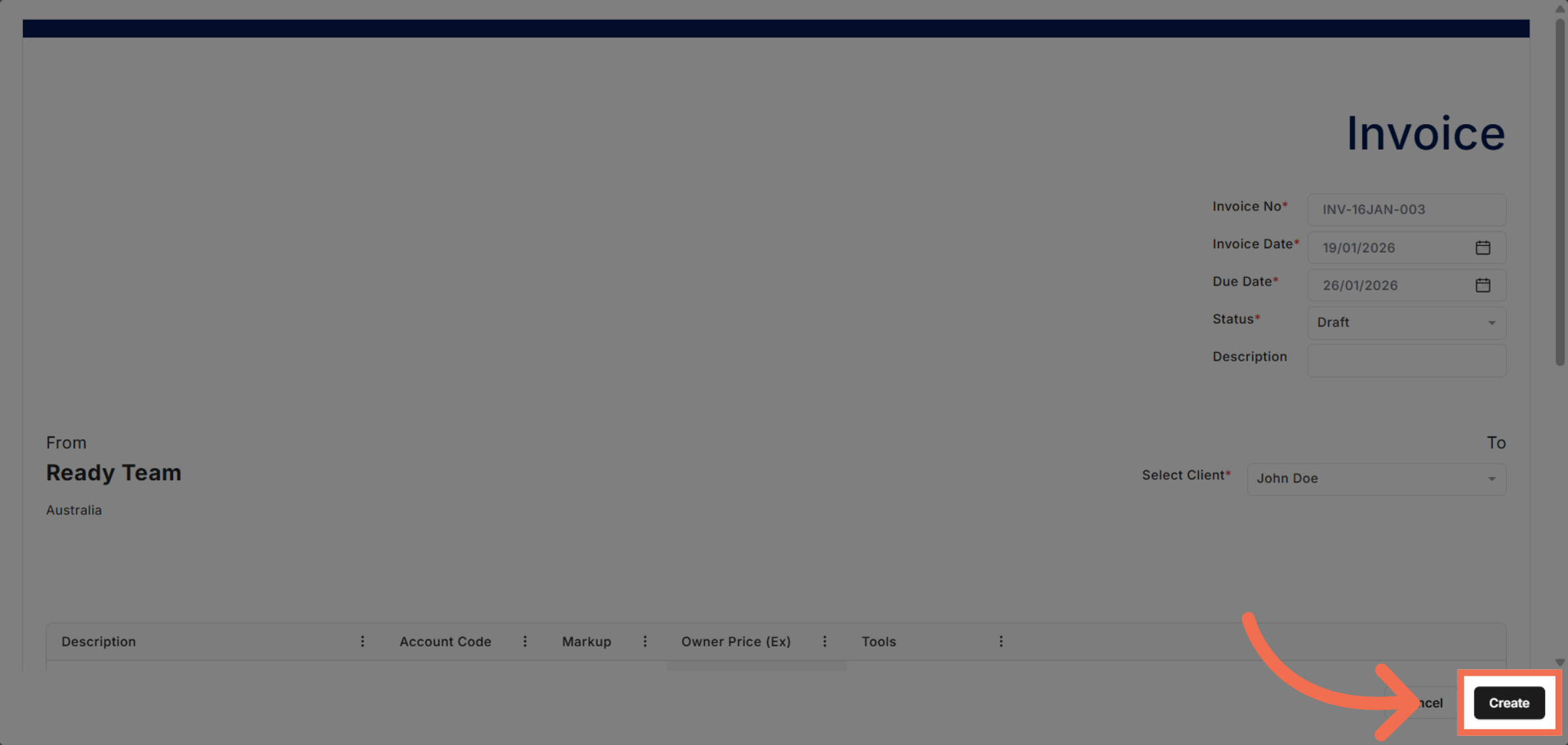
17. Confirm Invoice Creation
Click Create to confirm and complete the invoice creation process.
This demo demonstrated how to efficiently create a cost plus invoice using Readyteam's tools. You can now streamline your billing process and improve accuracy by following these steps.