Create a Purchase Order from Cost Assistant Line Item
This demo showcases how Readyteam streamlines purchase order management.
Go to app.readyteam.ai
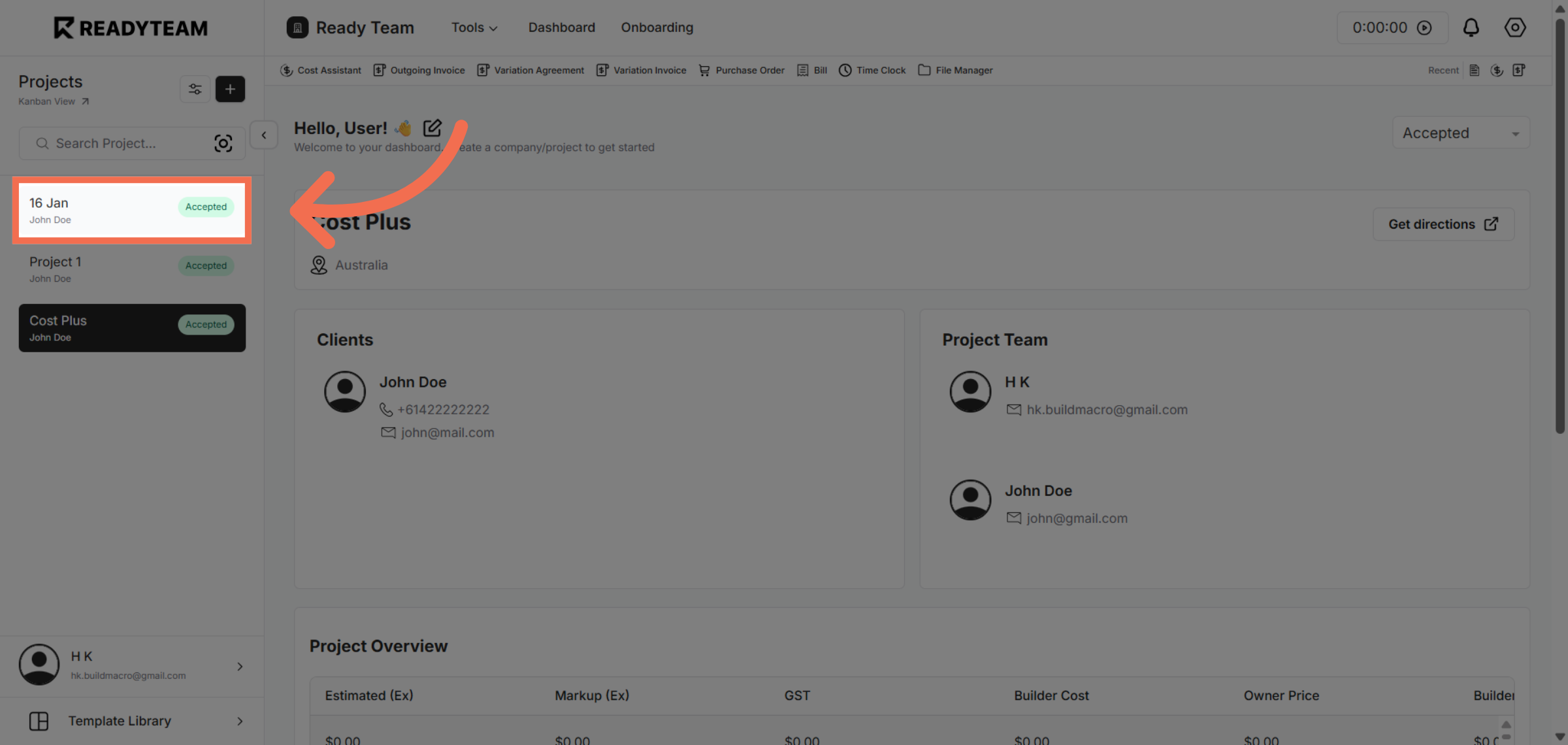
1. Select Specific Project
Select specific project to begin managing your purchase orders.
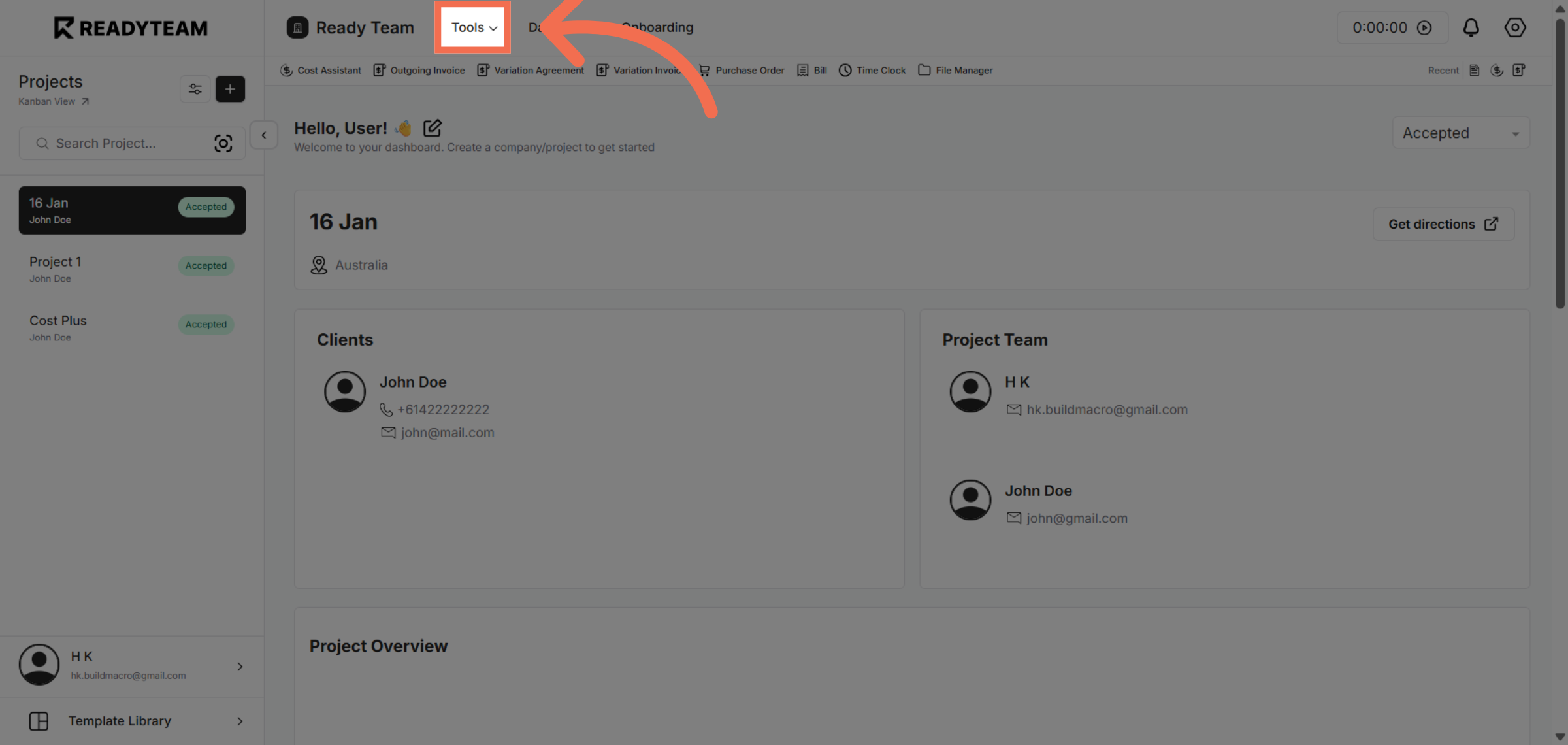
2. Open Tools Menu
Click the Tools menu to access various Readyteam functionalities.
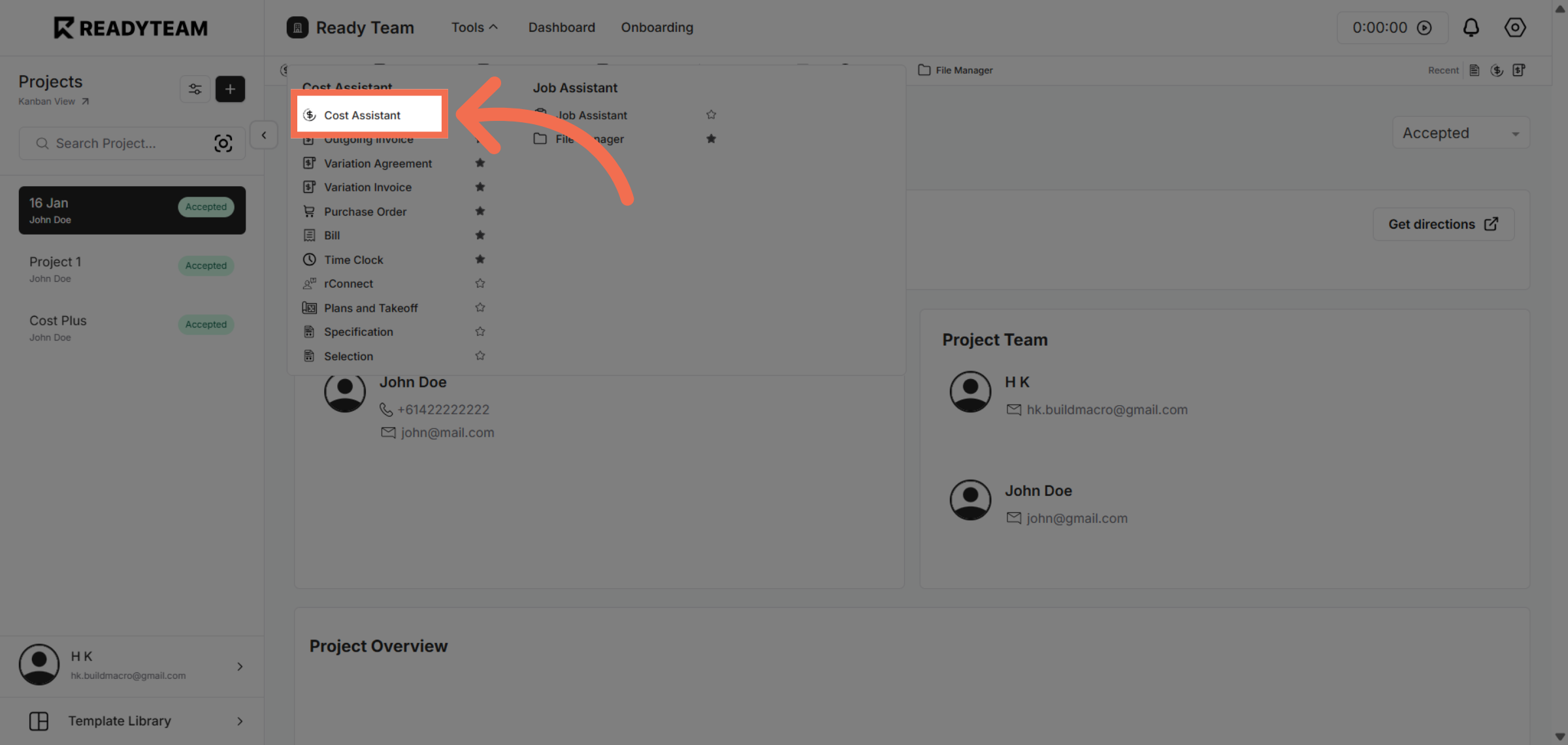
3. Access Cost Assistant
Click Cost Assistant to analyze and manage cost-related data within your purchase orders.
4. Initiate Action Here
Click the designated area to proceed with purchase order operations.
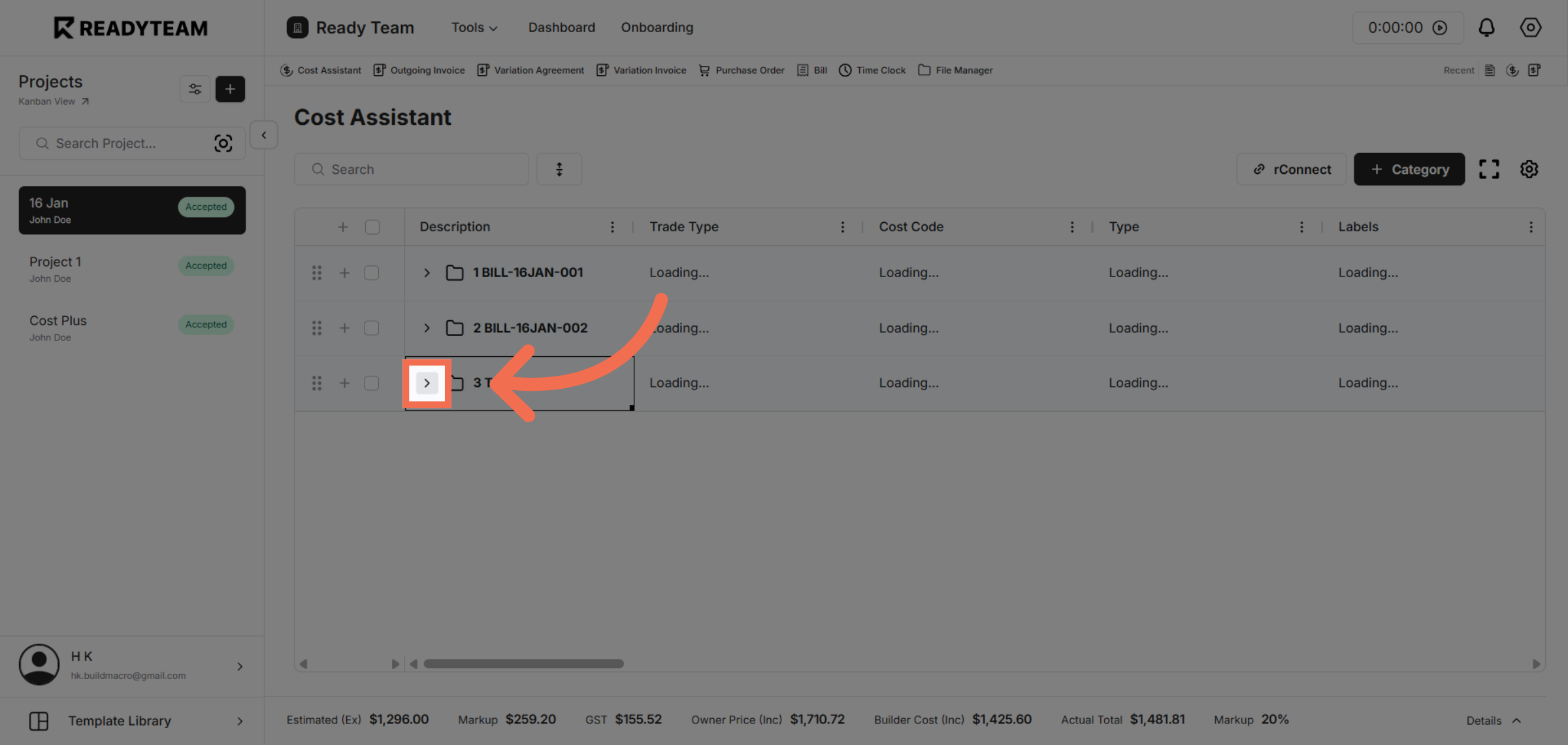
5. Select Purchase Order Tool
Click the purchase order Tool labeled with the letter P to filter relevant entries.
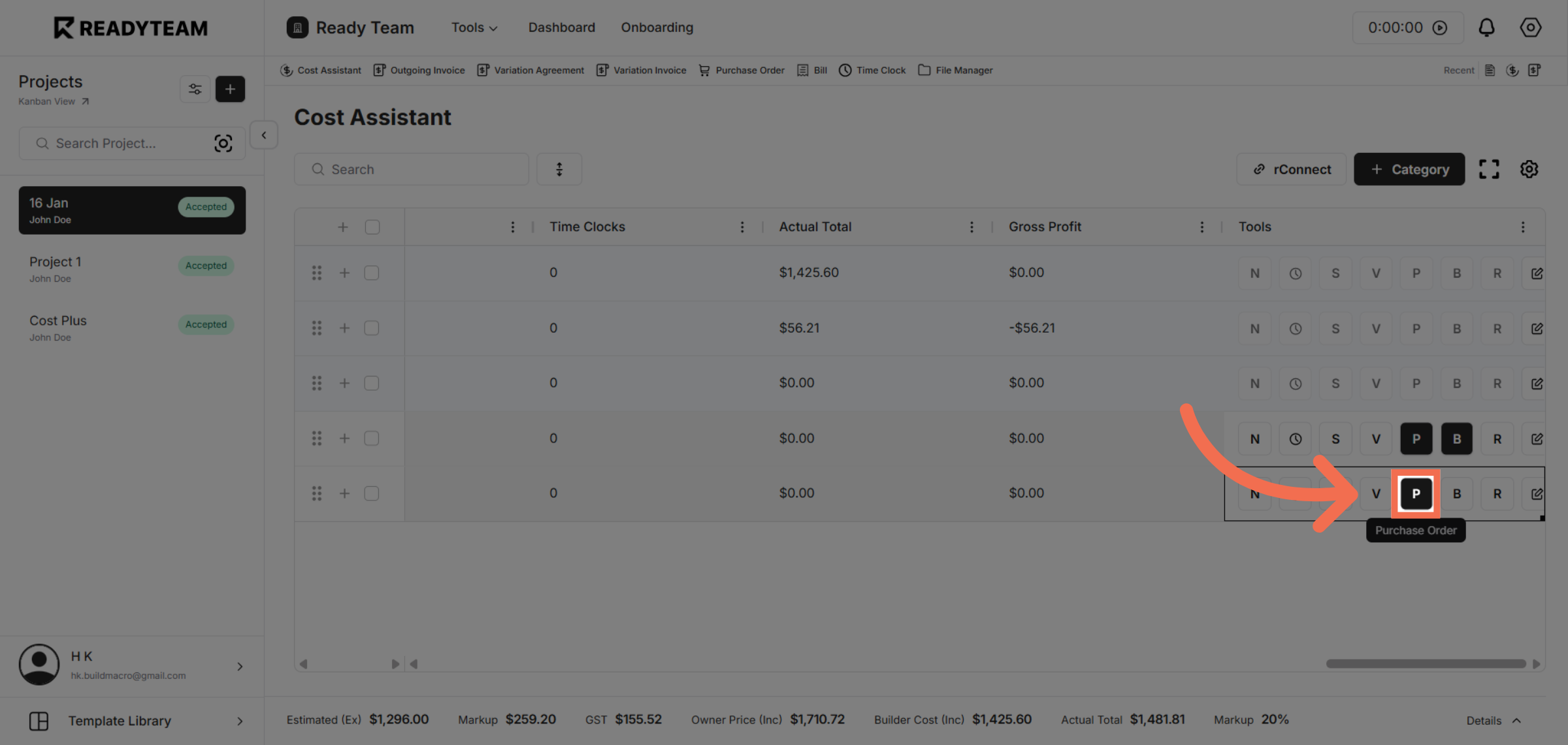
6. Choose Purchase Order Option
Click Purchase Order to focus on purchase order-specific tasks.
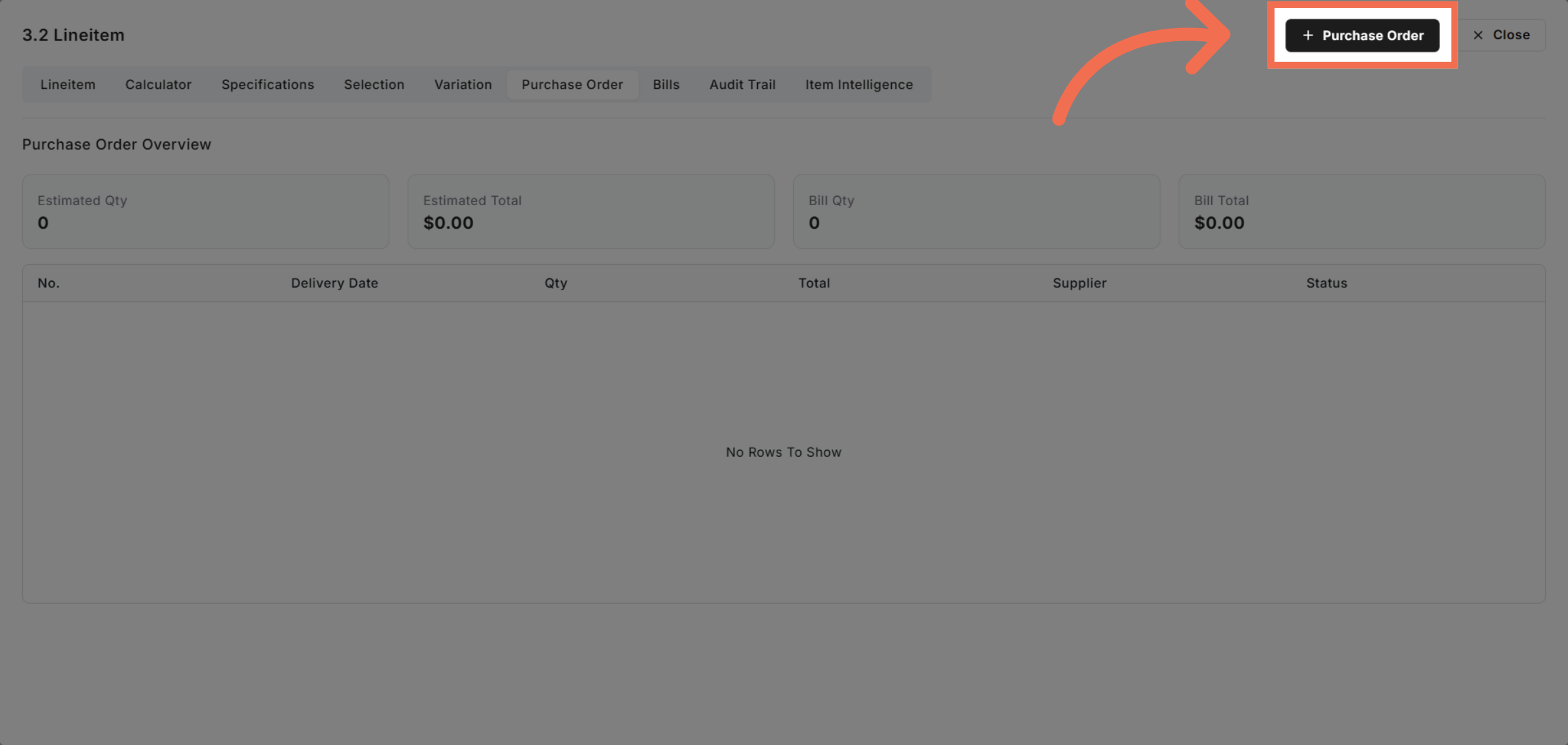
7. Select Order Date Entry
Click the date labeled 21 to specify the relevant purchase order date.
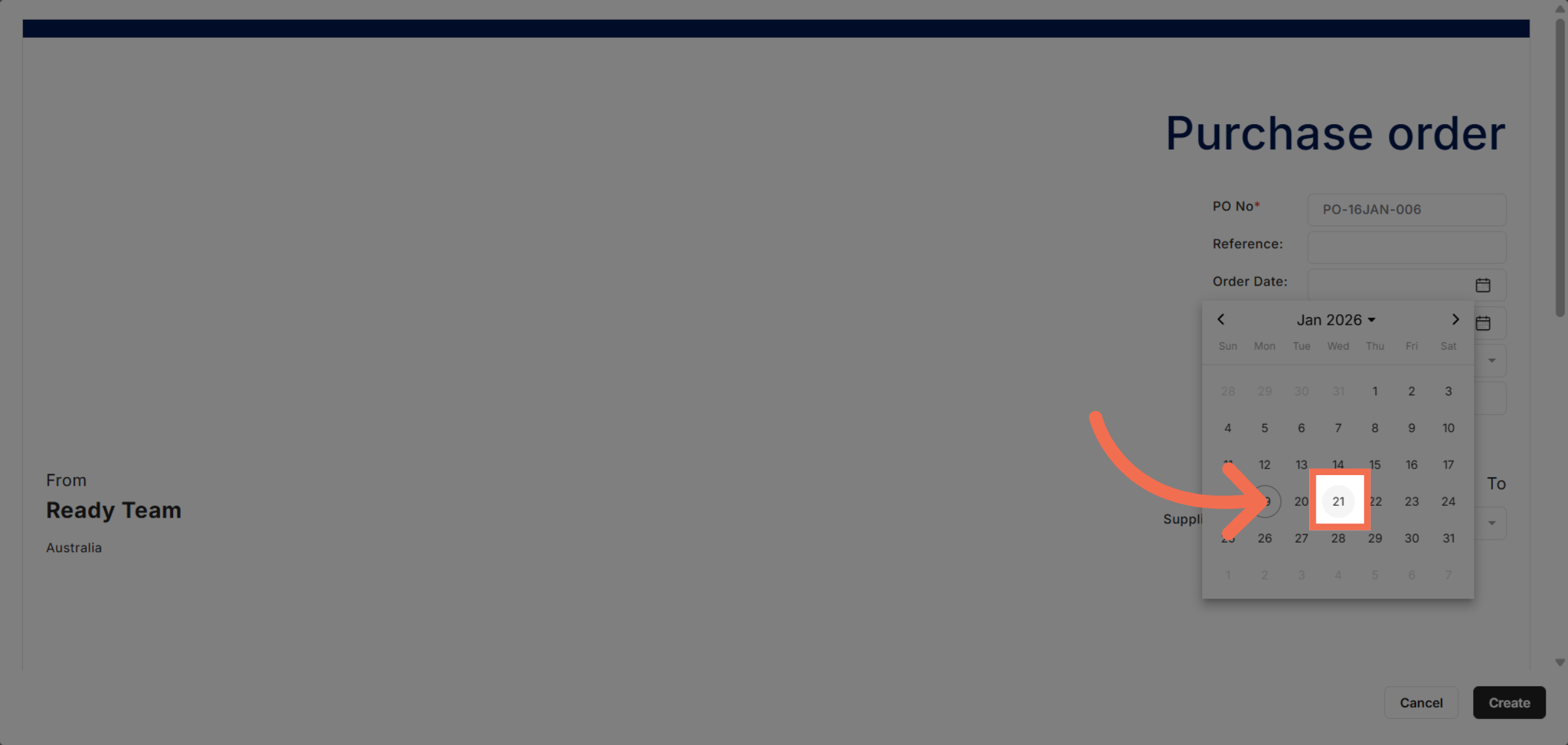
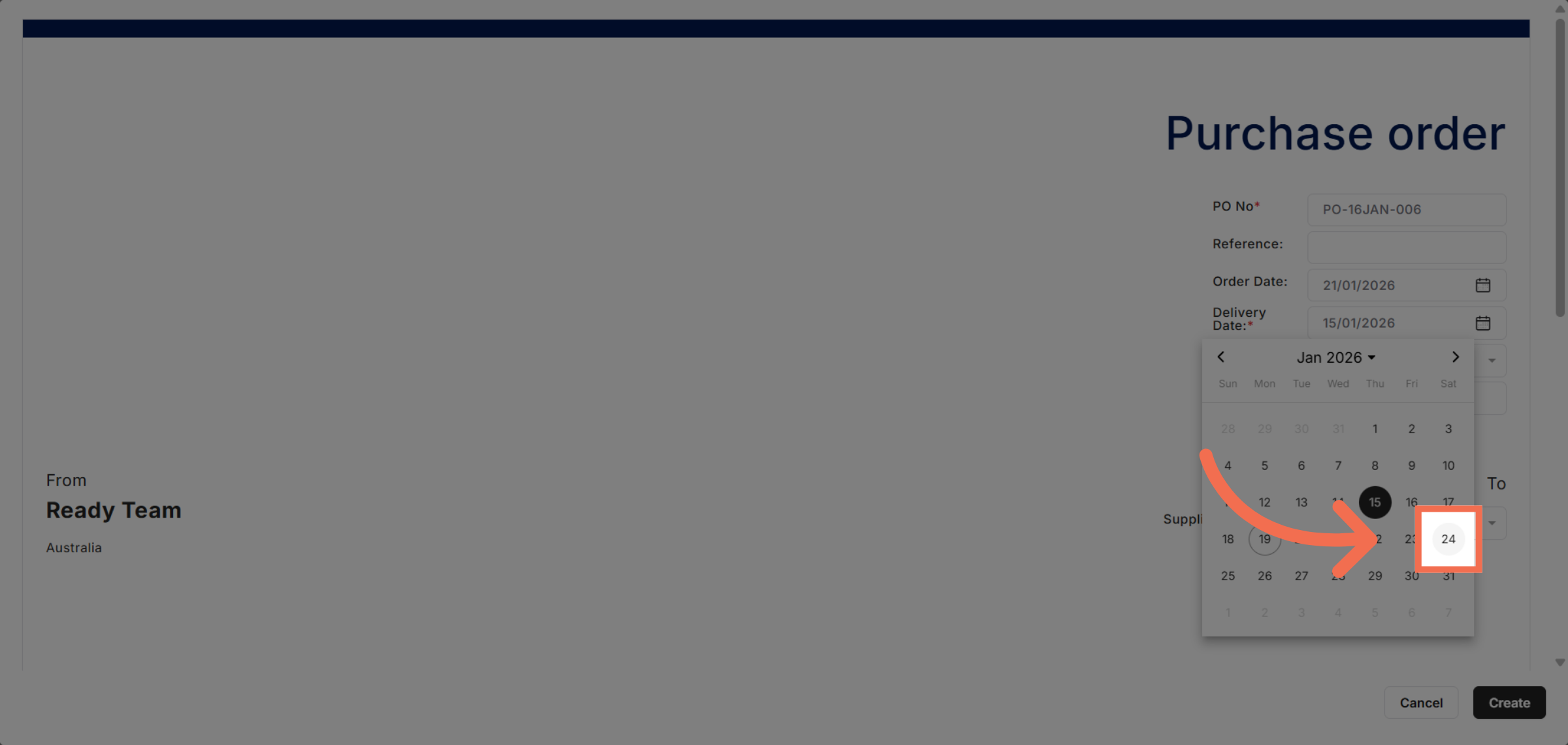
8. Select Delivery Date
Click the date labeled 24 to finalize date-related purchase order information.
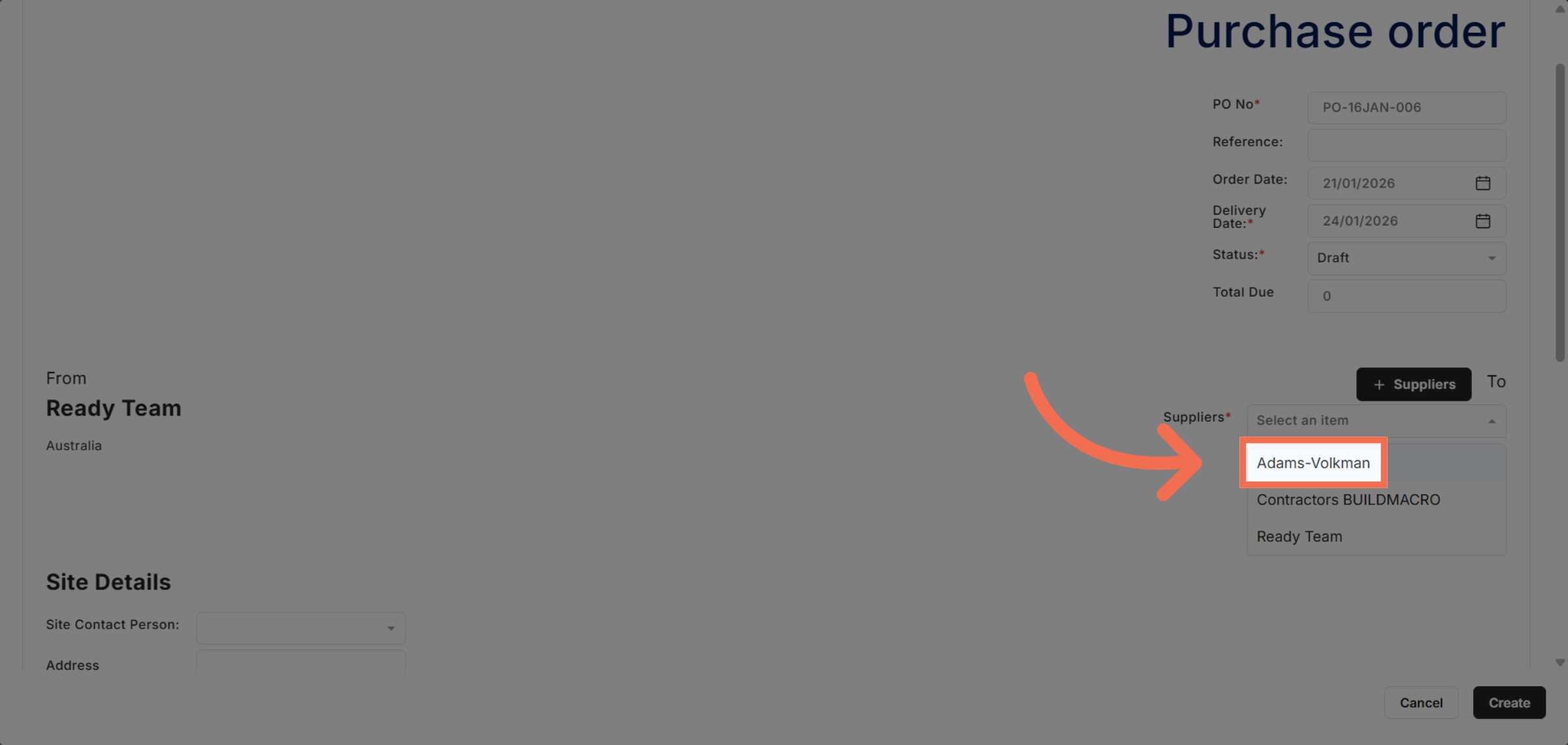
9. Select Suppliers
Click the vendor name to assign the purchase order to the appropriate supplier.
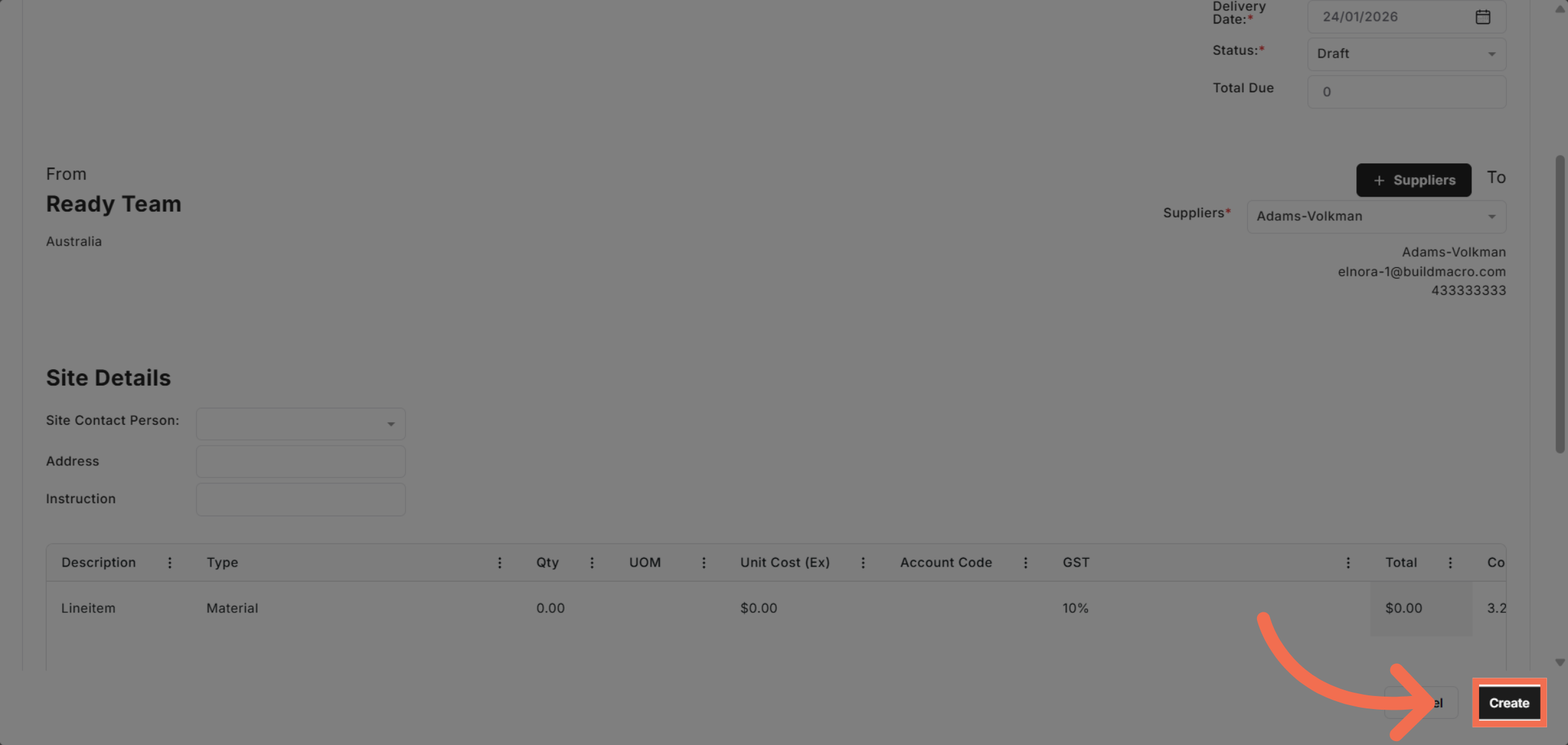
10. Create Purchase Order
Click Create to generate the purchase order and complete the setup process.
This demo highlights how Readyteam simplifies purchase order management by guiding you through key features to create and manage purchase orders efficiently. Start using Readyteam today to streamline your procurement process.