Create Cost Plus Contract Using ReadyTeam
This demo showcases how to create a cost plus contract within Readyteam.
Go to app.readyteam.ai
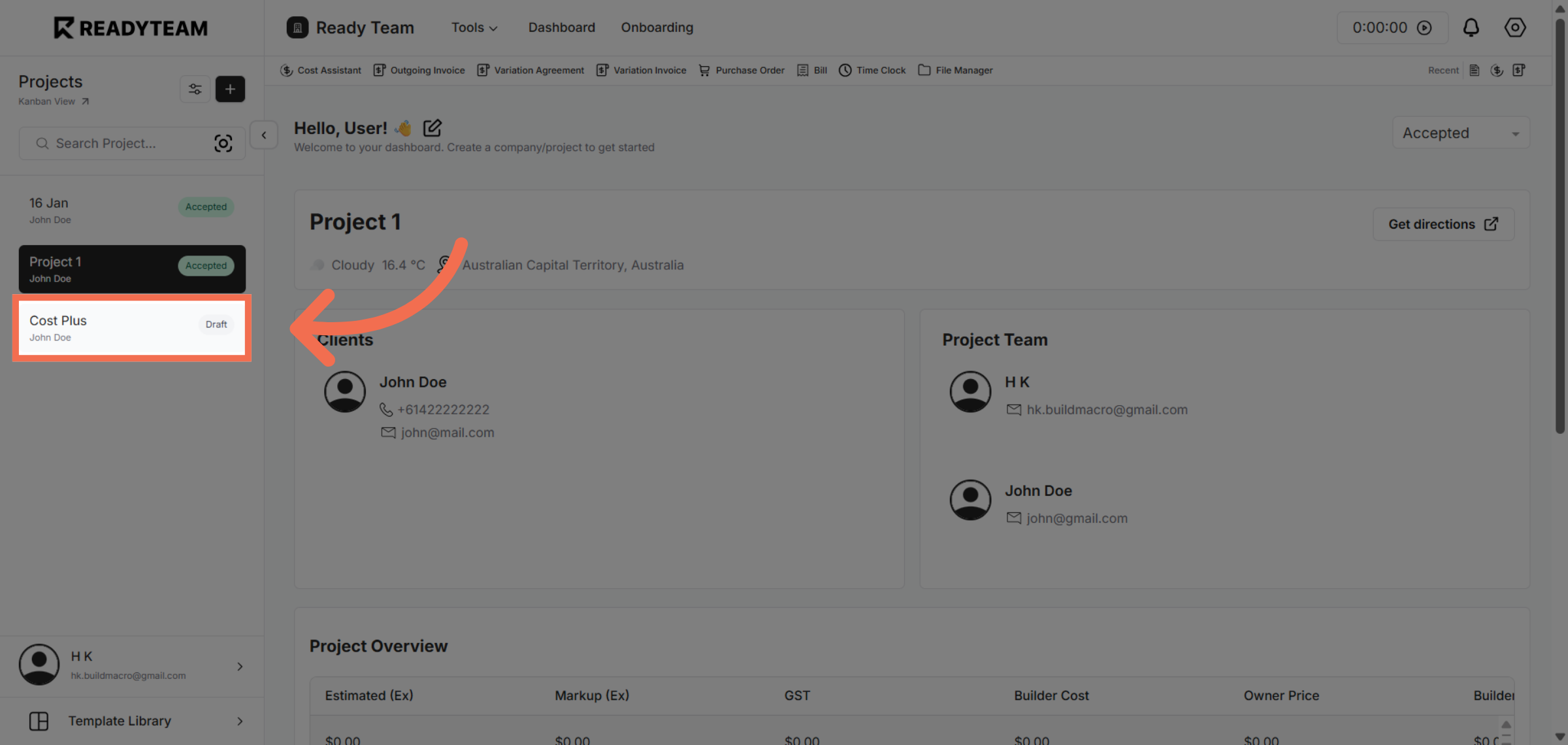
1. Select Draft Project
Click the draft Project to begin create your contract.
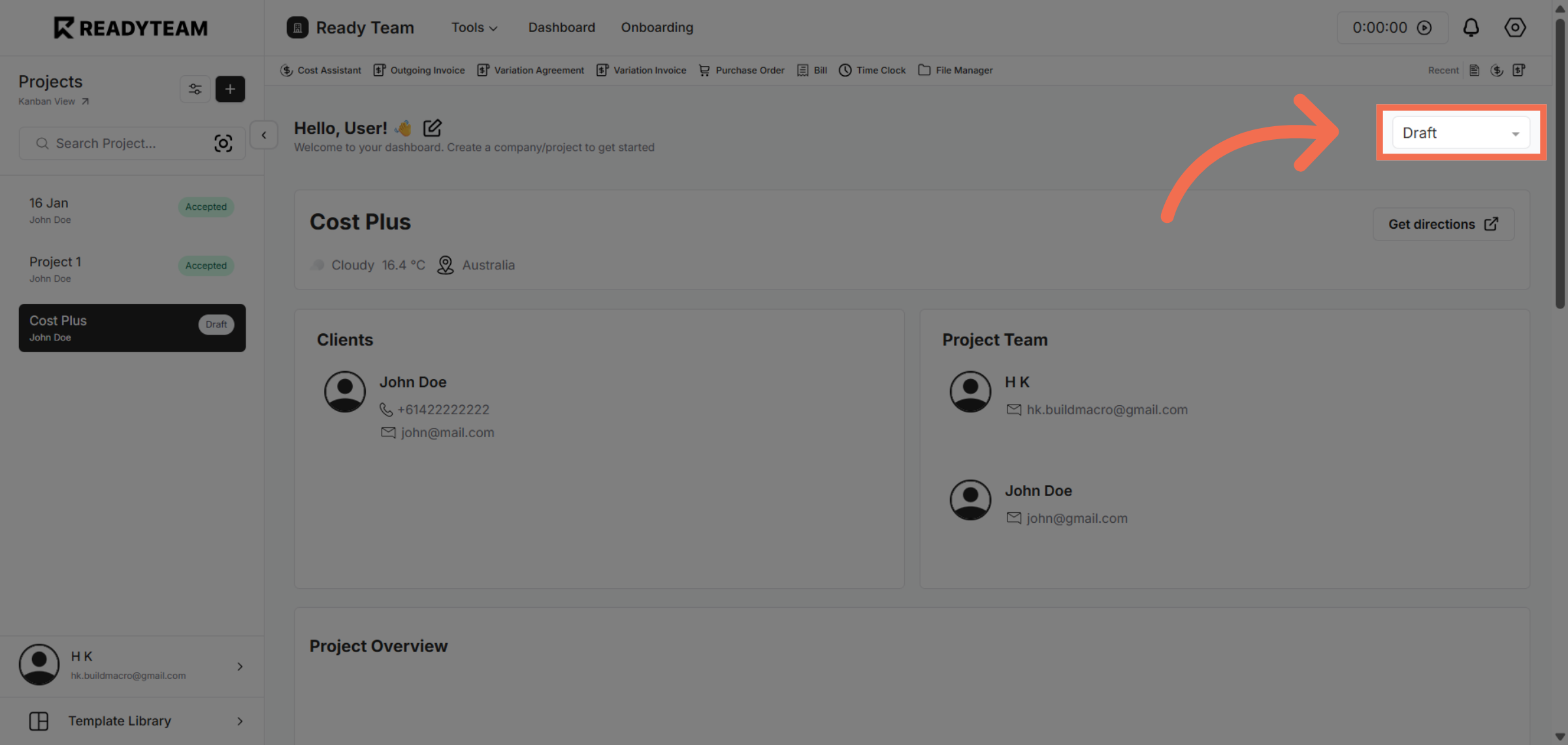
2. Access Status Options
Click here to open the Project Status options menu for further configuration.
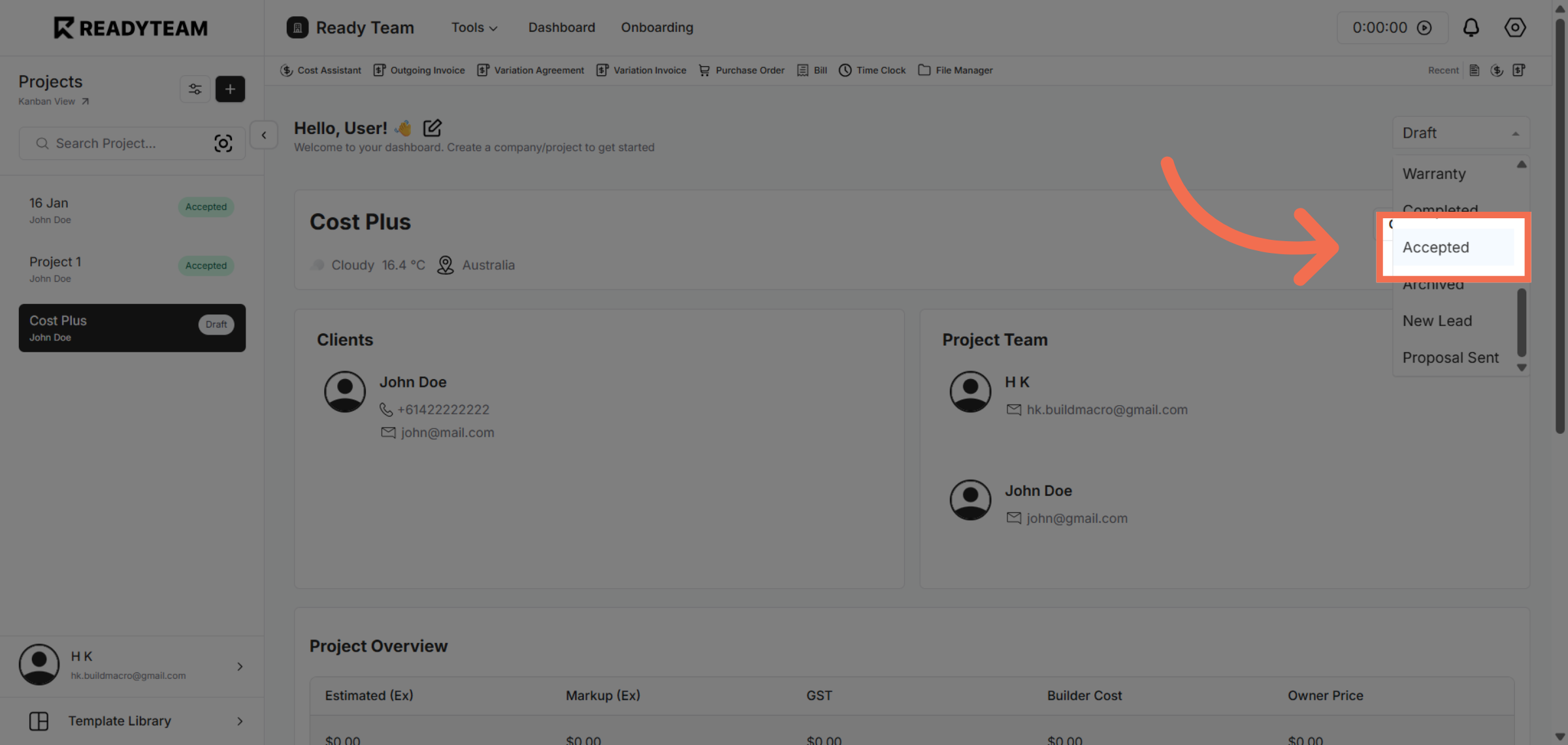
3. Select Contract Status
Click Accepted to set the Project status and proceed with the agreement.
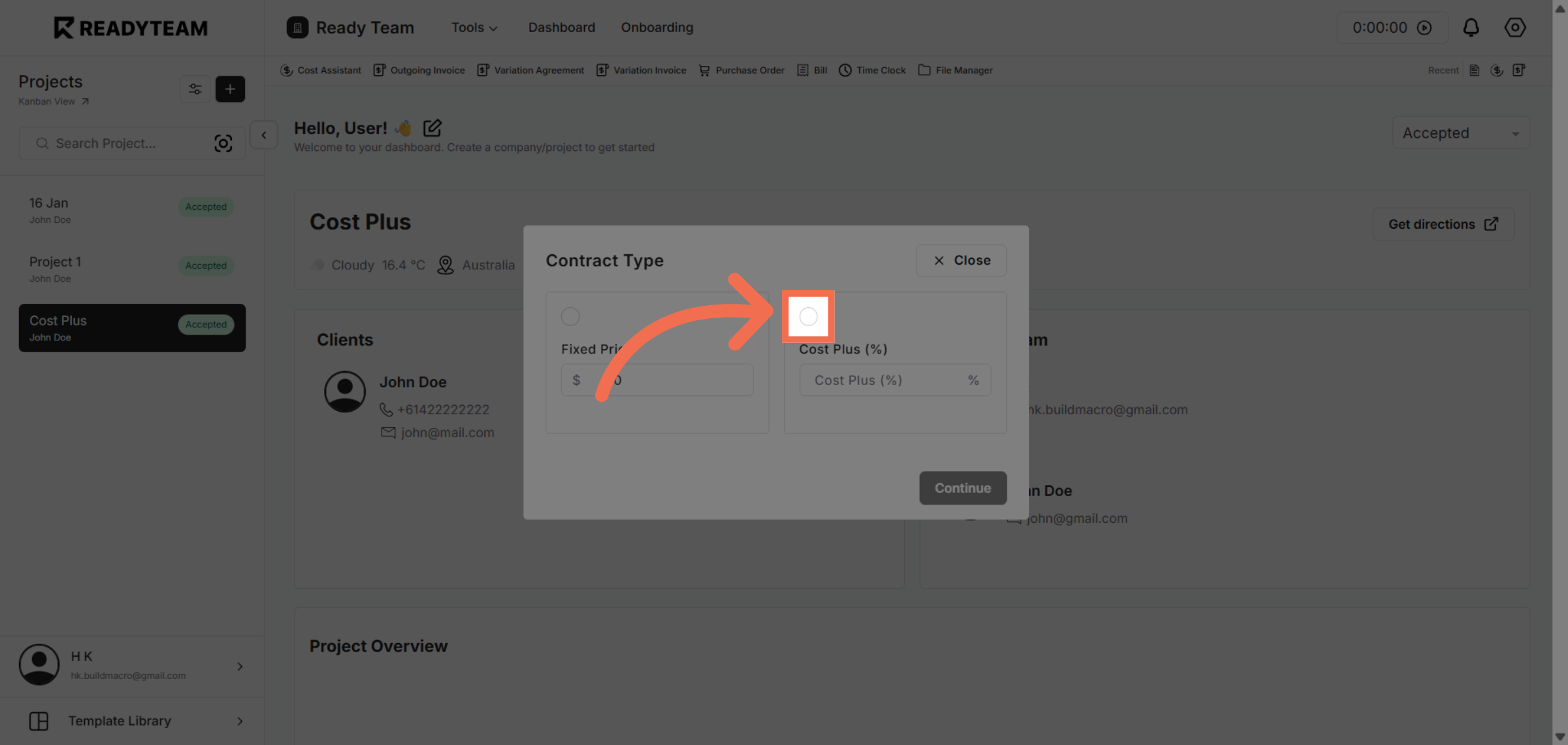
4. Choose Contract Type
Click COST_PLUS to specify the contract type as cost plus.
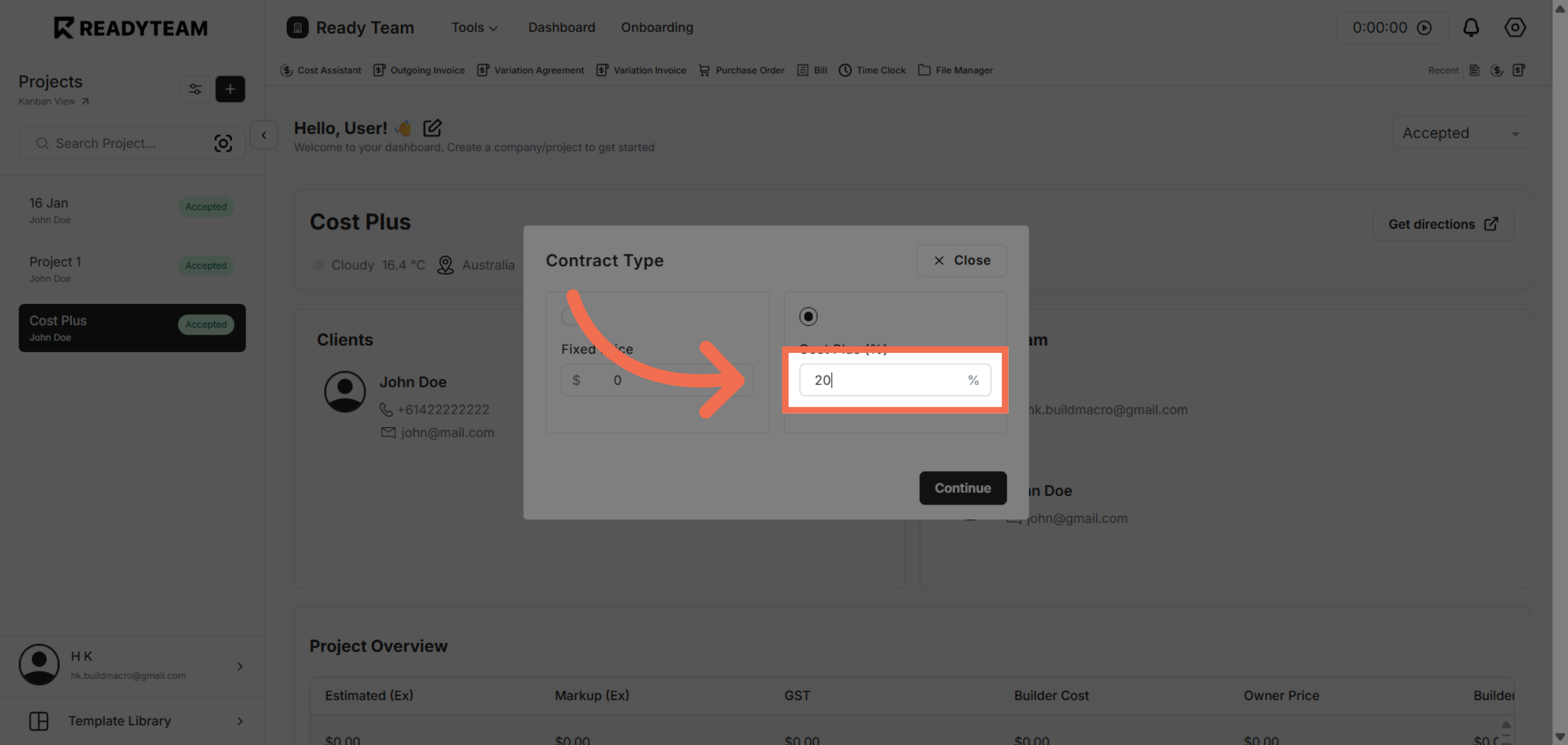
5. Input Cost Plus Percentage
Enter the percentage value to specify the cost plus rate for the contract.
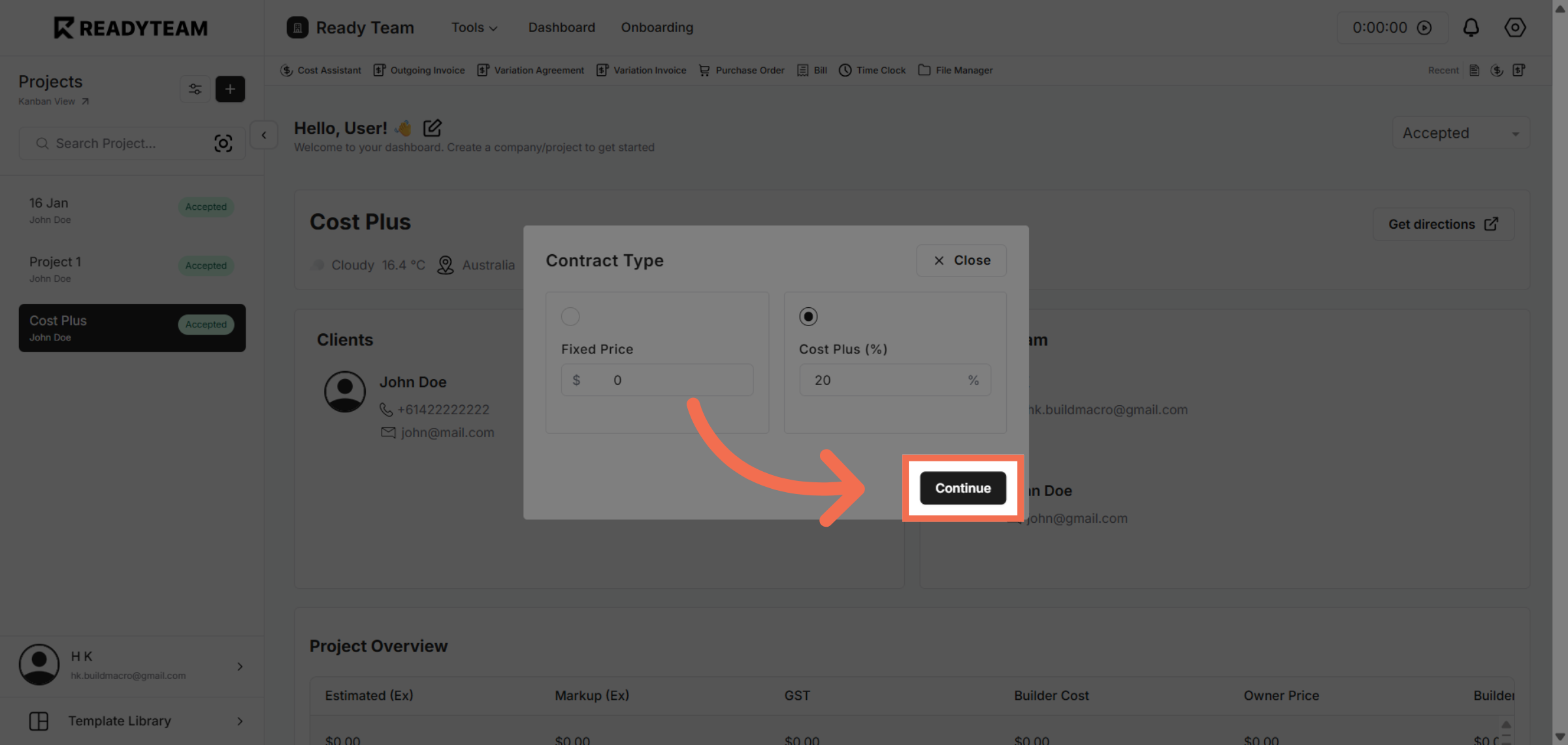
6. Continue to Next Step
Click Continue to save your settings and move forward in the contract creation process.
You have successfully created a cost plus contract by selecting the appropriate options and entering the required details in Readyteam. This process streamlines contract setup and ensures accurate agreement terms.