Create Estimations Using Cost Assistant In ReadyTeam
Readyteam streamlines your project estimation process with its Cost Assistant feature.
Go to app.readyteam.ai
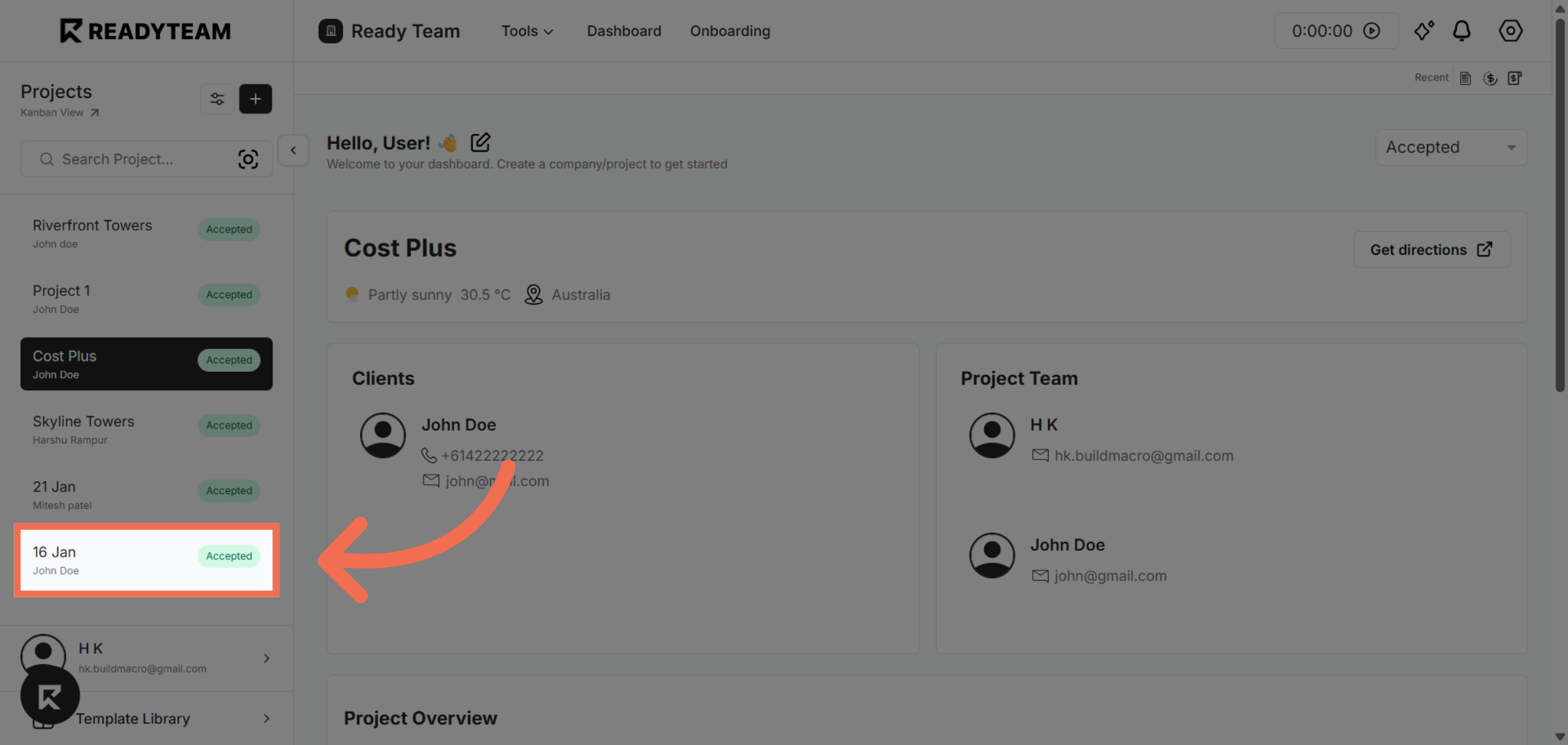
1. Select Project
Select project to begin reviewing the details.
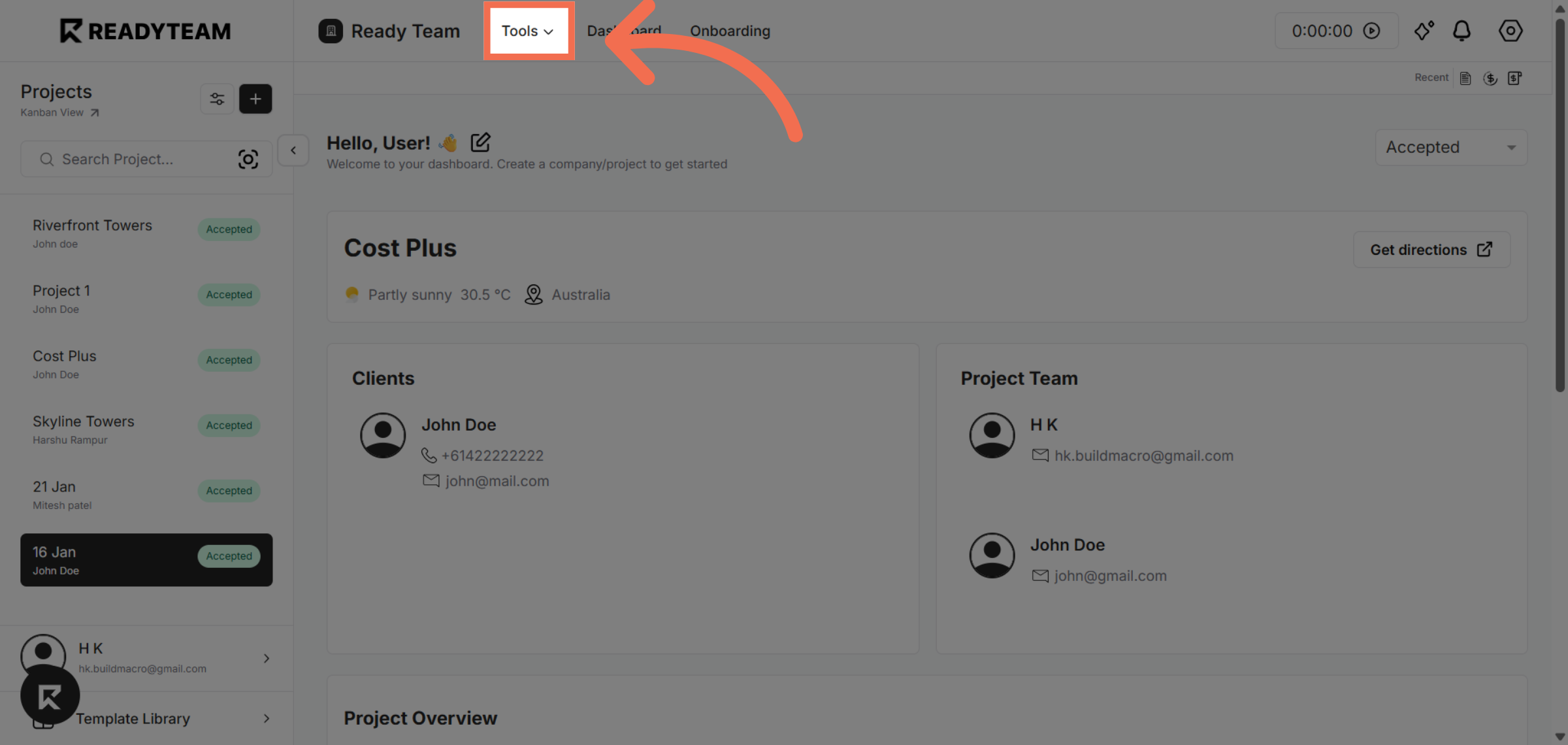
2. Open Tools Menu
Click the indicated area to access additional estimation options and tools.
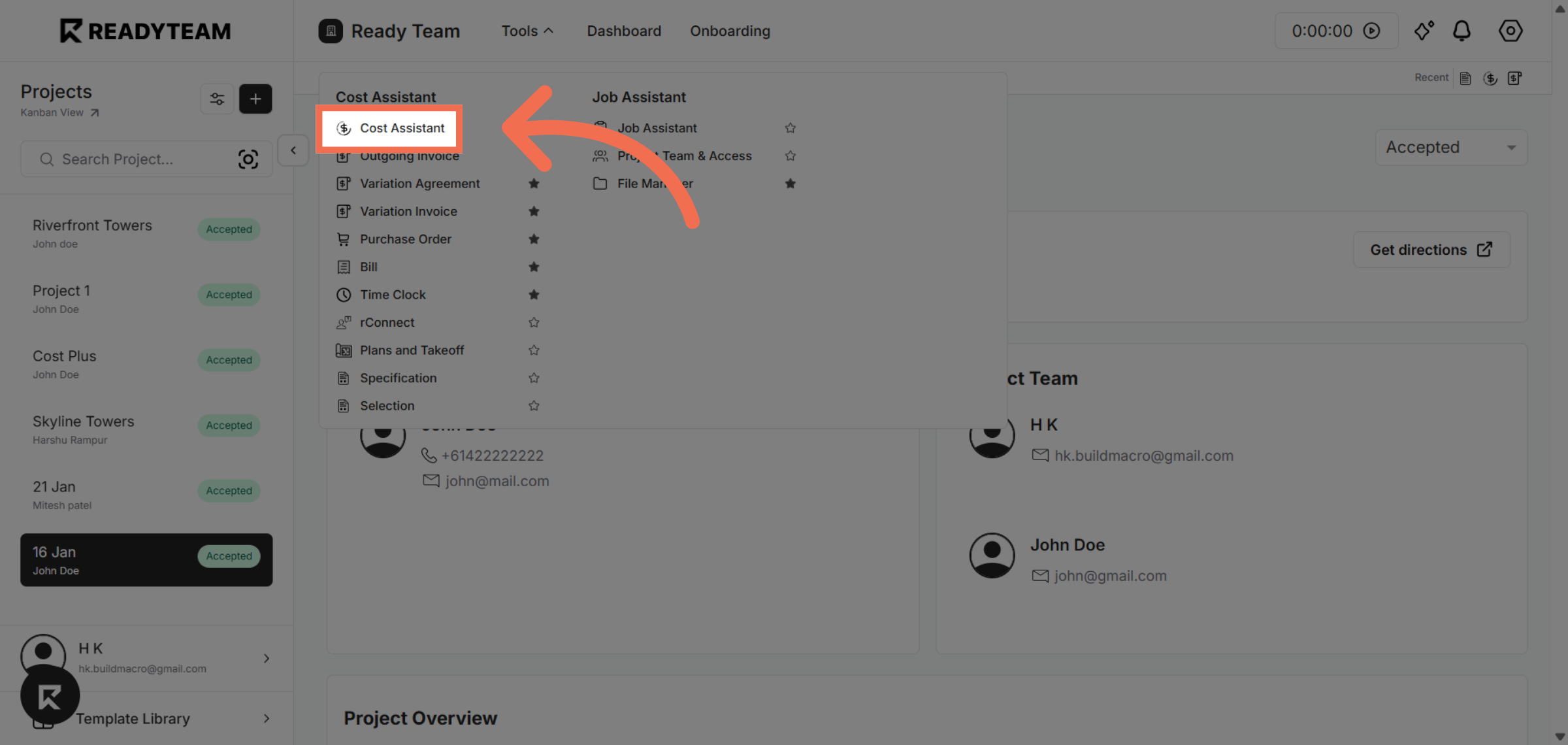
3. Access Cost Assistant Tool
Click the Cost Assistant to open the tool that helps automate cost estimations.
4. Open Category Selection
Click the area to start creating the relevant cost category for your estimation.
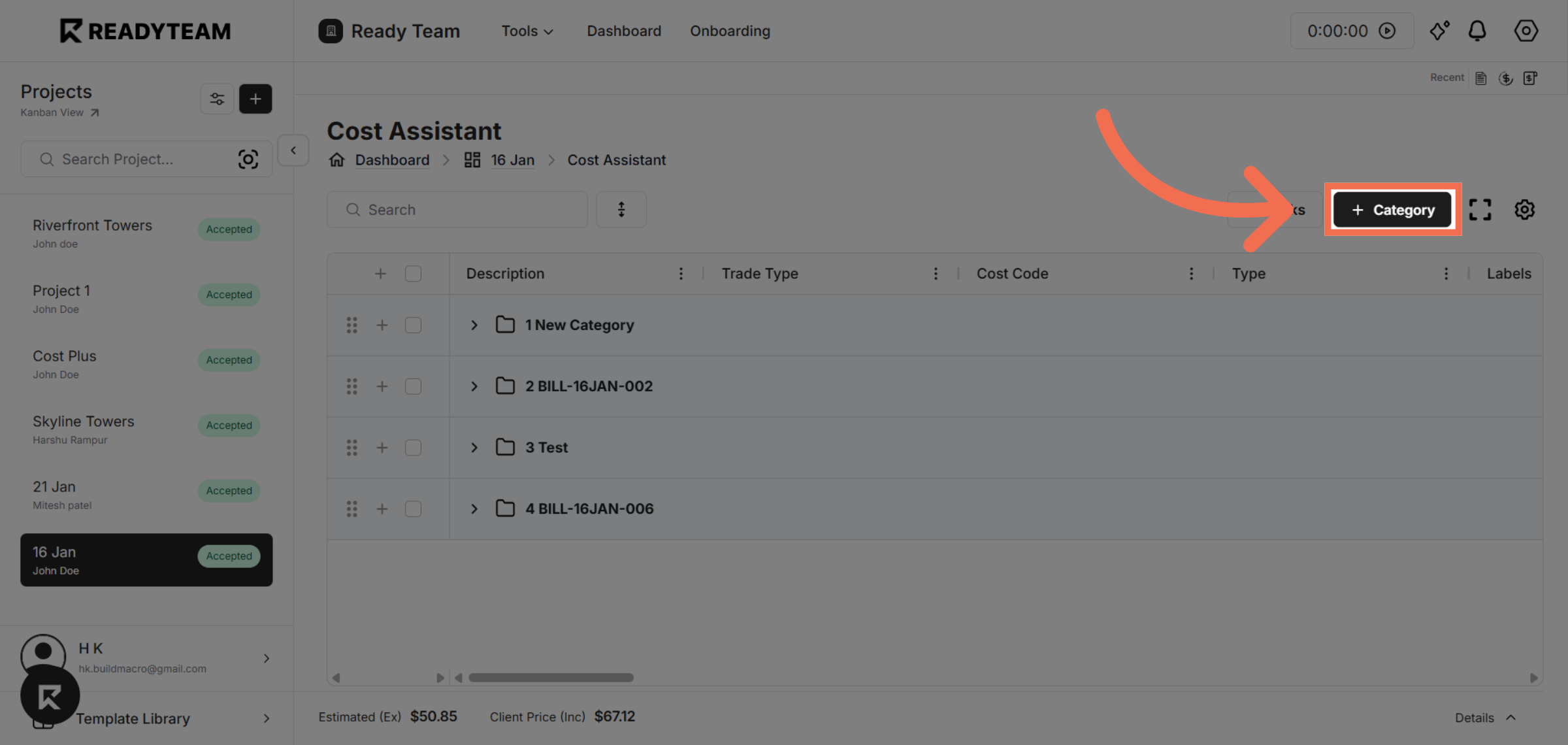
5. Enter Cost Assistant Category
Click the Enter Category field to specify the type of cost you want to add.
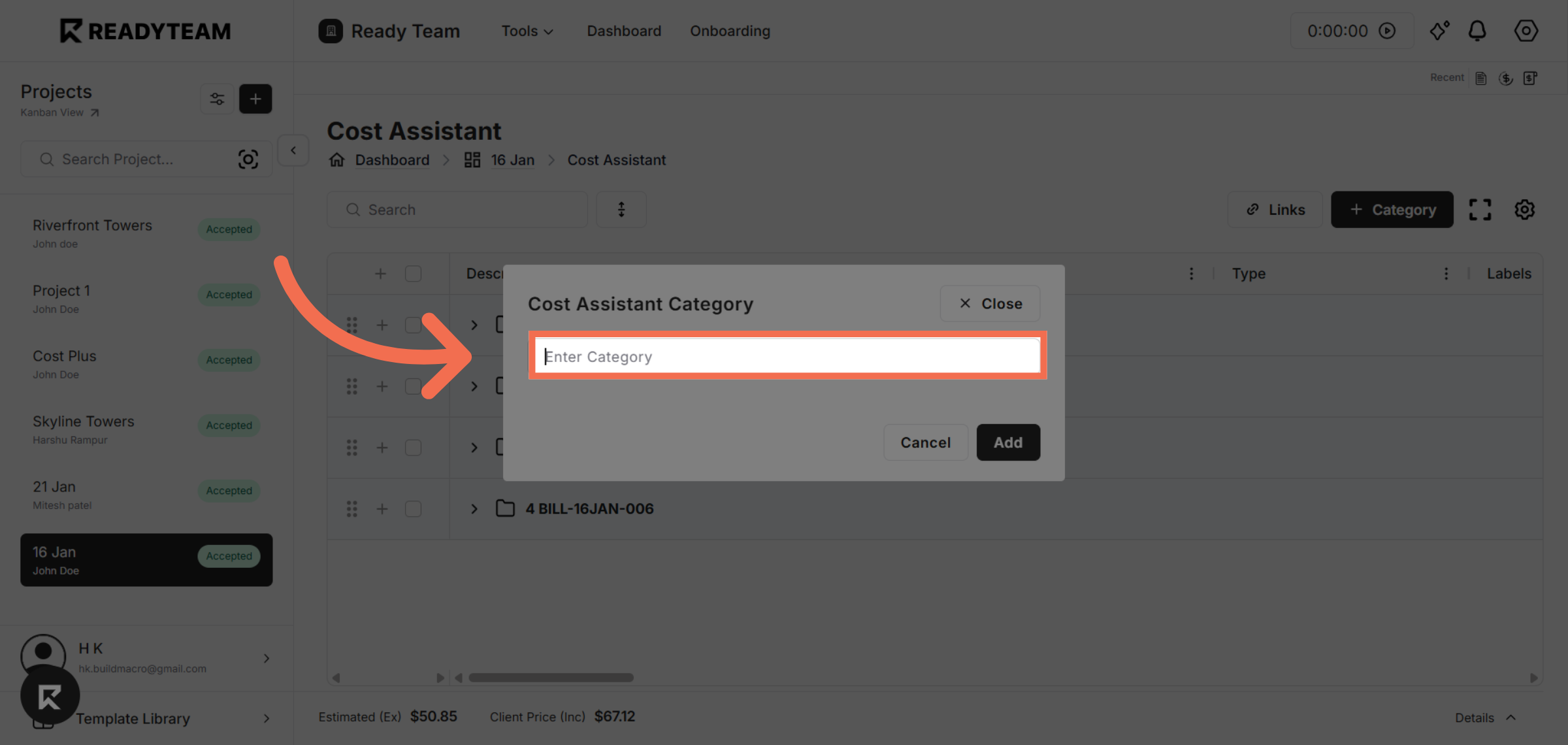
6. Add Category Entry
Click Add to include the preliminaries category in your estimation list.
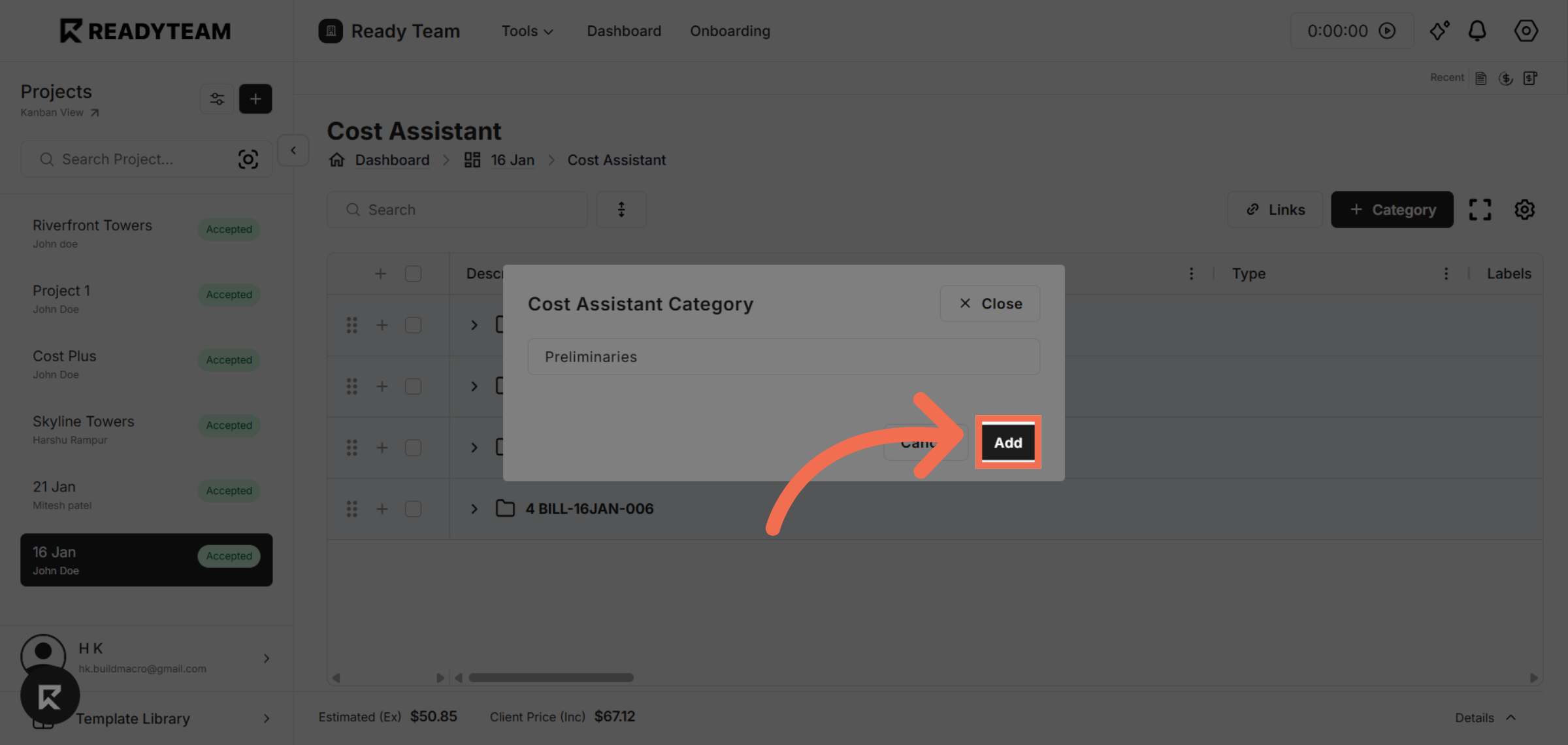
7. Open Line Item Section
Click the area to begin adding detailed line items to your cost estimation.
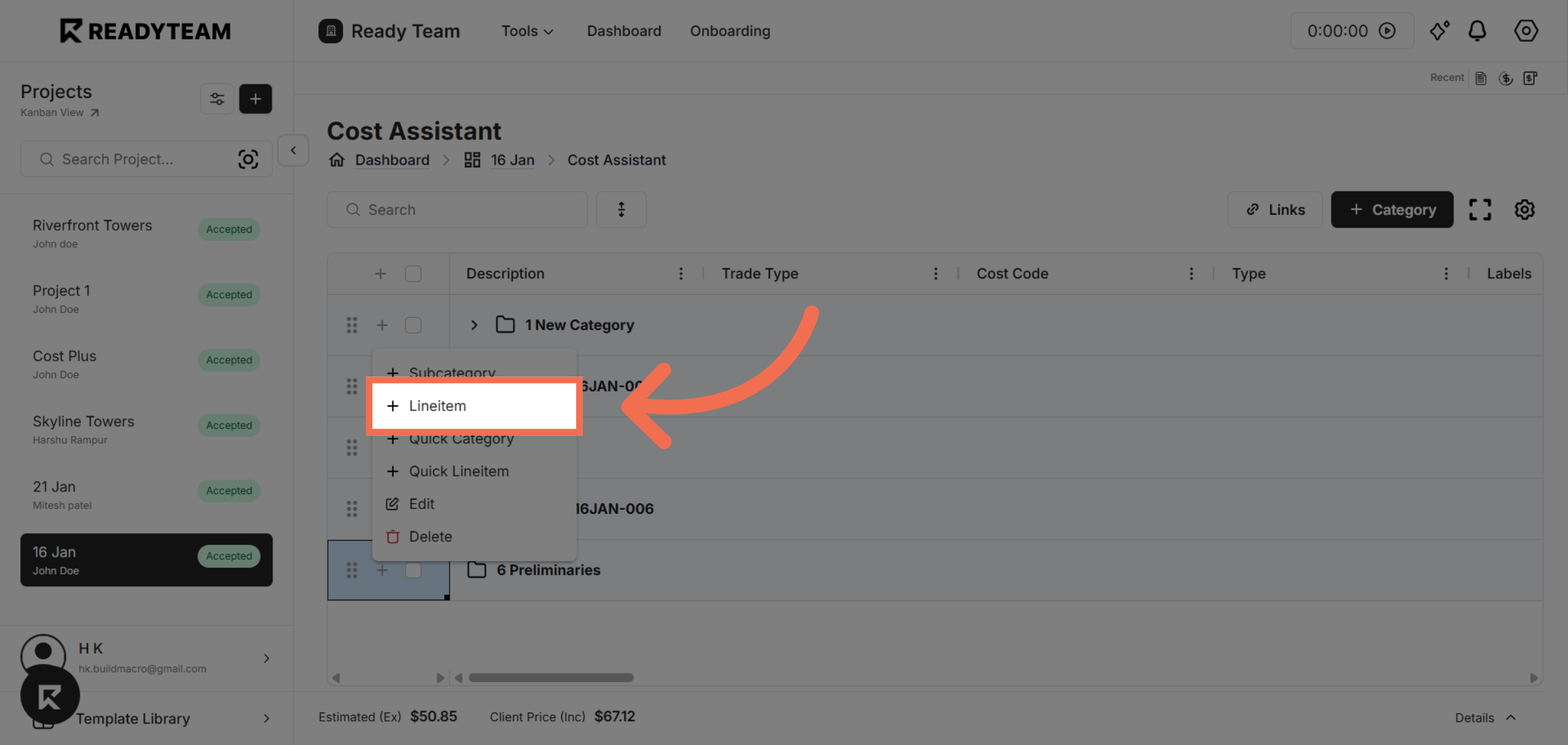
8. Select Line Item Option
Click Lineitem to specify a new cost element within your estimation.
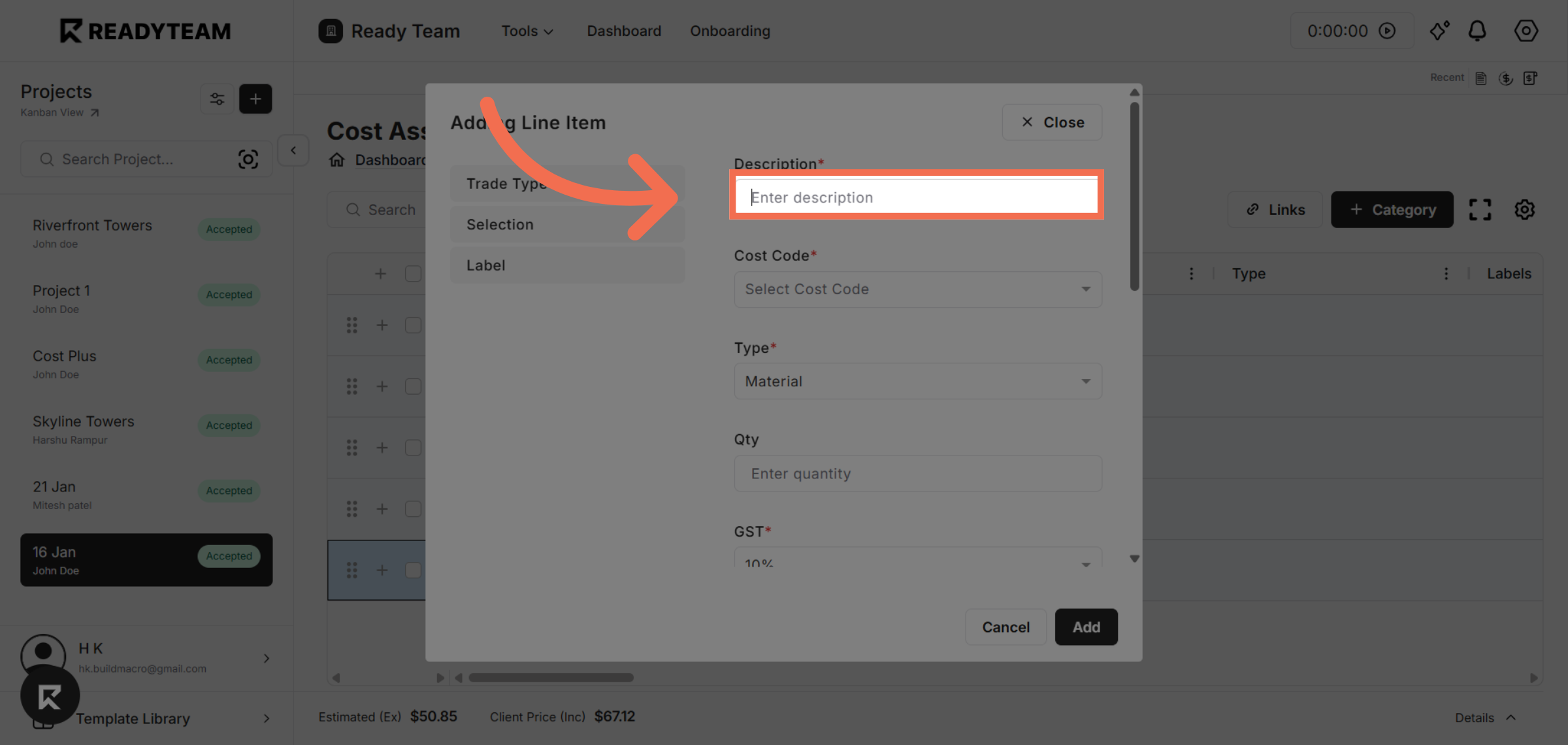
9. Enter Line Item Description
Enter description field to provide details about the new line item.
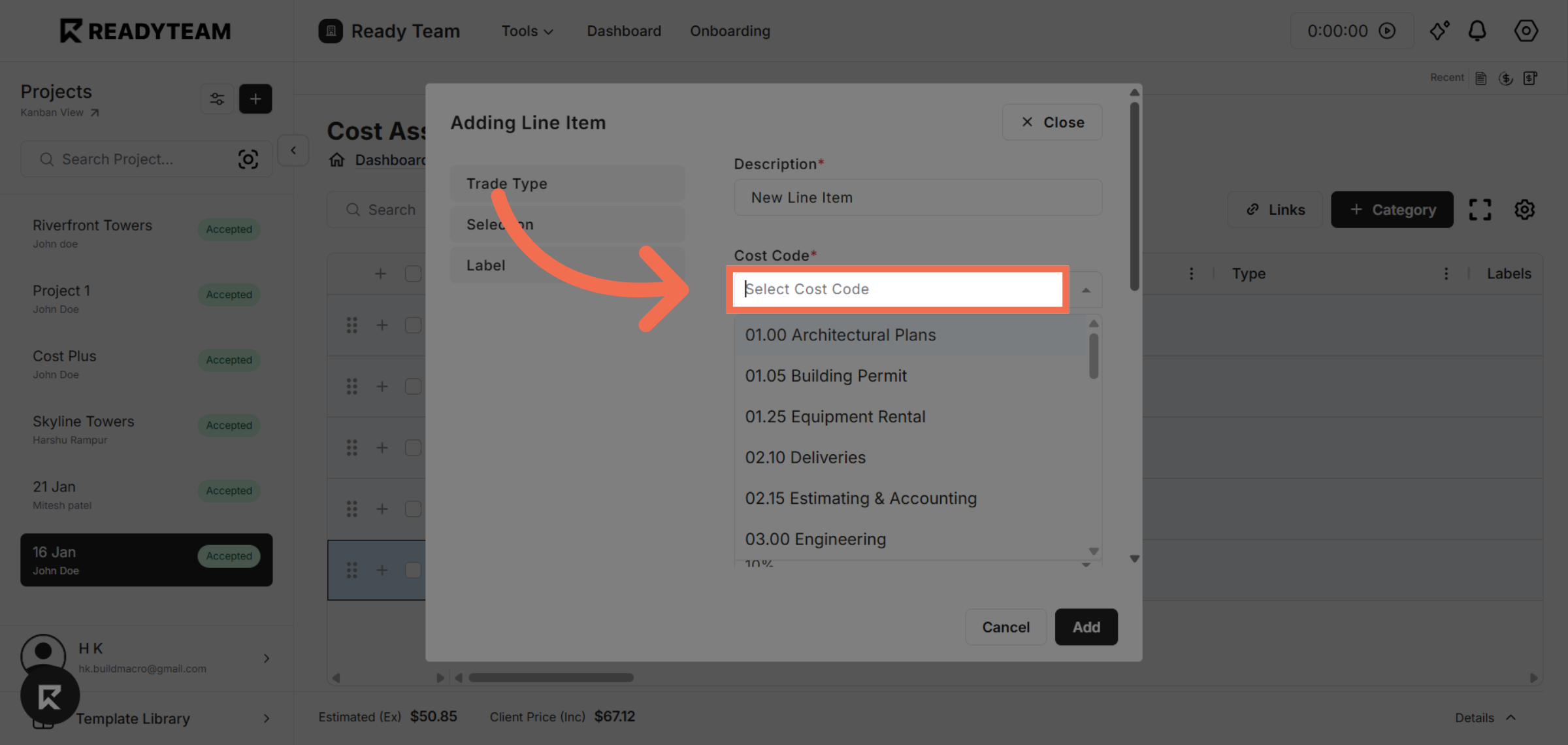
10. Open Cost Code Selection
Click the area to select the appropriate cost code for the line item.
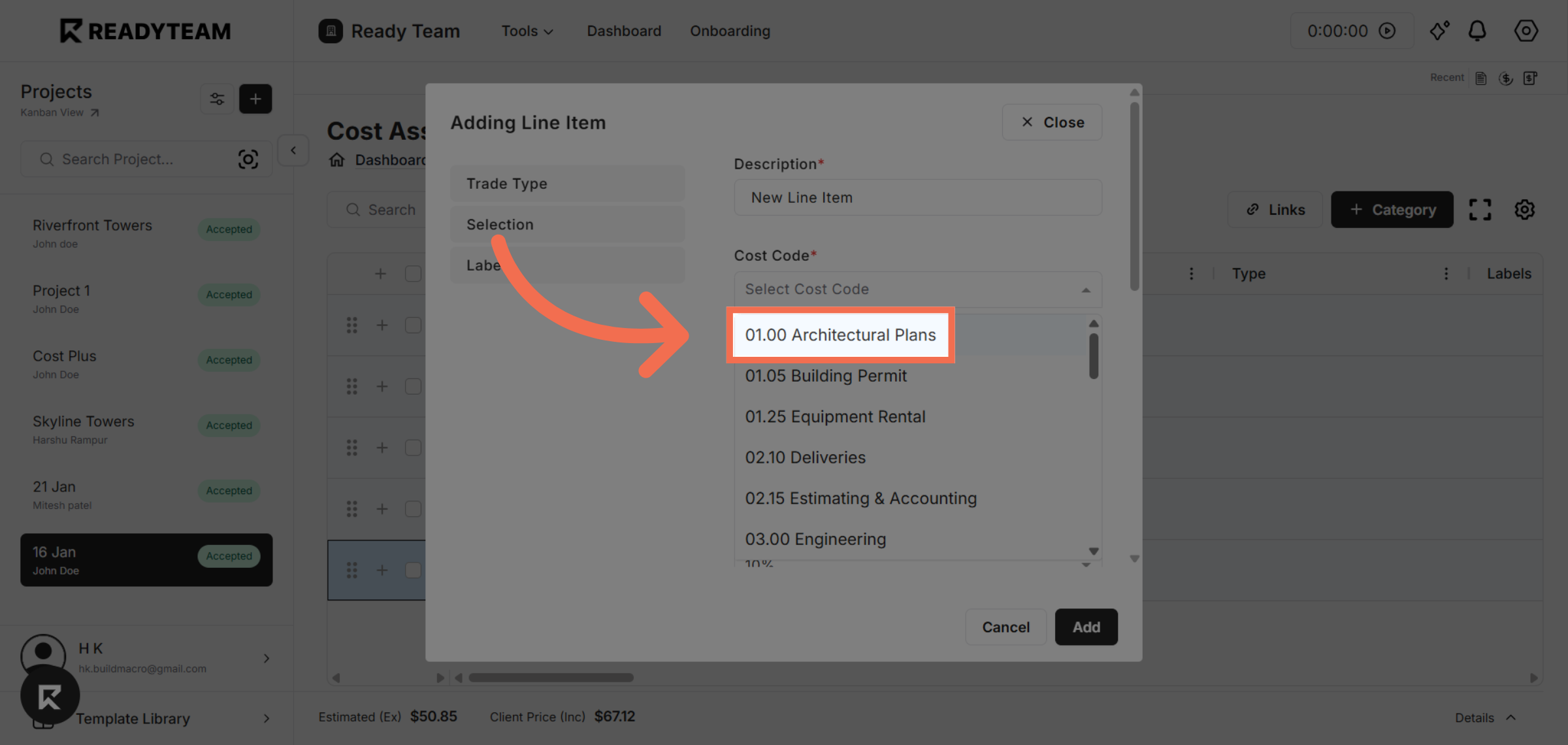
11. Select Cost Code
Select the architectural plans cost code to categorize this line item correctly.
12. Open Type Selection
Click the area to choose the type associated with this line item.
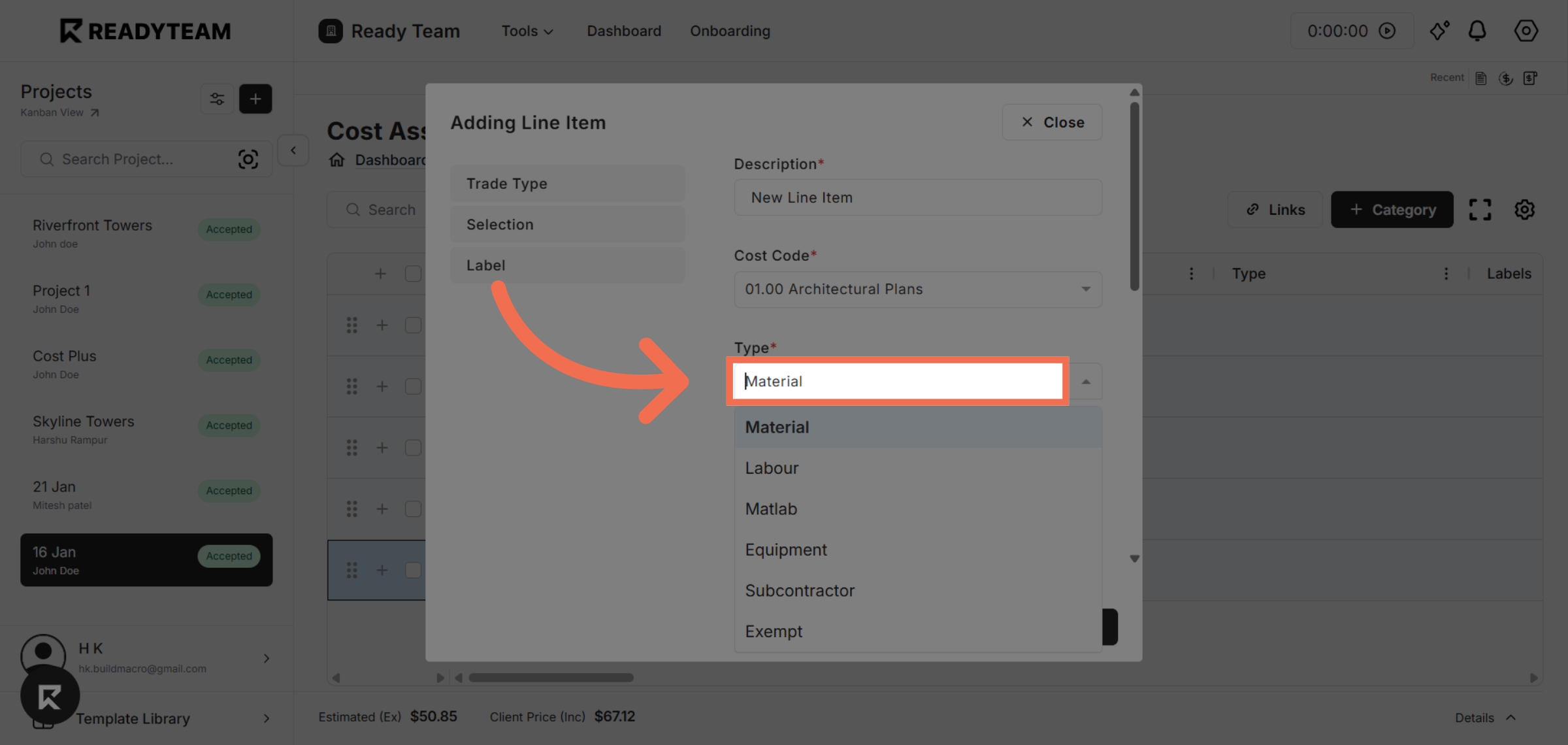
13. Select Type
Select labour as the type to specify the nature of the work involved.
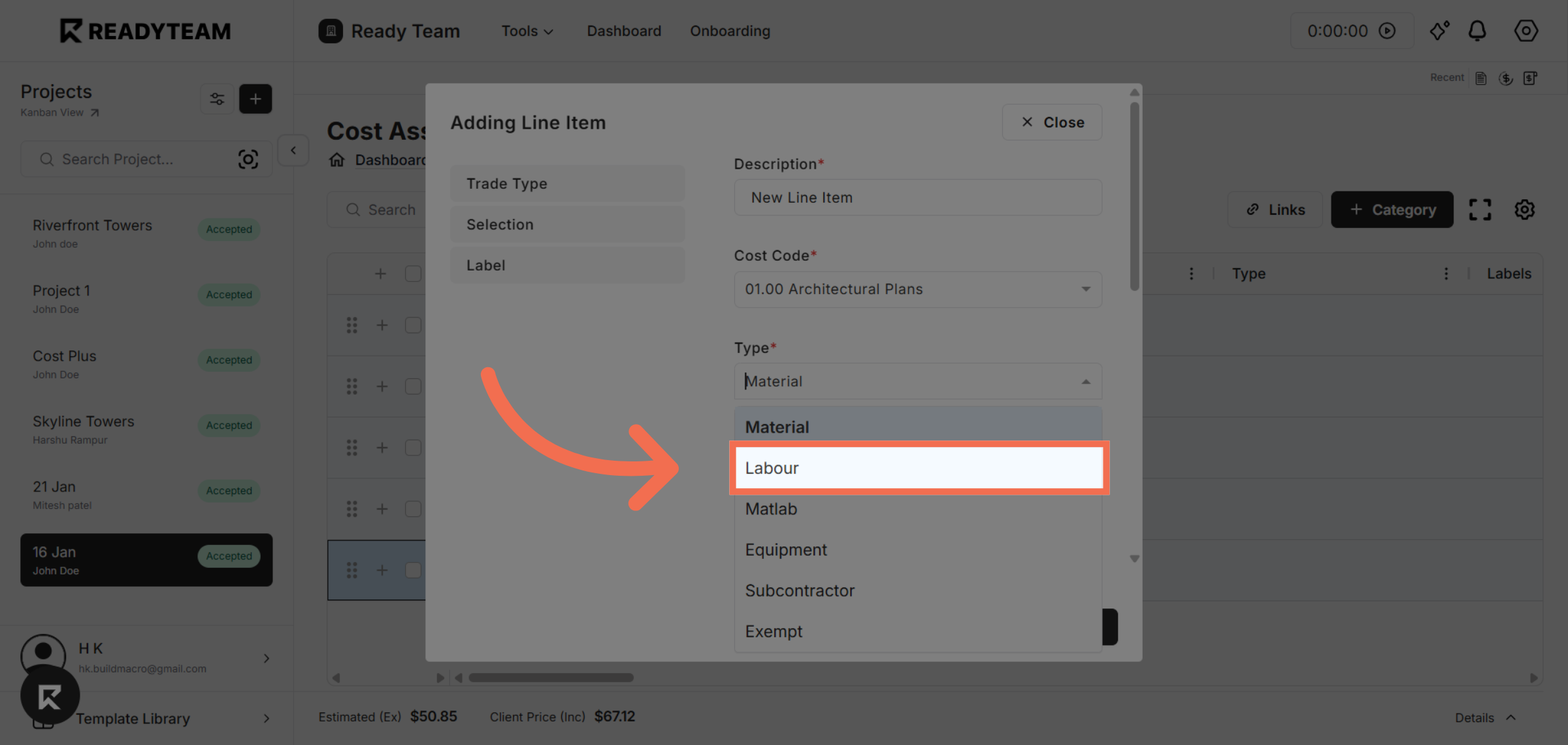
14. Enter Quantity Field
Enter quantity field to specify the quantity required.
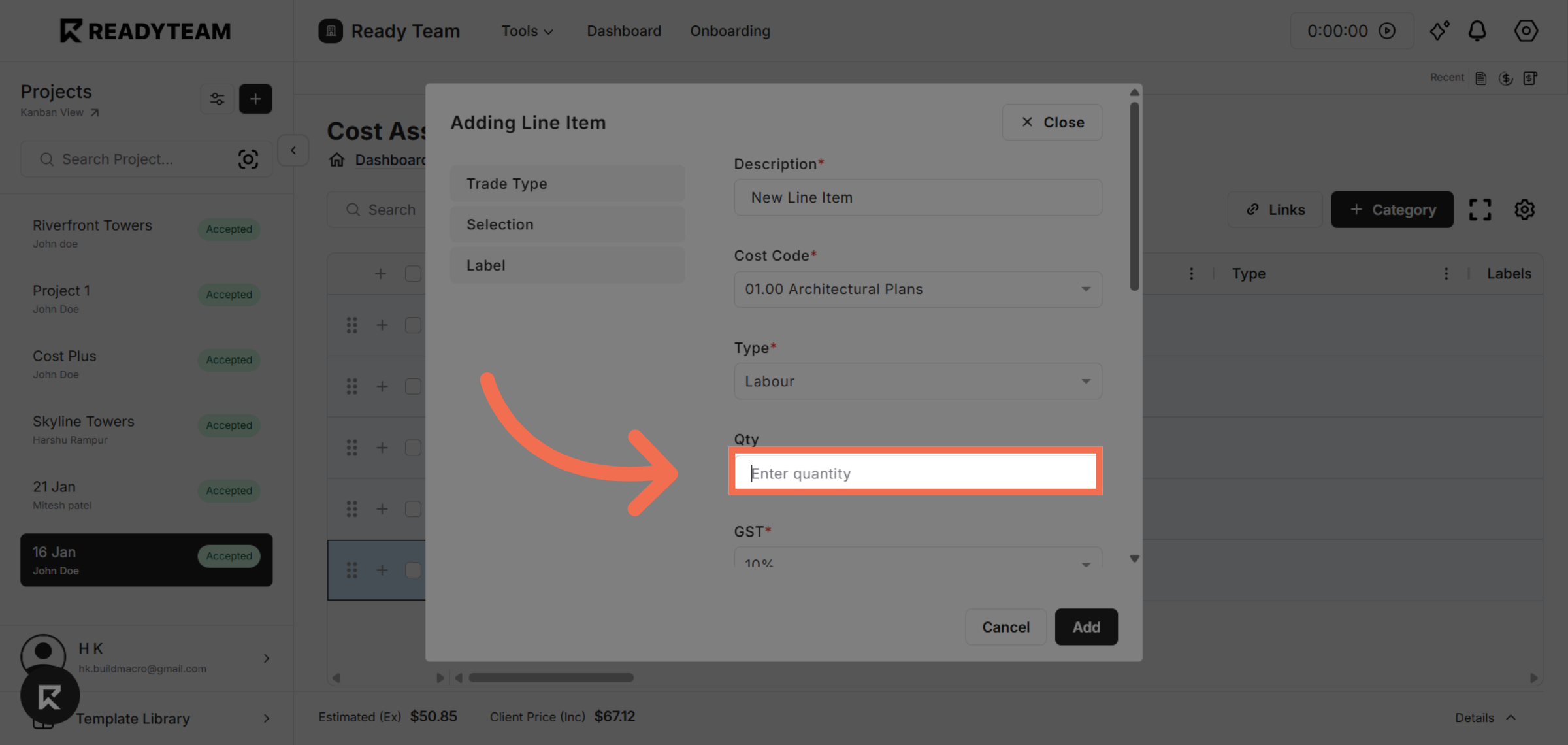
15. Select GST
Select the GST percentage applicable to this line item to ensure tax accuracy.
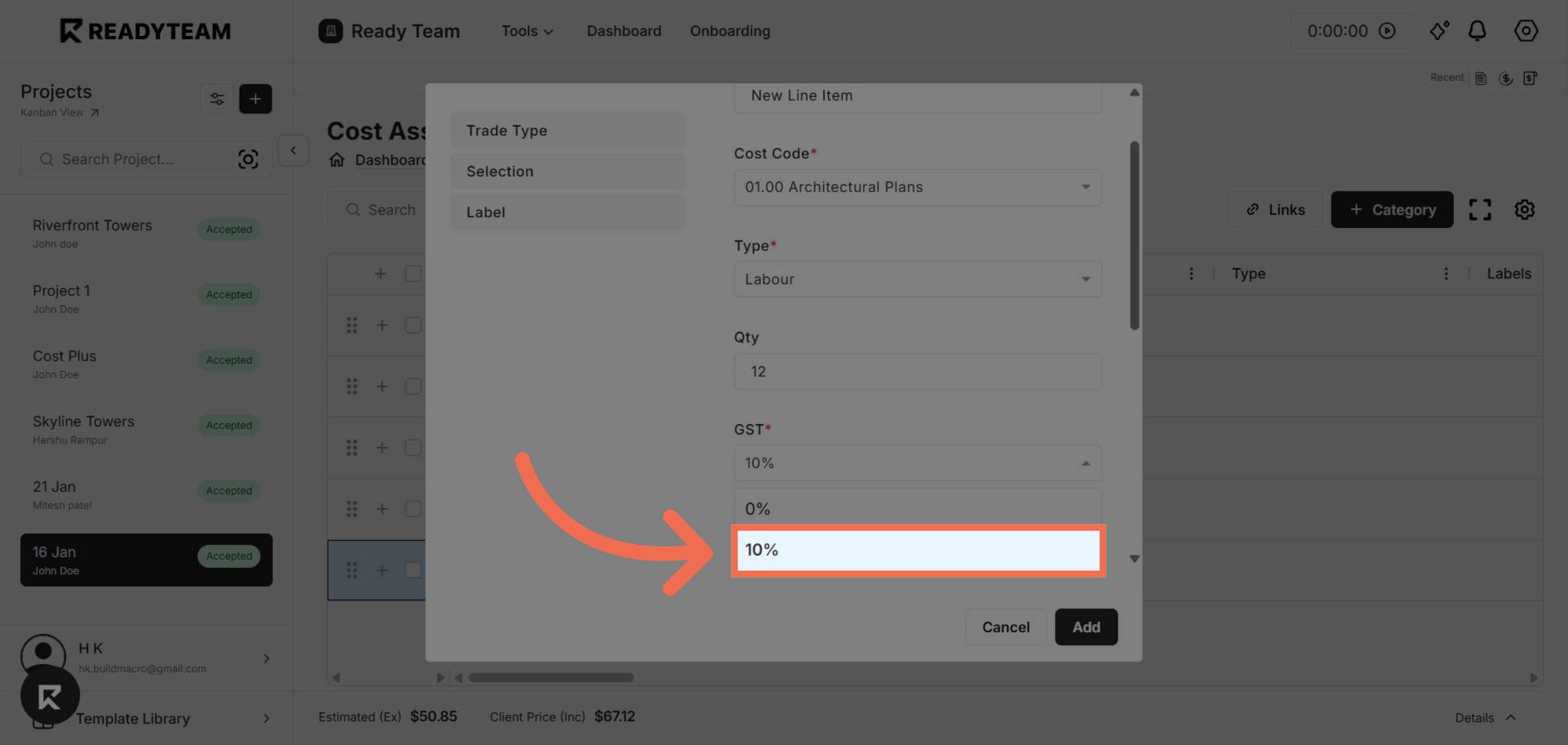
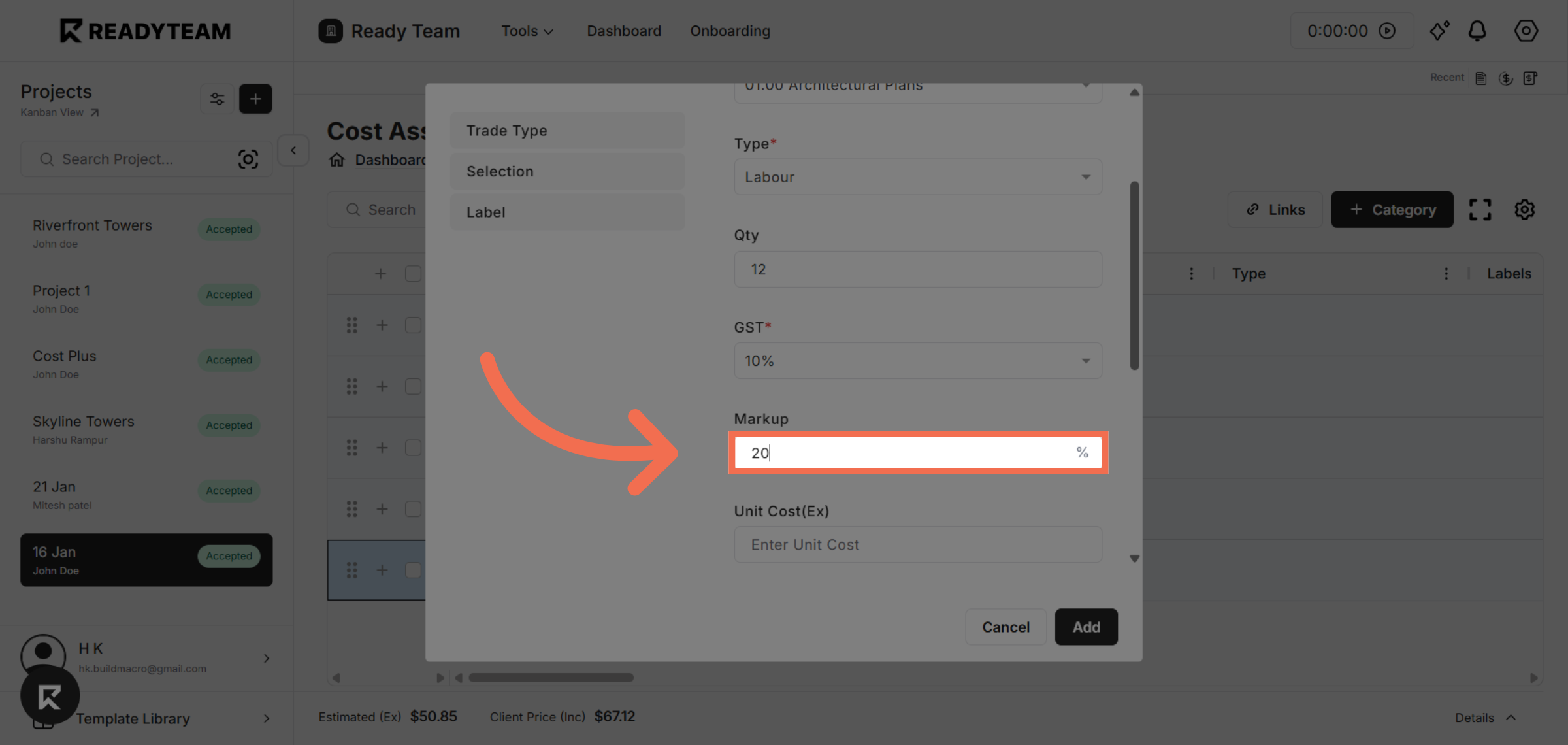
16. Enter Markup Percentage
Enter the markup percentage you want to apply to your cost estimate, which will adjust the final price accordingly.
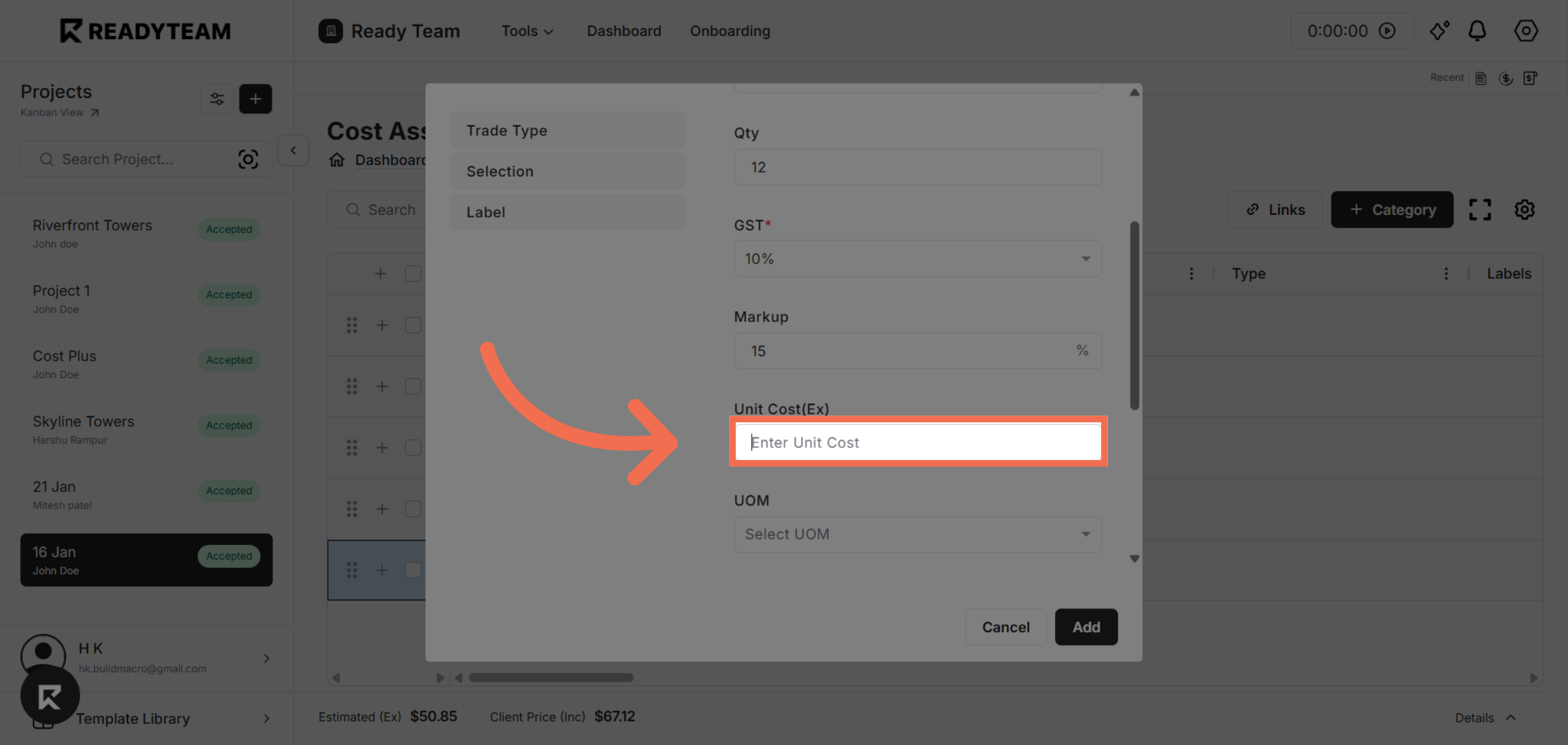
17. Enter Unit Cost Field
Click the Enter Unit Cost field to specify the cost per unit for this line item.
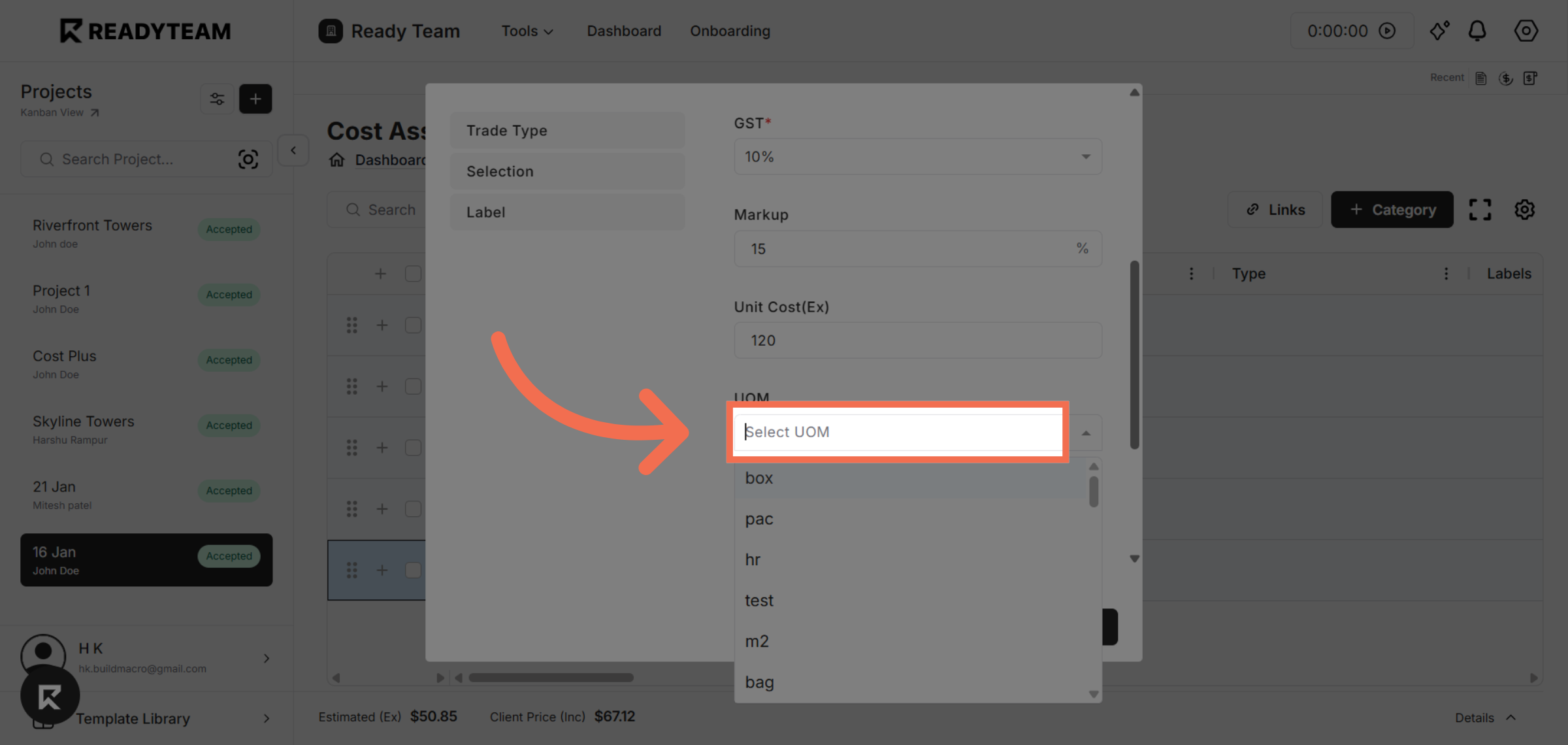
18. Open UOM Options
Click the area to view available units of measure for selection.
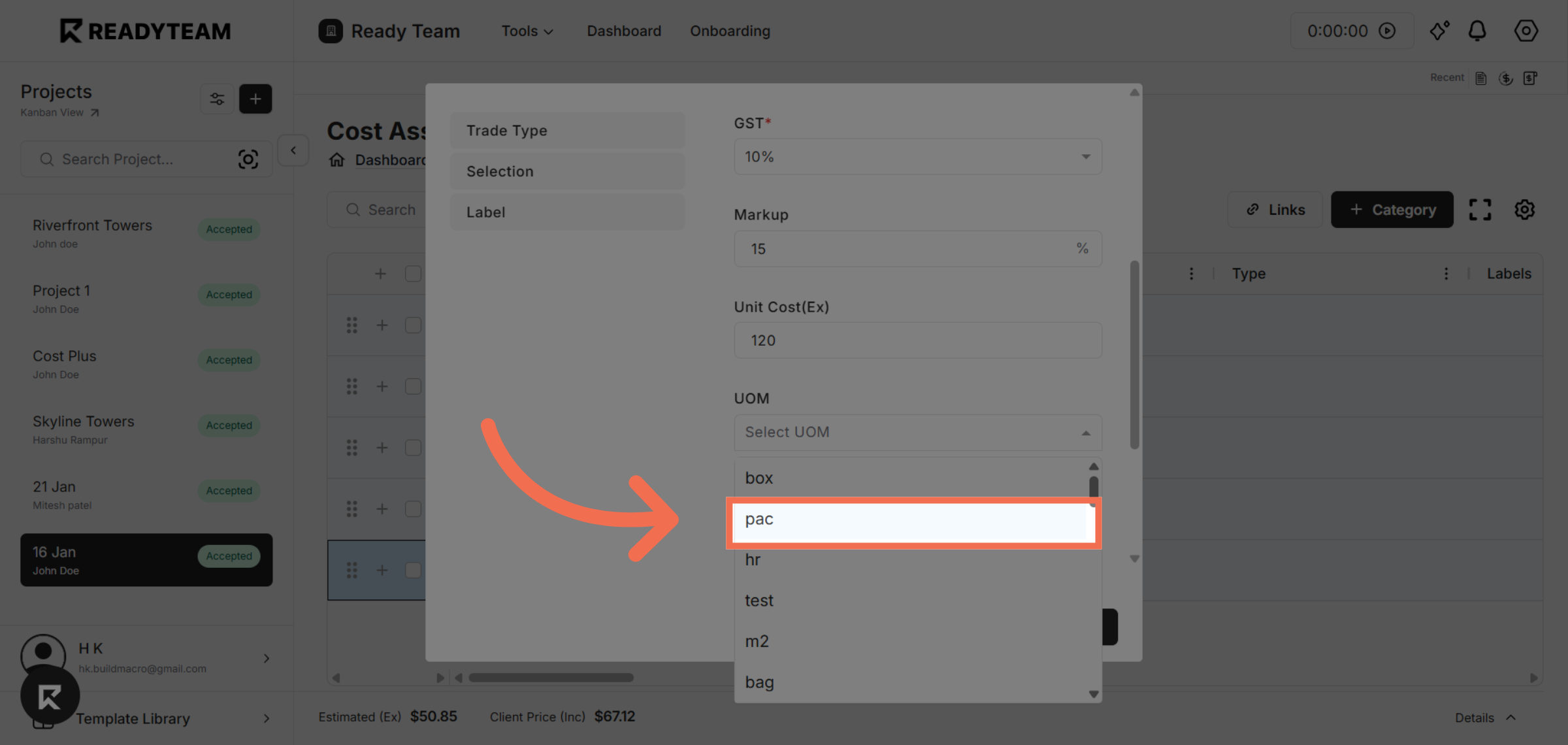
19. Select Unit Of Measure
Select the appropriate unit of measure to match the quantity and cost.
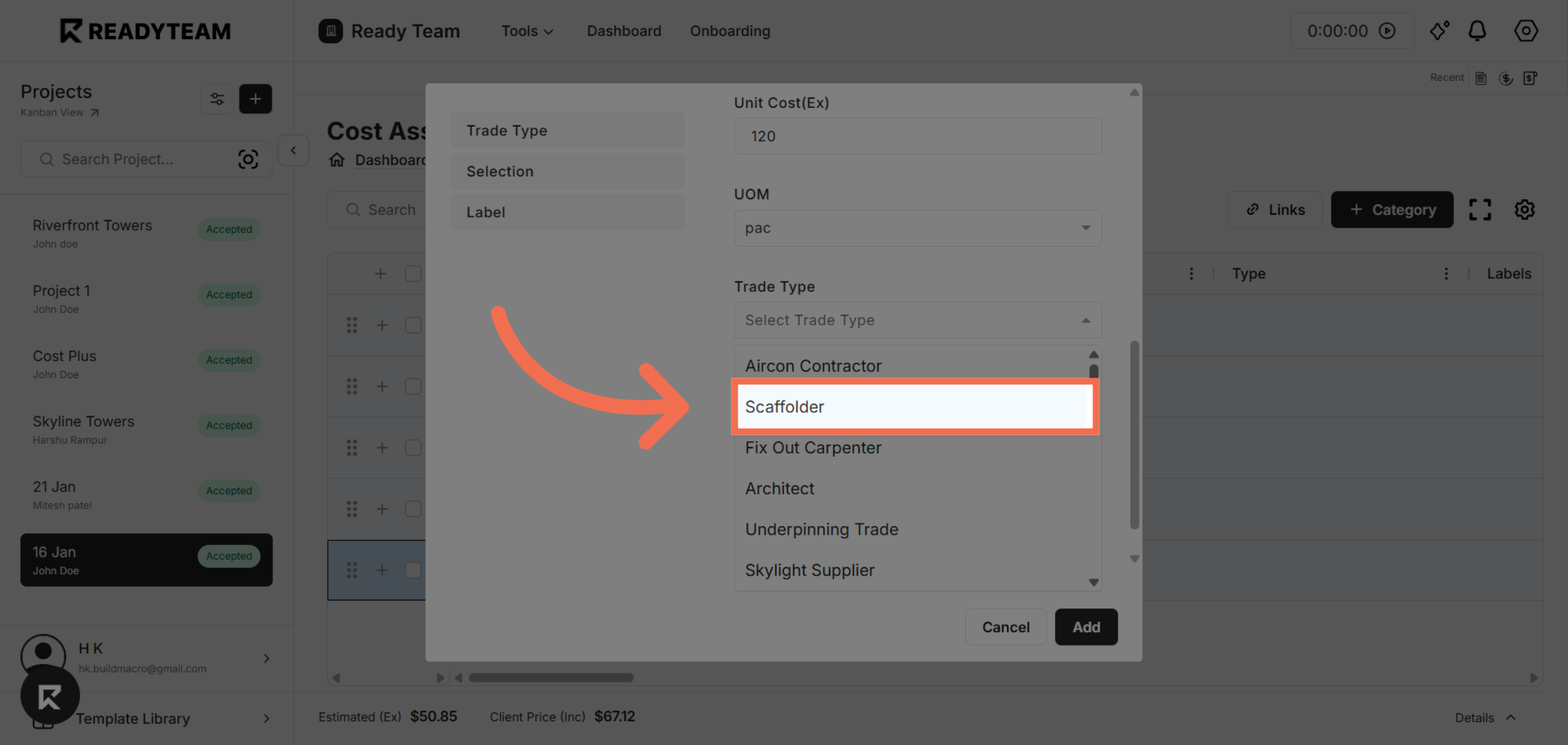
20. Select Trade Type
Select the scaffolder role to assign the correct labour trade type.
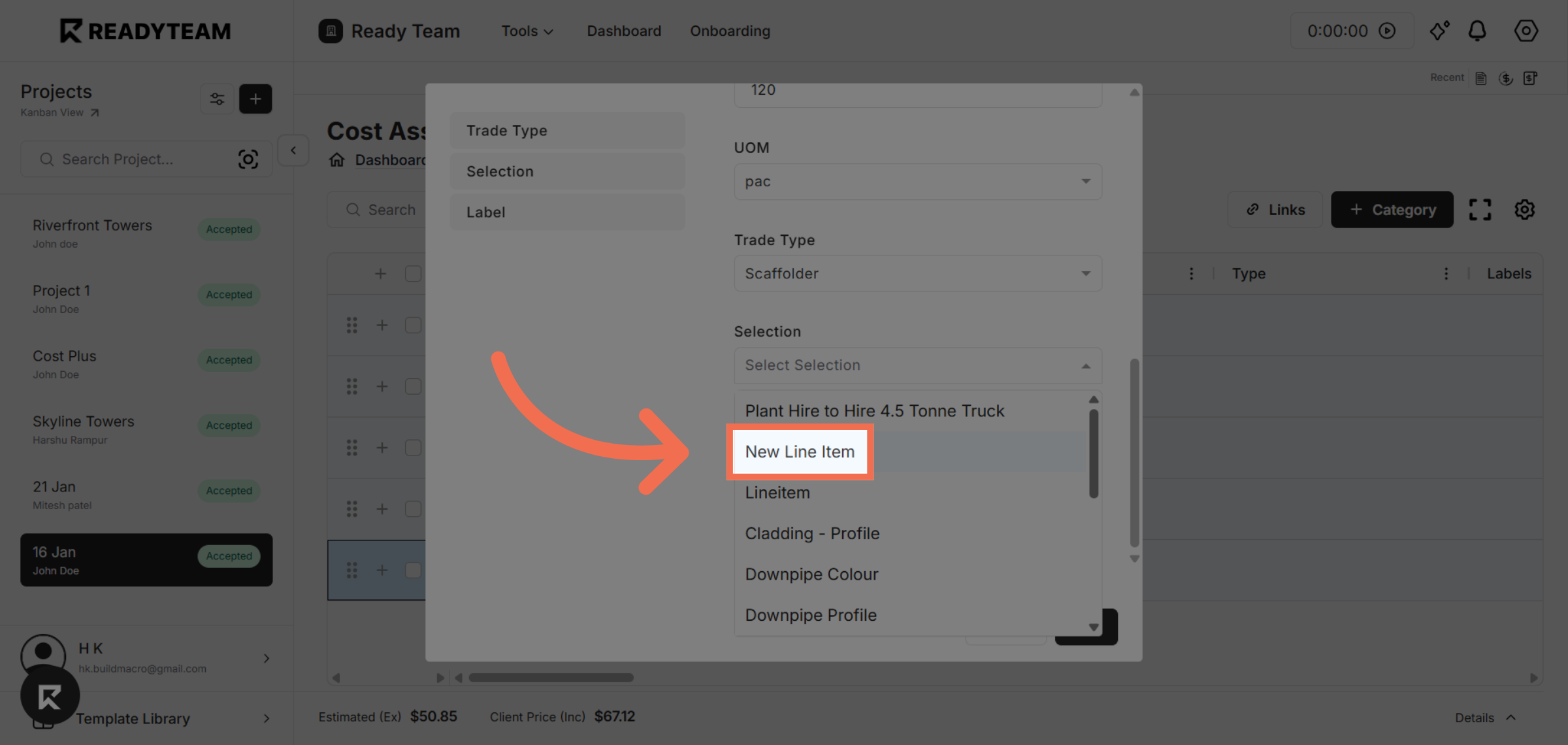
21. Choose Selection
Select the desired item or option from the available list to include it in your estimation.
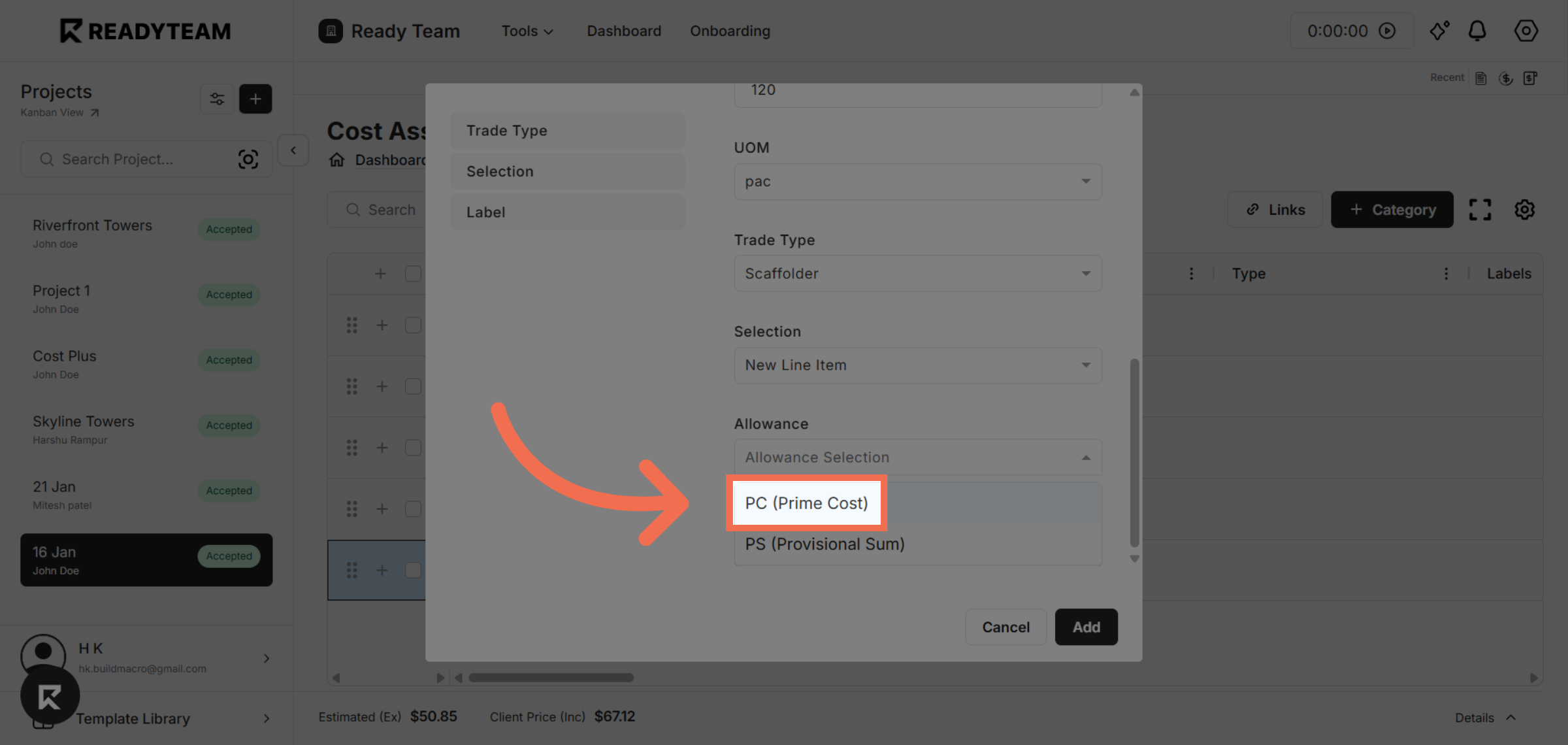
22. Select Allowance
Choose an allowance type to account for additional costs or contingencies in your estimate.
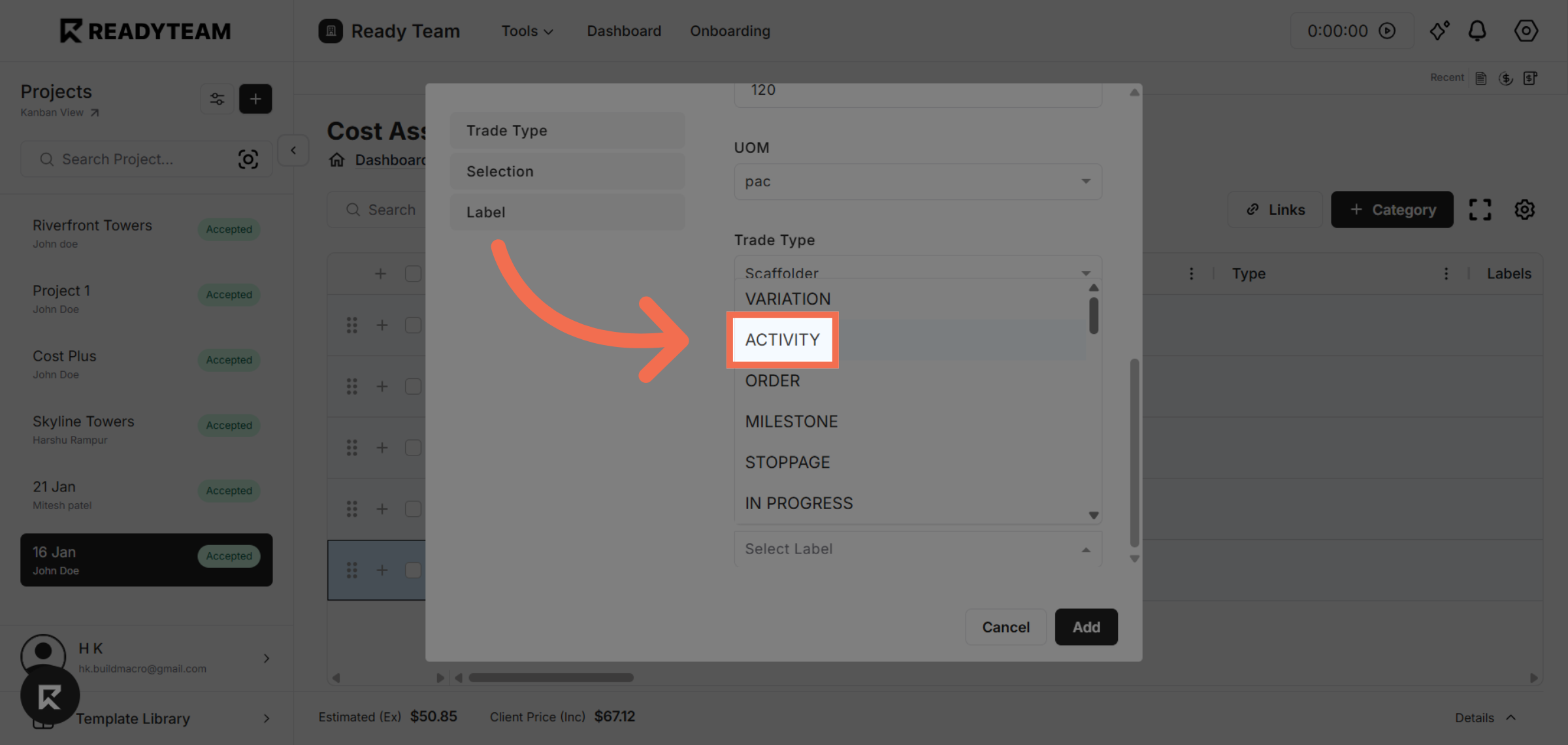
23. Select Label
Select the relevant label to associate with the new line item.
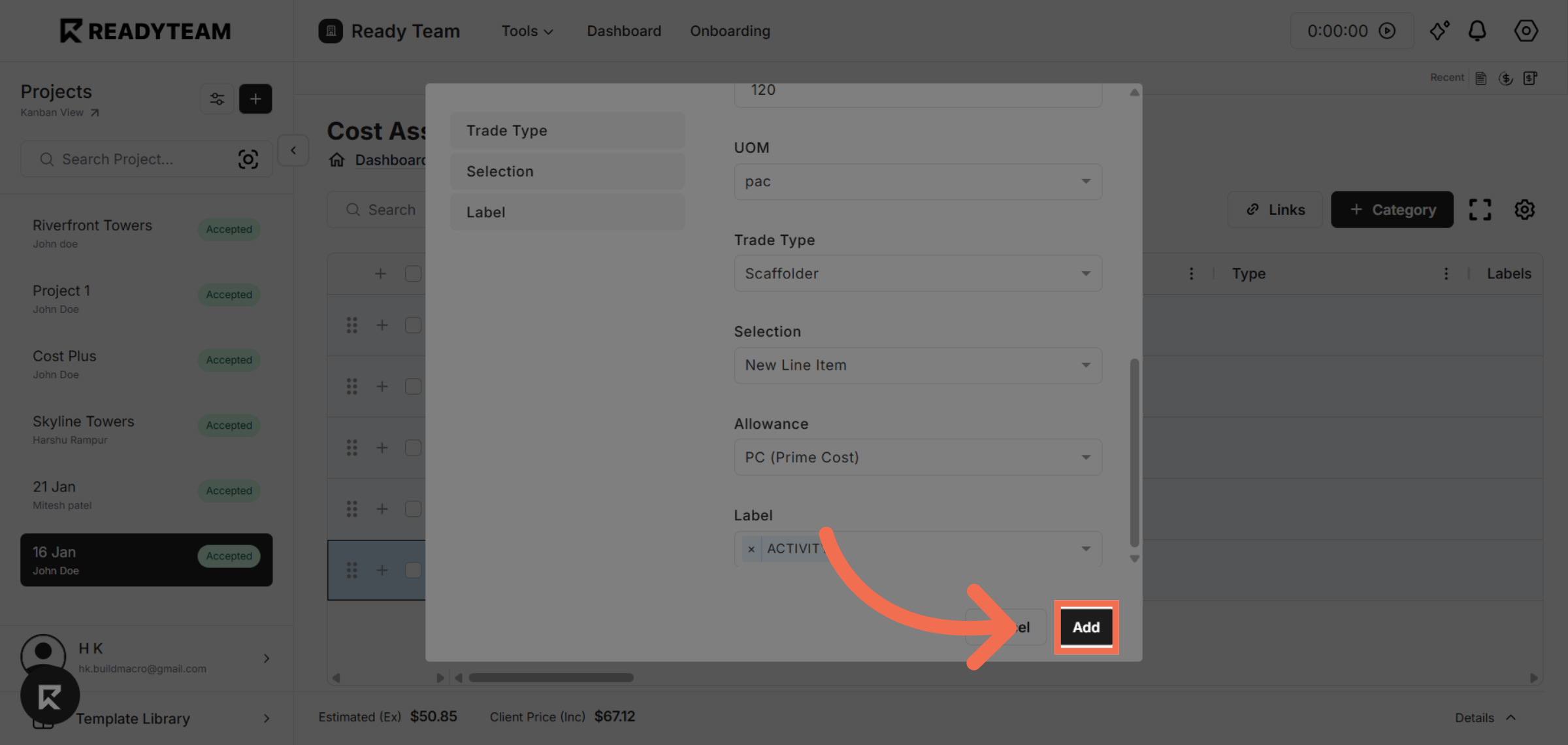
24. Add Line Item
Click Add to include the final line item in your cost estimation.
This demo showcased how Readyteam's Cost Assistant simplifies creating detailed project estimations. Start using Readyteam today to streamline your budgeting and improve project accuracy.