How to Create Specifications In Cost Assistant ?
This demo showcases how to create detailed specifications within the Cost Assistant feature of Readyteam.
Go to app.readyteam.ai
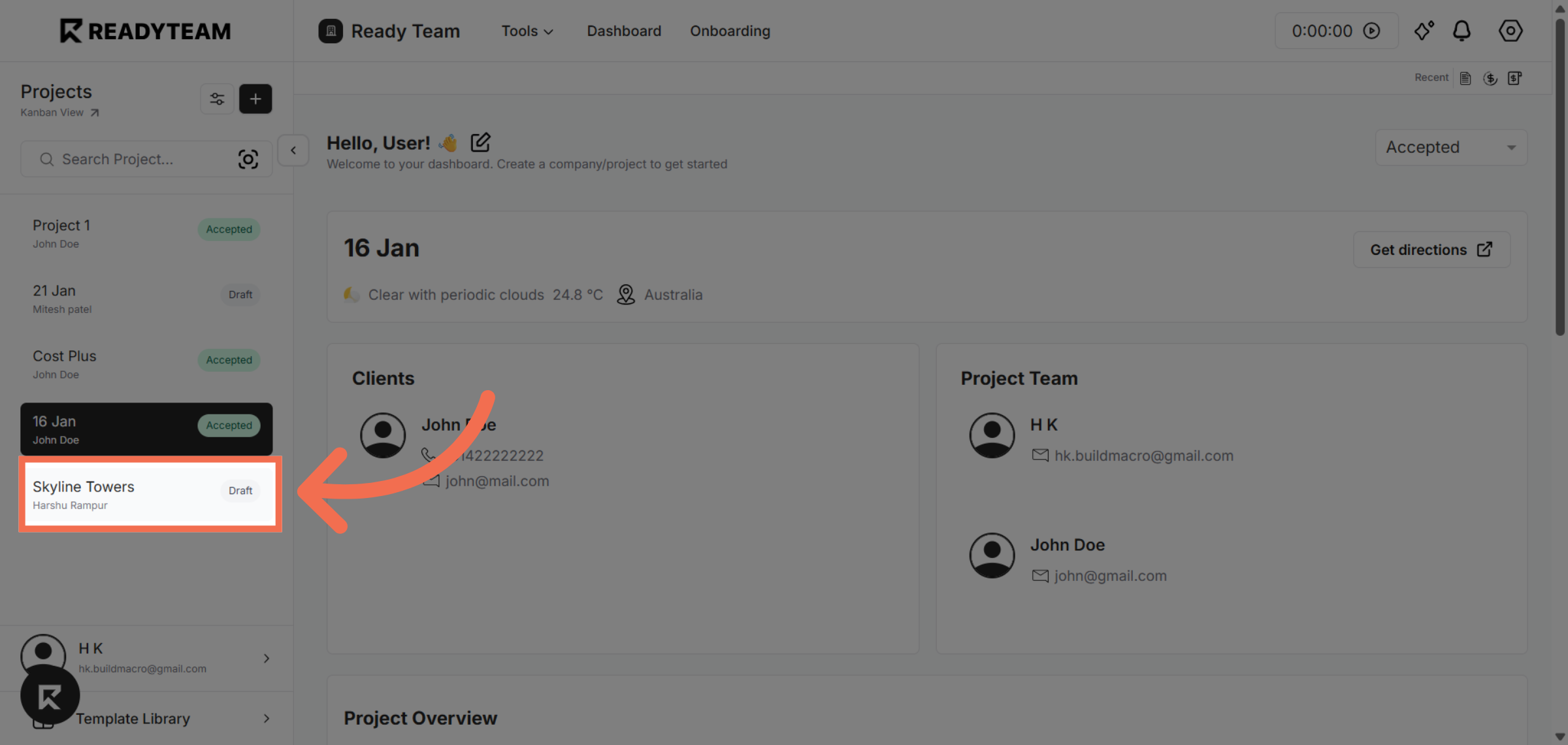
1. Select Project
Select project to begin accessing your project settings.
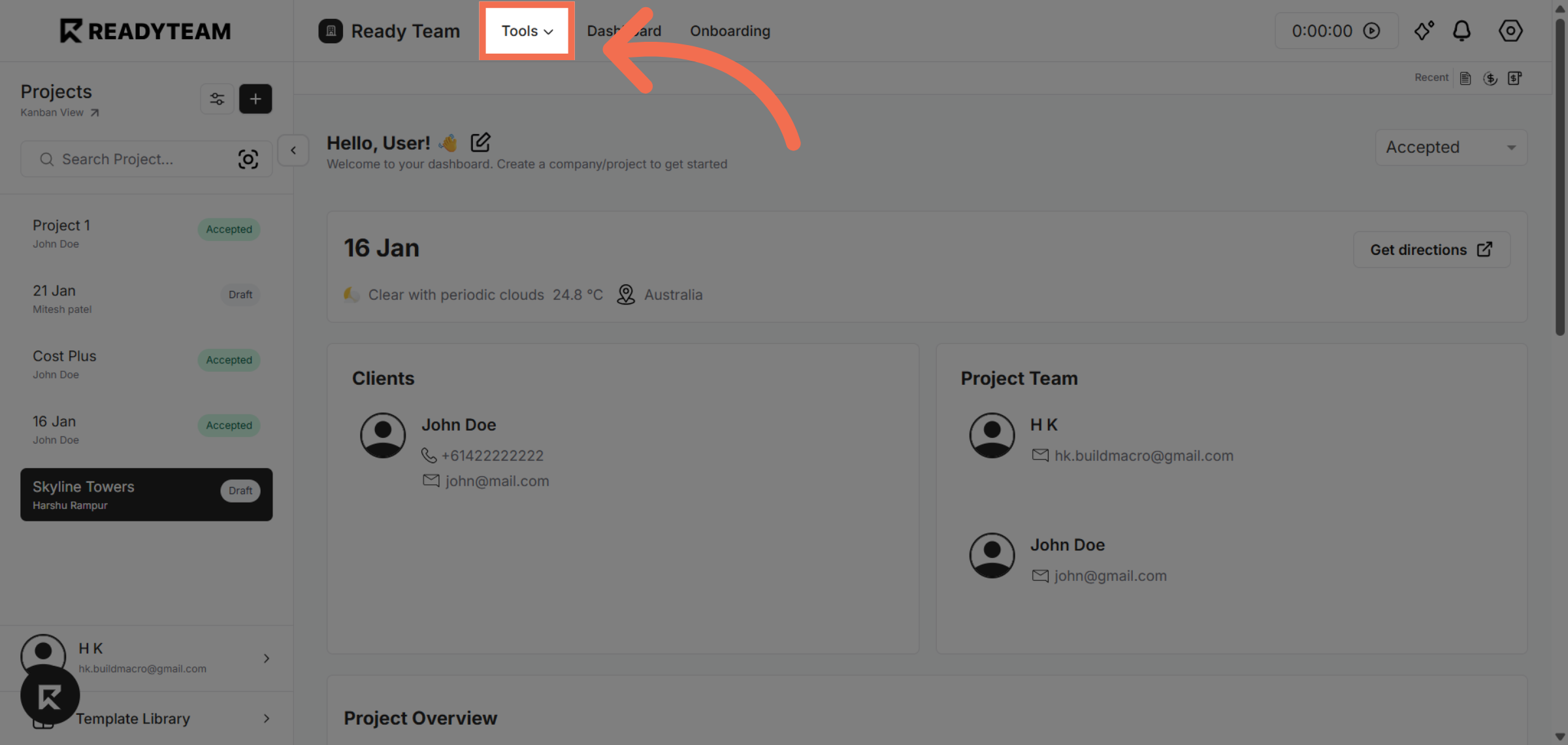
2. Open Tools Menu
Click the tools menu to reveal available application tools options.
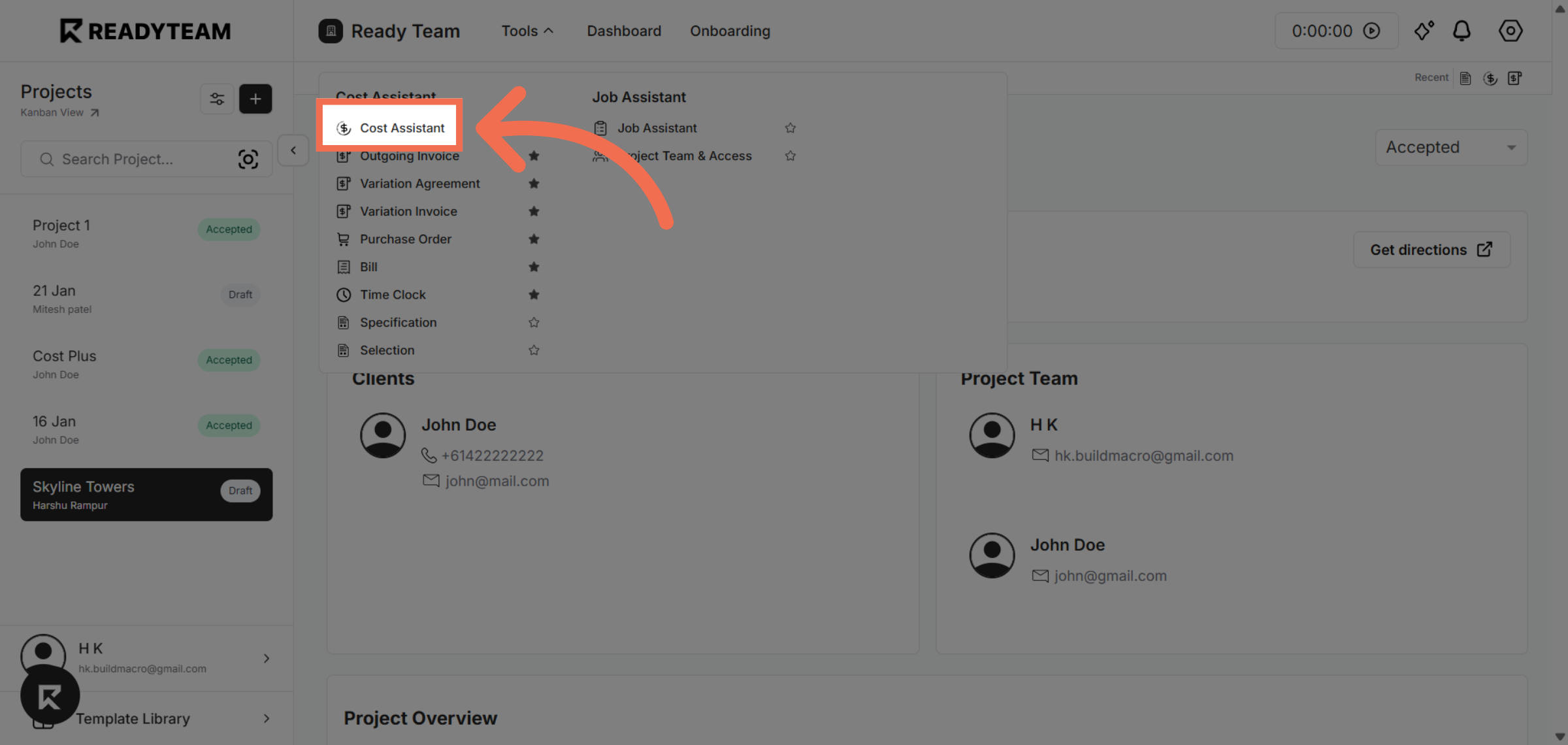
3. Access Cost Assistant
Click the Cost Assistant tool to manage your project costs efficiently.
4. Open Cost Assistant Category
Expand the cost assistant category to display all line items
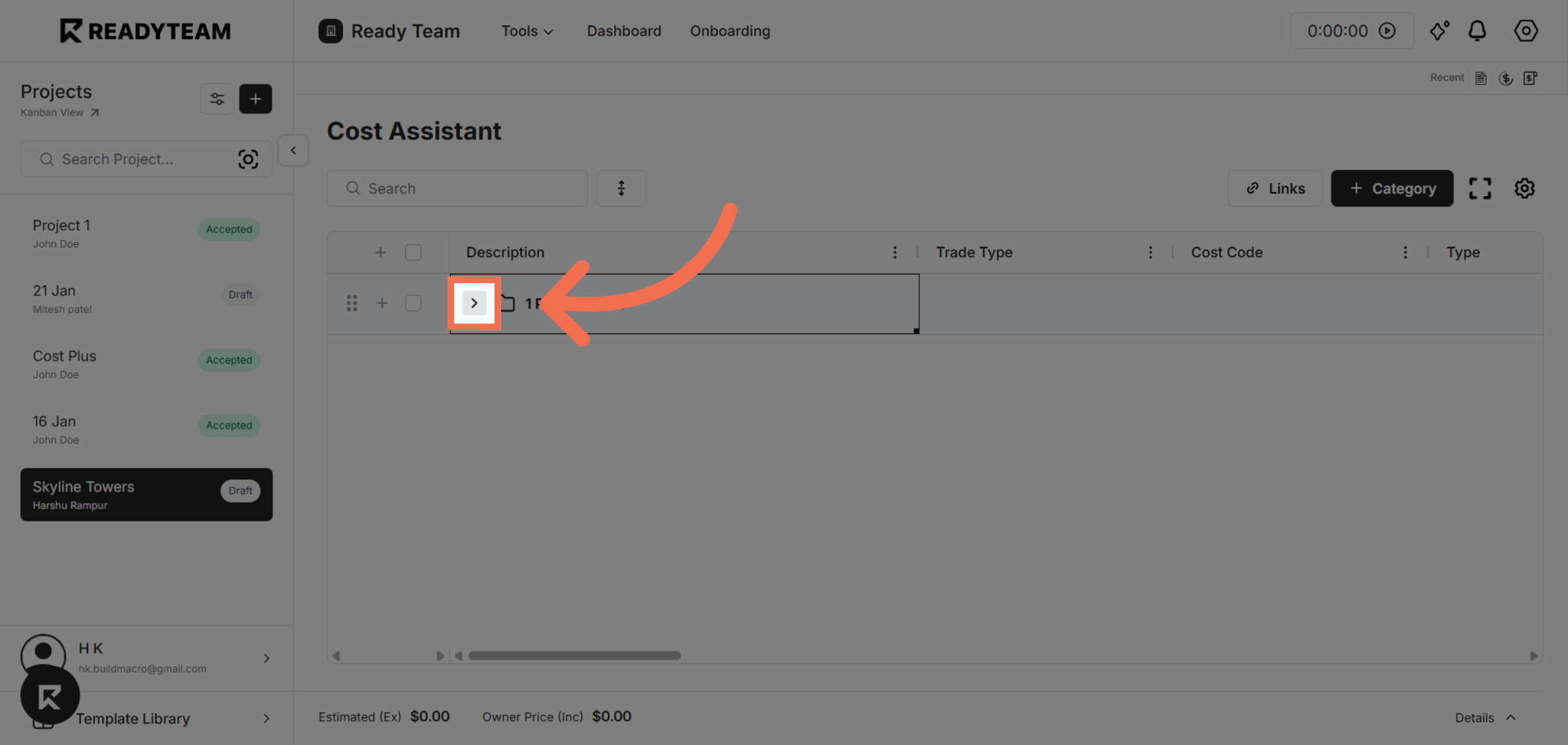
5. Click Plus Icon
Click to access the specifications section where you can define details.
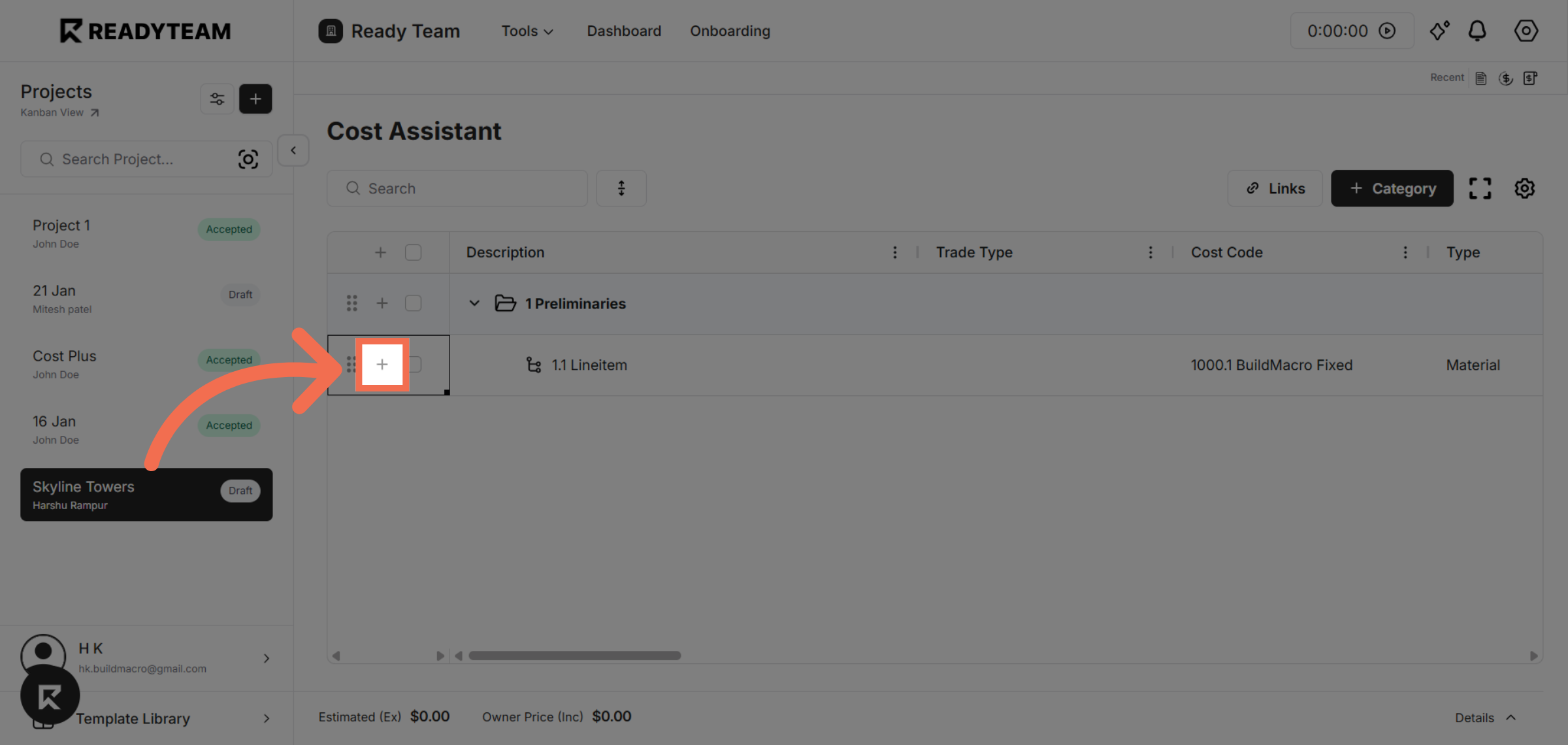
6. Select Specification Tab
Click the Specification tab to begin creating or editing specifications.
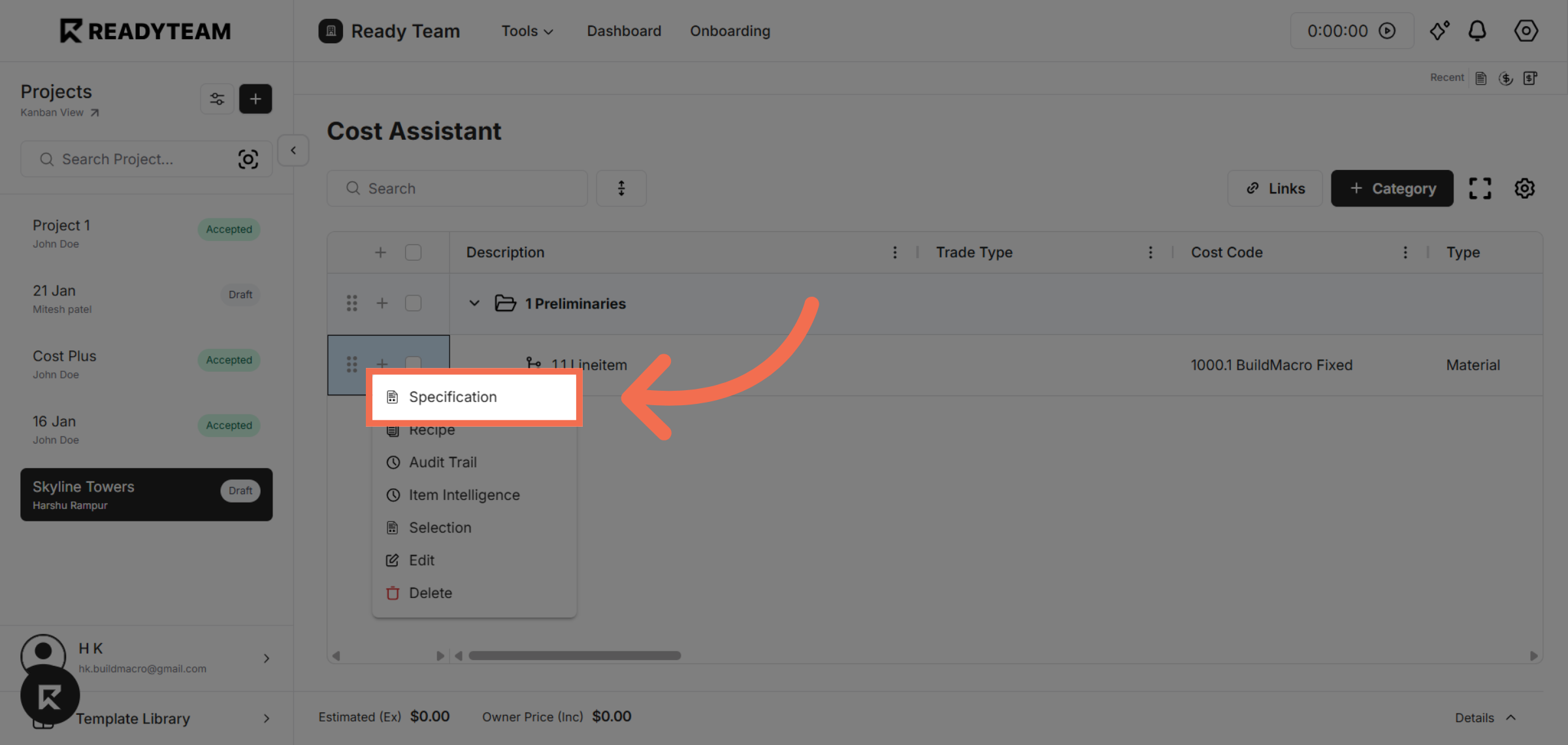
7. Select General Notes
Select General Notes to add important information relevant to the specifications.
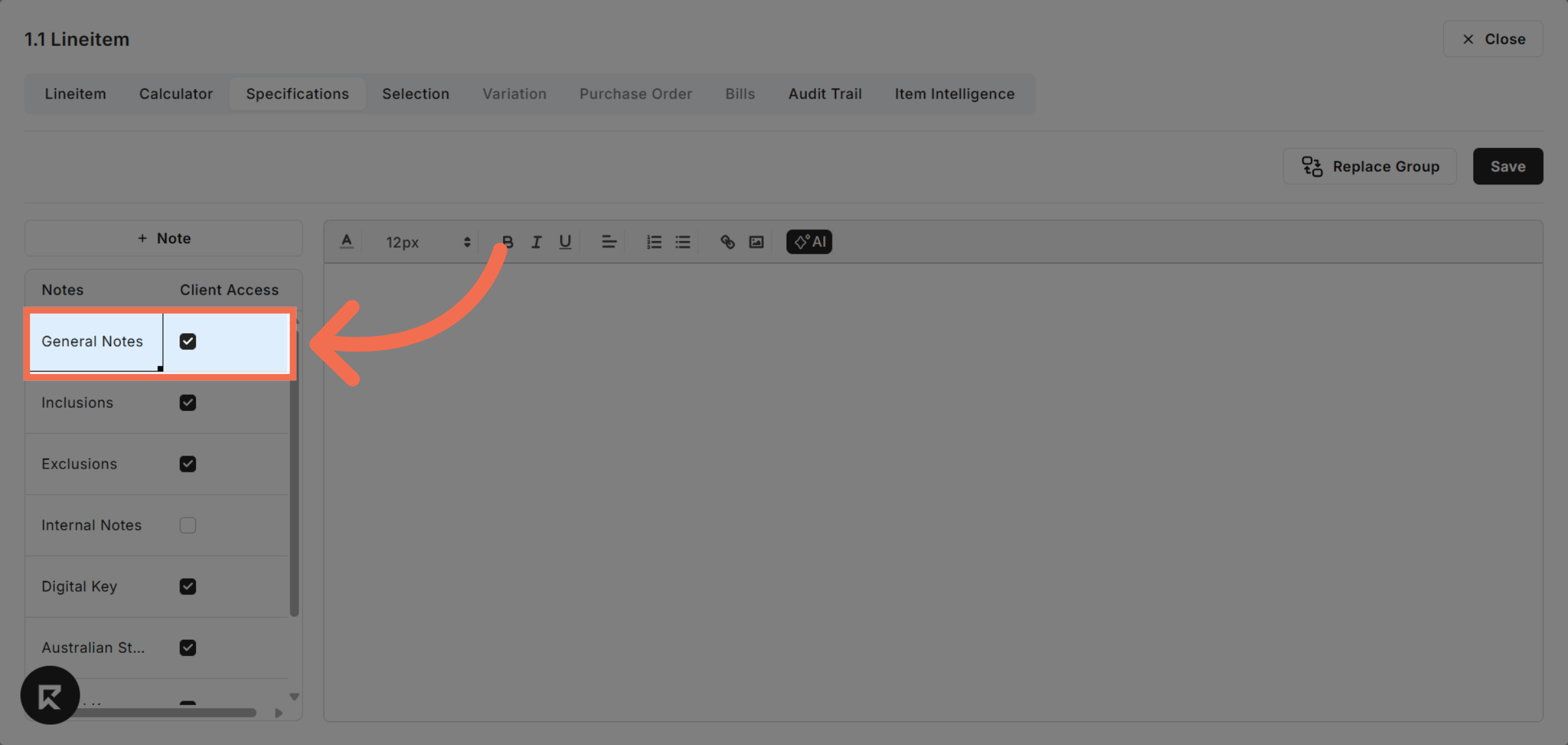
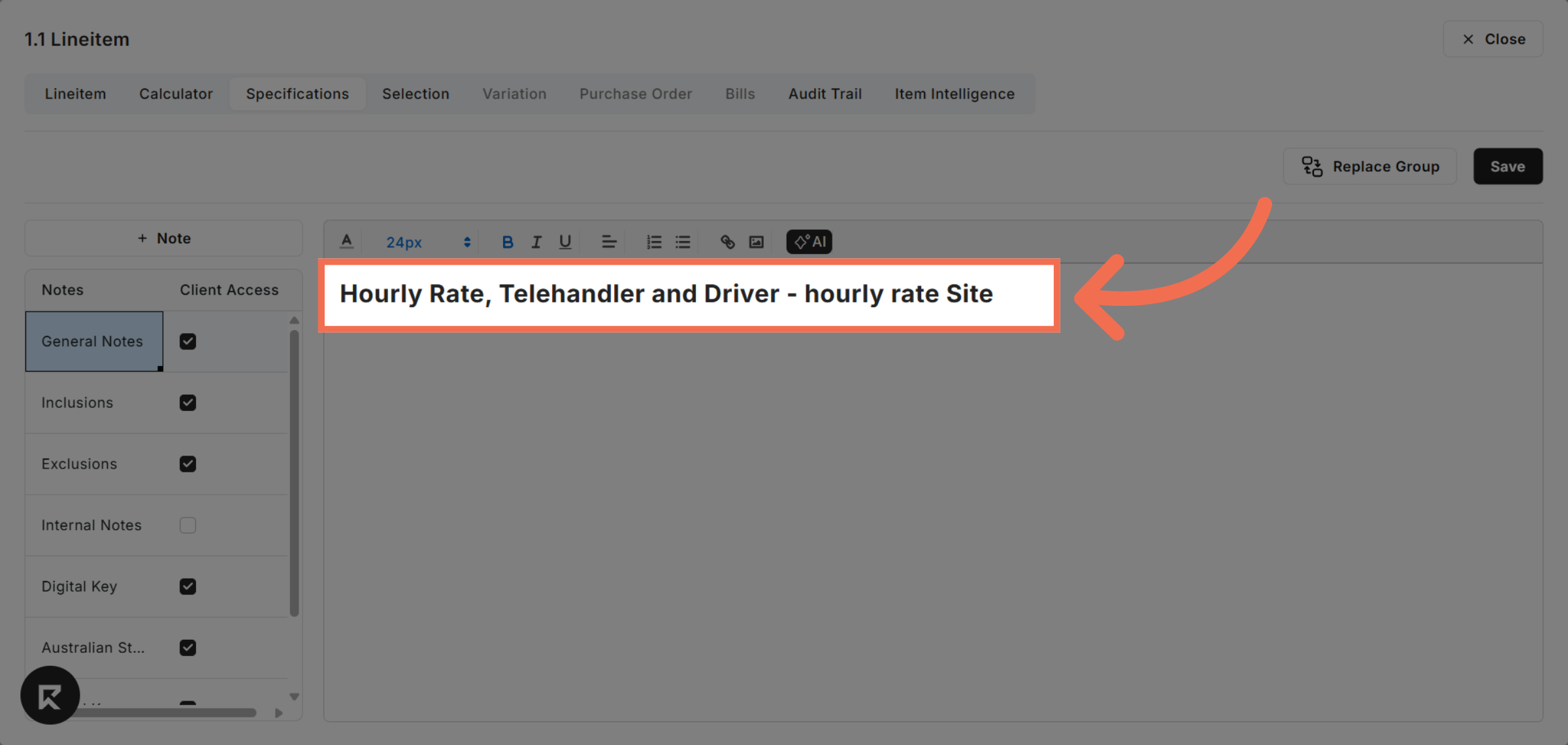
8. Enter Specification
Fill in the specification details accurately in the provided fields.
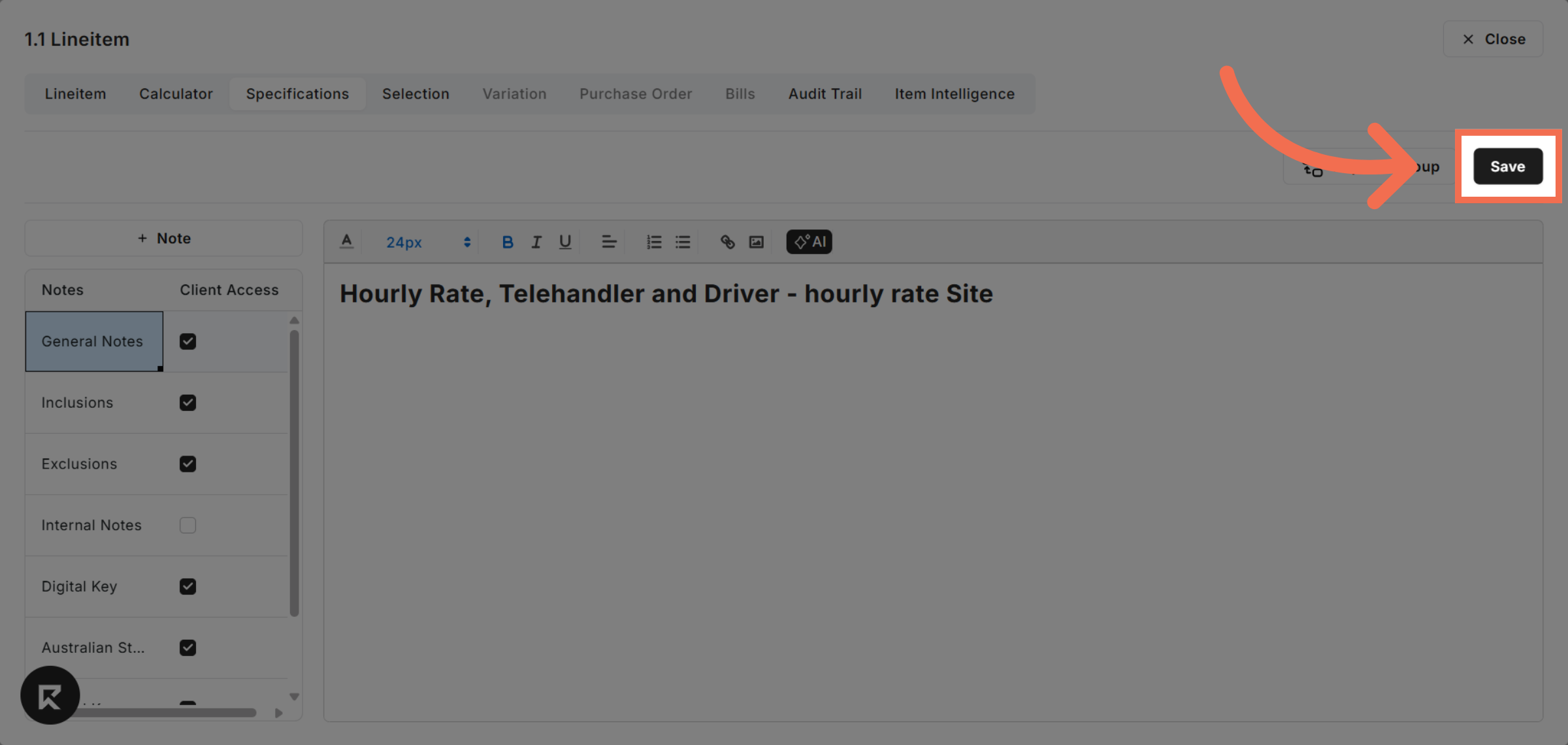
9. Save Specification Changes
Click Save to store your specification updates securely.
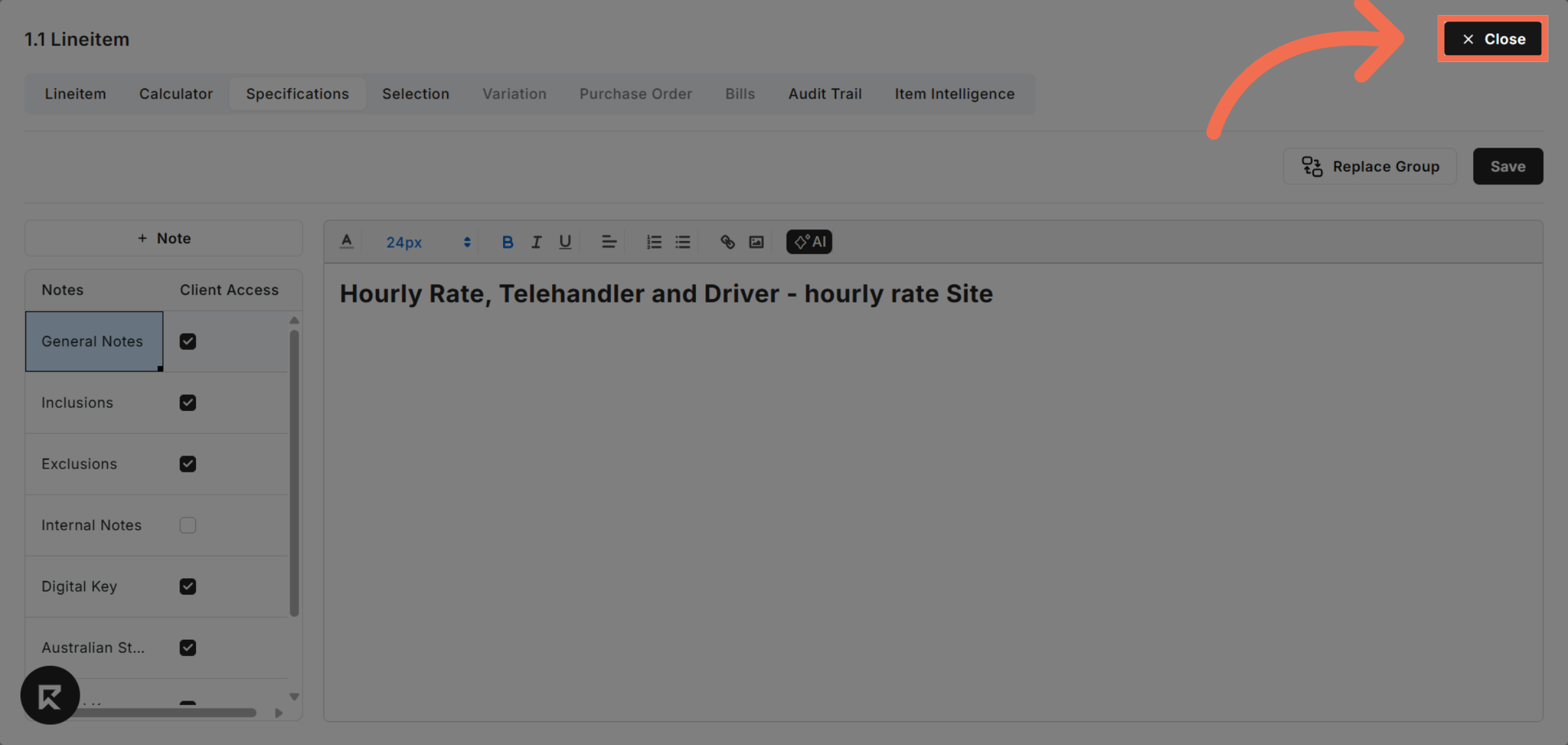
10. Close Specification
Exit or finalize the specification entry to save changes and return to the previous screen.
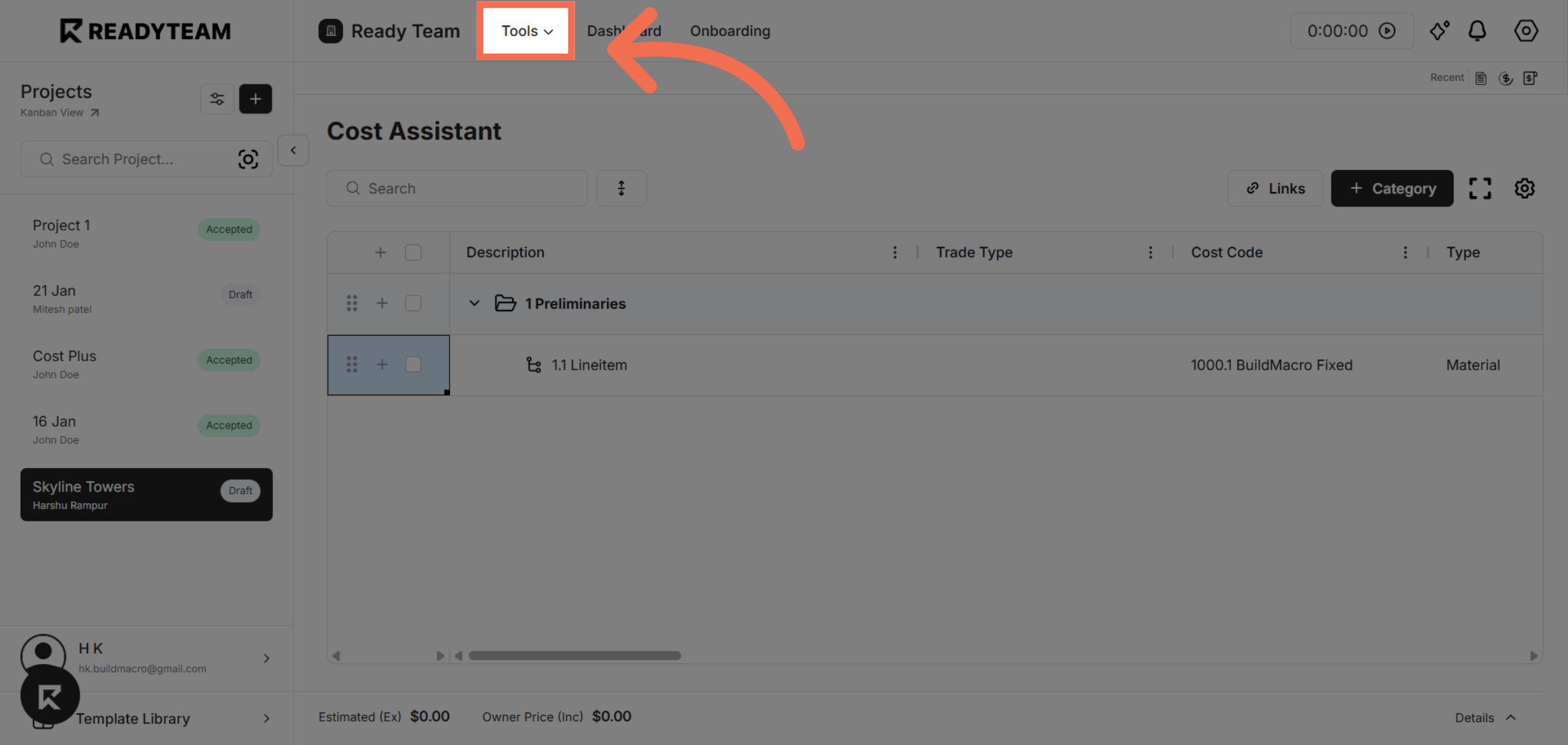
11. Open Tools Menu
Open the Tools menu to select and use different tools.
12. Open Specification
Click the Specification tab to review details.
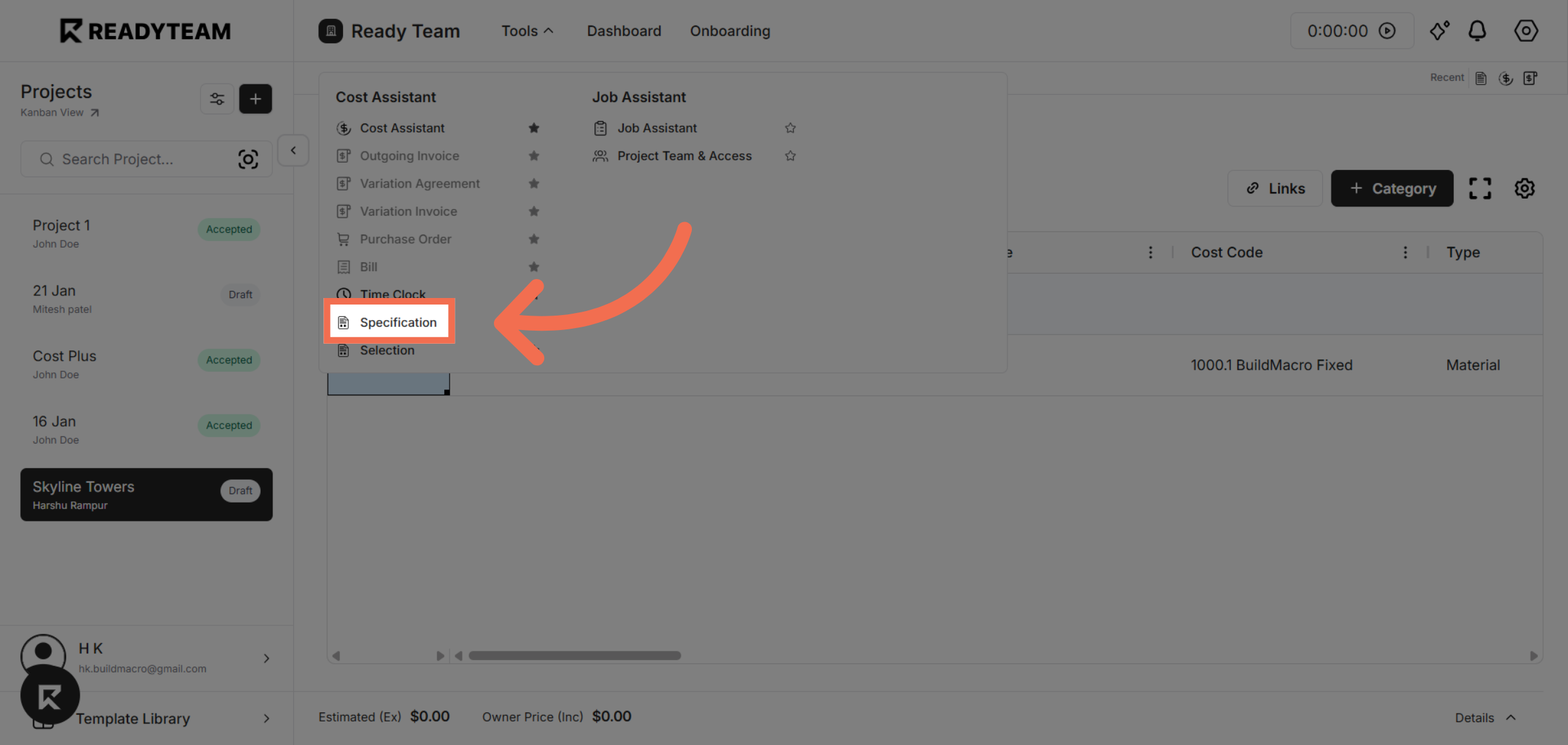
13. Review Created Specification
Examine the newly created specification to ensure all information is accurate.
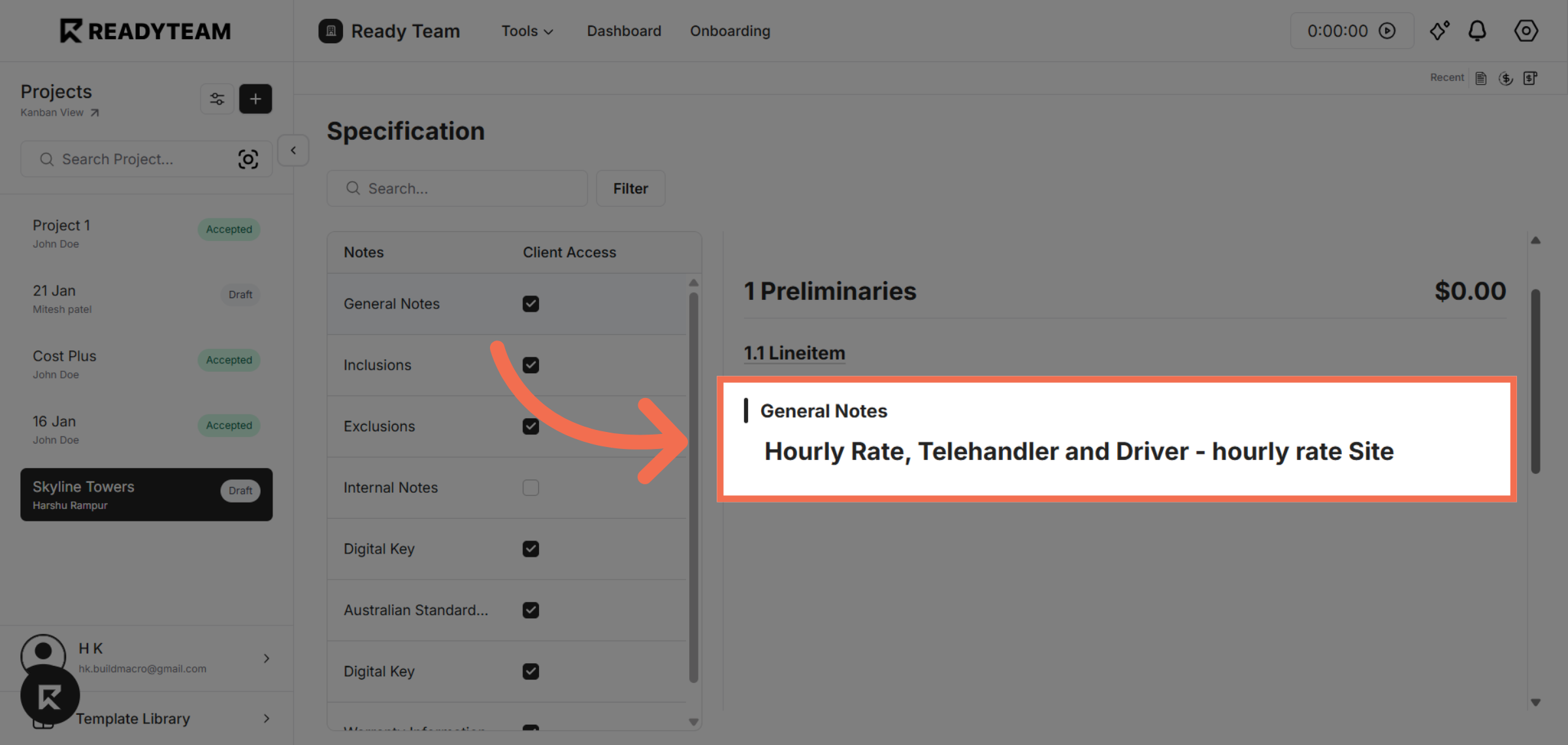
This demo demonstrated how to efficiently create and manage specifications within Readyteam's Cost Assistant. You can now streamline your project cost planning and ensure accurate documentation by following these steps.