Notify Clients for Stoppages in Job Assistant Using ReadyTeam
This demo showcases how Readyteam helps you notify clients about project stoppages efficiently.
Go to app.readyteam.ai
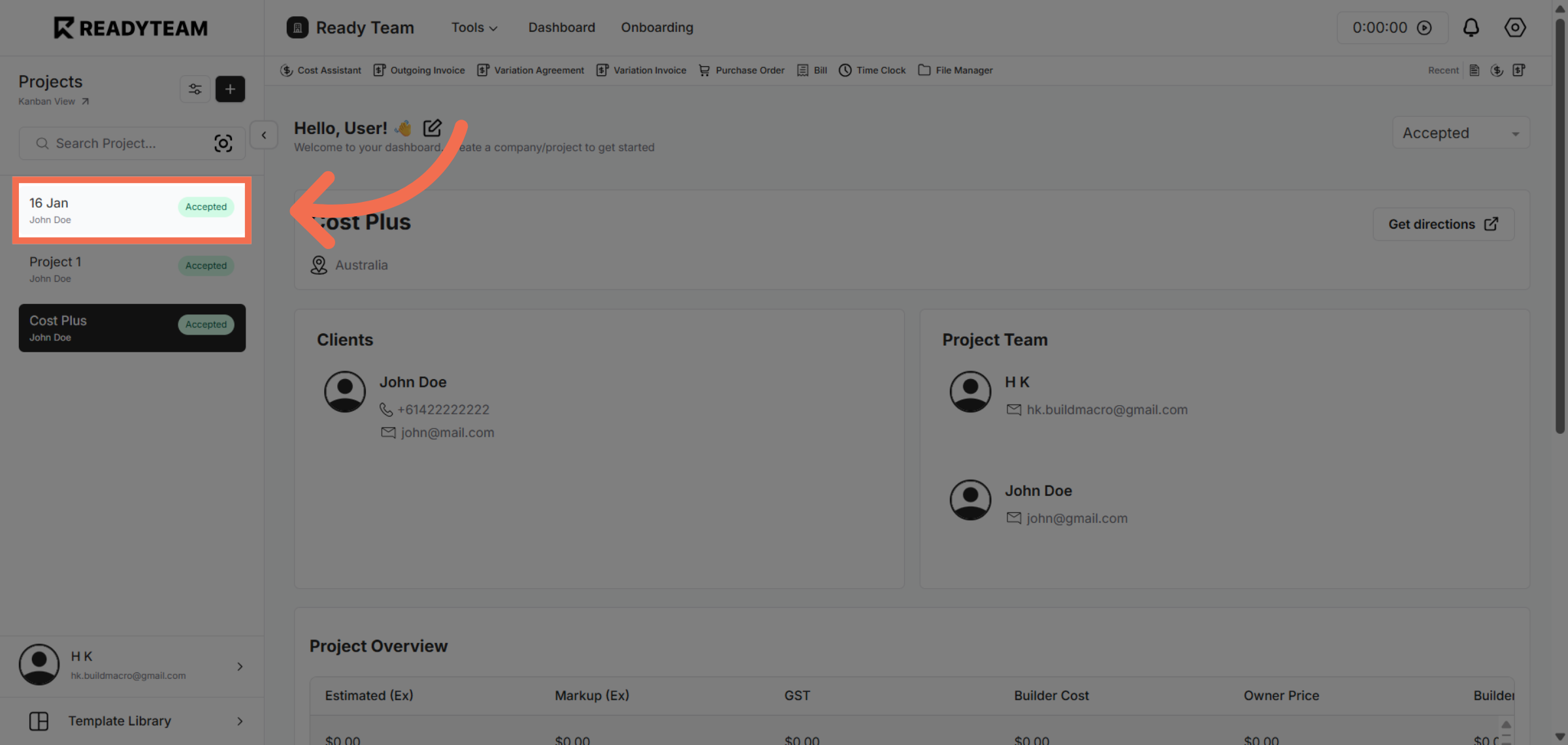
1. Select Project
Select Project to begin managing stoppages.
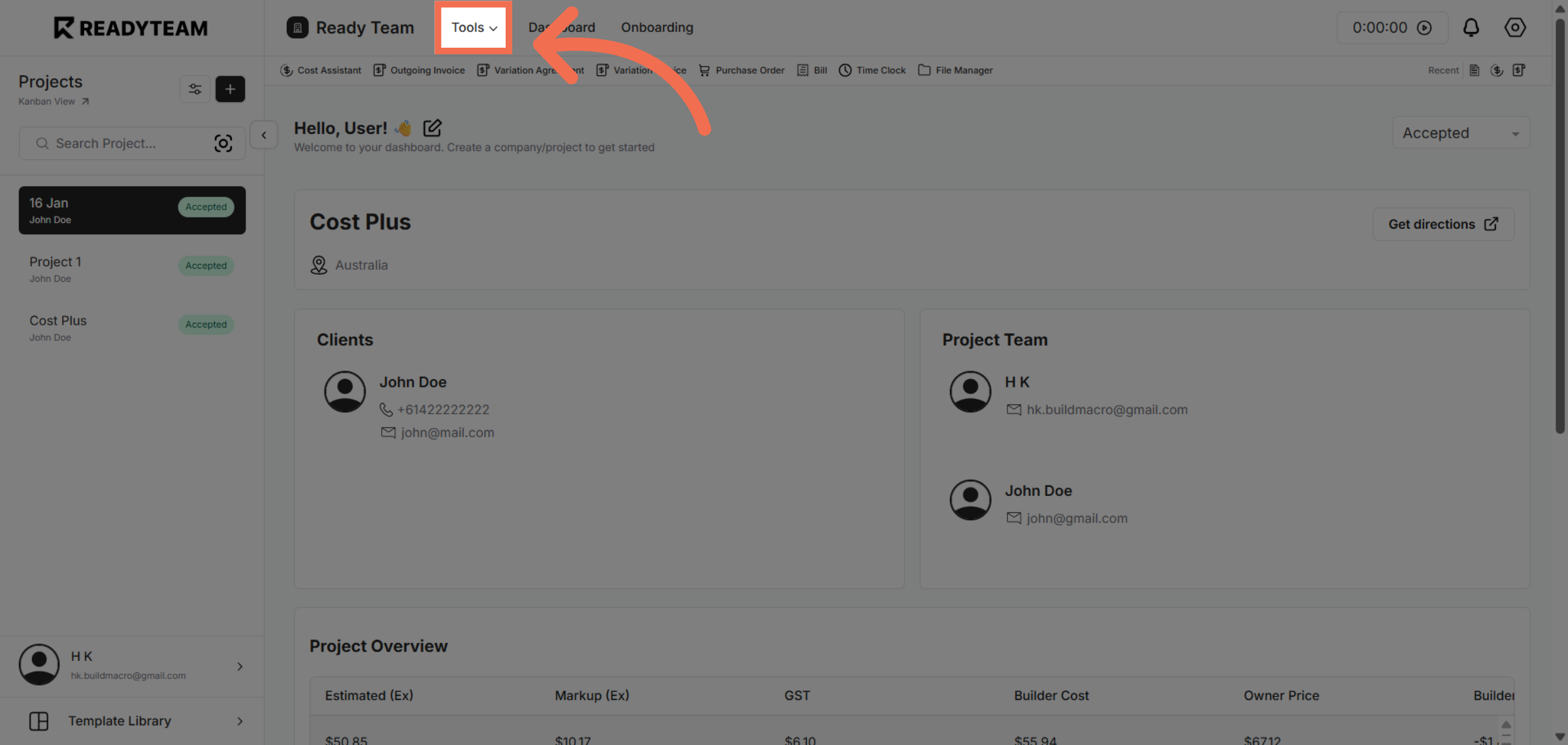
2. Open Tools Menu
Click the Tools menu to access additional job management features.
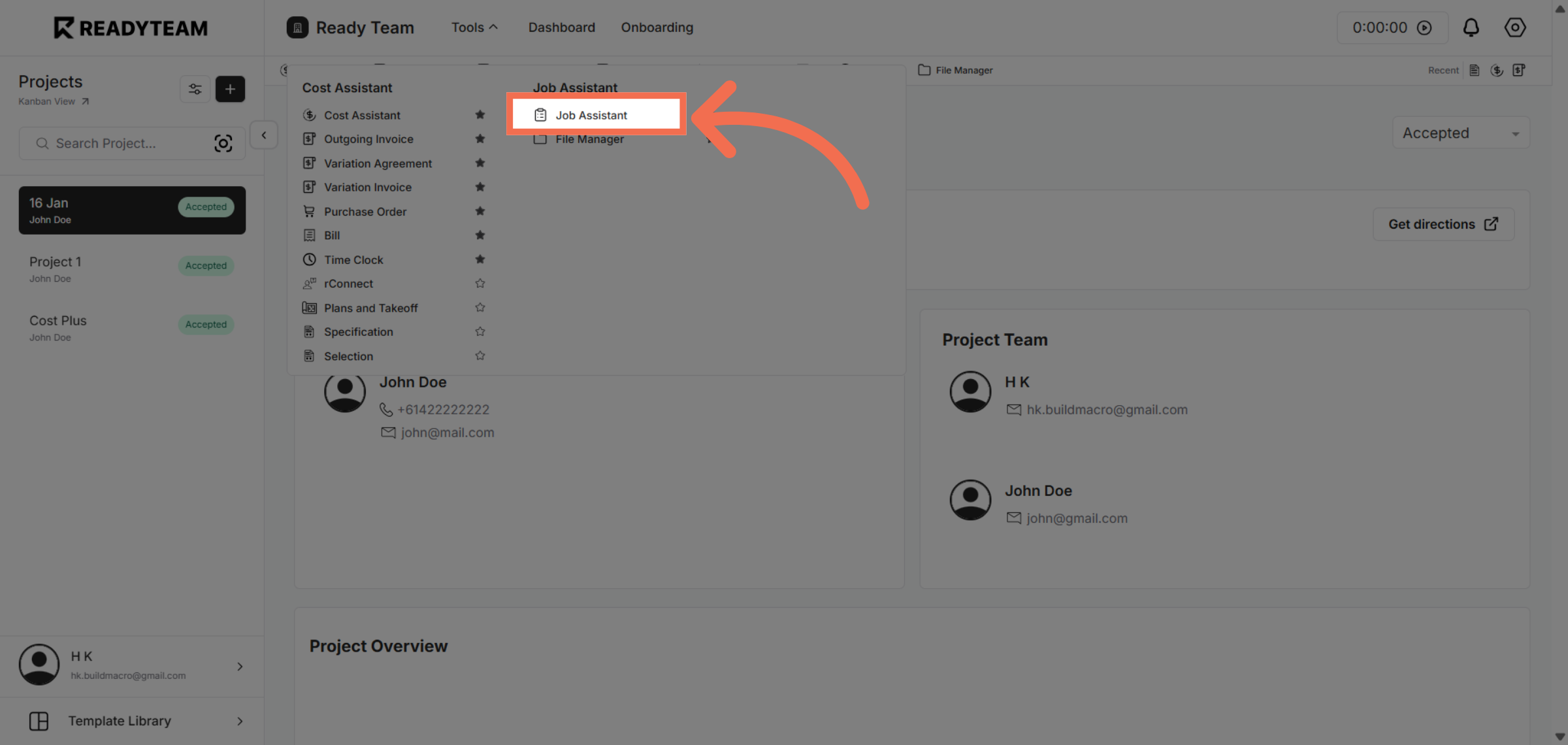
3. Access Job Assistant Feature
Click Job Assistant to open tools designed to assist with job-related tasks.
4. Choose Stoppage Option
Click Stoppage to view and manage stoppage events related to the job.
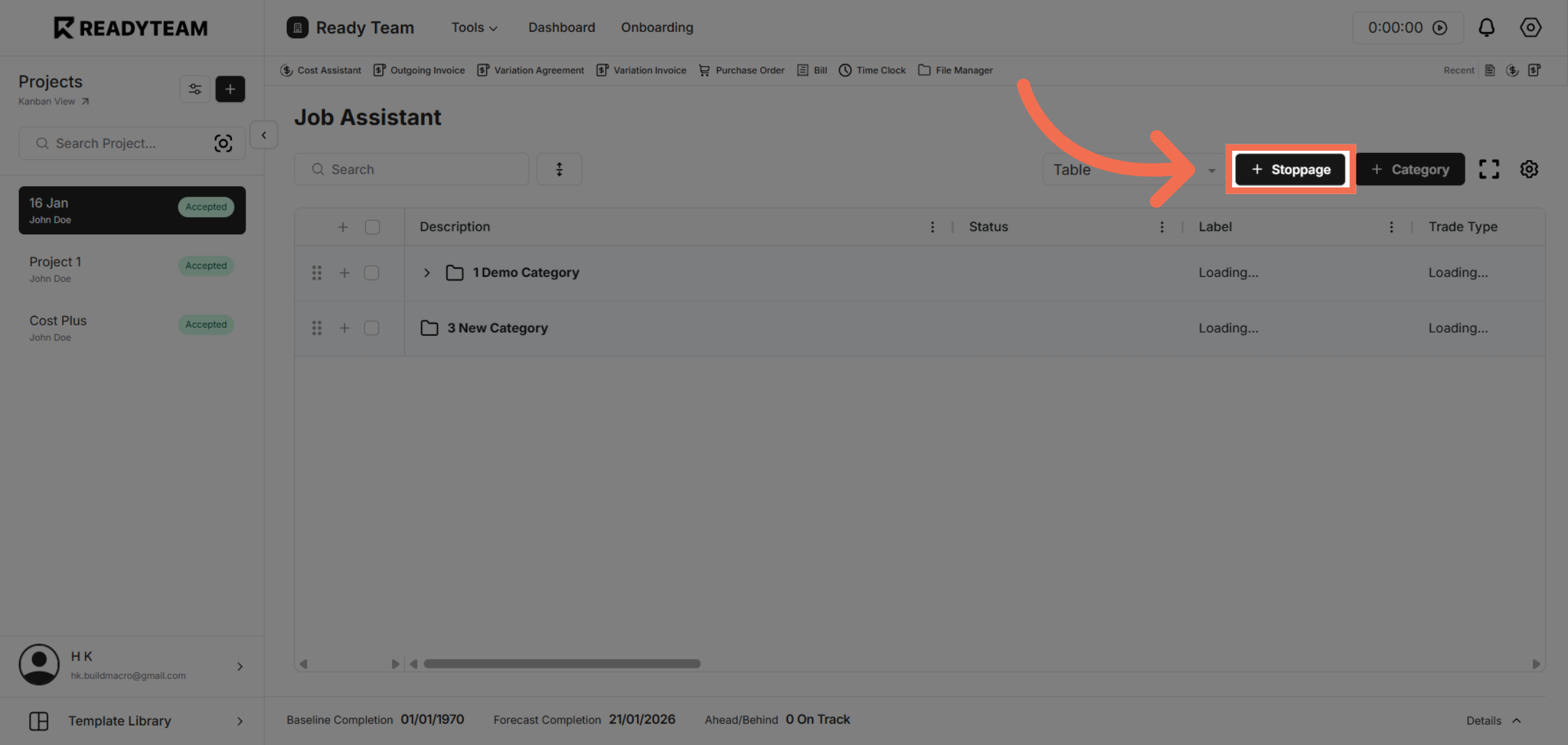
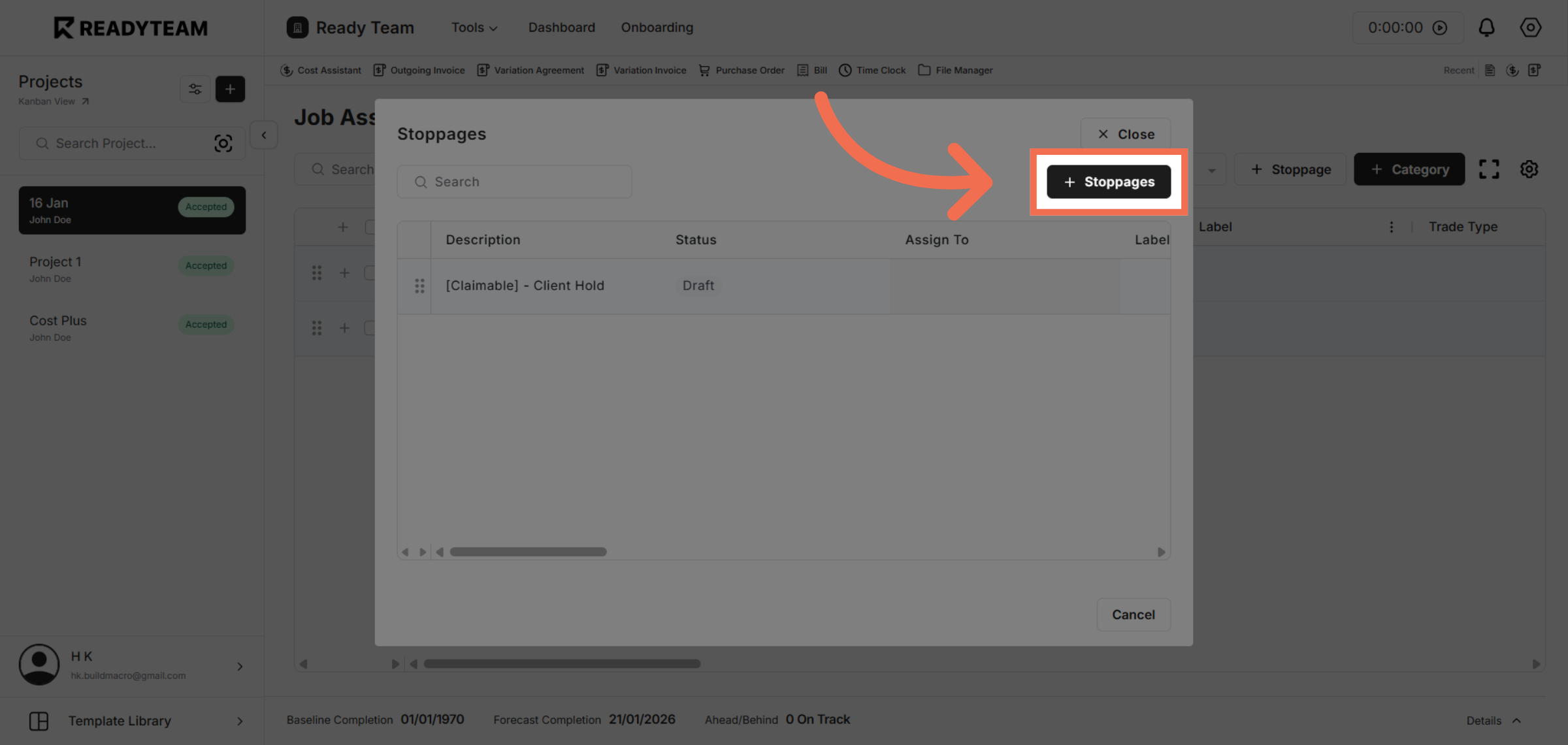
5. Add Stoppages
Click Stoppages to see all recorded stoppage instances for the project.
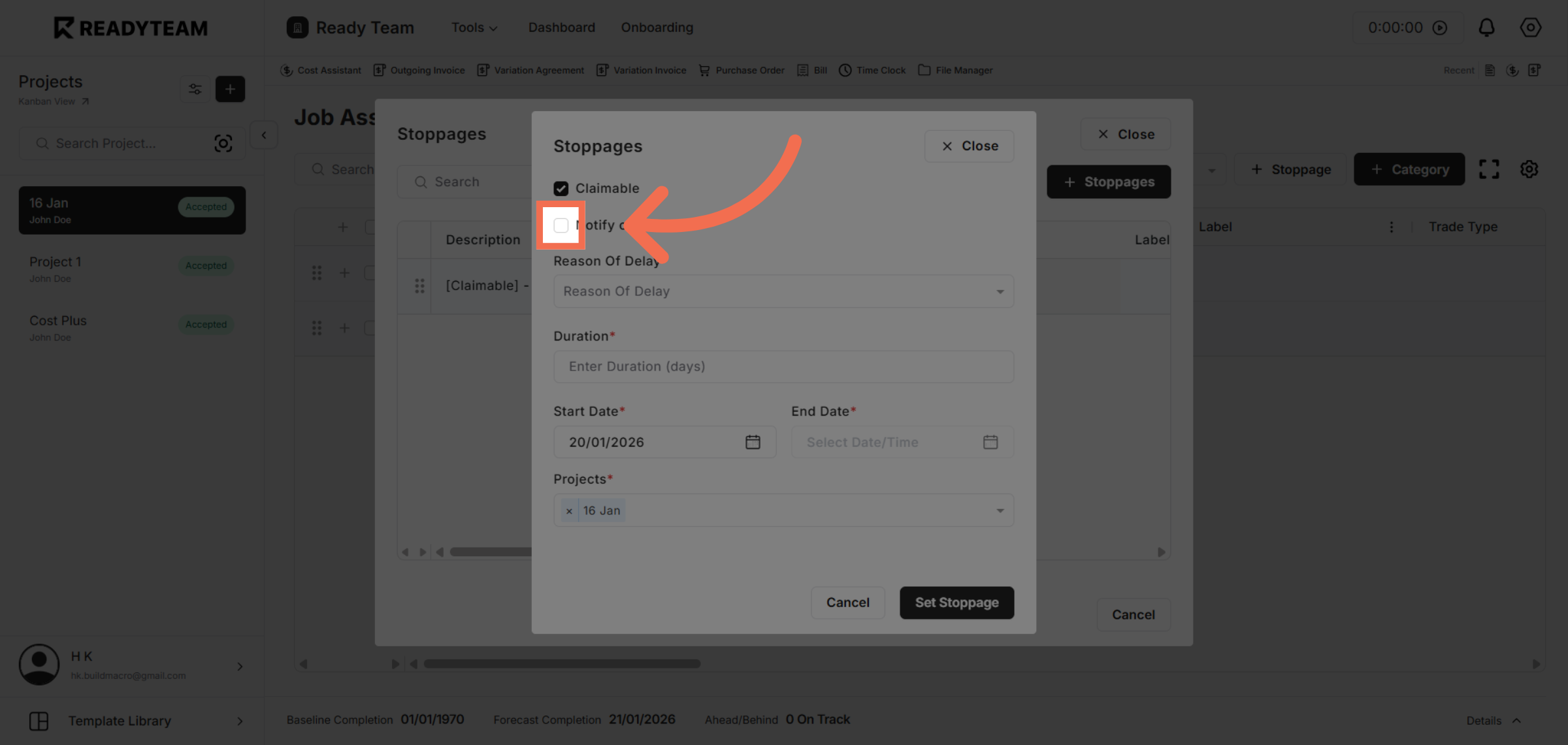
6. Toggle Client Notification
Click Notify client to start the process of informing the client about a stoppage.
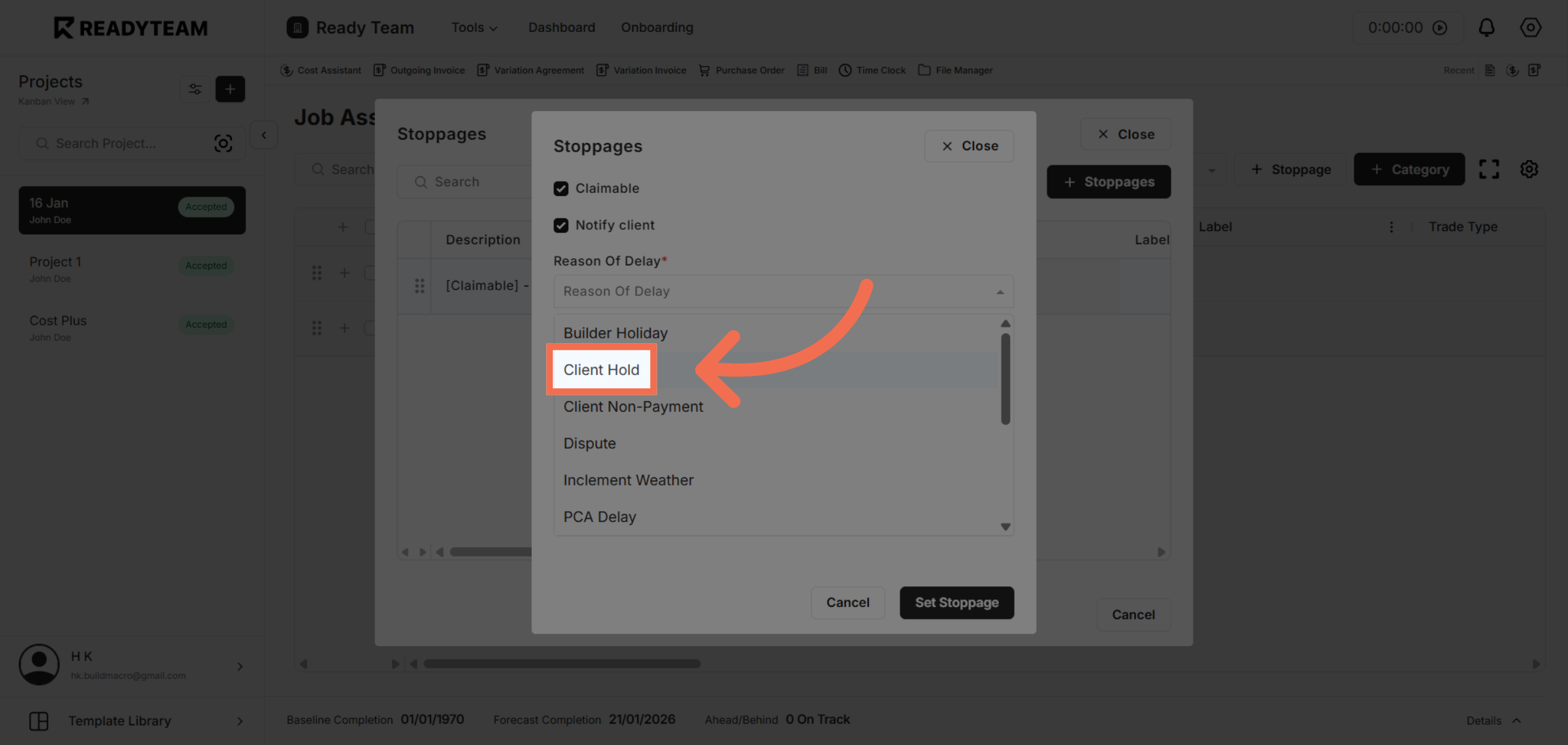
7. Select Stoppage Reason
Select Client Hold as the reason for the stoppage to specify the cause of the delay.
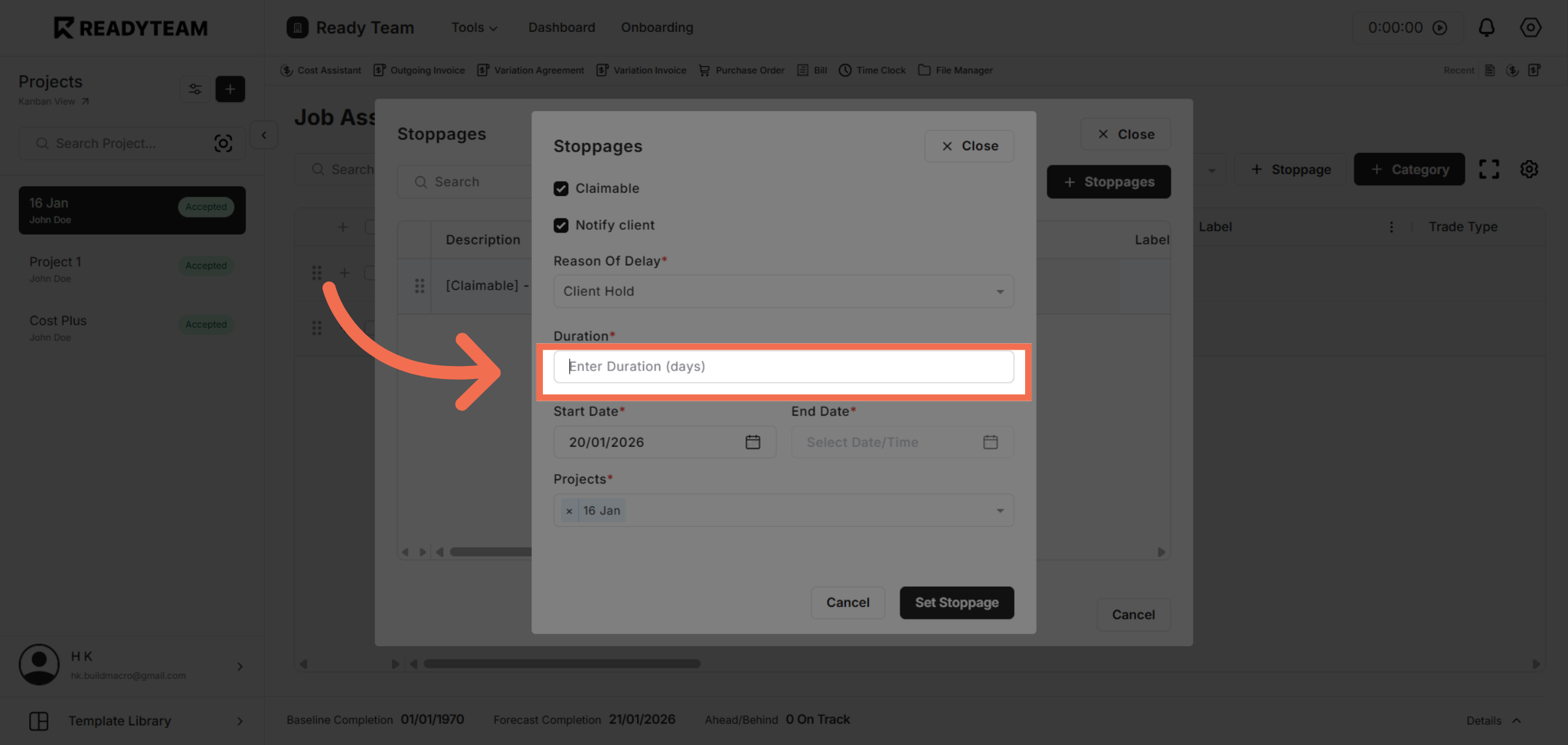
8. Enter Duration
Enter Duration (days) field to specify how long the stoppage will last.
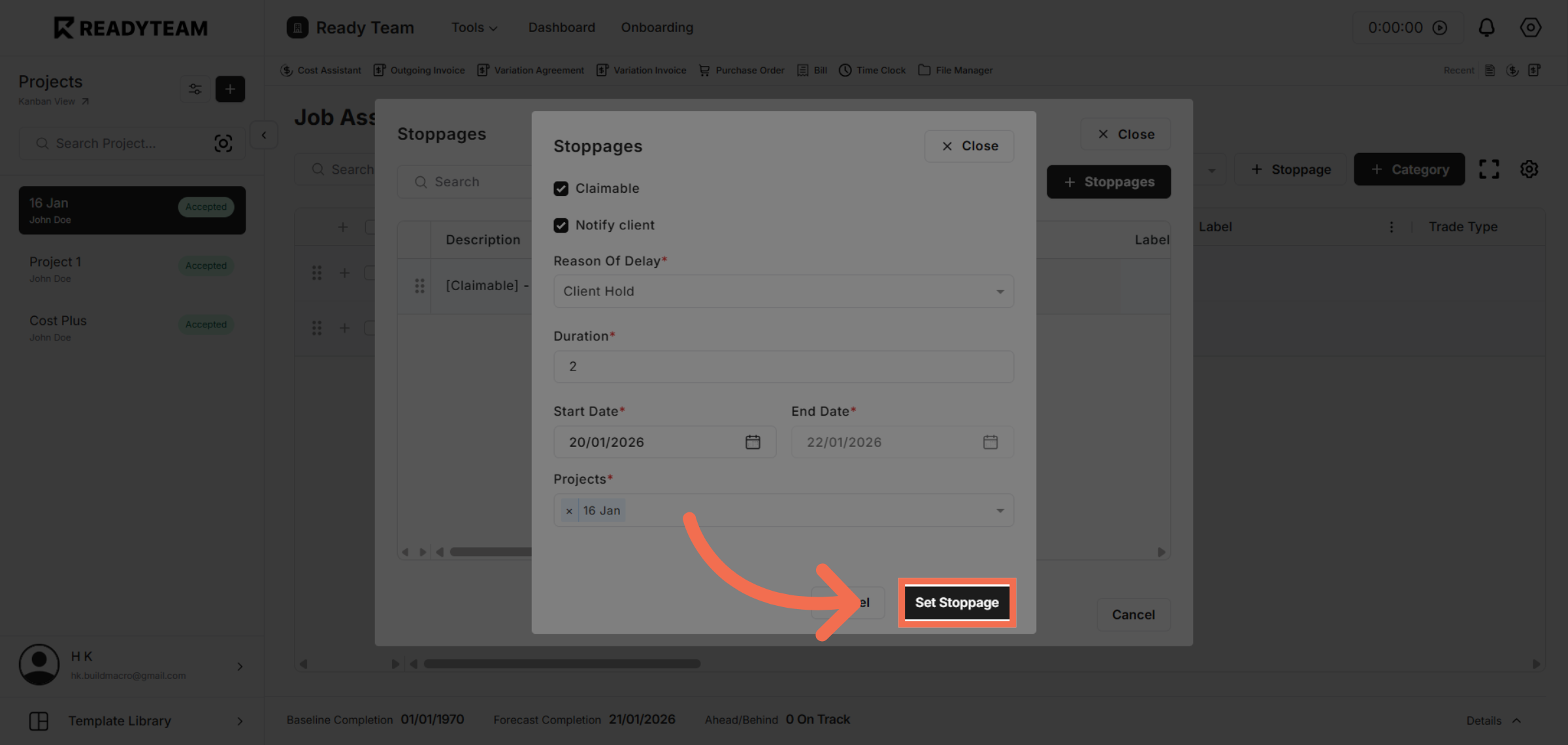
9. Confirm Stoppage Setup
Click Set Stoppage to finalize and save the stoppage notification for the client.
You have successfully used Readyteam to notify your client about a project stoppage, specifying the reason, duration, and start date. This process ensures clear communication and helps manage project delays effectively.