Export Gantt Chart In Job Assistant Using ReadyTeam
This demo showcases how to export a Gantt chart using Readyteam.
Go to app.readyteam.ai
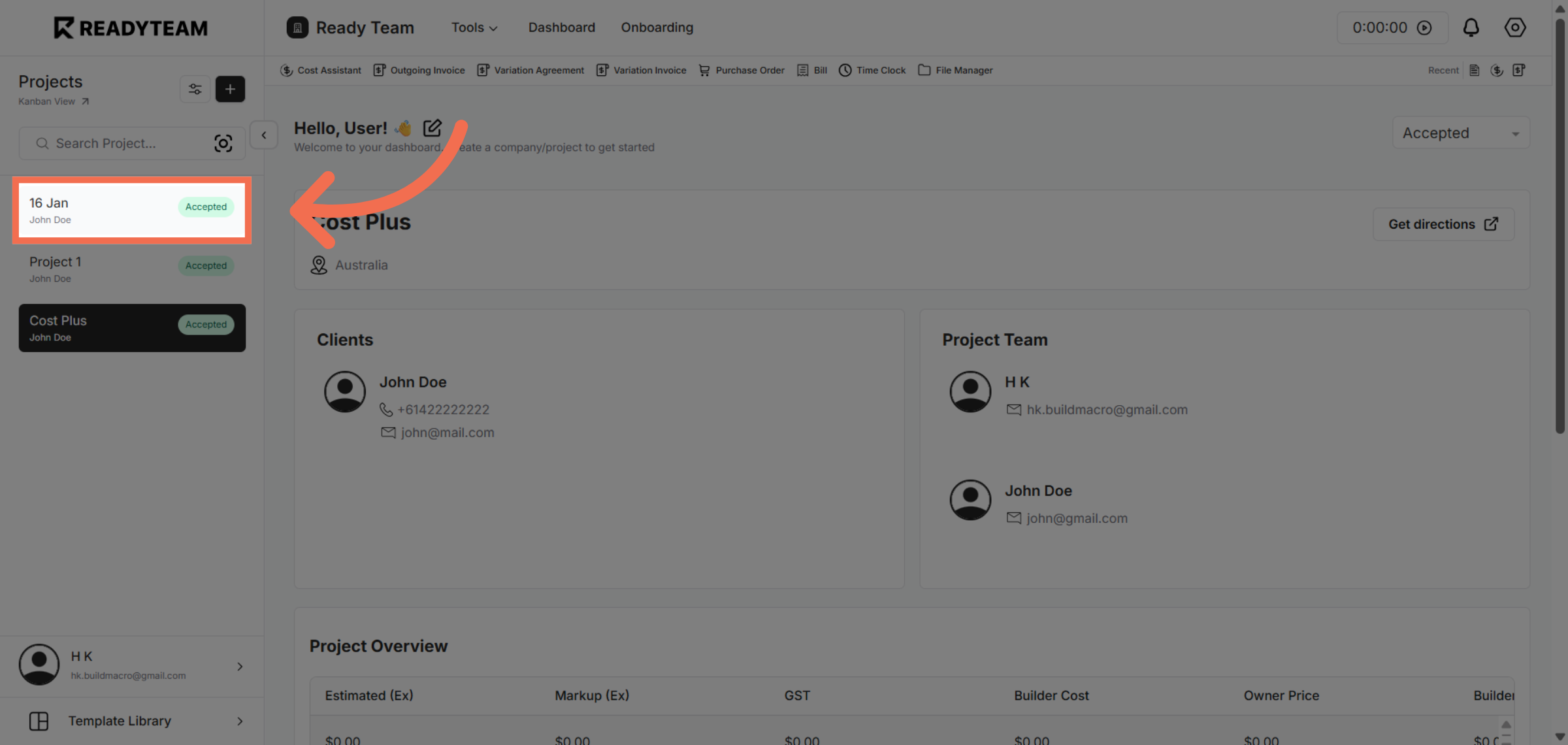
1. Select Project
Select the Project to begin exporting the Gantt chart.
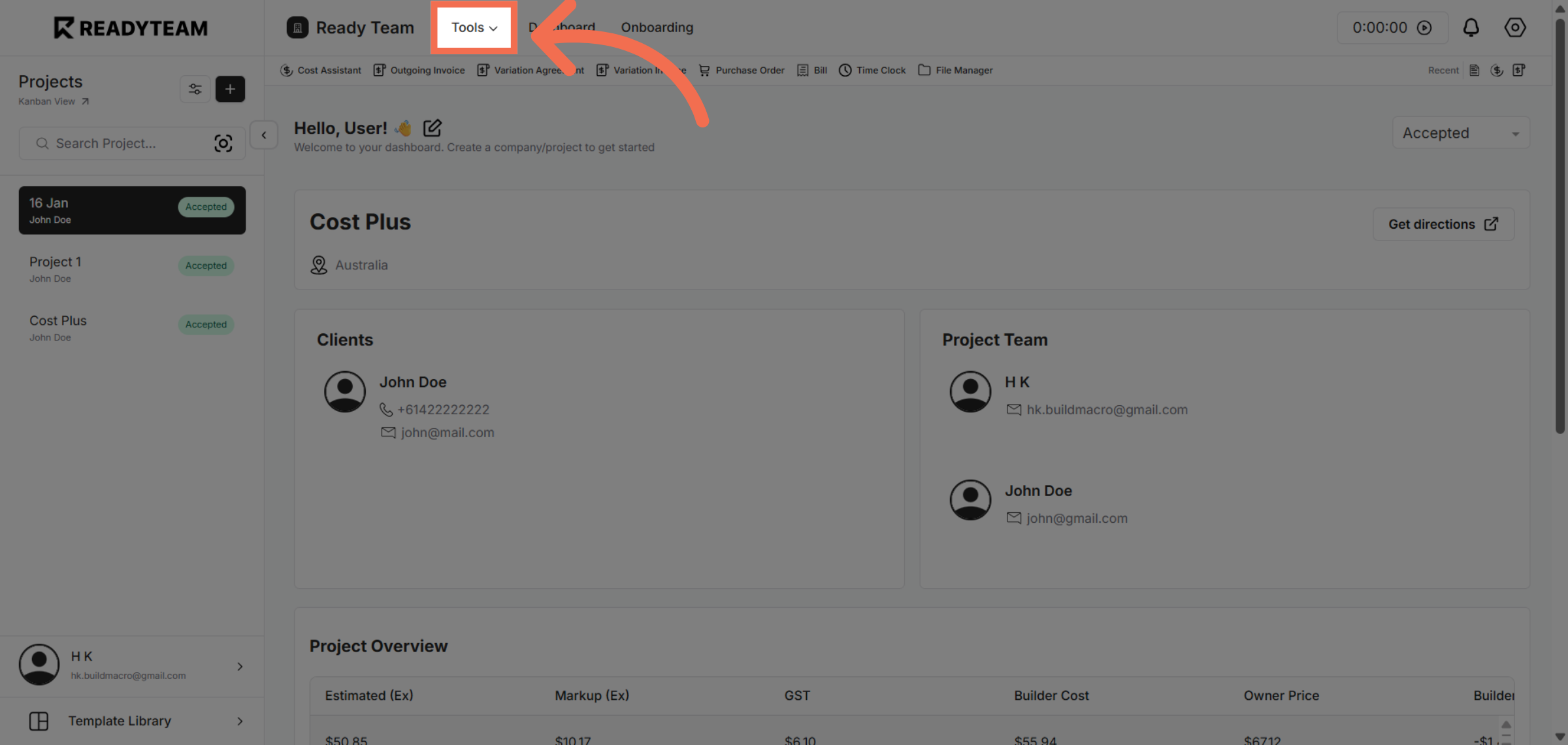
2. Open Tools Menu
Click the designated area to access export options for your project data.
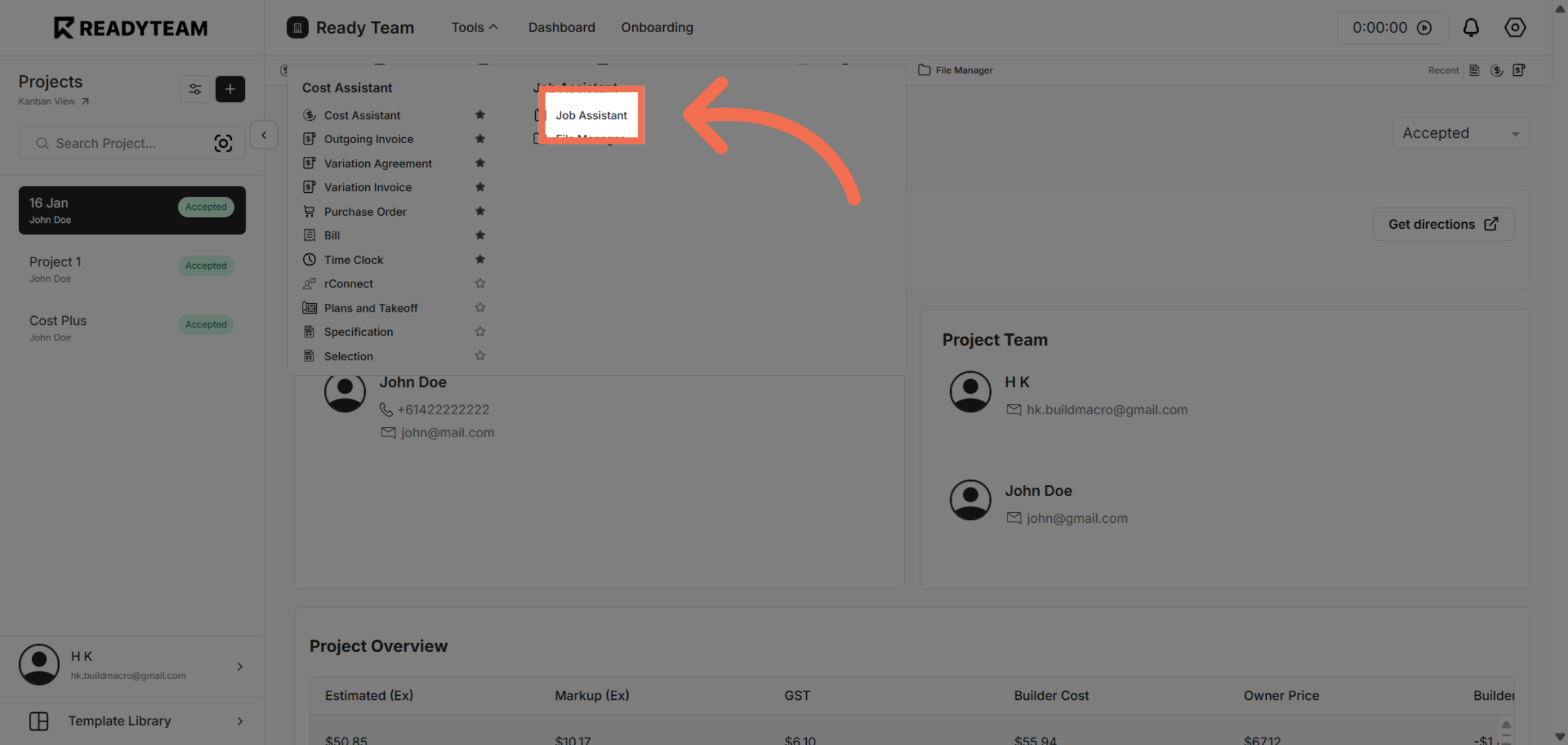
3. Choose Job Assistant Feature
Select the Job Assistant feature to manage job-related exports and settings.
4. Toggle View Options
Click the indicated area to open the export menu for further options.
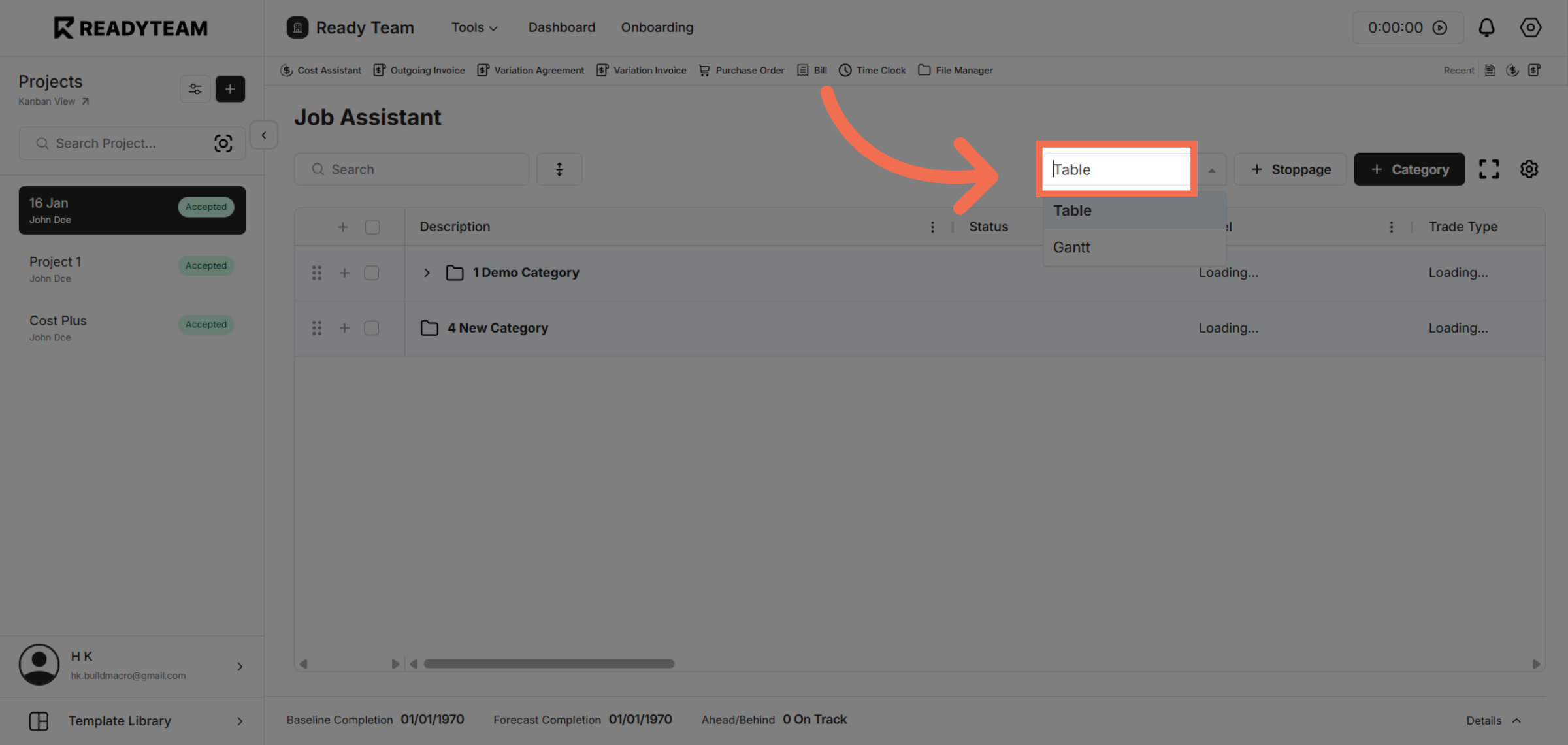
5. Select Gantt Chart View
Choose the Gantt chart view to prepare the timeline for export.
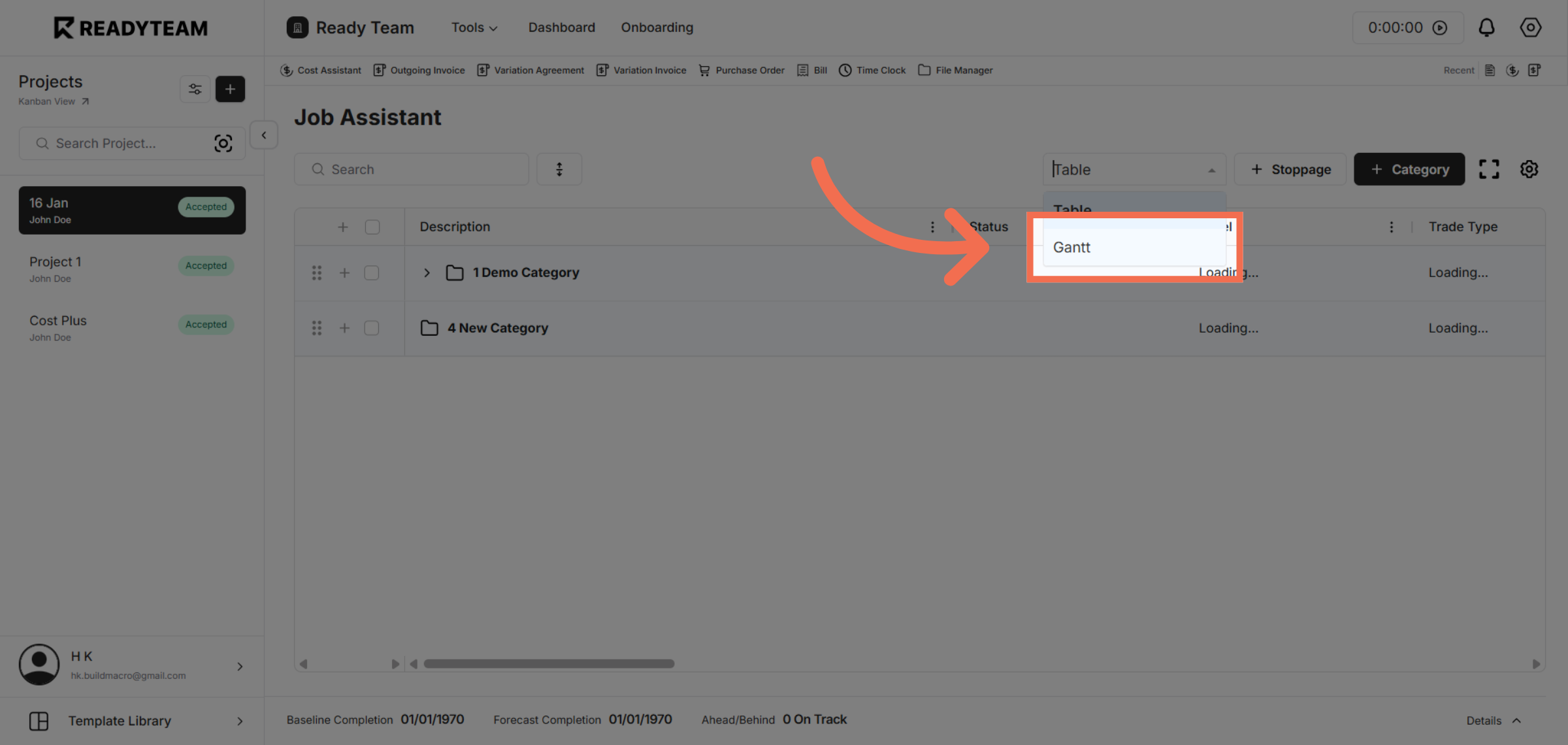
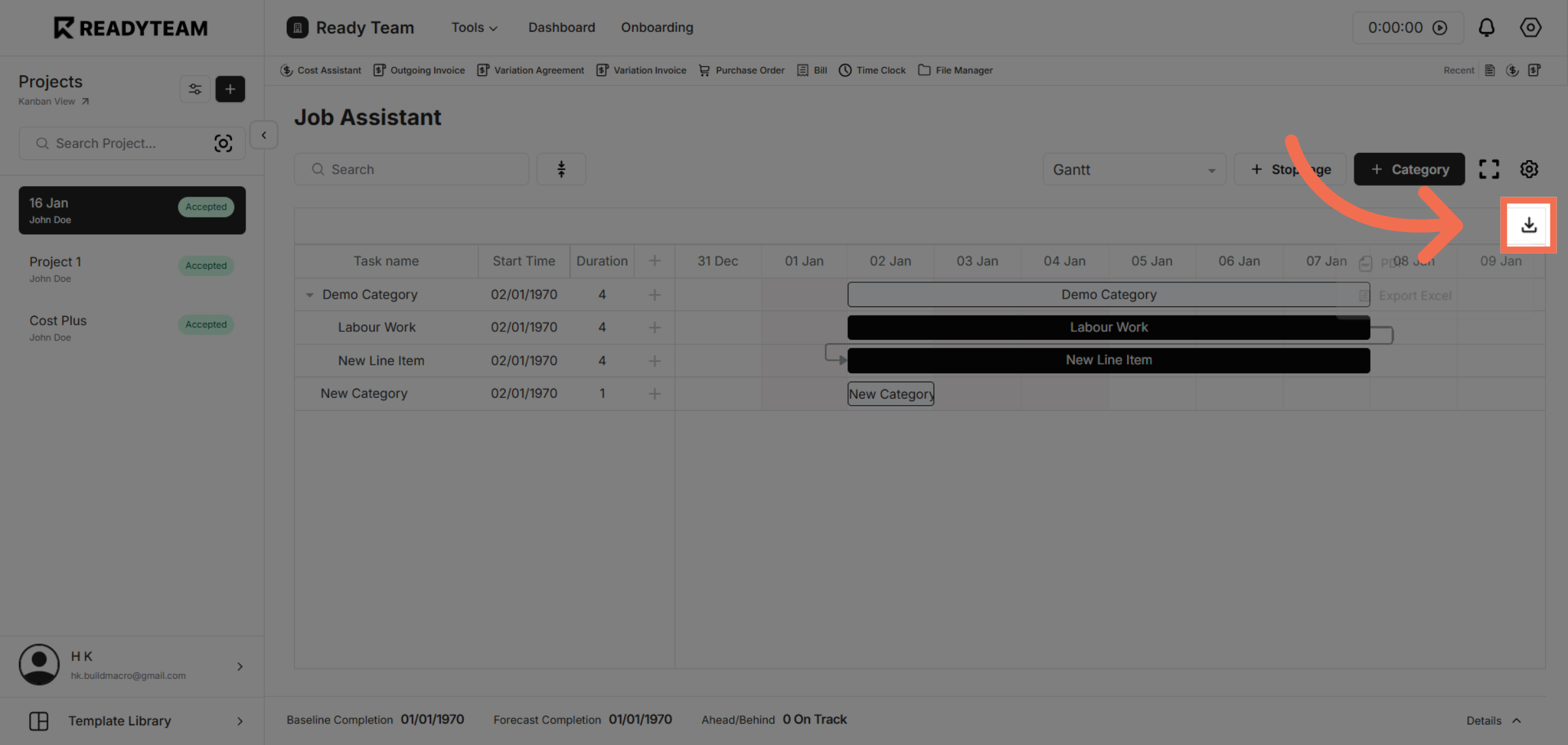
6. Open Export Format Options
Click the area to reveal available export formats for the Gantt chart.
7. Select PDF Export Format
Select the PDF option to export the Gantt chart as a portable document.
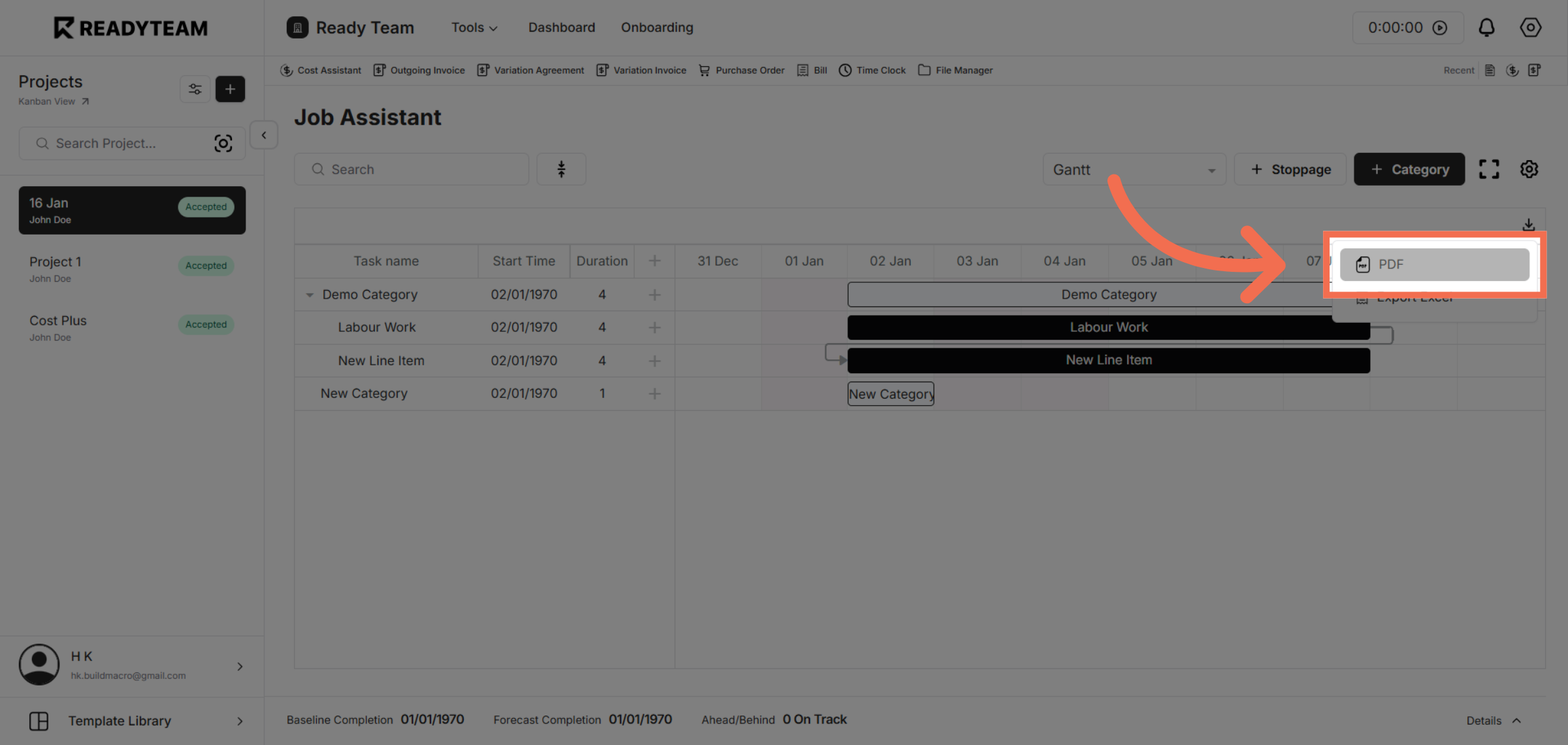
This demo demonstrated how to efficiently export a Gantt chart in Readyteam by navigating through job entries, selecting the Gantt view, and exporting it as a PDF. You can now easily share your project timelines with stakeholders using these steps.