Add Checklist to Job Assistant in ReadyTeam
This demo showcases how to add a checklist to the Job Assistant feature in Readyteam.
Go to app.readyteam.ai
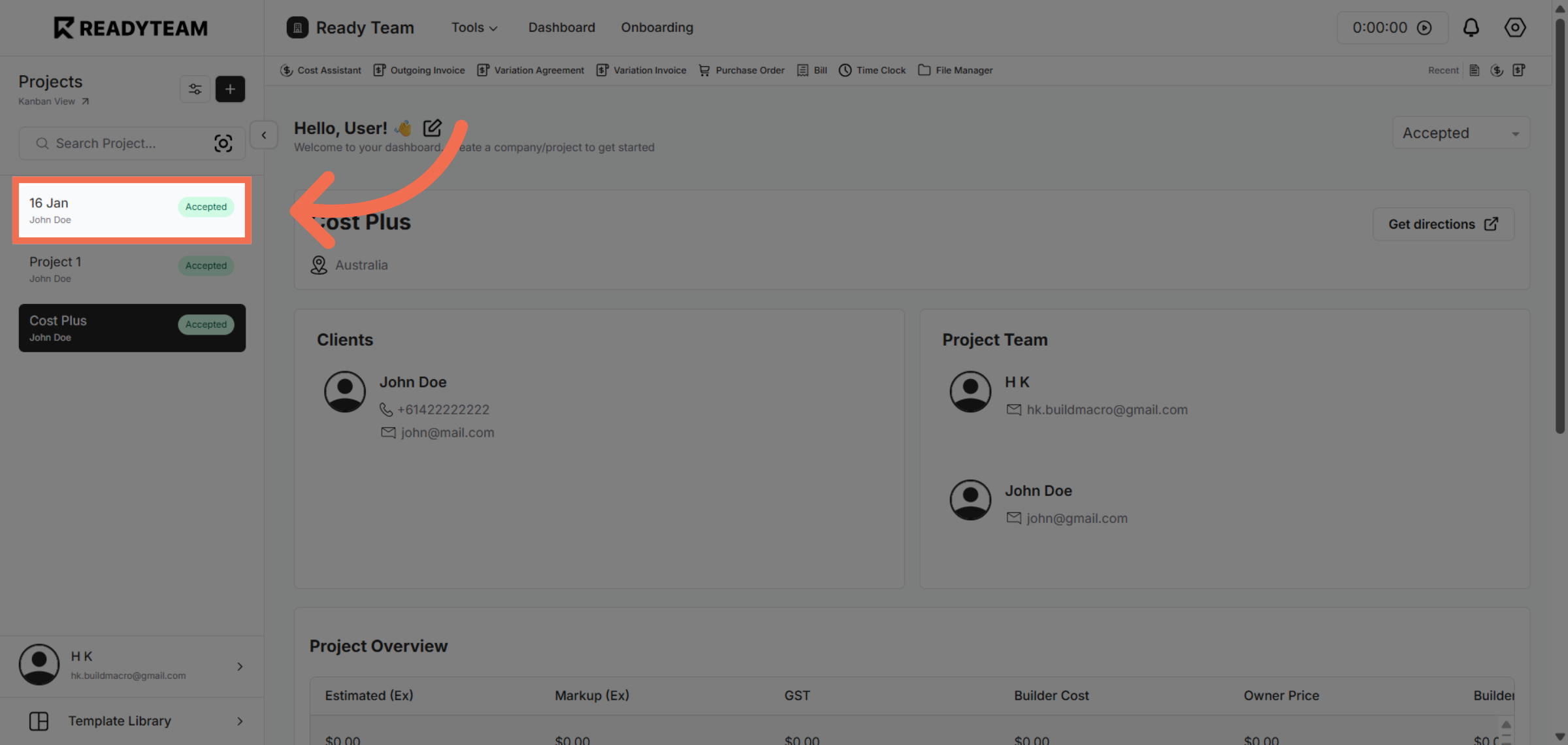
1. Select Project
Select the specific project from the list to begin adding a checklist.
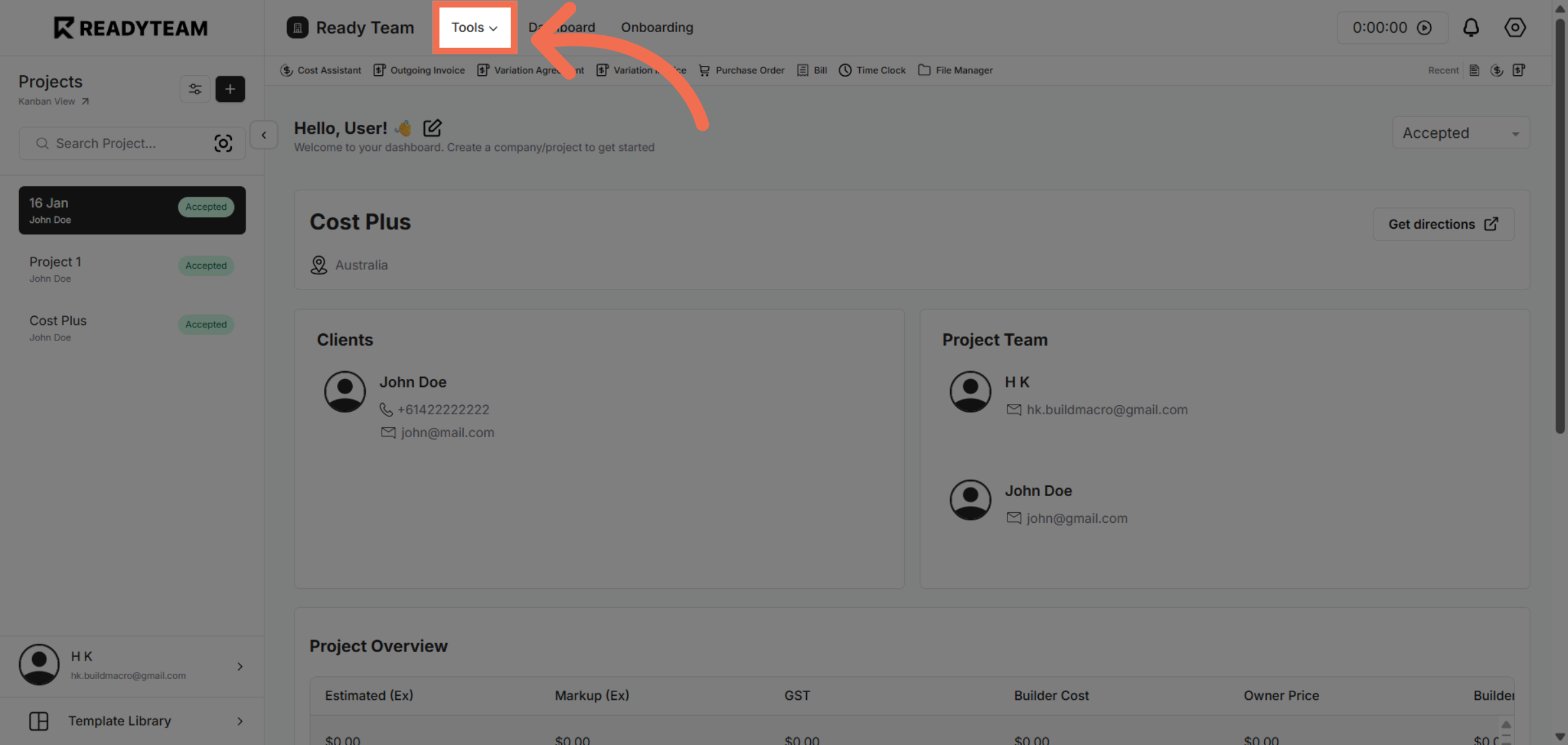
2. Open Tools Menu
Open the tools options menu to access additional features related to the selected job.
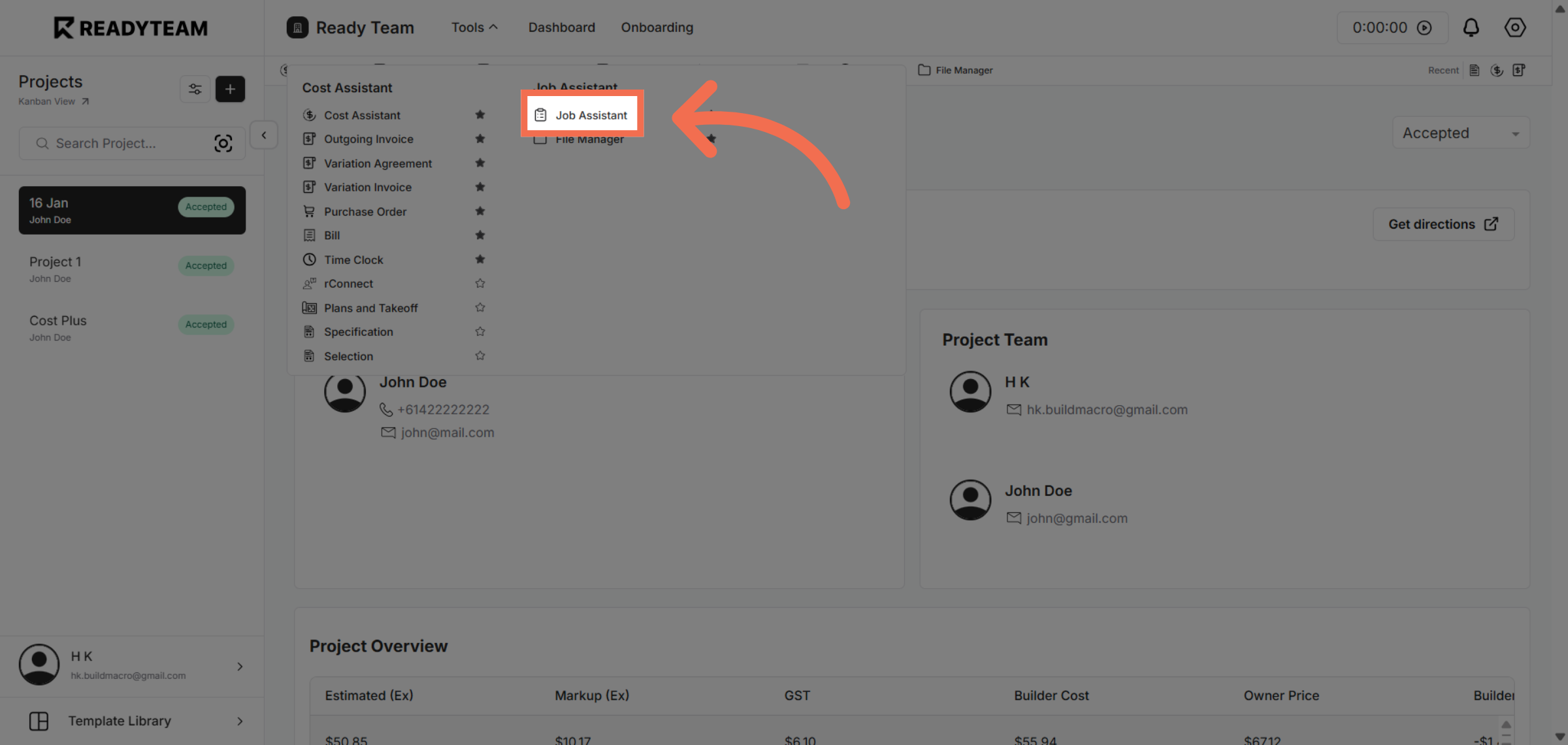
3. Navigate to Job Assistant
Navigate to the Job Assistant section where you can manage job-related tools and resources.
4. Toggle Job Assistant Category
Access the checklist settings to begin customizing the tasks associated with the job.
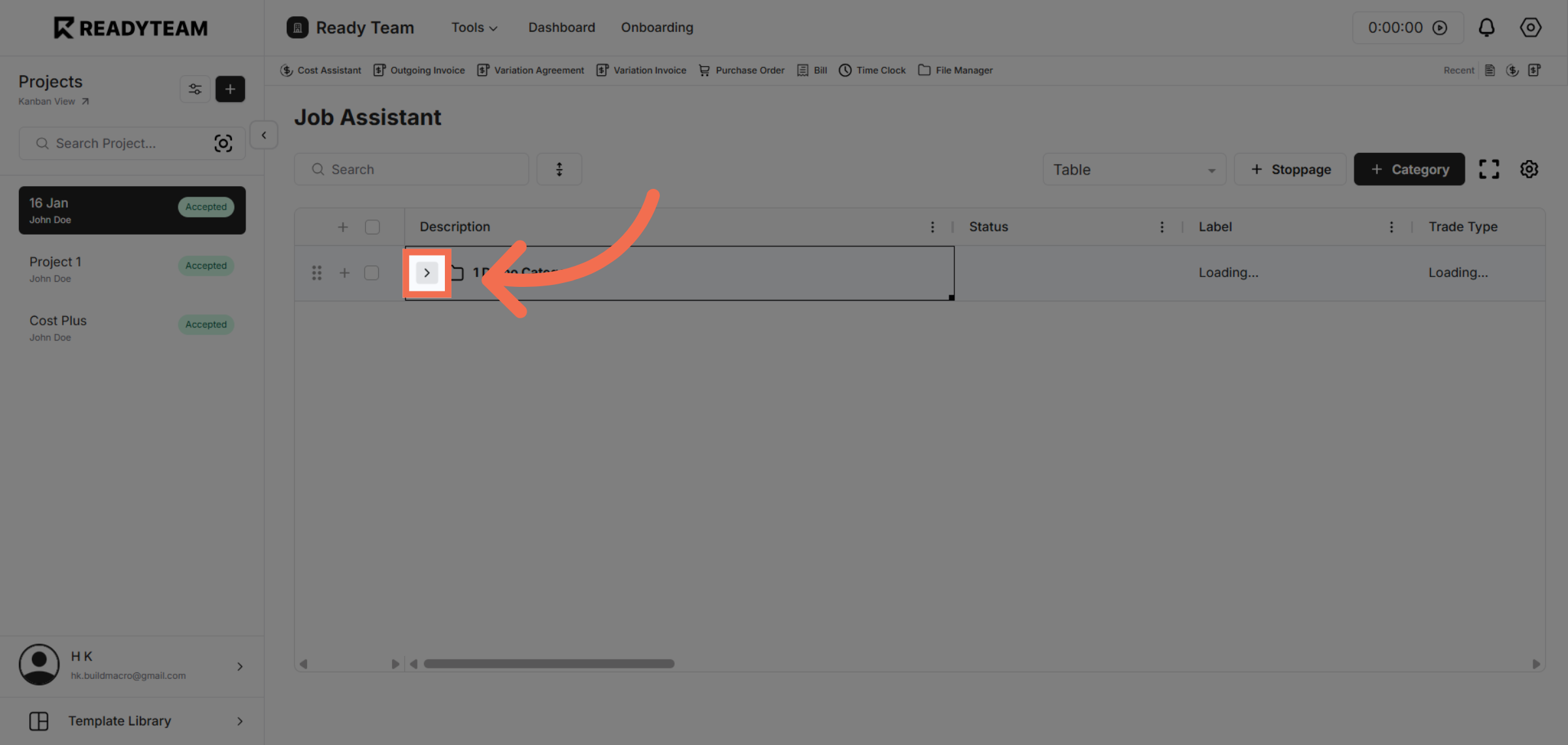
5. Initiate Checklist Addition
Initiate the process to add a new checklist to the Job Assistant for better task tracking.
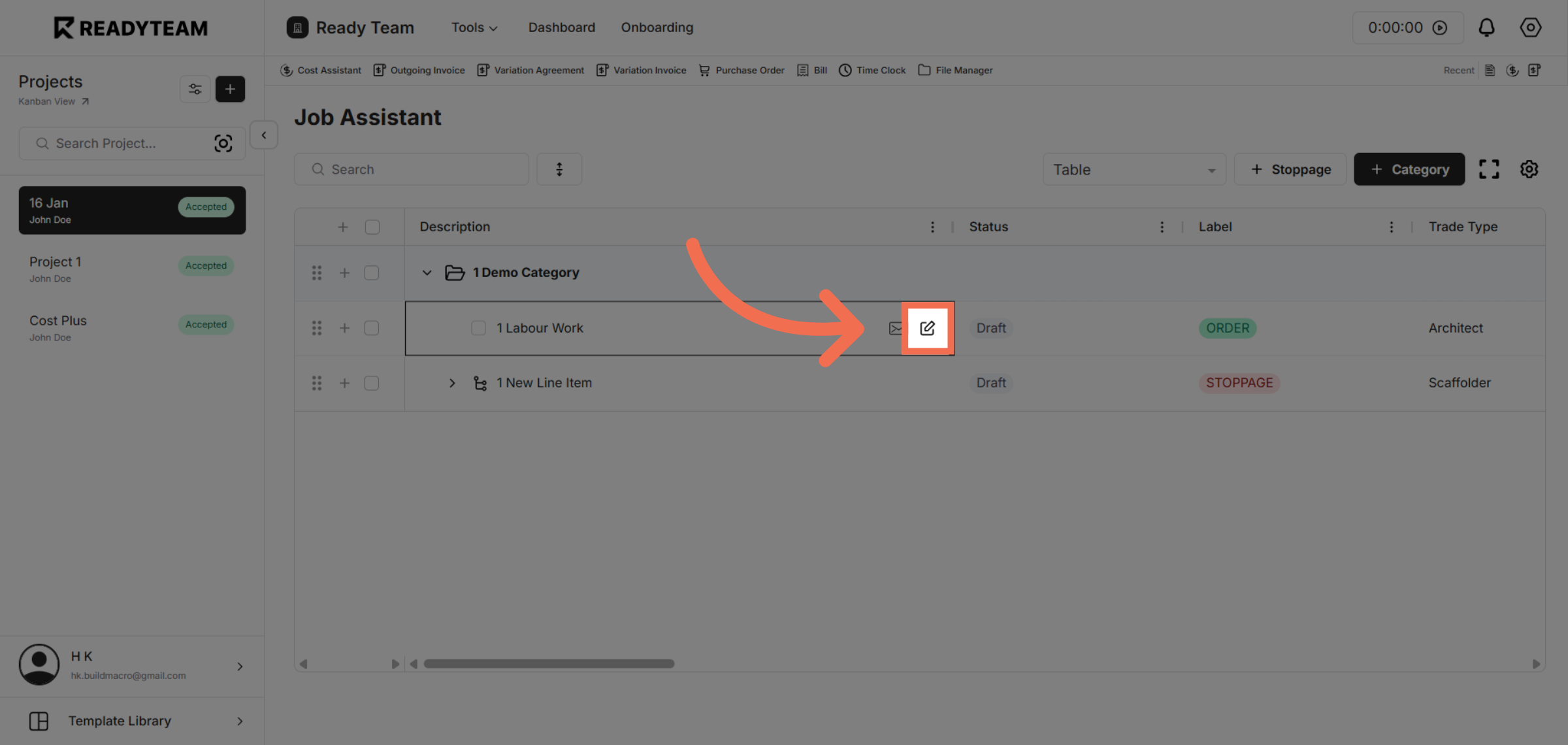
6. Add Checklist
Select the checklist option to specify the tasks you want to include in the Job Assistant.
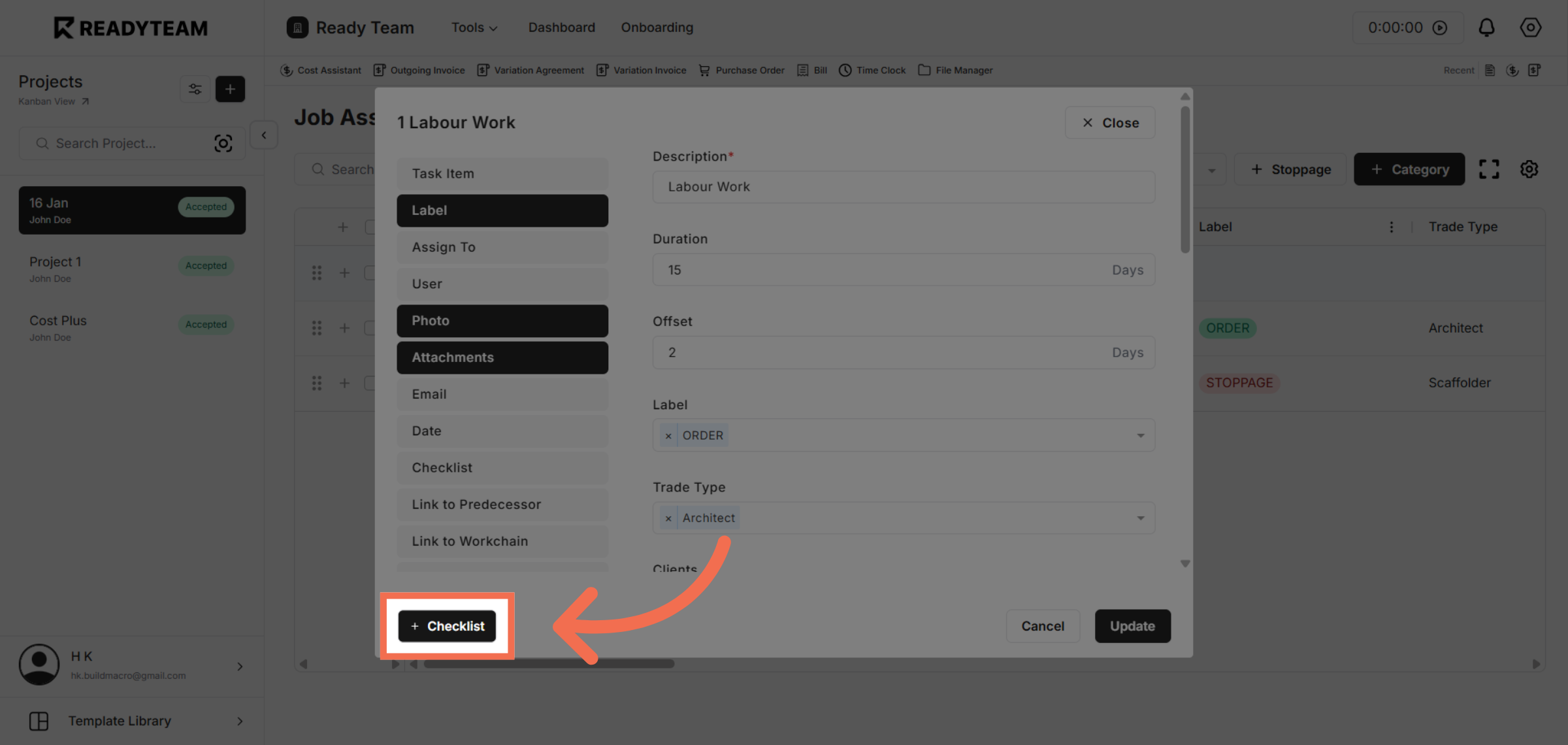
7. Confirm Checklist Selection
Confirm your checklist selection to ensure the tasks are properly linked to the job assistant.
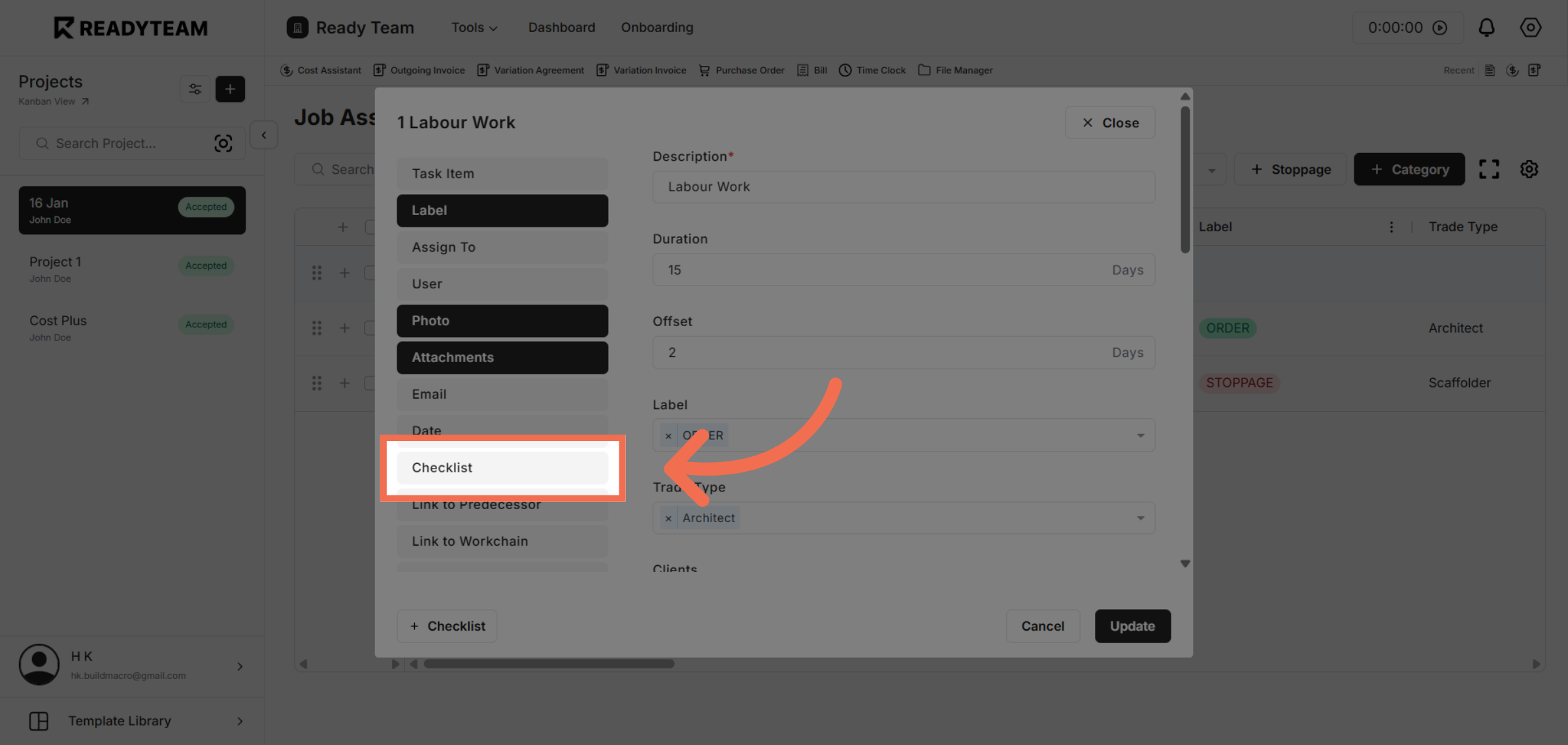
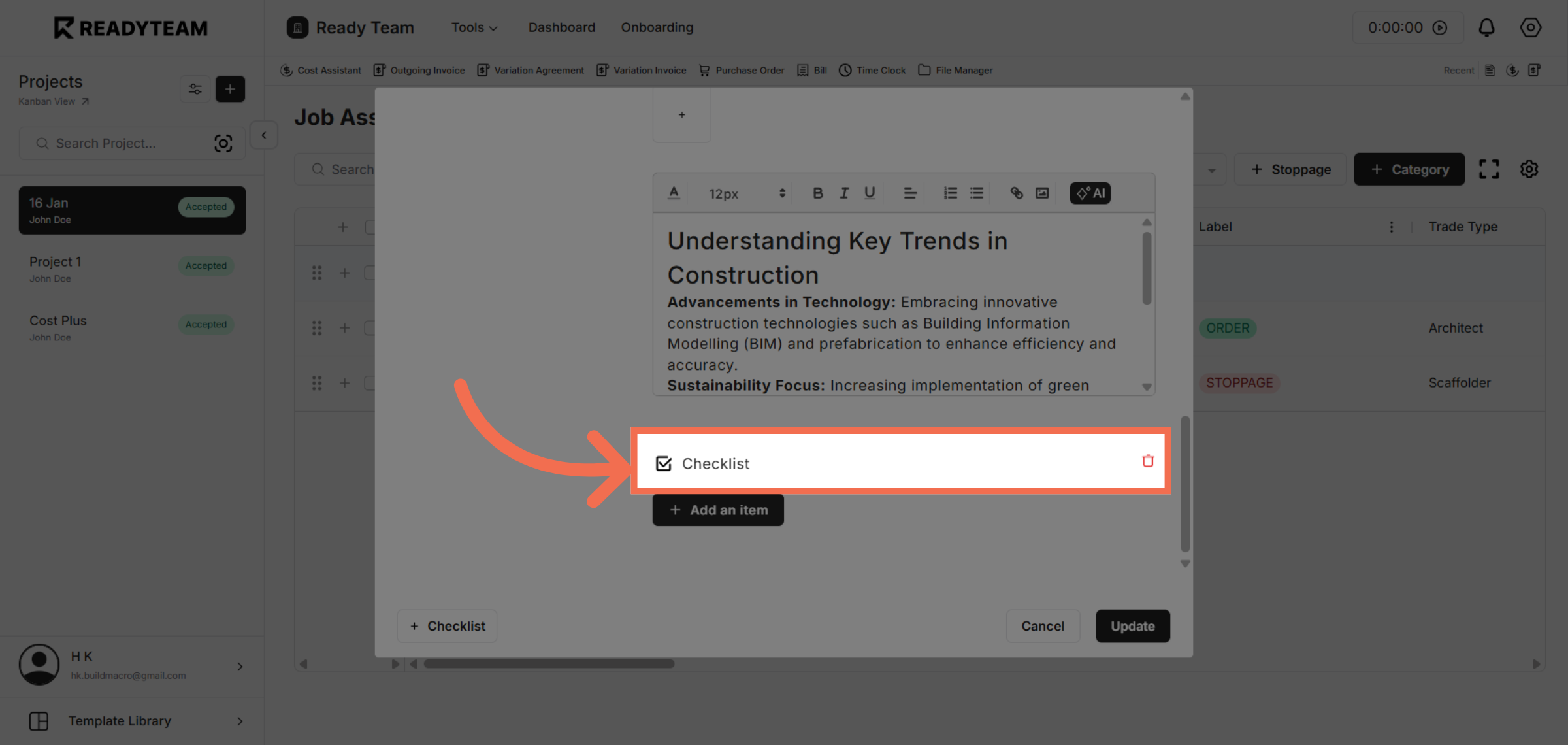
8. Notice that Checklist added
Notice that Checklist added to the Job Assistant Item.
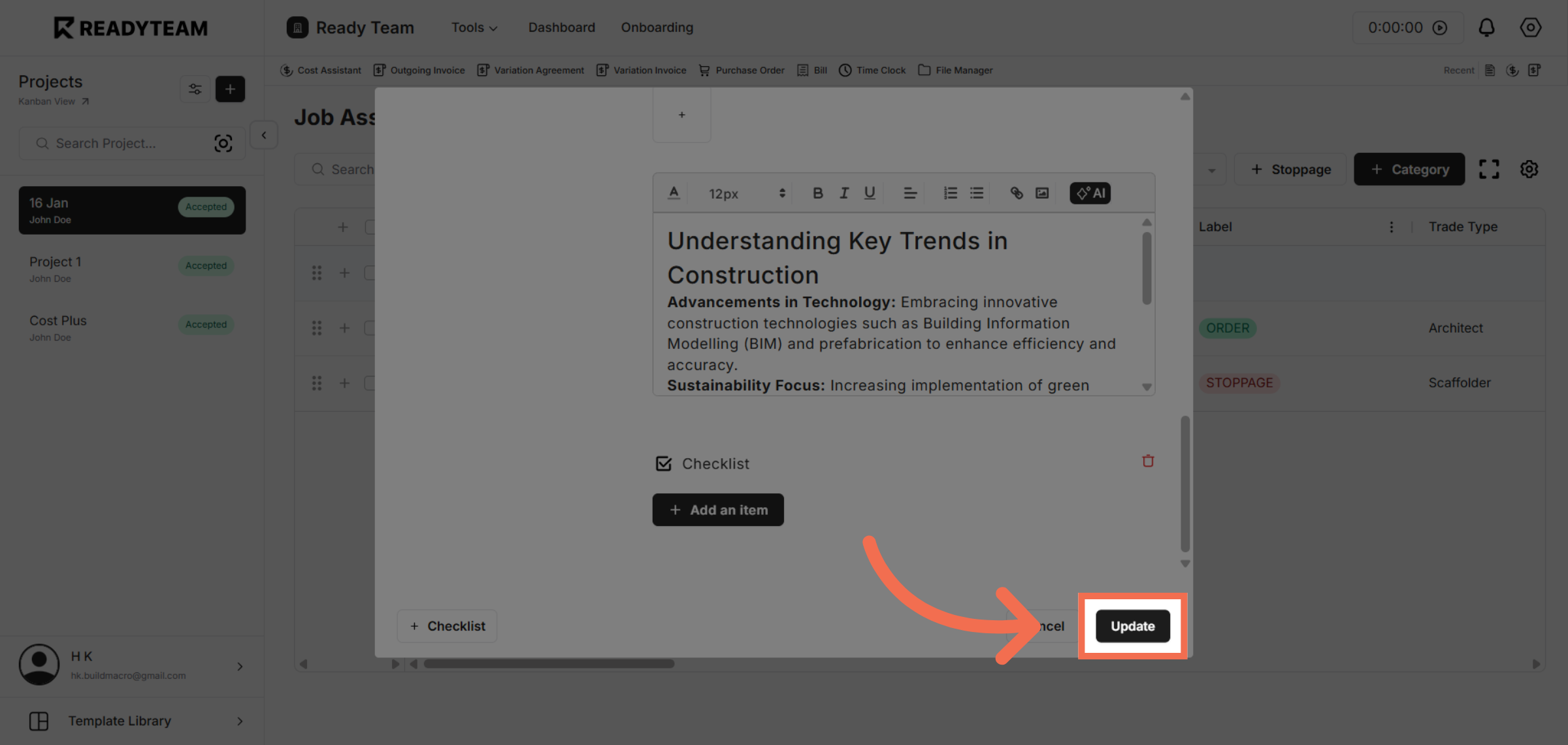
9. Update Job Assistant
Click the Update button to save your changes and apply the checklist to the Job Assistant.
You have successfully added a checklist to the Job Assistant in Readyteam, enhancing your ability to manage job tasks efficiently. Start using this feature to streamline your hiring process today.