Add Photos Efficiently in Job Assistance
This demo showcases how Readyteam simplifies adding photos to your projects.
Go to app.readyteam.ai
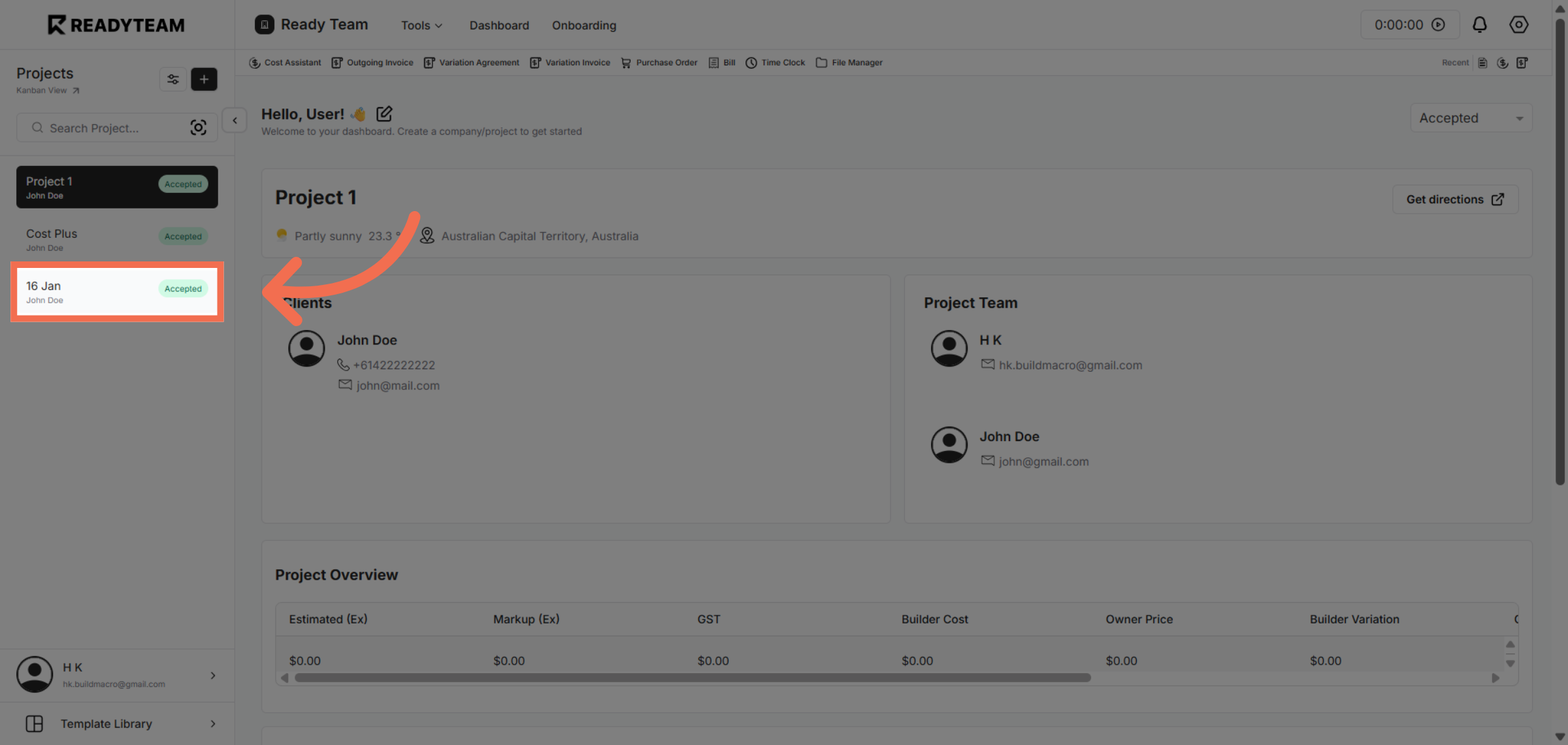
1. Select Project
Select the Specific Project to begin managing related content.
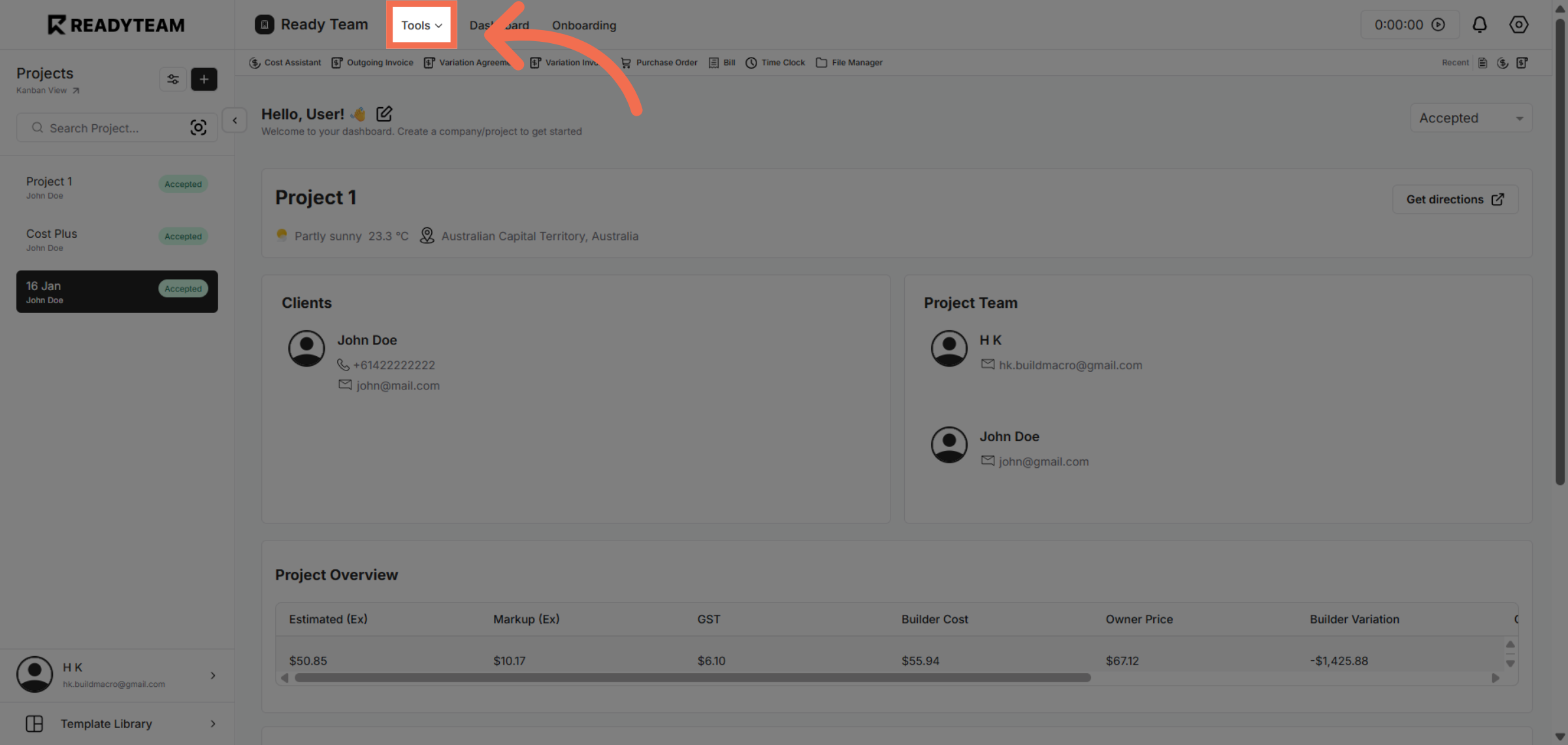
2. Open Tools Menu
Open the Tools menu to access additional features that support your project management tasks.
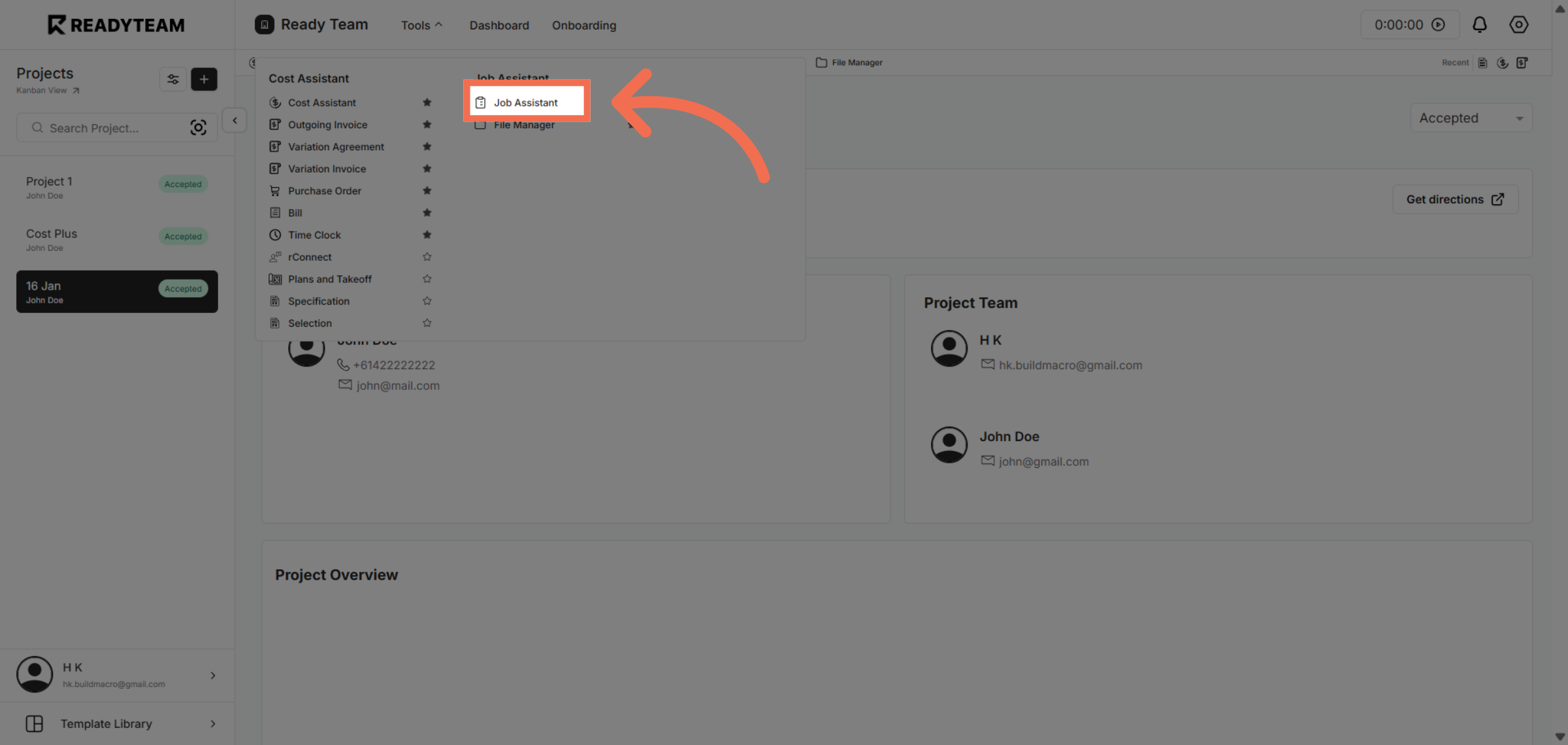
3. Access Job Assistant
Access the Job Assistant feature, which helps streamline job-related activities and resource management.
4. Initiate Photo Upload
Initiate the photo upload process by clicking the designated area to add new images.
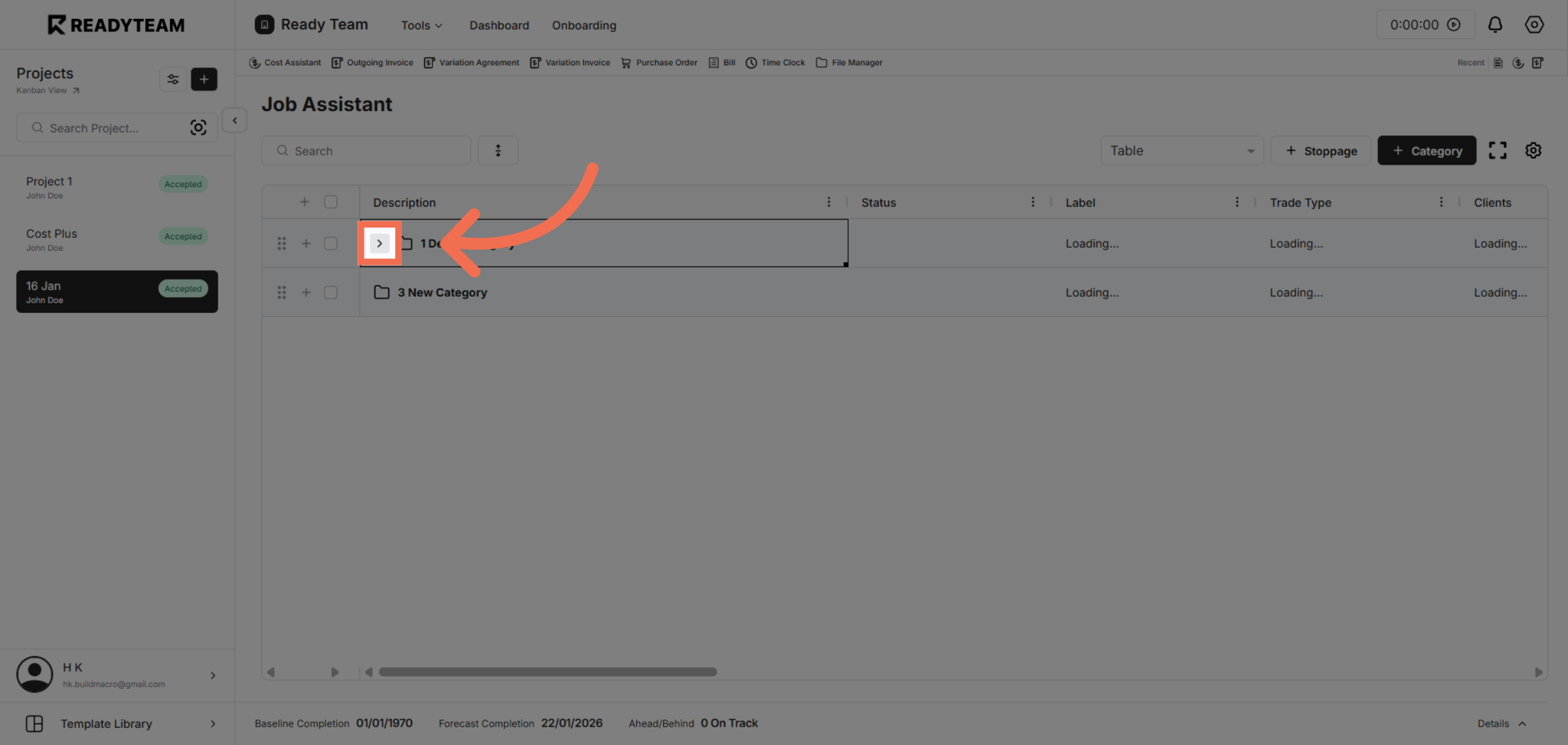
5. Upload Photo File
Open the file selection dialog to choose the photo you want to upload from your device.
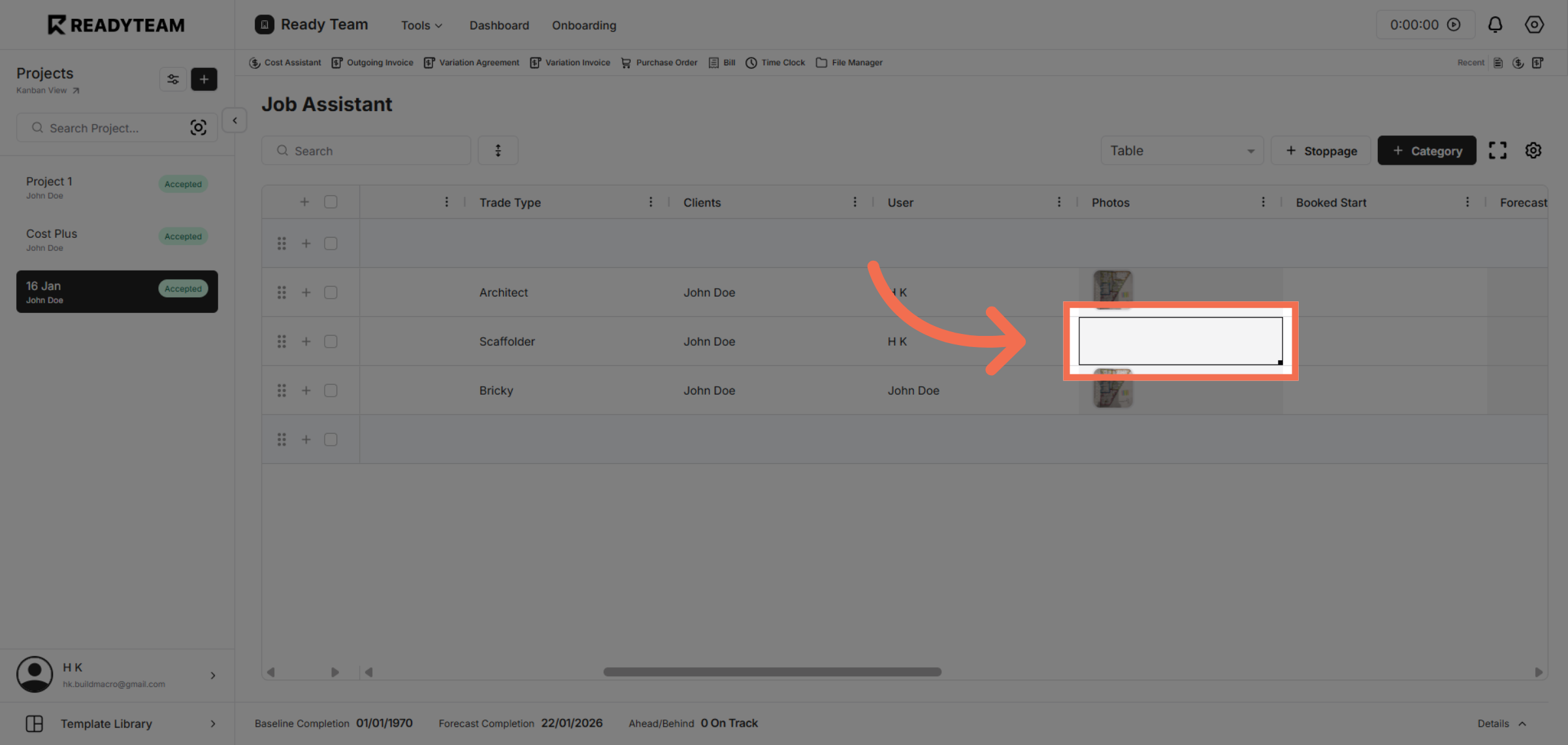
6. Confirm Upload Action
Confirm the upload action to add the selected photo to your project within Readyteam.
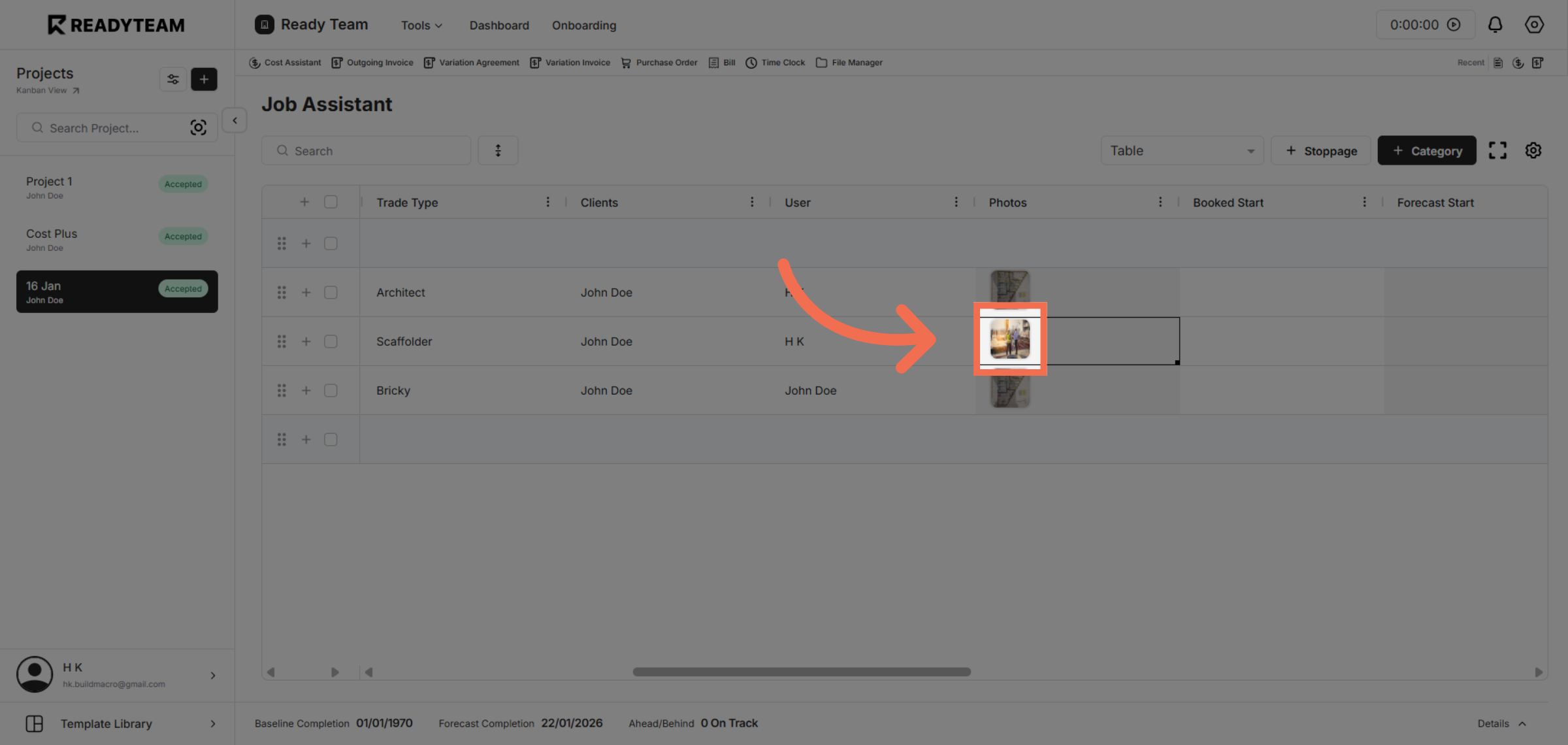
7. Review Uploaded Photo
Complete the upload process to ensure your photo is successfully added and ready for use.

This demo demonstrated how to efficiently add photos using Readyteam's tools, enhancing your project management experience. Start using these features today to streamline your workflow and improve content organization.