How to Link to Workchain Efficiently In Job Assistant
This demo showcases how to link a Workchain within Readyteam to streamline your project management.
Go to app.readyteam.ai
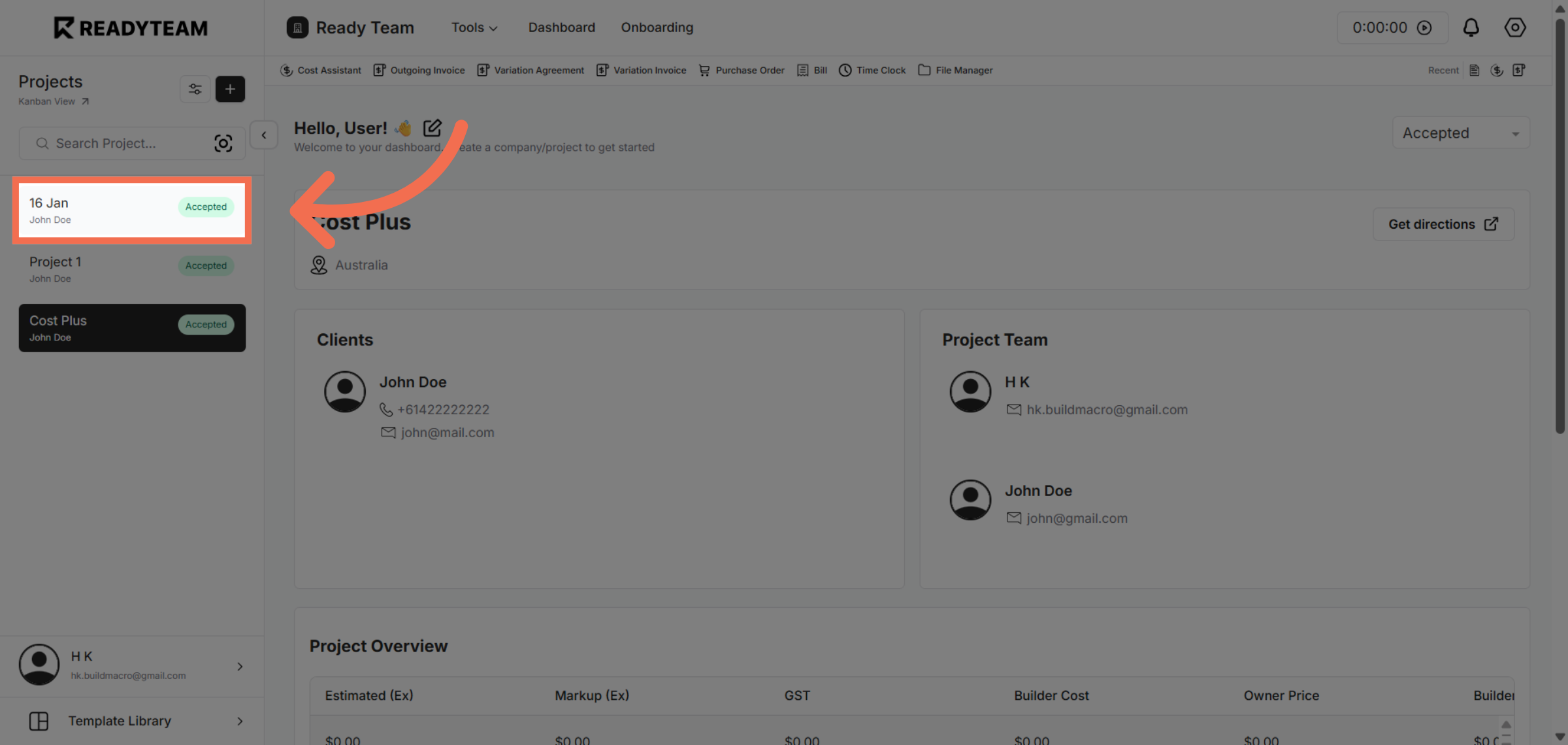
1. Select Project
Select Project to begin linking your Workchain.
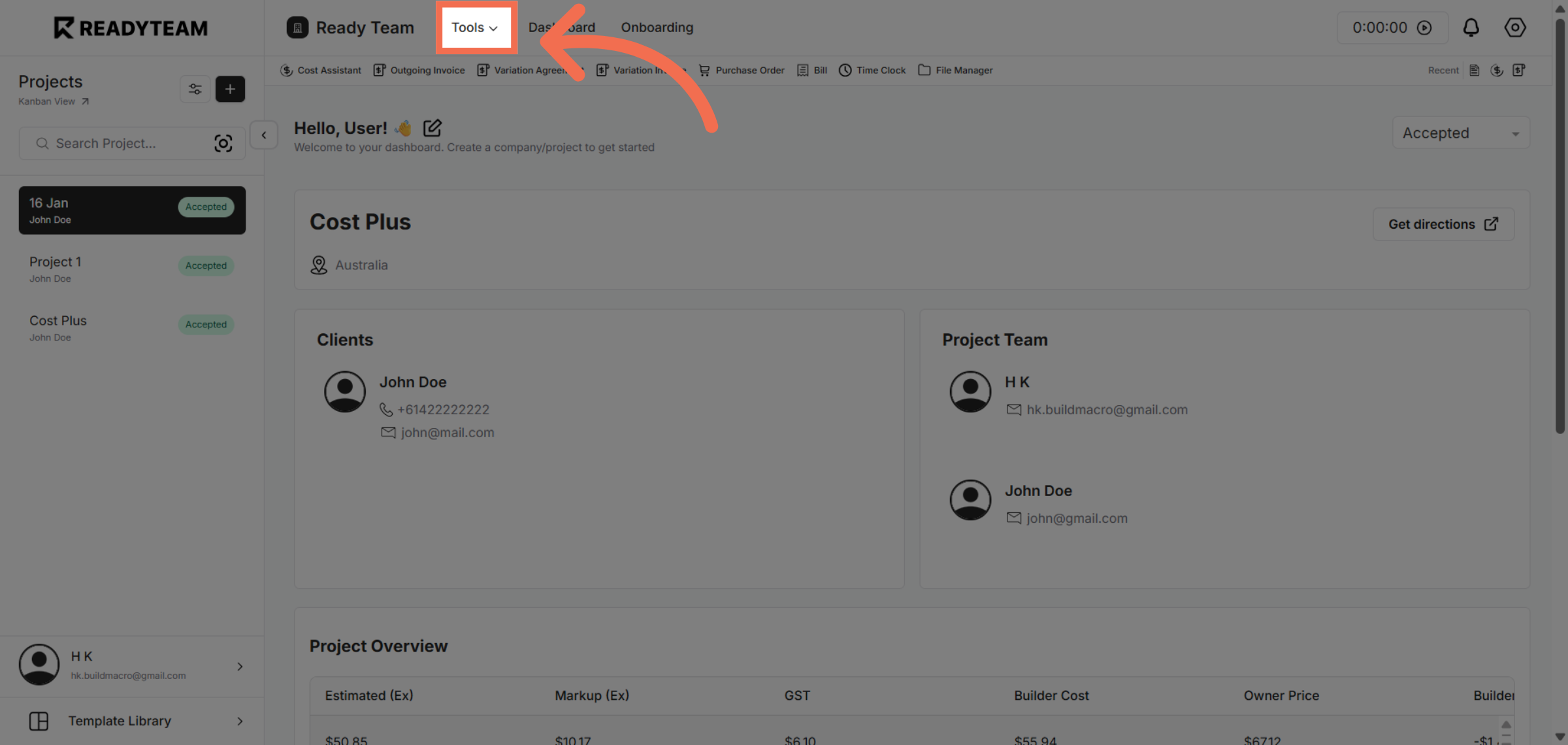
2. Access Tools Menu
Click the designated area to access detailed information about the selected job.
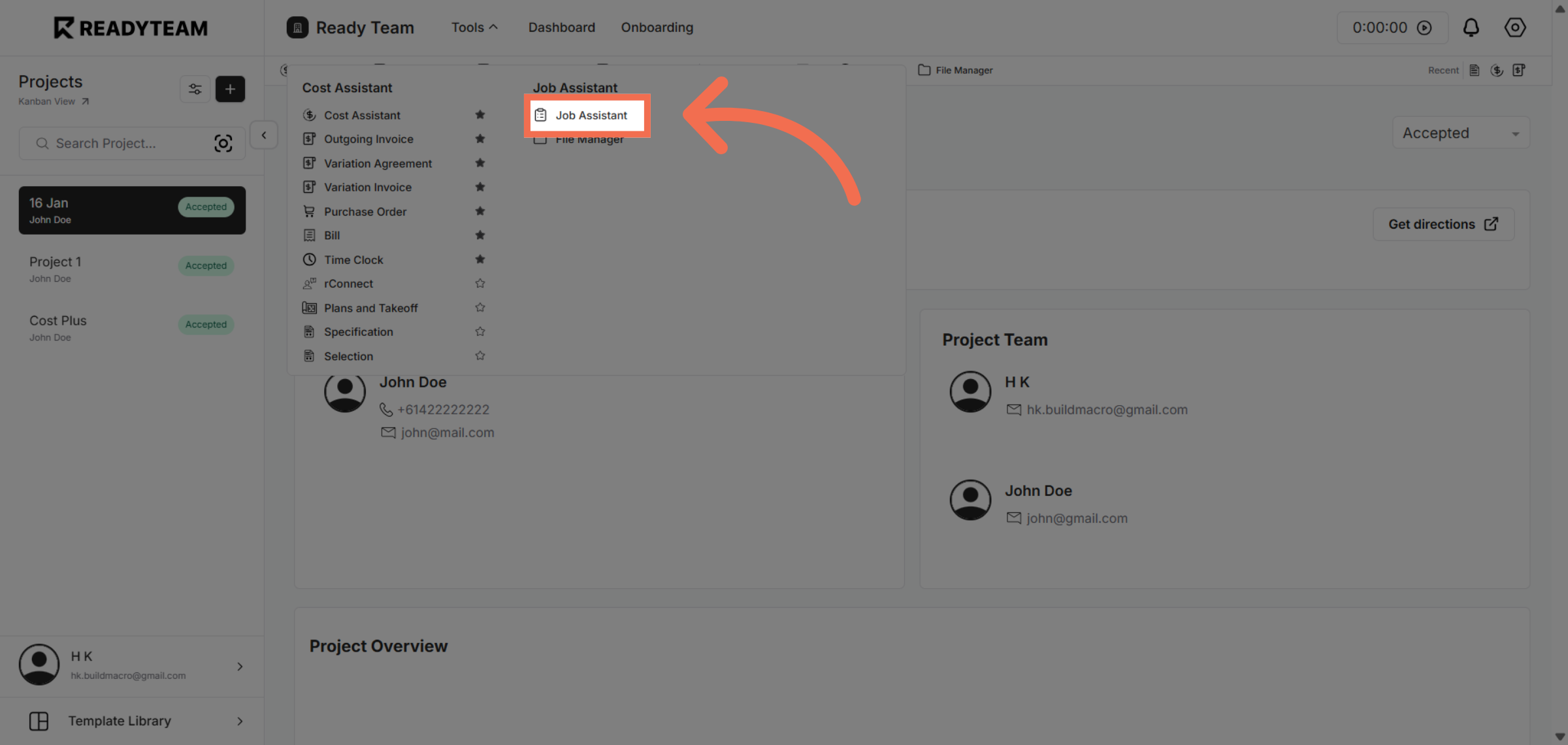
3. Open Job Assistant
Open the Job Assistant feature to manage job-related tasks and settings.
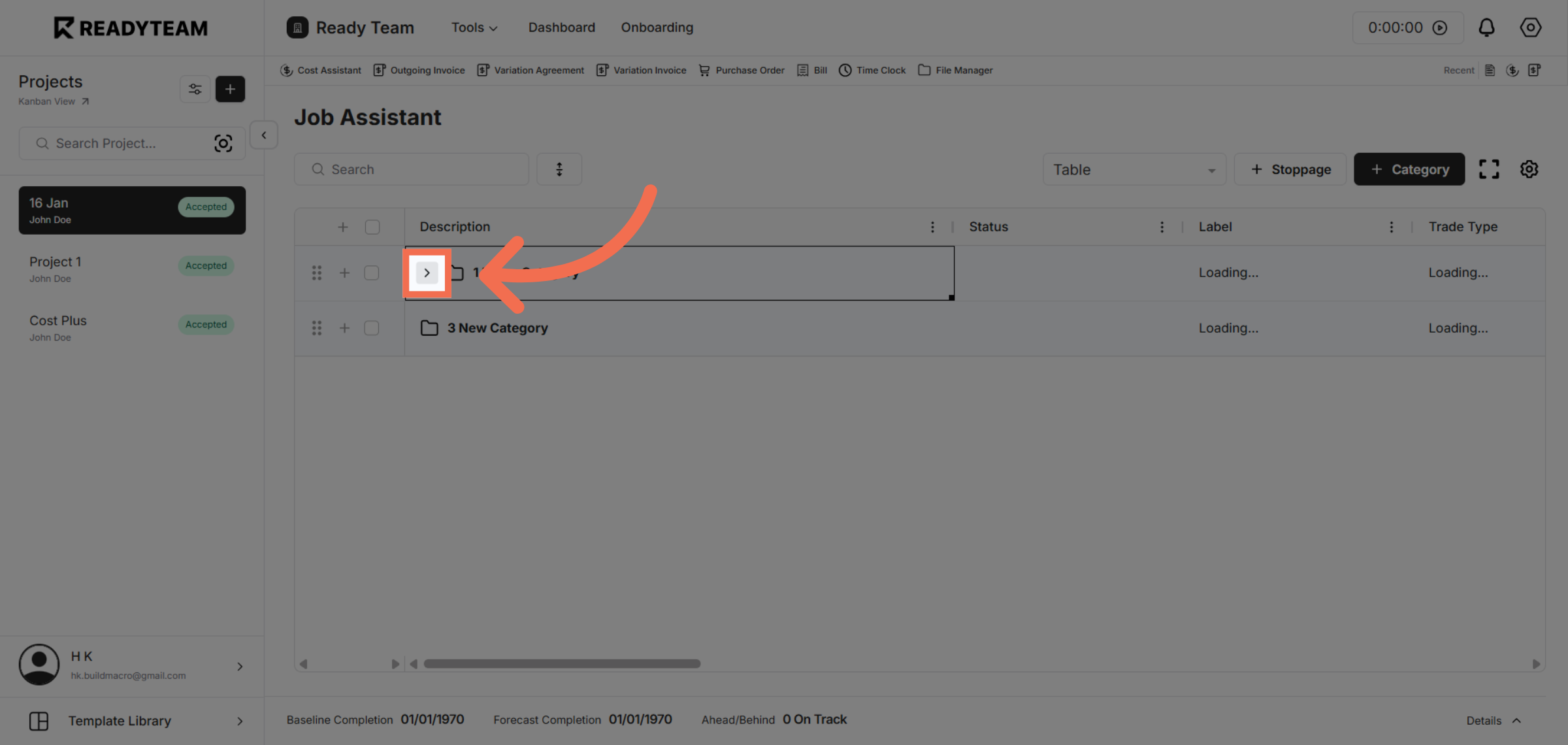
4. Toggle Specific Job Assistance Category
Click the appropriate link to navigate to the section where Workchain connections are managed.
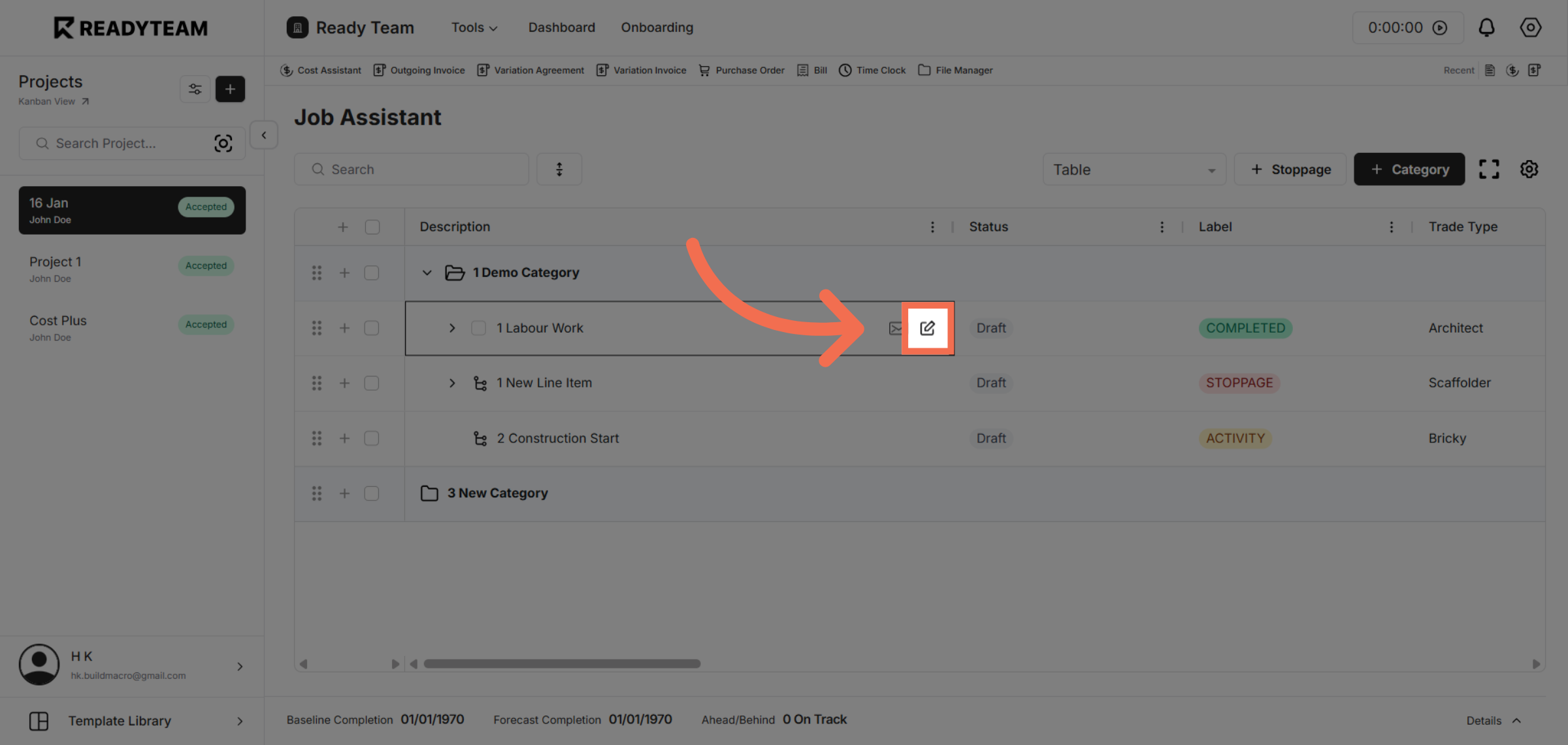
5. Click on Edit Line Item
Click the next option to proceed with linking your selected work item.
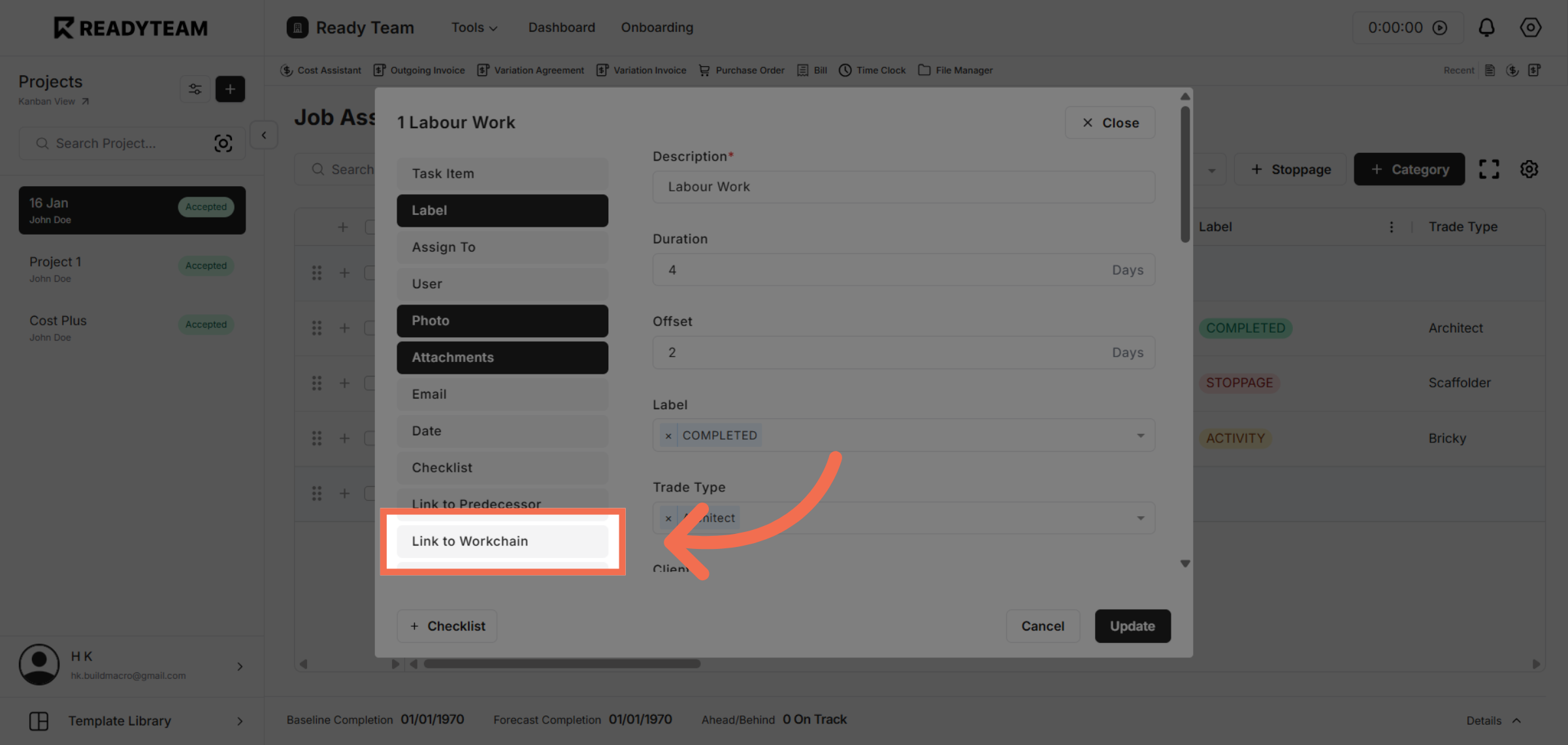
6. Select Link to Workchain
Choose the option to link the selected work item to a Workchain for better tracking.
7. Access Workchain List
Click to access the list of available Workchains to associate with your work item.
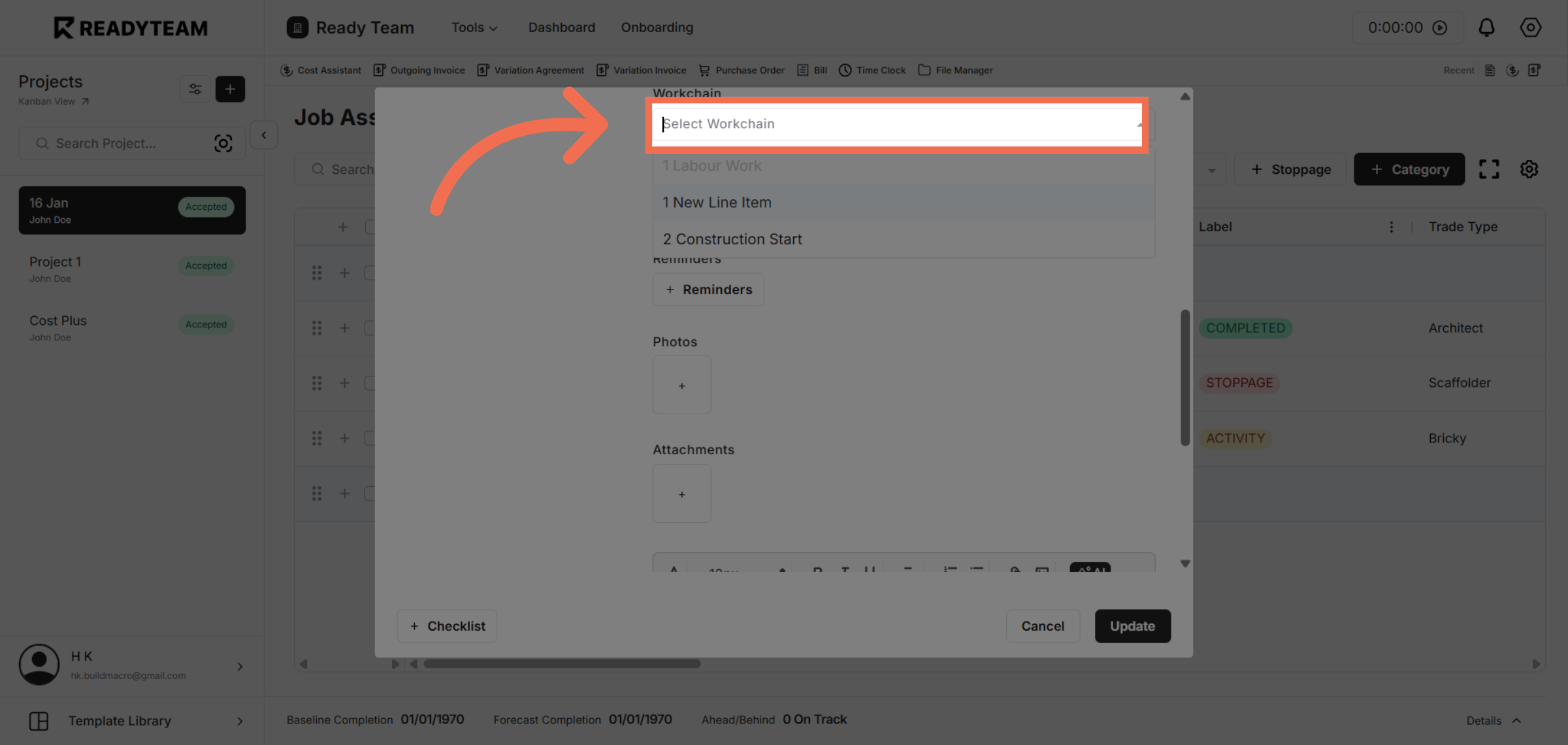
8. Choose one of the Workchain
Select the construction start phase to align your work item with the correct project stage.
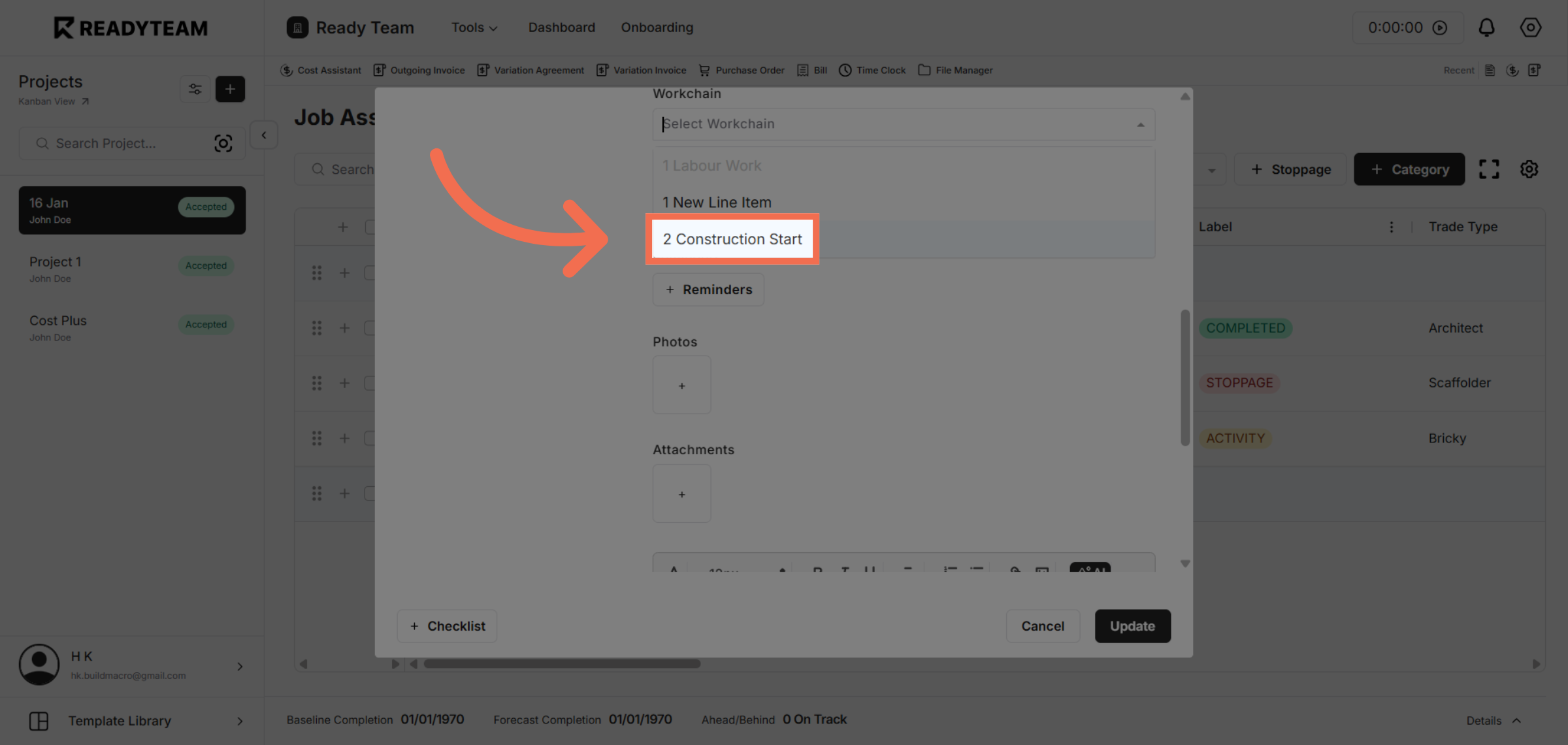
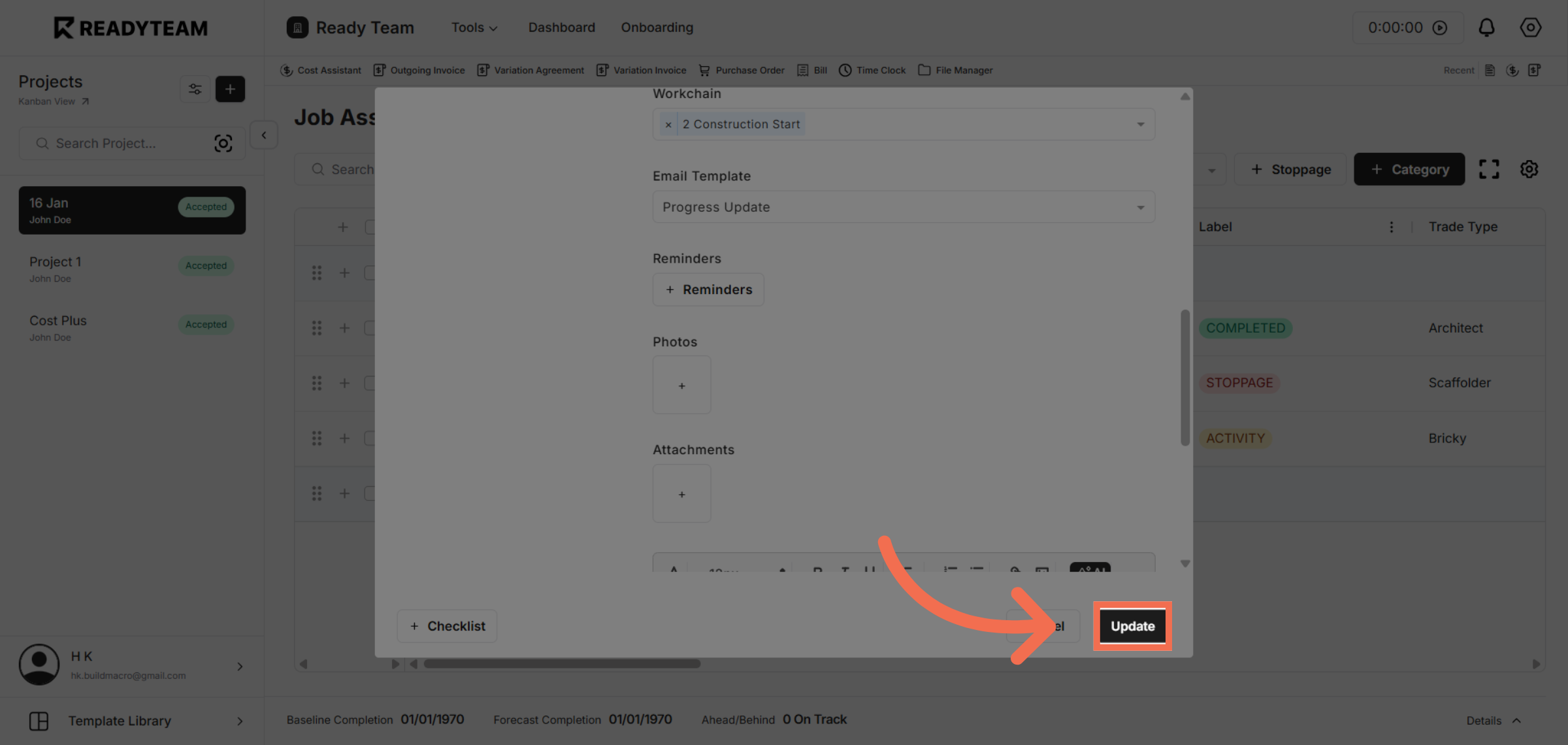
9. Update Workchain Link
Click the update button to save and finalize the Workchain link for your job.
This demo demonstrated how to efficiently link a Workchain within Readyteam by selecting job entries, navigating job details, and associating work items with project phases. Linking Workchains helps streamline project tracking and management for better outcomes.