Upload Architecture And Structure Files In ReadyTeam
This demo showcases how to upload architecture and structure files to Plans and Takeoff within Readyteam.
Go to app.readyteam.ai
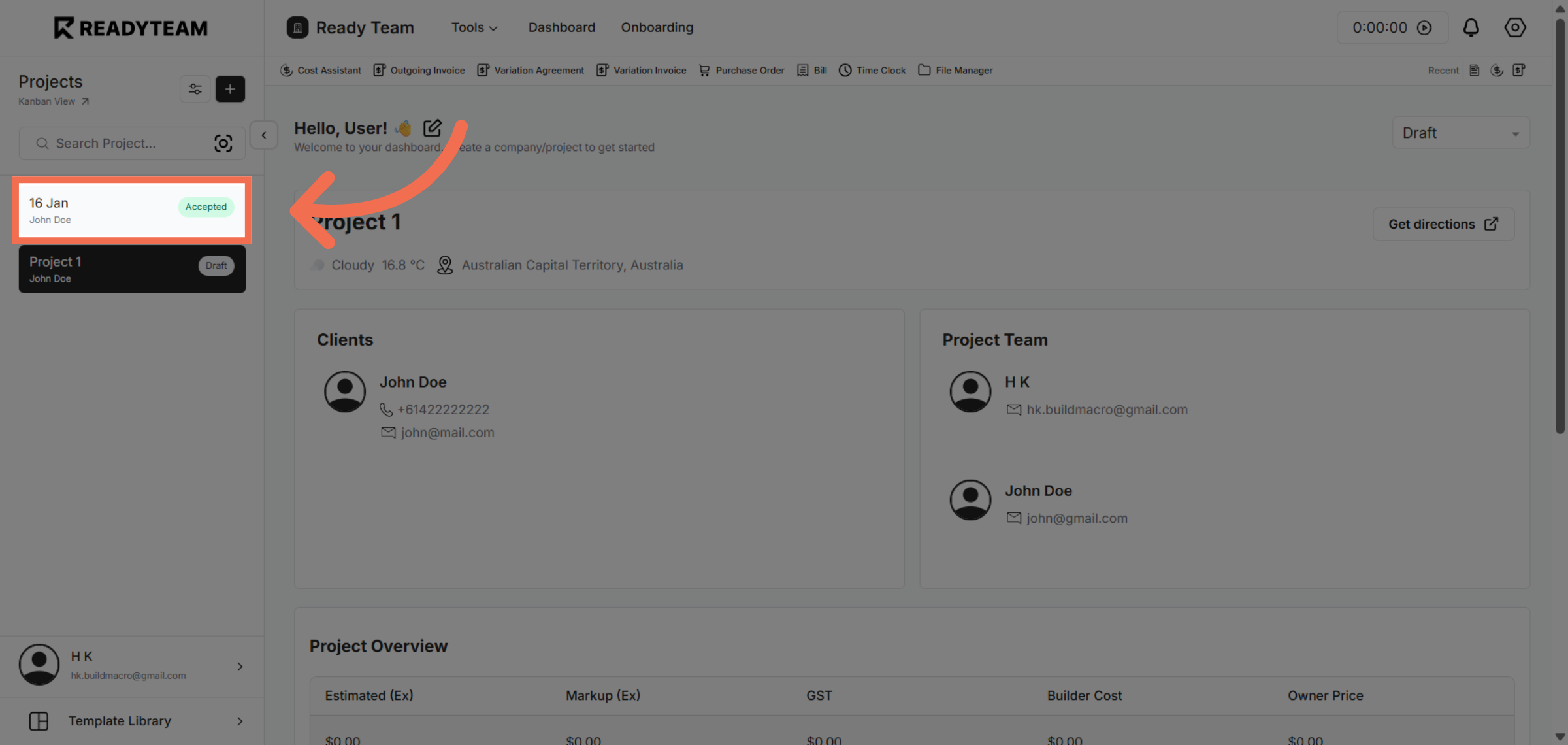
1. Select Project
Click the Specific Project to begin managing your project files.
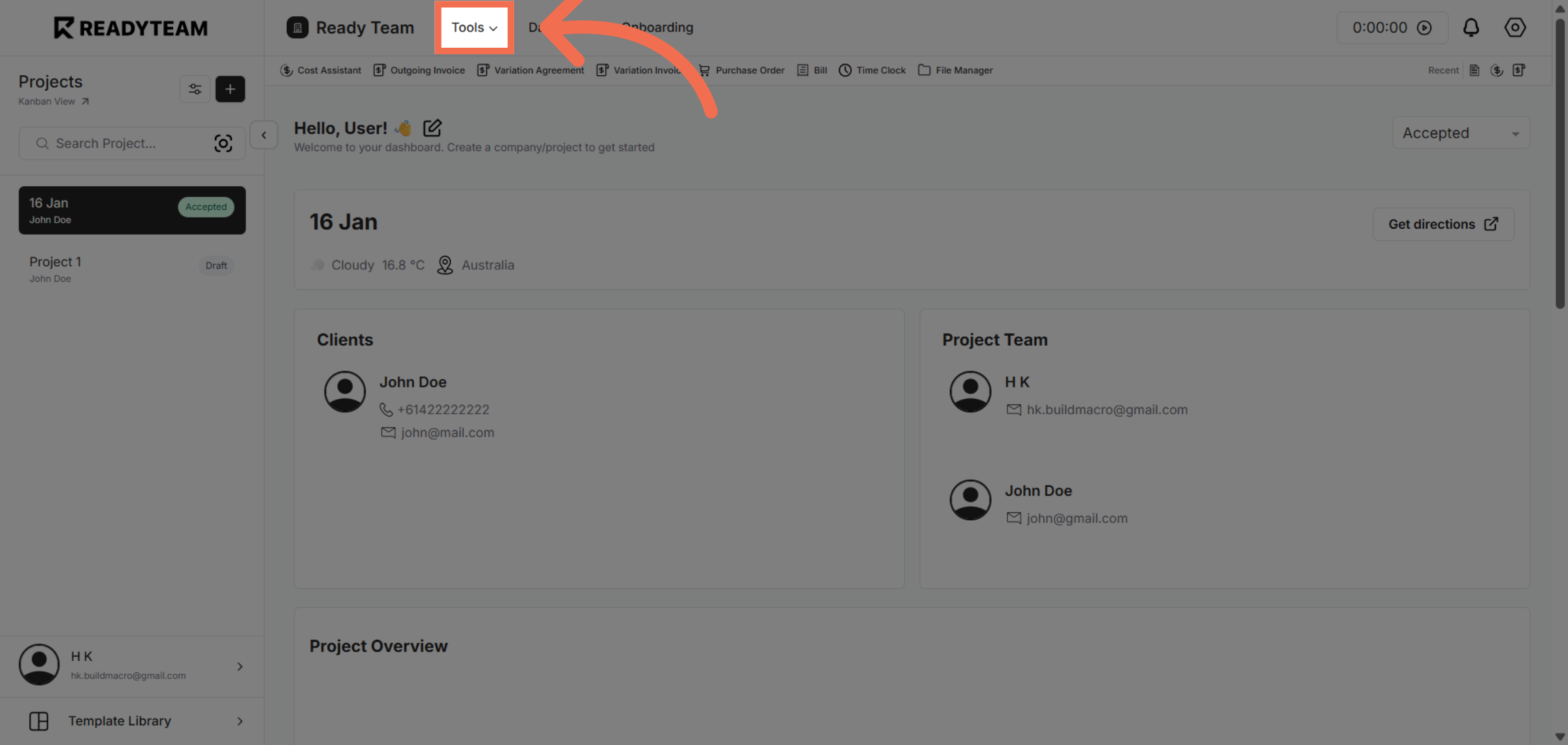
2. Open Tools Menu
Click the Tools menu to access various project management features available in Readyteam.
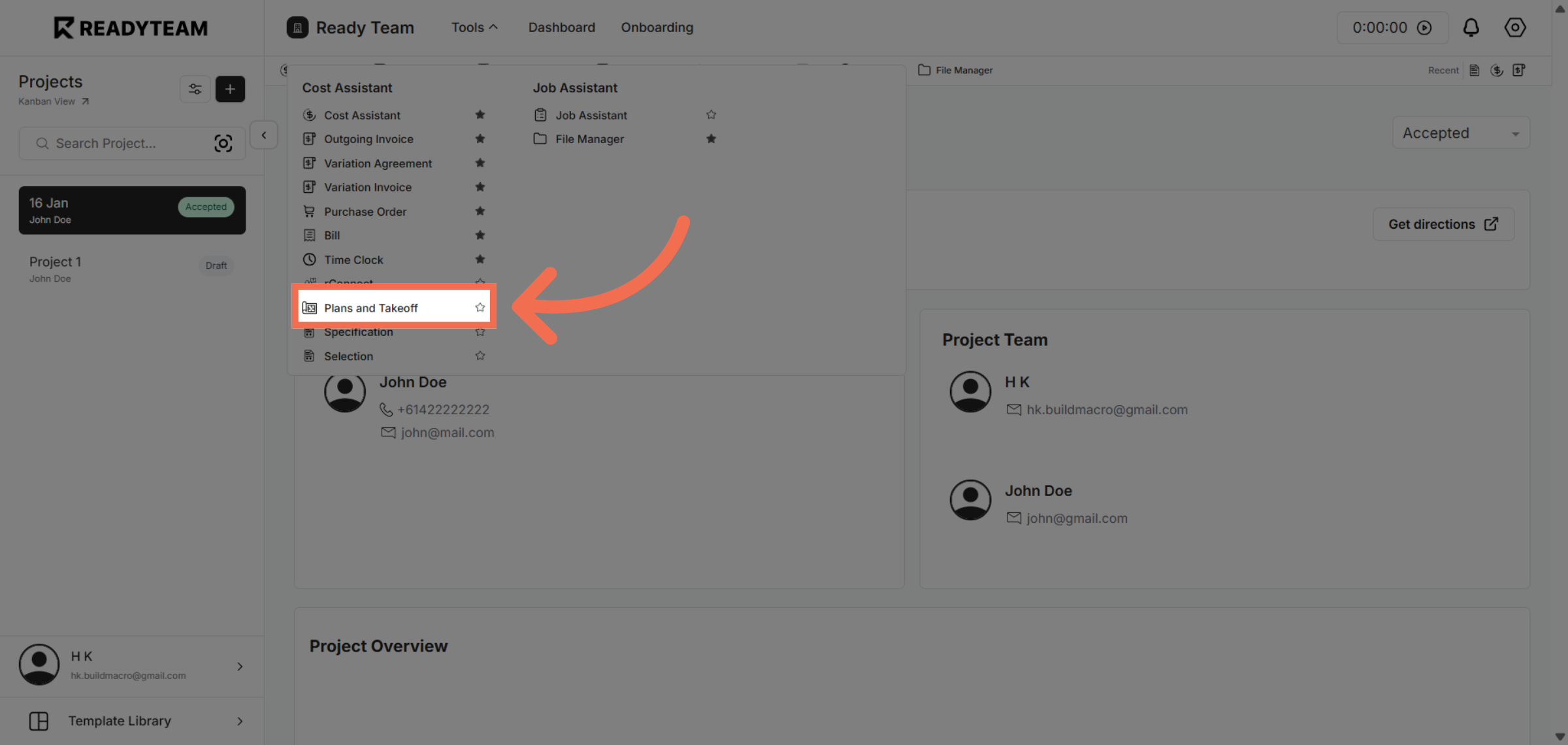
3. Access Plans And Takeoff
Click Plans and Takeoff to navigate to the section where you can manage and upload your project plans.
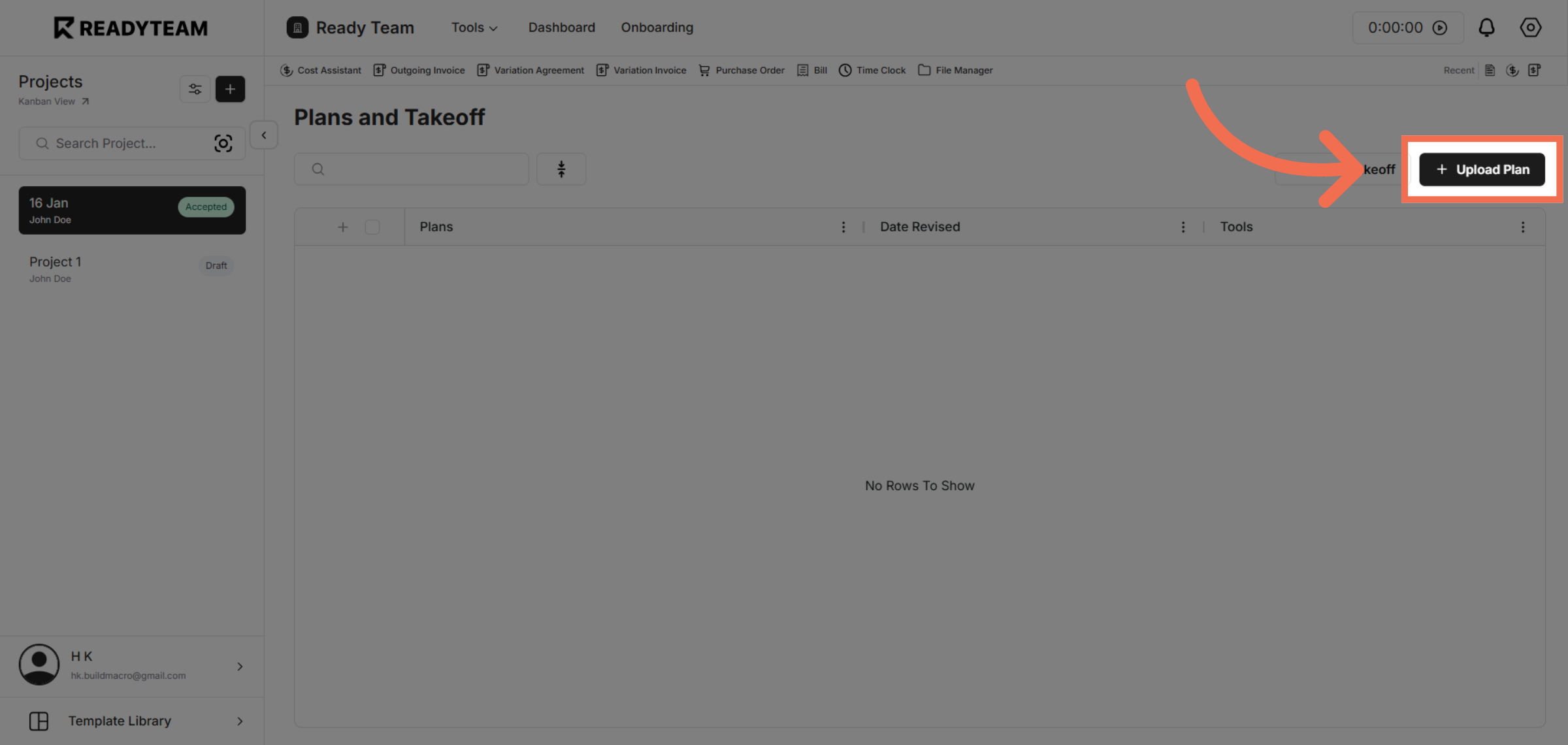
4. Initiate Plan Upload
Click Upload Plan to start the process of adding new architecture or structure files to your project.
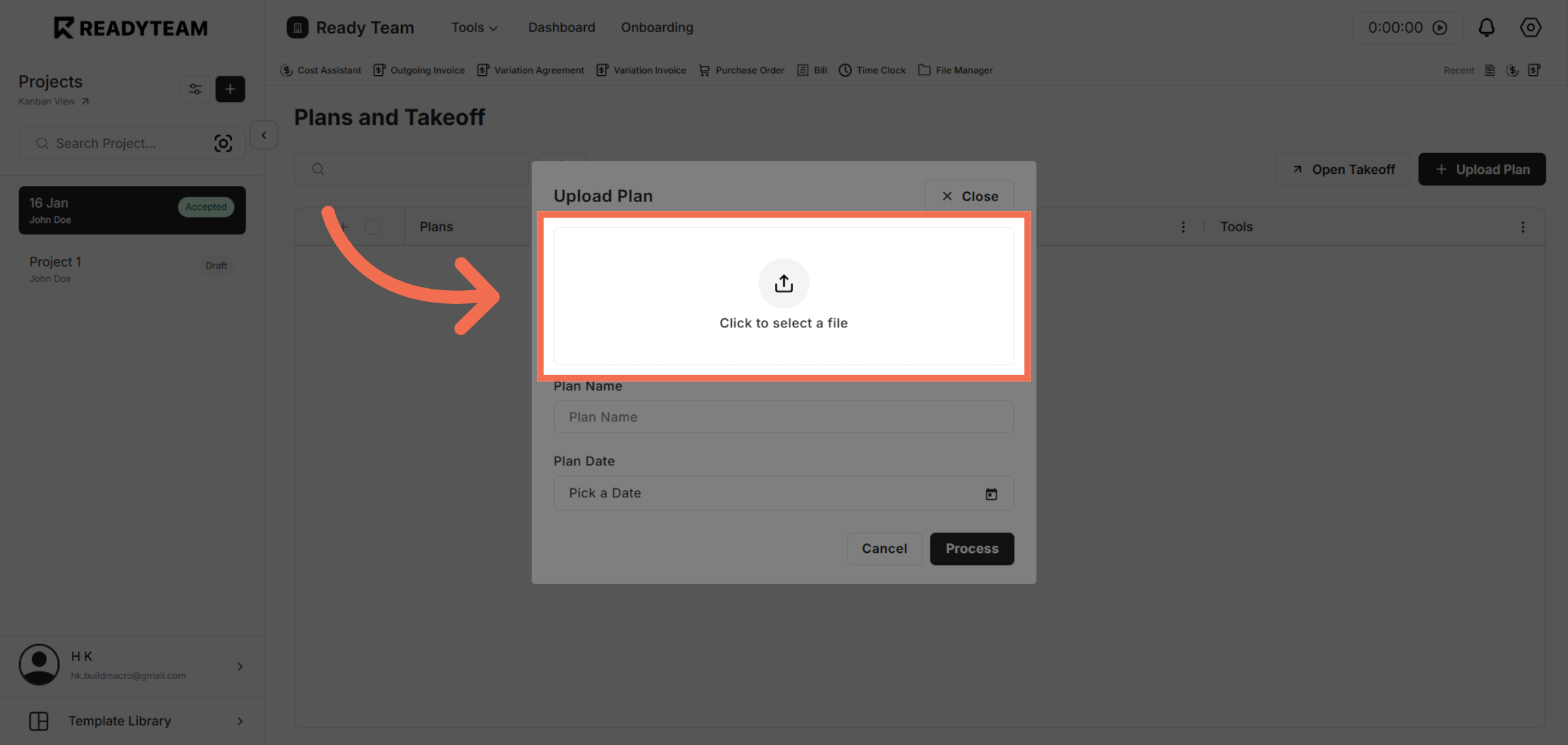
5. Open File Selection
Click the designated area to open the file selection dialog for choosing your plan document.
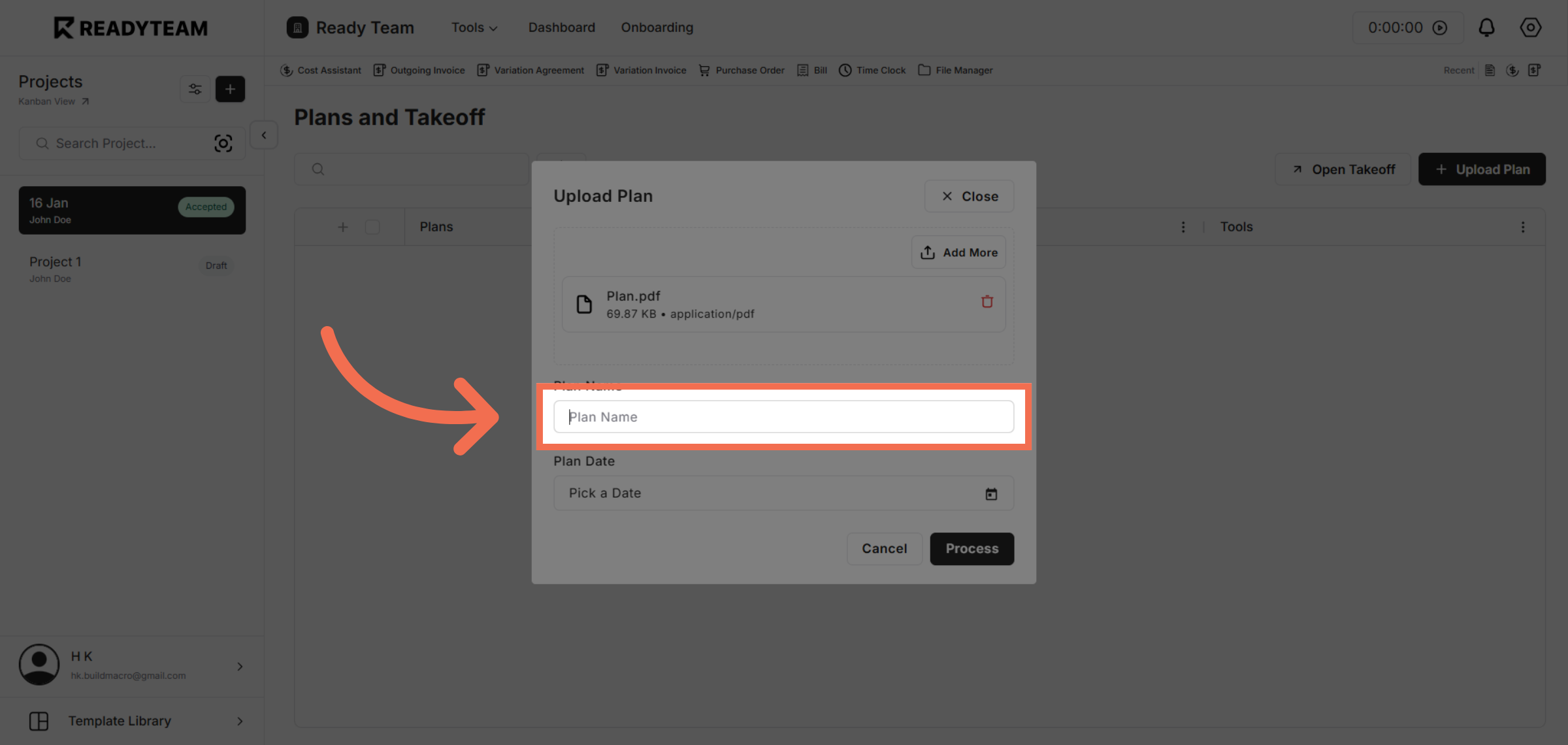
6. Enter Plan Name
Click the Plan Name field to specify a name for your uploaded plan.
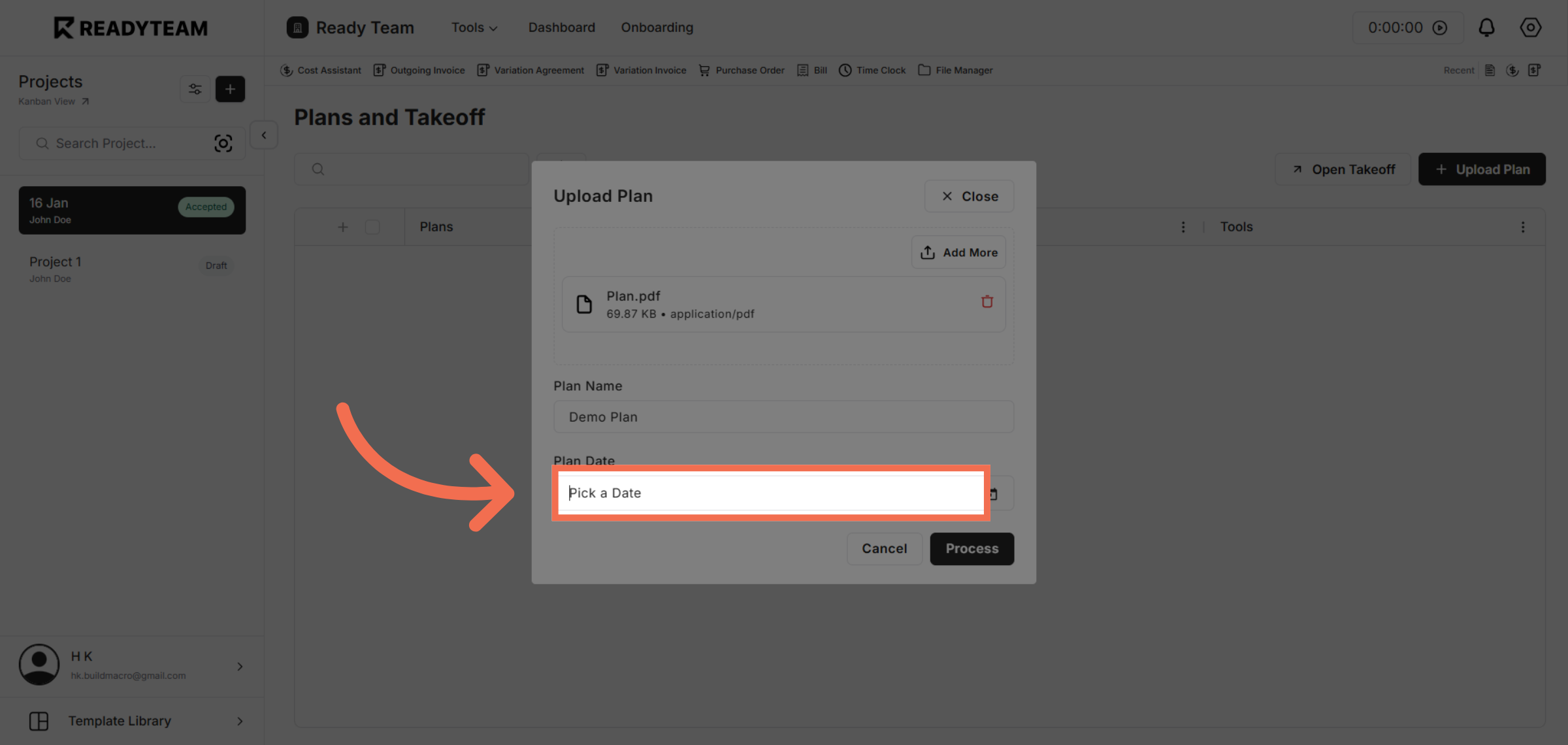
7. Open Date Picker
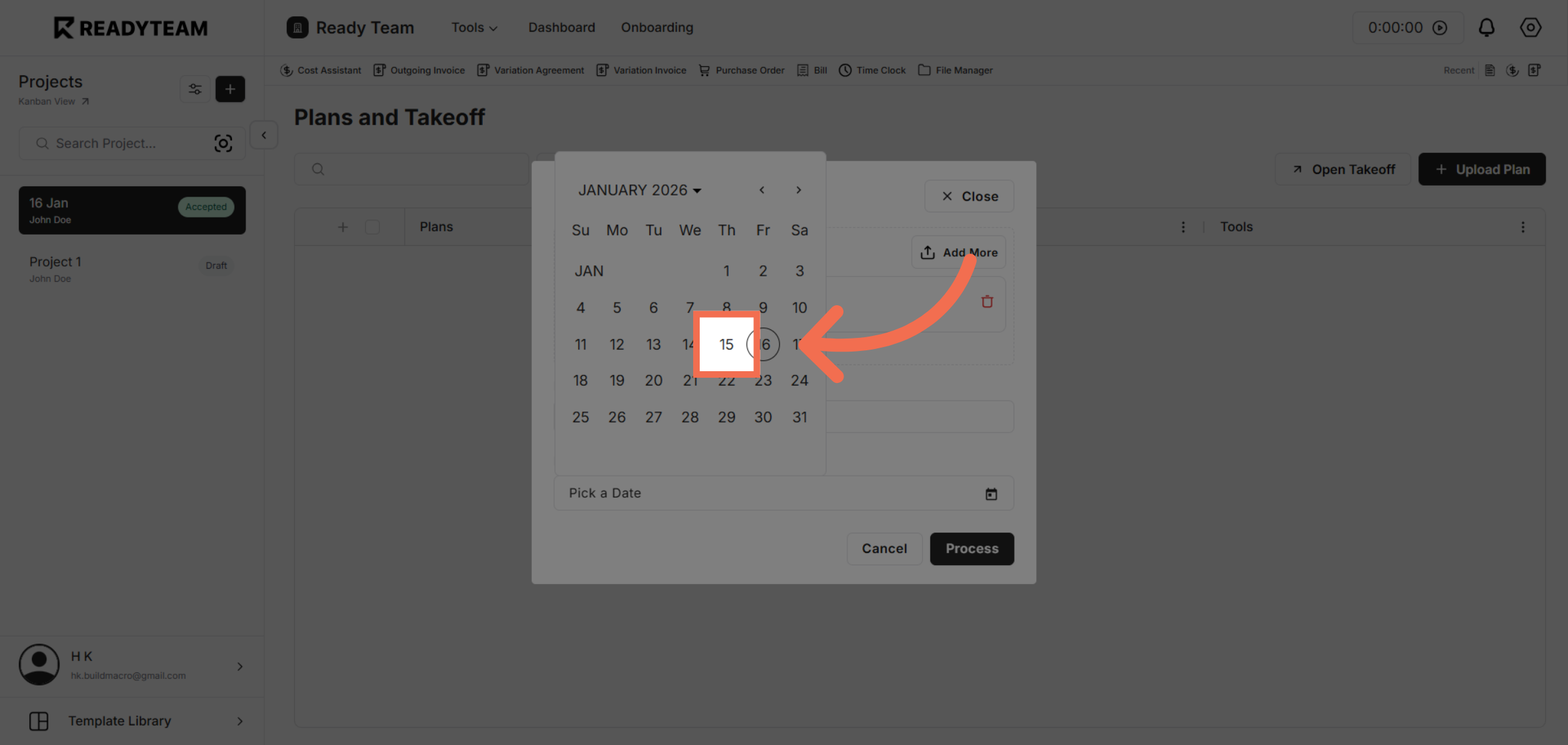
Click Pick a Date to select the relevant date associated with your plan.
8. Select Specific Date
Click the 15th day on the calendar to assign the appropriate date to your plan.
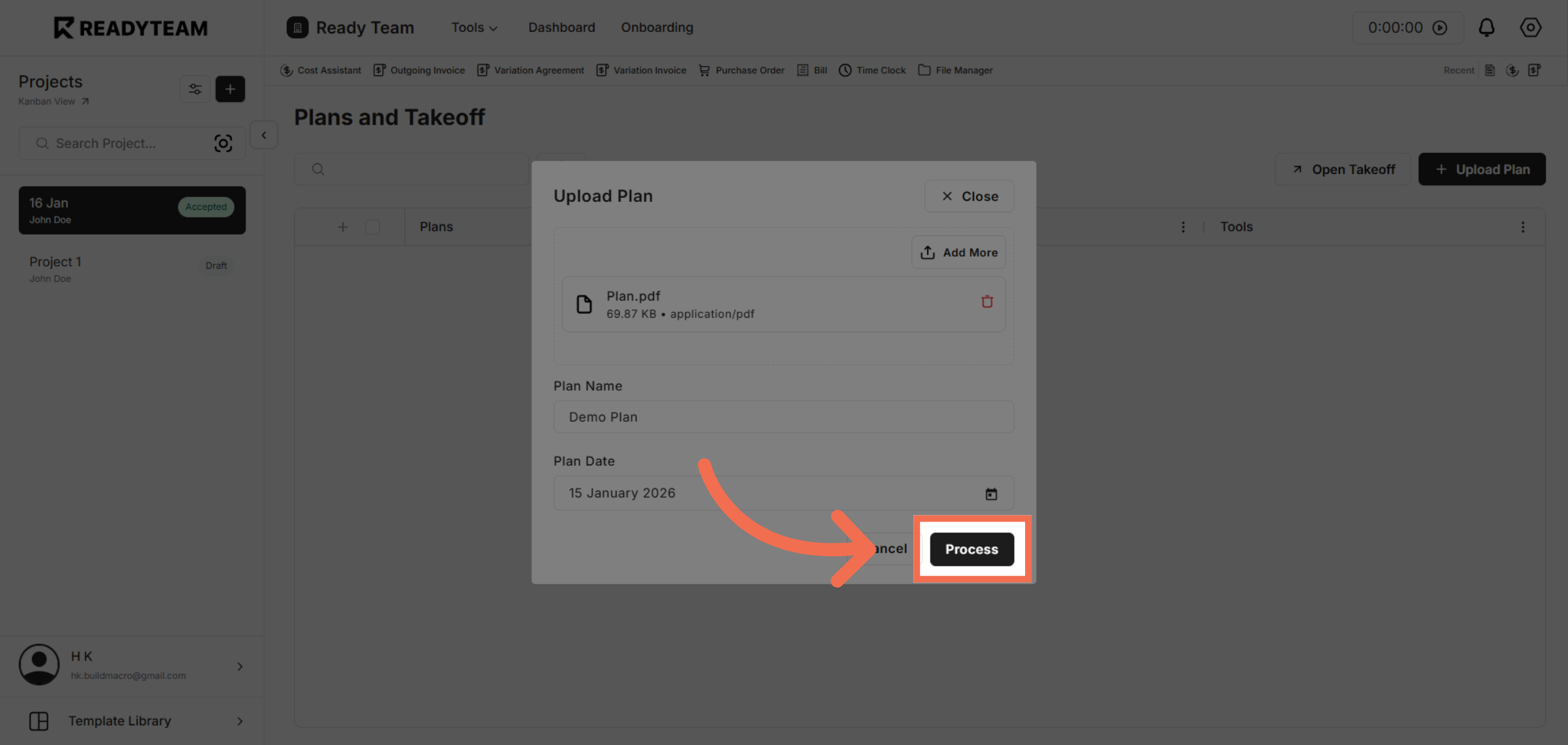
9. Process Plan Upload
Click Process to finalize the upload and integrate your plan into the Readyteam system.
This demo demonstrated how to efficiently upload architecture and structure files to Plans and Takeoff in Readyteam, enhancing your project documentation workflow. Start using Readyteam today to streamline your plan management and improve collaboration.