Import Unit Of Measurement (UOM) Efficiently In ReadyTeam

This demo showcases how to import units of measure (UOM) into ReadyTeam seamlessly.
Go to app.readyteam.ai
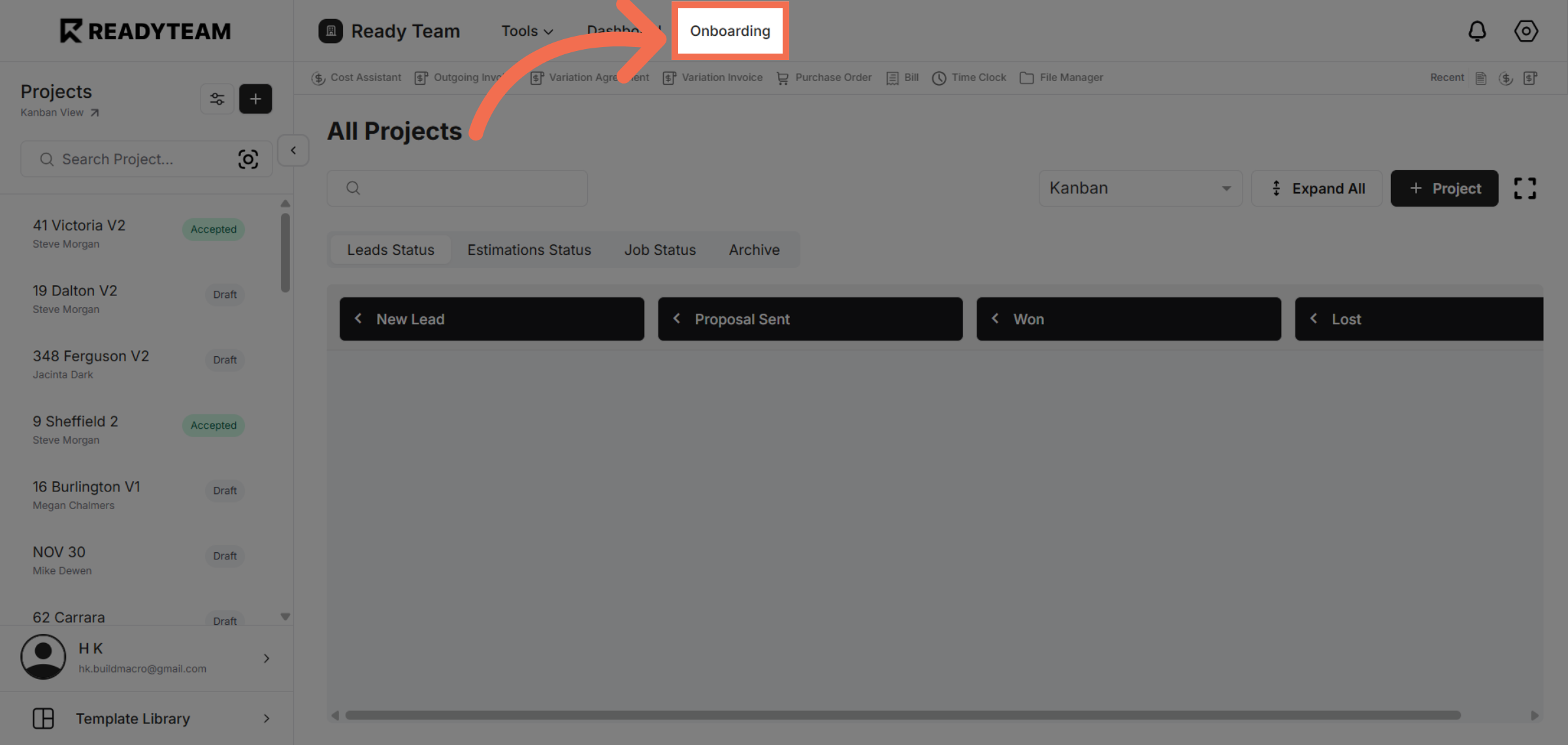
1. Navigate To Onboarding
Click the Onboarding section to begin the import process.
2. Access Cost Assistance
Click the indicated area to proceed to the UOM import options.
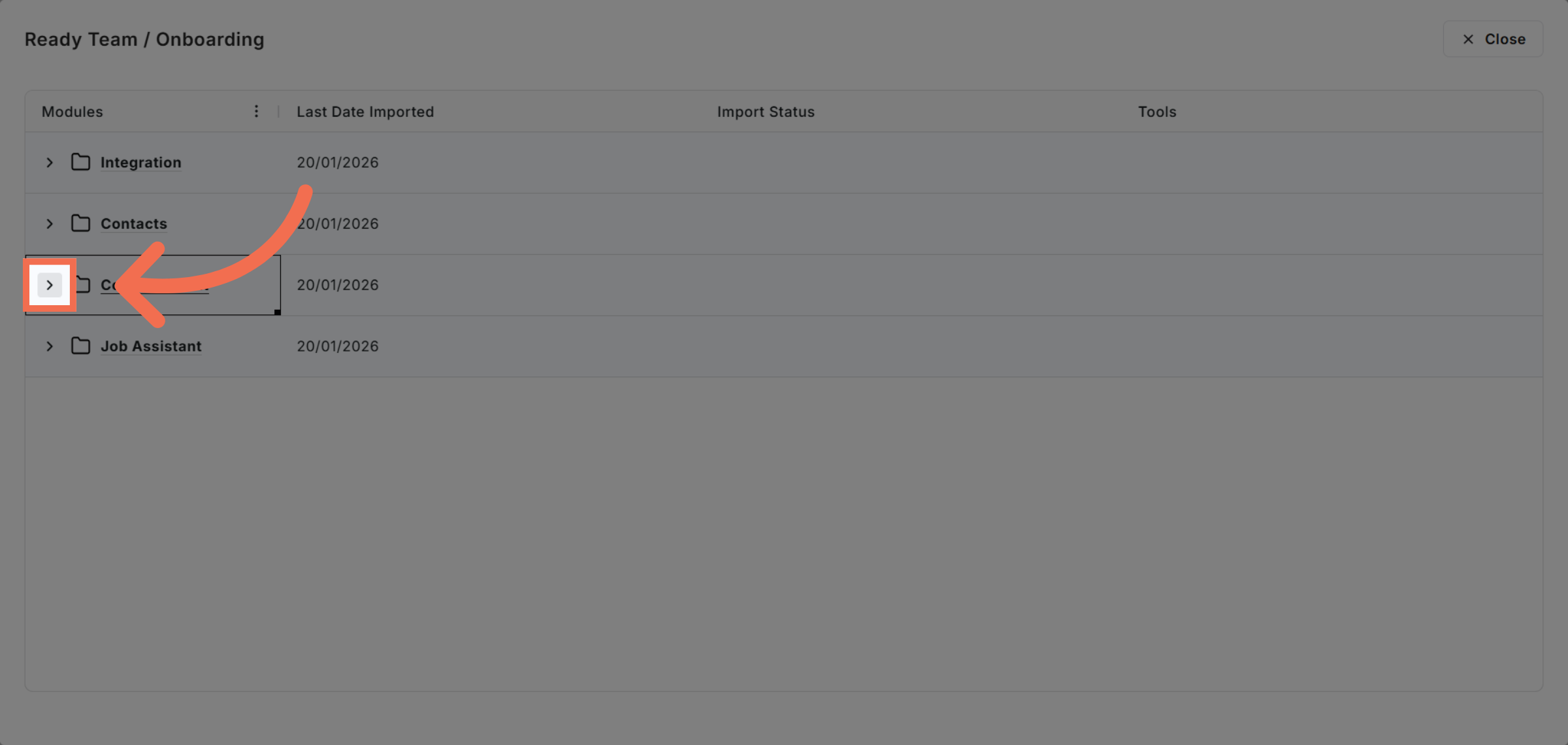
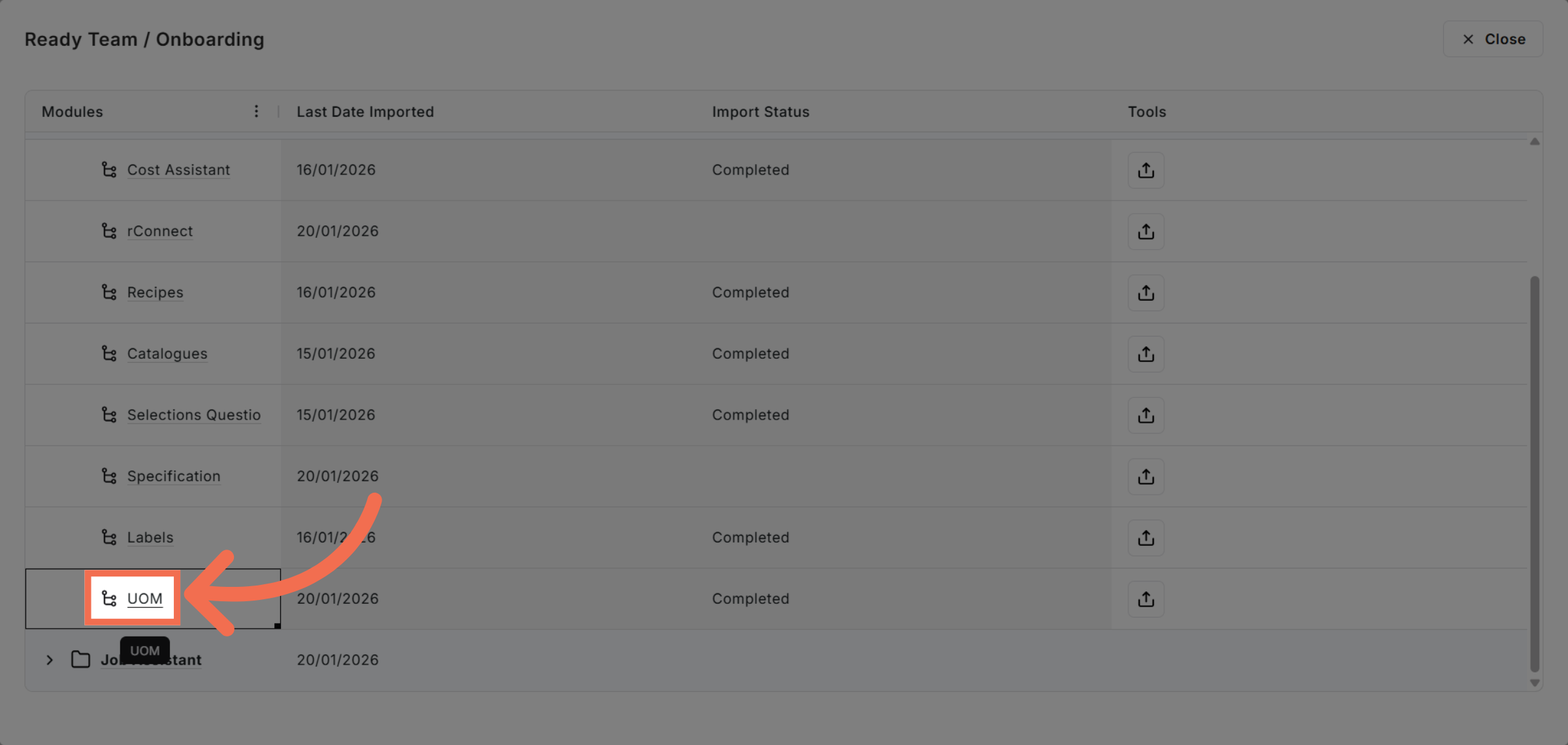
3. Select UOM Option
Click the UOM option to manage units of measure.
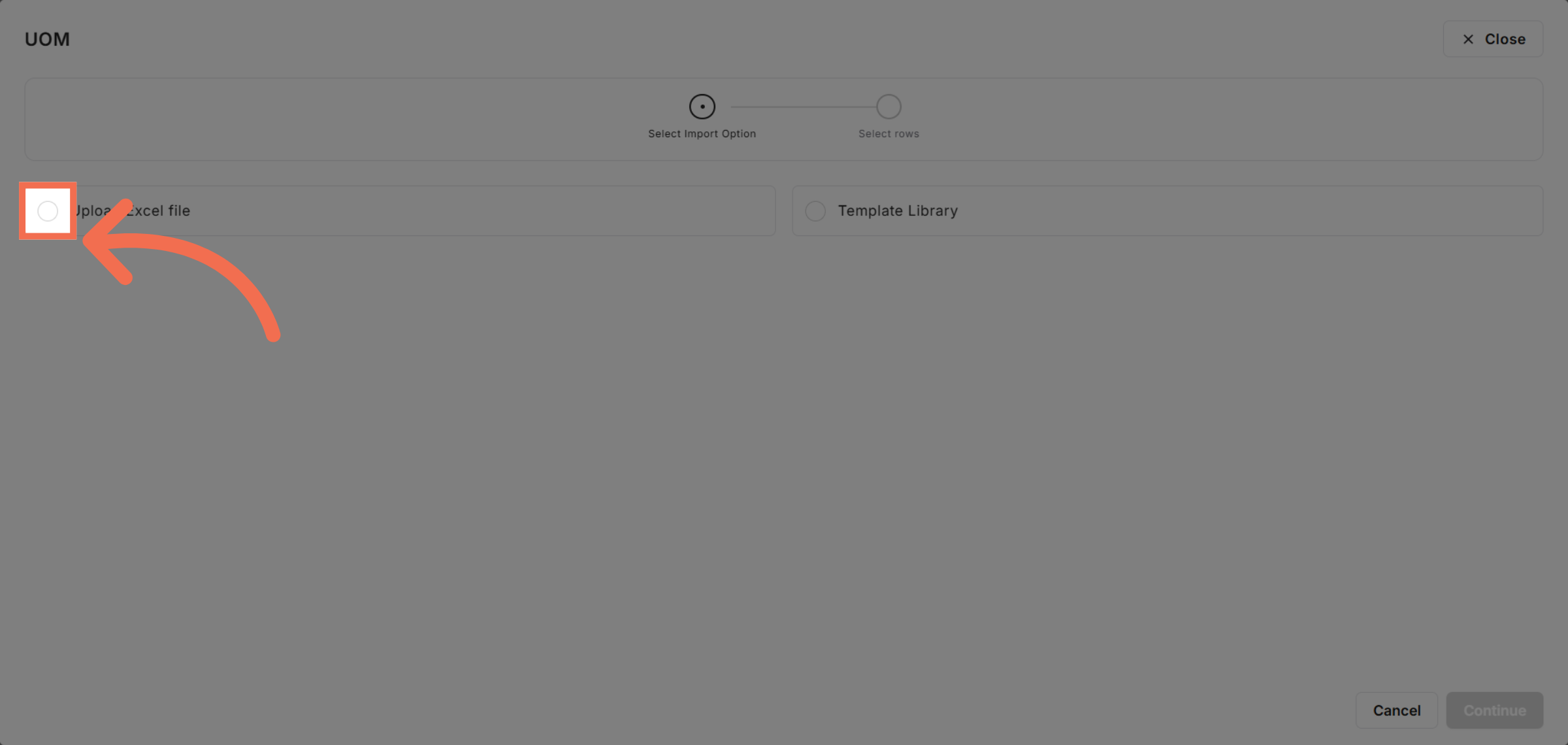
4. Open Excel Upload Dialog
Click Upload Excel file to start importing your data.
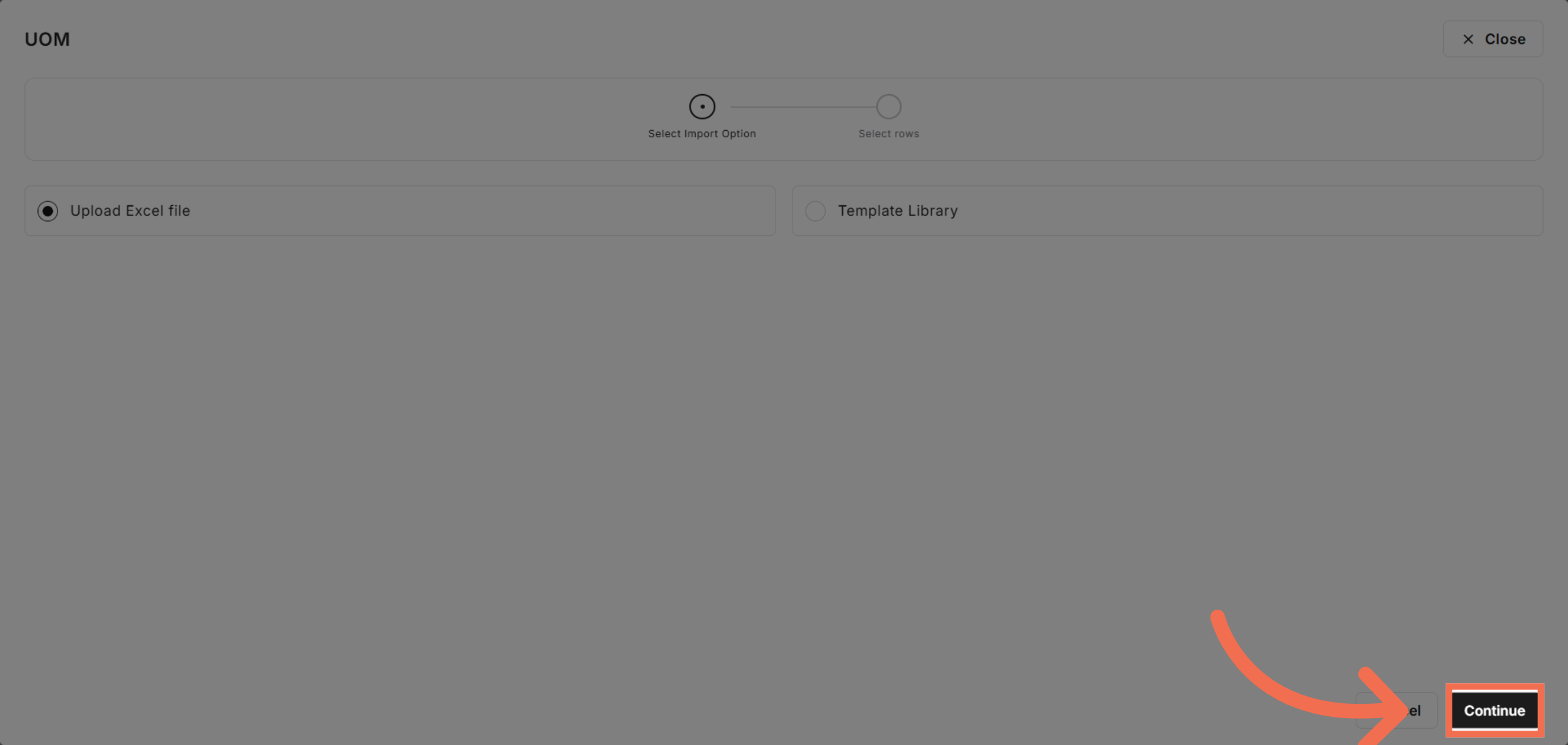
5. Proceed With Upload
Click Continue to move forward with the upload process.
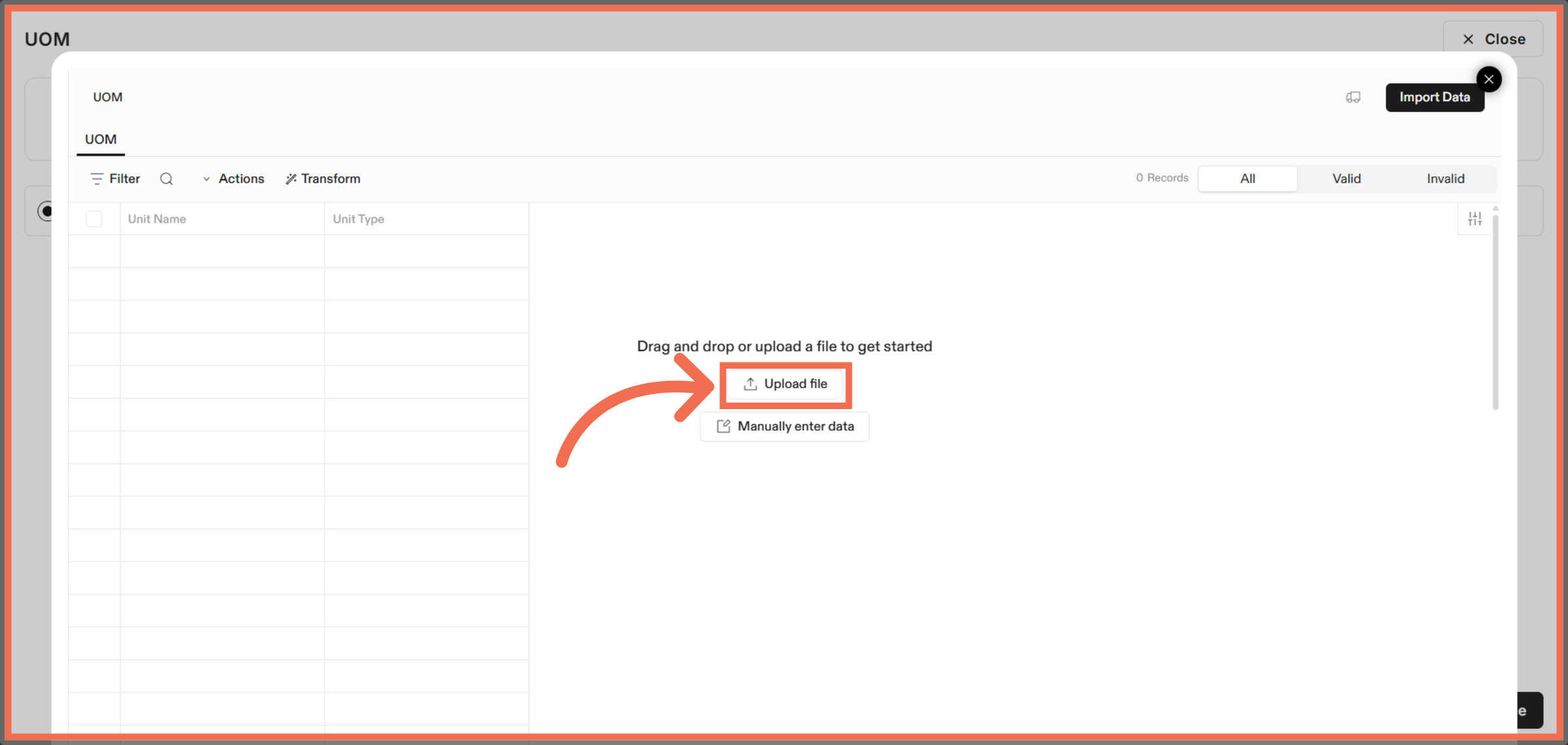
6. Initiate File Upload
Click Upload file to send your Excel file to the system.
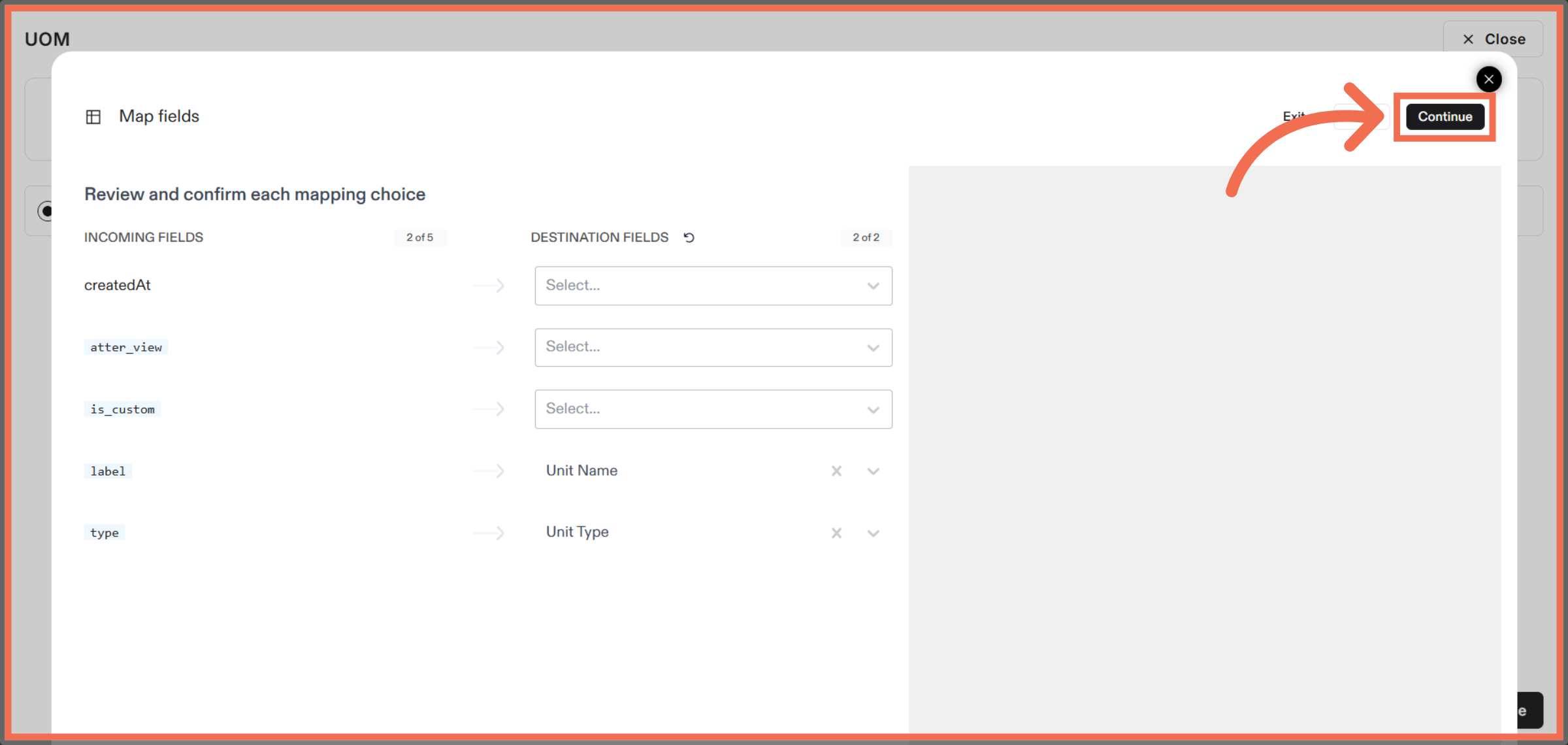
7. Review And Confirm Mappings
Click Review and confirm each mapping choice to ensure fields align correctly.
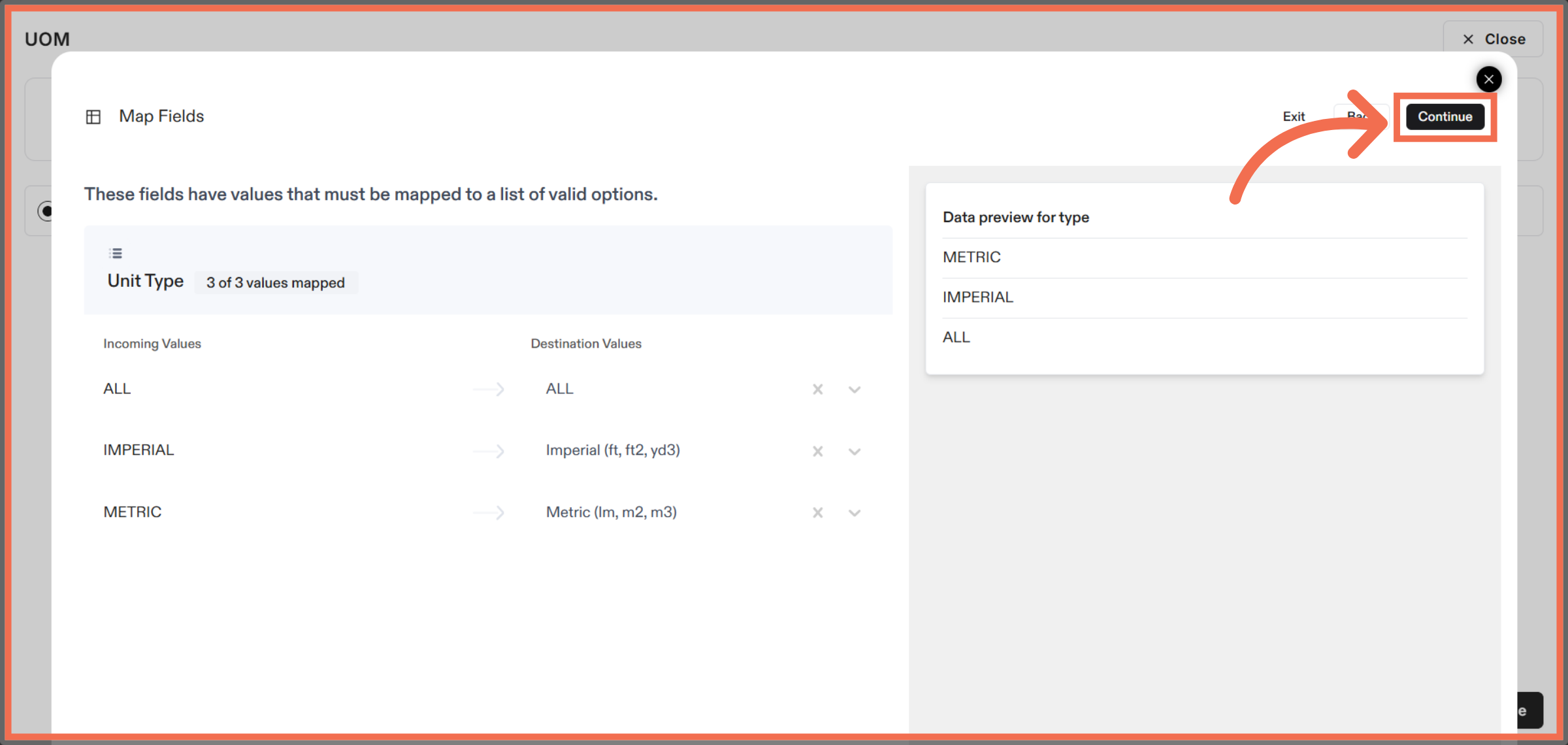
8. Continue After Mapping
Click Data preview for type METRIC, IMPERIAL, or ALL to verify data formats.
9. Manually Enter UOM
Click the indicated area to select further import options.
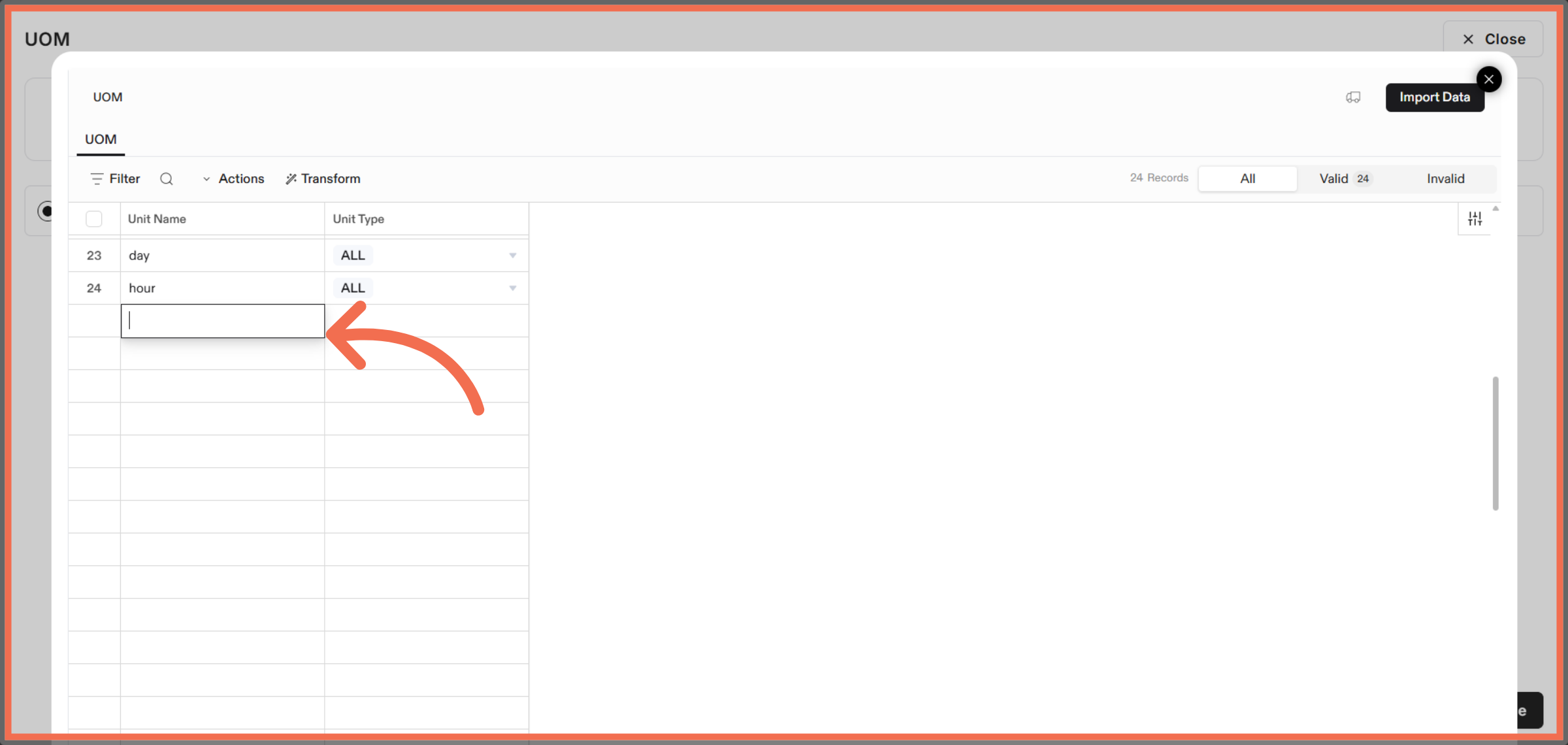
10. Enter Unit Name
Enter test information as required for validation purposes.
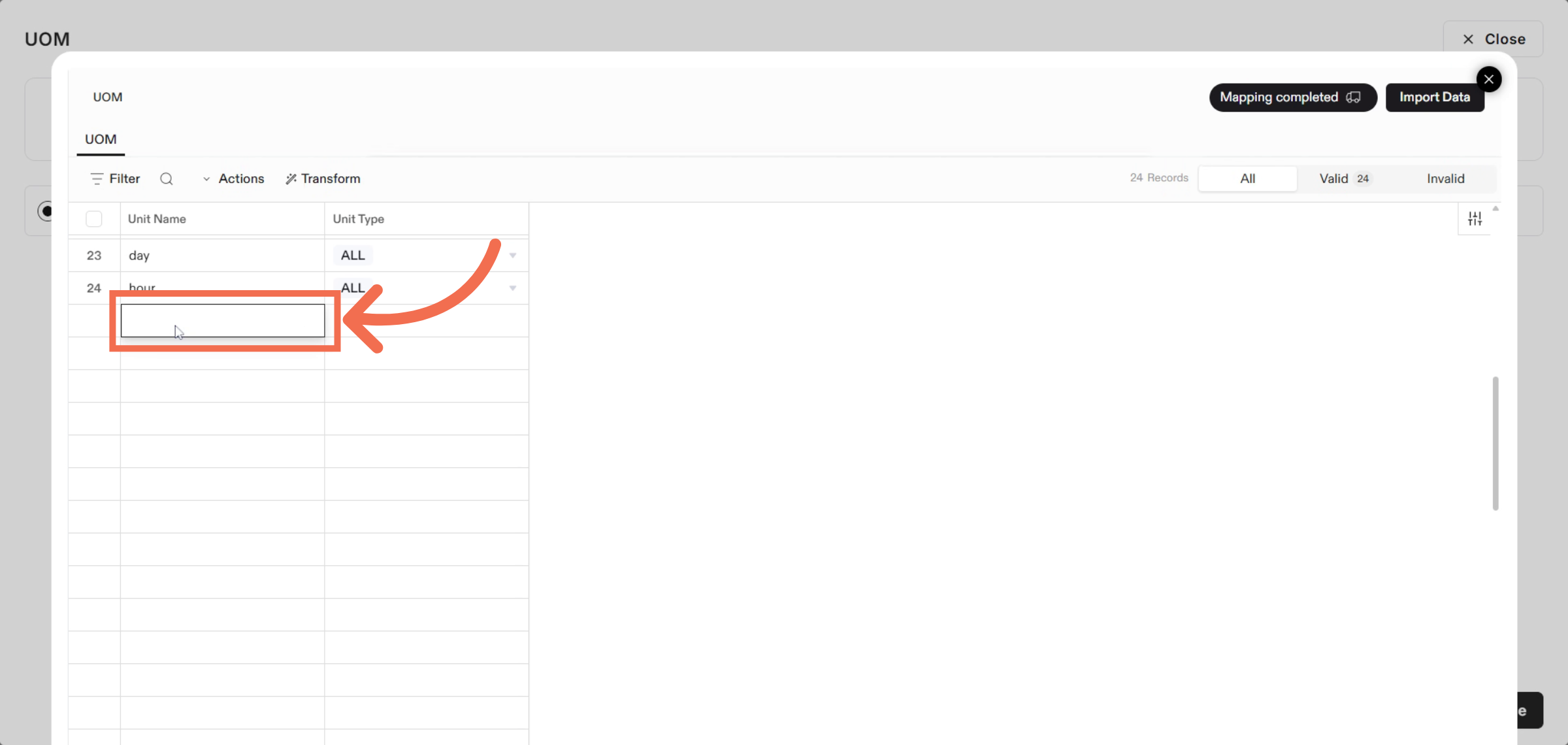
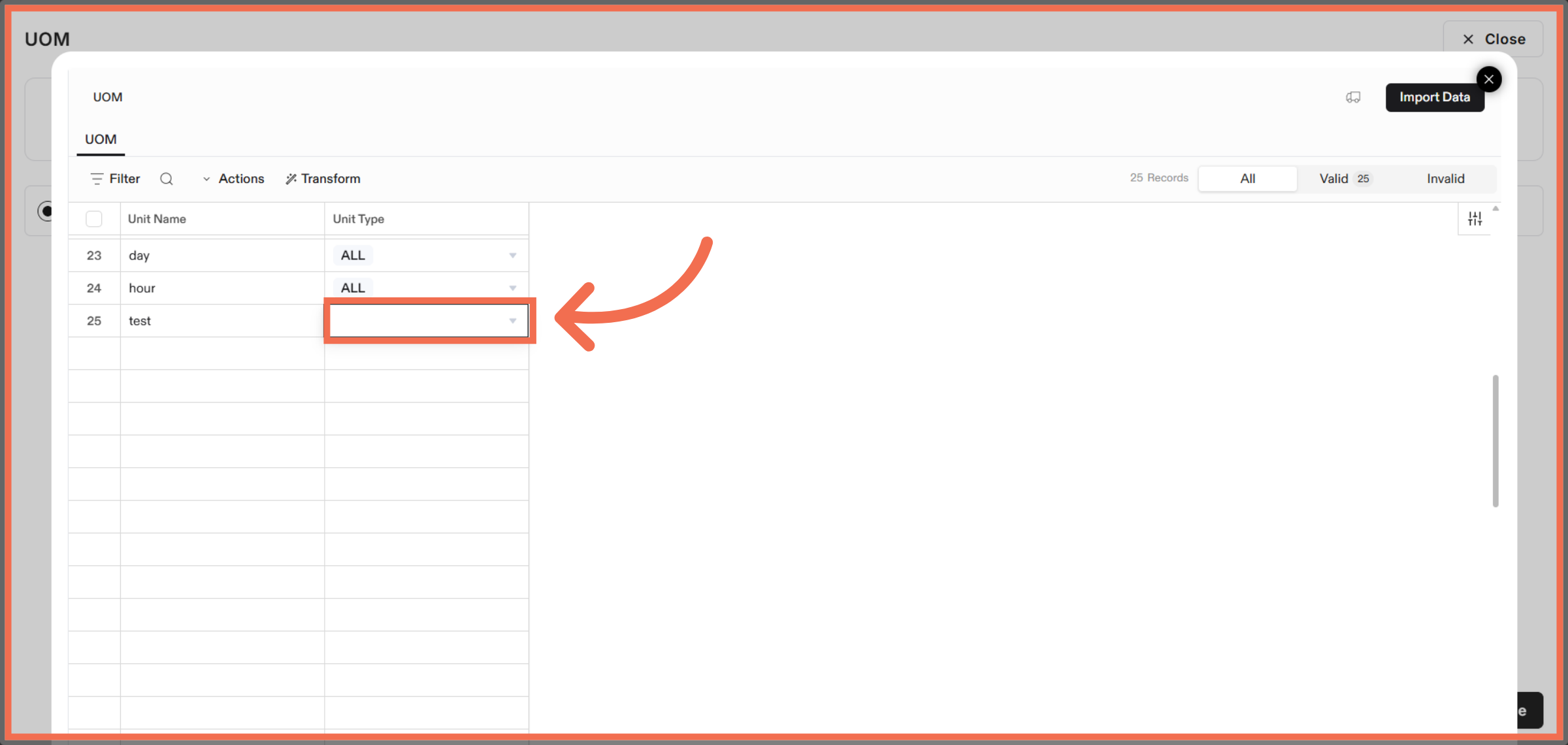
11. Select Unit Type
Click the indicated area to confirm your import settings.
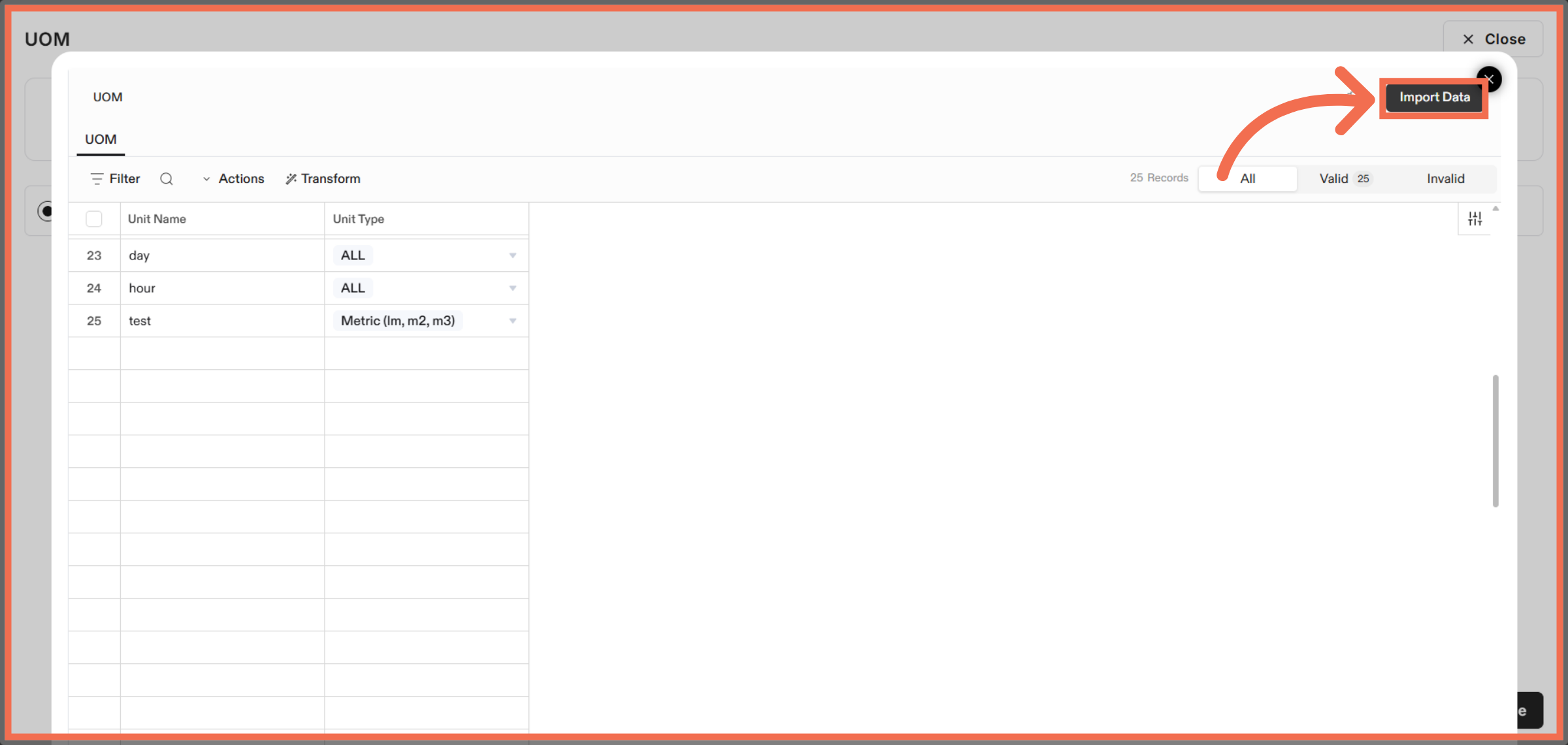
12. Complete Data Import
Click Import Data to finalize and upload your units of measure.
This demo highlights how ReadyTeam streamlines importing units of measure, ensuring accurate data integration. Start your import today to enhance your data management efficiency.