Import Selection Questions Efficiently Using Readyteam

This demo showcases how to import selection questions seamlessly within Readyteam.
Go to app.readyteam.ai
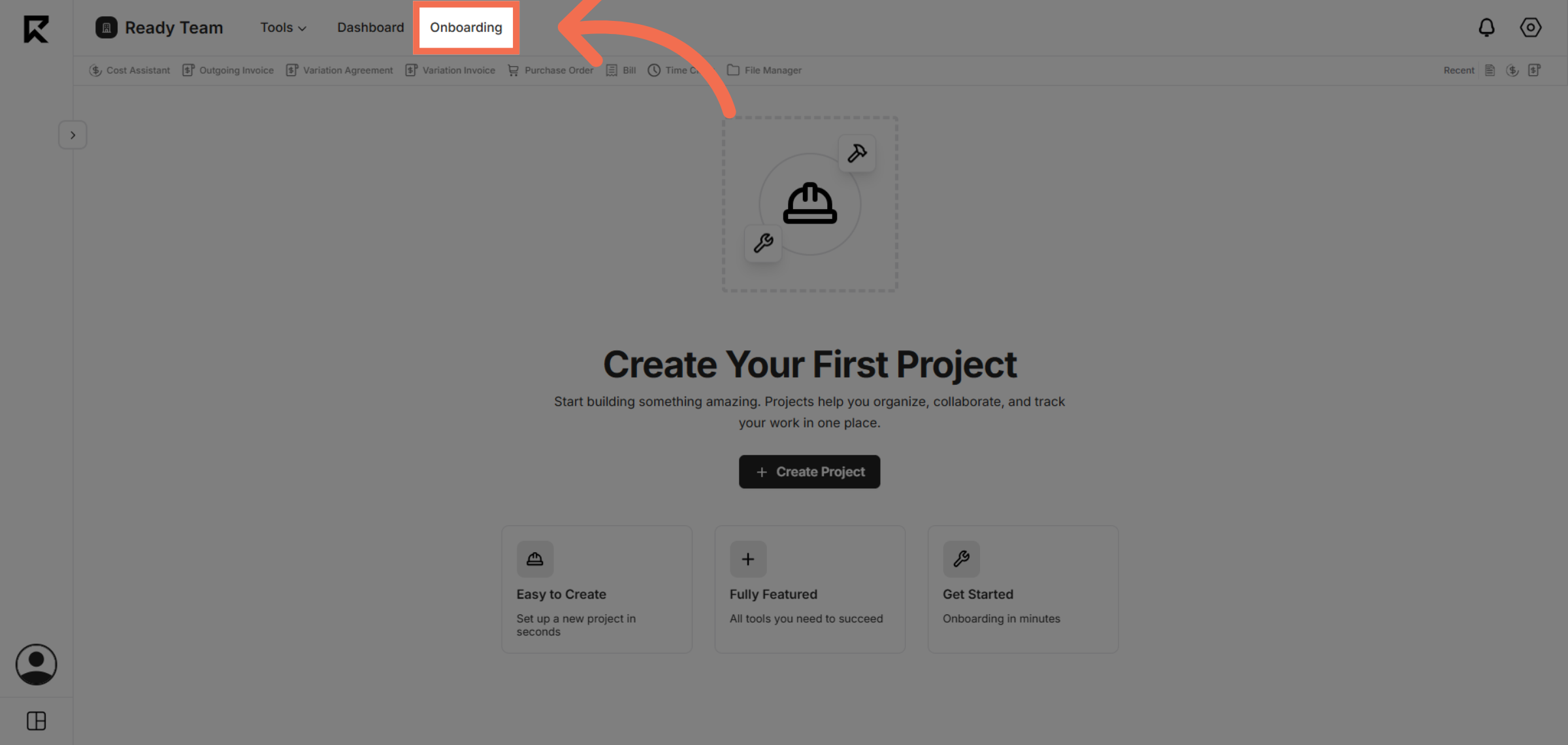
1. Navigate to Onboarding Section
Click the Onboarding section to begin managing your selection questions.
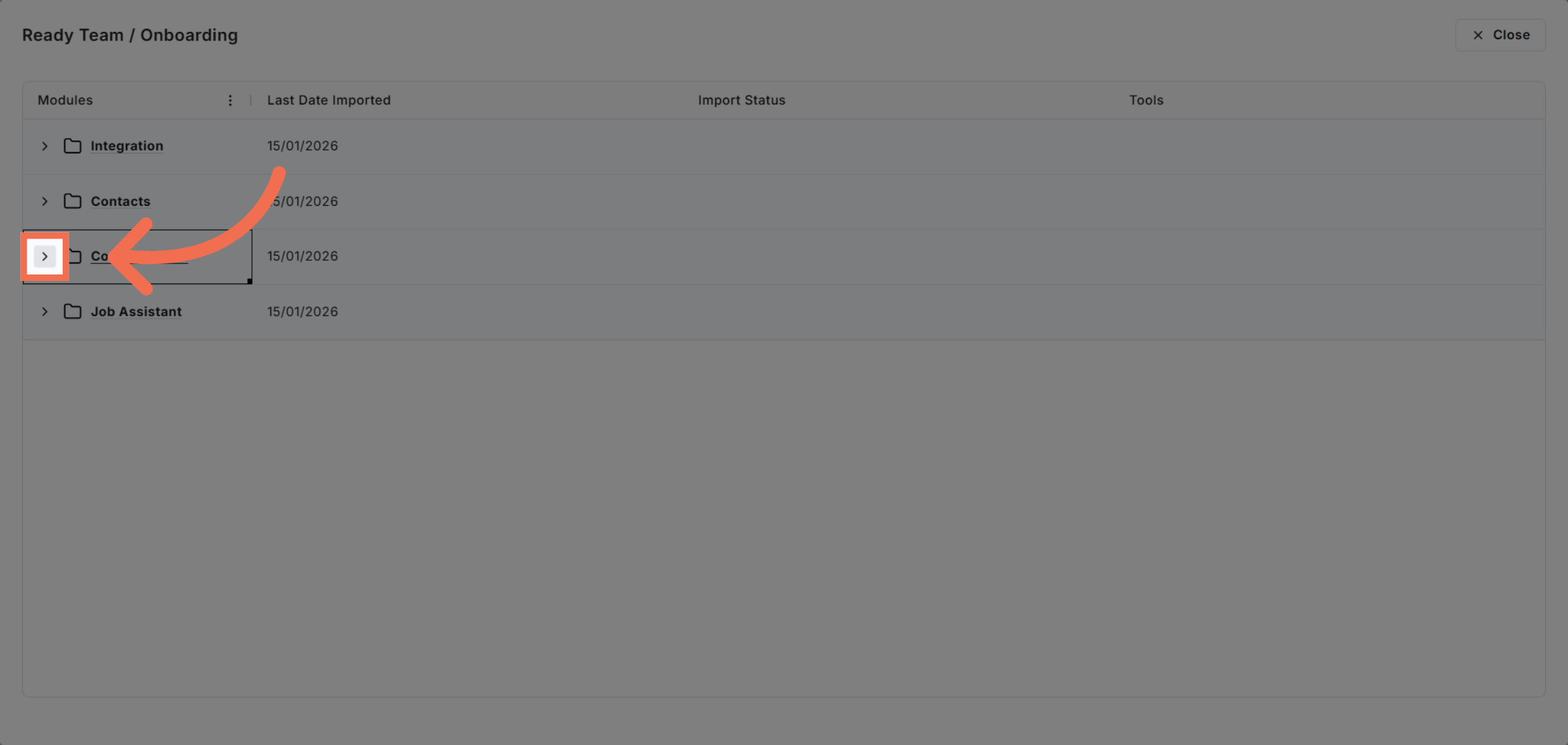
2. Access Cost Assistant
Click the appropriate area to proceed to selection questions management.
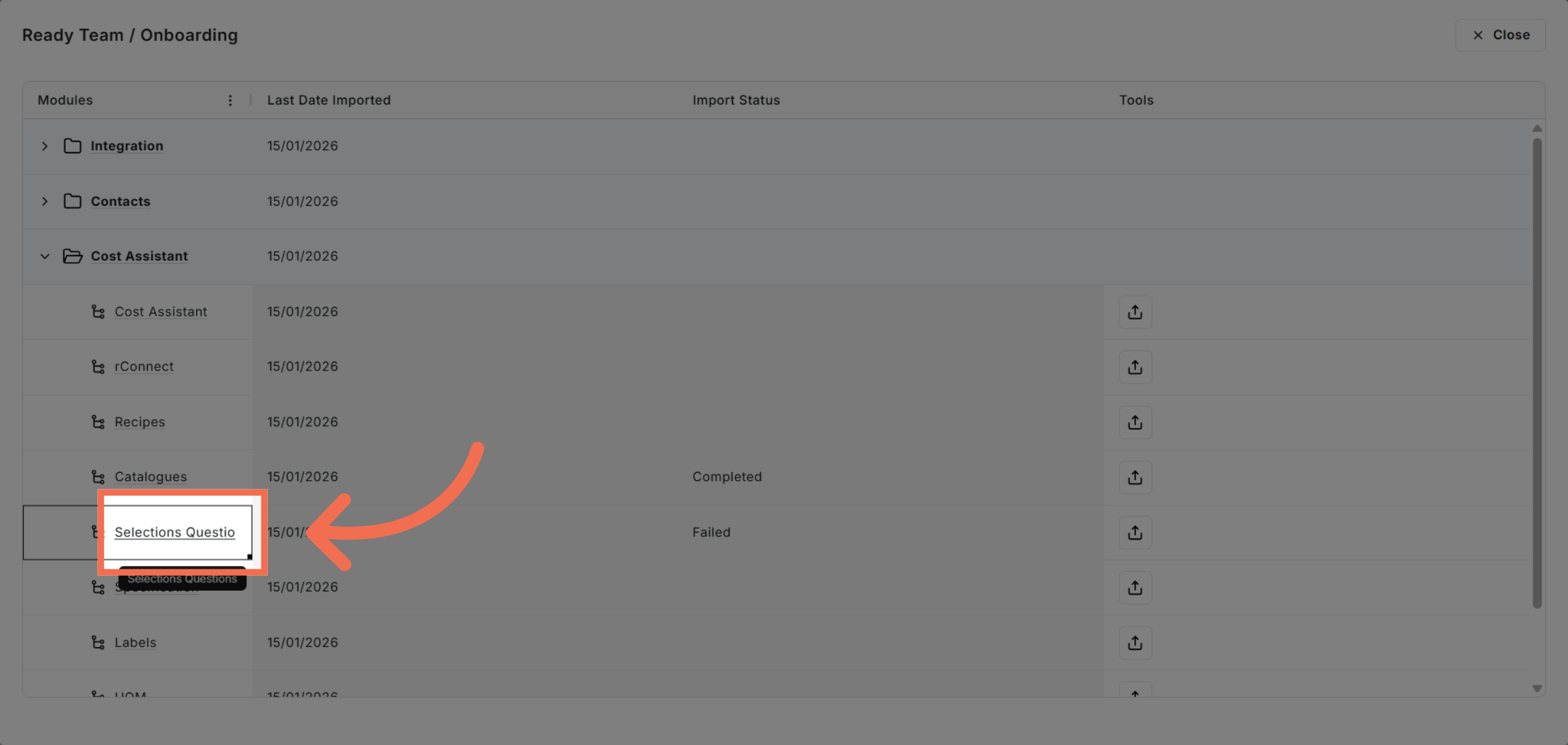
3. Open Selection Questions Tab
Click the Selections Questions tab to access the import options.
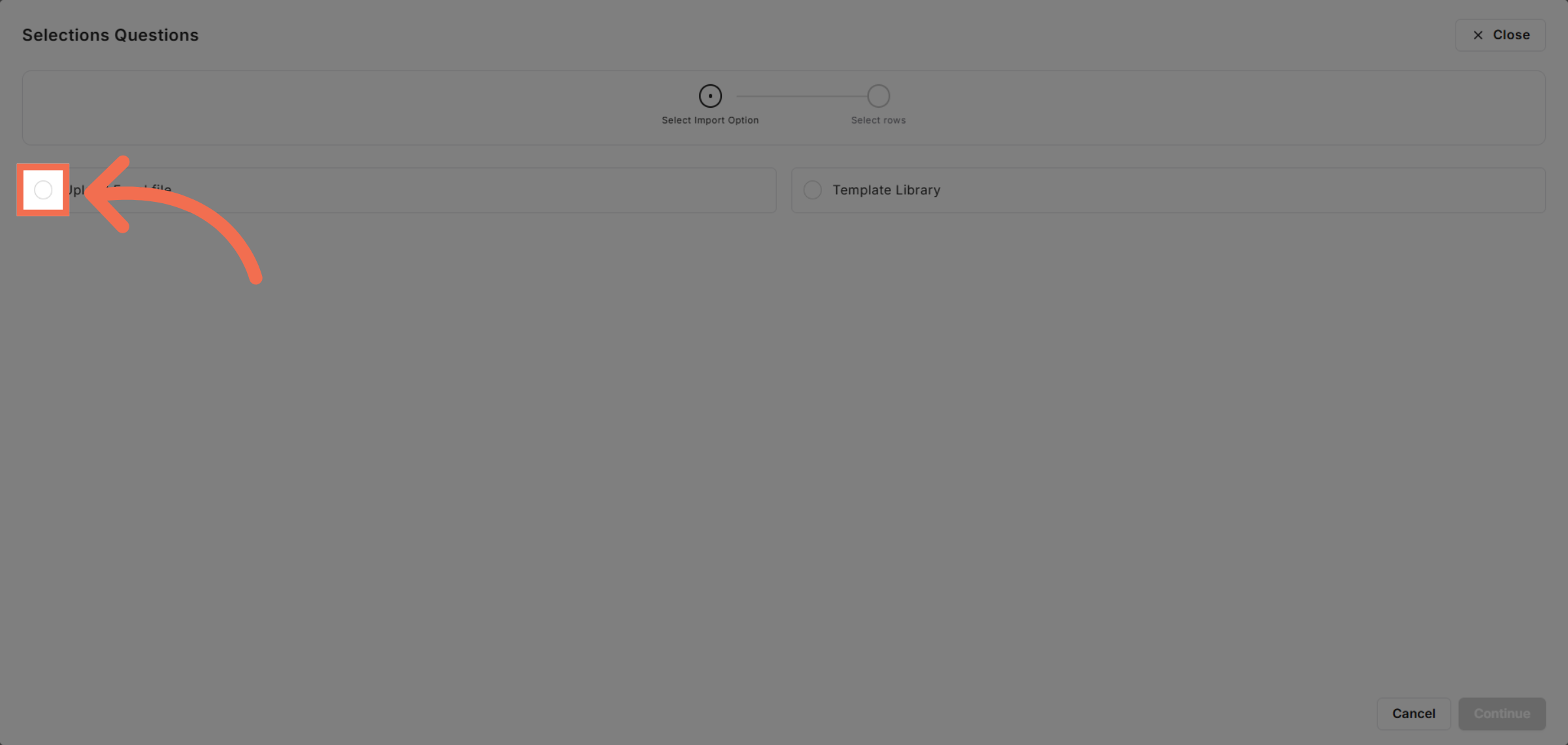
4. Initiate Excel File Upload
Click Upload Excel file to start importing your selection questions.
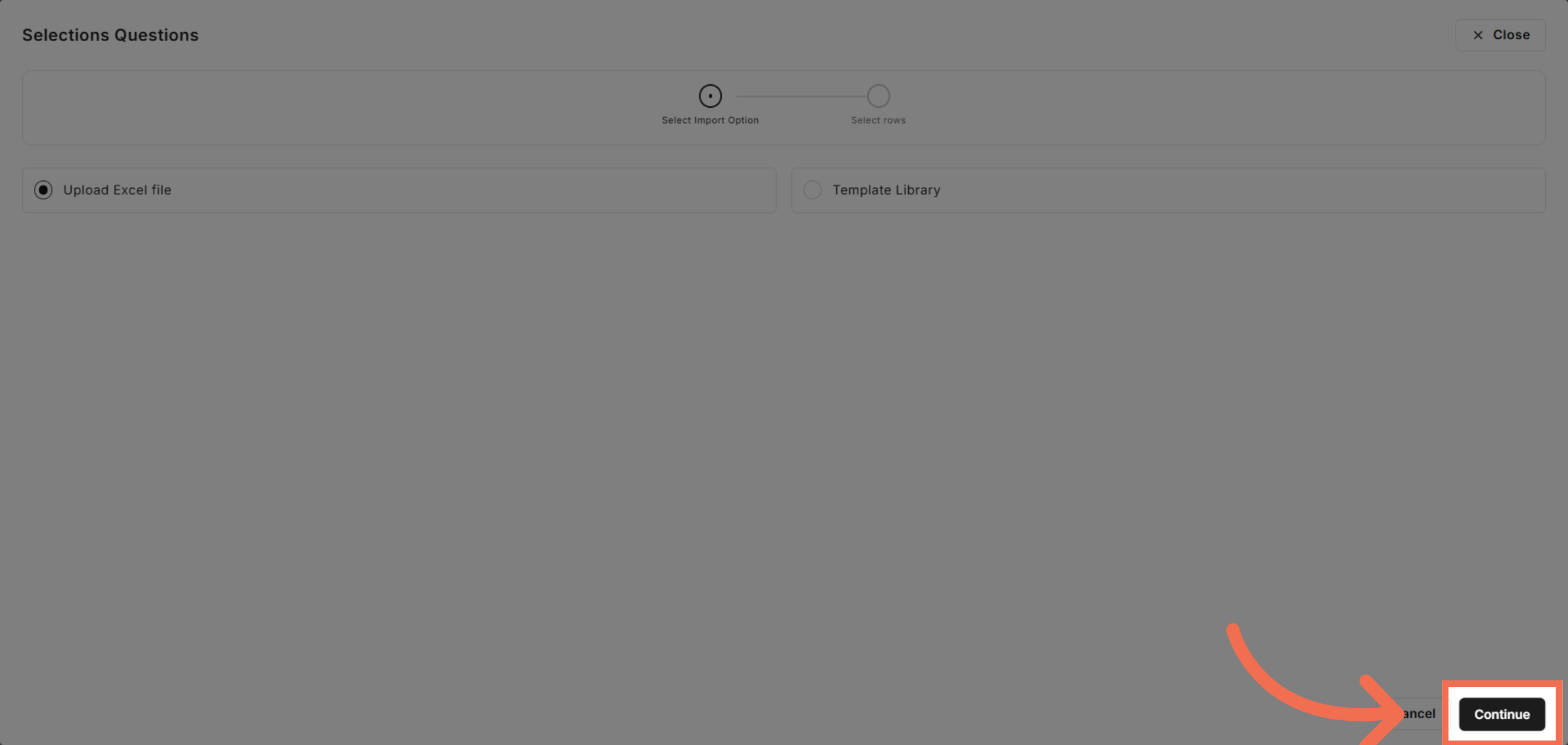
5. Proceed to Next Step
Click Continue to move forward with the import process.
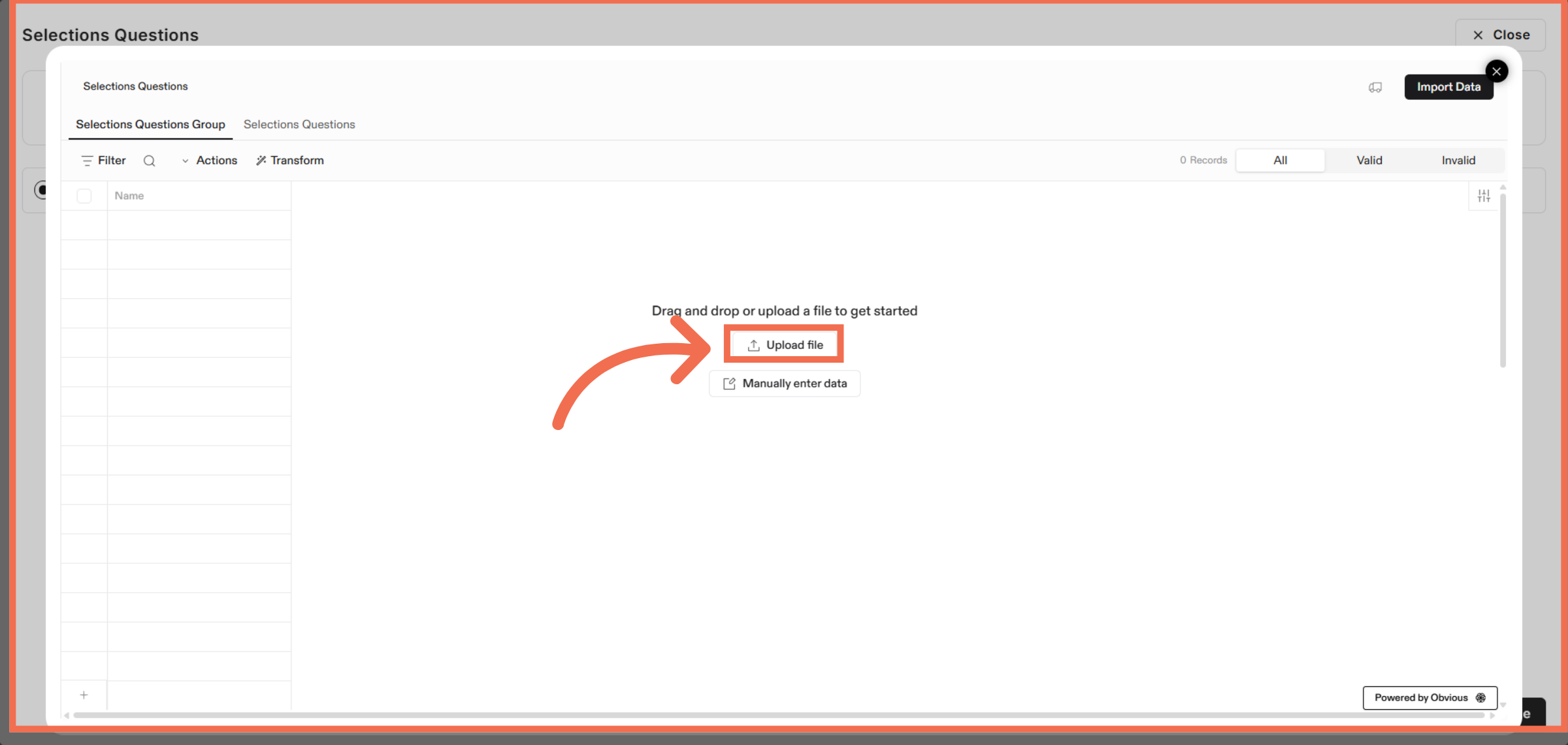
6. Upload File
Click Upload file to select the Excel file for importing selection questions.
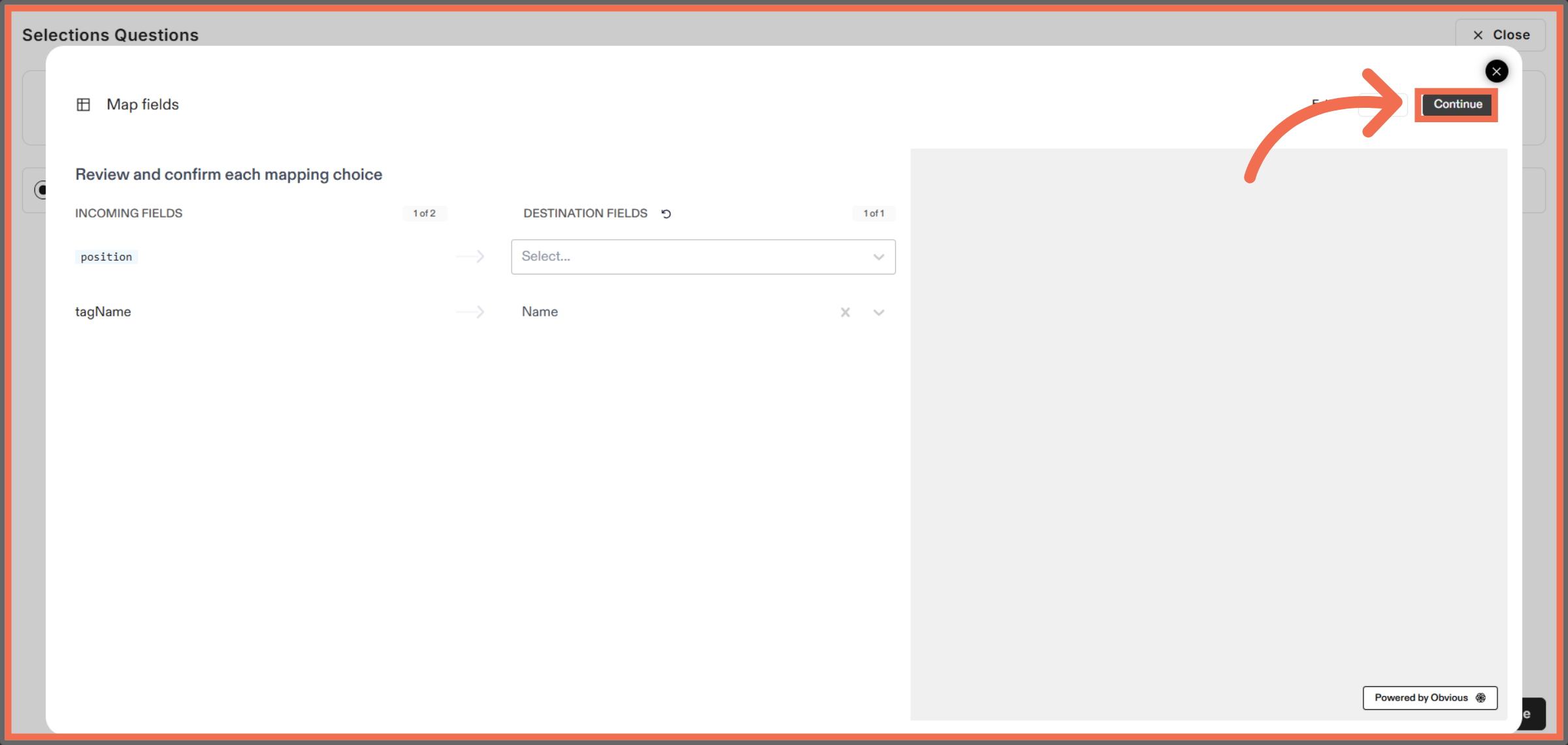
7. Map Data Fields and Continue
Click Continue to confirm the field mappings for your import.
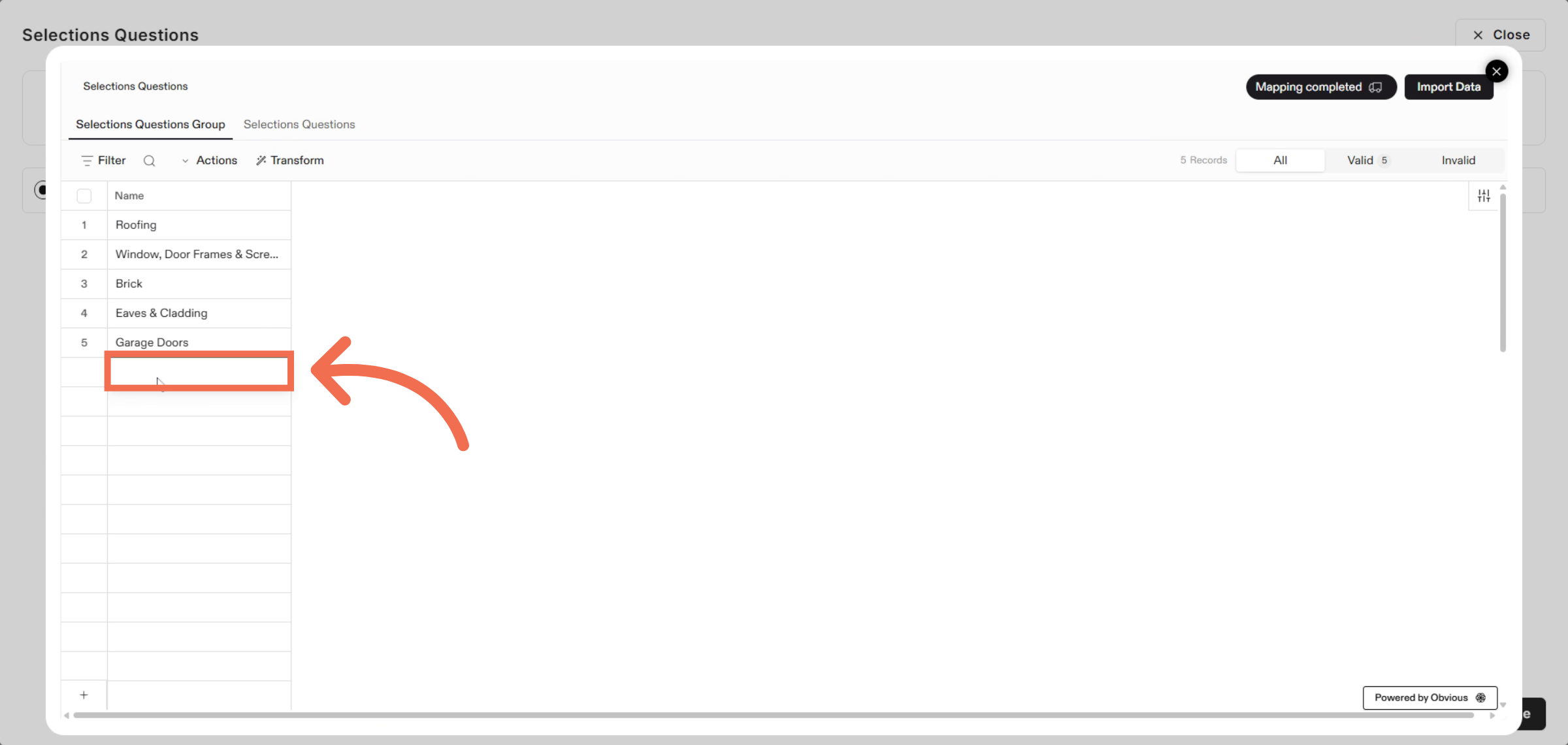
8. Manually Enter New Group Name
Enter a new Group name to organize your selection questions effectively.
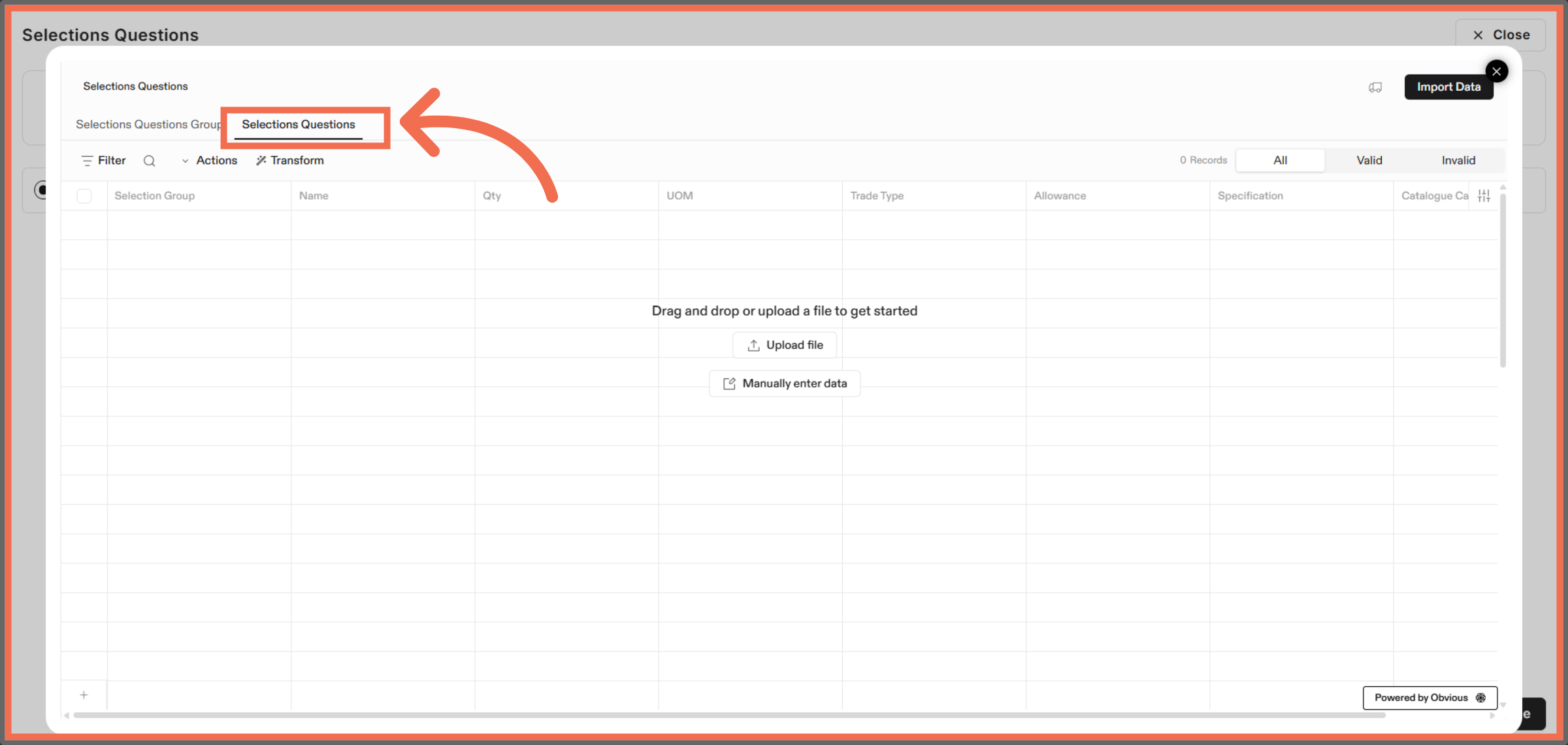
9. Select Selection Questions
Click Selection Questions to add selection questions from another Excel file.
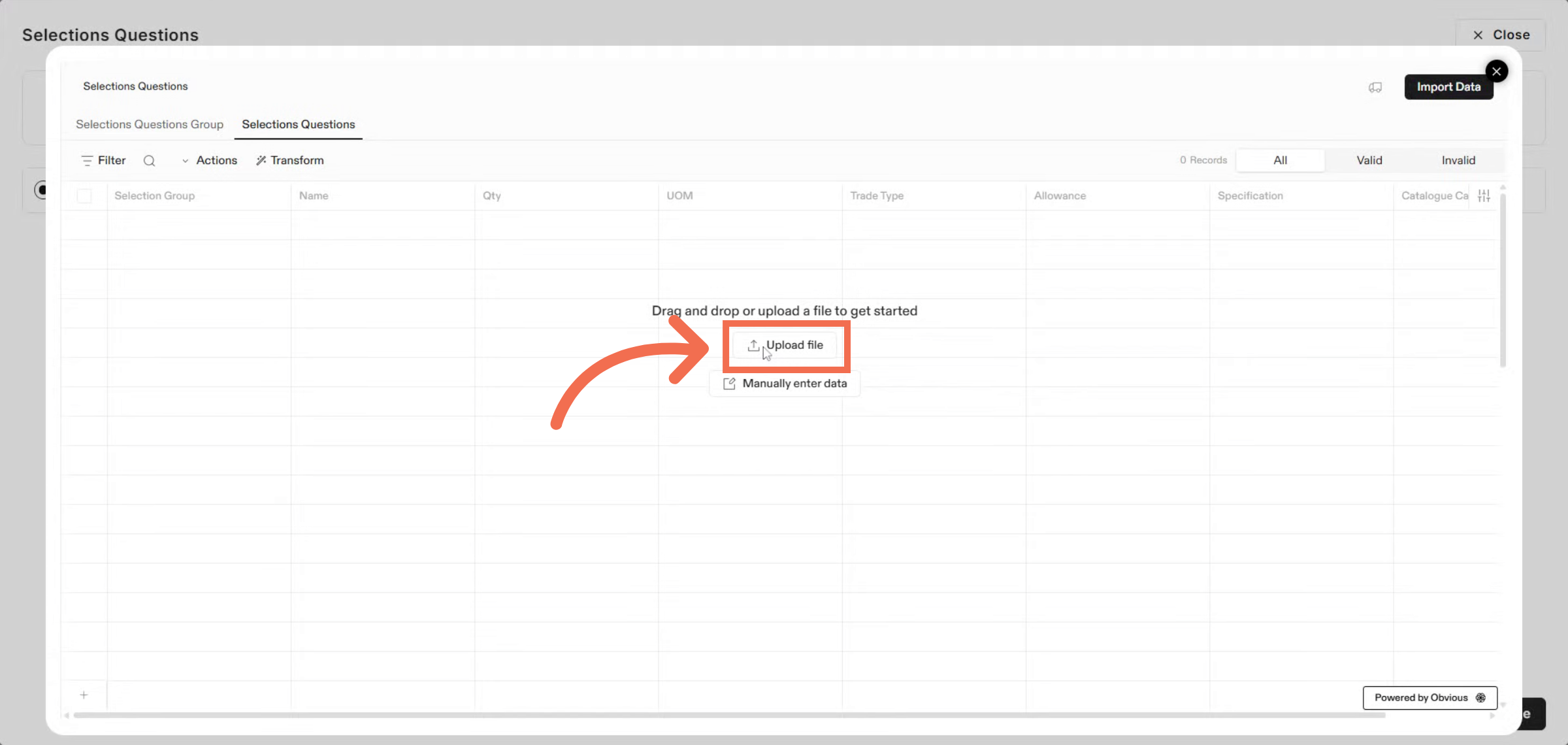
10. Upload File
Enter the necessary details to specify the new file for upload.
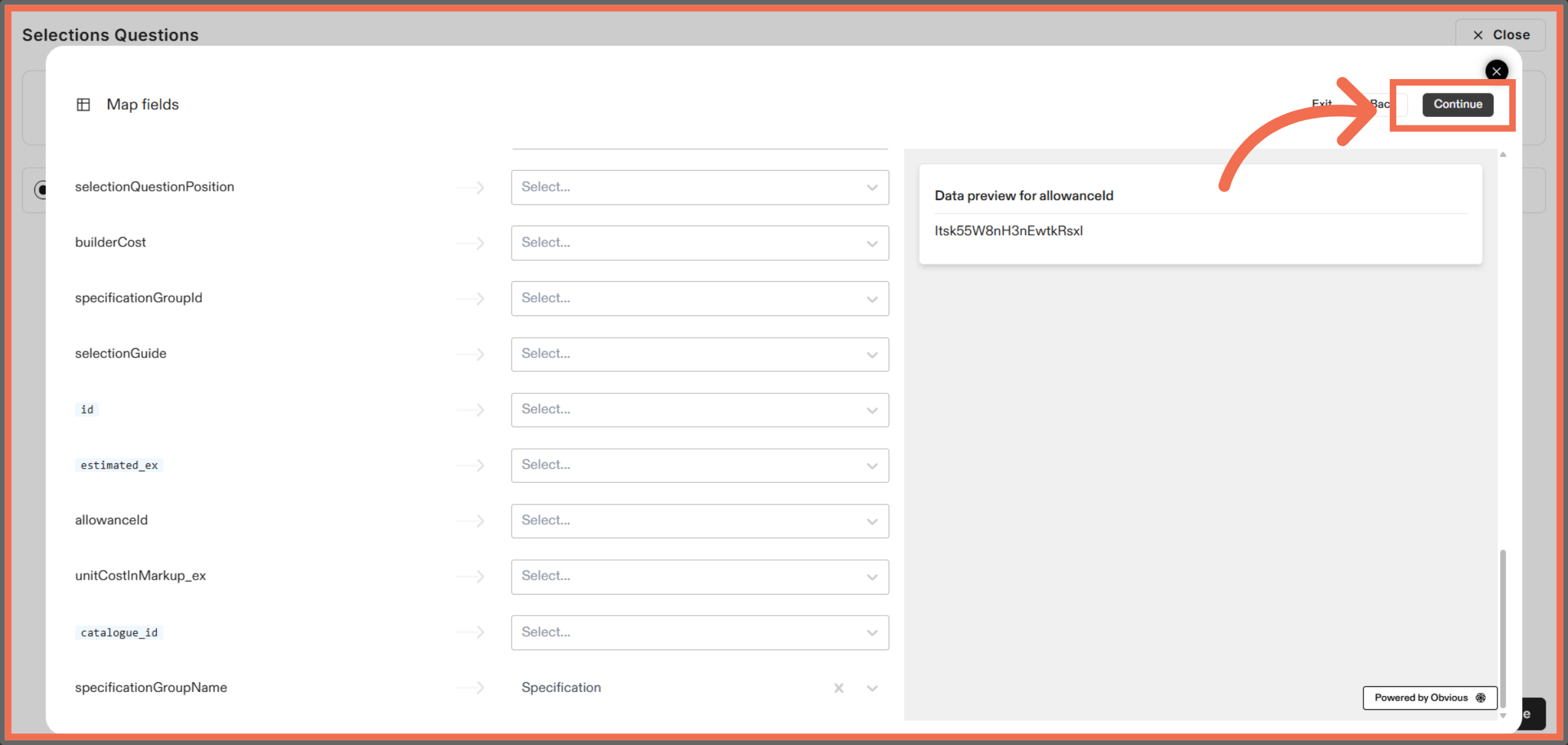
11. Review Mapping and Continue
Click Continue to move forward in the import workflow.
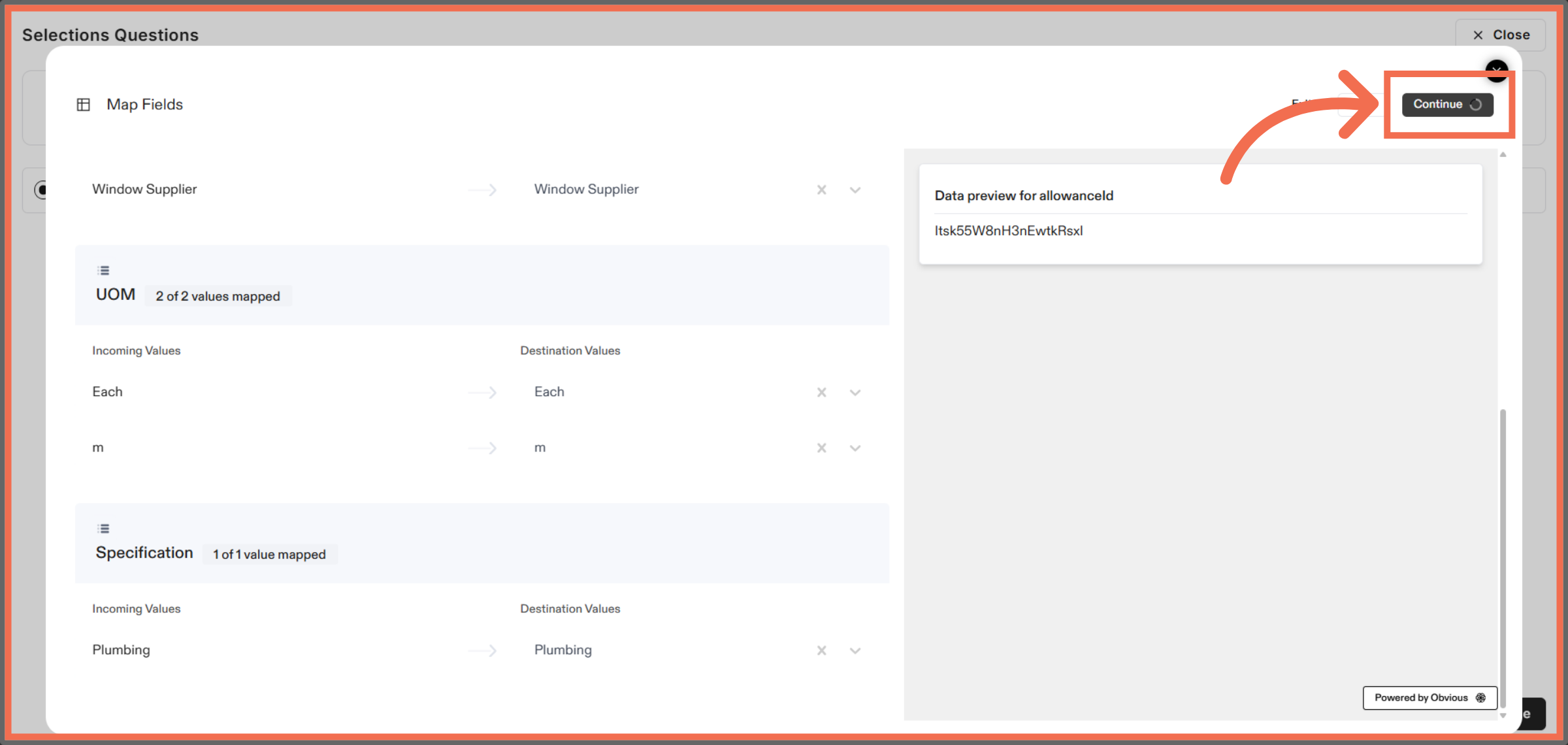
12. Confirm Import Progress
Click Continue to confirm and proceed while the system processes your data.
13. Manually Enter Data
Click the indicated area to Manually Enter Data.
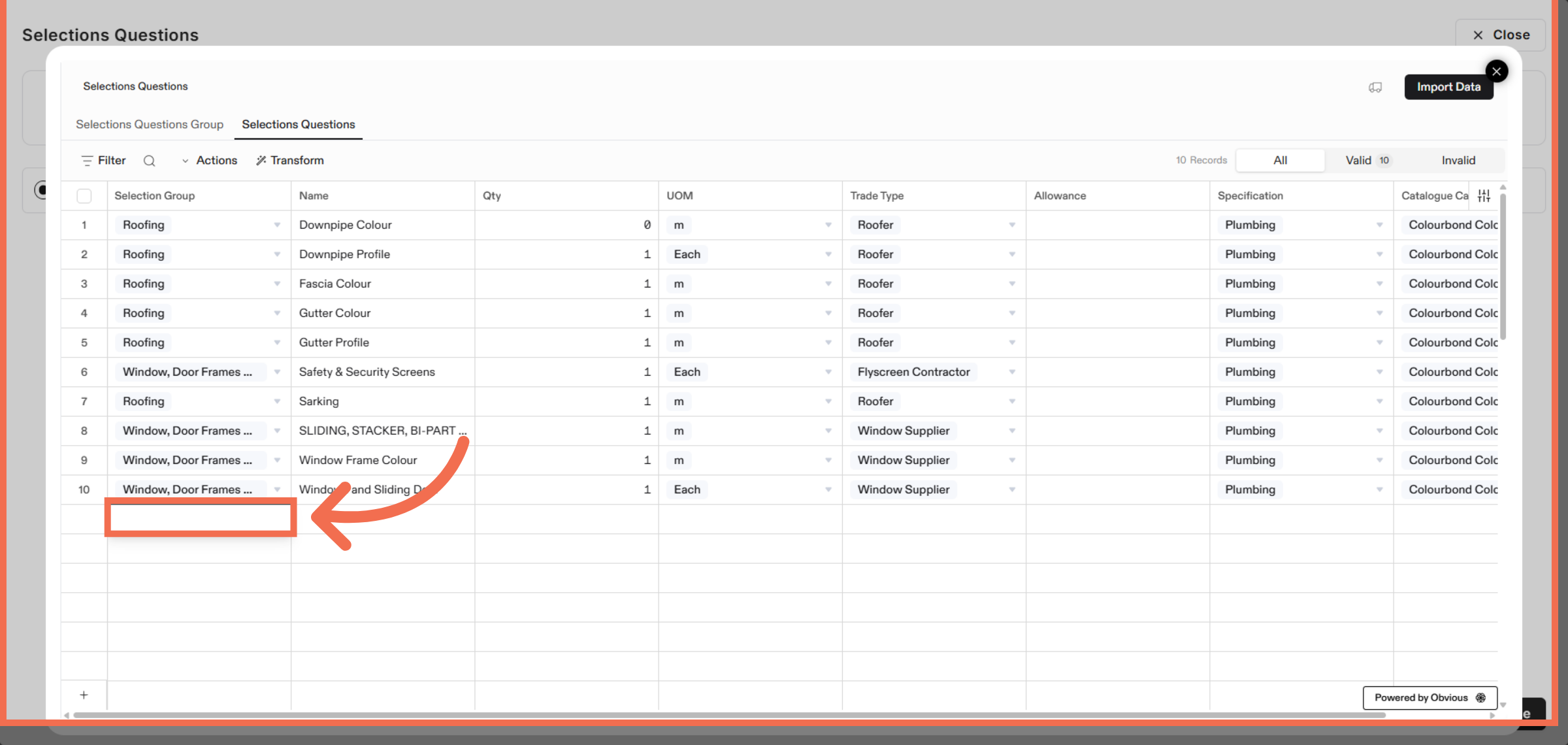
14. Select Selection Question Group
Click Selection Question Group to assign selection questions to a specific group.
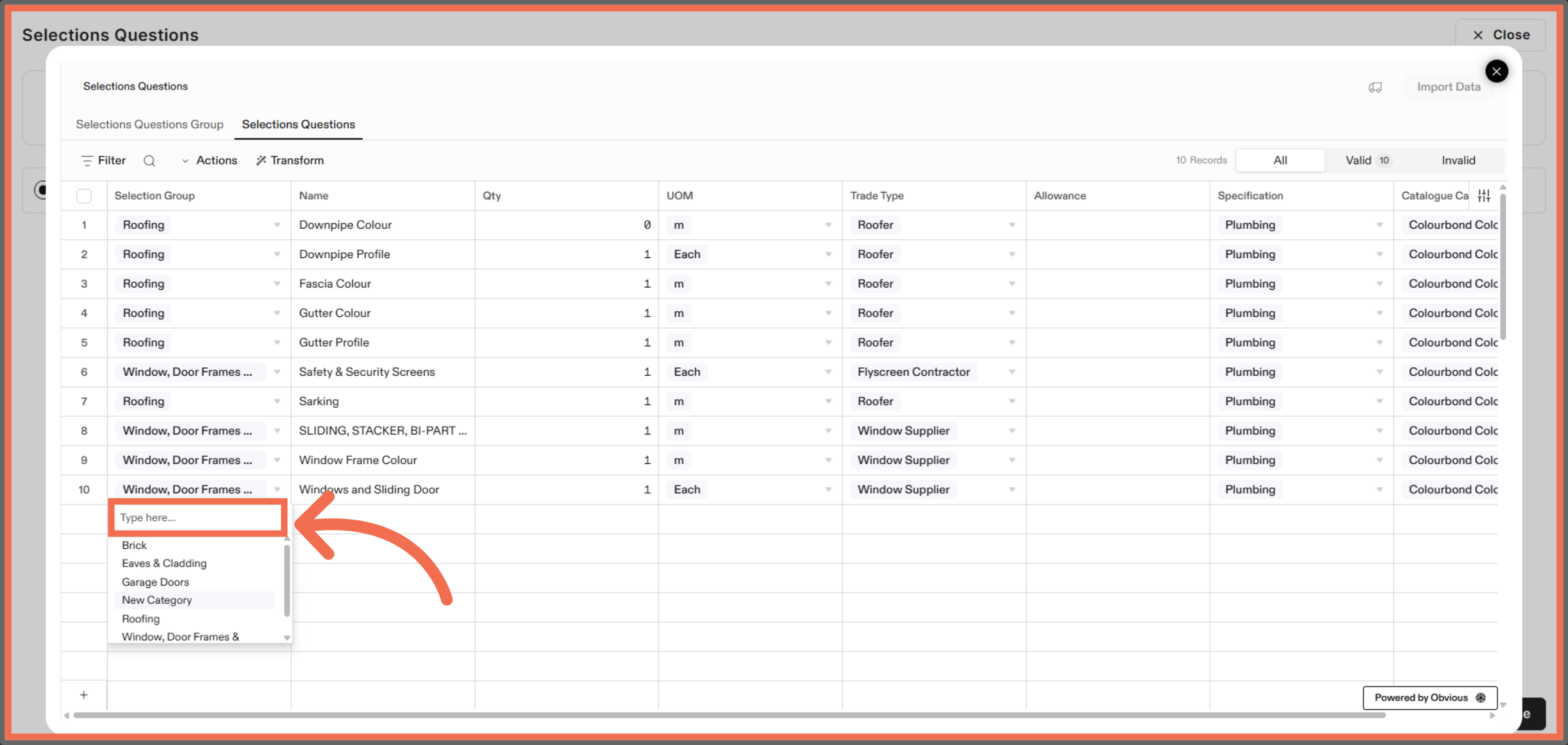
15. Enter New Line Item Name
Enter a new line item to add detailed selection question data.
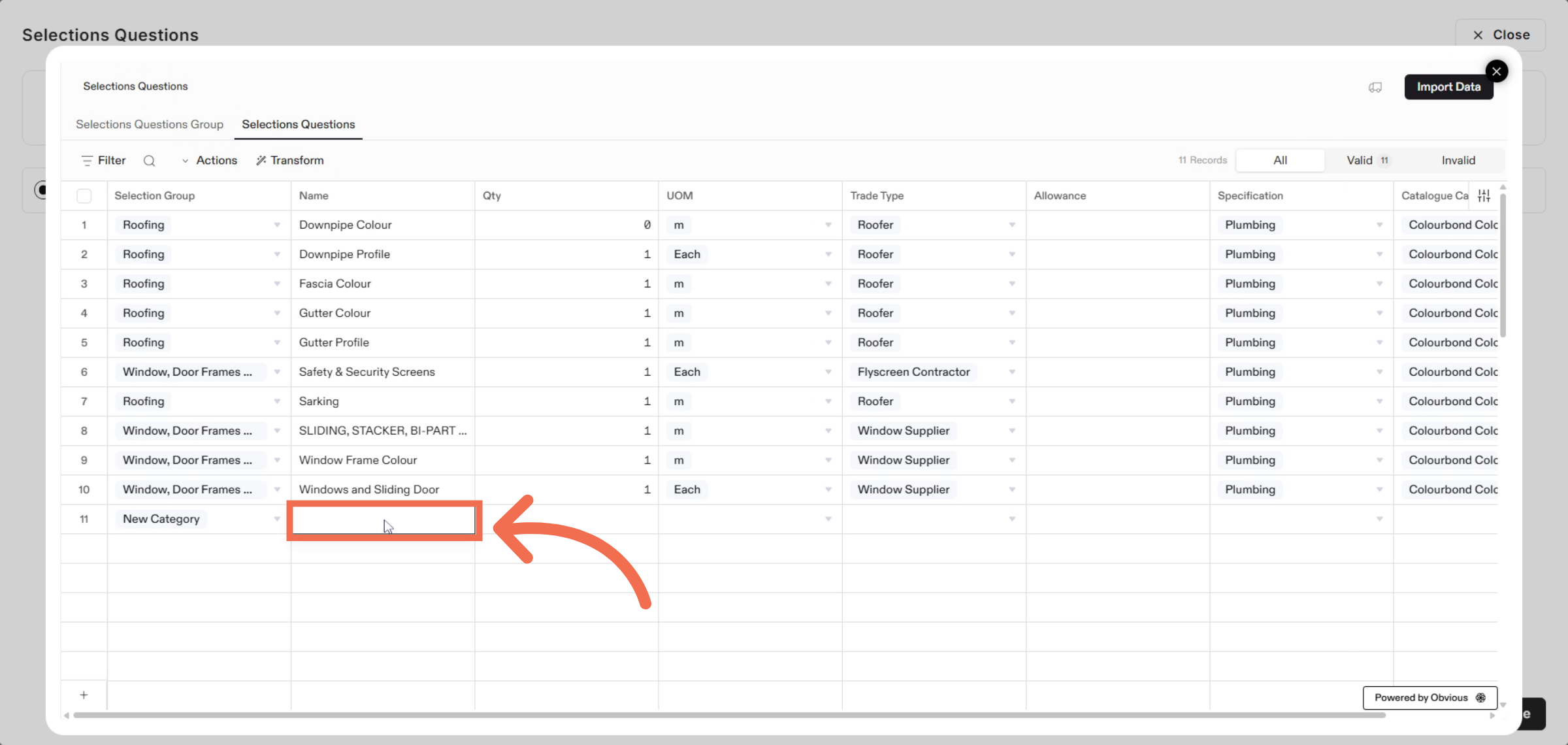
16. Enter Quantity Value
Enter the quantity value to specify the number associated with the line item.
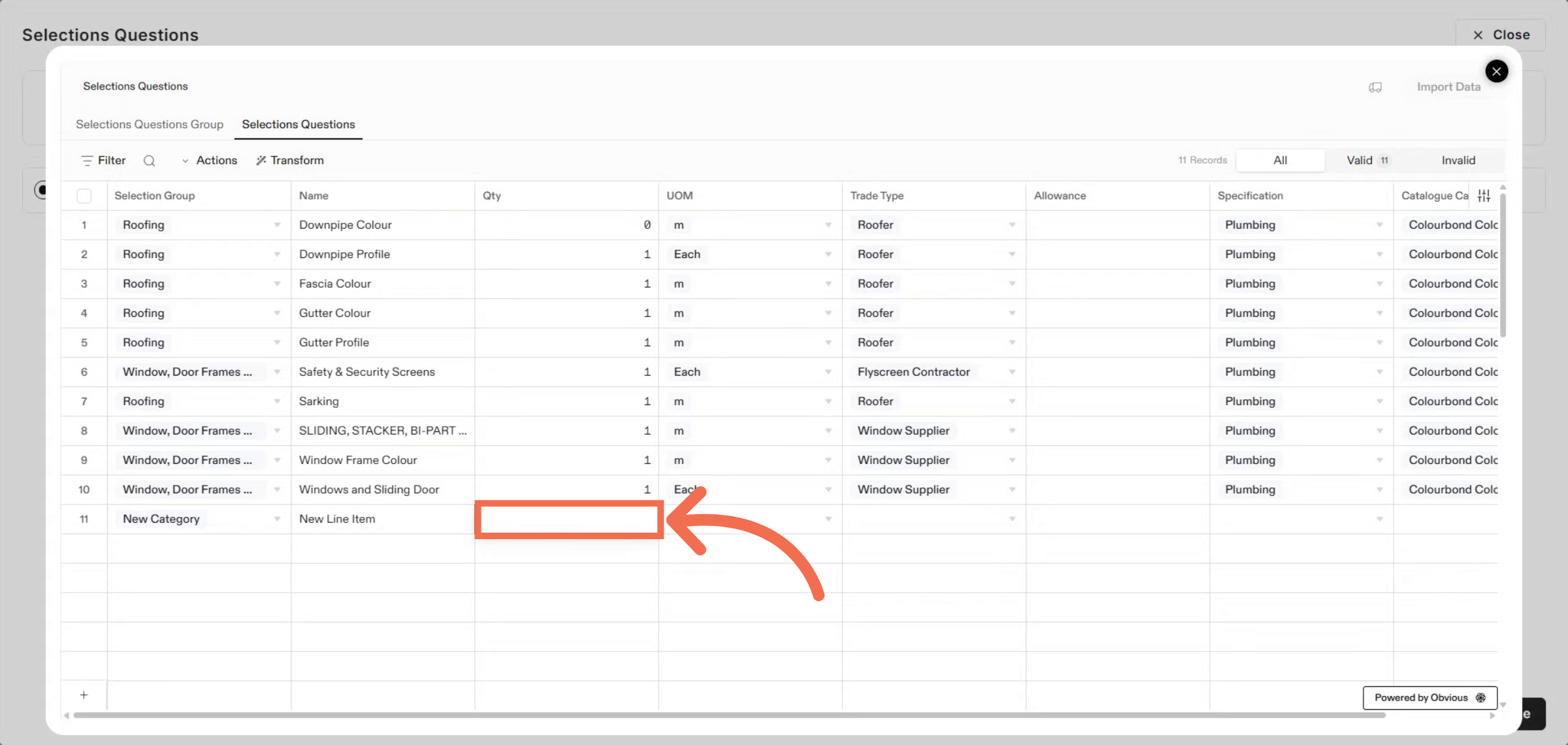
17. Select UOM option
Click UOM to specify applicable UOM for your selection questions.
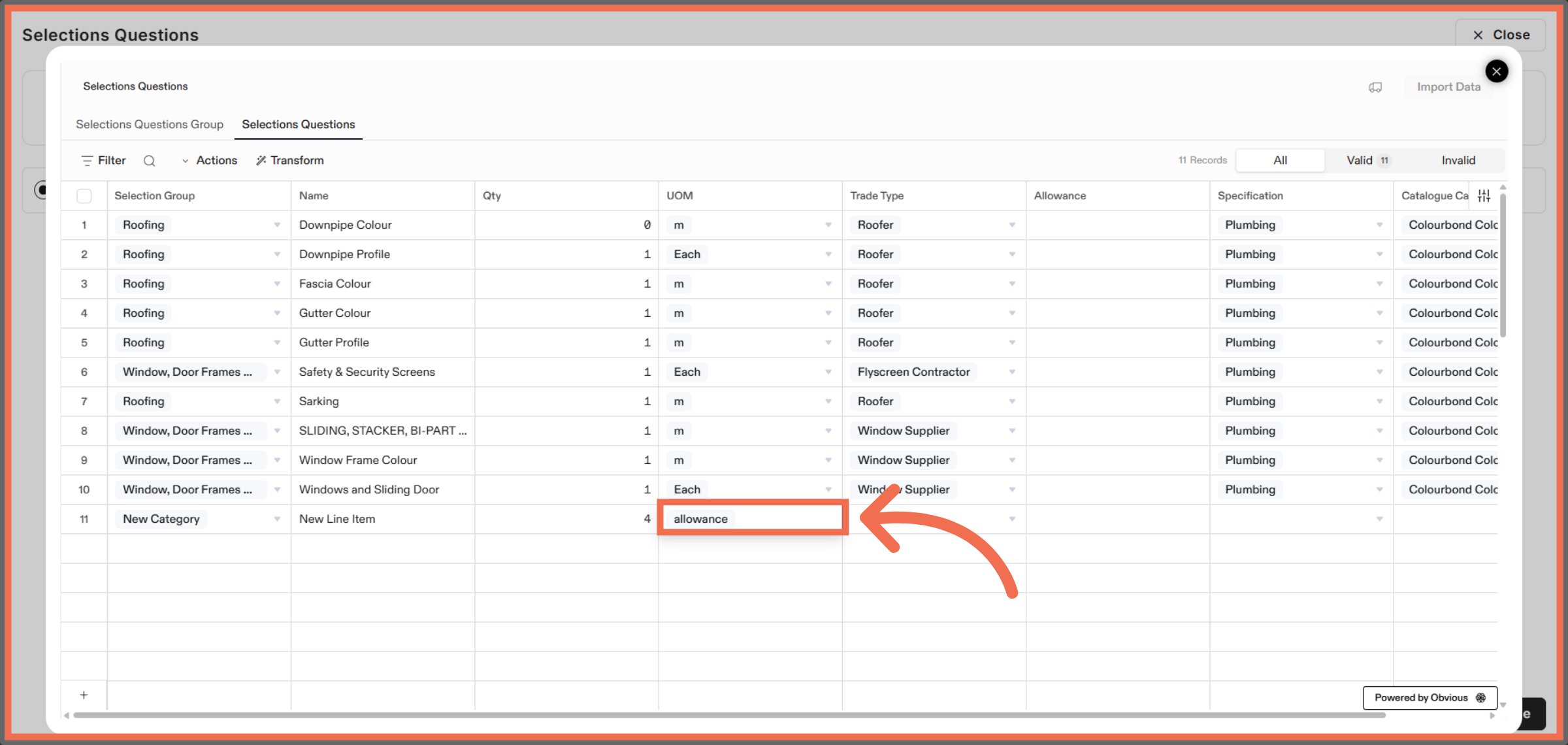
18. Select Trade Type
Click the designated area to select Trade Type.
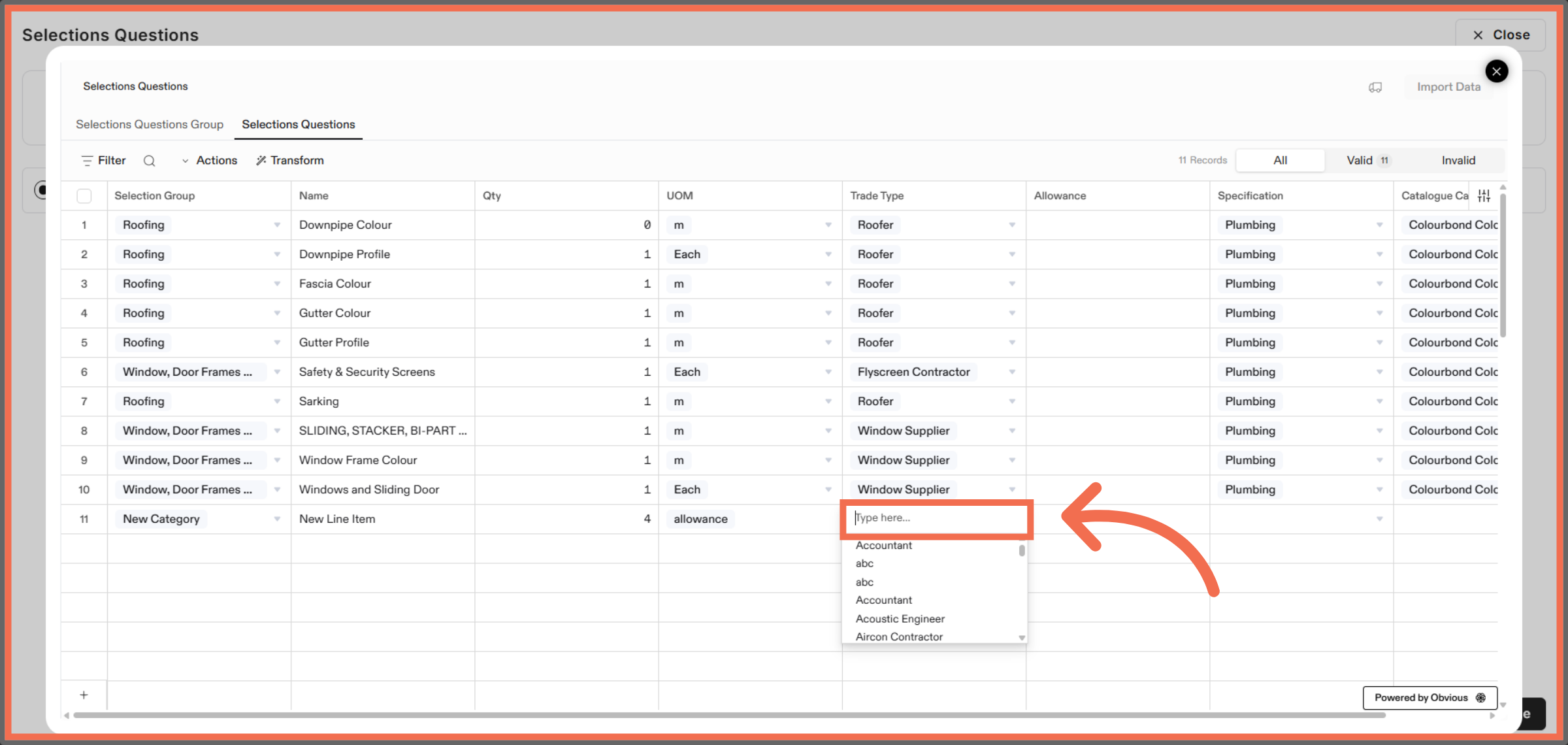
19. Select Specification
Click Specification to categorize selection questions.
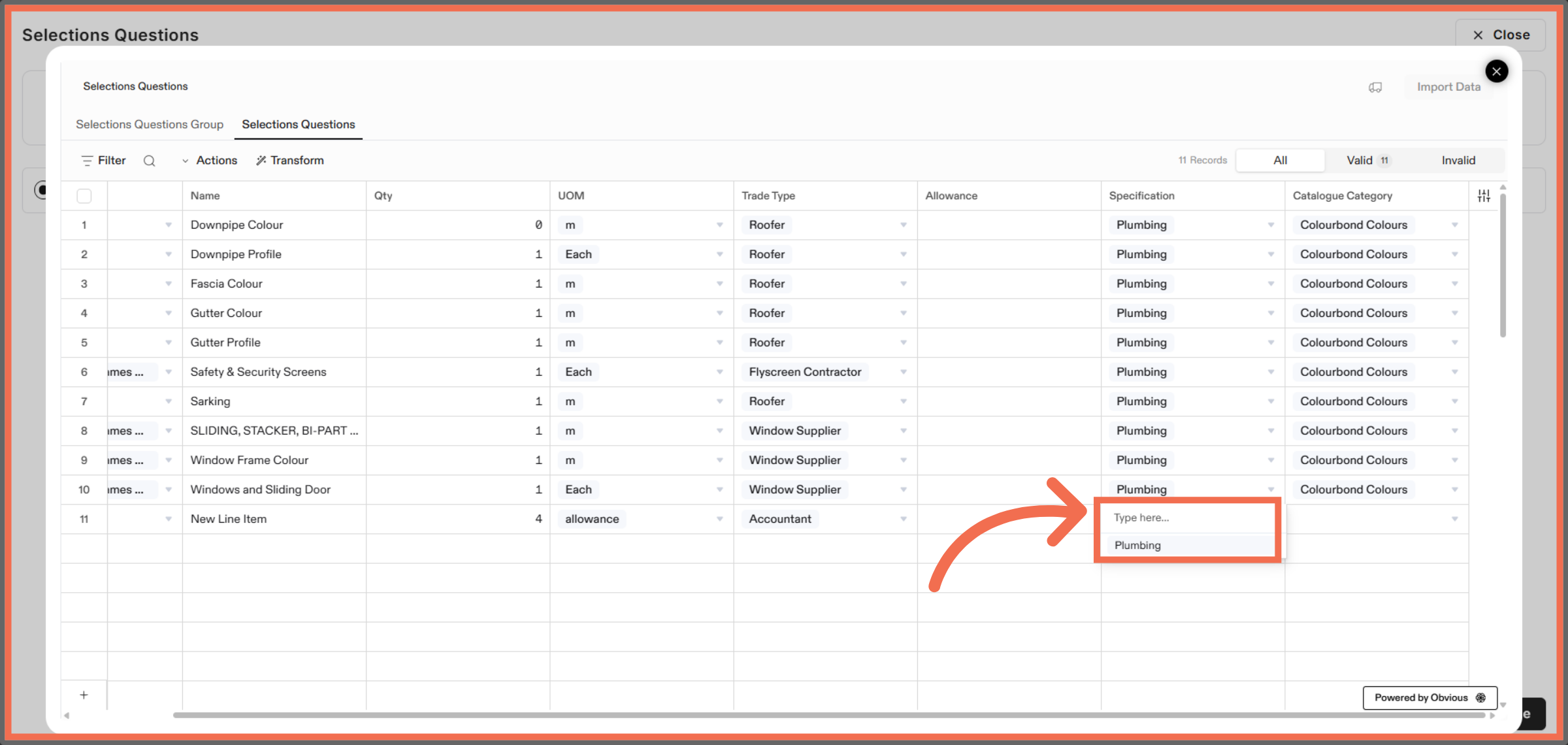
20. Select Catalogue Category
Click the designated area to Select Catalogue Category.
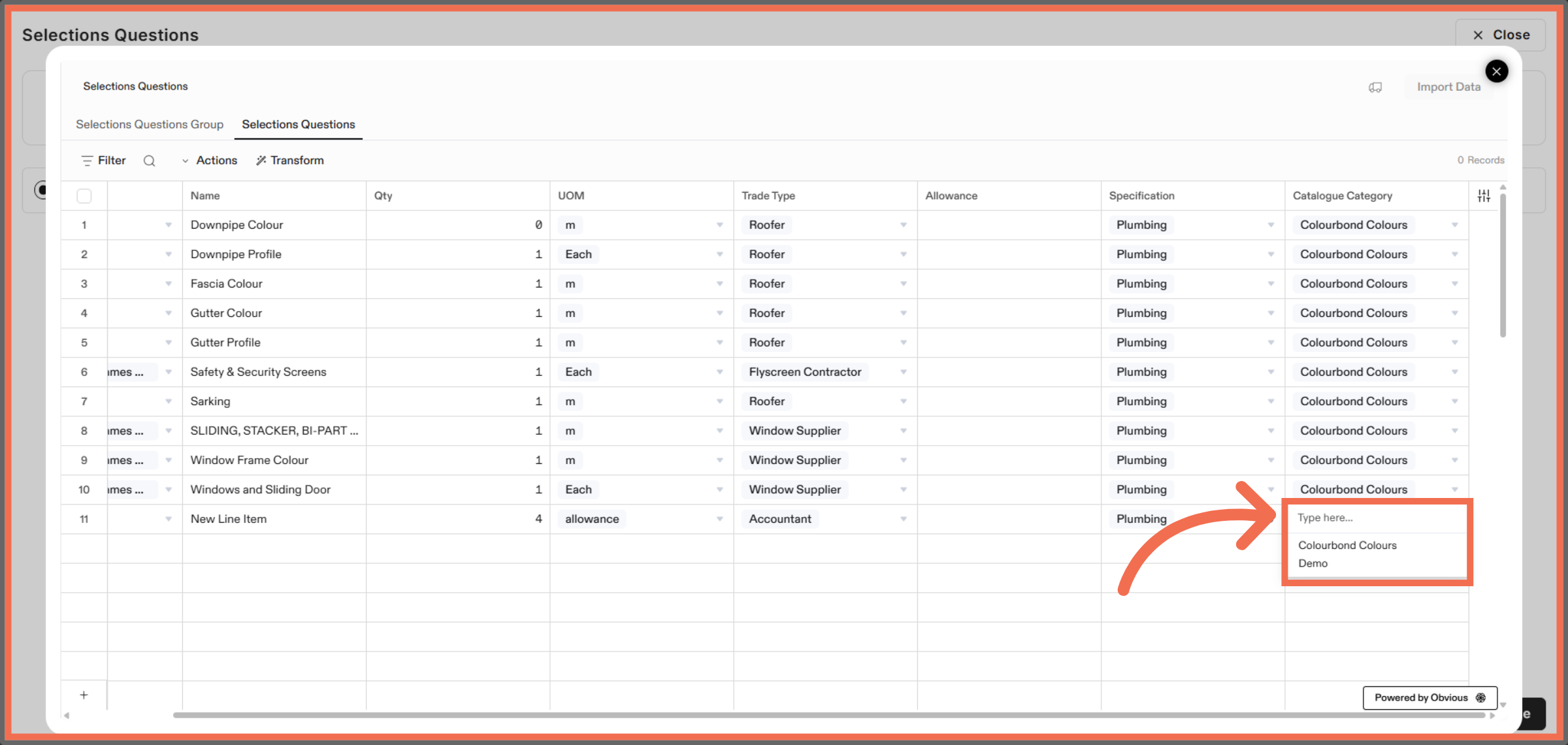
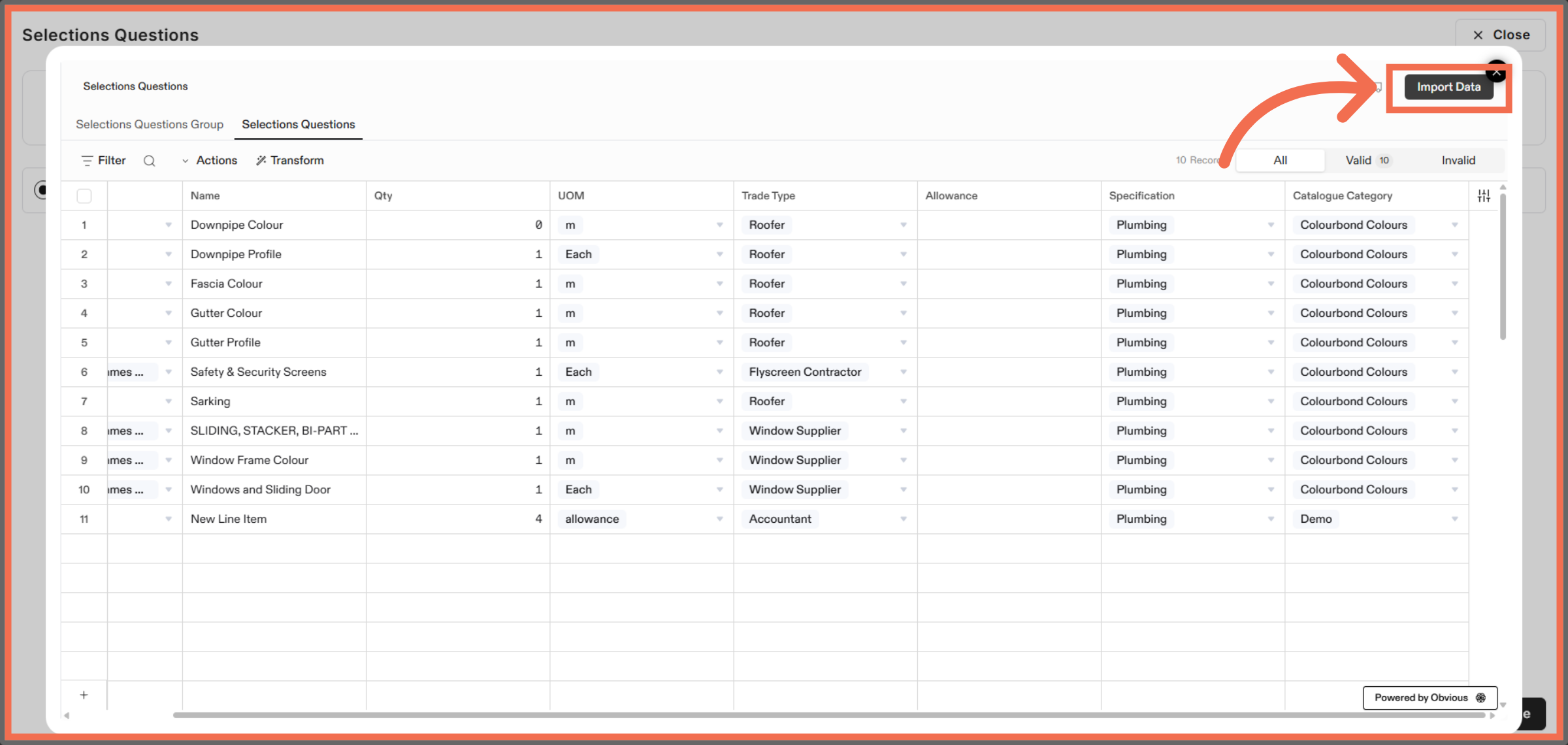
21. Import Selection Questions
Click Import Data to finalize and import your selection questions into the system.
This demo highlights how Readyteam streamlines importing selection questions, enabling you to organize onboarding efficiently. Start your import today to enhance your selection management process.