Import Contractors And Assign Trade Types In Readyteam

This demo showcases how to efficiently import contractors and suppliers into Readyteam.
Go to app.readyteam.ai
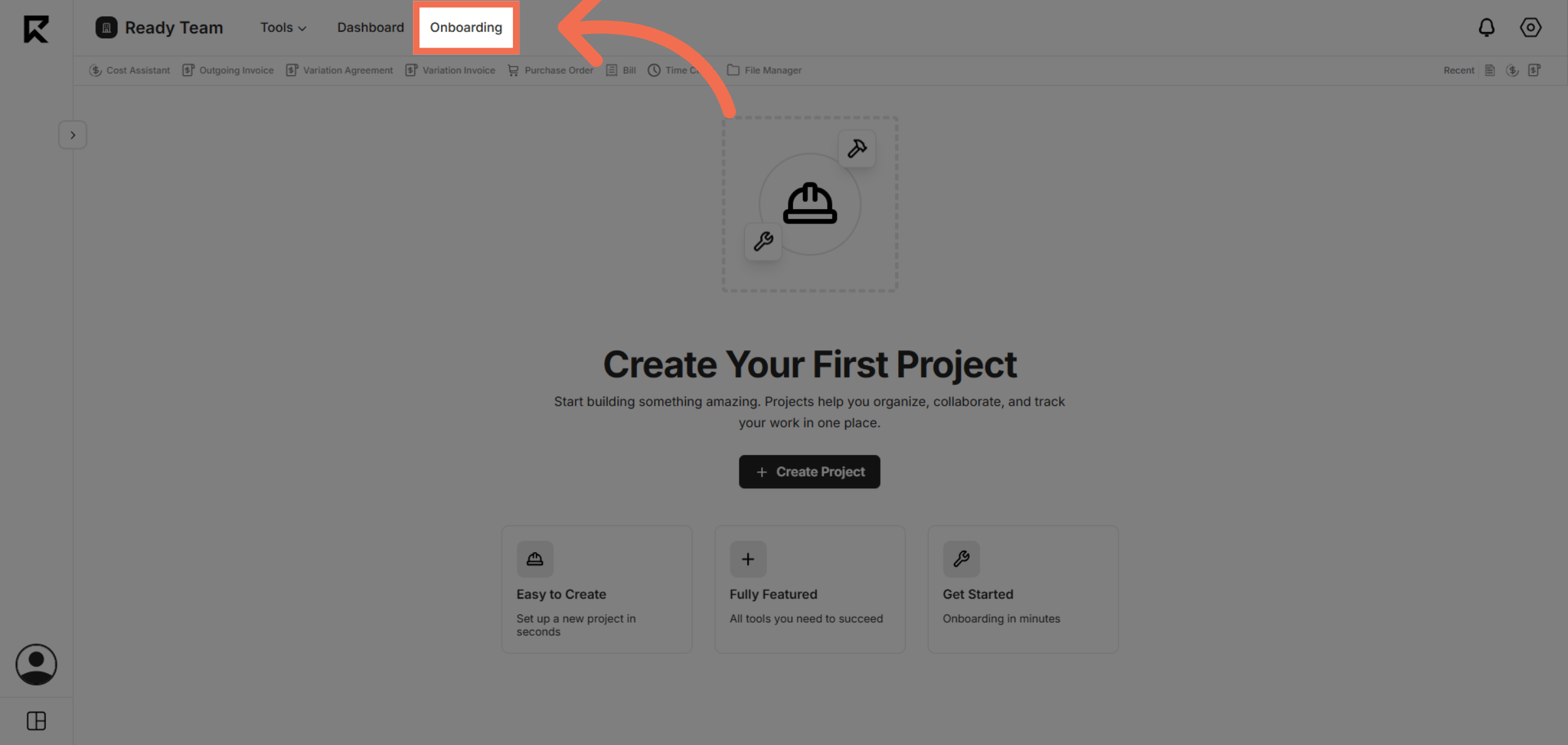
1. Navigate To Onboarding
Click the Onboarding section to begin managing contractors and suppliers.
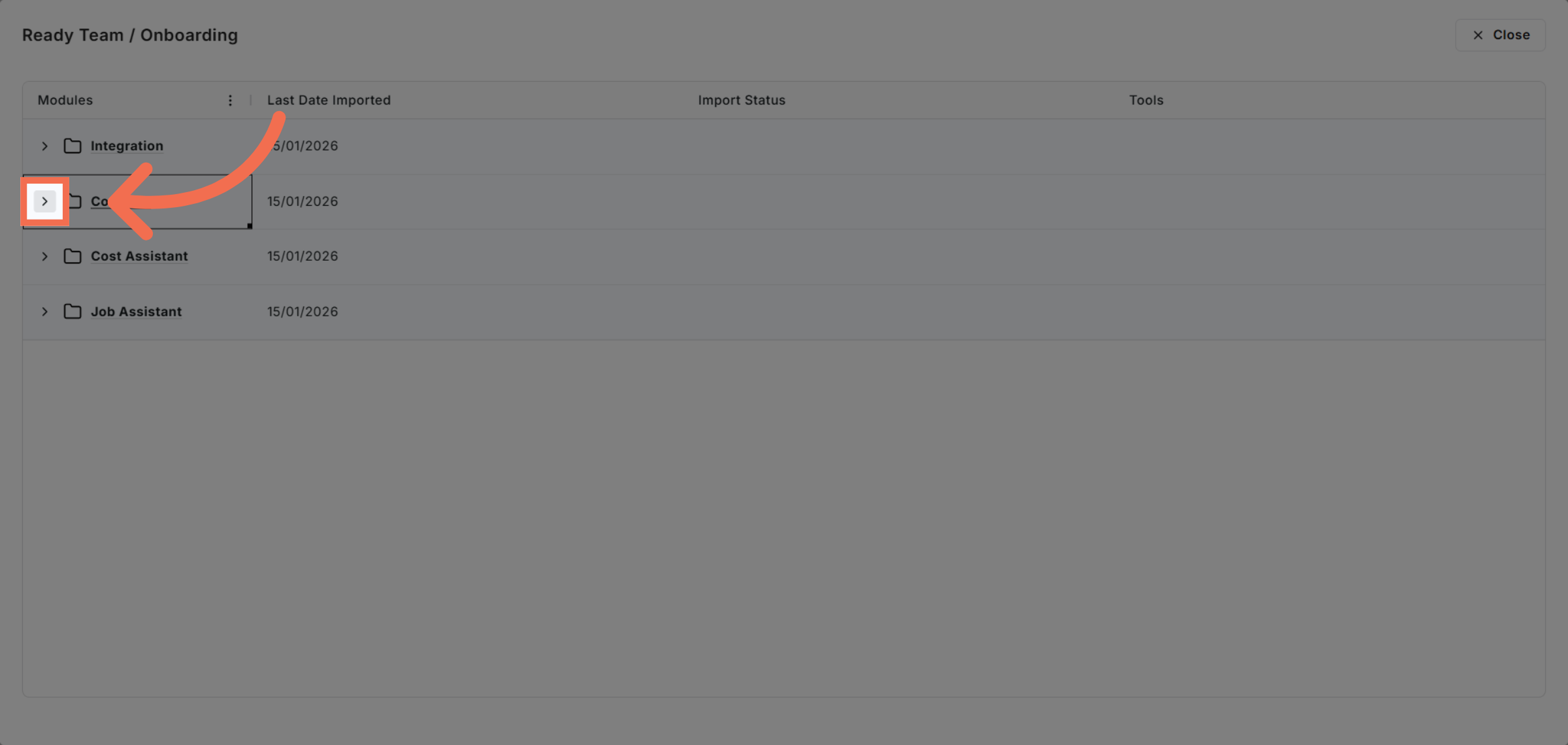
2. Access Import Options
Click the indicated area to access import options for contractors and suppliers.
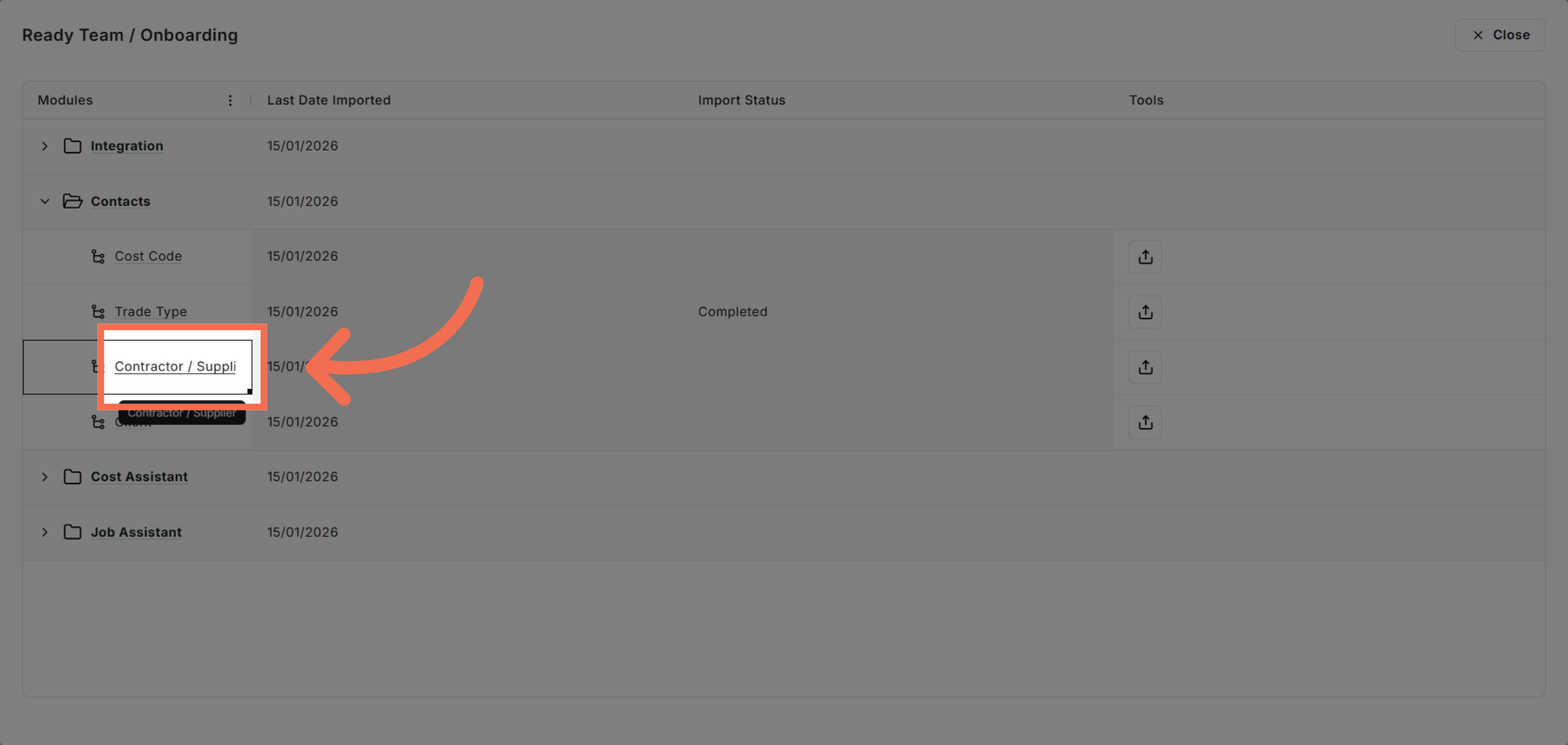
3. Select Contractor Or Supplier
Click Contractor or Supplier to specify the type of entities you want to import.
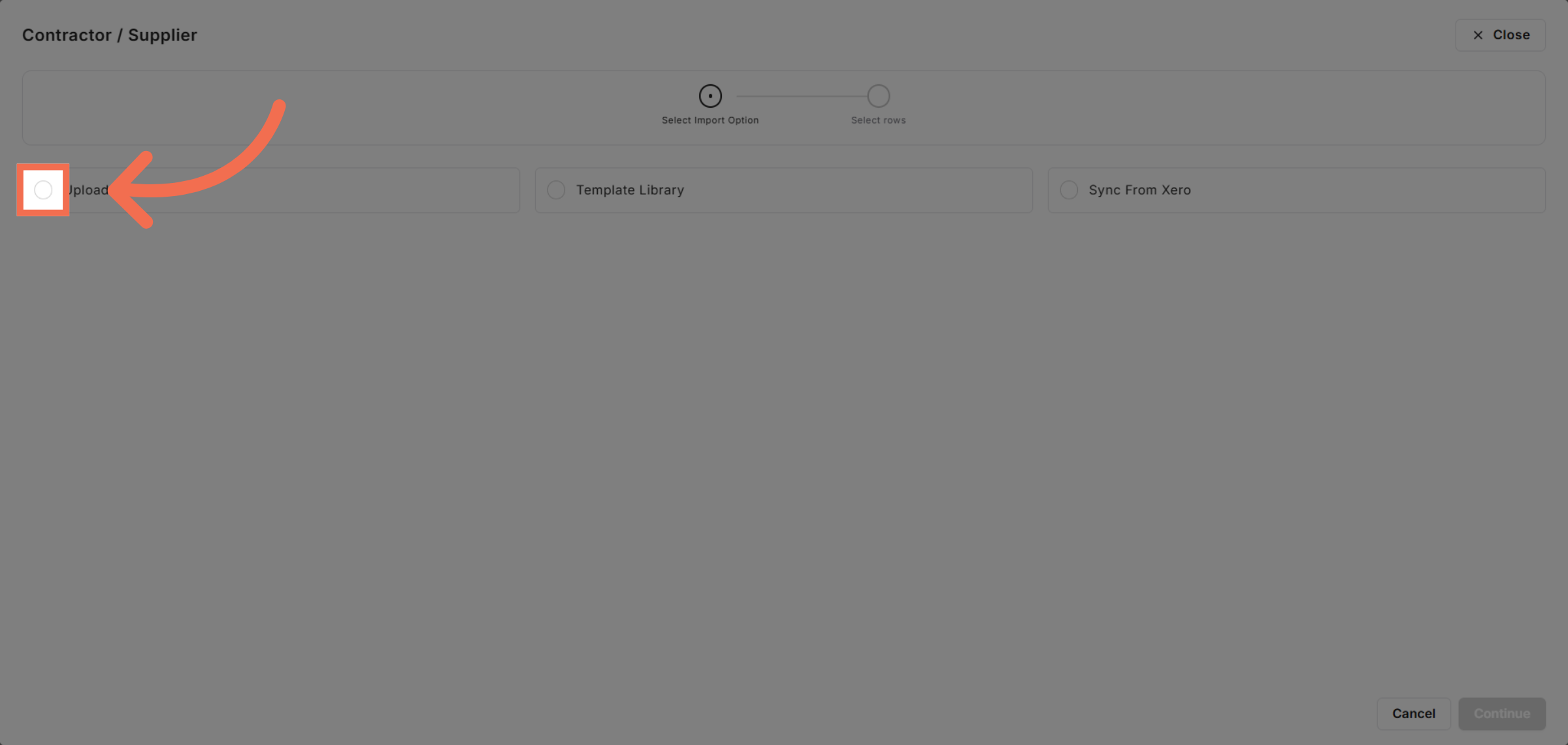
4. Open Excel File Upload
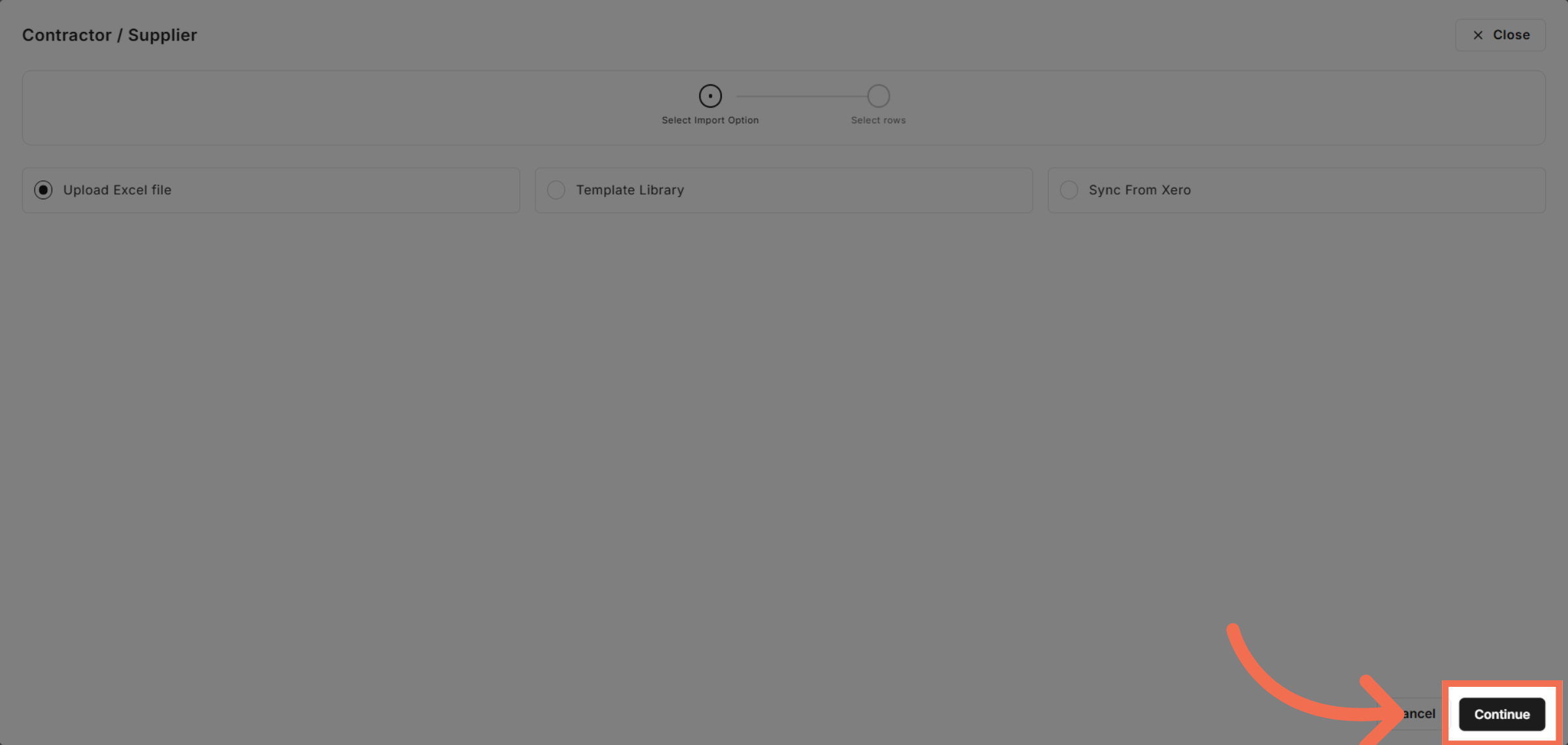
Click Upload Excel file to start importing your data from a spreadsheet.
5. Proceed With Upload
Click Continue to move forward with uploading your contractor and supplier data.
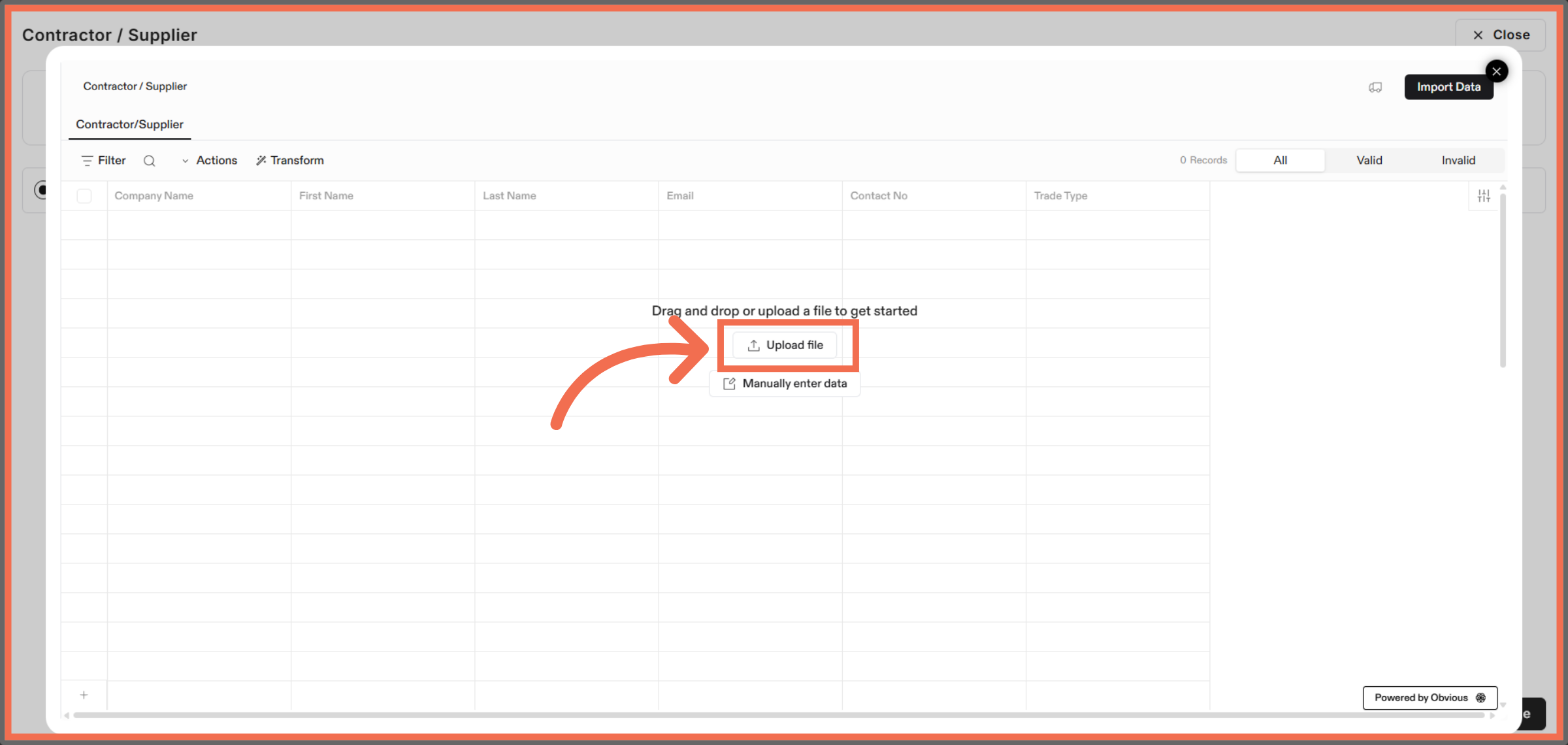
6. Upload File In Flatfile
Click Upload file within Flatfile to select the Excel file for import.
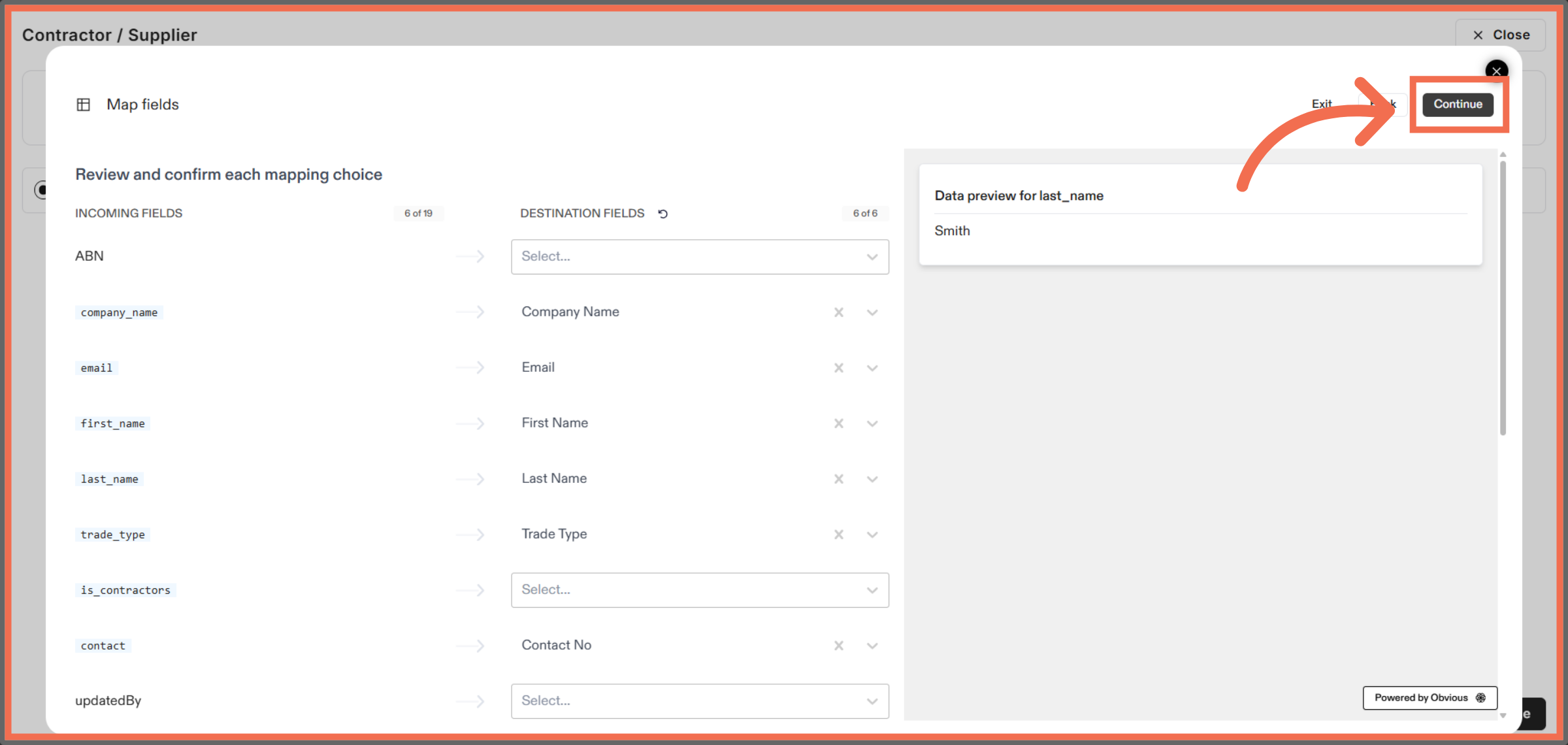
7. Map Data Fields and Continue Import Process
Click Continue to advance to the next step in the import workflow.
8. Manually Enter Data
Click the indicated area to confirm your data selection for import.
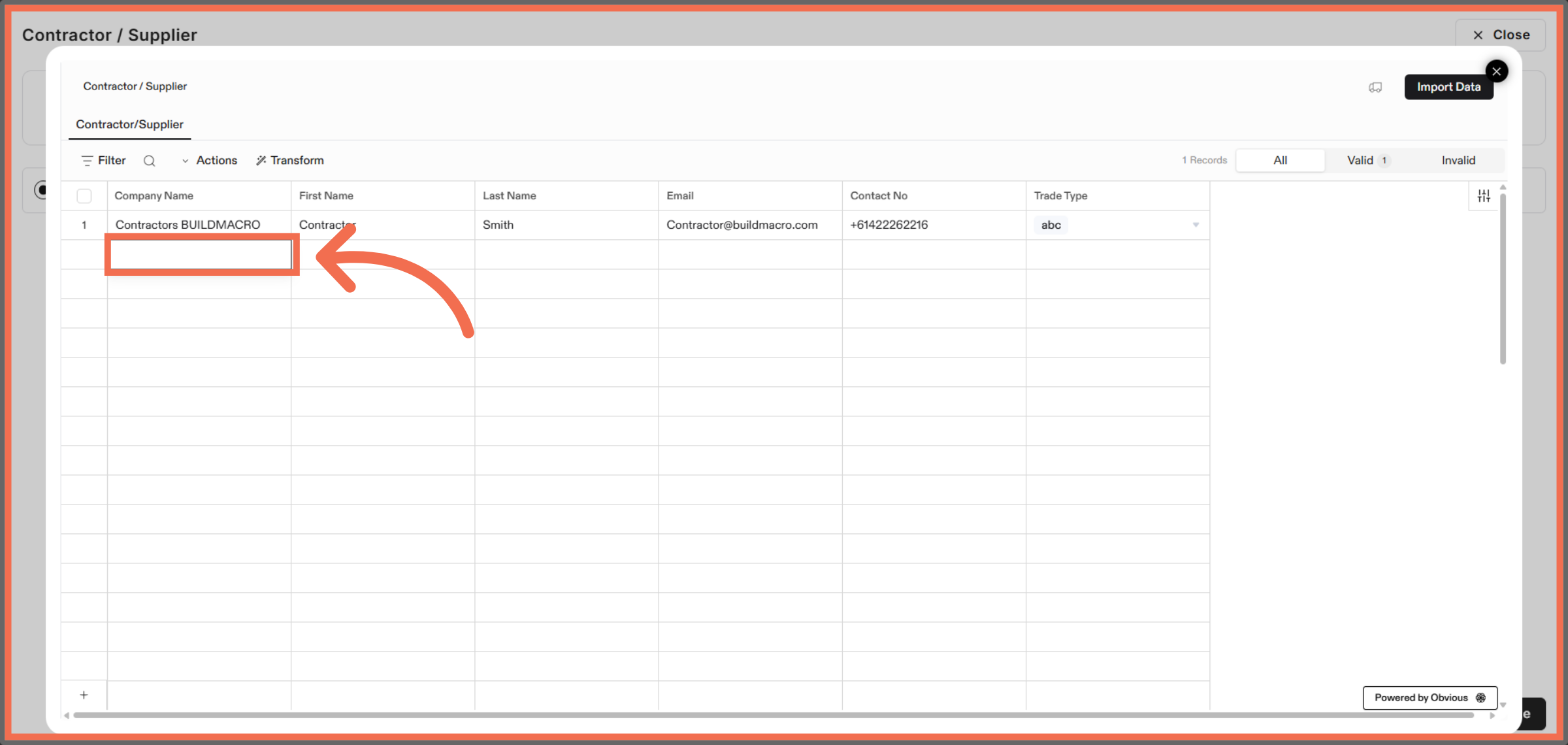
9. Enter Company Name
Enter your company name to associate with the imported contractors and suppliers.
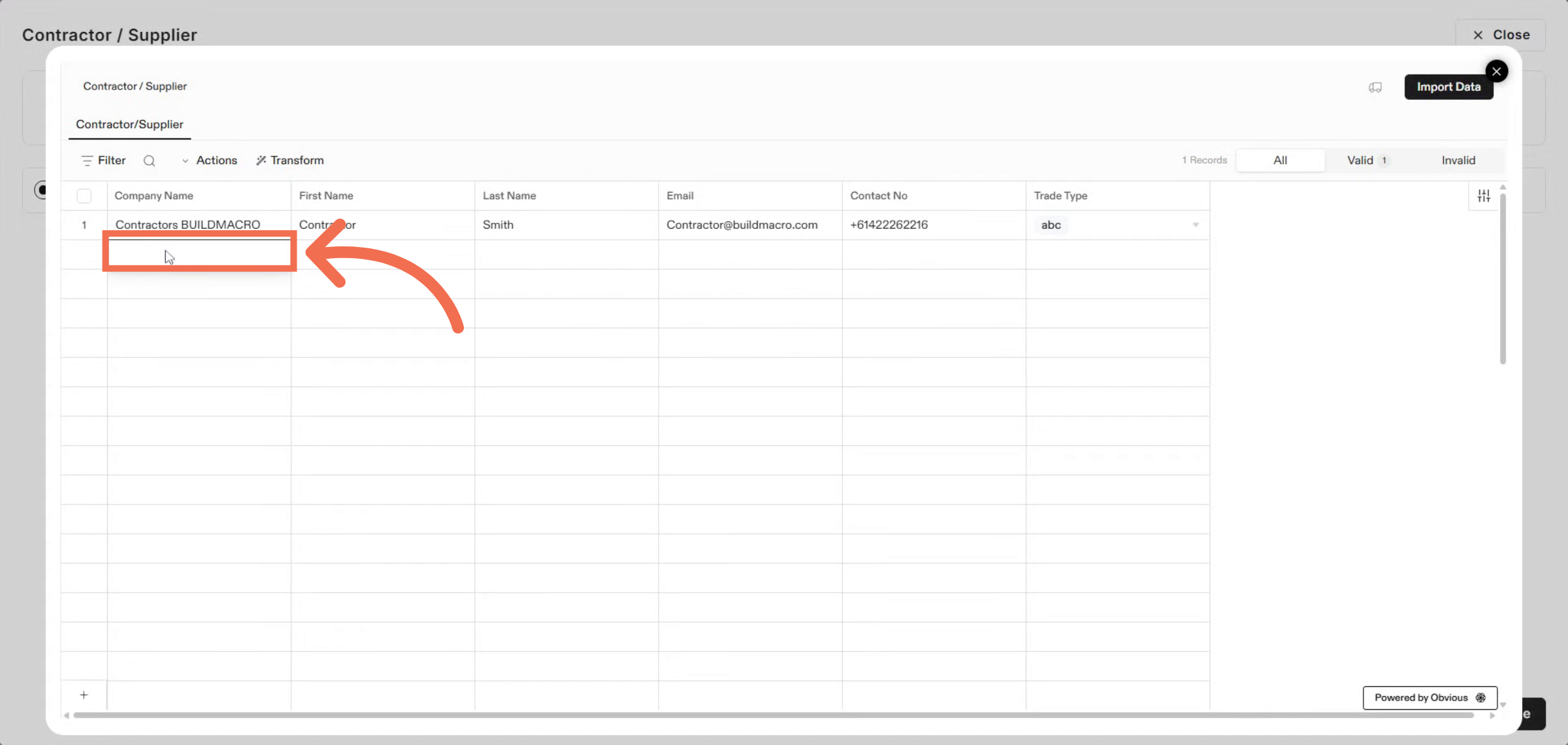
10. Enter First Name
Enter the first name of the contractor or supplier contact.
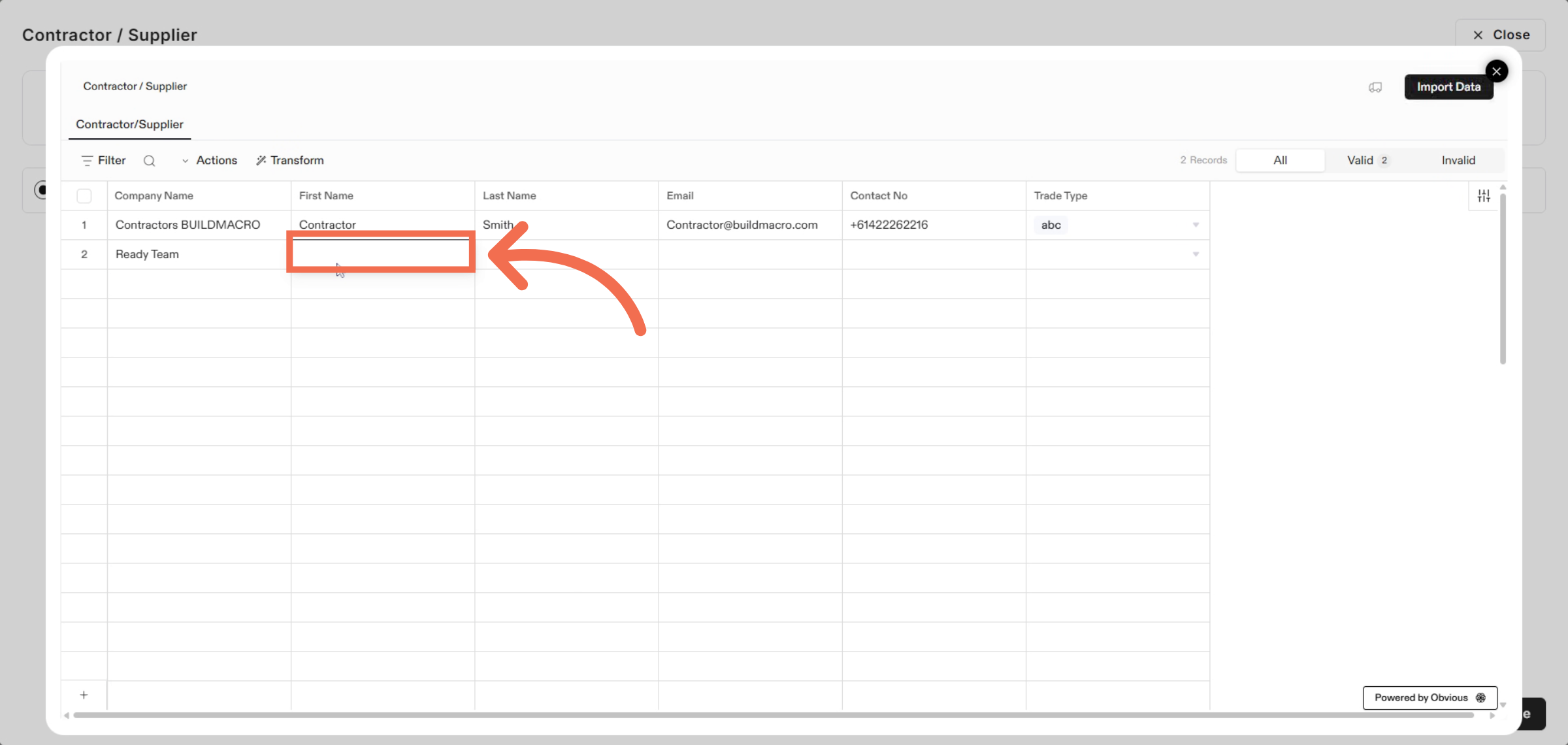
11. Enter Last Name
Enter the last name of the contractor or supplier contact.
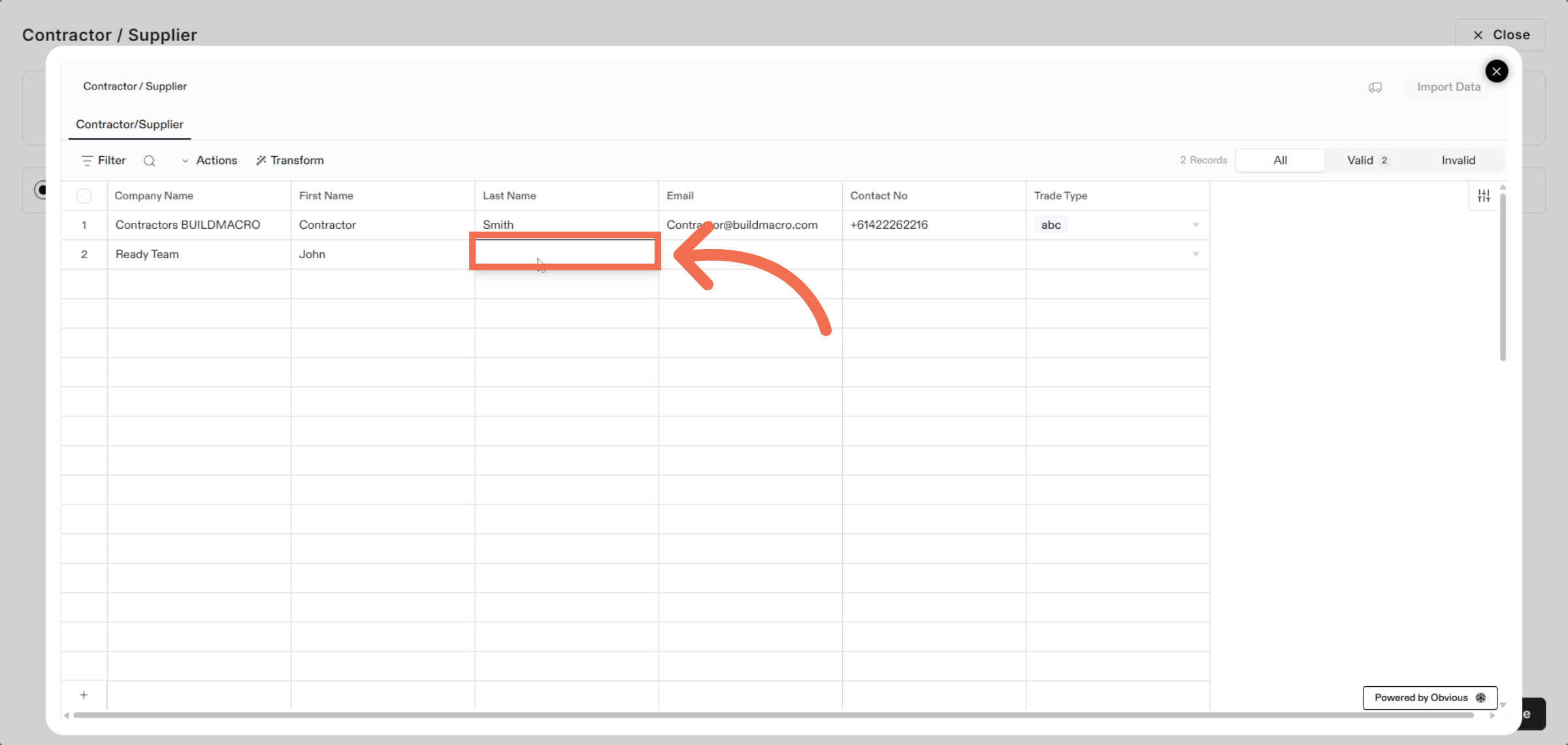
12. Enter Email Address
Enter your email address for the contractor or supplier contact.
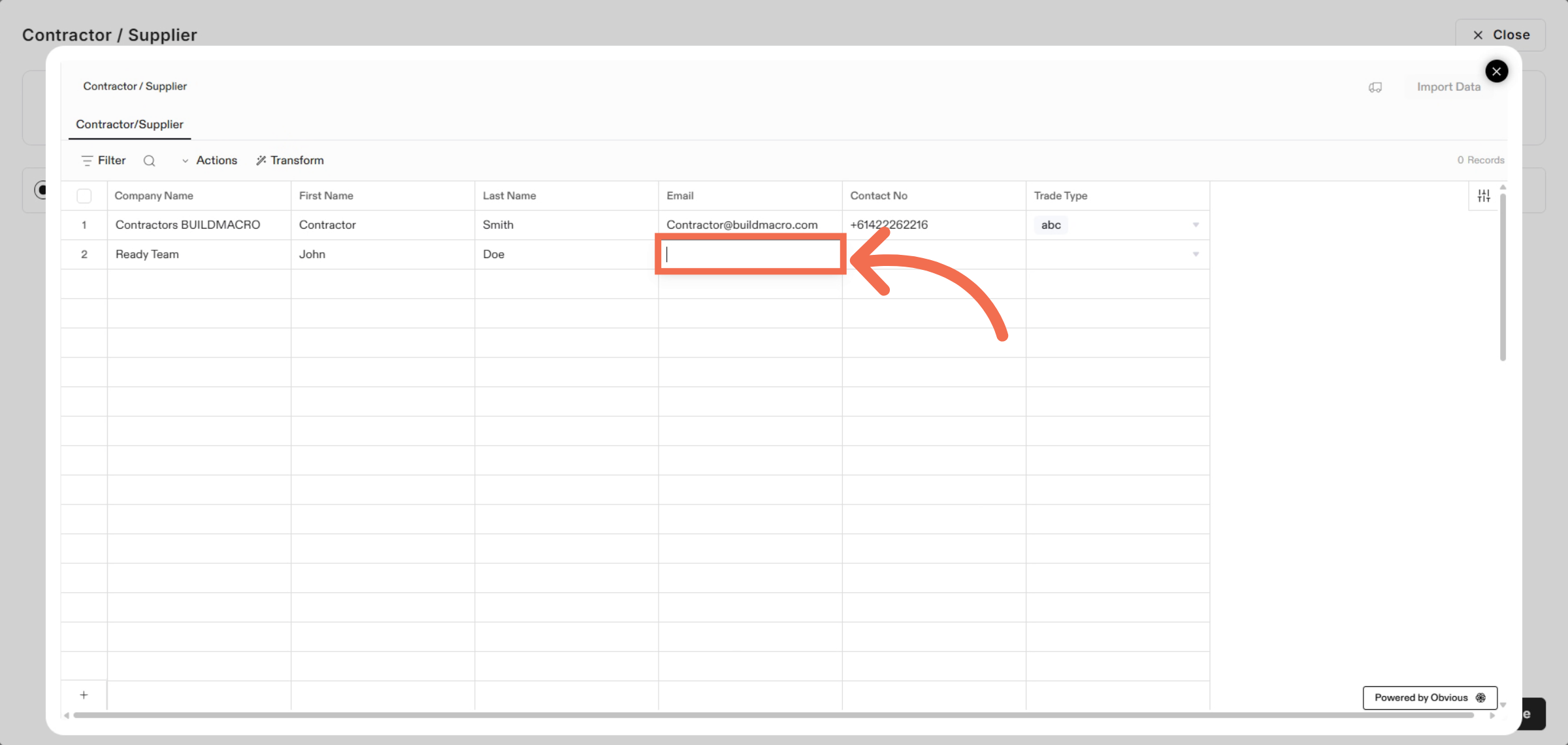
13. Enter Contact Number
Enter the contact number to complete the contact information.
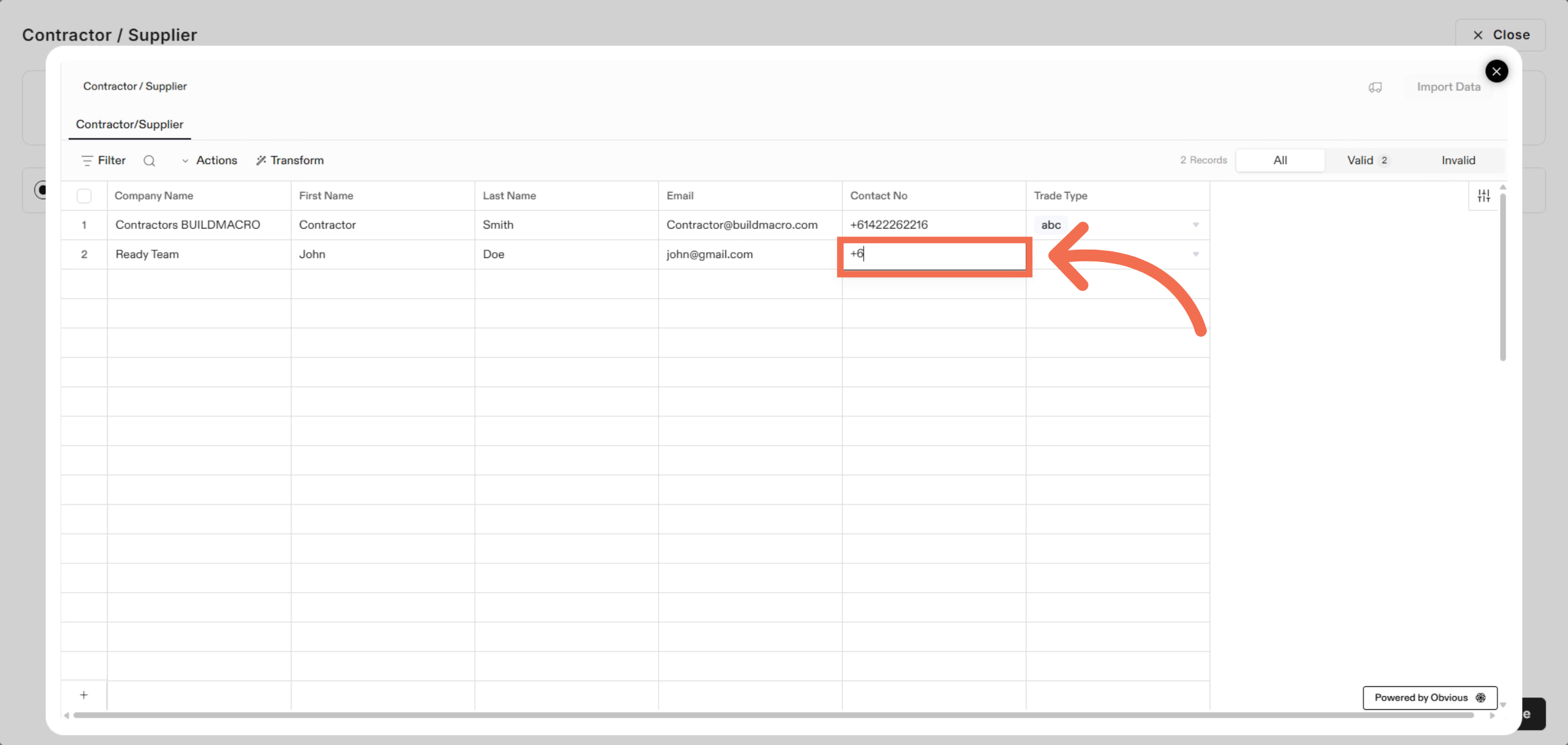
14. Select Trade Type
Select your trade type to categorize the contractor or supplier appropriately.
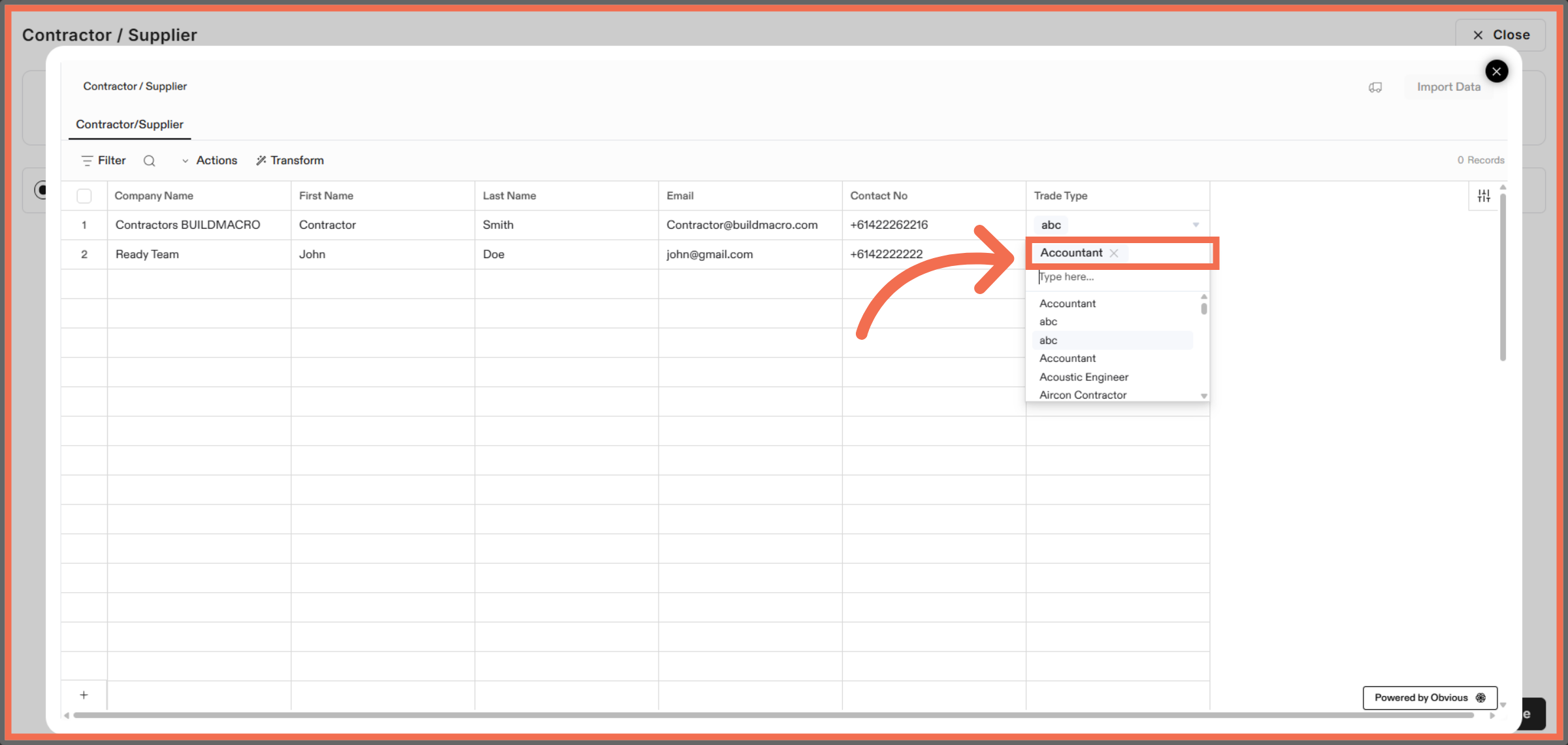
15. Import Data
Click Import Data to finalize the import of contractors and suppliers into Readyteam.
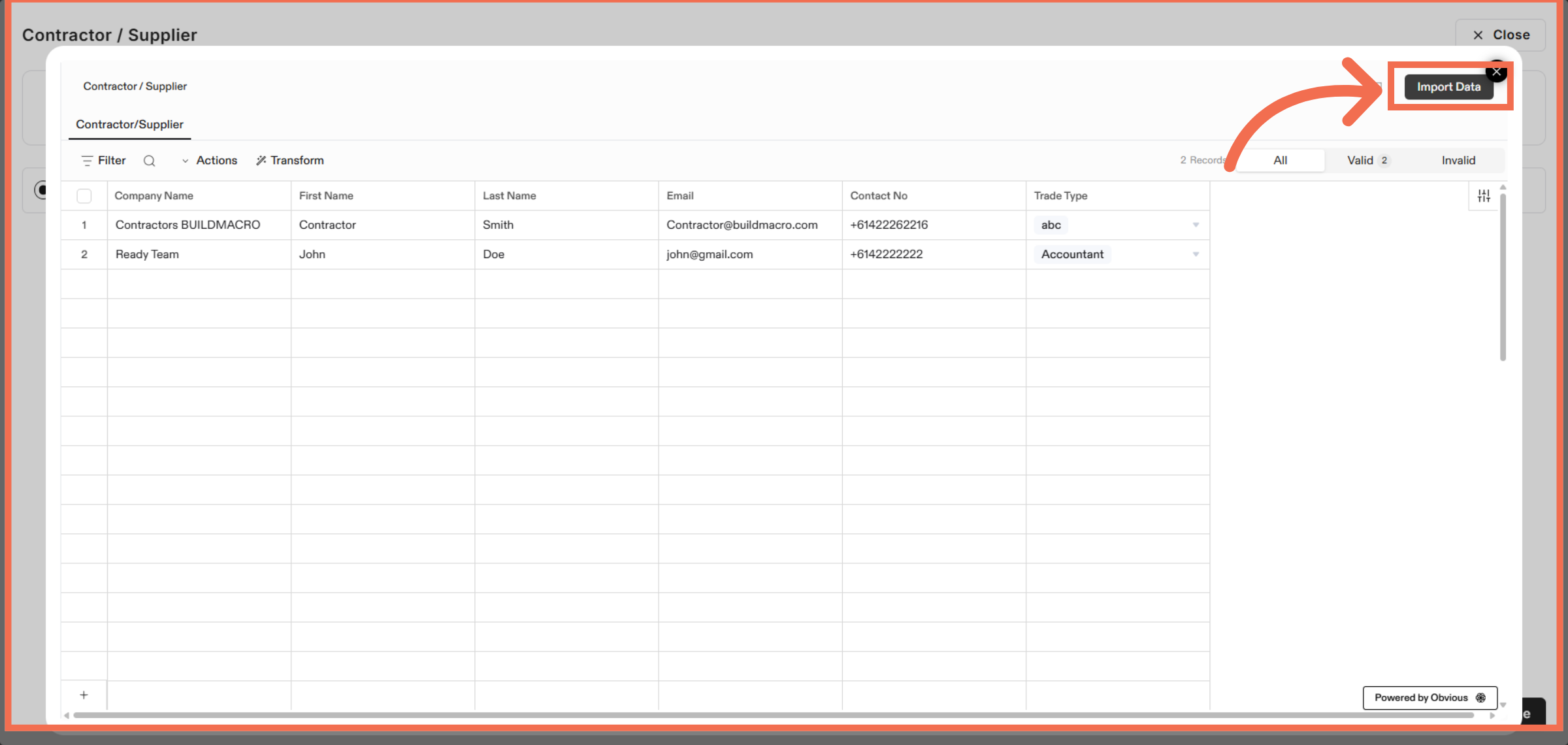
You have successfully imported contractors and suppliers while assigning trade types in Readyteam. Start managing your workforce efficiently by exploring these features today.