Import Cost Codes Efficiently Using ReadyTeam
This demo showcases how to import cost codes seamlessly within Readyteam.
Go to app.readyteam.ai
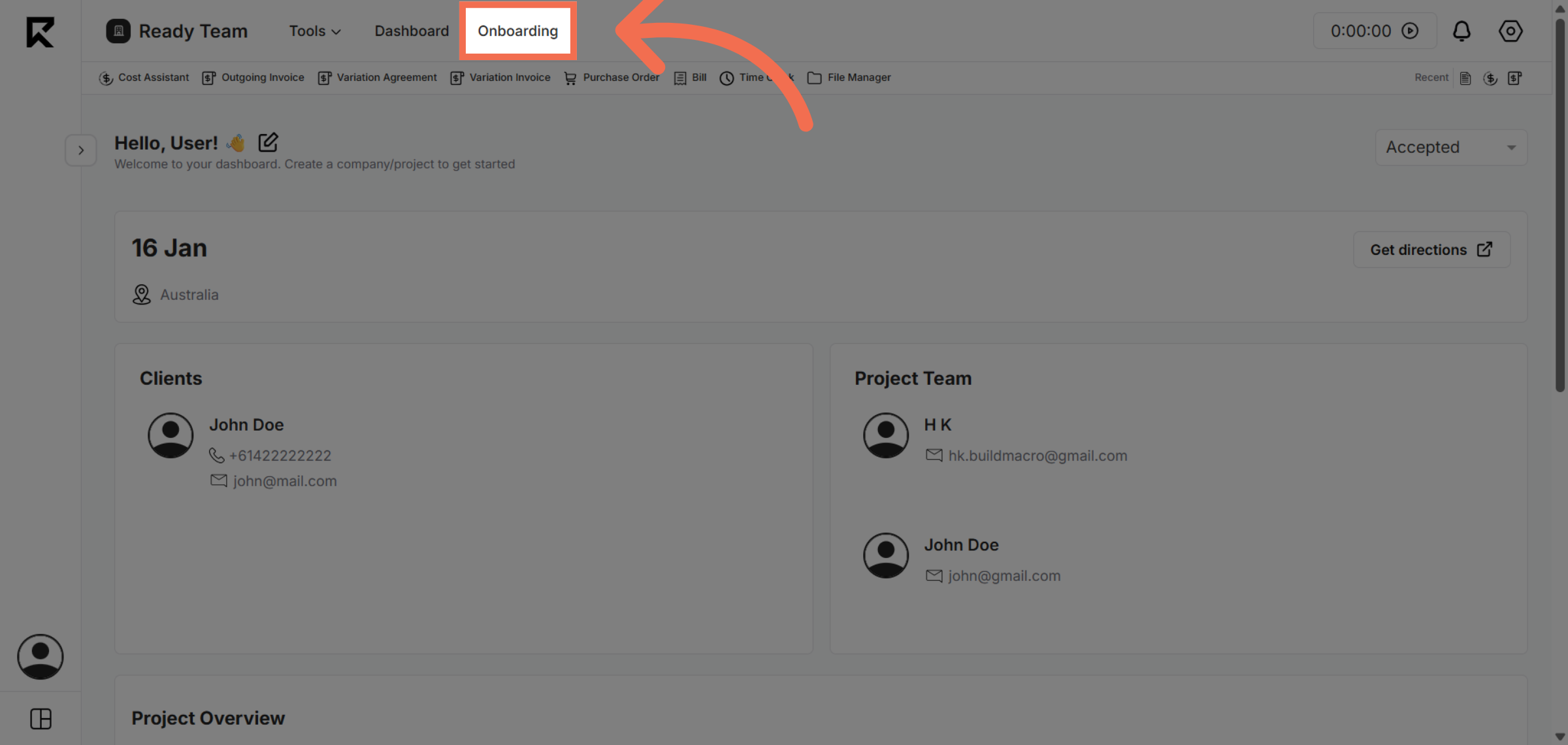
1. Navigate to Onboarding Section
Click the Onboarding section to begin managing your cost codes.
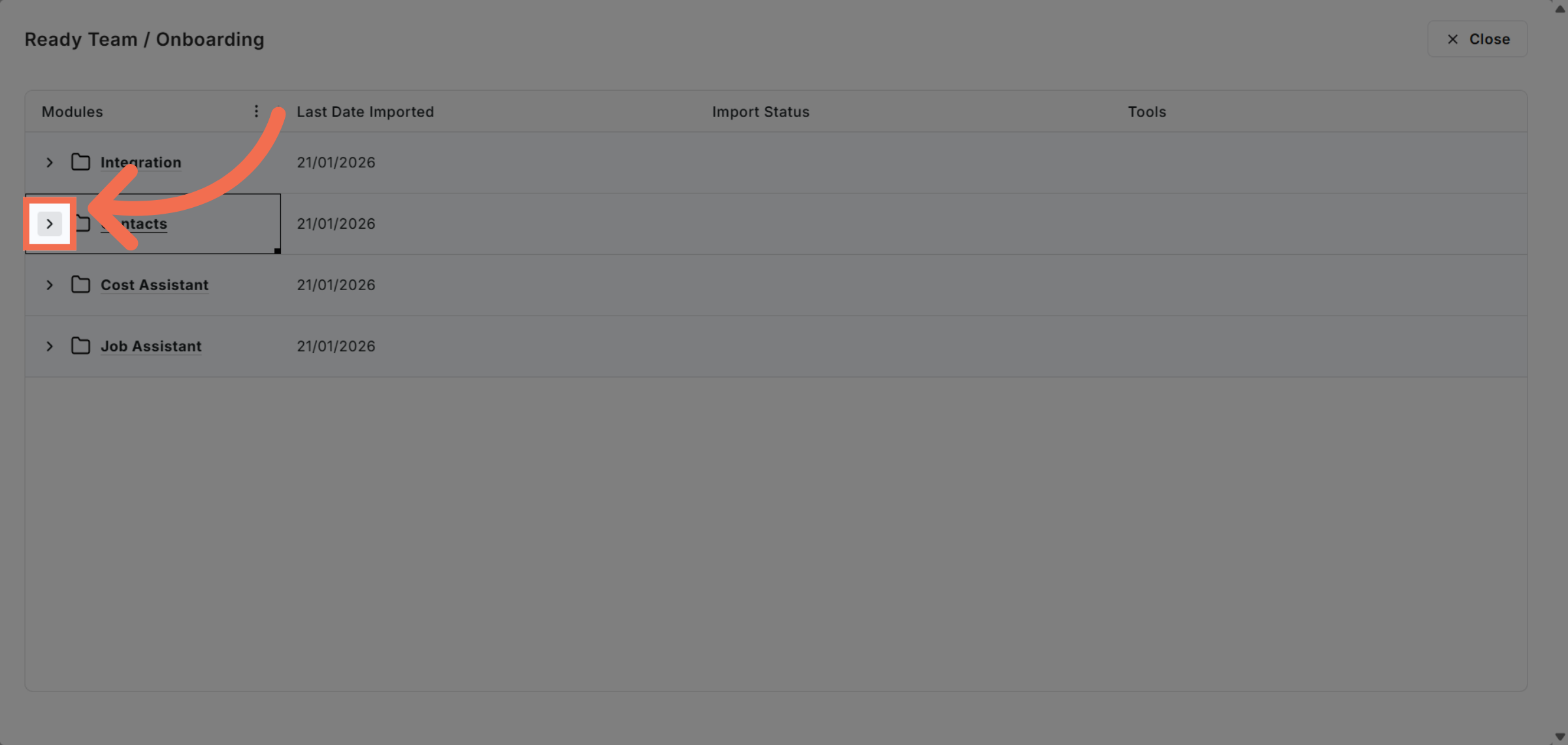
2. Access Contacts
Click the designated area to proceed to cost code management.
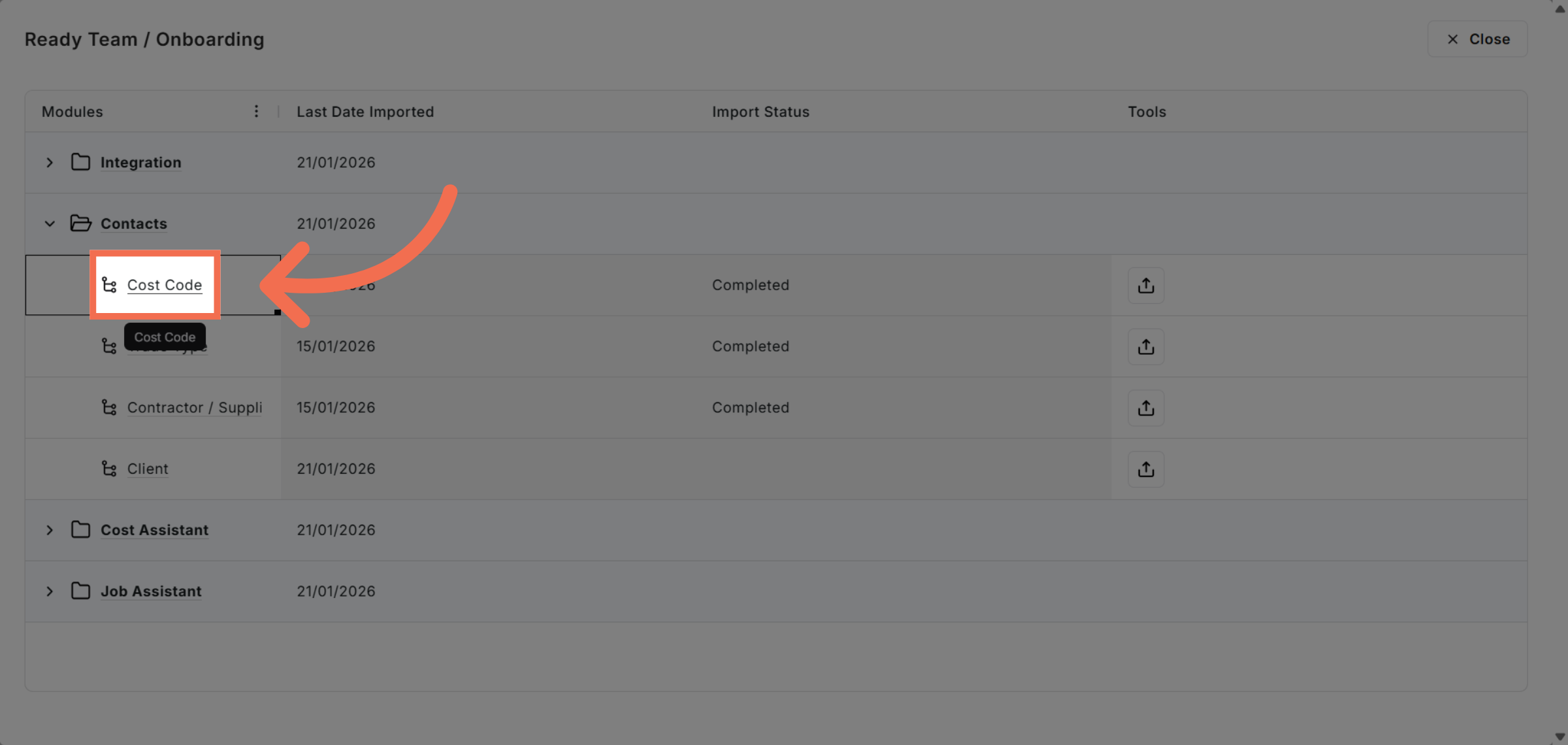
3. Select Cost Code Option
Click the Cost Code option to open the import interface.
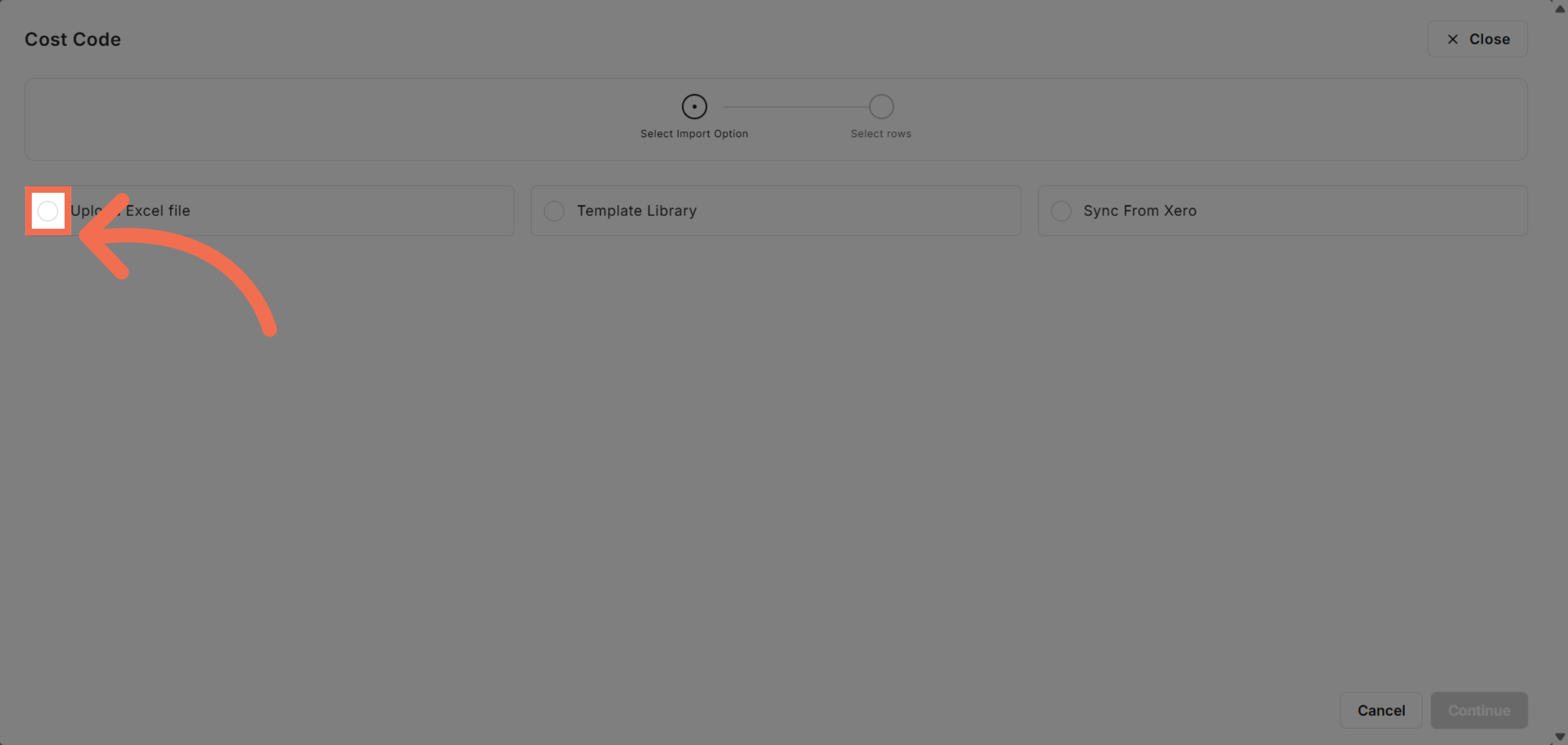
4. Initiate Excel File Upload
Click Upload Excel file to start importing your cost codes.
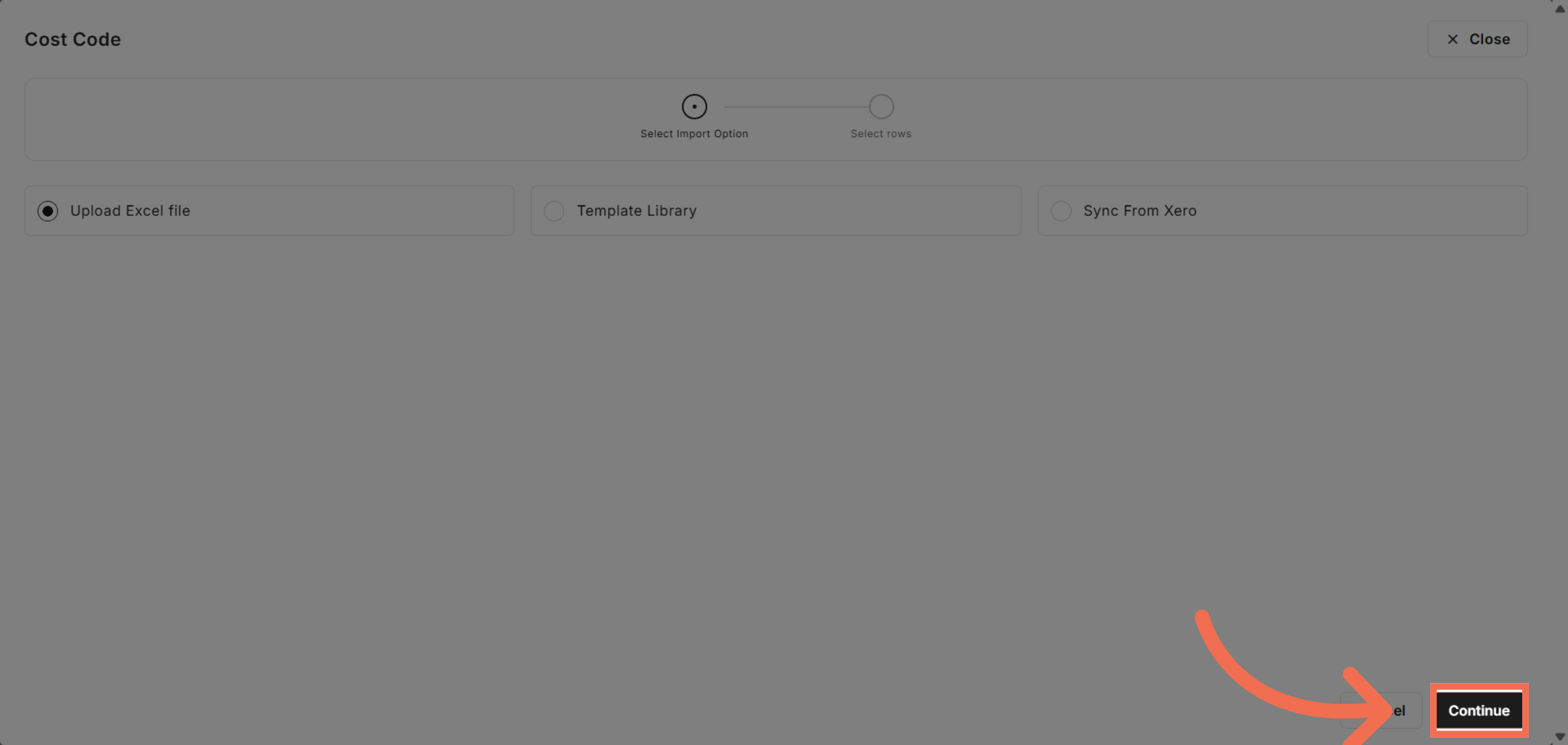
5. Proceed with Upload
Click Continue to move forward with the file upload process.
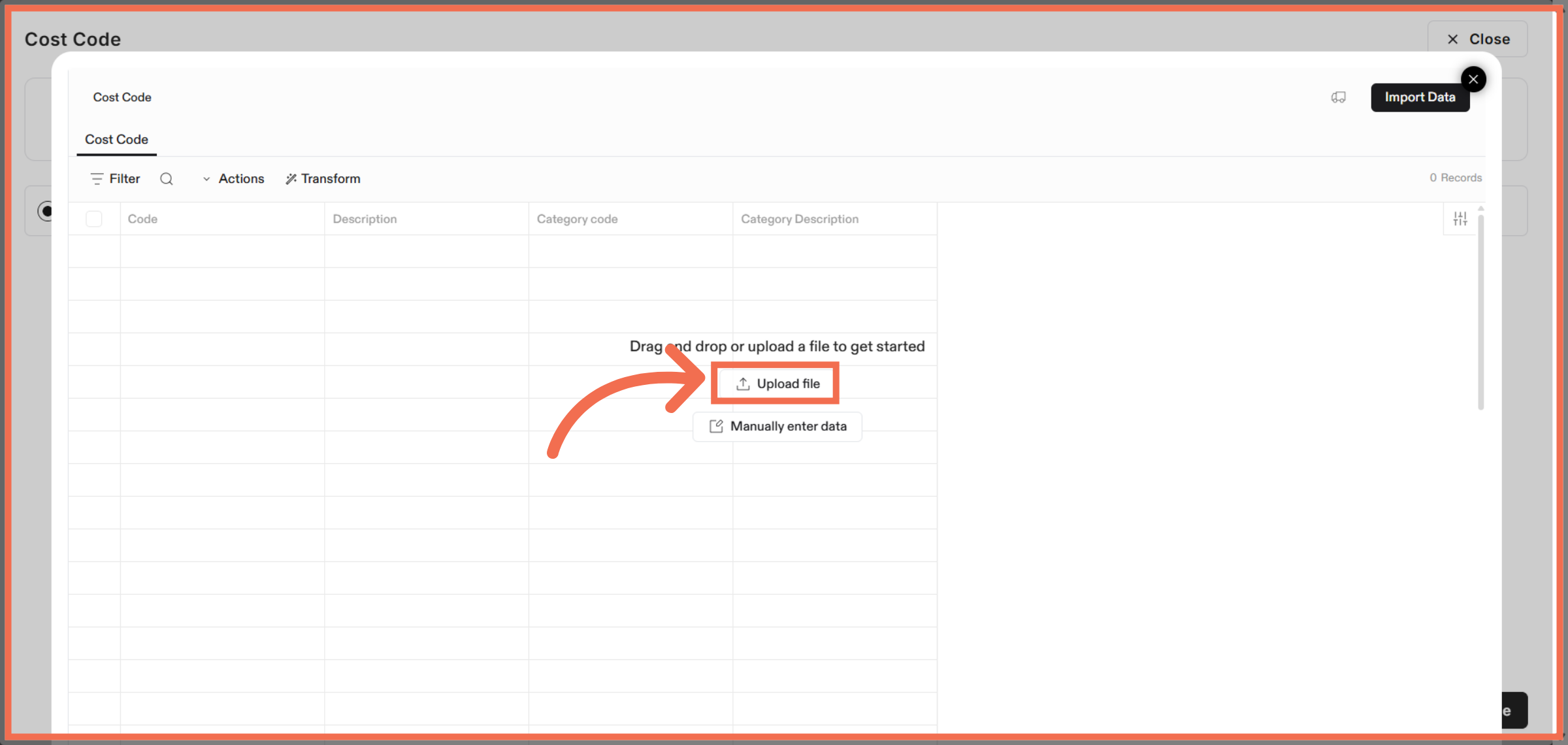
6. Confirm File Upload
Click Upload file to confirm and begin processing your Excel file.
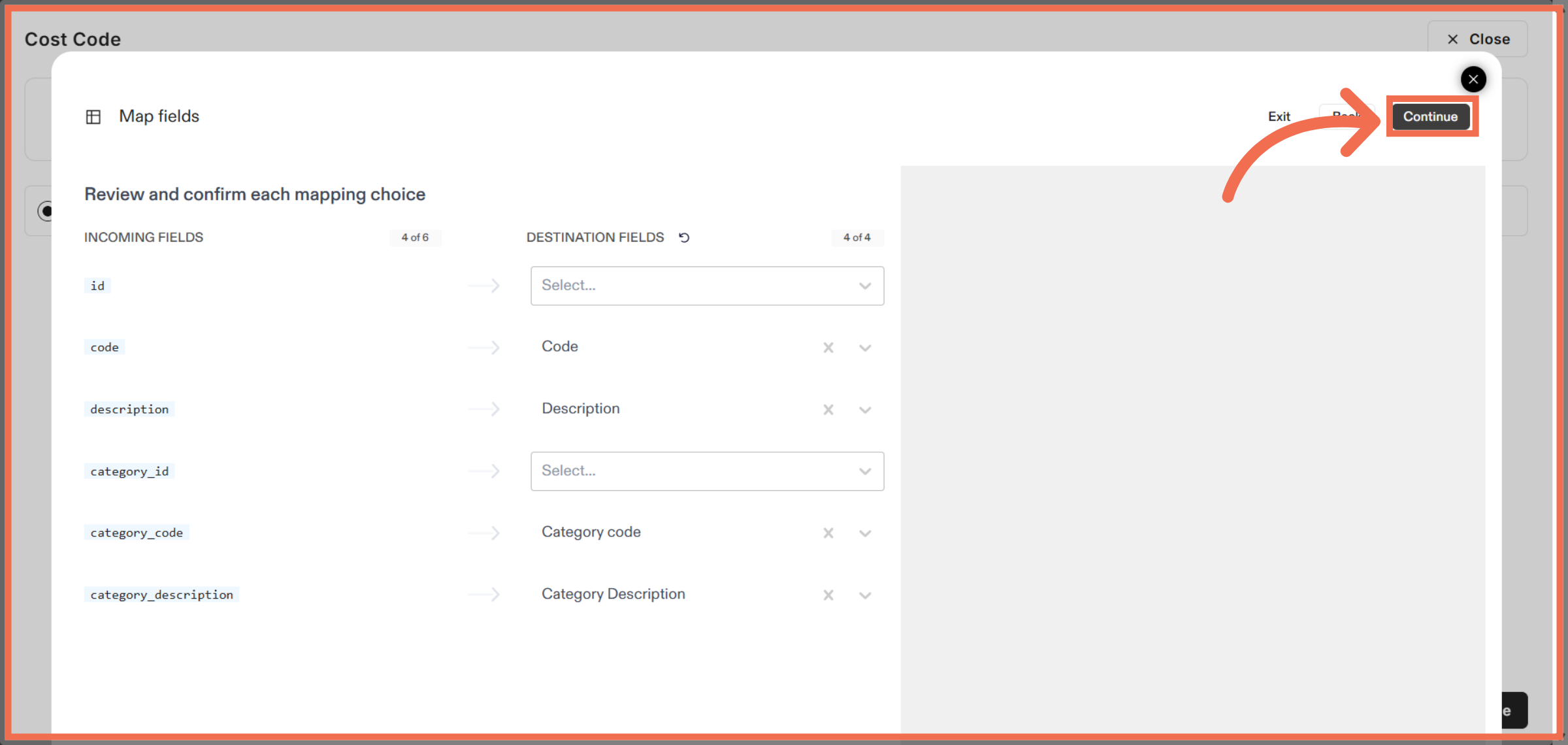
7. Review Mapping and Continue
Click Continue to advance to the next stage of the import.
8. You can also add Data Manually
Click the option to Manually Enter Data.
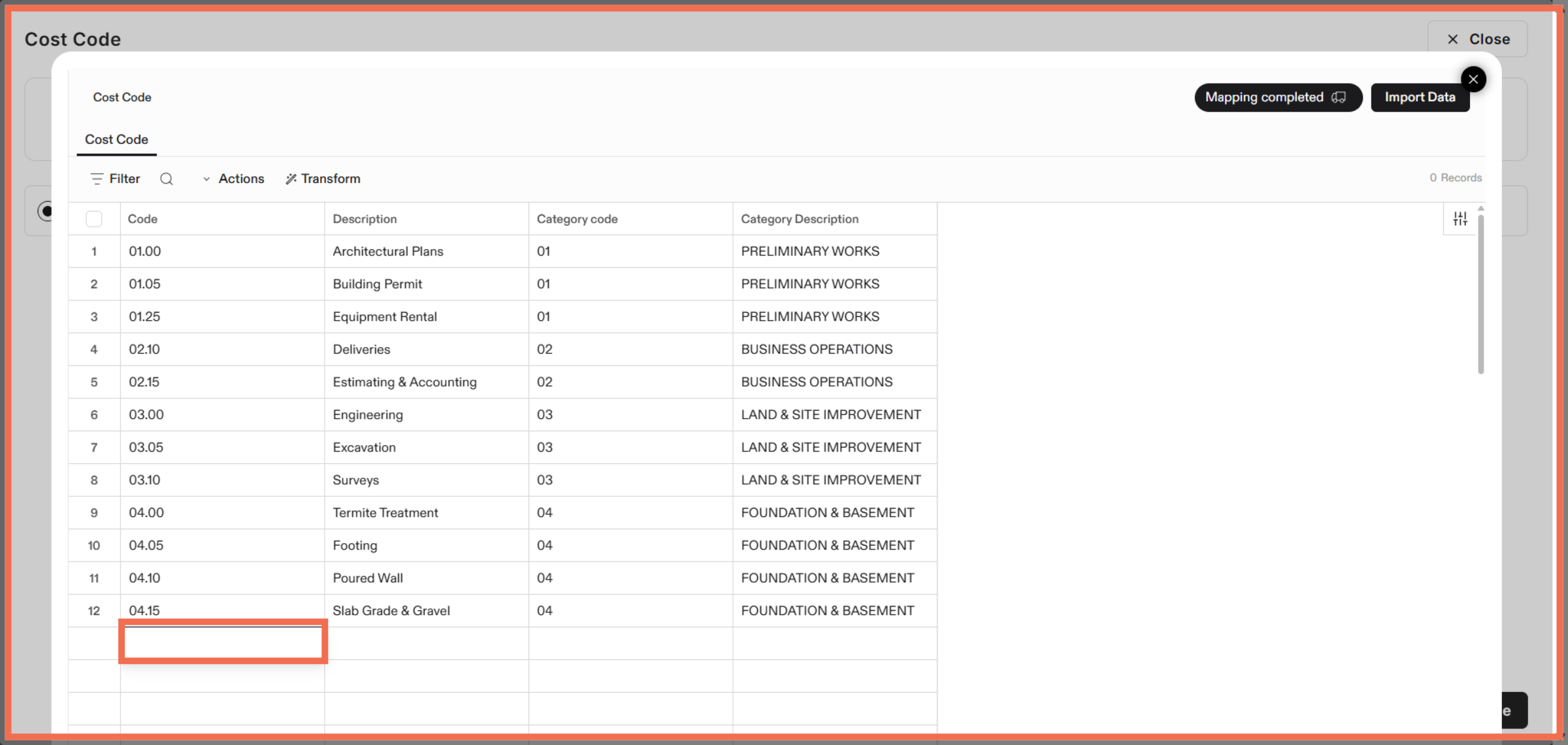
9. Enter Code Value
Enter the code value to define cost parameters for your codes.
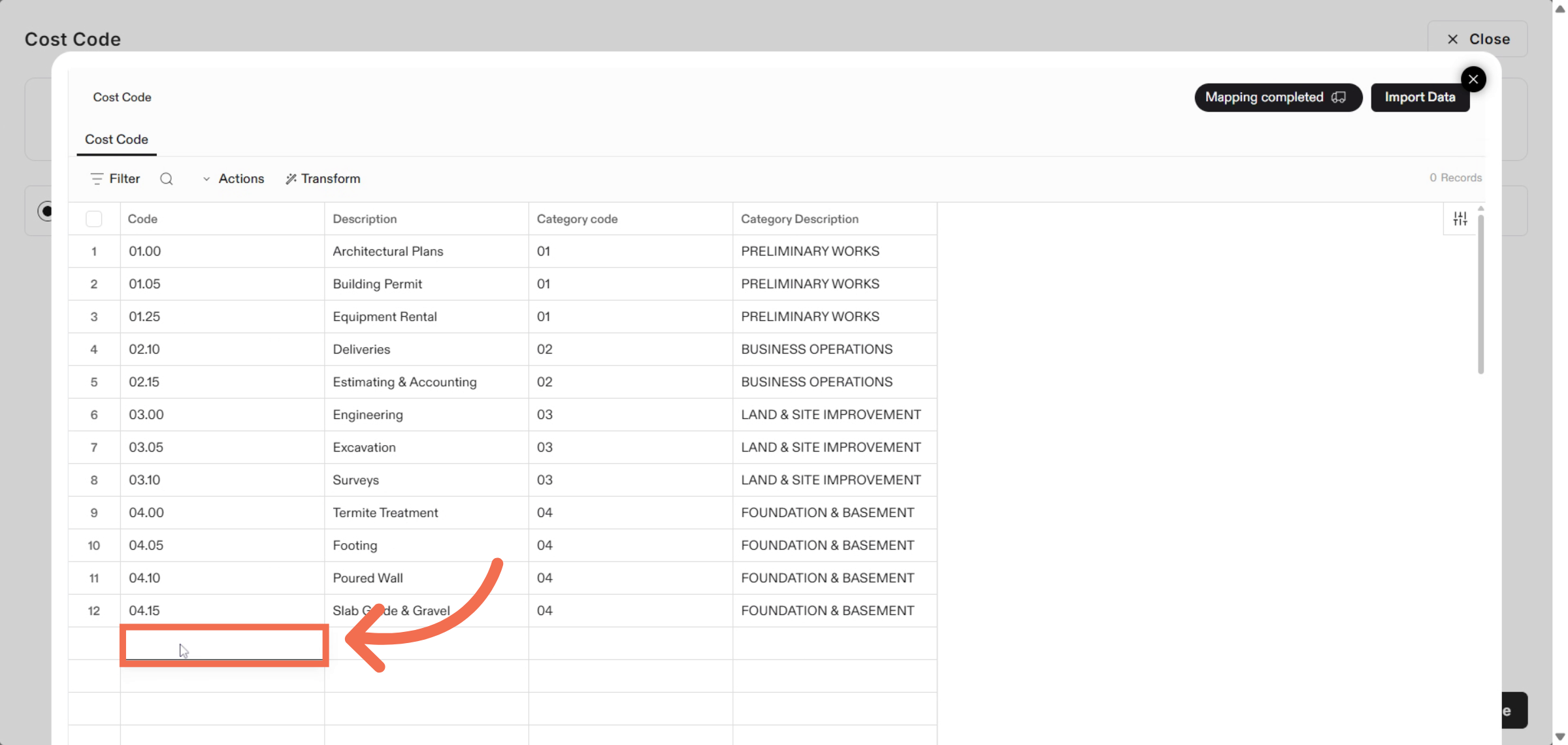
10. Enter Description
Enter Cost Code Description.
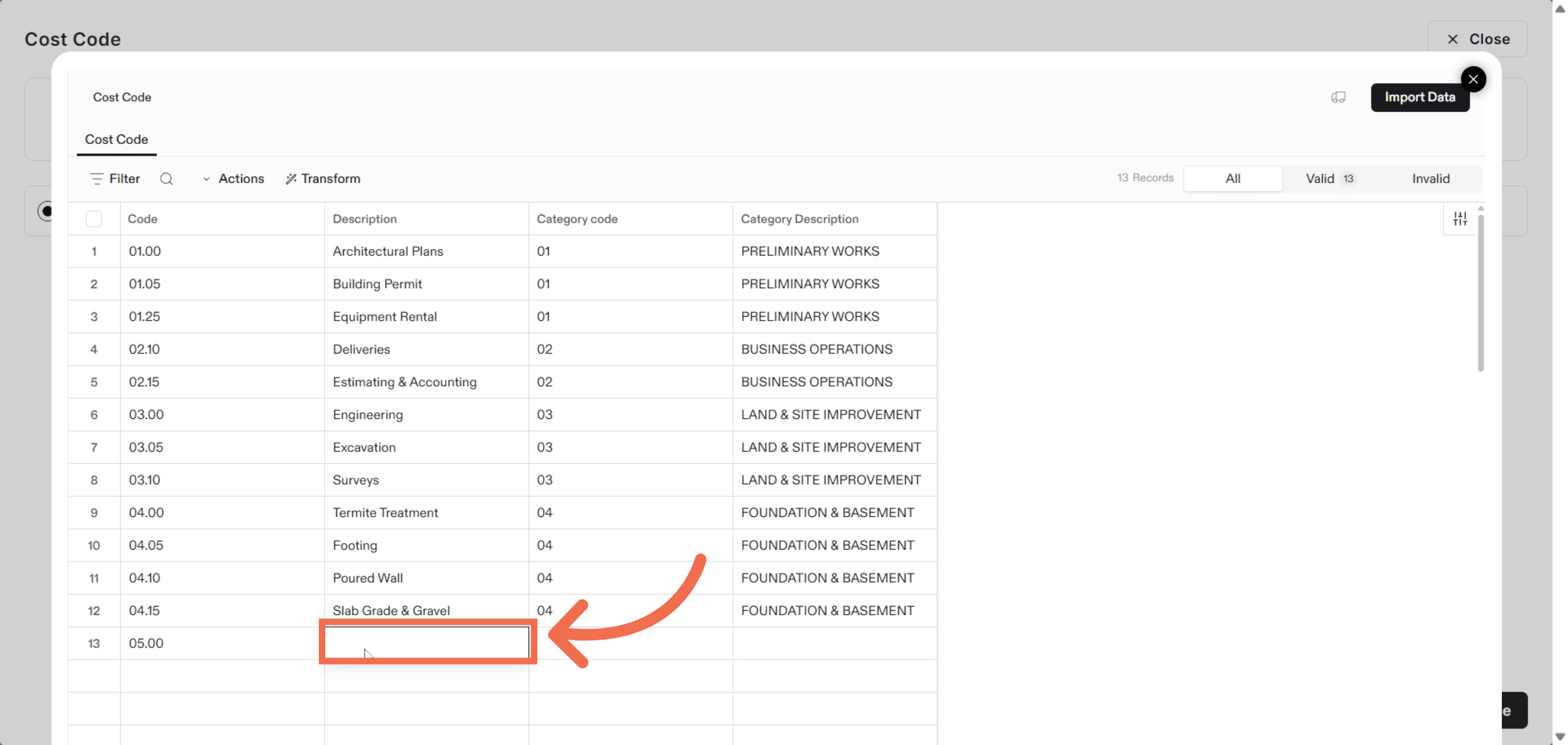
11. Enter Category Code
Enter the category code to classify your cost codes appropriately.
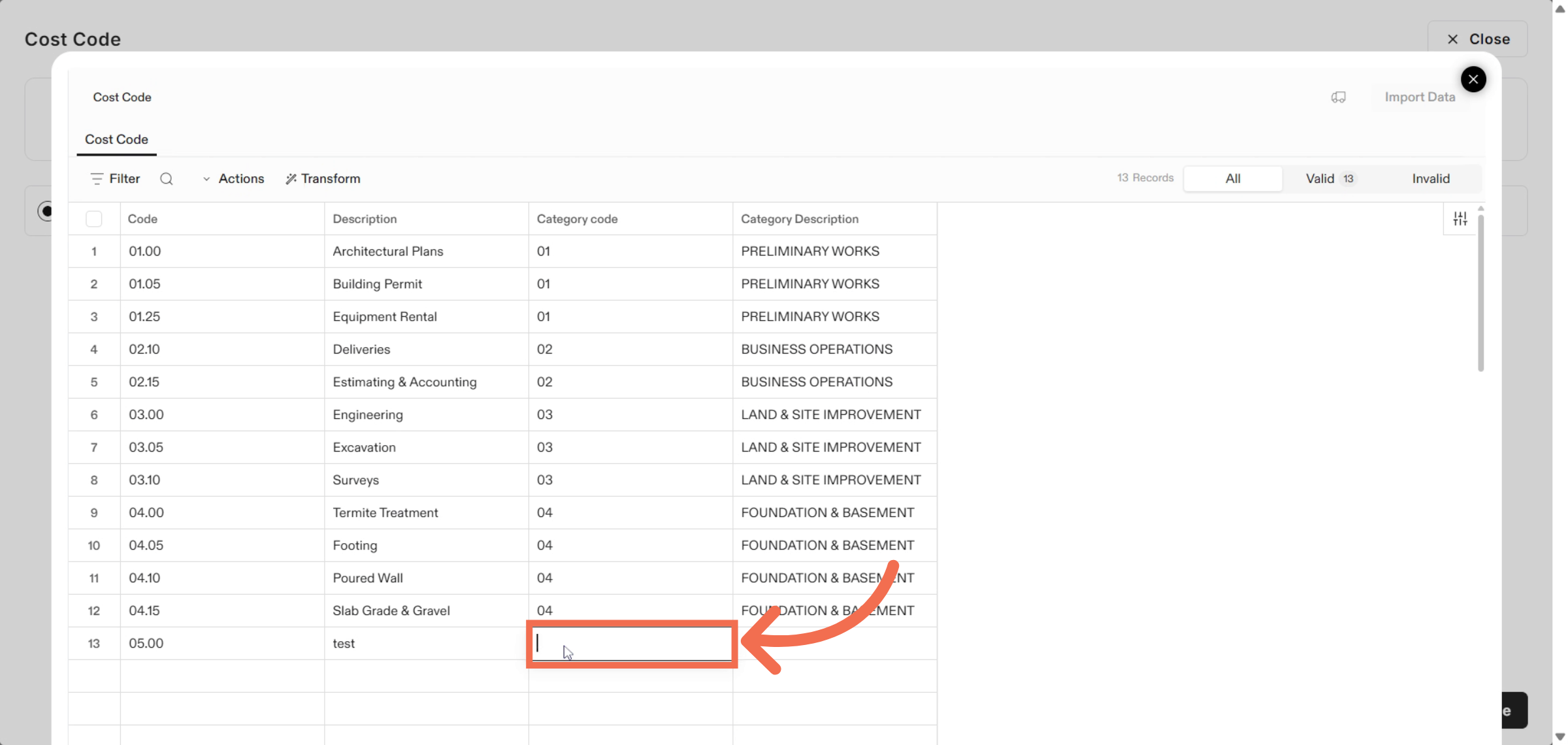
12. Enter Category Description
Enter a new category name to organize your cost codes effectively.
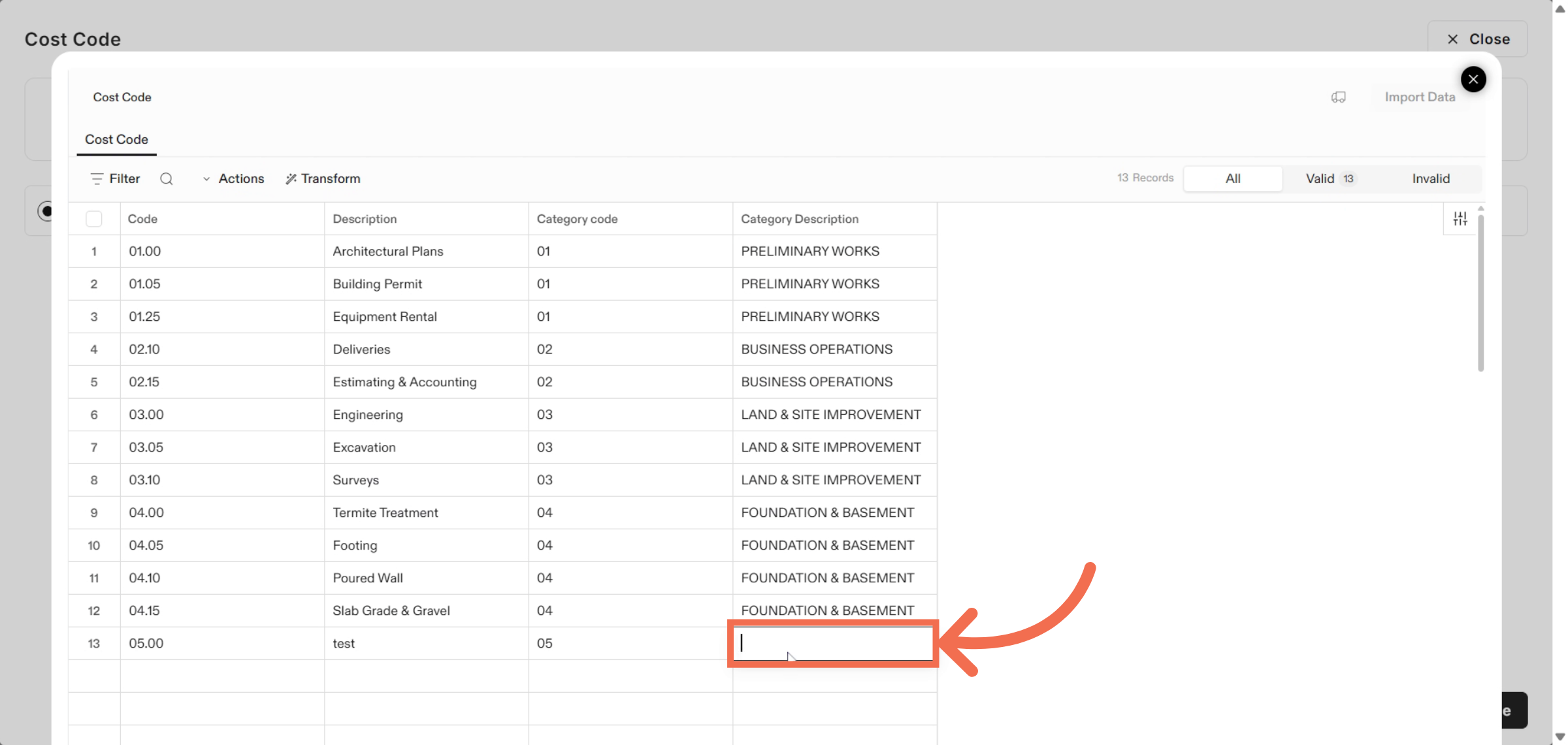
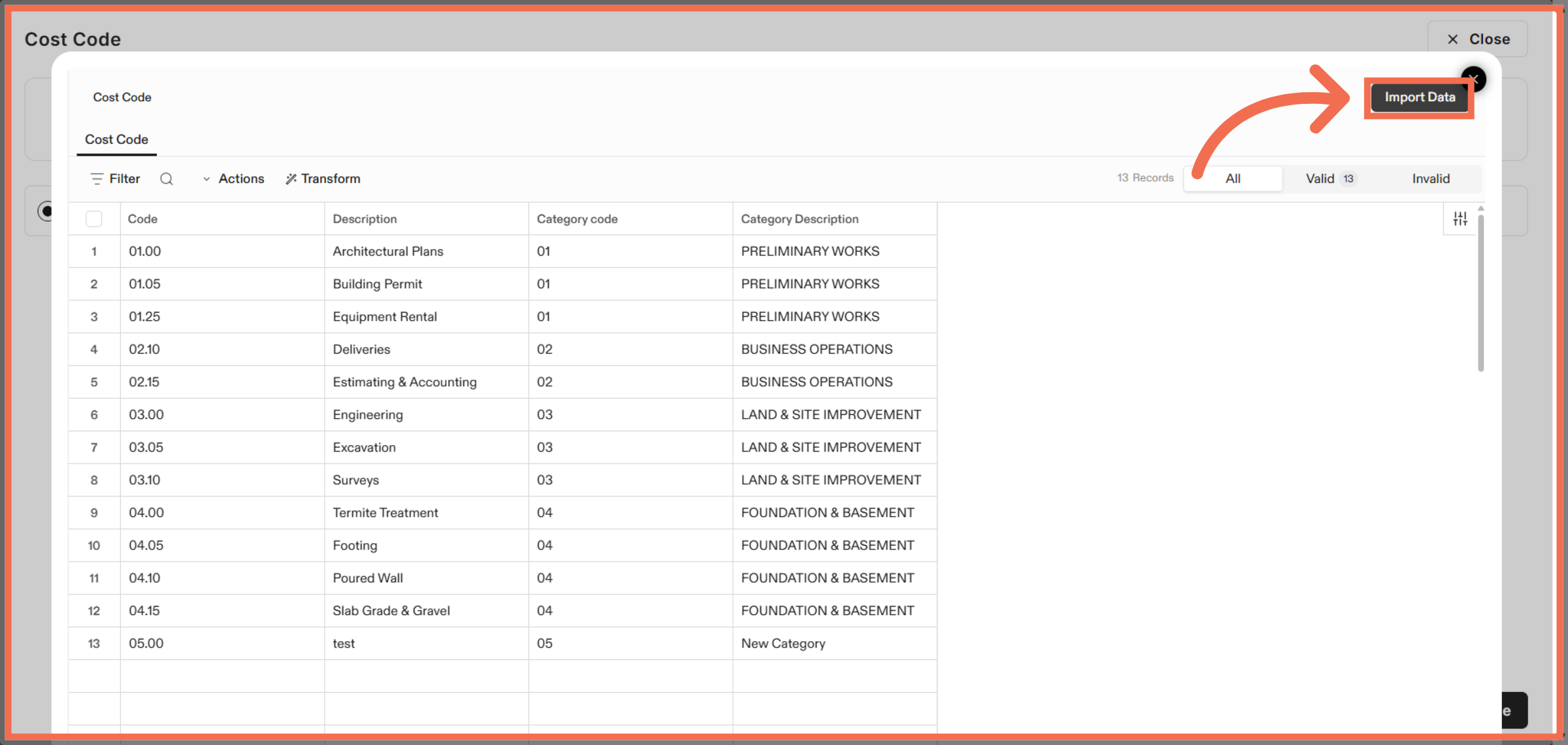
13. Import Cost Code Data
Click Import Data to finalize and upload your cost codes into the system.
This demo highlights how Readyteam streamlines importing and organizing cost codes, saving you time and improving project cost tracking. Start your import today to enhance your financial management workflow.