Import Recipes Efficiently Using Readyteam Platform
This demo showcases how to import recipes seamlessly using Readyteam.
Go to app.readyteam.ai
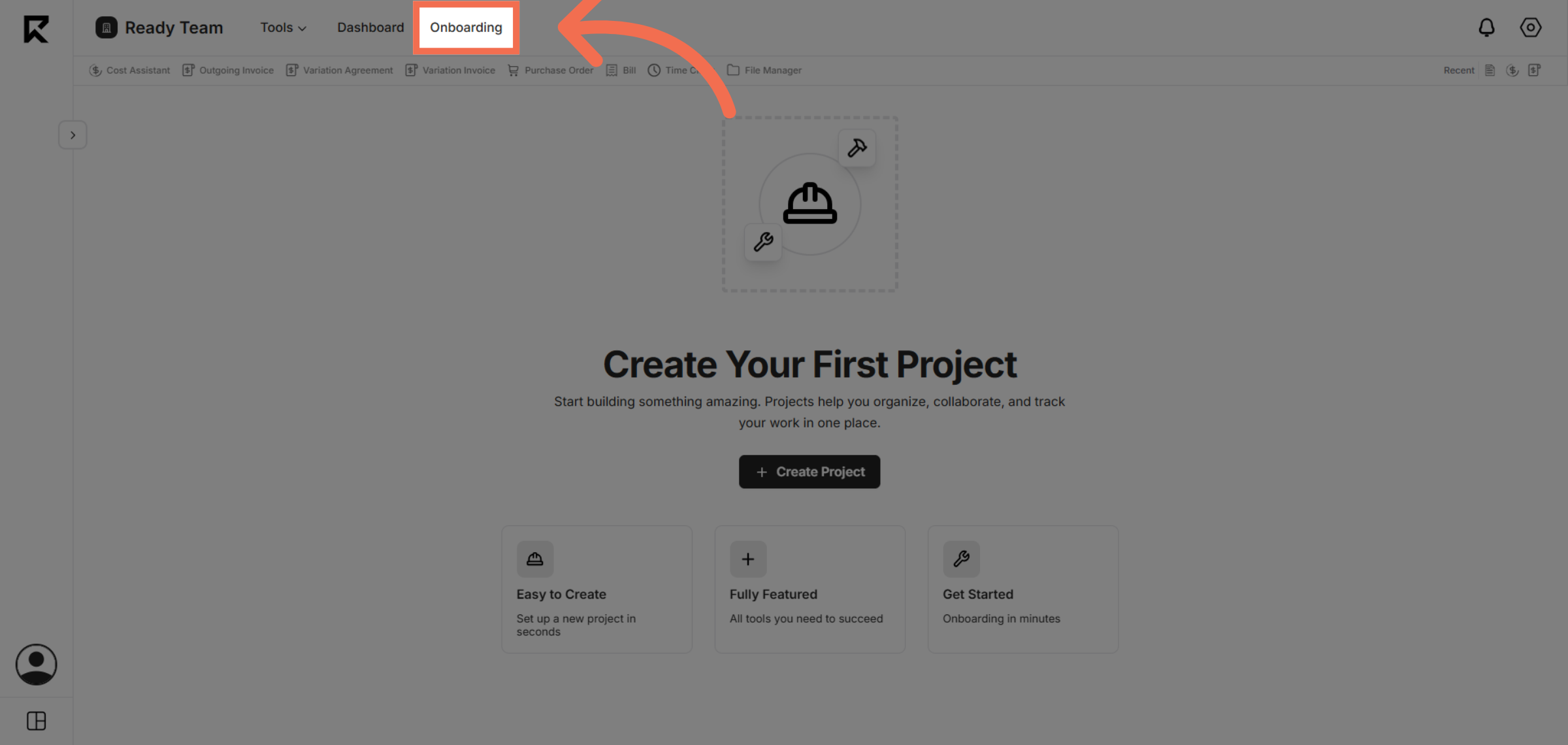
1. Navigate to Onboarding Section
Click the Onboarding section to begin managing your recipes.
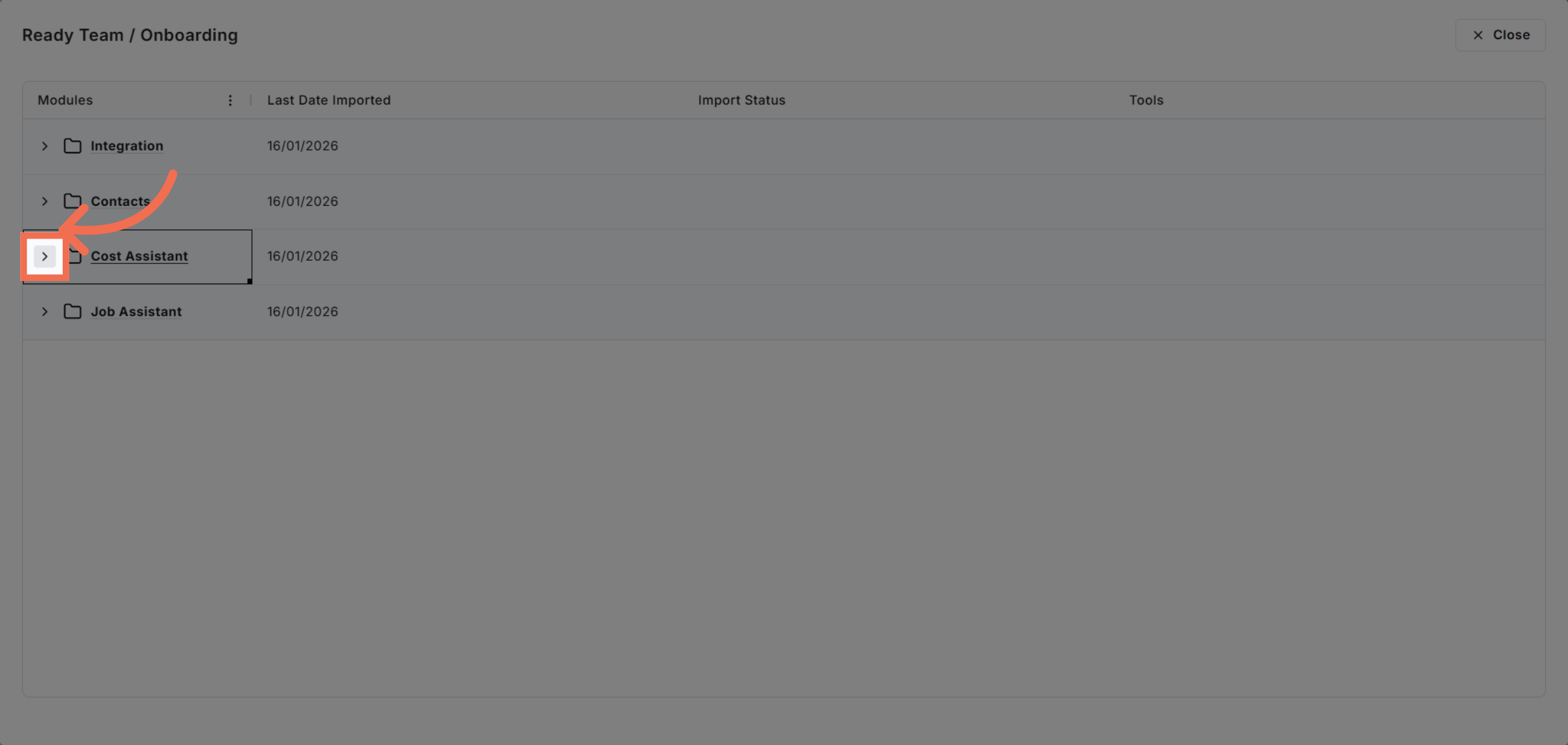
2. Access Cost Assistant
Click the indicated area to proceed to the Recipes management page.
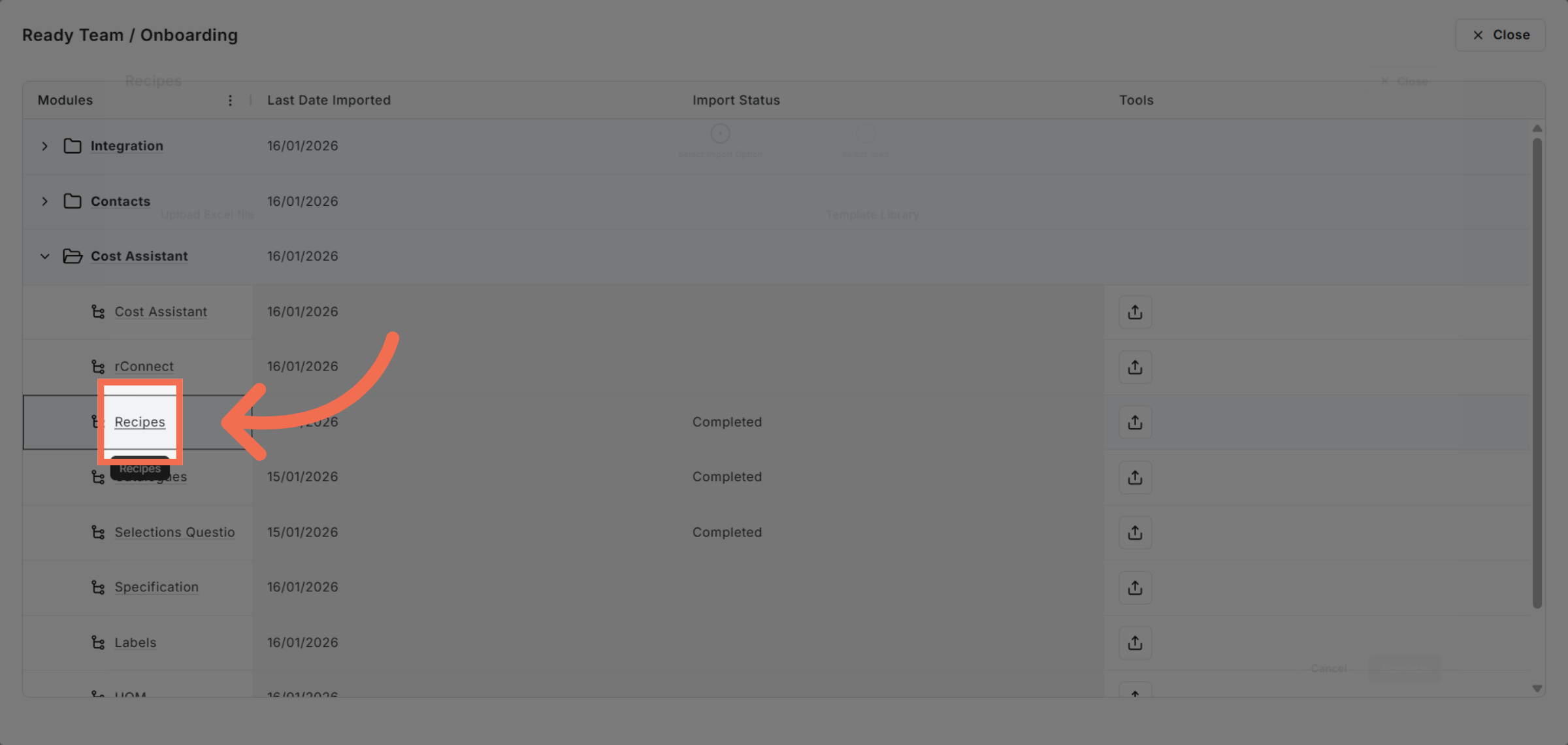
3. Open Recipes Tab
Click the Recipes tab to view and manage your recipe data.
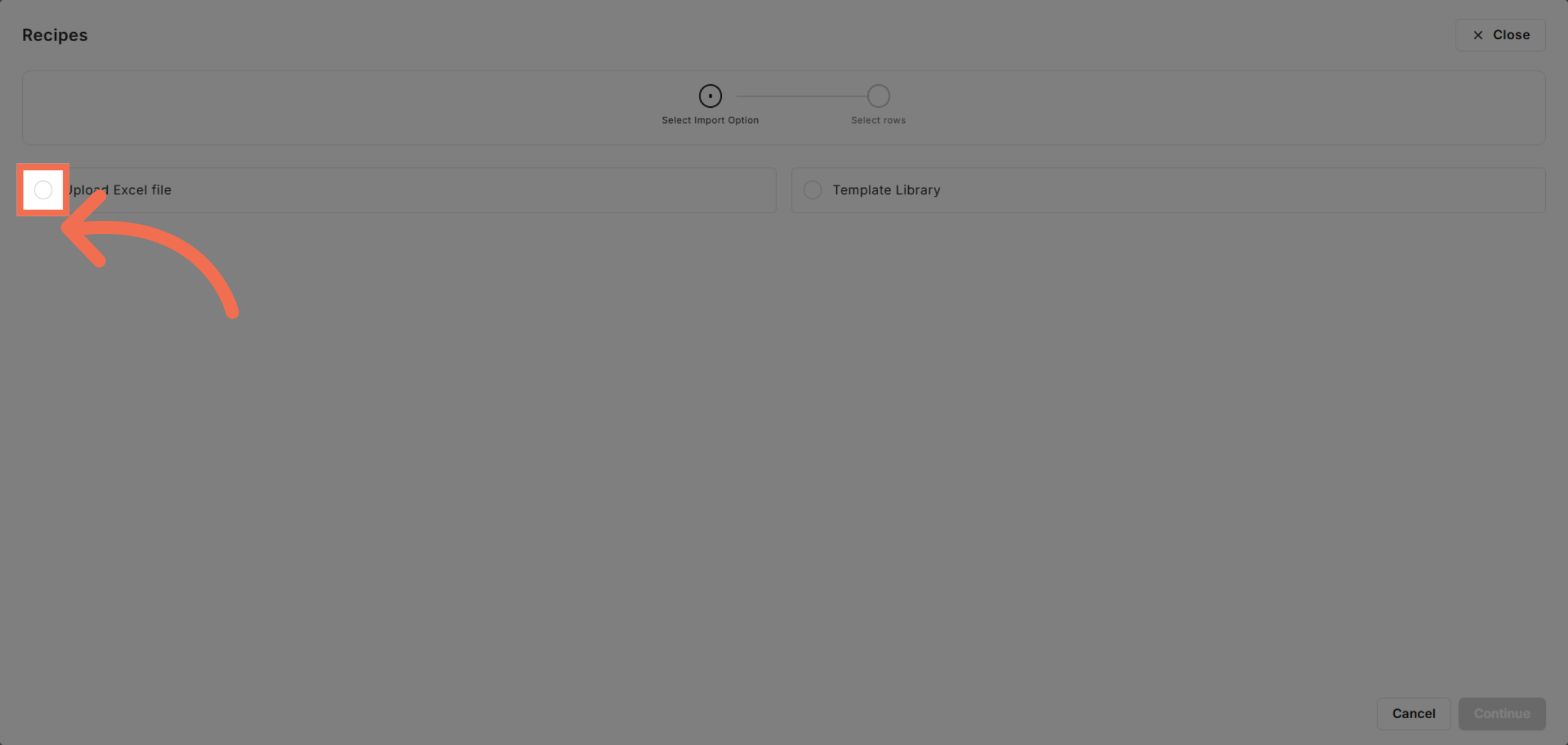
4. Select Upload Excel File
Click Upload Excel file to start importing your recipe data from a spreadsheet.
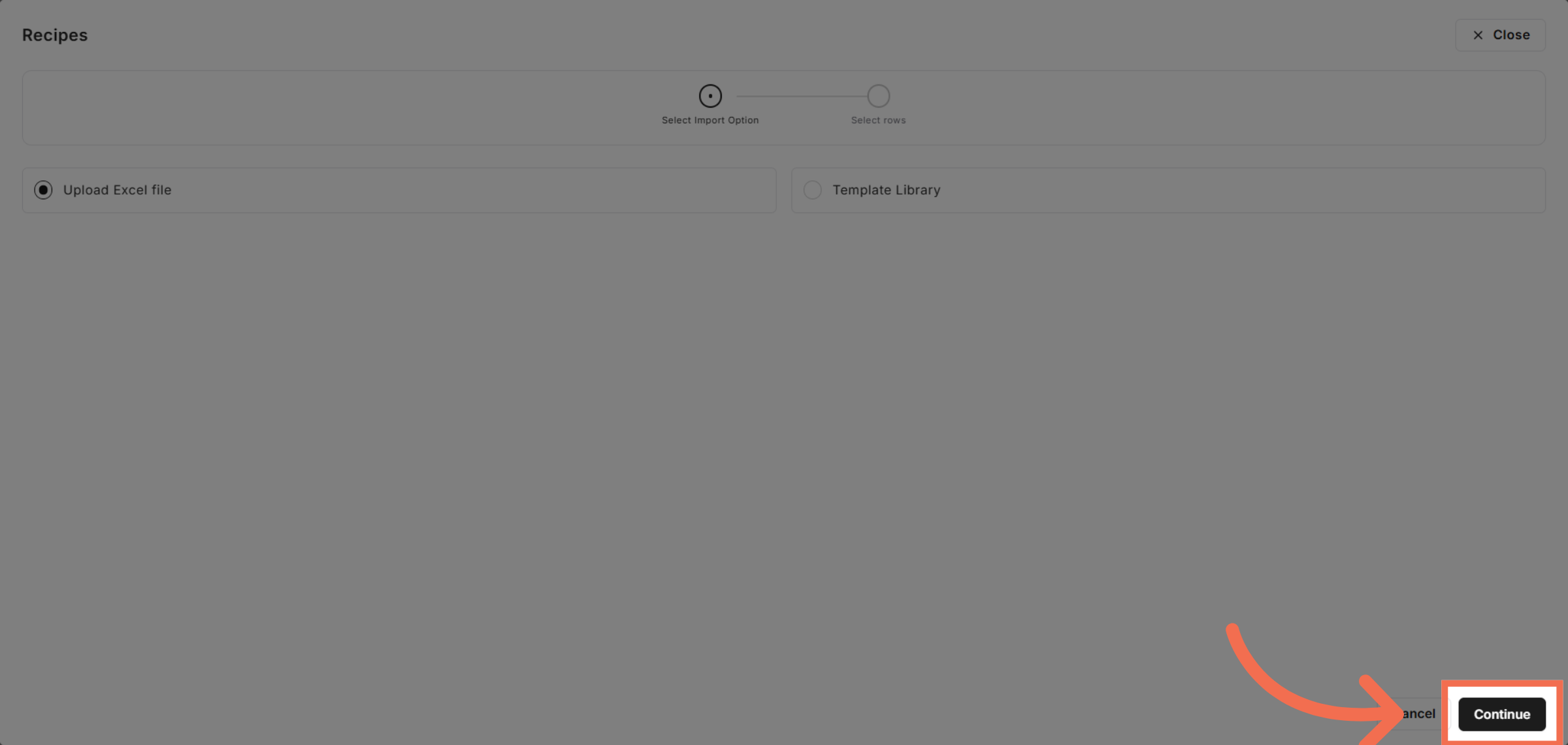
5. Proceed with Upload
Click Continue to move forward with the file upload process.
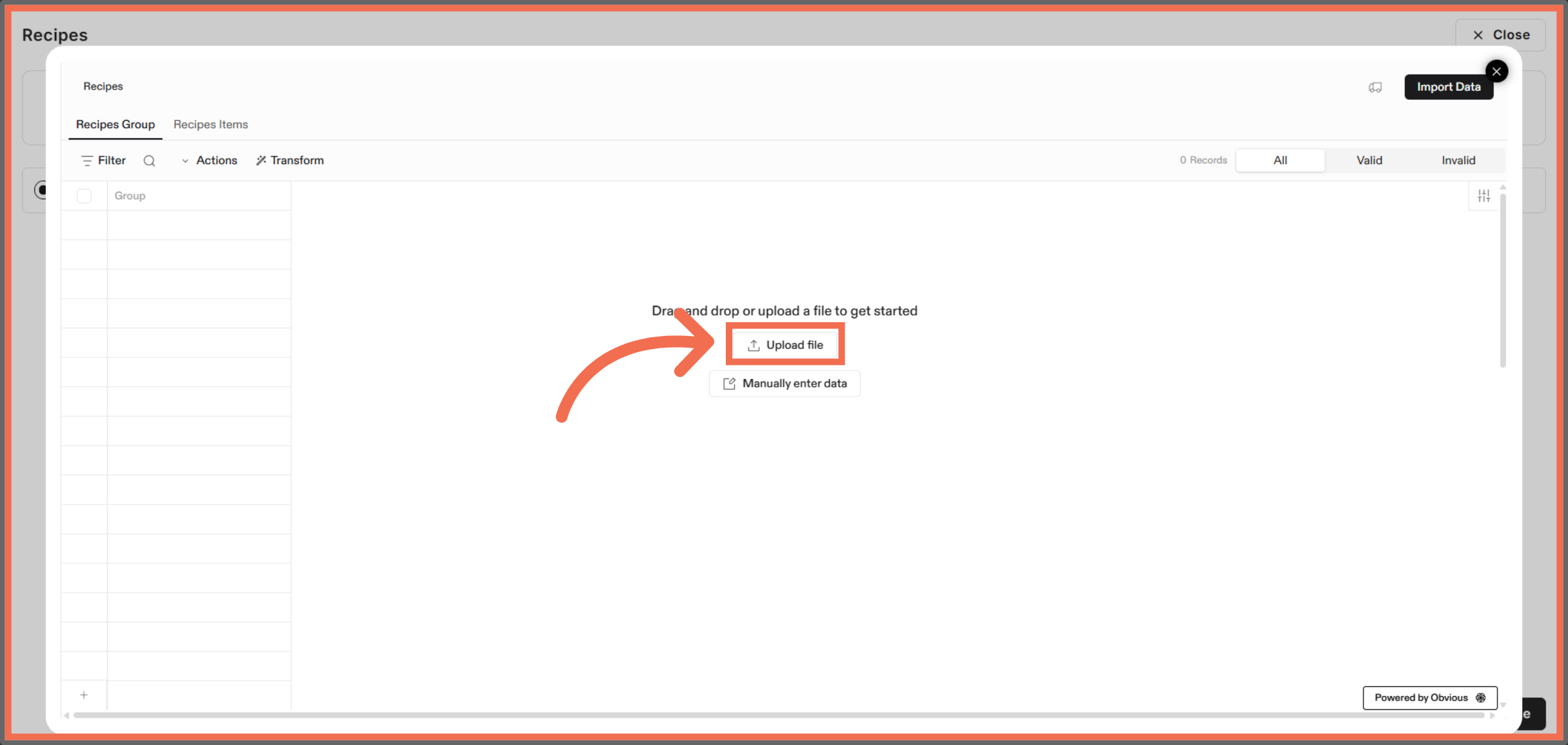
6. Initiate File Upload
Click Upload file to select the Excel file for import.
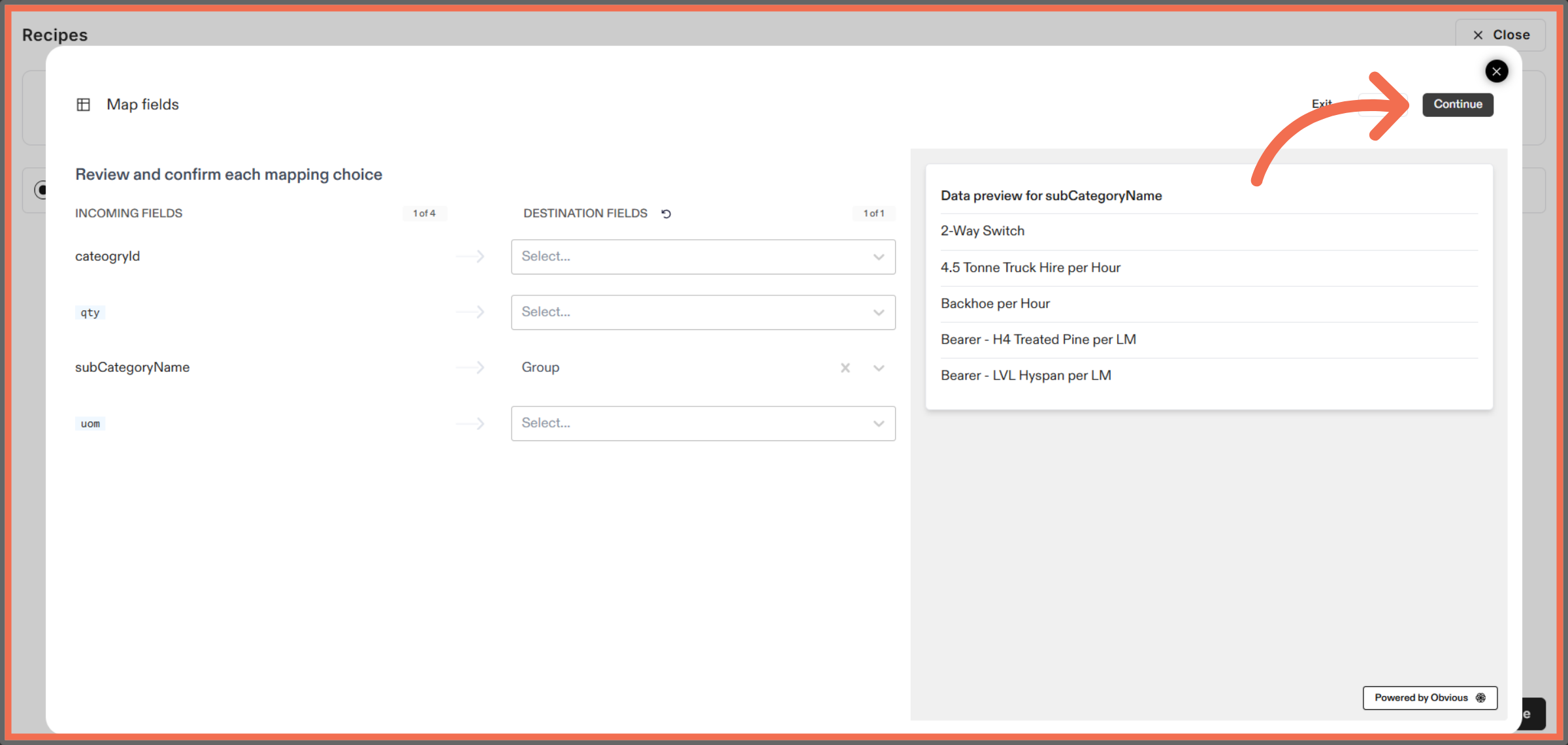
7. Map Data fields and Continue
Click Continue to confirm your file selection and proceed.
8. Manually Enter Data
Click the input field to add a new category.
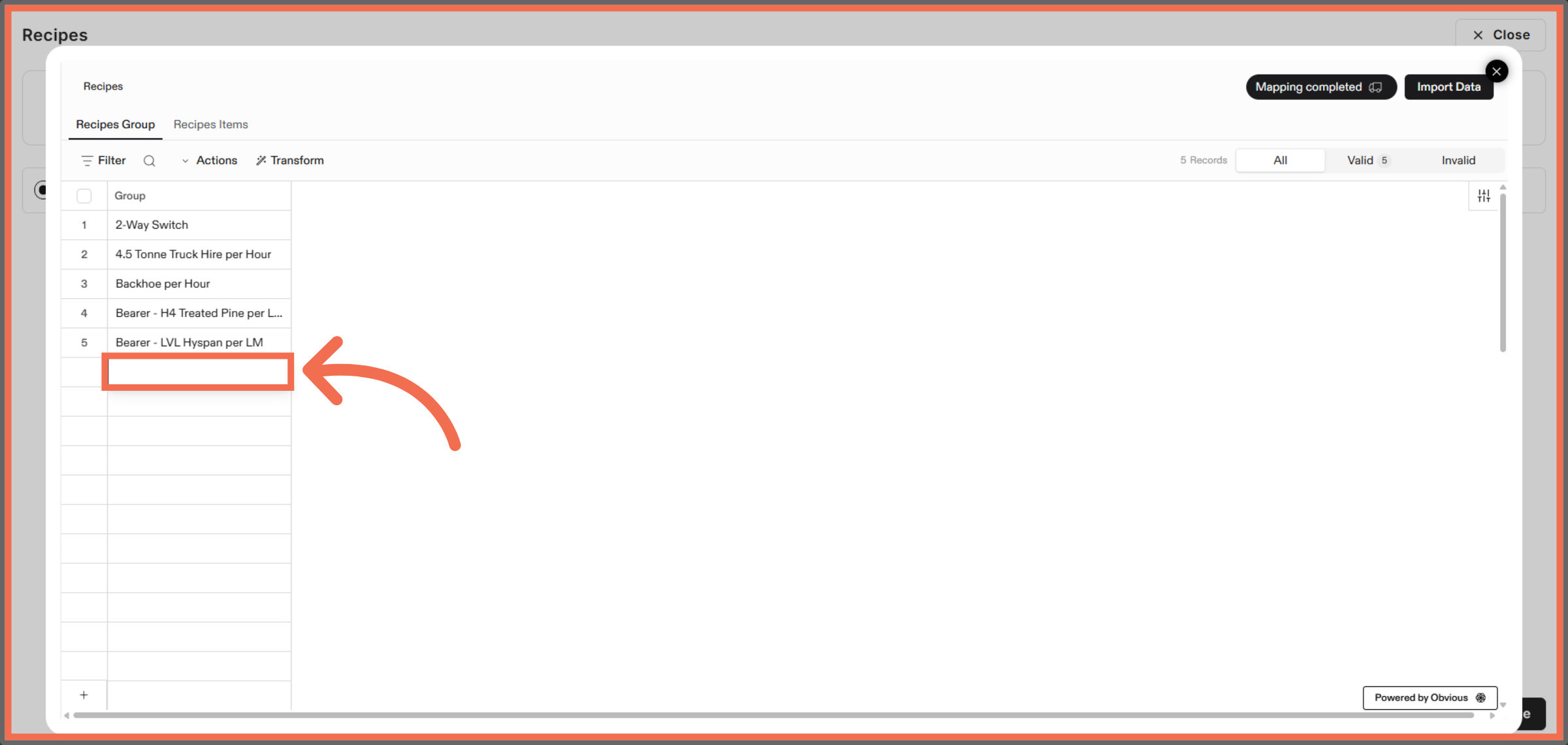
9. Enter New Group Name
Enter a new Group name to organize your recipes effectively.
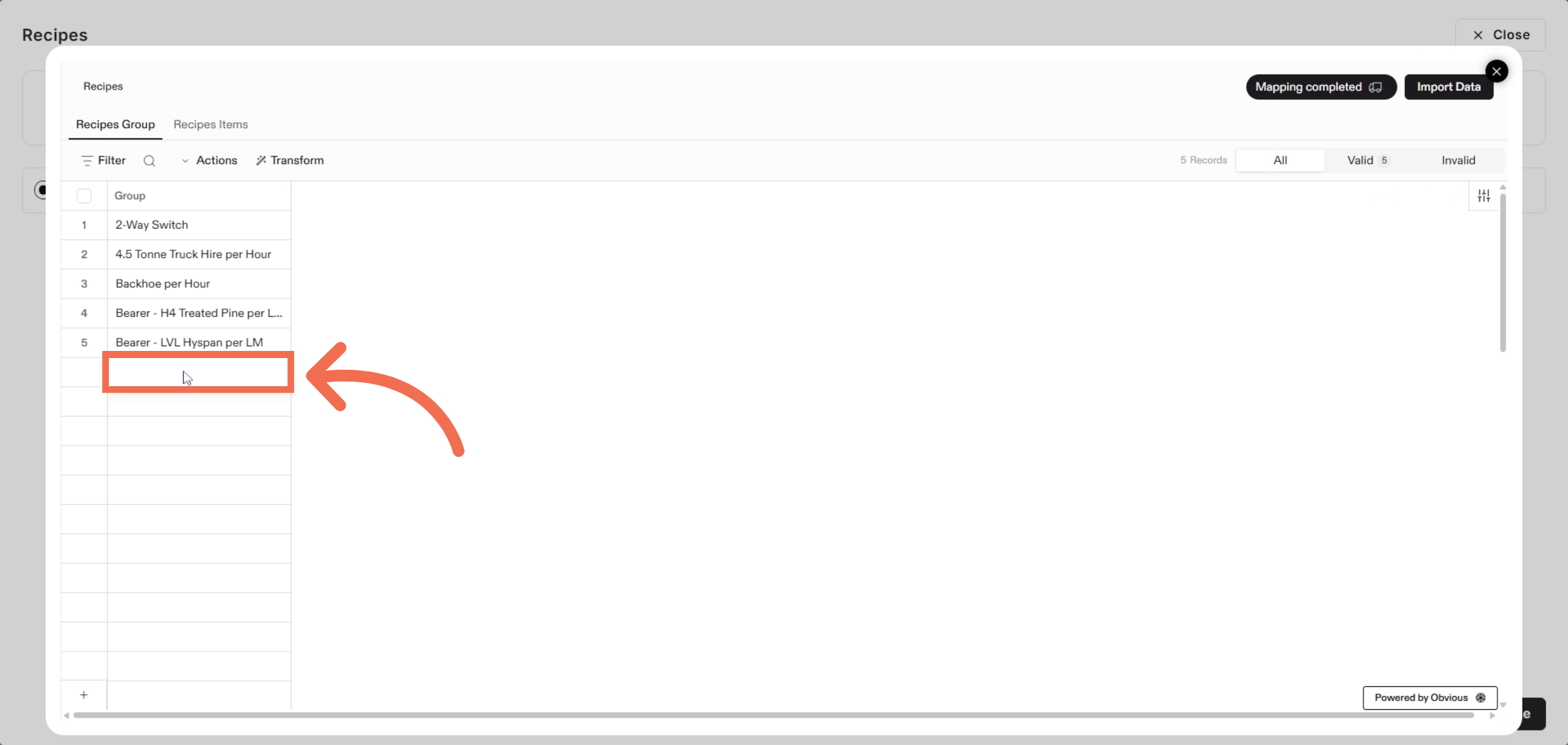
10. Open Recipe Items Tab
Click the Recipes Items tab to manage individual recipe components.
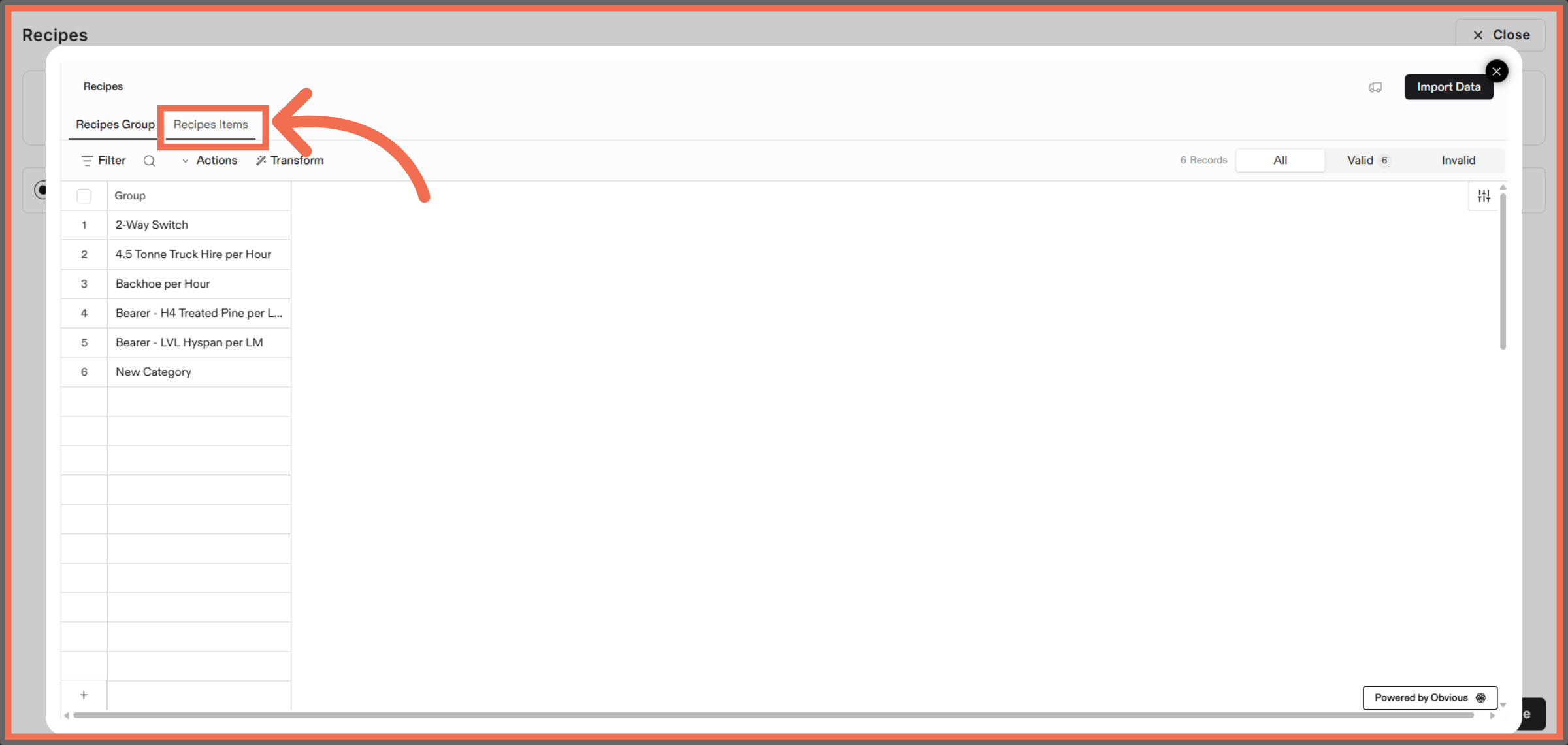
11. Start Uploading Recipe Items
Click Upload file to begin importing recipe item details.
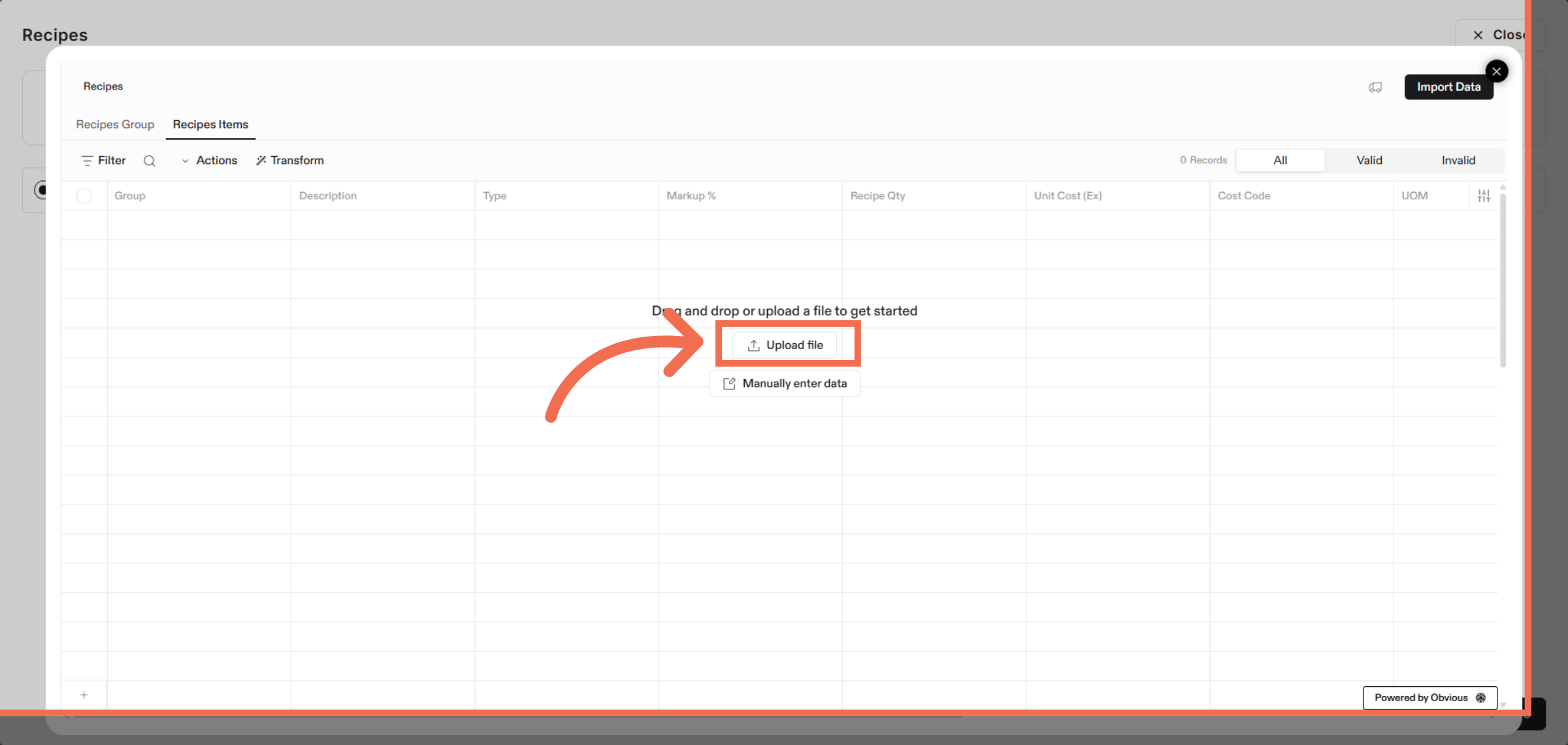
12. Map Data Fields and Continue Import Process
Click Continue to proceed with importing the recipe items.
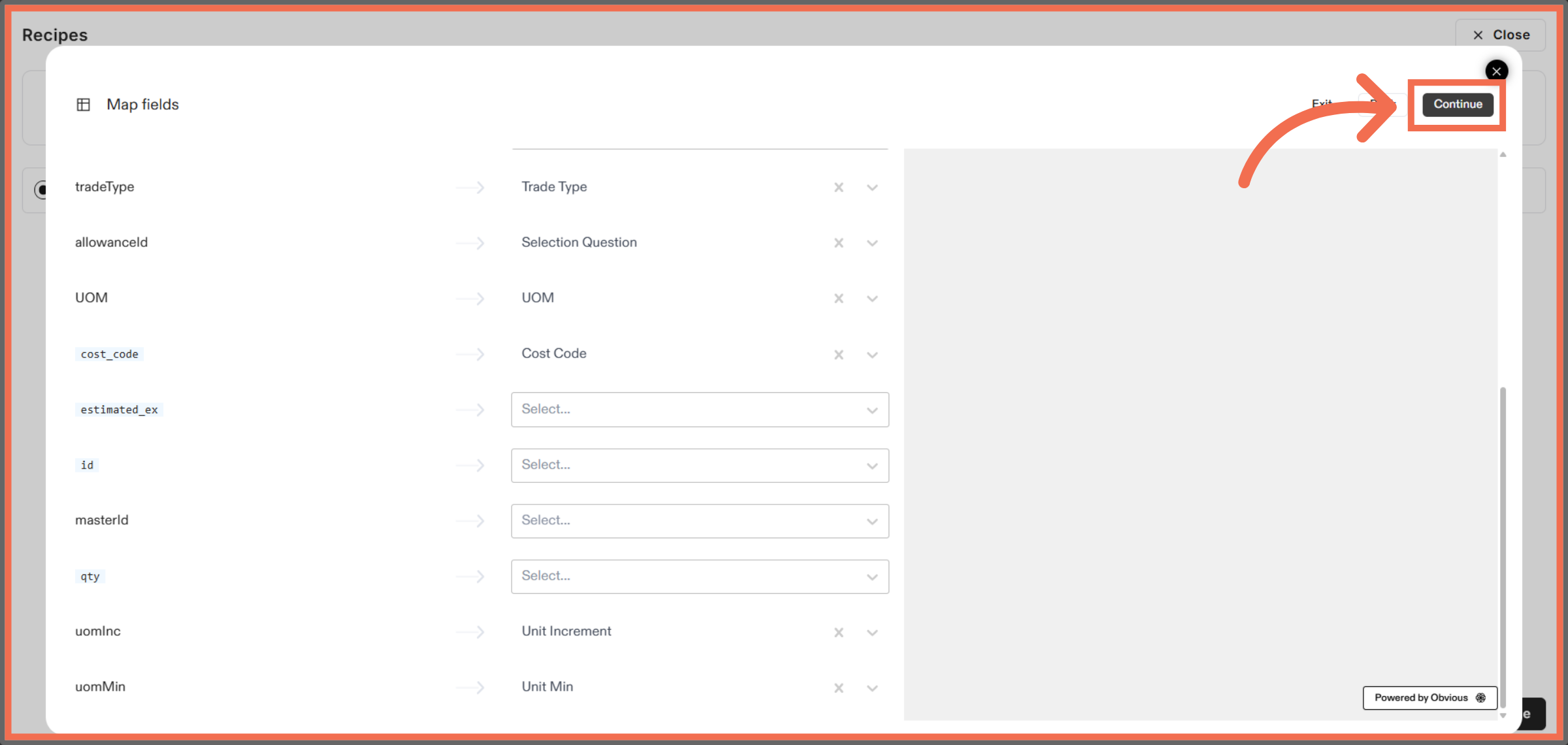
13. Advance to Next Step
Click Continue to move to the next stage of the import.
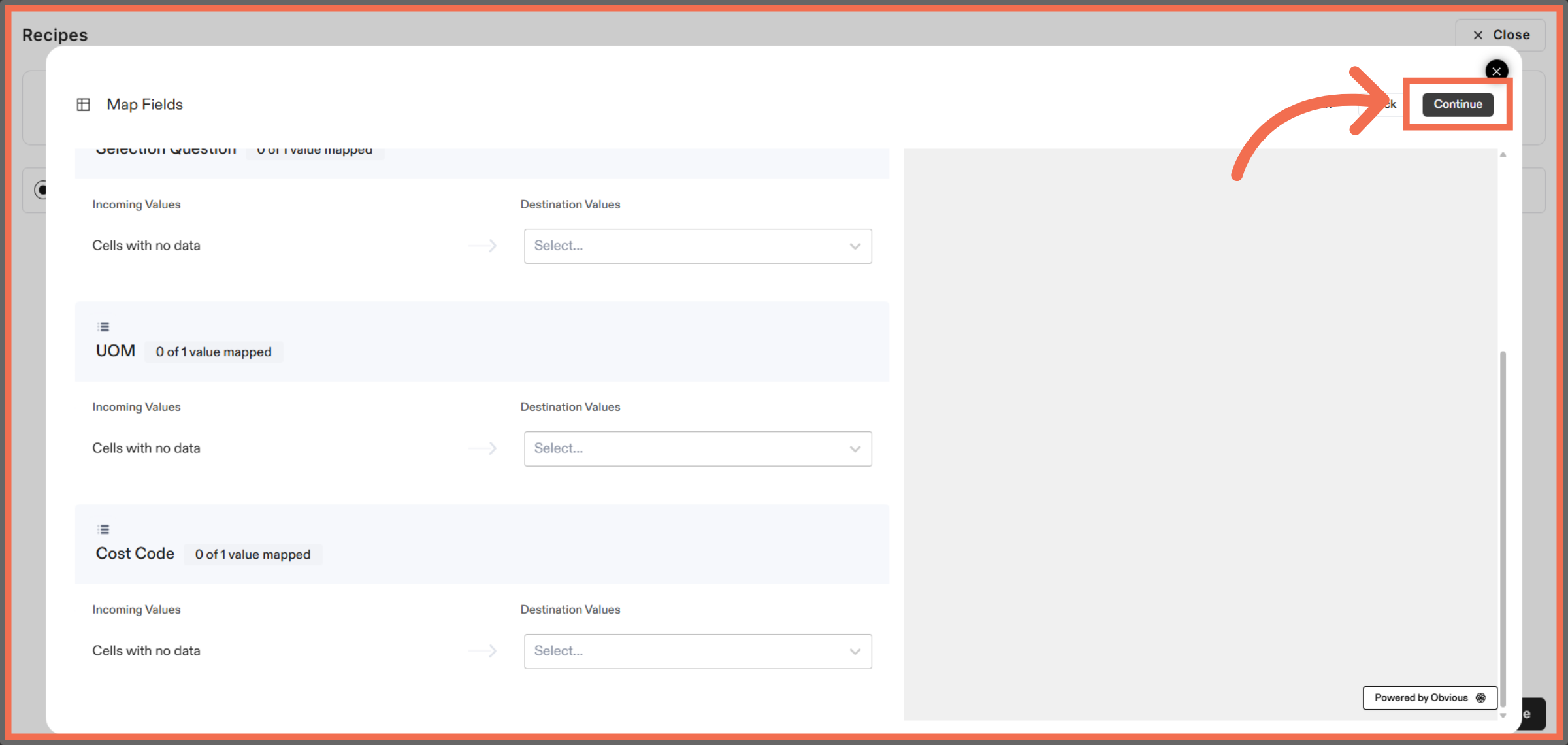
14. Manually Enter Data
Click the specified area to configure individual recipe items.
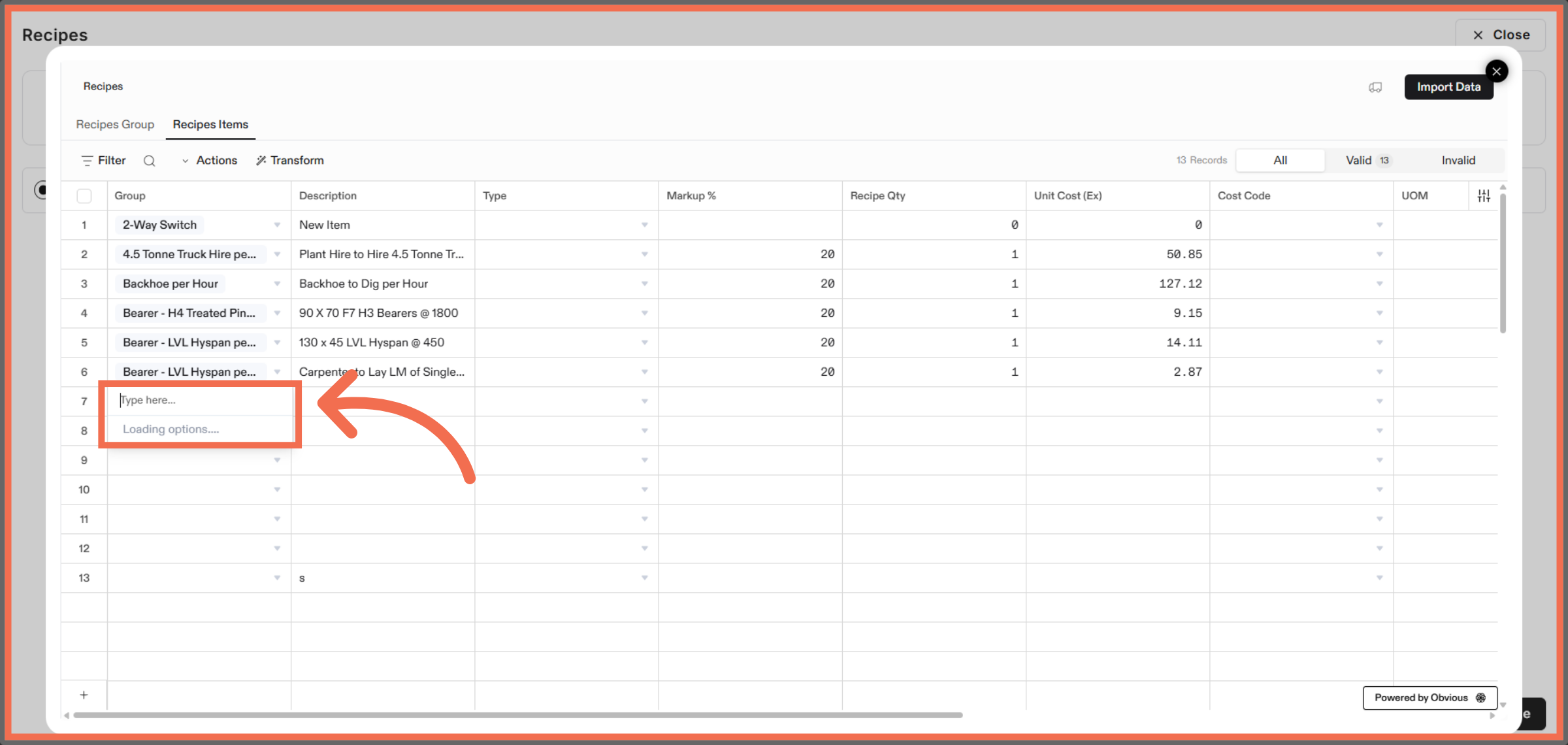
15. Select Recipes Group
Select the Recipes Group.
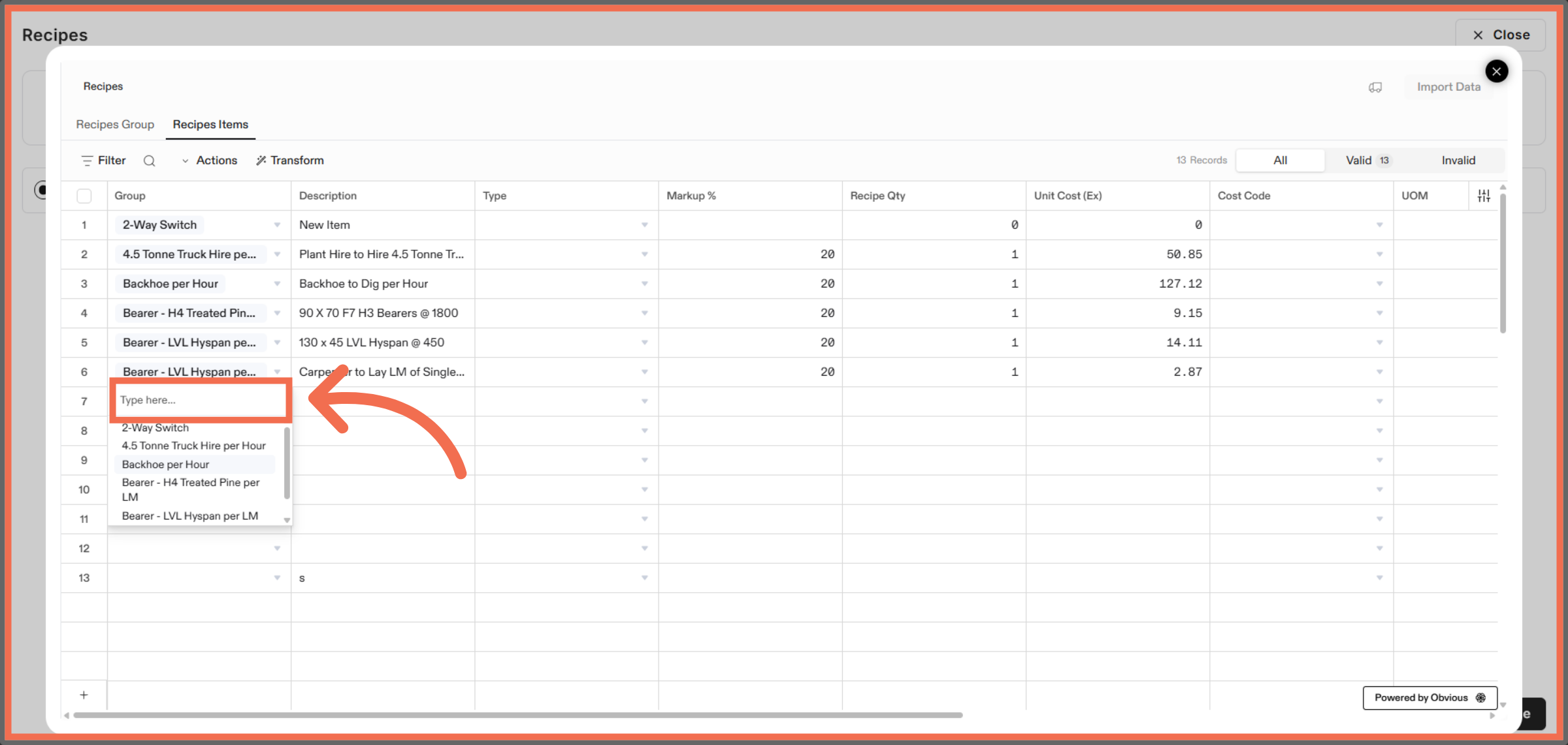
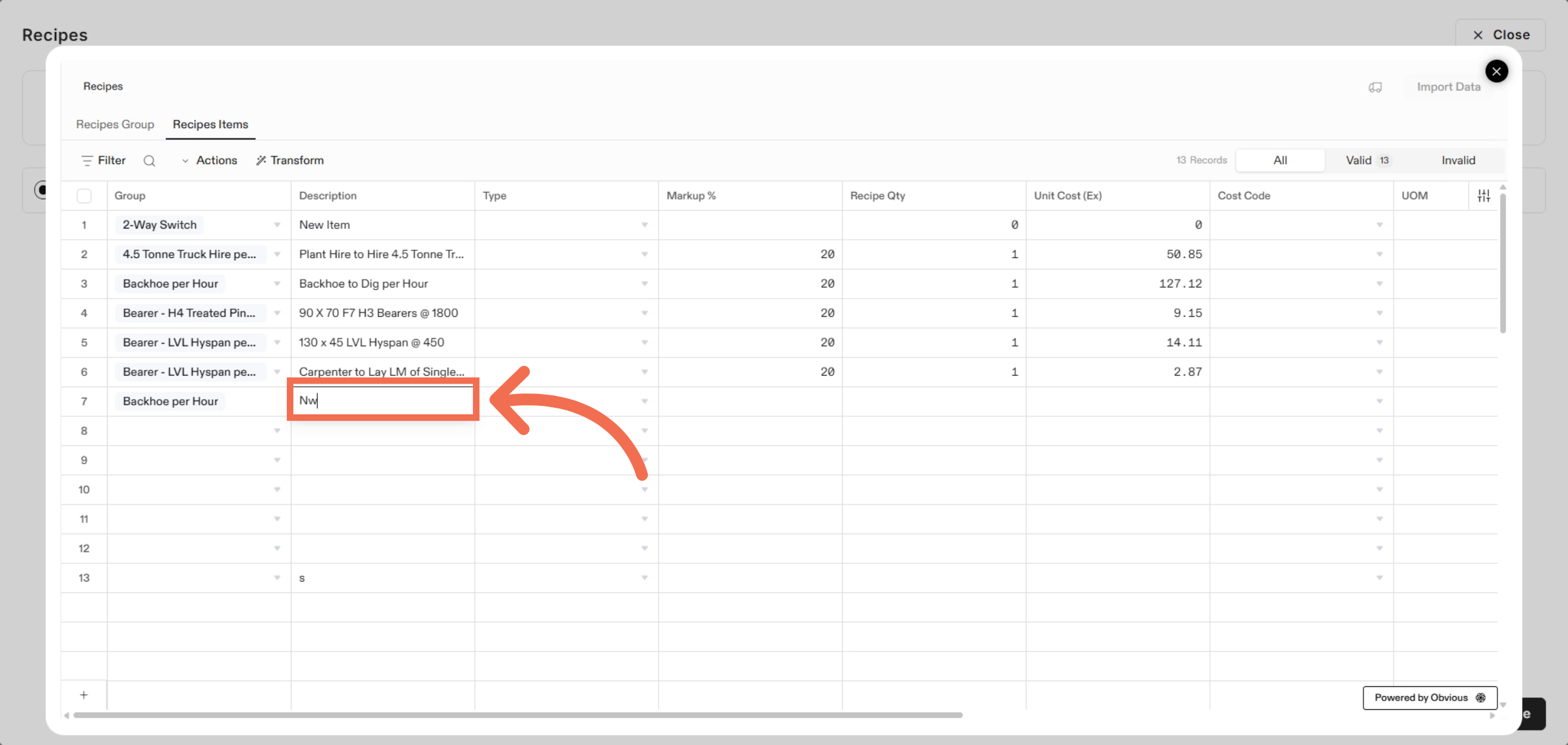
16. Enter Description
Enter a new line item to add to your recipe list.
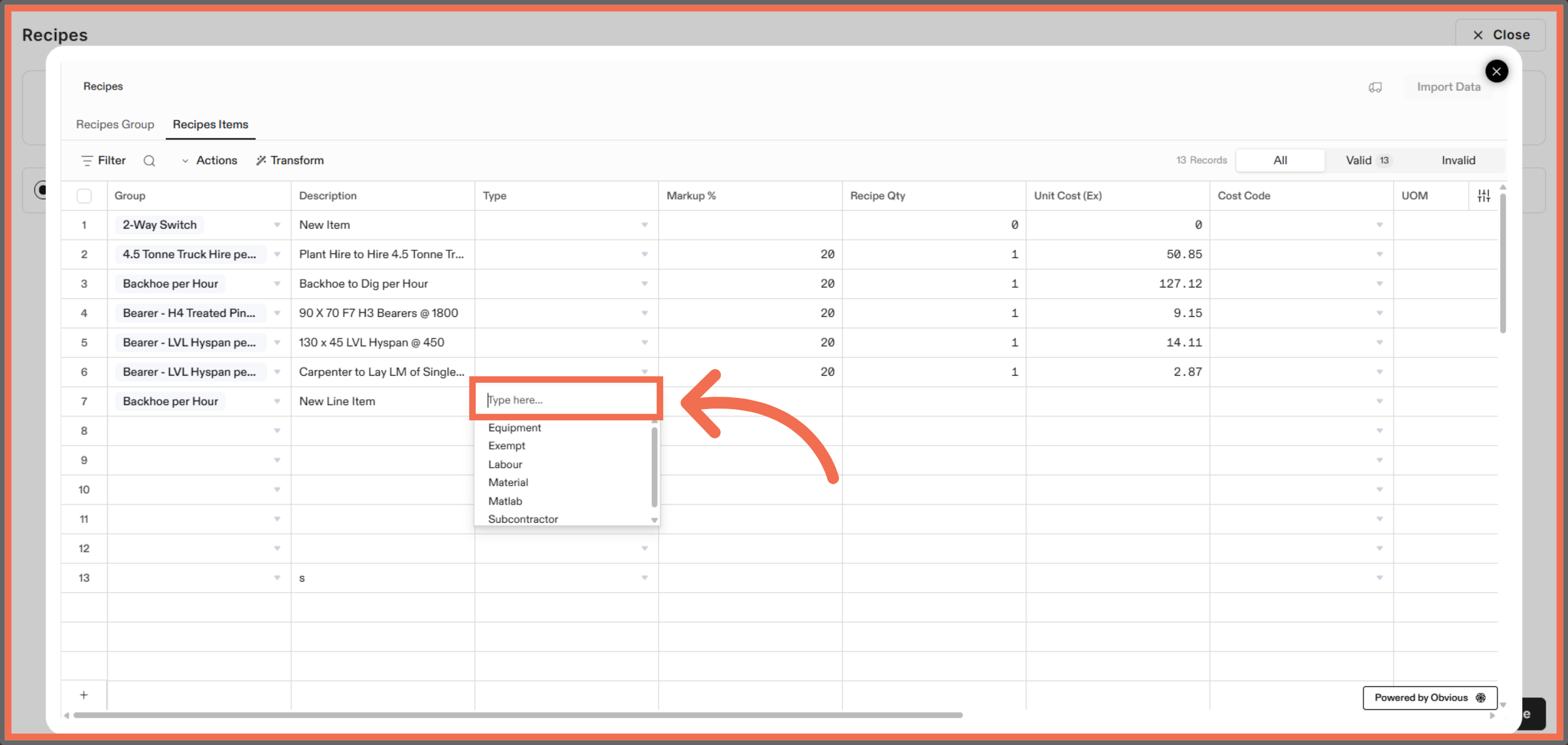
17. Select Type
Click the Type to access the Type menu for further actions.
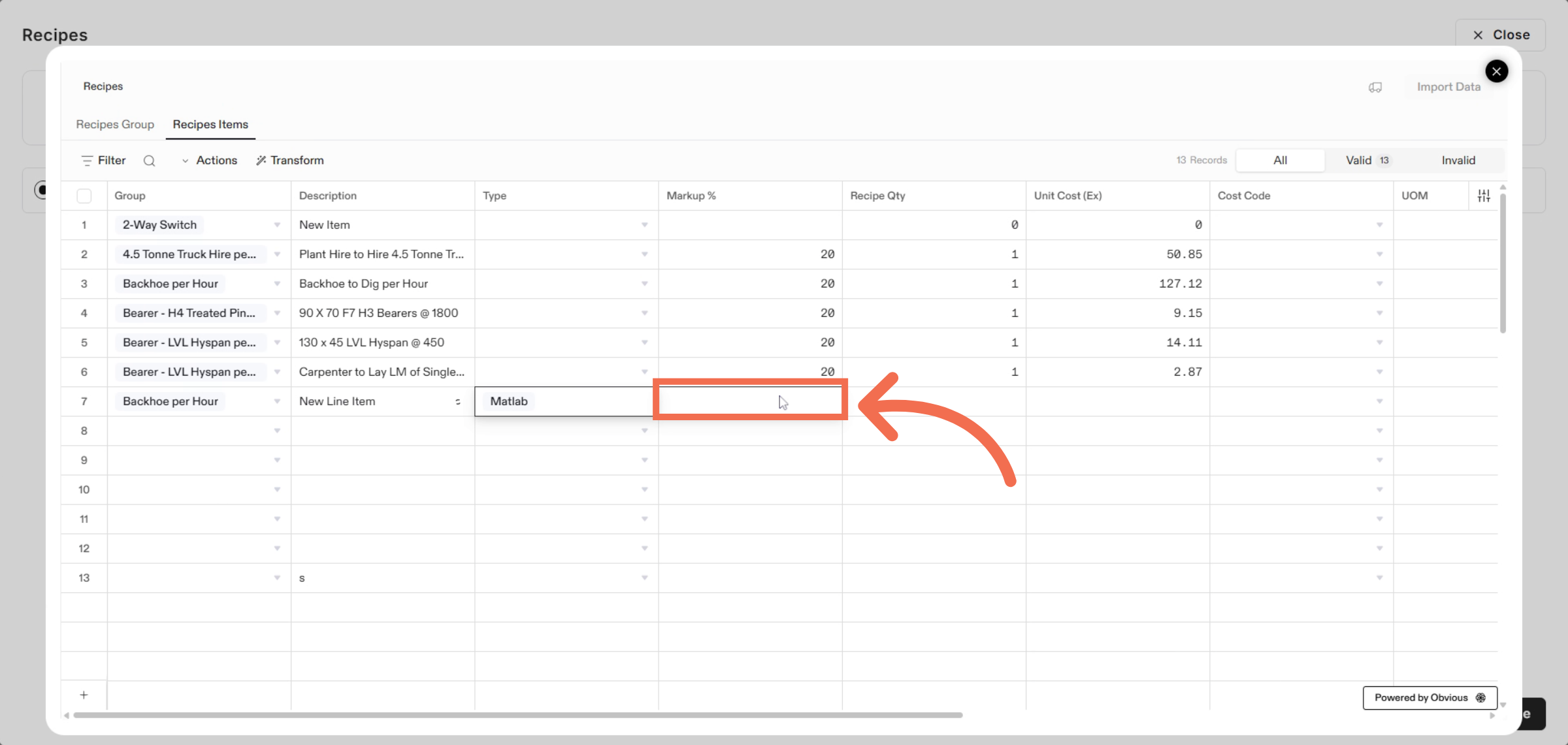
18. Enter Markup %
Enter the Markup Percentage value to specify the amount for the line item.
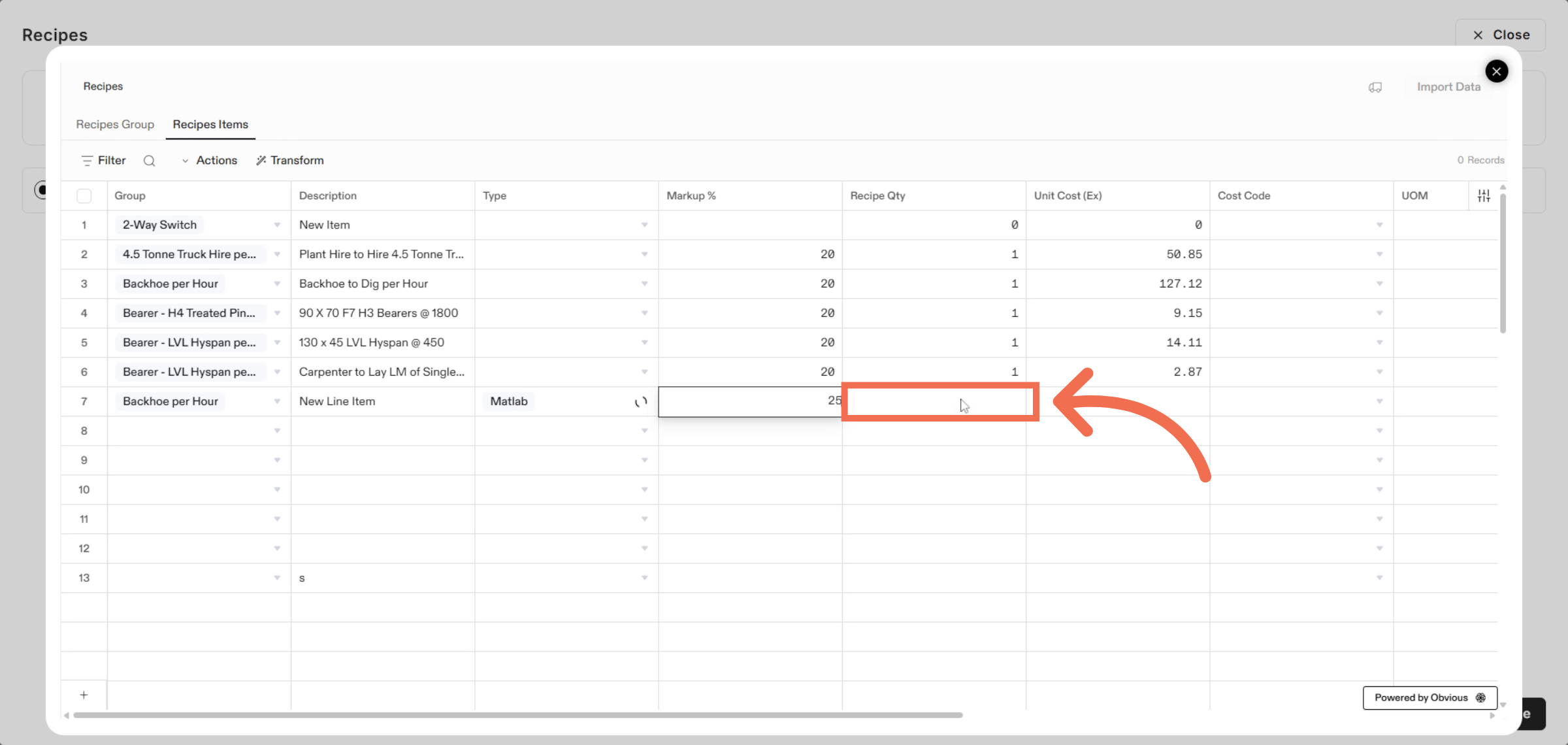
19. Enter Recipe Quantity
Enter the Recipe quantity value as required.
20. Enter Unit Cost(ex) Value
Enter the Unit Cost(ex) value to define the expense associated with the item.
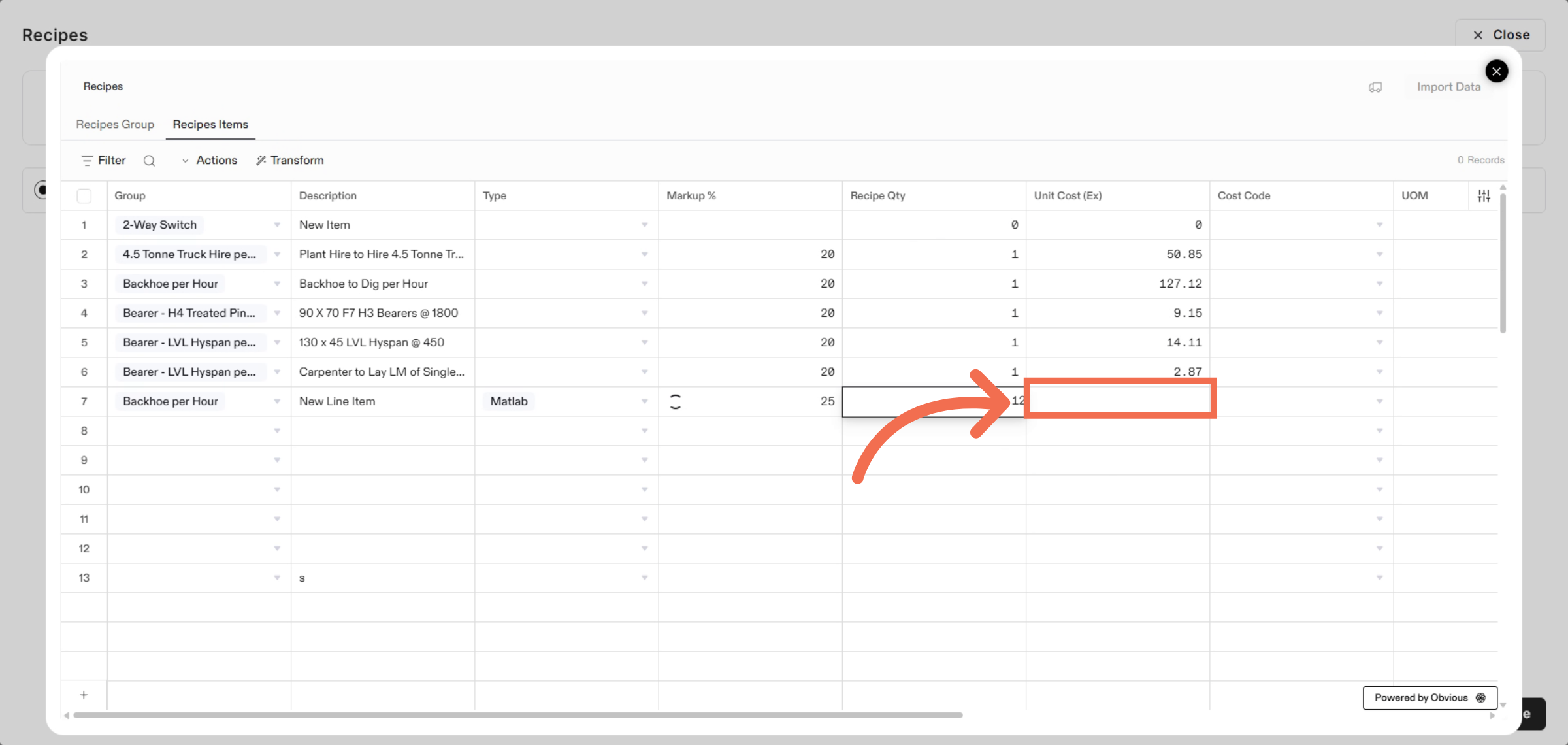
21. Select Cost Code
Click the area to access more options for the group.
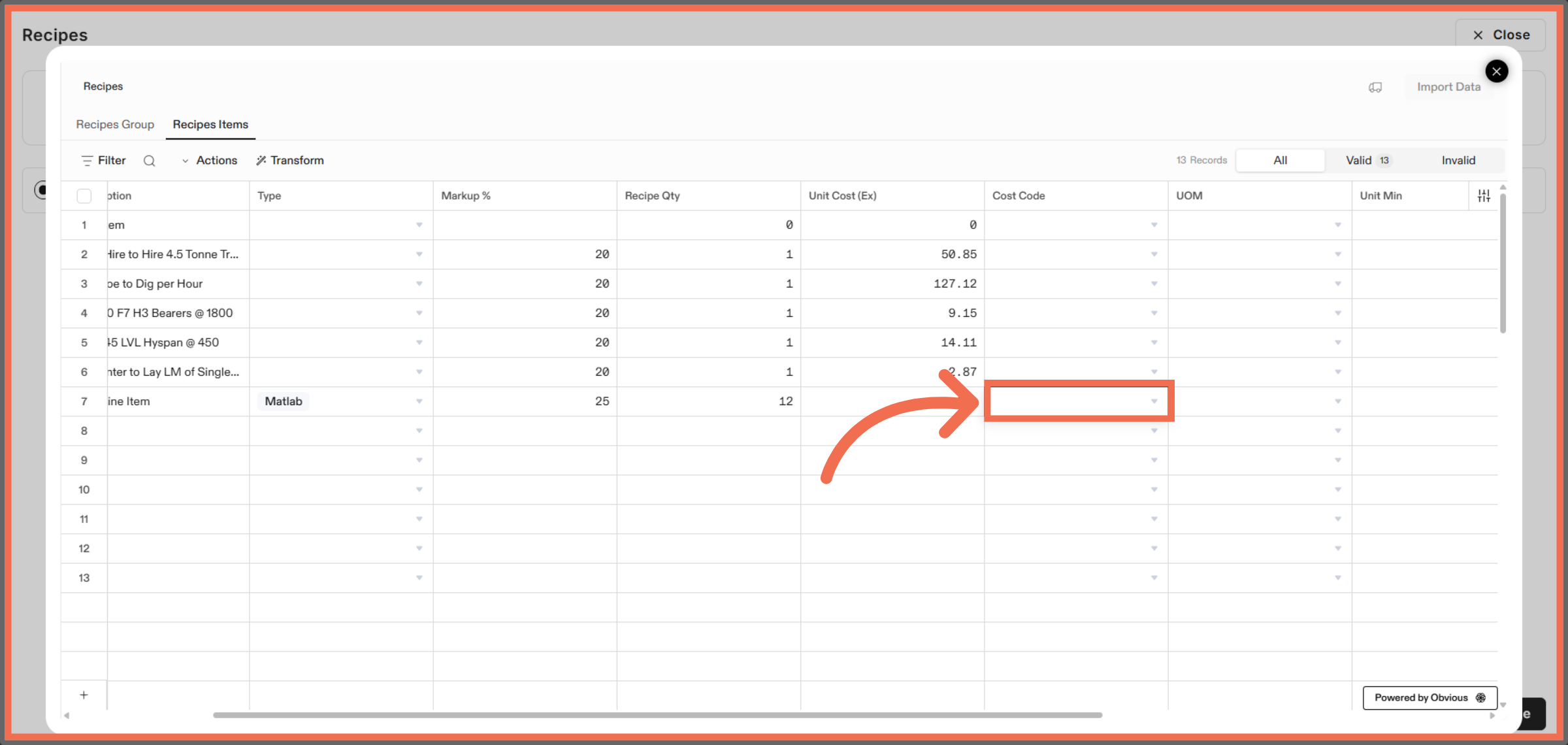
22. Select UOM
Click the area to view options for UOM within the settings panel.
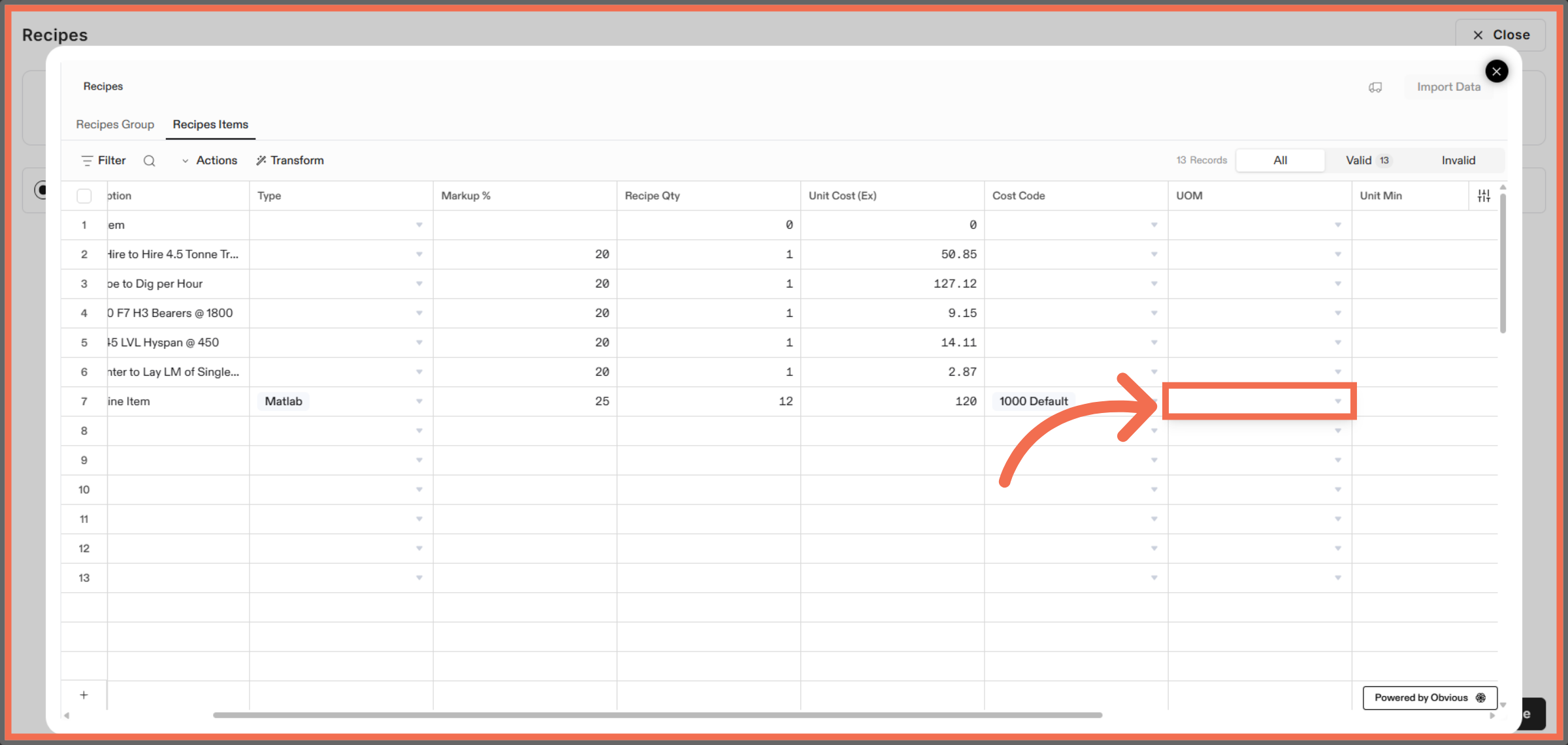
23. Enter Unit Min
Click the area to Enter Unit Min for the recipe group.
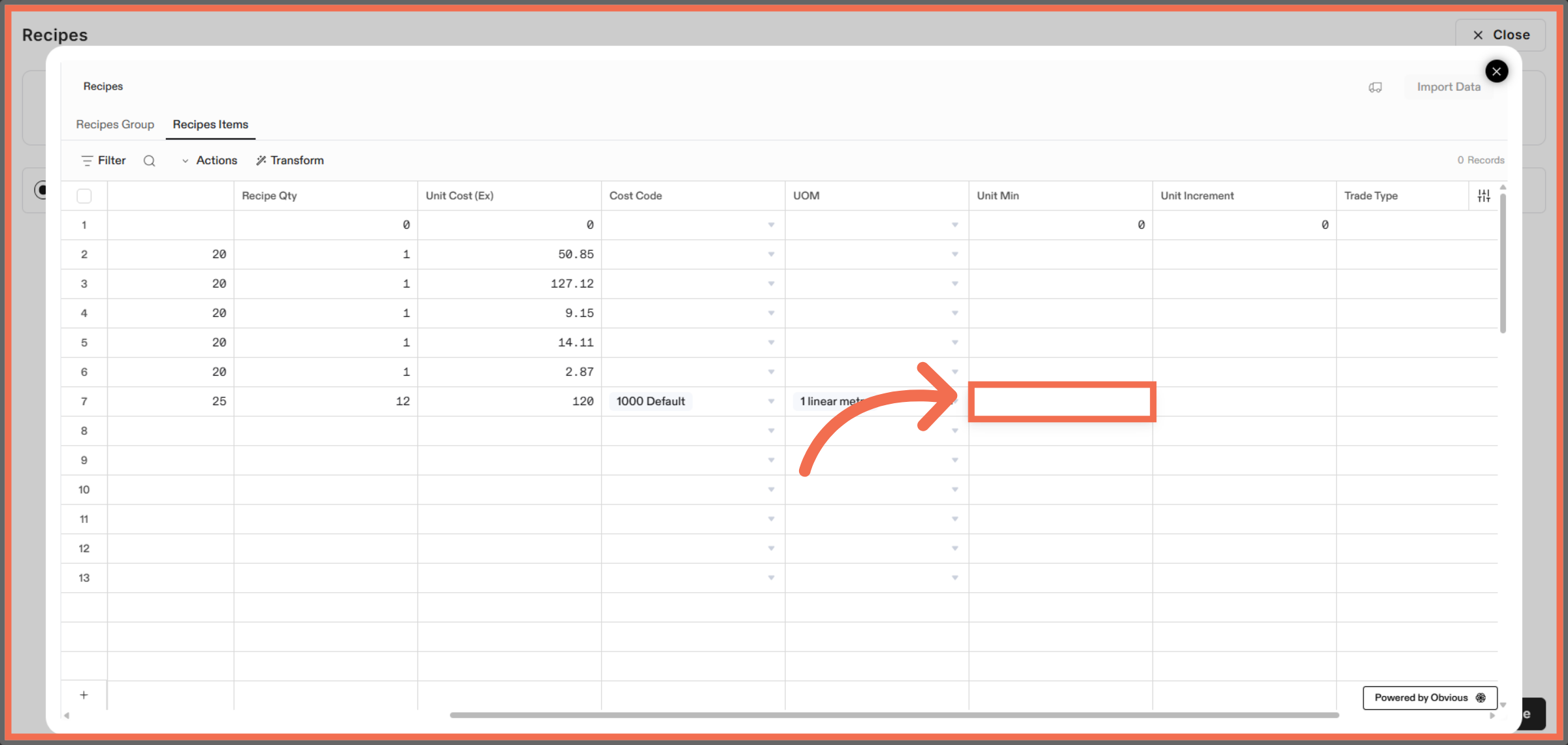
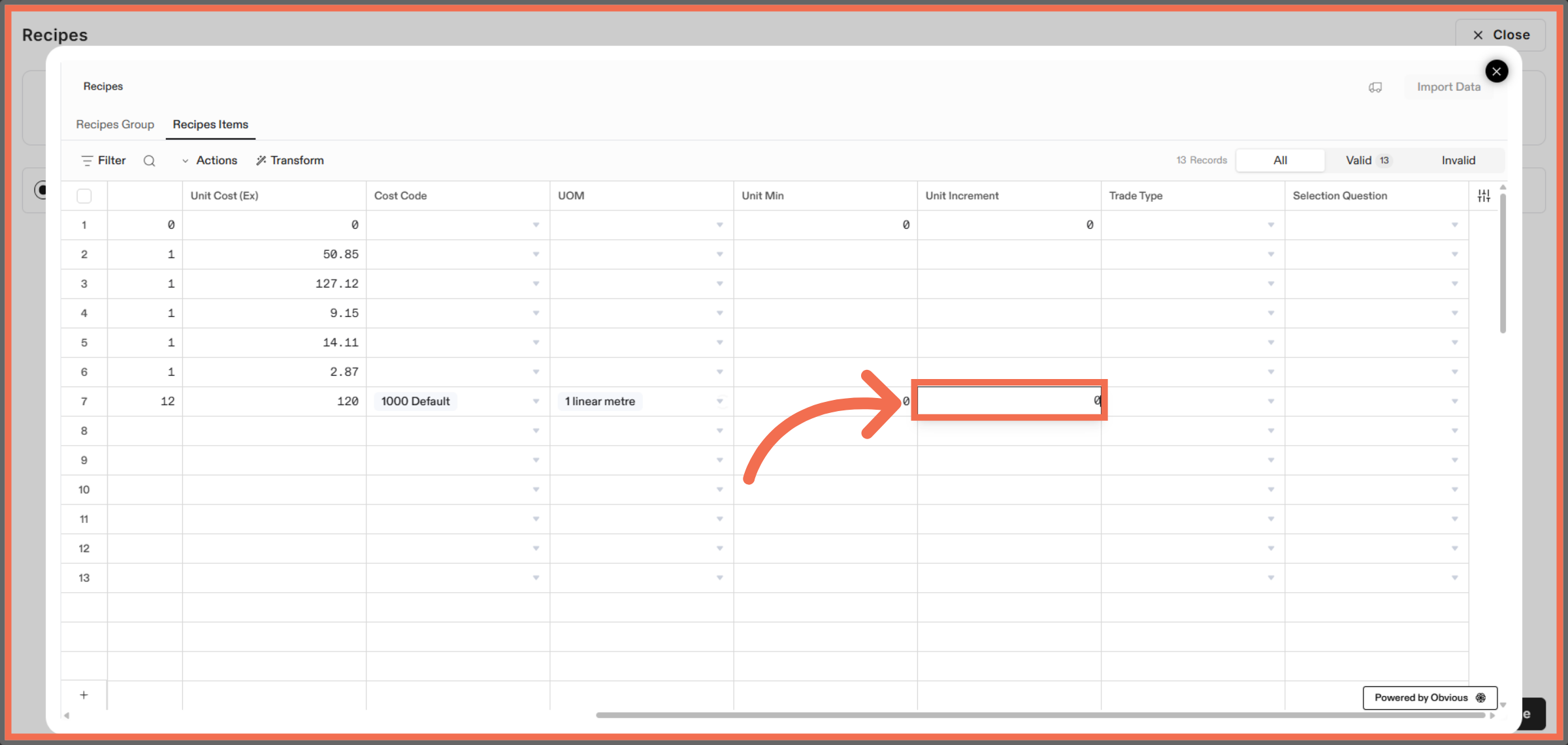
24. Enter Unit Increment
Click the area to Enter Unit Increment.
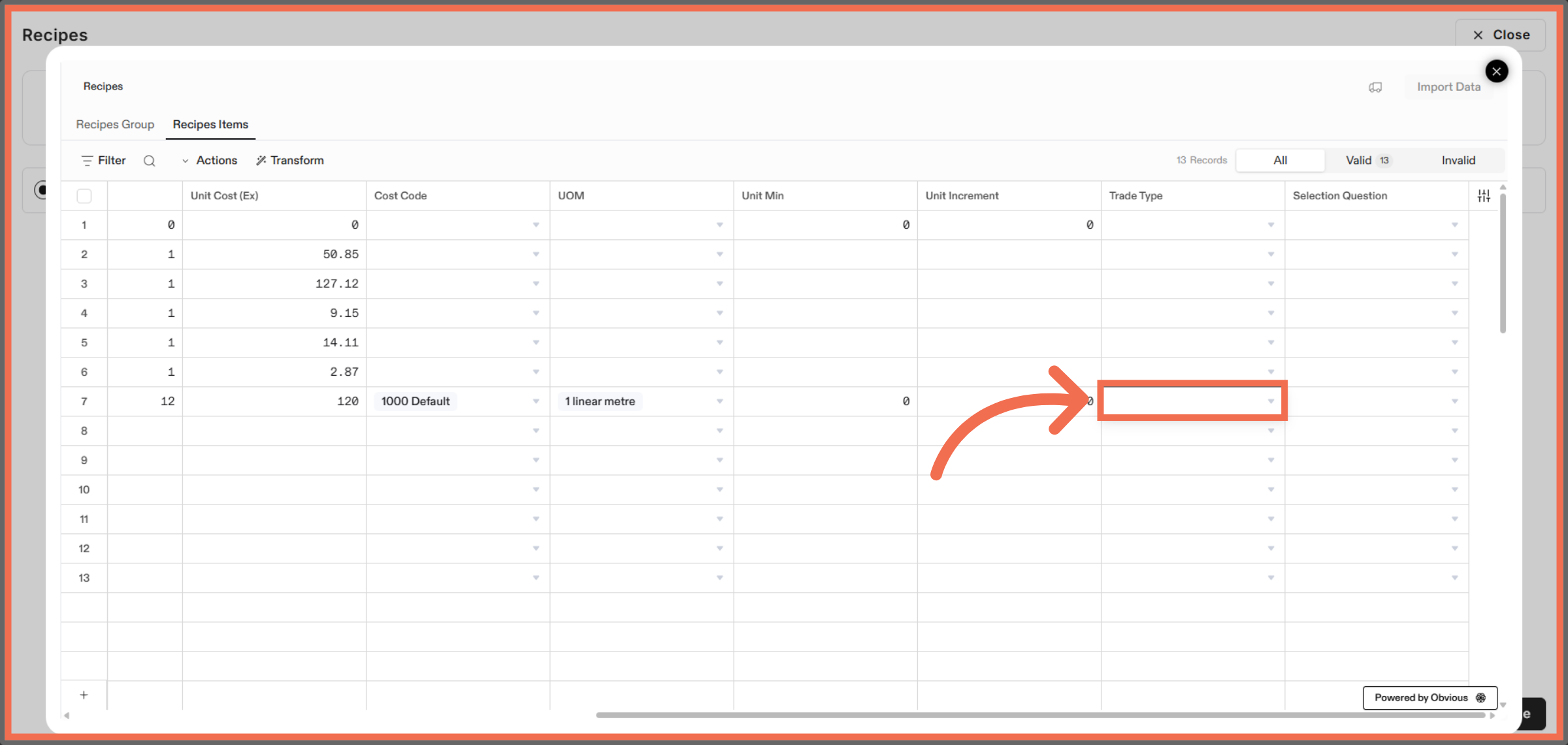
25. Select Trade Type
Click the area to Select Trade Type.
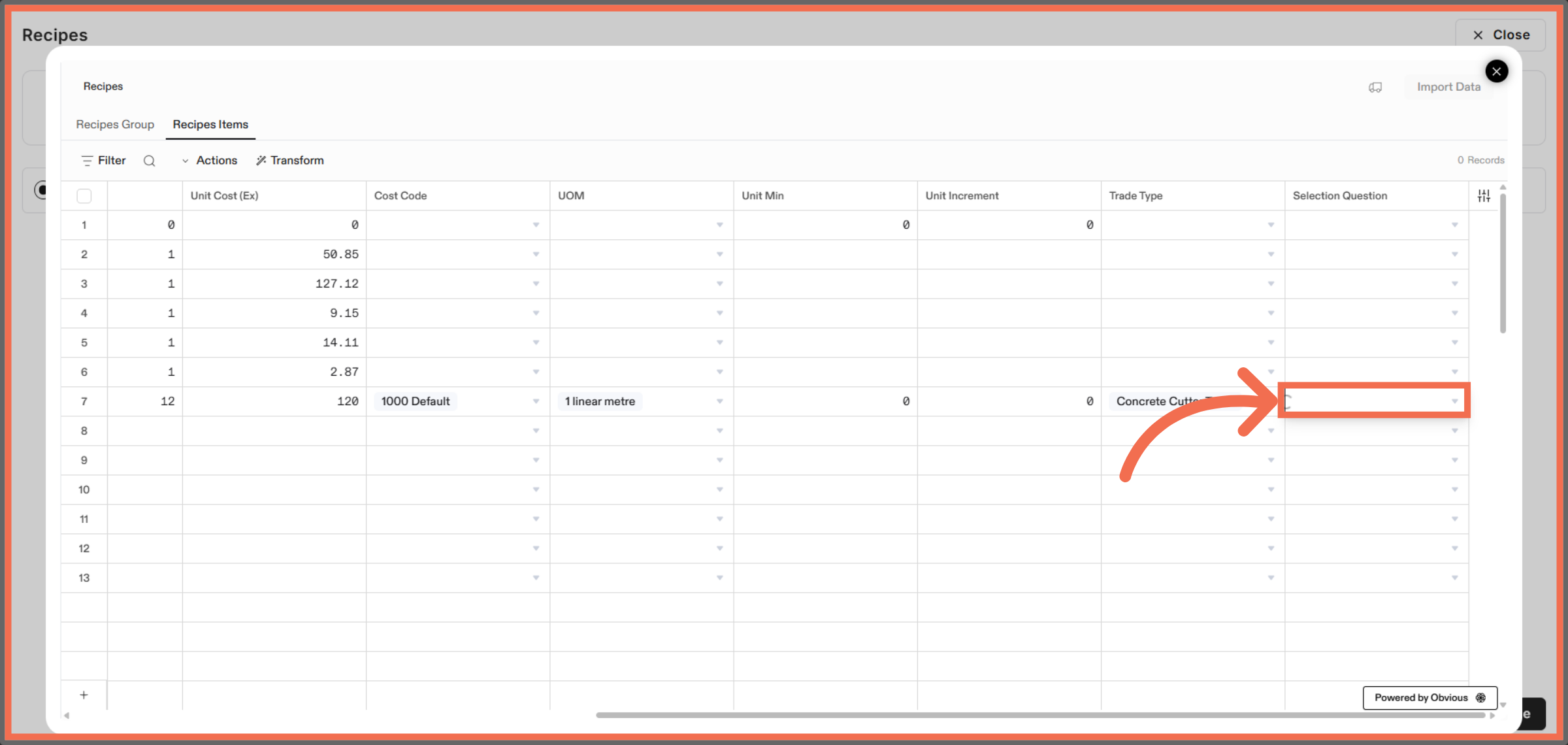
26. Select Selection Question
Click the area to Select Selection Question.
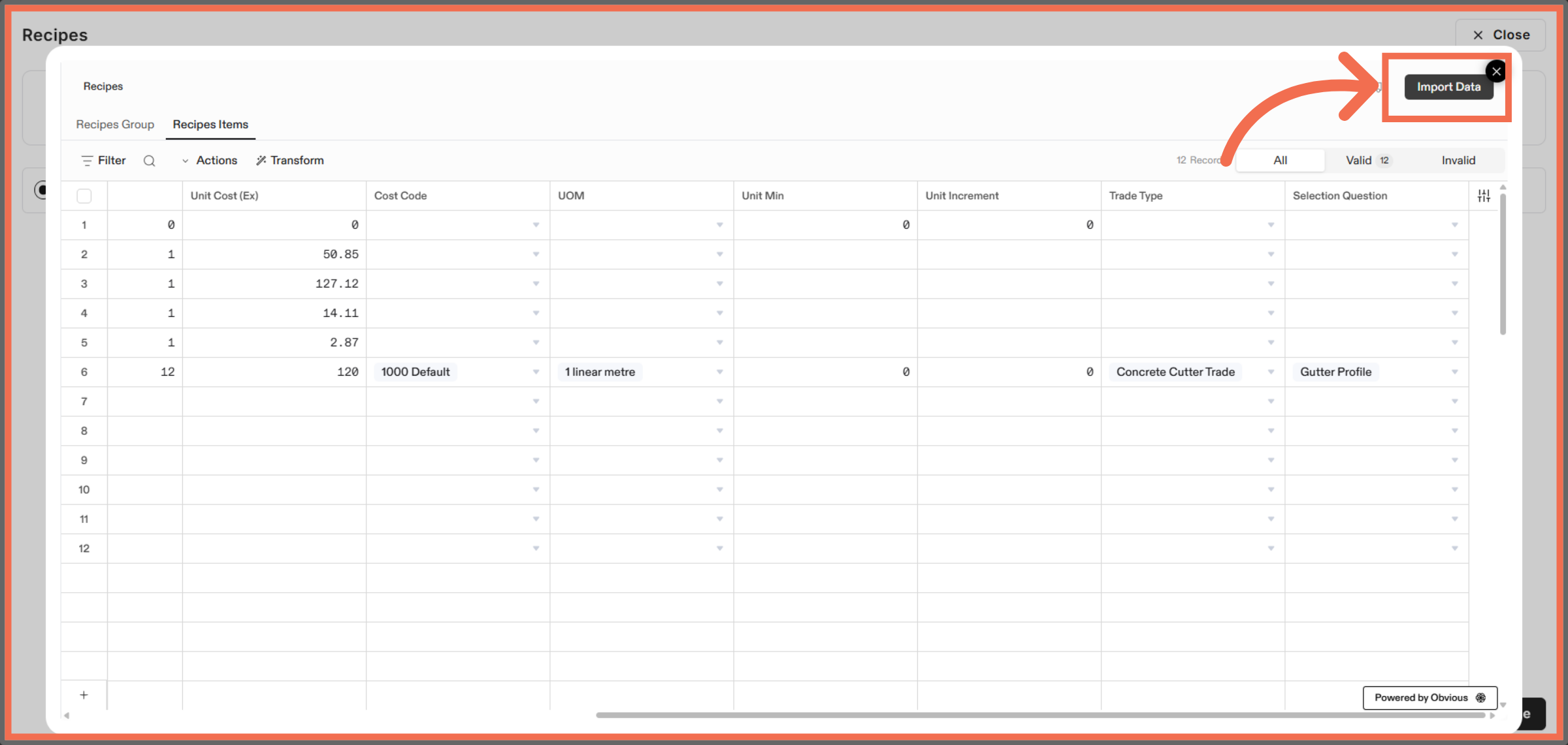
27. Import Recipe Data
Click Import Data to finalize and upload your recipe information.
This demo highlights how Readyteam streamlines importing and organizing recipe data, saving you time and improving project management. Start your import today to experience efficient recipe handling.