Import Specification Data Efficiently In ReadyTeam
This demo showcases how ReadyTeam simplifies importing specification data to streamline your project setup.
Go to app.readyteam.ai
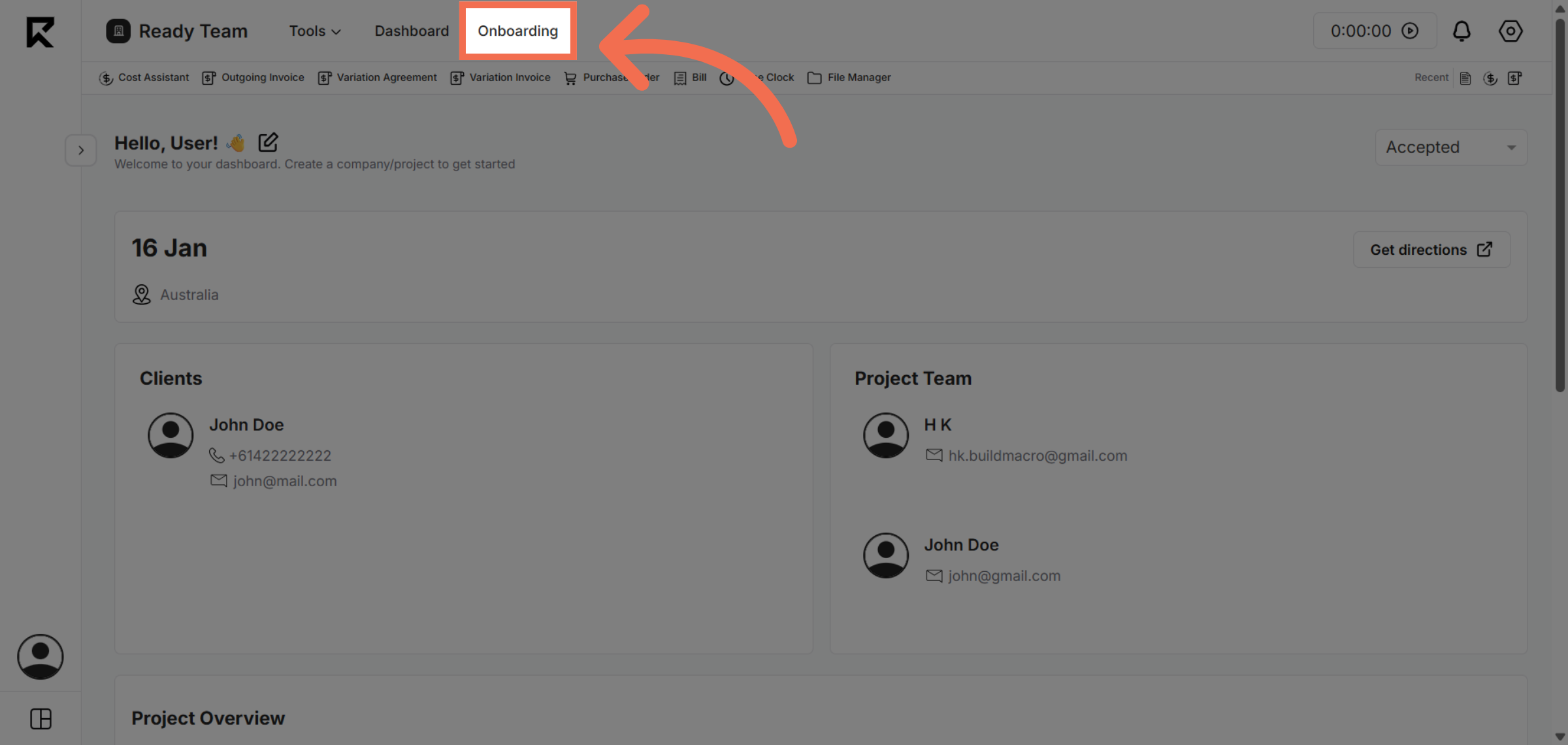
1. Navigate To Onboarding Section
Go to the Onboarding section where you can manage new project specifications.
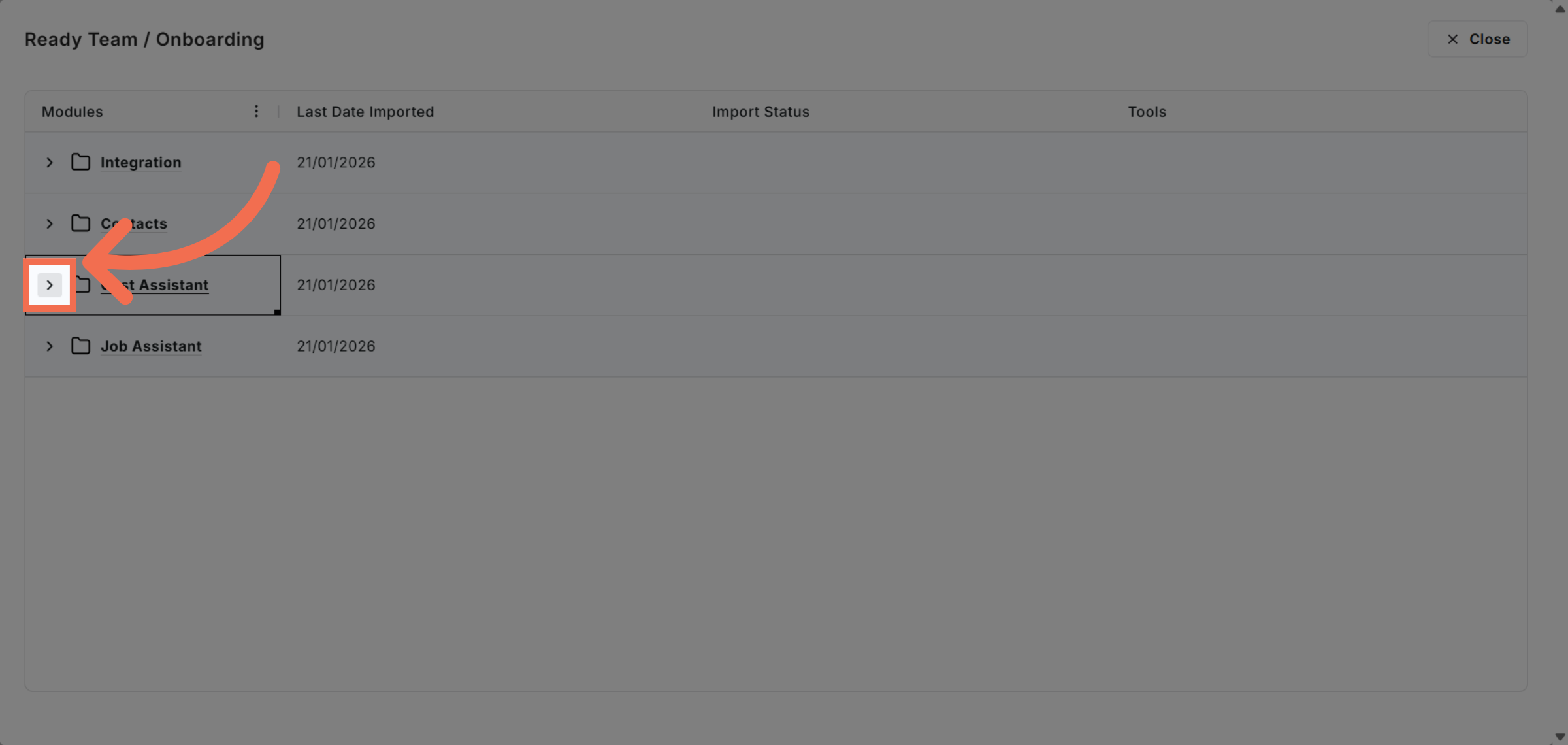
2. Open Cost Assistant
Select the area dedicated to specifications to prepare for data import.
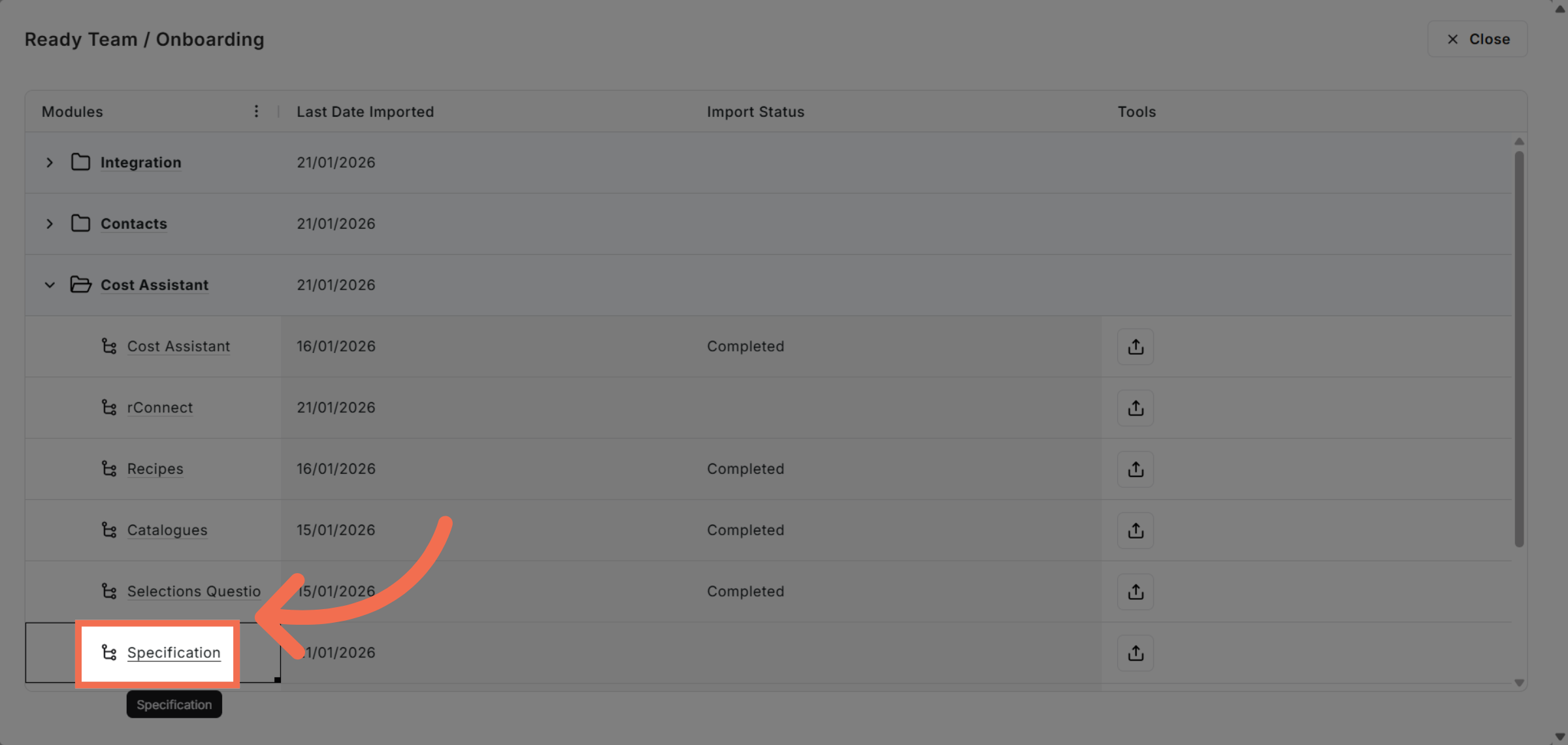
3. Open Specification Tab
Click the Specification tab to access the import options for your project data.
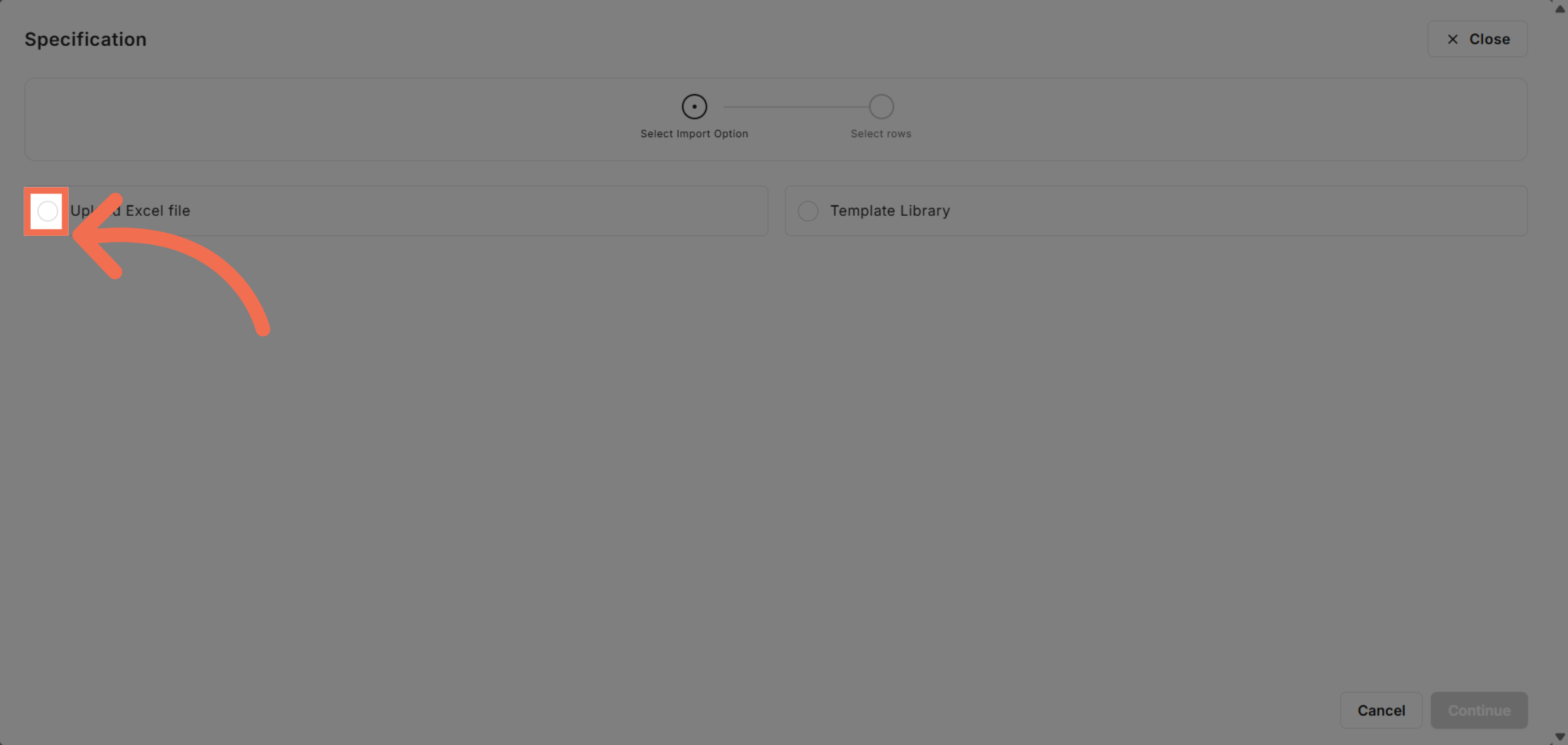
4. Initiate Excel File Upload
Start the process by choosing to upload an Excel file containing your specification details.
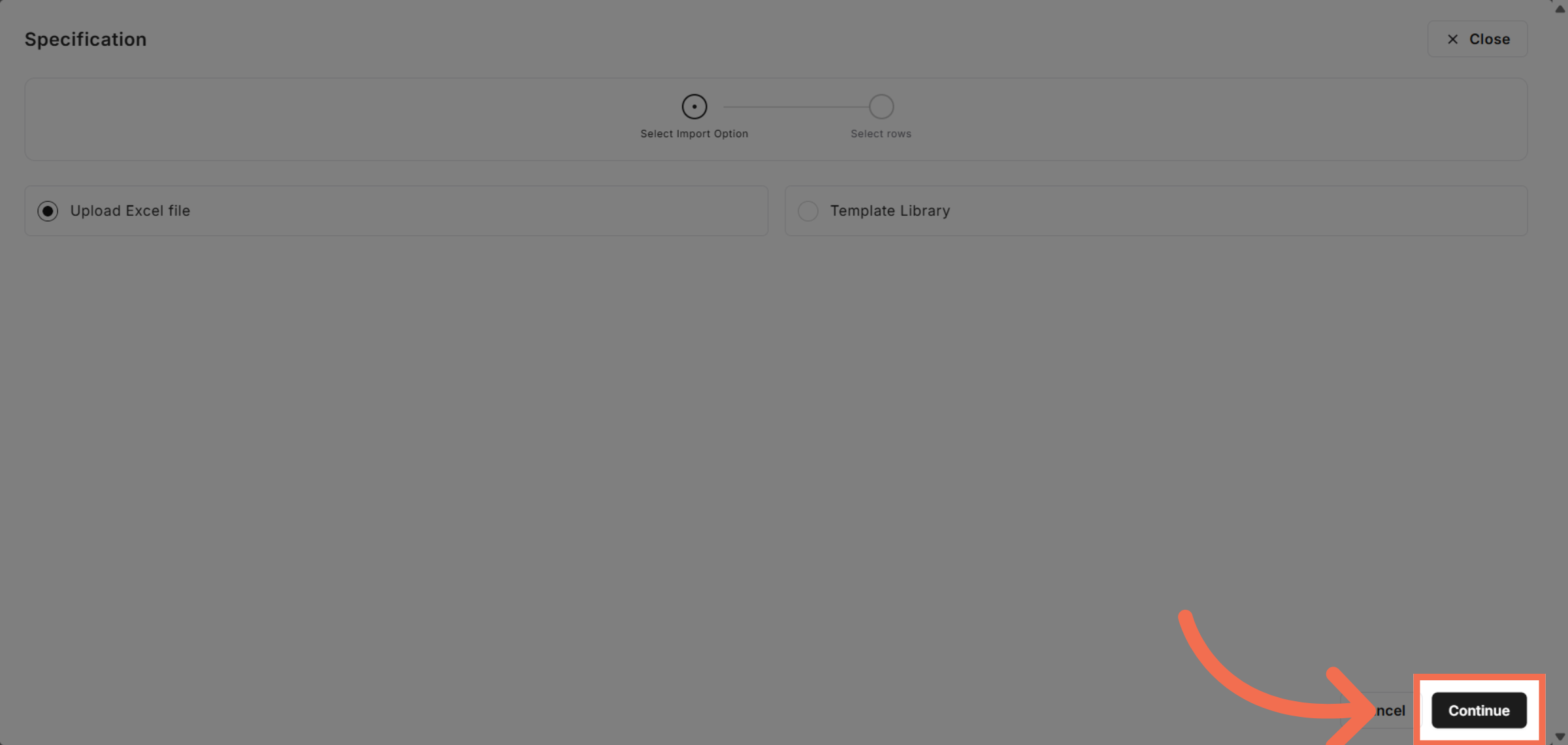
5. Proceed With Upload
Click Continue to move forward with the file upload process.
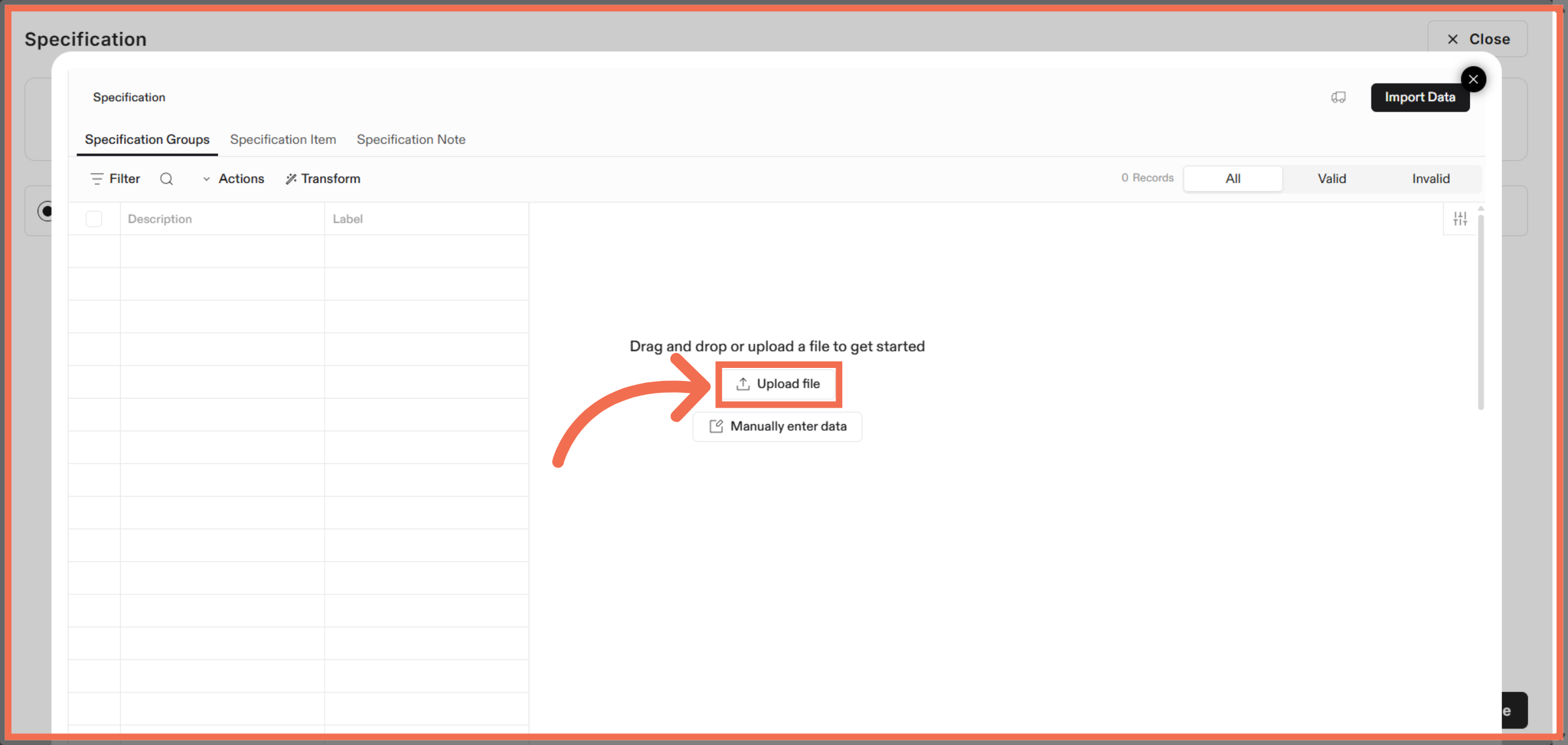
6. Confirm File Upload
Confirm the upload by clicking the Upload file button in the Flatfile application.
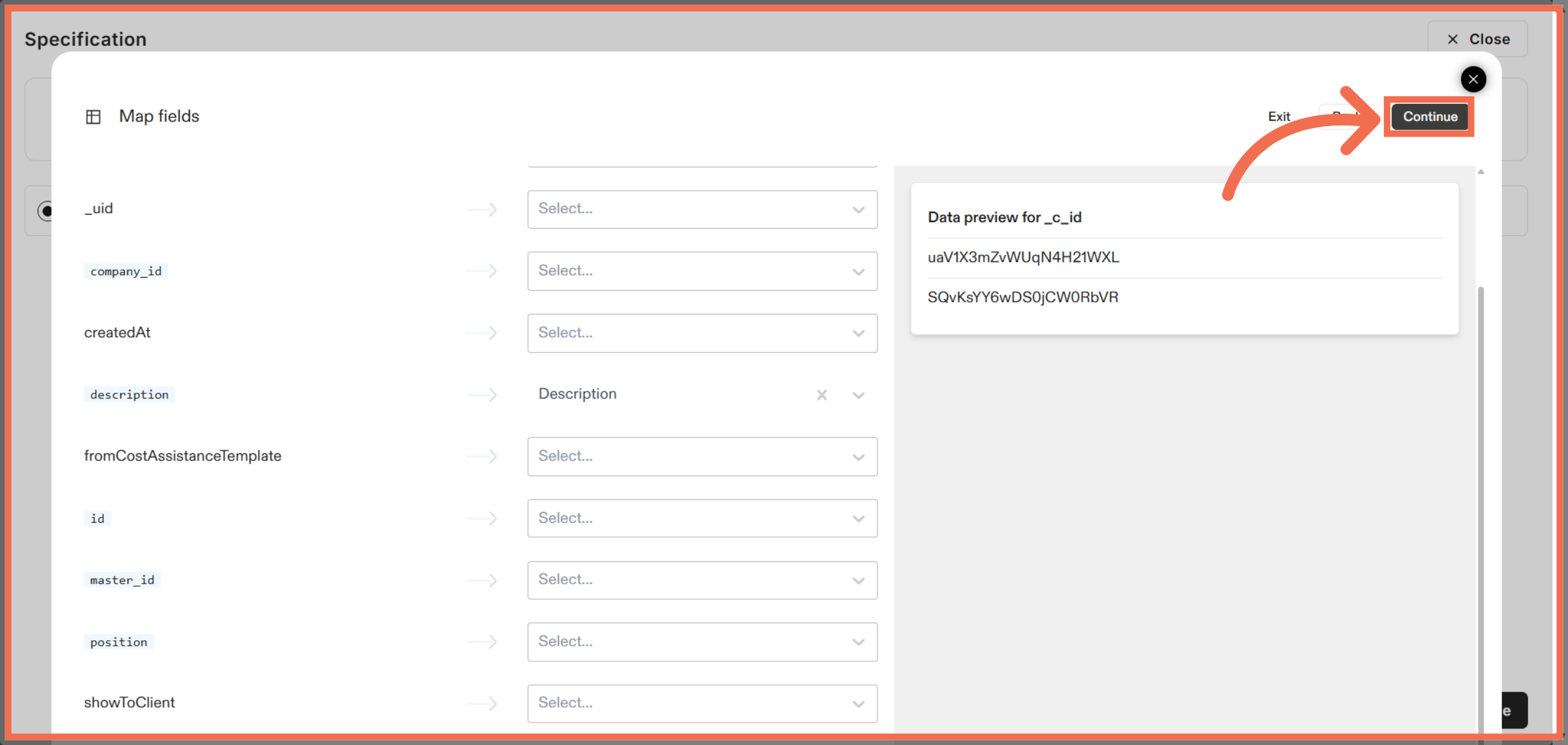
7. Review Mapping and Continue
Click Continue to confirm the data preview and proceed with the import.
8. You can Also Add Data Manually
Engage with the import interface to adjust settings or review data as needed.
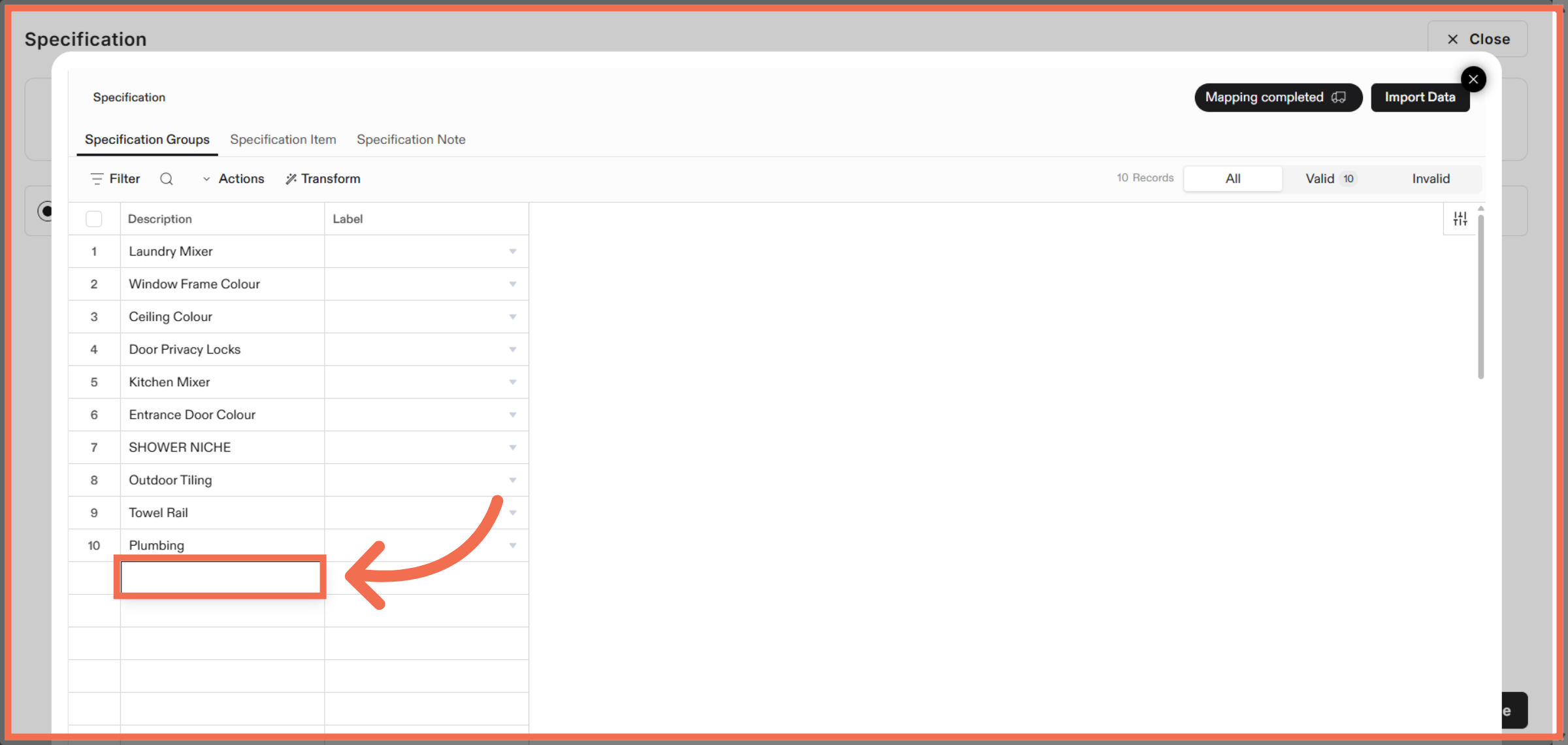
9. Enter Group Description
Enter a name for the new group to organize your imported specification data effectively.
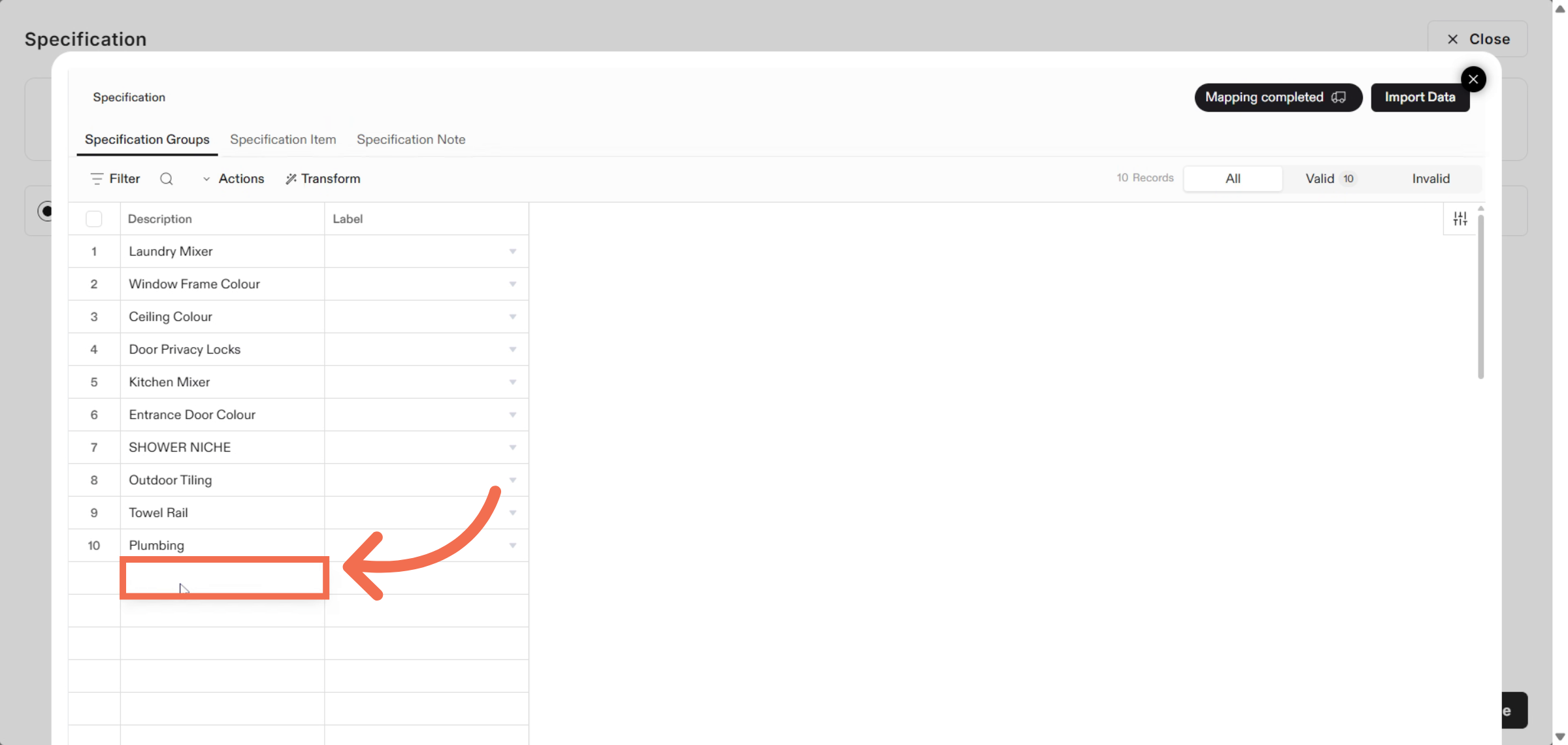
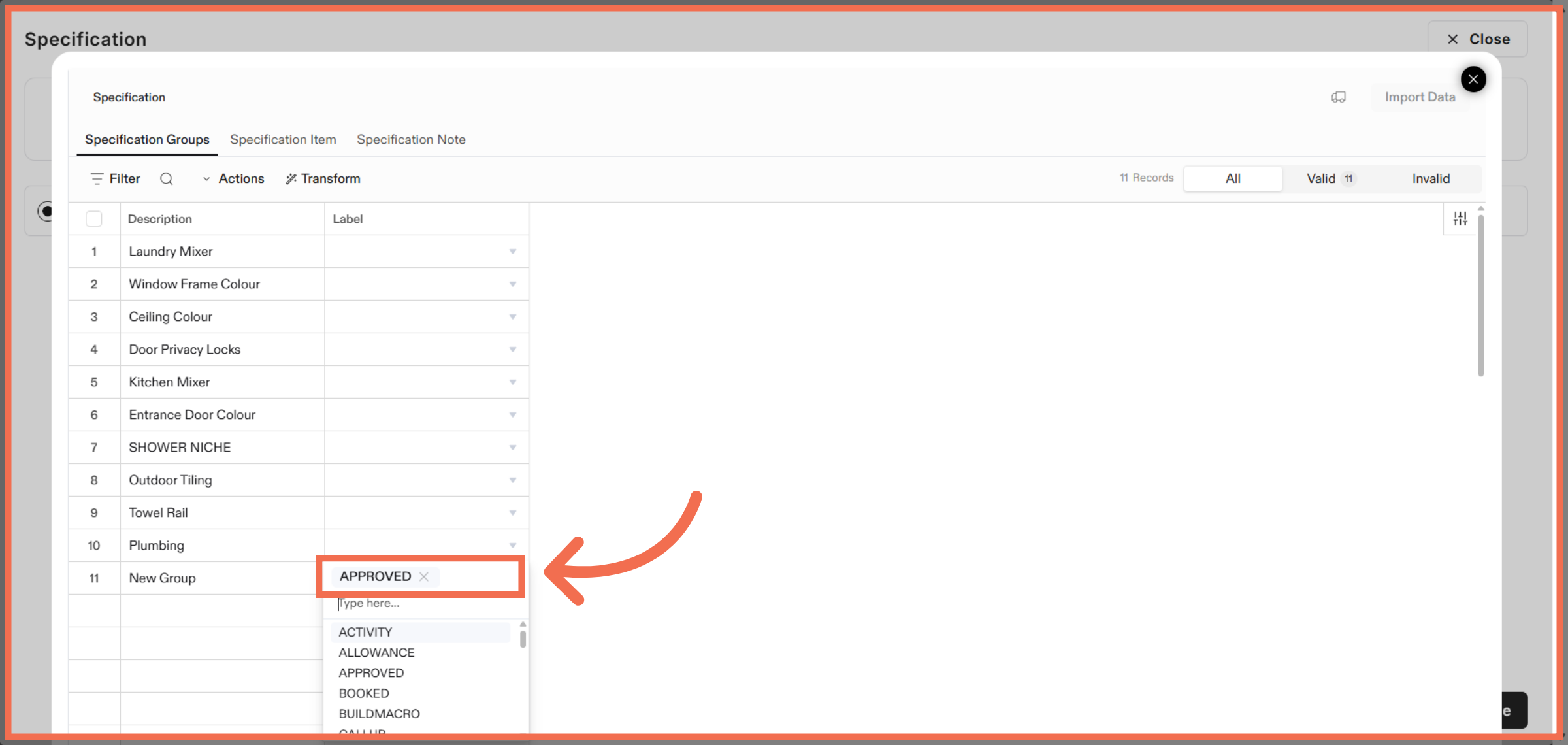
10. Select Label
Choose the approval status to indicate the current state of your specification data.
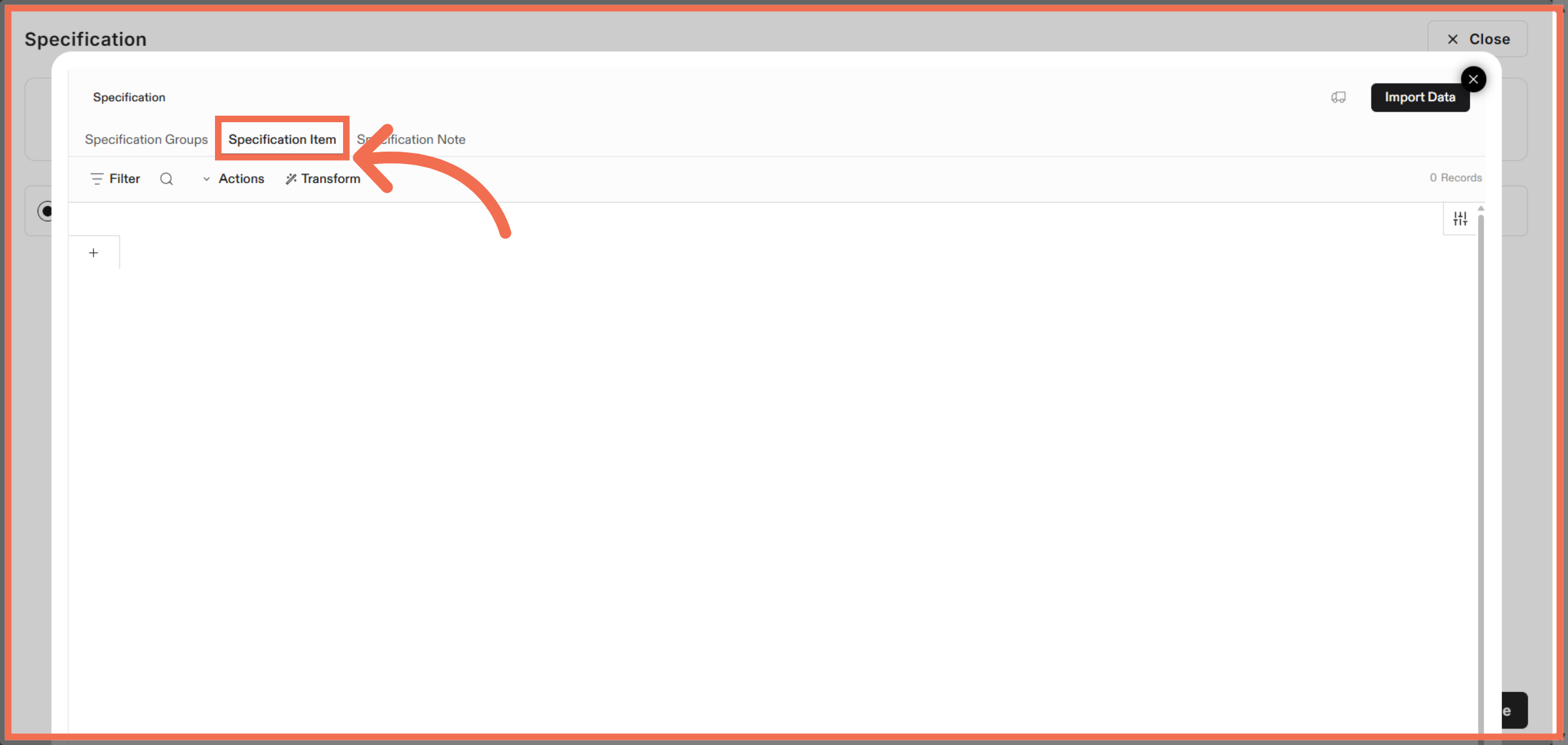
11. Access Specification Items
Click to view and manage individual specification items within your import.
12. Upload File
Upload any additional files required to complete your specification import process.
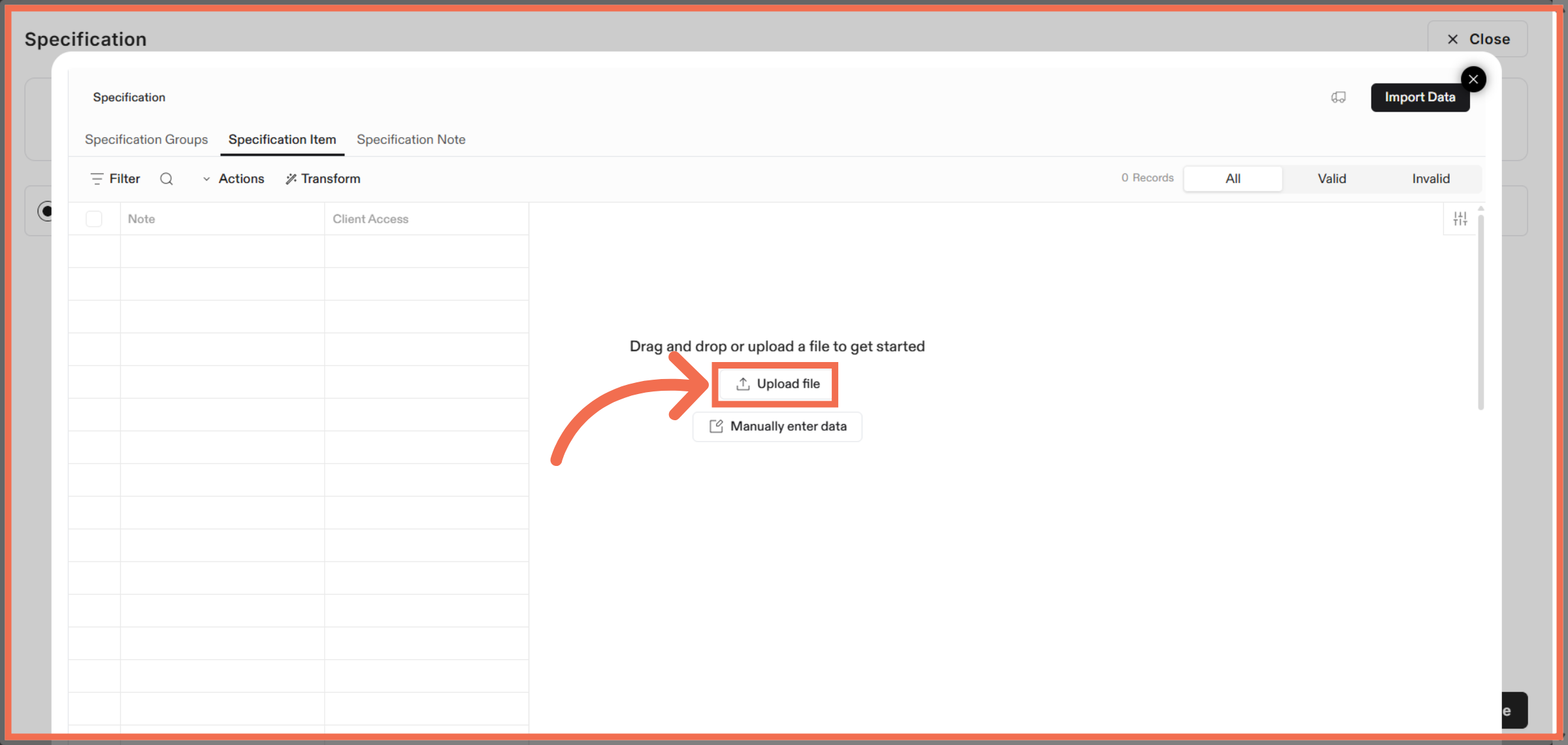
13. Review Mapping and Continue
Click Continue to apply client access settings and move forward in the import process.
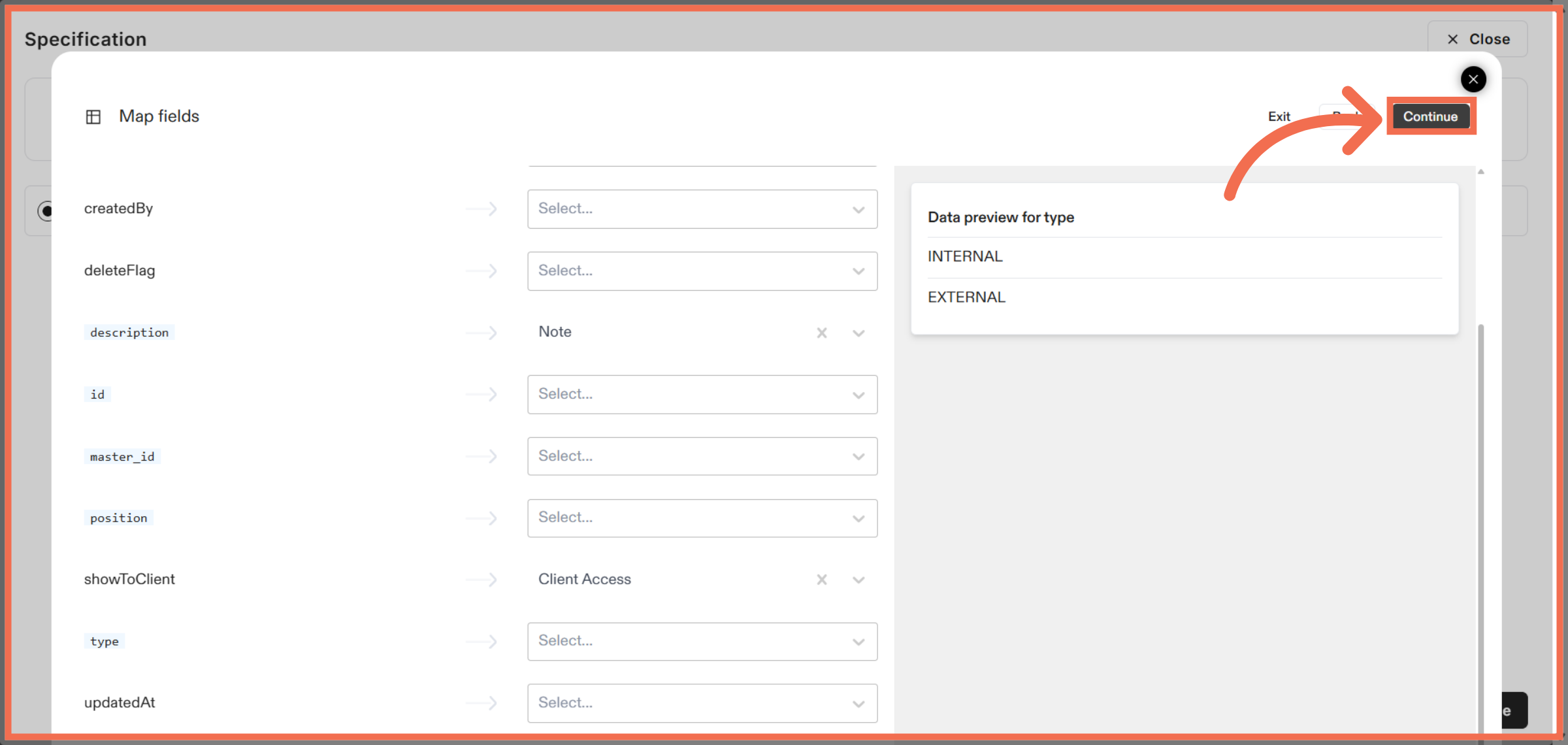
14. You can Also Add Data Manually
Click Specification Note to include any additional comments or instructions related to your data.
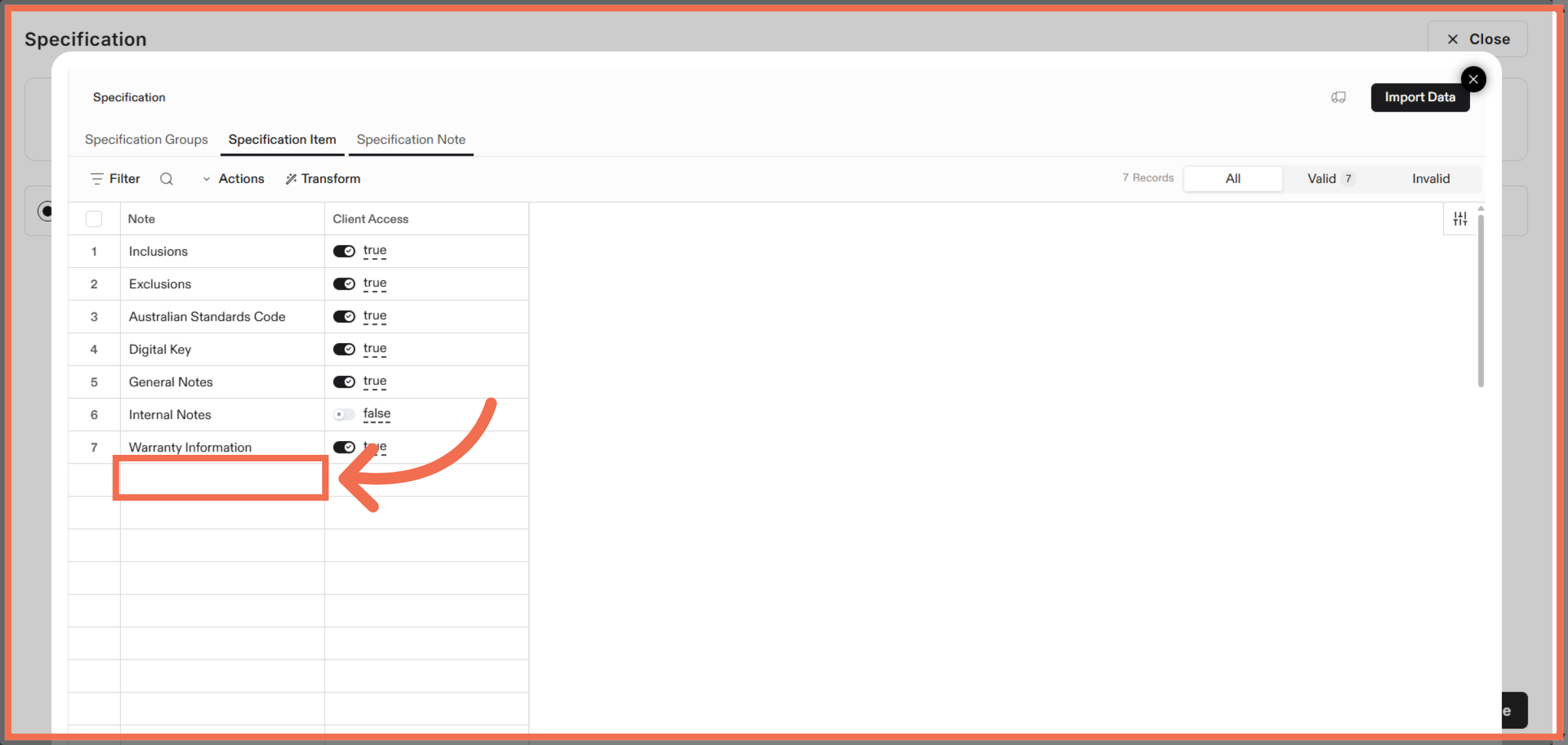
15. Select Specification Notes Tab
Upload the file containing specification notes to provide context and details for your project.
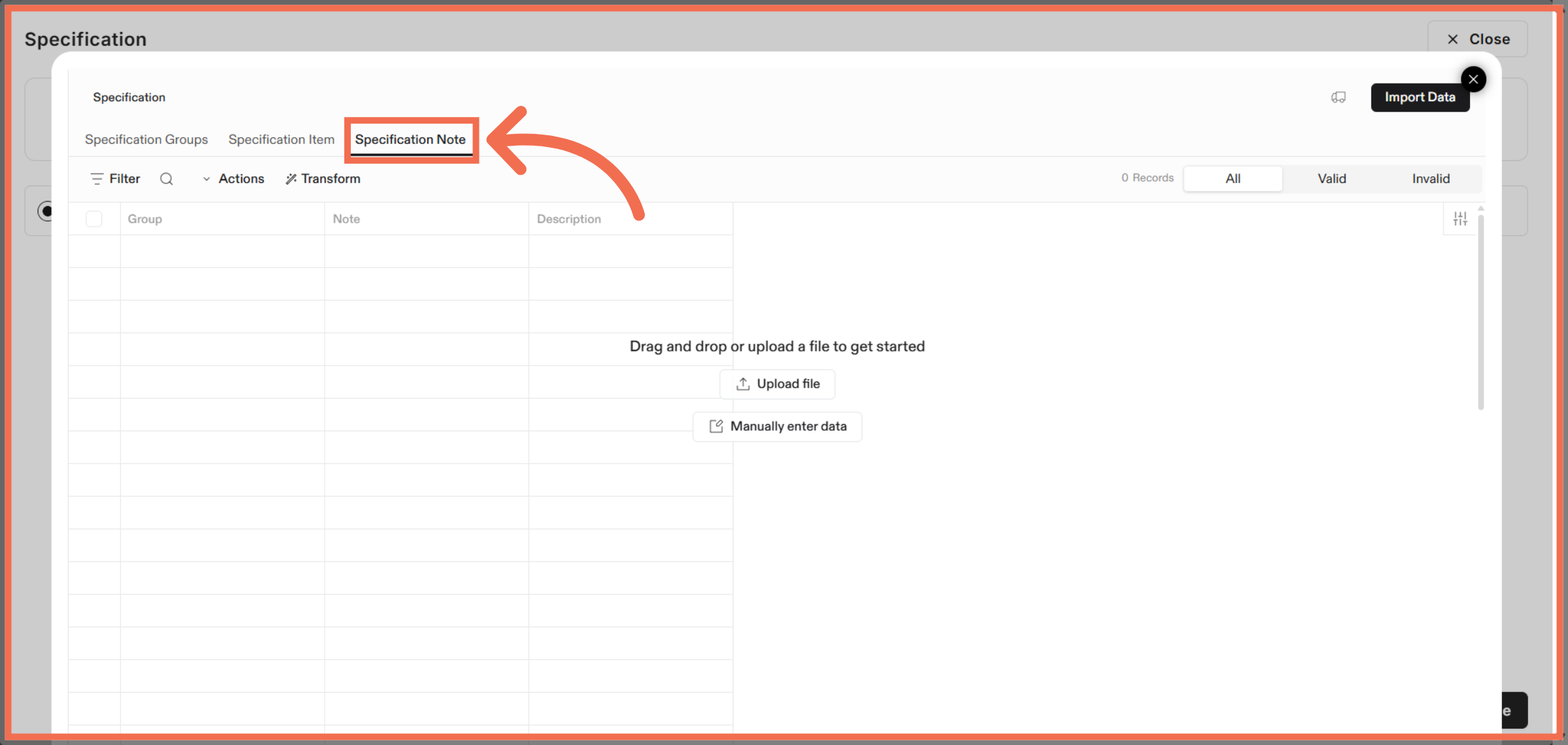
16. Upload Specification Notes File
Upload the file containing specification notes to provide context and details for your project.
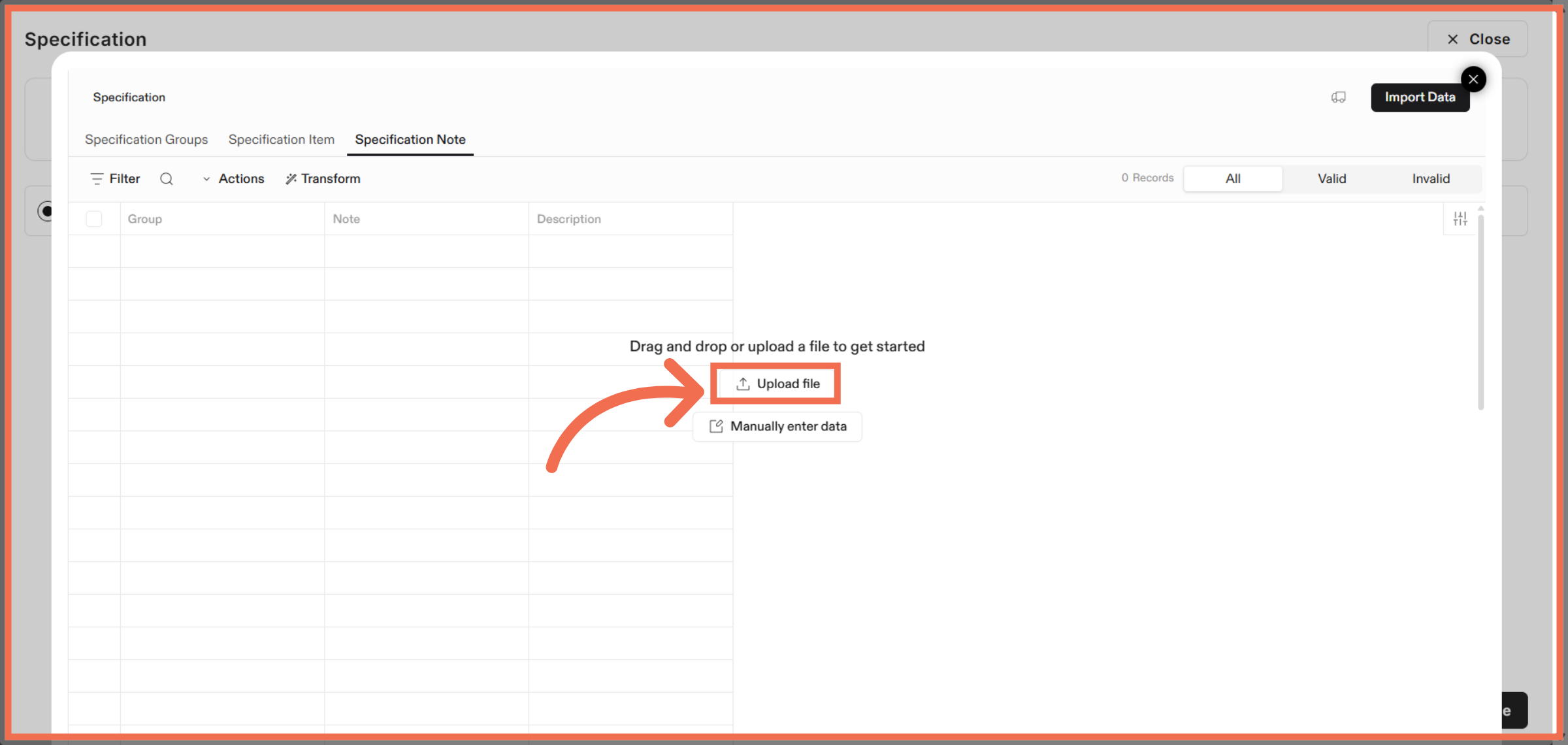
17. Review Mapping and Continue
Click Continue to confirm your notes setup and proceed with the import.
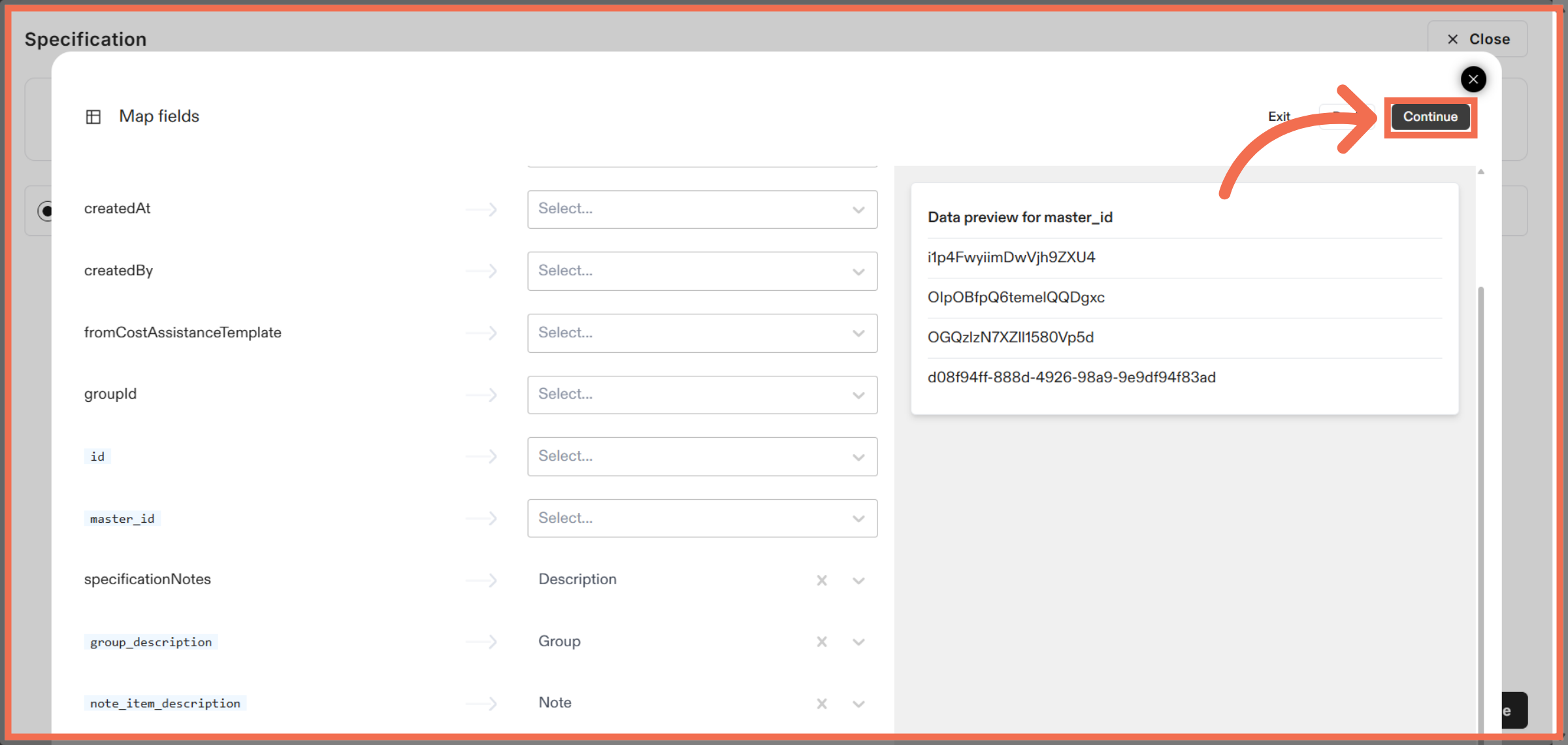
18. You can also Add Data Manually
Engage with additional import options to customize your data handling.
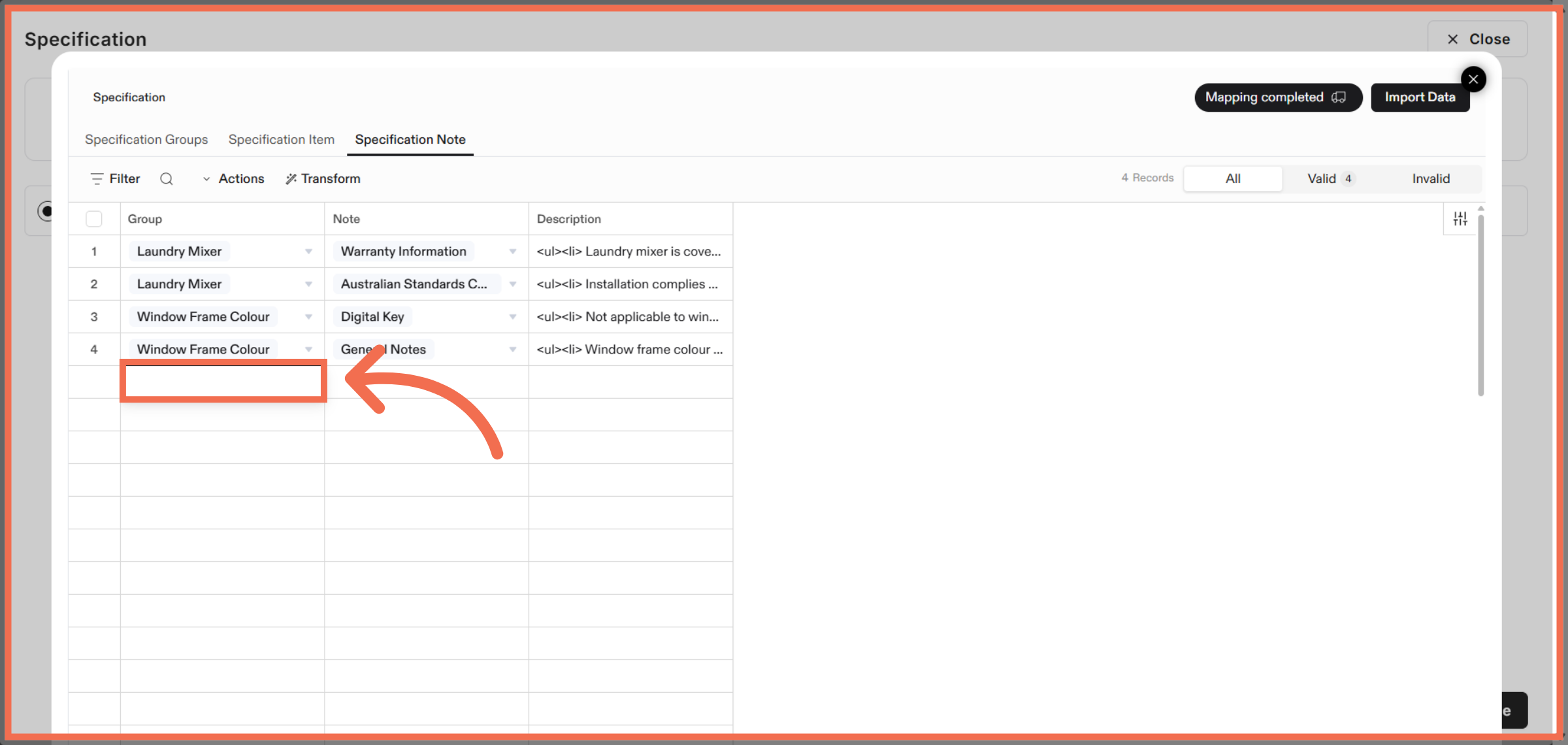
19. Select Specification Group
Click Select Specification Group related to your specification data.
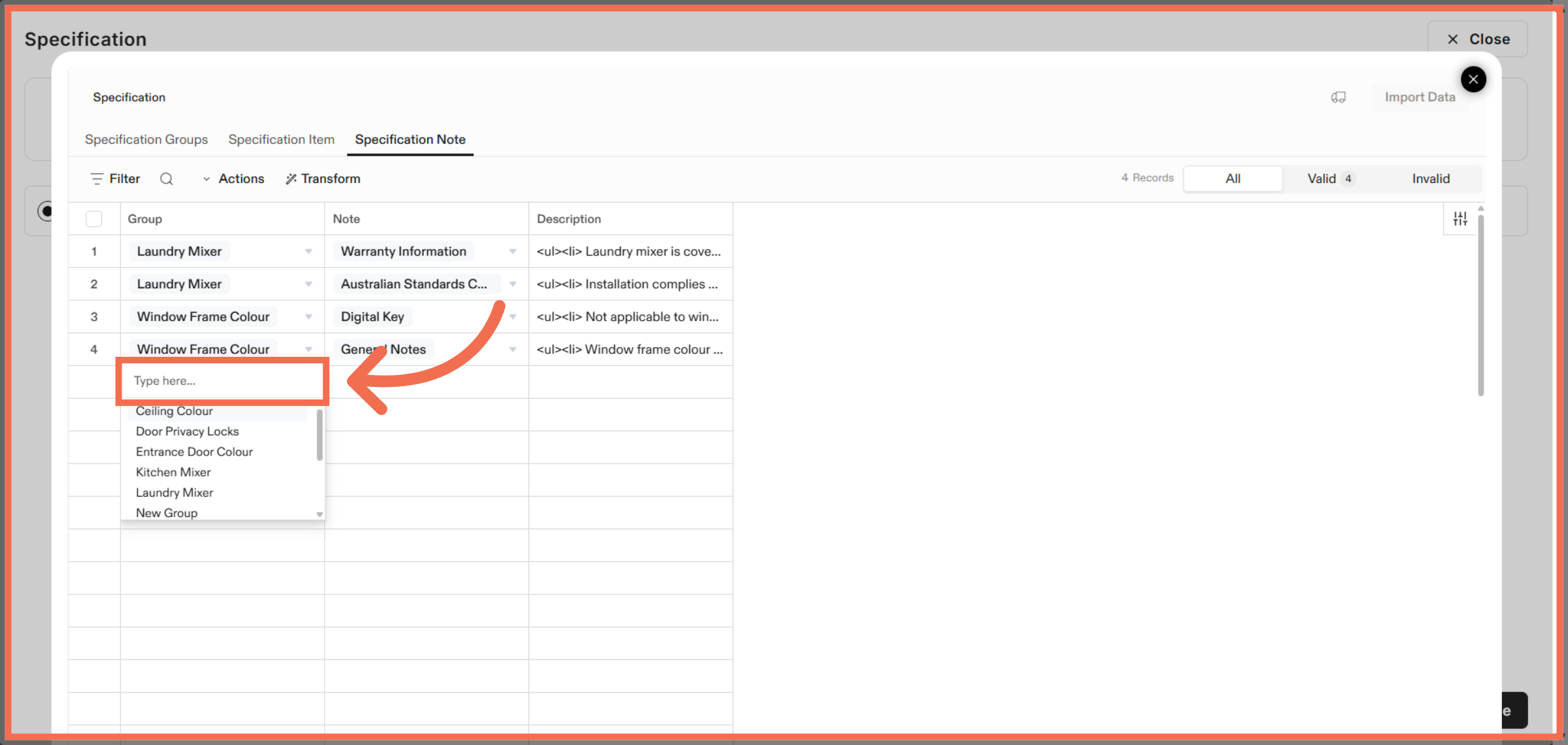
20. Select Specification Note
Click Select Specification Note within your specification data.
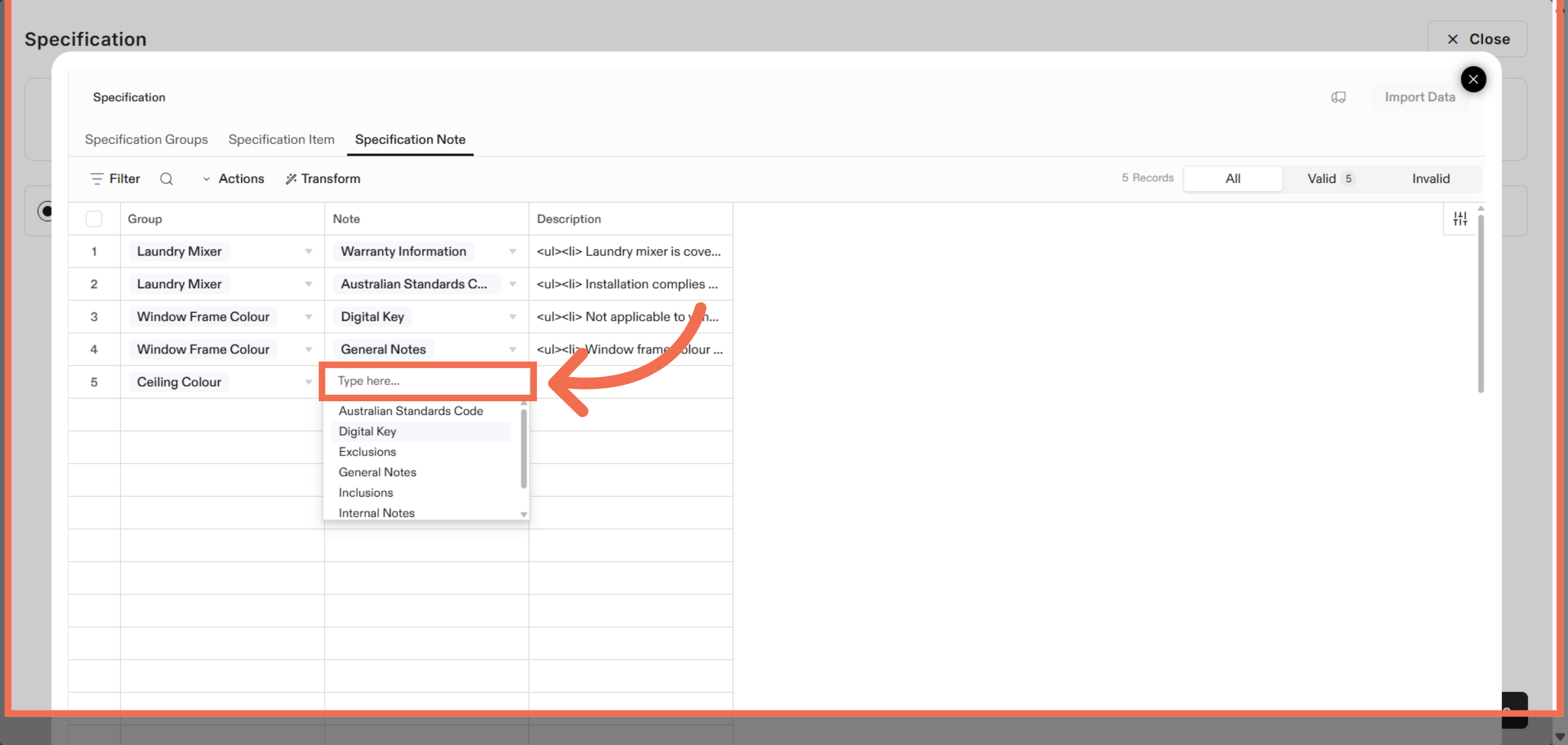
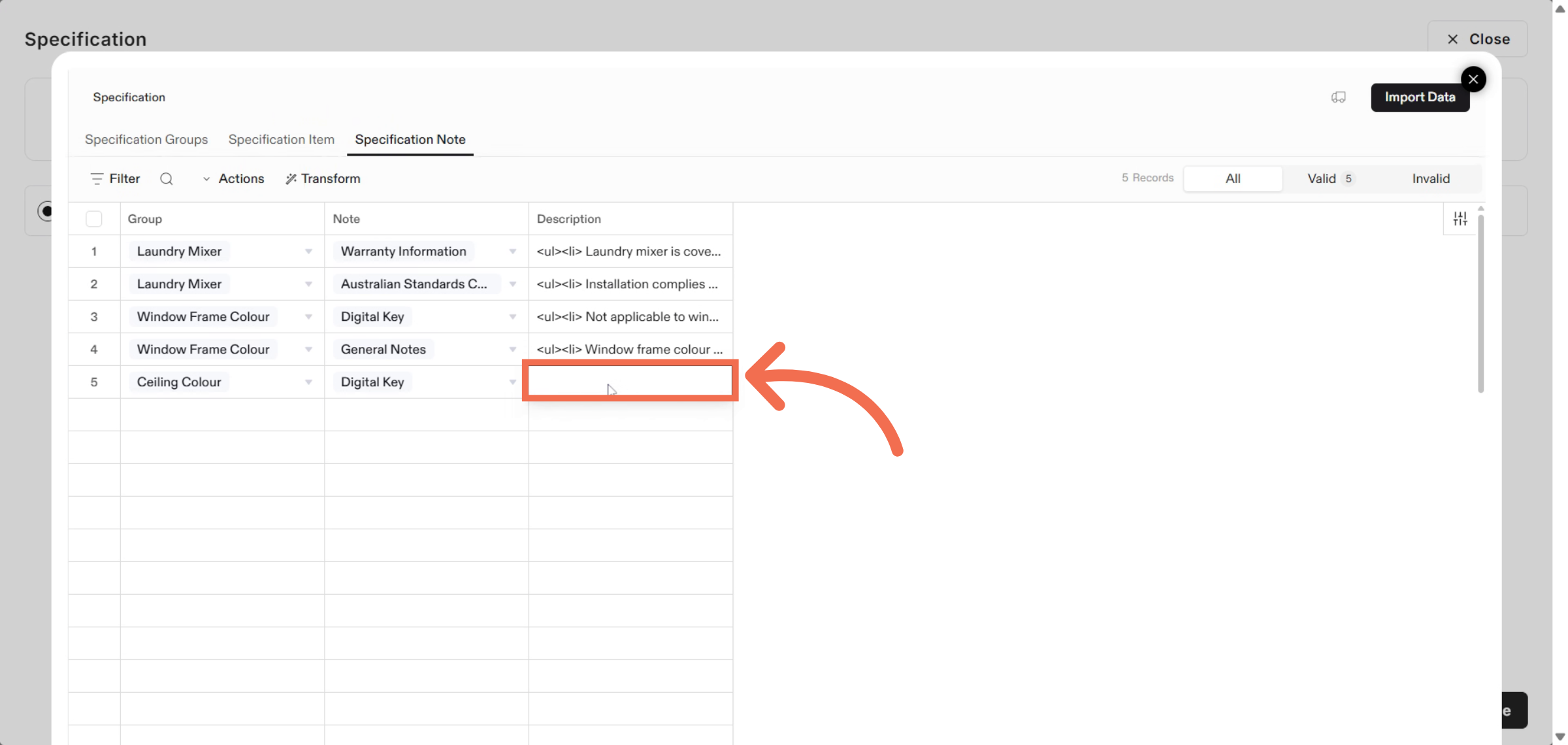
21. Enter Description
Enter notes about about item to guide project decisions.
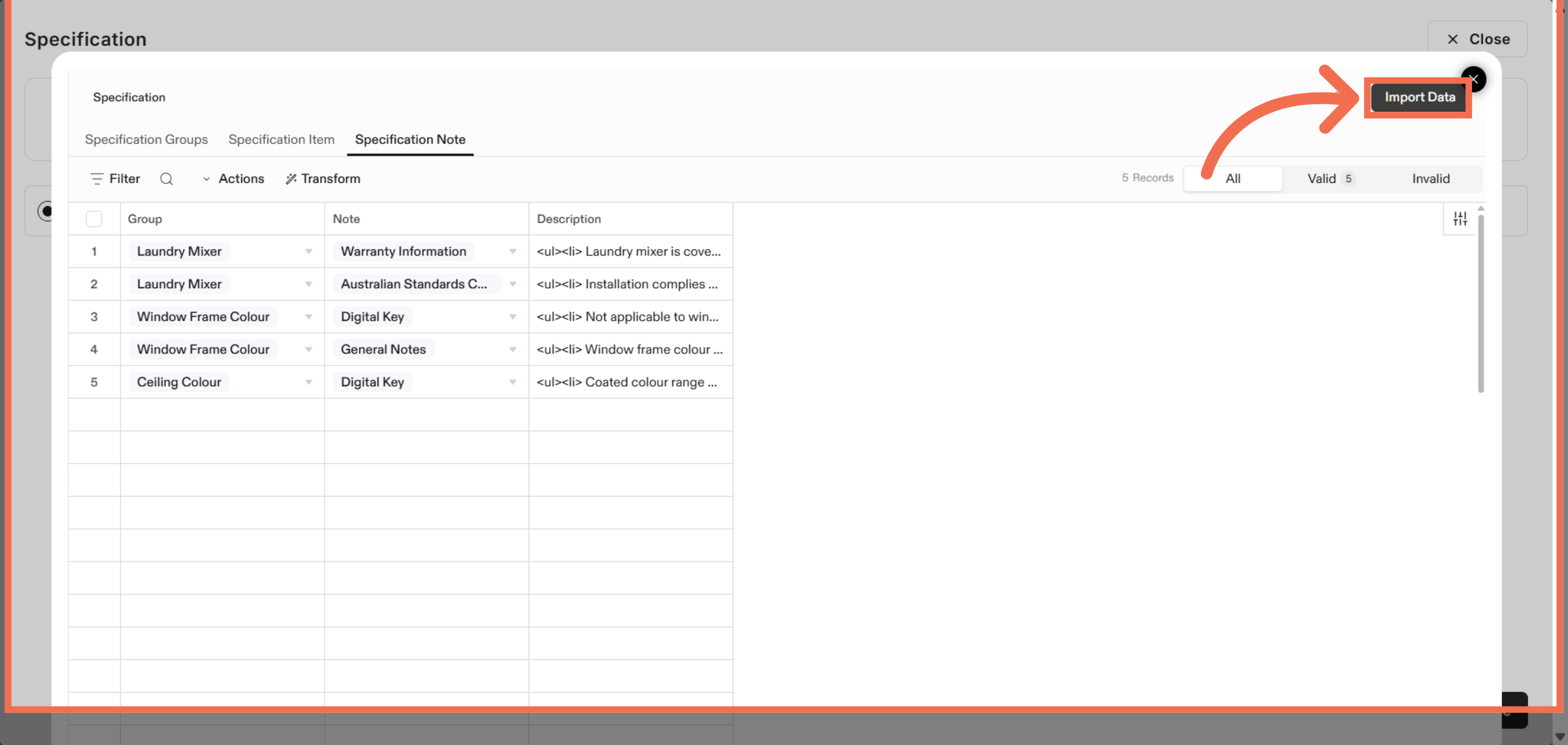
22. Import Specification Data
Click Import Data to complete the process and bring your specification details into ReadyTeam.
This demo highlights how ReadyTeam streamlines importing specification data through intuitive file uploads and organized data management. Start your own import today to enhance project efficiency and accuracy.