Insert Terms And Conditions In ReadyTeam
This demo showcases how to insert terms and conditions within Readyteam to streamline your contract management.
Go to app.readyteam.ai
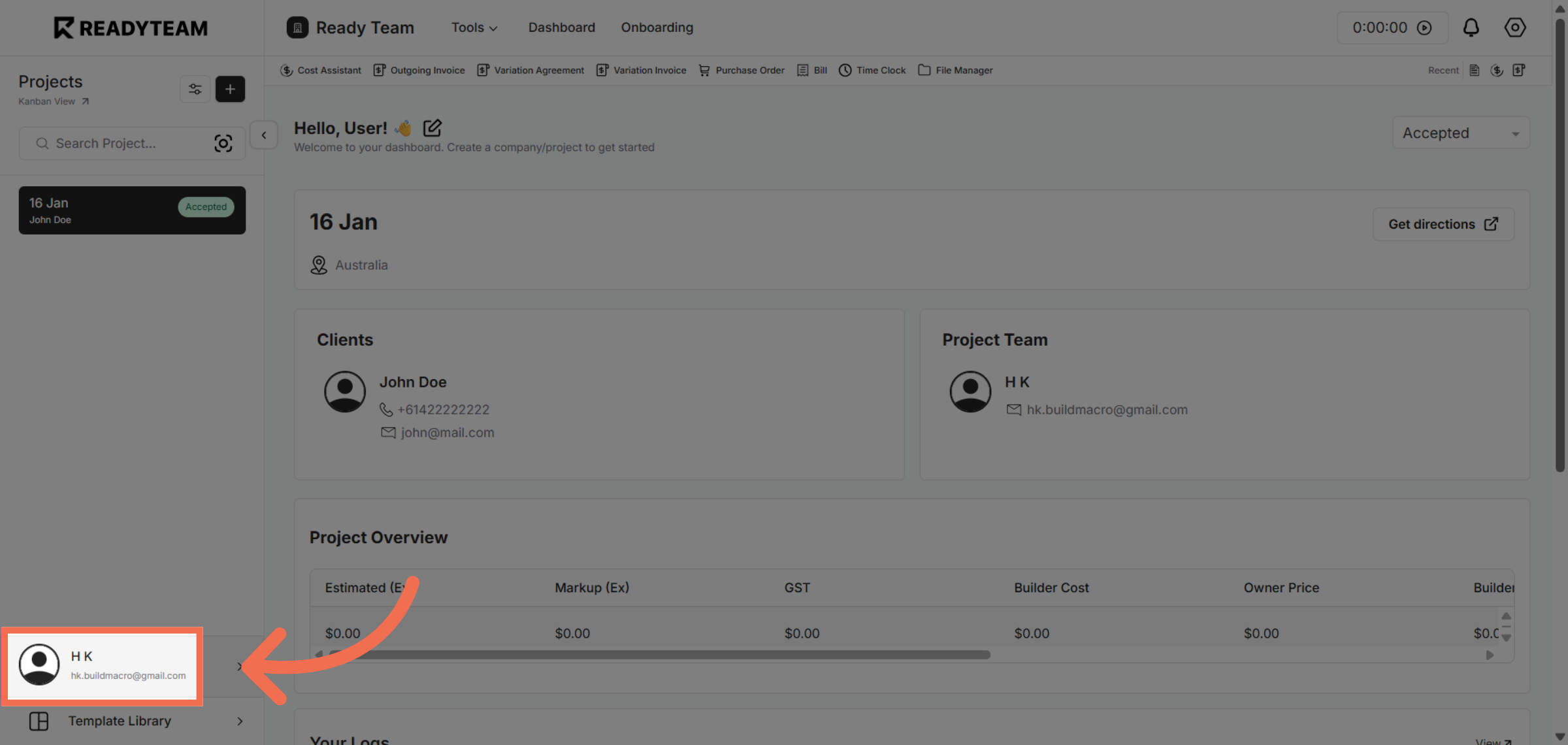
1. Select User Section
Click the user section to begin configuring your settings.
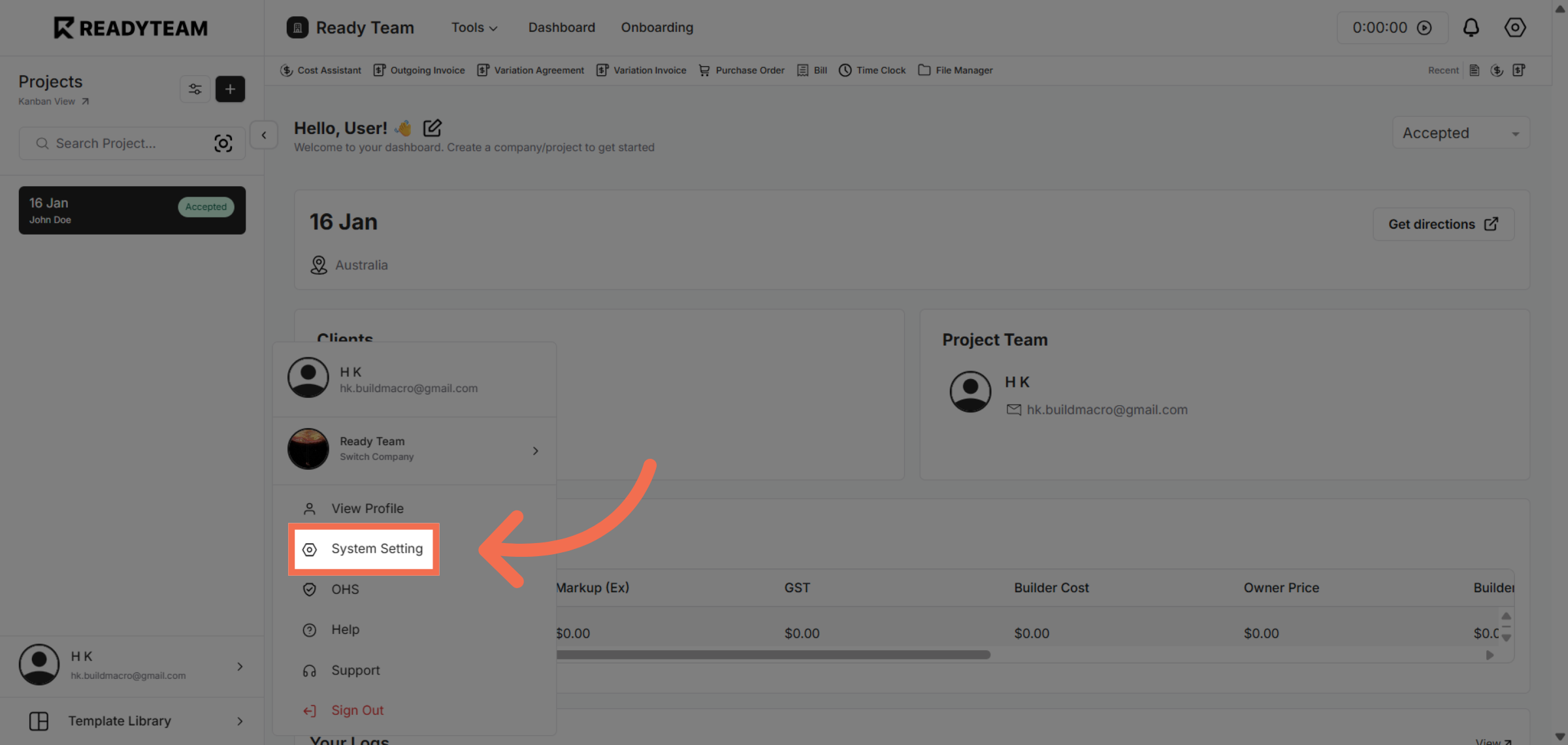
2. Open System Settings
Navigate to System Setting to access configuration options.
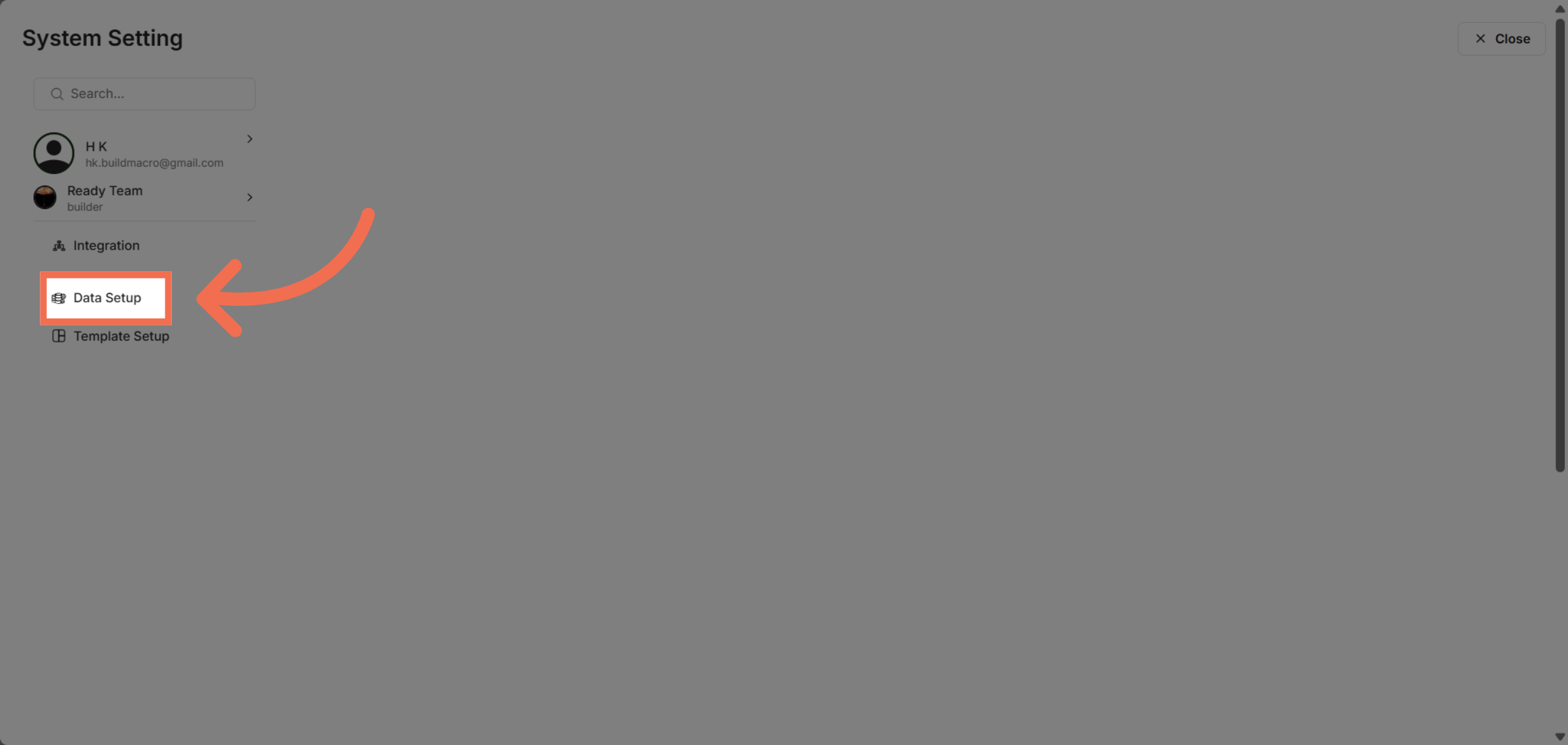
3. Access Data Setup
Click Data Setup to manage your data configurations.
4. Choose Terms And Conditions
Select Terms and Conditions to begin editing your contract clauses.
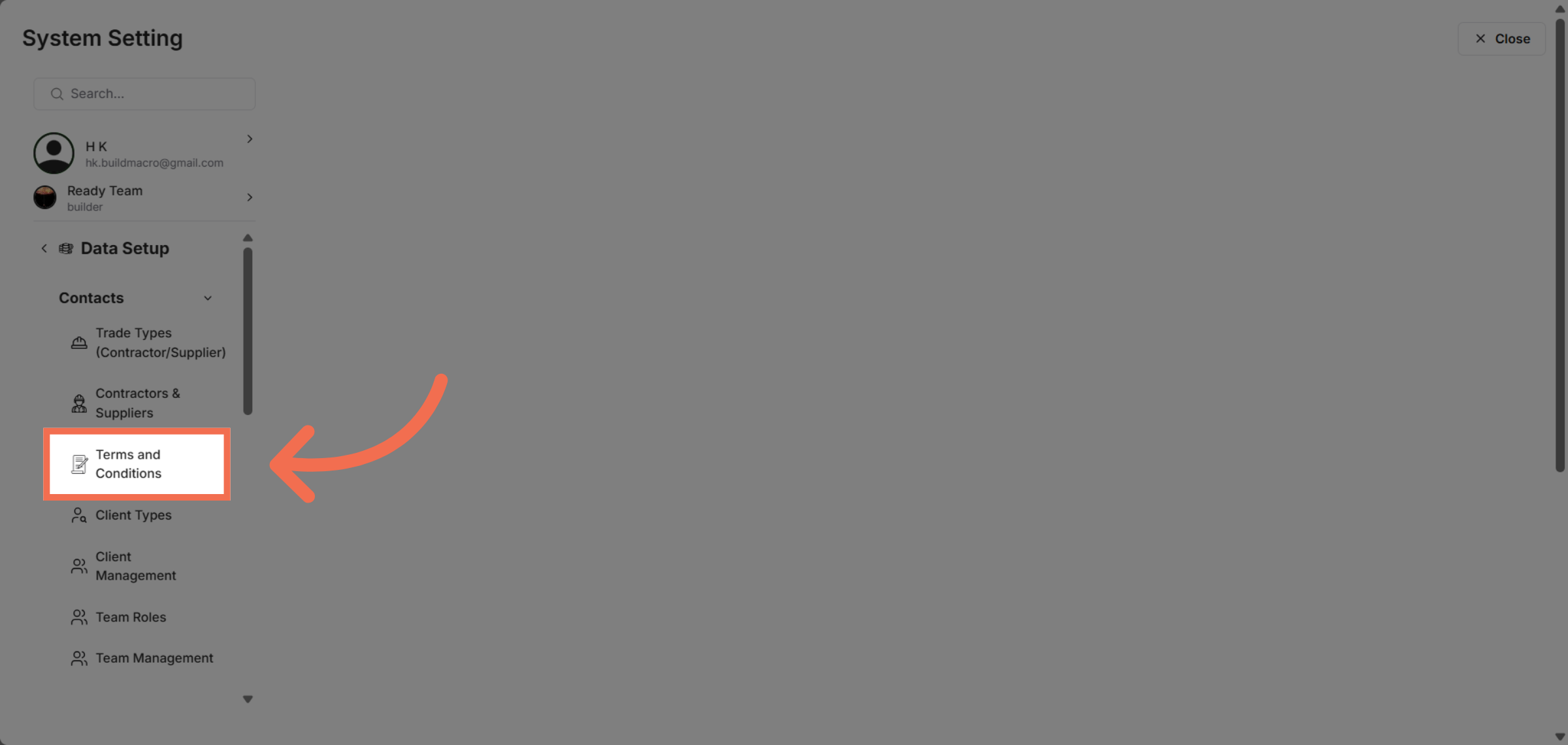
5. Open Template Section
Click Template to view and modify the terms document layout.
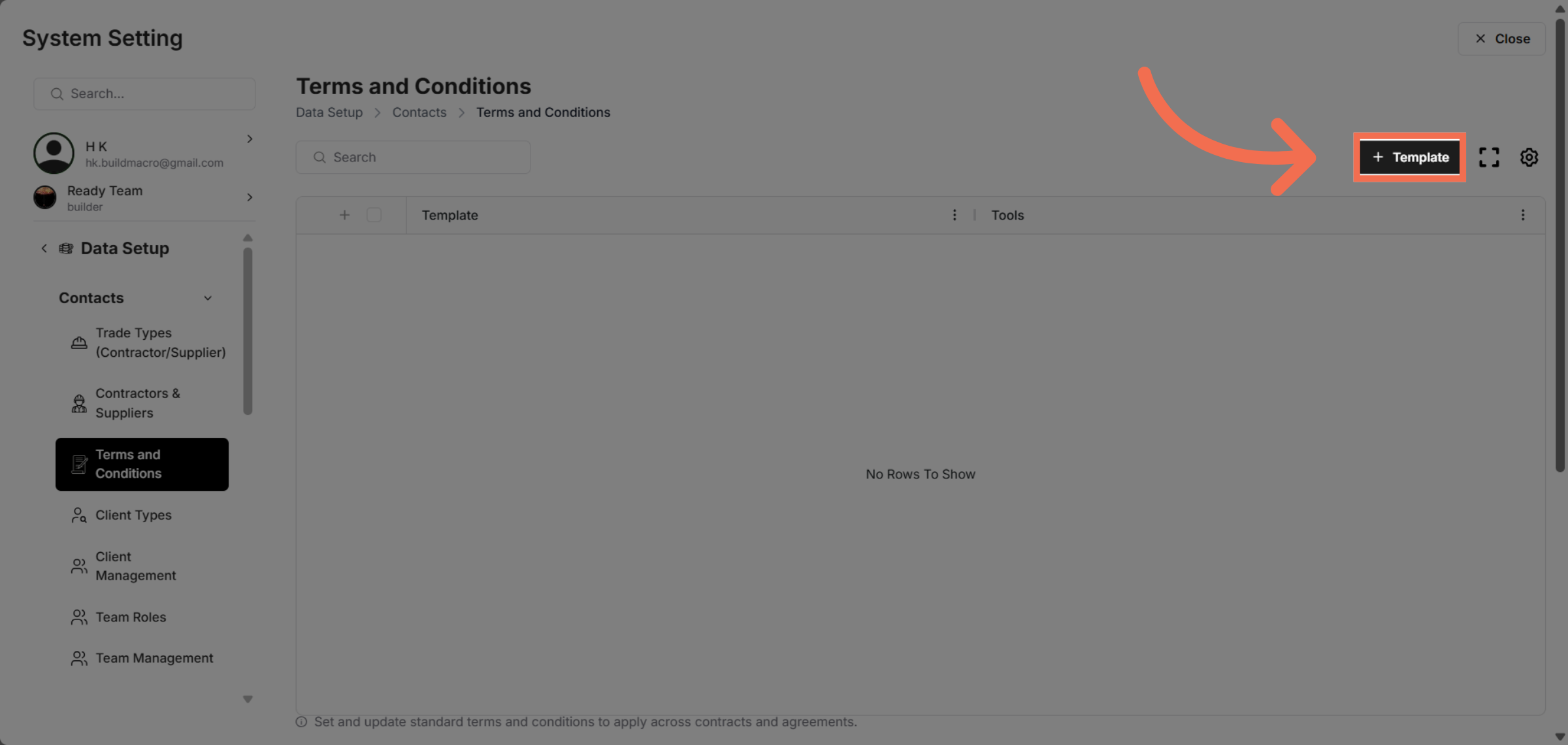
6. Enter Terms Document Name
Enter your terms document name to identify it clearly, such as Demo Terms & Conditions.
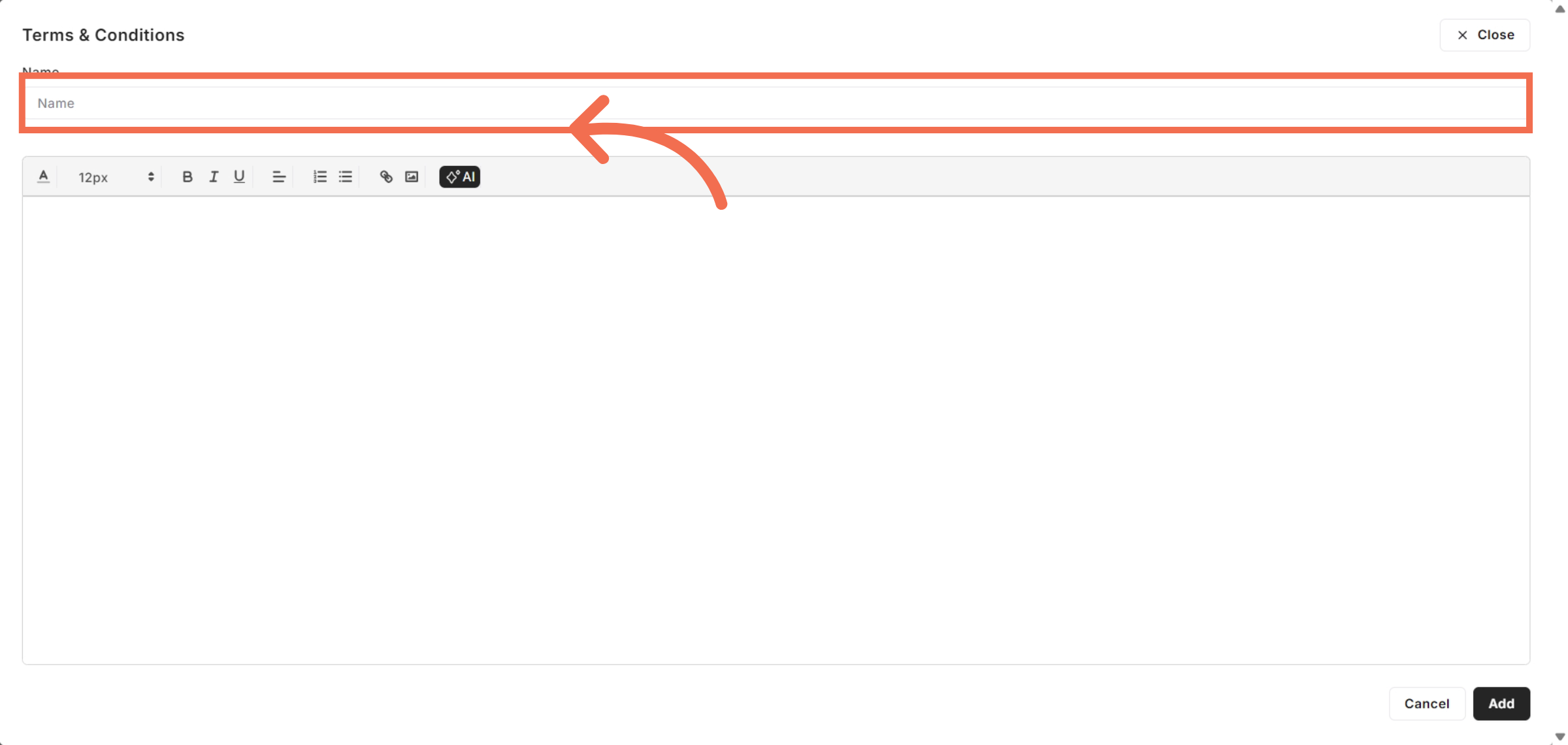
7. Enter Content
Click here to move forward to editing the terms content.
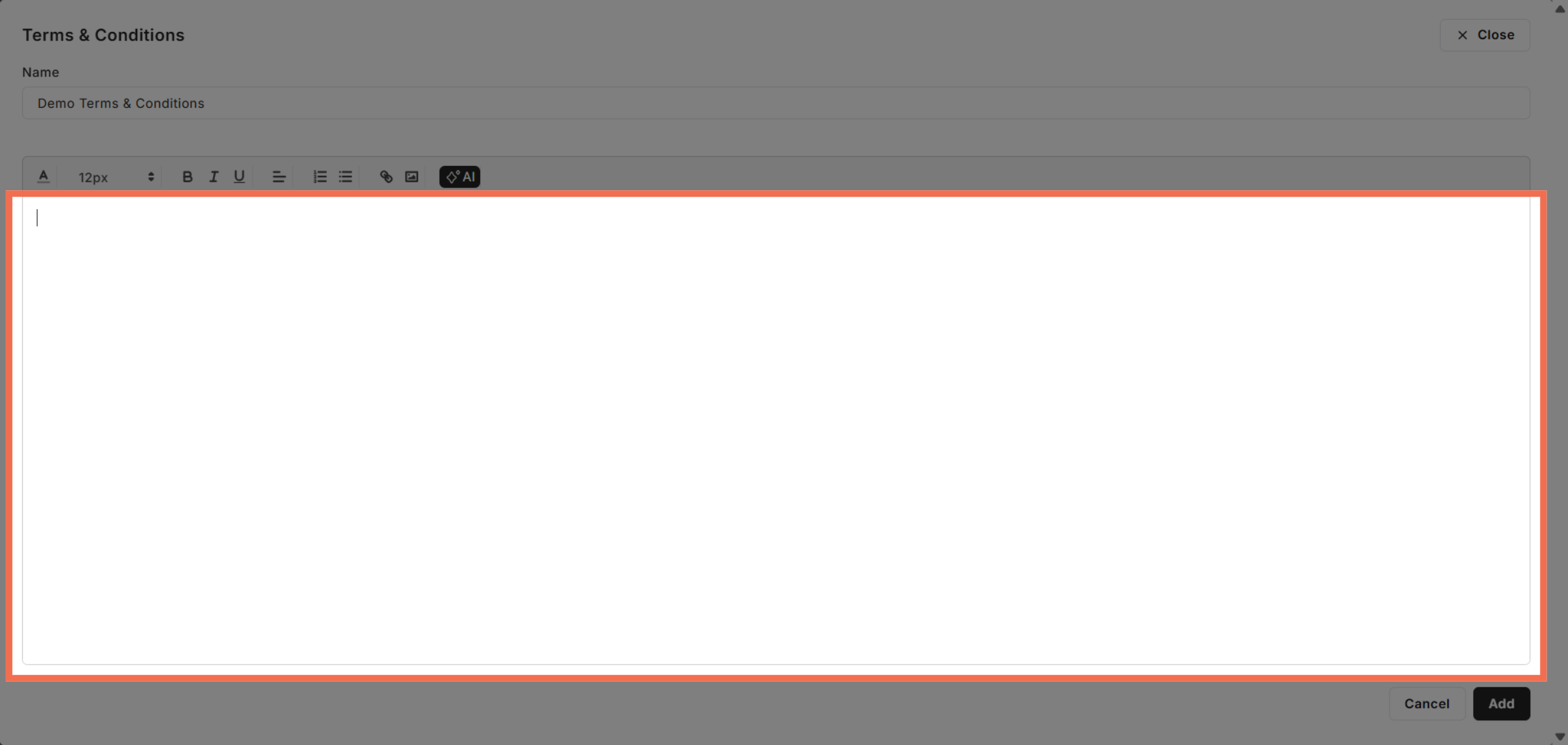
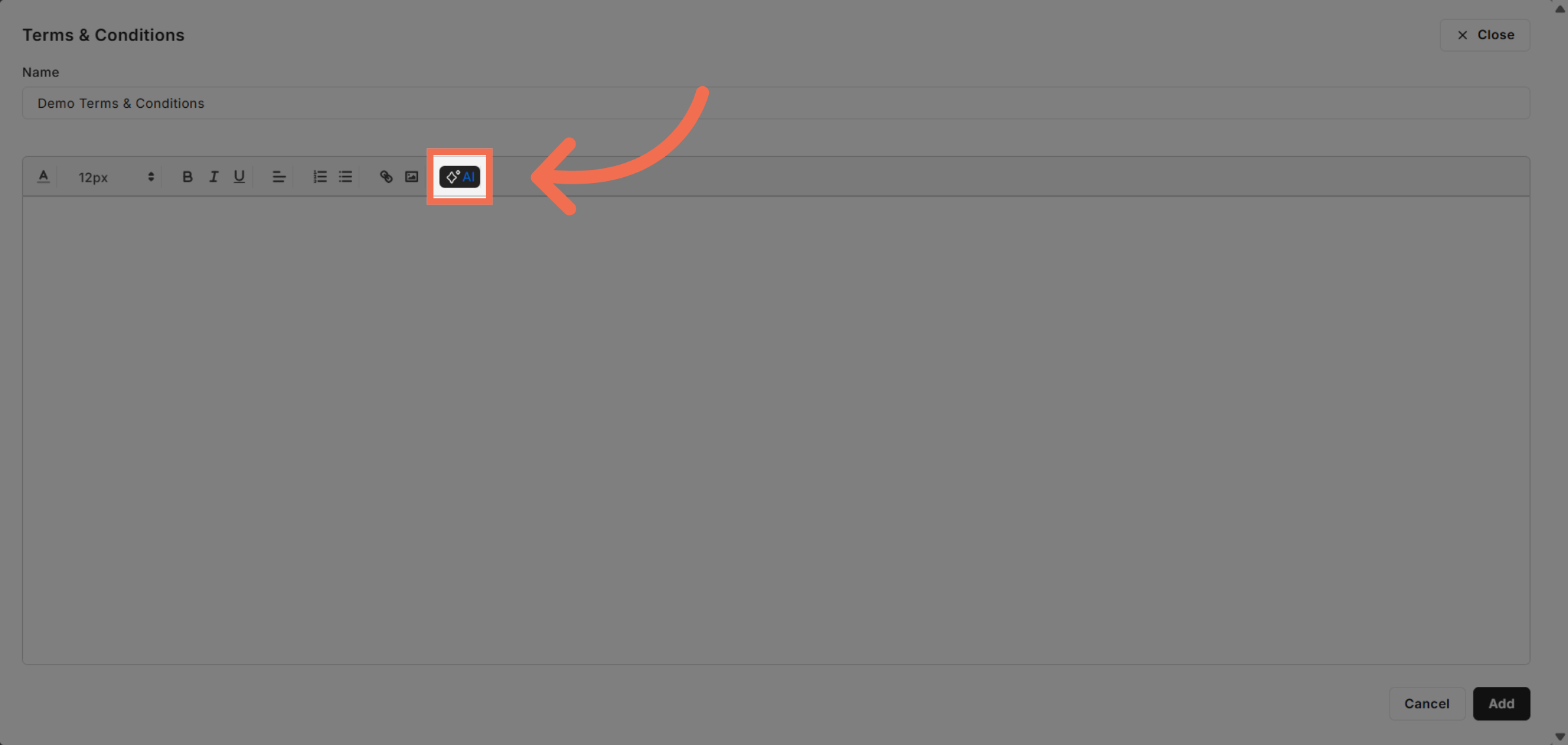
8. Select AI Feature
You can also Click AI to incorporate intelligent assistance in your terms customization.
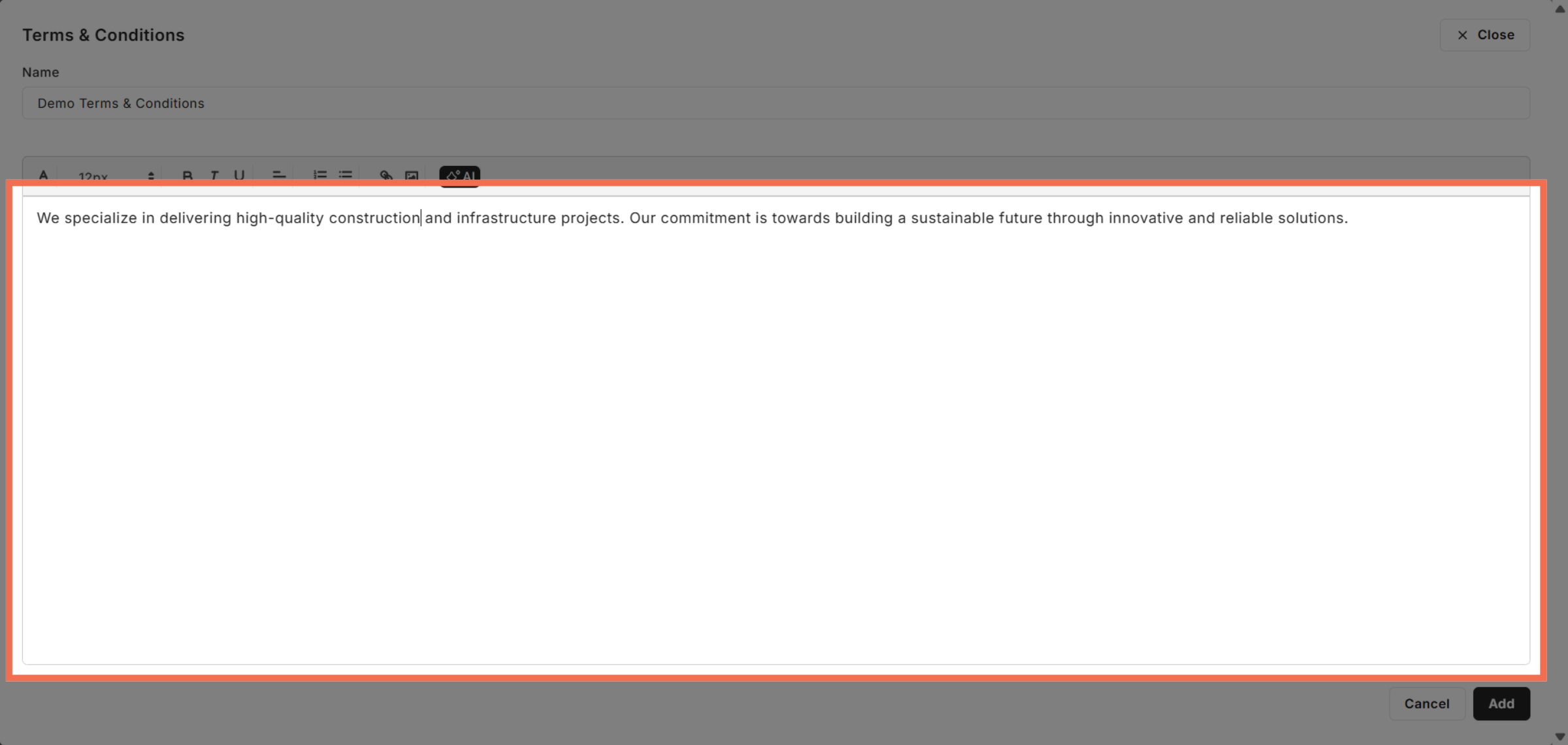
9. Review Commitment Statement
Click the commitment statement to ensure it reflects your sustainable and innovative solutions.
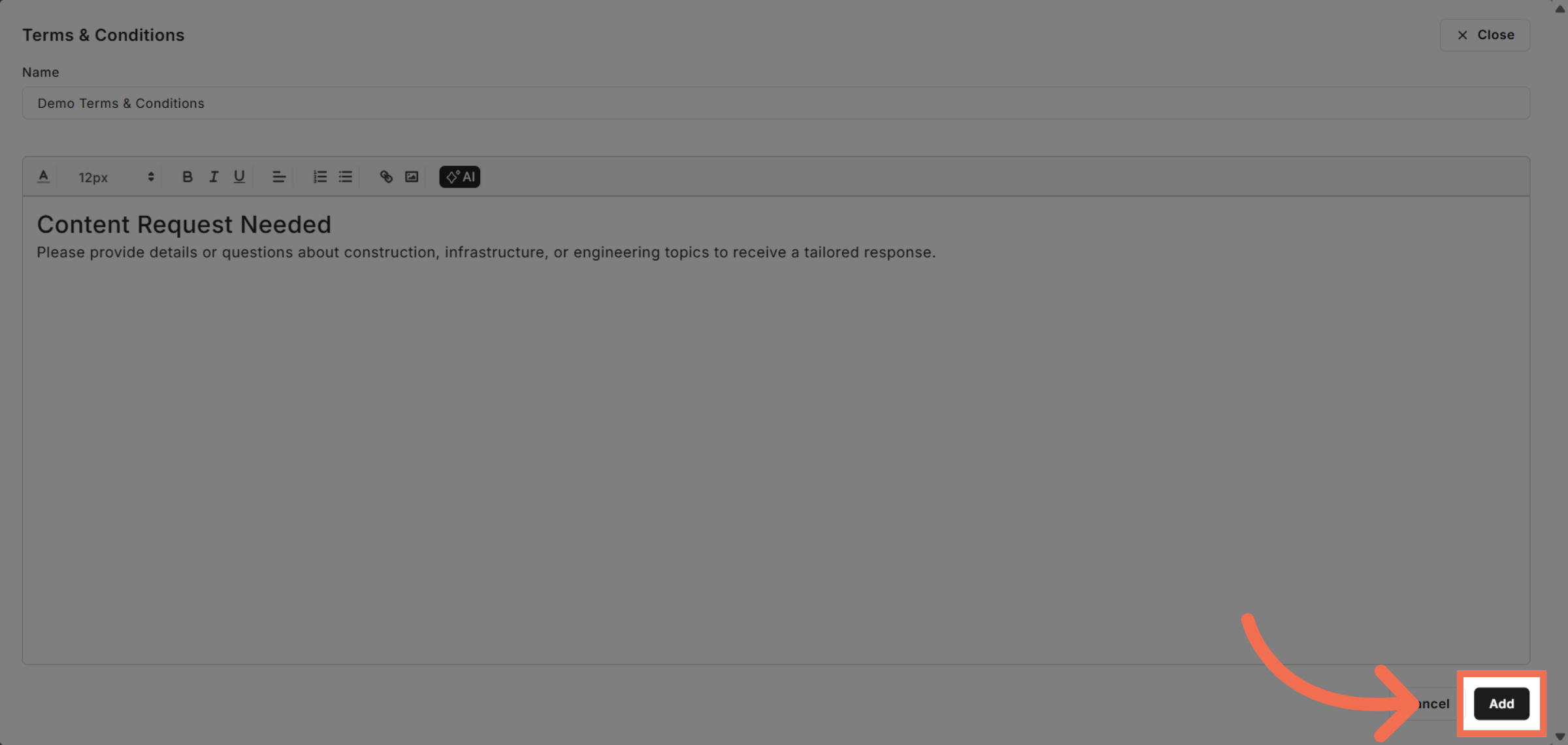
10. Add Terms And Conditions
Click Add to save and apply your customized terms and conditions to the system.
This demo demonstrated how to efficiently insert and customize terms and conditions within Readyteam, enhancing your contract management process. Start applying these steps today to ensure your agreements are clear and tailored to your projects.