Import Clients Data Efficiently Using ReadyTeam

This demo showcases how ReadyTeam simplifies importing client data to streamline your onboarding process
Go to app.readyteam.ai
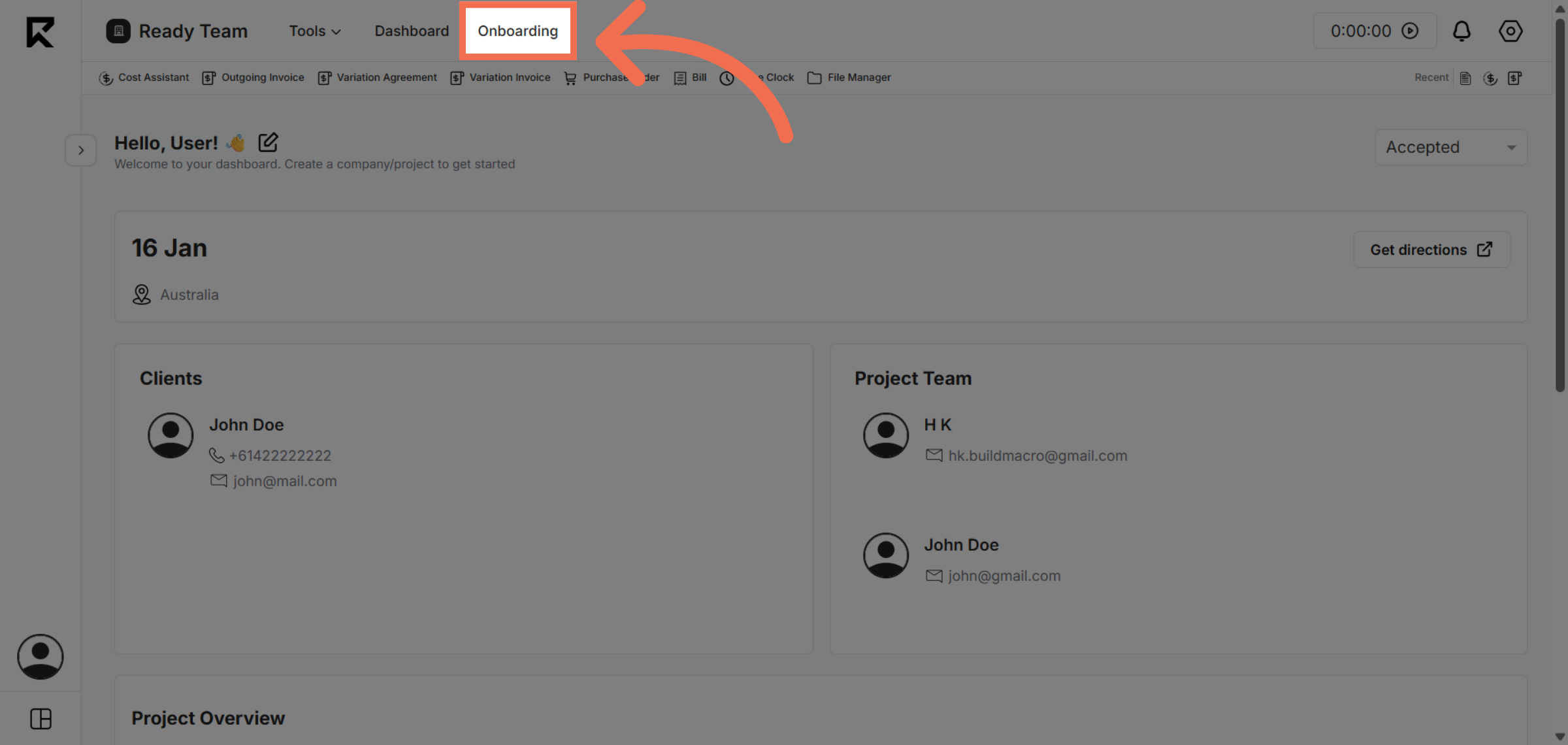
1. Navigate to Onboarding Section
Click the Onboarding section to begin managing client data import.
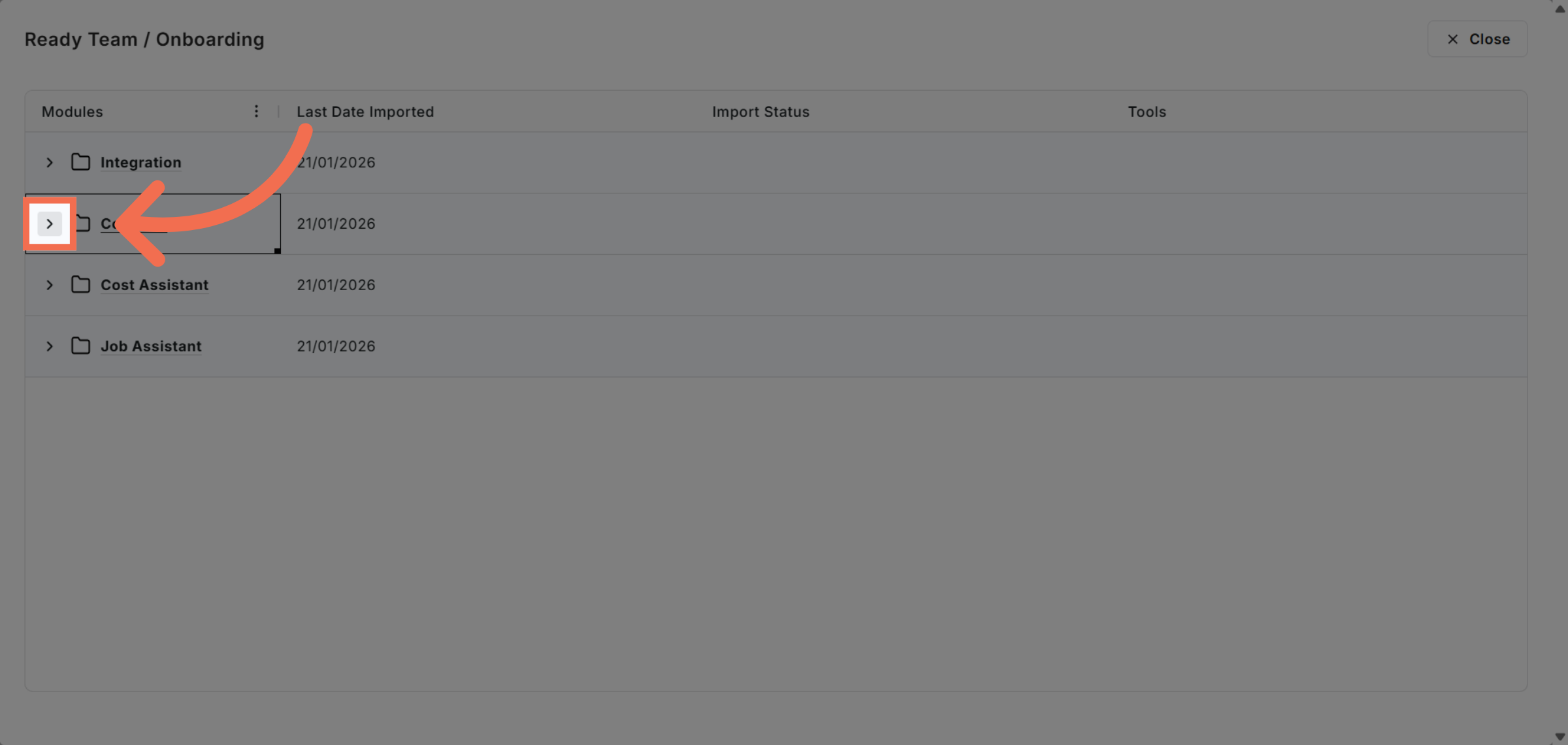
2. Access Contacts
Click the indicated area to proceed to client management options.
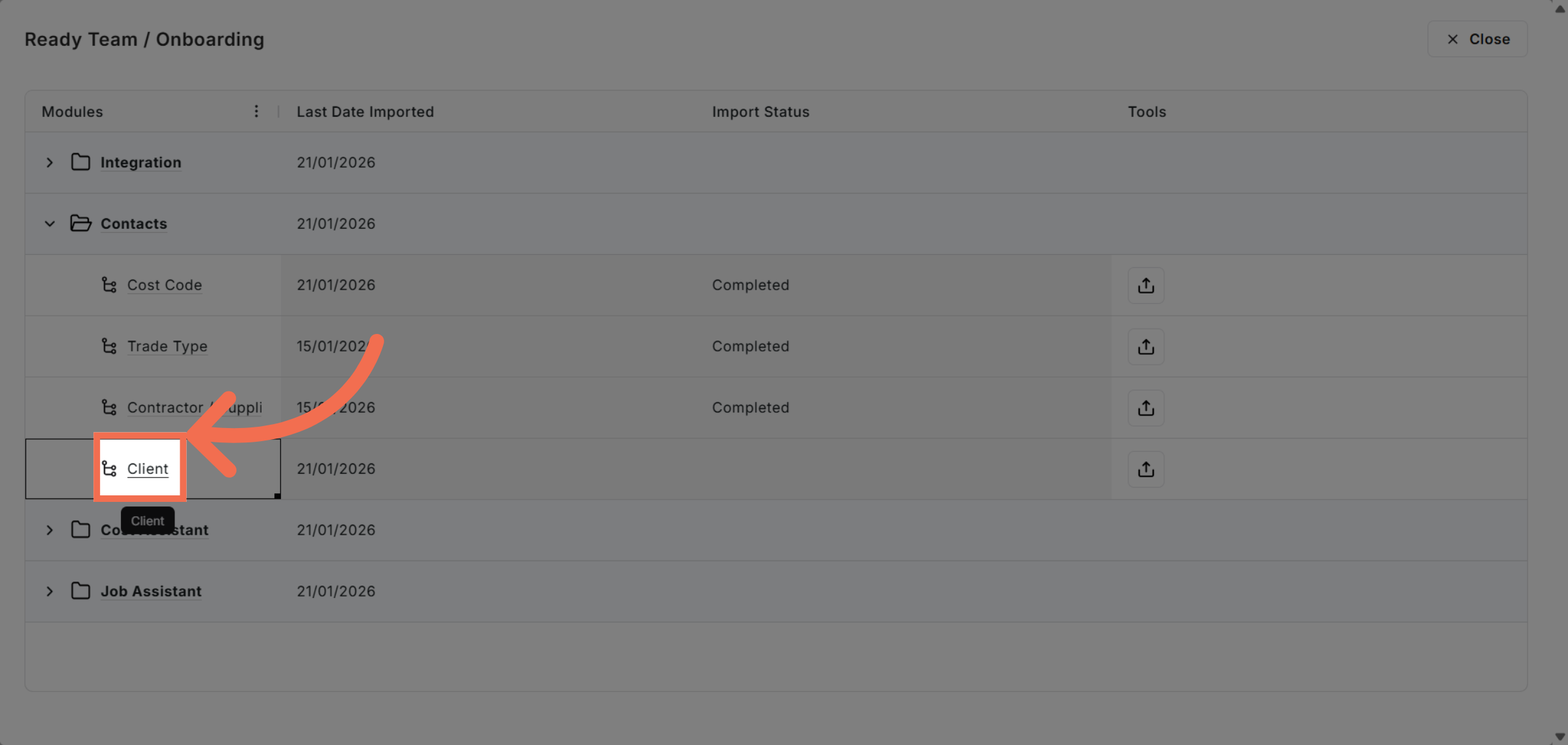
3. Select Client Option
Click the Client option to focus on client-related data tasks.
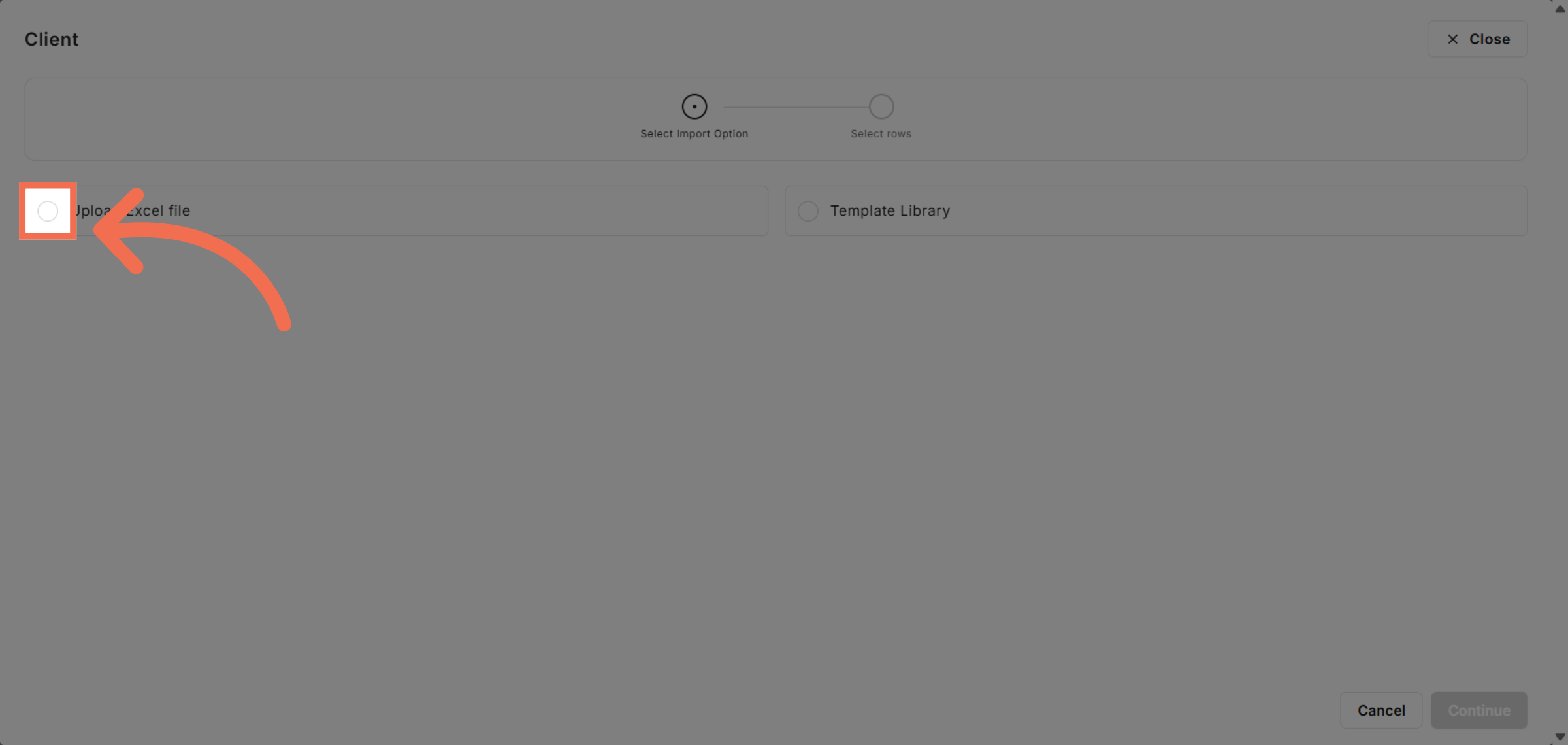
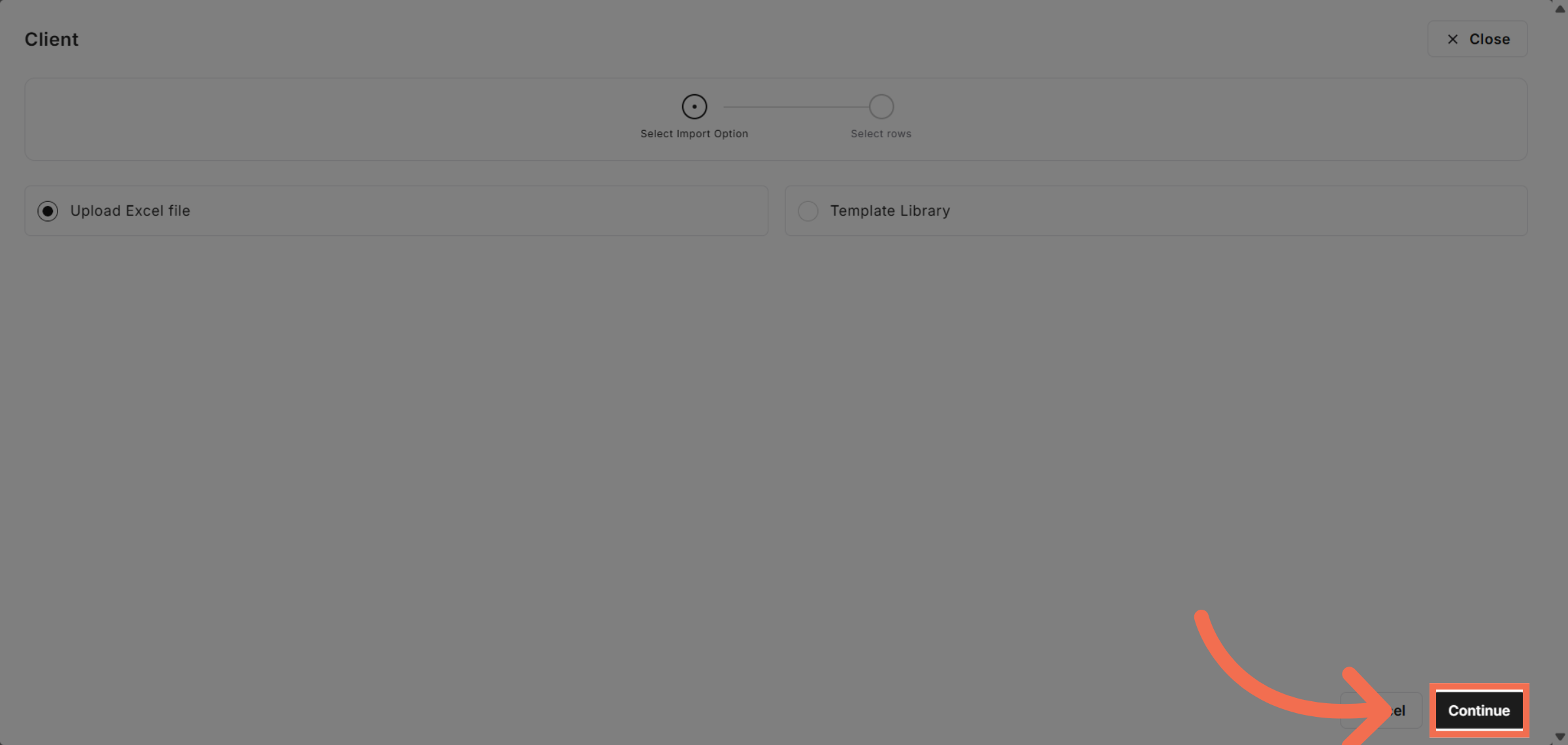
4. Open Excel Upload Feature
Click Upload Excel file to start importing client data from a spreadsheet.
5. Proceed to Next Step
Click Continue to move forward with the upload process.
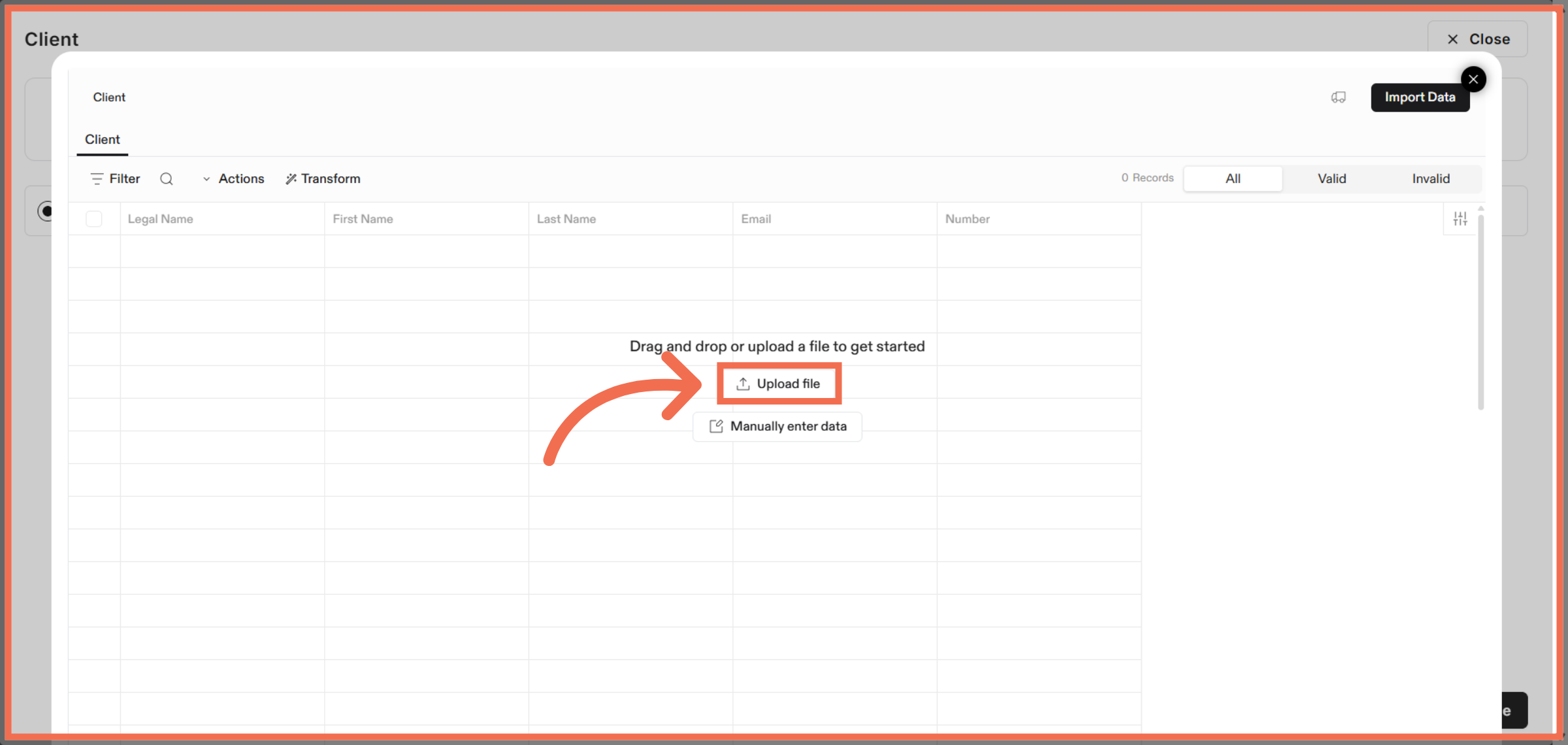
6. Trigger File Upload
Click Upload file to select the client data spreadsheet.
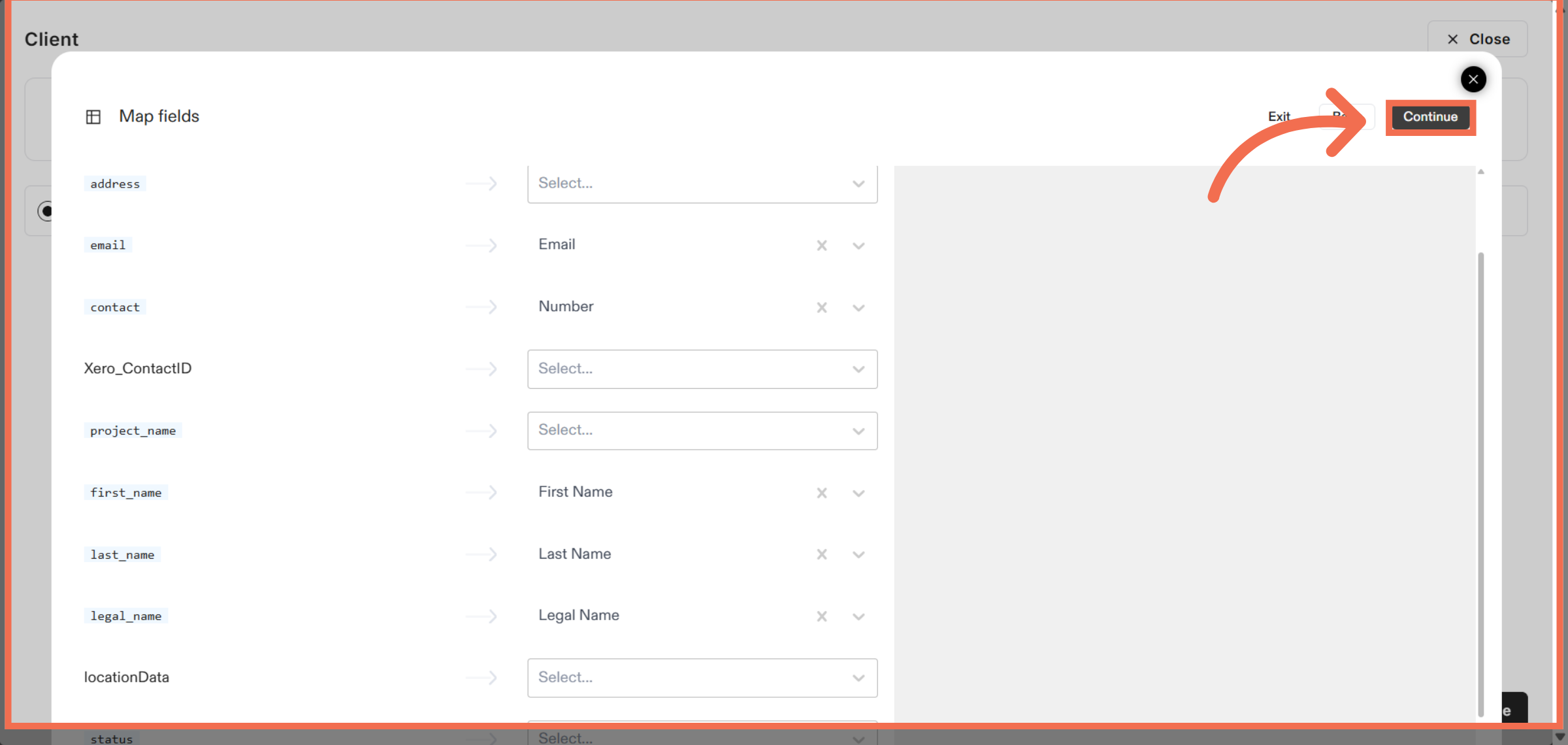
7. Review Mapping and Continue
Click Continue to confirm the file selection and proceed.
8. You can also Add Data Manually
Click the designated area to begin mapping the uploaded data fields.
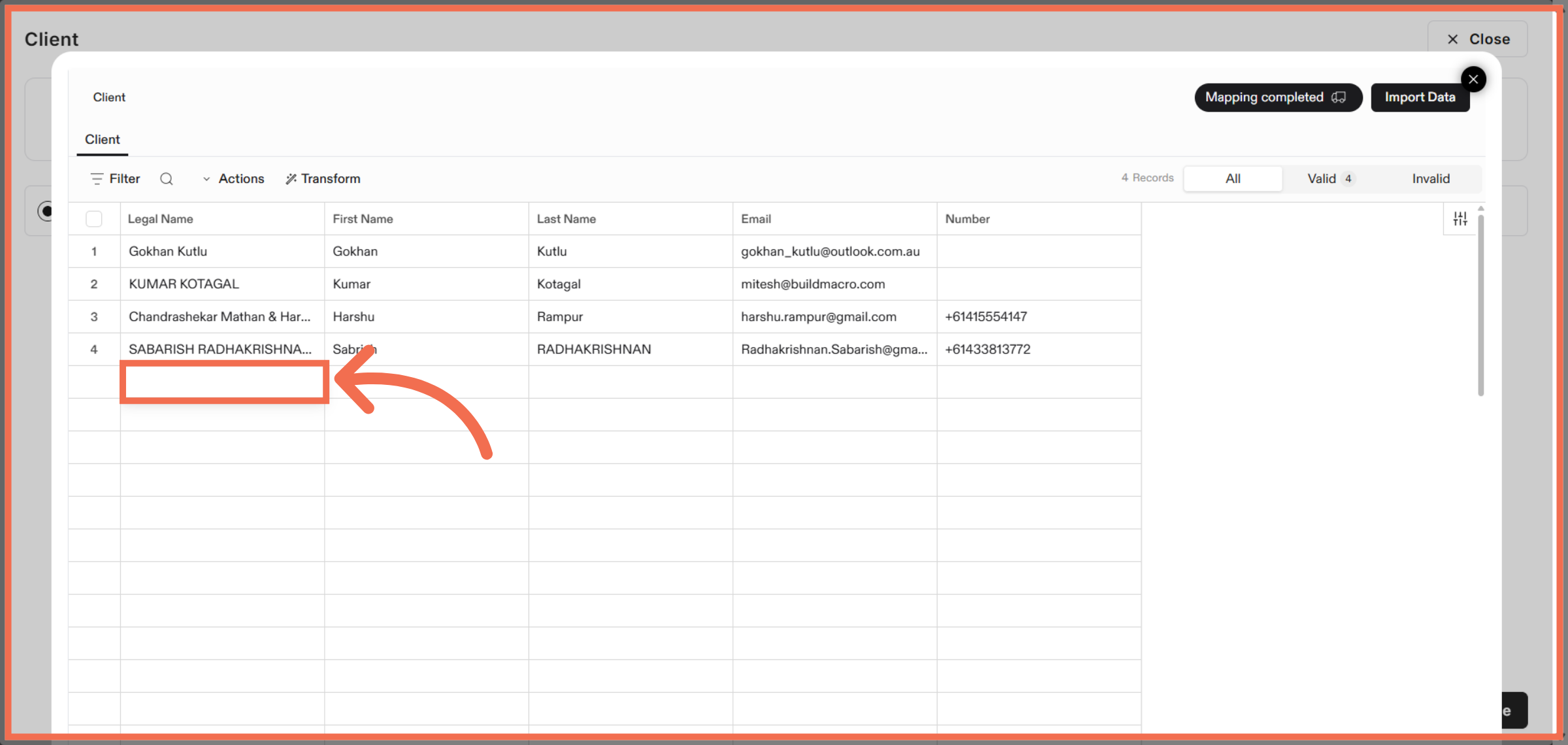
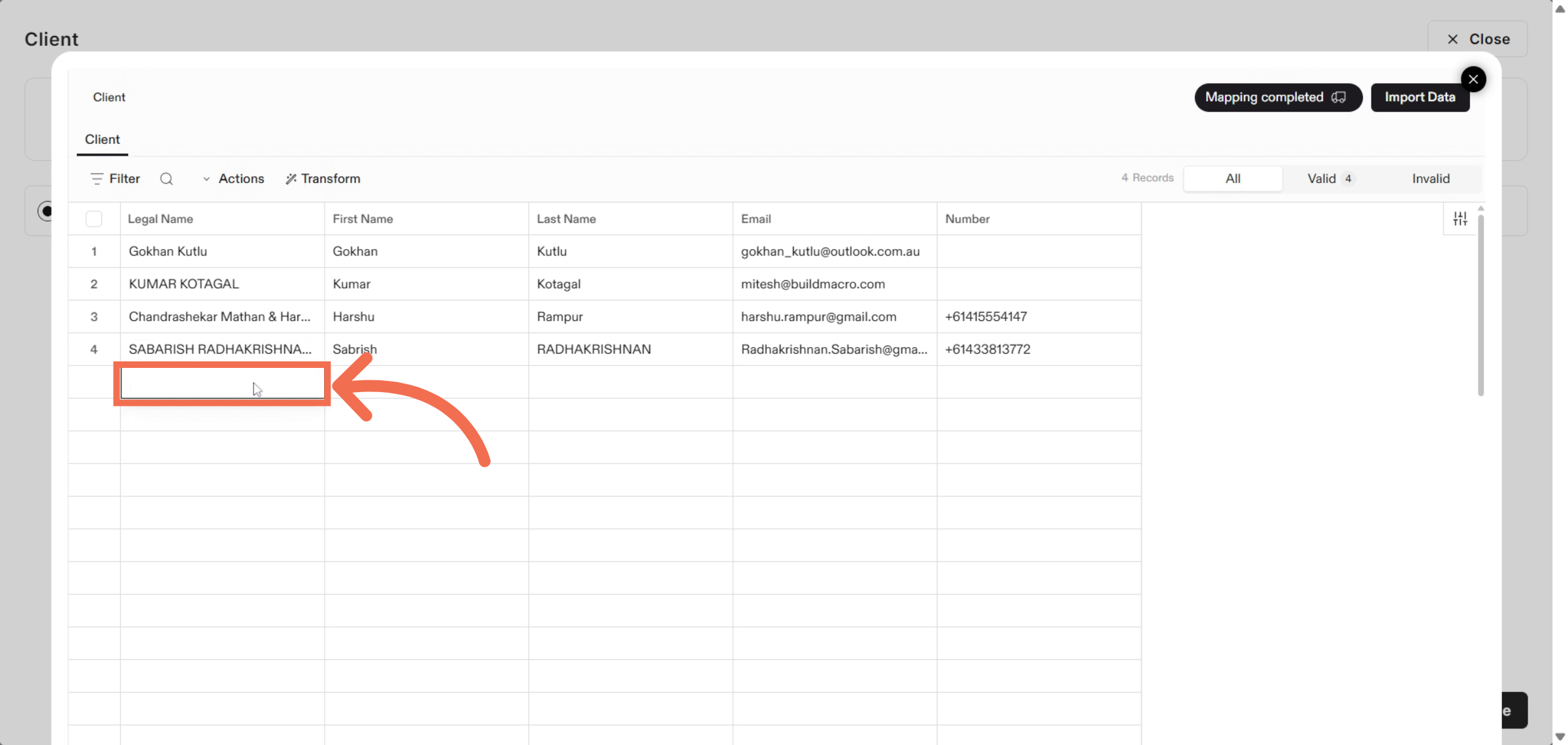
9. Enter Legal Name
Enter the client's full name to ensure accurate record creation.
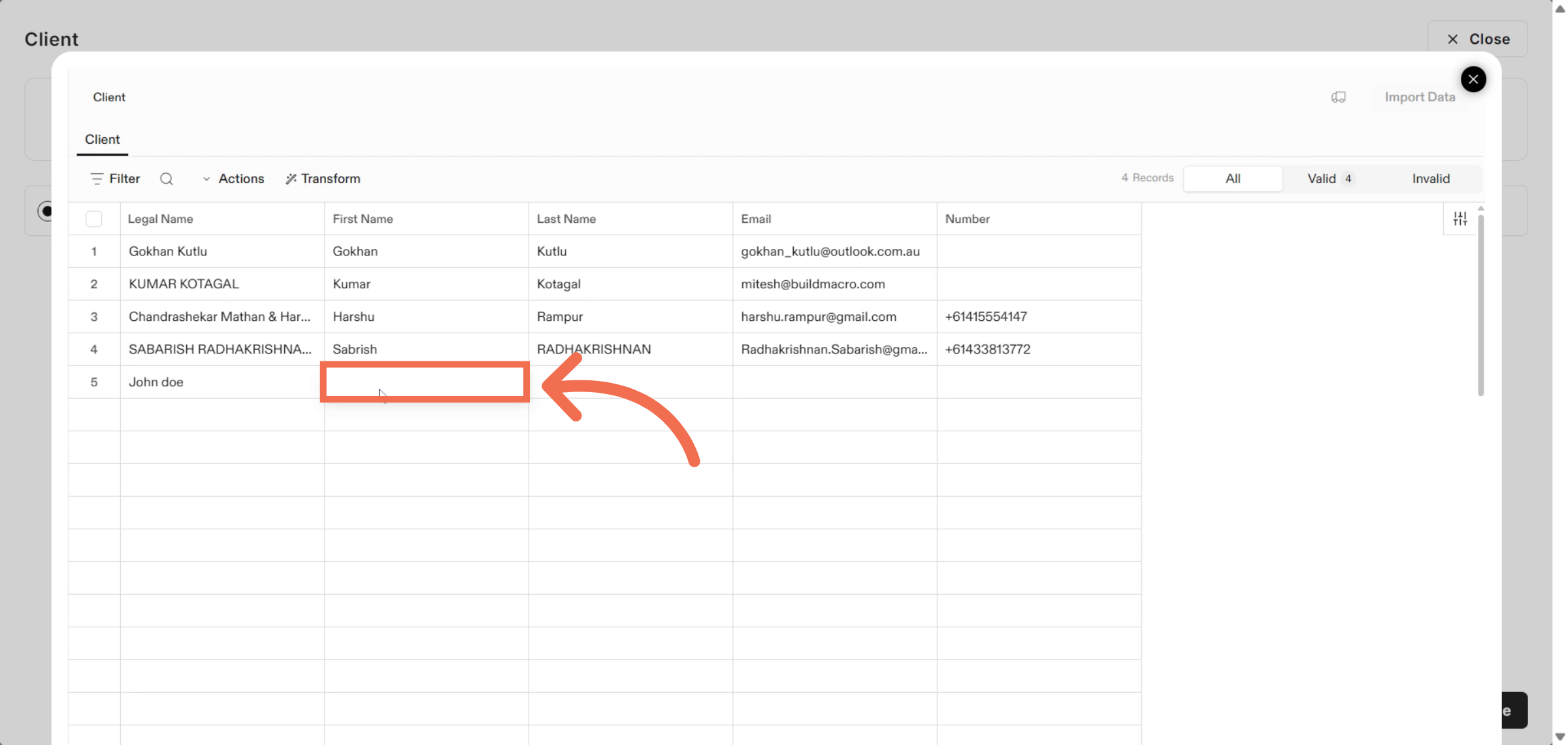
10. Enter First Name
Enter the client's first name to complete the profile details.
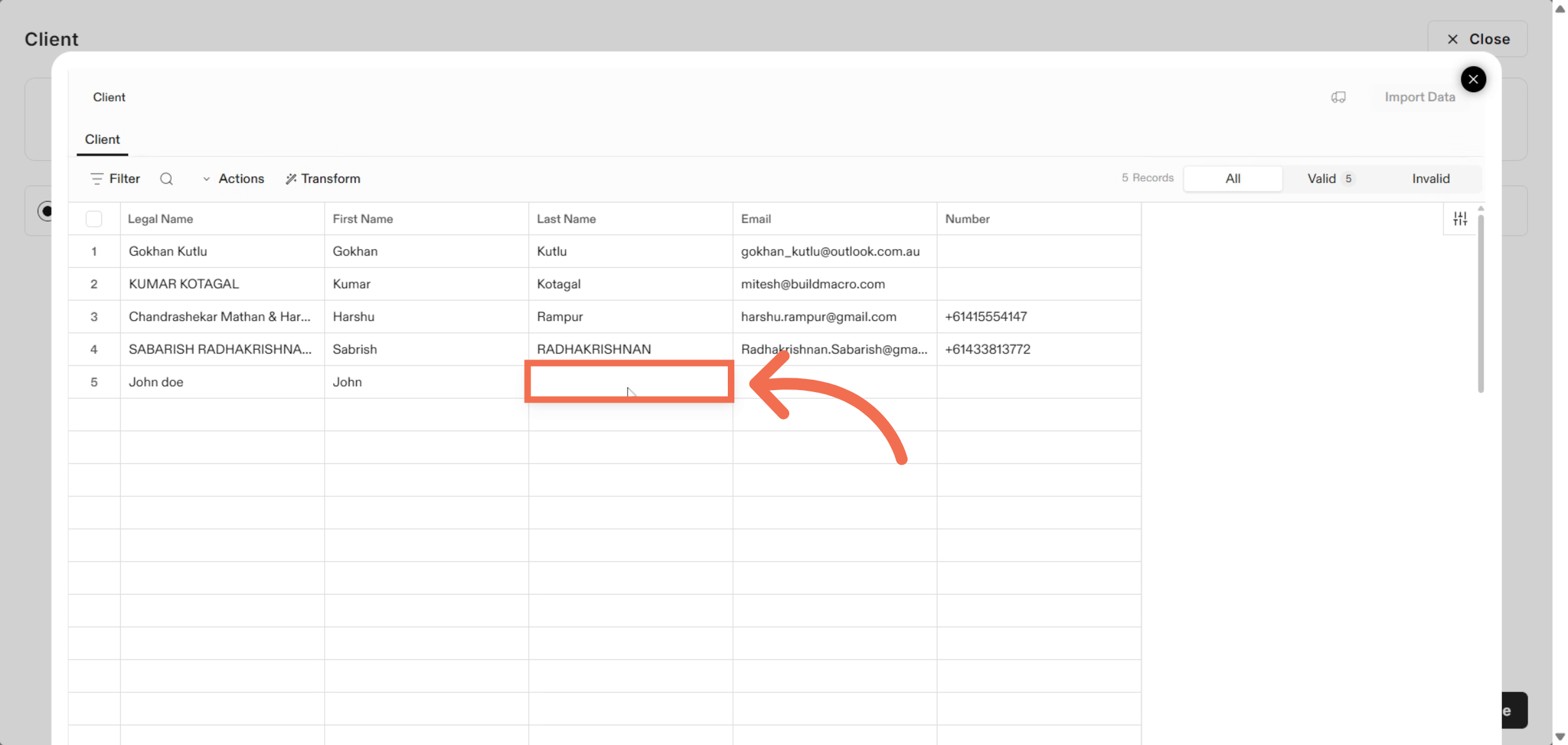
11. Enter Last Name
Enter the client's last name to finalize the name details.
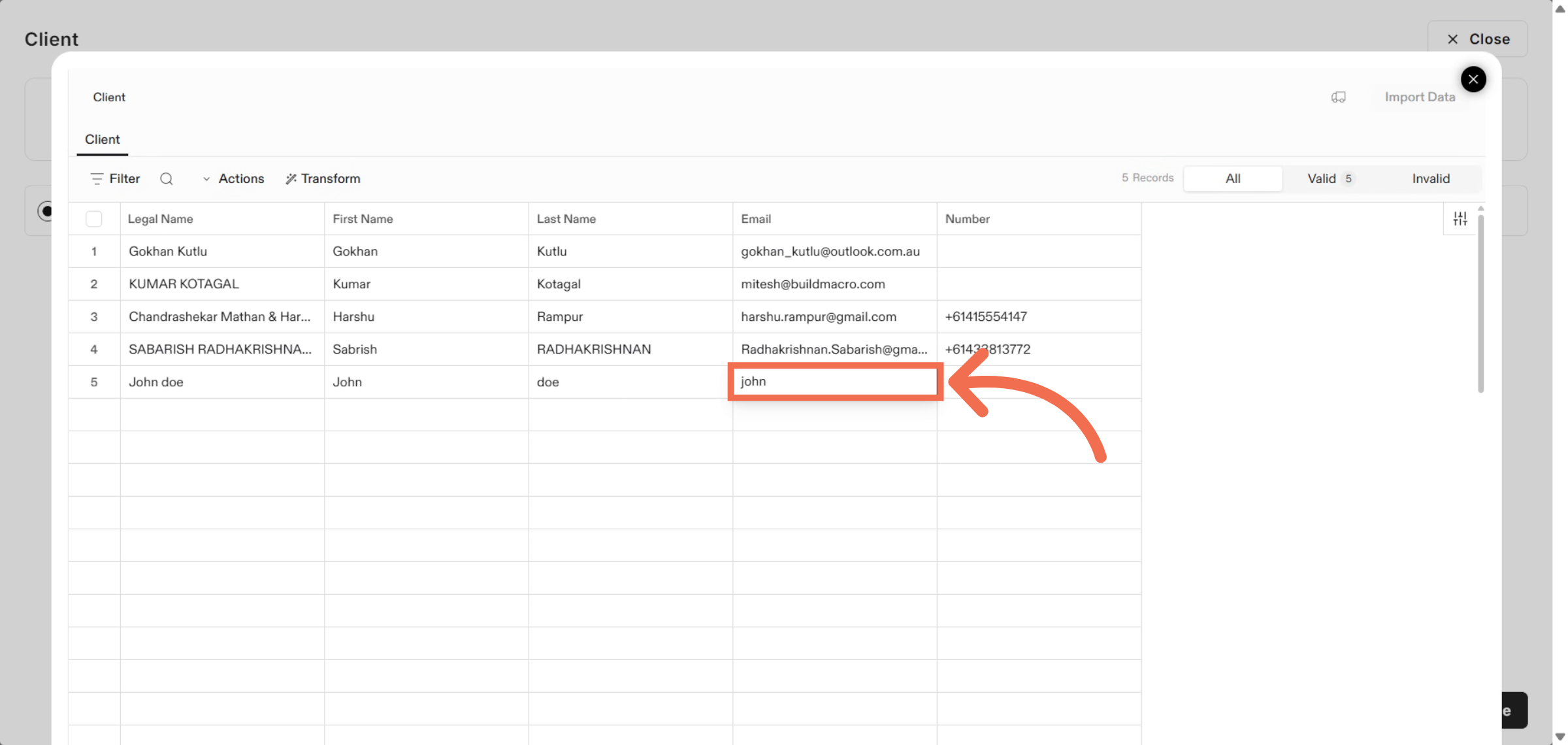
12. Enter Email Address
Enter your email address to ensure client contact details are accurate.
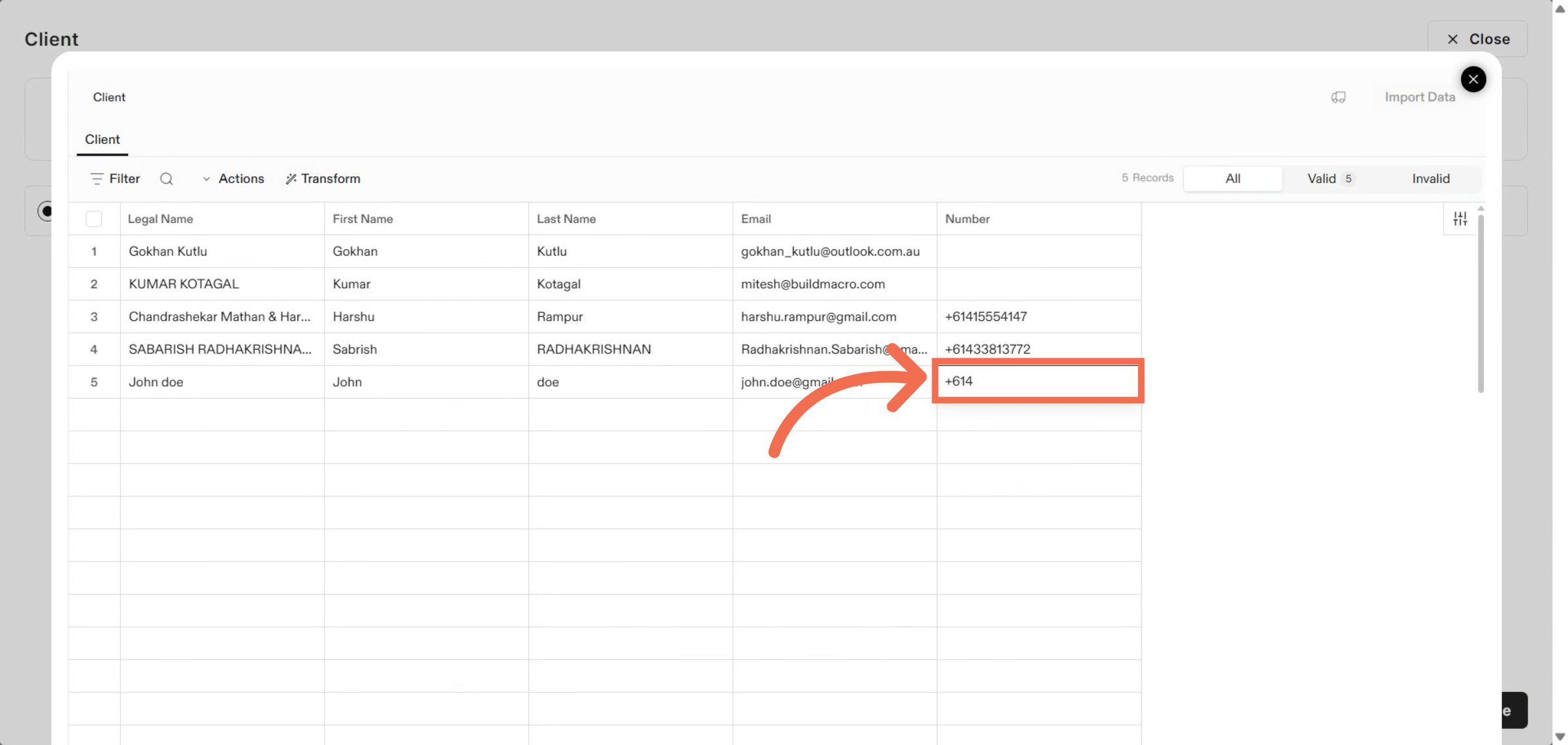
13. Enter Phone Number
Enter the client's phone number to complete contact information.
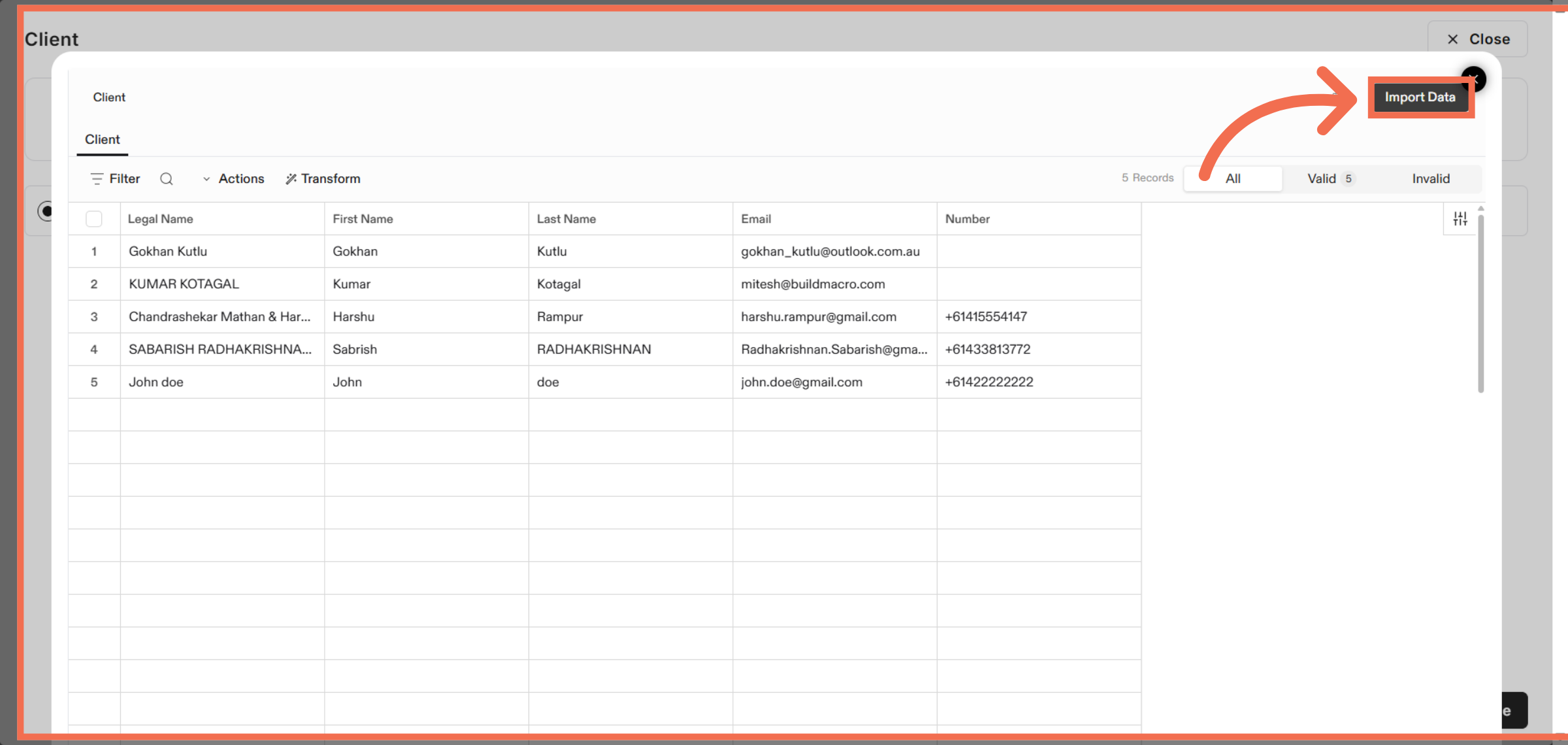
14. Import Client Data
Click Import Data to finalize and upload the client information into ReadyTeam.
This demo highlights how ReadyTeam streamlines importing client data through an intuitive upload and mapping process. Start your free trial today to simplify client onboarding and improve data accuracy.