Update Company Colours Using ReadyTeam
This demo showcases how to update your company colours within Readyteam to maintain consistent branding.
Go to app.readyteam.ai
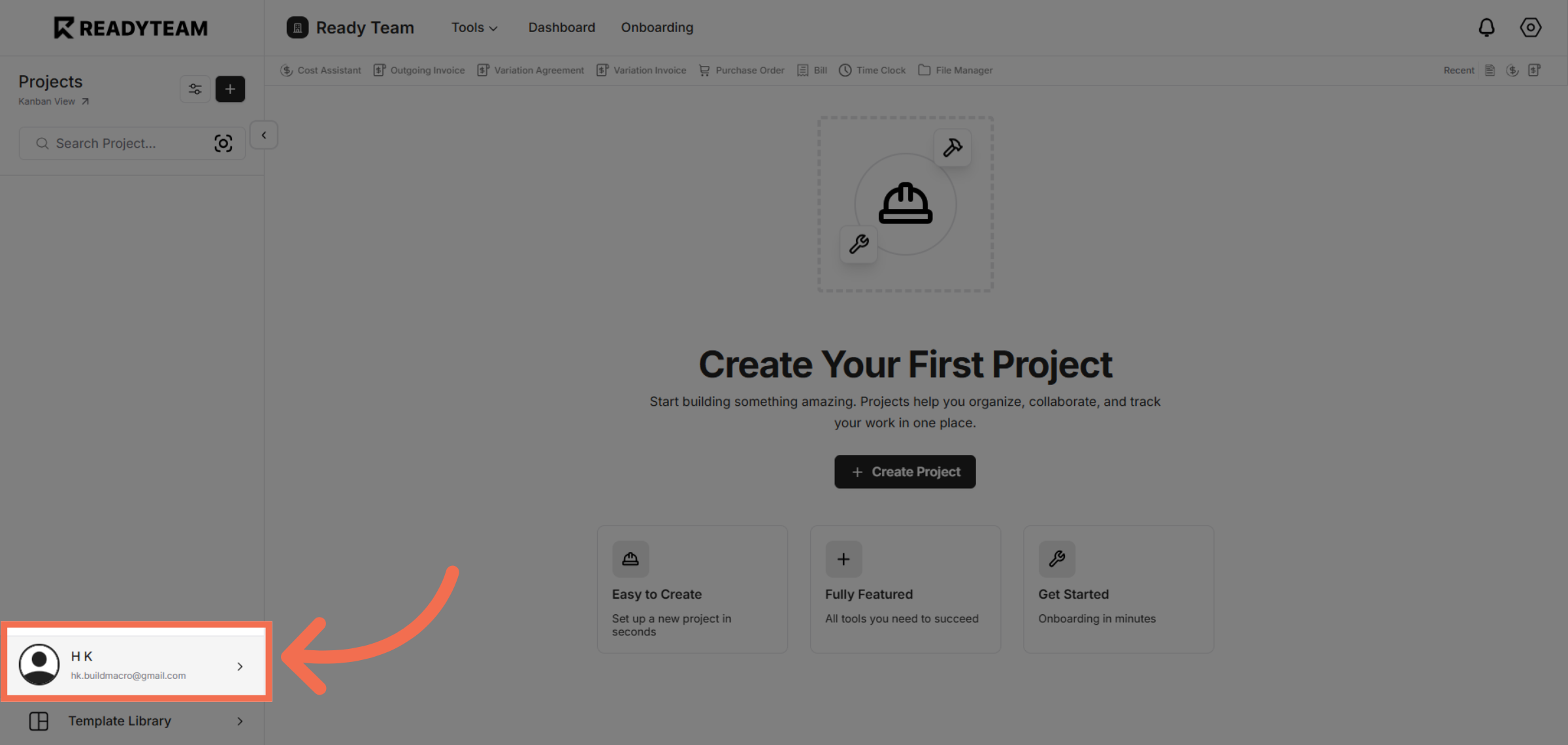
1. Access User Section
Open the user menu by clicking the "H K" icon to begin customizing your settings.
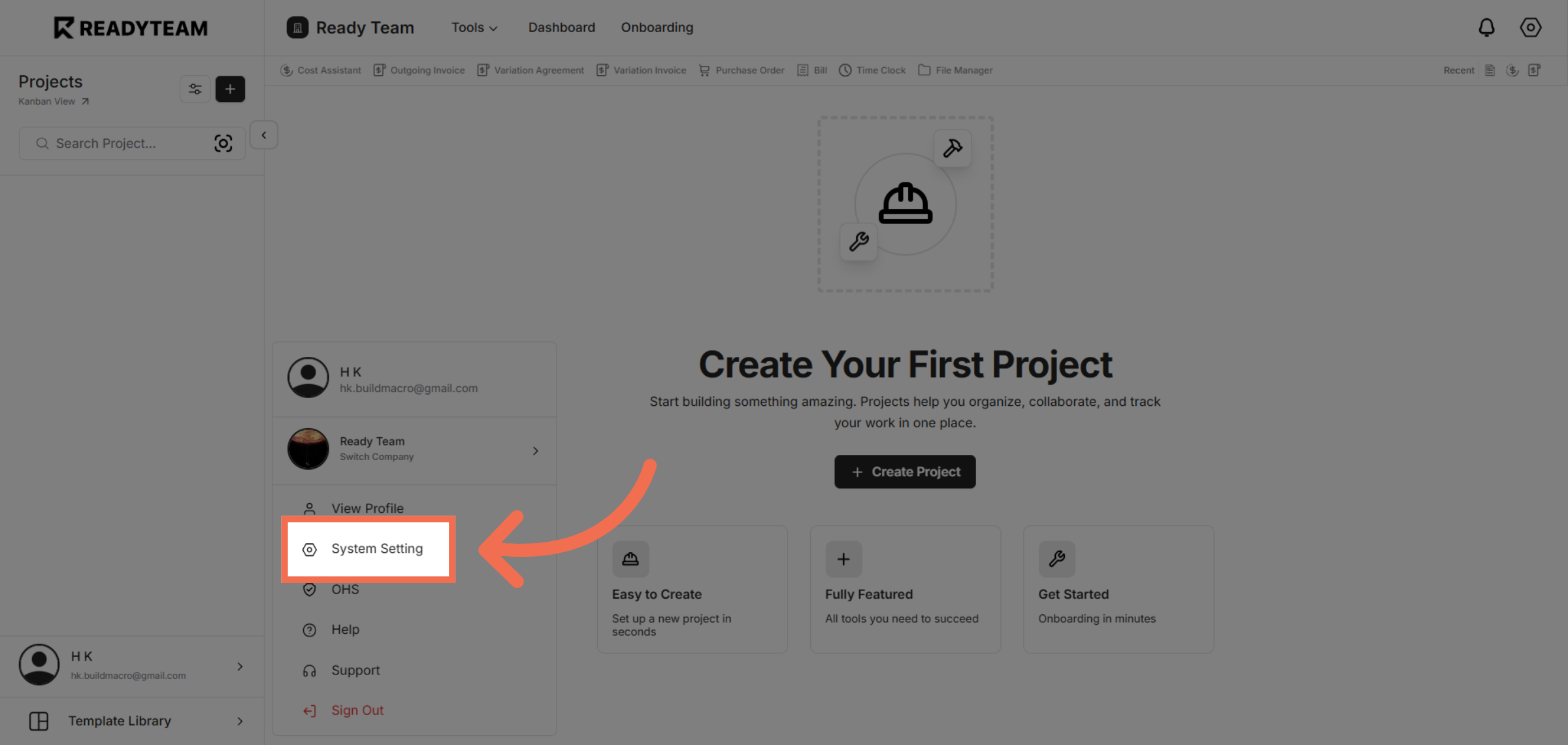
2. Navigate to System Settings
Select "System Setting" from the menu to access the configuration options for your account.
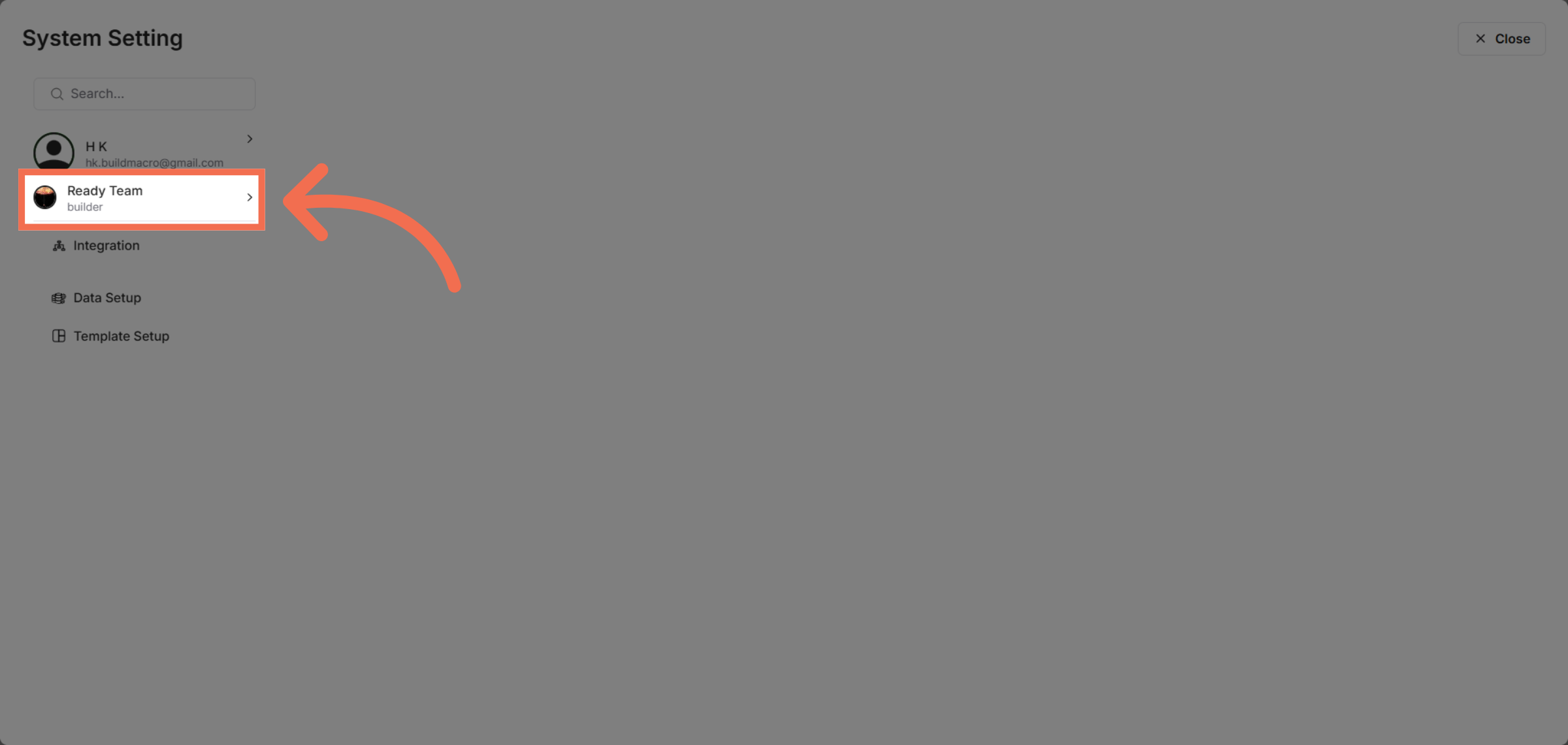
3. Open Company Settings
Click on "Ready Team" to enter the section where you can manage company-related configurations.
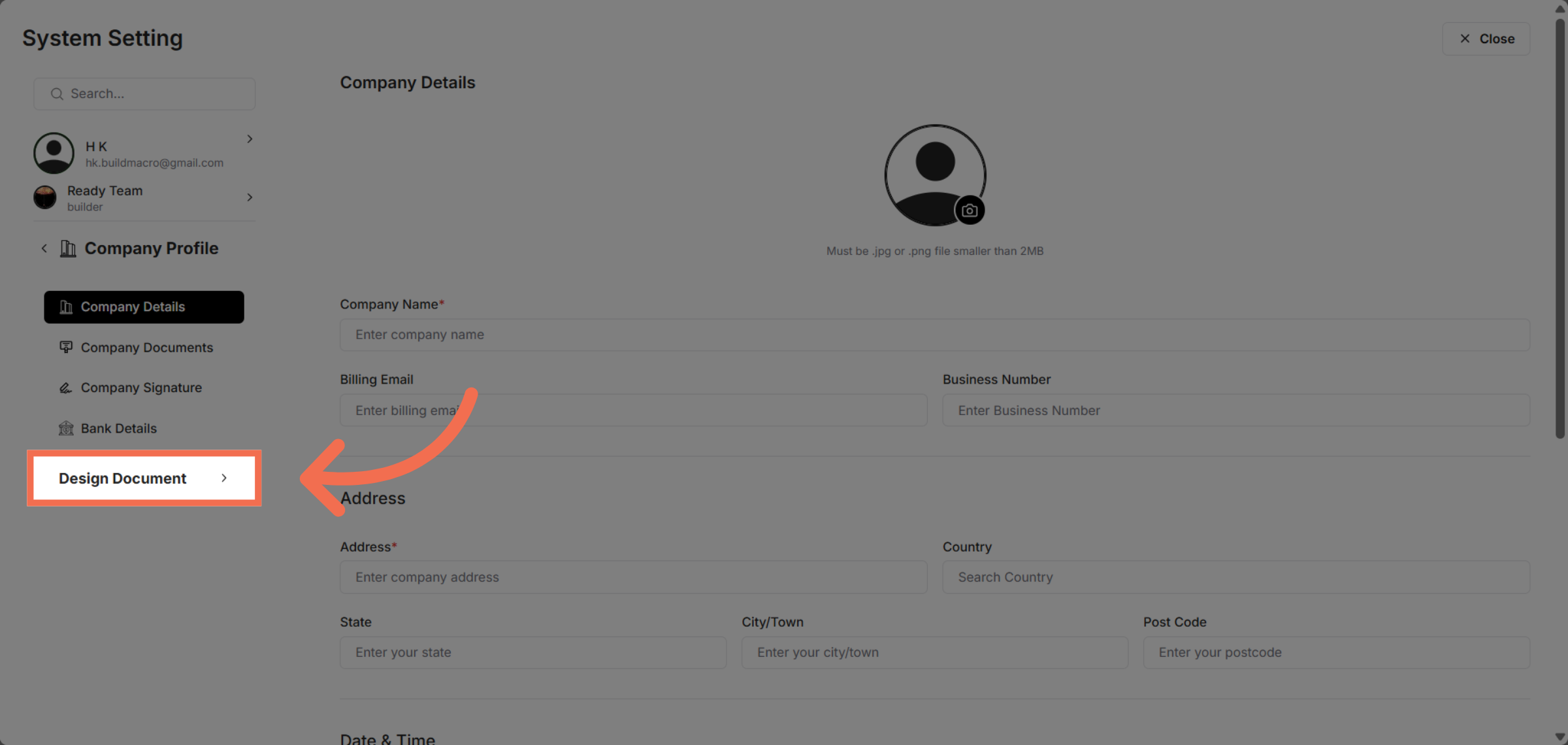
4. Select Design Document
Choose "Design Document" to access the design customization features for your company profile.
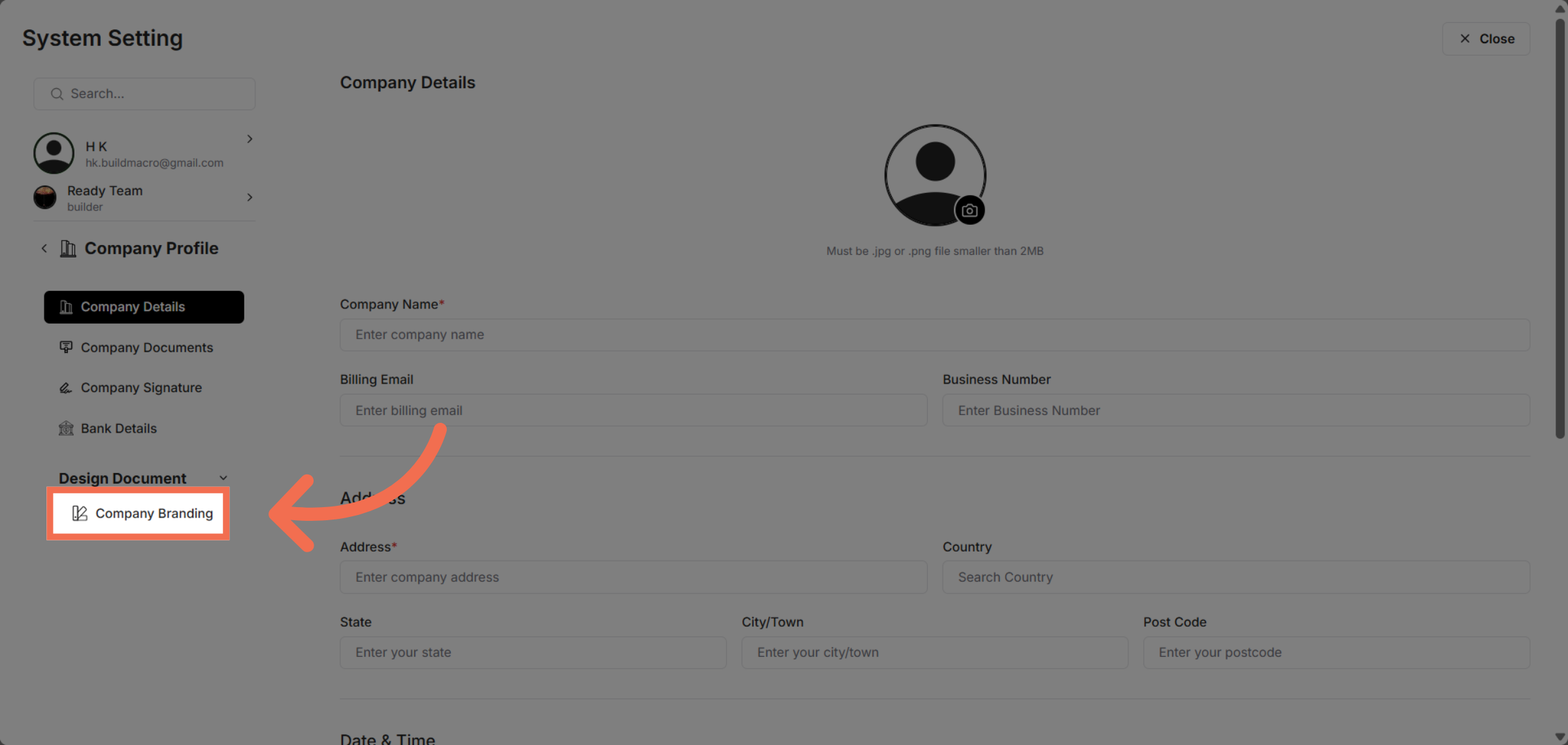
5. Access Company Branding
Click on "Company Branding" to modify your organization's visual identity settings.
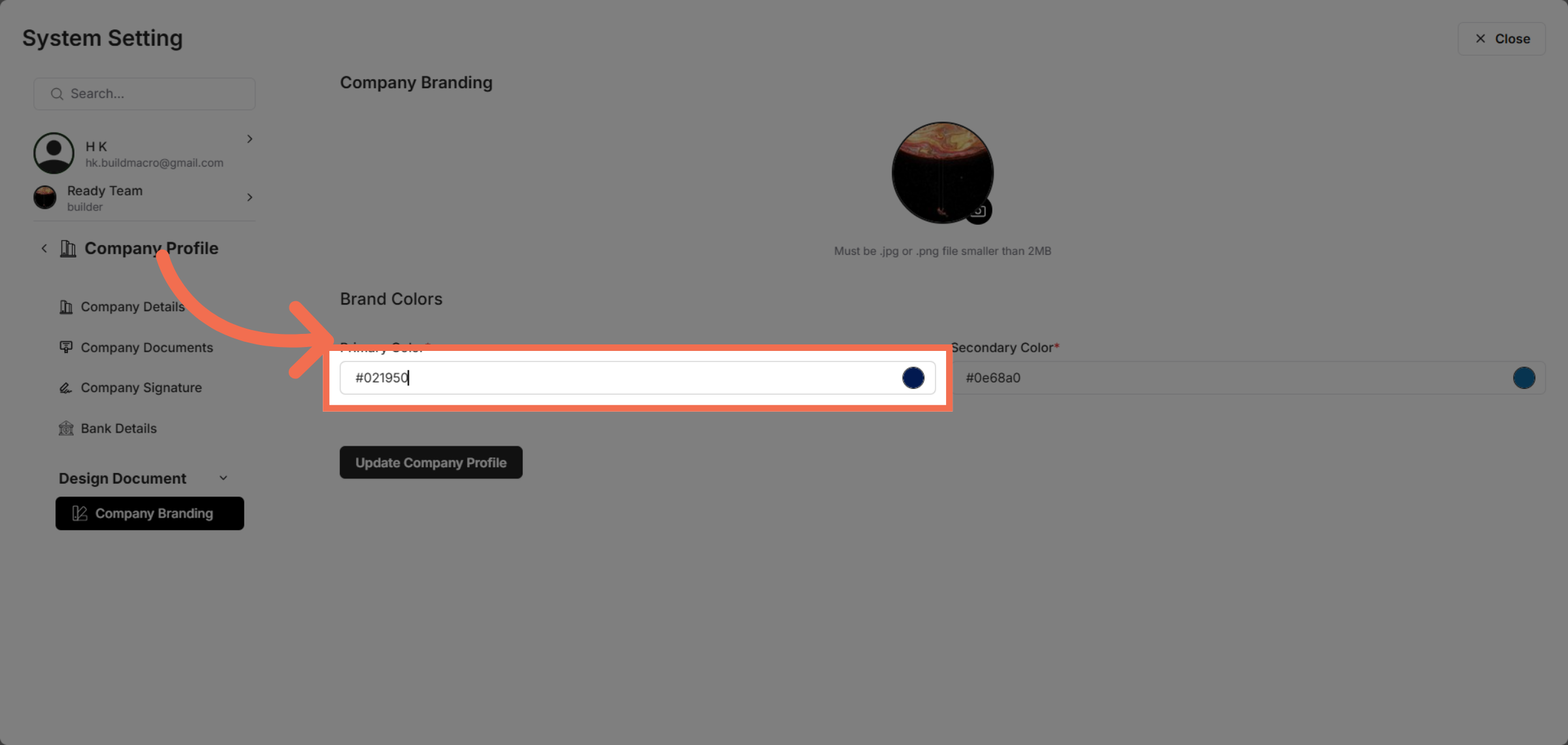
6. Select Primary Colour
Choose the primary colour by clicking the colour swatch to update your brand's main colour.
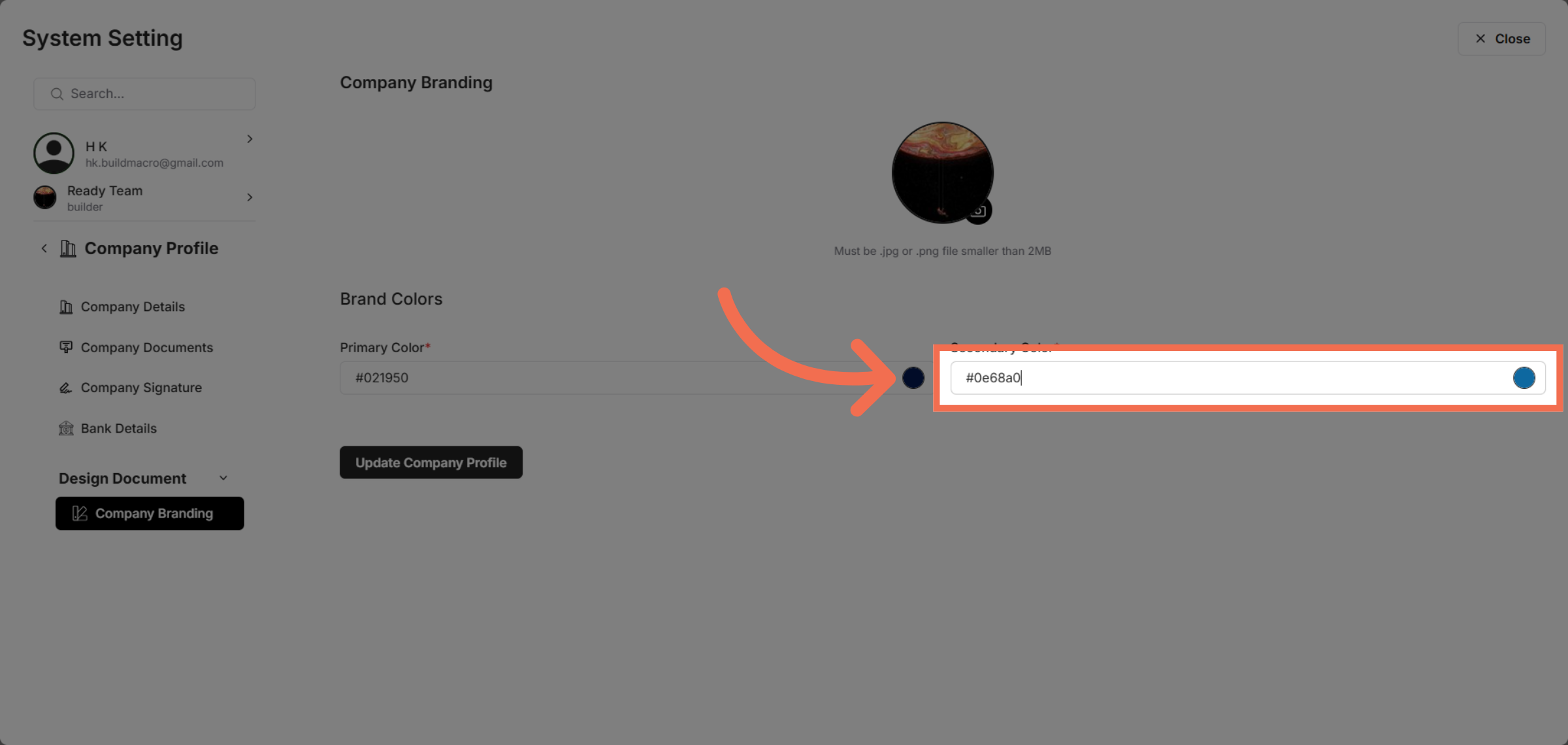
7. Select Secondary Colour
Pick the secondary colour by clicking the corresponding swatch to complement your primary branding.
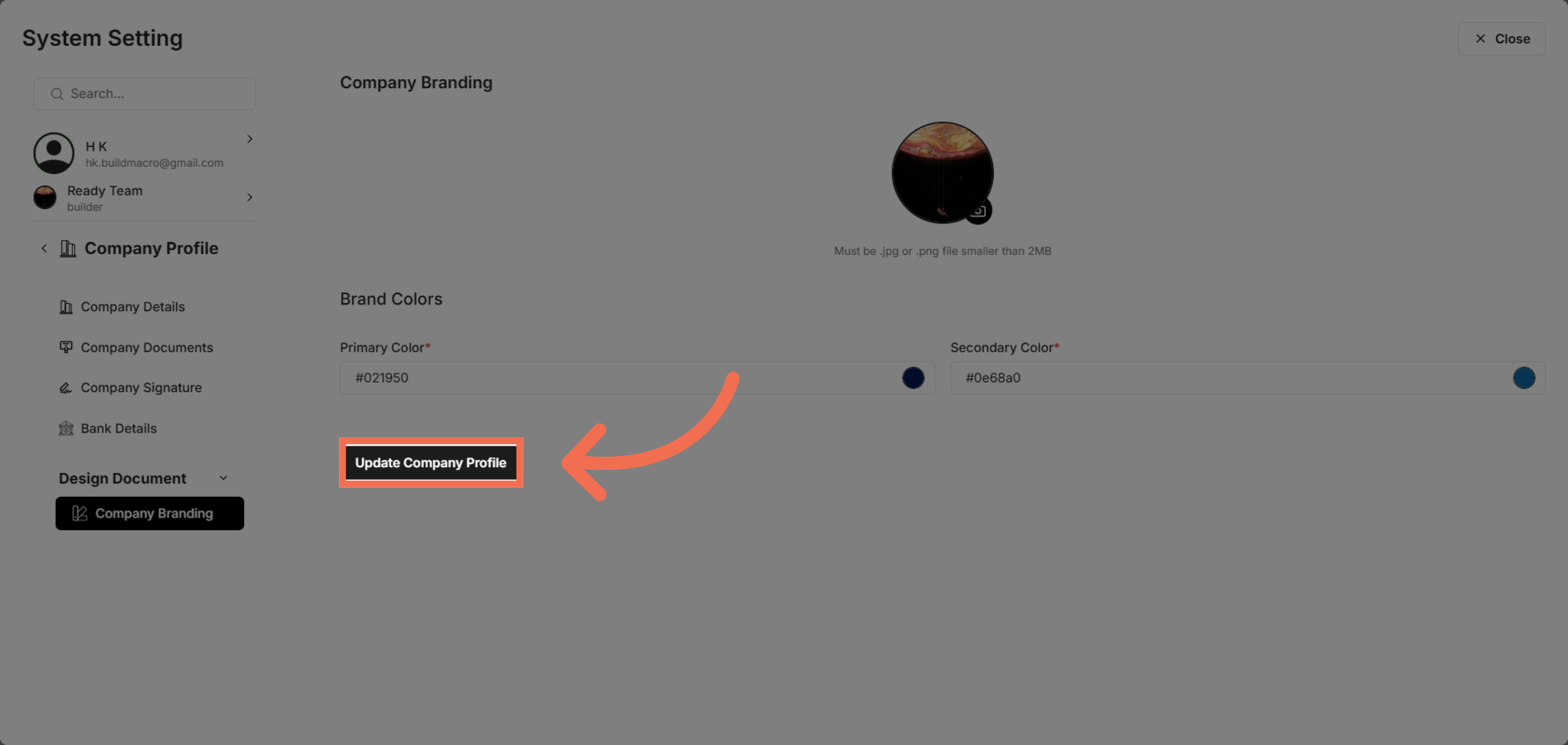
8. Update Company Profile
Click "Update Company Profile" to save your colour changes and apply them across your Readyteam account.
This demo demonstrated how to update your company colours in Readyteam, ensuring your branding stays consistent and professional. Take the next step by applying these customizations to enhance your team's visual identity today.