Add Team Members And Assign Roles In ReadyTeam

This demo showcases how to efficiently add team members and assign their roles within Readyteam.
Go to app.readyteam.ai
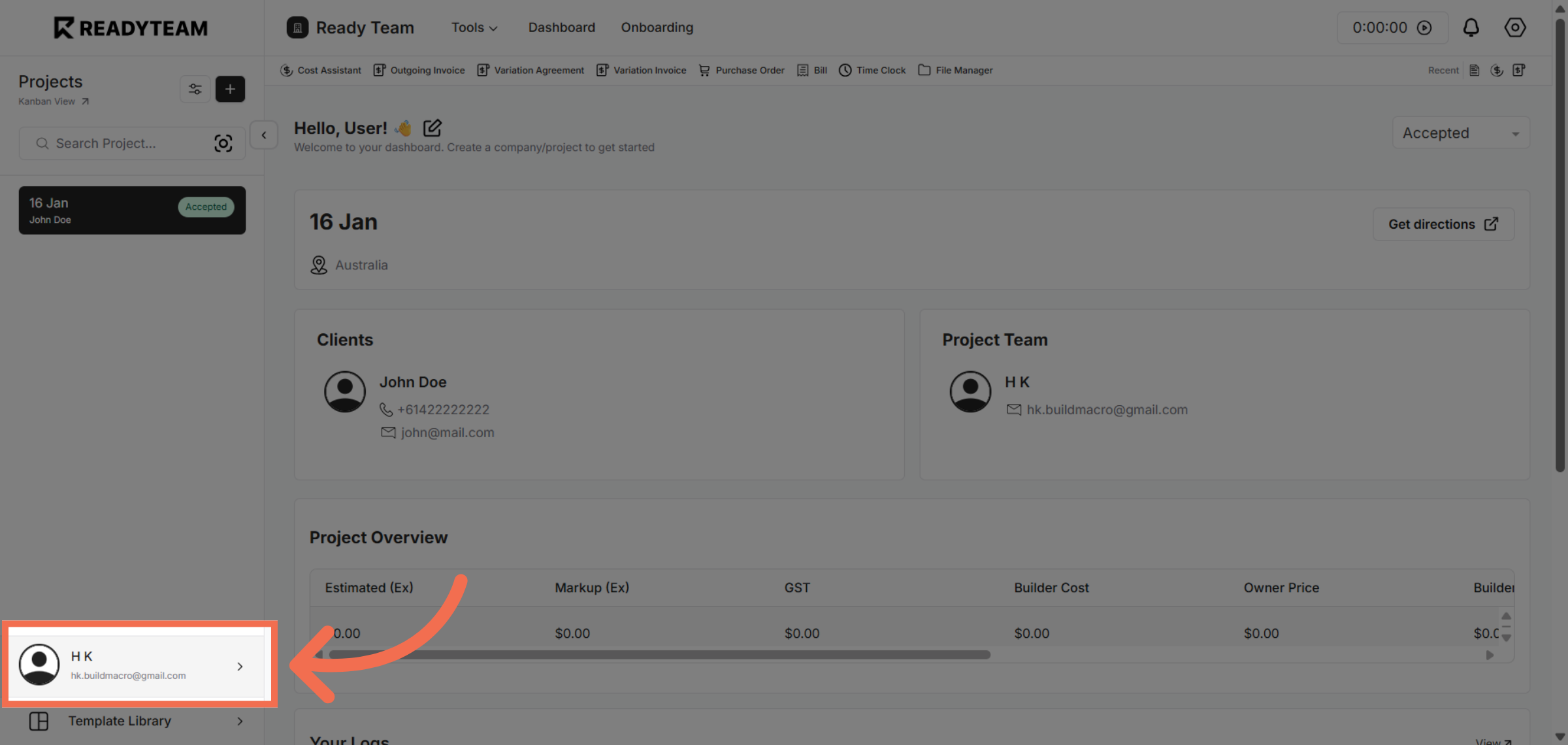
1. Select User Section
Click the user initials to open the main menu for team management.
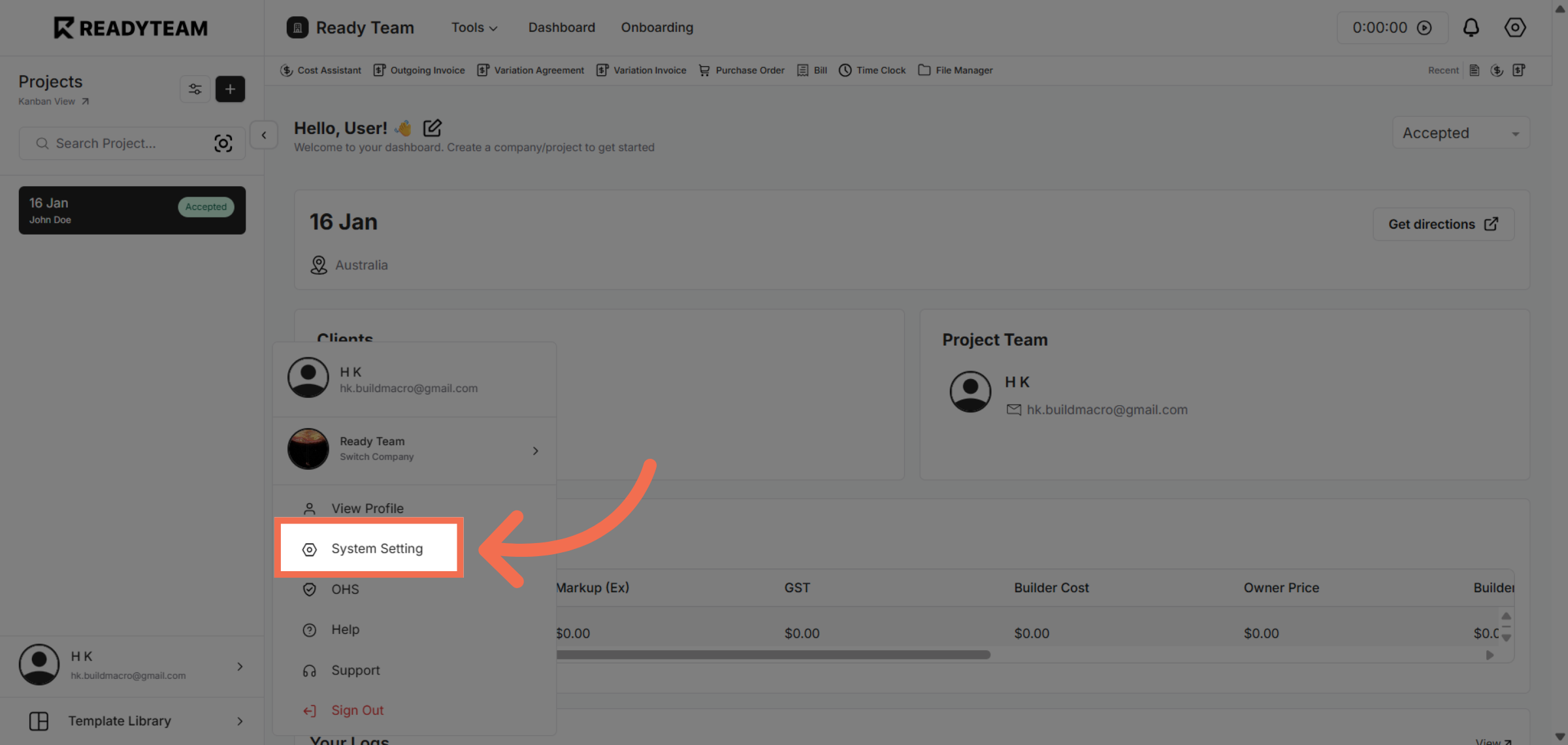
2. Open System Settings
Click System Setting to access configuration options for your account.
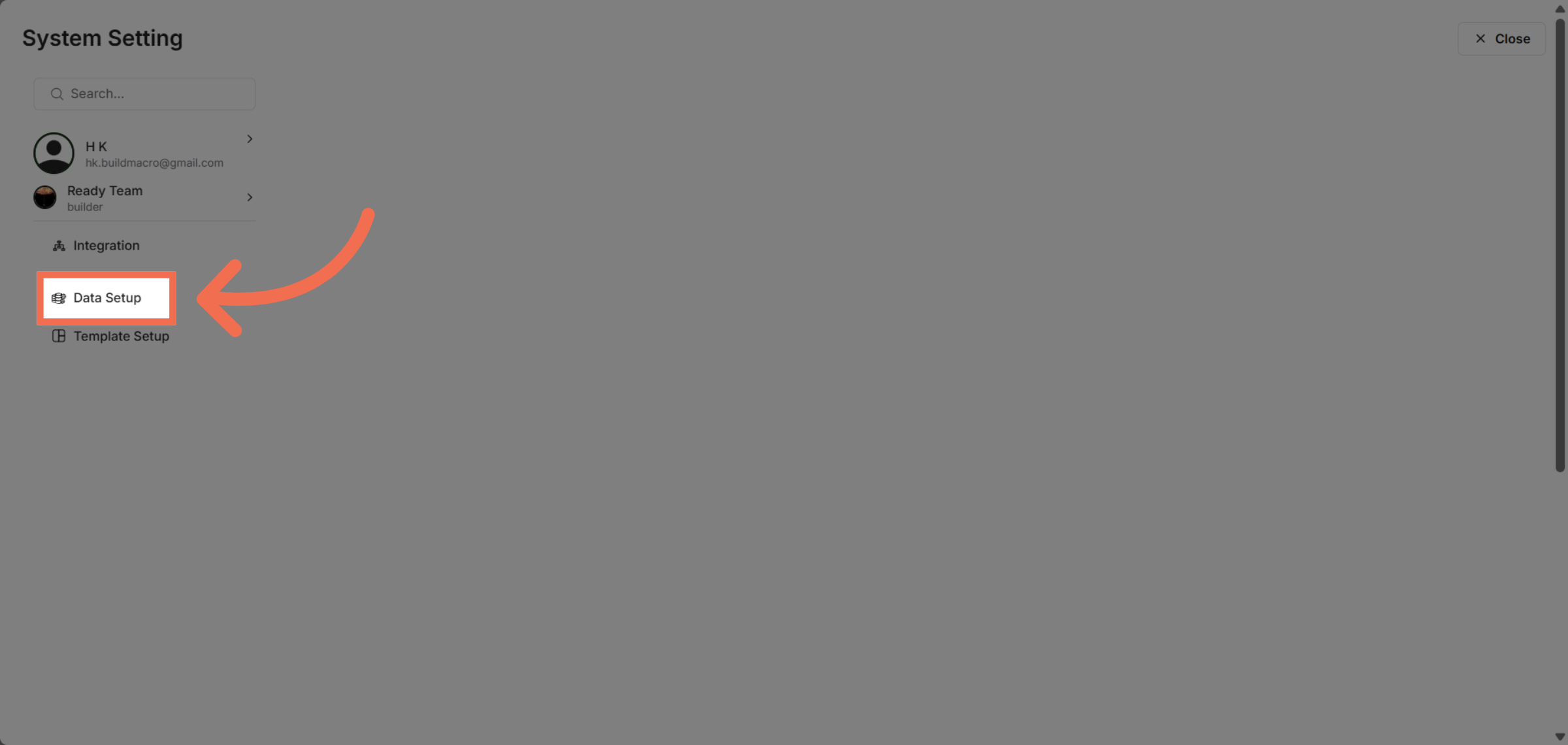
3. Access Data Setup
Click Data Setup to manage your organizational data and settings.
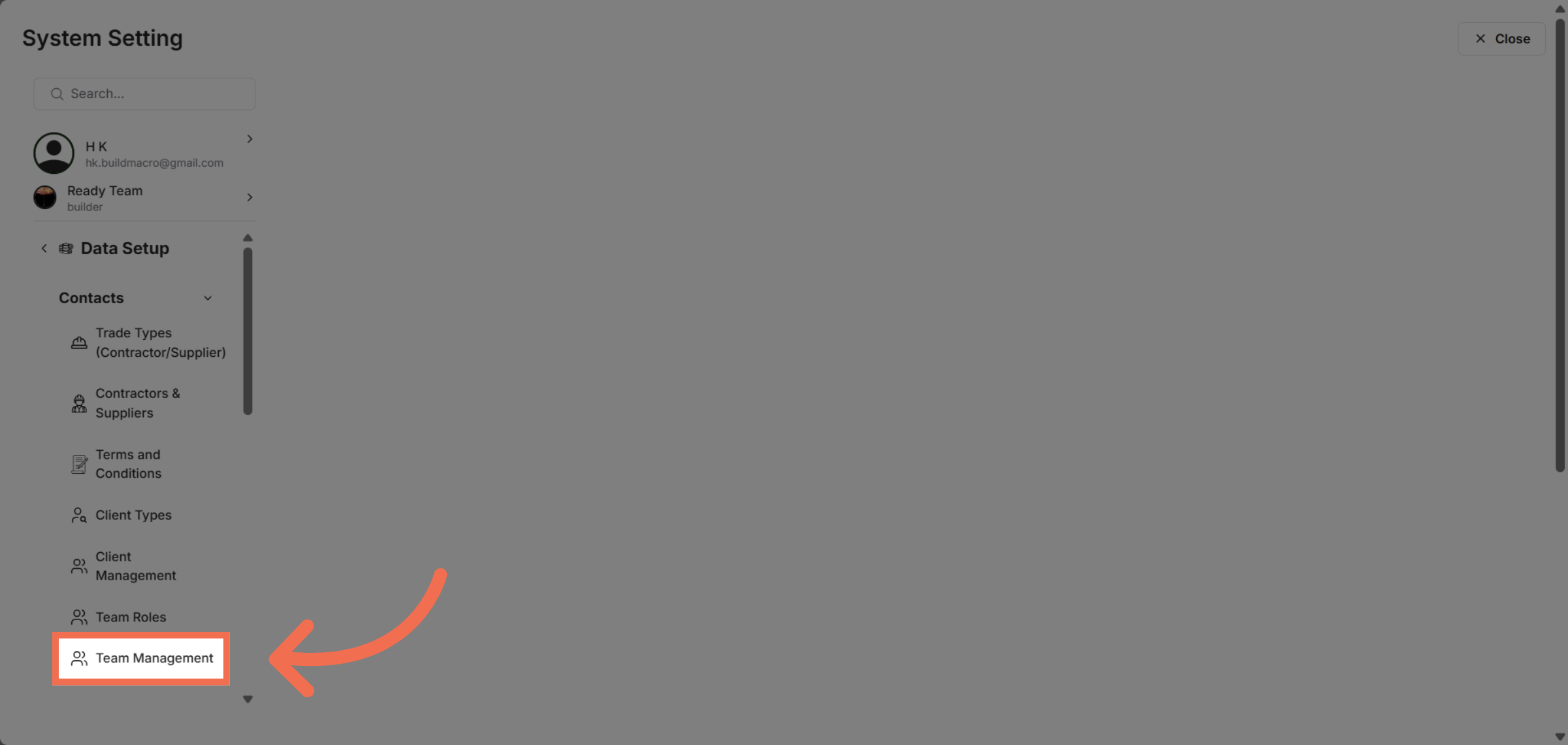
4. Navigate To Team Management
Click Team Management to view and modify your team's structure and members.
5. Open Team Member Section
Click Team Member to begin adding or editing team members.
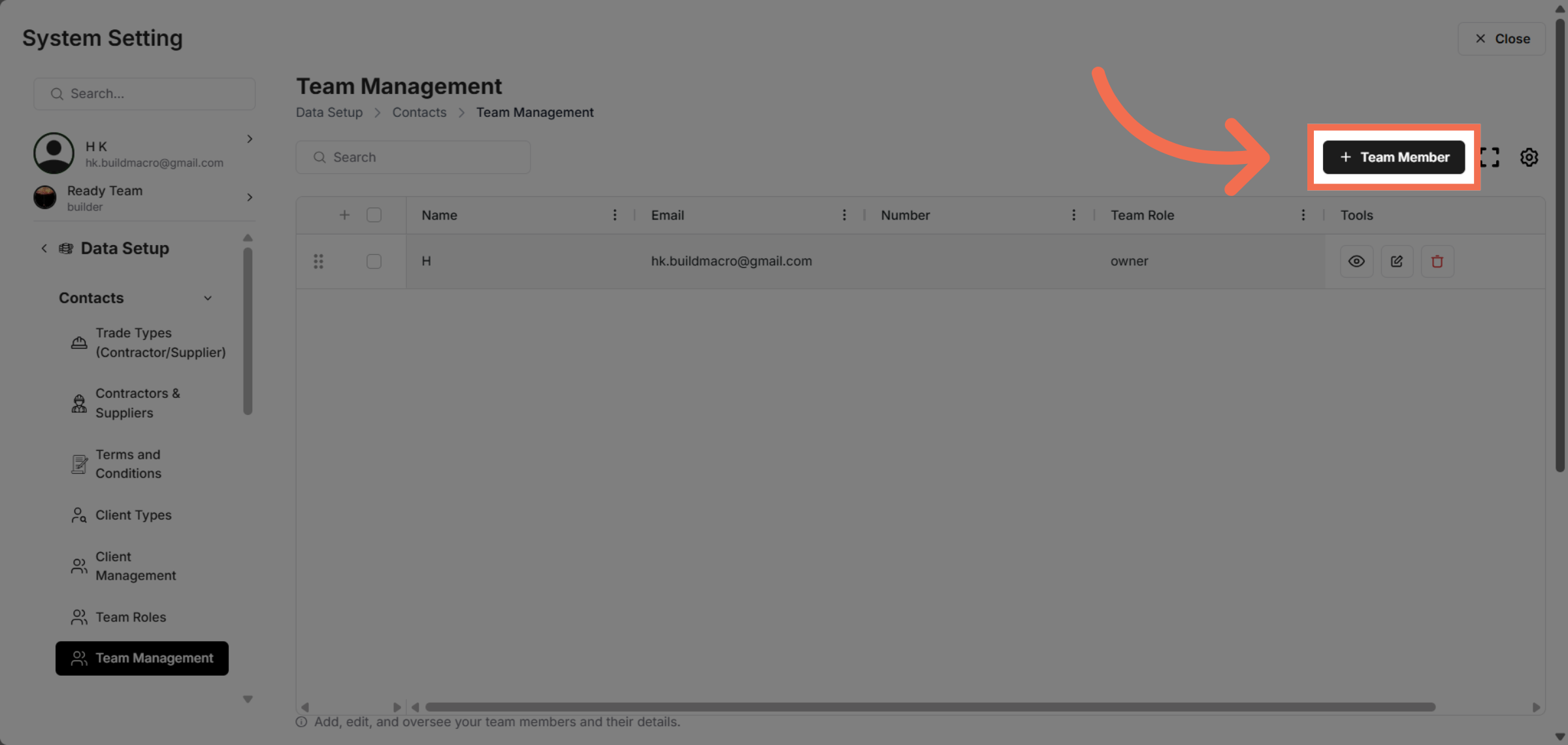
6. Enter First Name
Enter the first name of the new team member.
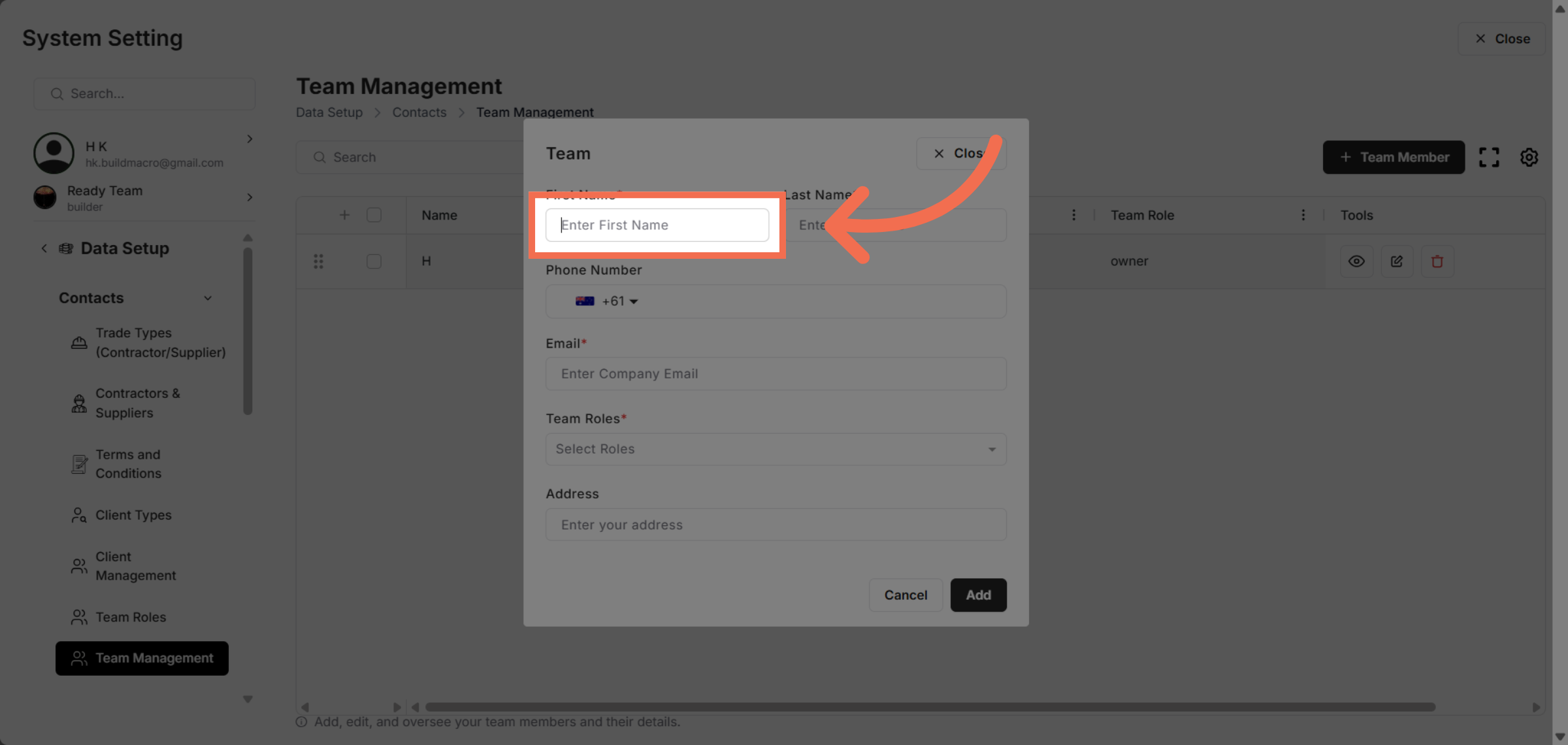
7. Enter Last Name
Enter the last name of the new team member.
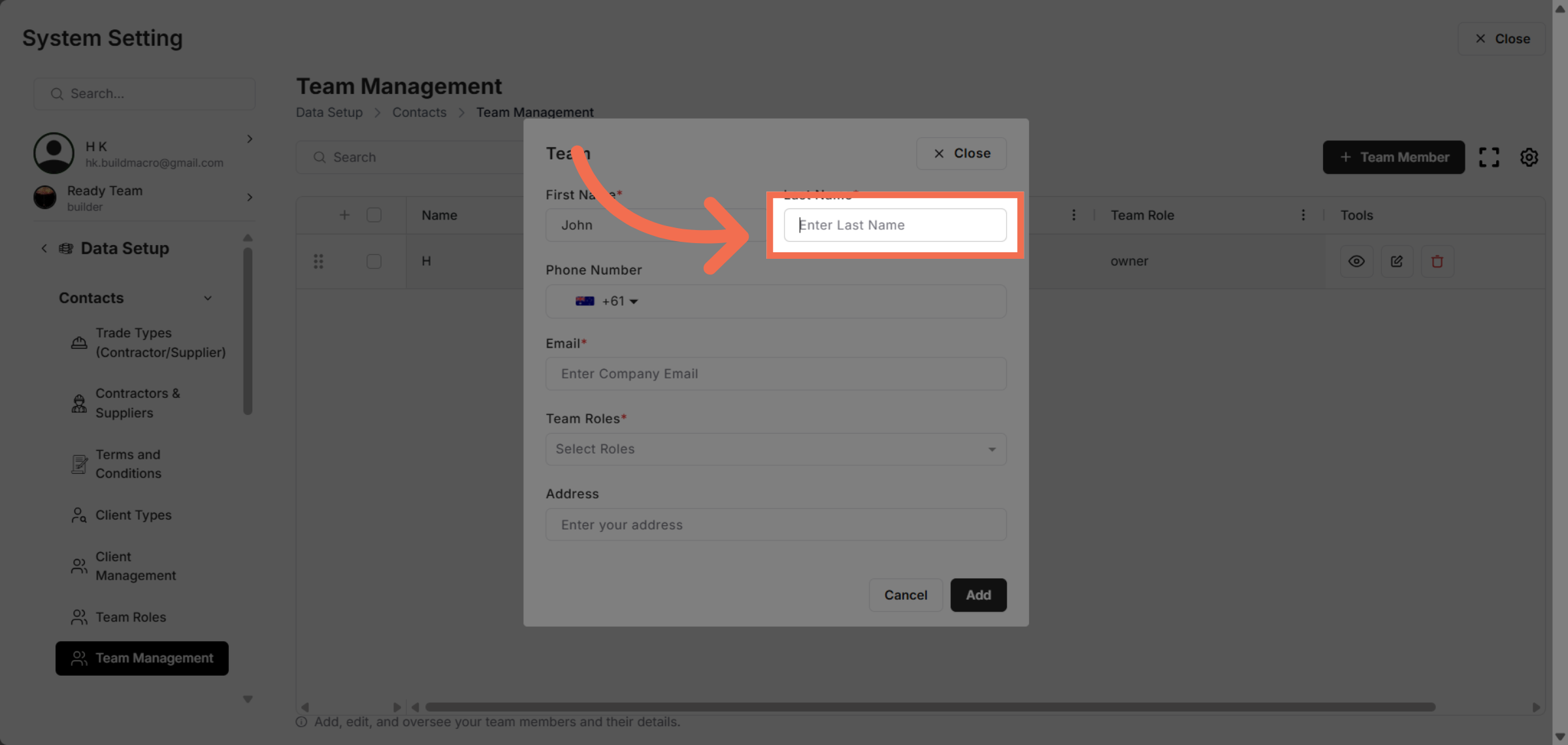
8. Enter Phone Number
Enter team member phone number to provide contact information.
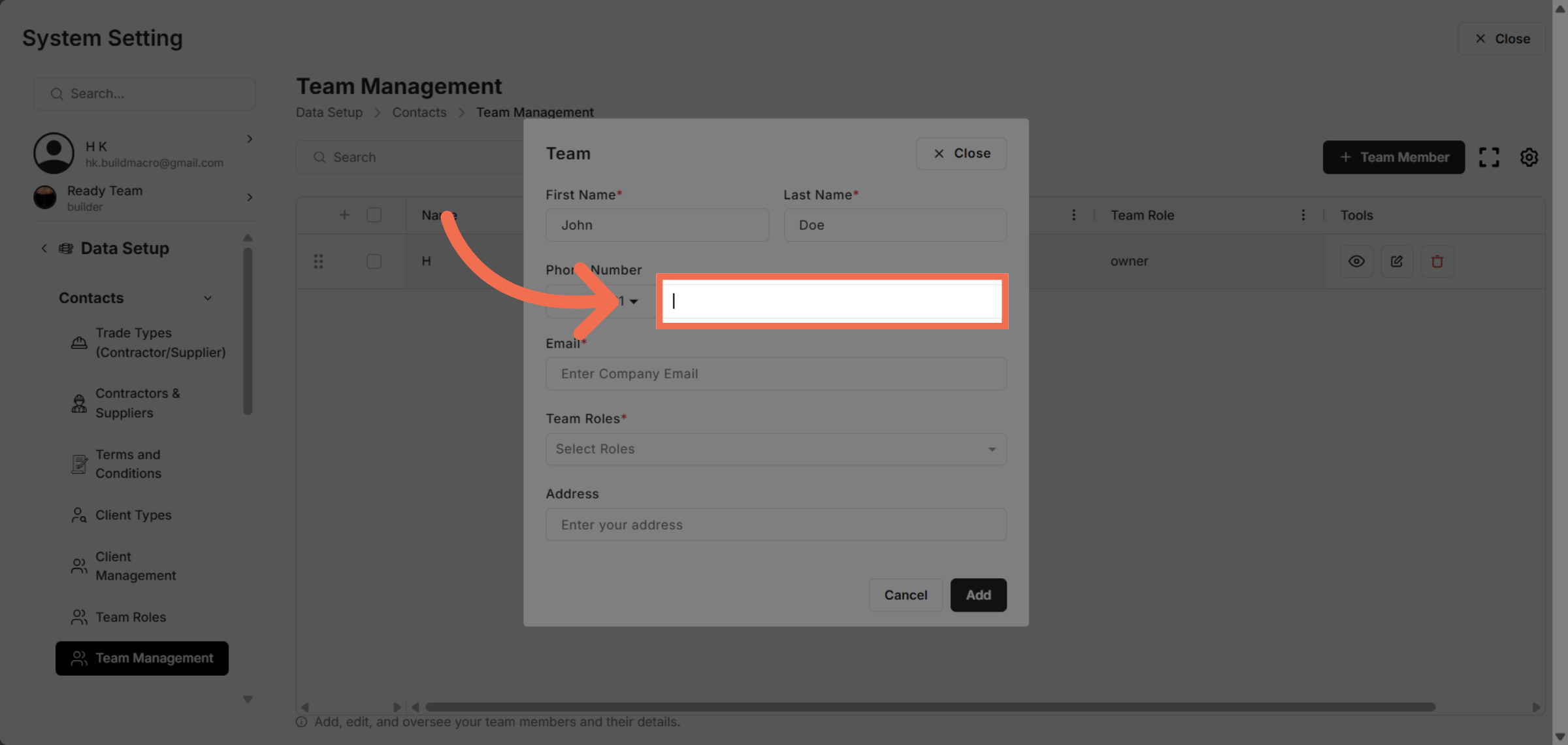
9. Enter Email Address
Enter email address to associate with the team member's profile.
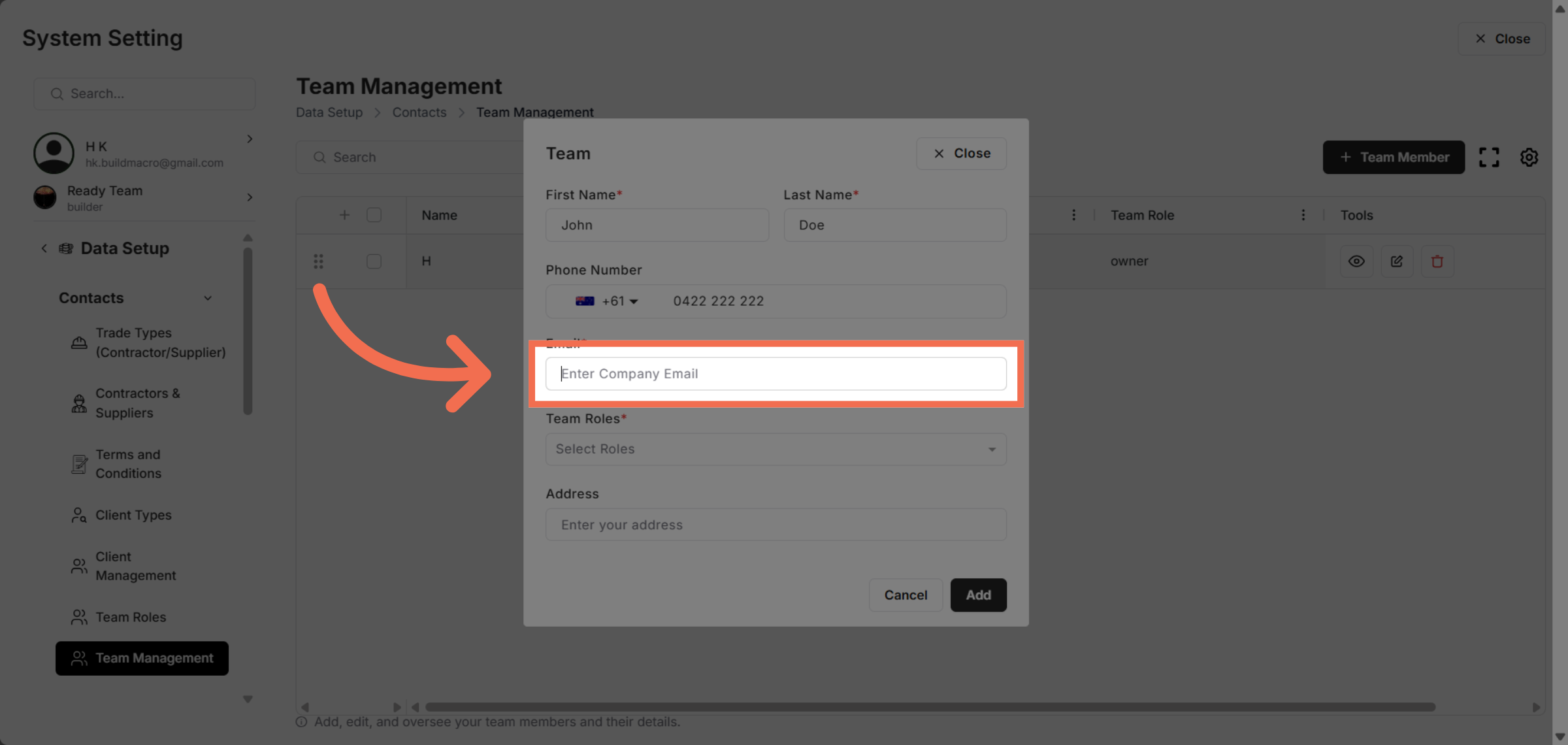
10. Open Role Options
Click here to view available roles for assignment.
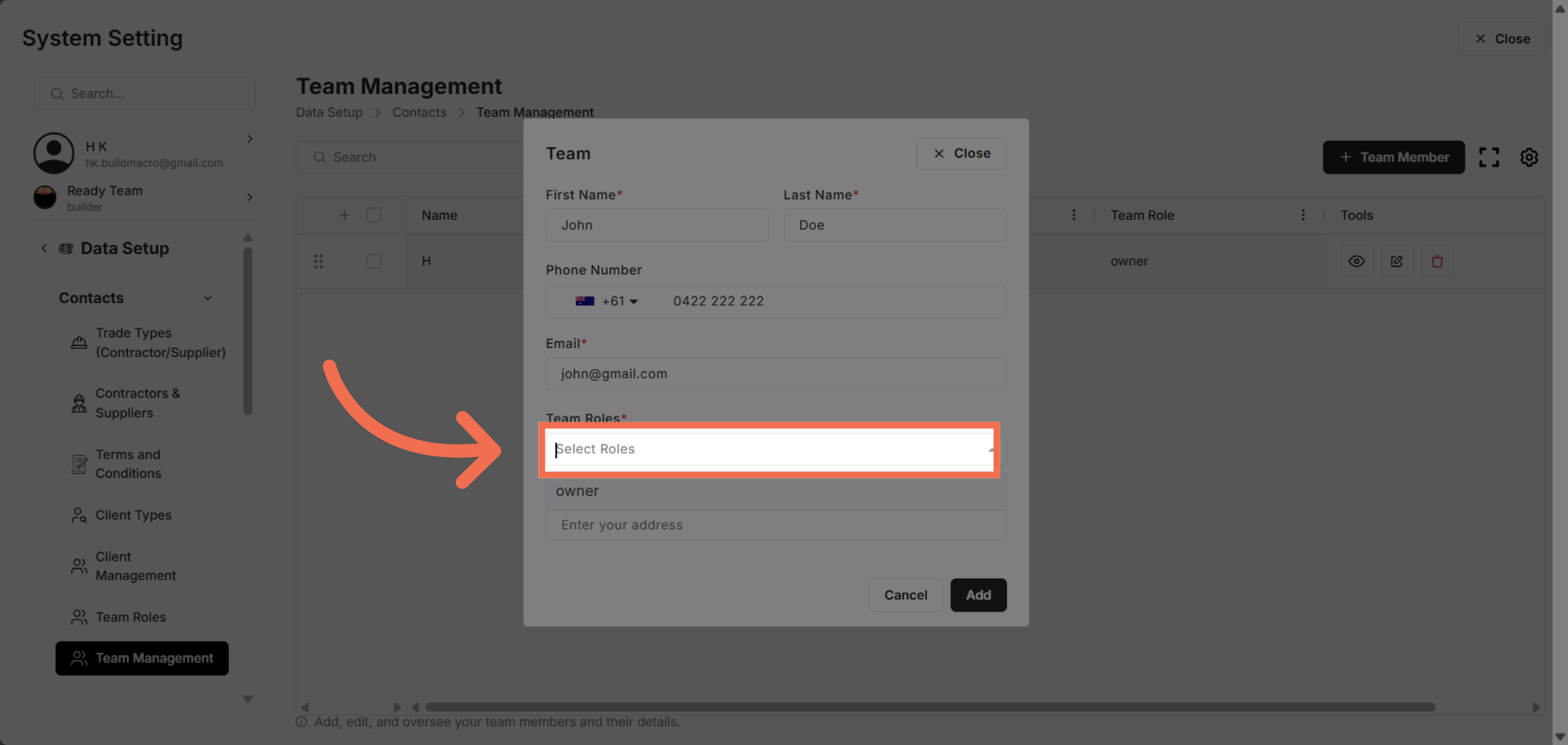
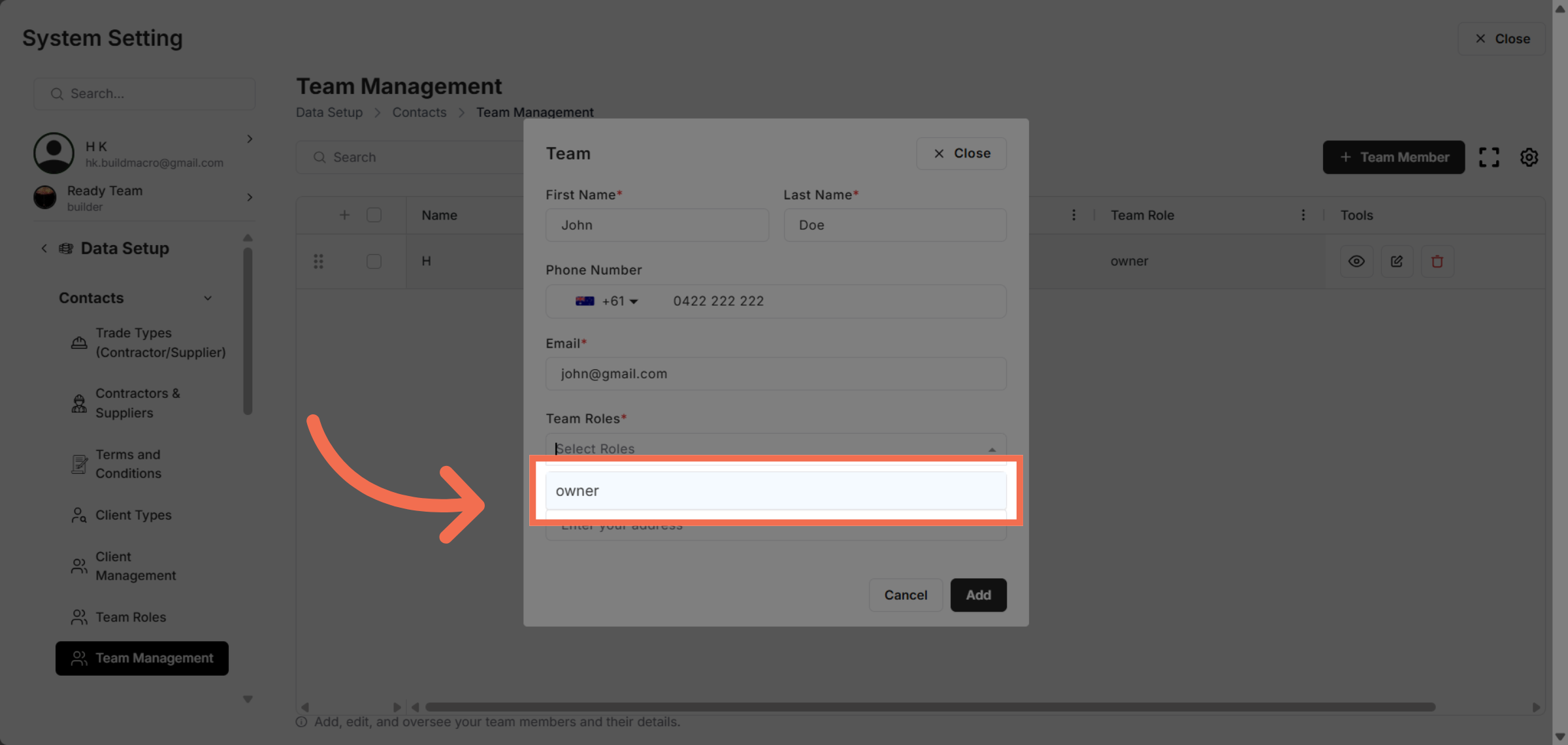
11. Assign Role
Select the owner role to grant full permissions to the team member.
12. Enter Address Details
Enter address to complete the team member's profile information.
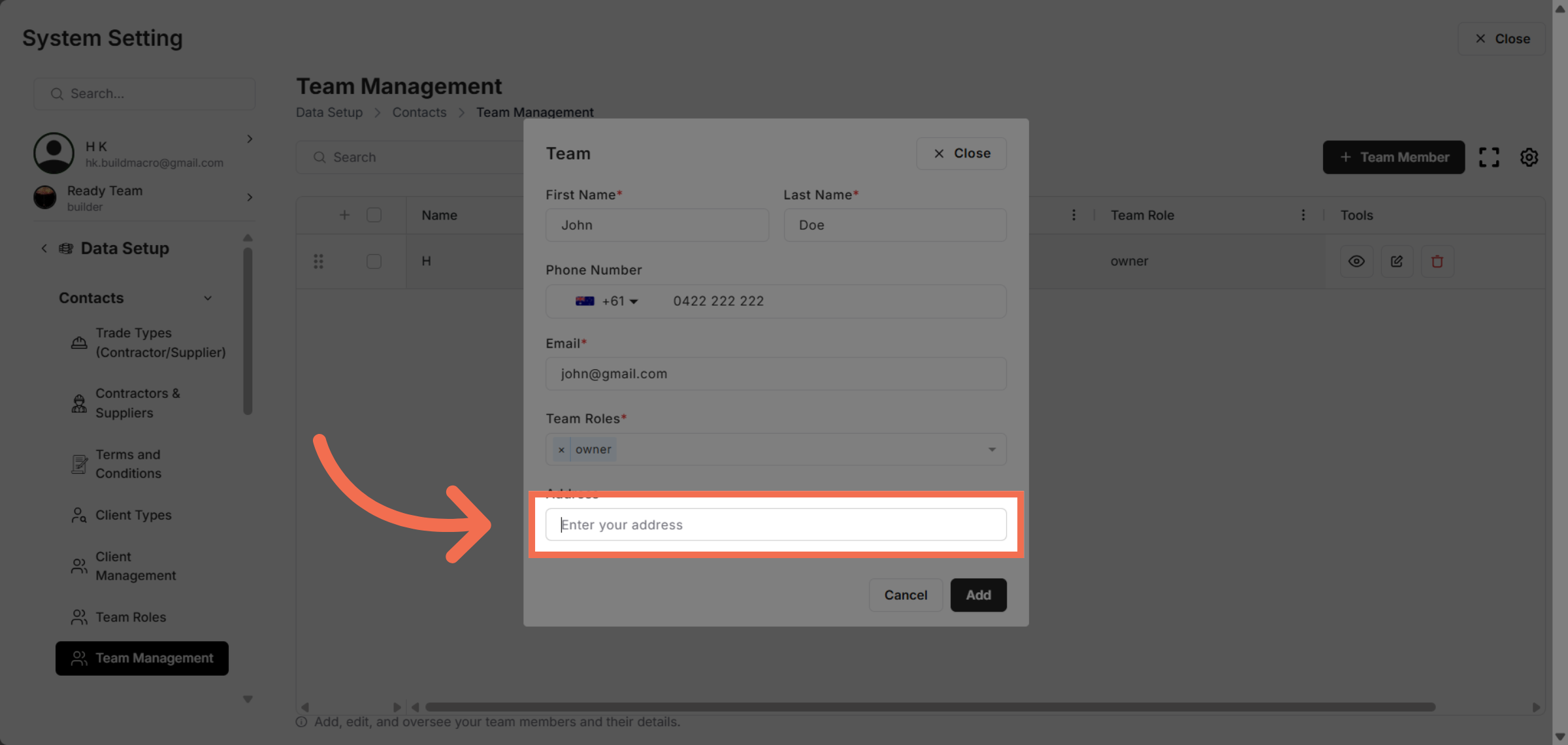
13. Add Team Member
Click Add to save the new team member and their assigned role.
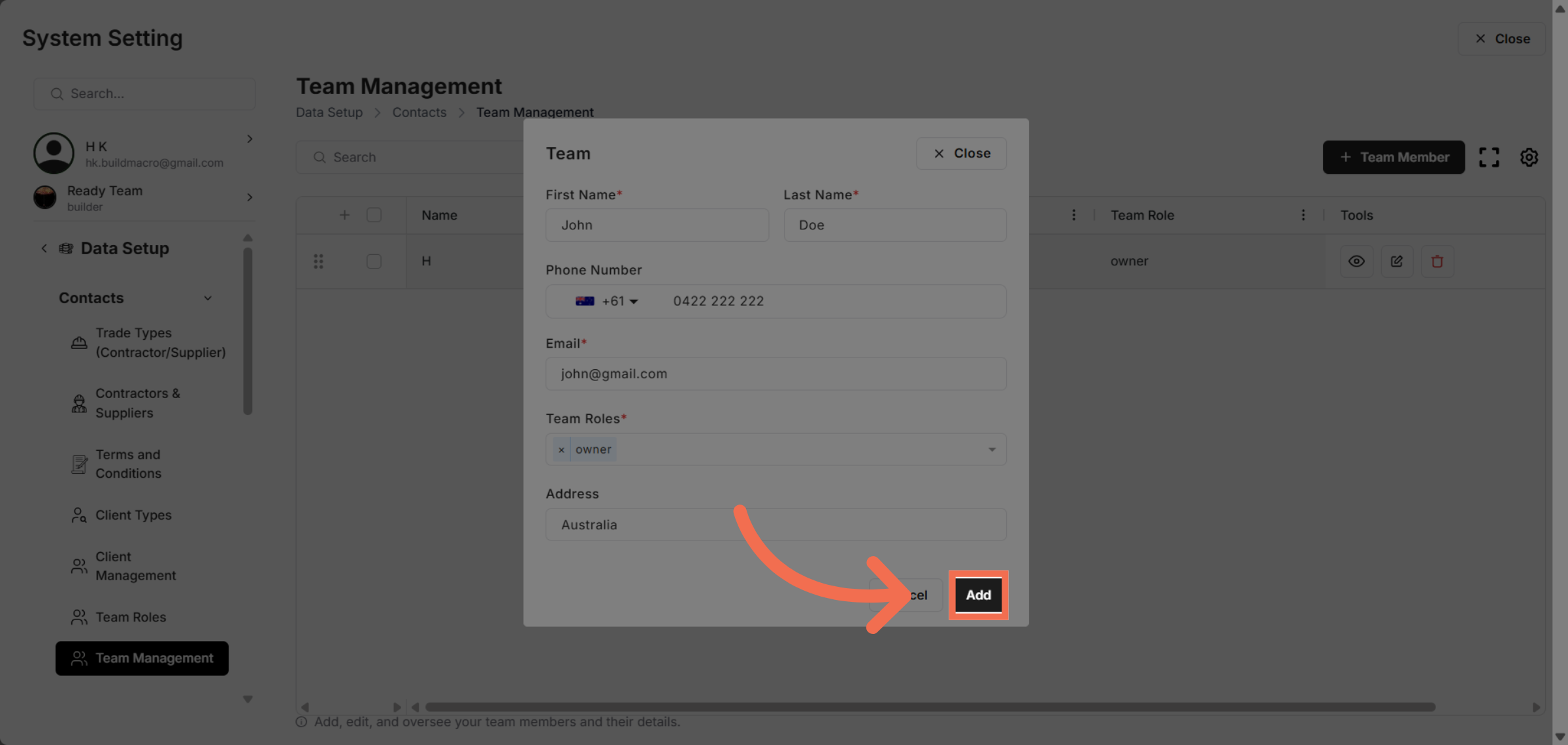
You have successfully added a new team member and assigned their role within Readyteam. This process helps you efficiently manage your team and maintain organized member information.