Add File Manager Folders In ReadyTeam
This demo showcases how to update folders within the Readyteam File Manager.
Go to app.readyteam.ai
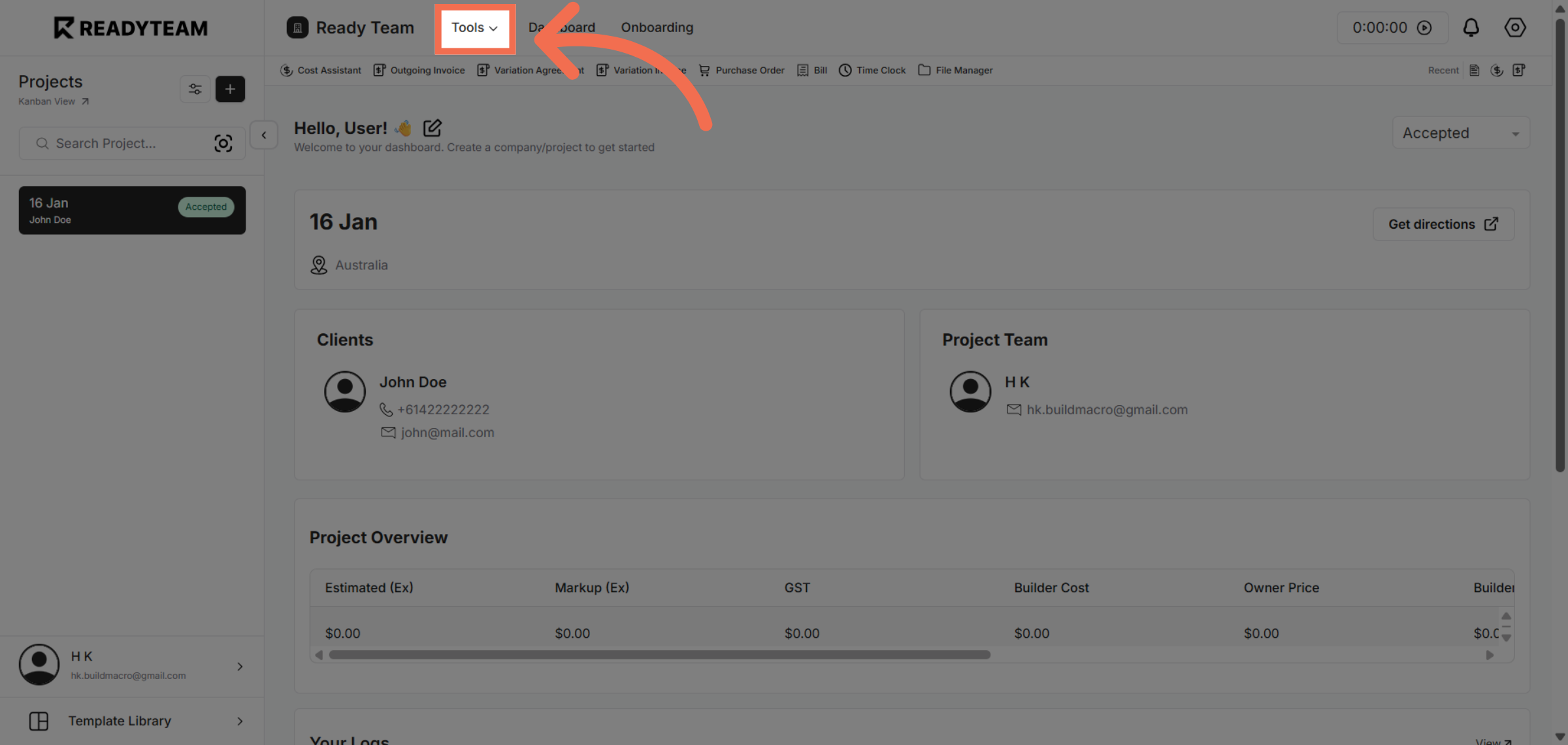
1. Open Tools Menu
Click the Tools menu to access various management options within Readyteam.
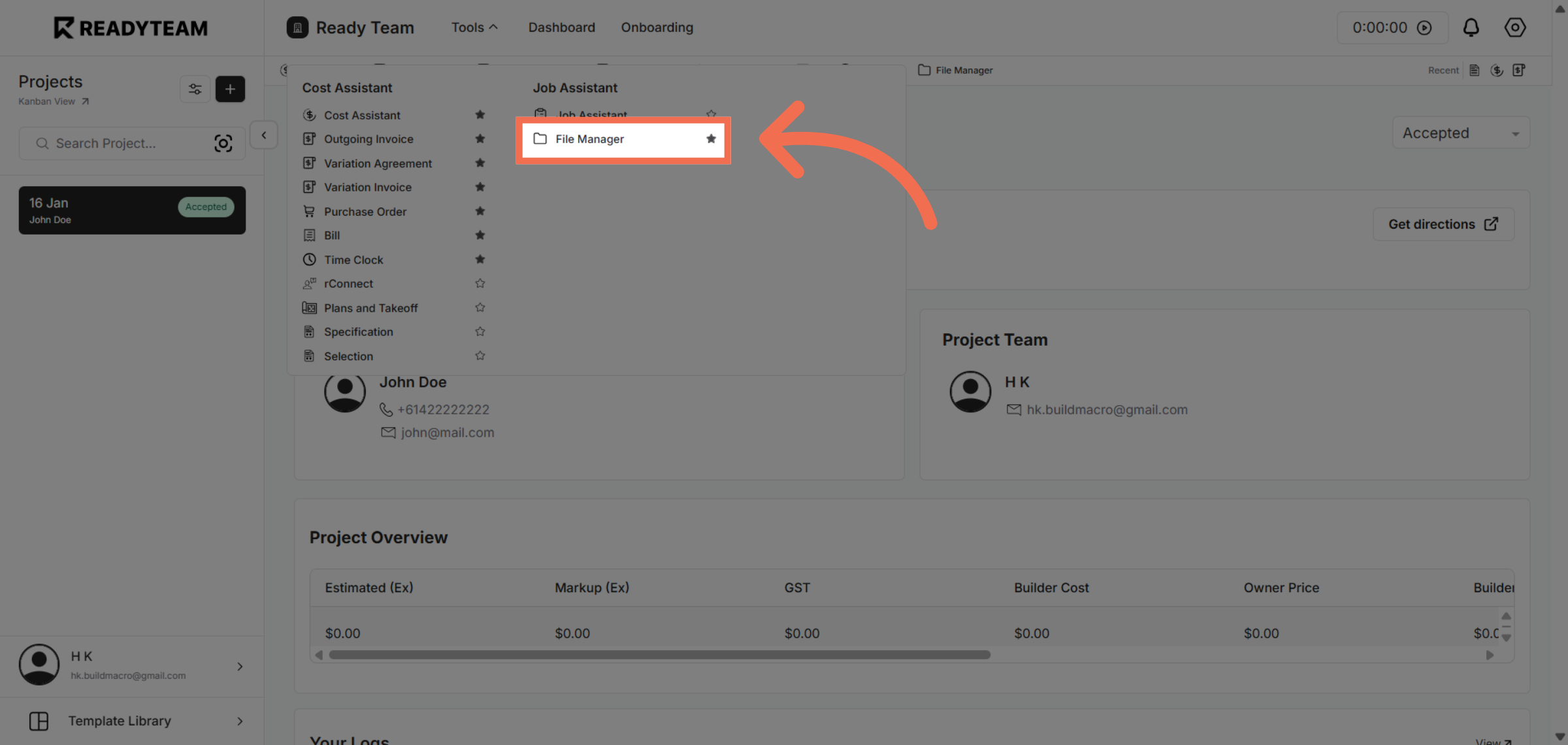
2. Access File Manager
Click File Manager to open the interface where you can organize and manage your files and folders.
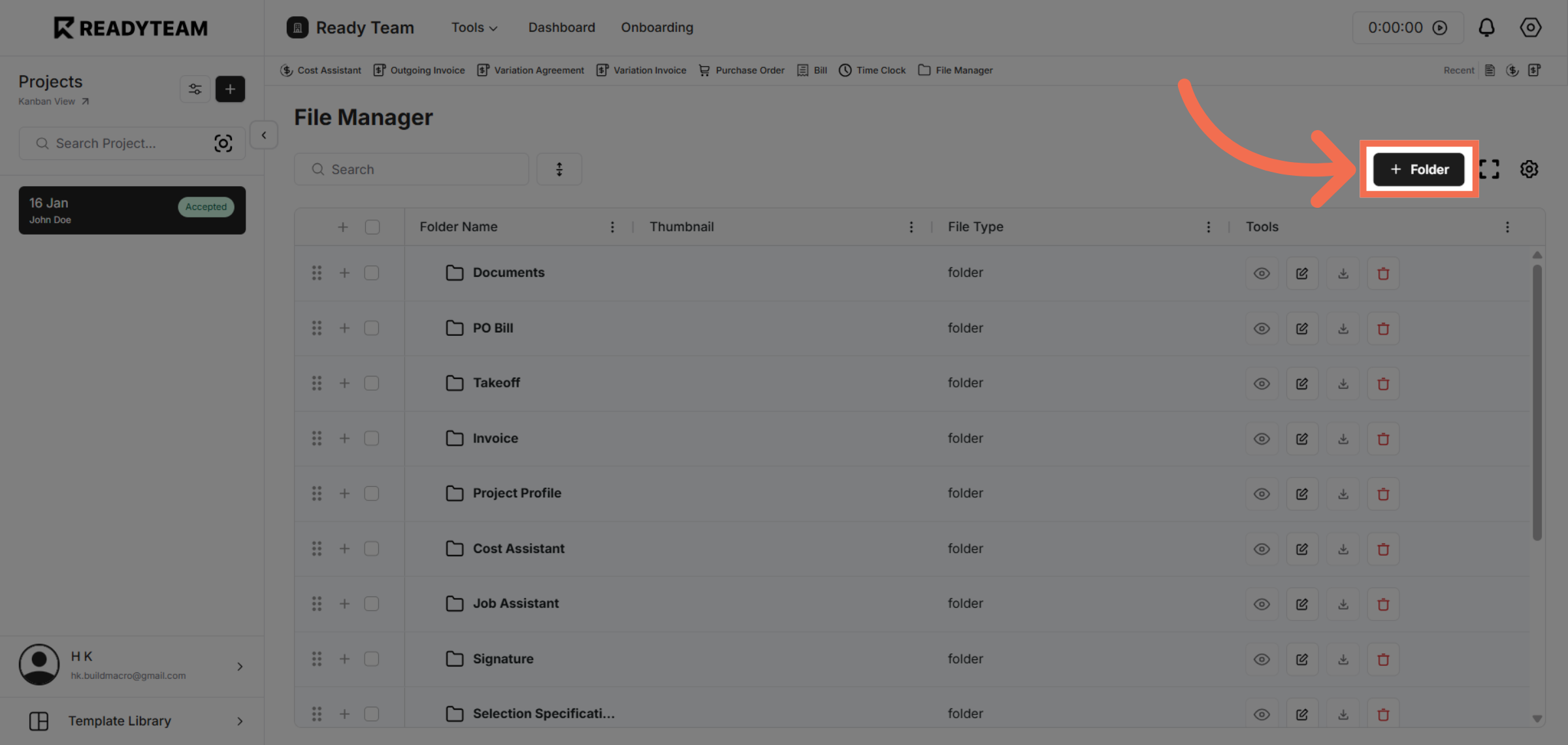
3. Select Folder Section
Click the Folder section to view and manage your existing folders in the File Manager.
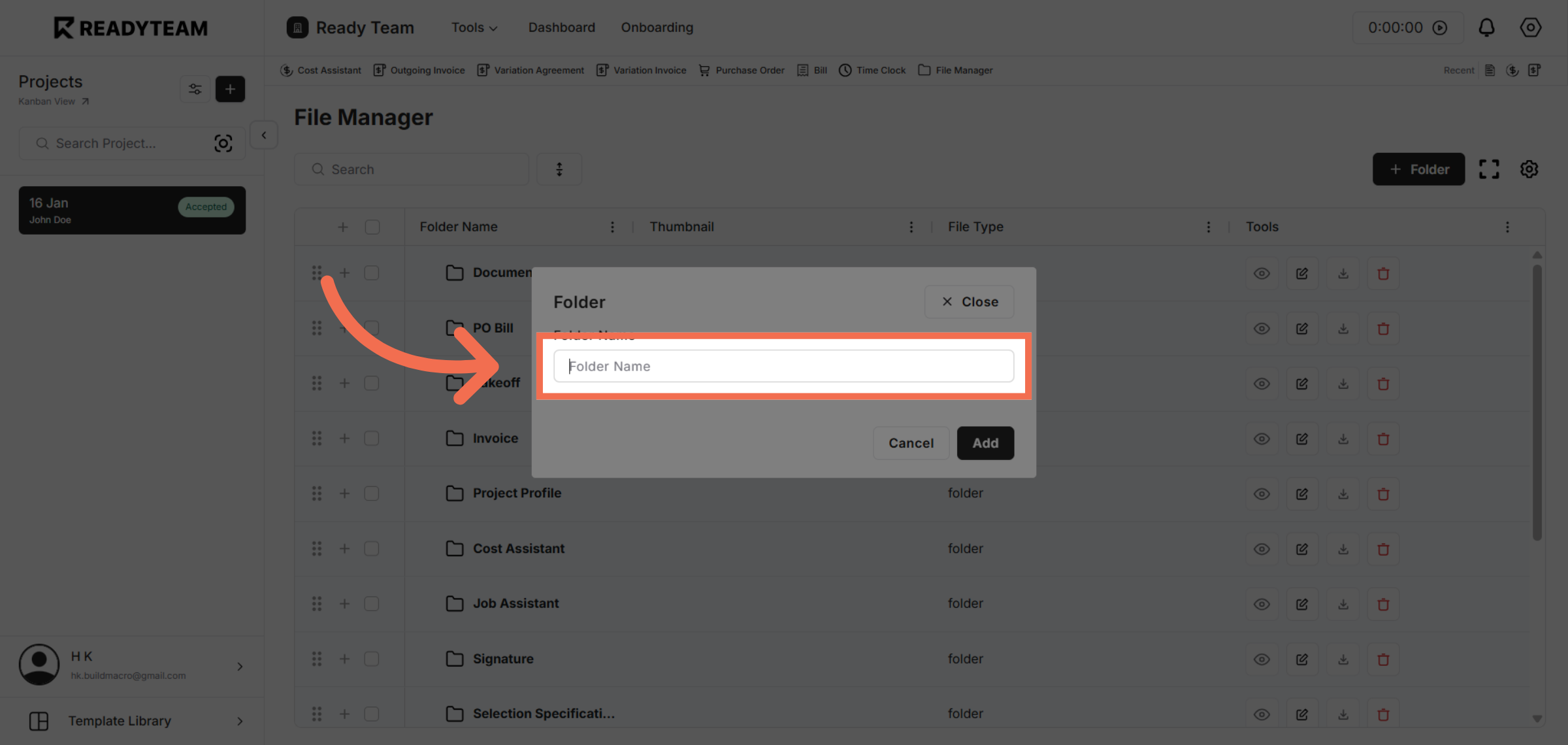
4. Enter New Folder Name
Enter your new folder name to update the folder's label and improve organization.
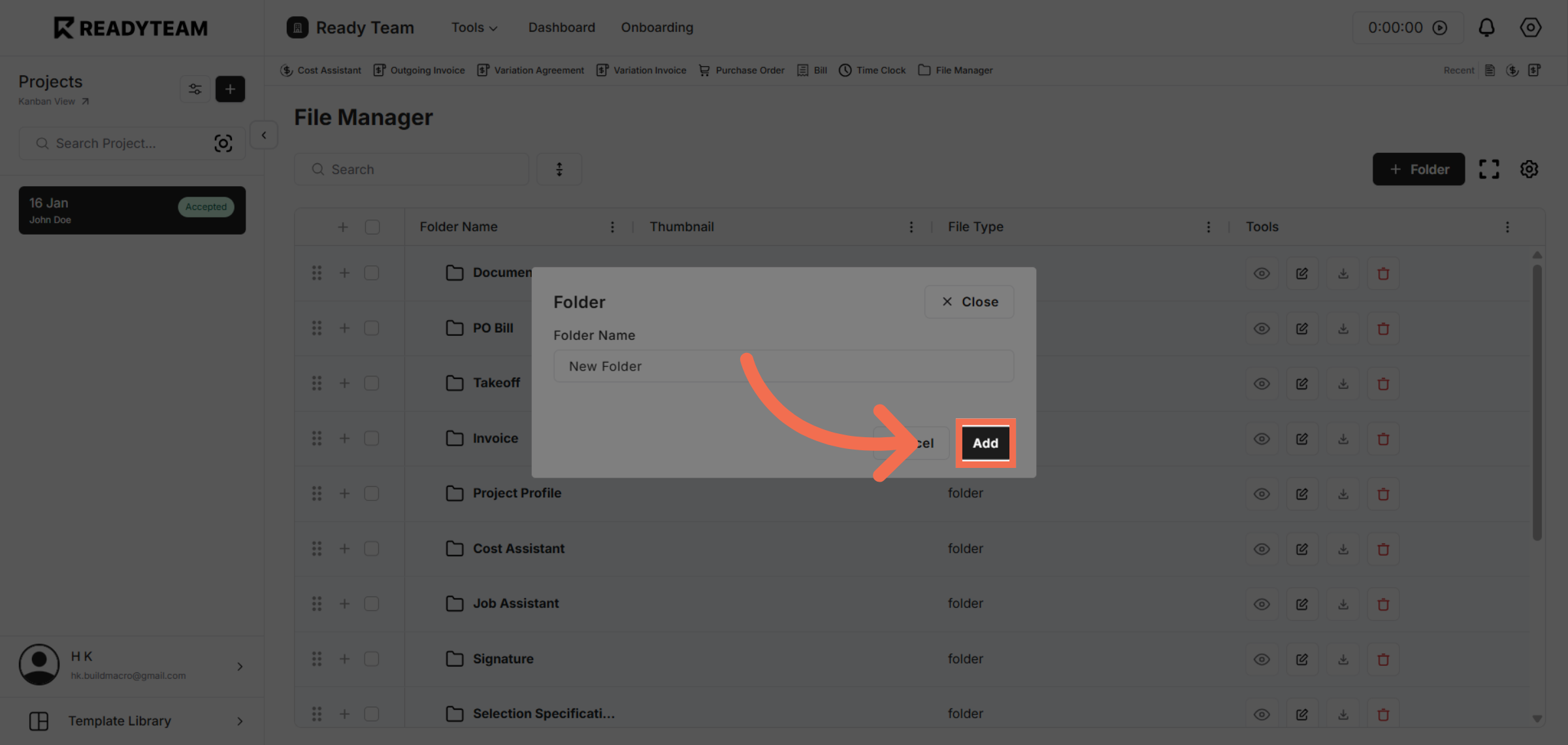
5. Confirm Folder Addition
Click Add to save the new folder name and apply the changes in the File Manager.
You have successfully updated folder names in Readyteam's File Manager to keep your files organized. Start managing your folders today to enhance your workflow and file accessibility.