Import Catalogues Efficiently Using Readyteam Platform
This demo showcases how Readyteam simplifies importing catalogues to streamline your data management.
Go to app.readyteam.ai
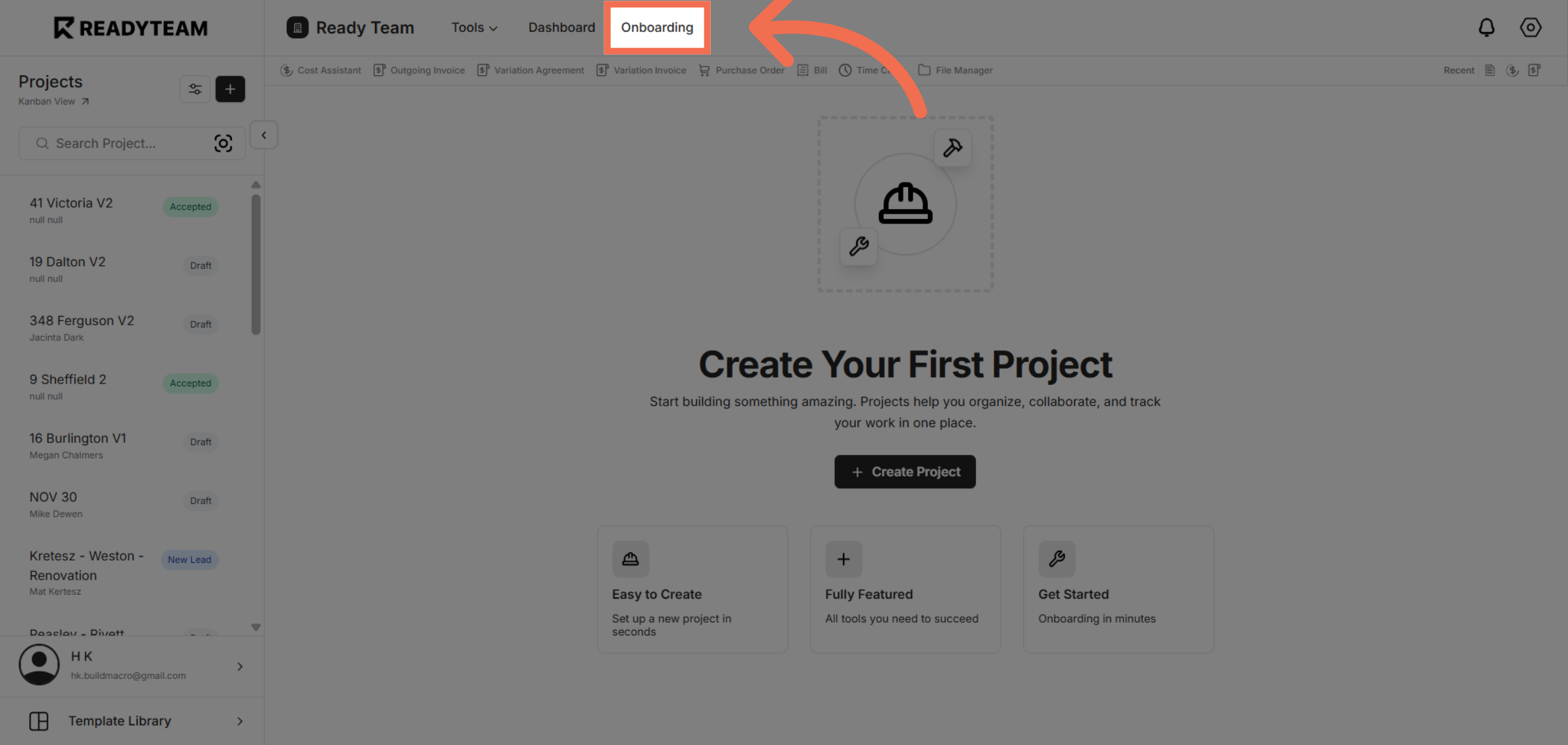
1. Navigate to Onboarding Section
Click the Onboarding section to begin managing your catalogues.
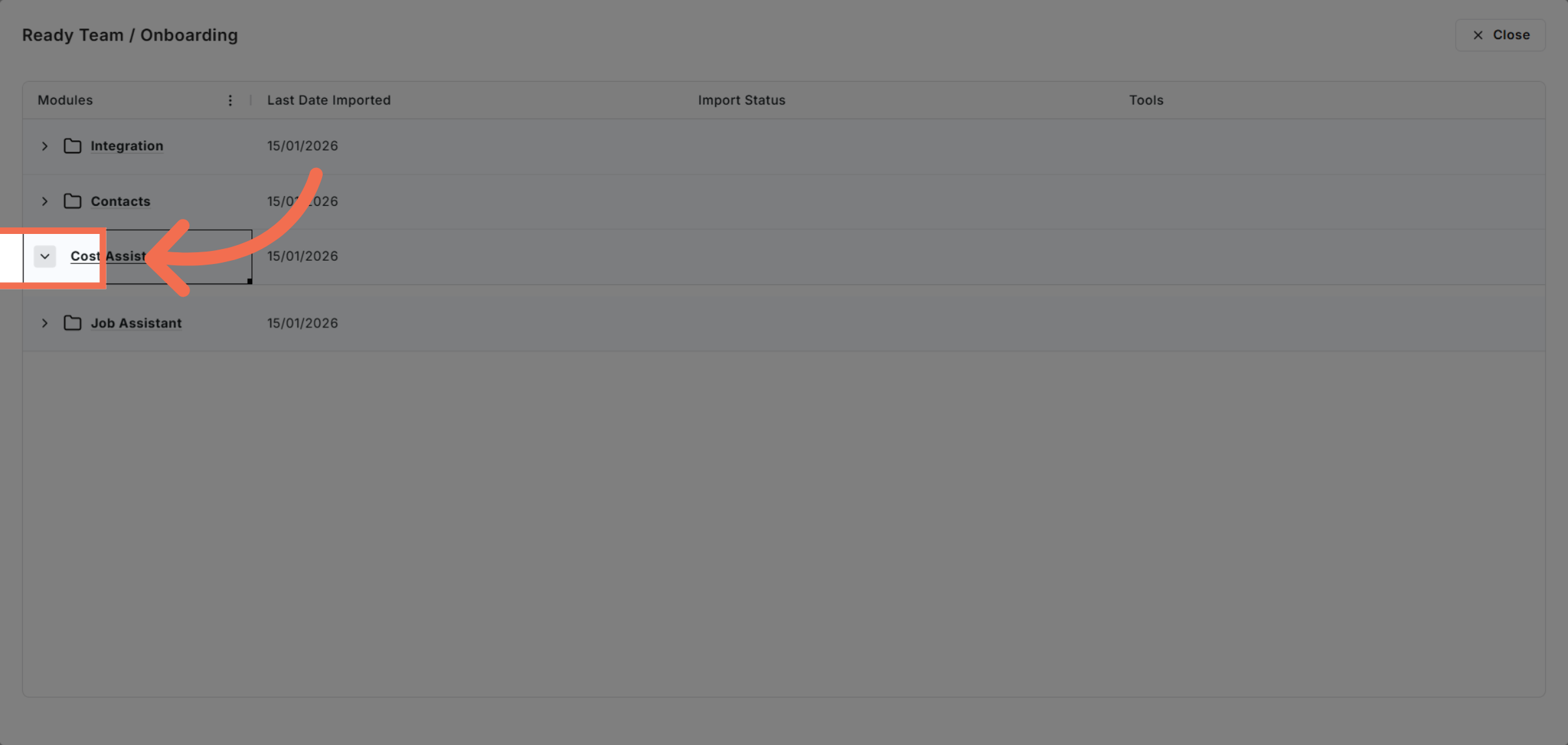
2. Access Cost Assistant Area
Click here to access the catalogues area within the platform.
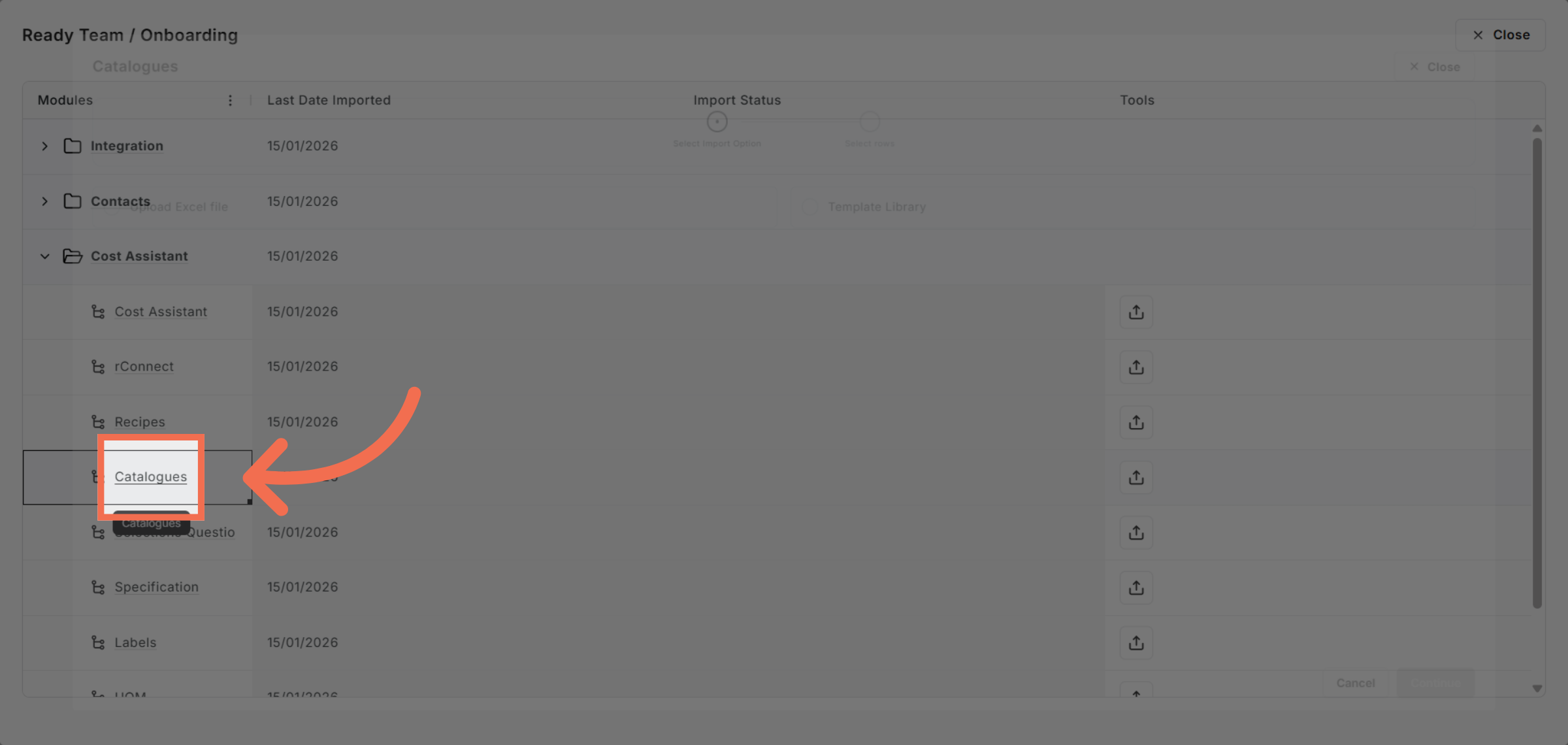
3. Select Catalogues Option
Click Catalogues to open the catalogue management interface.
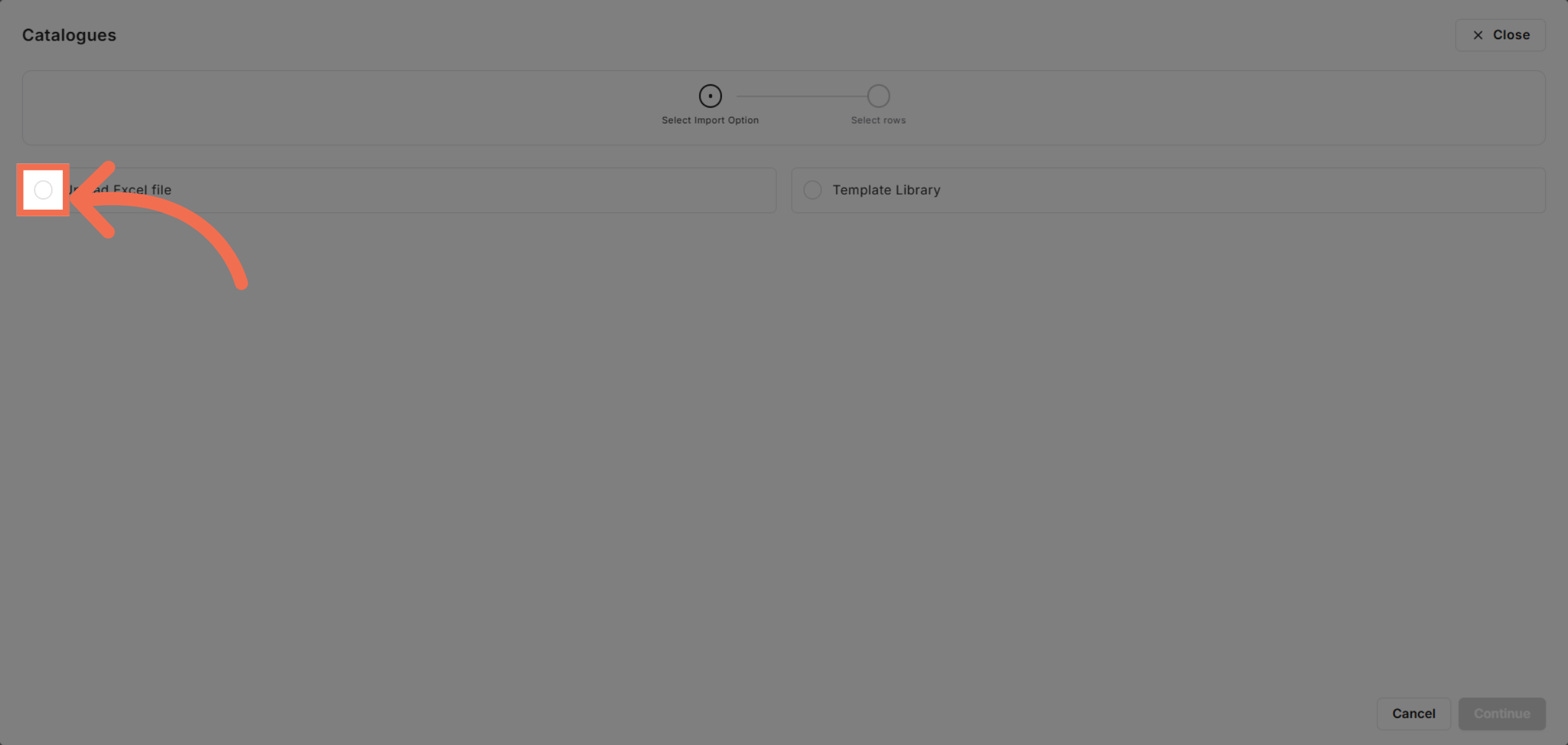
4. Initiate Excel File Upload
Click Upload Excel file to start importing your catalogue data.
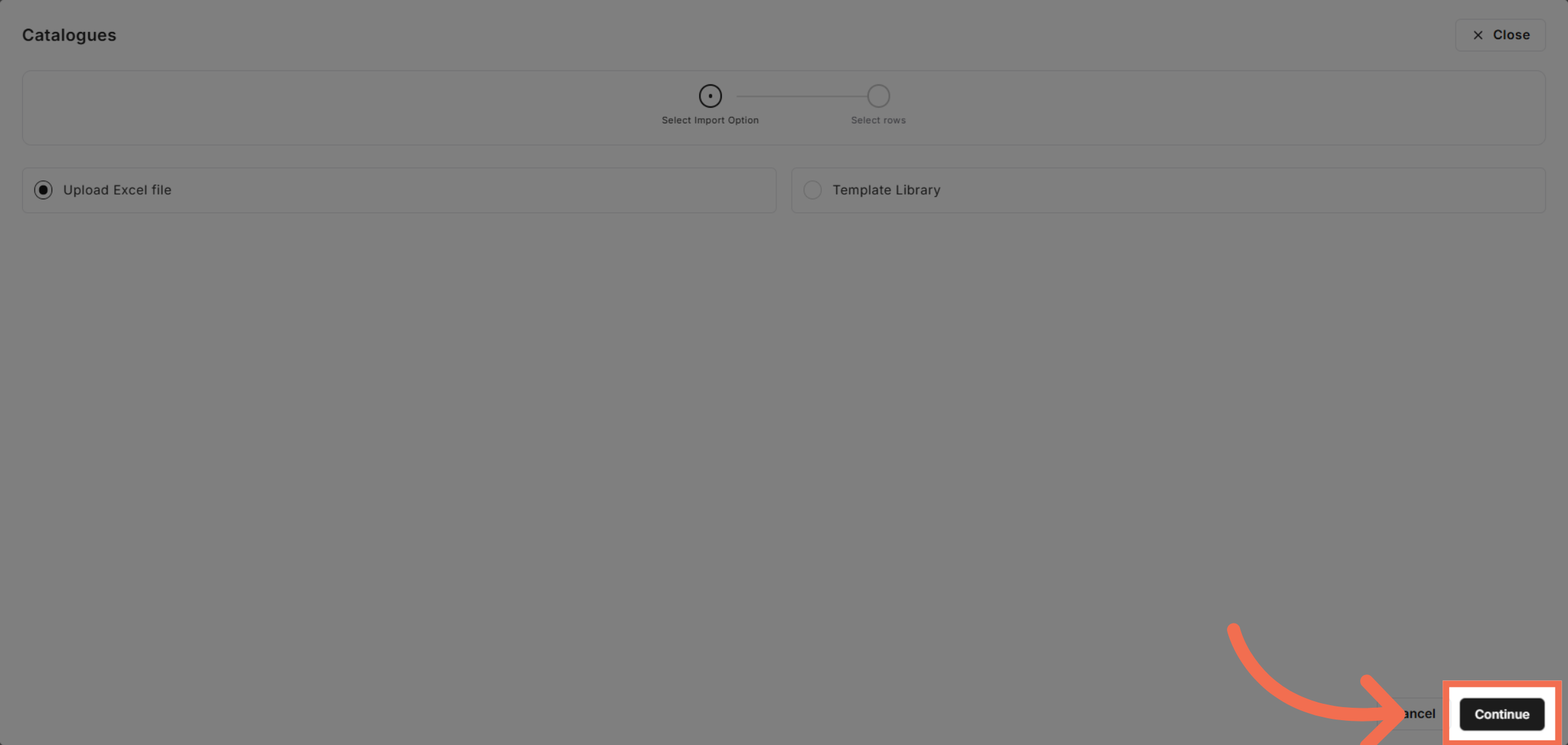
5. Proceed to Next Step
Click Continue to move forward with the upload process.
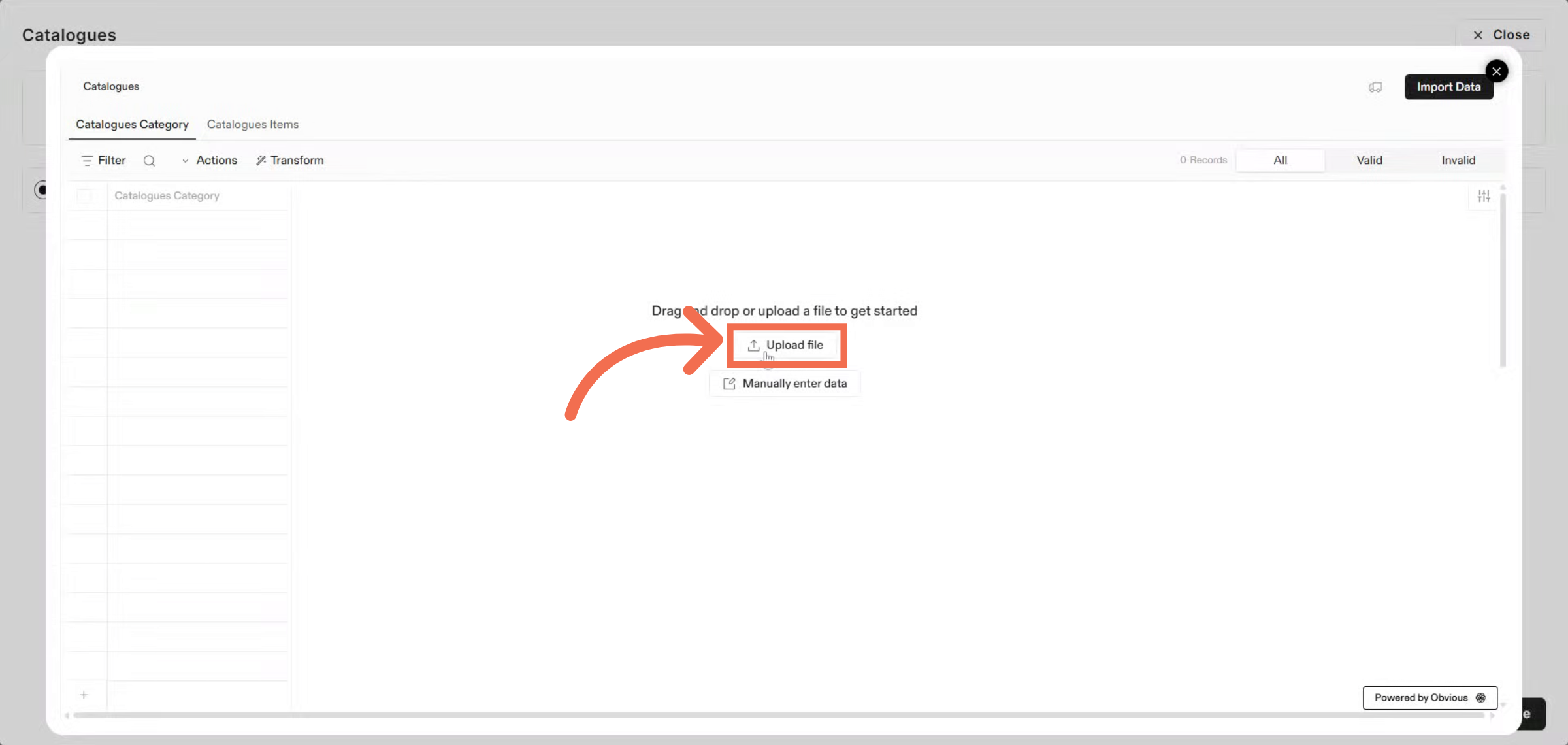
6. Select Catalogue File
Choose the Excel file containing your catalogue data from your device.
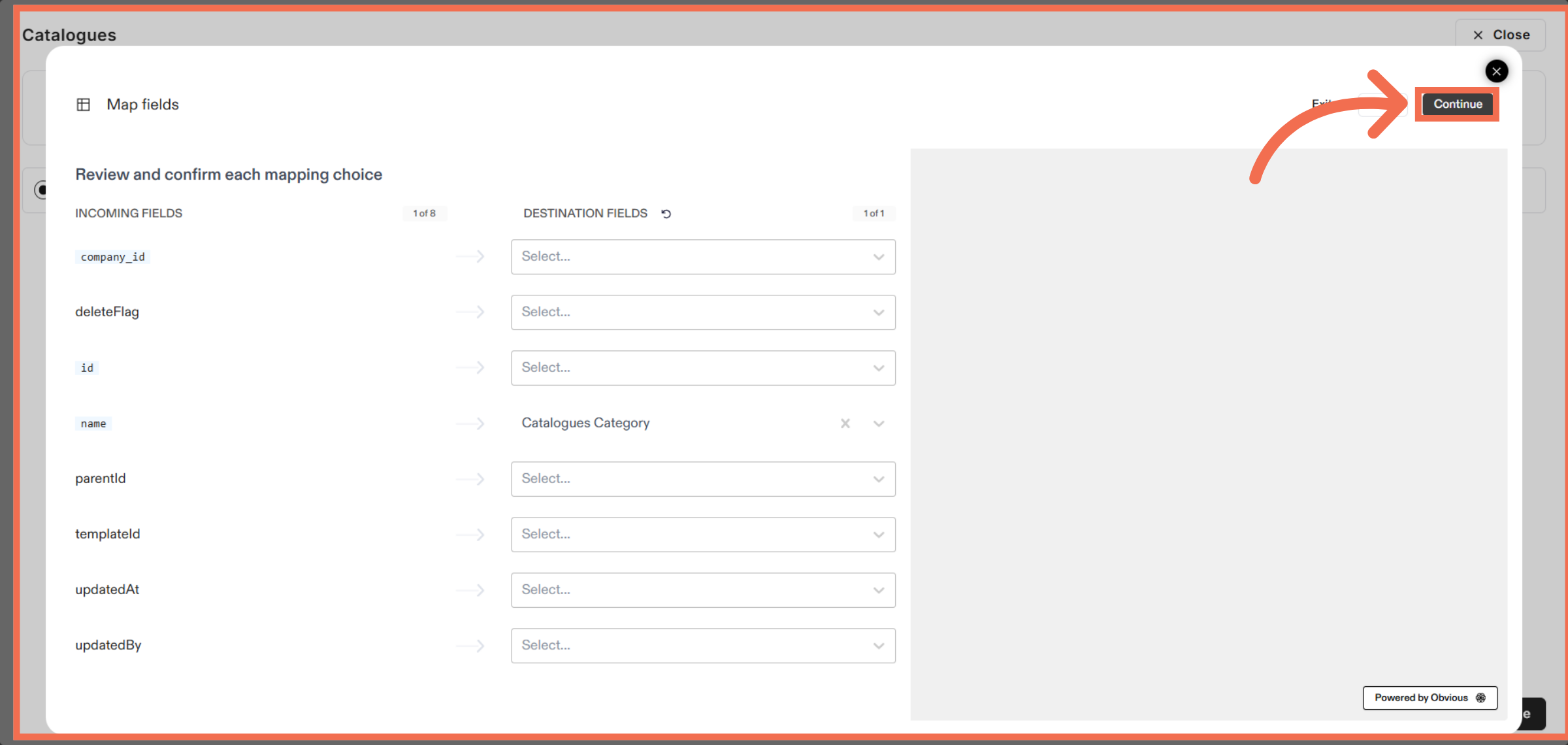
7. Review Mapping and Continue
Click Continue to confirm your file selection and proceed.
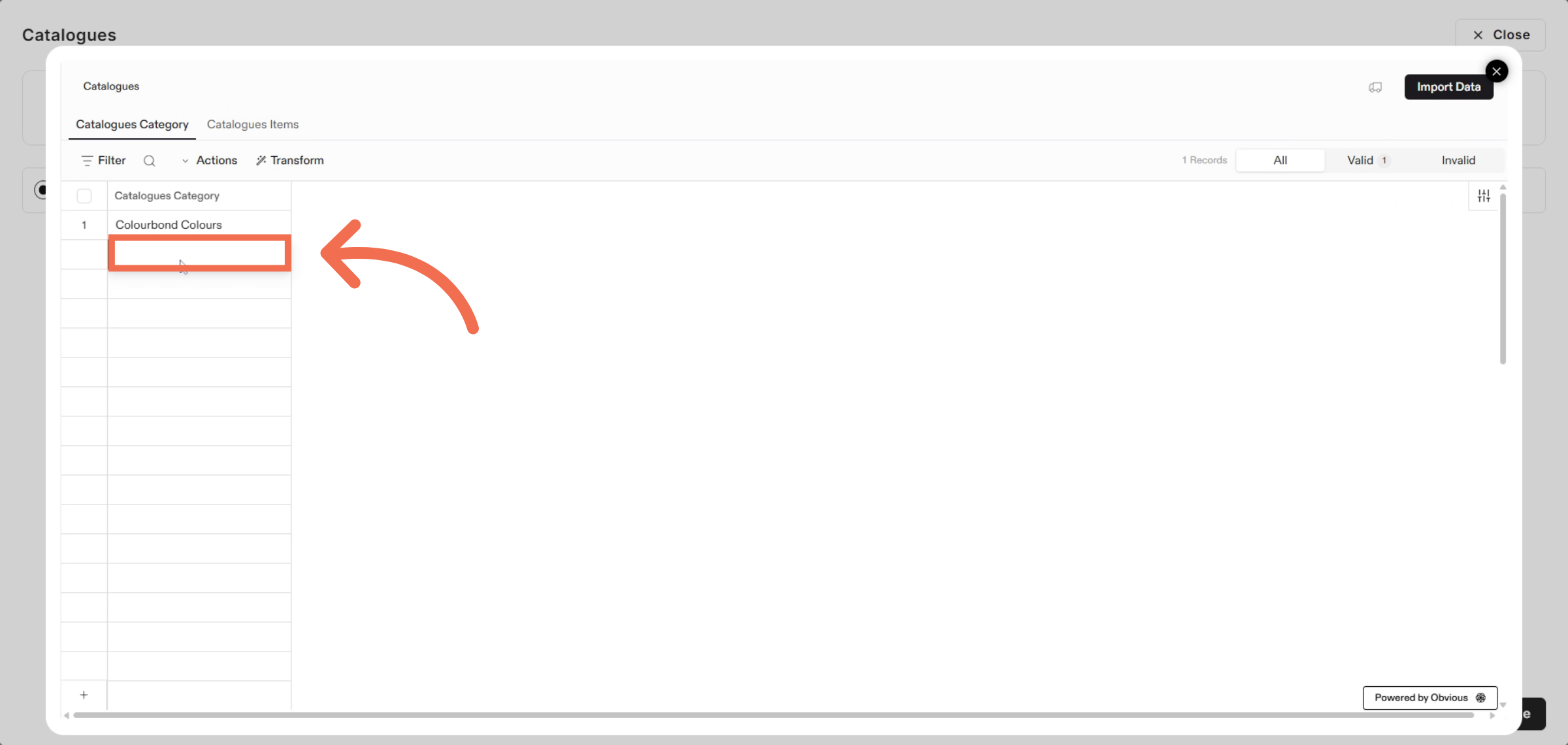
8. Manually Enter Category
Enter demo data to illustrate how the catalogue information will appear.
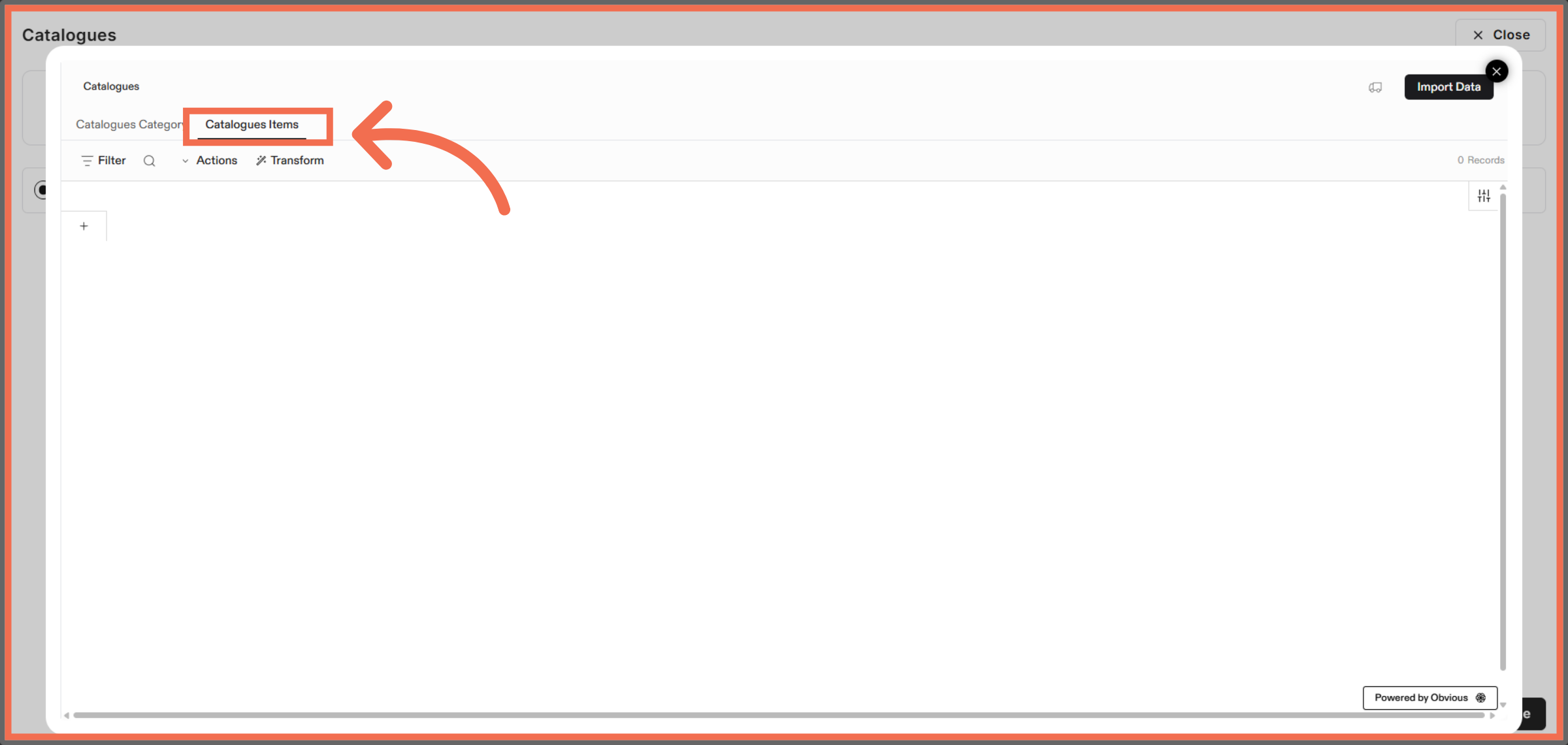
9. Select Catalogue Items
Click Catalogues Items to view and manage individual catalogue entries.
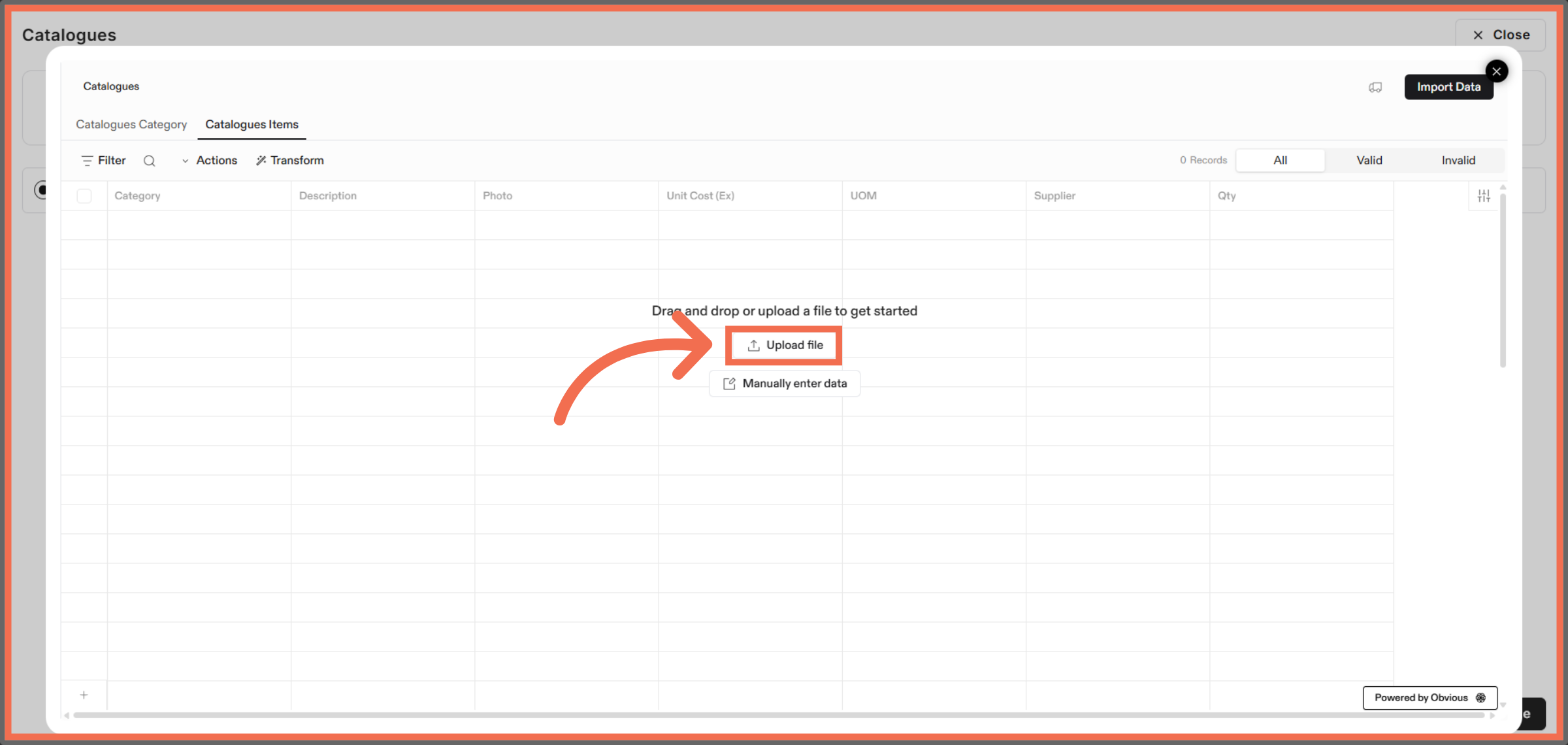
10. Upload Additional Files
Click Upload file to add more catalogue data files as needed.
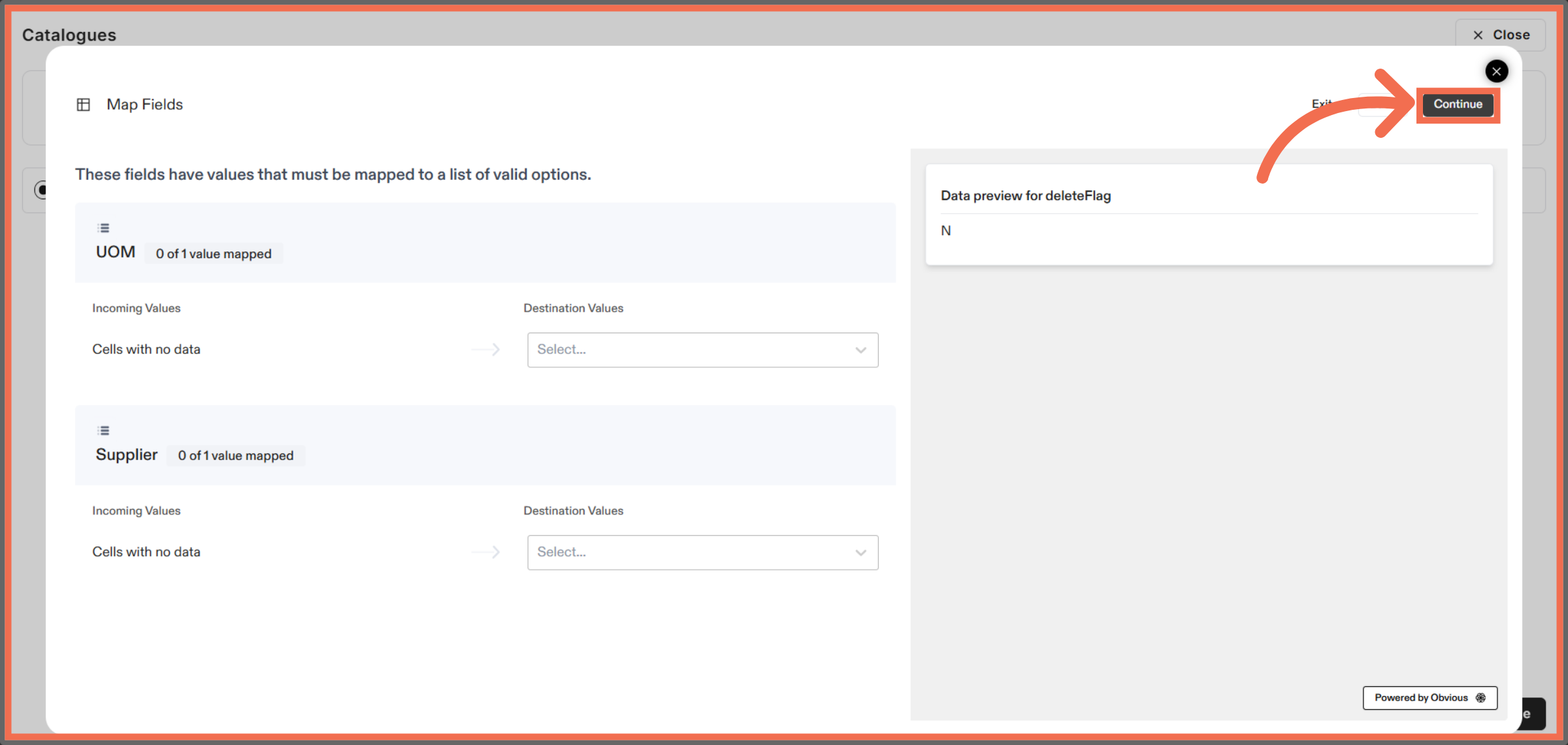
11. Fill Required Fields and Continue
Click Continue to advance through the upload steps.
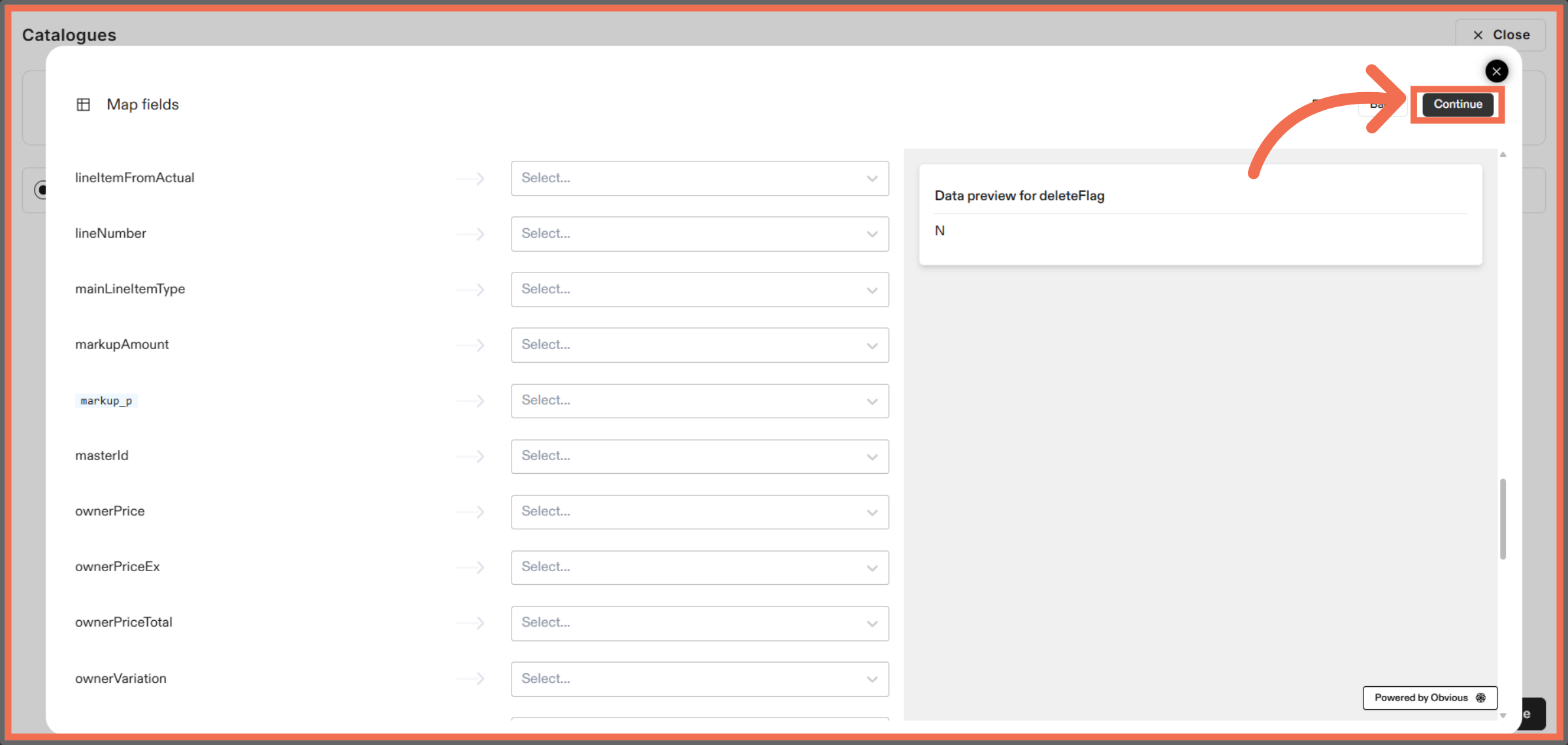
12. Confirm Upload Progress
Click Continue to confirm and proceed with the current upload stage.
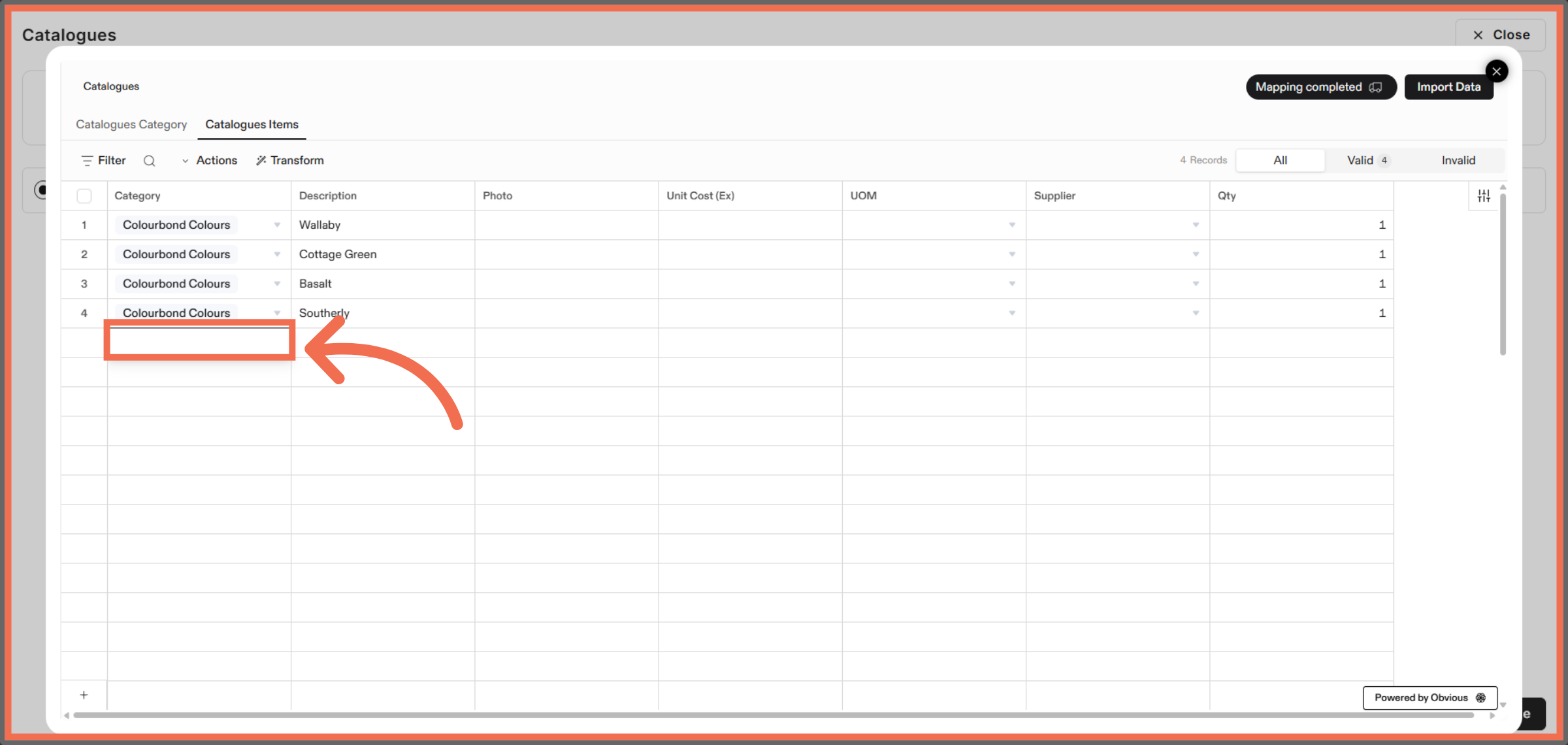
13. Manually Enter Catalogue Item
Click here to access detailed information about catalogue items.
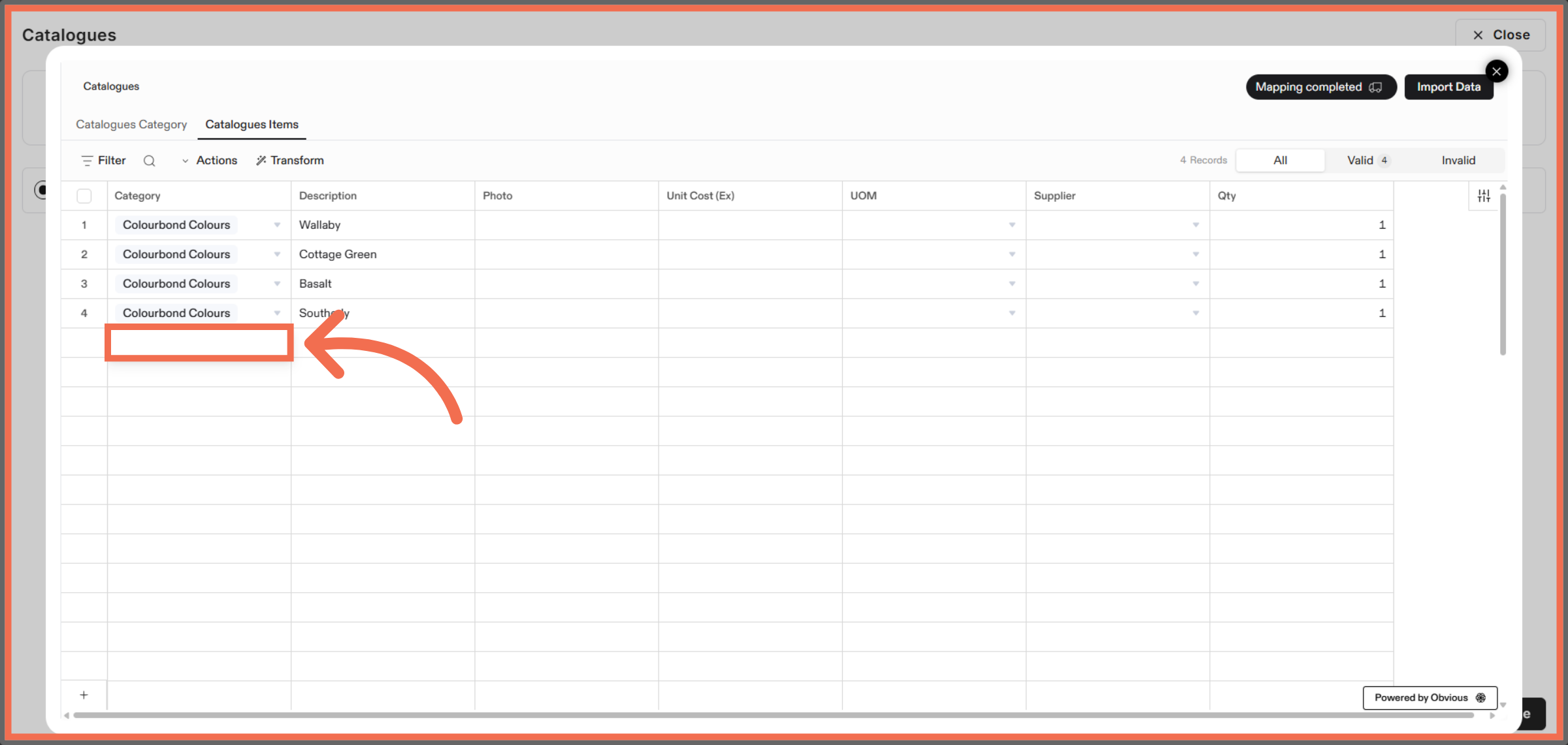
14. Expand Category Options
Click here to expand options for selecting Catalogue Category.
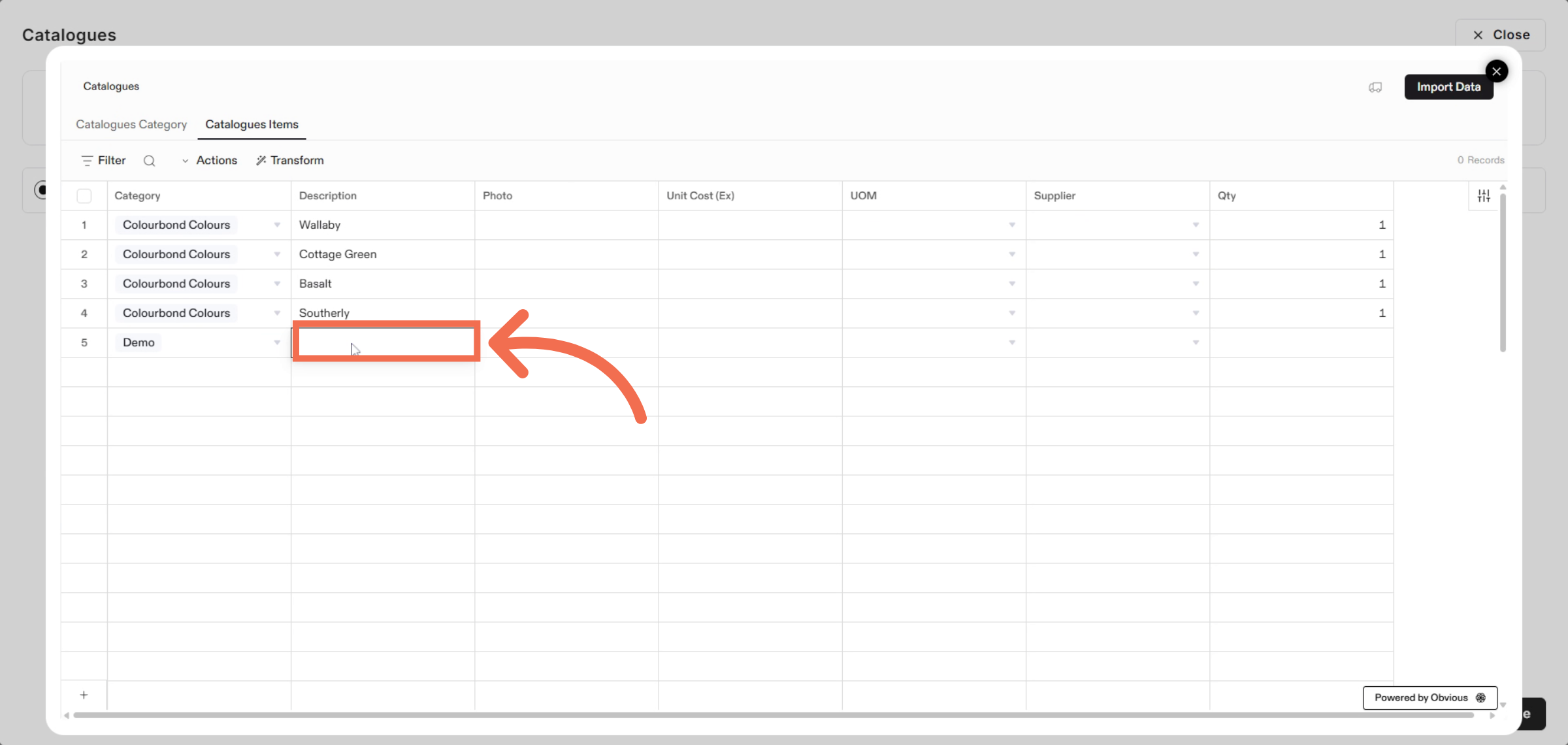
15. Enter New Item Description
Enter the name for a new catalogue item to be added.
16. Enter Item Unit Cost (ex)
Enter the Unit Cost (ex) value for the catalogue item.
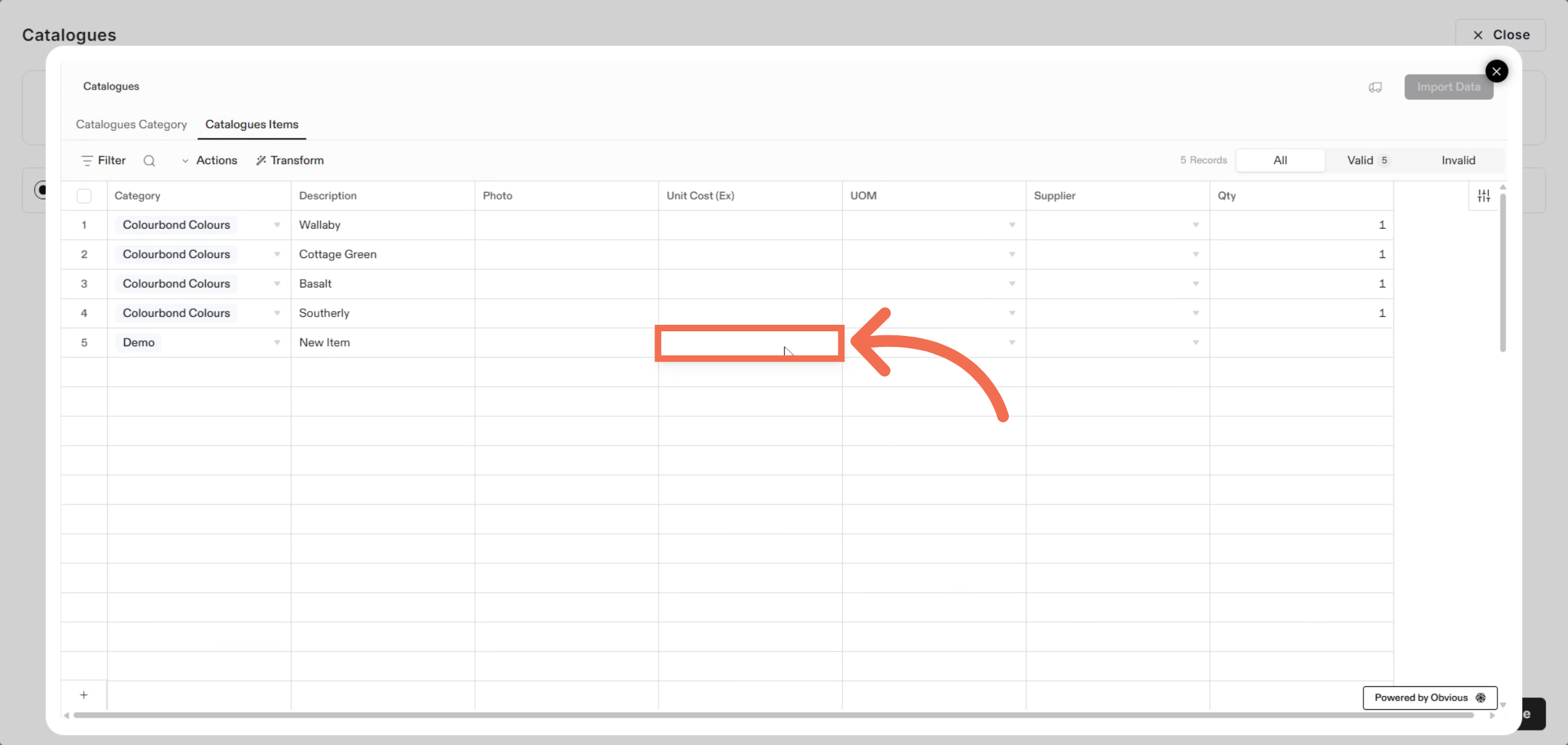
17. Open UOM Options
Click here to access options related to item UOM.
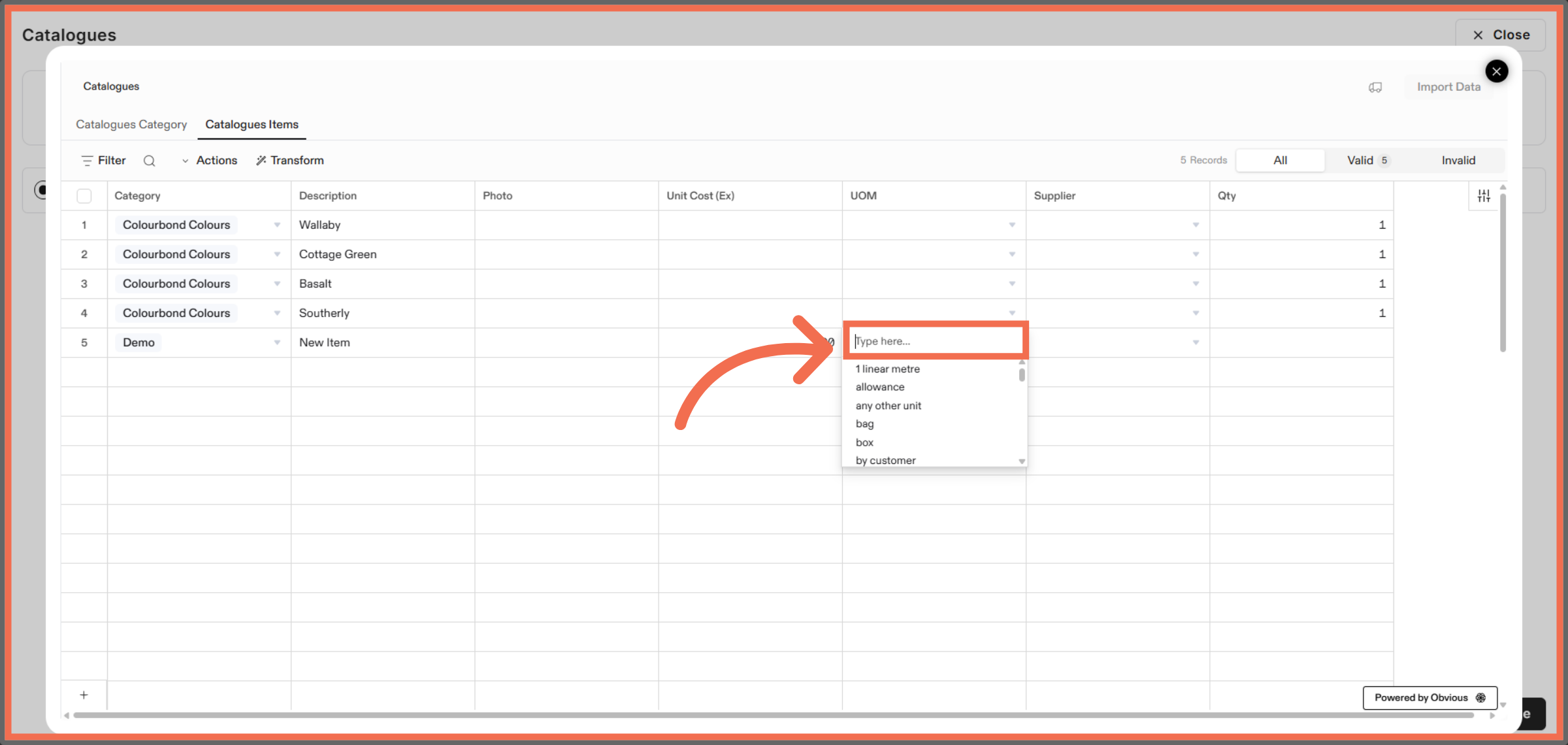
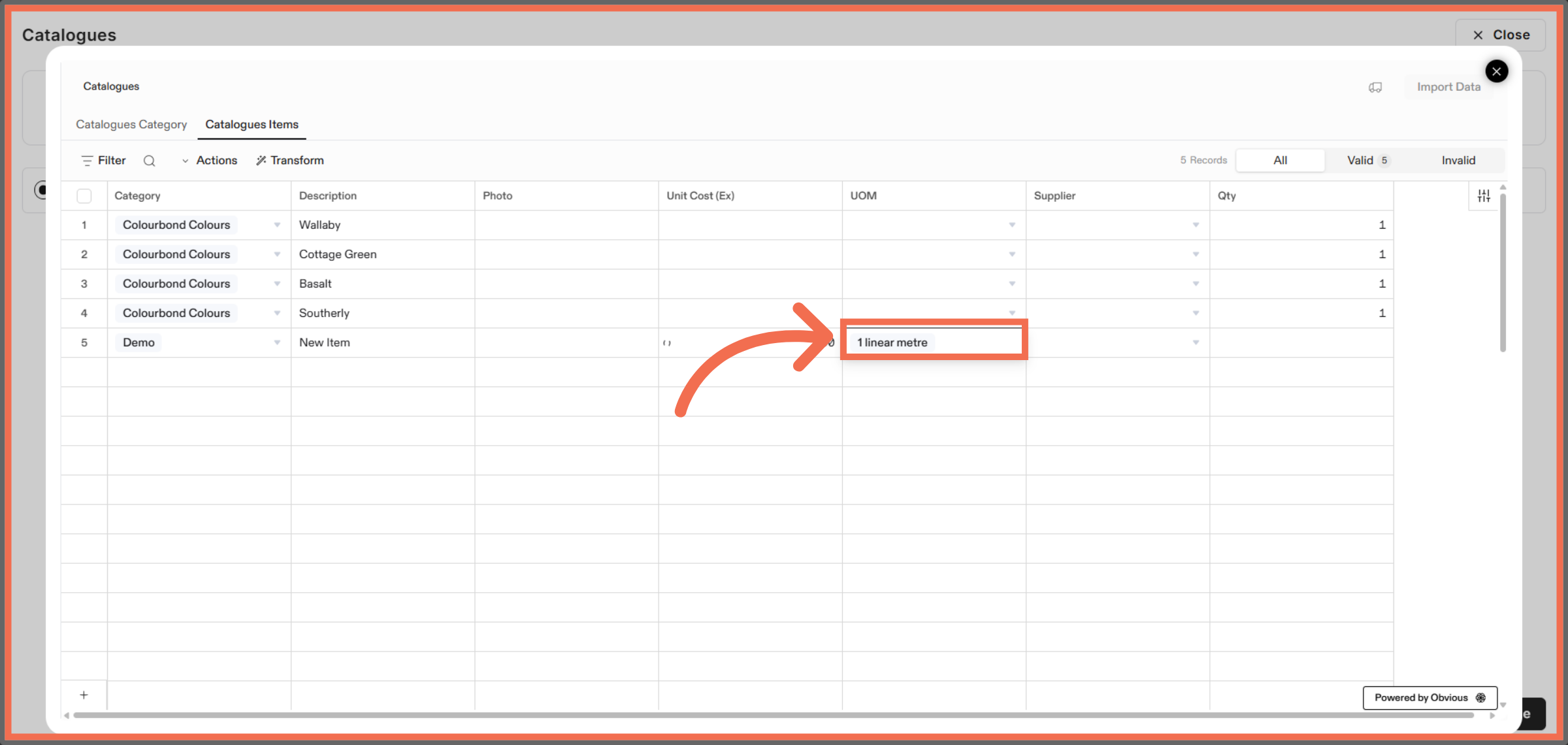
18. Select UOM
Select UOM for catalogue items.
19. Open Supplier Options
Open Supplier Options appropriate for the catalogue item.
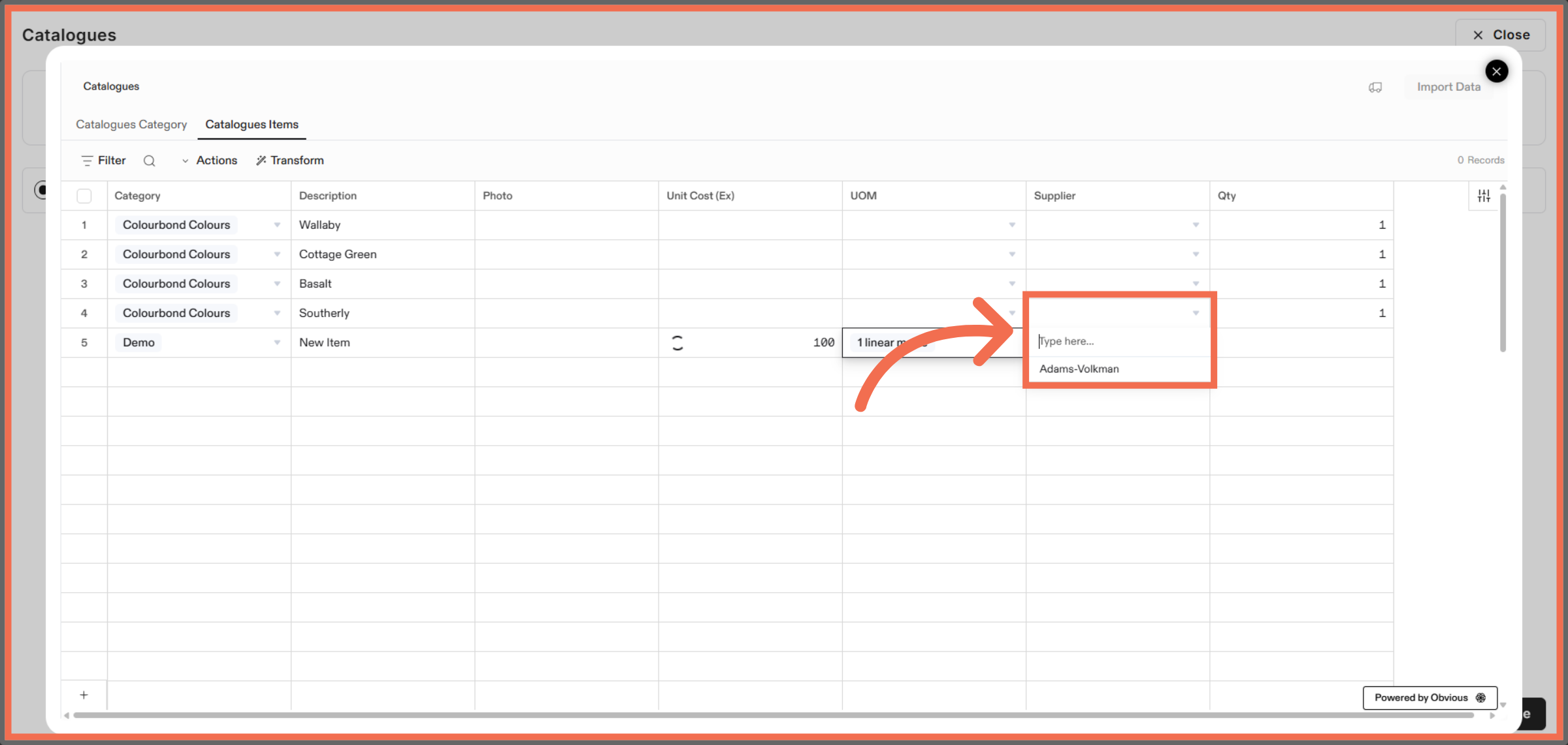
20. Select Suppliers
Select Suppliers from the options for items.
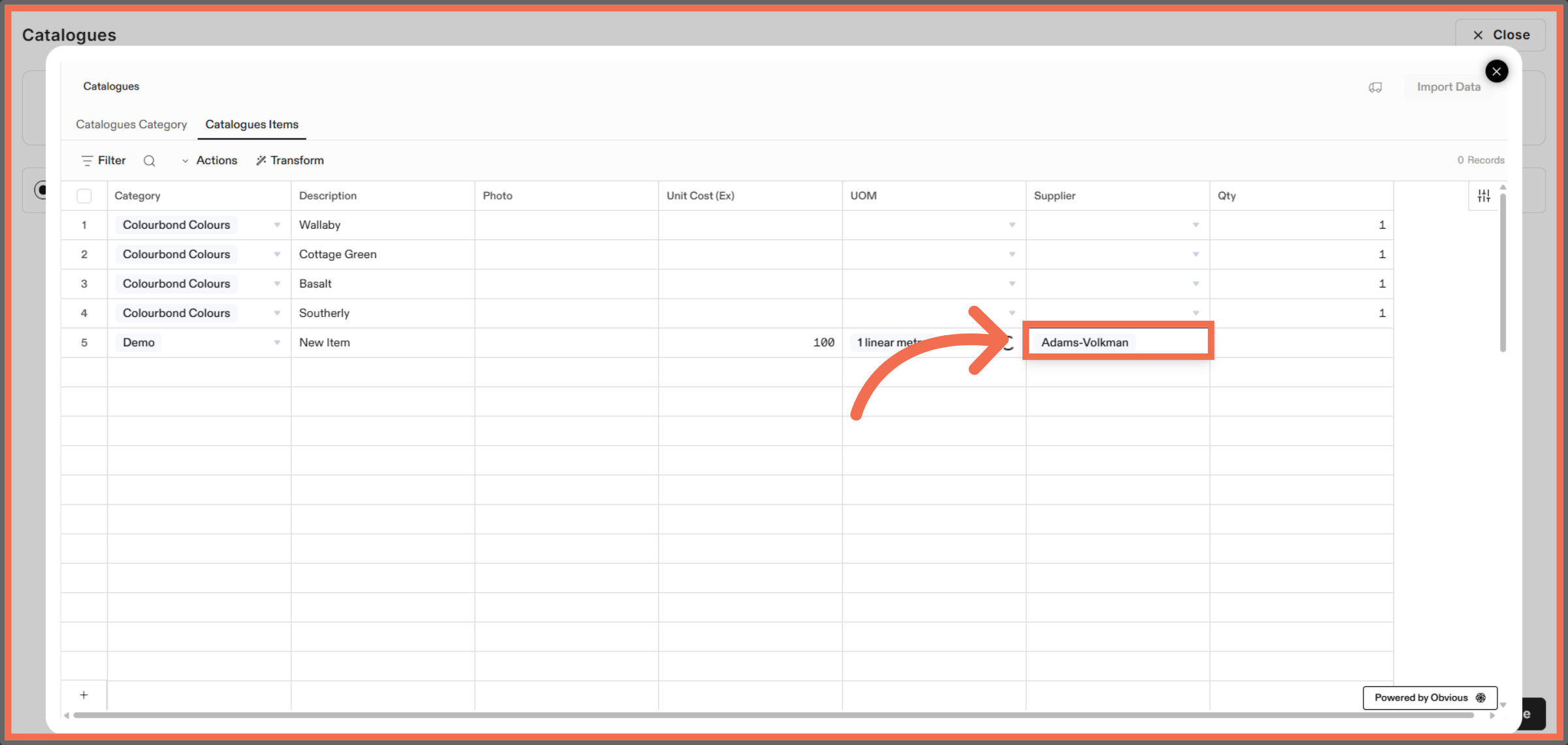
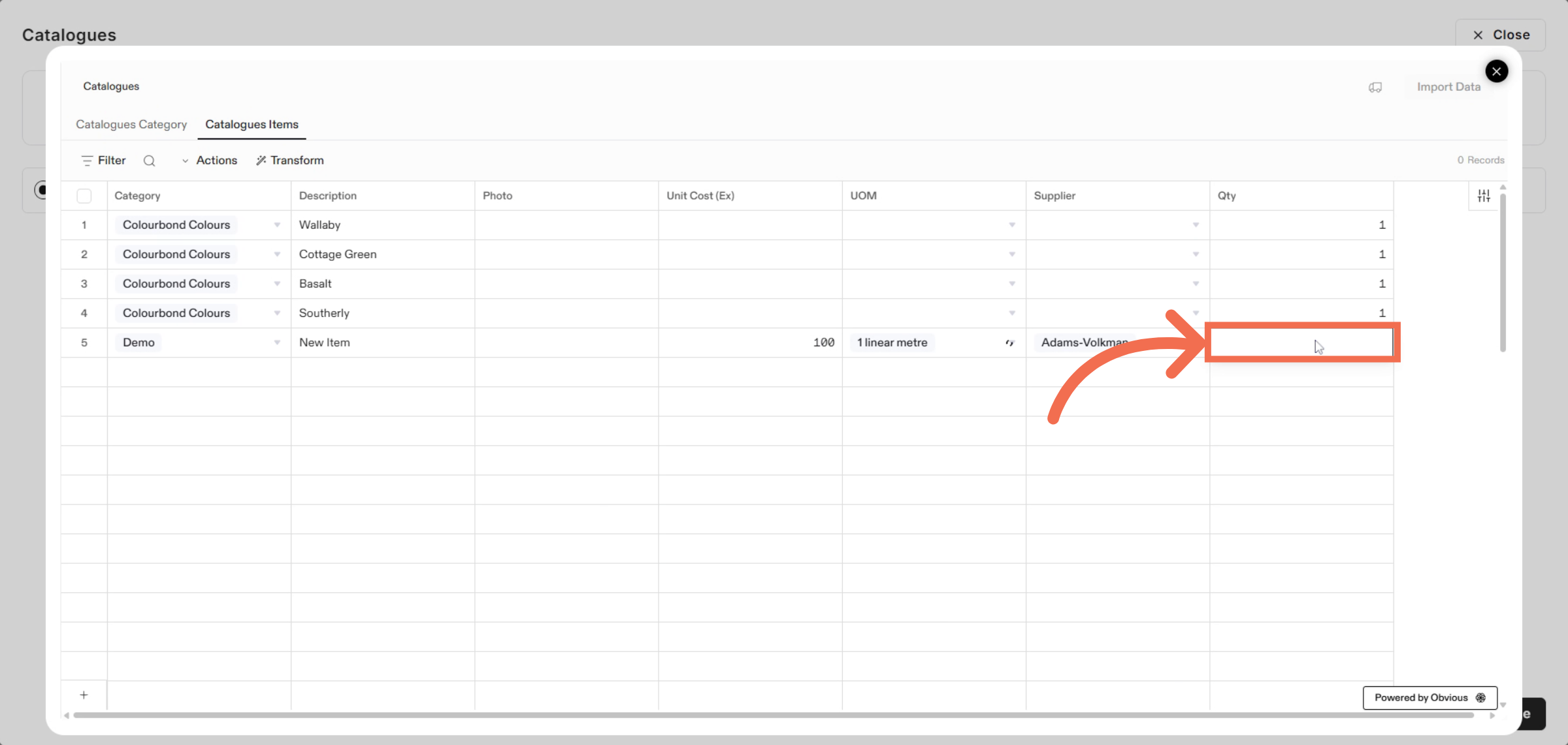
21. Enter Quantity
Enter the quantity value related to the supplier's catalogue items.
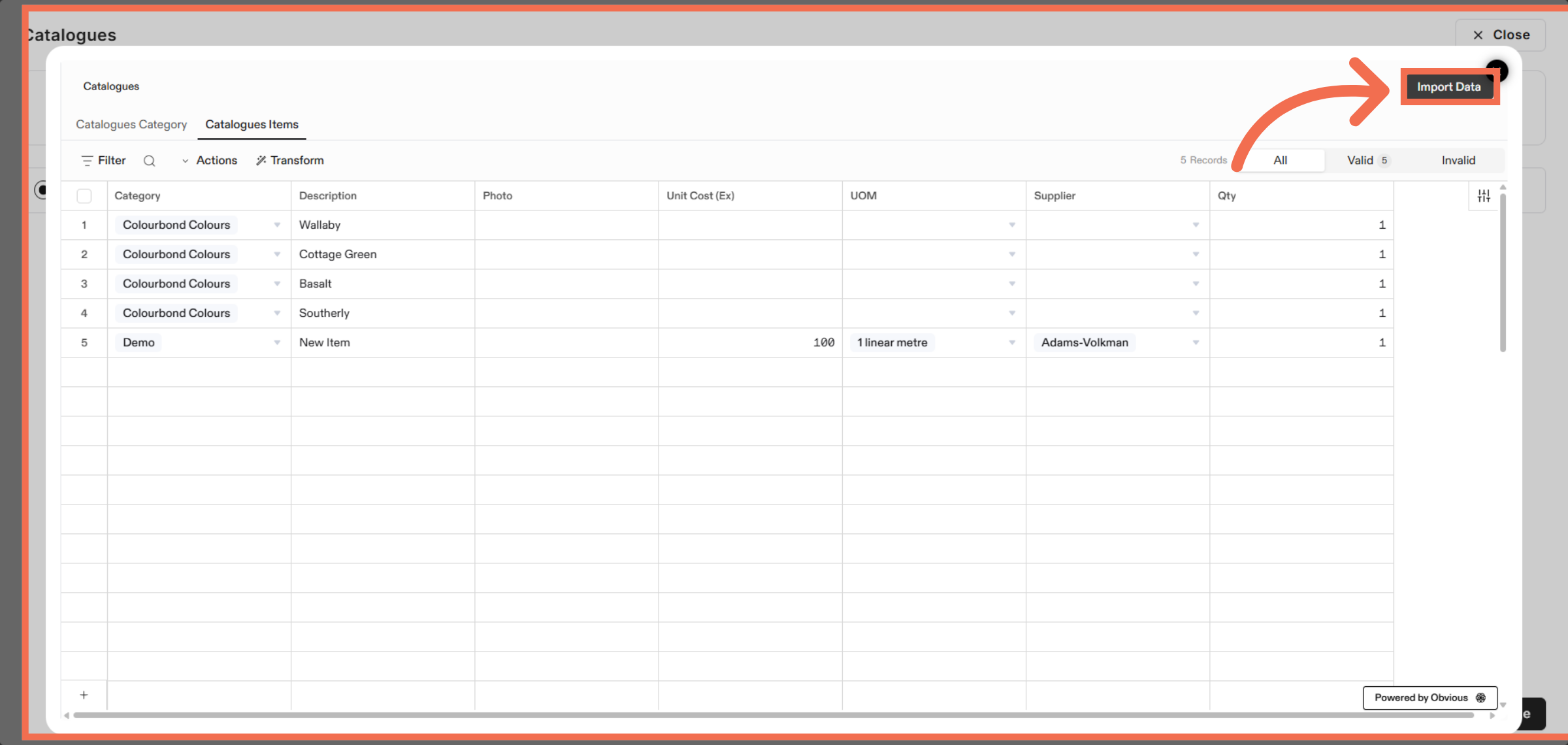
22. Import Catalogue Data
Click Import Data to finalize and upload your catalogue into the system.
This demo highlights how Readyteam streamlines importing and organizing catalogues, enabling you to manage data efficiently. Start your own import process today to experience seamless catalogue management.