How to Add a Task in Gantt Chart ?
This demo showcases how to add a task within the Gantt chart feature of Readyteam.
Go to app.readyteam.ai
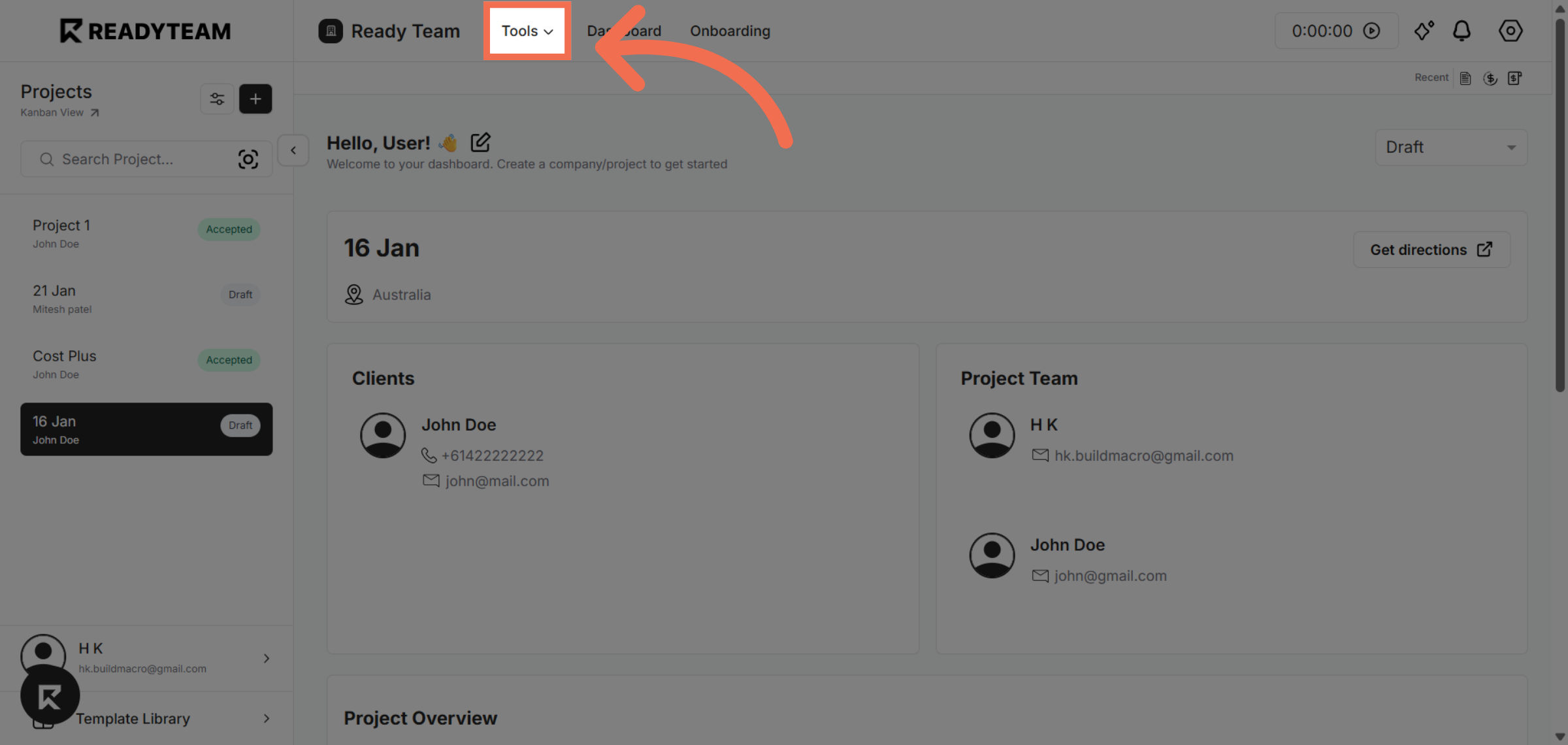
1. Open Tools Menu
Click the Tools menu to access various project management tools.
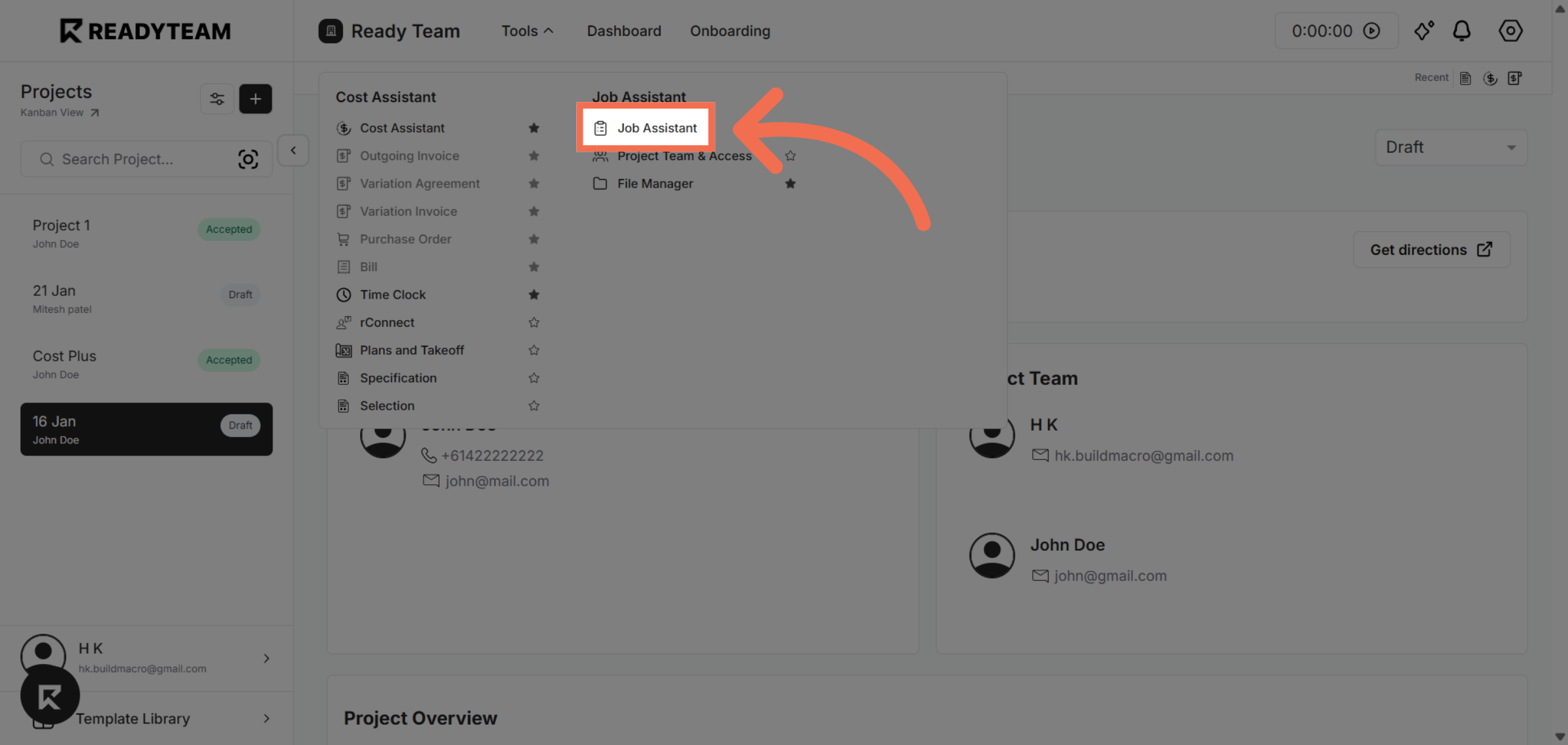
2. Access Job Assistant
Select Job Assistant to begin managing tasks and workflows.
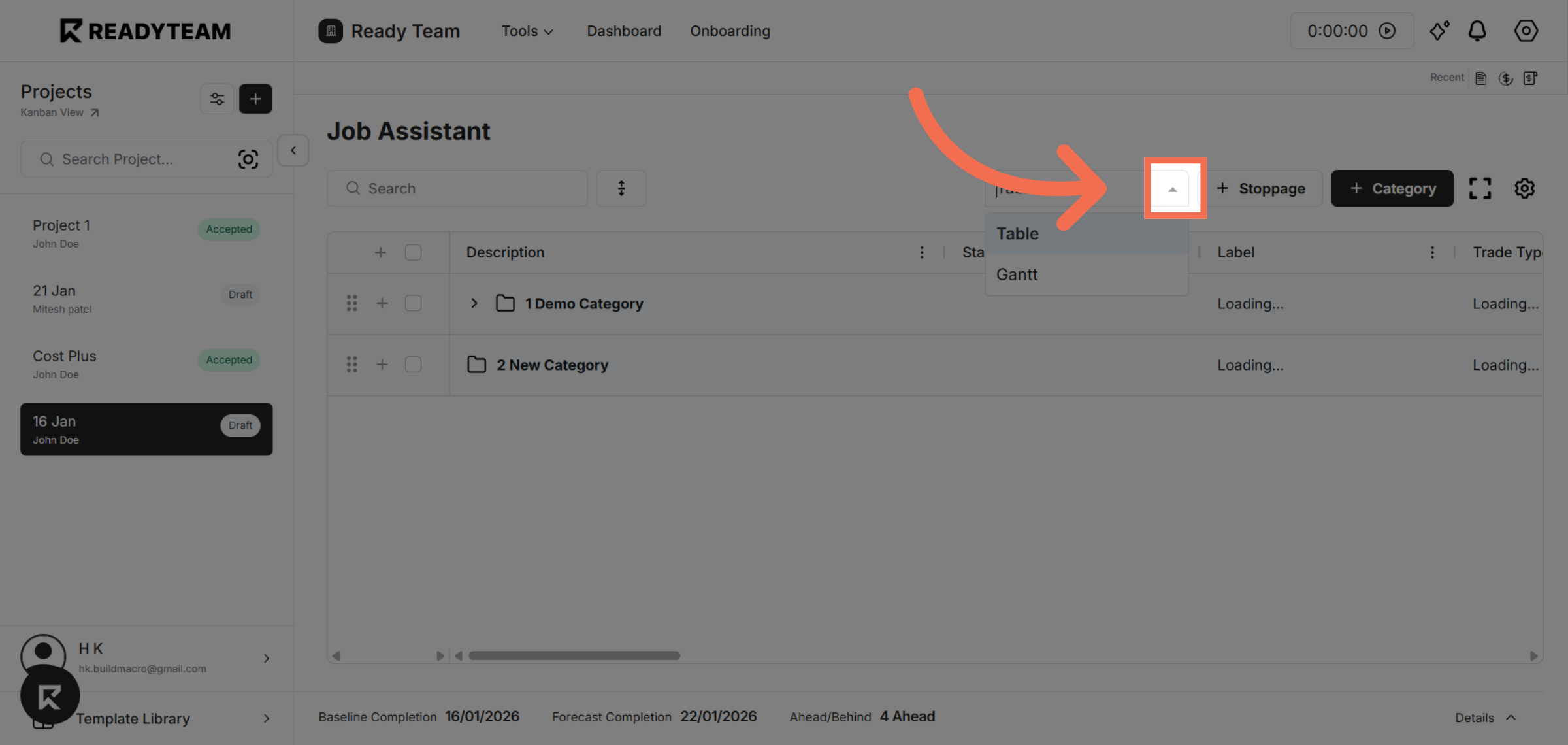
3. Open View Option
Click on the view option to see the available ways to display tasks.
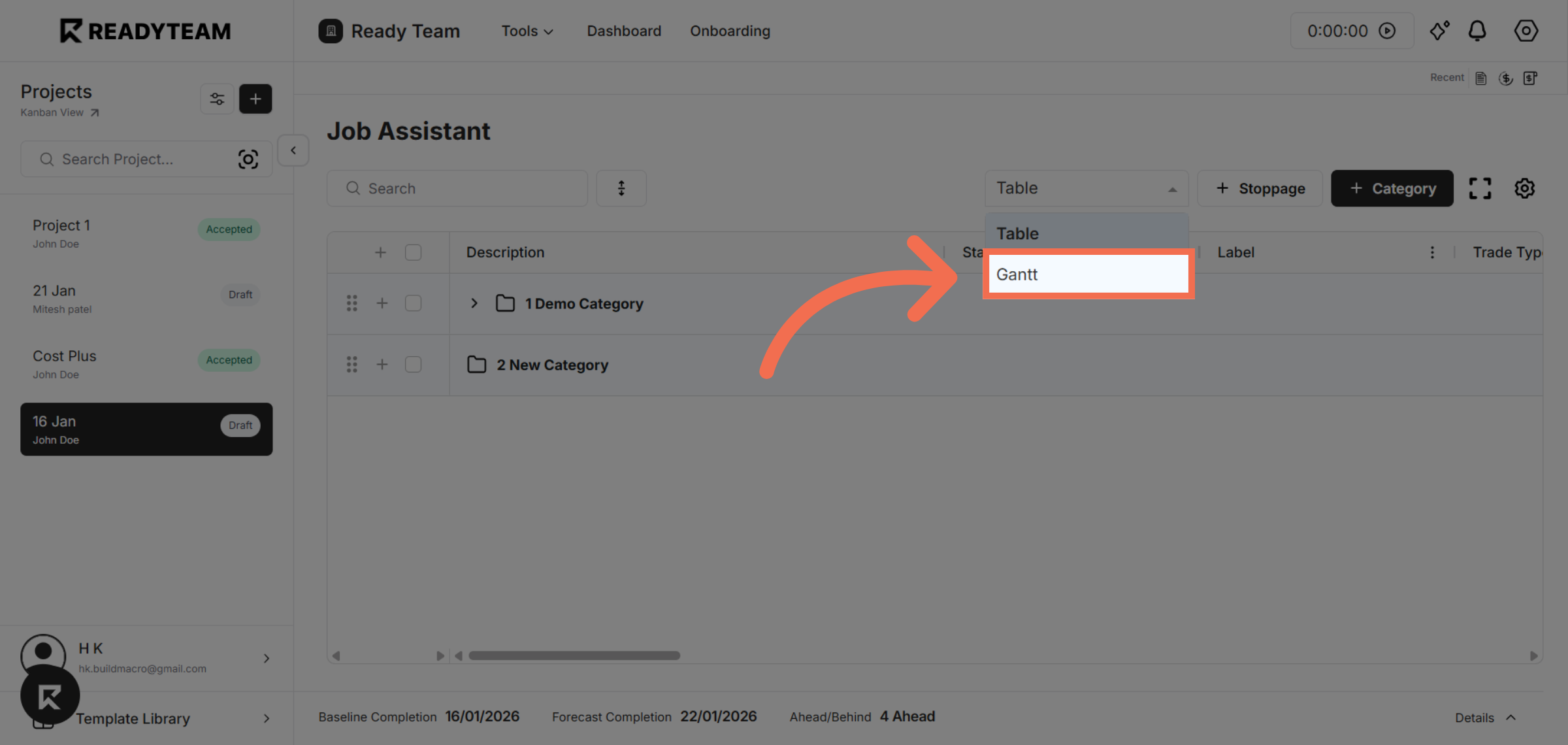
4. Select Gantt Chart
Choose the Gantt option to visualize and manage your project timeline.
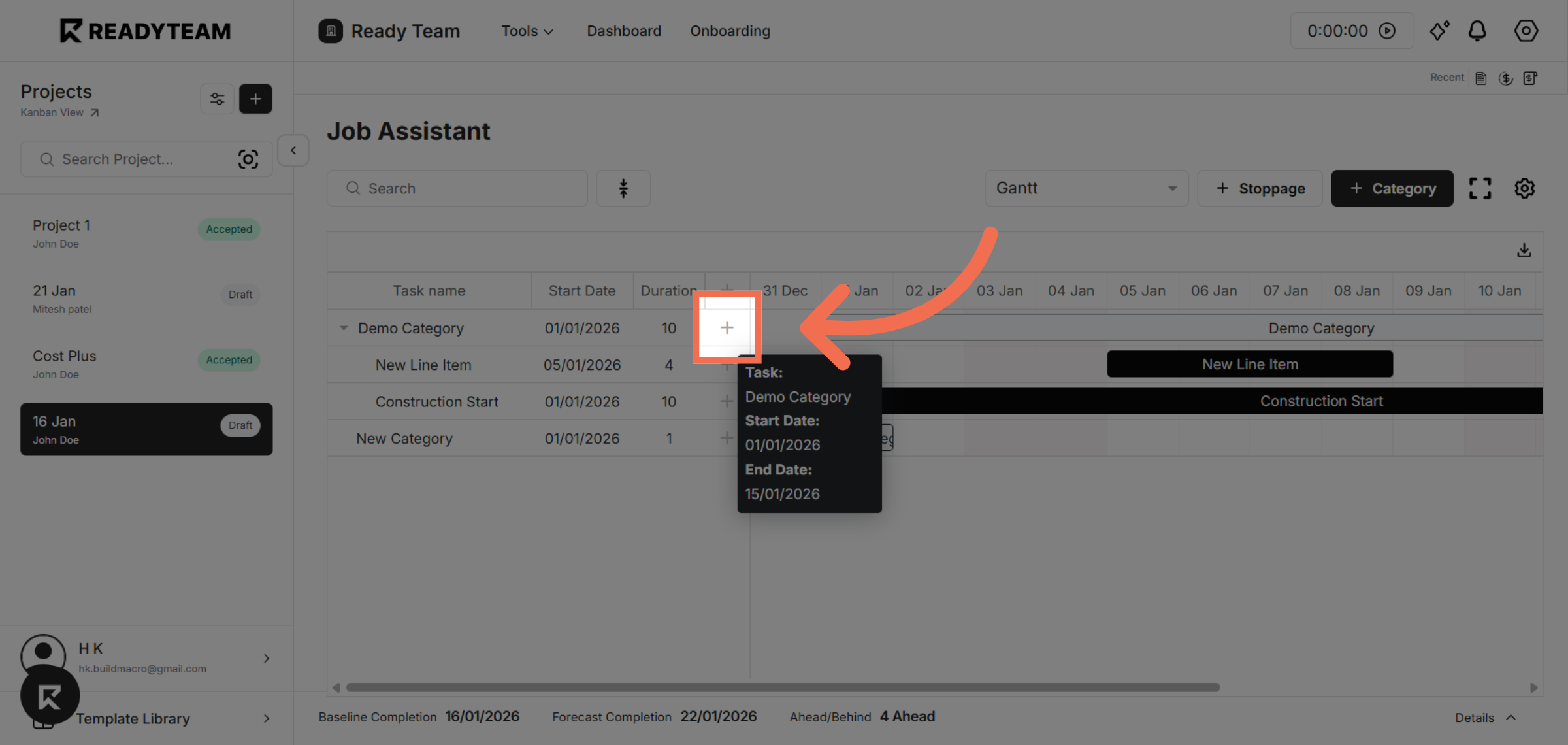
5. Open Task Entry
Click here to open the task entry form within the Gantt chart interface.
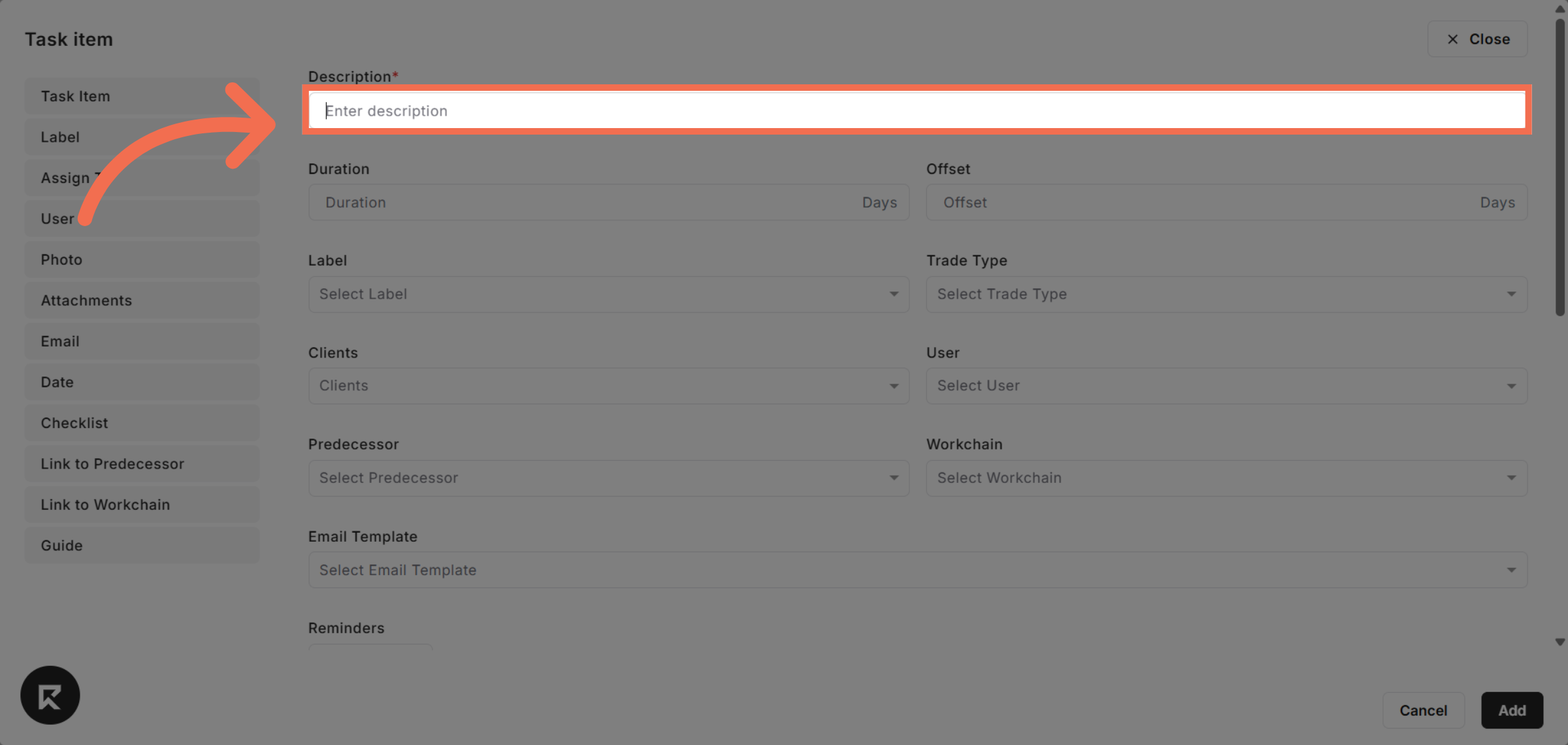
6. Enter Task Description
Enter the description field to specify the task details.
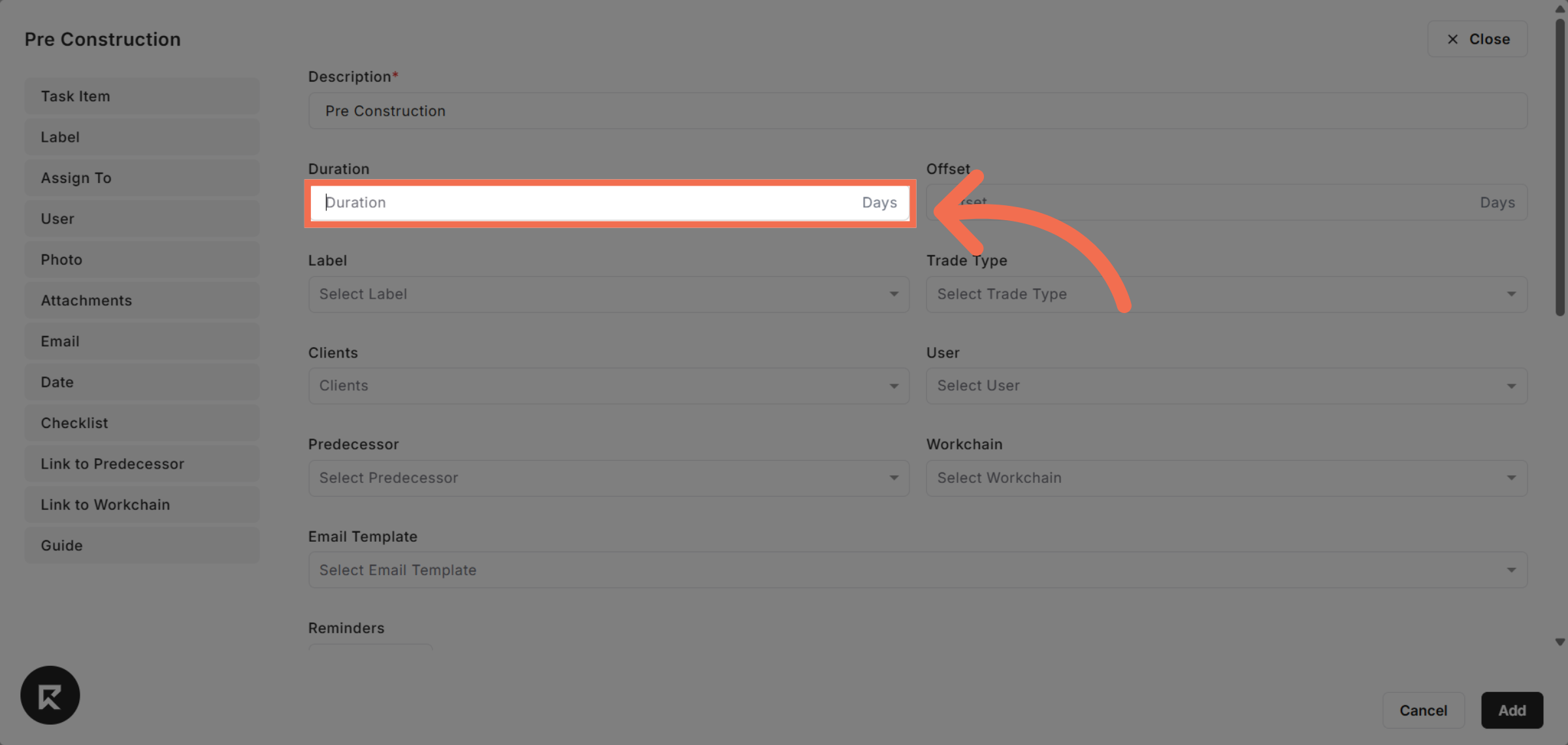
7. Enter Duration Days
Enter the Duration field to specify how long the task will take.
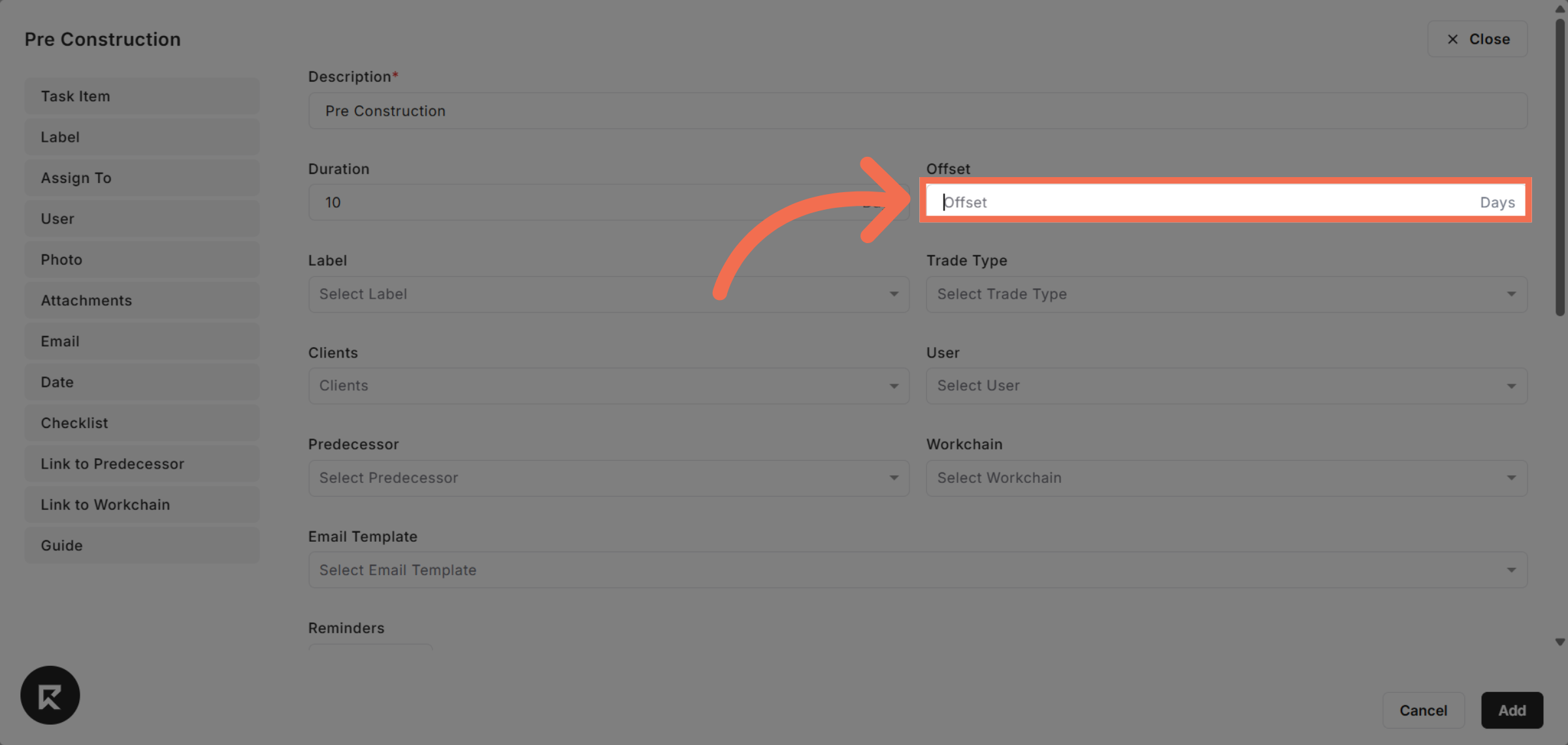
8. Set Task Offset
Specify the task offset to determine how many days later the successor task should start after this one.
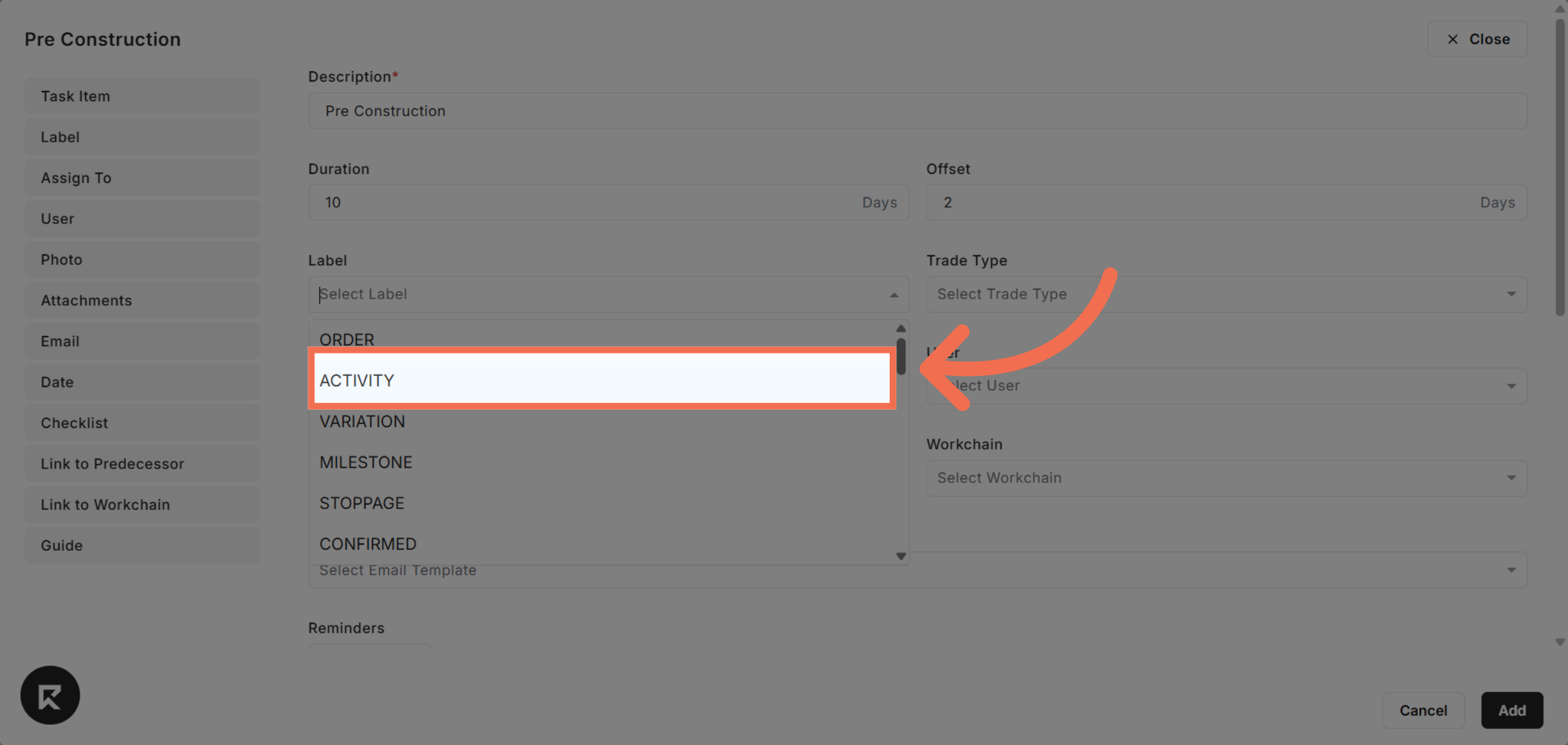
9. Select Label
Choose a label for the task to categorize or identify it easily on the Gantt chart.
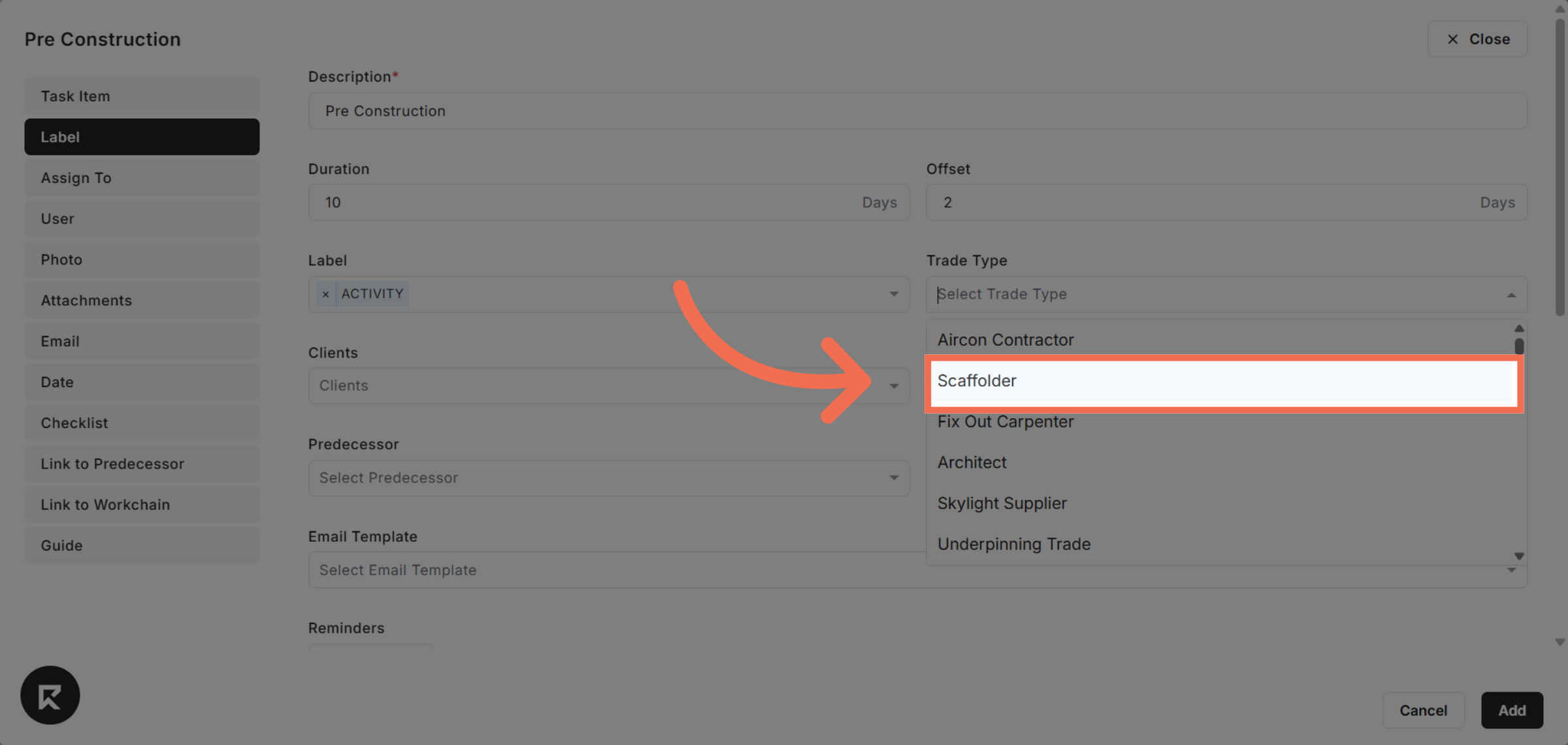
10. Choose Trade Type
Select Scaffolder to assign the trade type relevant to the task.
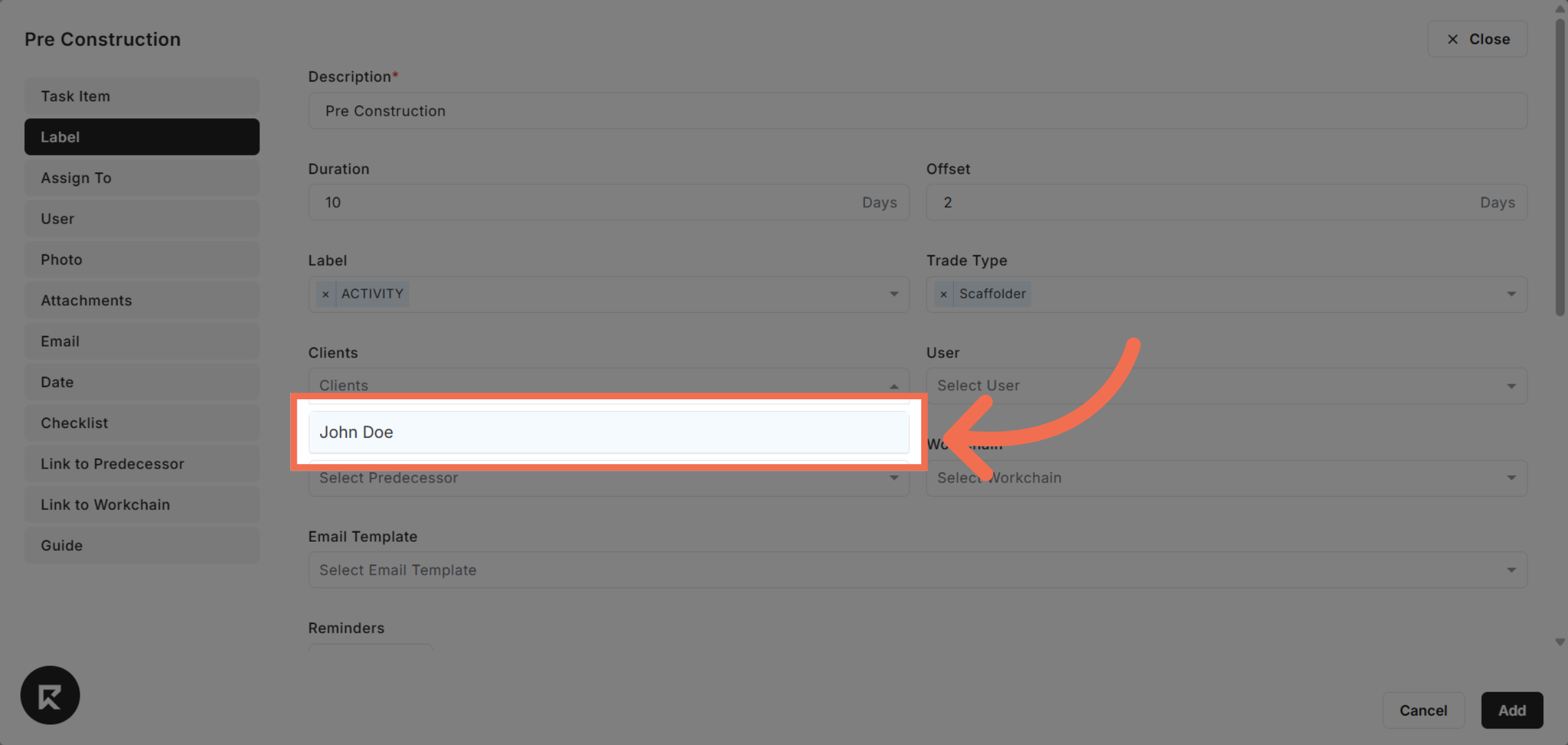
11. Select Client
Select the client from the list to link them to the task.
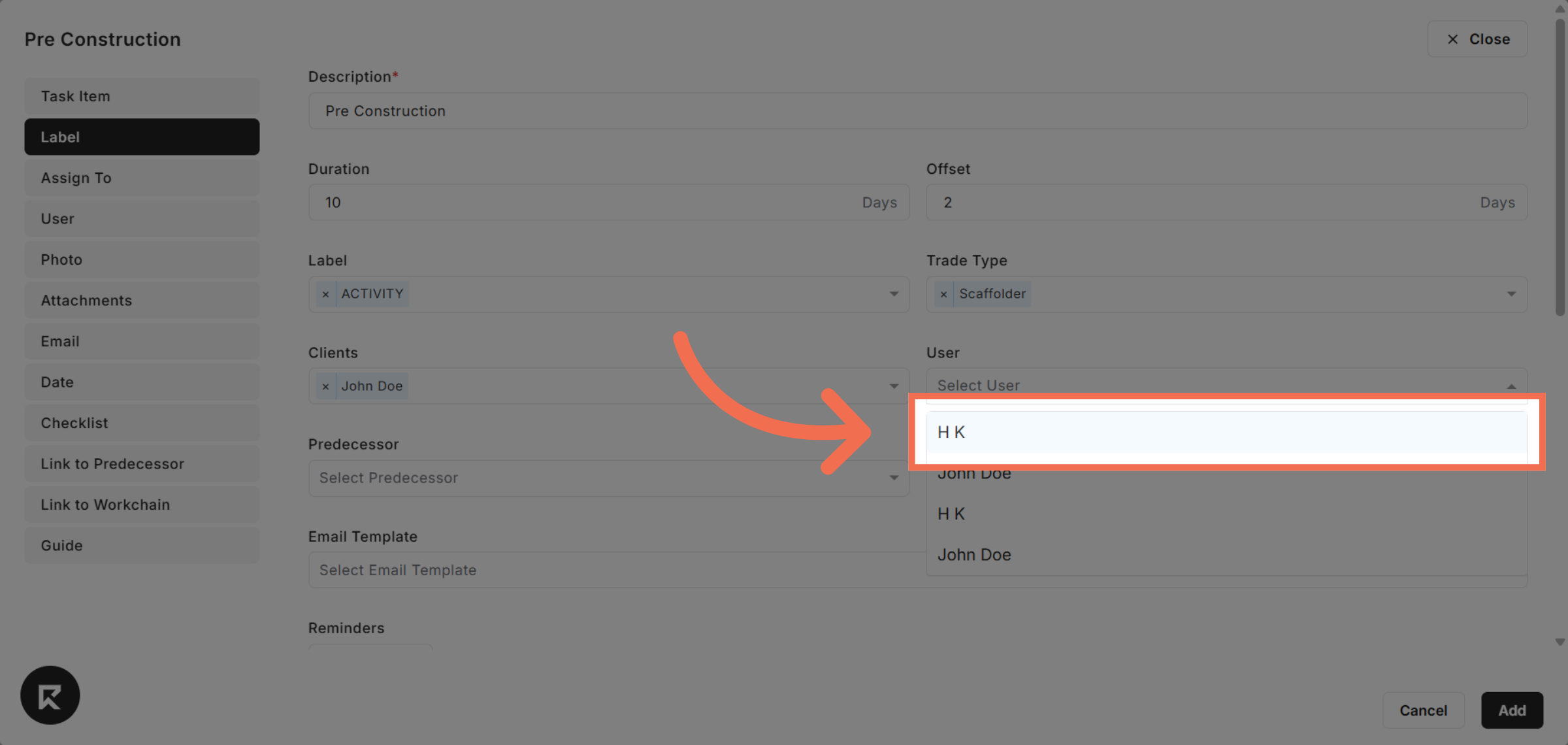
12. Select User
Choose the user from the list to manage the task.
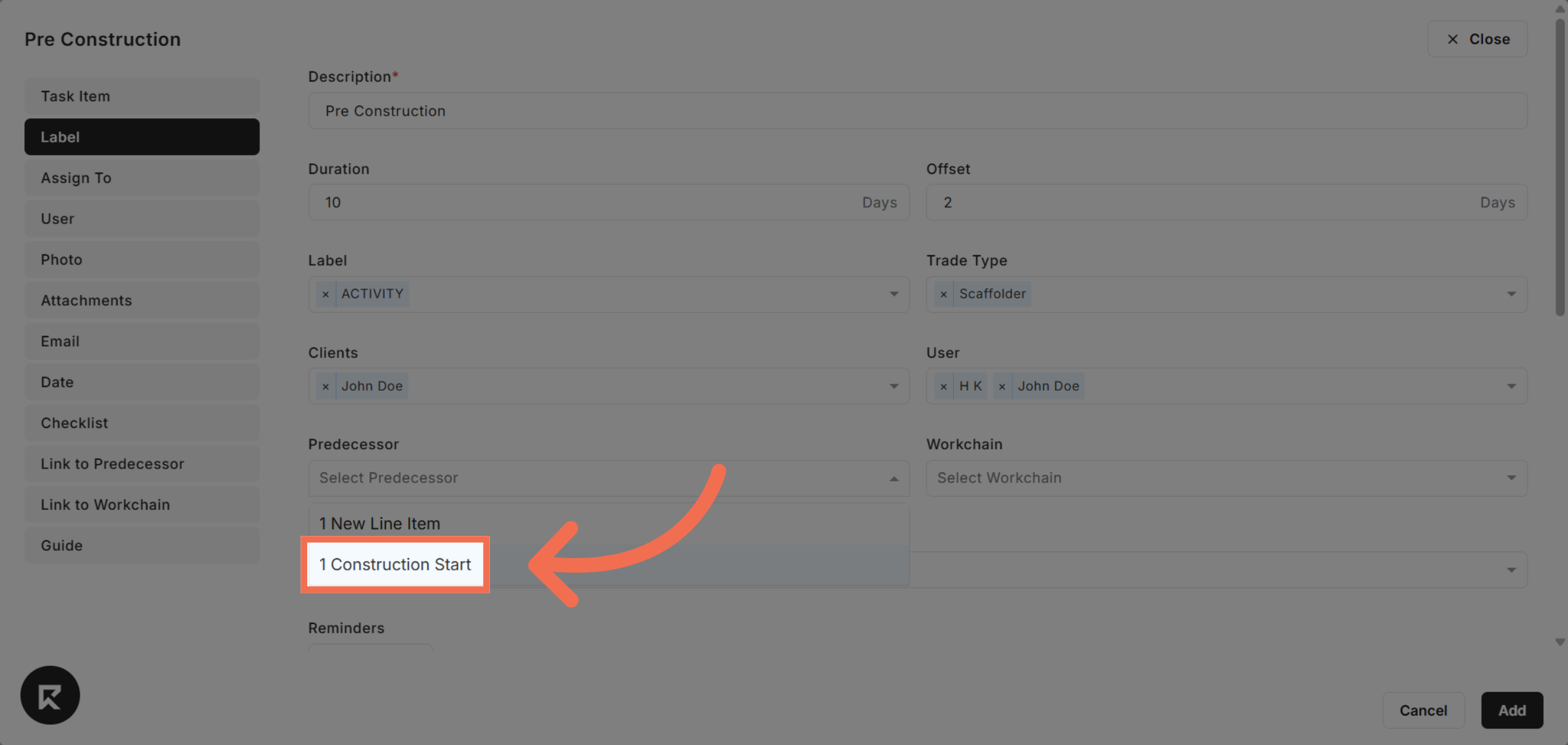
13. Select Predecessor Task
Choose the Construction Start task as the predecessor for sequencing.
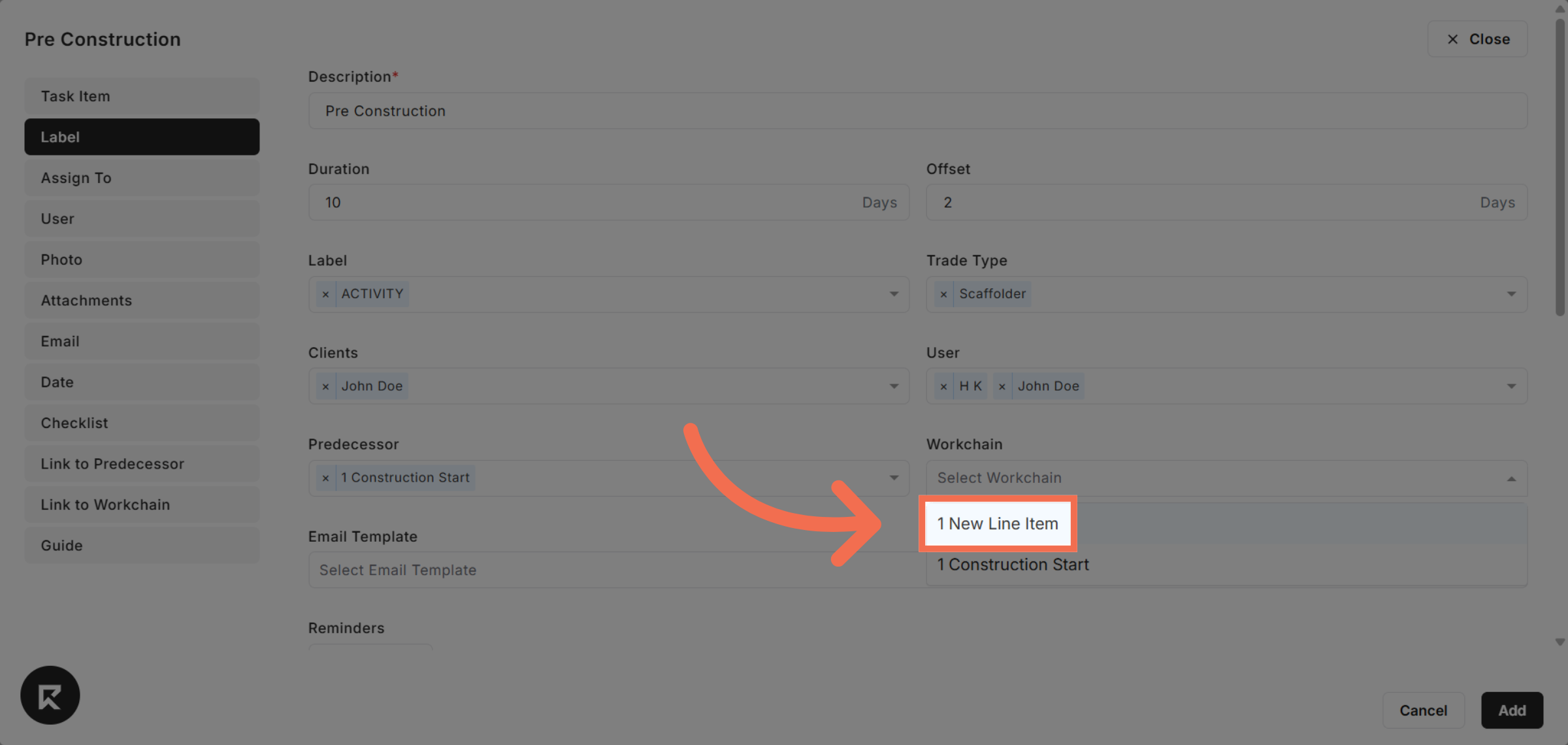
14. Choose Workchain
Select the New Line Item workchain to organize related tasks.
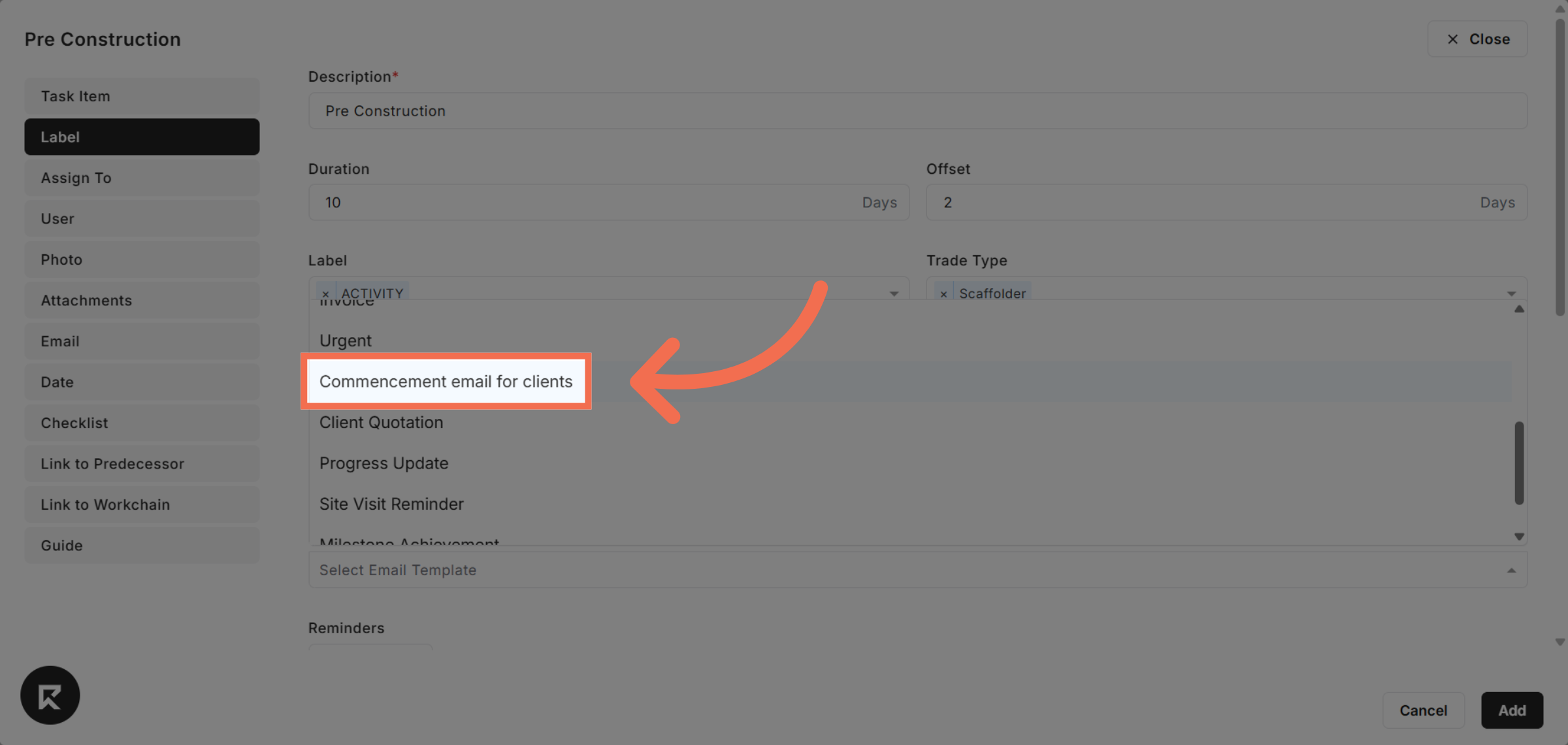
15. Choose Email Template
Select the Commencement email for clients to notify stakeholders.
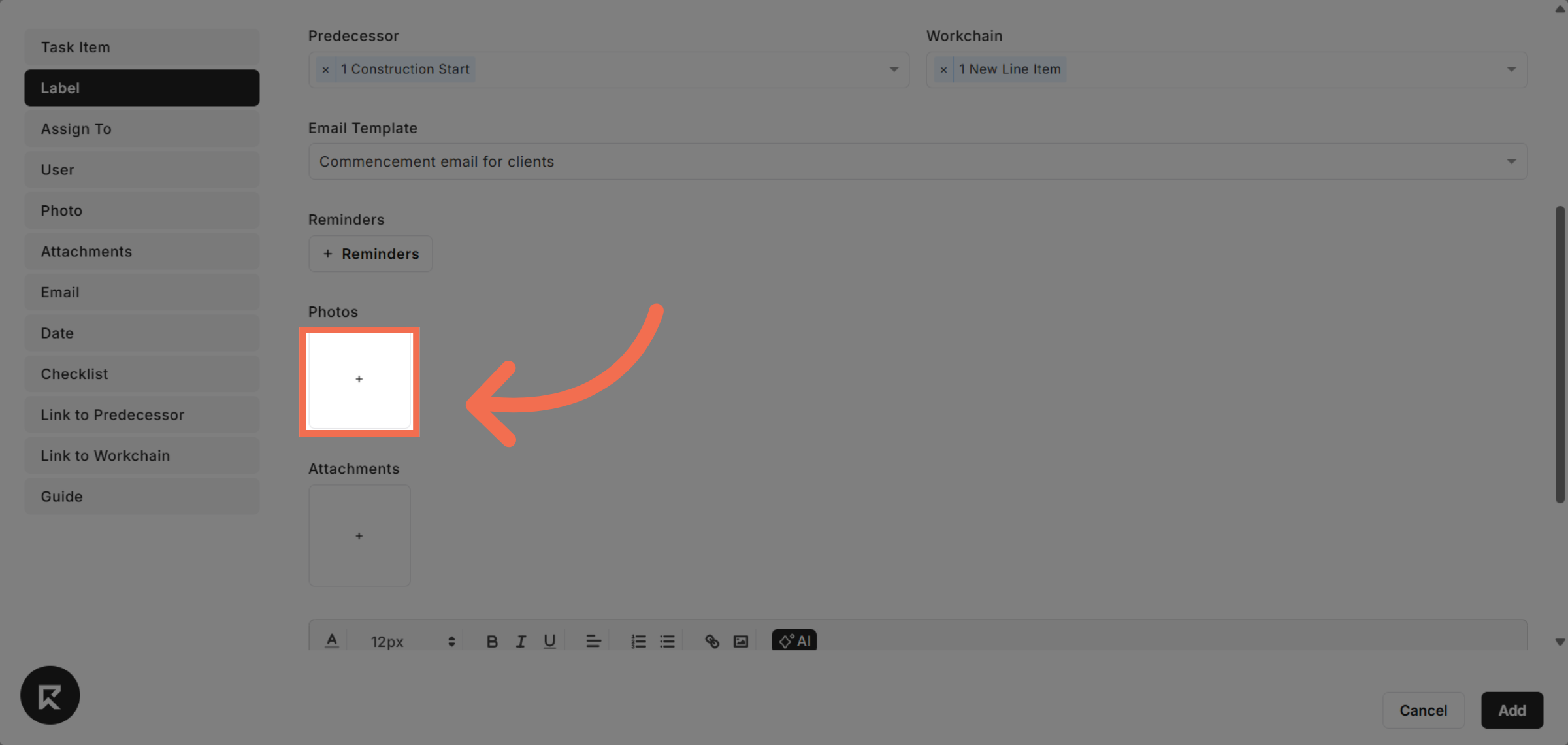
16. Upload Photos
Click here to upload relevant photos to the task.
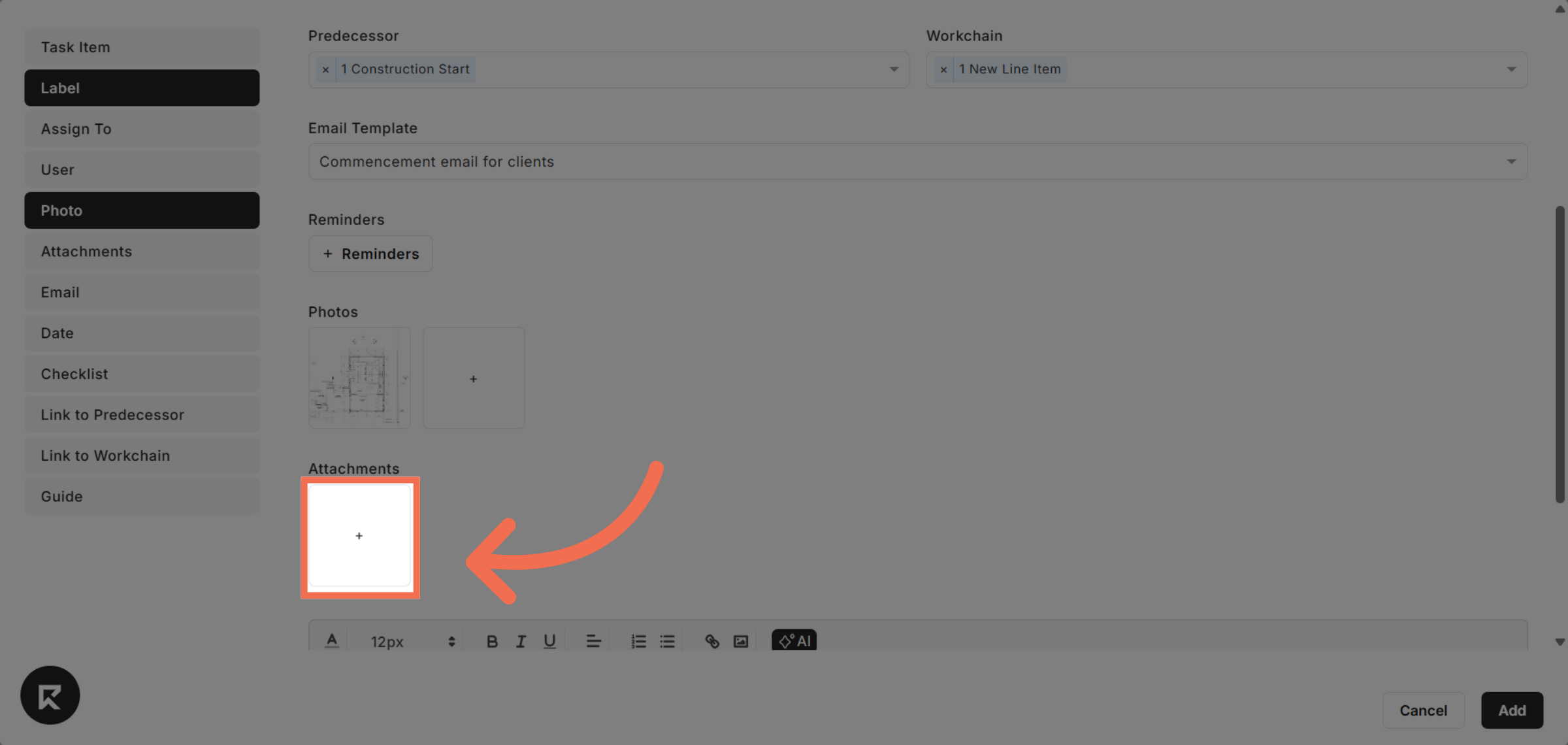
17. Upload Attachments
Click here to add more files or attachment related to the task.
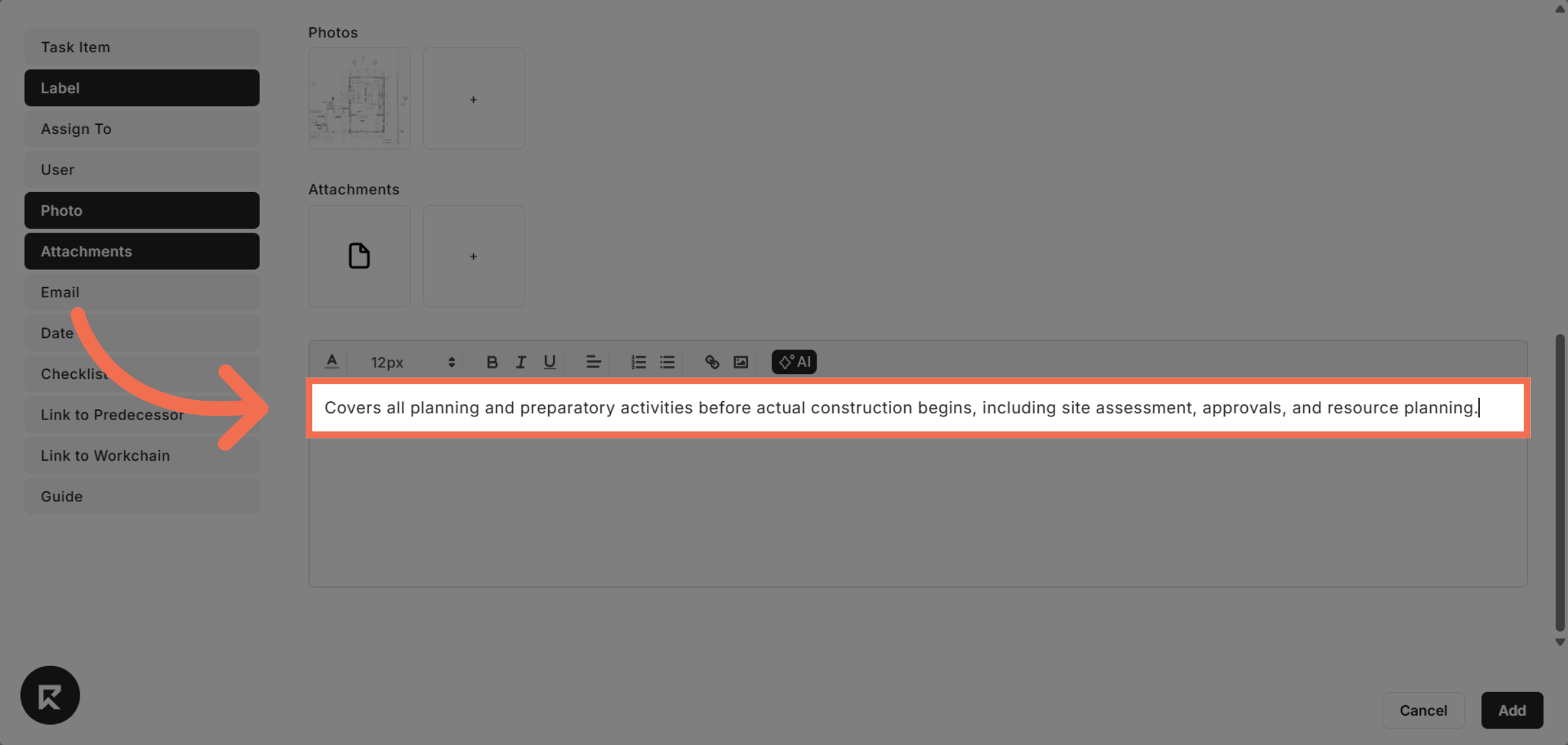
18. Add Task Guide
Provide detailed instructions or notes about how the task should be performed.
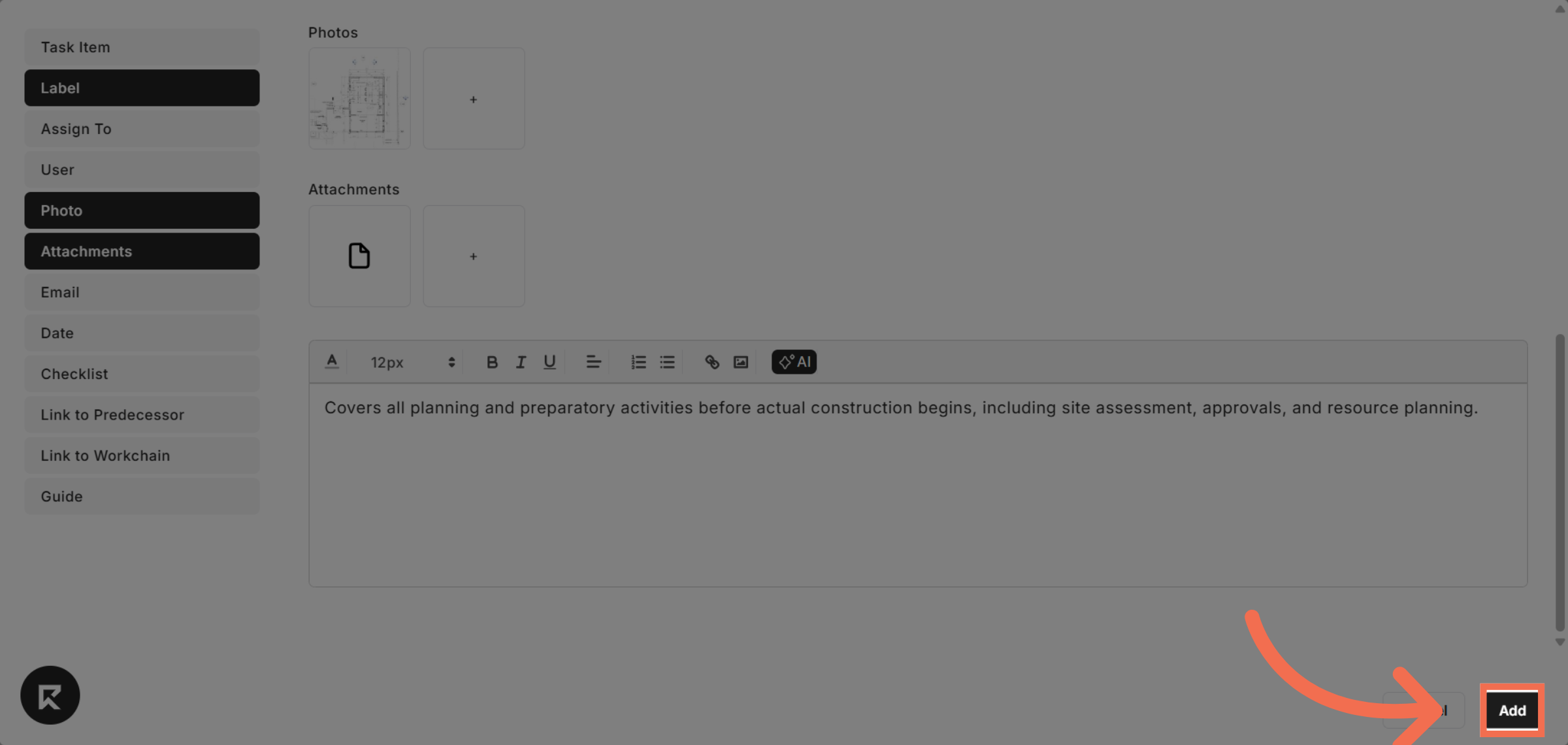
19. Add Task
Click Add to save the new task to your Gantt chart and project timeline.
This demo demonstrated how to efficiently add and configure a task within Readyteam's Gantt chart. You can now streamline your project planning by managing tasks, dependencies, and communications all in one place.