Publish Cost Assistant Templates Efficiently Using ReadyTeam
This demo showcases how to publish a template within Readyteam, highlighting the key steps involved.
Go to app.readyteam.ai
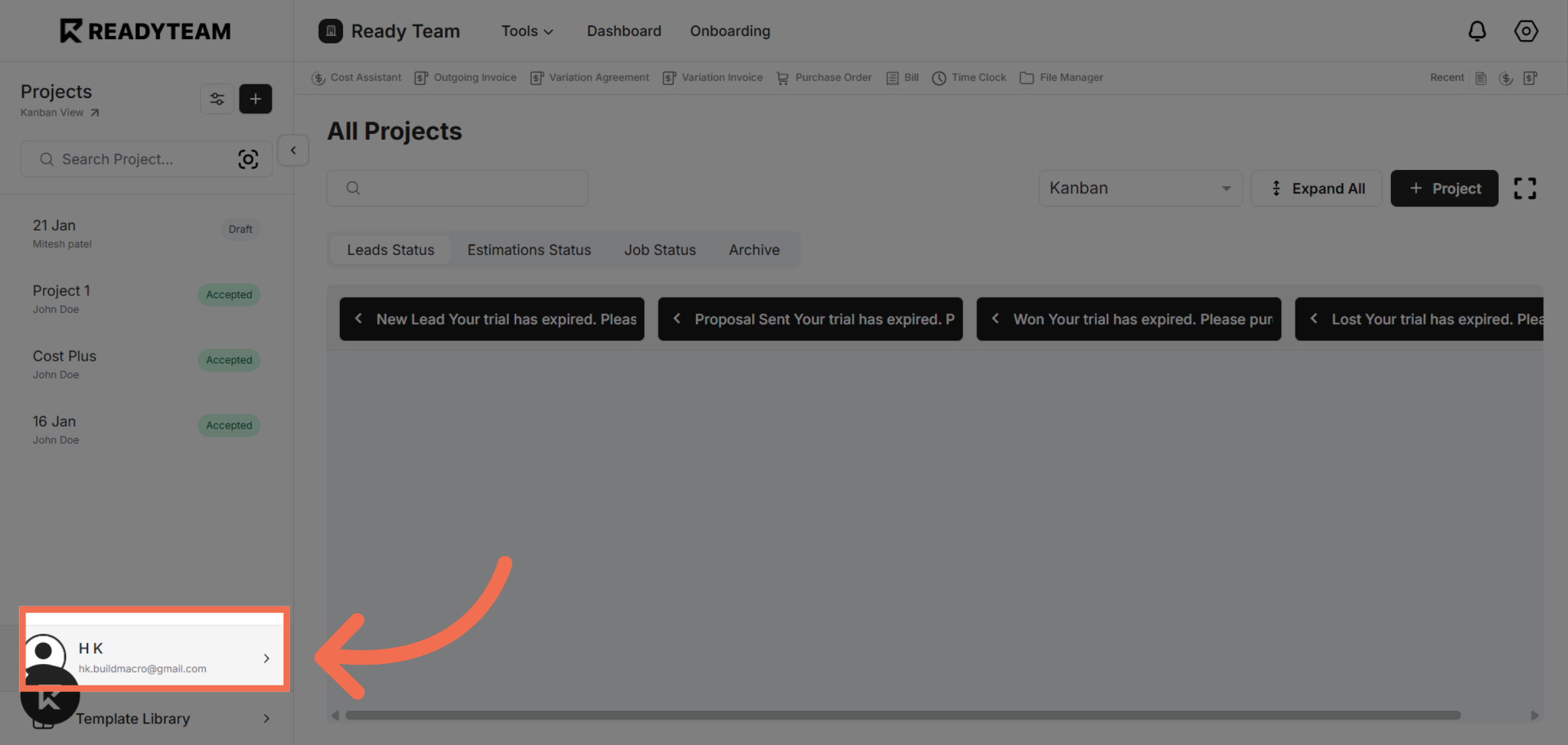
1. Select User Profile
Click the user profile to begin accessing your settings.
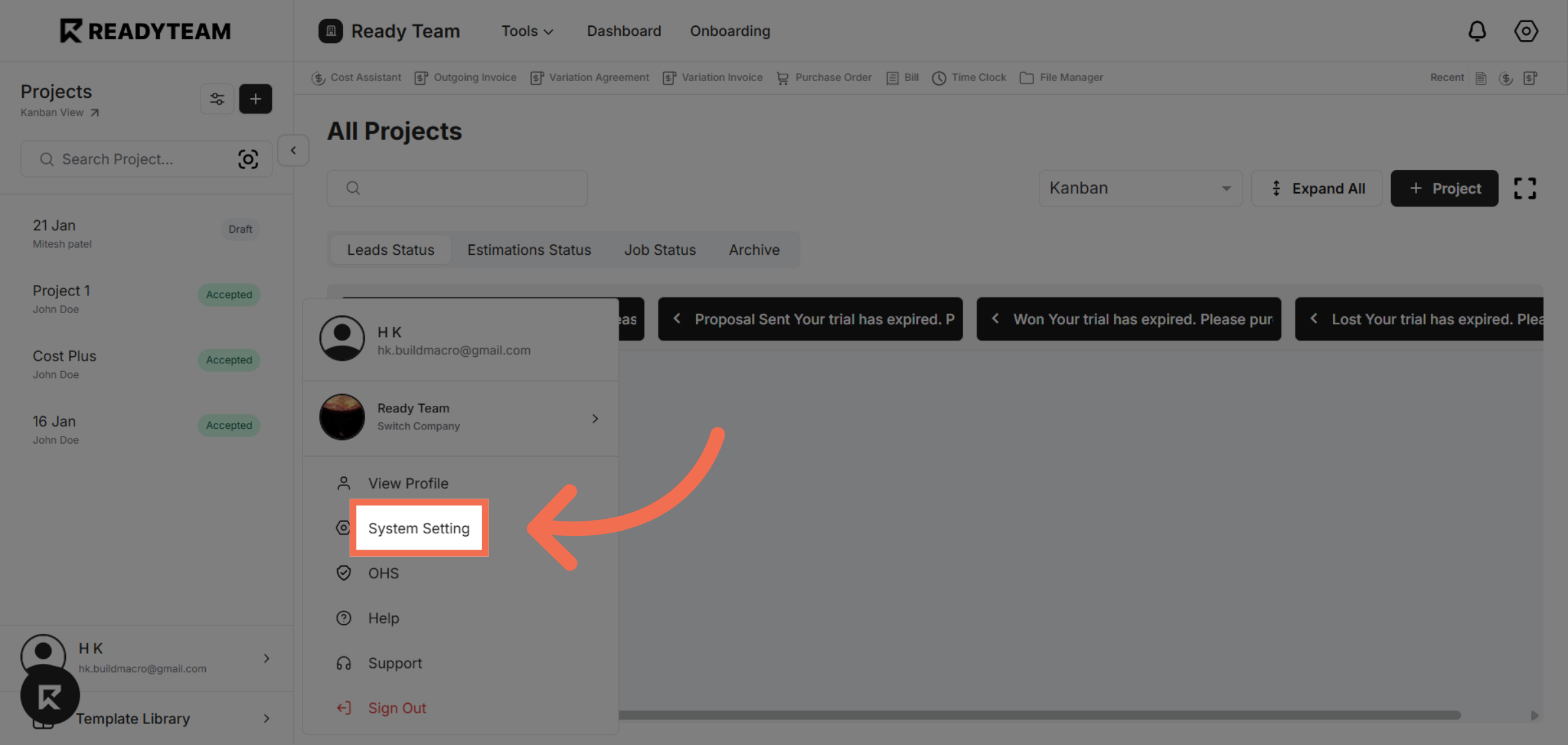
2. Open System Settings
Click System Setting to access the configuration options for your account.
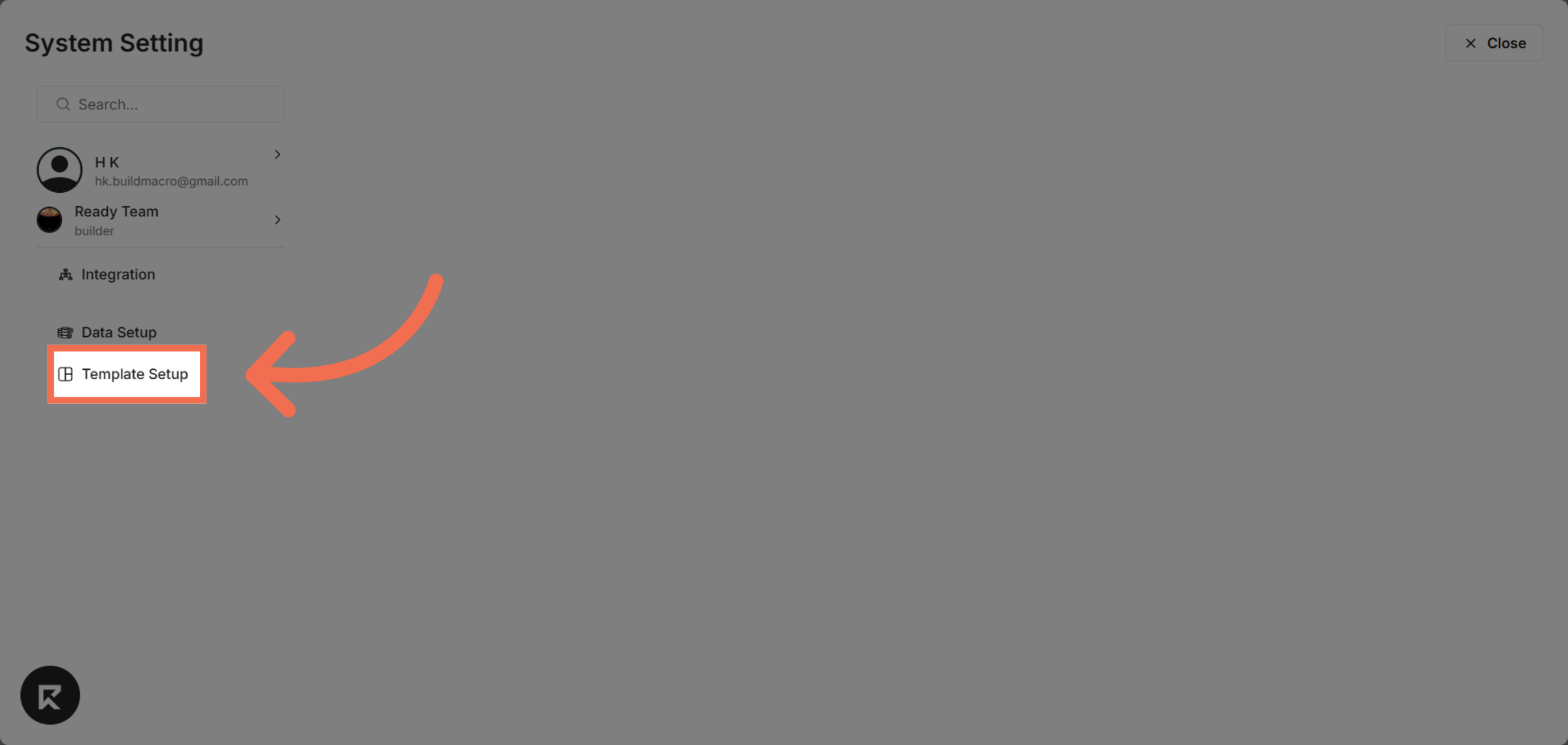
3. Access Template Setup
Click Template Setup to manage and configure your document templates.
4. Choose Cost Assistant Template
Click Cost Assistant to select the specific template category you want to work with.
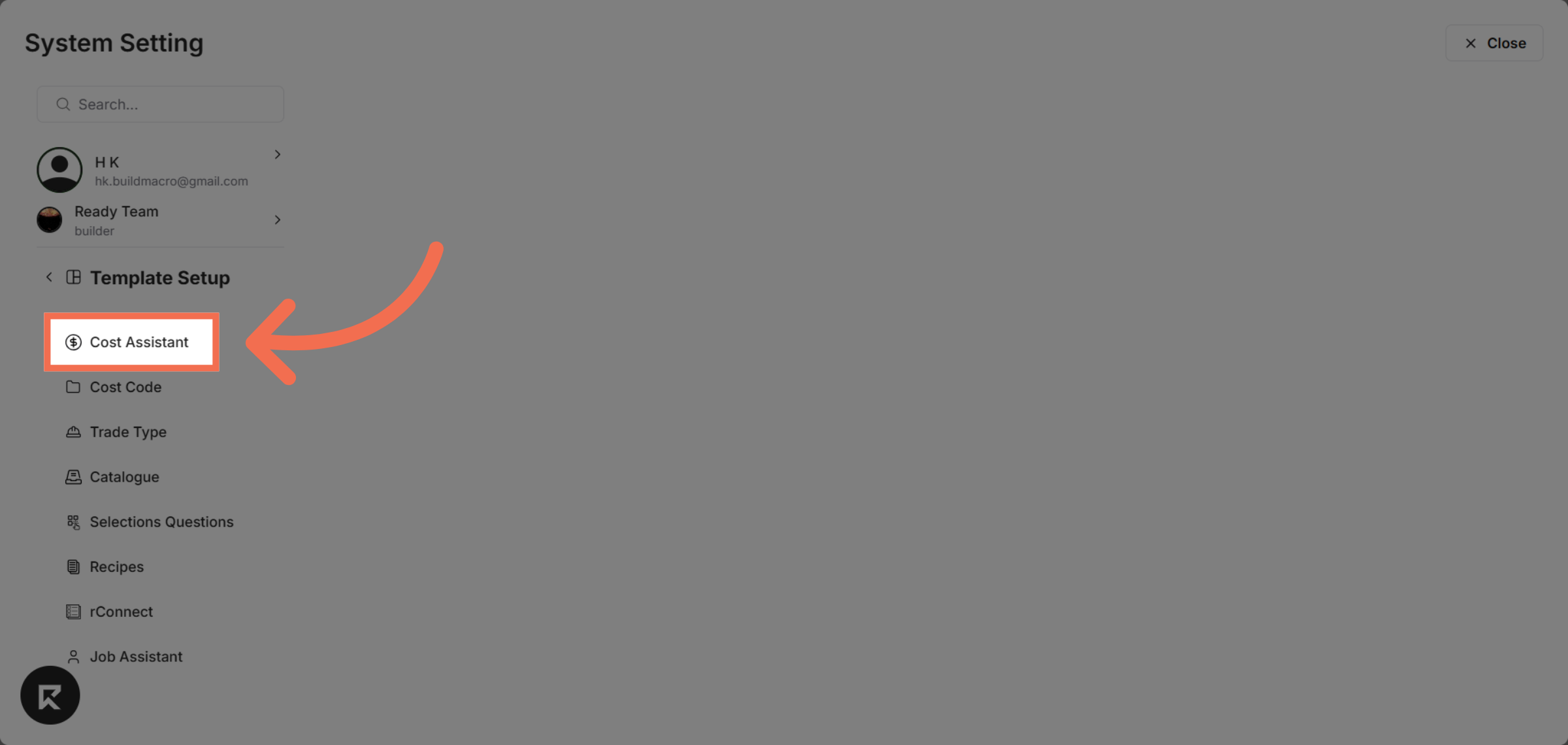
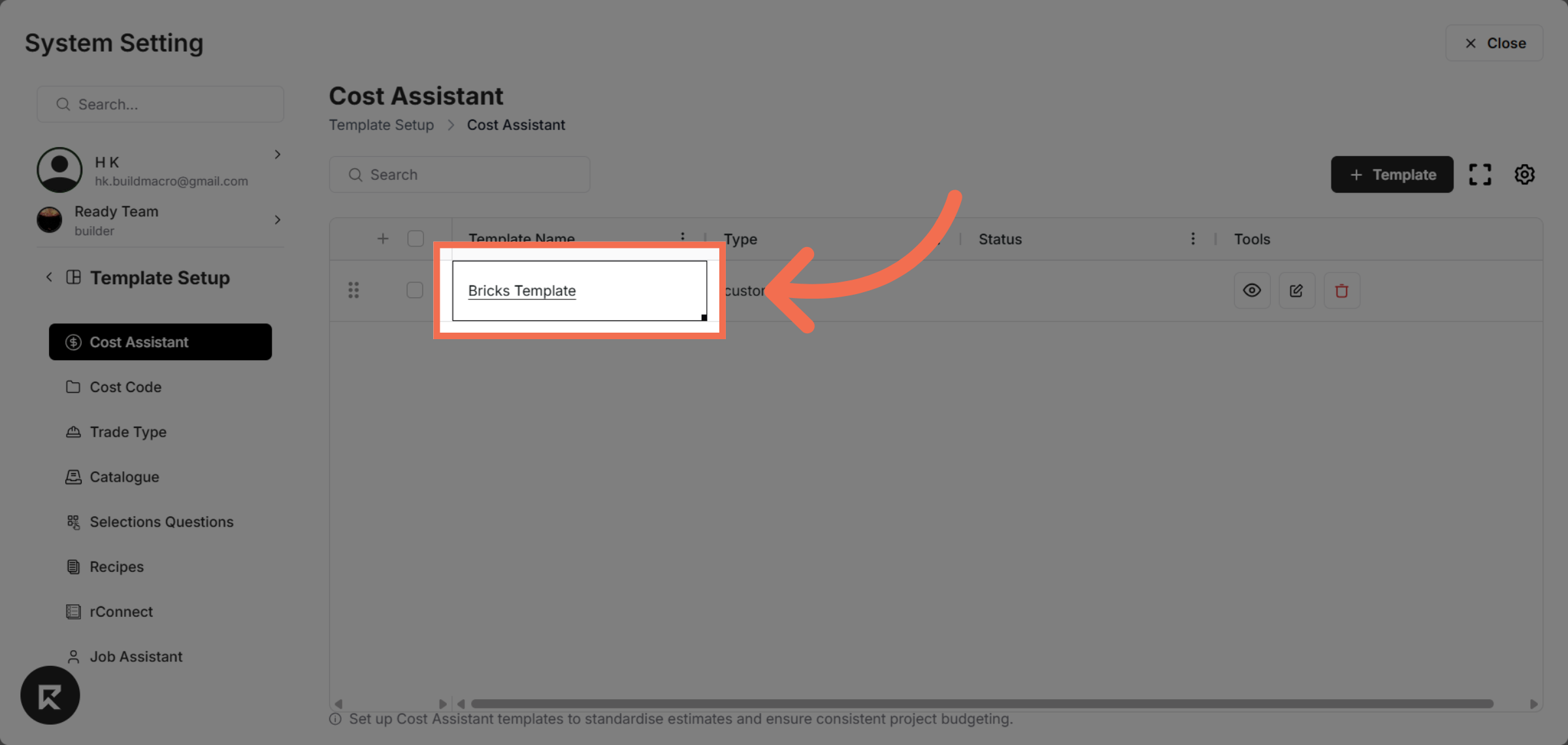
5. Select Bricks Template
Click Bricks Template to open the template you intend to publish.
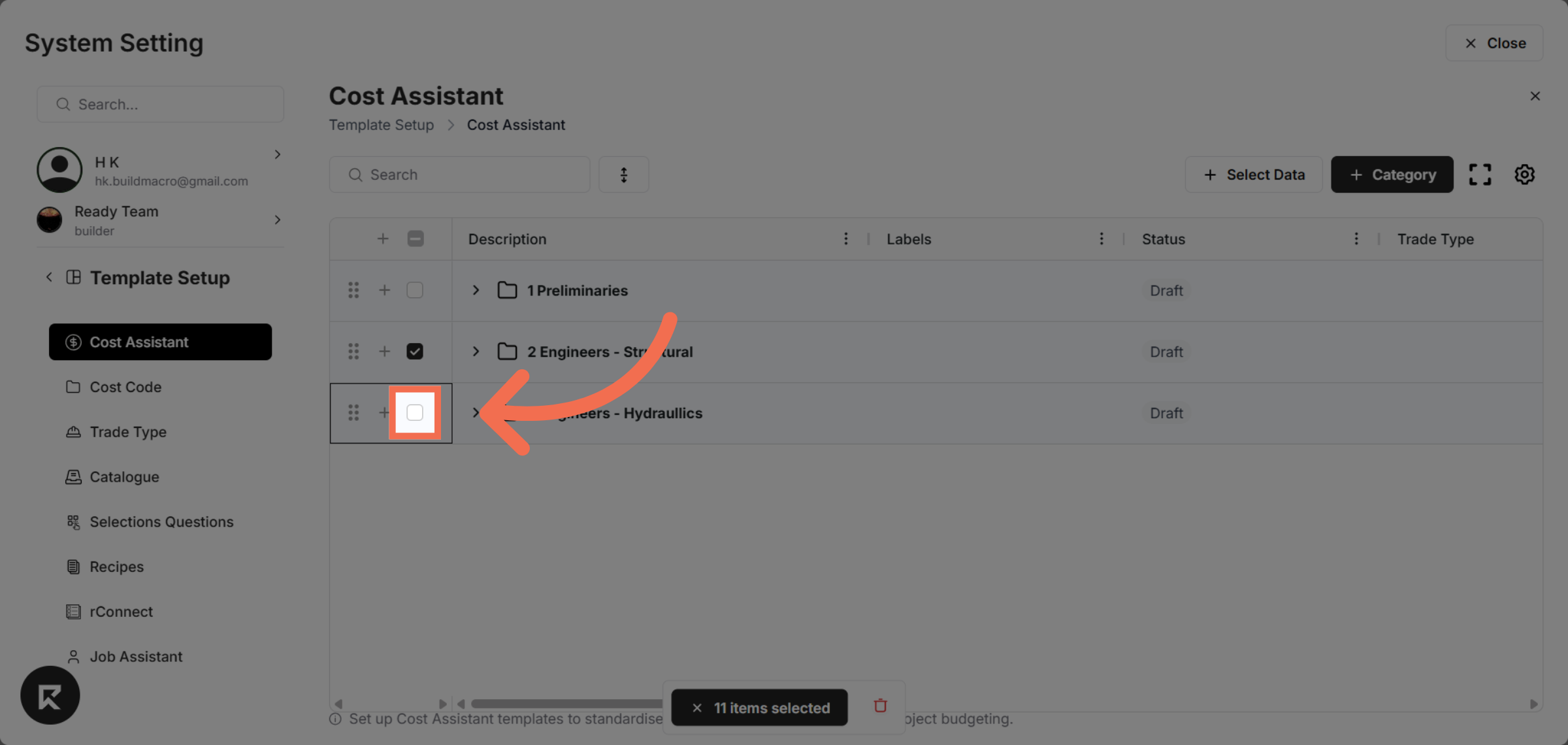
6. Toggle Row Selection
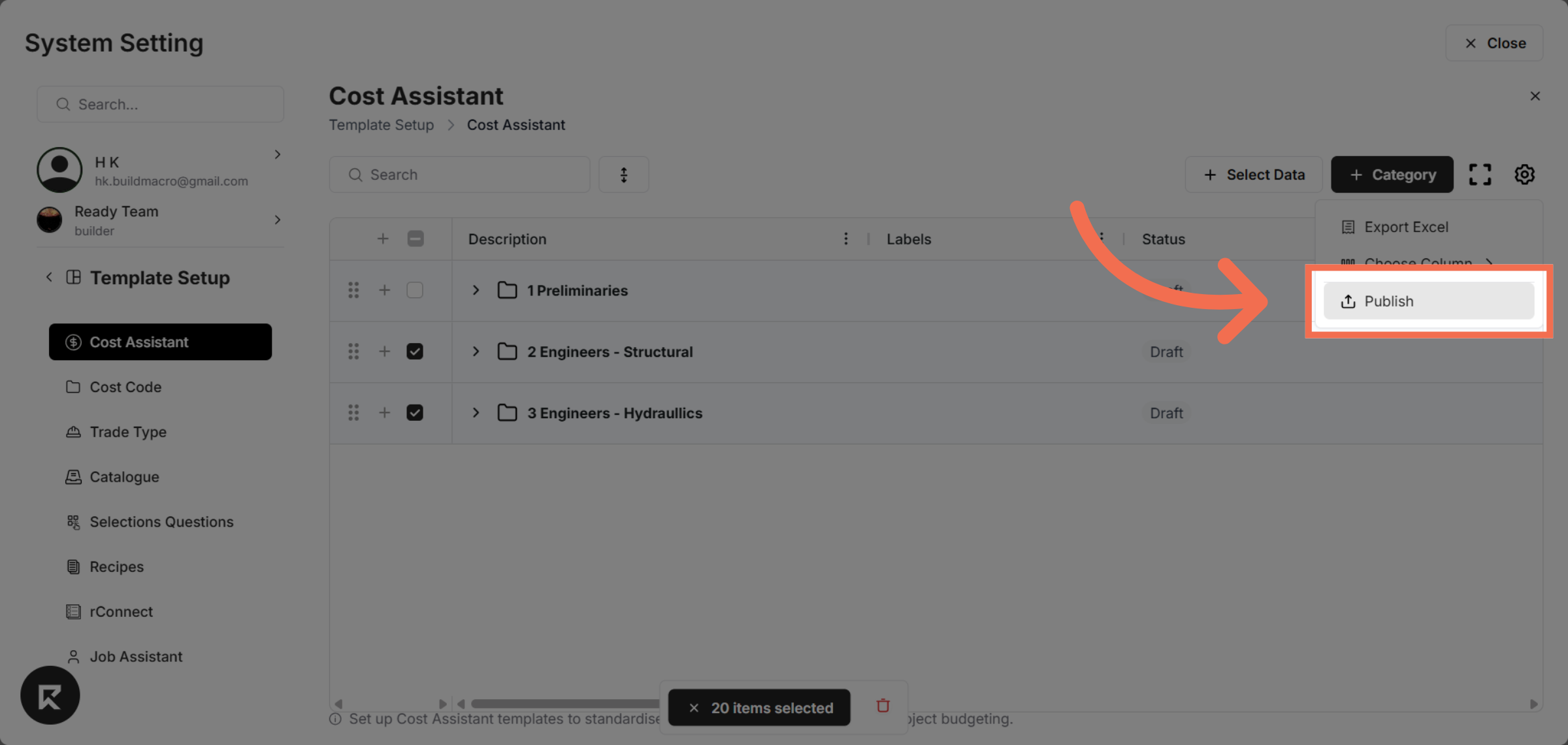
Select item to Publish
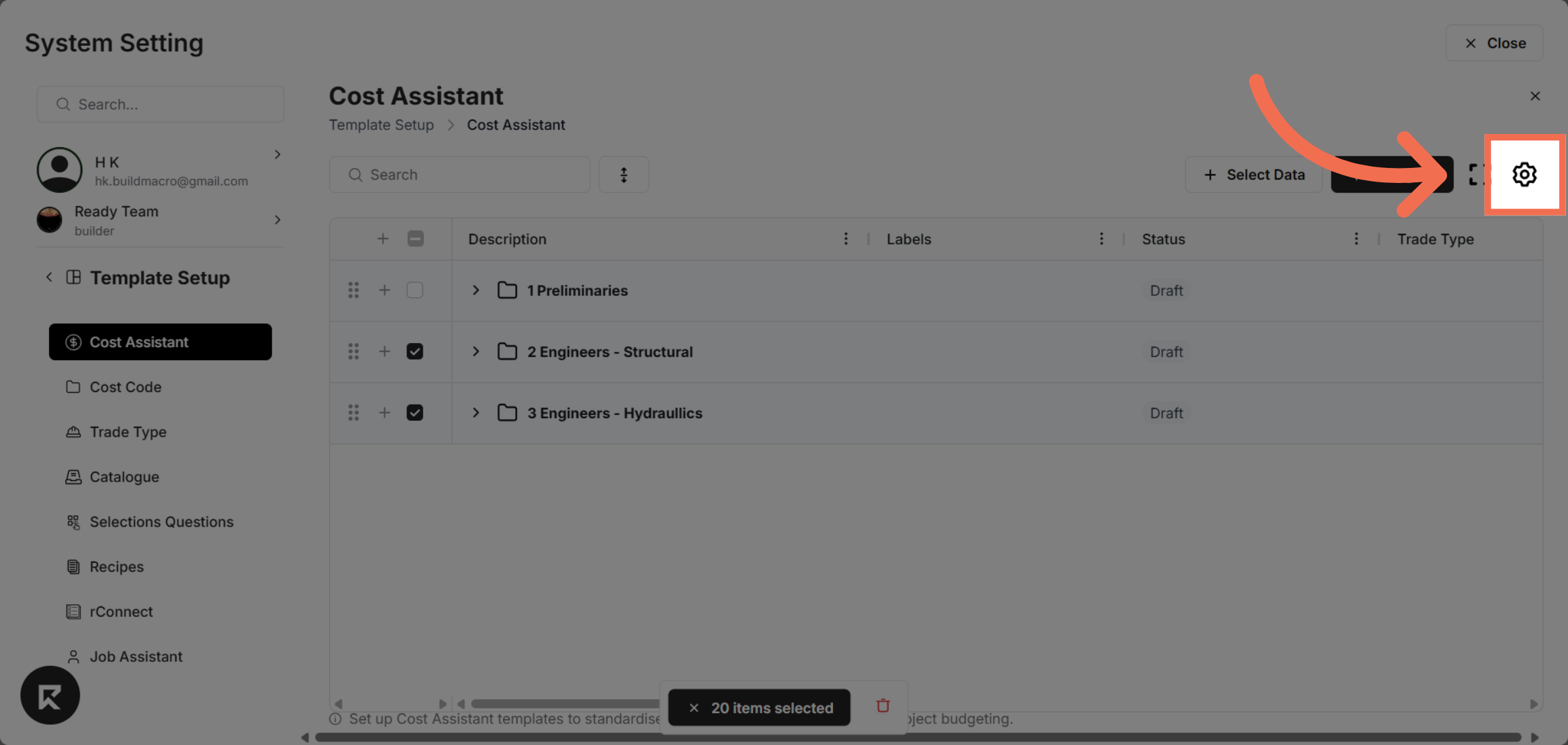
7. Click "Setting" Icon
Click here to continue with the template publishing process.
8. Publish Template
Click Publish to finalize and make your template available for use.
This demo demonstrated how to efficiently publish a template in Readyteam by navigating system settings, selecting and configuring templates, and finalizing the publishing process. You can now apply these steps to streamline your template management and improve productivity.