Download Templates From Template Library In ReadyTeam
This demo showcases how to efficiently download templates from the Template Library within Readyteam
Go to app.readyteam.ai
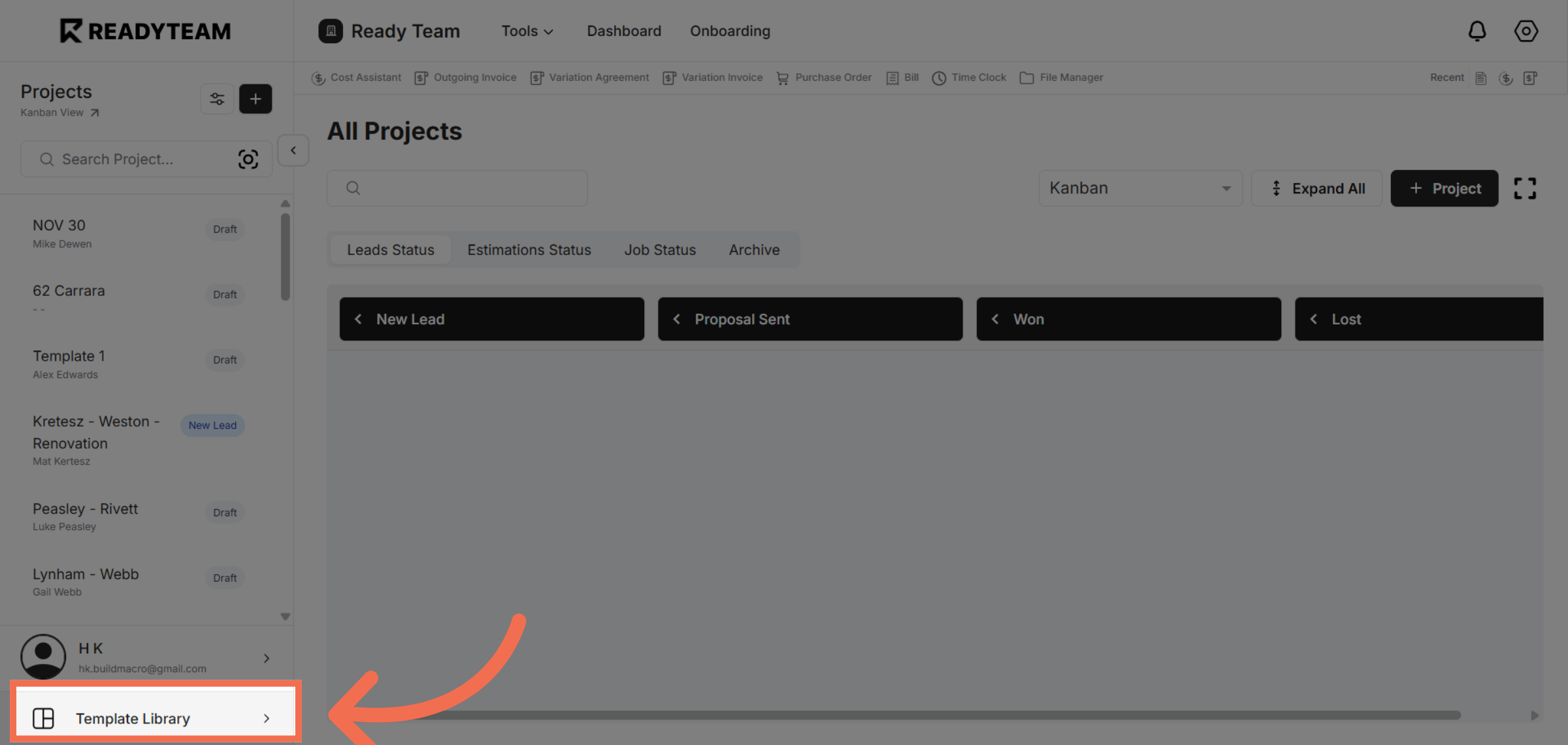
1. Open Template Library
Click the Template Library to access the collection of available templates.
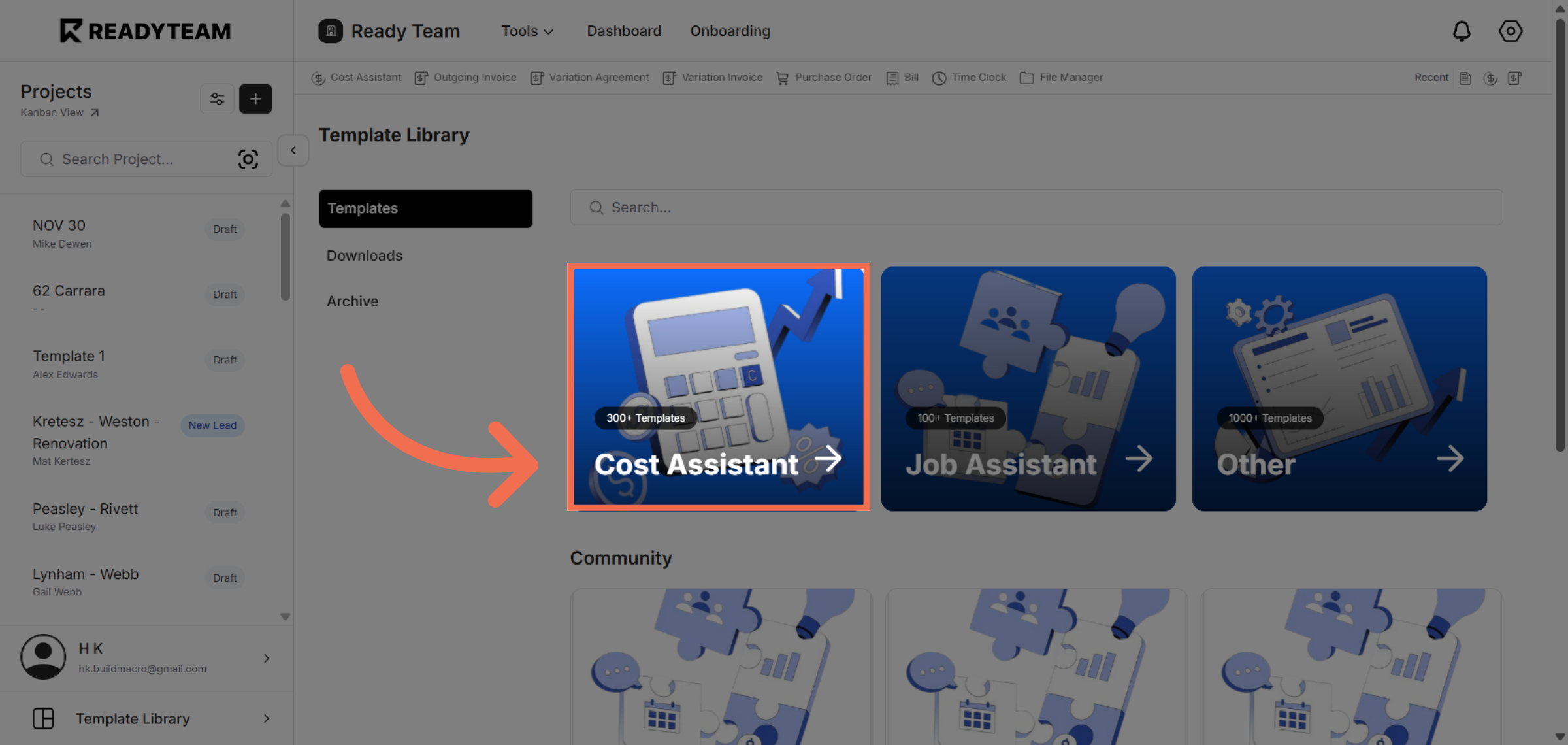
2. Select Cost Assistant Category
Select the Cost Assistant category to filter templates related to cost management.
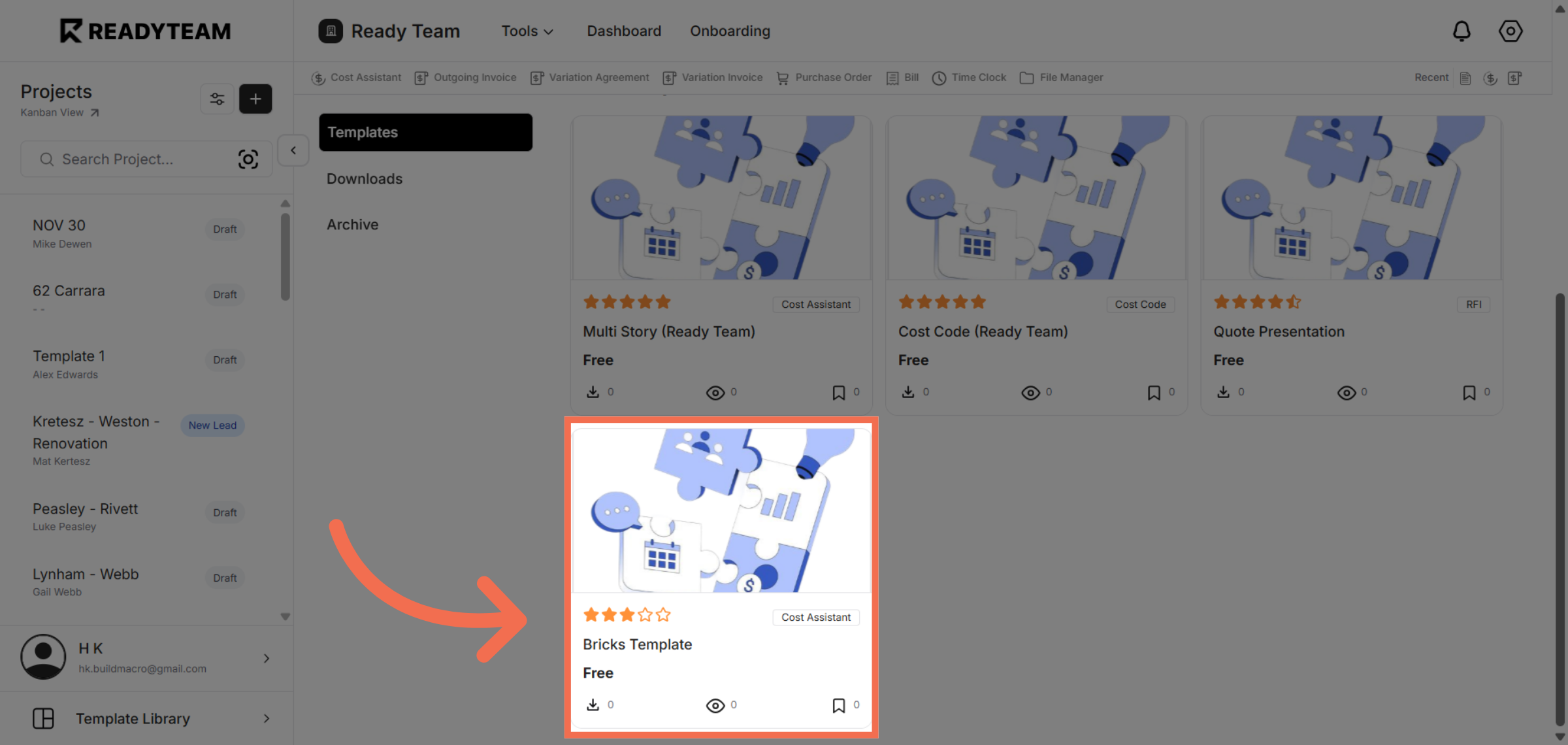
3. Choose Cost Assistant Template
Choose the Cost Assistant template to view its details and options.
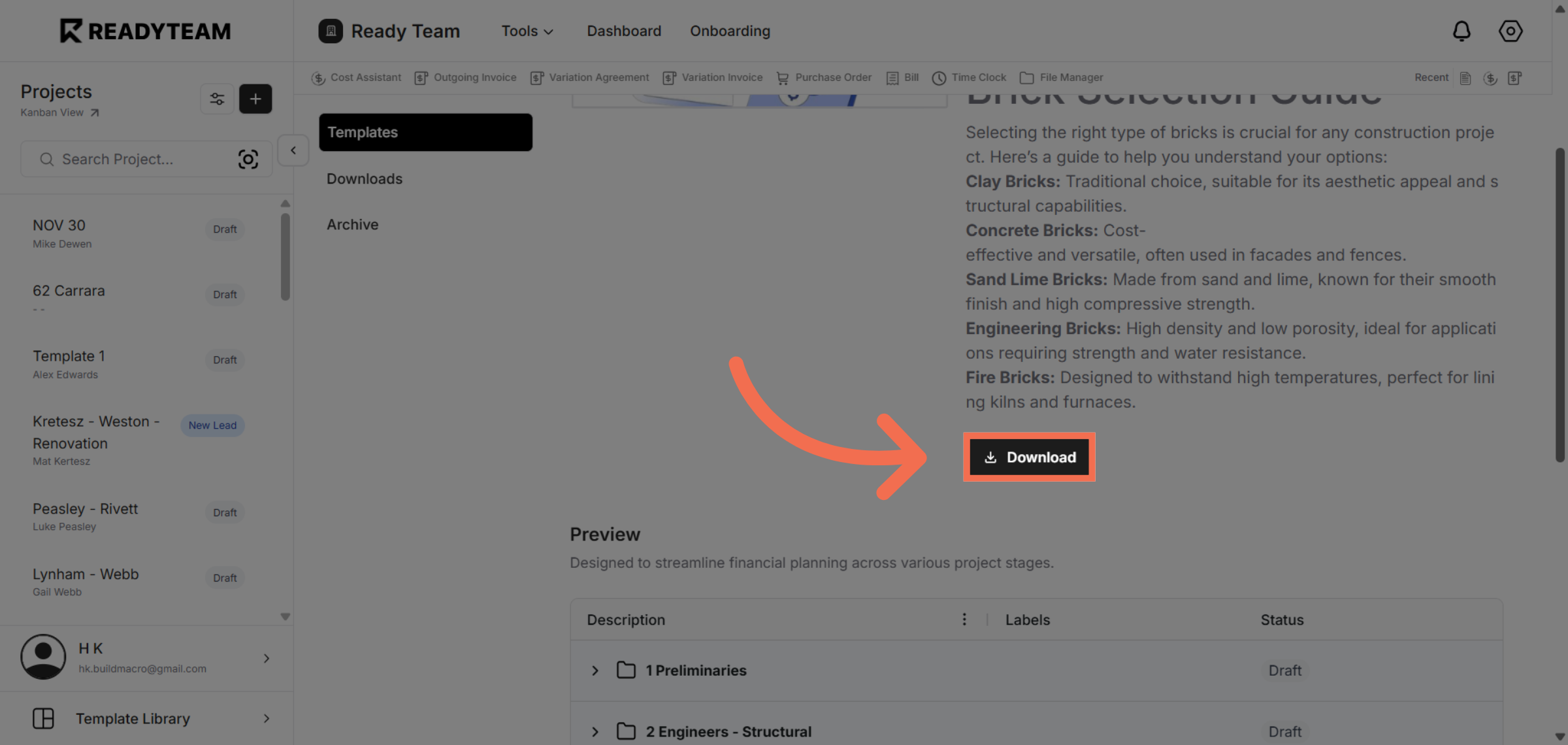
4. Initiate Template Download
Click here to start downloading the selected template to your system.
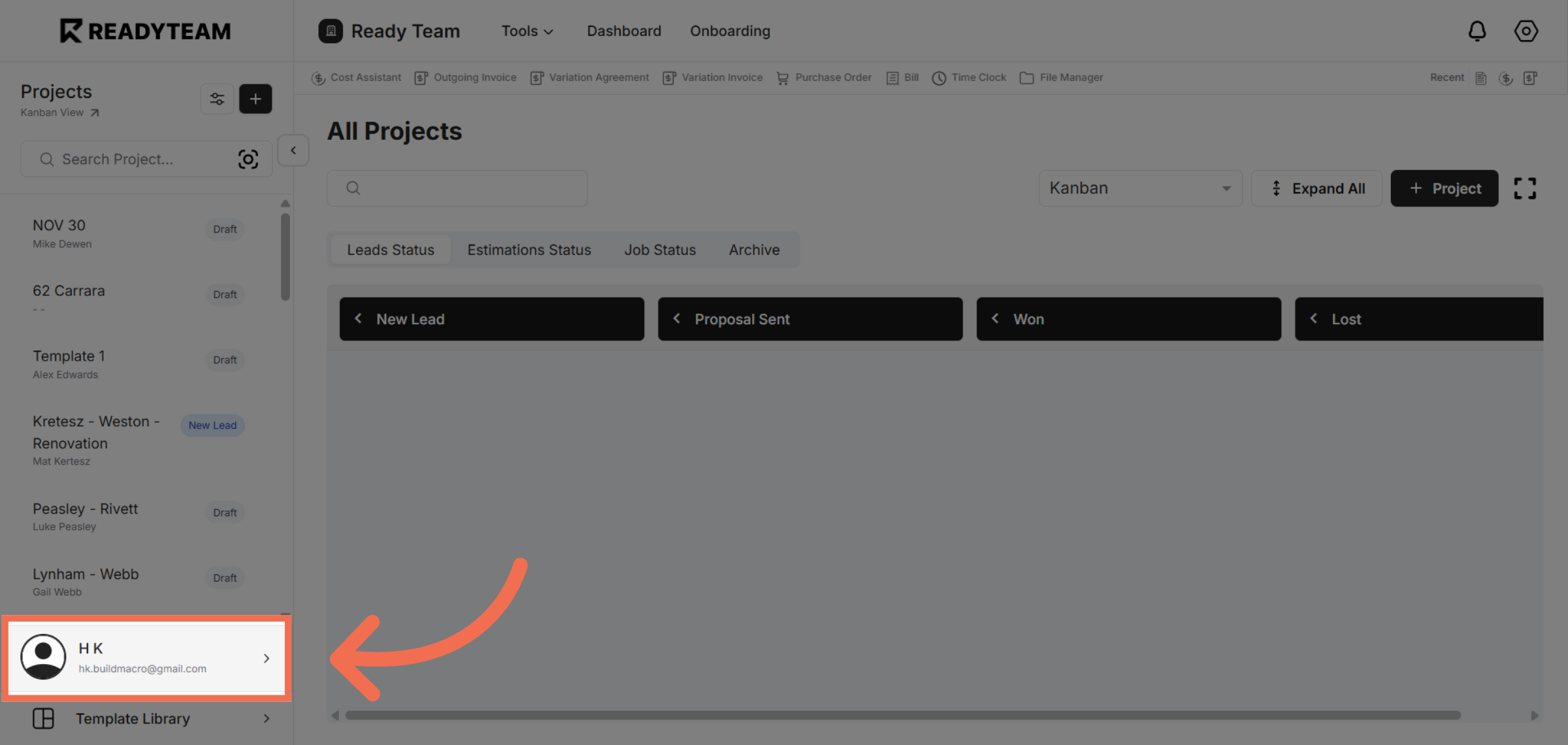
5. Open User Section
Click the user account menu to access personal settings and preferences.
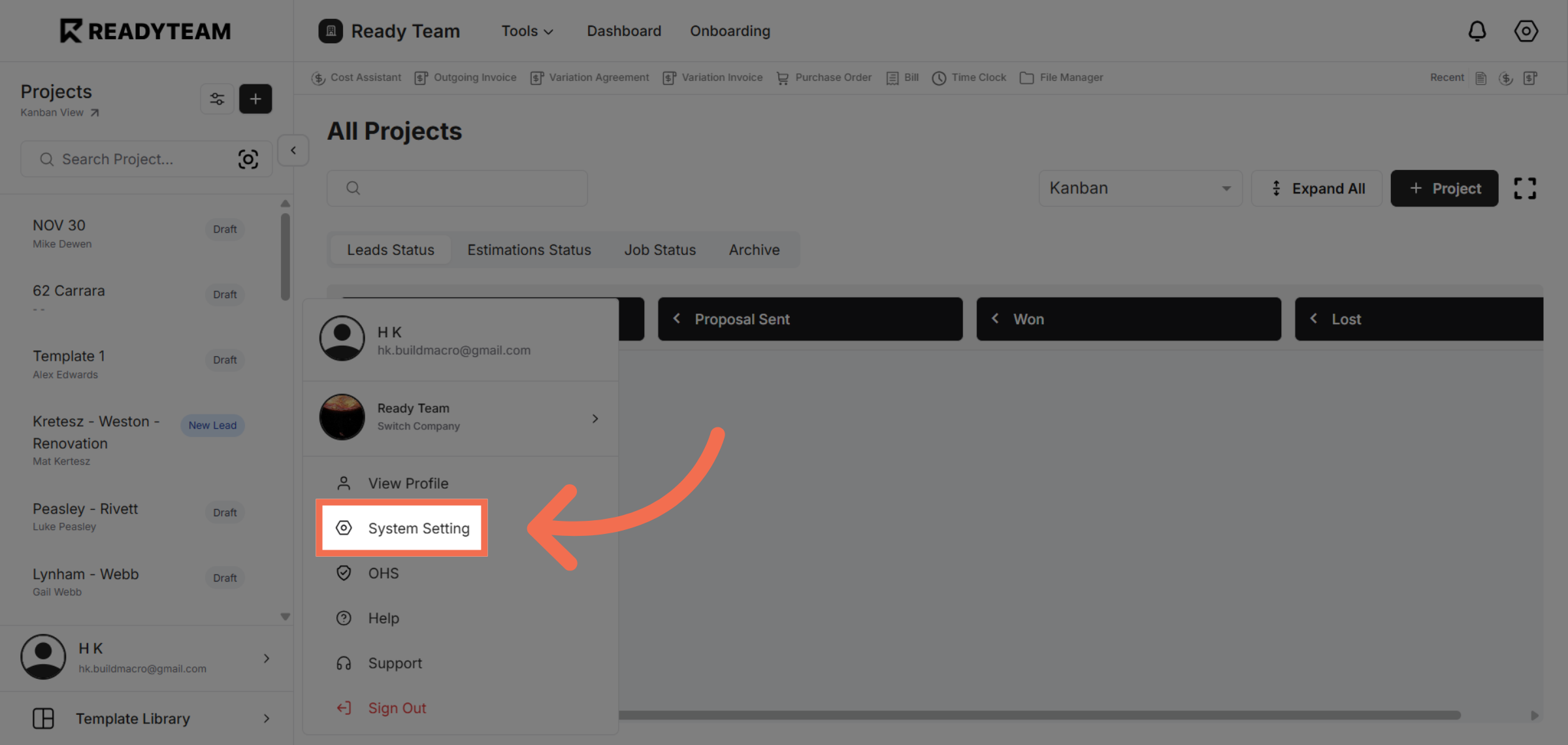
6. Access System Settings
Click System Setting to manage system-wide configurations and options.
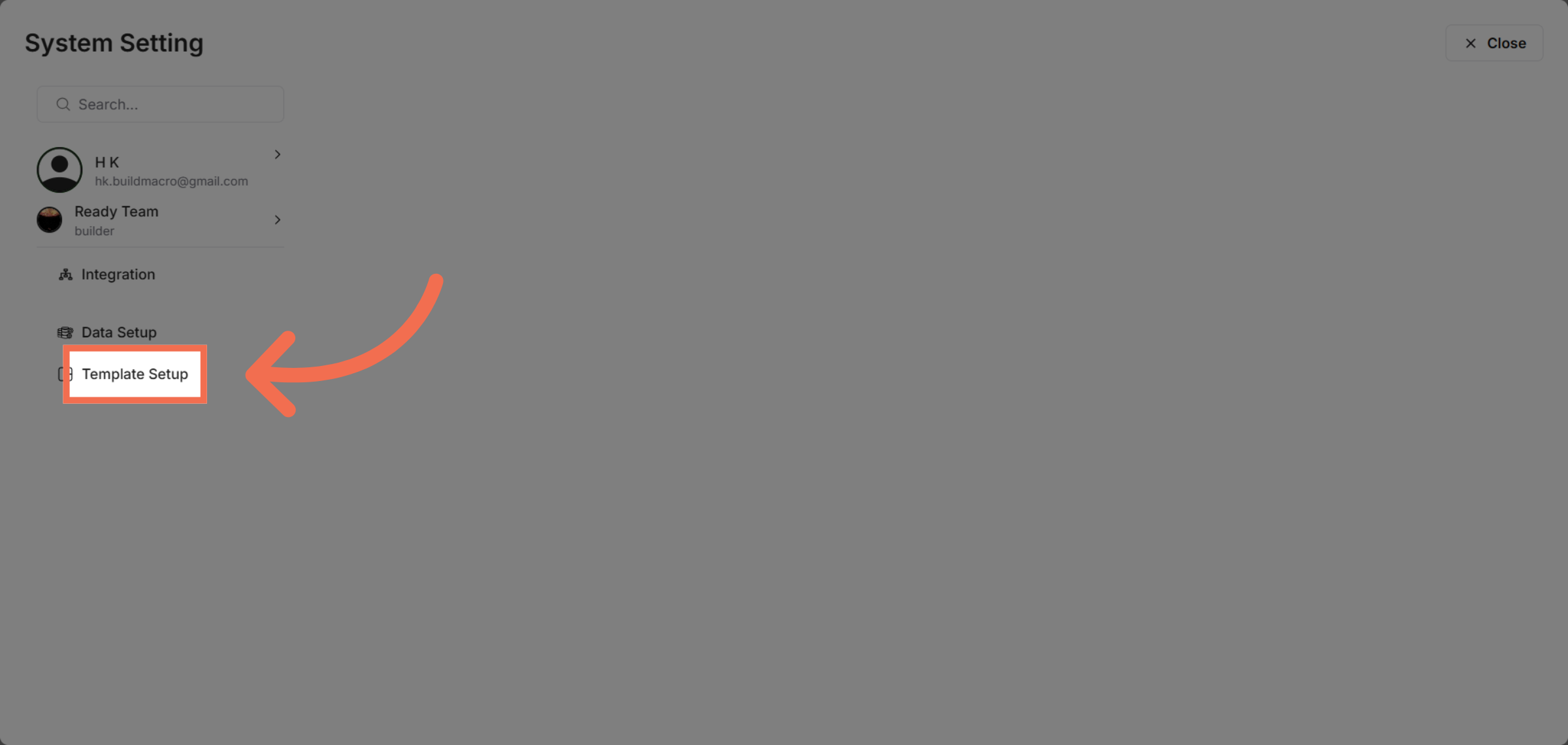
7. Open Template Setup
Click Template Setup to configure and manage your template library settings.
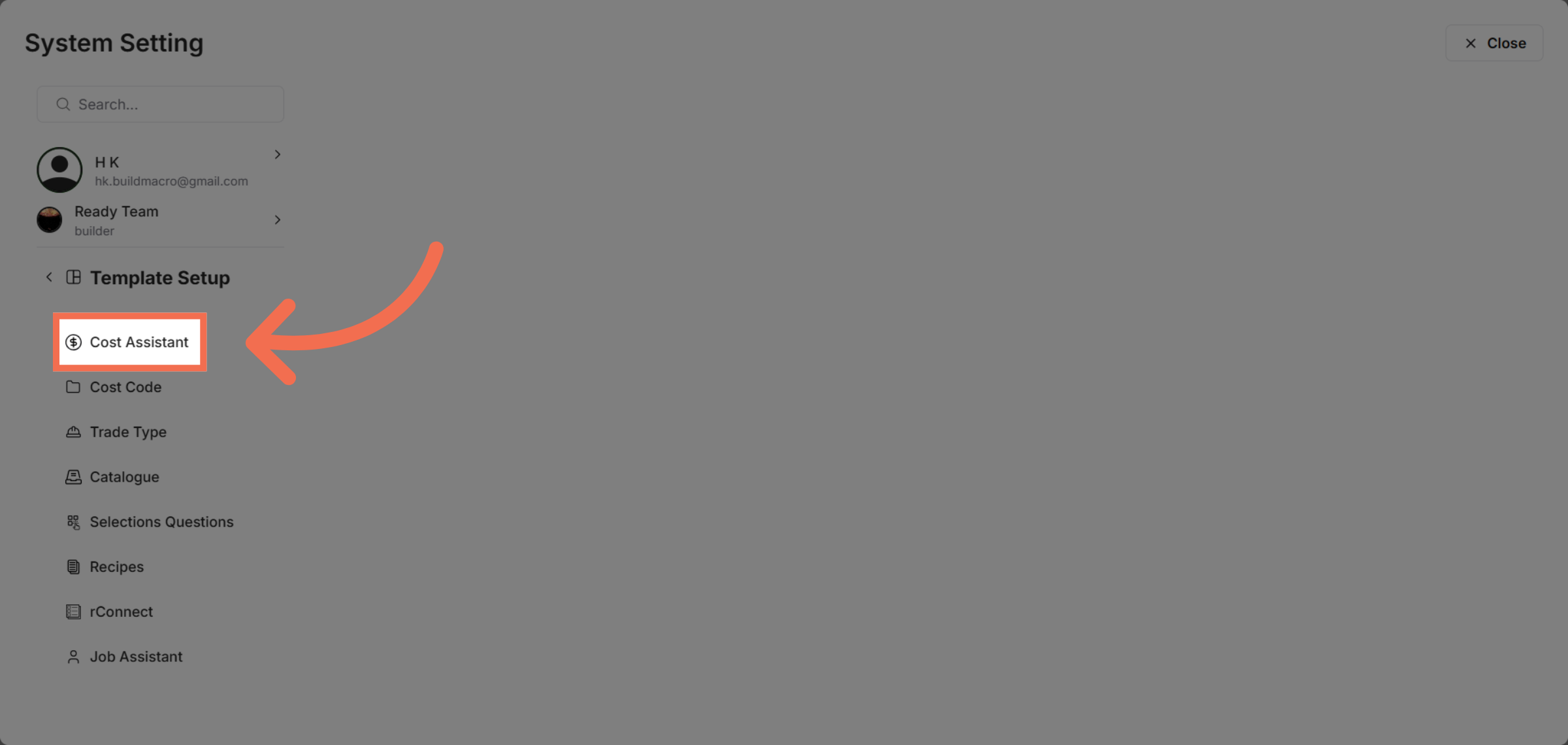
8. Select Cost Assistant
Click Cost Assistant within Template Setup to adjust settings specific to this template.
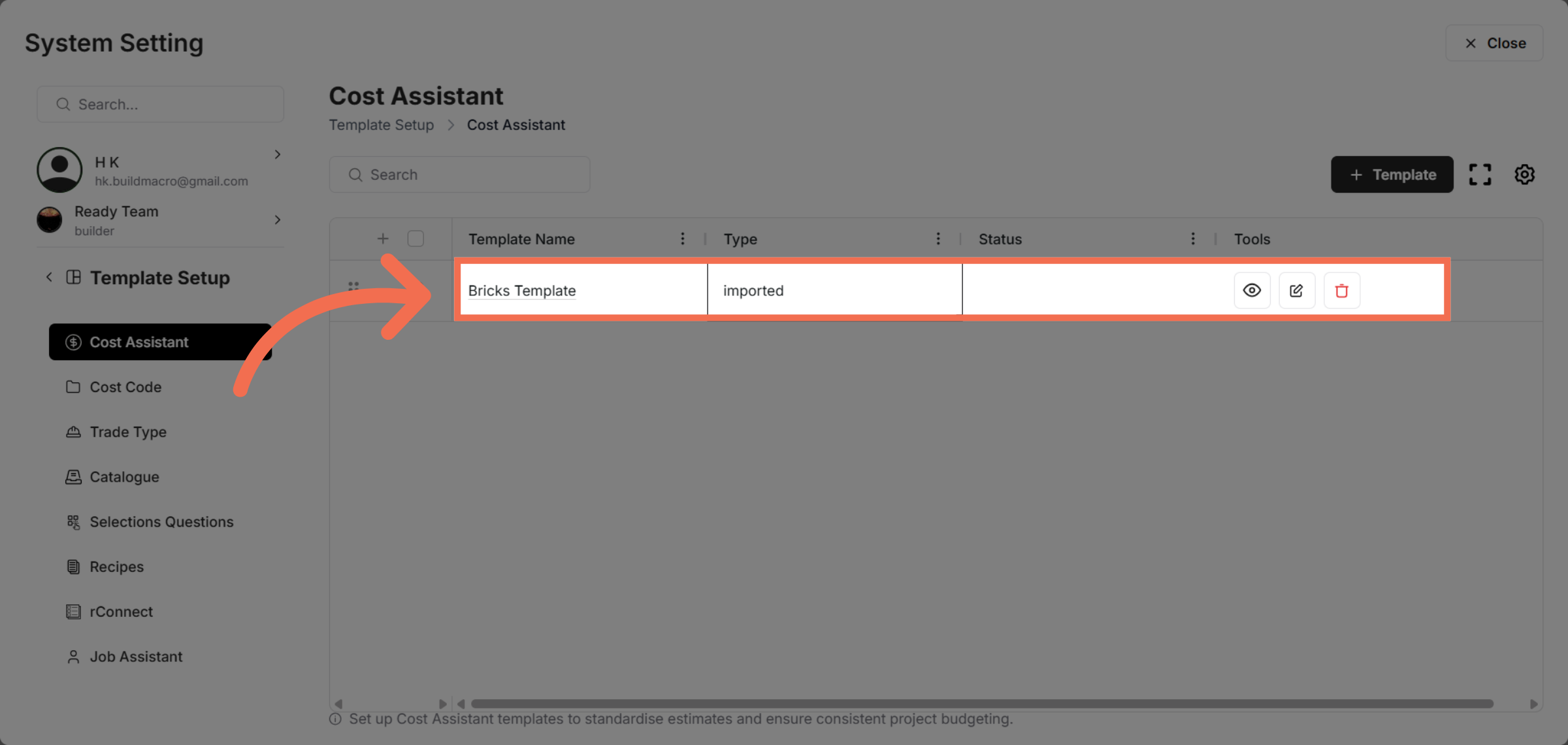
9. View Imported Templates
Click imported to see templates that have already been added to your library.
This demo demonstrated how to navigate Readyteam's Template Library to locate, select, and download templates efficiently. You can now easily access and manage templates to streamline your workflow.