Create Cost Assistant Template In ReadyTeam
This demo showcases how to create a Cost Assistant template within Readyteam.
Go to app.readyteam.ai
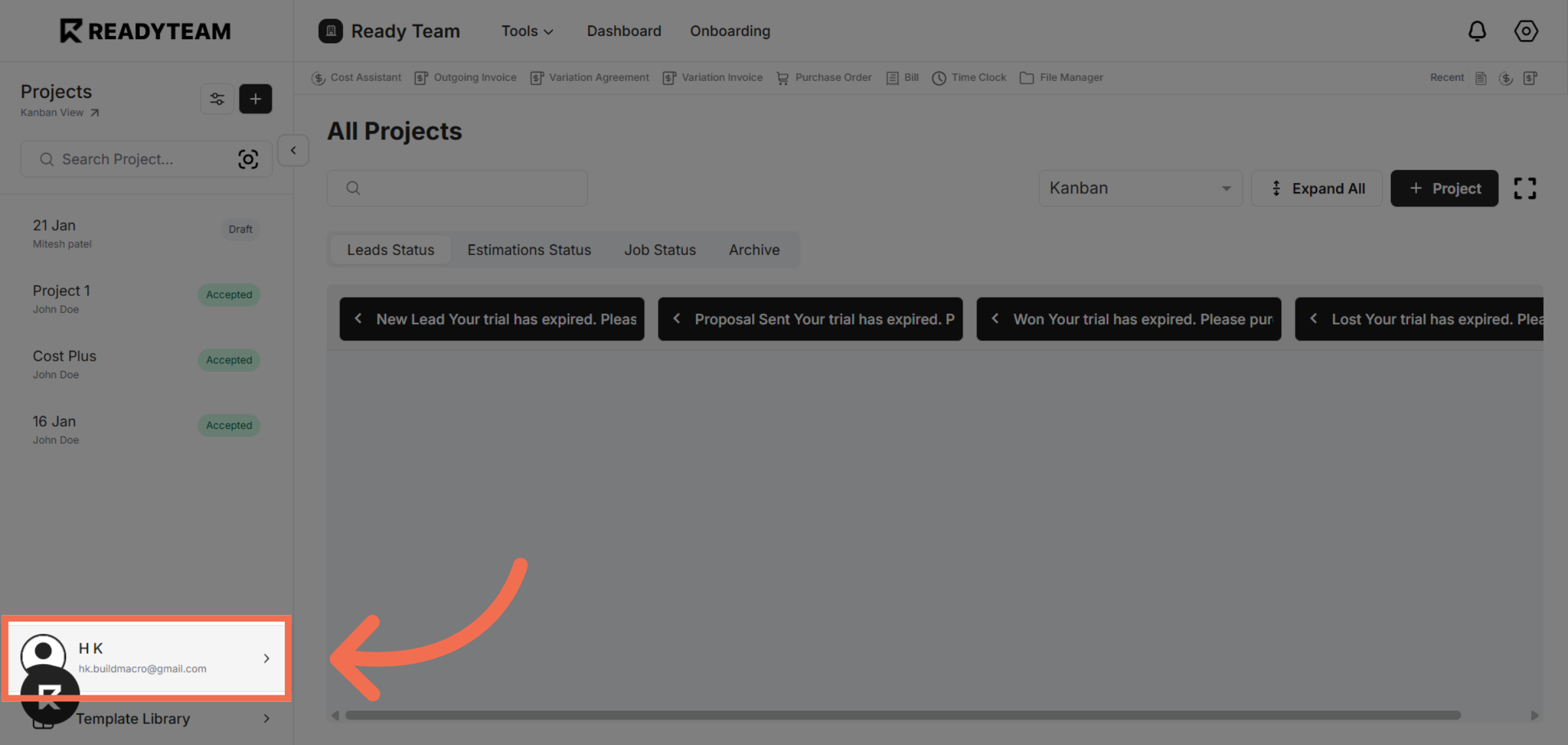
1. Select User Section
Click the user section to begin configuring your settings.
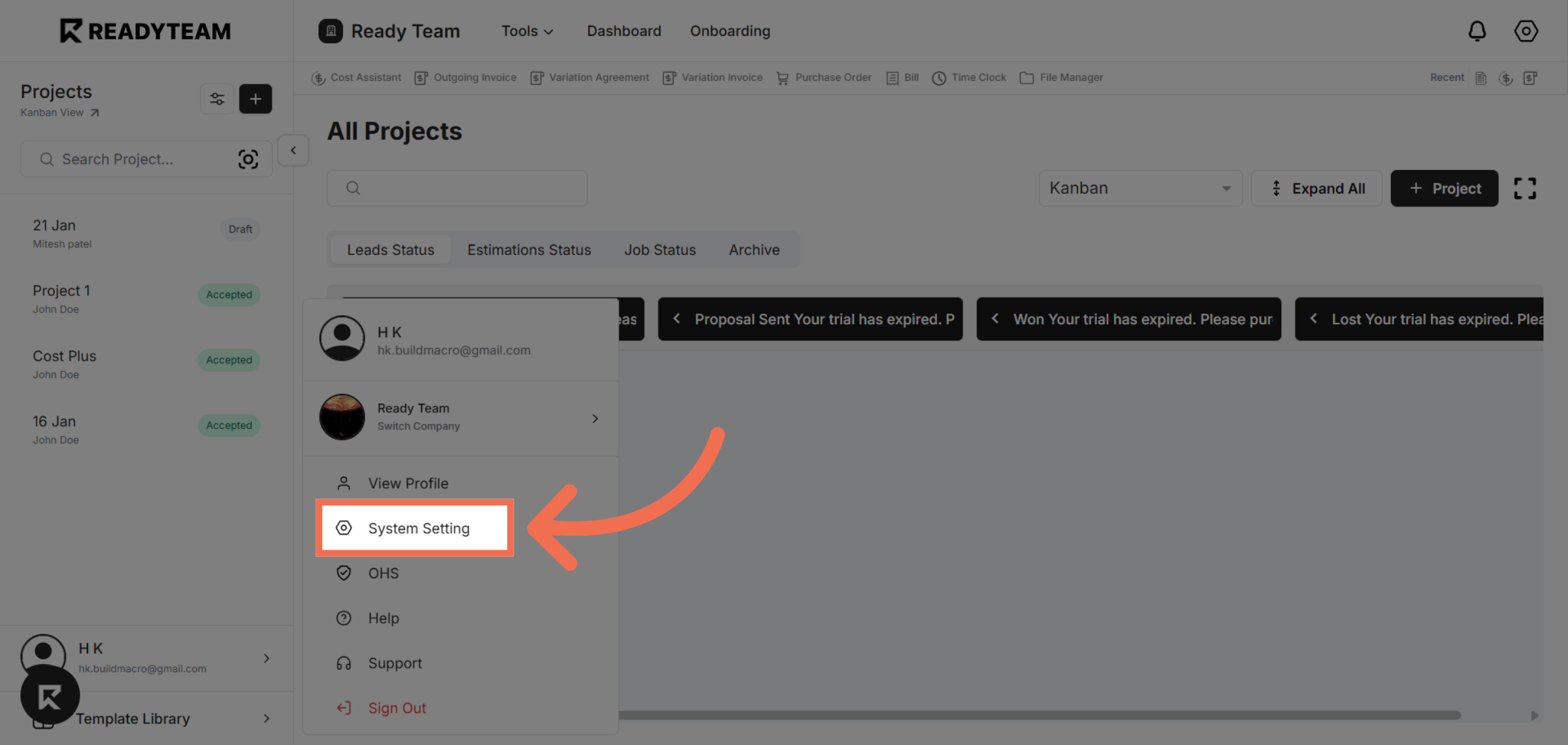
2. Open System Settings
Access the System Setting menu to manage application configurations.
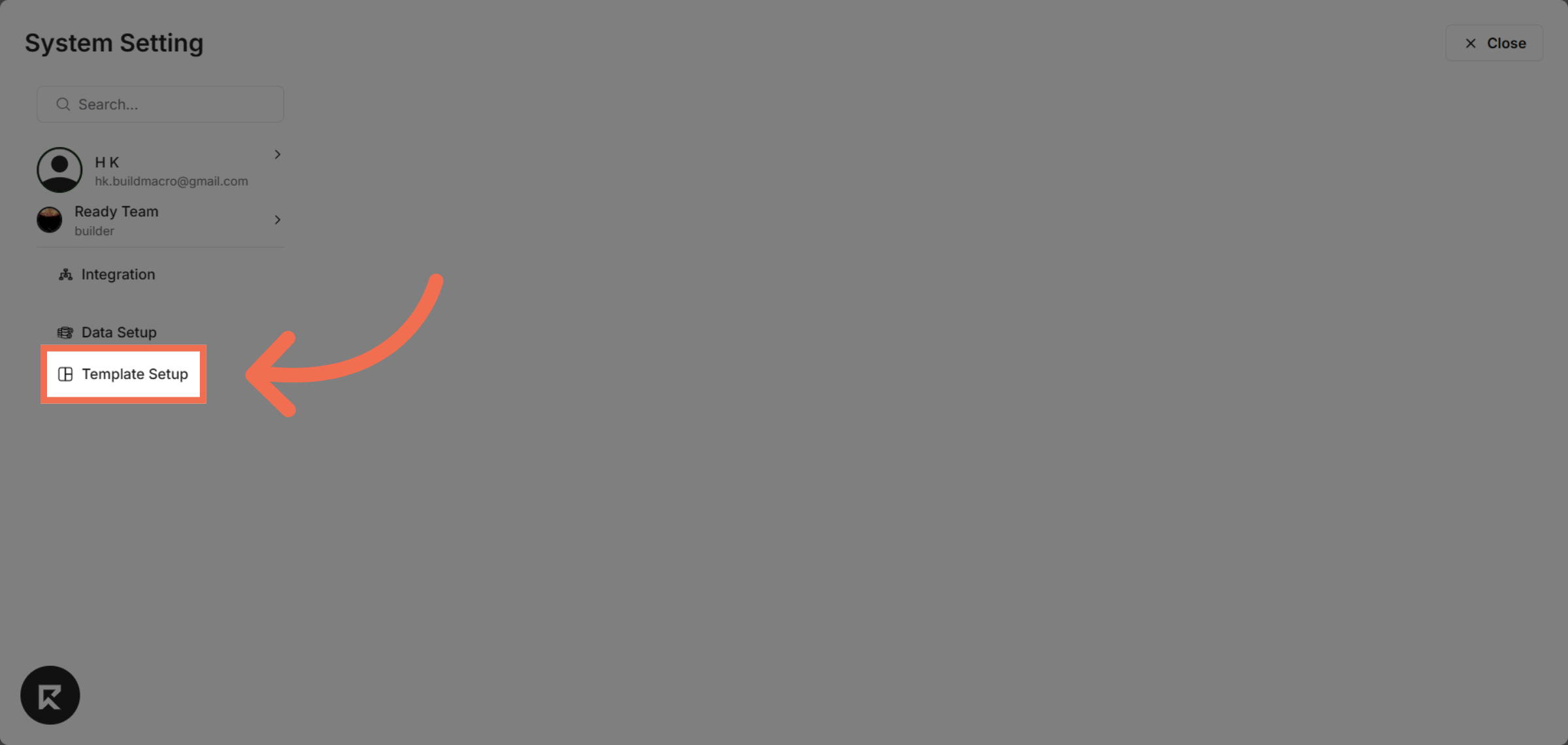
3. Navigate to Template Setup
Go to Template Setup to manage and create new templates for your workflows.
4. Access Cost Assistant Section
Click on Cost Assistant to focus on cost-related template options.
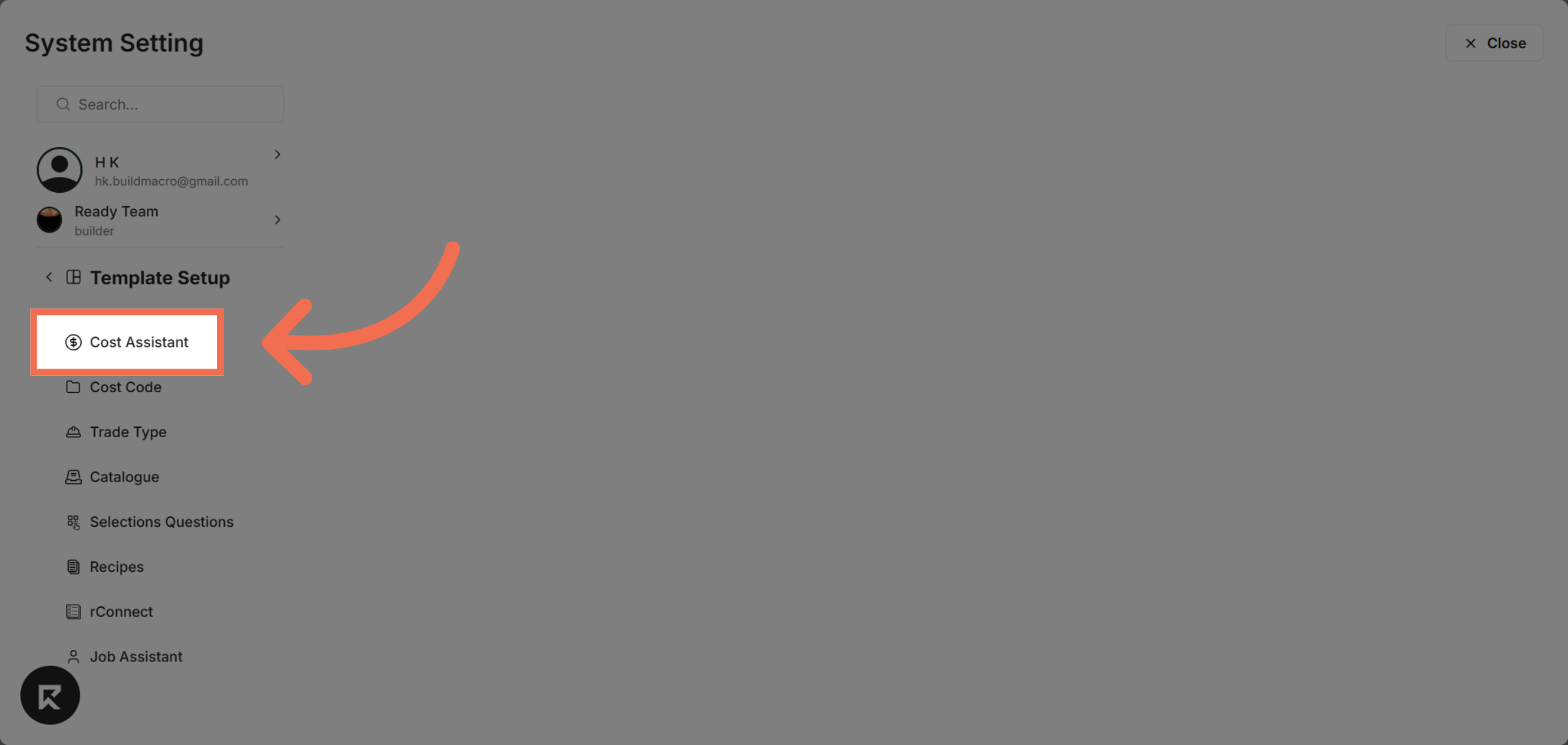
5. Open Template Options
Select Template to view and manage existing cost assistant templates.
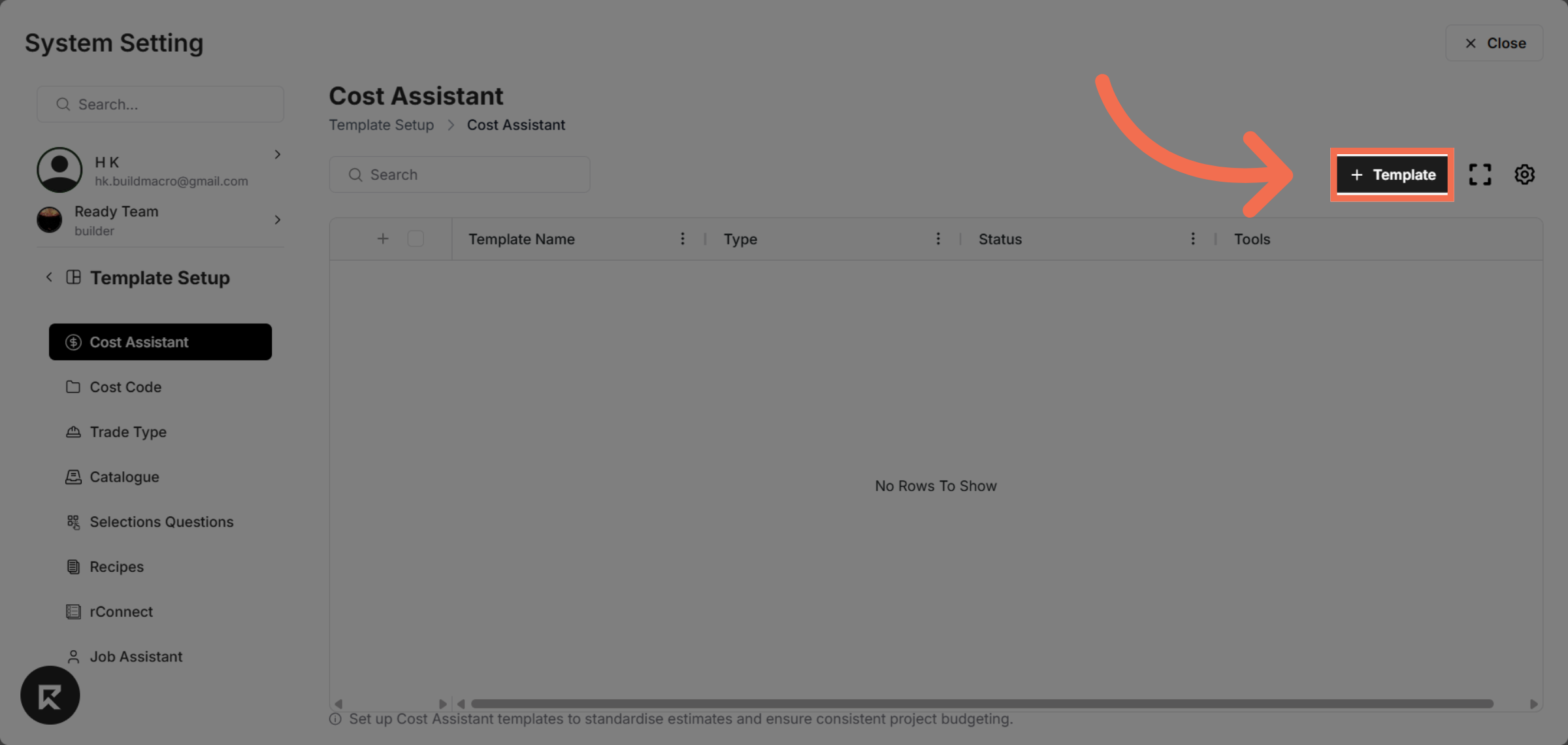
6. Enter Template Name
Click the Template Name field to specify the name of your new template.
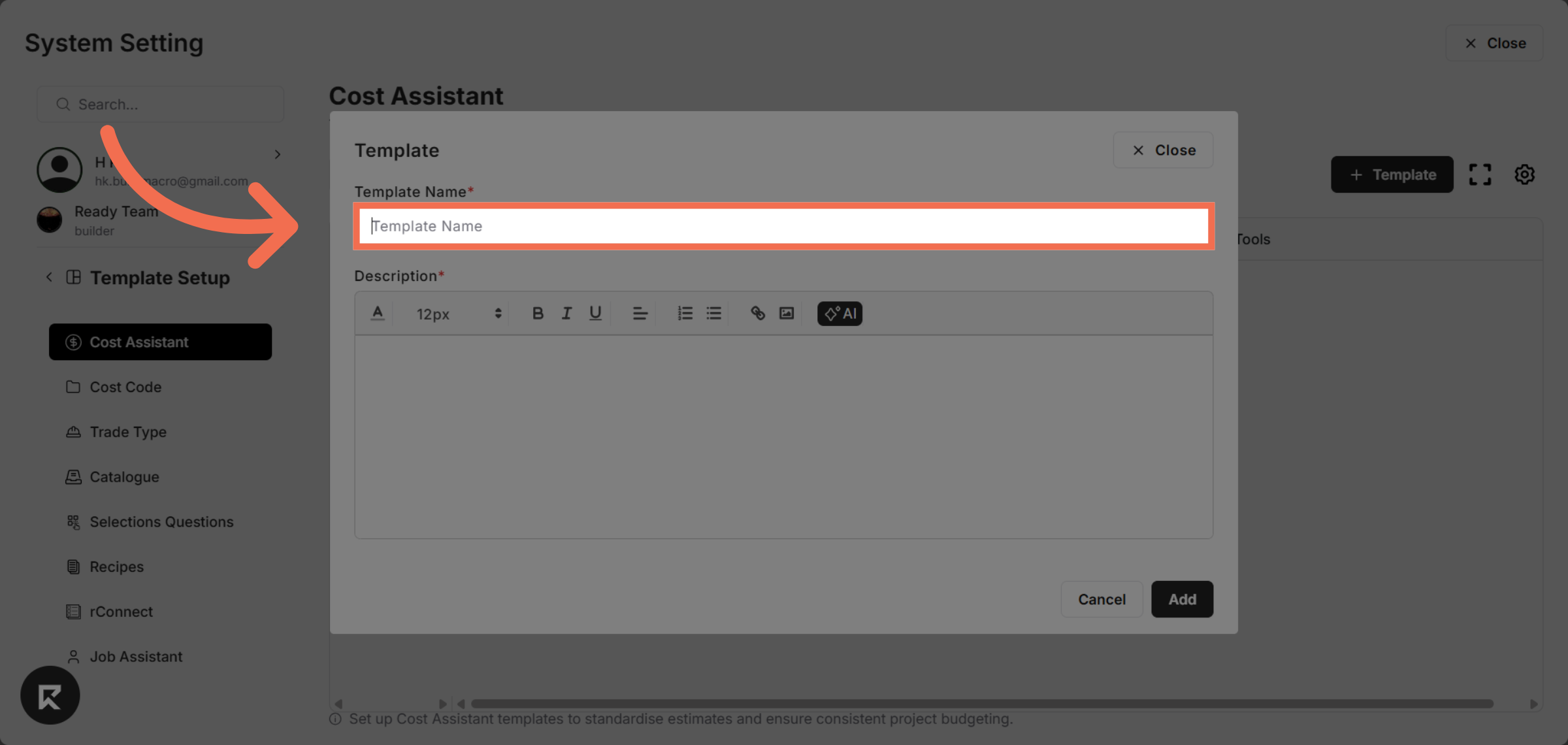
7. Enter Description
Enter Description of new template.
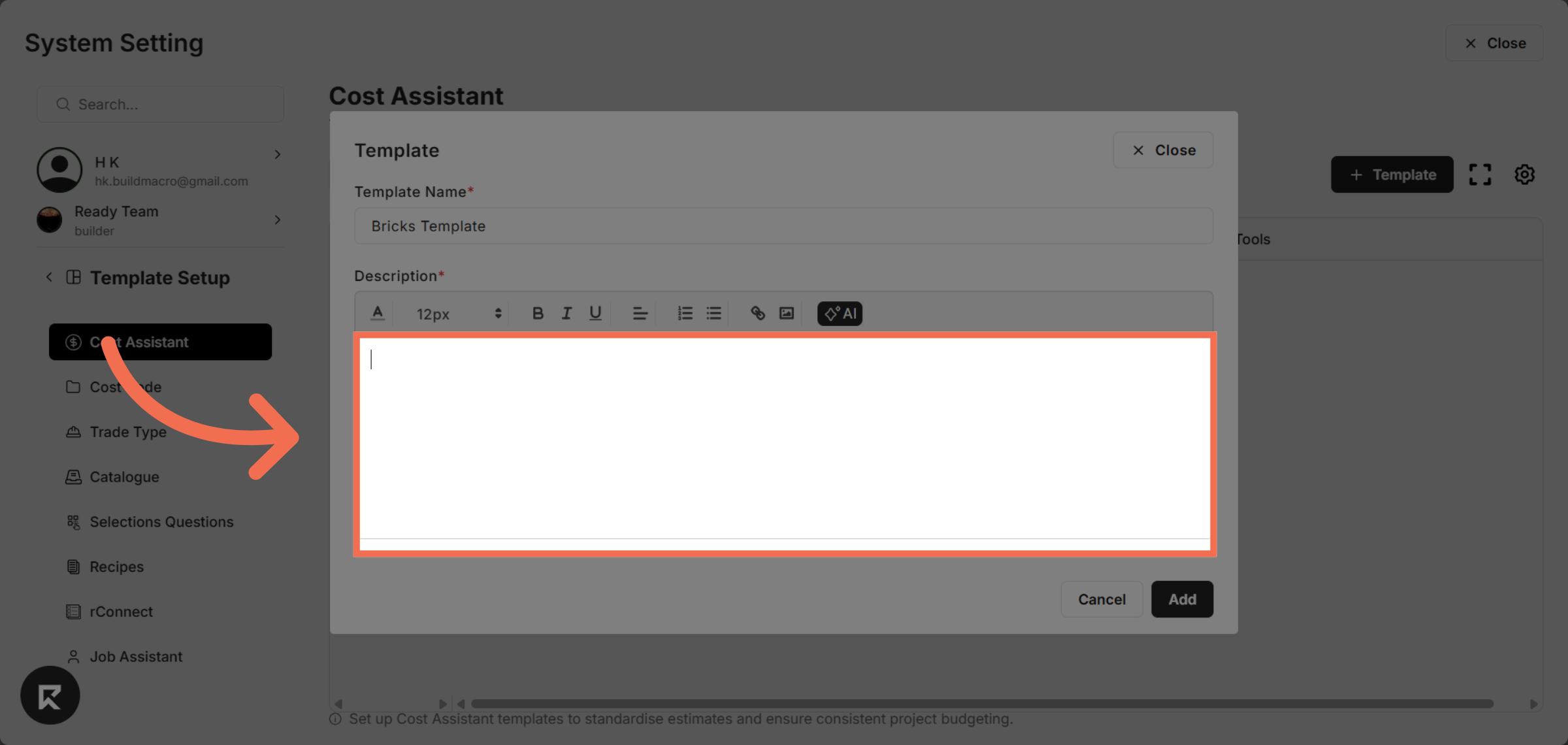
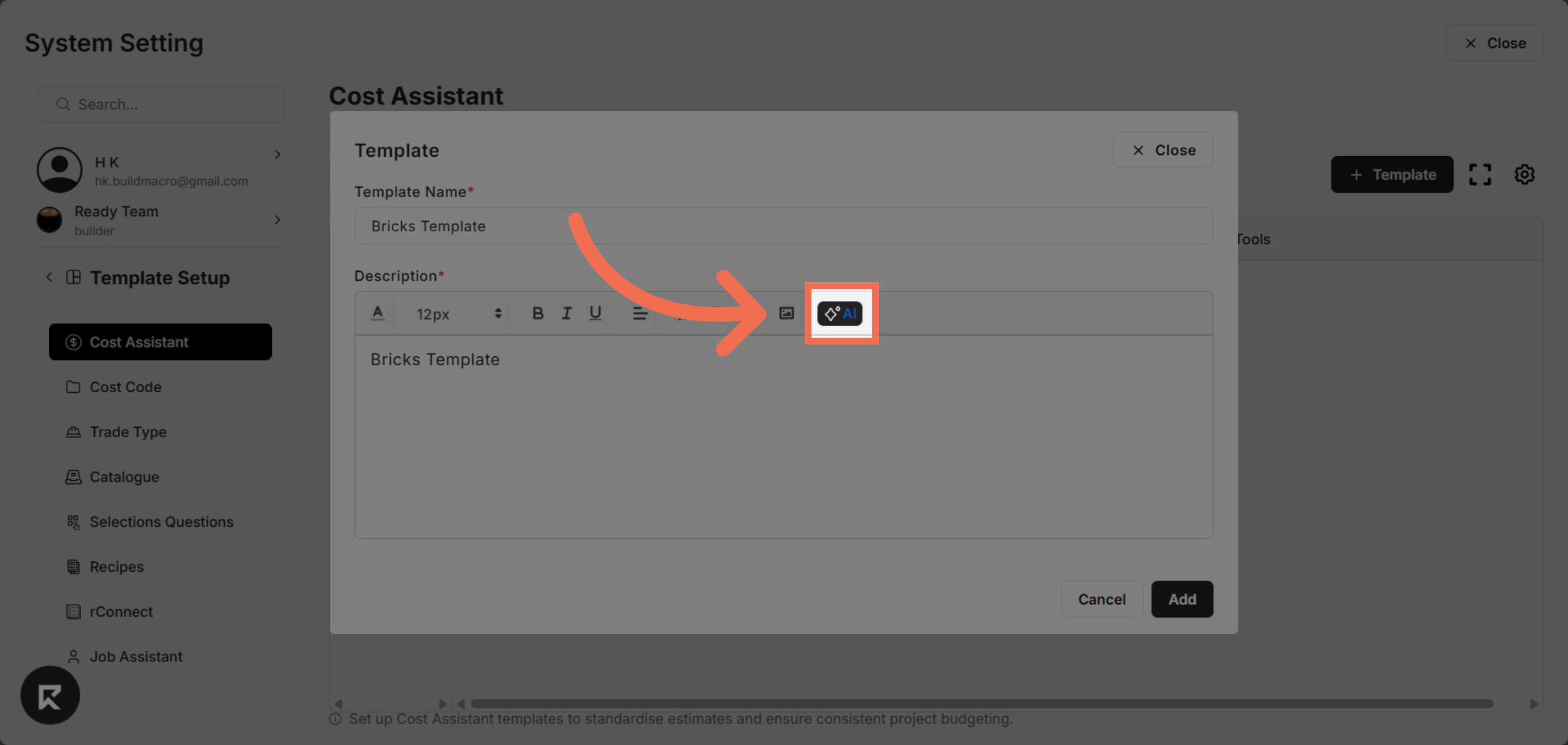
8. You can also use AI to Generate Description
You can take help of ReadyTeam AI feature to generate the template description for you.
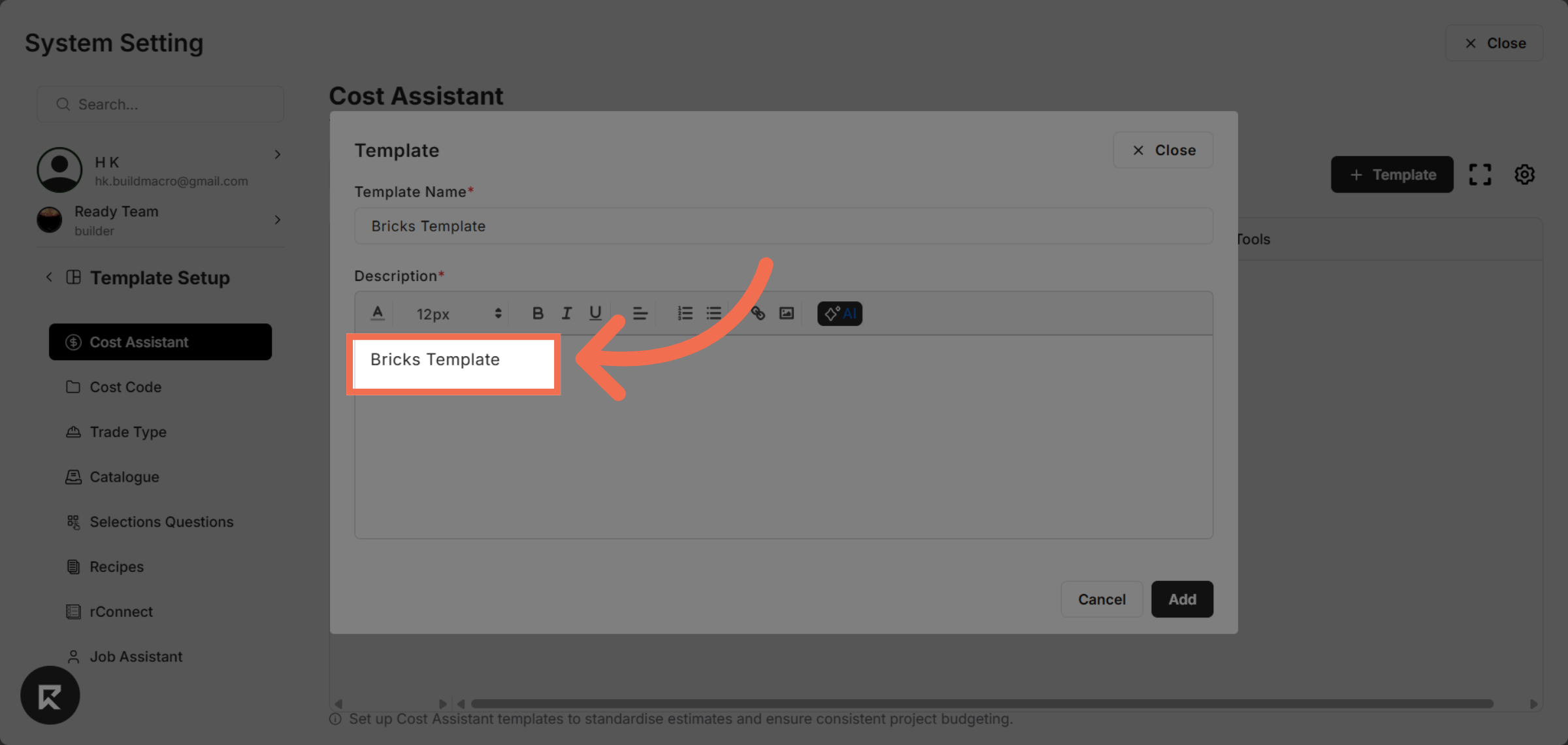
9. Provide the Template Context
Provide the template context for which you want to generate the description.
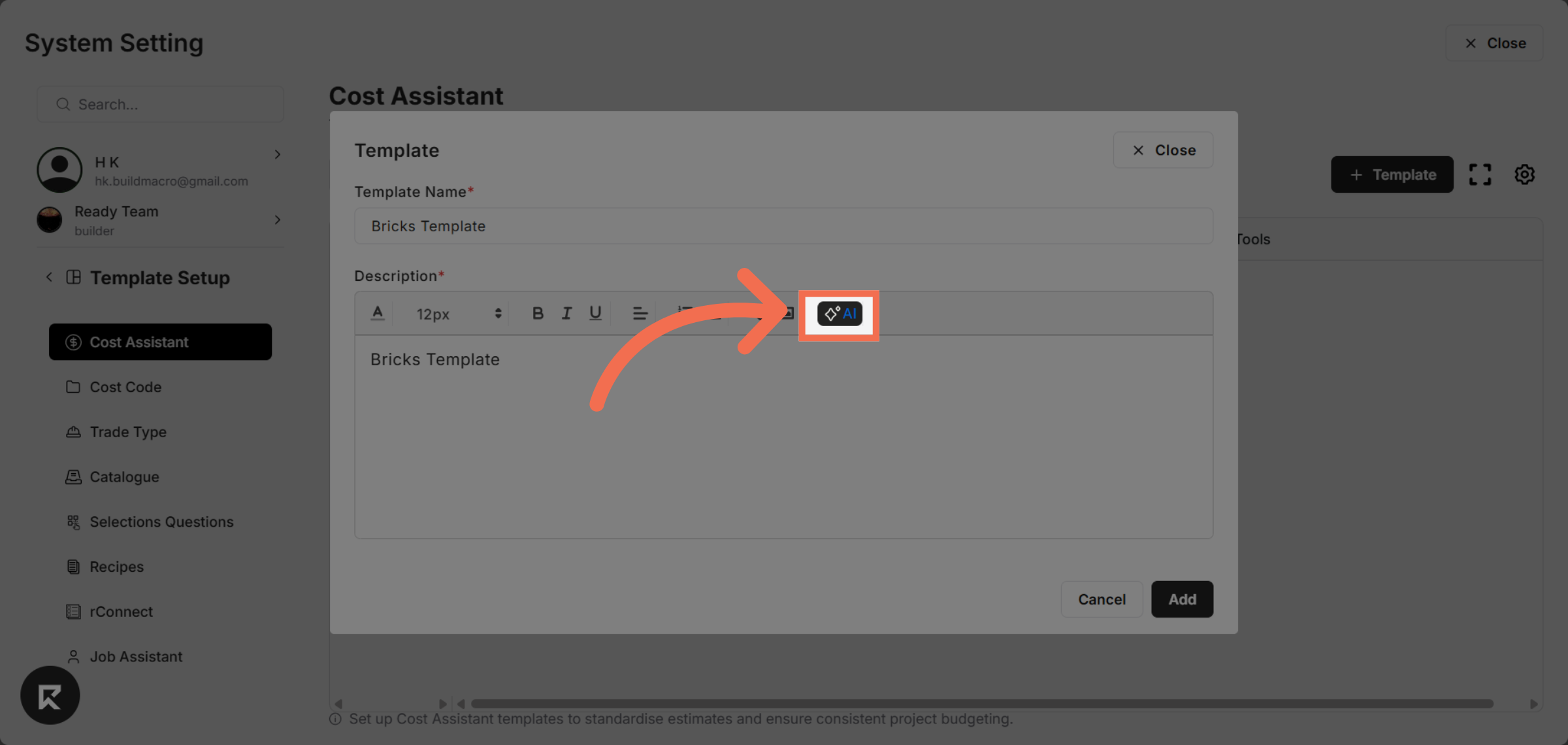
10. Click "AI"
Click "AI" to generate template description.
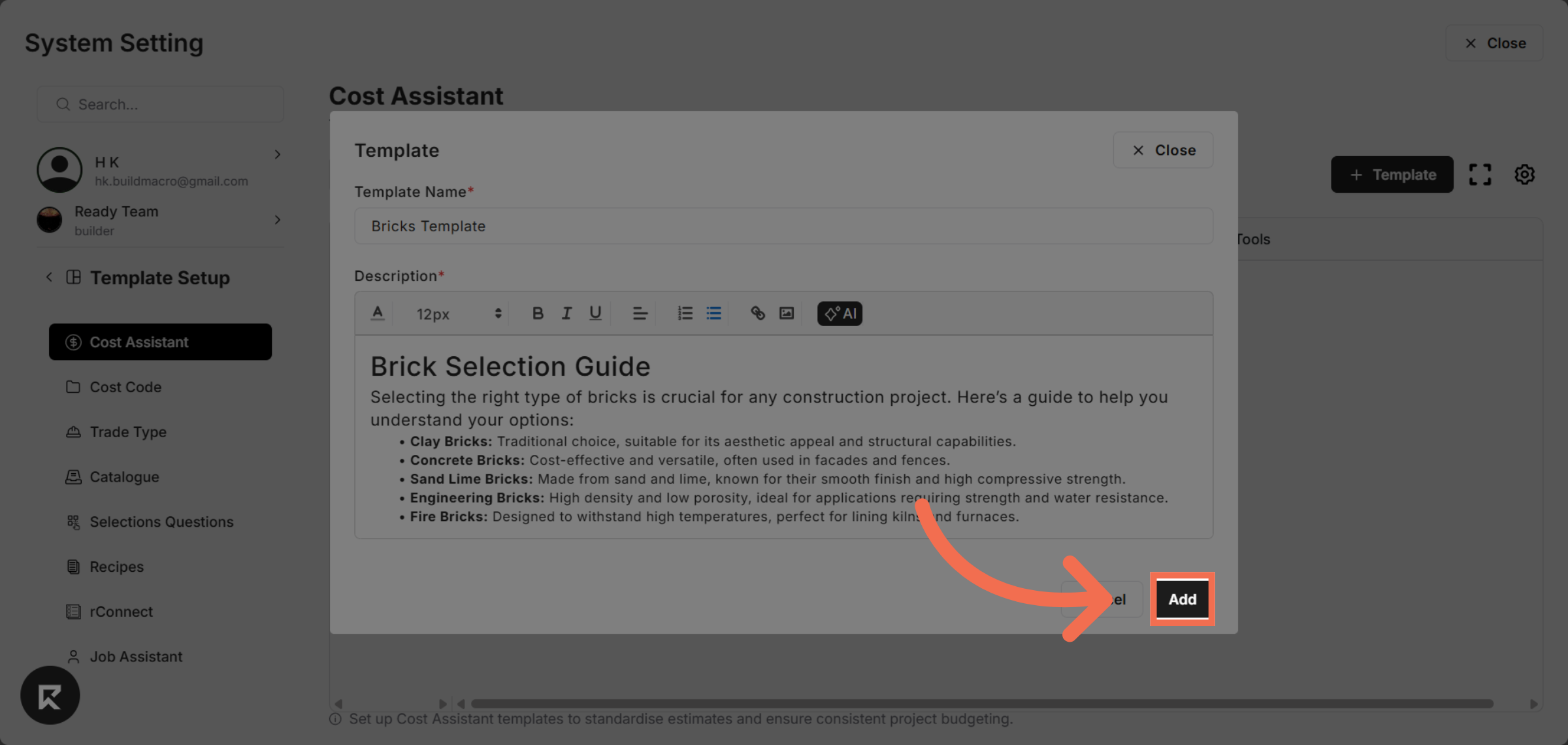
11. Add New Template
Click Add to save and finalize your new Cost Assistant template.
This demo demonstrated how to efficiently create a Cost Assistant template in Readyteam, enabling streamlined cost management. Start creating your own templates today to optimize your workflows.