How to Create a New Page Under a Specific Category in rConnect ?

This demo showcases how to create a new page within a specific category using rConnect.
Go to app.readyteam.ai
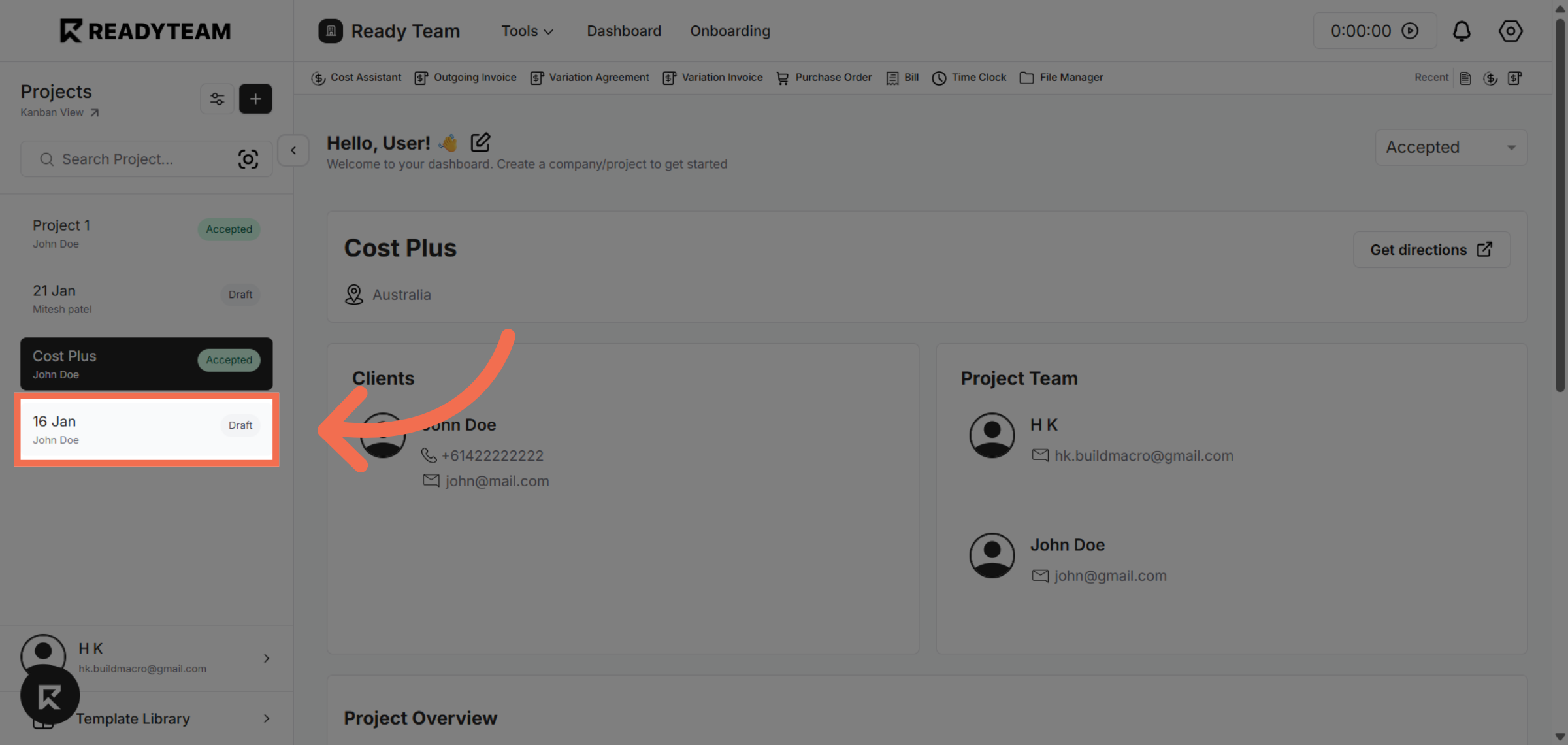
1. Select Specific Project
Select project to start creating pages in rConnect.
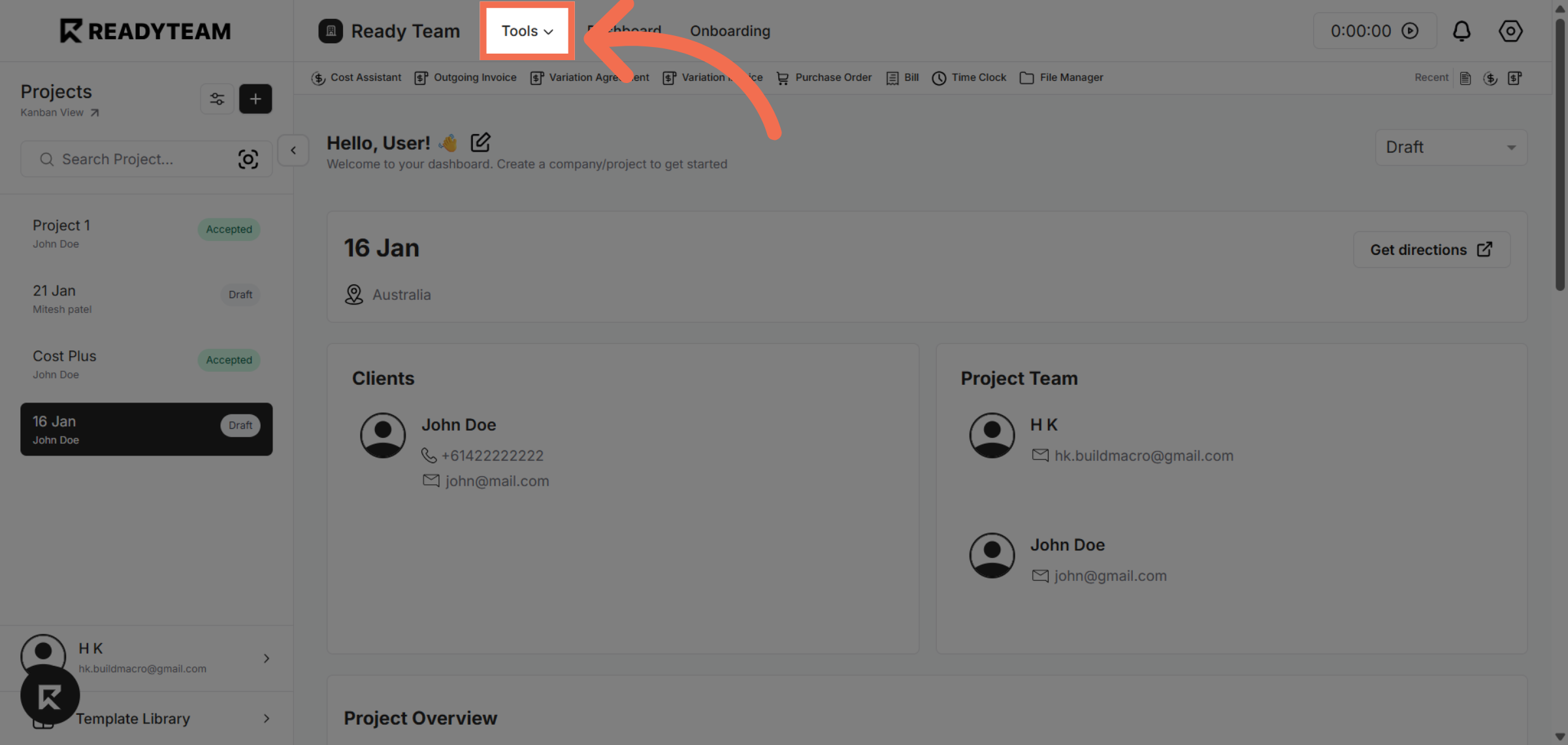
2. Open Tools Menu
Click the Tools Menu to reveal available Tools for further actions.
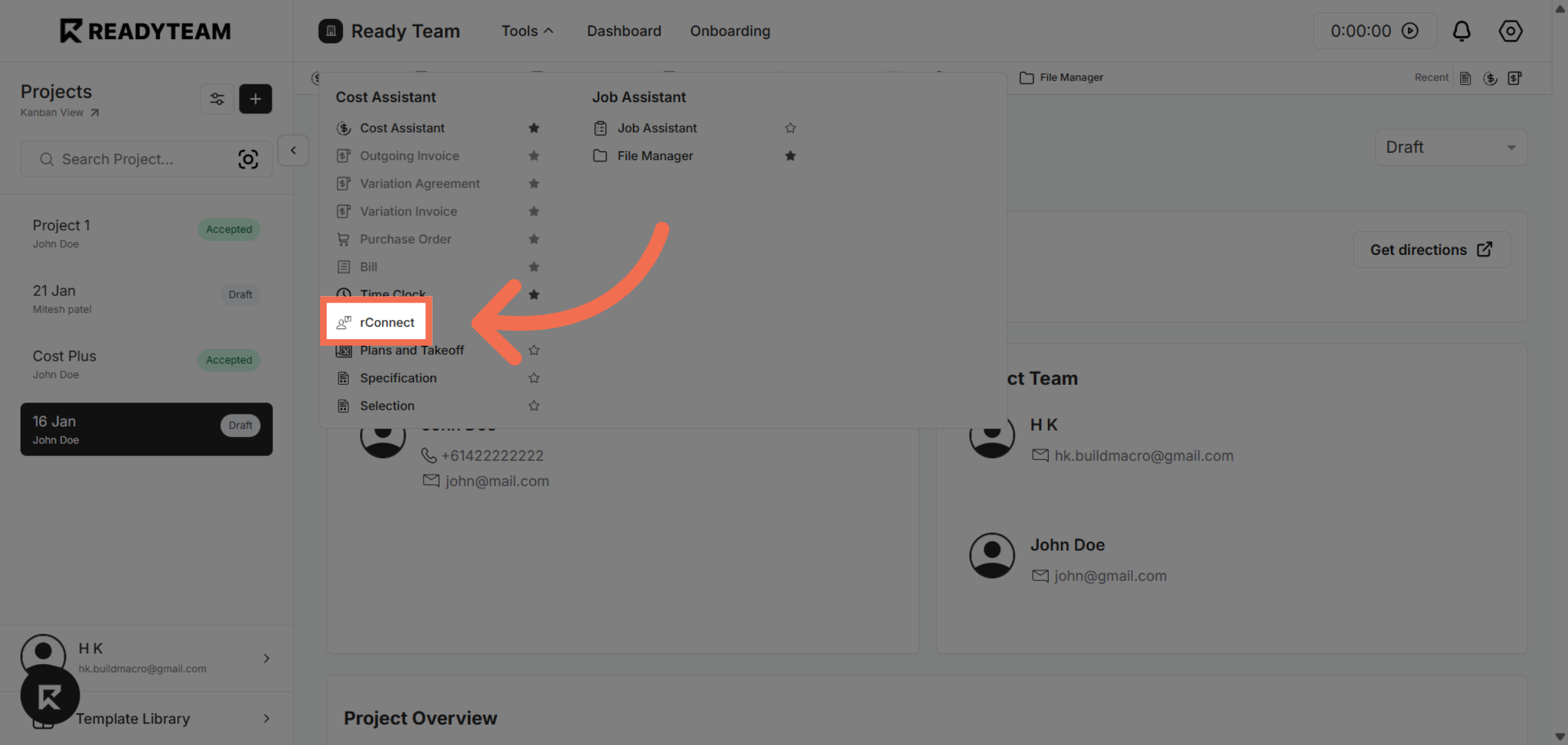
3. Select rConnect Feature
Click the rConnect option to enter the content management section of the platform.
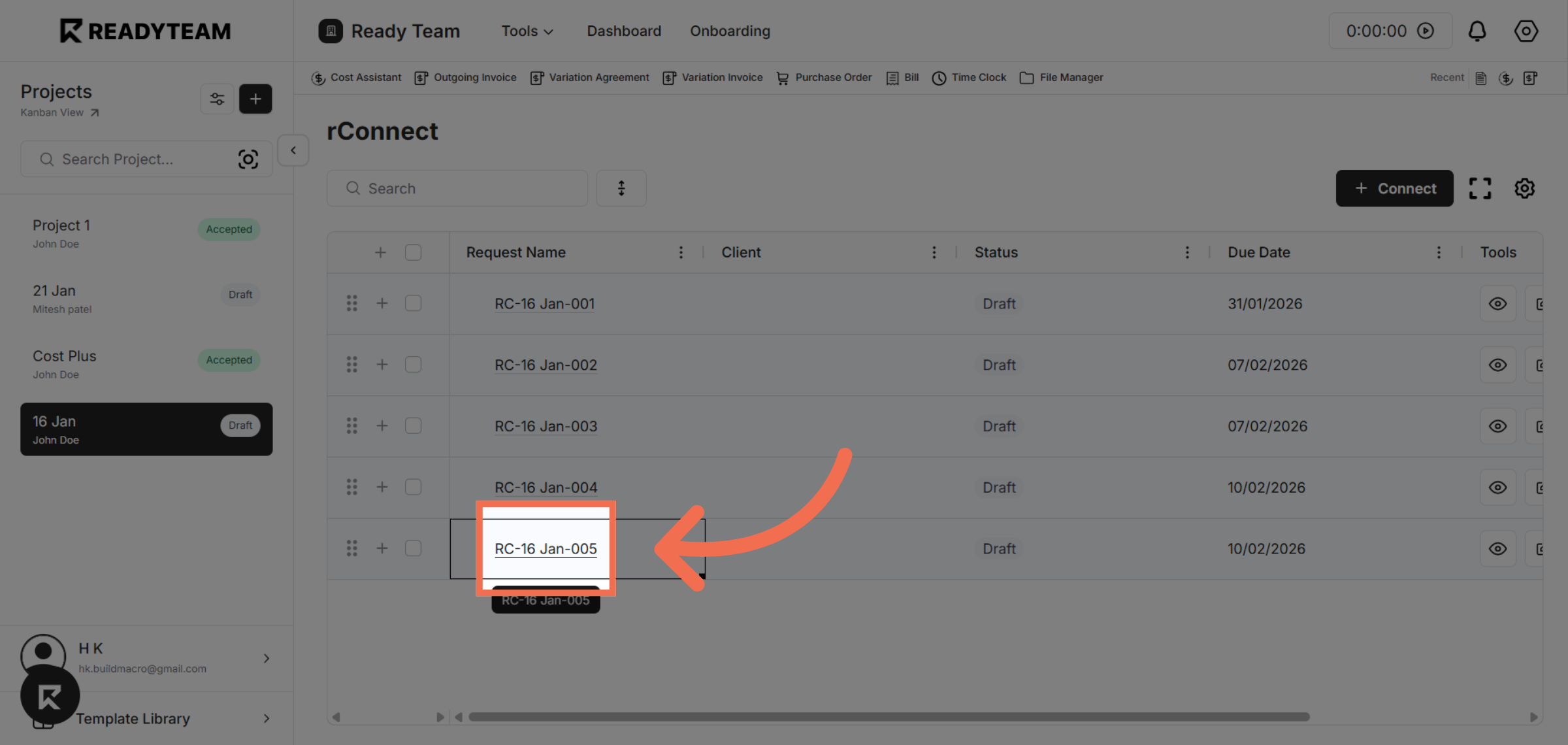
4. Choose Specific Row
Select RC-16 Jan-005 to work within the correct context.
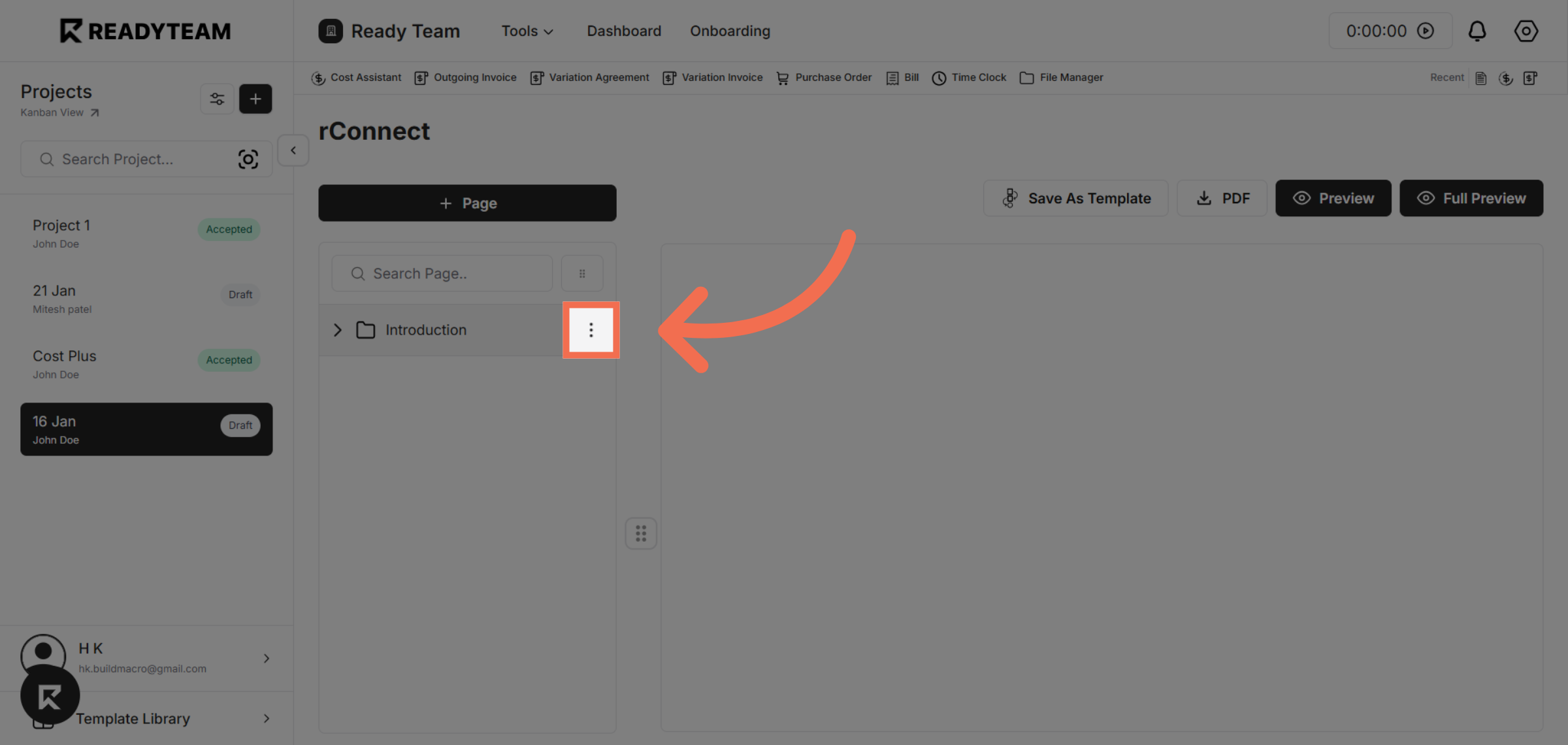
5. Open Page Category Options
Click the designated area to access page category-specific settings and options.
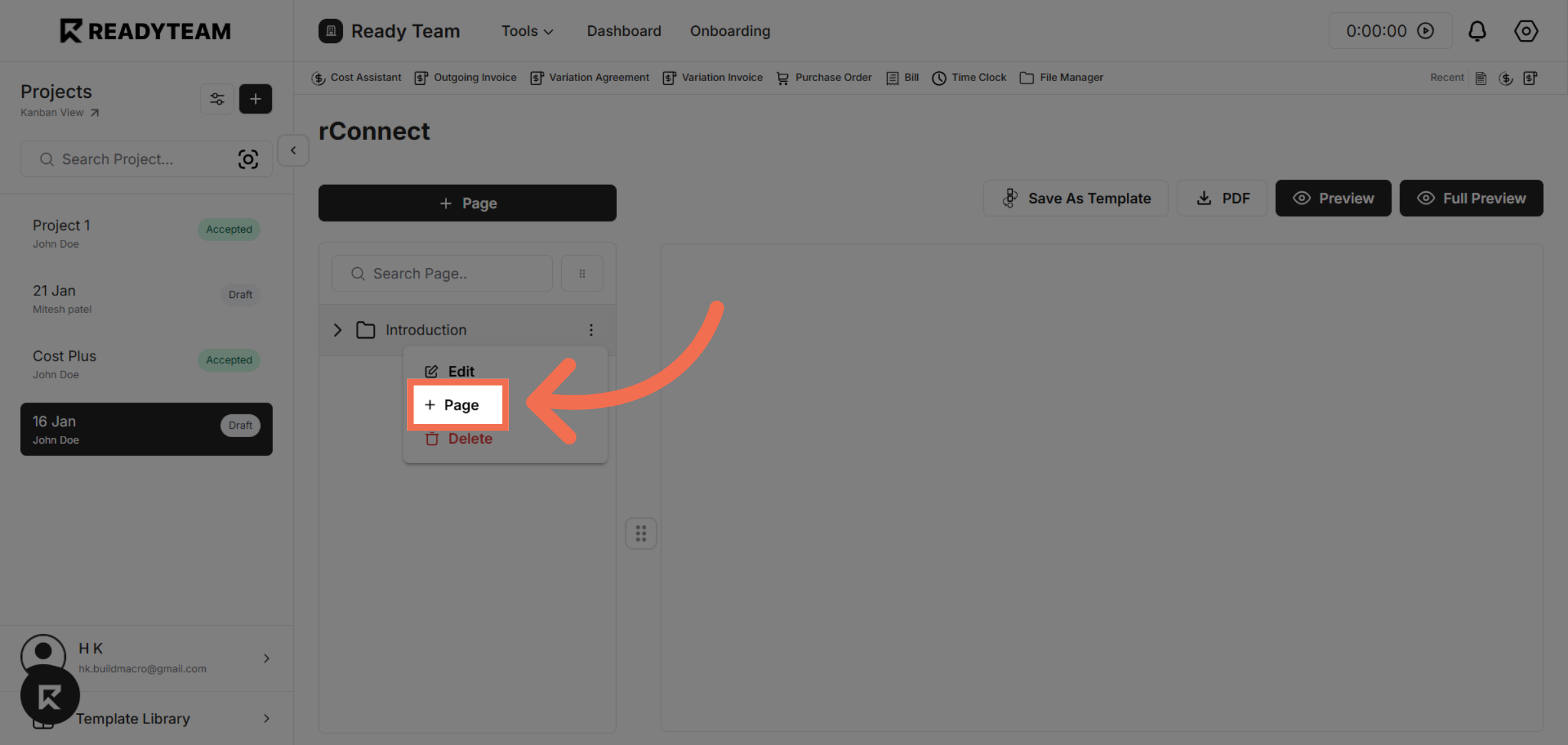
6. Click Add "Page" Option
Click the section that allows you to add pages within the selected category.
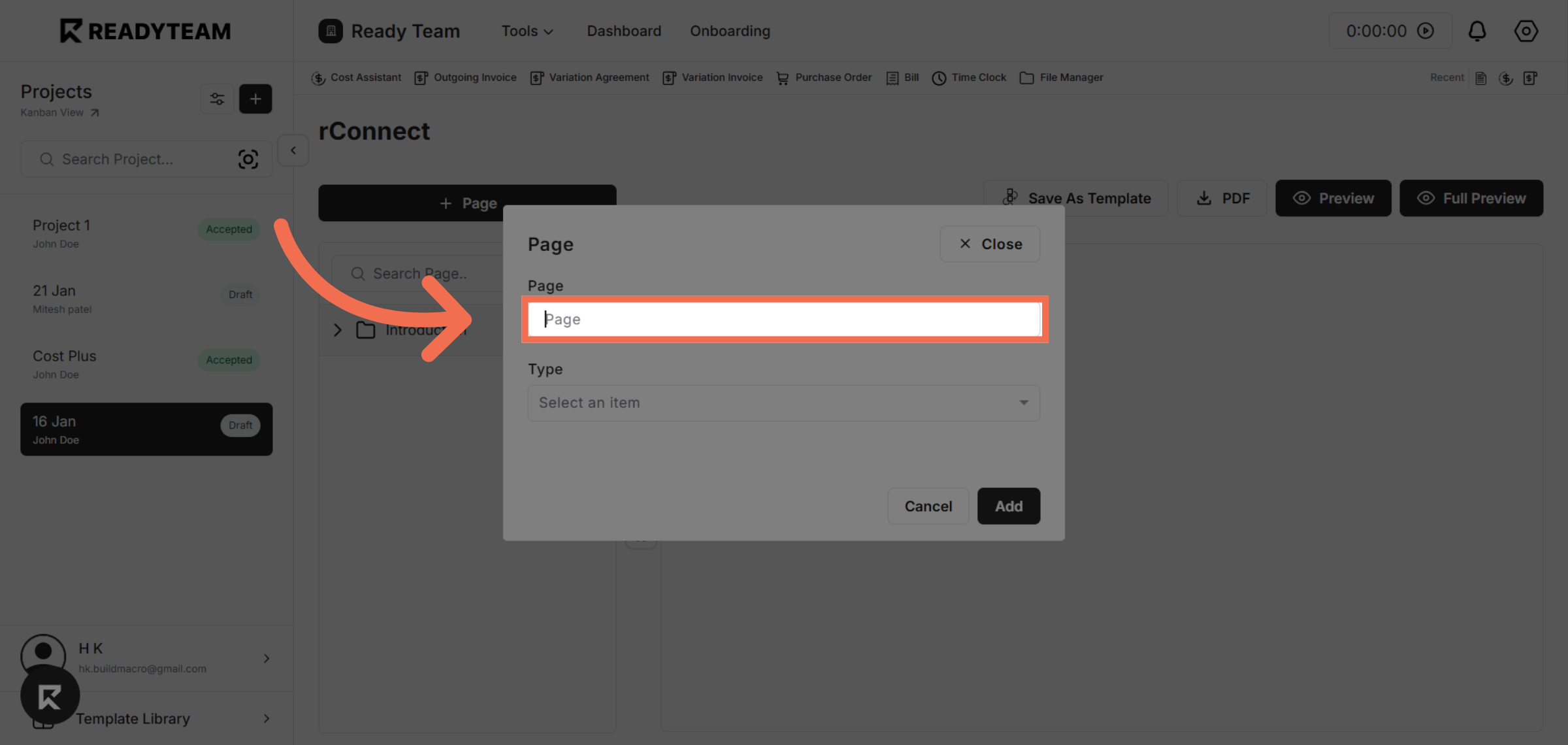
7. Enter Page Title
Enter a clear and meaningful title for the page.
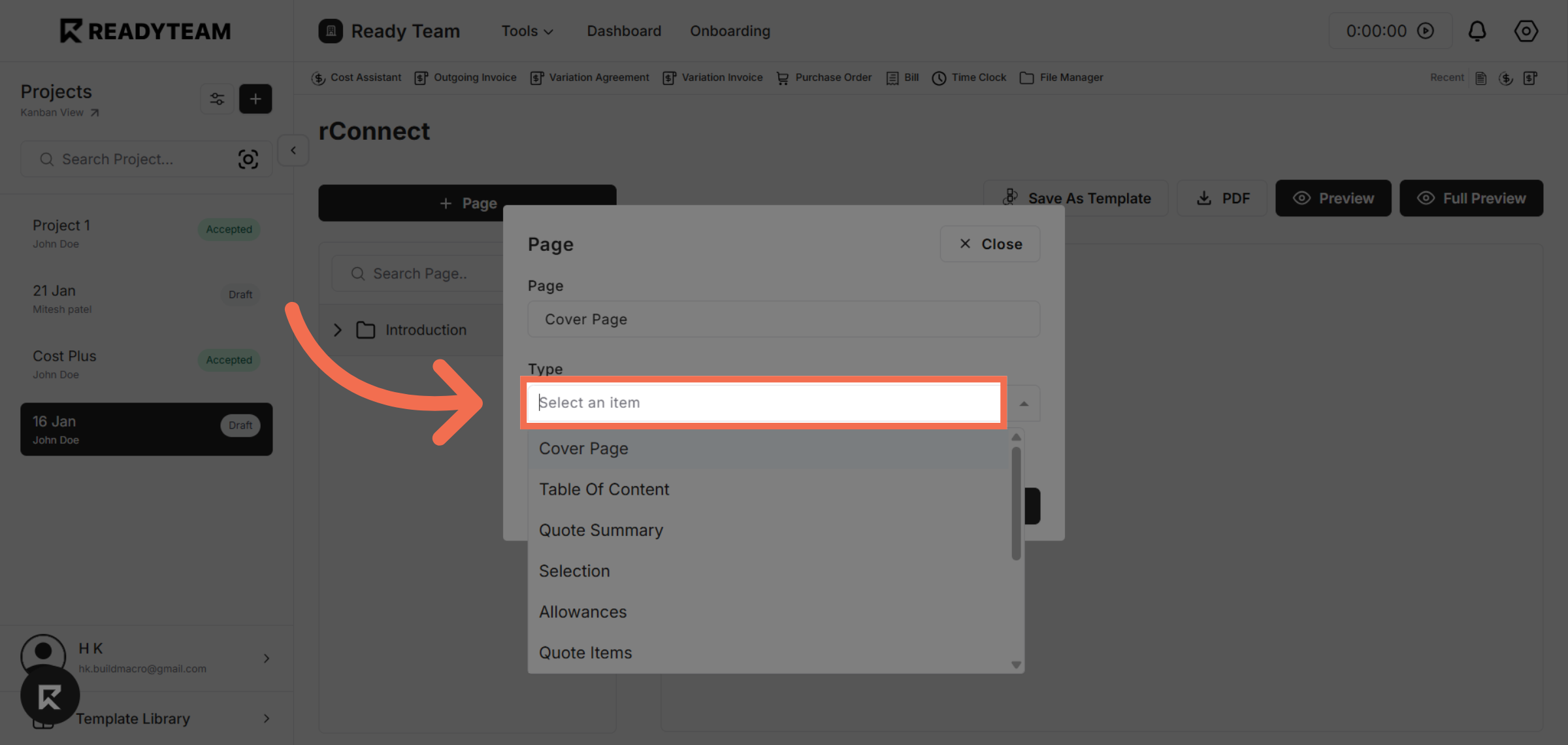
8. Open Page Type Options
Click the area to select the type of new page.
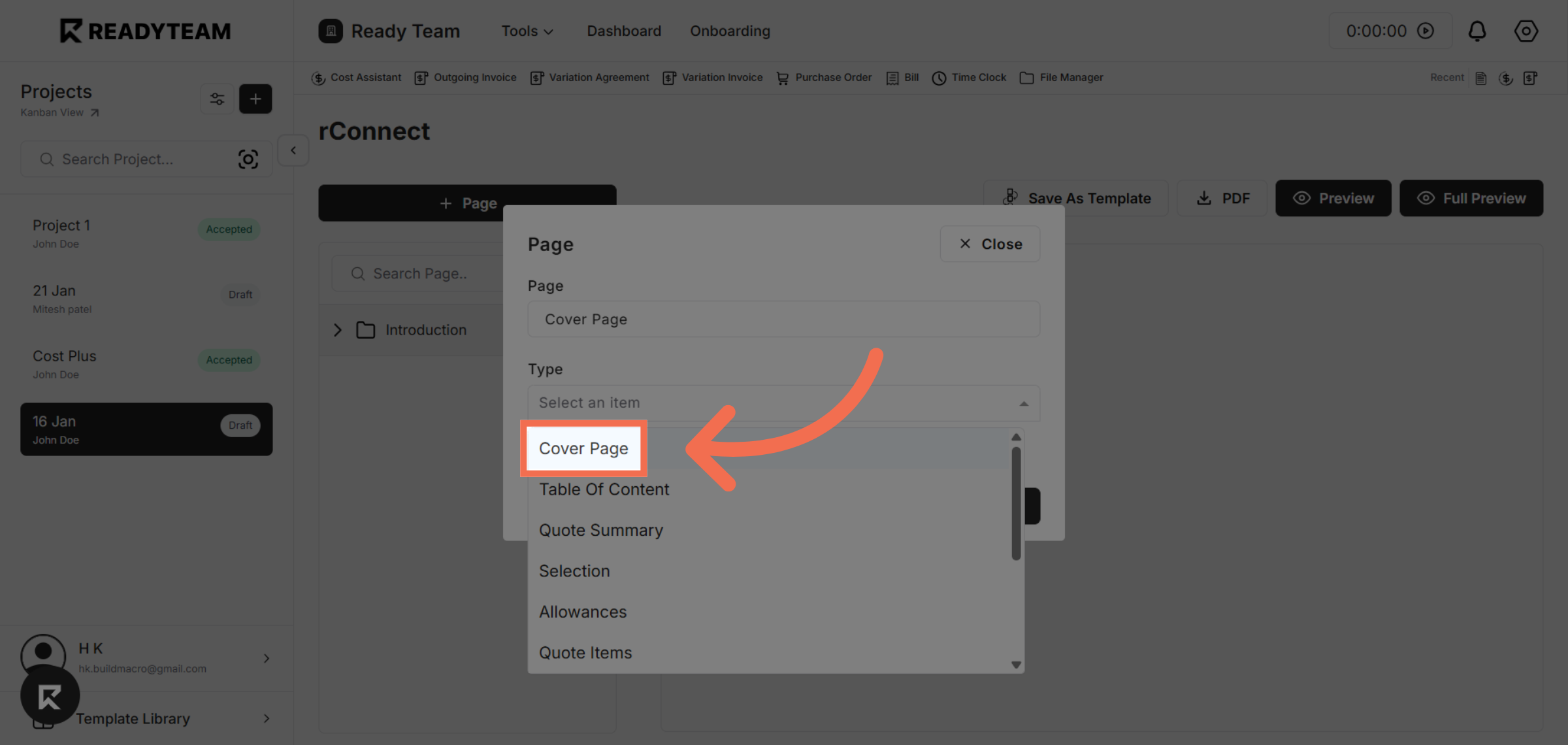
9. Select Page Type
Choose the Cover Page template to apply a predefined design to your new page.
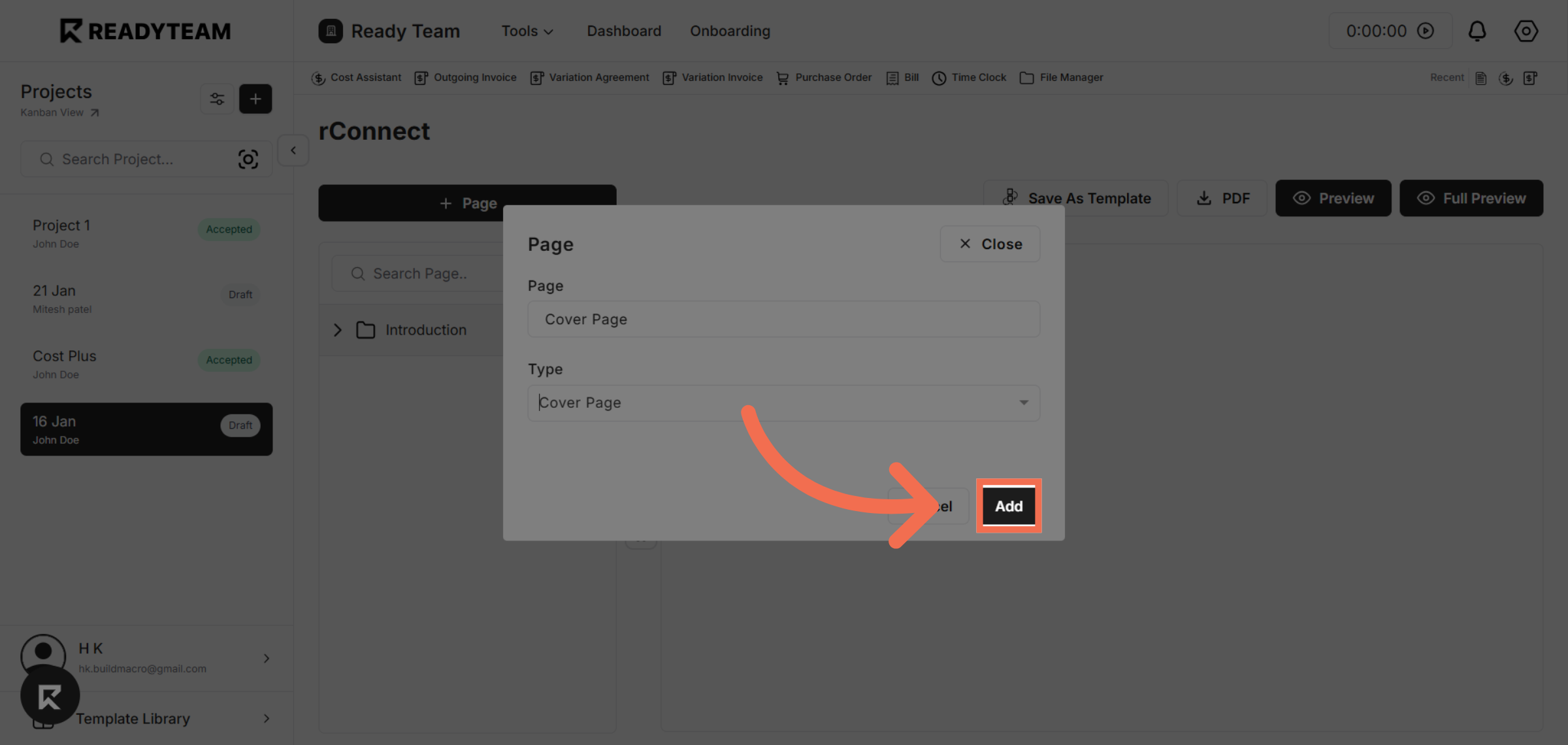
10. Add New Page
Click the Add button to finalize and insert the new page into the category.
This demo demonstrated how to efficiently create and add a new page under a specific category using rConnect. You can now organize your content effectively by following these steps to enhance your project management.