Create Selection Questions Template Using ReadyTeam
This demo showcases how to create a selection questions template within Readyteam.
Go to app.readyteam.ai
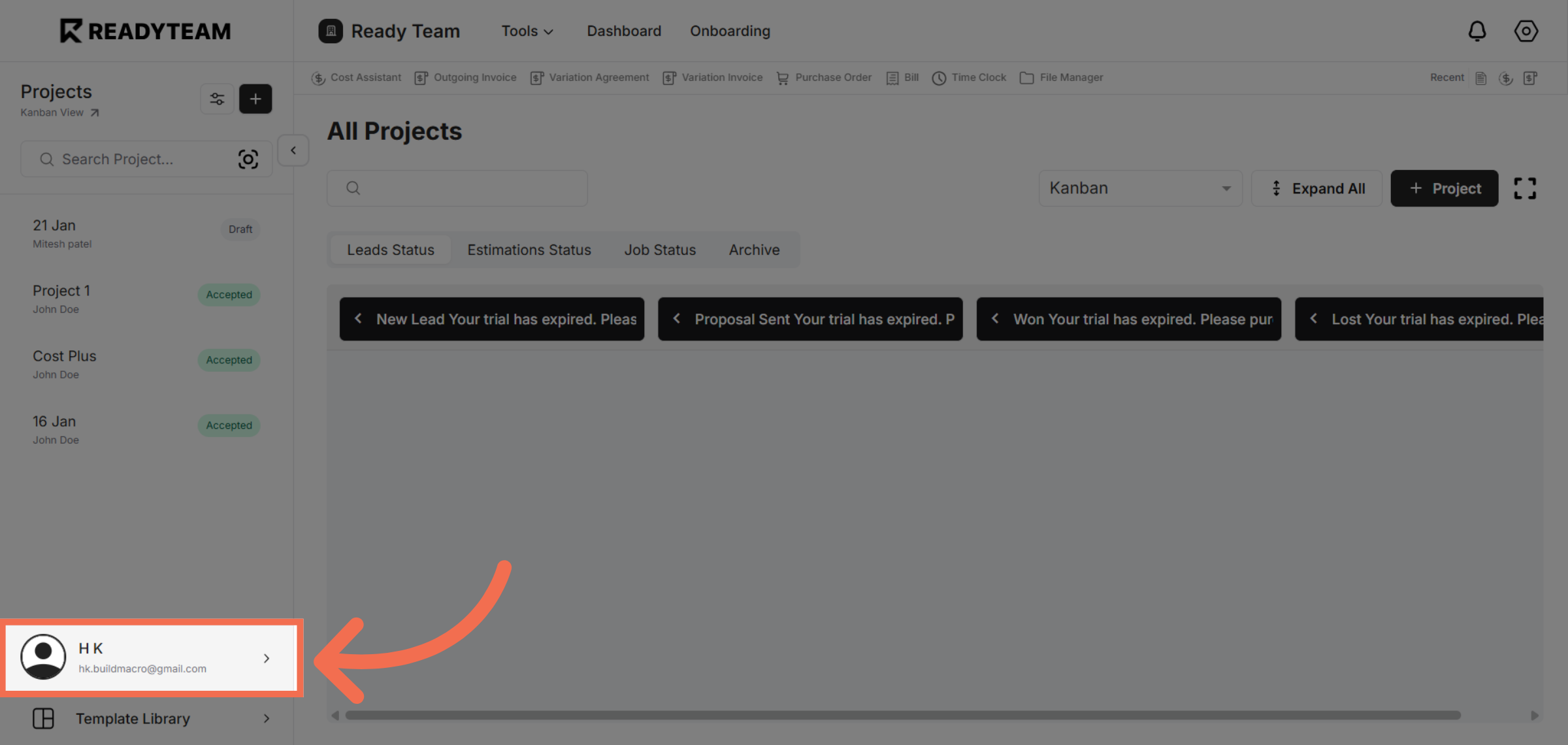
1. Access User Section
Click the user section to begin configuring your settings.
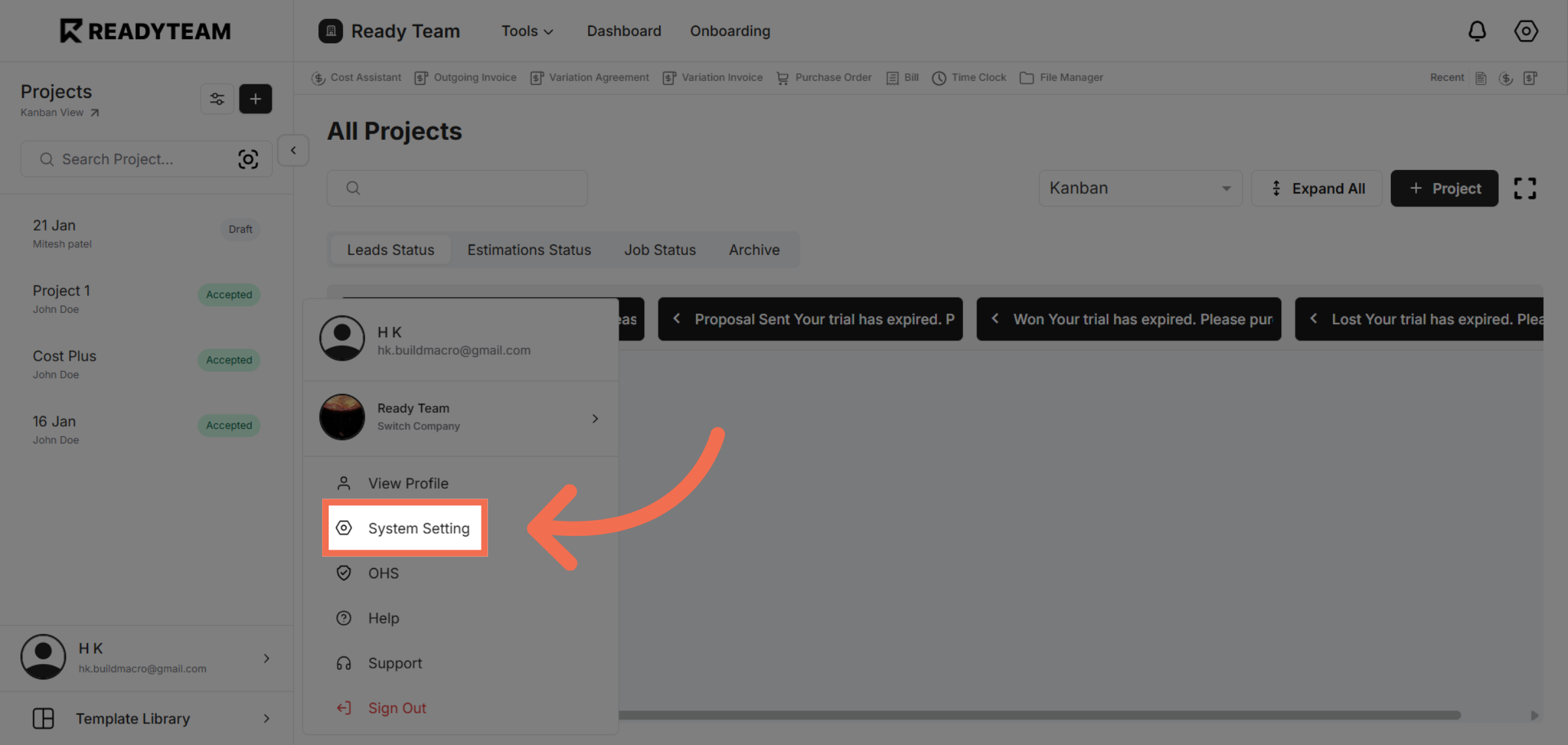
2. Open System Settings
Click "System Setting" to access the configuration options for your account.
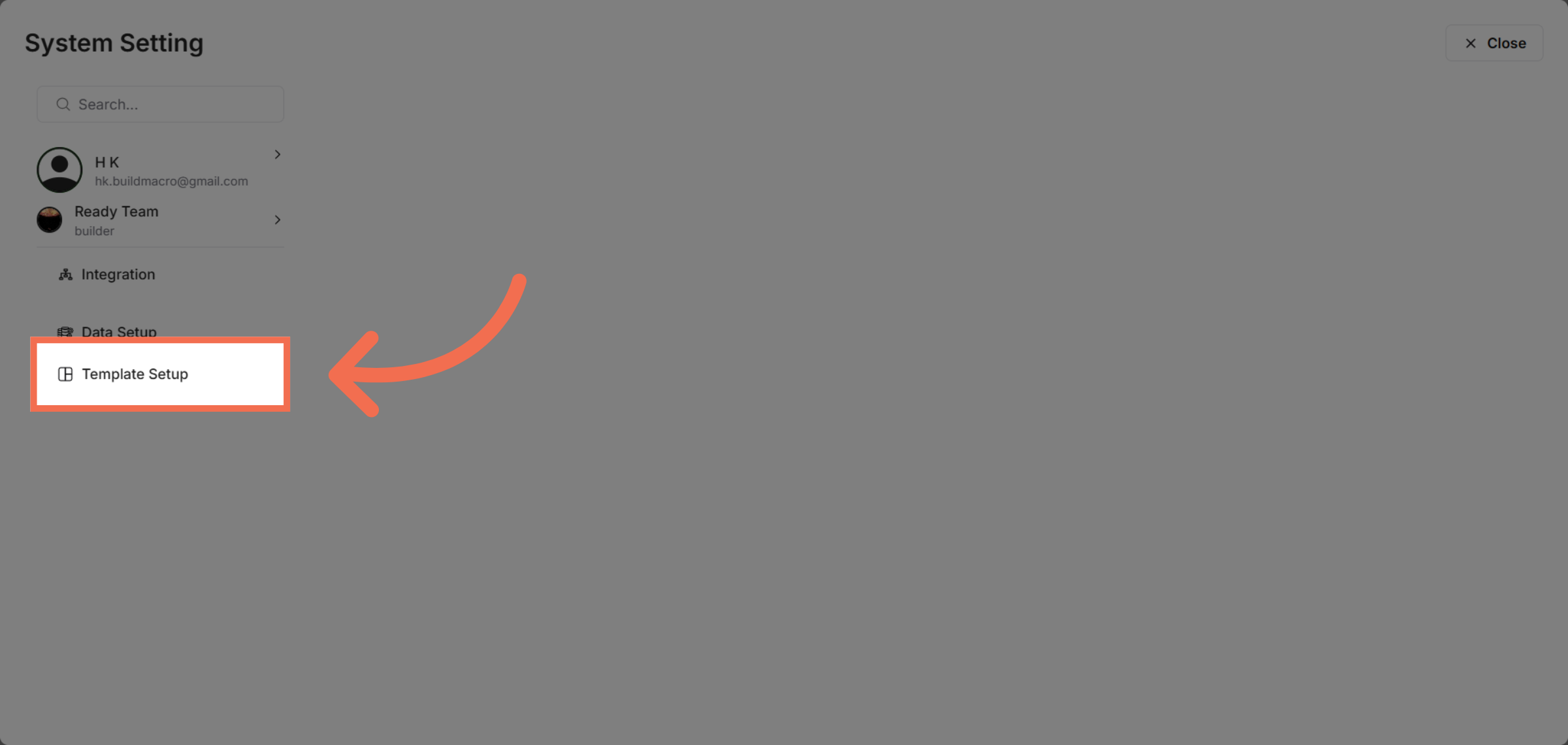
3. Navigate to Template Setup
Click "Template Setup" to manage and create new templates for your projects.
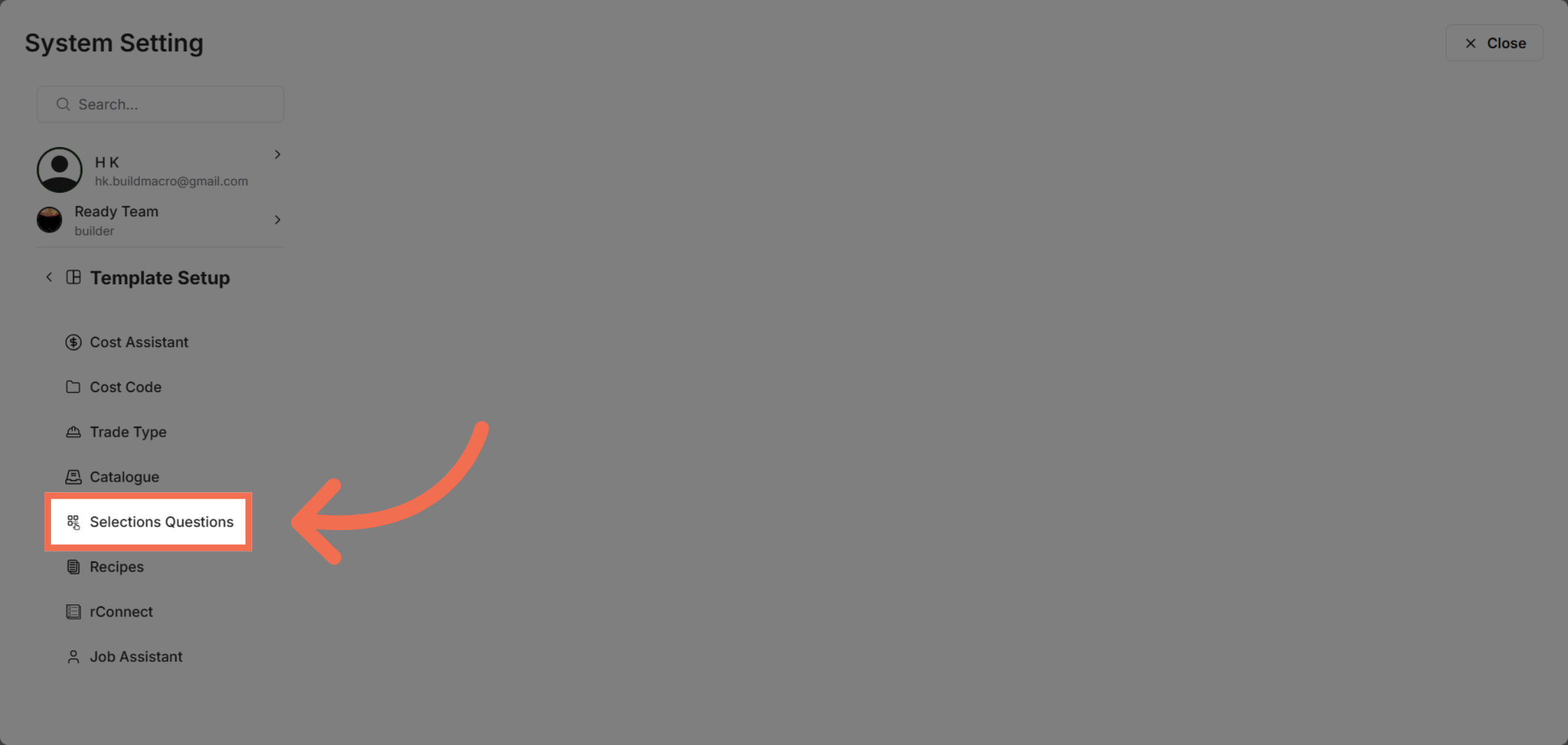
4. Select Selection Questions
Click "Selections Questions" to open the section for creating question templates.
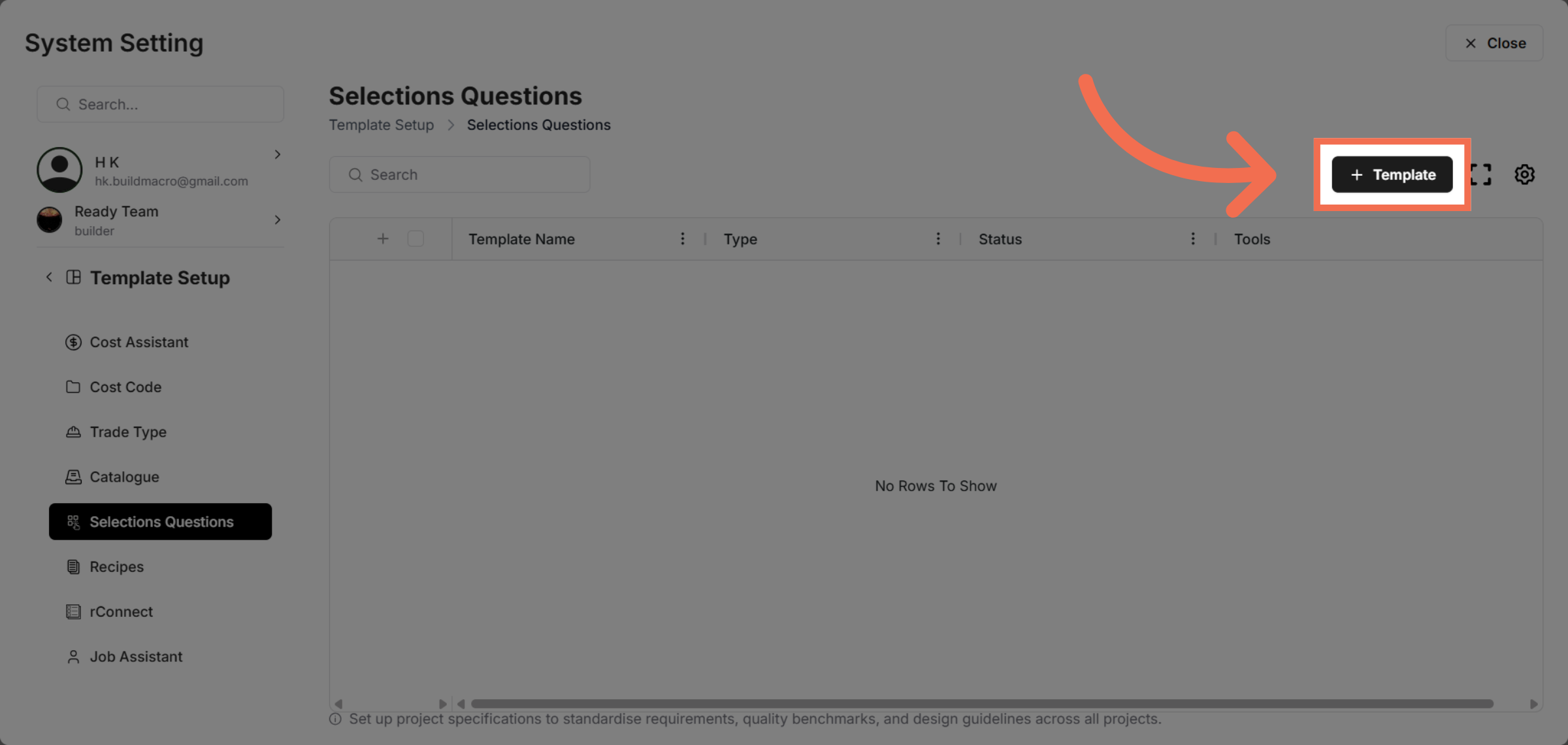
5. Open Template Section
Click "Template" to start defining a new selection questions template.
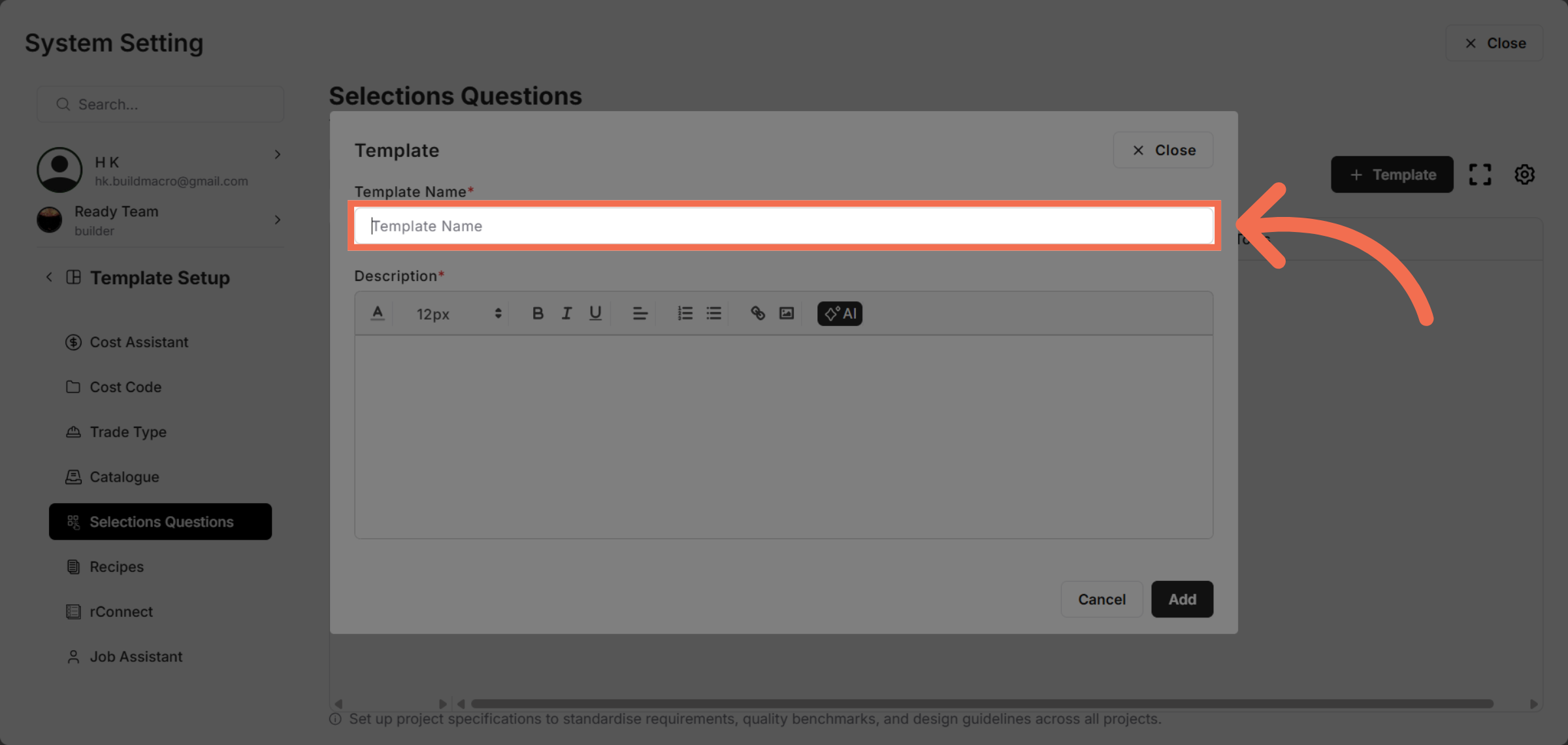
6. Enter Template Name
Enter your template name to identify it clearly, such as "Roofing Template."
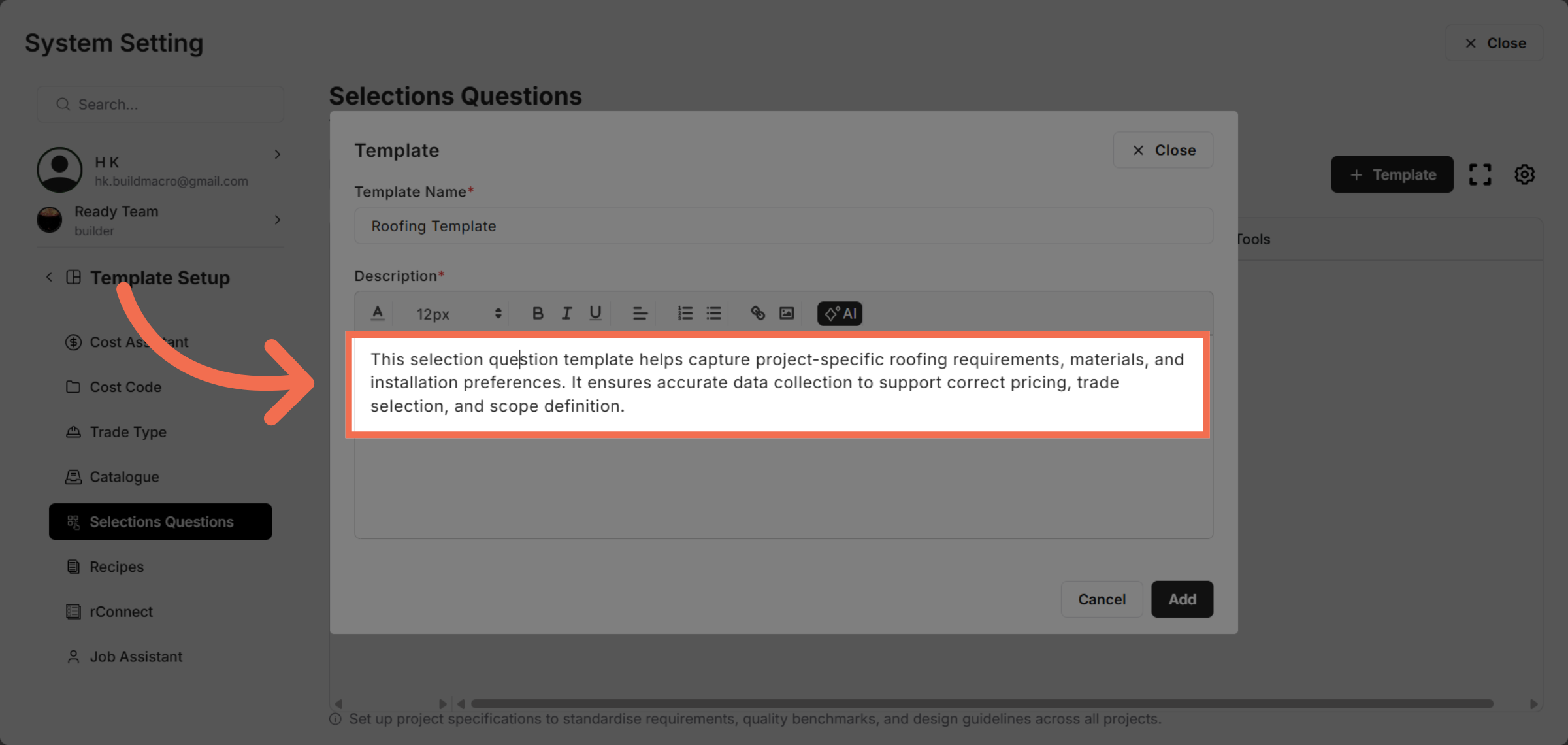
7. Enter Description
Enter template description.
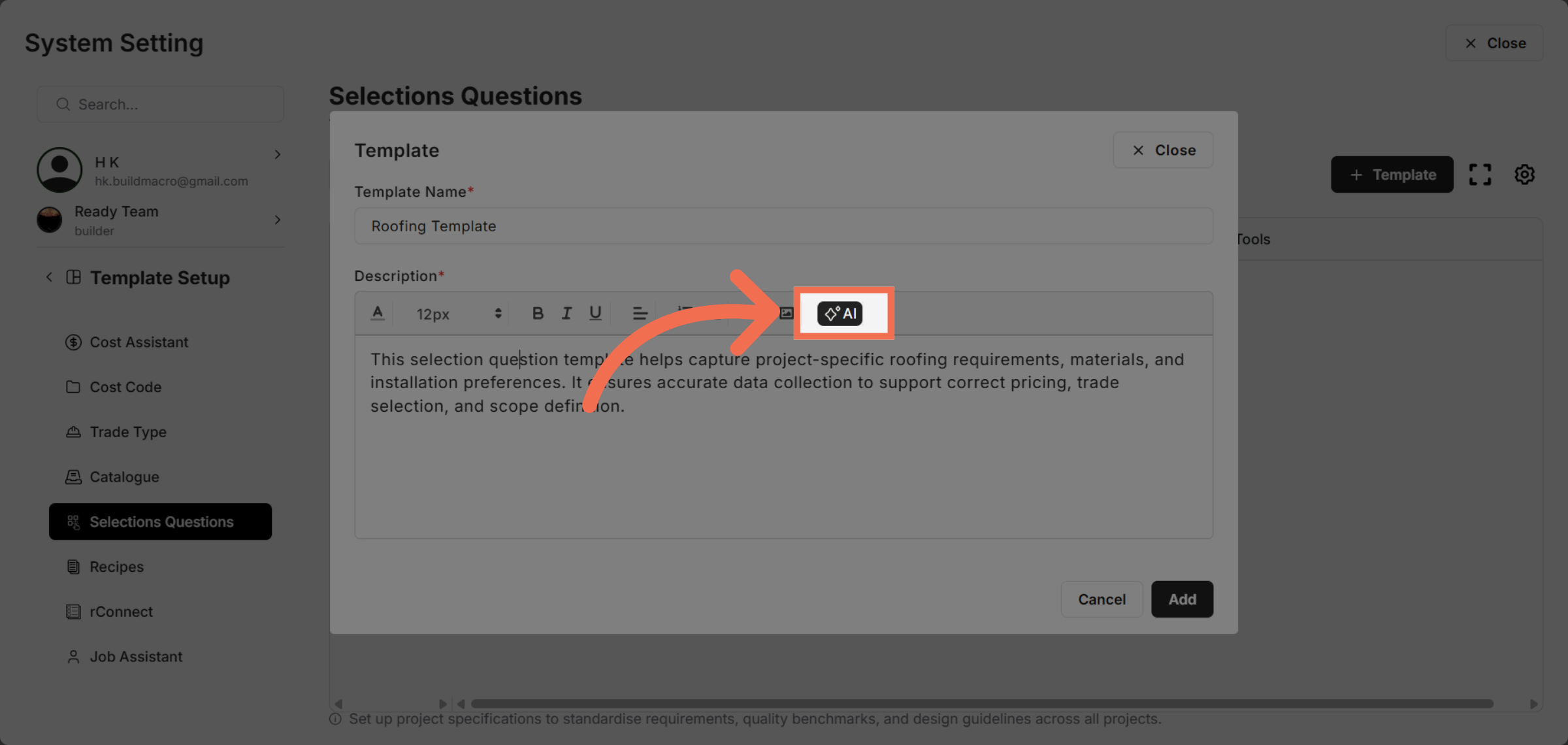
8. You can also select an AI Option to generate description for your Template
You can use AI to generate description of template.
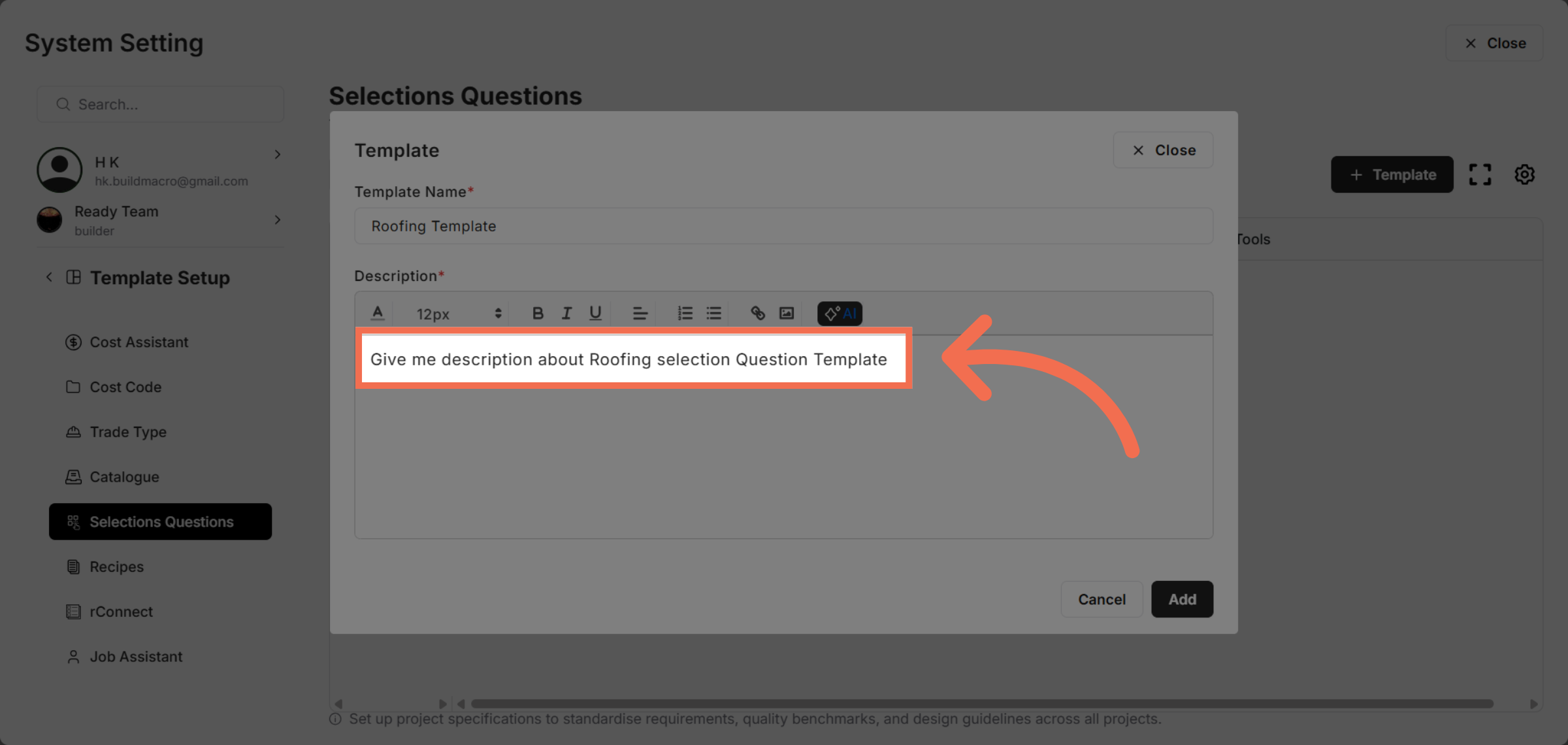
9. Provide the Context of your Template
Give Template context to generate more relatable description for your template.
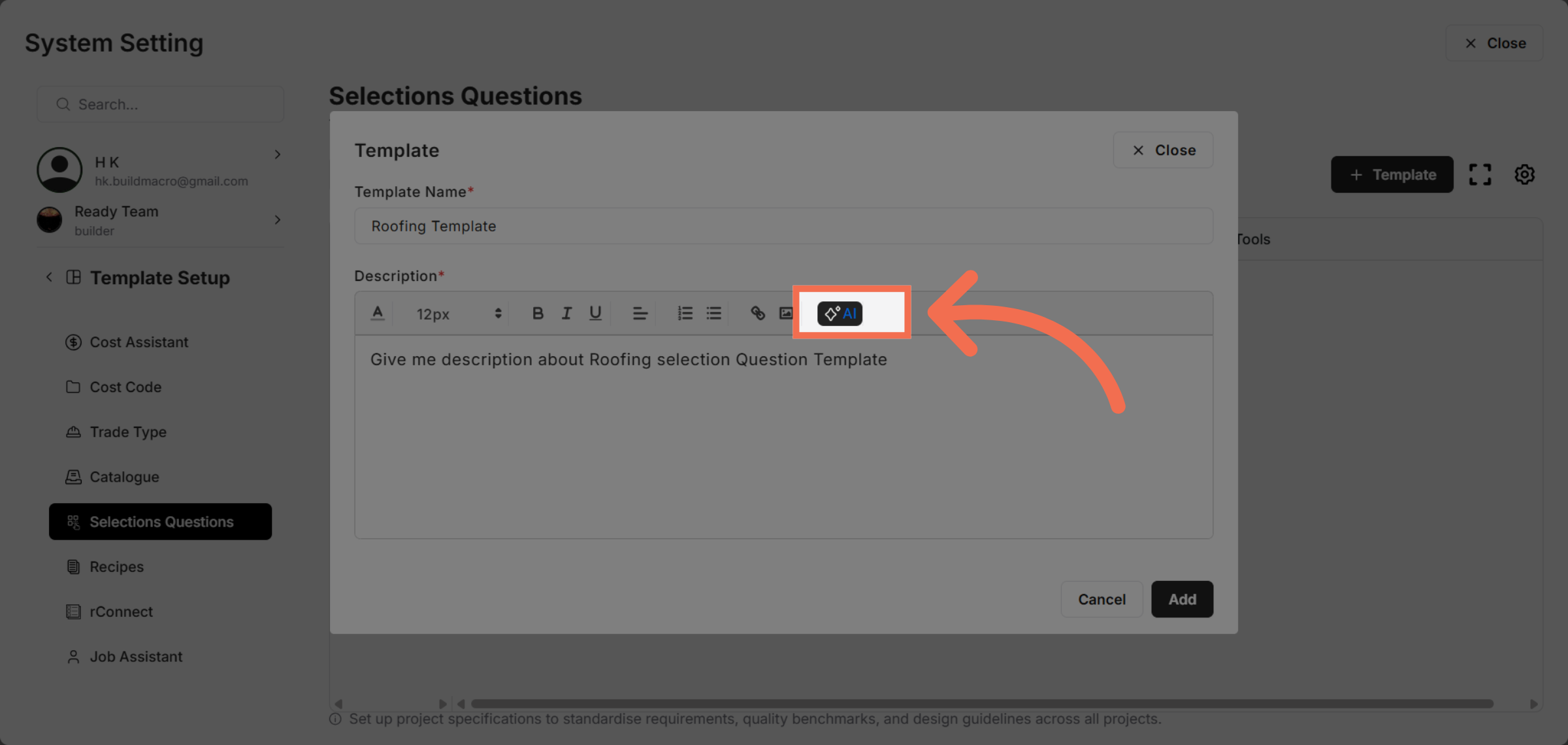
10. Click "AI"
Click AI to enable intelligent features that assist in managing your selection Questions templates.
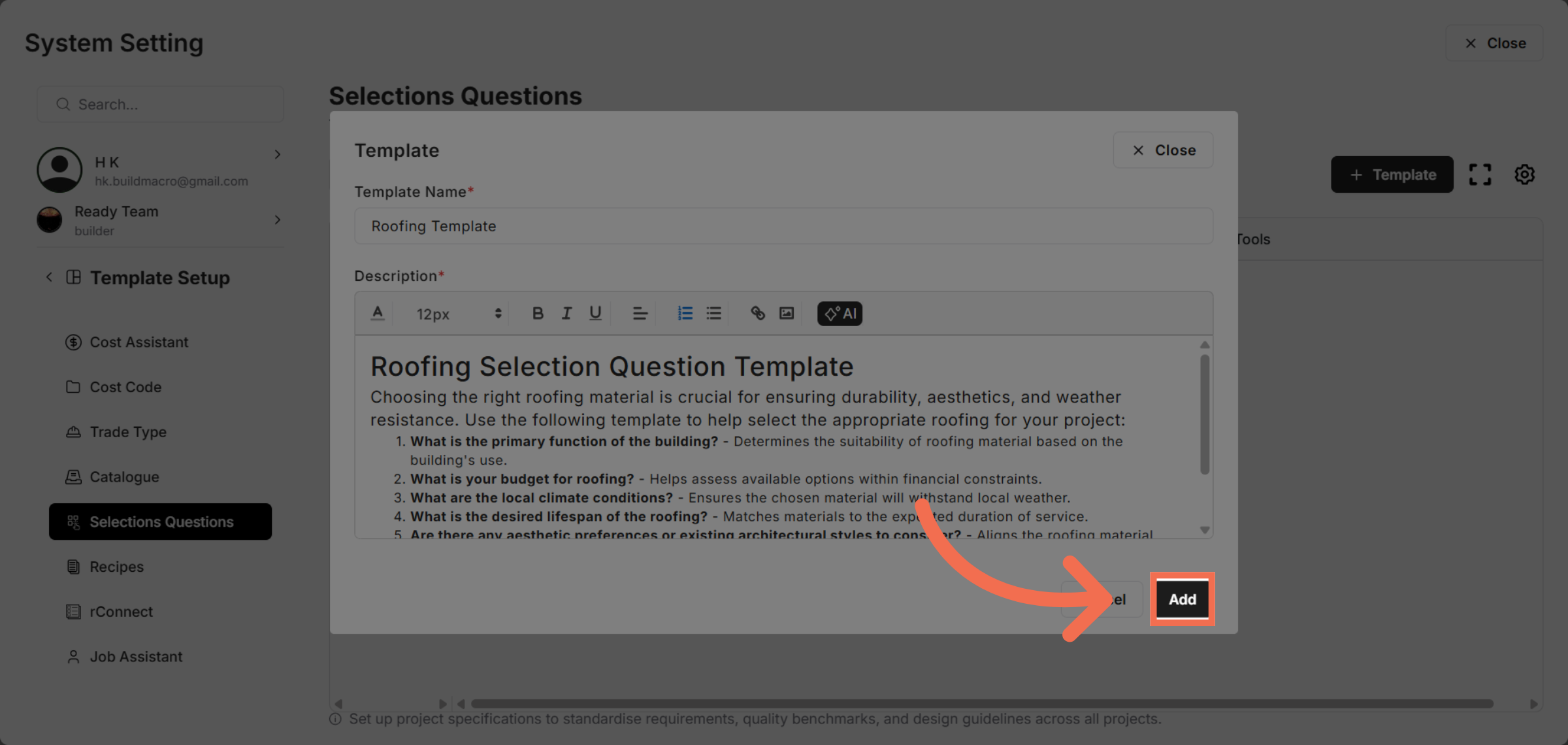
11. Add New Template
Click "Add" to finalize and create your new selection questions template.
This demo demonstrated how to efficiently create a selection questions template in Readyteam, enabling accurate project-specific data collection. Start building your own templates today to streamline your project workflows.