Add Selection Question Data To Template In ReadyTeam
This demo showcases how to add selection question data to a template within Readyteam.
Go to app.readyteam.ai
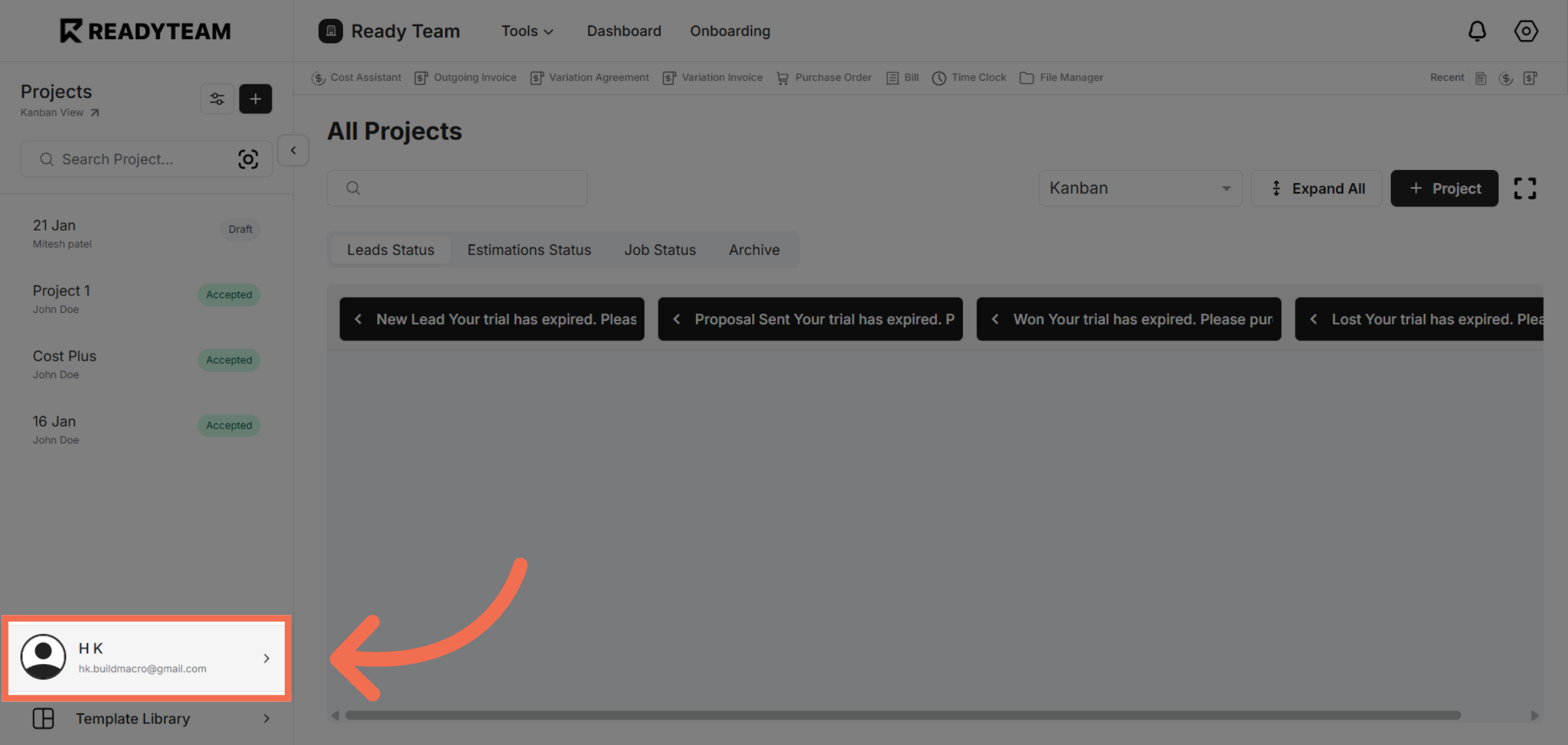
1. Select User Section
Click the user section to begin configuring your template settings.
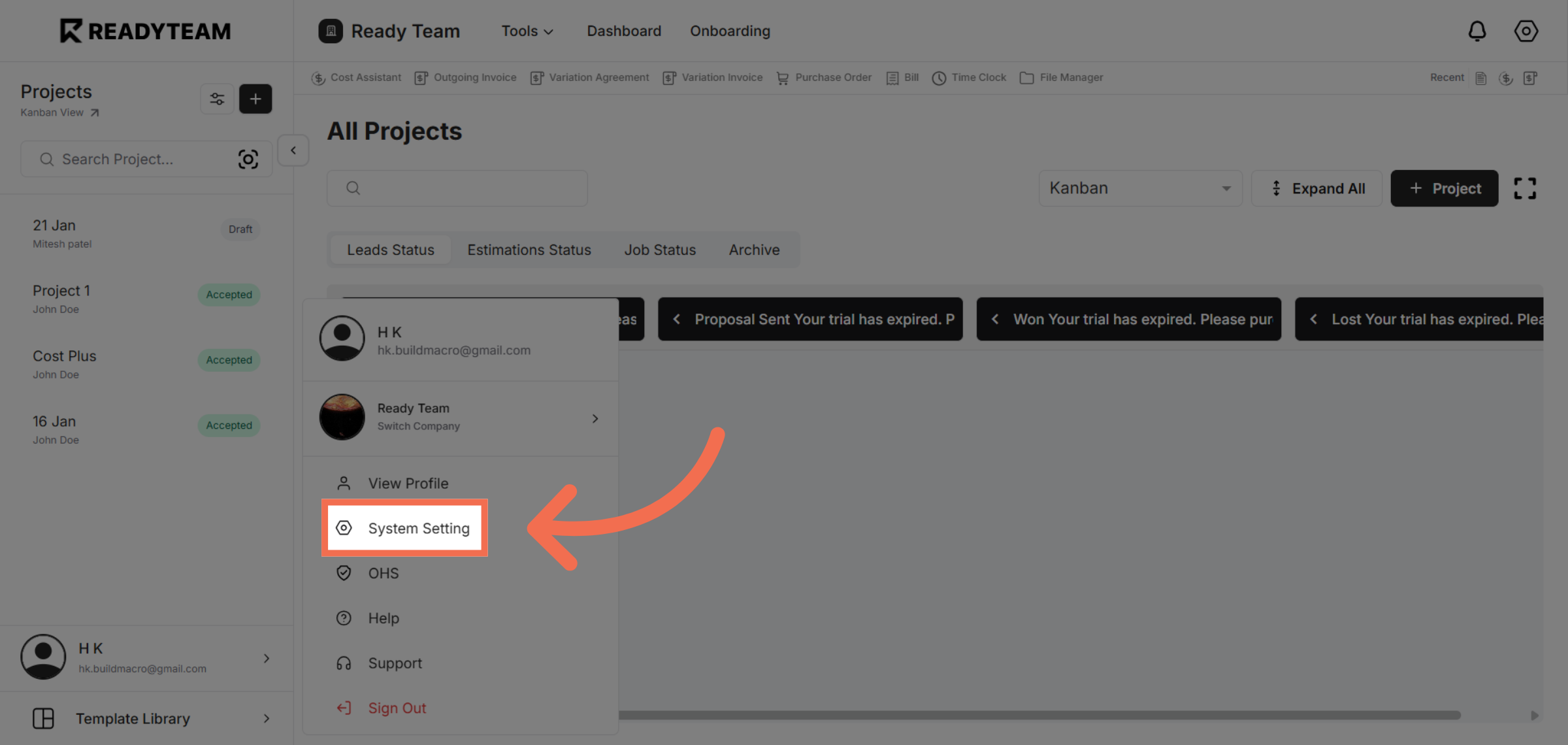
2. Open System Settings
Navigate to the System Setting area to access template configuration options.
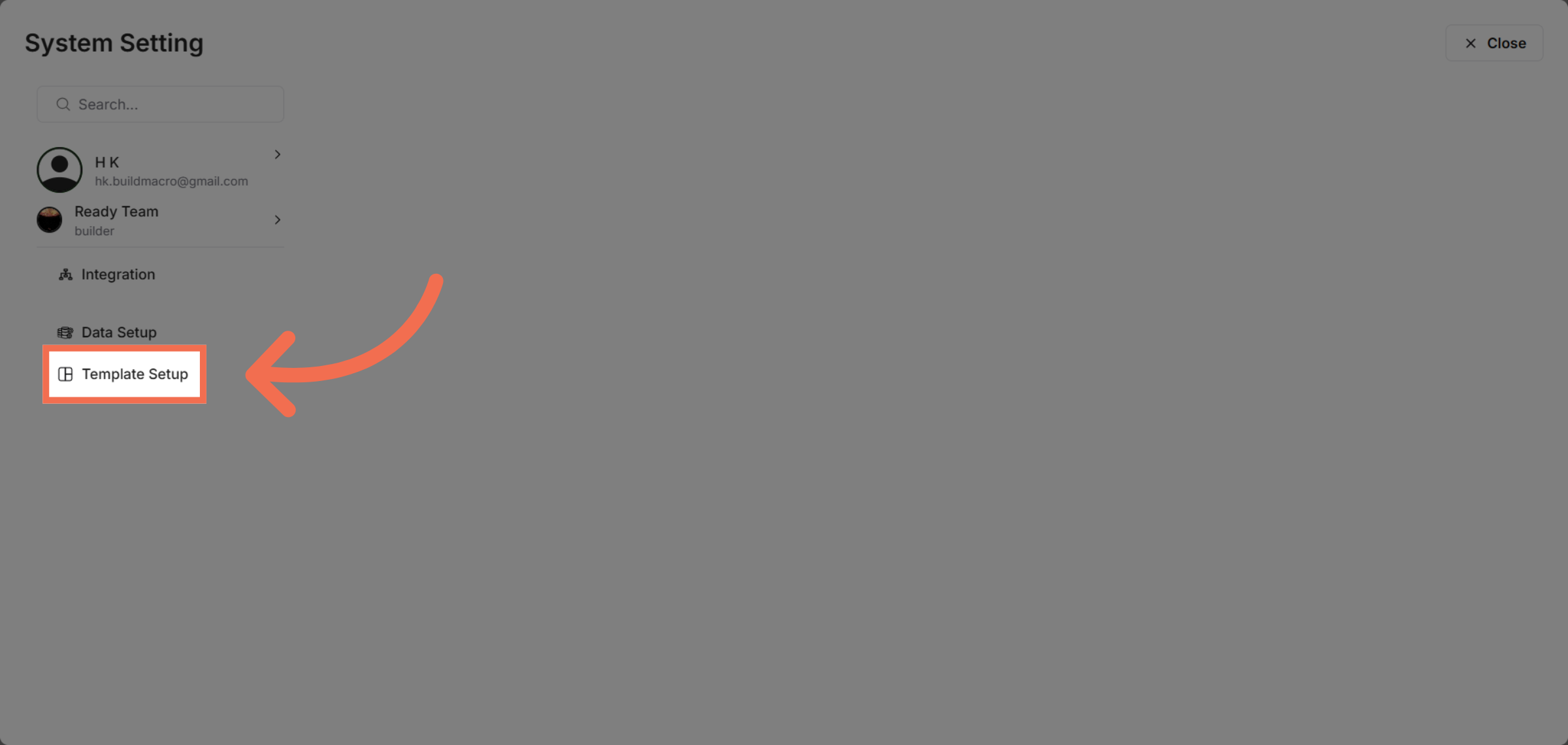
3. Access Template Setup
Click Template Setup to manage and customize your templates.
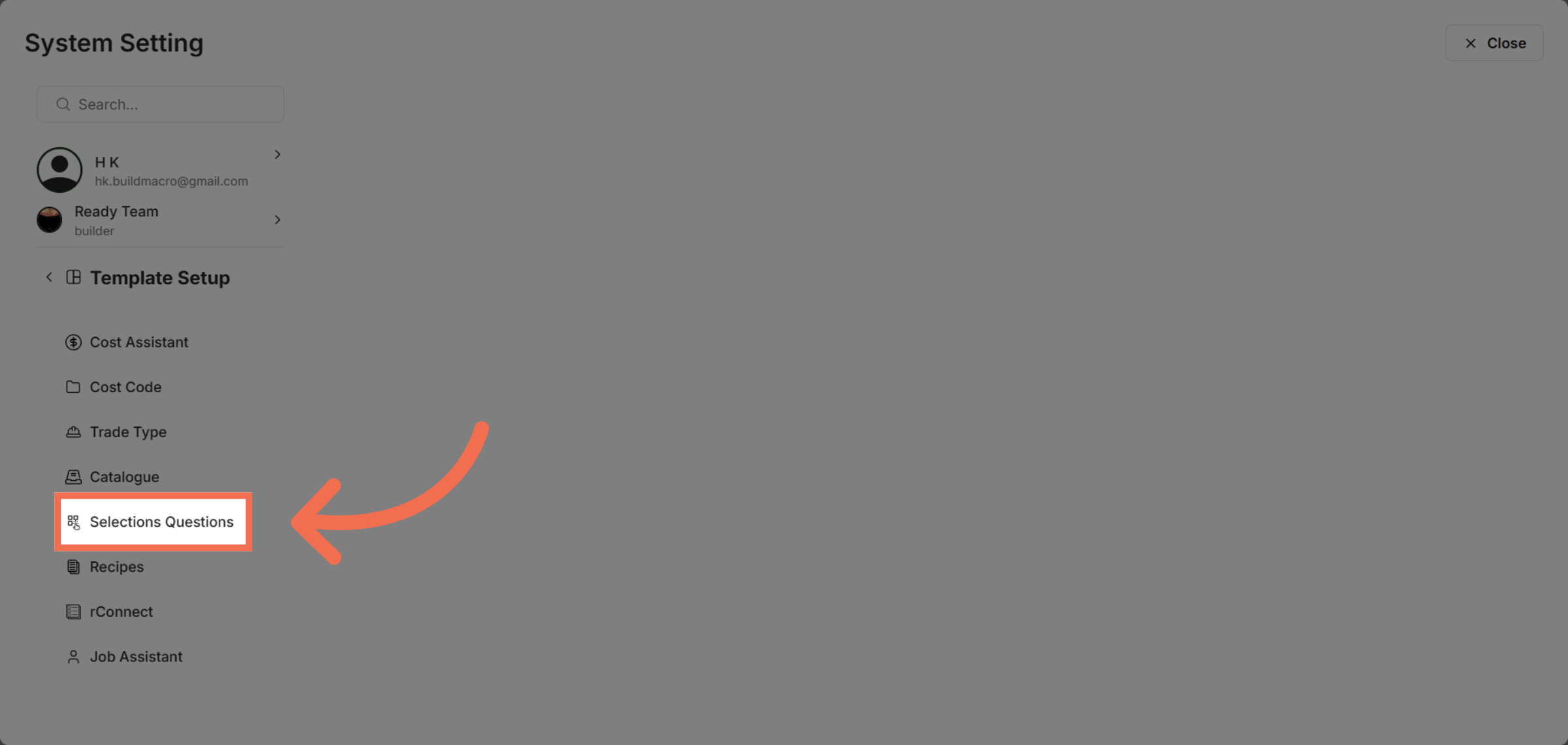
4. Select Selections Questions
Choose Selections Questions to add or modify selection data within your template.
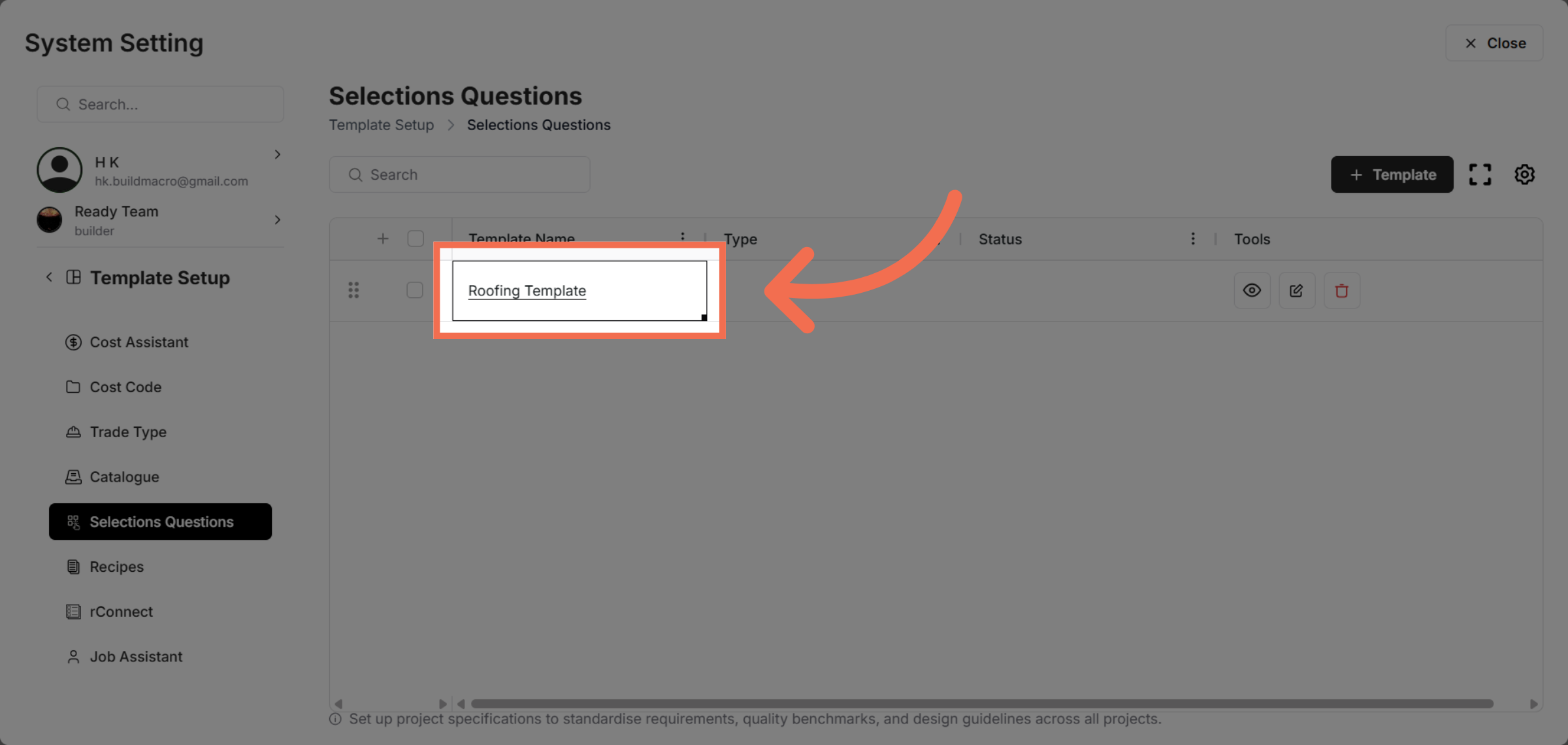
5. Choose Template
Select the Roofing Template to update its selection questions.
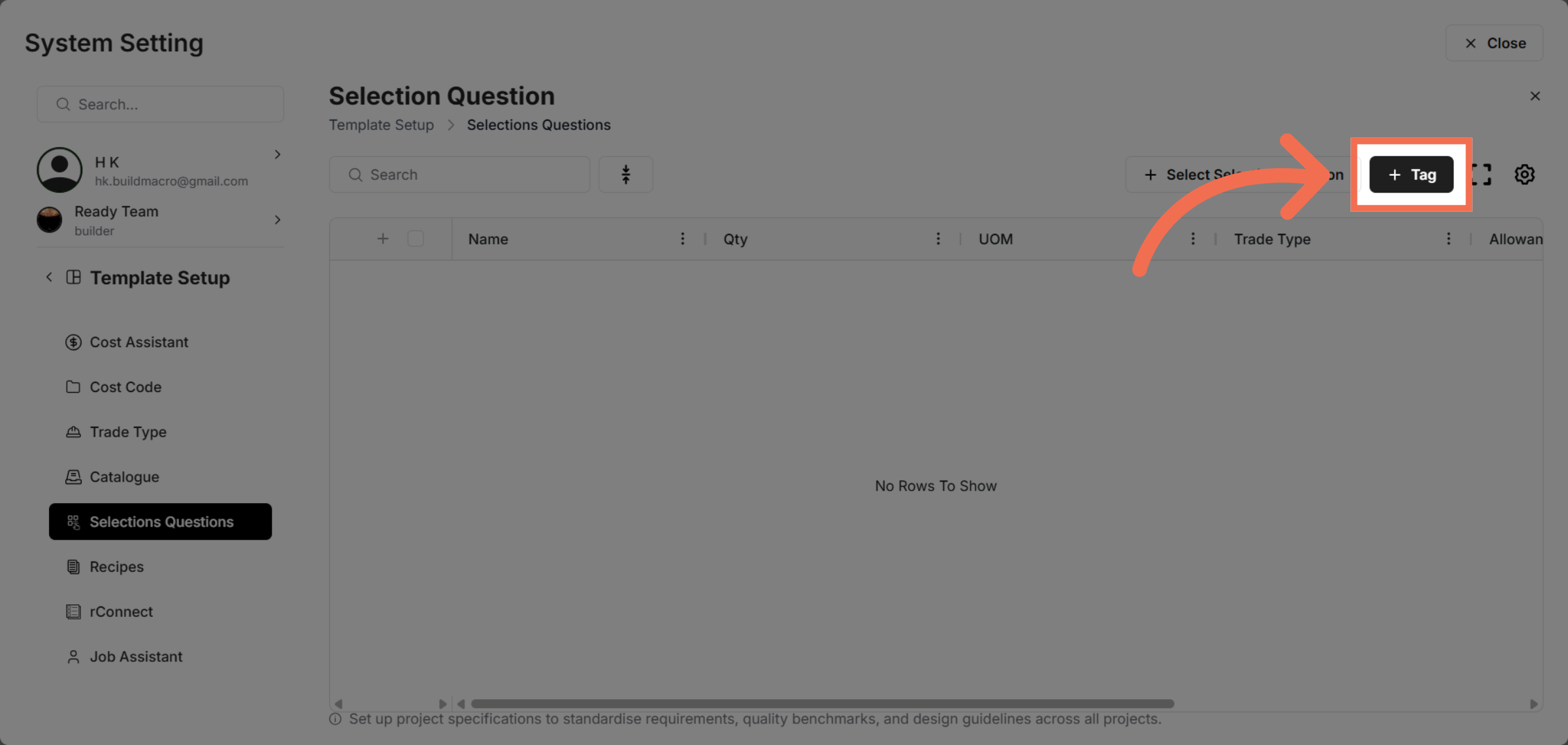
6. Create Selection Tag
Click Tag to begin adding relevant tags to your selection questions.
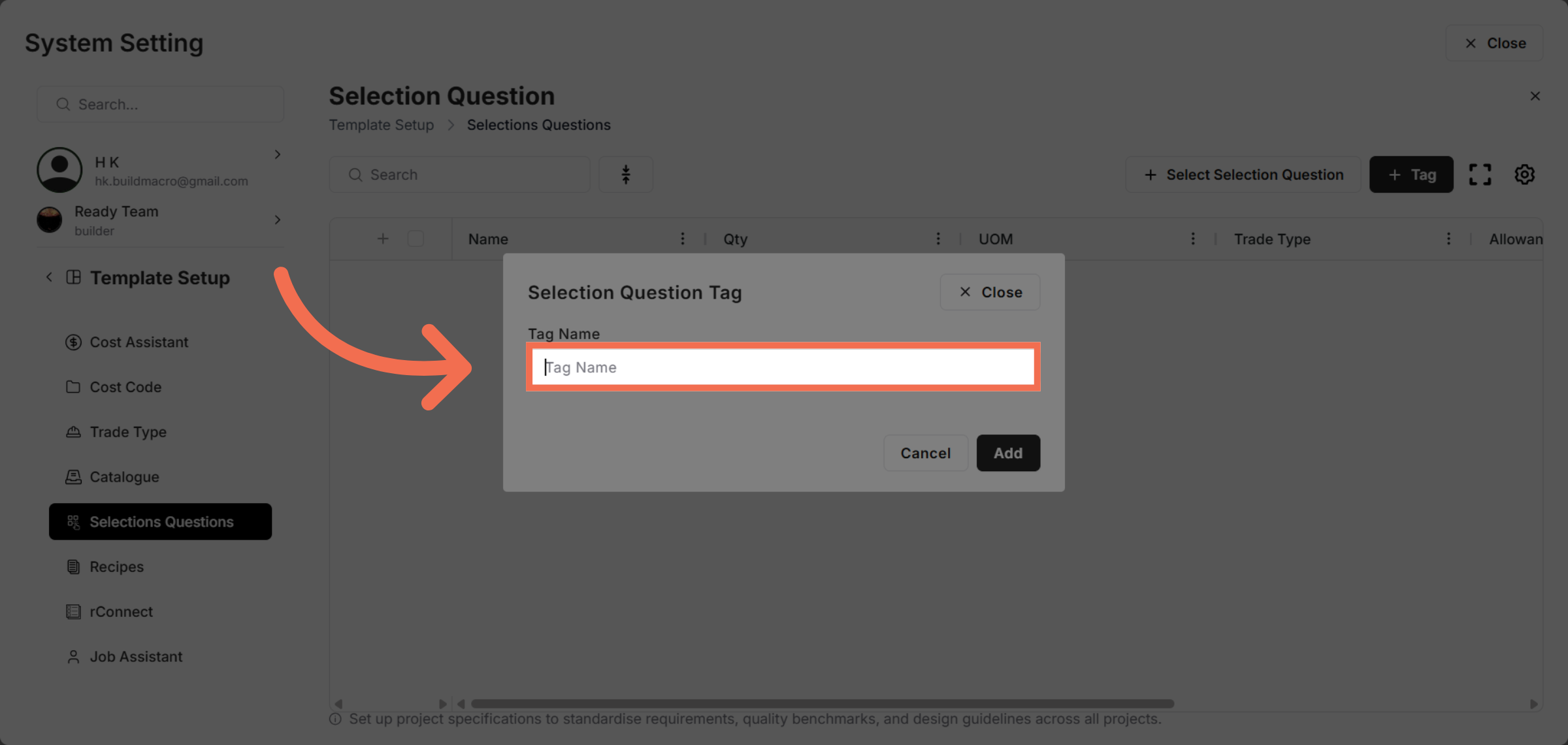
7. Enter Tag Name
Click Tag Name to specify the tag details for your selection question.
8. Add New Tag
Click Tag Name to specify the tag details for your selection question.
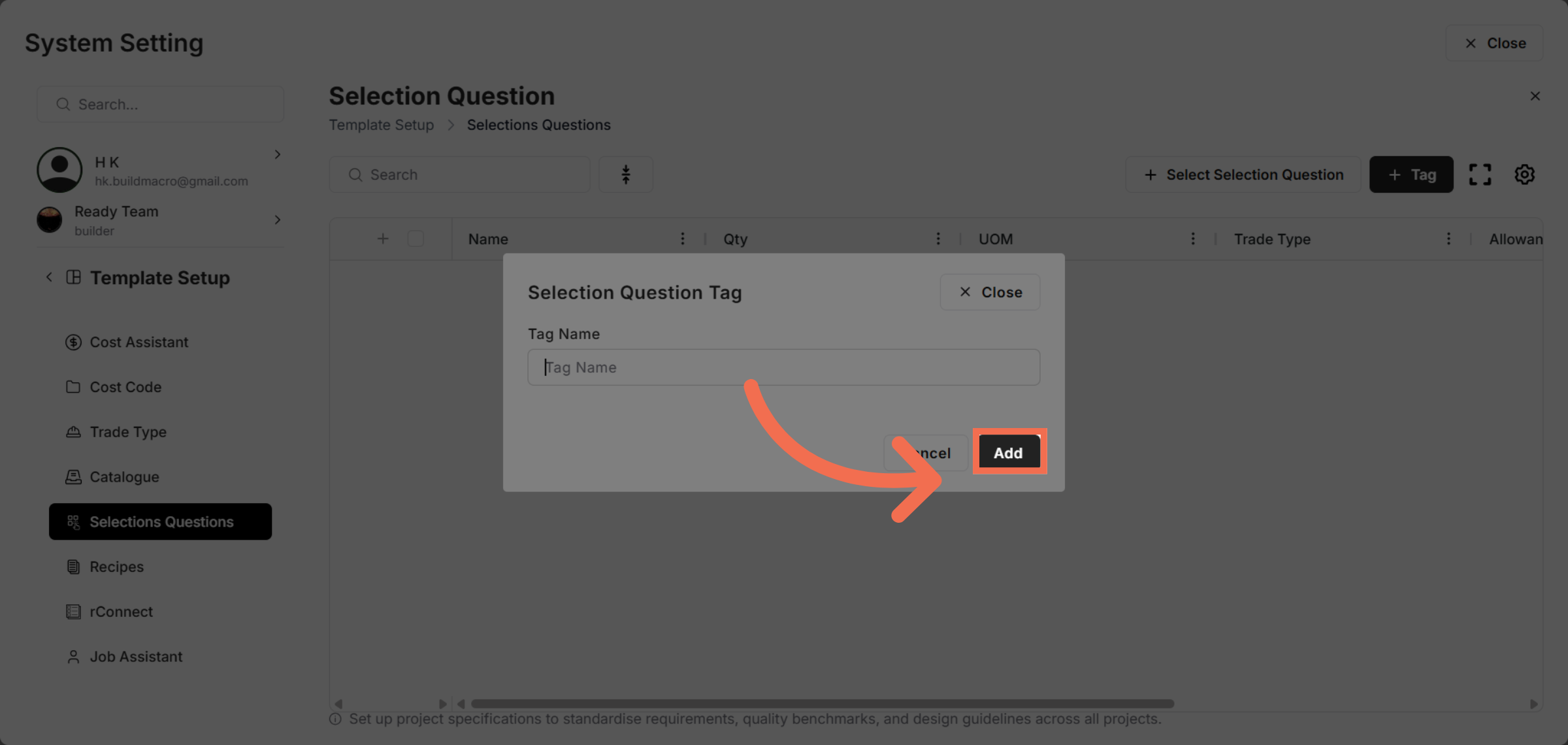
9. Proceed To Next Step
Click here to continue configuring the selection question details.
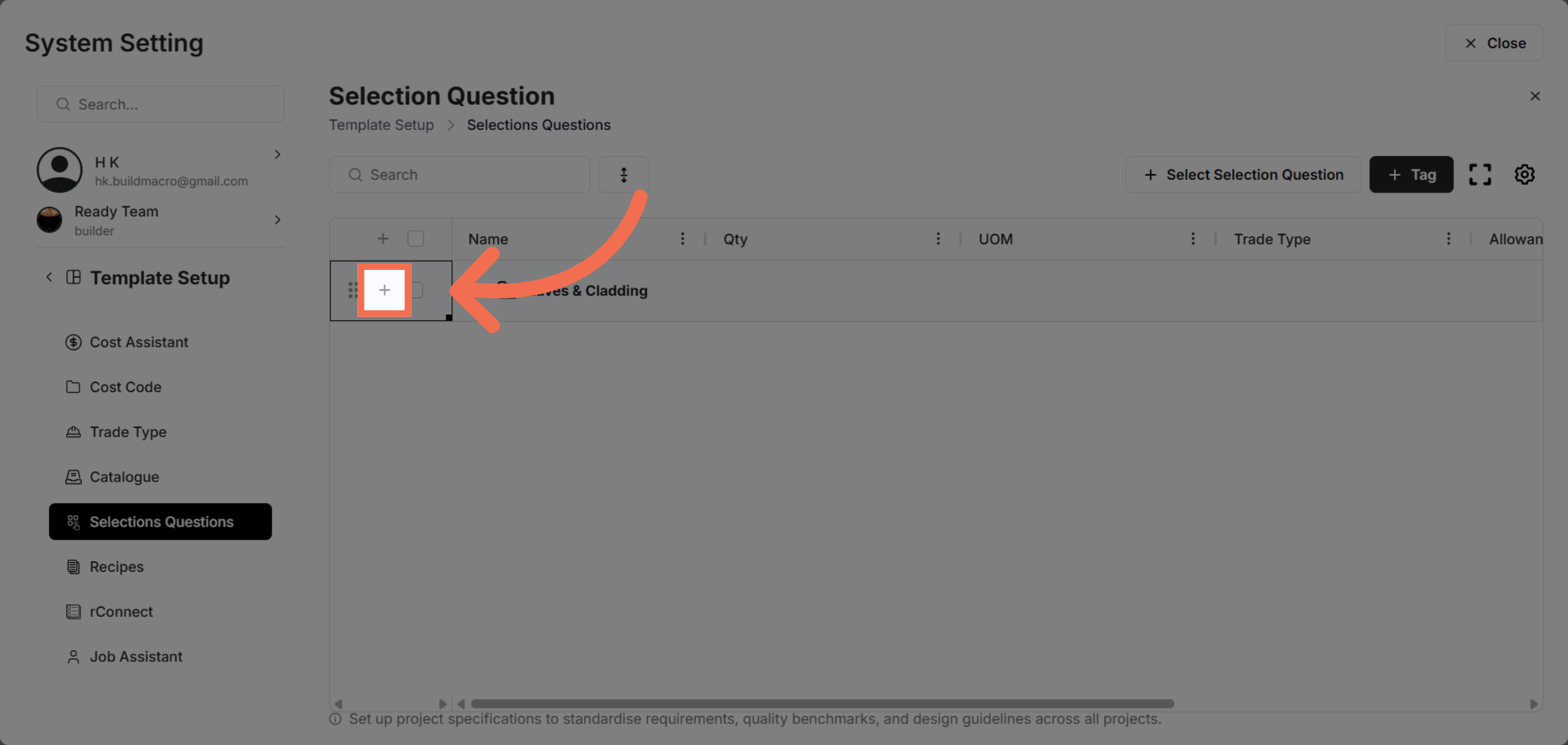
10. Select Line Item
Click Lineitem to specify the item associated with your selection question.
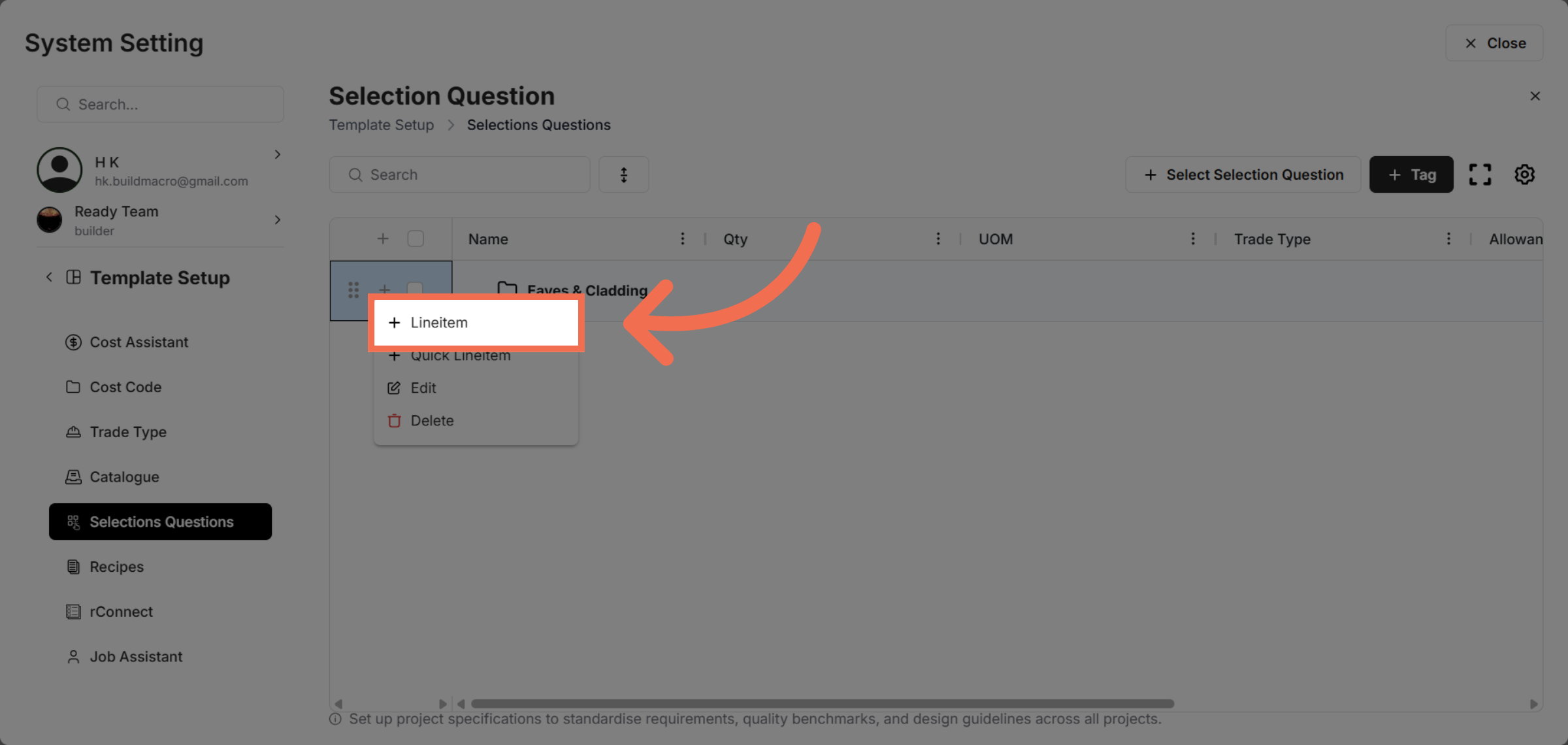
11. Enter Description Field
Enter Description that describe the line item.
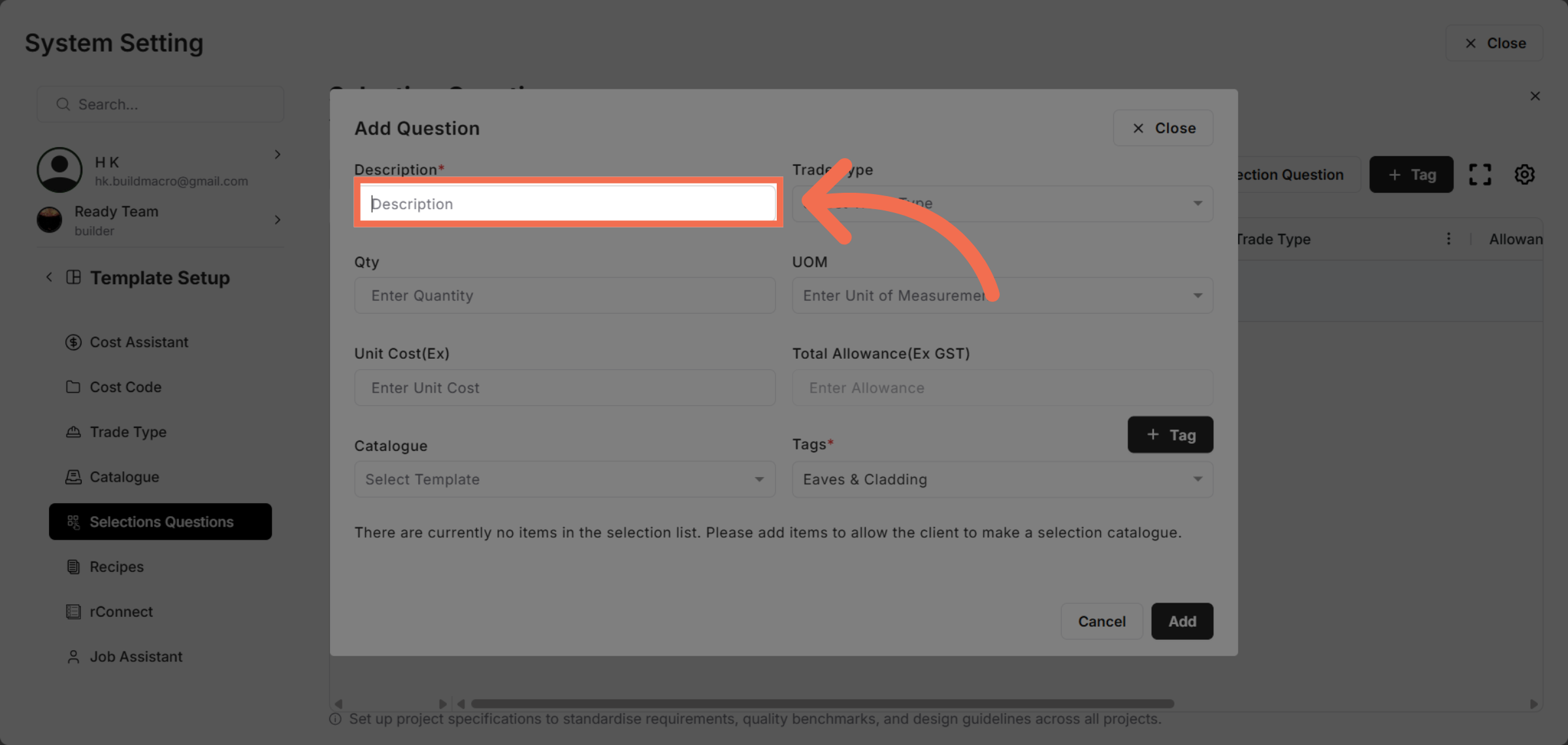
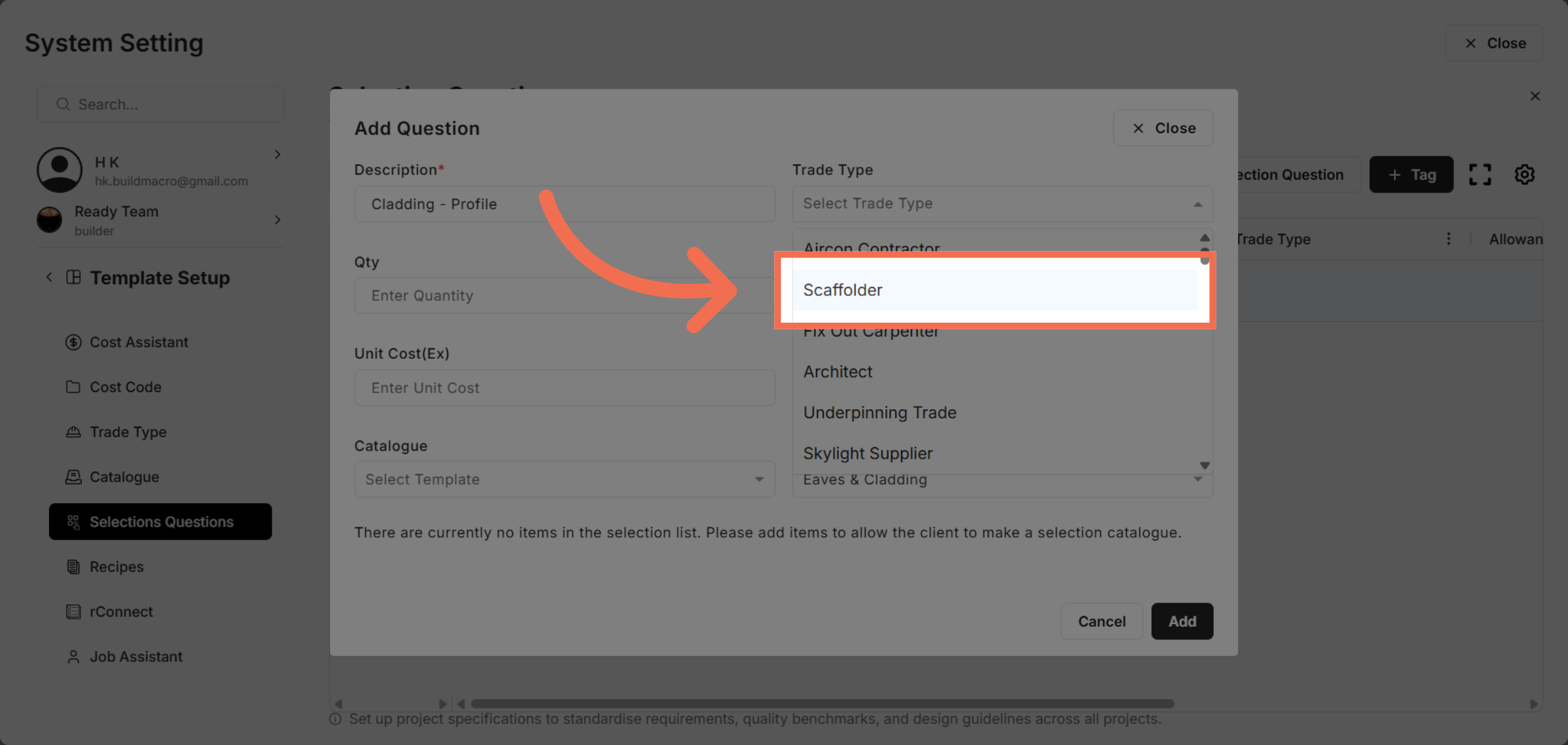
12. Select Trade Type Option
Select trade type from the list of trade types options.
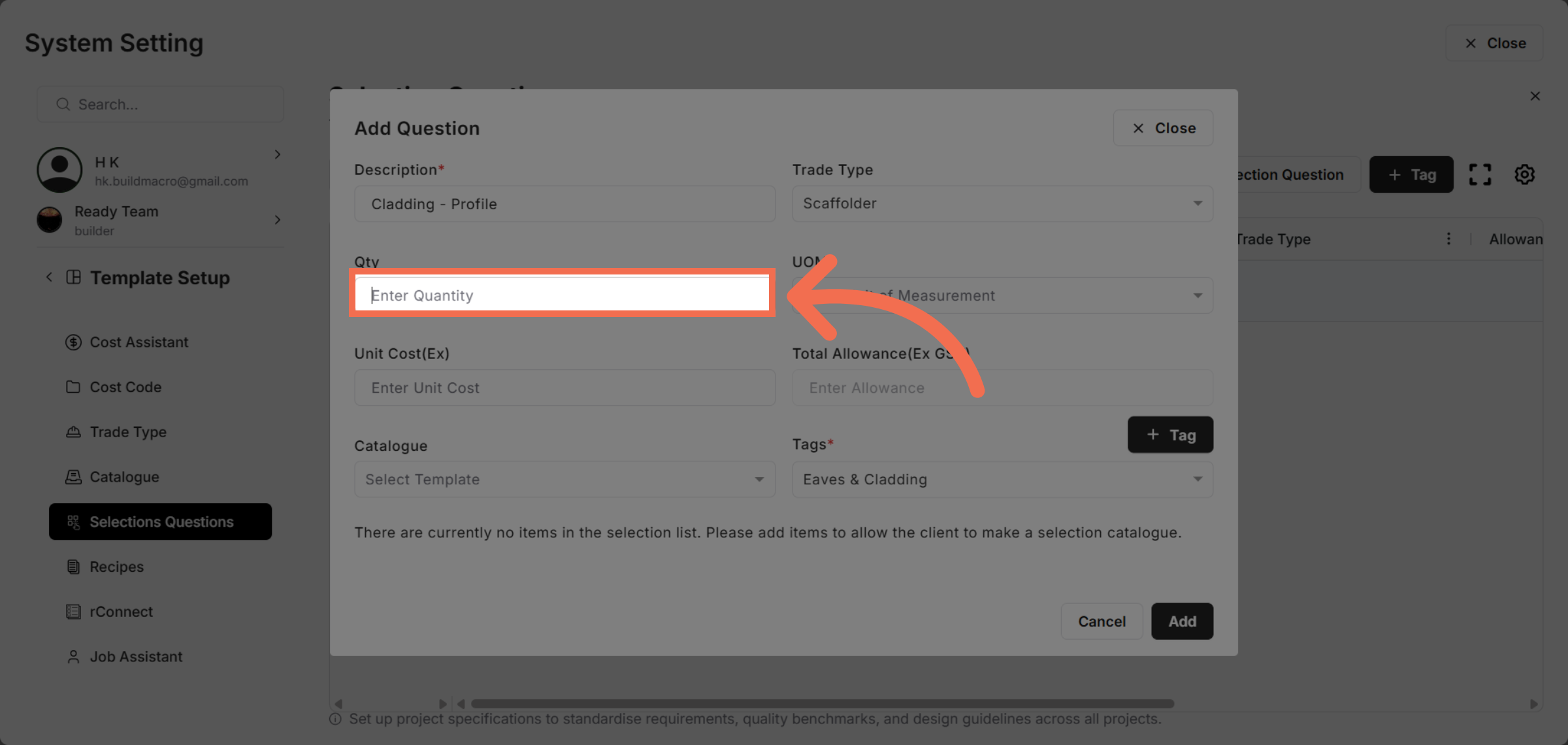
13. Enter Quantity
Enter Quantity to specify the amount related to the selection question.
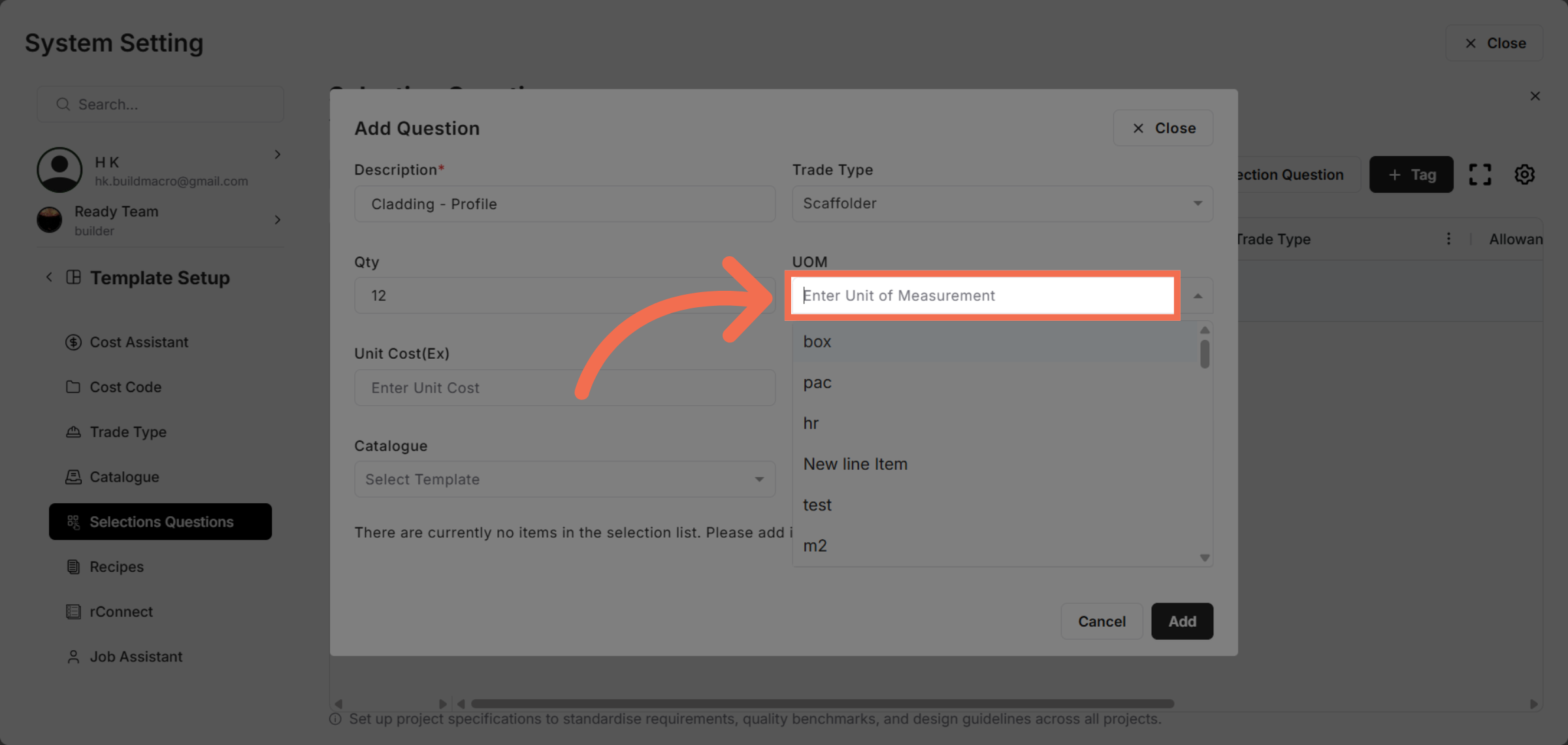
14. Select UOM
Select Unit of Measurement from the available UOM options.
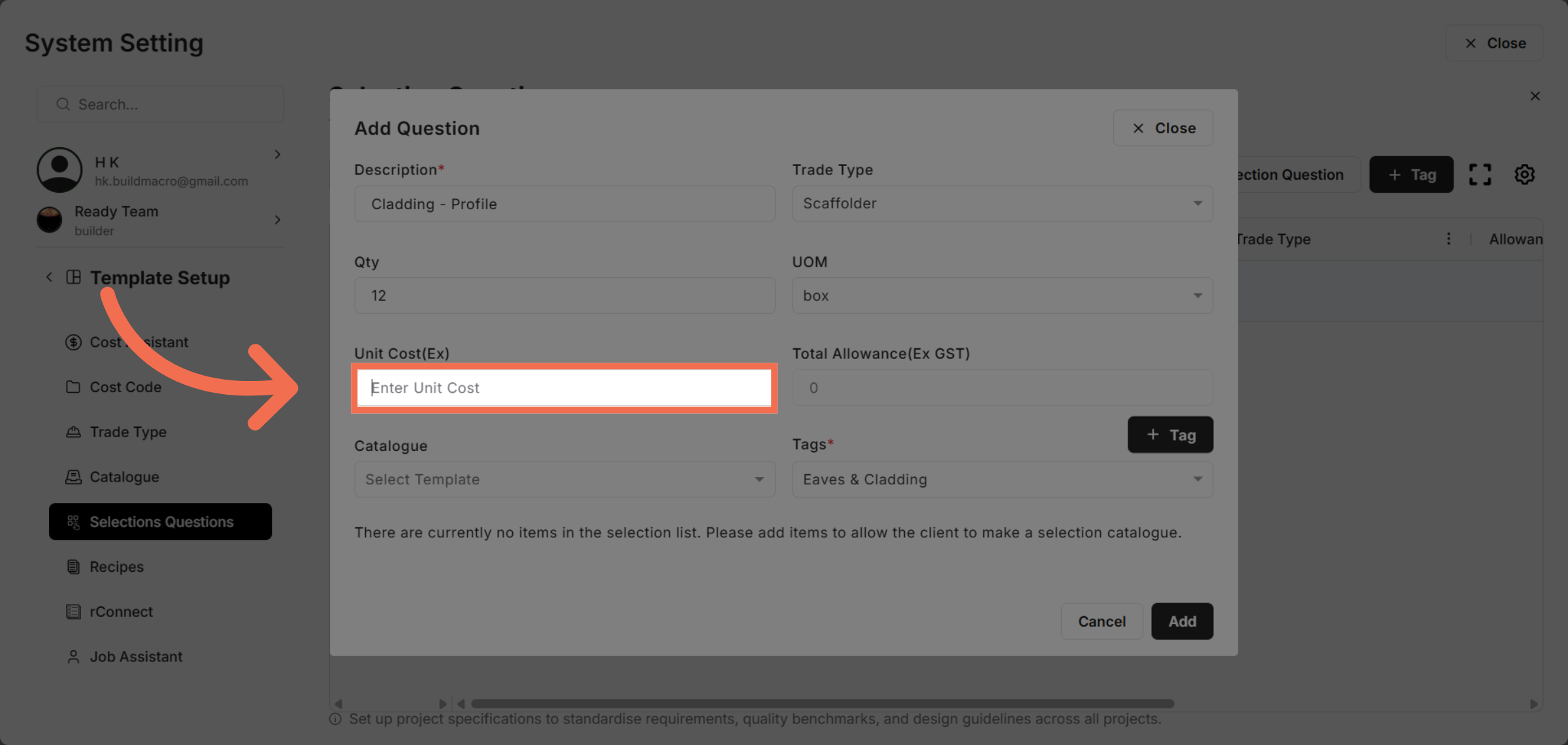
15. Enter Unit Cost (ex)
Enter Unit Cost to specify the cost per unit for the selection.
16. Select Catalogue
Click here to proceed to additional selection question options.
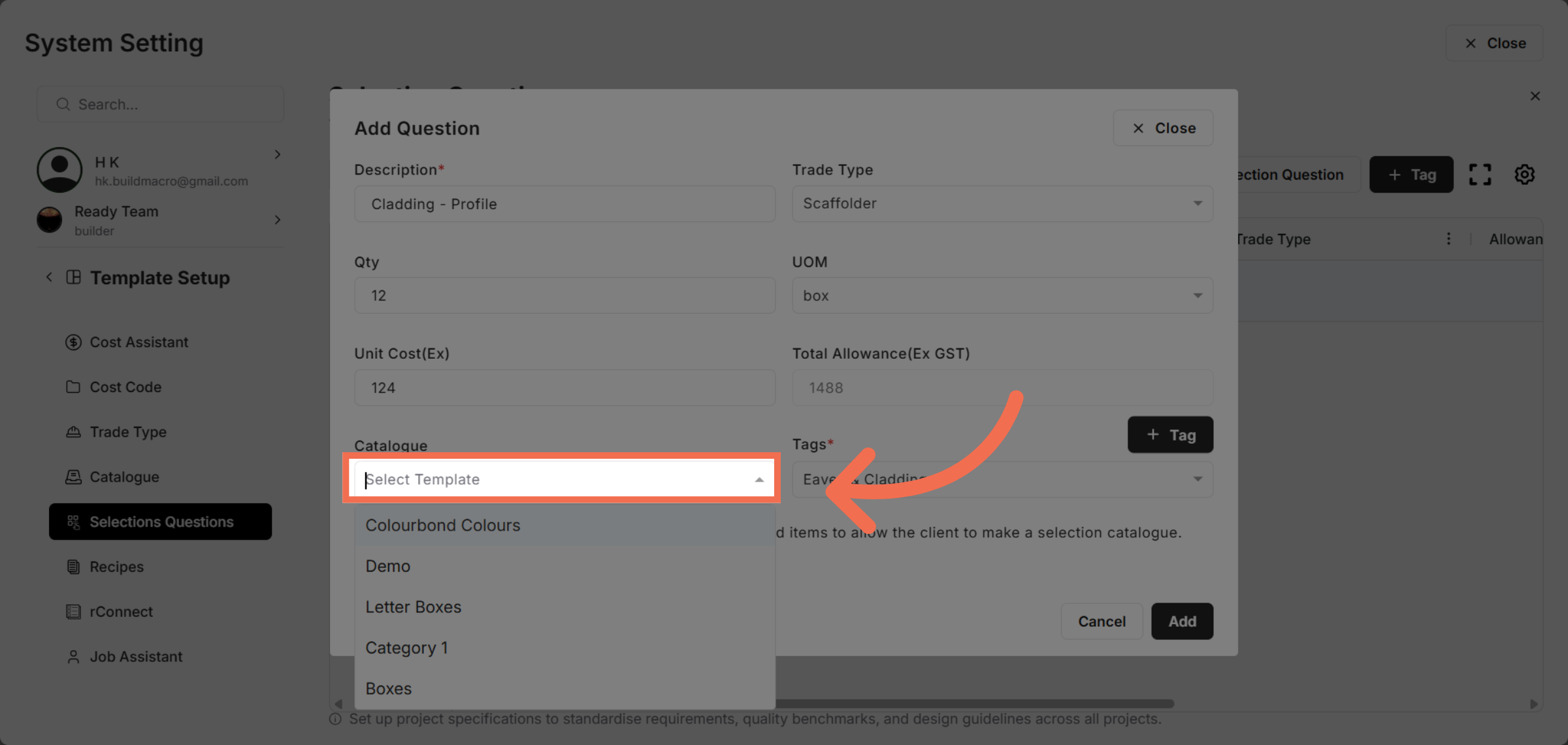
17. Add Selection Question
Click Add to finalize and save the selection question data to your template.
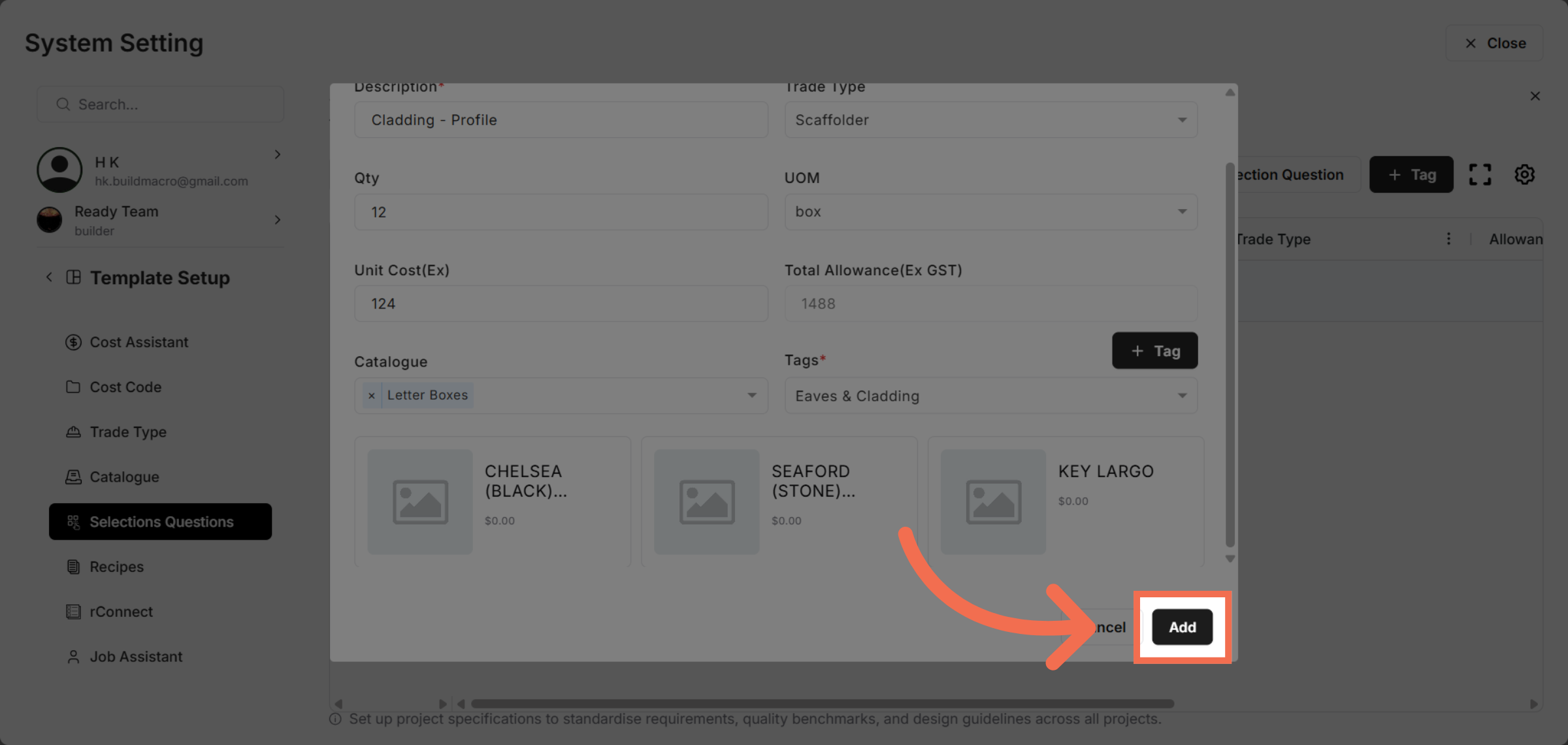
This demo demonstrated how to efficiently add selection question data to a template in Readyteam, enabling streamlined template customization. Start enhancing your templates today to improve your workflow and data management.