Create rConnect Templates Efficiently in ReadyTeam
This demo showcases how to create a rConnect template within Readyteam to streamline your project proposals.
Go to app.readyteam.ai
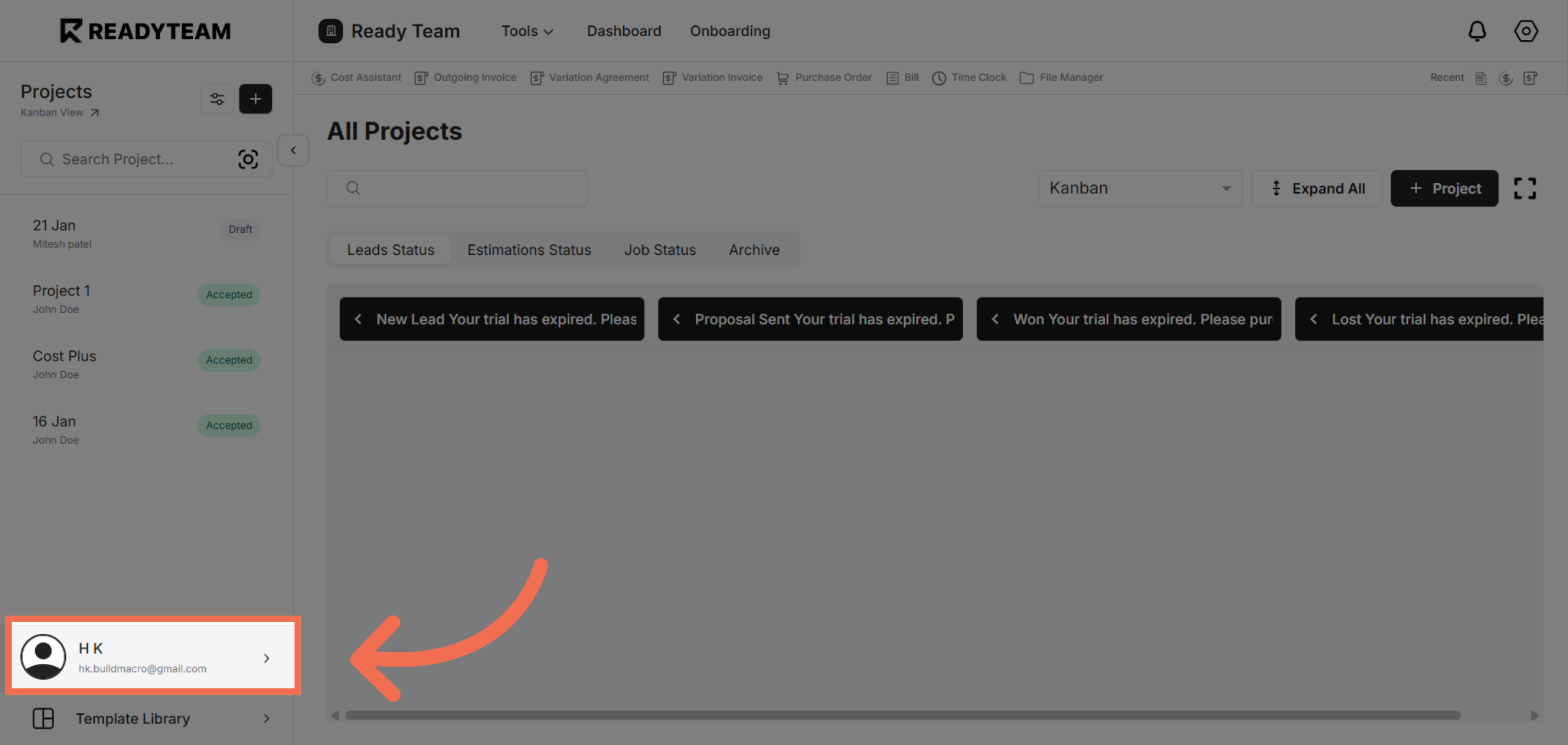
1. Select User Section
Click the user section to begin template creation.
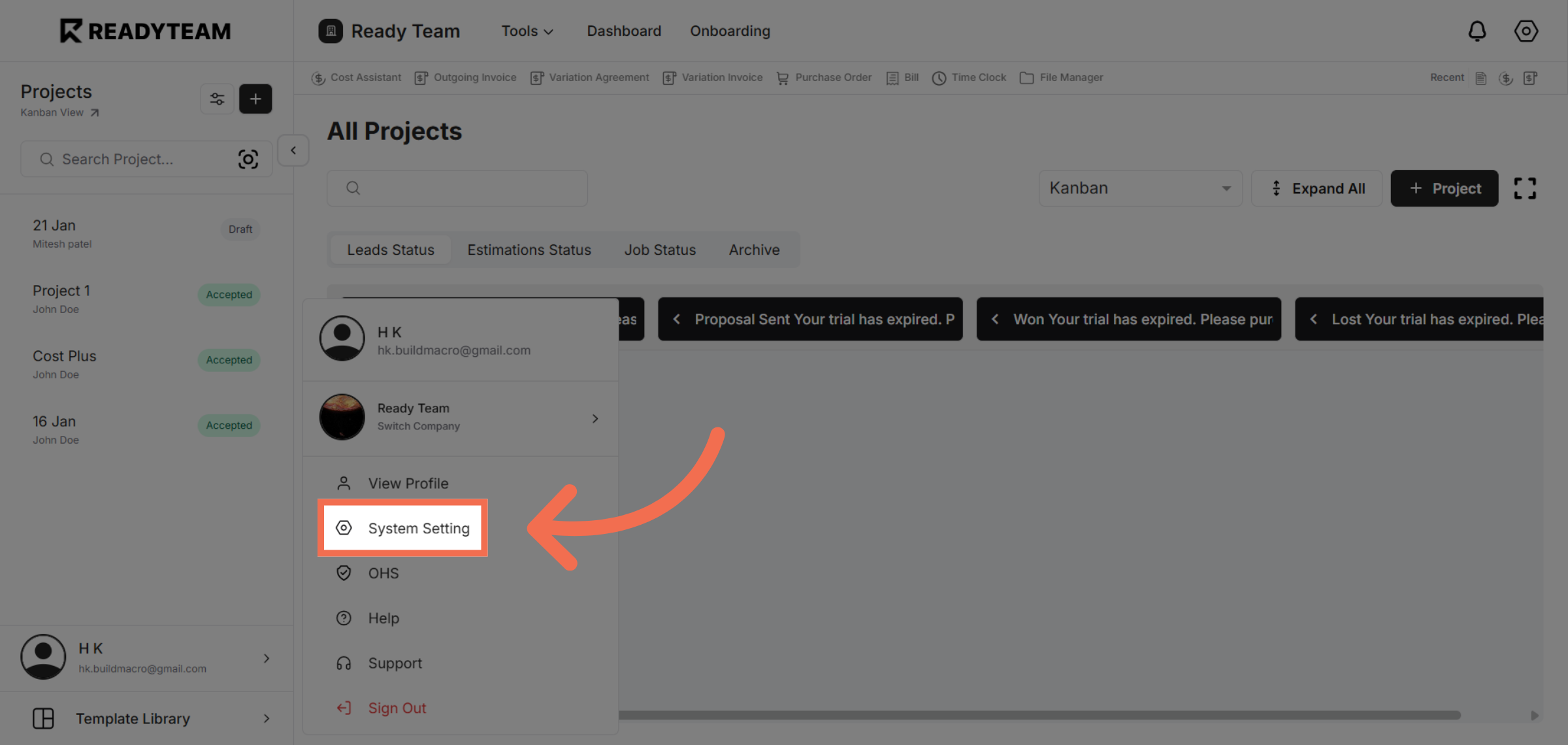
2. Access System Settings
Click System Setting to open configuration options.
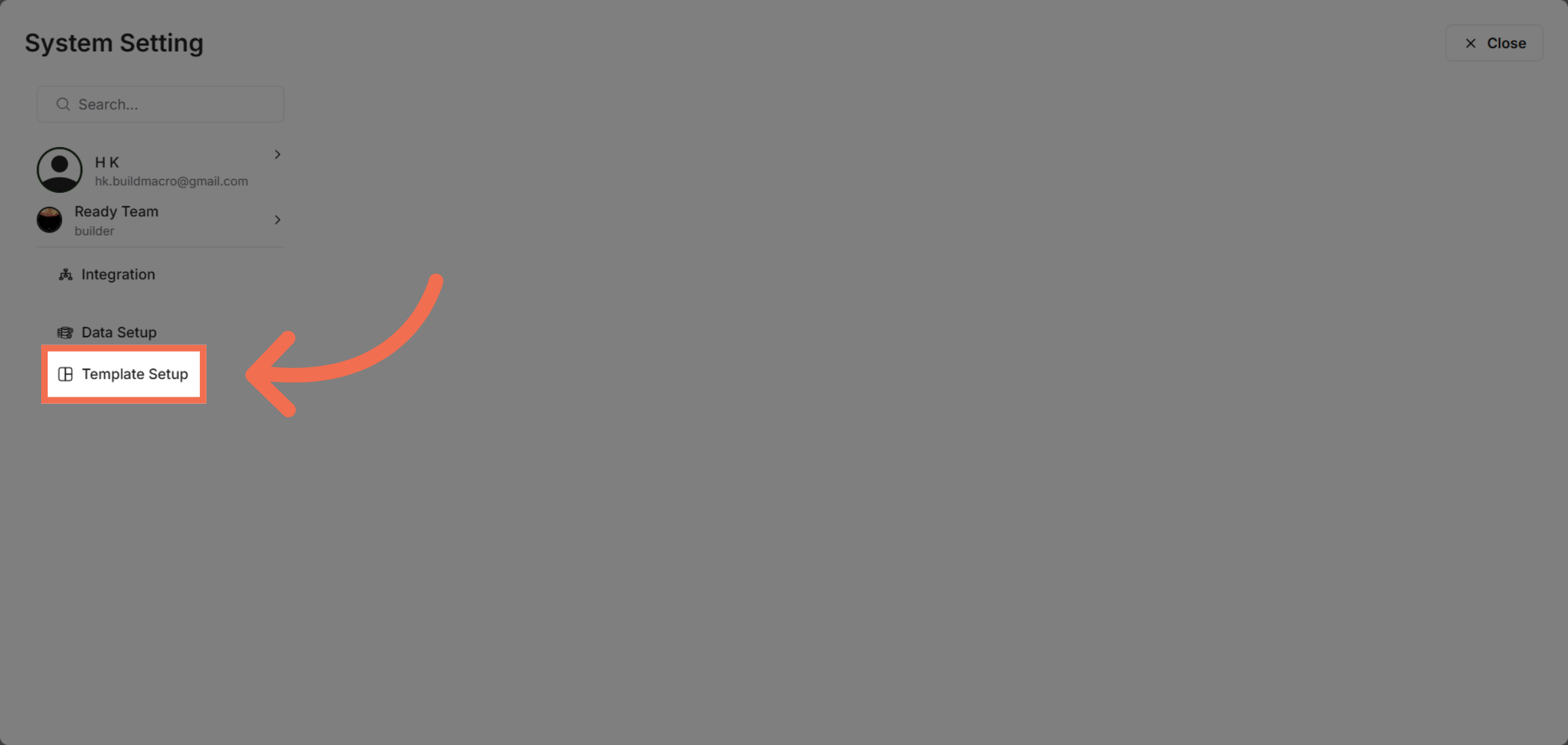
3. Open Template Setup
Click Template Setup to manage your templates.
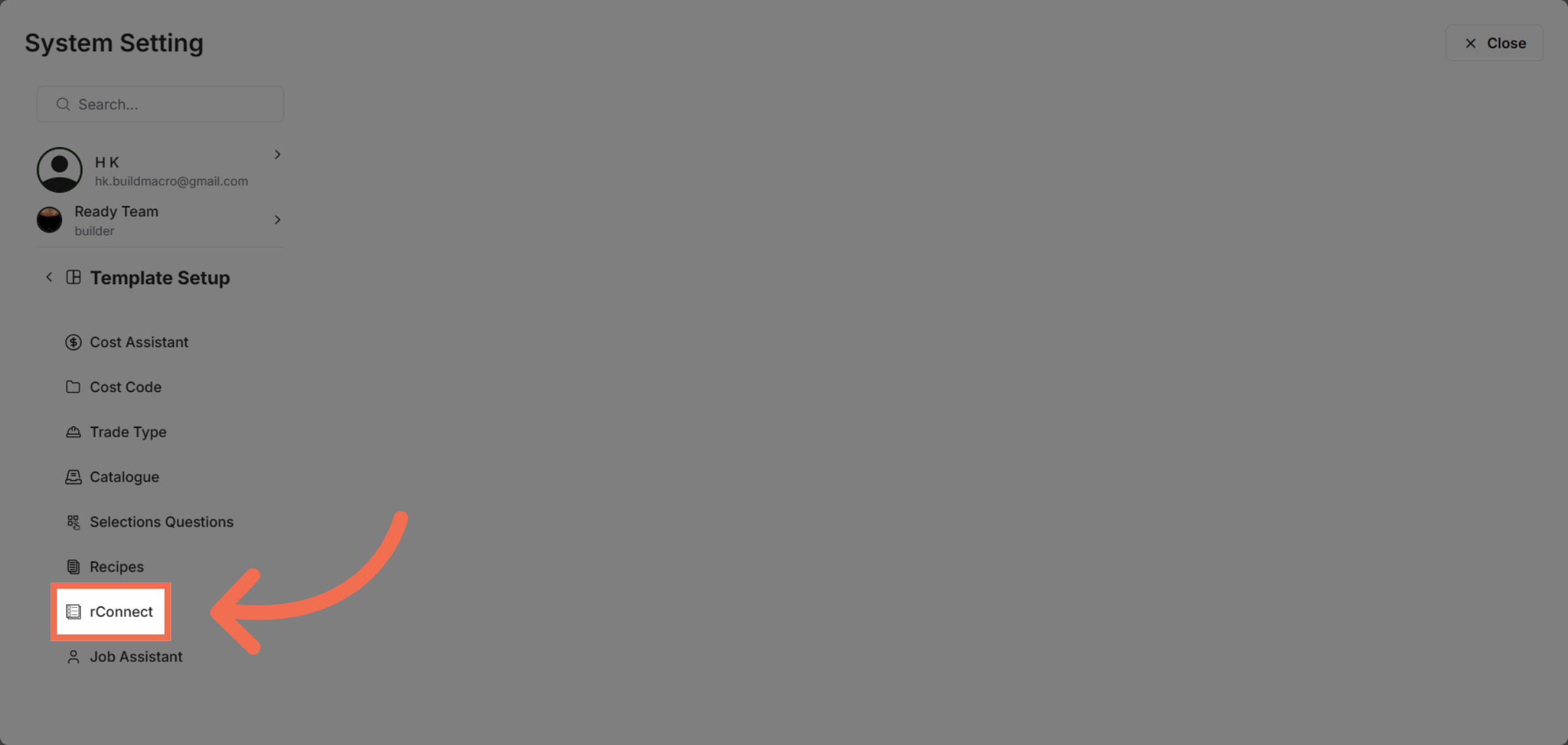
4. Choose rConnect Feature
Click rConnect to access related template options.
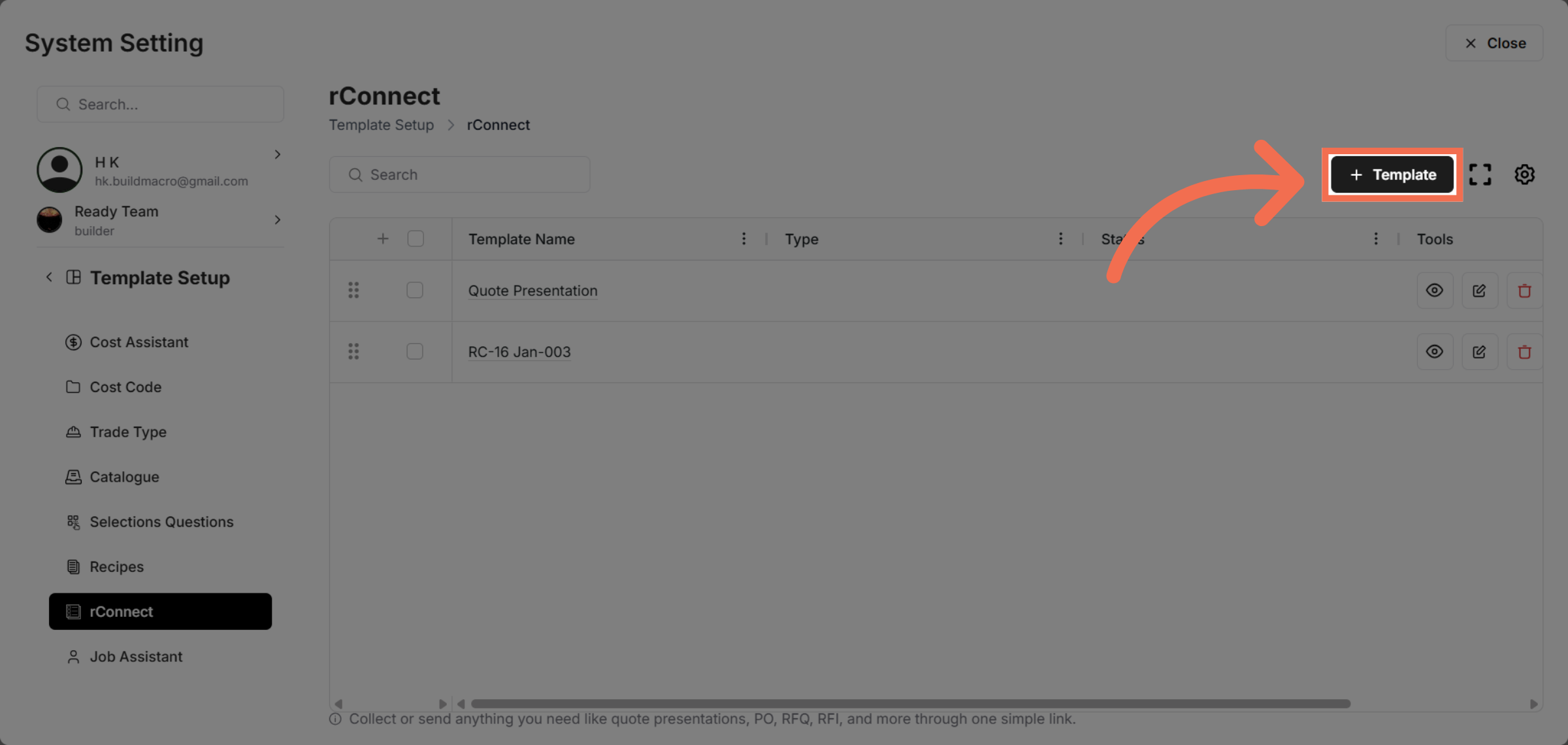
5. Navigate to Template Section
Click Template to view and edit available templates.
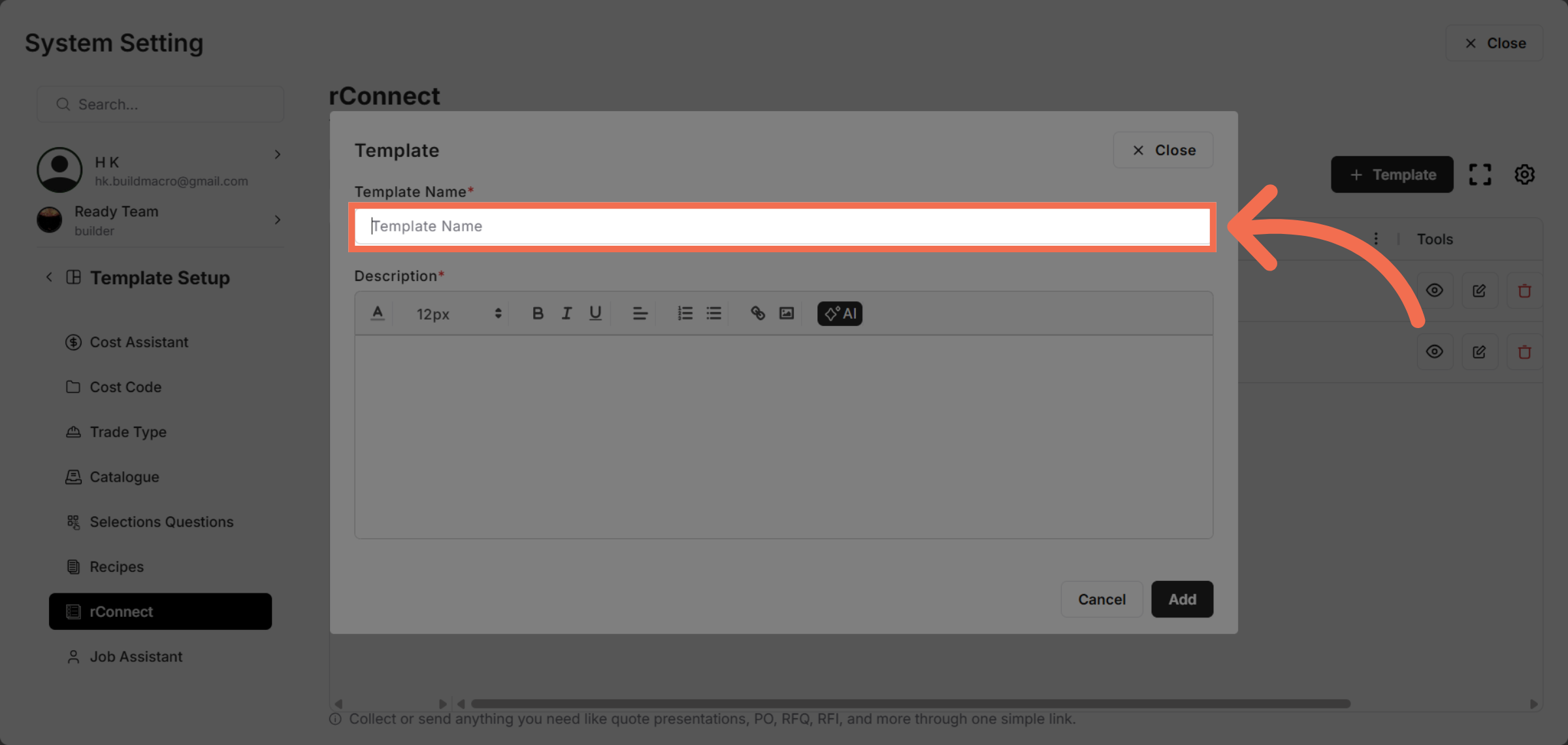
6. Enter Template Name
Enter Template Name to specify the template's identifier.
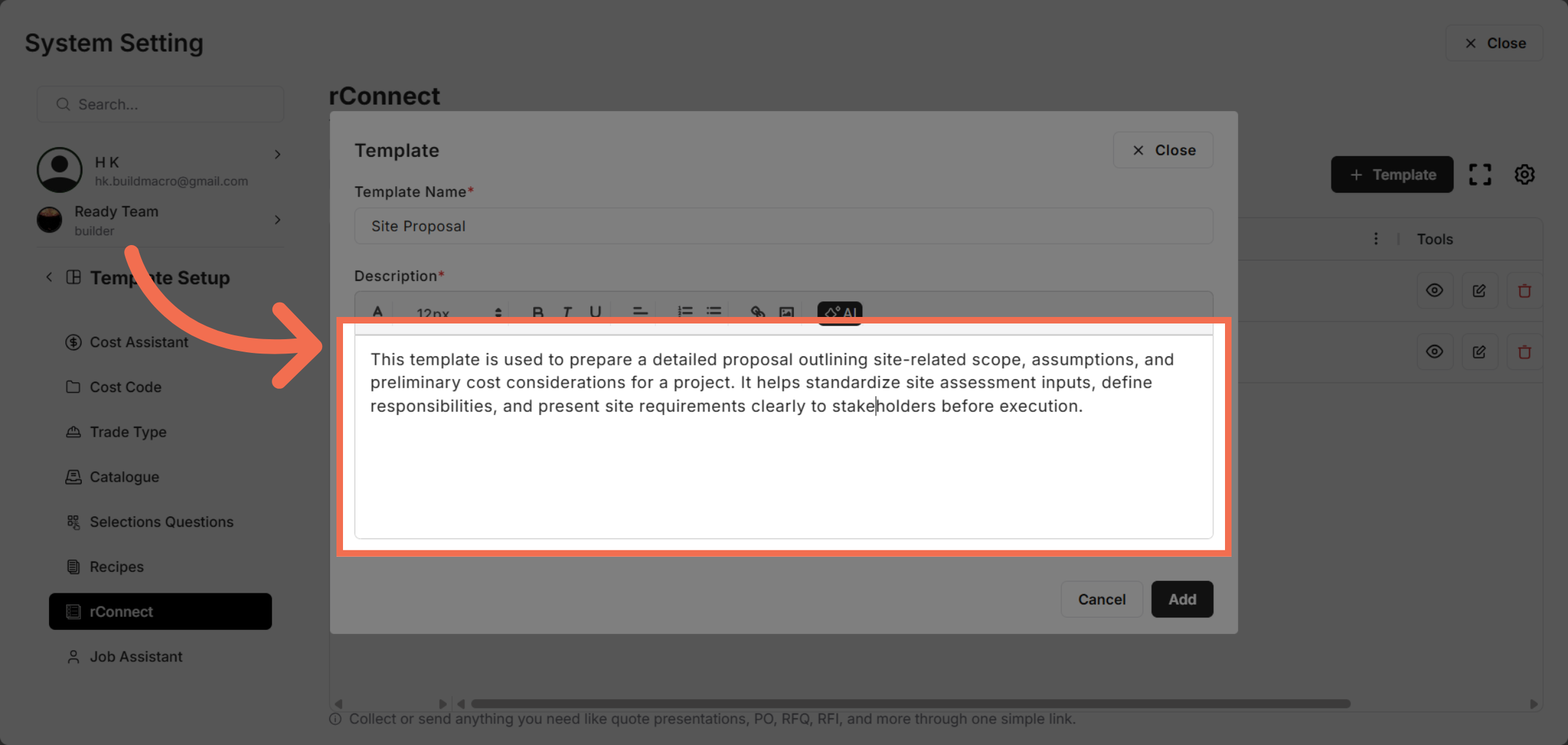
7. Enter Template Description
Enter description explaining this template's purpose for preparing detailed site proposals, standardizing inputs, and outlining project scope and costs.
8. You can also Provide the context of template
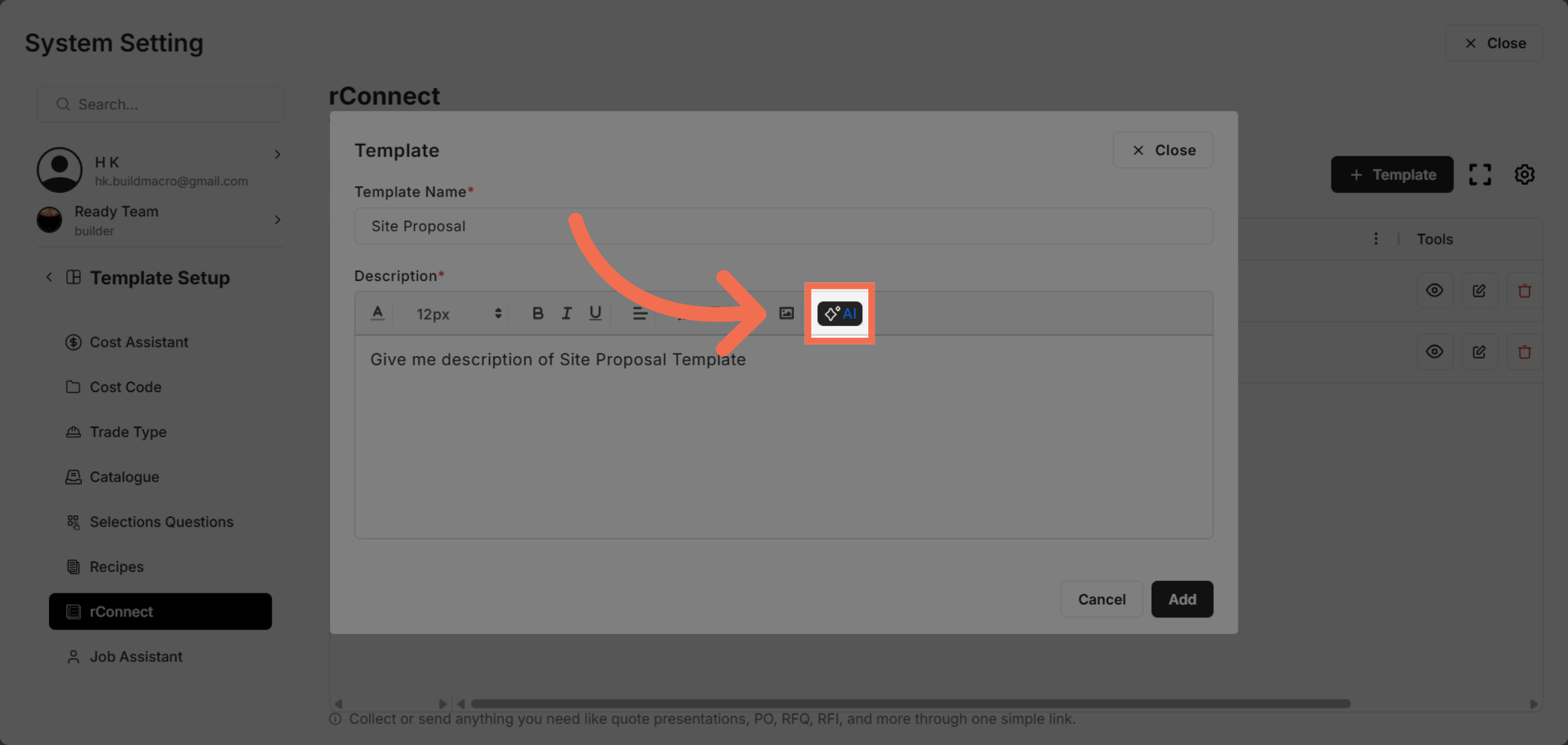
You can use AI option to generate template description.
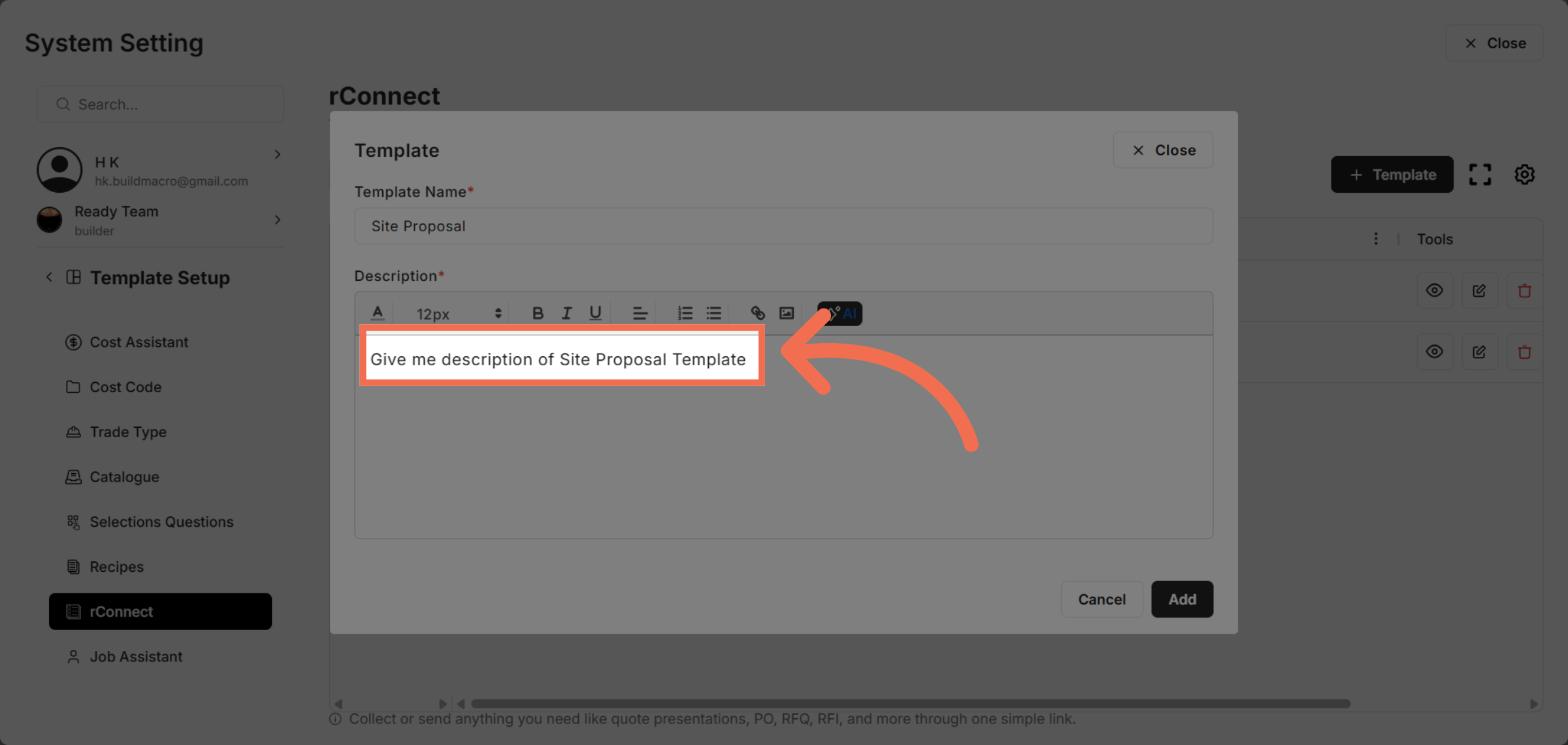
9. Use AI to Generate Description of Template
Click here to complete the template details.
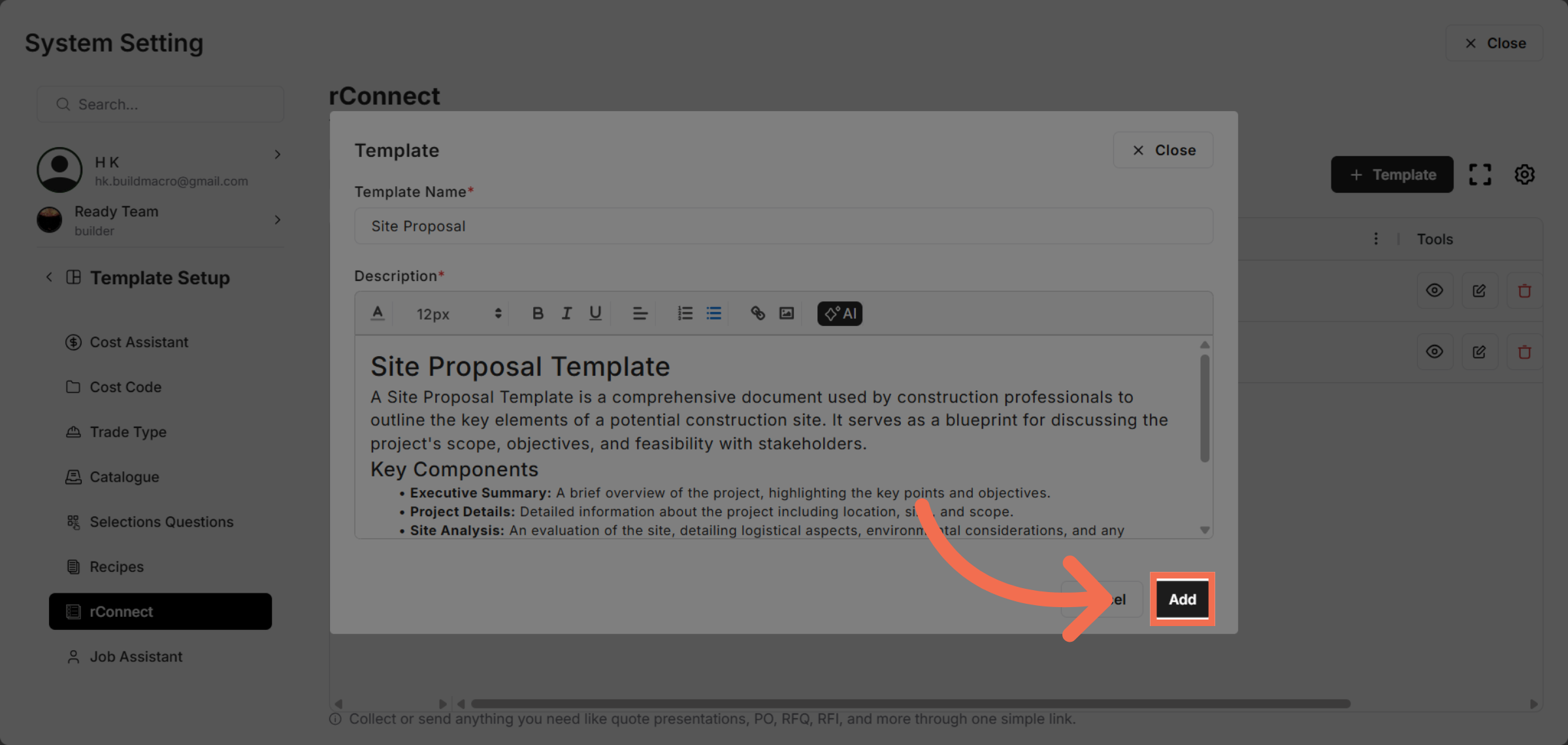
10. Add New Template
Click Add to save and create your new rConnect template.
This demo demonstrated how to efficiently create a rConnect template in Readyteam, enabling standardized and detailed project proposals. You can now customize templates to streamline site assessments and cost planning for your projects.