How to Select Cost Code Data from Data Setup ?

This demo showcases how to select cost code data within Readyteam's data setup.
Go to app.readyteam.ai
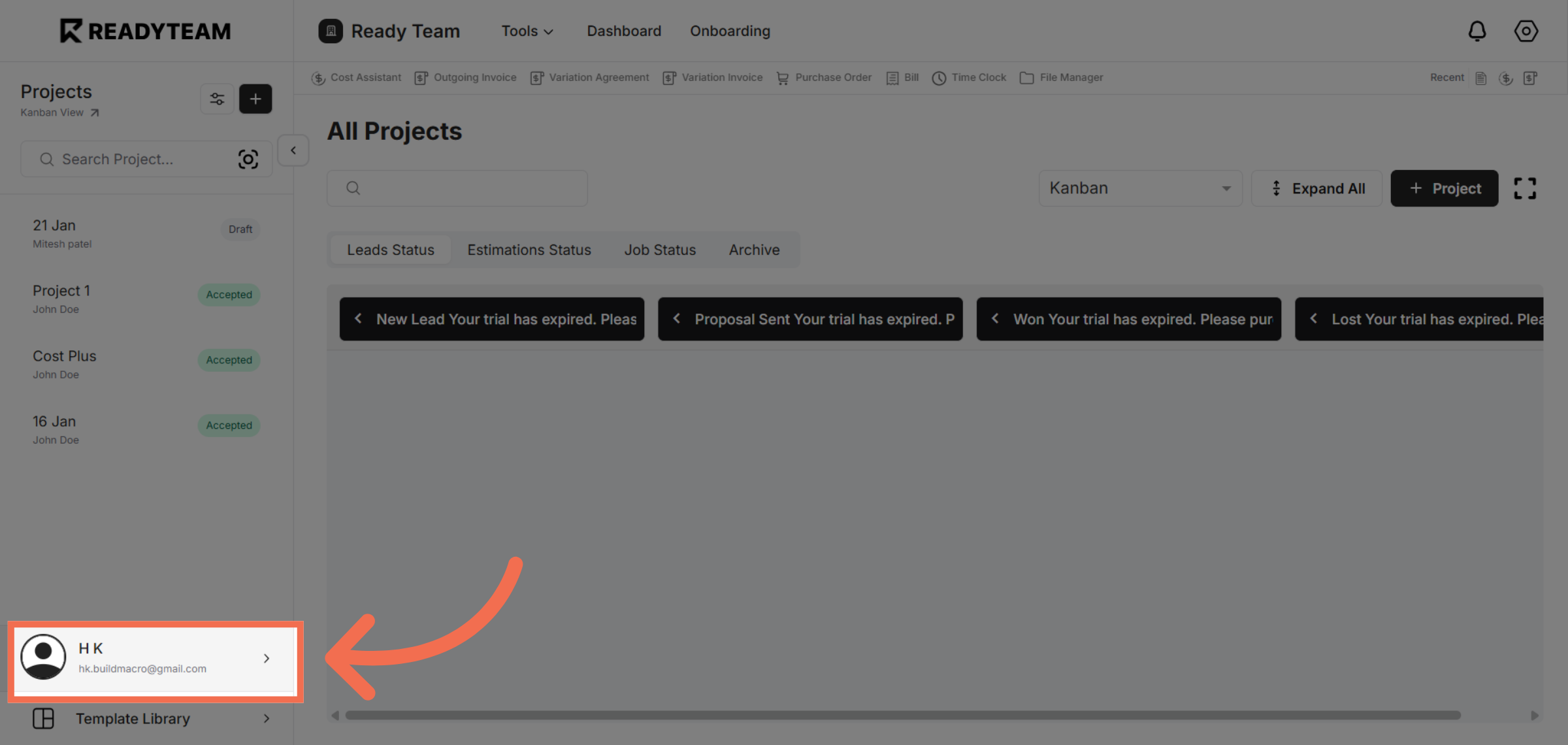
1. Select User Section
Click the user section to begin accessing system settings.
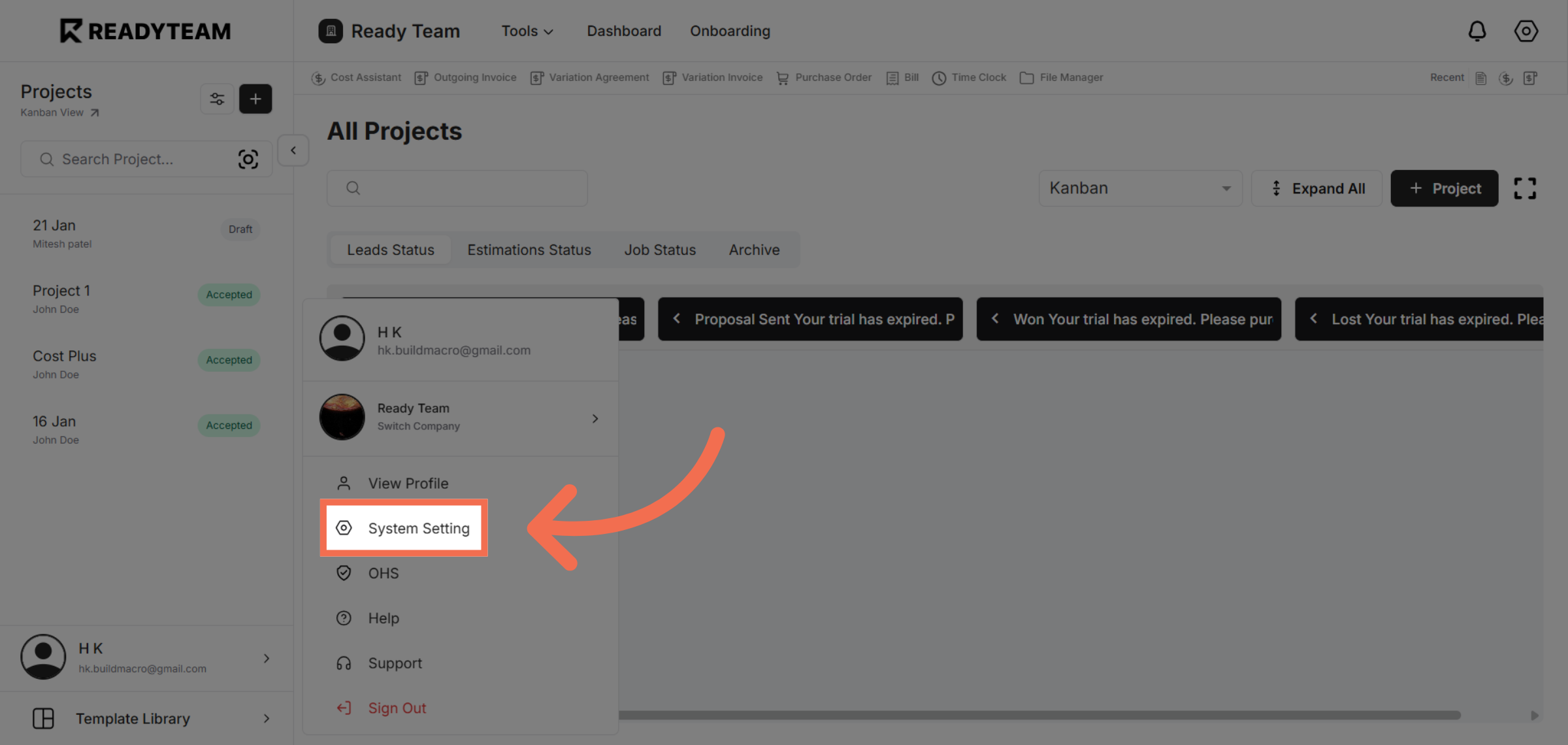
2. Open System Settings
Click System Setting to access configuration options for your Readyteam environment.
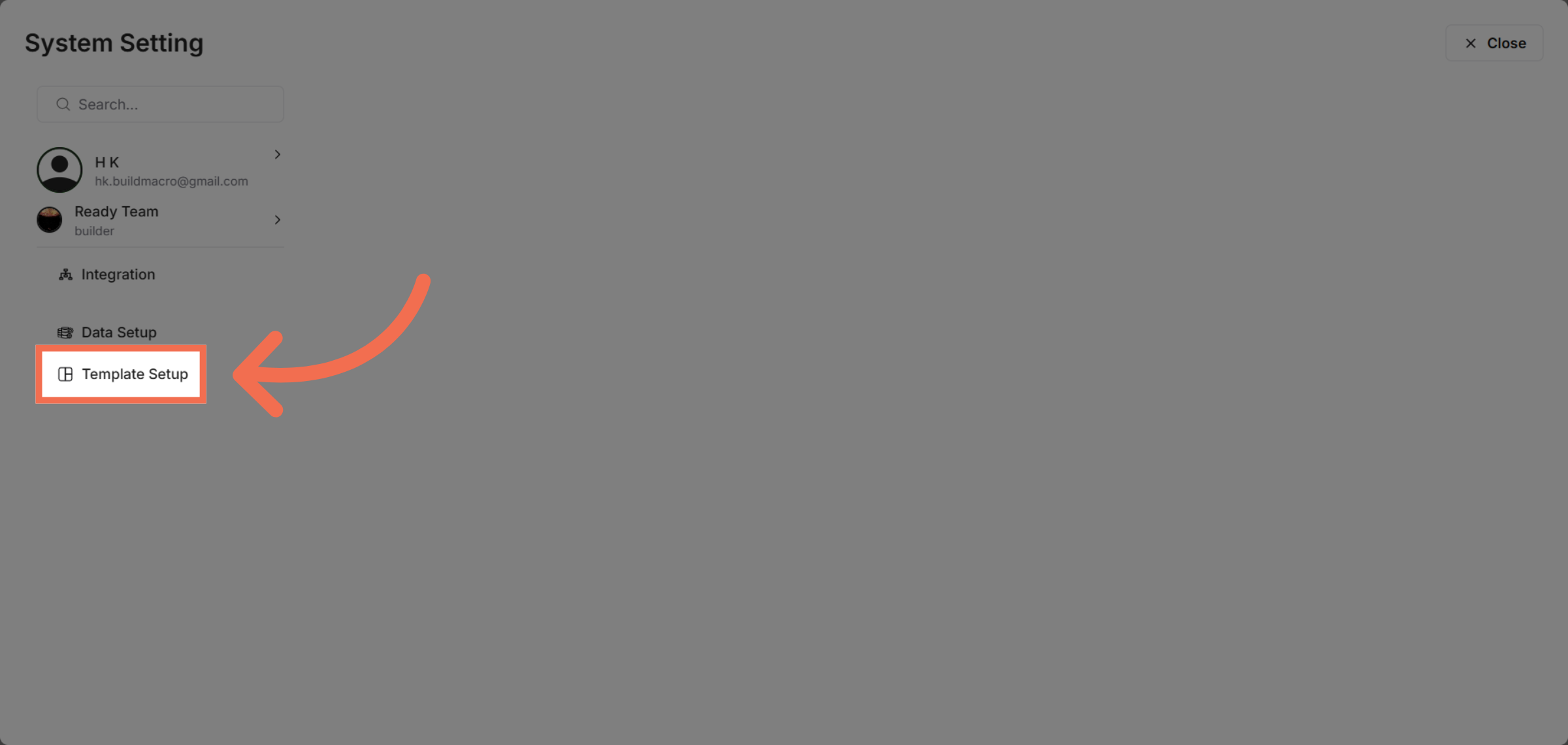
3. Access Template Setup
Click Template Setup to manage templates related to your project data.
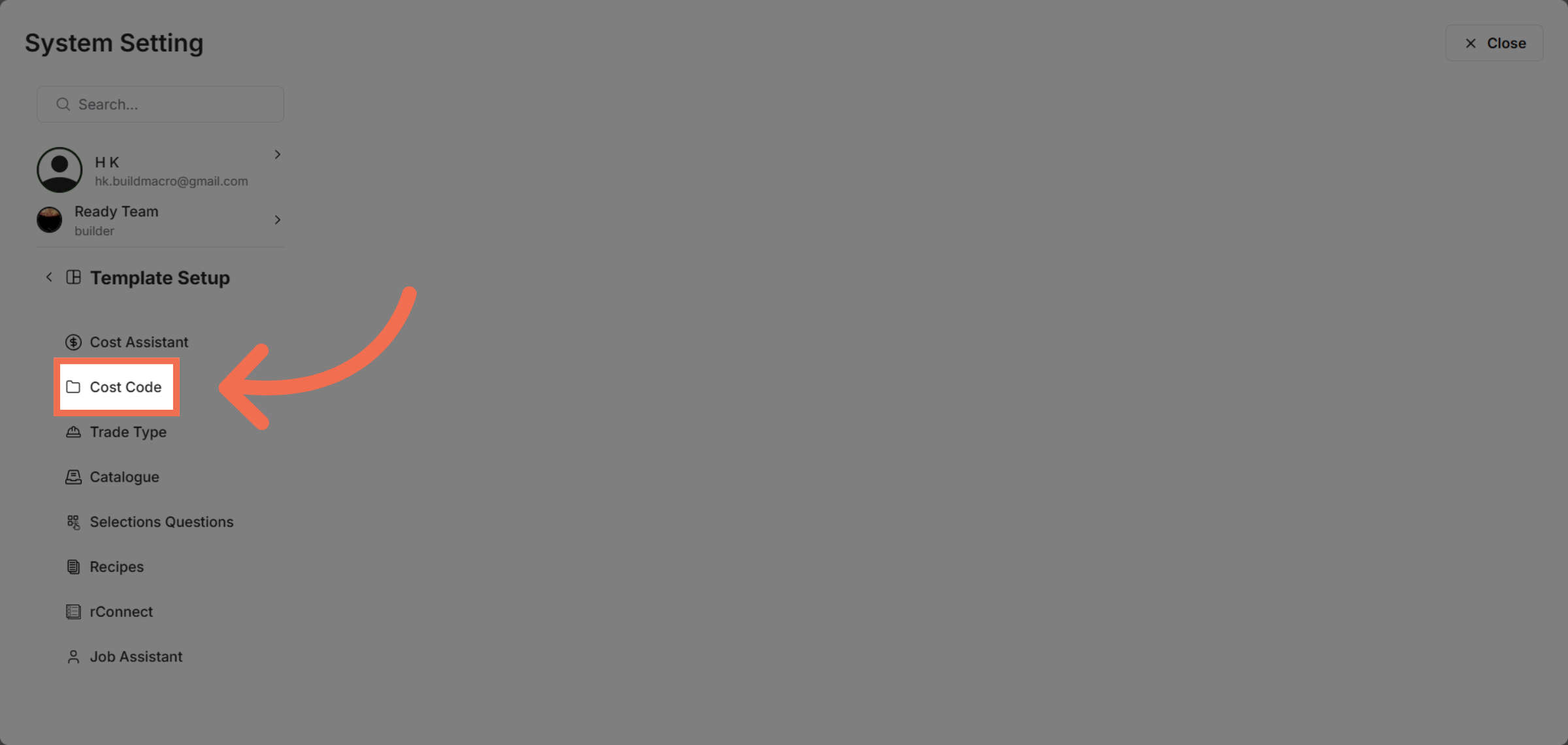
4. Navigate to Cost Code Section
Click Cost Code to open the section where cost code data is organized and managed.
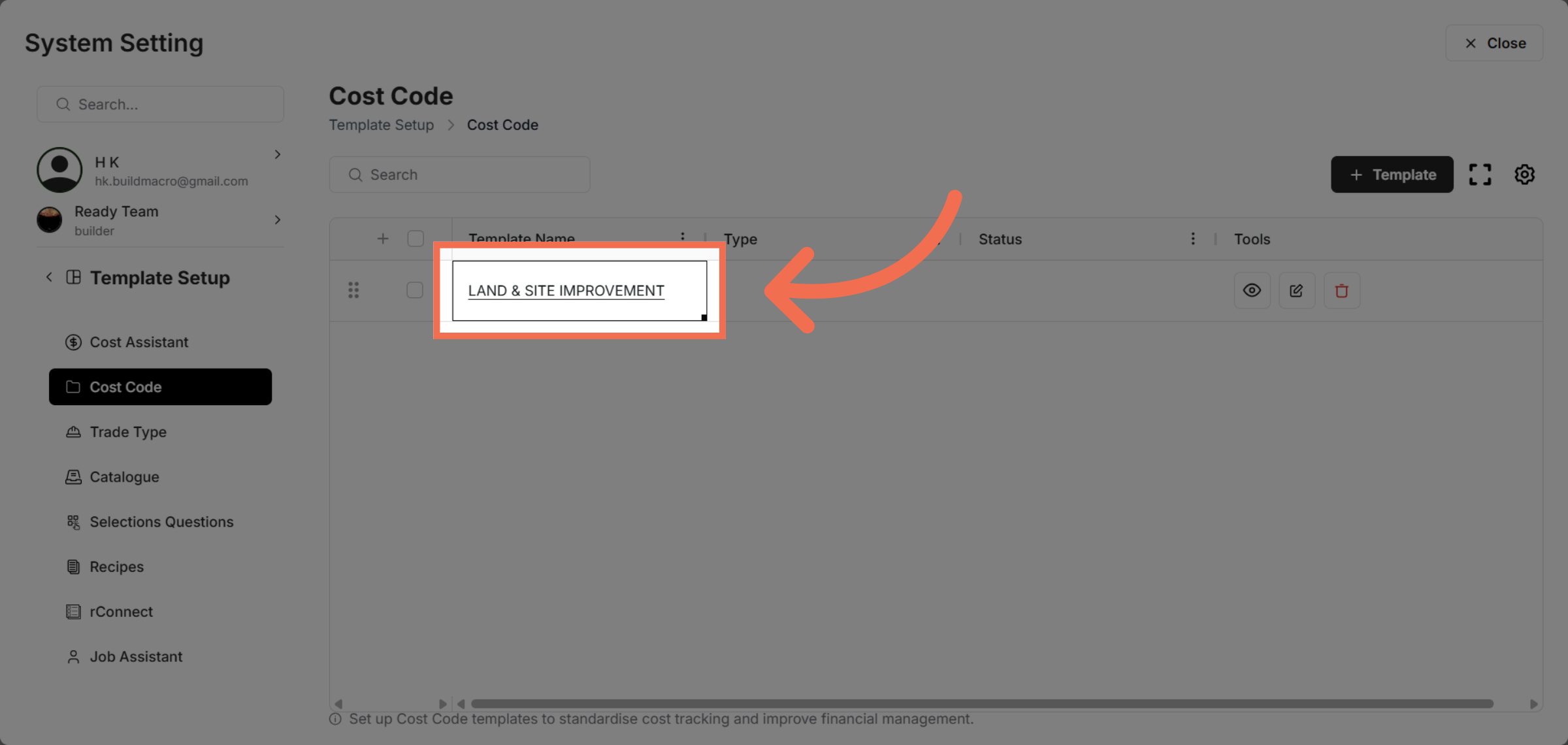
5. Choose Specific Cost Code Template
Select the template for cost codes, such as land and site improvement, to filter relevant data.
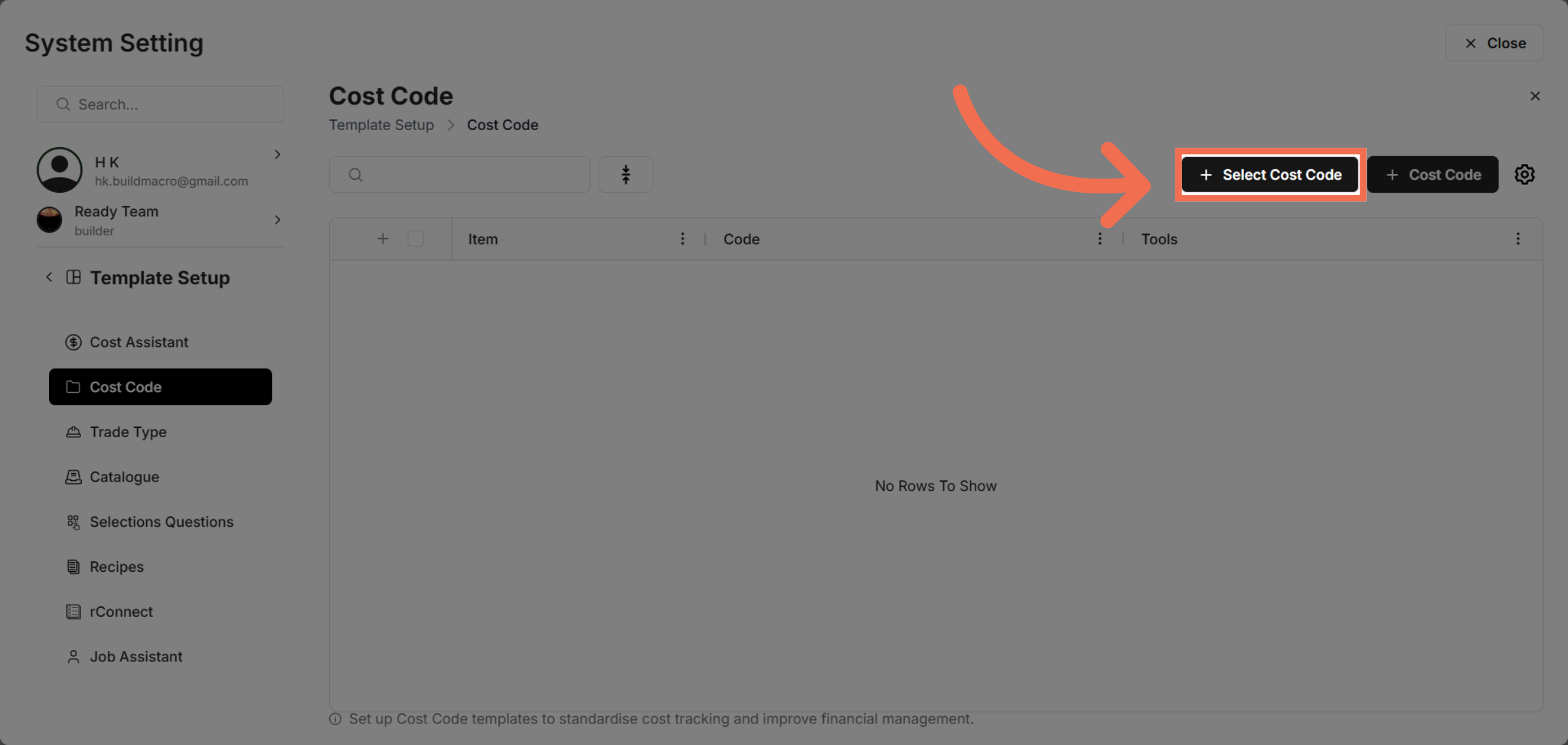
6. Open Selection Options
Click the designated area to reveal options for selecting cost code rows.
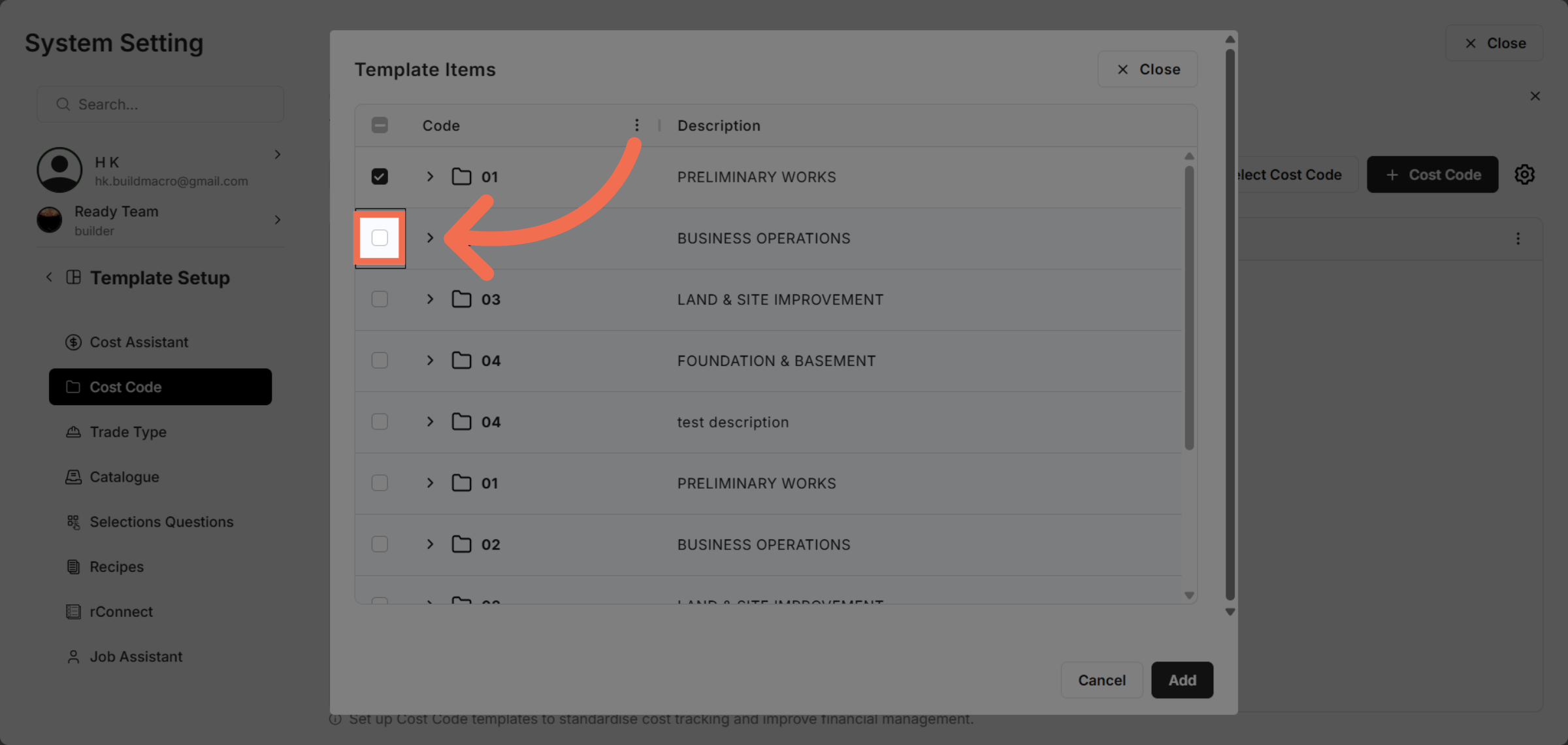
7. Select data you want to add into Template
Click the control labeled Press Space to toggle row selection to finalize your row selections.
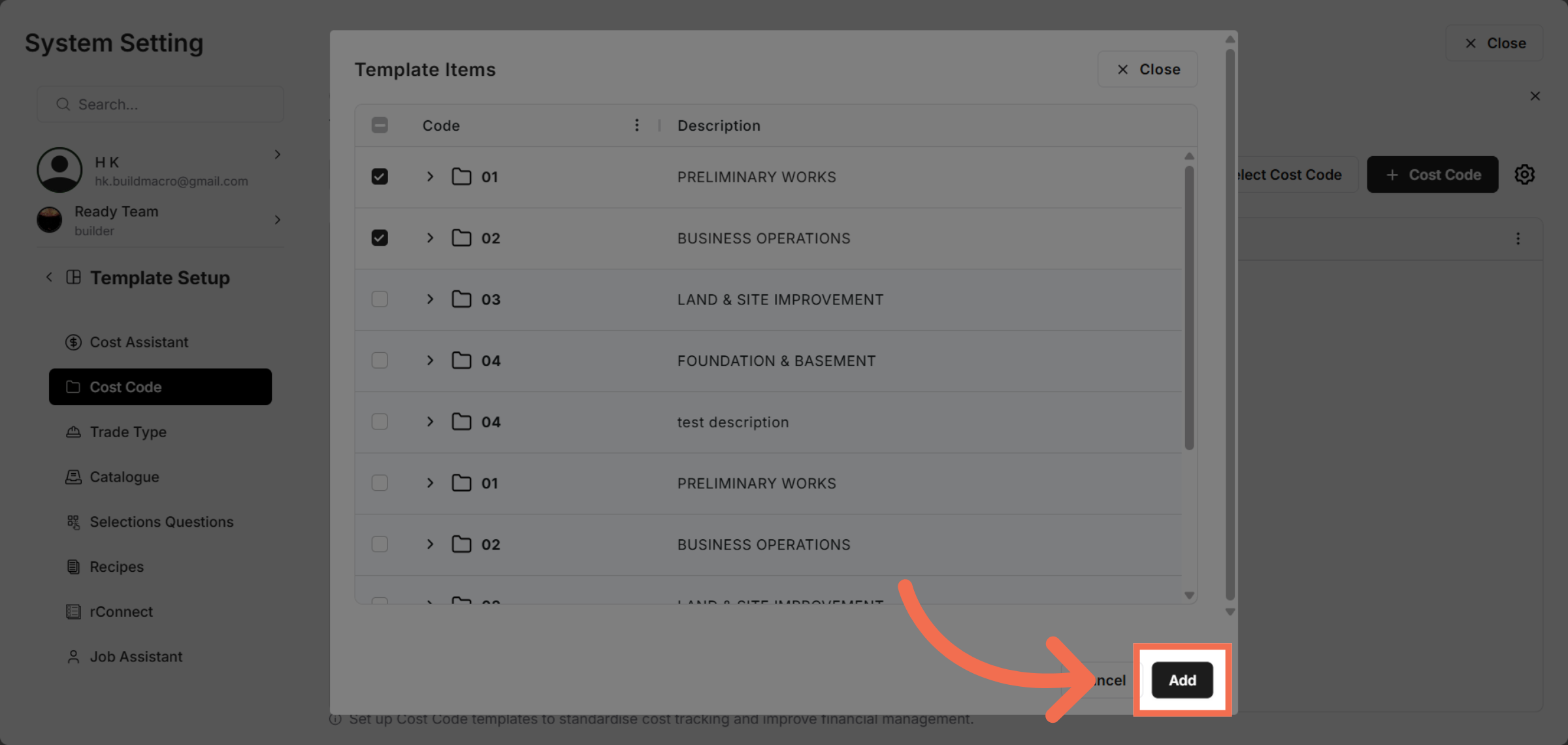
8. Add Selected Cost Codes
Click Add to include the selected cost code data into your setup for further use.
This demo demonstrated how to efficiently select and configure cost code data within Readyteam. You can now streamline your project cost management by following these steps.