Create Cost Code Templates Efficiently In ReadyTeam
This demo showcases how to create a cost code template within Readyteam.
Go to app.readyteam.ai
1. Select User Section
Click the user section to access your Readyteam profile settings.
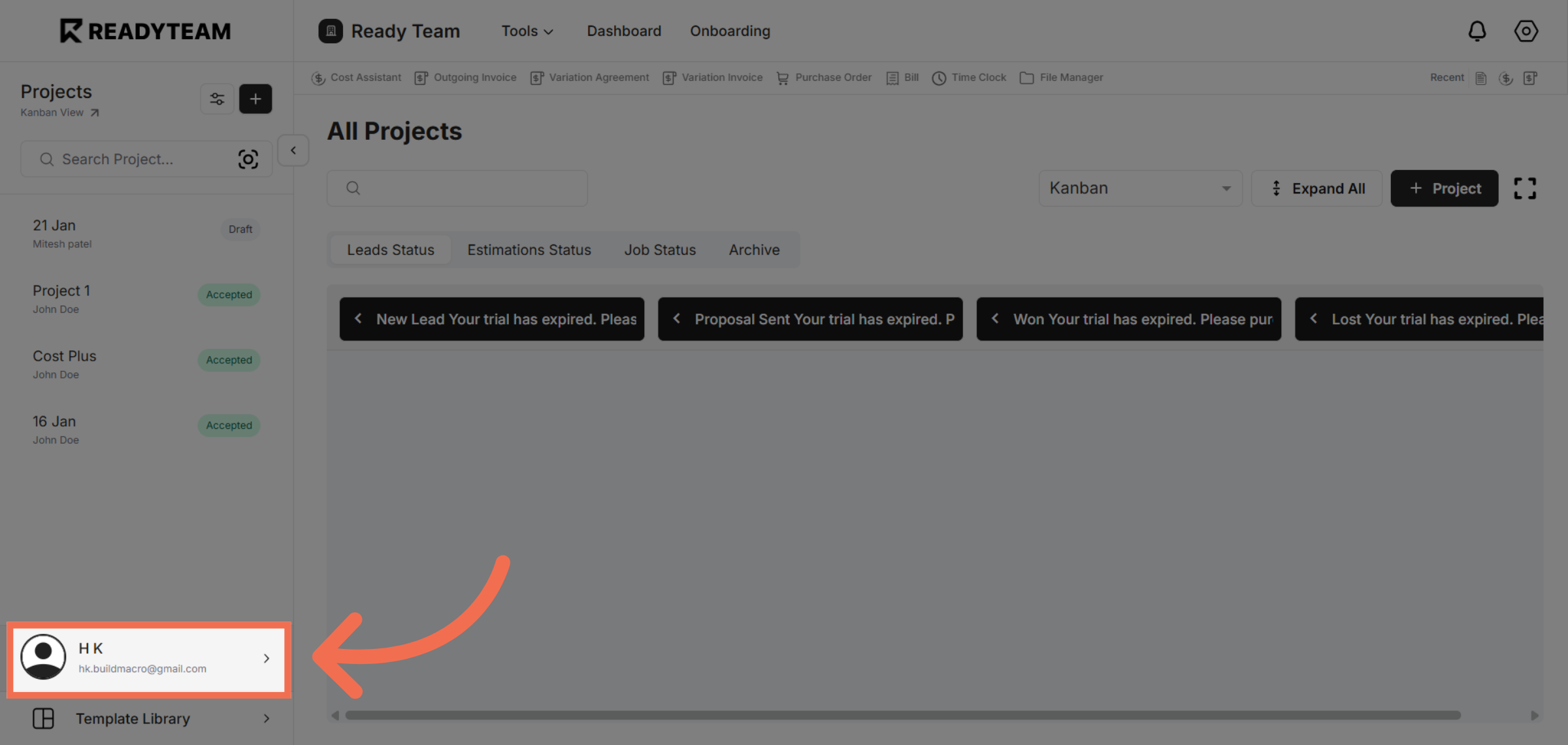
2. Open System Settings
Click System Setting to access configuration options for your account.
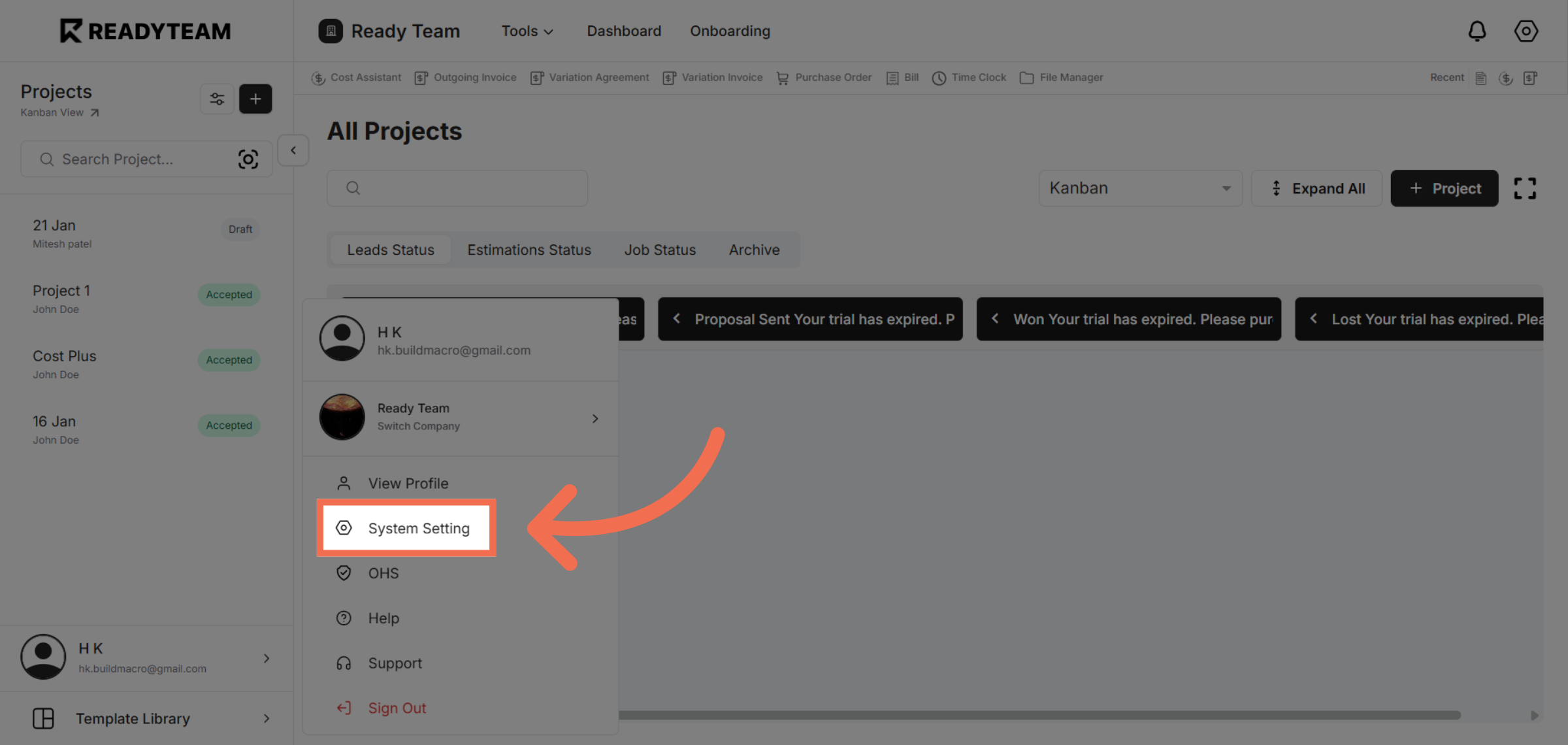
3. Access Template Setup
Click Template Setup to manage and create various templates within Readyteam.
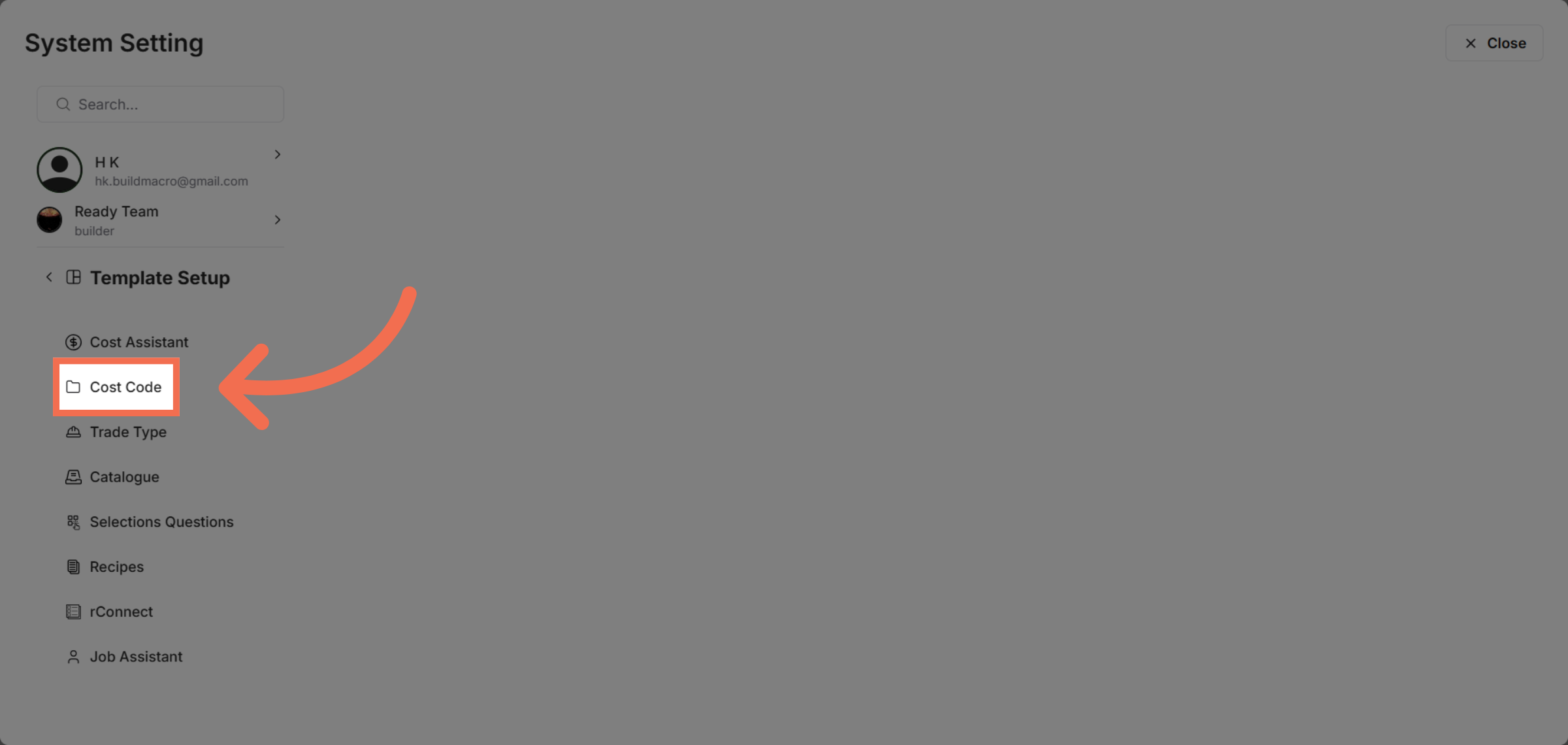
4. Choose Cost Code Section
Click Cost Code to focus on cost code related templates and settings.
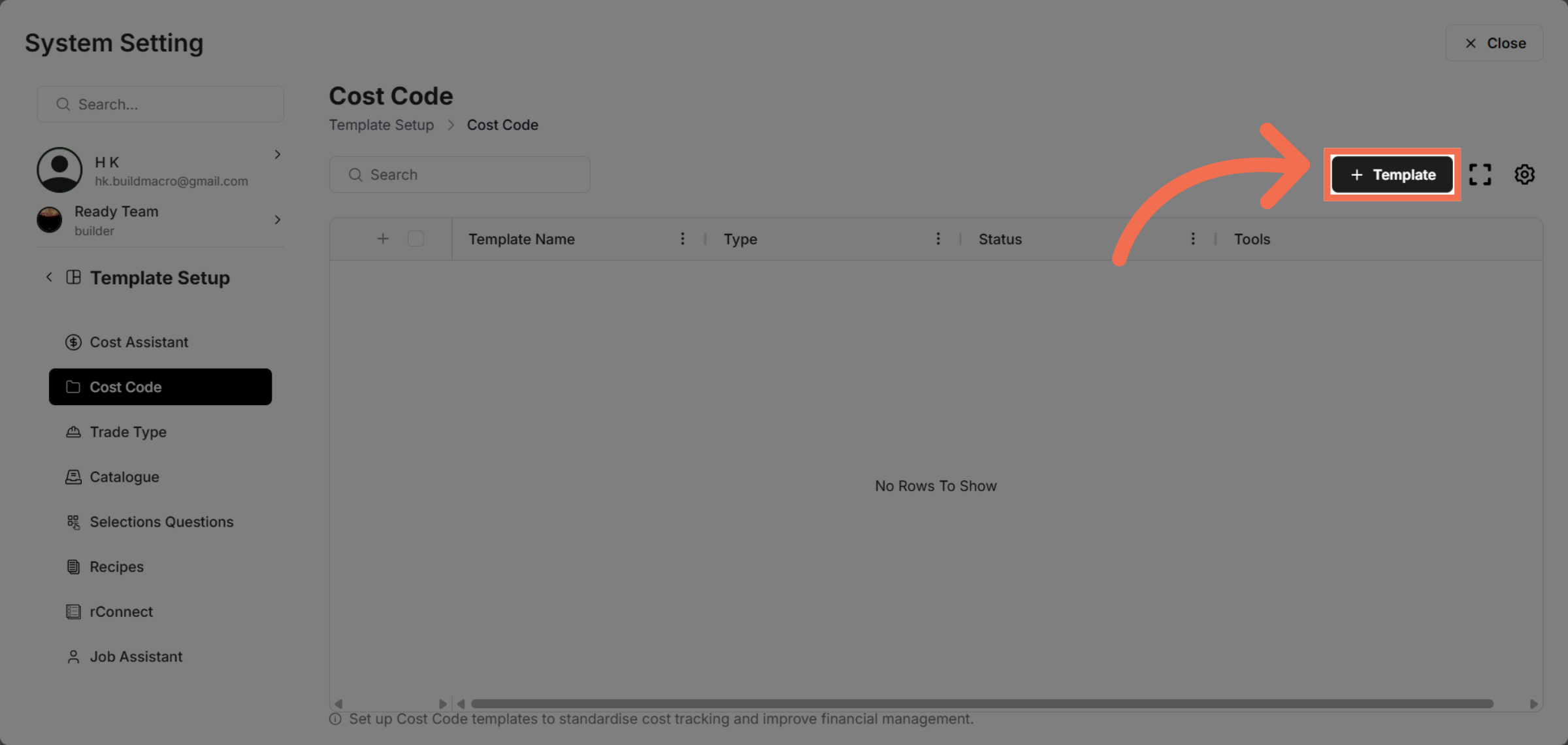
5. Initiate Template Creation
Click here to start creating a new cost code template.
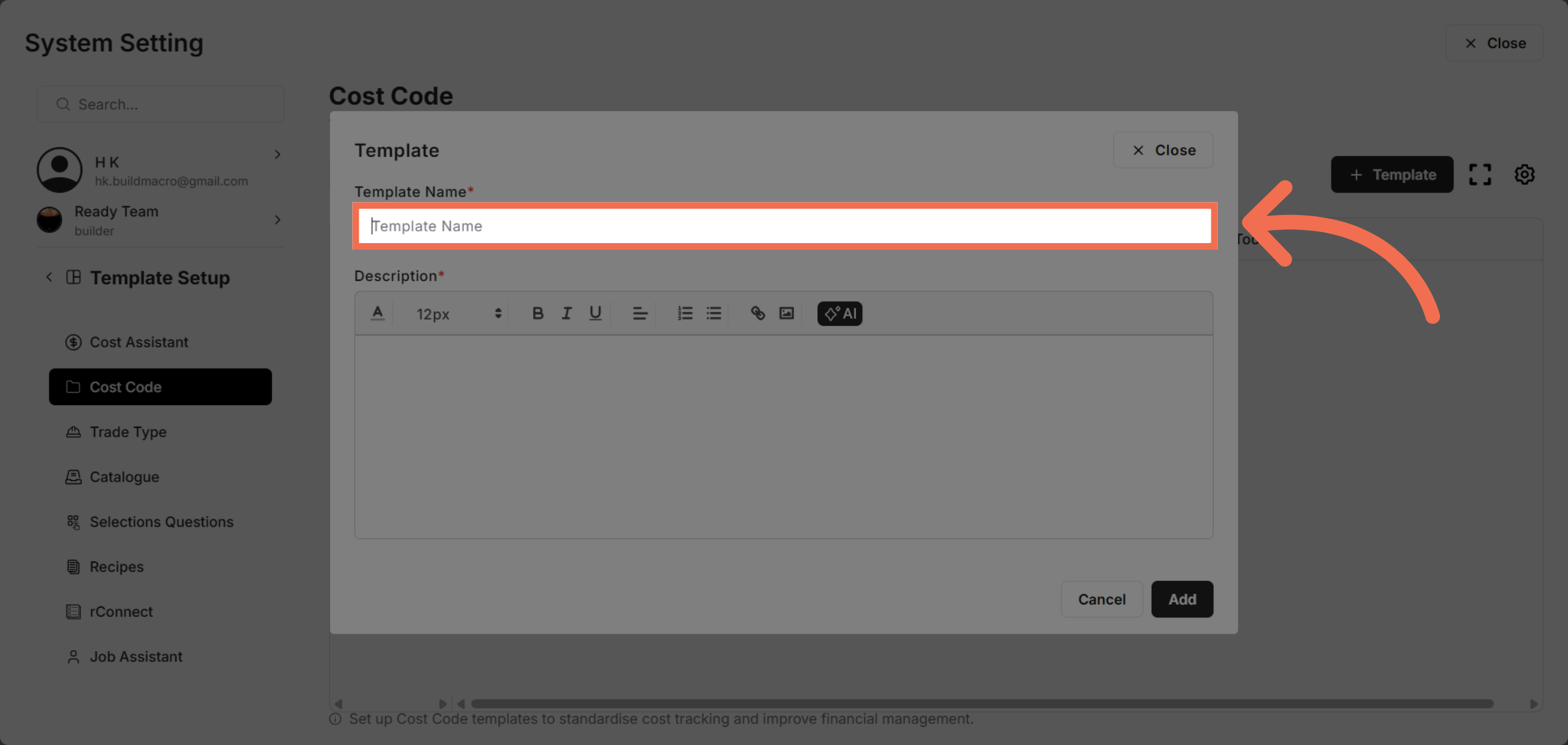
6. Enter Template Name
Enter your cost code template name to identify it clearly, such as for land and site improvements.
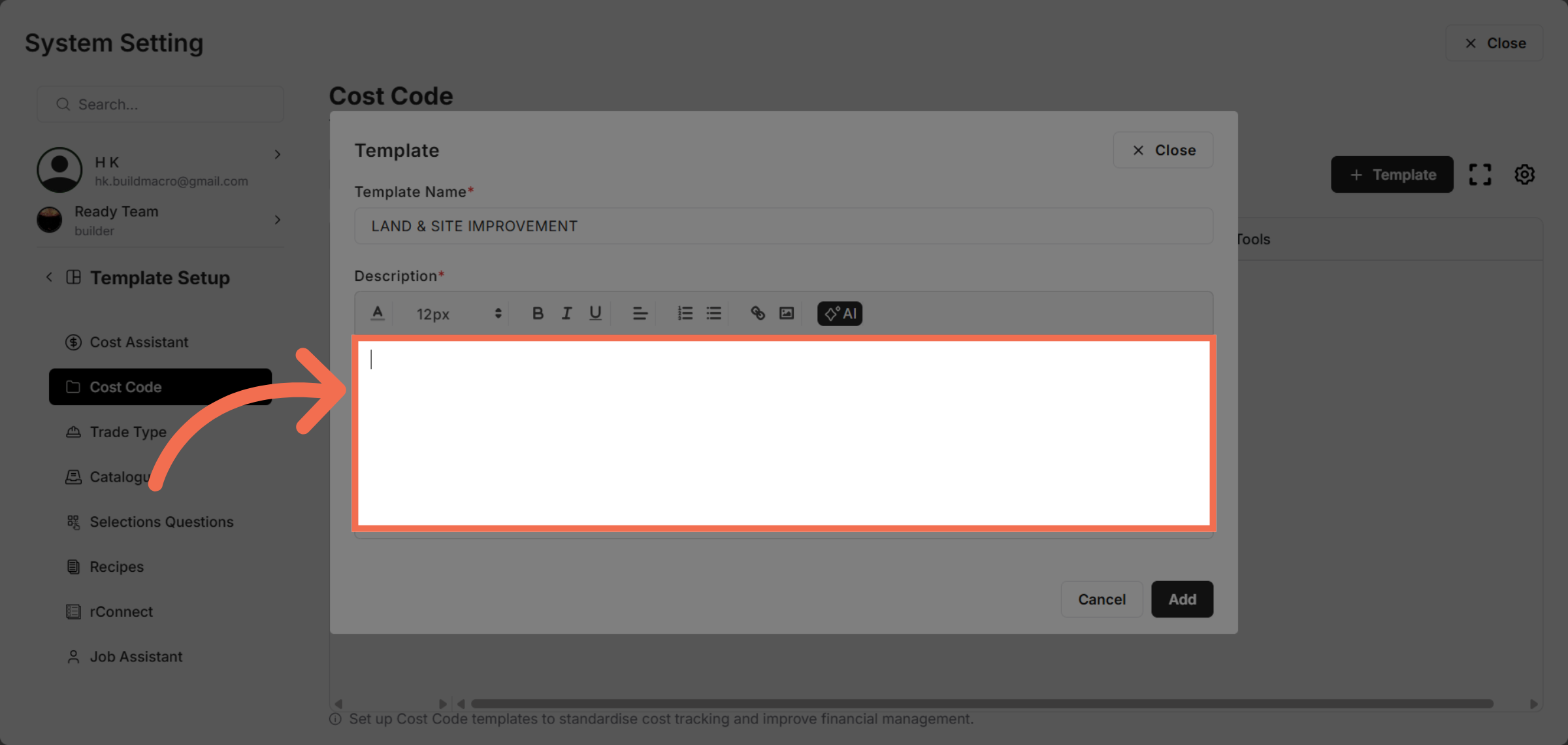
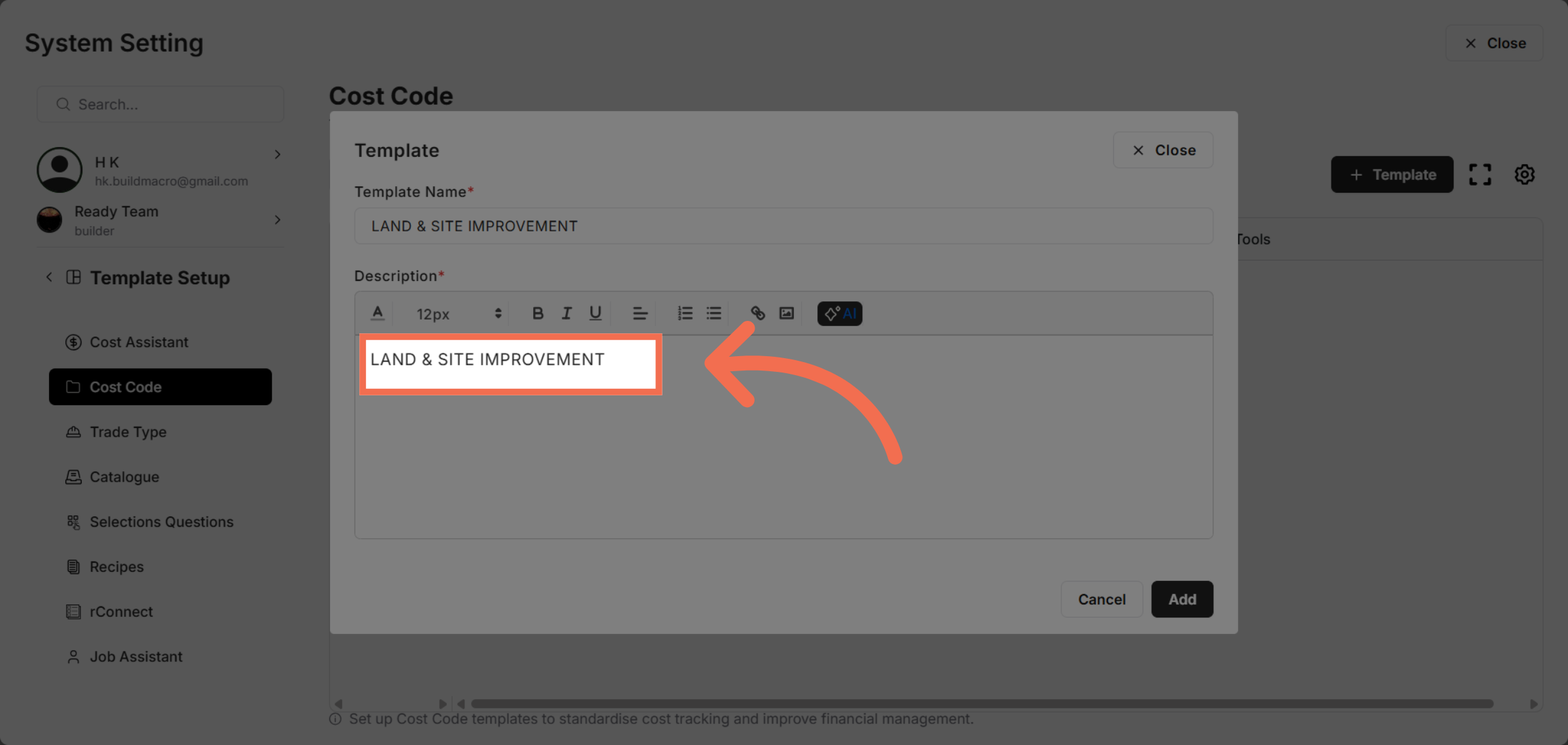
7. Enter Template Description
Enter description of template.
8. You can also select an AI Option to generate description for your Template
AI enable intelligent features that assist in managing your cost code templates.
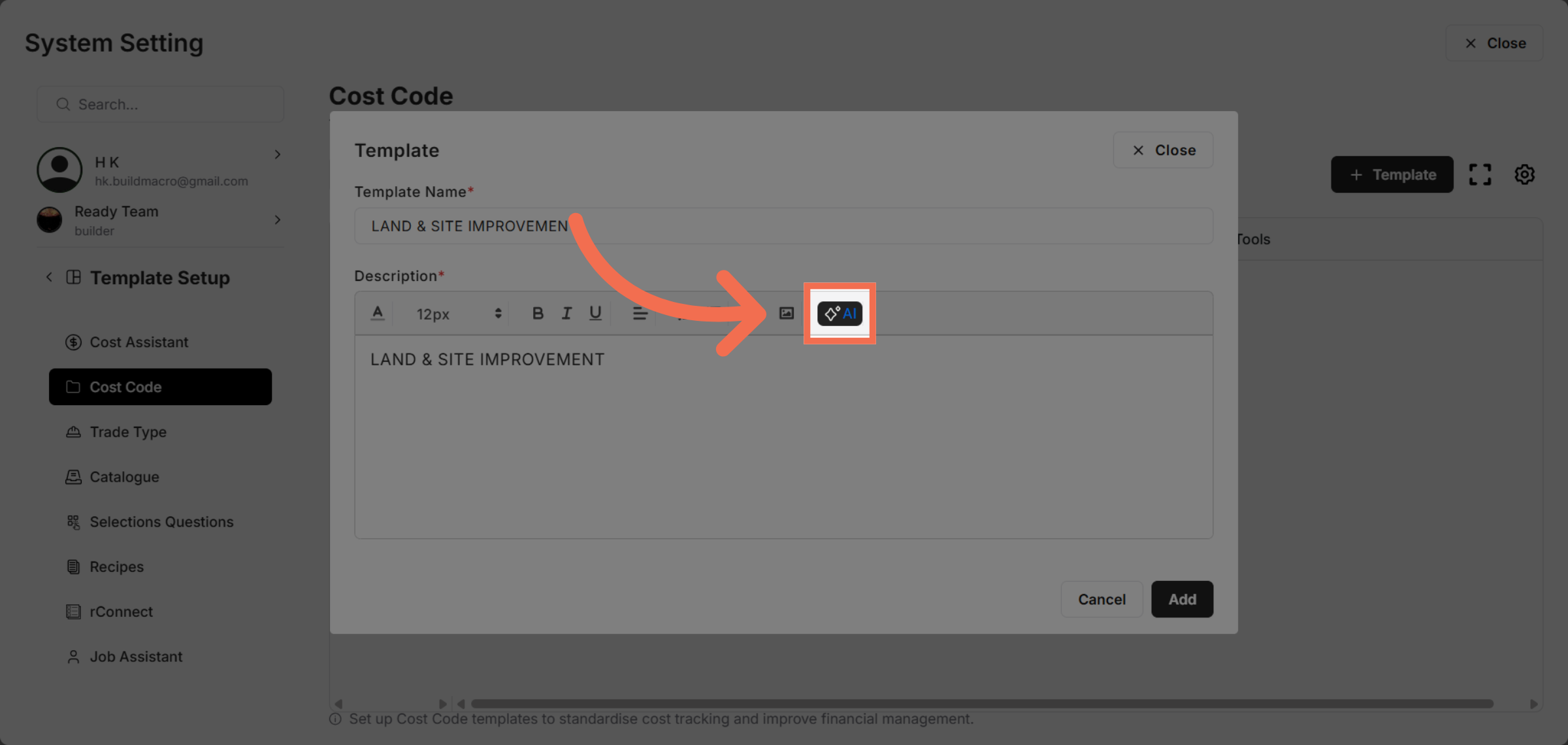
9. Provide the Context of your Template
Give Template context to generate more relatable description for your template.
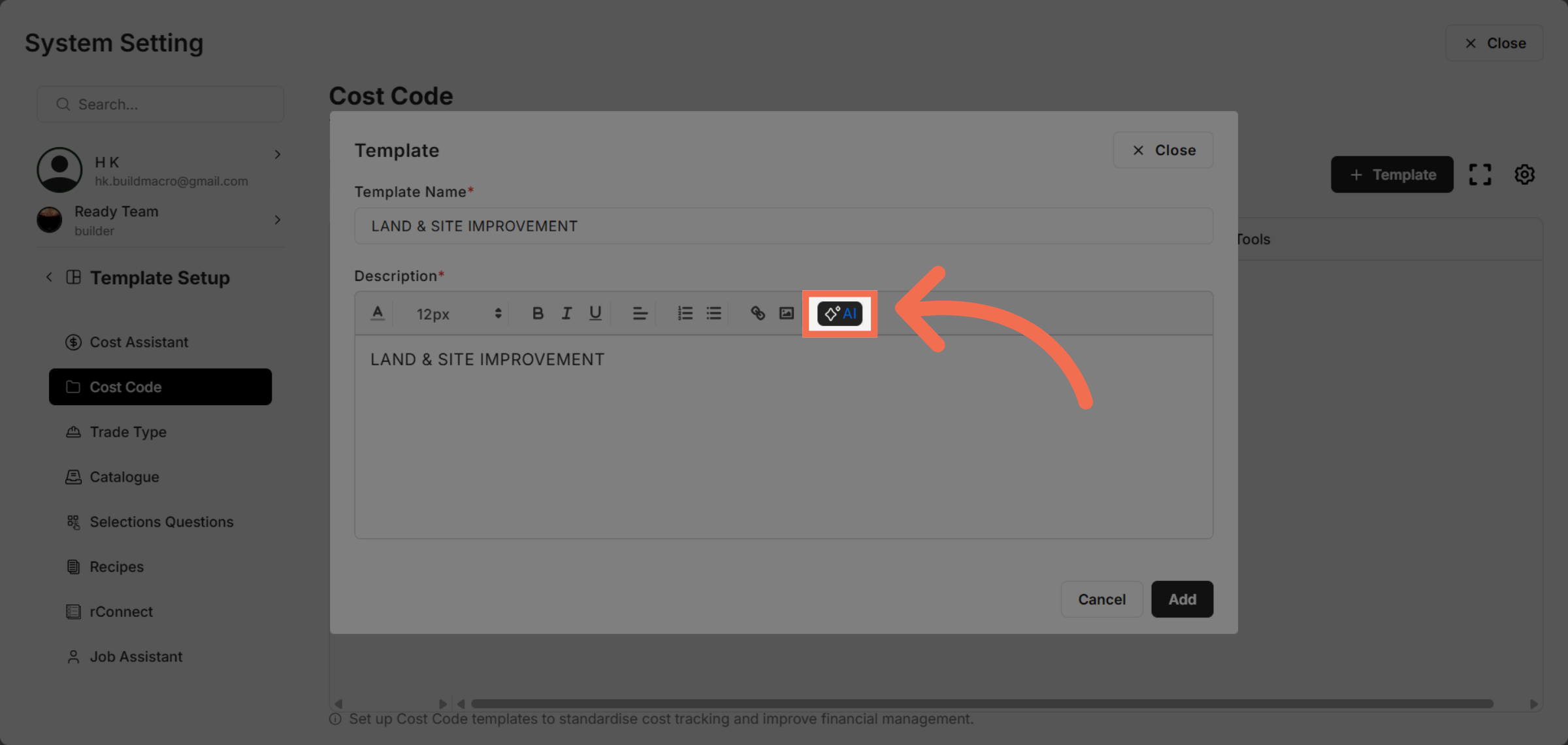
10. Click "AI"
Click AI to enable intelligent features that assist in managing your cost code templates.
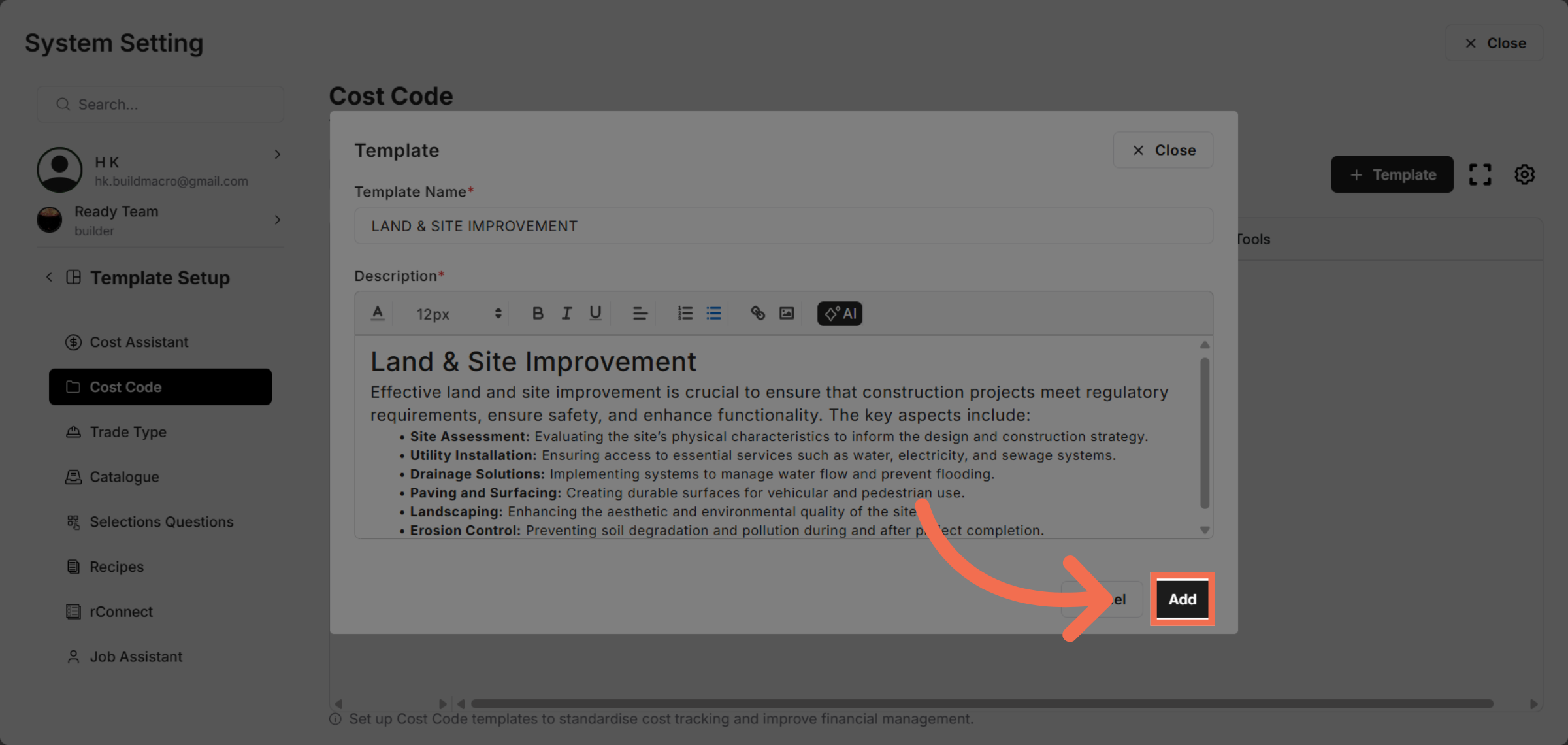
11. Add New Template
Click Add to finalize and save your new cost code template in Readyteam.
You have seen how to efficiently create and configure a cost code template in Readyteam. This process helps you organize cost data and improve project budgeting accuracy. Start creating your own templates today to streamline your cost management.