Create Catalogue Templates Efficiently In ReadyTeam
This demo showcases how to create a catalogue template within Readyteam.
Go to app.readyteam.ai
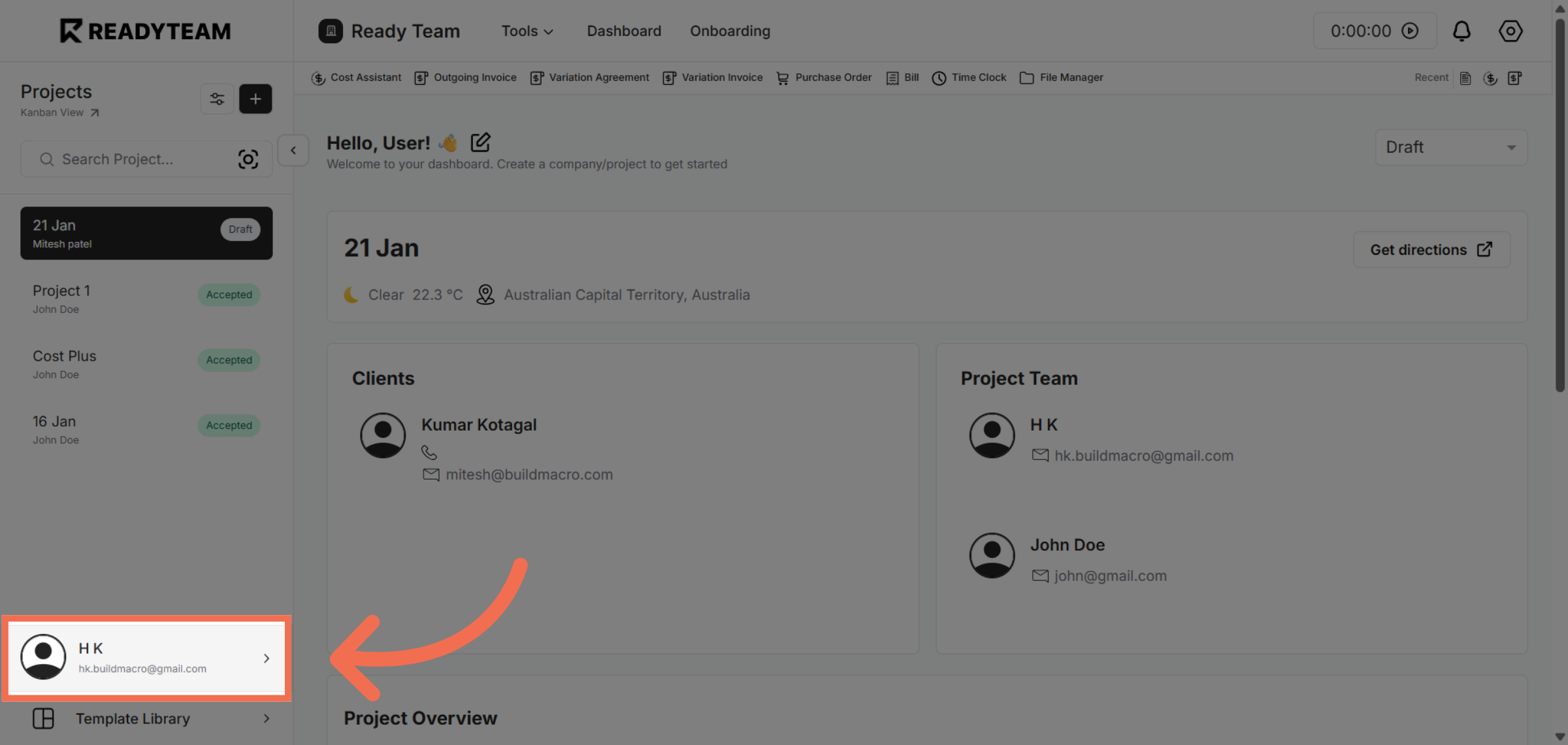
1. Select User Section
Click the user section to begin accessing system settings.
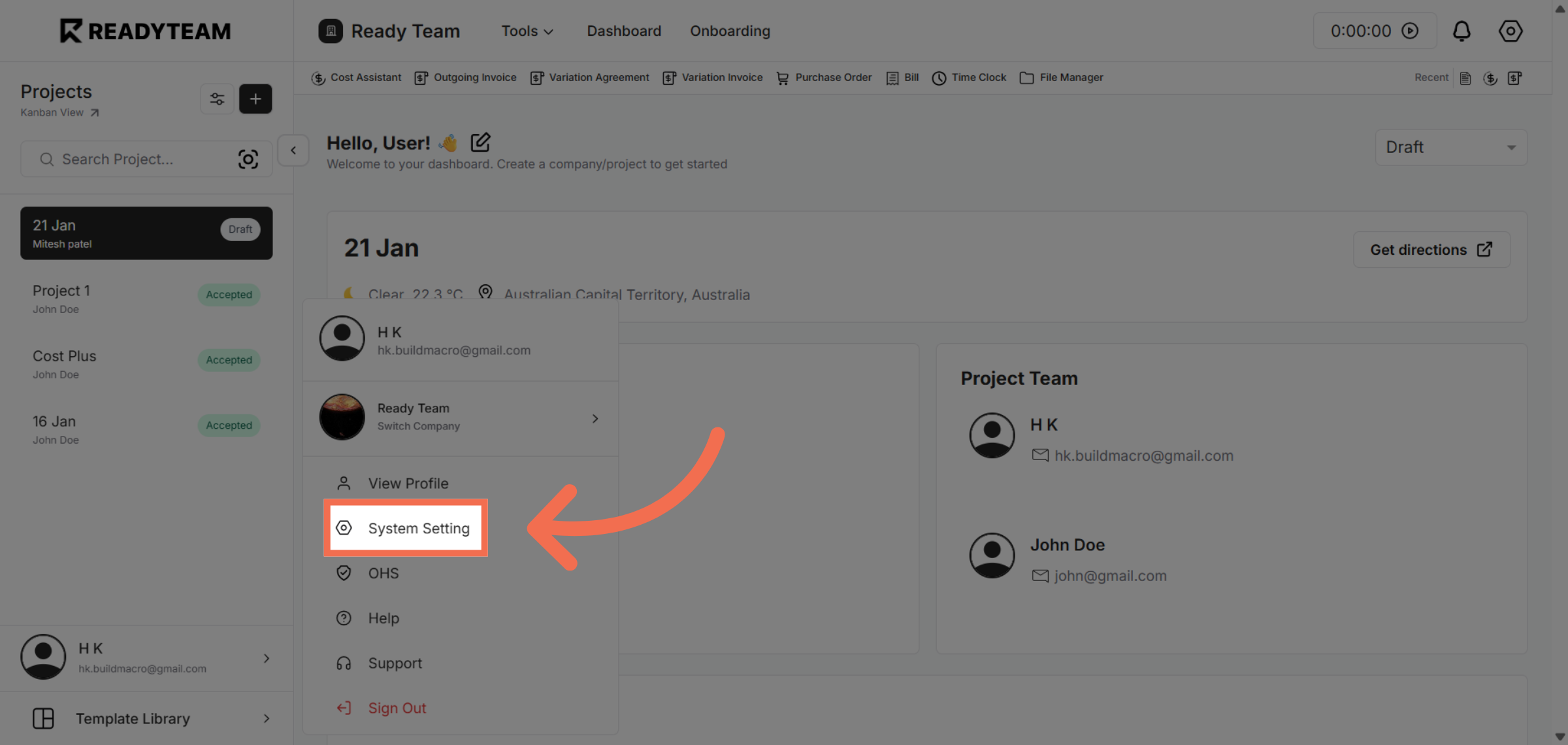
2. Open System Settings
Click System Setting to access configuration options for your account.
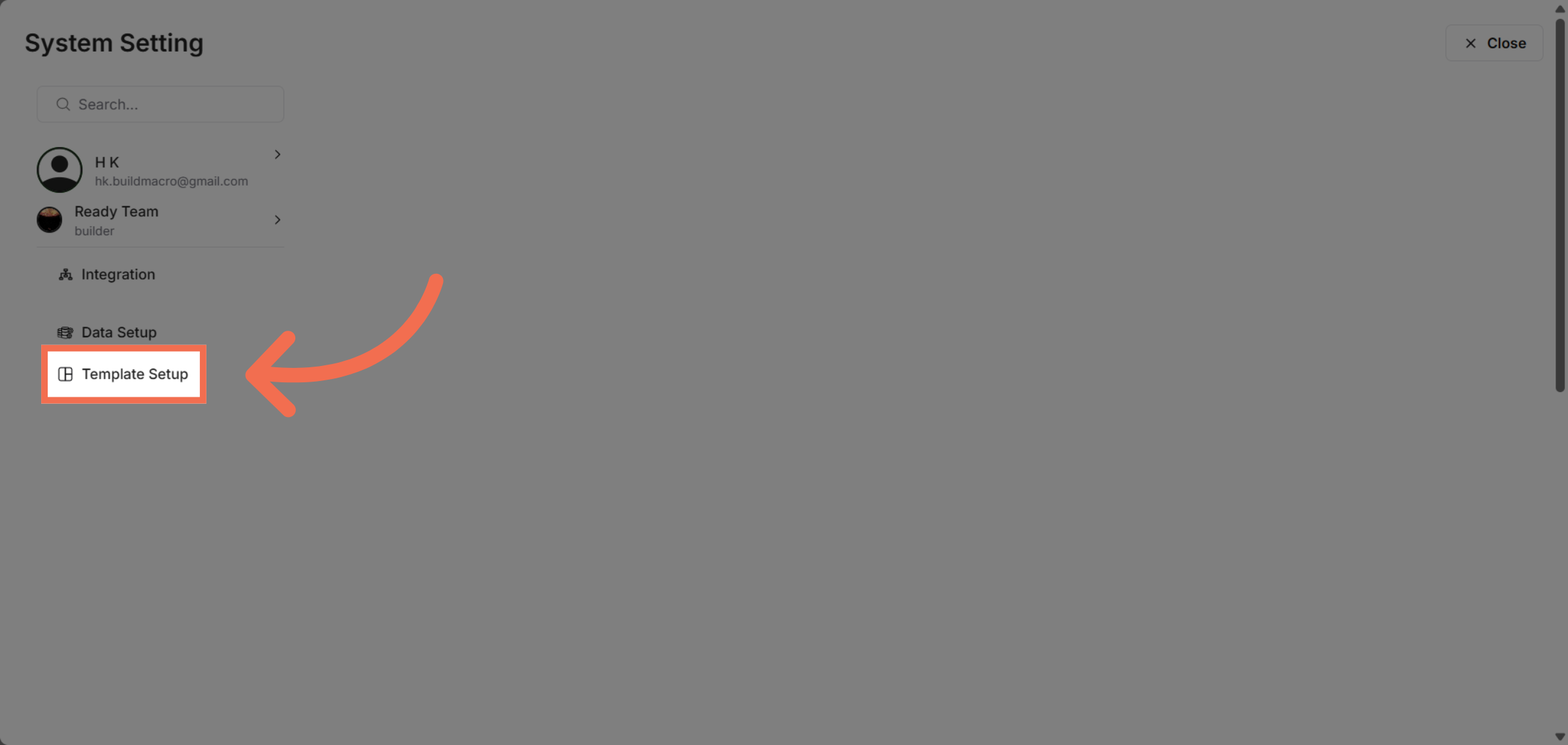
3. Access Template Setup
Click Template Setup to manage and customize your templates.
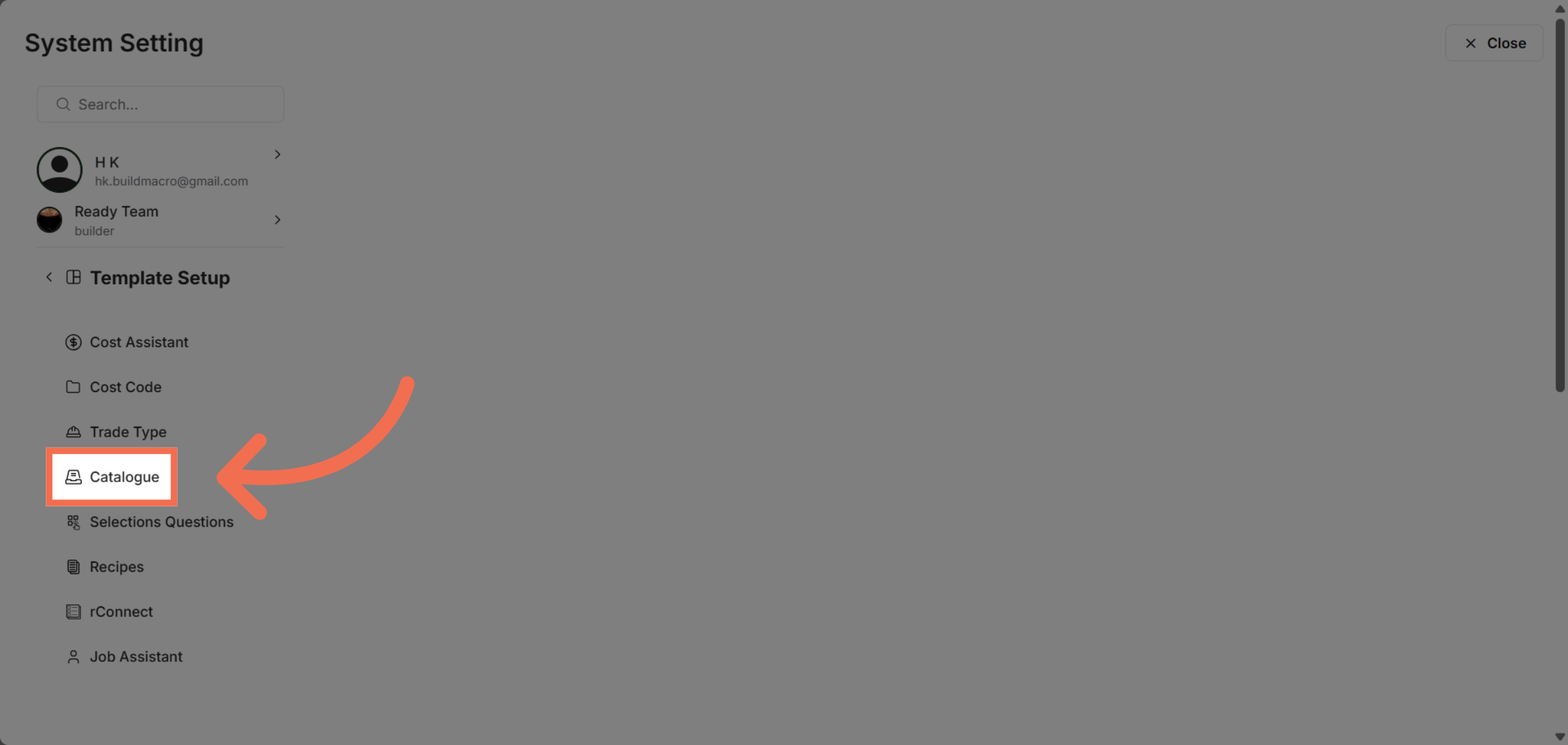
4. Choose Catalogue Section
Click Catalogue to focus on catalogue-specific template options.
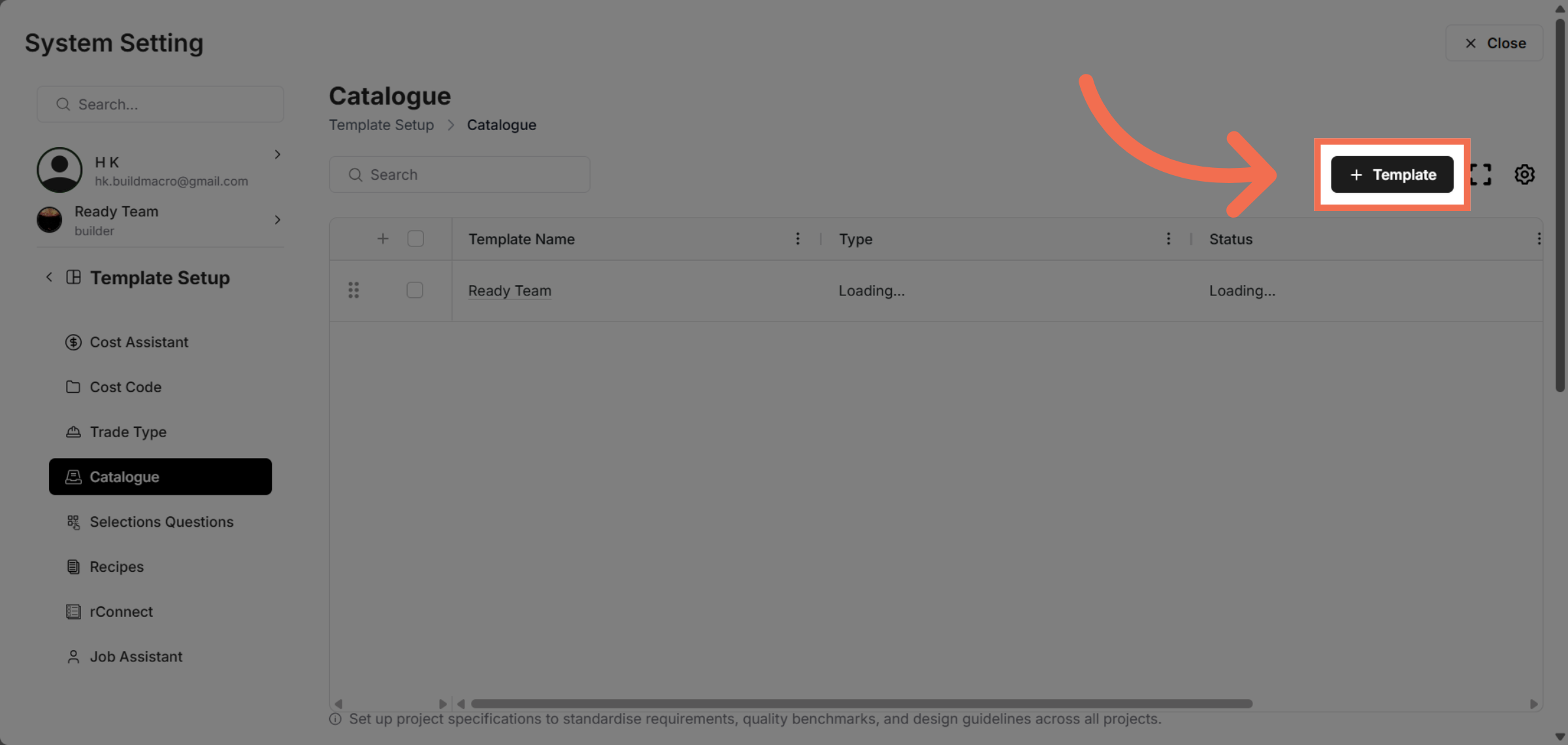
5. Select Template Option
Click Template to create catalogue templates.
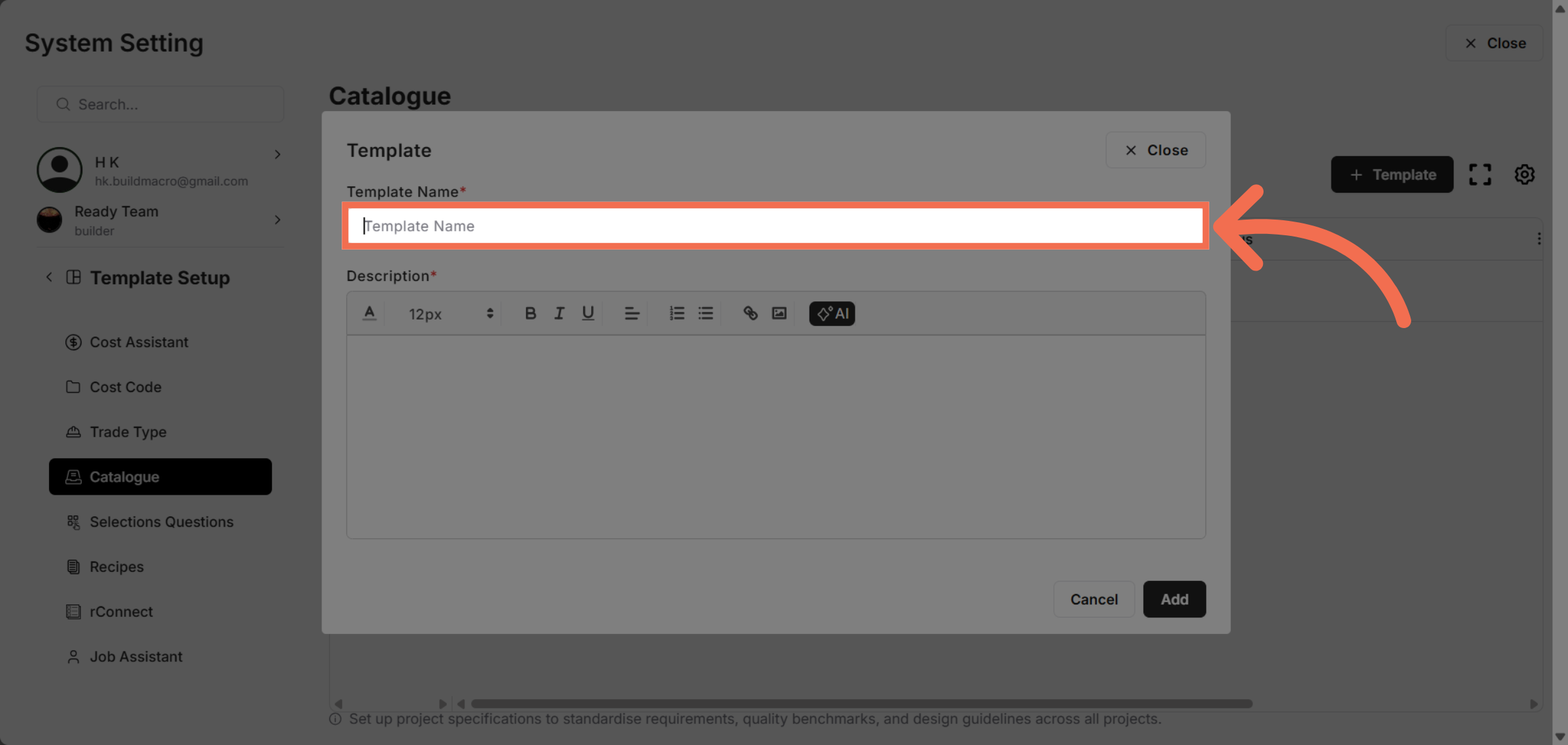
6. Enter Template Name
Enter your template name to identify it clearly, such as Letter Boxes Template.
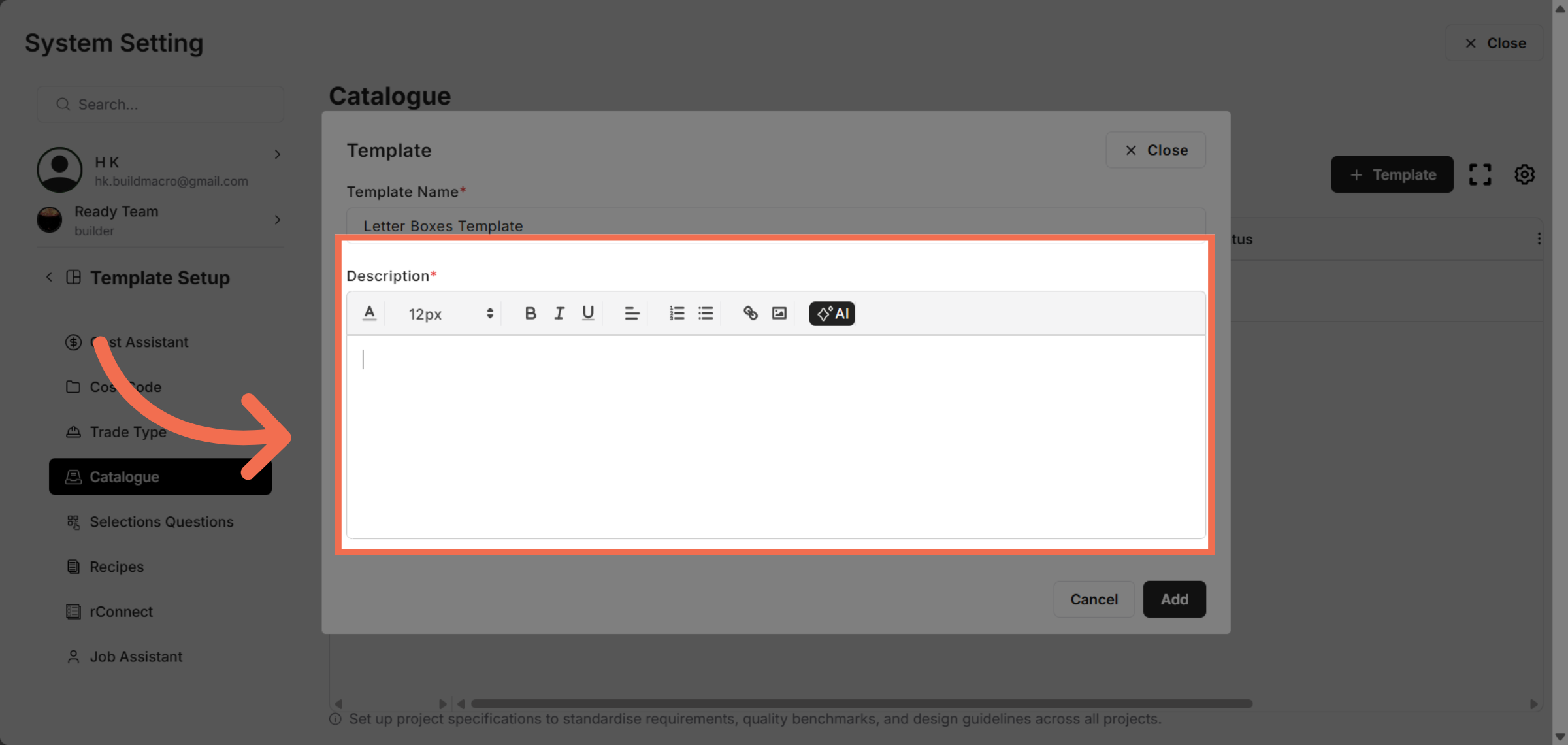
7. Enter Description
Enter description to continue with the template creation process.
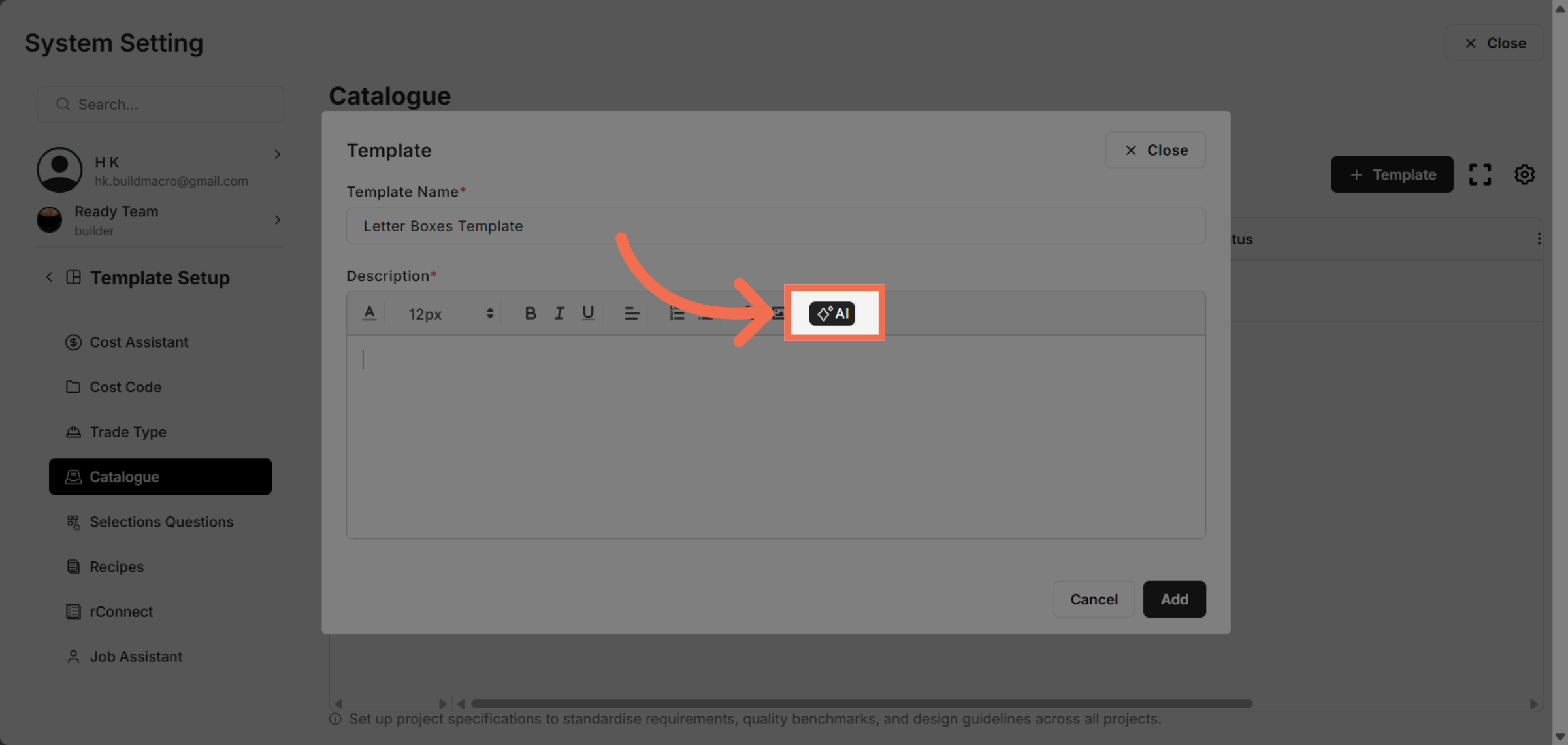
8. You can also use AI to Generate Description
You can take help of ReadyTeam AI feature to generate the template description for you.
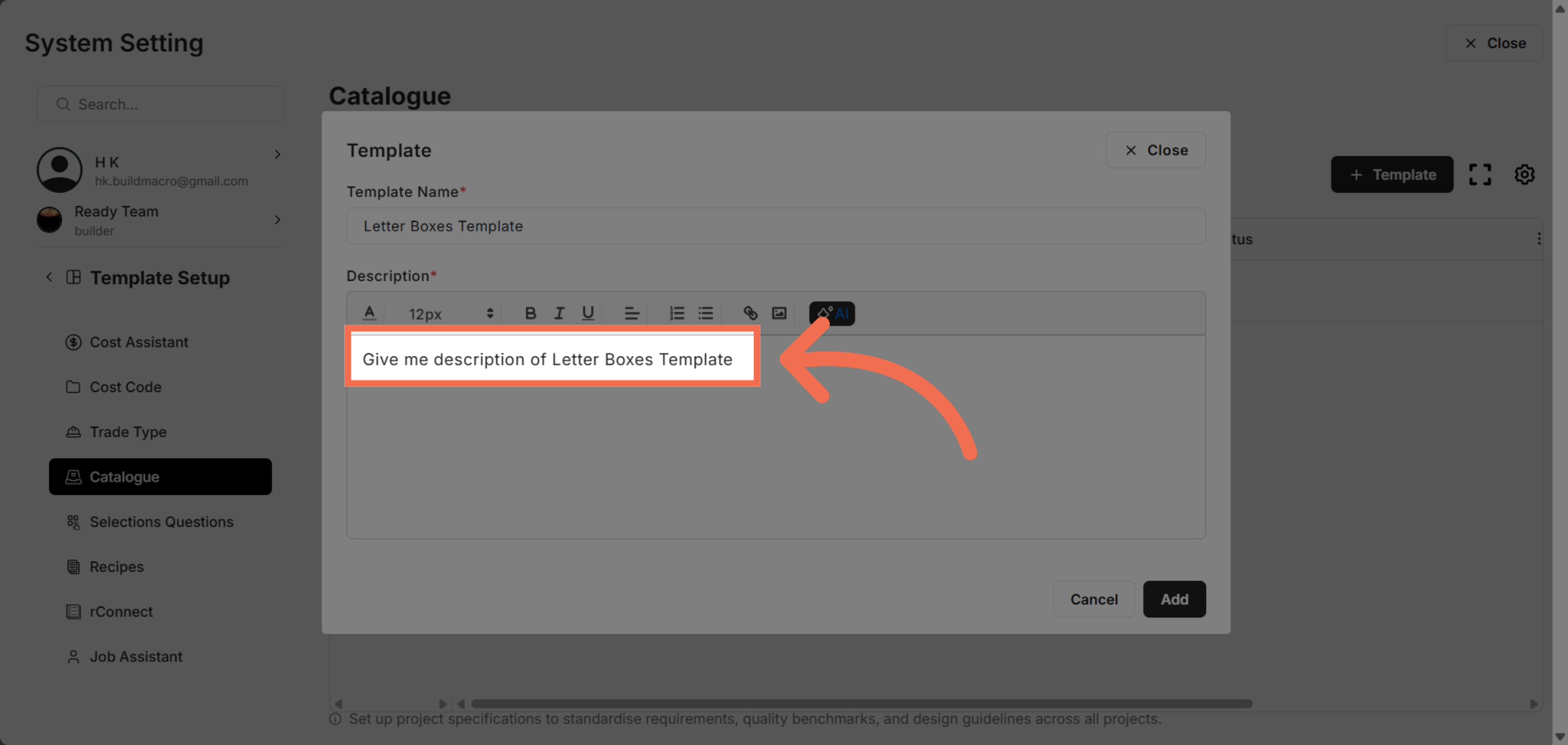
9. Enter the Template Context
Enter the template context for which you want to generate the description.
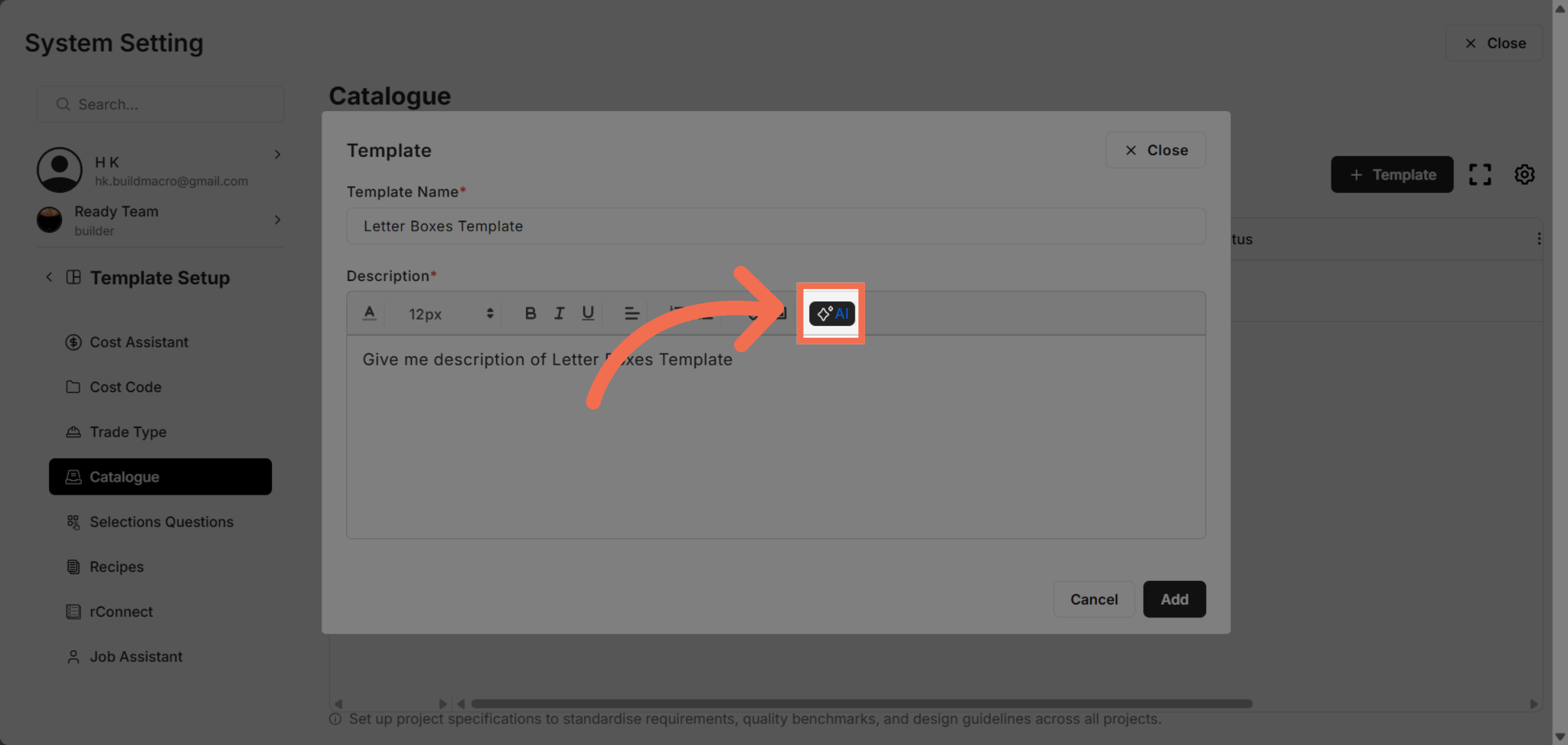
10. Click "AI"
Click AI to utilize artificial intelligence for creating comprehensive catalogue descriptions.
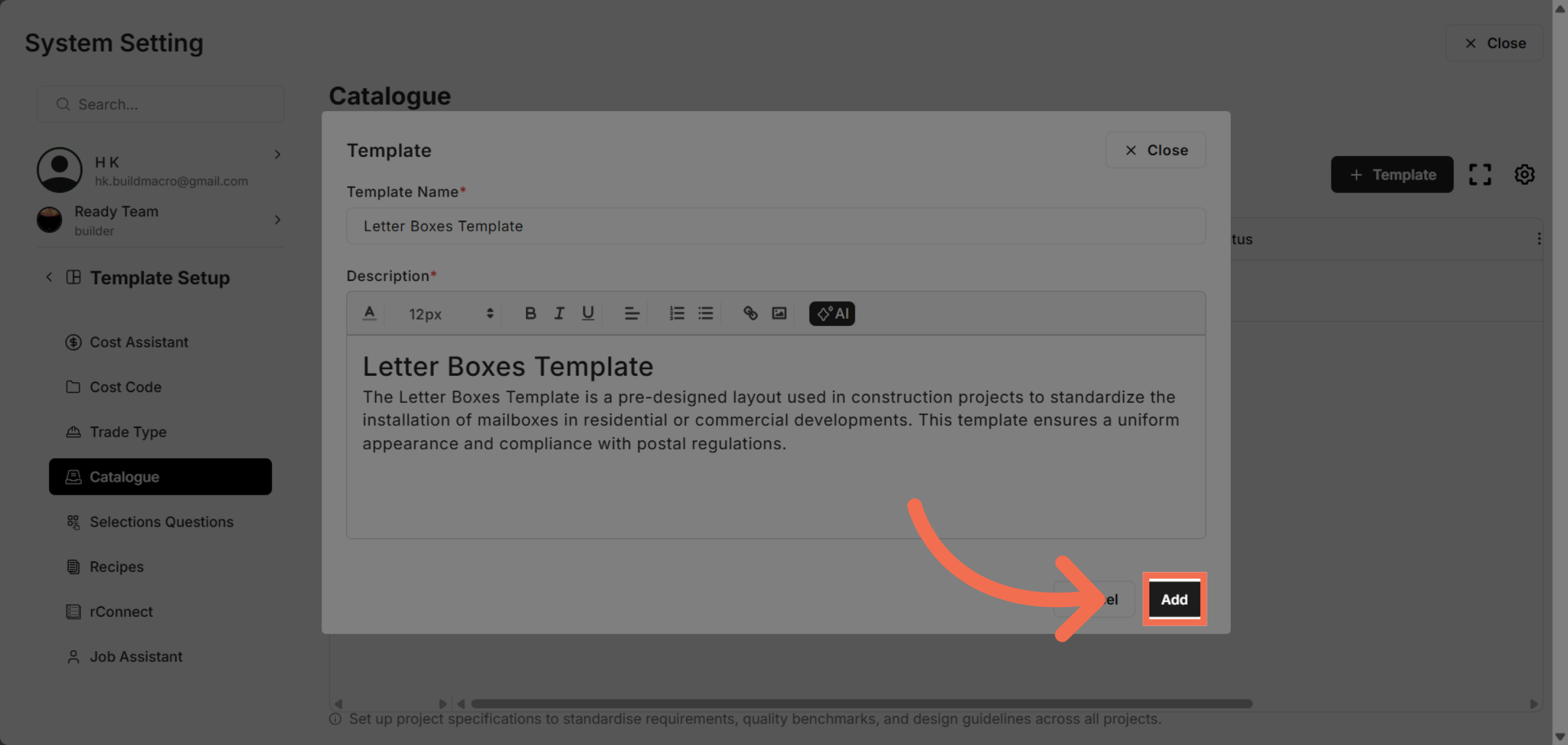
11. Add New Template
Click Add to save your new catalogue template and complete the setup.
This demo demonstrated how to efficiently create and configure a catalogue template in Readyteam. You can now streamline your catalogue management by customizing templates to fit your needs. Start creating your own templates today to enhance your workflow.