Add Catalogue To Templates In ReadyTeam
This demo showcases how to efficiently add catalogue data to a template within Readyteam.
Go to app.readyteam.ai
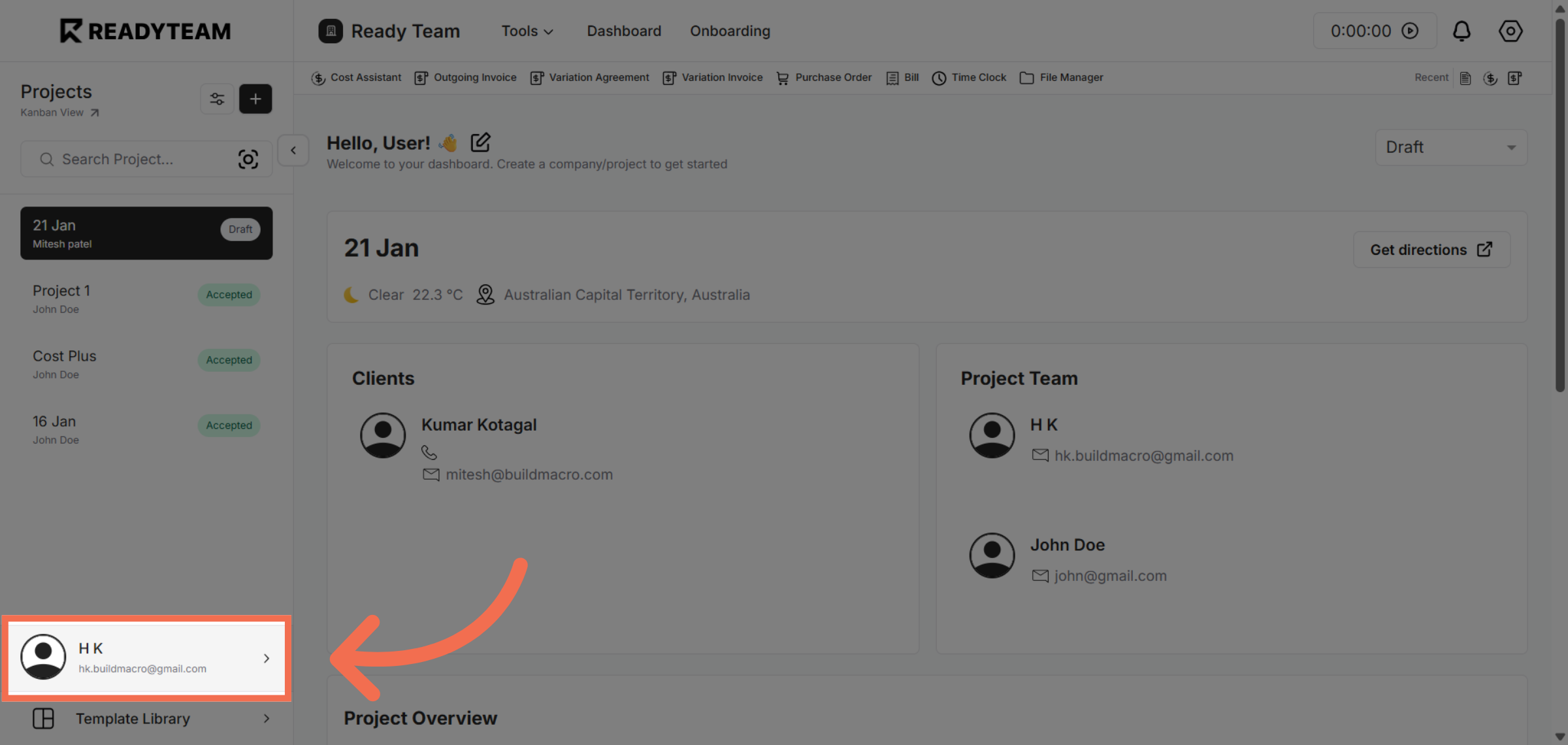
1. Select User Section
Click the user section to begin managing your template settings.
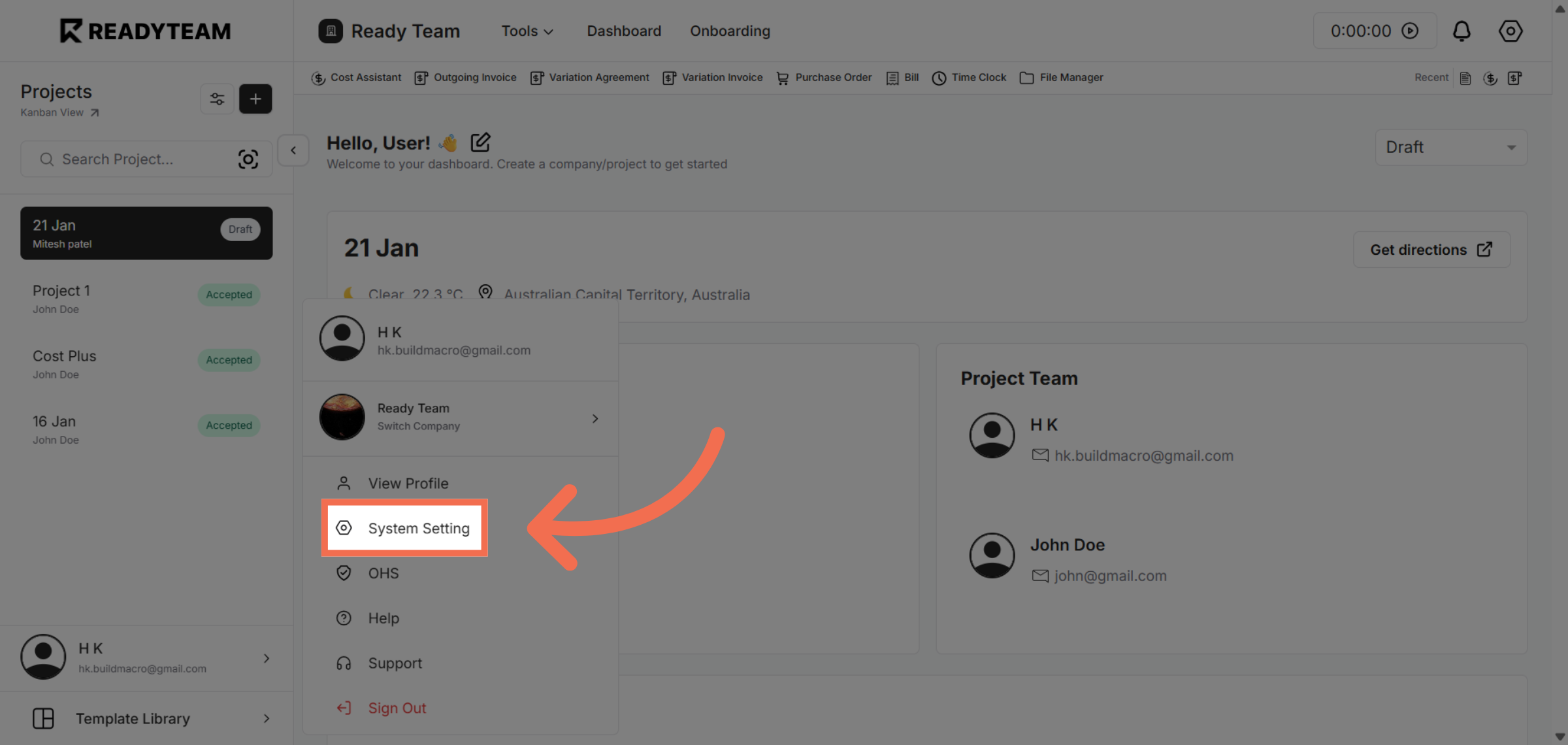
2. Open System Settings
Navigate to System Setting to access configuration options for templates.
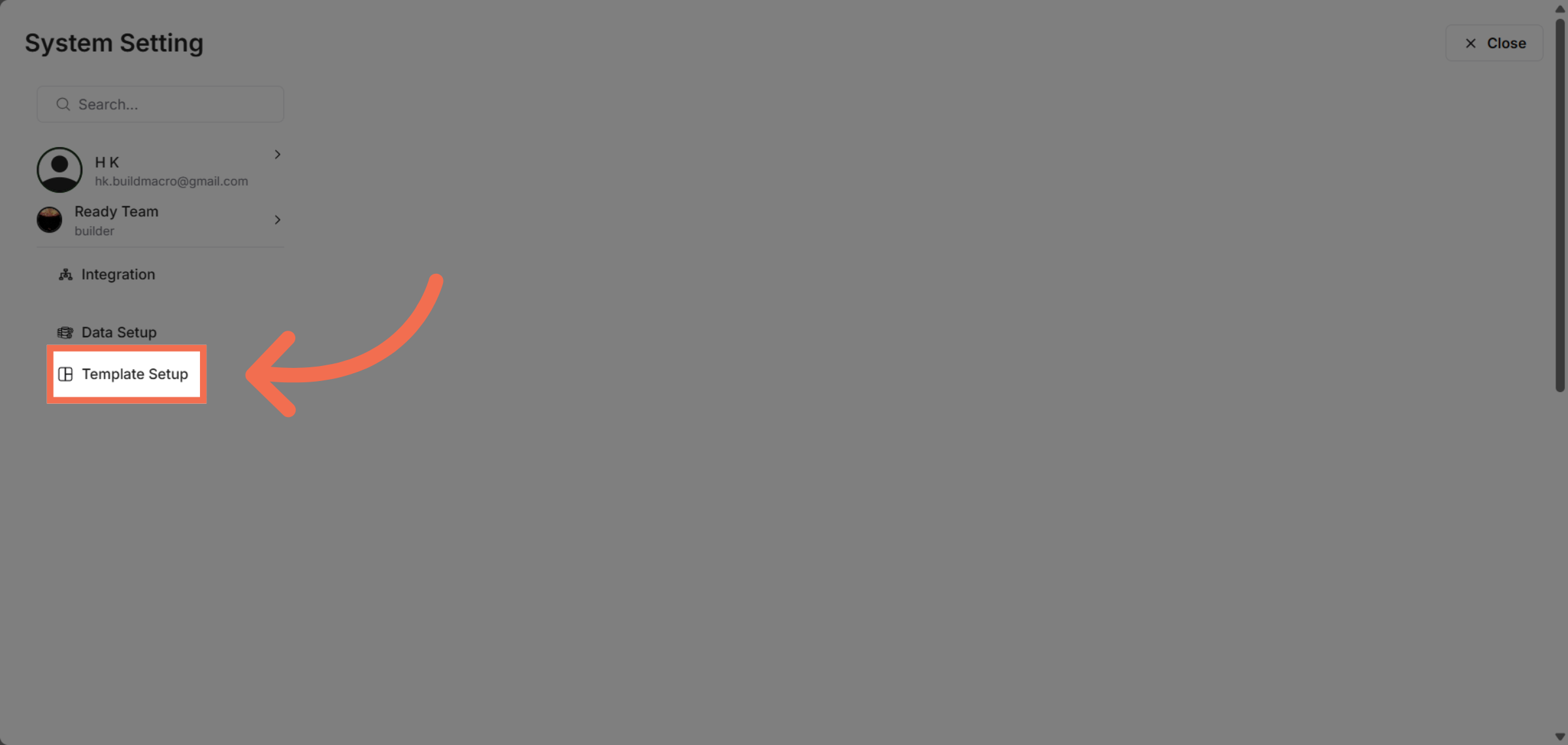
3. Access Template Setup
Click Template Setup to manage and customize your document templates.
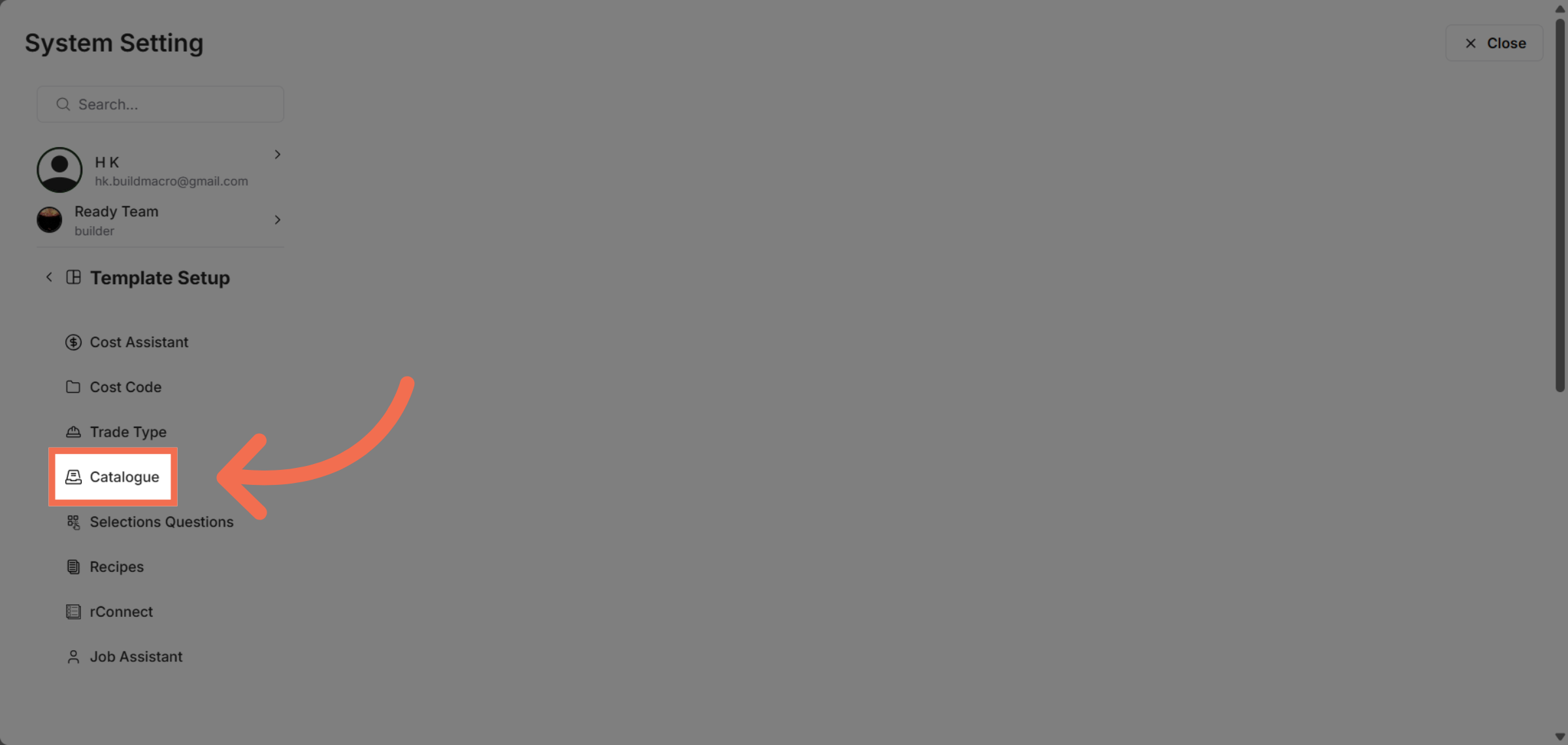
4. Enter Catalogue Section
Select Catalogue to view and edit catalogue-related template data.
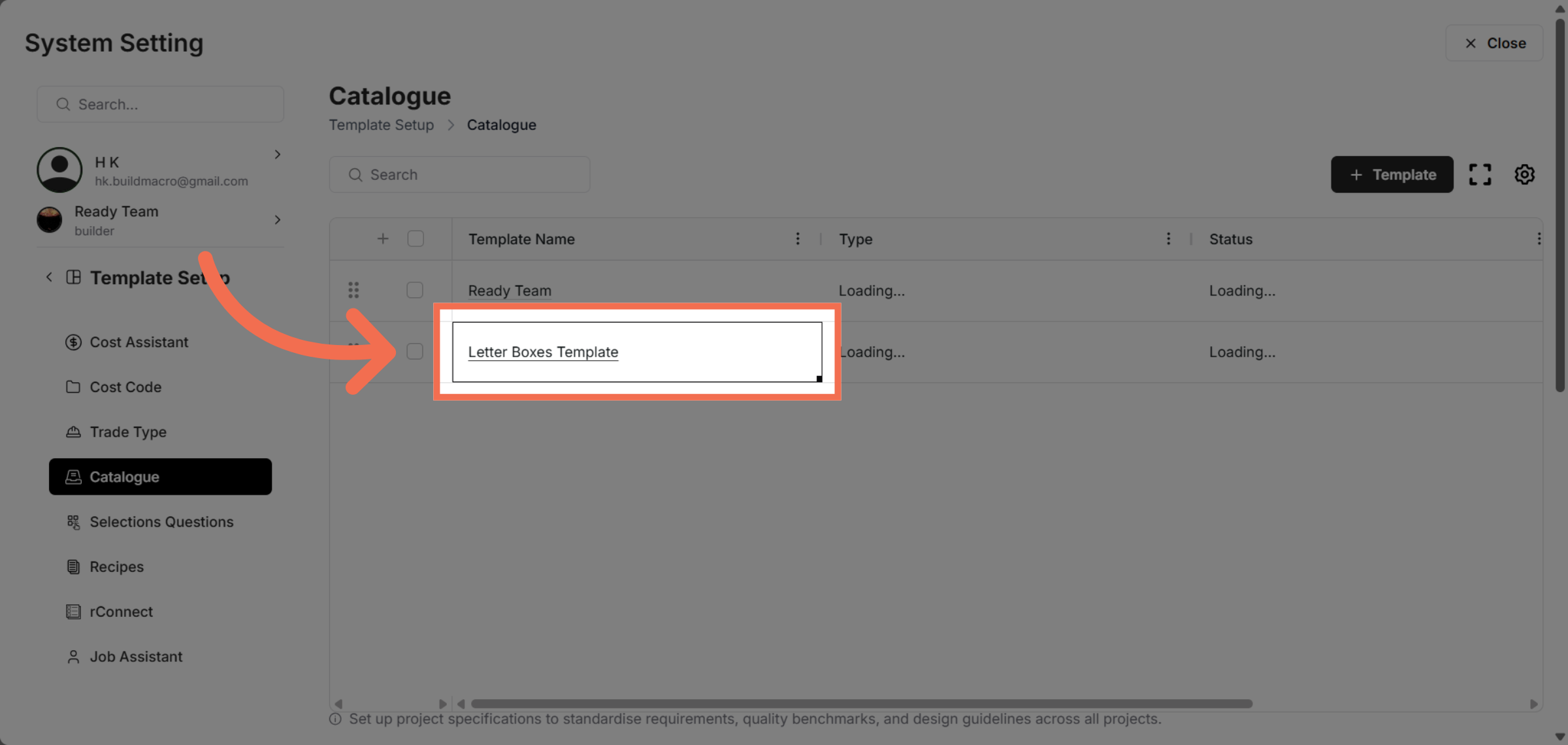
5. Choose Template
Click Letter Boxes Template to modify the specific template for letter boxes.
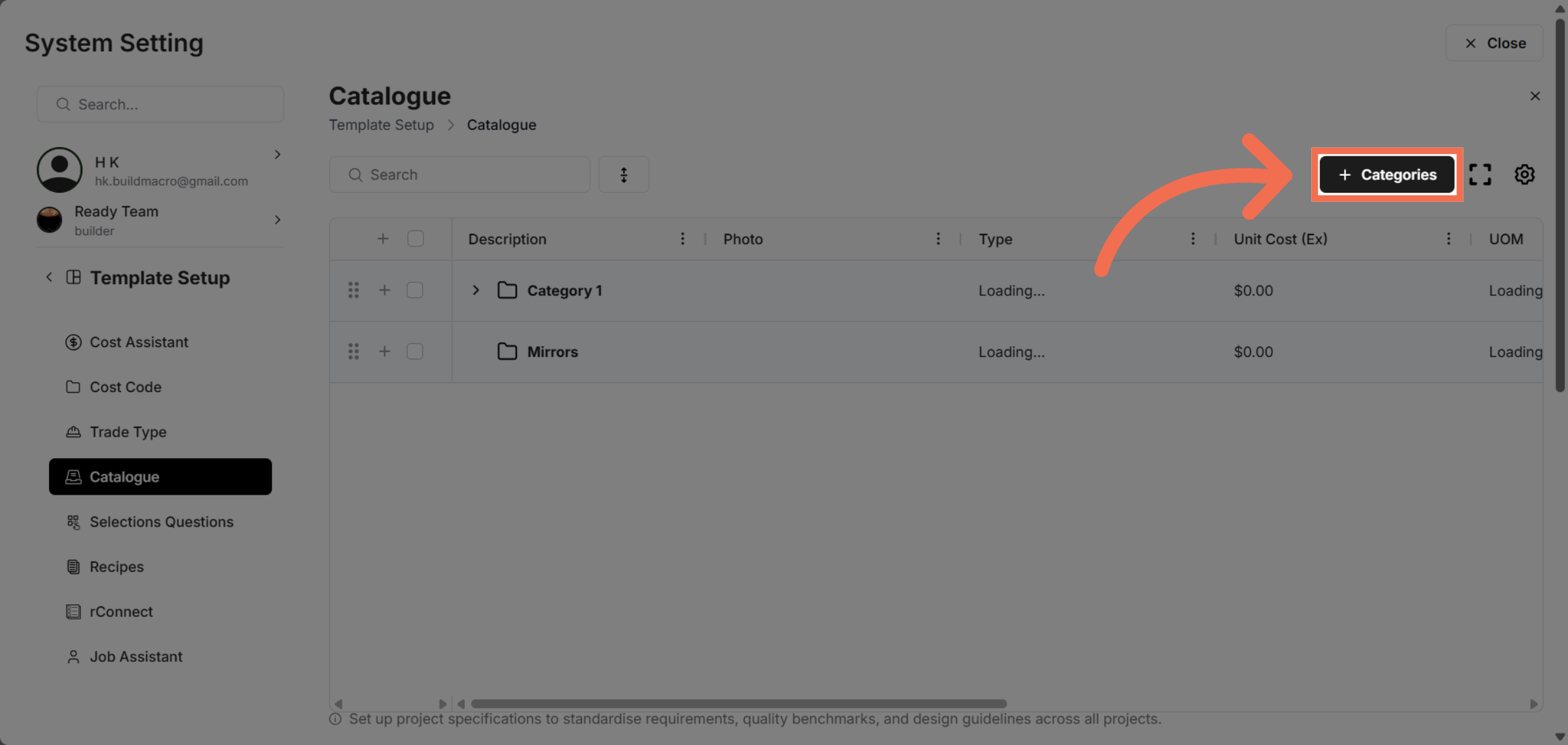
6. Click Create Categories
Click Categories to create catalogue categories within the template.
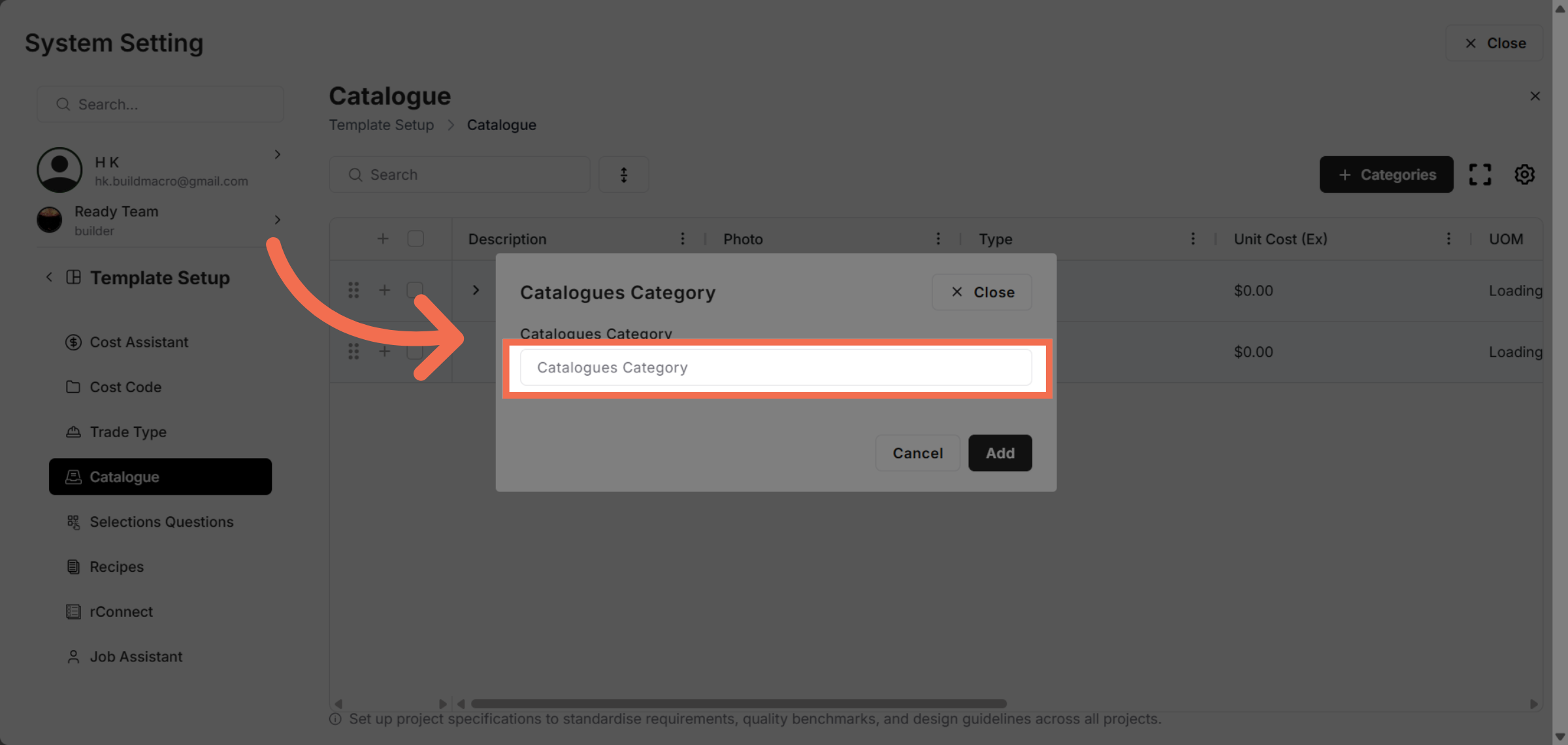
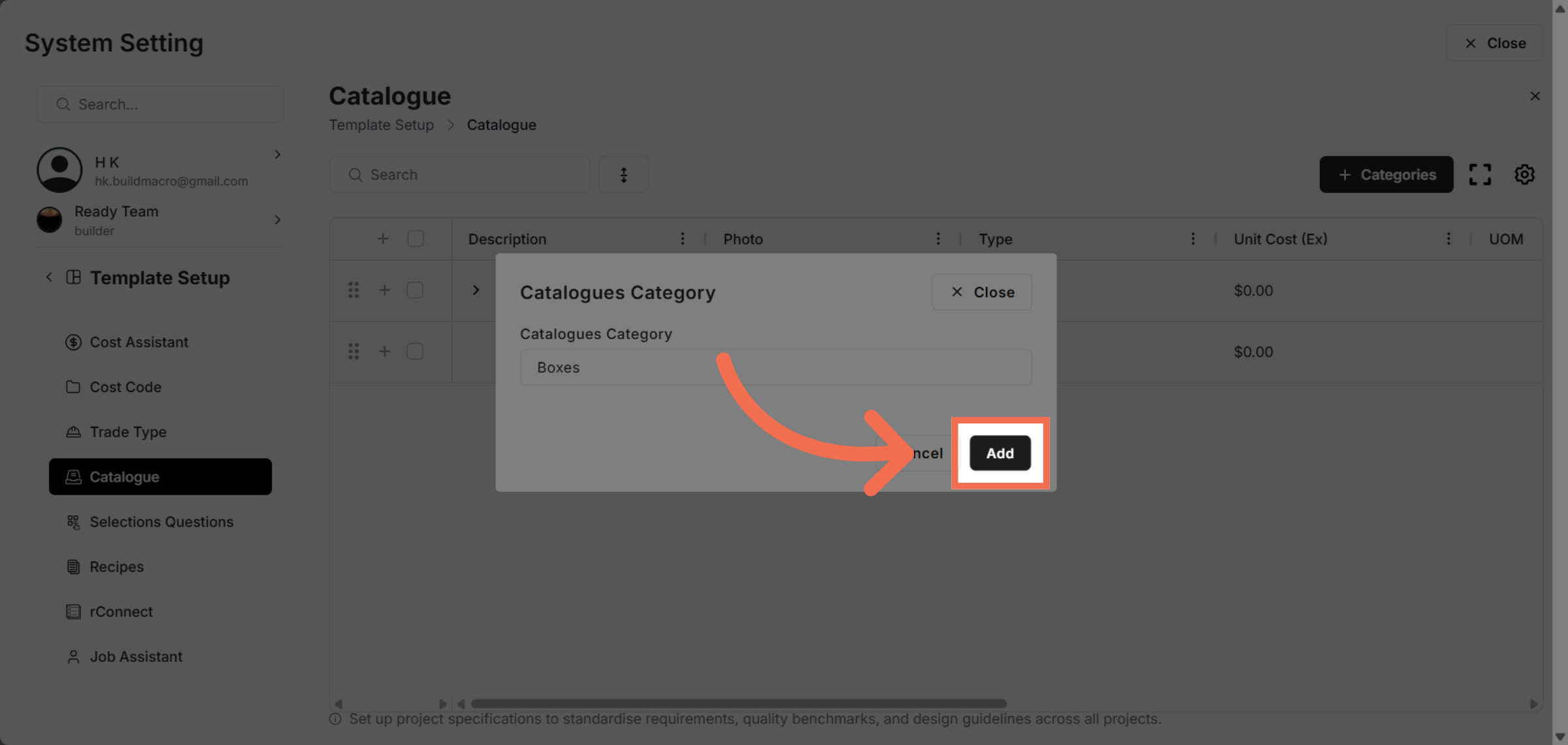
7. Enter Catalogue Category
Choose the Catalogues Category to specify the category for your catalogue data.
8. Add New Category
Click Add to include the new category in your template setup.
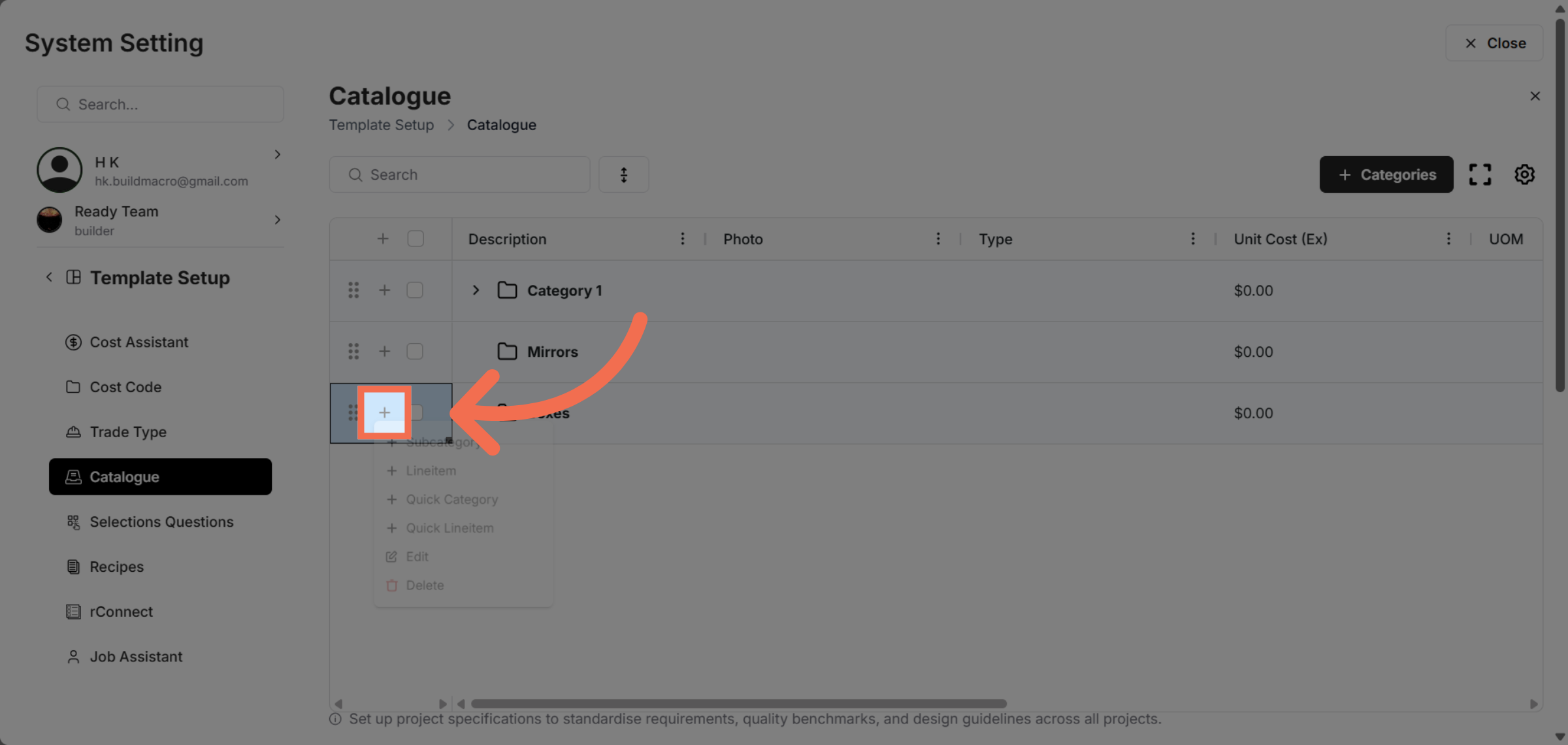
9. Proceed To Next Step to add item in that Category
Click here to continue with the catalogue data entry process.
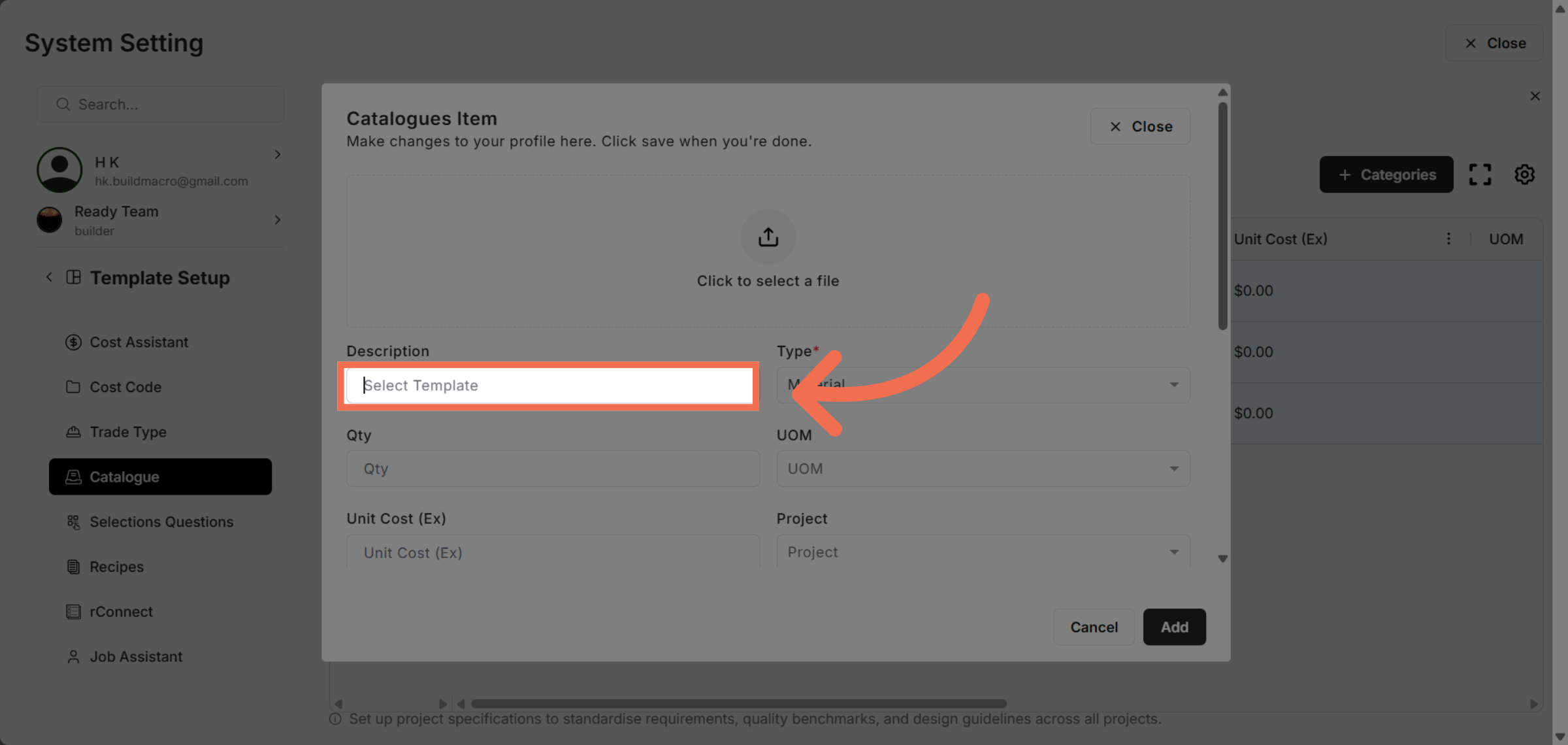
10. Enter item description
Enter catalogue item description.
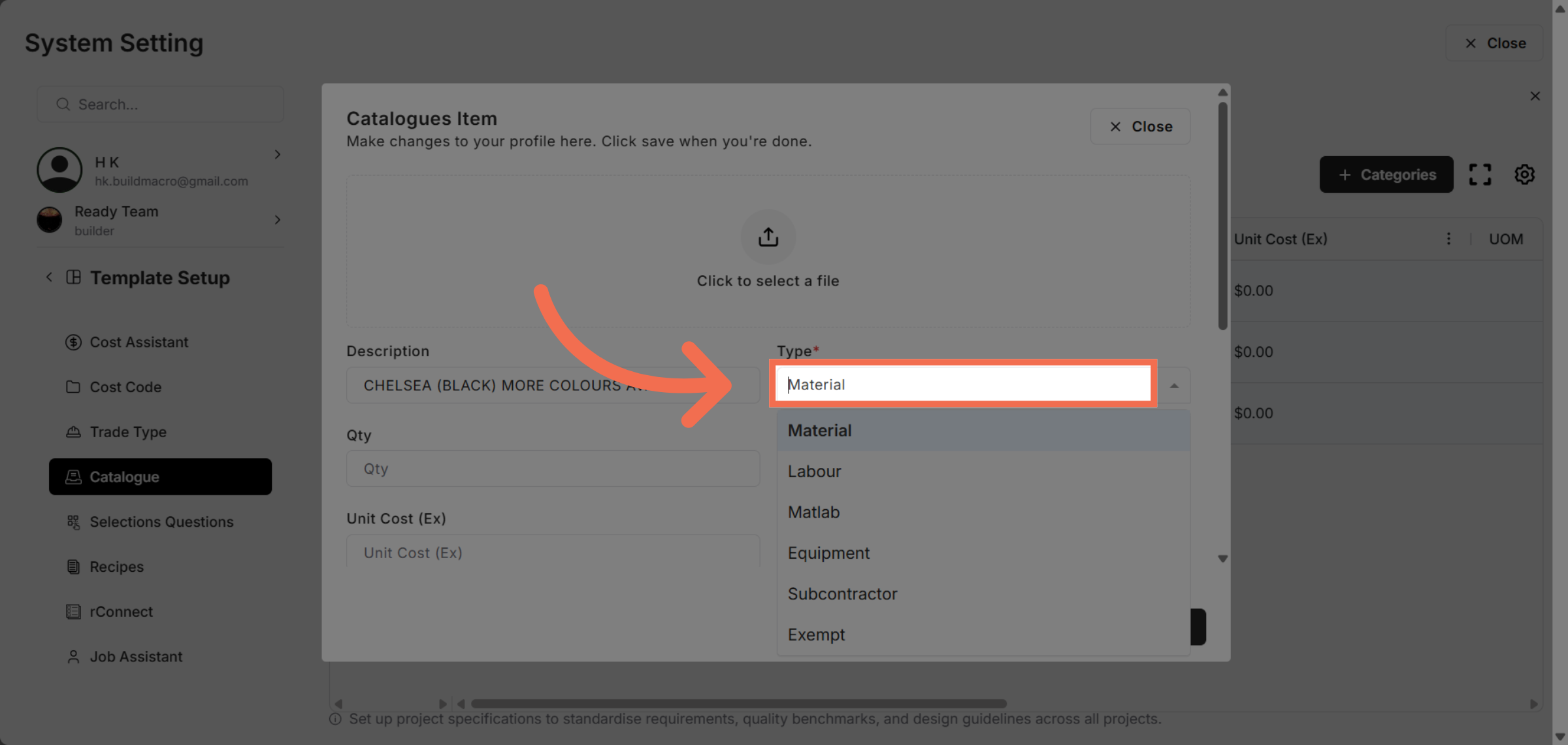
11. Select Type
Select type of catalogue item.
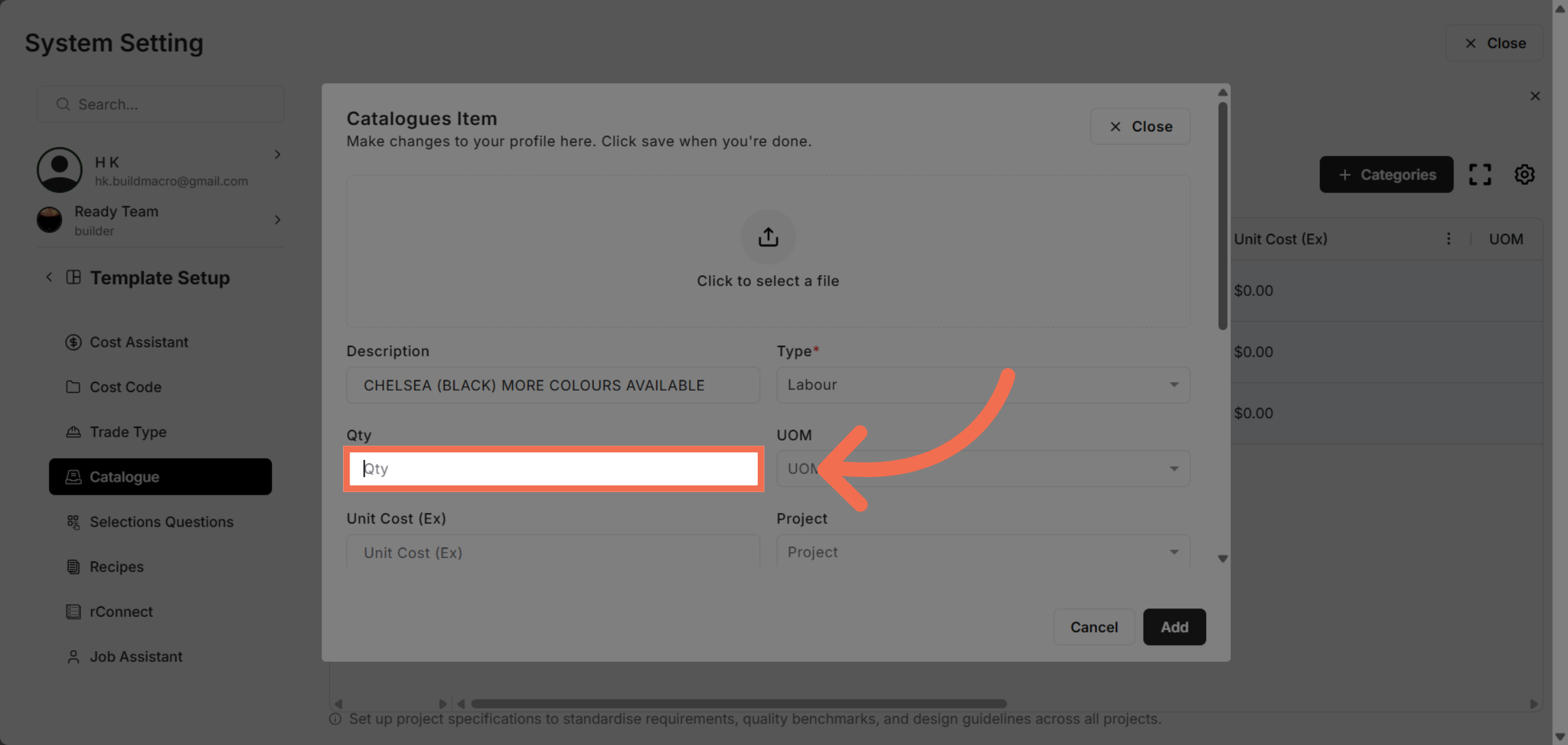
12. Enter Quantity
Enter Qty to specify the quantity for the catalogue item.
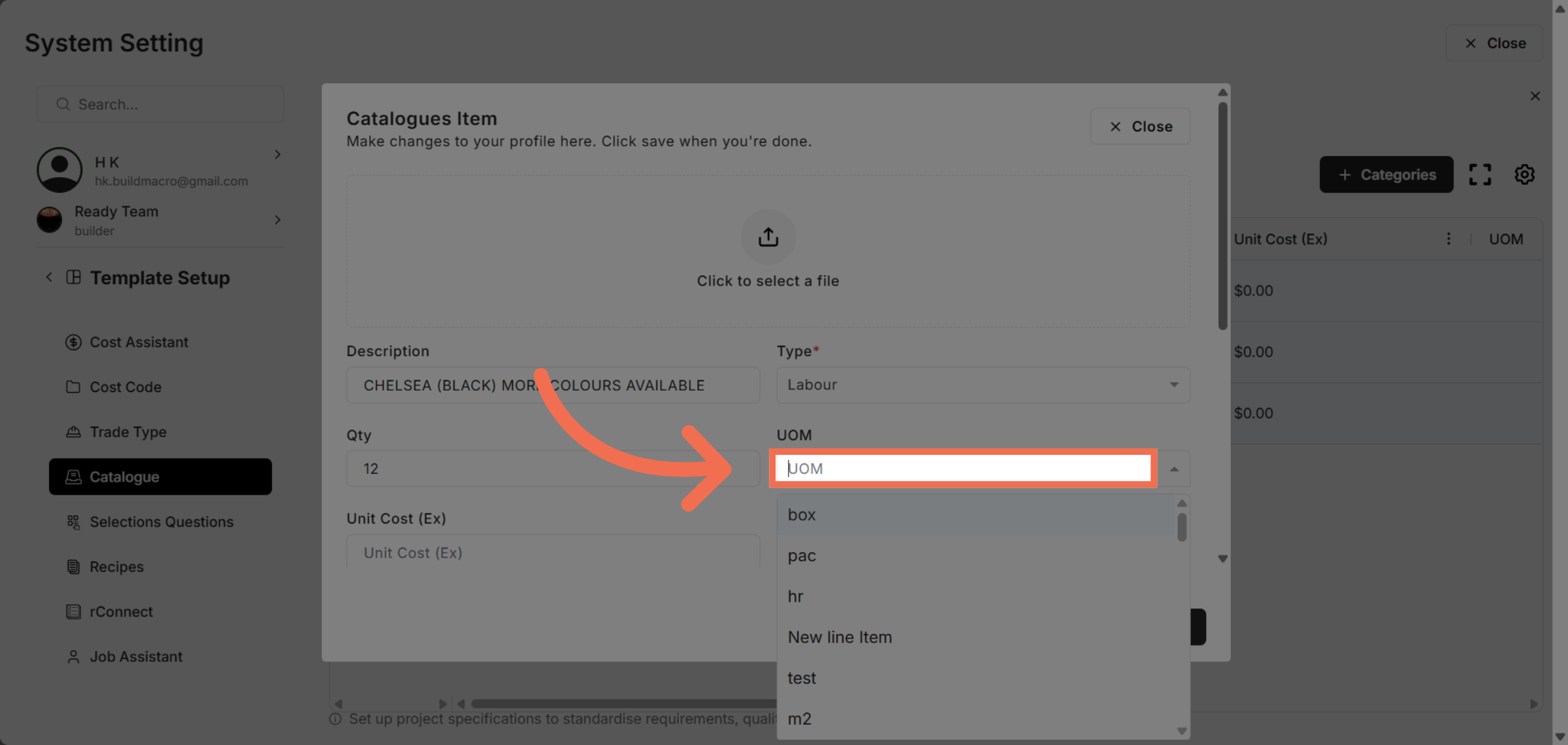
13. Select UOM
Select UOM to specify the UOM for the catalogue item.
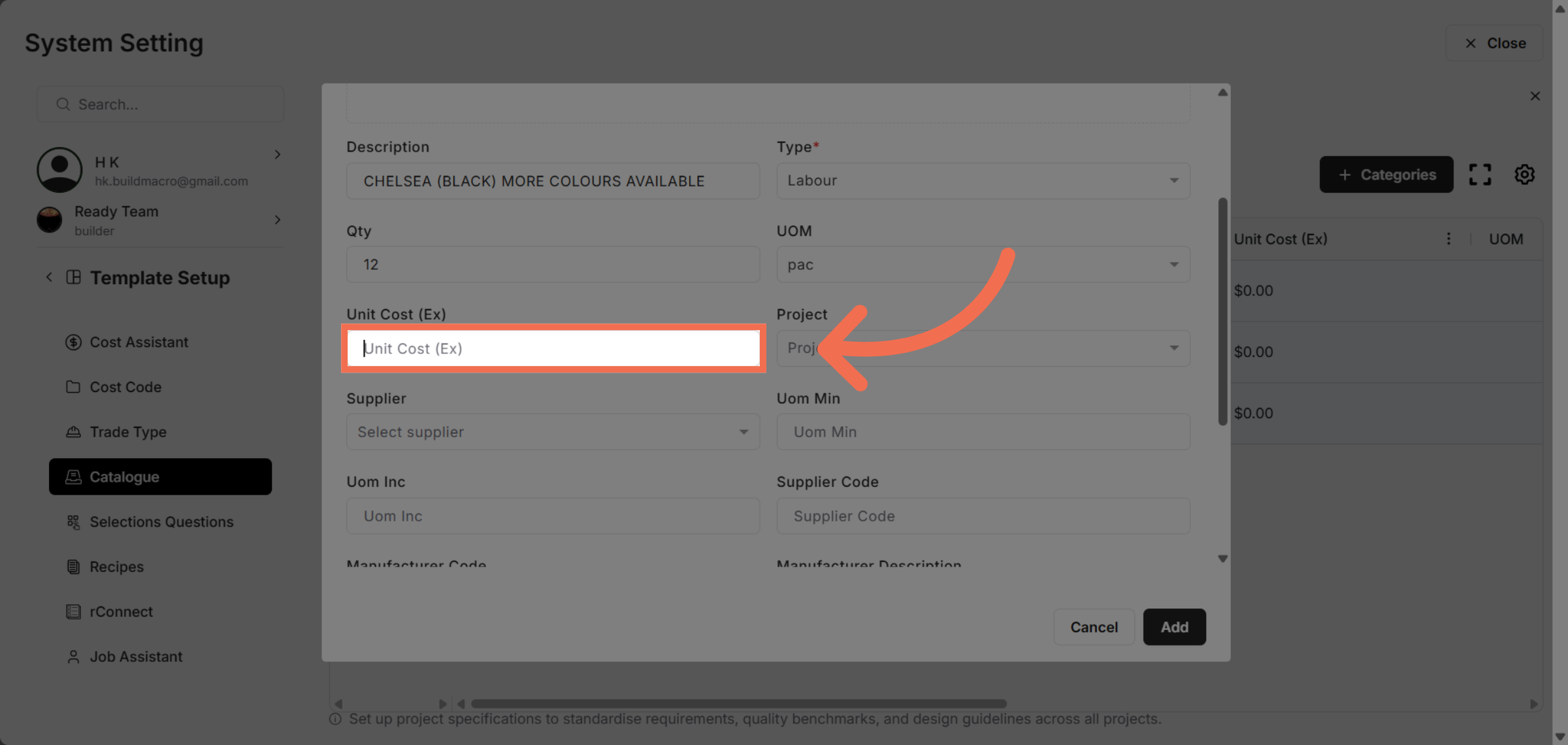
14. Enter Unit Cost
Enter Unit Cost (Ex) to enter the cost per unit excluding taxes.
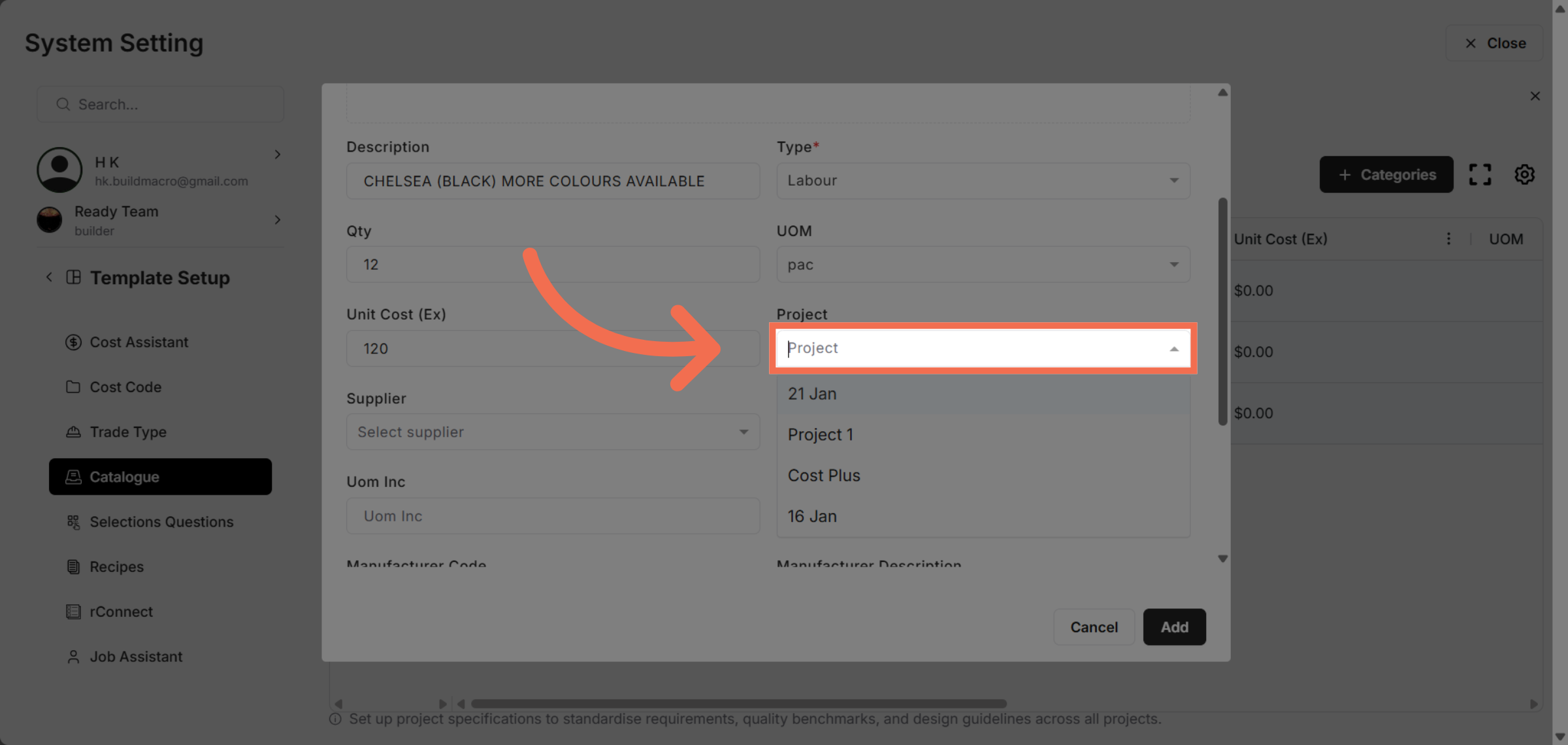
15. Select Project
Select Project to associate the catalogue item with a specific project.
16. Select Suppliers
Select suppliers to associate the catalogue item with a specific suppliers.
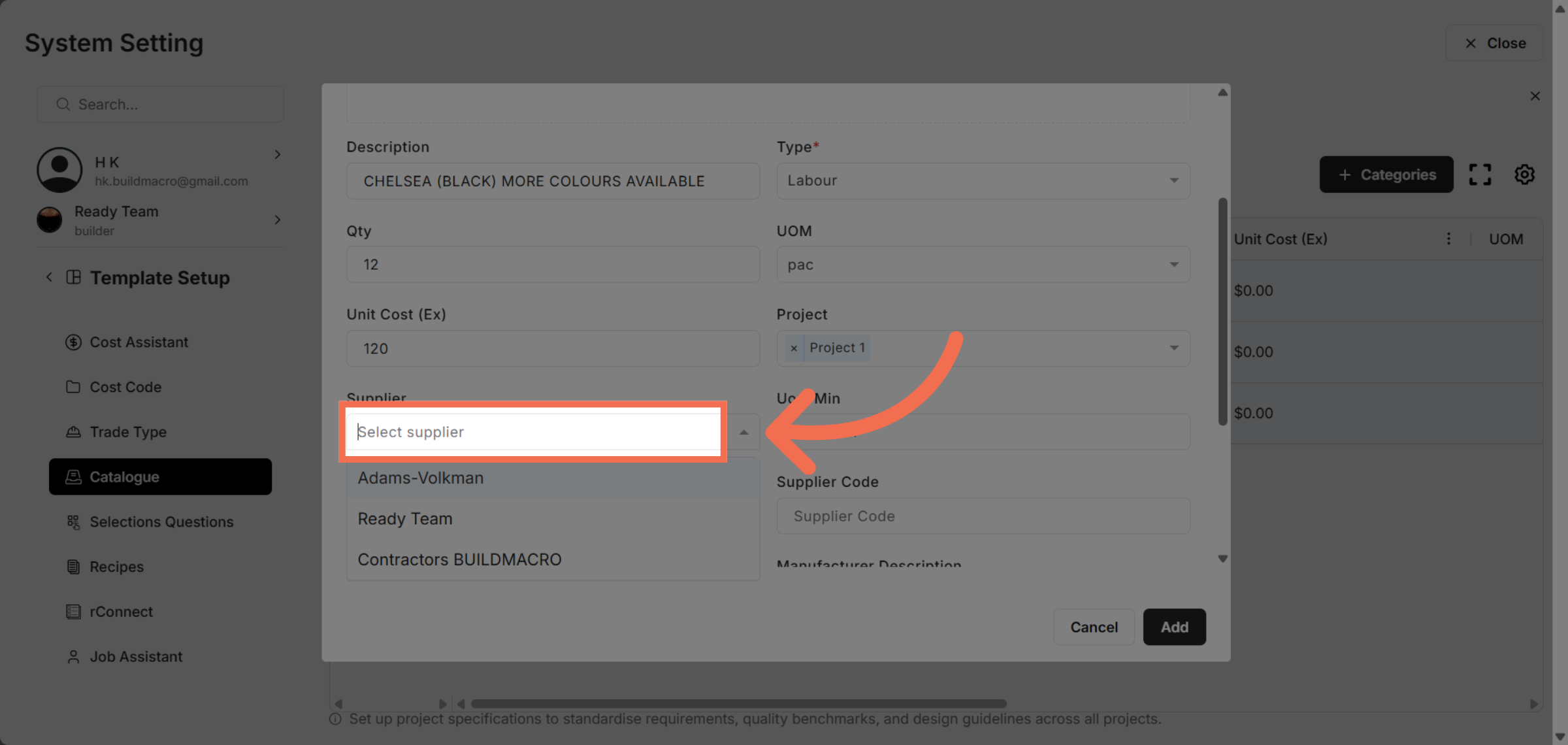
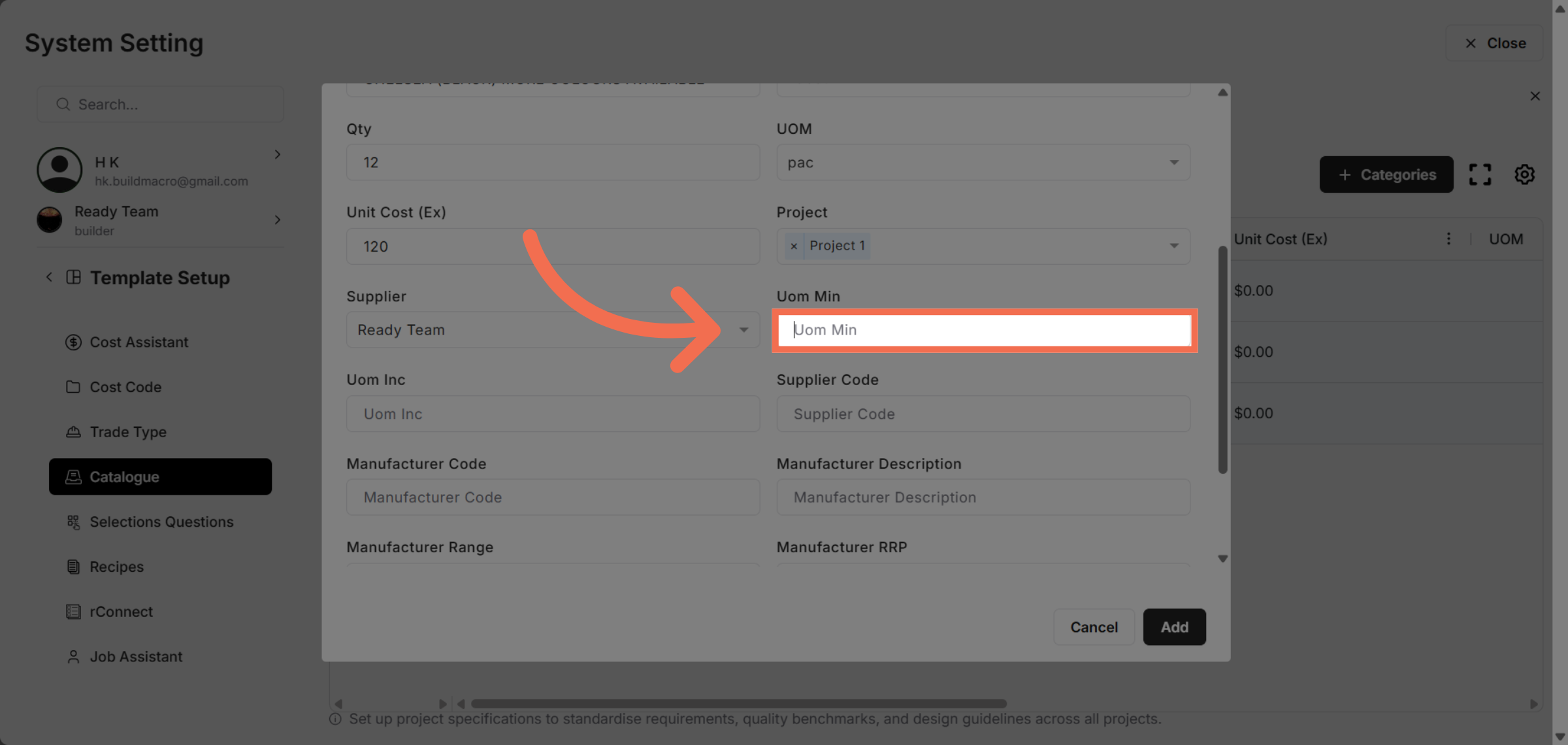
17. Enter UOM Min
Enter UOM Min to specify the minimum unit of measure for the item.
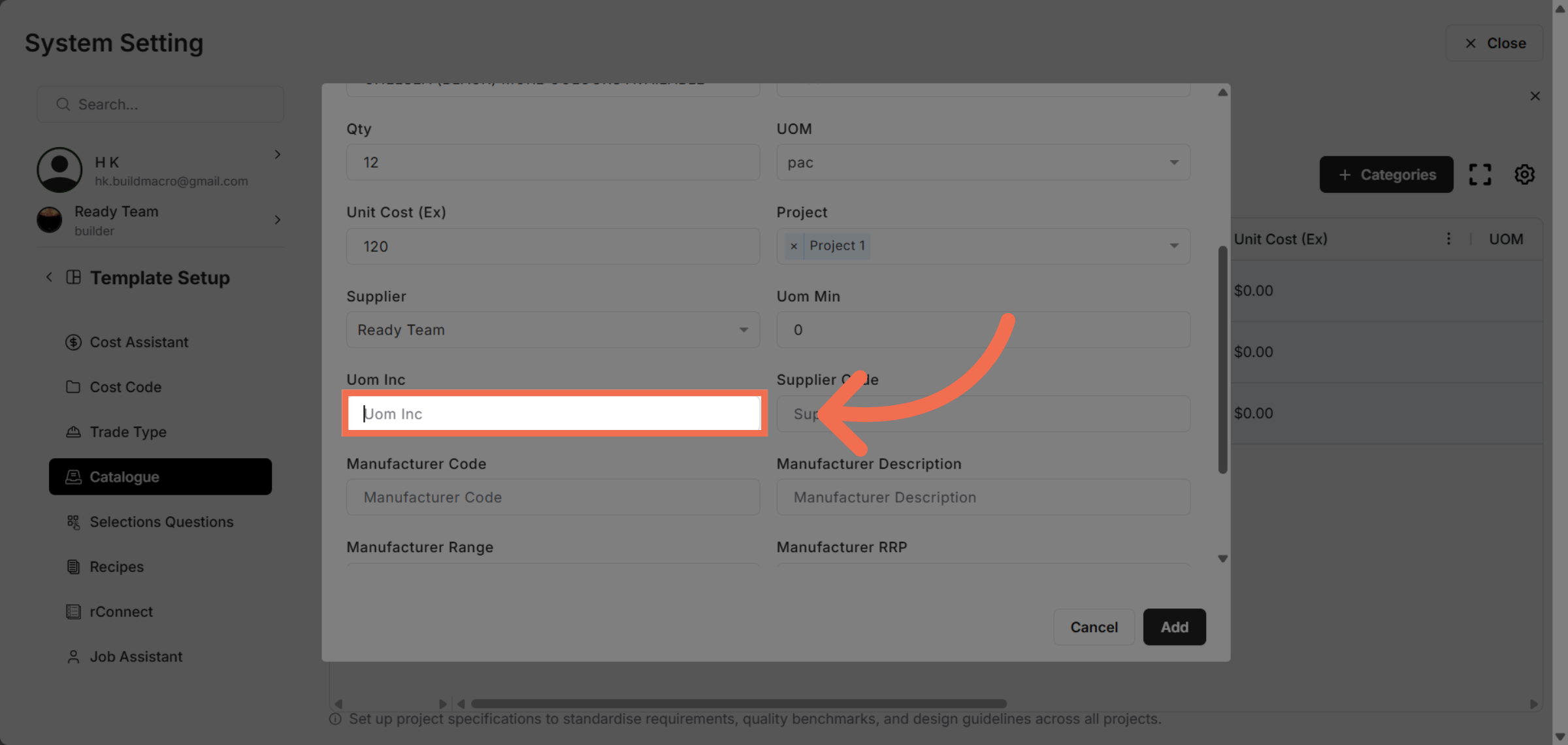
18. Enter UOM Inc
Enter UOM Inc to define the increment unit of measure for ordering.
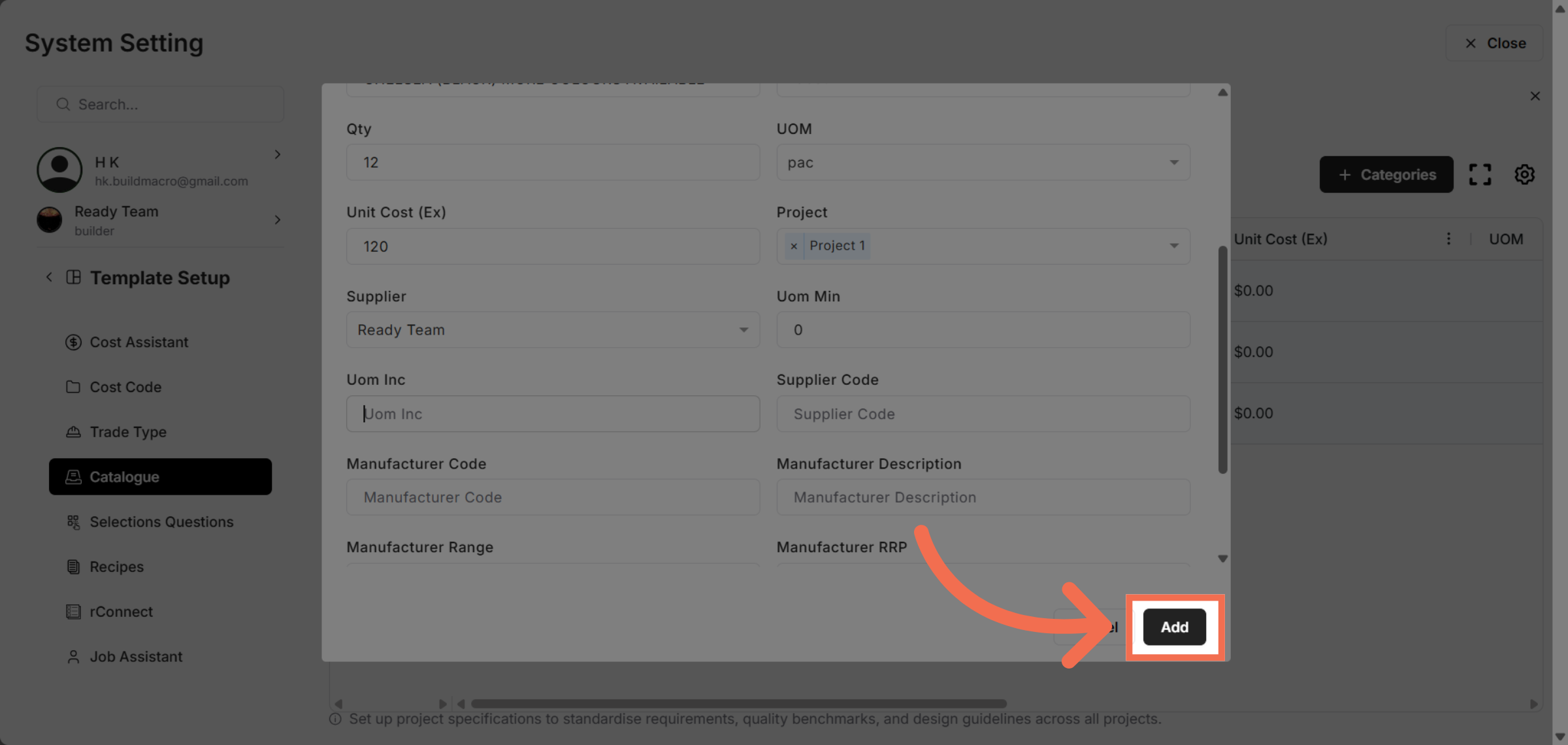
19. Add Catalogue Entry
Add Catalogue Item.
This demo highlights how you can quickly add and configure catalogue data within Readyteam templates, improving your workflow efficiency. Start enhancing your template management by applying these steps today.