Add Trade Type Data To Template In ReadyTeam

This demo showcases how to add trade type data to a template within Readyteam.
Go to app.readyteam.ai
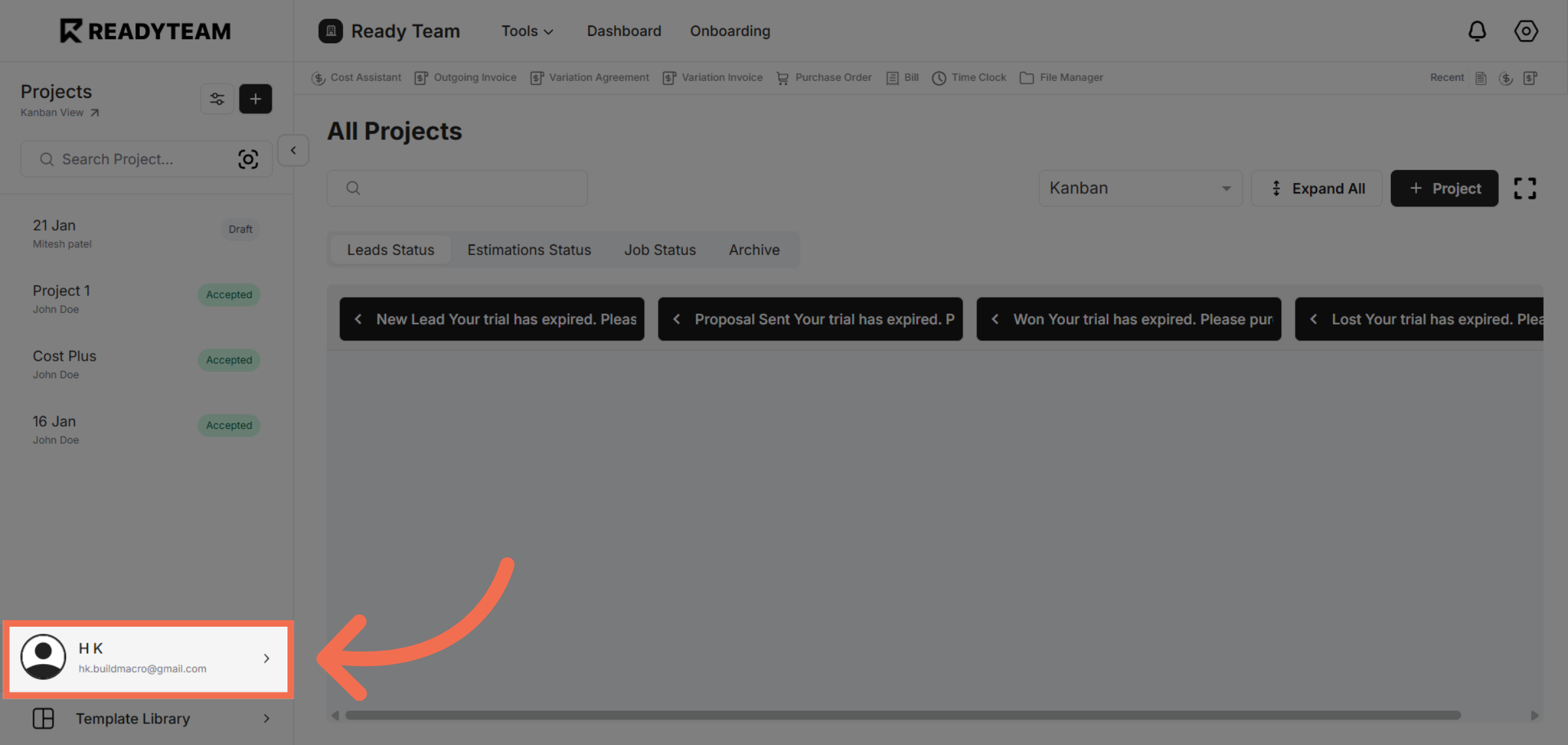
1. Select User Section
Click the user section to begin customizing your template settings.
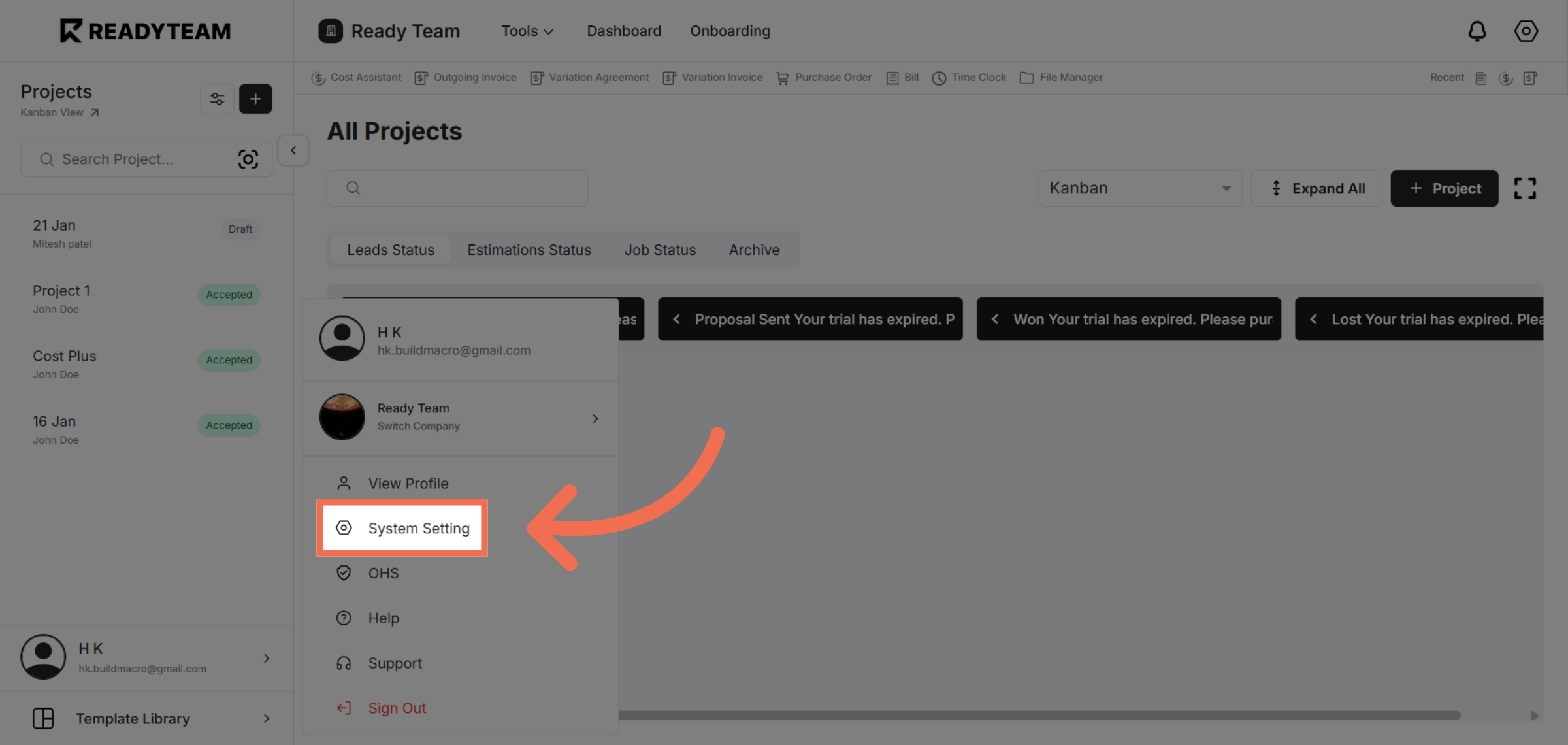
2. Open System Settings
Navigate to System Setting to access configuration options for your templates.
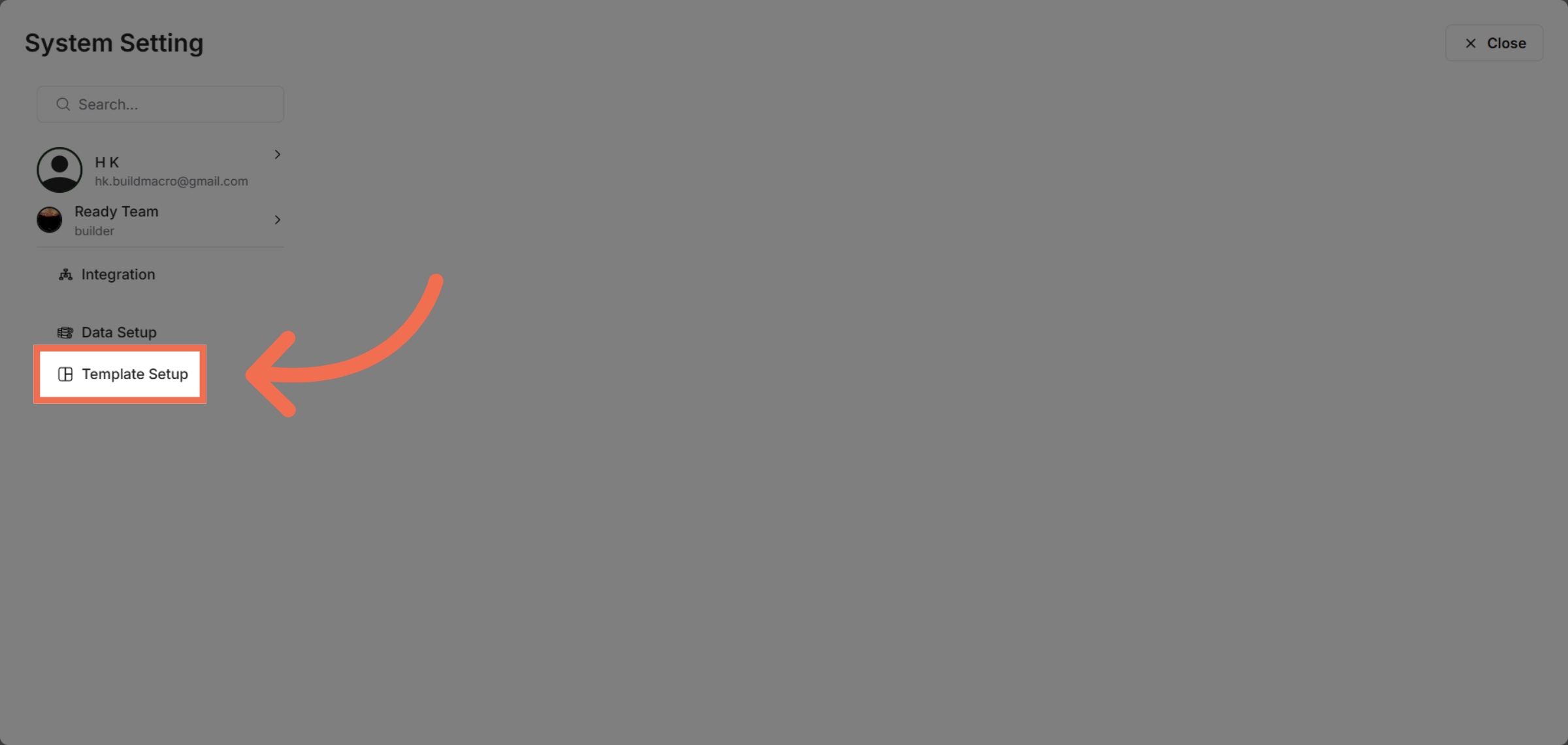
3. Access Template Setup
Click Template Setup to manage and modify your existing templates.
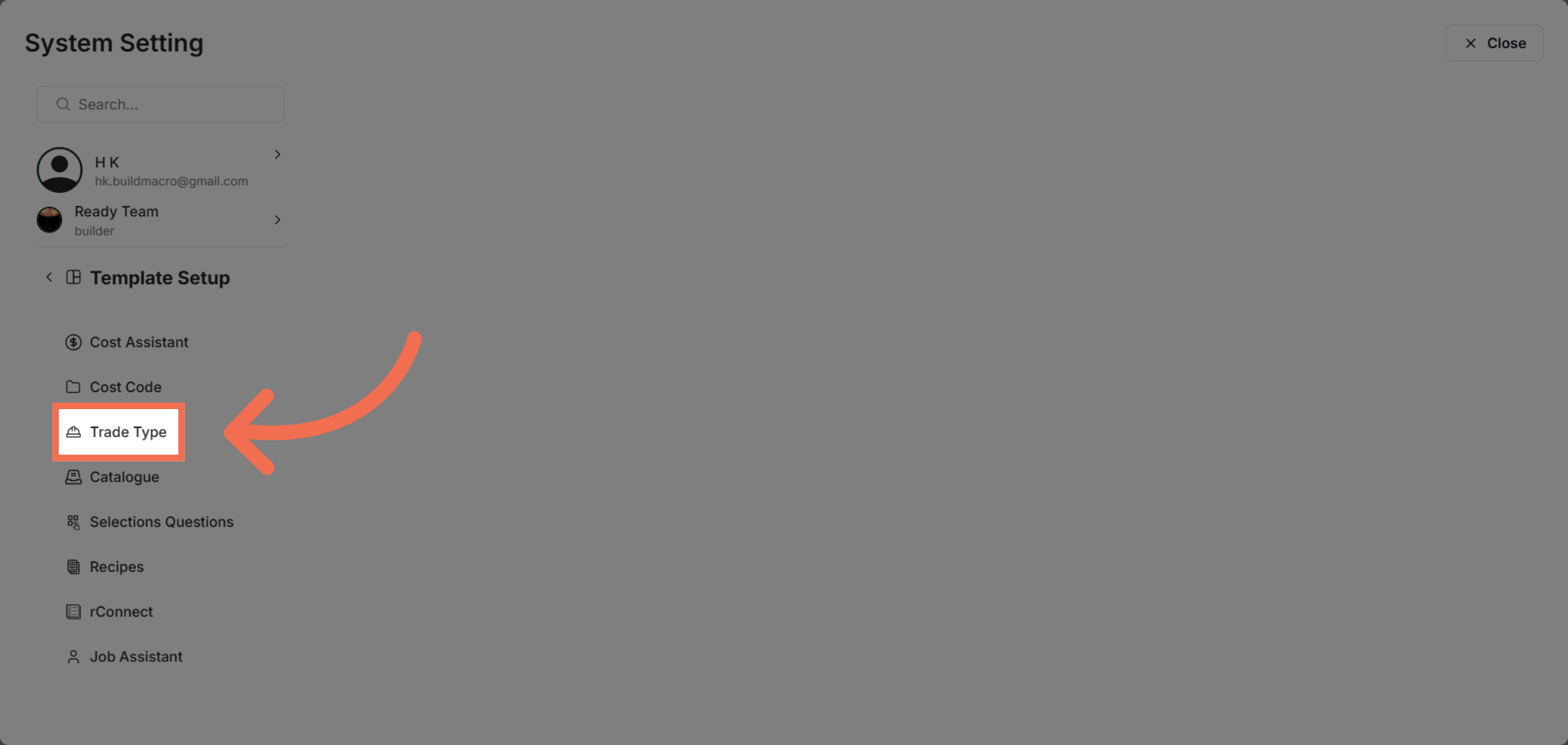
4. Choose Trade Type Section
Select Trade Type to specify the categories relevant to your template.
5. Select Specific Trade Type
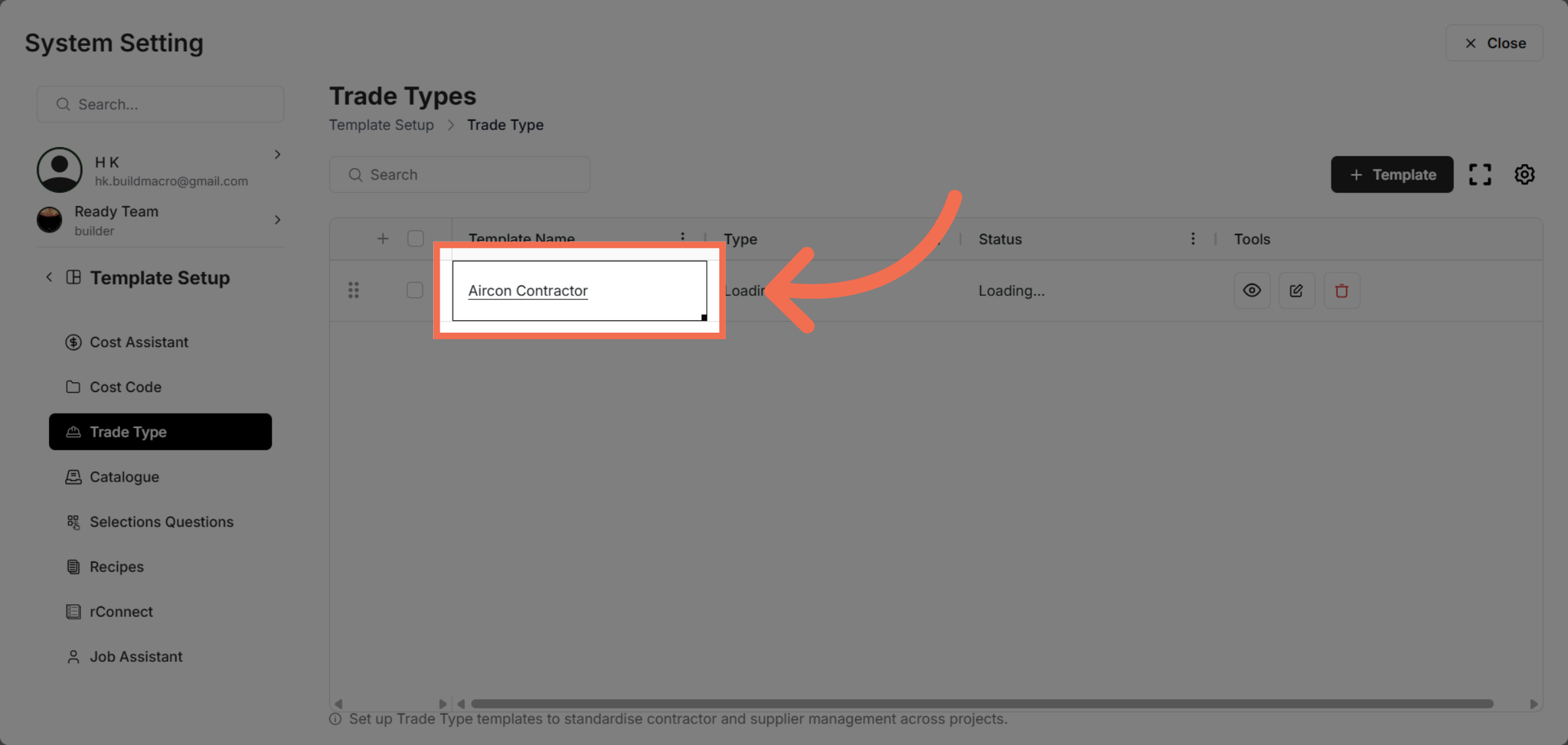
Click Aircon Contractor to assign trade types related to this contractor.
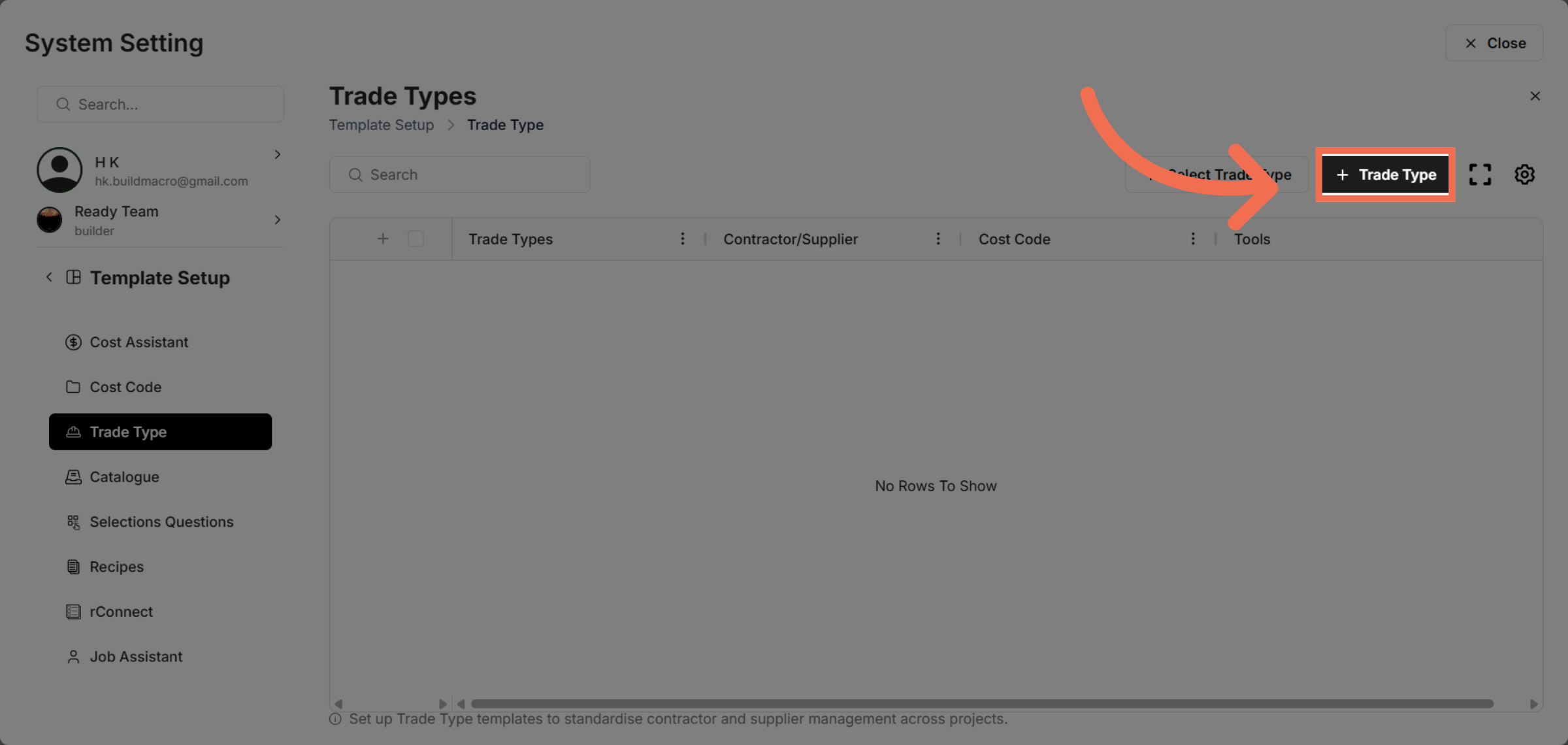
6. Add Trade Type
Click Trade Type to add trade type entries.
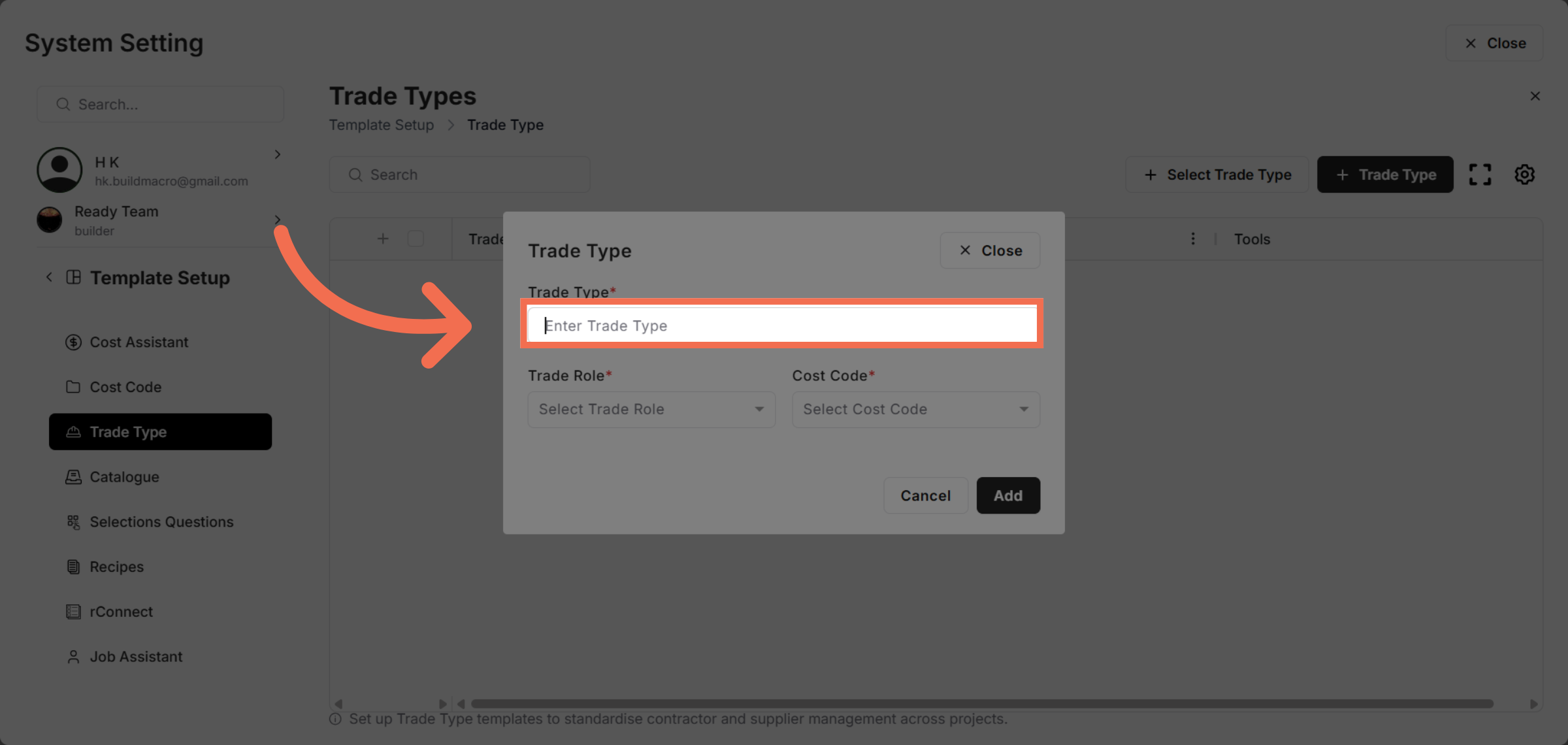
7. Enter New Trade Type
Enter your trade type.
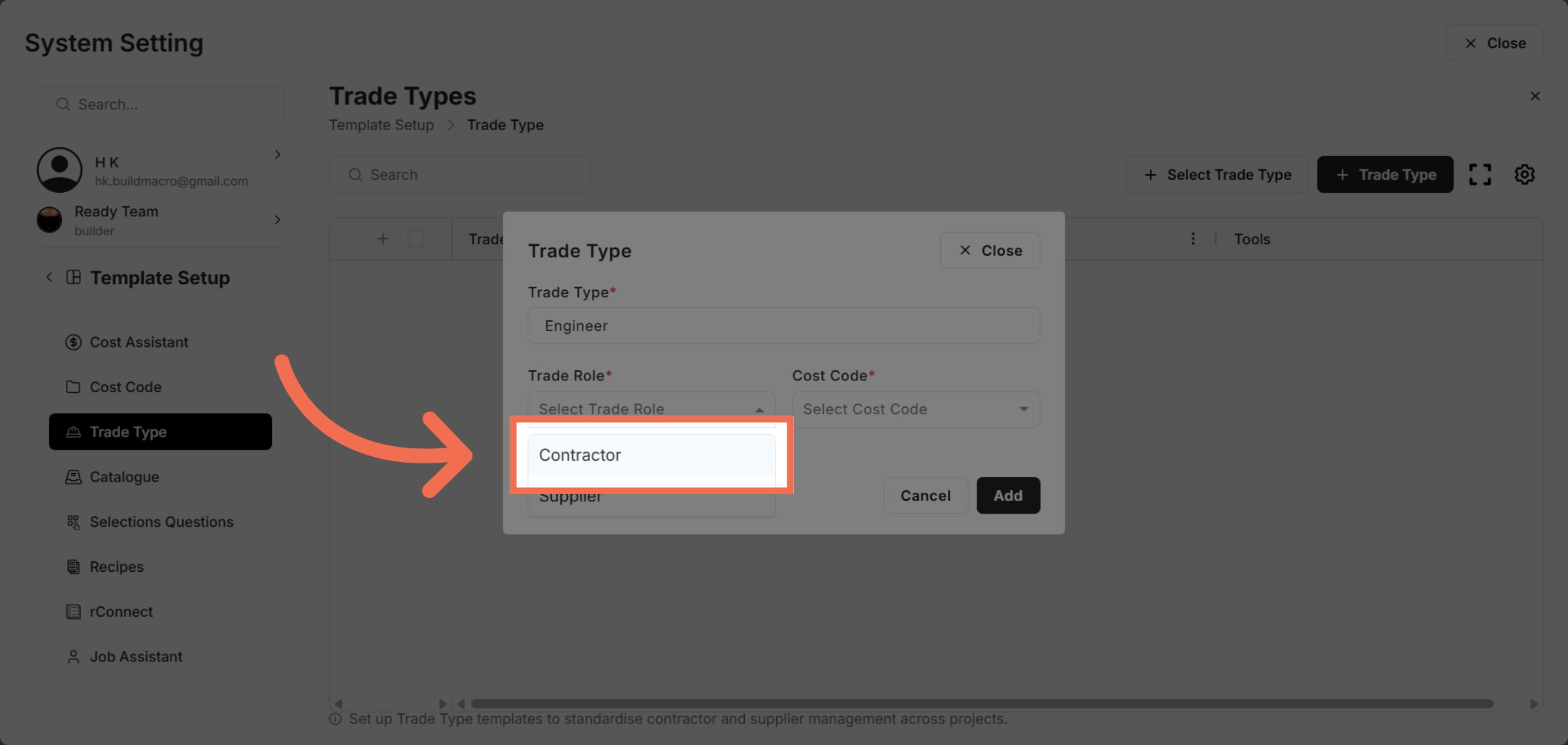
8. Select Trade Role
Click Contractor to assign the trade type to the appropriate role category.
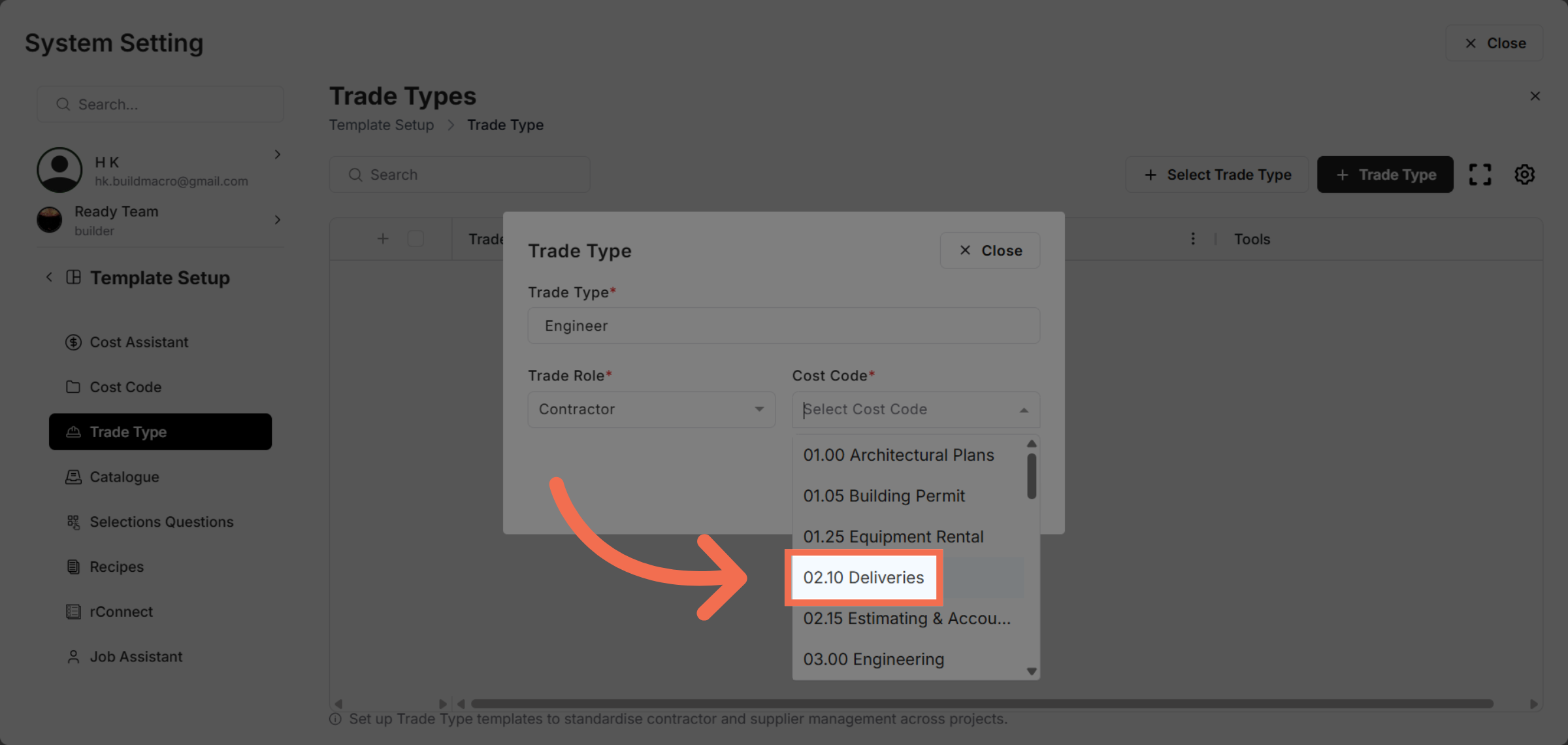
9. Select Cost Code
Click 02.10 Deliveries to assign the delivery code relevant to this trade type.
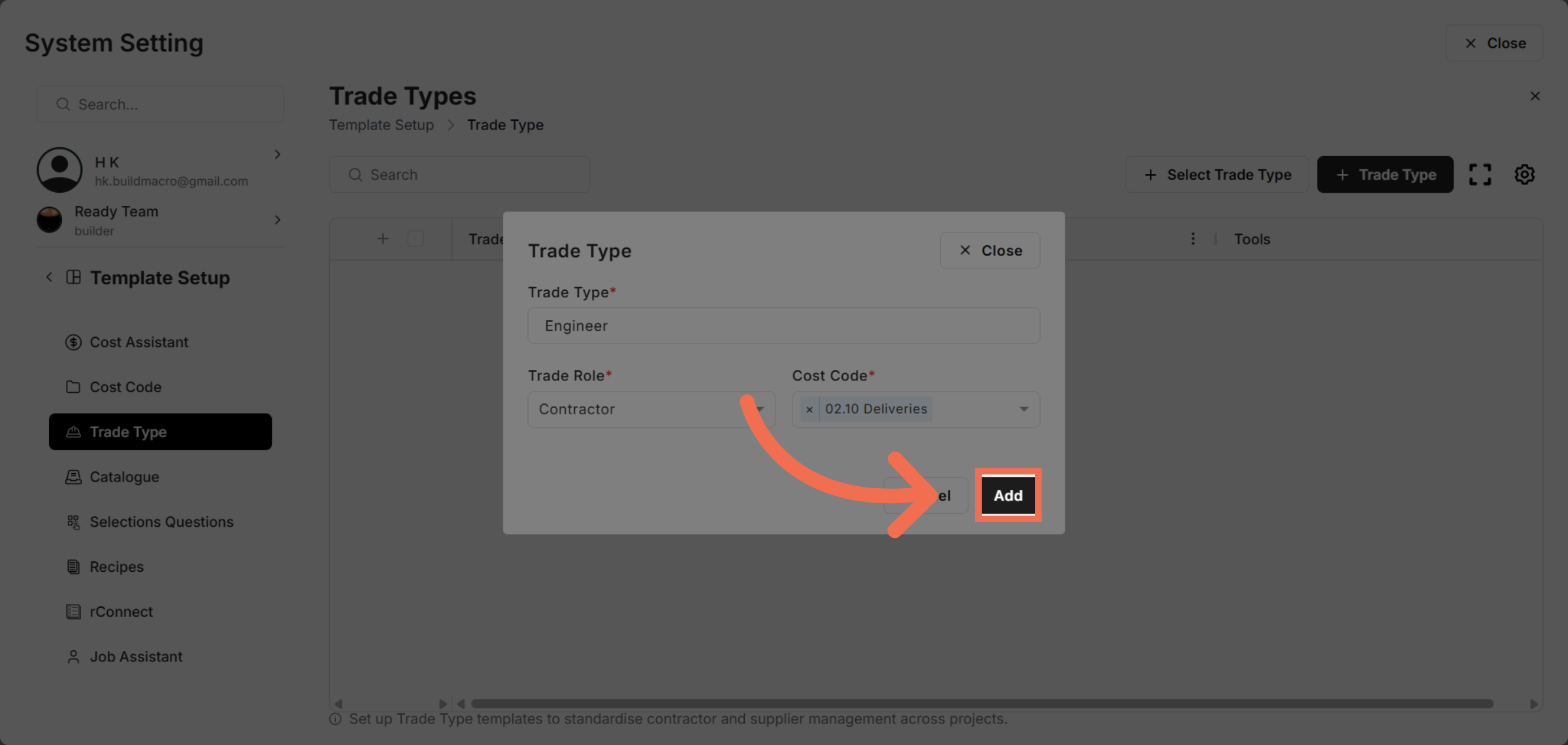
10. Add Trade Type To Template
Click Add to finalize and include the new trade type data in your template.
This demo demonstrated how to efficiently add trade type data to a template in Readyteam, enhancing your template's customization and project tracking capabilities. Start optimizing your templates today to improve workflow management.