Add Record Shift Efficiently Using Readyteam
This demo showcases how to add a record shift using Readyteam.
Go to app.readyteam.ai
1. Select Project
Select the project Skyline Towers to begin recording a shift.

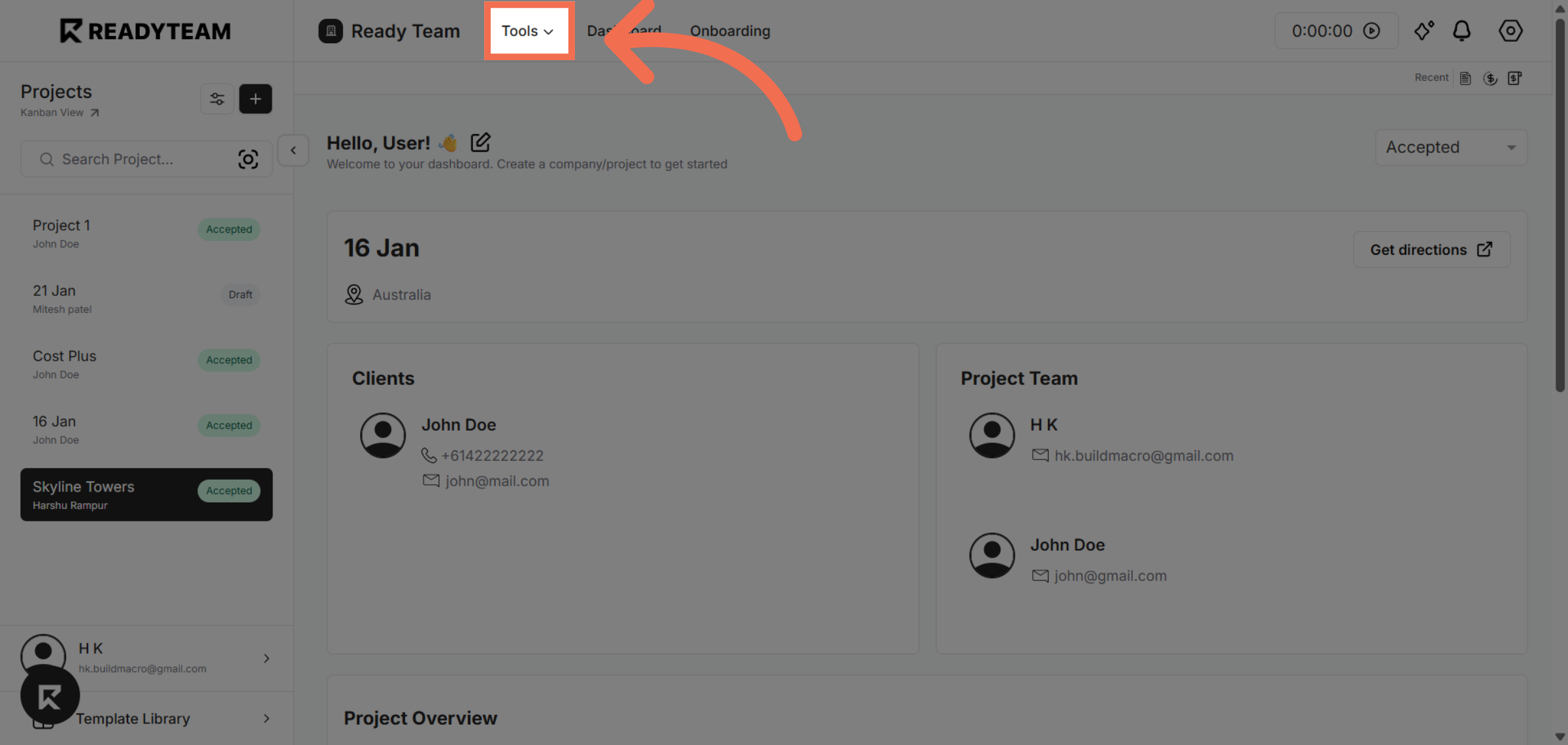
2. Open Tools Menu
Click the designated area to access shift-related tools within ReadyTeam.
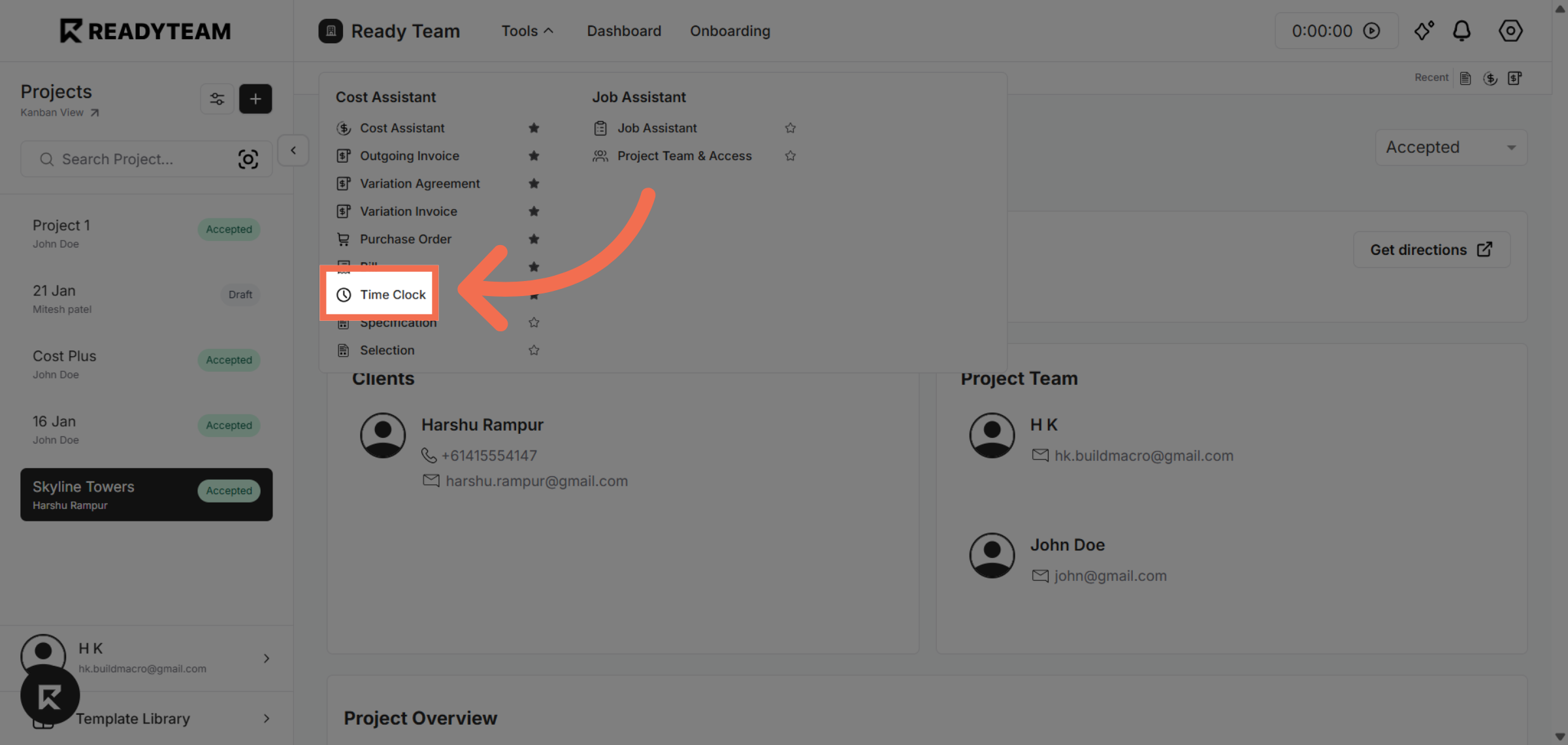
3. Navigate to Time Clock
Click the Time Clock section to manage and record employee time entries.
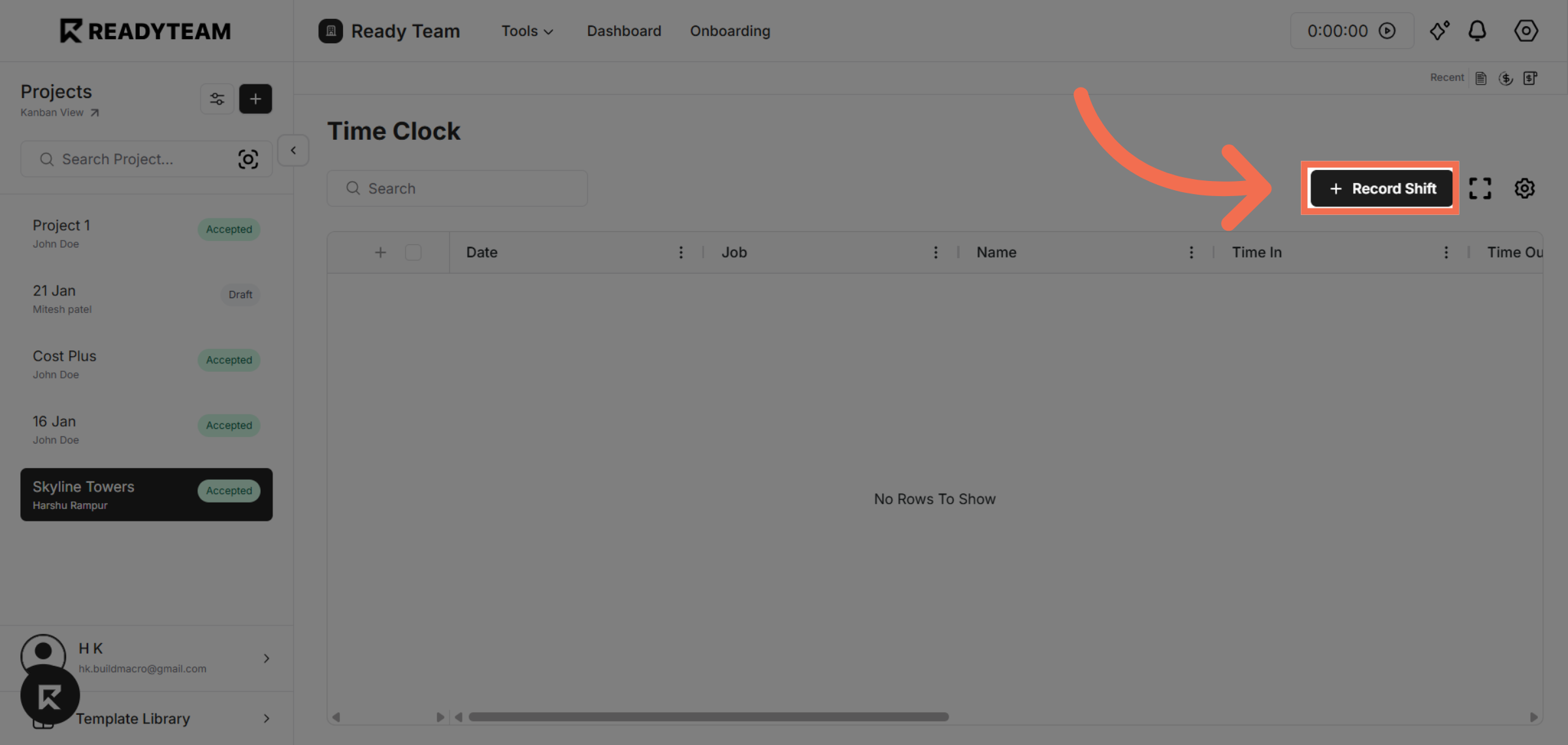
4. Add Record Shift
Click the indicated area to open further settings related to shift management.
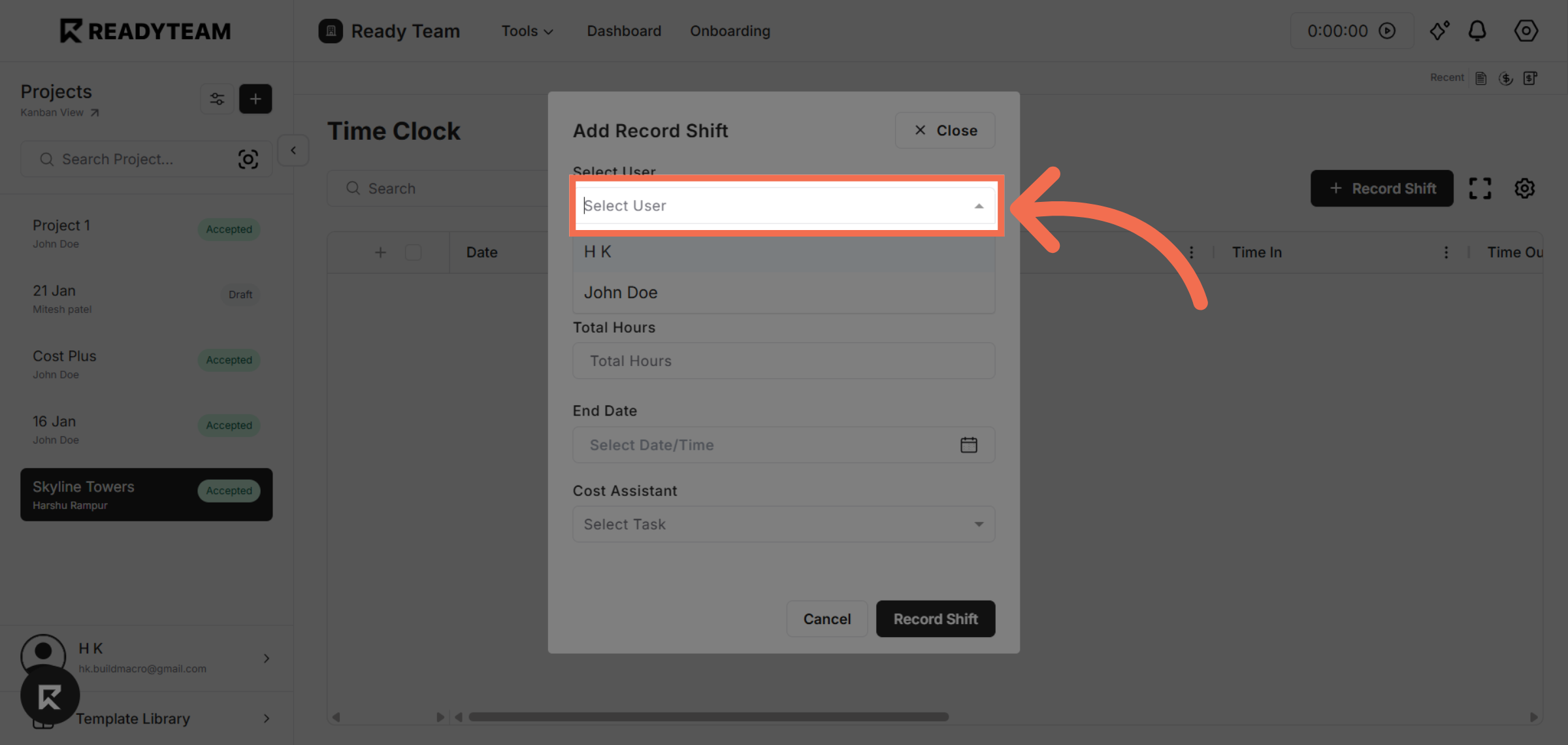
5. Open User Options
Open the User Options dropdown to select a user from the available list.
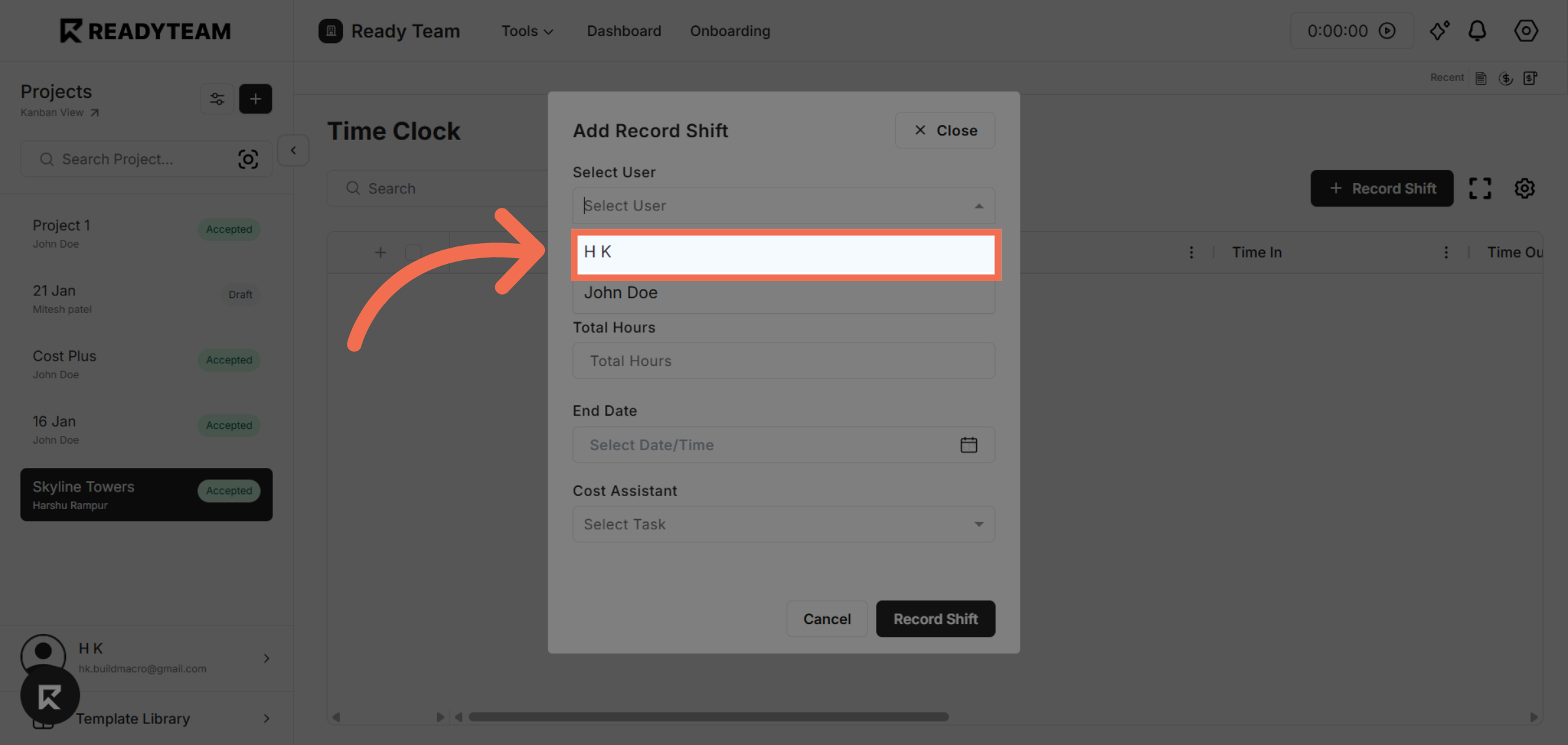
6. Select User
Select the user to specify the worker for the shift.
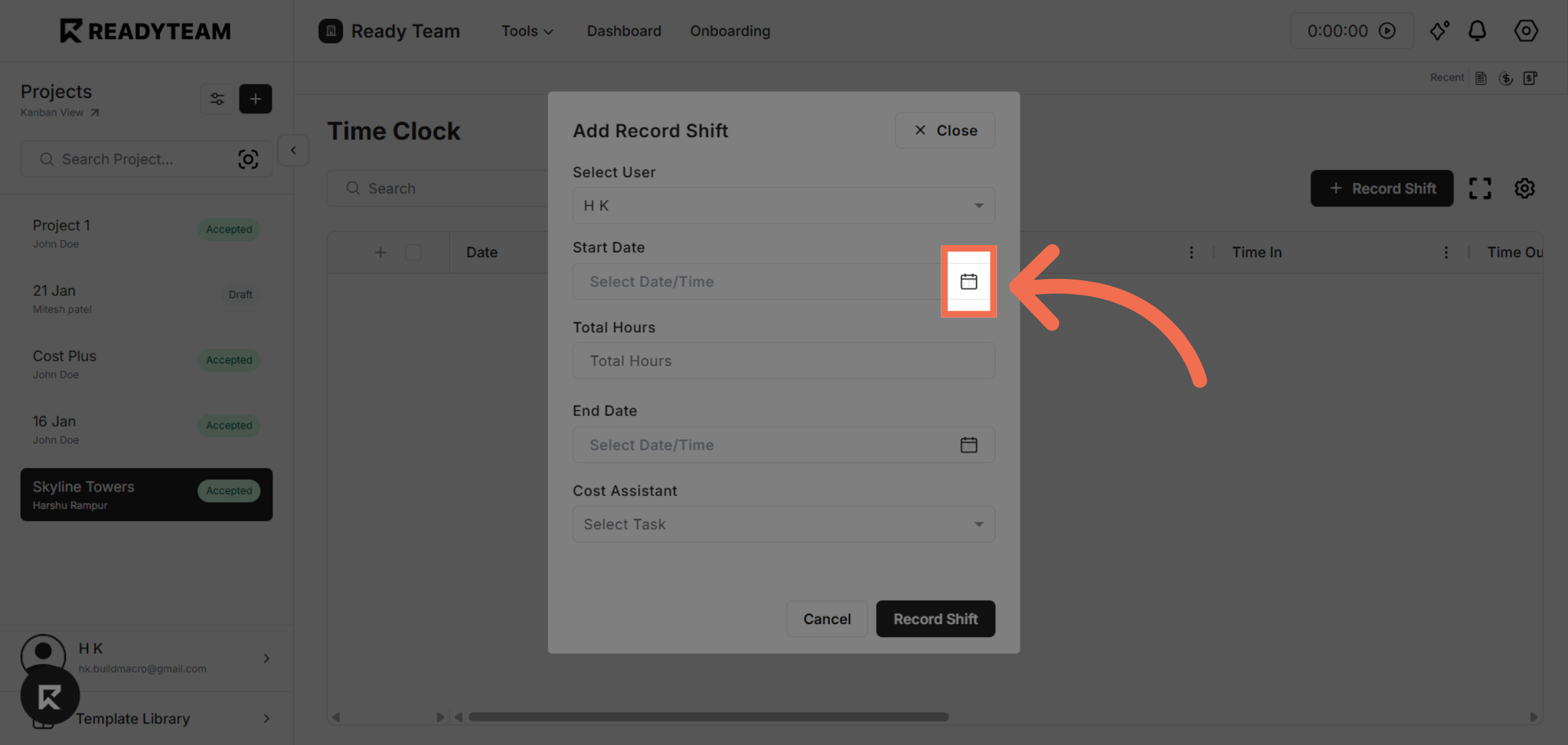
7. Open Time Selection
Click the area to open the time selection interface for the shift.
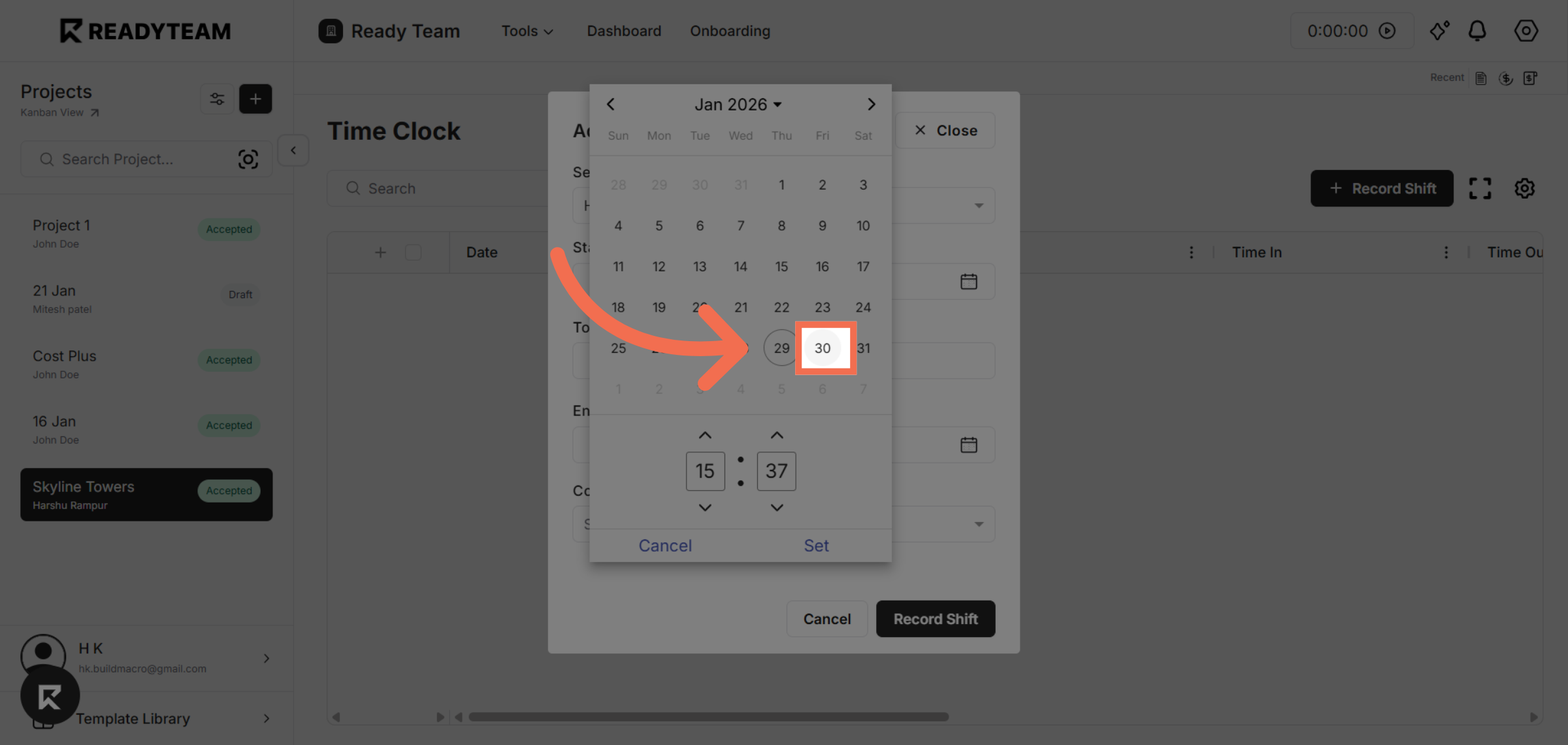
8. Choose Shift Start Date
Select the start time labeled 30 to set when the shift begins.
9. Adjust Time Settings
Click the indicated area to access more time-related settings.
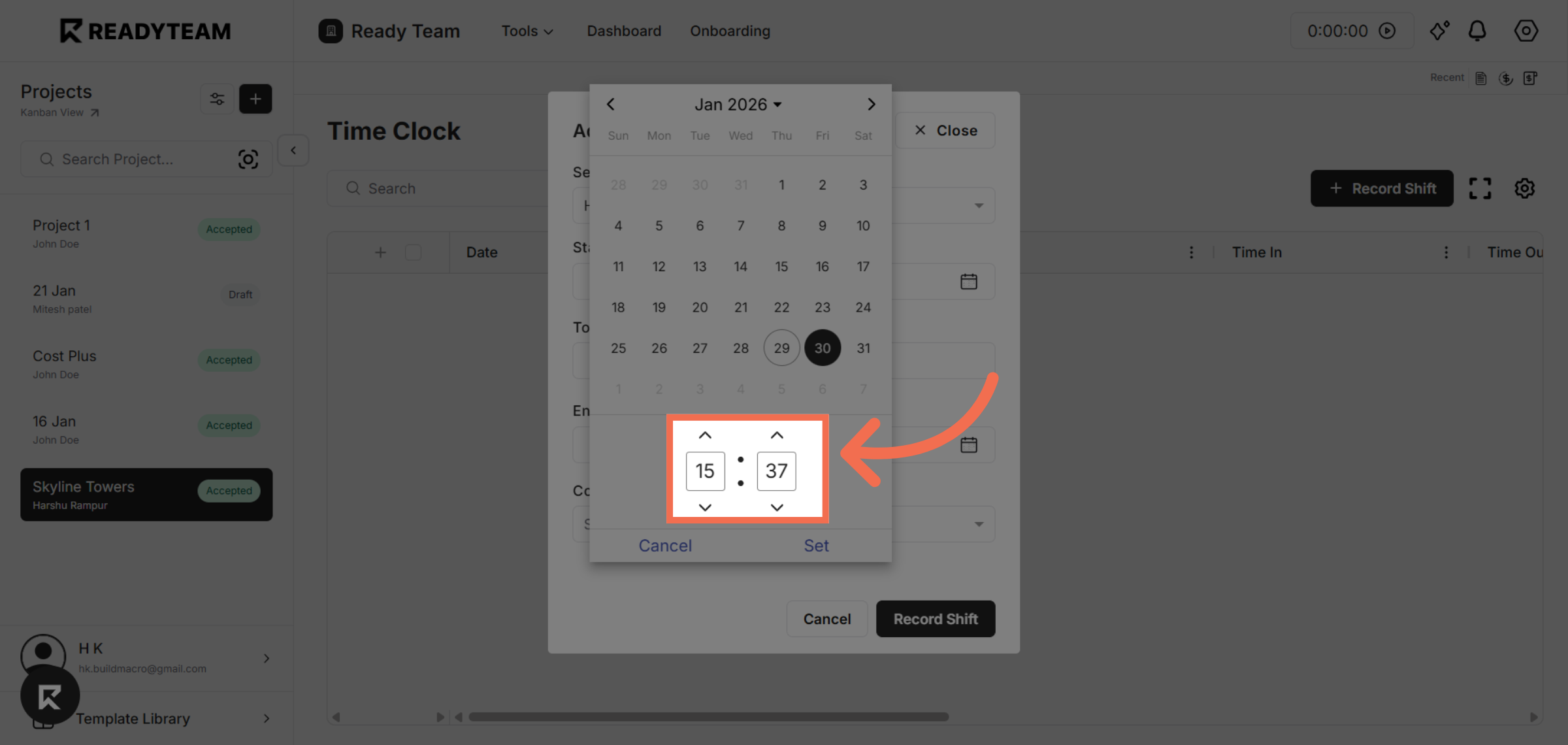
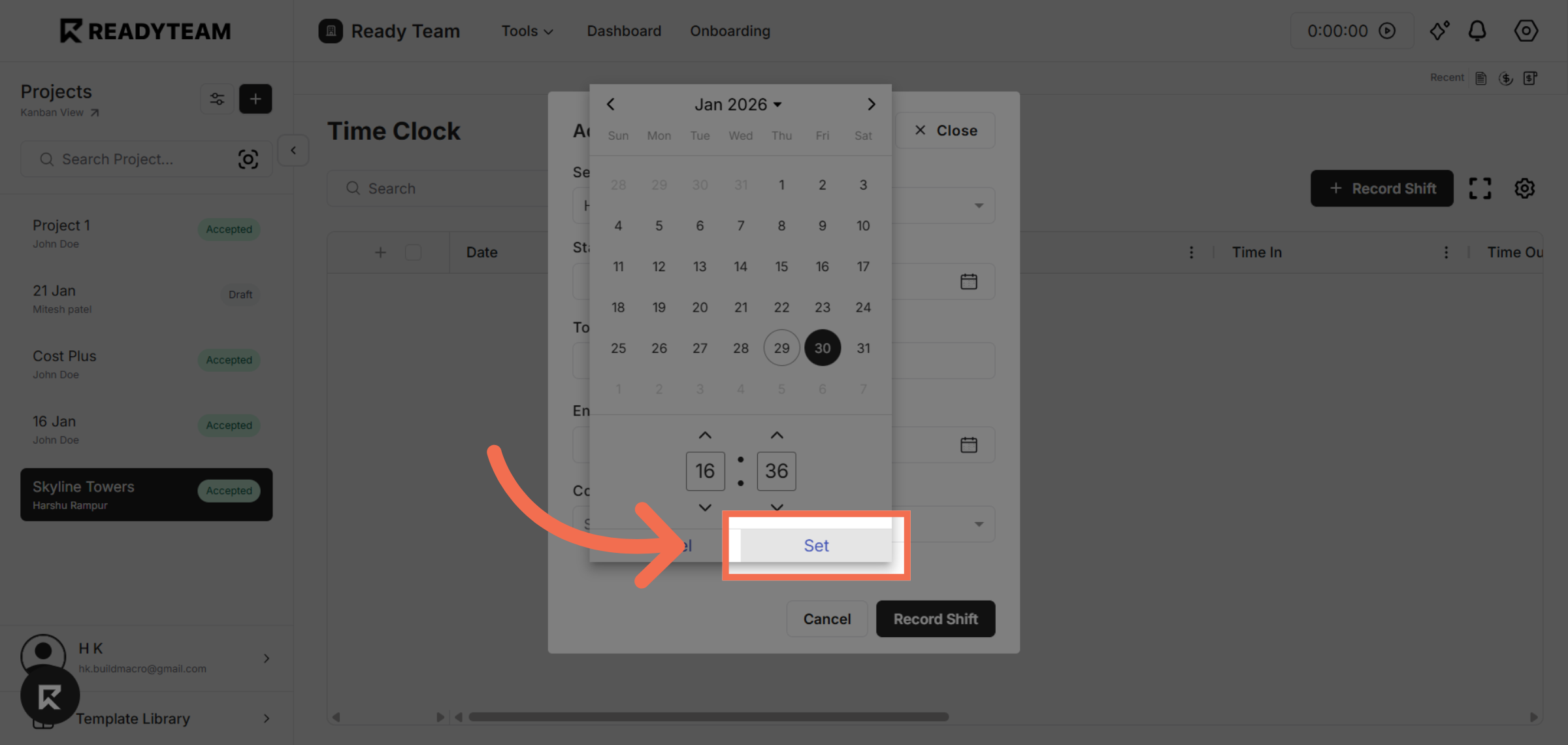
10. Confirm Time Settings
Click the Set button to confirm the selected time settings for the shift.
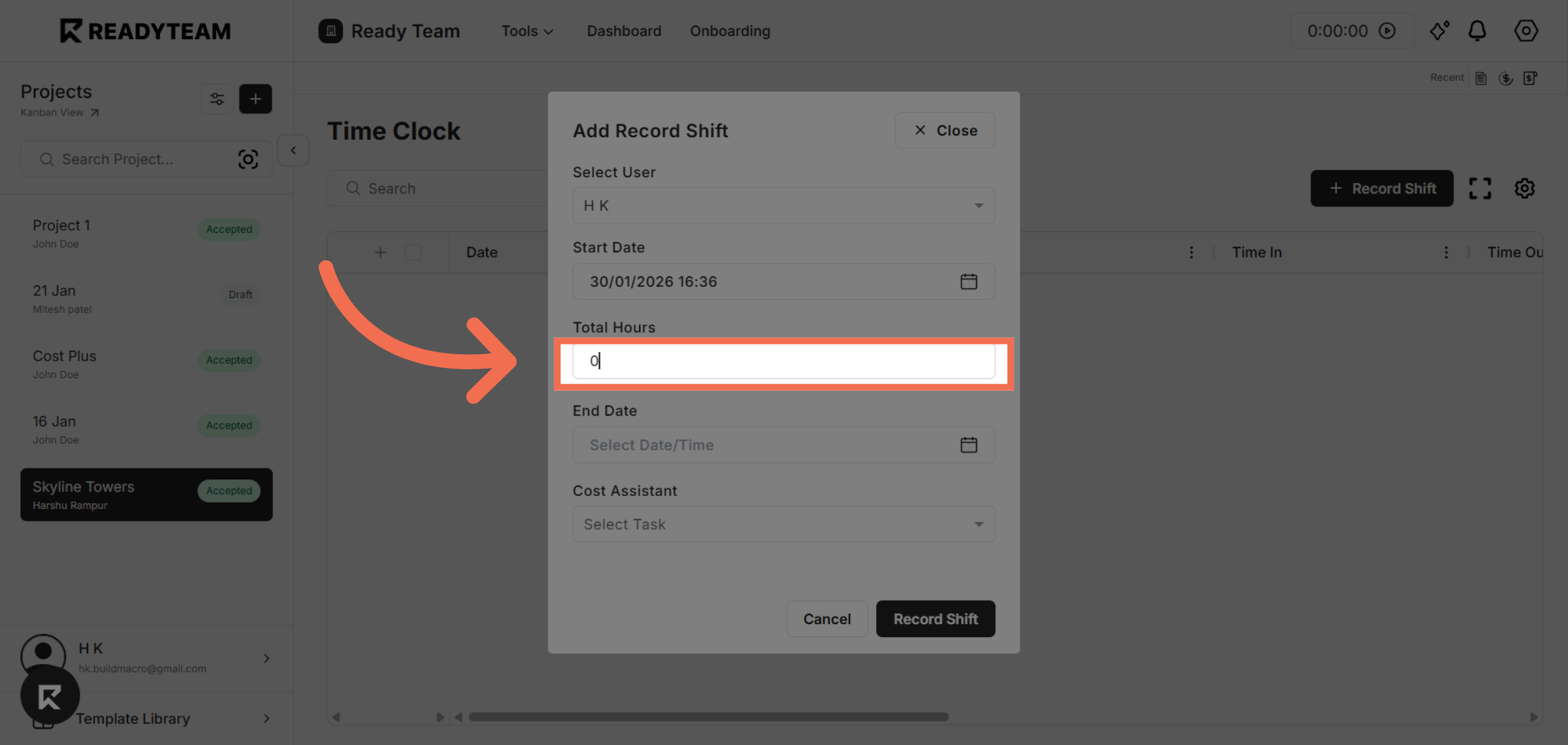
11. Enter Total Hours
Input the total number of hours worked or allocated for the task.
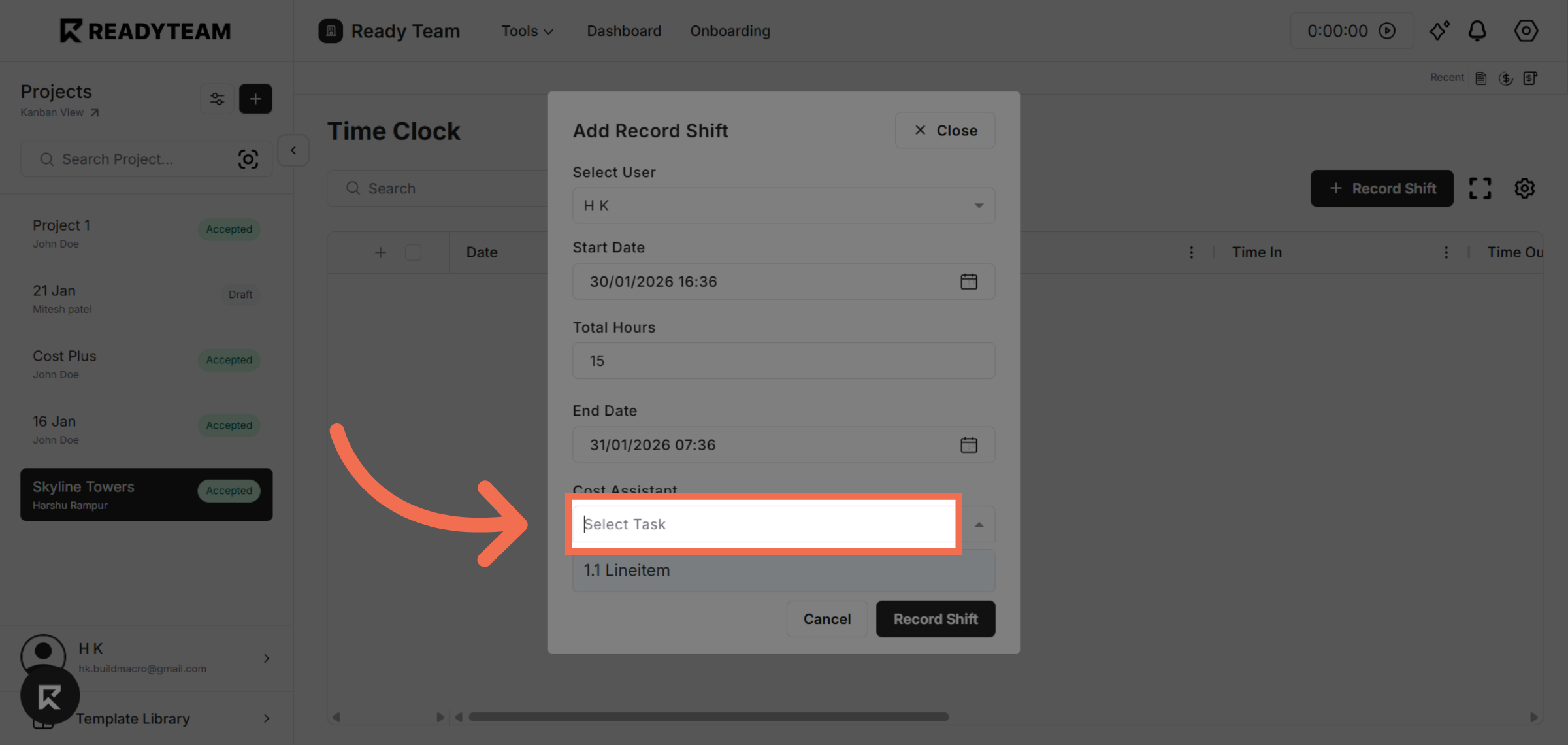
12. Access Cost Assistant Line Item Selection
Open the dropdown to select a specific line item from the Cost Assistant.
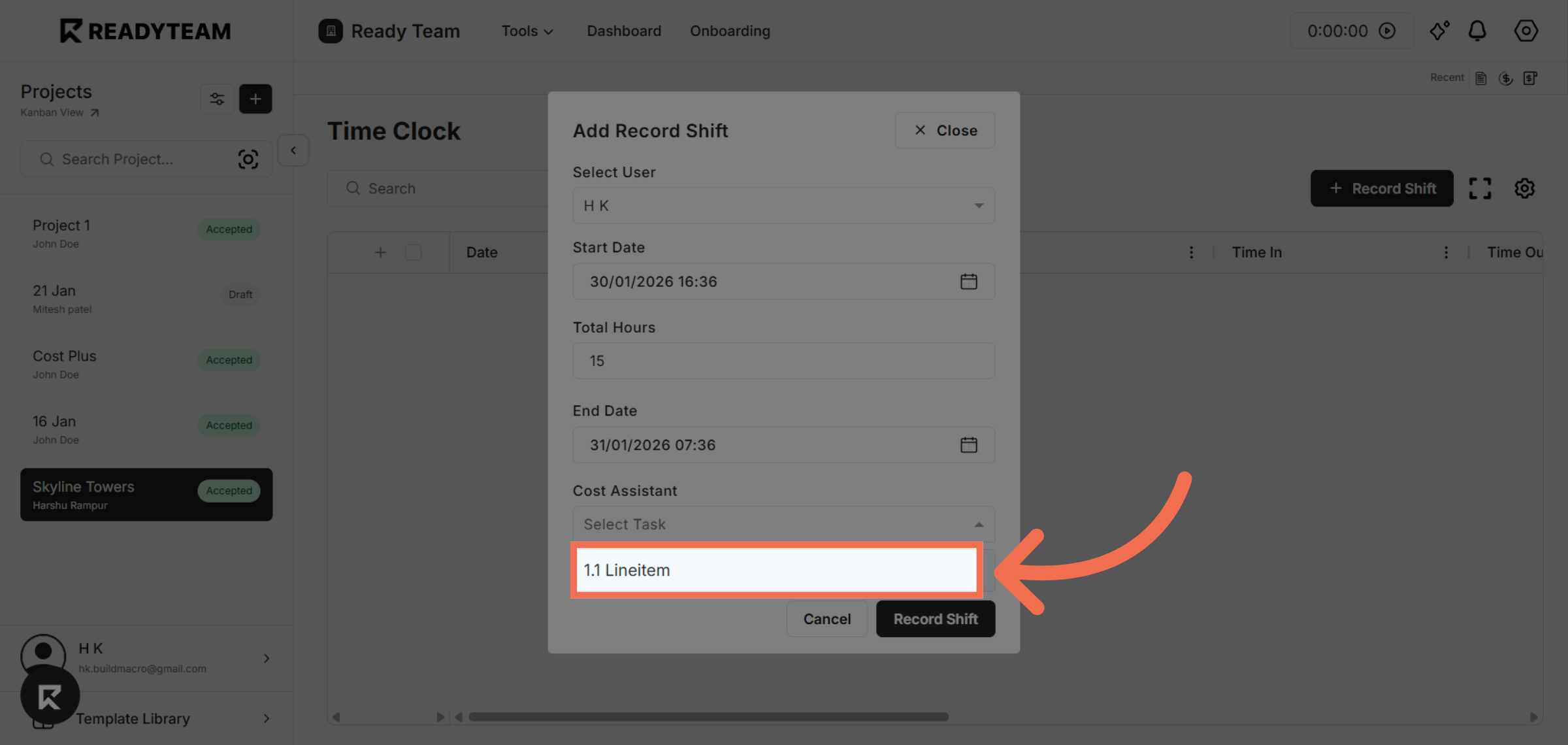
13. Select Line Item
Choose the desired line item from the list.
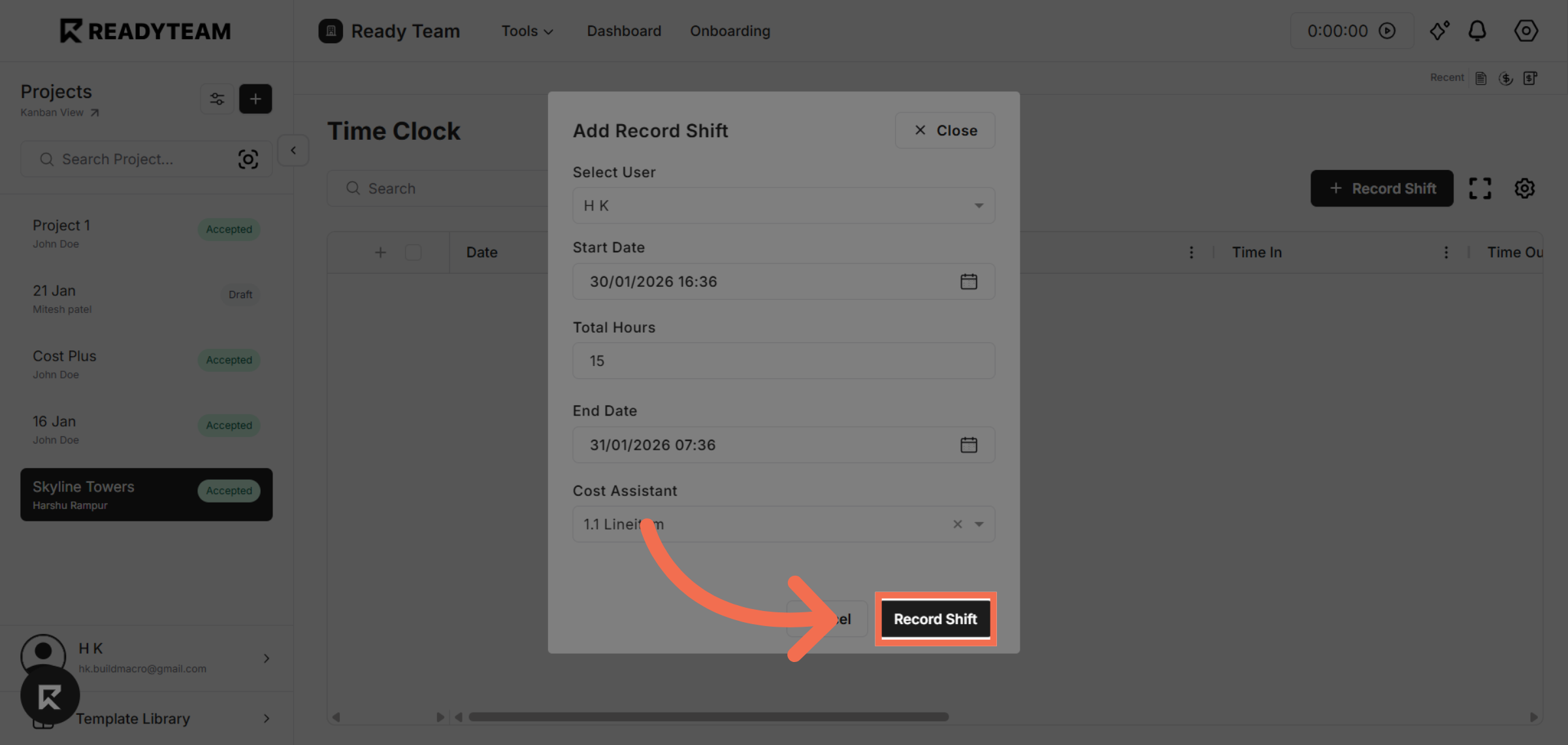
14. Record the Shift
Click the Record Shift button to save the shift entry and complete the process.
This demo demonstrated how to efficiently add a record shift using Readyteam, highlighting key steps to streamline shift management. Start using Readyteam today to simplify your workforce scheduling and time tracking.