Create Recipe Templates Efficiently In ReadyTeam
This demo showcases how Readyteam streamlines the creation of recipe templates for construction projects.
Go to app.readyteam.ai
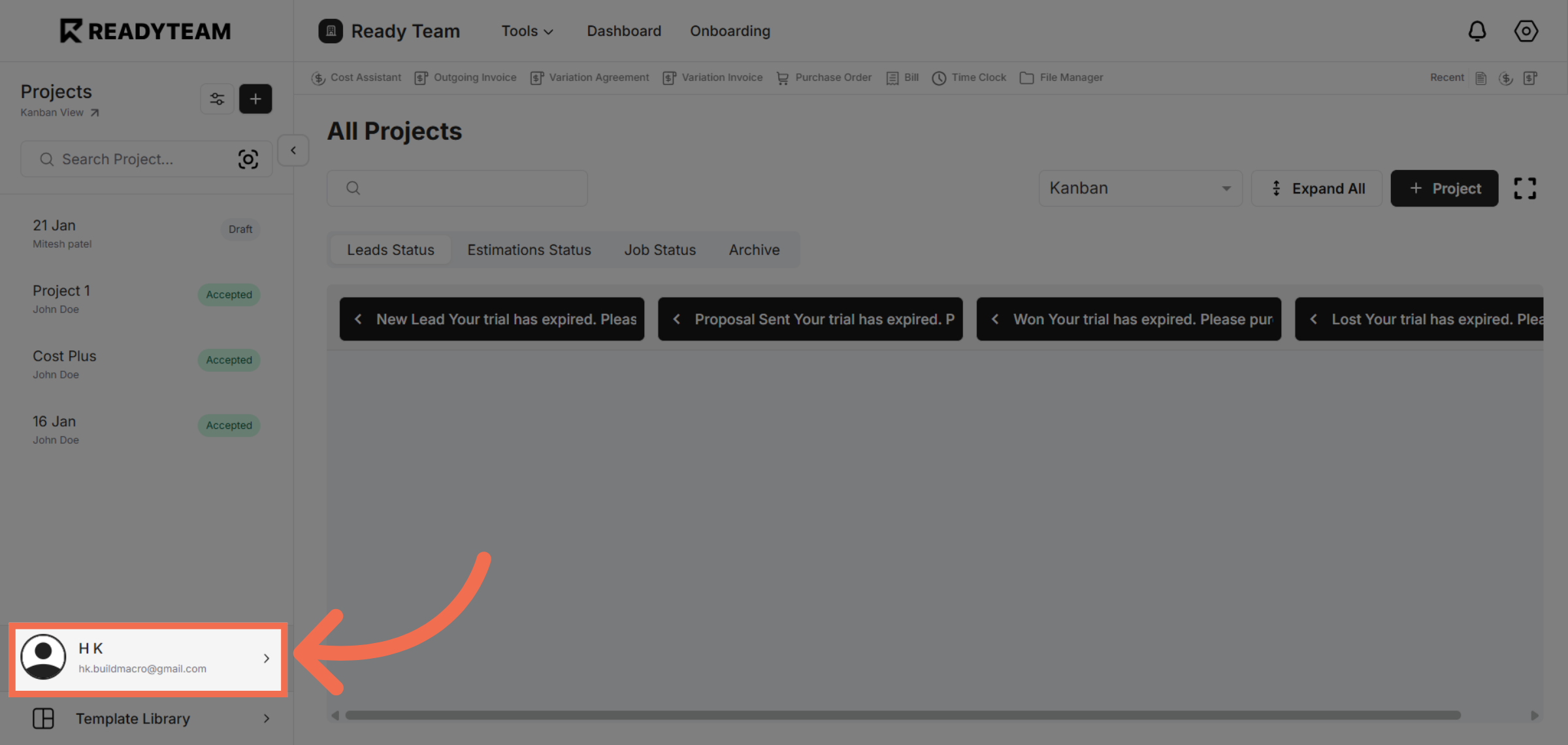
1. Select User Section
Click the user section to begin accessing system settings.
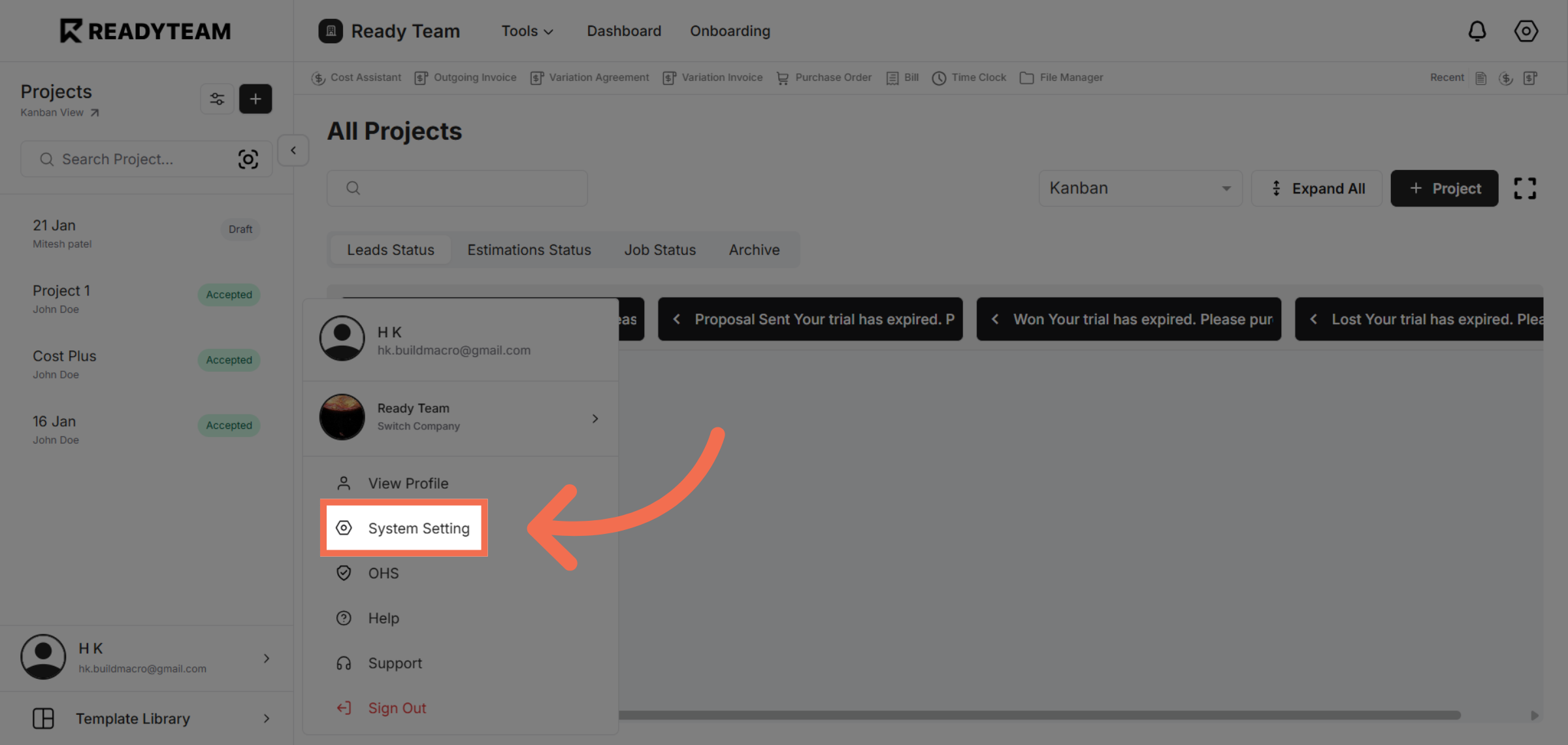
2. Open System Settings
Navigate to the System Setting menu to configure application preferences.
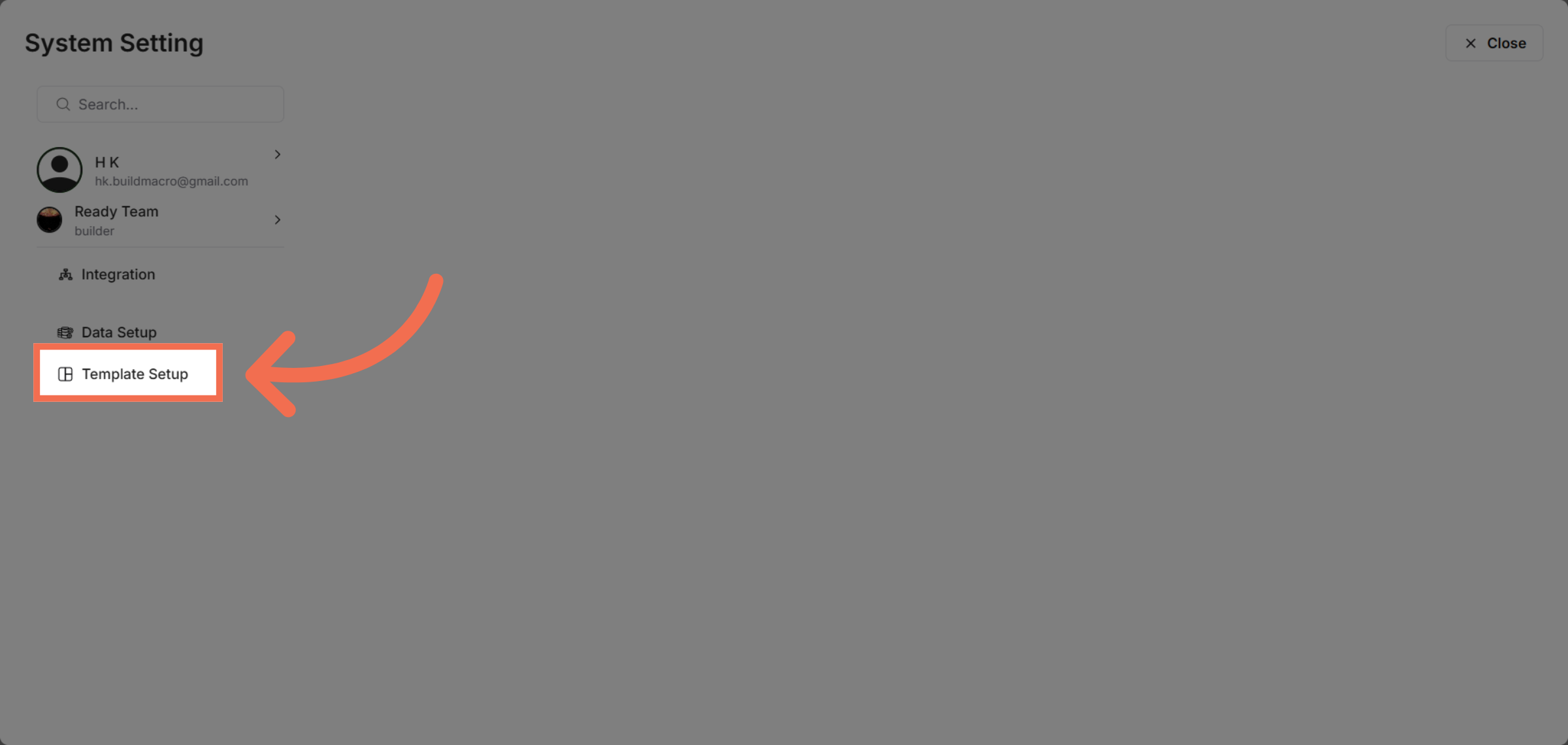
3. Access Template Setup
Click Template Setup to manage and create new templates within Readyteam.
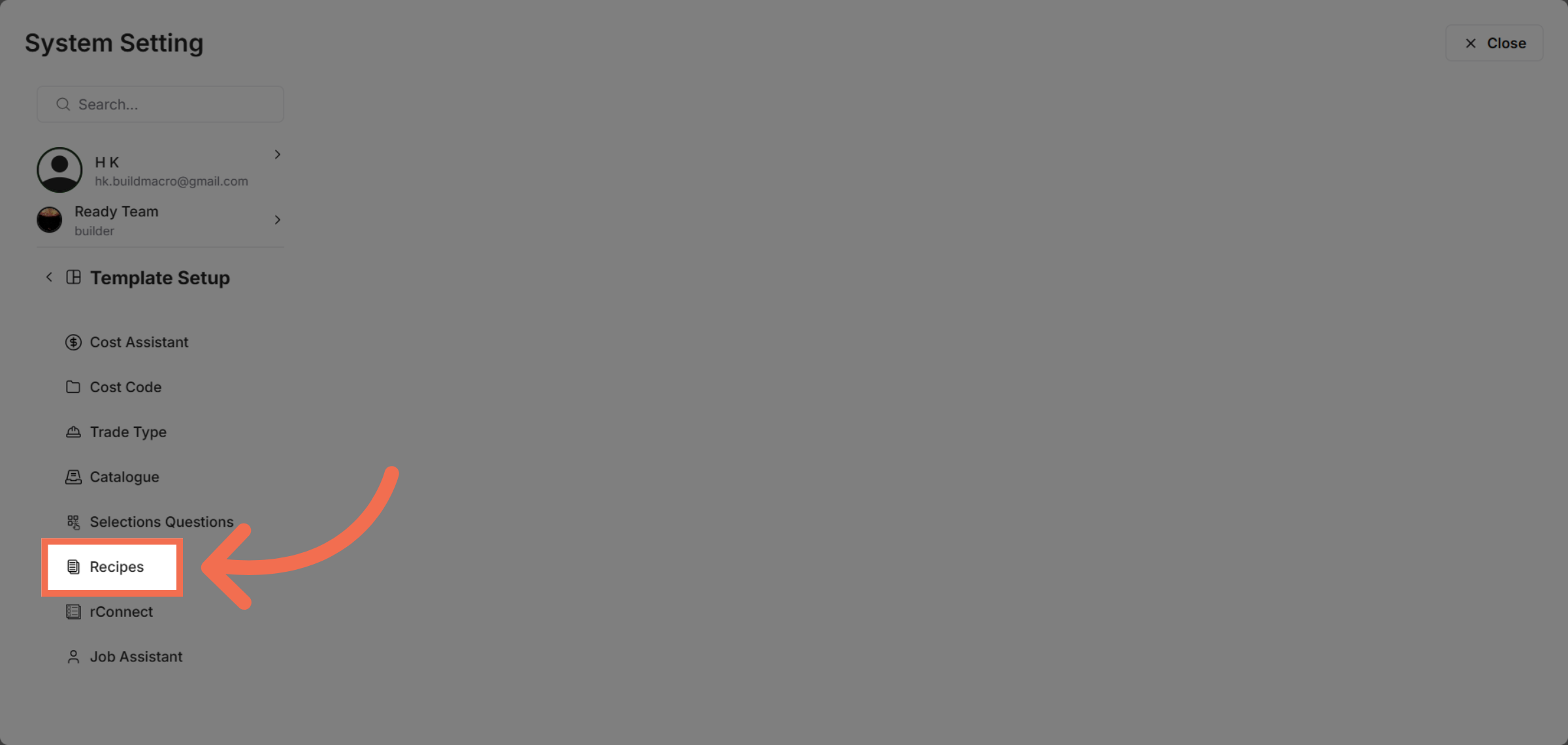
4. Choose Recipes Section
Select the Recipes section to work specifically with recipe templates.
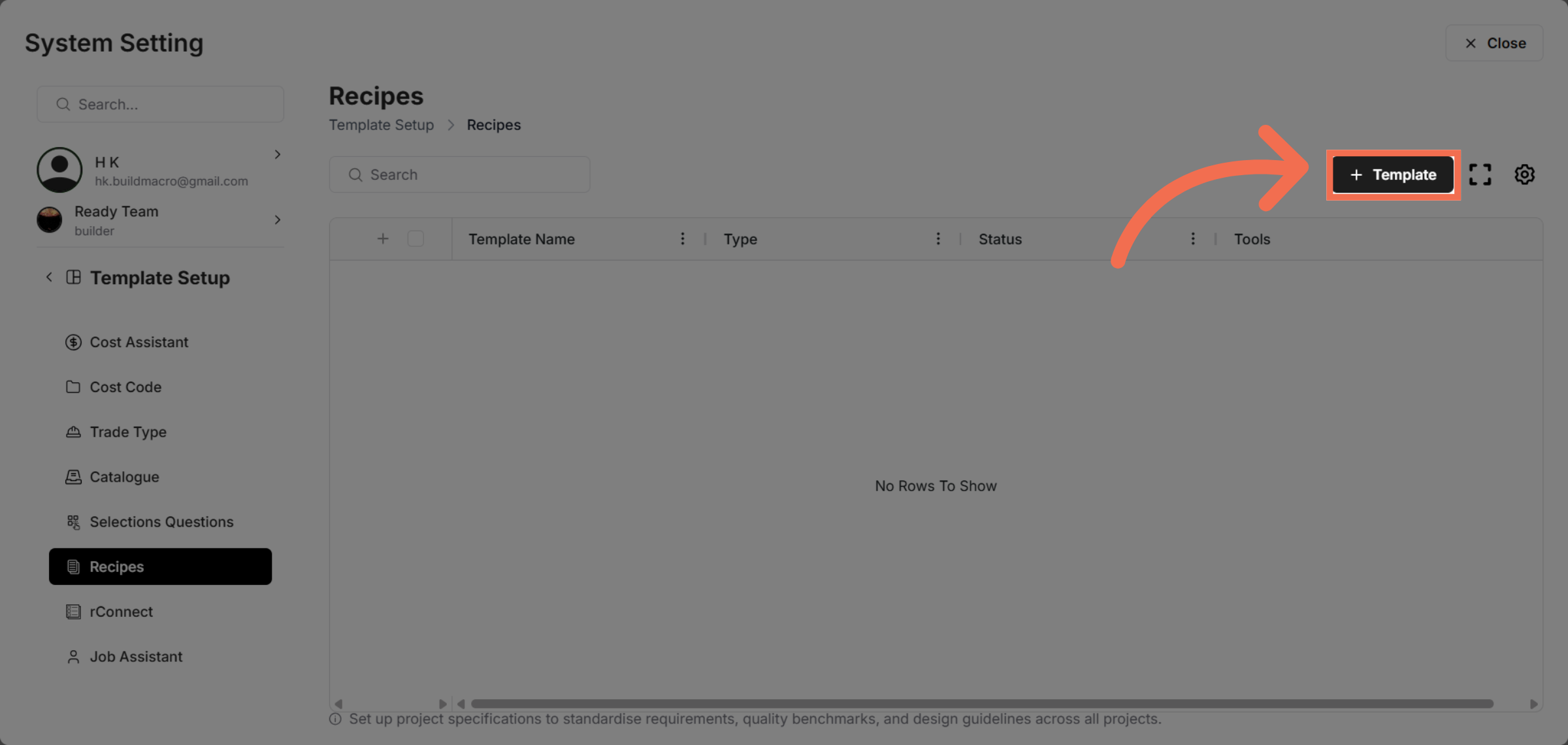
5. Click Add Template Button
Click the Template tab to begin defining the recipe template details.
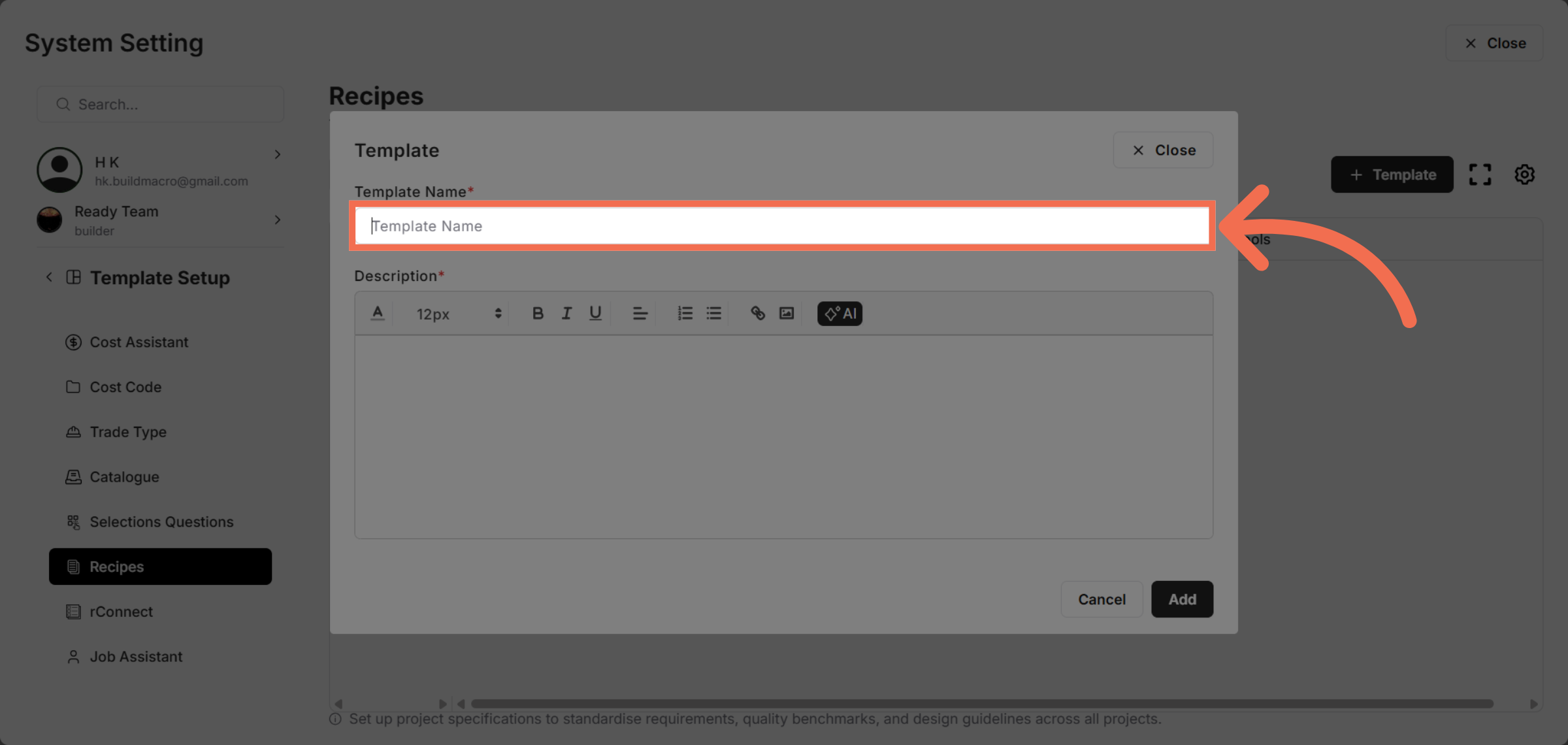
6. Enter Template Name Field
Enter the name of your new recipe template.
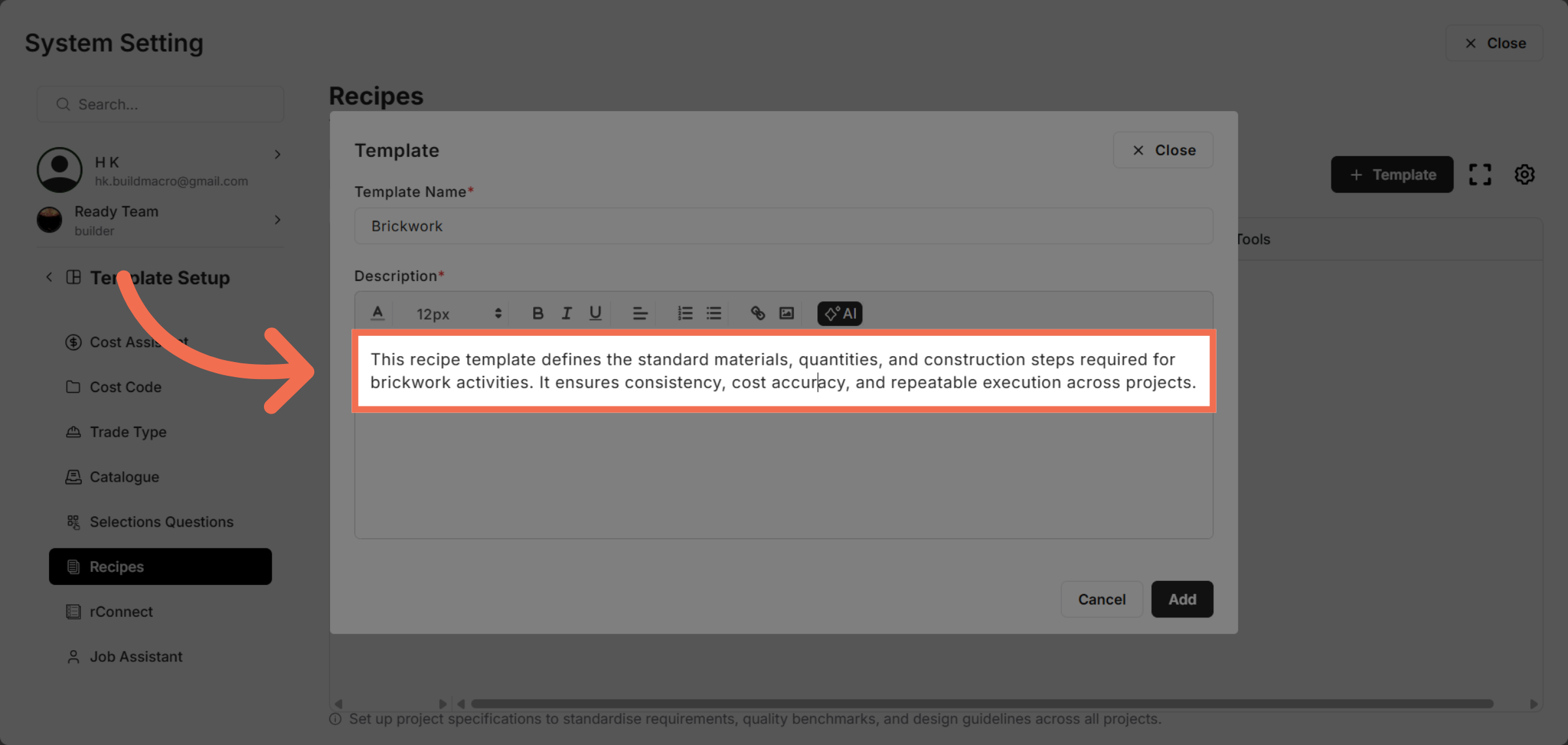
7. Enter Template Description
Enter the description of your new recipe template.
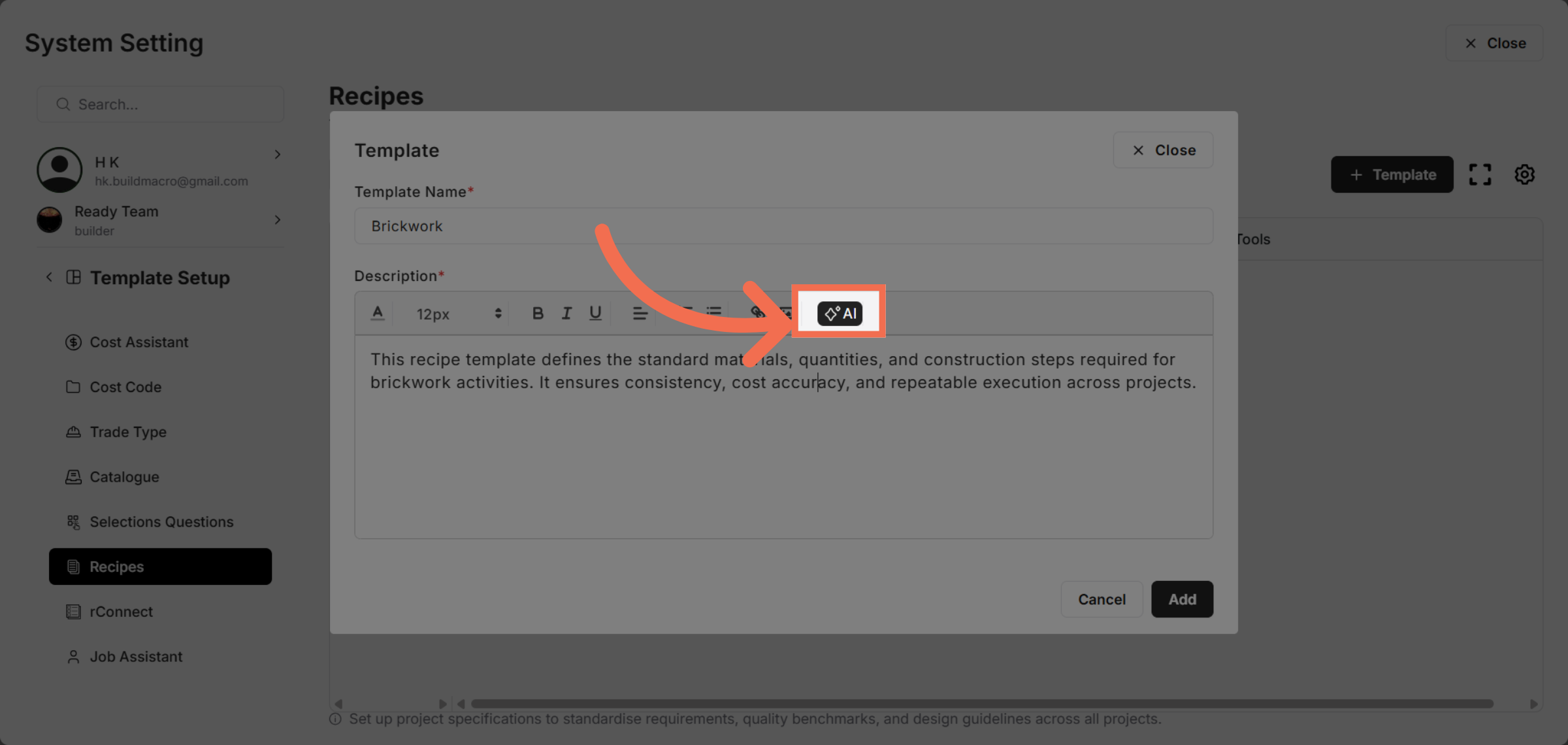
8. You can also use AI to Generate Description
You can take help of ReadyTeam AI feature to generate the template description for you.
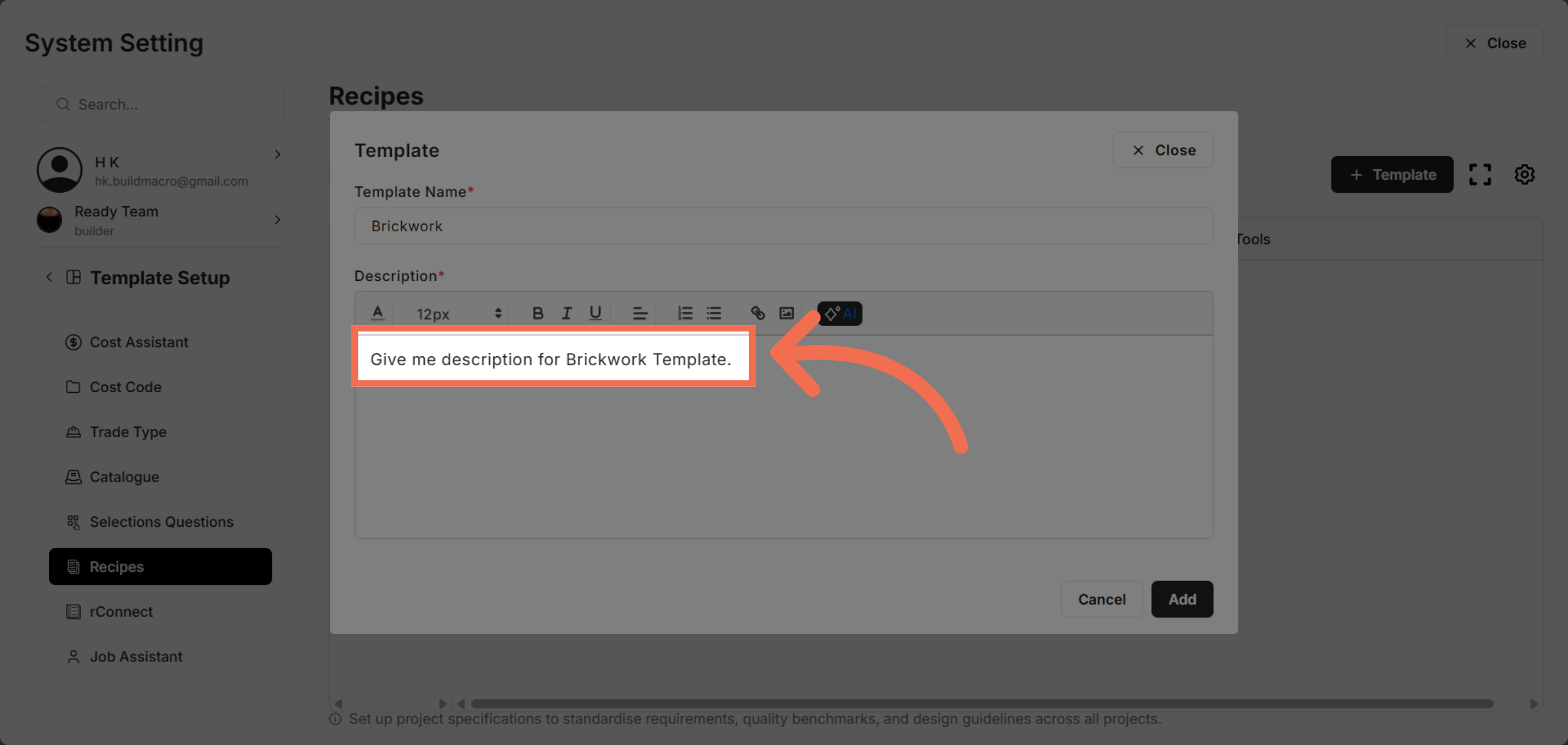
9. Enter the Template Context
Enter the template context for which you want to generate the description.
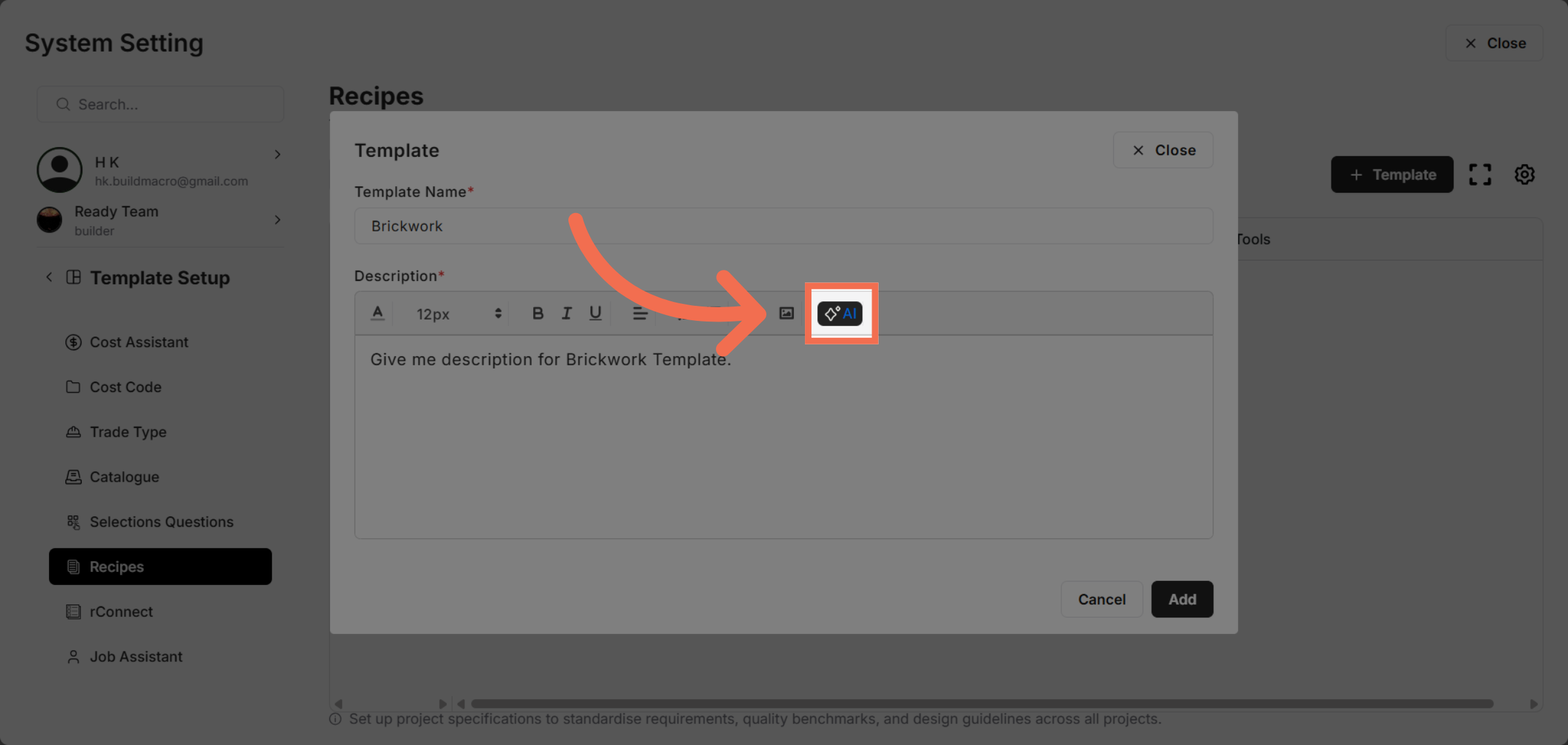
10. Click "AI"
Click AI to utilize artificial intelligence for creating comprehensive trade type descriptions.
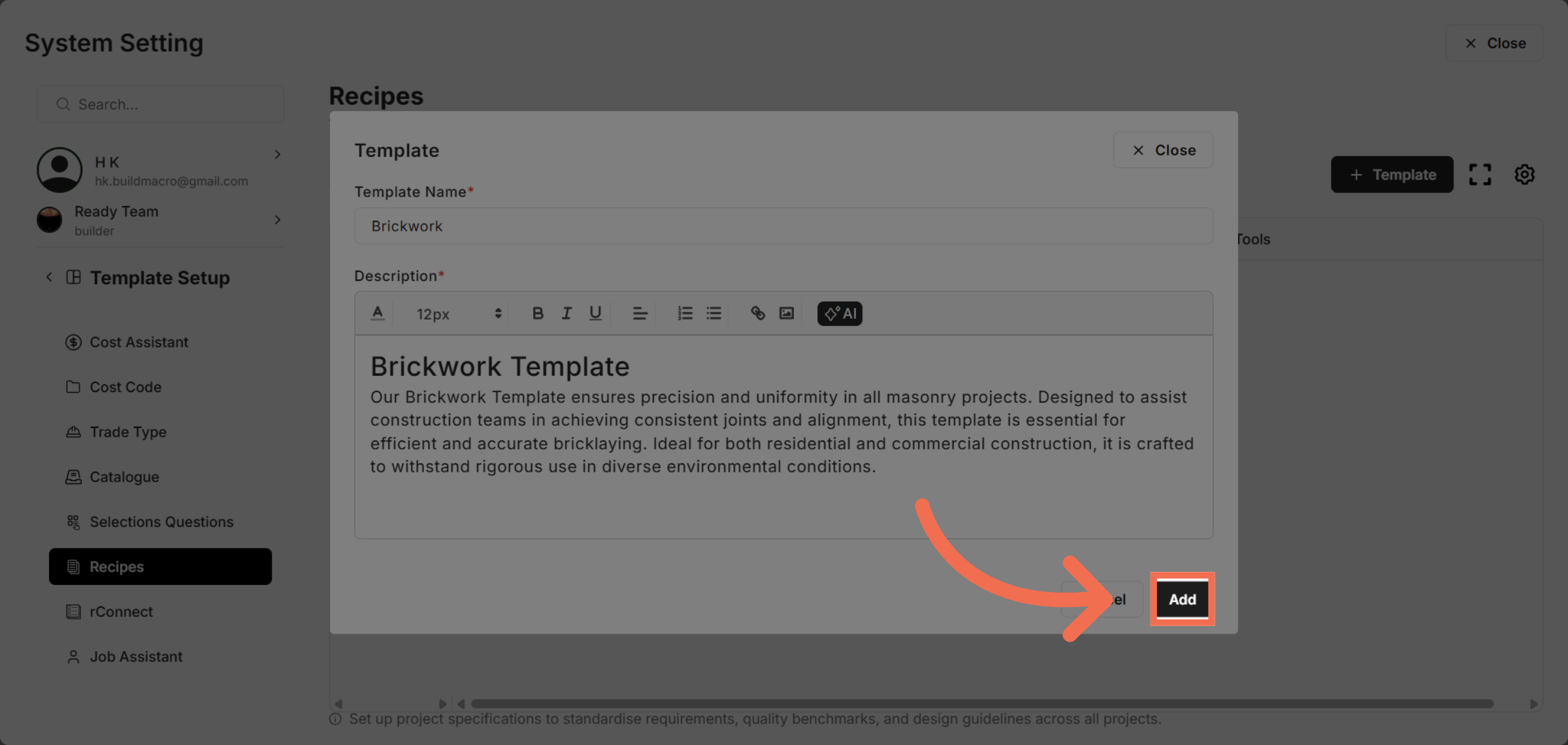
11. Add New Recipe Template
Click Add to save your new recipe template and make it available for use in your projects.
This demo highlights how Readyteam enables you to create standardized recipe templates that improve project consistency and cost control. Start using Readyteam today to streamline your construction workflows and ensure reliable execution.